Unlock your full potential by mastering the most common Basic Computer Literacy and Software Proficiency interview questions. This blog offers a deep dive into the critical topics, ensuring you’re not only prepared to answer but to excel. With these insights, you’ll approach your interview with clarity and confidence.
Questions Asked in Basic Computer Literacy and Software Proficiency Interview
Q 1. What is the difference between hardware and software?
Think of a computer as a car. Hardware is the physical parts – the engine, wheels, chassis – things you can touch. In a computer, this includes the monitor, keyboard, mouse, CPU, RAM, hard drive, etc. Software is the instructions that tell the hardware what to do – the driver’s manual, road maps. It’s the programs and applications that run on the hardware, like your operating system, word processor, and web browser. You can’t touch software; it’s intangible. They work together; the hardware provides the physical platform, and the software dictates its actions.
Q 2. Explain the function of an operating system.
The operating system (OS) is the fundamental software that manages all the hardware and software resources of a computer. Imagine it as the air traffic controller of your computer. It handles everything from starting your computer to running applications, managing memory, controlling peripherals (like your printer or mouse), and ensuring everything runs smoothly. Popular examples include Windows, macOS, Linux, and Android (for mobile devices). Without an OS, your computer wouldn’t be able to function; you wouldn’t be able to load programs or access files.
- Resource Management: The OS allocates memory and processing power efficiently to running applications.
- File Management: It organizes files and folders, allowing you to easily access and manage your data.
- Security: It provides a layer of security, protecting your system from unauthorized access and malware.
- User Interface: It provides a user-friendly interface (like the desktop and icons) for interacting with the computer.
Q 3. What are the common types of computer networks?
Computer networks connect multiple devices to share resources and communicate. The most common types include:
- Local Area Network (LAN): This connects devices within a limited area, such as a home, office, or school. Think of it like a neighborhood network.
- Wide Area Network (WAN): This connects devices over a larger geographic area, often spanning countries or continents. The internet is the largest WAN.
- Metropolitan Area Network (MAN): This is a network that covers a larger geographic area than a LAN but smaller than a WAN, typically a city or region.
- Personal Area Network (PAN): This connects devices within a very close proximity, such as a Bluetooth connection between your phone and headphones.
Each type serves a different purpose and has different characteristics in terms of speed, security, and scalability. The Internet itself is a massive interconnection of WANs.
Q 4. Describe your experience with Microsoft Word. What are some key features you utilize?
I have extensive experience with Microsoft Word, using it daily for various tasks, from creating professional documents and reports to composing emails and letters. My proficiency spans basic formatting to more advanced features. Key features I frequently utilize include:
- Formatting: I regularly use styles, fonts, spacing, and paragraph adjustments to maintain consistent document formatting and enhance readability.
- Tables: I utilize tables extensively to organize and present data effectively. I’m comfortable with cell merging, formatting, and formulas within tables.
- Mail Merge: This feature is invaluable for generating personalized letters or documents for multiple recipients efficiently.
- Templates: Using pre-designed templates saves time and ensures consistency in document design.
- Track Changes and Comments: Collaboration features such as these are essential for reviewing and editing documents with multiple stakeholders.
For instance, I recently used Word to create a detailed report, utilizing styles to ensure consistent headings, tables to showcase data, and track changes to incorporate feedback from my colleagues.
Q 5. How proficient are you with Microsoft Excel? Can you explain your experience with formulas and functions?
I am highly proficient in Microsoft Excel. I regularly use it for data analysis, reporting, and creating financial models. My experience encompasses a wide range of formulas and functions, including:
- Basic Formulas:
SUM,AVERAGE,COUNT,MAX,MINare used for everyday calculations. - Logical Functions:
IFstatements and other logical functions help automate decision-making within spreadsheets. - Lookup Functions:
VLOOKUPandHLOOKUPare essential for retrieving data from different parts of a spreadsheet. - Statistical Functions: I use functions like
STDEVandAVERAGEIFfor statistical analysis of data. - Data Visualization: I create charts and graphs to present data effectively. I’m adept at customizing chart types and appearances.
For example, I recently built a financial forecast model using various formulas and functions to project revenue, expenses, and profits. This involved using SUMIF to calculate totals based on specific criteria, and charts to visualize the projections.
Q 6. What is your experience with Microsoft PowerPoint?
I have solid experience with Microsoft PowerPoint, creating presentations for various purposes, from client meetings to internal training sessions. My skills include creating visually appealing slides, incorporating multimedia elements, and using animations and transitions effectively. I’m comfortable with designing engaging presentations that communicate complex information clearly and concisely. I prioritize using a consistent design theme to maintain a professional and unified look.
For instance, I recently developed a product presentation for a new software application. I used high-quality images, charts, and concise bullet points to convey information effectively, ensuring the presentation was engaging and easy to follow.
Q 7. How familiar are you with email clients such as Outlook or Gmail?
I am very familiar with email clients like Outlook and Gmail. I use email daily for communication, scheduling, and file sharing. I am proficient in managing inbox organization, creating and managing contacts, setting up filters and rules for automated inbox management, and attaching files. I understand email etiquette and best practices for professional communication. I’m also comfortable using features like calendar integration and task management within these clients.
For example, I routinely use Outlook’s calendar to schedule meetings, and its task management features to stay organized with project deadlines.
Q 8. Describe your experience using the internet for research and information gathering.
My experience with internet research is extensive and multifaceted. I regularly utilize search engines like Google and Bing, employing advanced search operators (like quotation marks for exact phrases or the minus sign to exclude terms) to refine my searches and find highly relevant information quickly. I’m adept at navigating various online resources, including academic databases like JSTOR and PubMed, government websites, and reputable news sources. I critically evaluate the credibility of sources, considering factors like authorship, publication date, and potential biases. For example, when researching a complex topic, I might cross-reference information from multiple sources to ensure accuracy and build a comprehensive understanding. I’m comfortable using online tools like Google Scholar to access scholarly articles and utilizing citation management tools to organize my research.
Q 9. Explain your understanding of file management and organization.
Effective file management is crucial for productivity and data integrity. My approach involves a hierarchical system, organizing files into folders based on project, date, or type. I use descriptive and consistent naming conventions (e.g., ‘Project X_2024-03-08_Report.docx’) to easily locate files later. I regularly back up important data to external hard drives and cloud storage services like Google Drive or Dropbox, ensuring data security against loss or corruption. This redundancy provides peace of mind and prevents significant setbacks. For example, when working on multiple projects, I create separate folders for each project, further dividing them into subfolders for documents, images, and other relevant files. This method prevents confusion and allows for easy retrieval of information.
Q 10. How do you troubleshoot basic computer problems such as a frozen screen or slow internet connection?
Troubleshooting basic computer problems is a skill I’ve developed over years of experience. A frozen screen often indicates a software crash; I’d first try to force a restart by holding down the power button. If the problem persists, I’d check for recent software updates or installations that might be causing conflicts. For a slow internet connection, I’d begin by checking the physical connection, ensuring the cable is properly seated. Then, I’d check my router for any issues and possibly restart it. If the problem is widespread (affecting all devices on the network), it could be an ISP issue requiring contacting their support. I also regularly monitor my computer’s resource usage (CPU, memory) using the Task Manager (Windows) or Activity Monitor (Mac) to identify resource-intensive applications that might be slowing things down. I’m also familiar with basic network troubleshooting commands such as ping and ipconfig/ifconfig which can help pinpoint network connectivity issues.
Q 11. What is your experience with different types of software applications (e.g., CRM, ERP)?
My experience with software applications is broad. I have worked extensively with Microsoft Office Suite (Word, Excel, PowerPoint, Outlook), which are essential tools for everyday productivity. I’m familiar with collaborative tools like Google Workspace (Docs, Sheets, Slides) and have experience using project management software such as Asana or Trello. While I don’t have direct experience with full-scale CRM (Customer Relationship Management) or ERP (Enterprise Resource Planning) systems, I understand their core functions. I’ve used smaller-scale CRM tools for contact management and basic data tracking. My understanding of databases gives me a solid foundation for understanding the data structure and management aspects crucial to the functionality of these large-scale systems.
Q 12. What file formats are you familiar with (e.g., .doc, .pdf, .xls, .jpg)?
I’m proficient with a wide array of file formats commonly used in office settings and digital environments. These include:
.docand.docx(Microsoft Word documents).pdf(Portable Document Format).xlsand.xlsx(Microsoft Excel spreadsheets).jpgand.png(image formats).pptand.pptx(Microsoft PowerPoint presentations).txt(plain text files).csv(comma-separated values)
Q 13. Describe your experience with data entry.
I have significant experience in data entry, ensuring accuracy and efficiency. My approach involves carefully reviewing data sources, verifying information against multiple sources where possible, and maintaining a consistent attention to detail. I am adept at using various data entry methods, from manual typing to importing data from spreadsheets. I prioritize accuracy to prevent errors, and I’m comfortable working with large datasets. For example, when entering data for a customer database, I would ensure that all fields are completed correctly and consistently, and I would regularly check for duplicates or inconsistencies in the data.
Q 14. How comfortable are you working with databases?
I’m comfortable working with databases at an intermediate level. I understand fundamental database concepts such as tables, fields, records, and relationships. I have experience using spreadsheet software like Excel to manage smaller databases, and I’m familiar with the basic principles of relational database management systems (RDBMS). While I haven’t used advanced database software like SQL Server or Oracle extensively, I am quick to learn and confident in my ability to adapt to new database technologies given the proper training and documentation. My experience with data entry and organization has provided me with a strong foundation for understanding database principles and their practical applications.
Q 15. What is your experience with cloud storage services (e.g., Google Drive, Dropbox)?
I have extensive experience using various cloud storage services, including Google Drive, Dropbox, and OneDrive. I understand their core functionalities, such as file storage, synchronization, and collaboration features. Think of them as digital filing cabinets accessible from anywhere with an internet connection.
For example, in a previous role, I utilized Google Drive to collaborate on projects with team members across different geographical locations. We could simultaneously edit documents, share spreadsheets, and leave comments, boosting our team’s efficiency significantly. My experience also encompasses managing storage space, setting sharing permissions (public, private, or with specific individuals), and utilizing version history to recover previous file versions. Dropbox has been particularly useful for its easy file syncing across multiple devices; I use it to keep my personal and work files up-to-date on my laptop, desktop, and phone. OneDrive, integrated with Microsoft Office 365, is an excellent tool for efficient workflow management within a Microsoft-centric environment. I’m comfortable with the nuances of each service and confident in selecting the optimal platform based on project needs.
Career Expert Tips:
- Ace those interviews! Prepare effectively by reviewing the Top 50 Most Common Interview Questions on ResumeGemini.
- Navigate your job search with confidence! Explore a wide range of Career Tips on ResumeGemini. Learn about common challenges and recommendations to overcome them.
- Craft the perfect resume! Master the Art of Resume Writing with ResumeGemini’s guide. Showcase your unique qualifications and achievements effectively.
- Don’t miss out on holiday savings! Build your dream resume with ResumeGemini’s ATS optimized templates.
Q 16. How would you handle a situation where a software program is malfunctioning?
When a software program malfunctions, my approach is systematic and troubleshooting-oriented. First, I’d identify the nature of the malfunction – is it freezing, crashing, displaying error messages, or producing unexpected results? Then, I’d try basic troubleshooting steps. This might include:
- Restarting the program.
- Restarting the computer.
- Checking for updates.
- Looking for error messages and searching for solutions online.
If the problem persists, I would explore more advanced solutions. This could involve checking system resources (memory, disk space), running system file checkers (like SFC on Windows), examining the program’s logs for clues, or seeking support from the software vendor’s help desk or online community forums. For instance, if a particular application is constantly crashing, I’d check the event logs in Windows to see if any specific errors are being reported, potentially pointing towards a driver or compatibility issue. Documentation is key; I always take notes on the steps I’ve taken and the results, improving future troubleshooting efficiency. If I’m still unable to resolve the issue, I escalate the problem to a higher-level IT support.
Q 17. Describe your experience using a web browser and navigating the internet.
I’m highly proficient in using web browsers such as Chrome, Firefox, and Safari. I’m comfortable navigating the internet using search engines (Google, Bing, DuckDuckGo), bookmarks, and browser history. I understand how to utilize browser extensions and add-ons to enhance functionality and personalize the browsing experience. Think of a web browser as your gateway to the internet; it’s essential to understand its capabilities and limitations.
For instance, I use browser extensions like Grammarly for writing assistance and Evernote Web Clipper to save and organize web pages. I’m well-versed in using browser tabs efficiently, managing multiple open windows, and understanding URL structures. I am also aware of the importance of secure browsing practices, including identifying and avoiding phishing scams and using secure websites (https).
Q 18. Are you familiar with different operating systems (e.g., Windows, macOS, Linux)?
Yes, I’m familiar with several operating systems, including Windows (various versions), macOS, and Linux (Ubuntu and Debian distributions). I understand their different functionalities, user interfaces, and command-line interfaces. My experience extends to managing files, installing software, configuring settings, and troubleshooting common operating system issues.
For example, I can efficiently manage users and permissions within Windows, utilize the terminal in macOS to run commands, and navigate file systems in Linux. Understanding these different operating systems allows me to adapt quickly to various work environments and assist users effectively regardless of their chosen operating system.
Q 19. What is your experience with keyboard shortcuts?
I regularly use keyboard shortcuts to improve my efficiency. I’m proficient in common shortcuts for Windows (Ctrl+C for copy, Ctrl+V for paste, Ctrl+Z for undo, etc.) and macOS (Cmd+C, Cmd+V, Cmd+Z). My knowledge extends beyond basic shortcuts, incorporating application-specific shortcuts to accelerate tasks in programs such as Microsoft Office suite or Adobe Creative Cloud.
For instance, I frequently use Ctrl+Shift+T in Chrome to quickly reopen closed tabs. Learning keyboard shortcuts significantly reduces the time spent using the mouse, improving both speed and accuracy. I believe the efficient use of keyboard shortcuts is a fundamental skill for anyone working on a computer.
Q 20. How would you ensure data privacy and security in your work?
Data privacy and security are paramount in my work. I follow a multi-layered approach, encompassing both technical and procedural measures. Technically, I always use strong passwords, enable two-factor authentication wherever possible, regularly update software and operating systems to patch security vulnerabilities, and use antivirus and anti-malware software.
Procedurally, I am meticulous about adhering to company data security policies, avoid clicking on suspicious links or opening attachments from unknown sources, and ensure sensitive data is encrypted both in transit and at rest. I also practice secure file-sharing methods, using appropriate permissions and encryption where necessary. Furthermore, I am mindful of physically securing devices and data, ensuring that laptops and other devices are kept in secure locations and that data is backed up regularly to prevent loss in case of theft or damage.
Q 21. Explain your understanding of cybersecurity best practices.
My understanding of cybersecurity best practices involves a holistic approach encompassing several key areas:
- Strong Passwords and Authentication: Employing complex and unique passwords for each account, leveraging multi-factor authentication to add an extra layer of security.
- Software Updates: Regularly updating all software and operating systems to patch vulnerabilities exploited by malicious actors.
- Antivirus and Anti-malware Software: Installing and regularly updating robust security software to detect and remove malware and viruses.
- Firewall Protection: Configuring and maintaining firewalls to protect against unauthorized network access.
- Data Backup and Recovery: Regularly backing up important data to prevent data loss due to hardware failure, malware, or other incidents.
- Phishing and Social Engineering Awareness: Educating myself and others on recognizing and avoiding phishing attempts, social engineering attacks, and other forms of cybercrime.
- Secure Browsing Practices: Being cautious when clicking on links or downloading files from untrusted sources, using secure HTTPS websites, and being aware of URL structures.
- Data Encryption: Utilizing encryption techniques to protect sensitive data both at rest and in transit.
Cybersecurity is an ongoing process. Staying informed about the latest threats and adopting proactive security measures are crucial for mitigating risk.
Q 22. What is your preferred method for learning new software applications?
My preferred method for learning new software applications is a multi-pronged approach combining hands-on practice with structured learning. I begin by exploring the software’s user interface, intuitively navigating the menus and features to get a feel for its basic functionalities. Then, I delve into the software’s official documentation or tutorials, focusing on understanding the core concepts and workflows. I find that actively working through tutorials, following along with examples, and experimenting with different features solidifies my understanding much better than passively reading alone. I also believe in the power of community learning; online forums, user groups, and video tutorials offer valuable insights and solutions to common problems. Finally, I create personal projects to apply what I’ve learned, reinforcing my knowledge and identifying areas where I need further study. This iterative process of exploration, structured learning, practice, and application ensures effective knowledge retention and proficiency.
Q 23. Describe a time you had to learn a new software program quickly. How did you approach it?
Once, I needed to master Adobe Premiere Pro for an urgent video editing project with a tight deadline. My approach was highly structured. First, I identified the core tasks I needed to perform—video importing, basic editing, adding transitions, and exporting the final product. I then focused my learning on mastering these specific functionalities. I utilized Adobe’s official tutorials and found several YouTube channels dedicated to Premiere Pro beginners. I created a small practice project, mirroring the complexity of the actual project, to hone my skills. Crucially, I broke down the large task into smaller, manageable steps, focusing on one skill at a time before moving on. This allowed me to build confidence and momentum. While I didn’t become an expert overnight, I gained sufficient proficiency to complete the project successfully within the deadline. The key was prioritizing the essential features and focusing on practical application.
Q 24. How would you explain a complex technical concept to someone with limited computer knowledge?
Explaining a complex technical concept to someone with limited computer knowledge requires simplifying the language and using relatable analogies. For example, if I need to explain cloud storage, instead of using terms like ‘distributed file system’ I would say something like, “Imagine a digital filing cabinet, but instead of being in your office, it’s stored securely on the internet, accessible from anywhere with an internet connection.” I would then break down the concept into simple steps: 1) You upload your files (like putting documents into the cabinet). 2) The files are stored on secure servers (like a highly secure room). 3) You can access your files from any device (like having a key to open the cabinet from anywhere). Using visual aids, simple diagrams, and avoiding jargon are essential. The goal is to convey the core idea without overwhelming the listener with technical details.
Q 25. What are your strengths and weaknesses regarding computer literacy and software proficiency?
My strengths lie in my adaptability and problem-solving skills. I’m quick to pick up new software and efficiently troubleshoot issues. I’m also comfortable learning from various sources – documentation, online tutorials, and peer interaction. A weakness I acknowledge is occasionally getting bogged down in the details. Sometimes, focusing too intently on mastering every minute feature can slow down the overall learning process. I’m actively working on balancing detailed understanding with practical application, prioritizing the functionalities most relevant to the task at hand.
Q 26. What are some of your favorite software tools?
Some of my favorite software tools include Microsoft Excel for data analysis and organization, Adobe Photoshop for image editing, and Git for version control. Excel’s power lies in its versatility – from basic spreadsheets to complex data manipulation. Photoshop allows for precise and creative image editing. And Git is indispensable for managing code projects, enabling collaboration and efficient version control. These tools are highly effective across diverse professional settings.
Q 27. What are your goals regarding your computer skills development in the future?
My future goals focus on expanding my proficiency in data analysis tools like Python with libraries such as Pandas and NumPy. I also aim to deepen my understanding of cloud computing platforms like AWS or Azure. These skills are crucial in today’s data-driven world and will significantly enhance my ability to contribute to a wide range of projects. Continuous learning is vital in this field, and I intend to keep abreast of emerging technologies.
Q 28. How do you stay up-to-date on new technologies and software applications?
I stay up-to-date on new technologies and software applications through a variety of methods. I regularly read industry blogs and publications, participate in online forums and communities dedicated to specific technologies, attend webinars and online courses, and follow influential figures in the tech world on social media platforms like Twitter and LinkedIn. I also actively seek out opportunities to experiment with new software releases and beta versions, allowing me to firsthand experience emerging technologies and provide feedback.
Key Topics to Learn for Basic Computer Literacy and Software Proficiency Interview
- Operating Systems (OS): Understanding different OS types (Windows, macOS, Linux), basic navigation, file management (creating, deleting, moving files and folders), and troubleshooting common issues. Practical application: Demonstrate your ability to efficiently manage files and folders, navigate different OS interfaces, and describe your experience troubleshooting system errors.
- Software Applications: Proficiency in common productivity software like Microsoft Word, Excel, PowerPoint, and Google Workspace (Docs, Sheets, Slides). Practical application: Be ready to discuss your experience using these tools for tasks such as creating presentations, analyzing data in spreadsheets, and writing professional documents. Highlight specific features you’ve used and projects where you leveraged these skills.
- Internet and Email: Understanding internet basics, safe browsing practices, effective email communication (professional etiquette, composing clear and concise messages), and managing email accounts. Practical application: Demonstrate your understanding of email best practices and safe internet usage. Be prepared to discuss how you’ve used email for professional communication.
- Data Management & Organization: File naming conventions, folder structures, data backup and recovery, and cloud storage solutions. Practical application: Explain your approach to organizing data for easy retrieval and demonstrate your understanding of efficient file management strategies.
- Basic Troubleshooting: Identifying and resolving common computer problems such as printer errors, software glitches, and internet connectivity issues. Practical application: Describe your problem-solving approach when encountering technical difficulties and share examples of how you’ve resolved issues independently.
- Data Security & Privacy: Understanding basic cybersecurity concepts, including password management, recognizing phishing attempts, and protecting sensitive information. Practical application: Demonstrate awareness of online safety and explain how you protect your data.
Next Steps
Mastering Basic Computer Literacy and Software Proficiency is crucial for success in today’s digital workplace. These skills are foundational for almost any role and significantly enhance your productivity and efficiency. To maximize your job prospects, it’s essential to create a strong, ATS-friendly resume that effectively showcases your abilities. ResumeGemini is a trusted resource that can help you build a professional and impactful resume tailored to your specific skills and experience. We provide examples of resumes specifically designed for candidates with expertise in Basic Computer Literacy and Software Proficiency to help you craft a compelling application.

Administrative Assistant Resume Sample
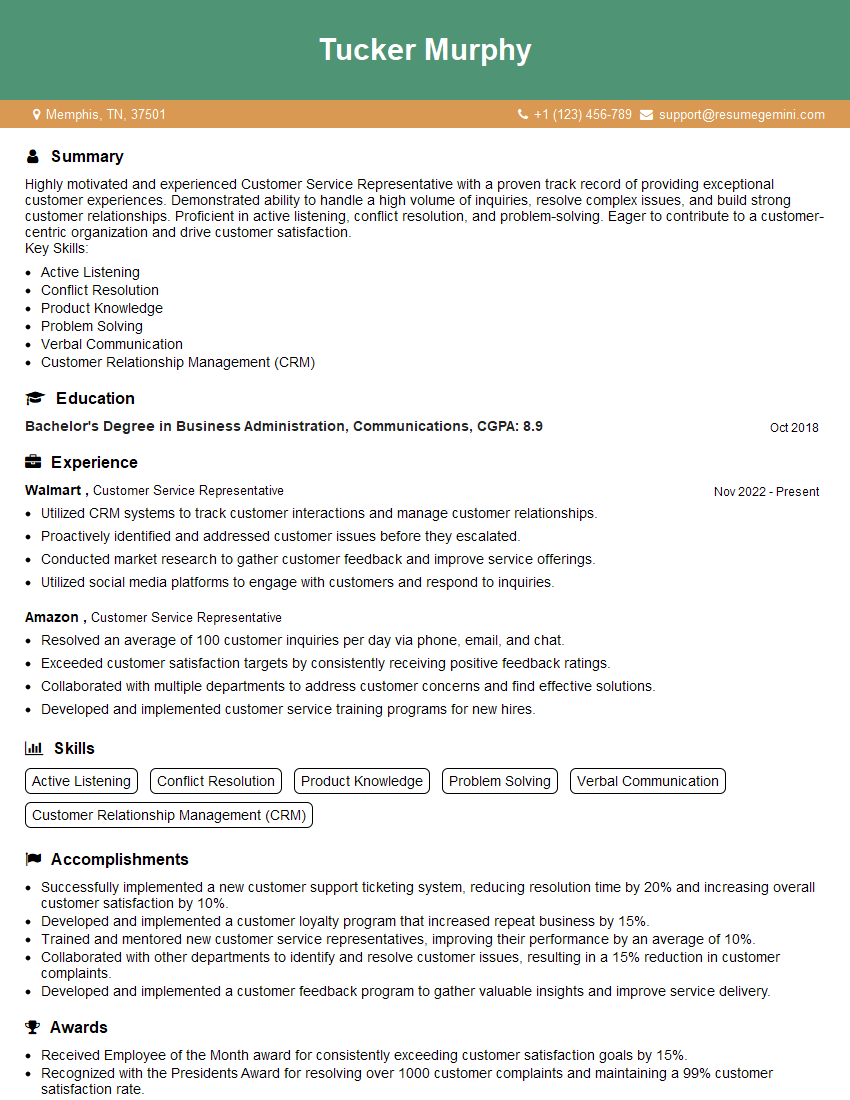
Customer Service Representative Resume Sample
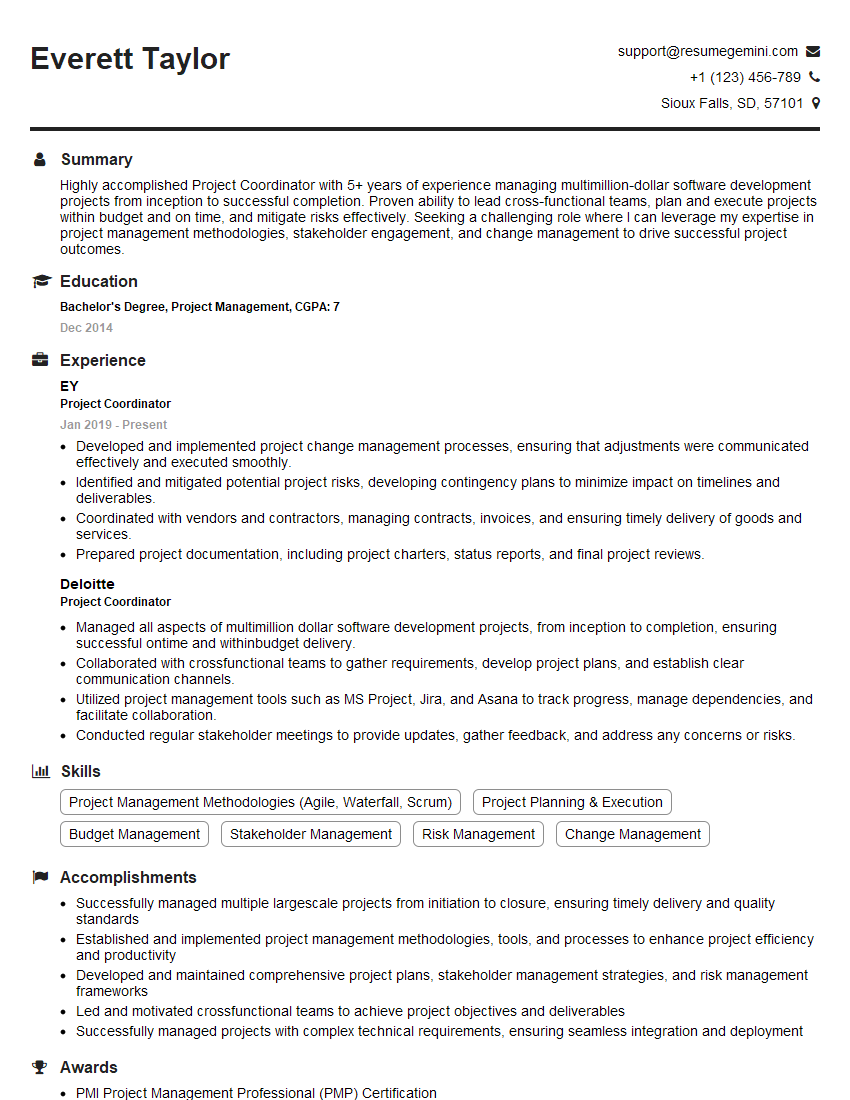
Project Coordinator Resume Sample

Social Media Manager Resume Sample
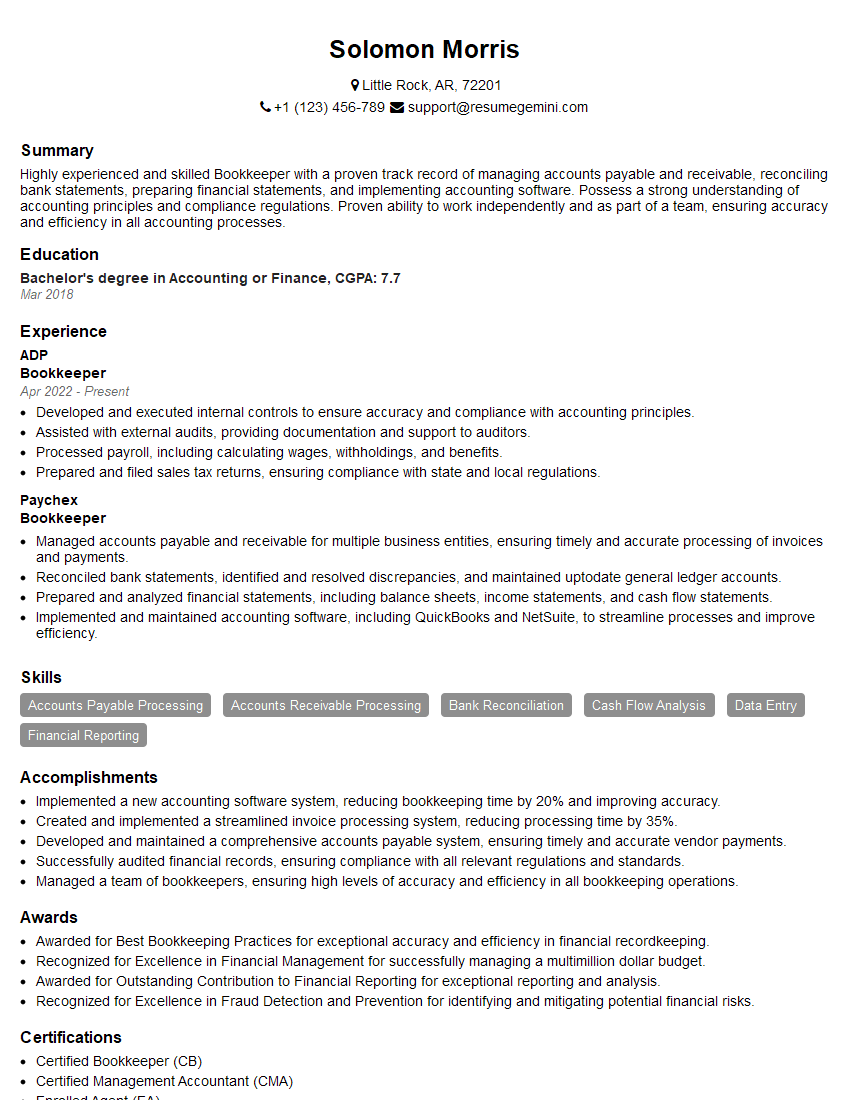
Bookkeeper Resume Sample
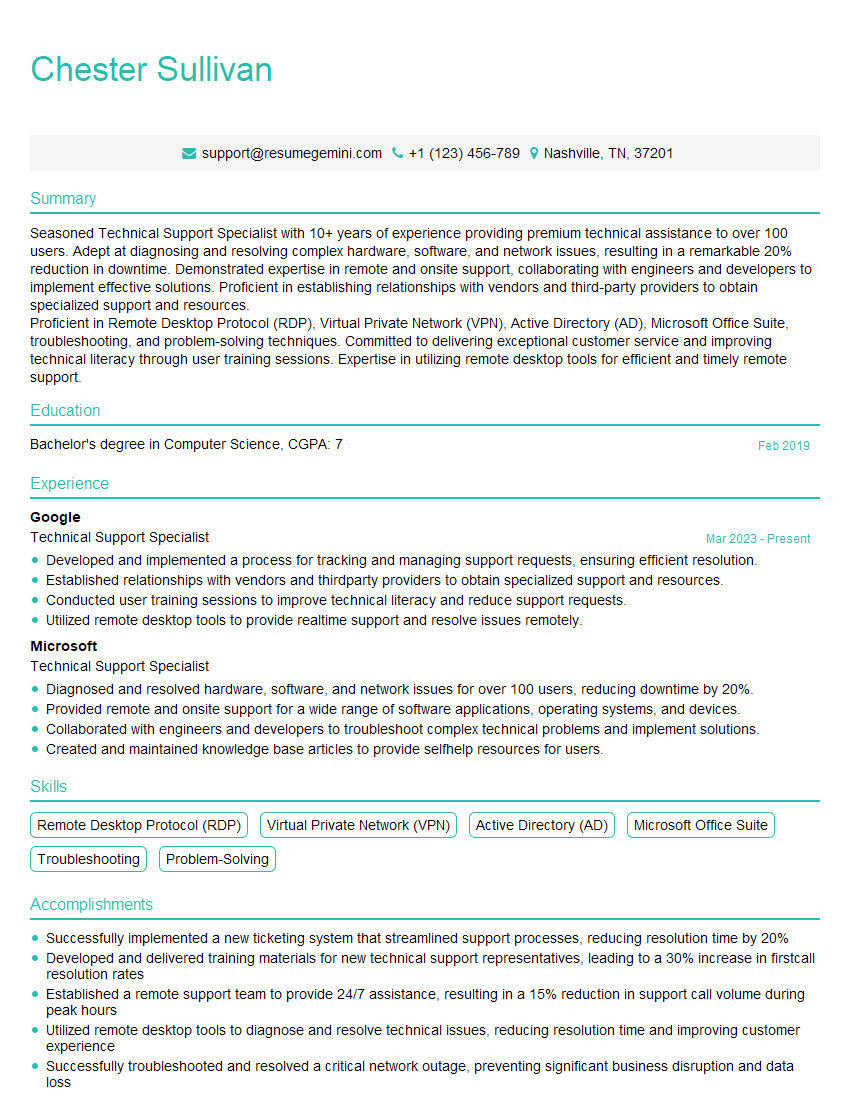
Technical Support Specialist Resume Sample
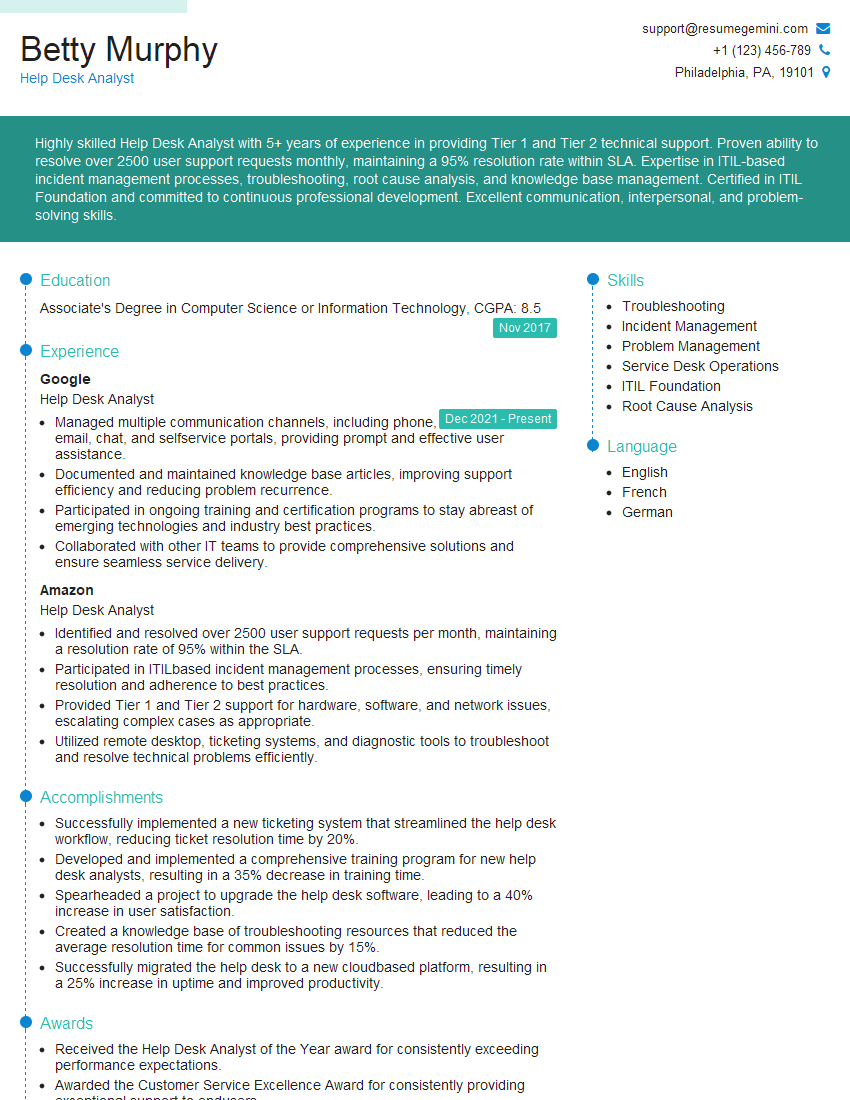
Help Desk Analyst Resume Sample
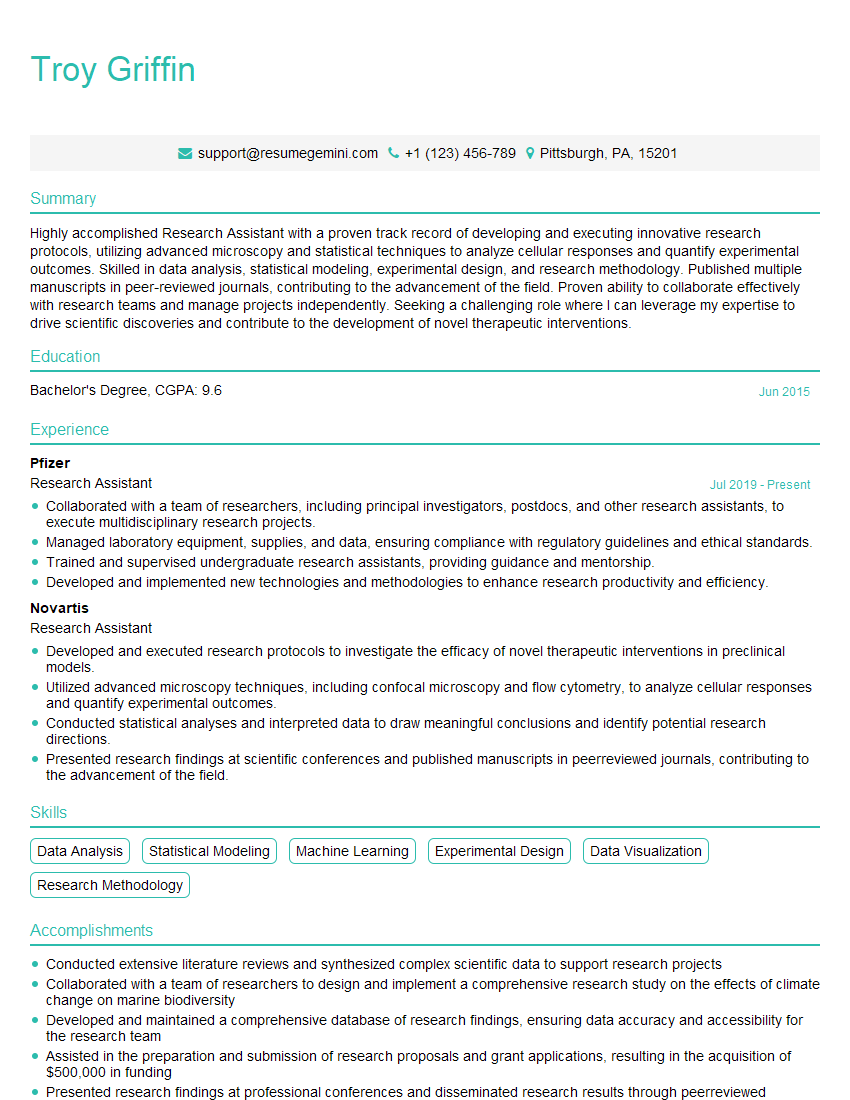
Research Assistant Resume Sample
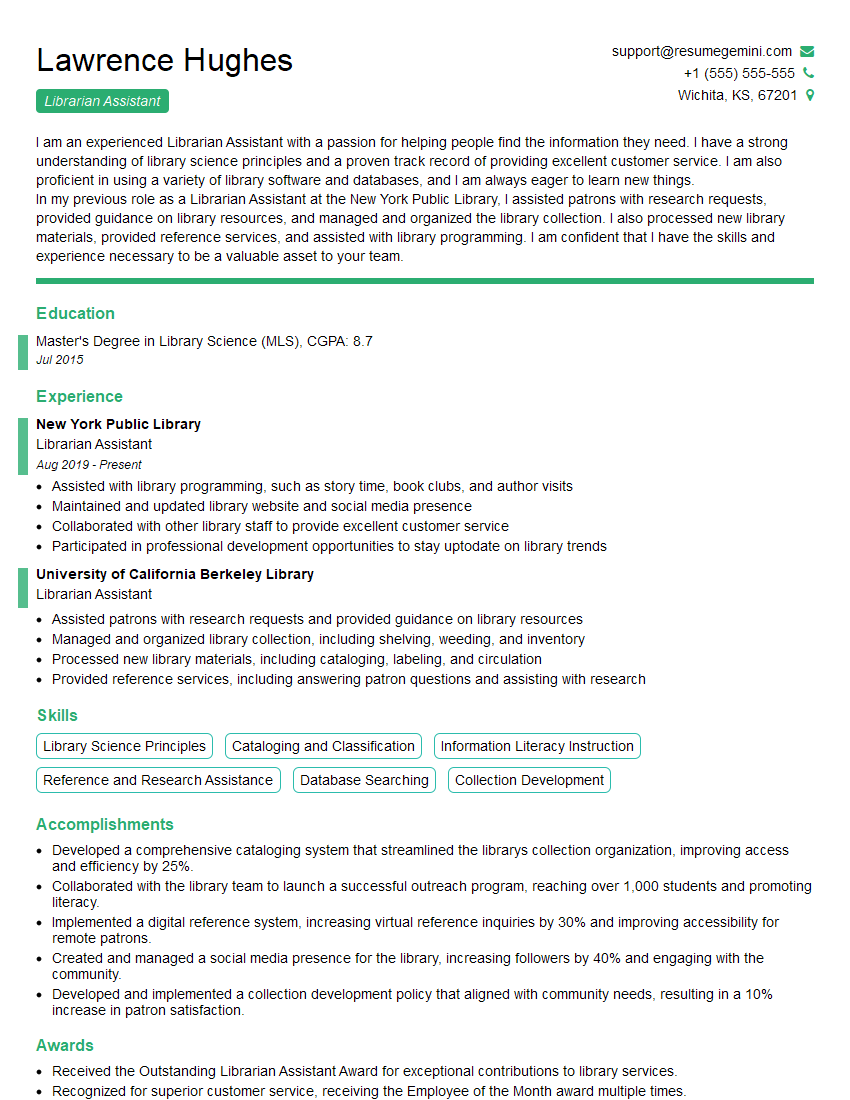
Librarian Assistant Resume Sample
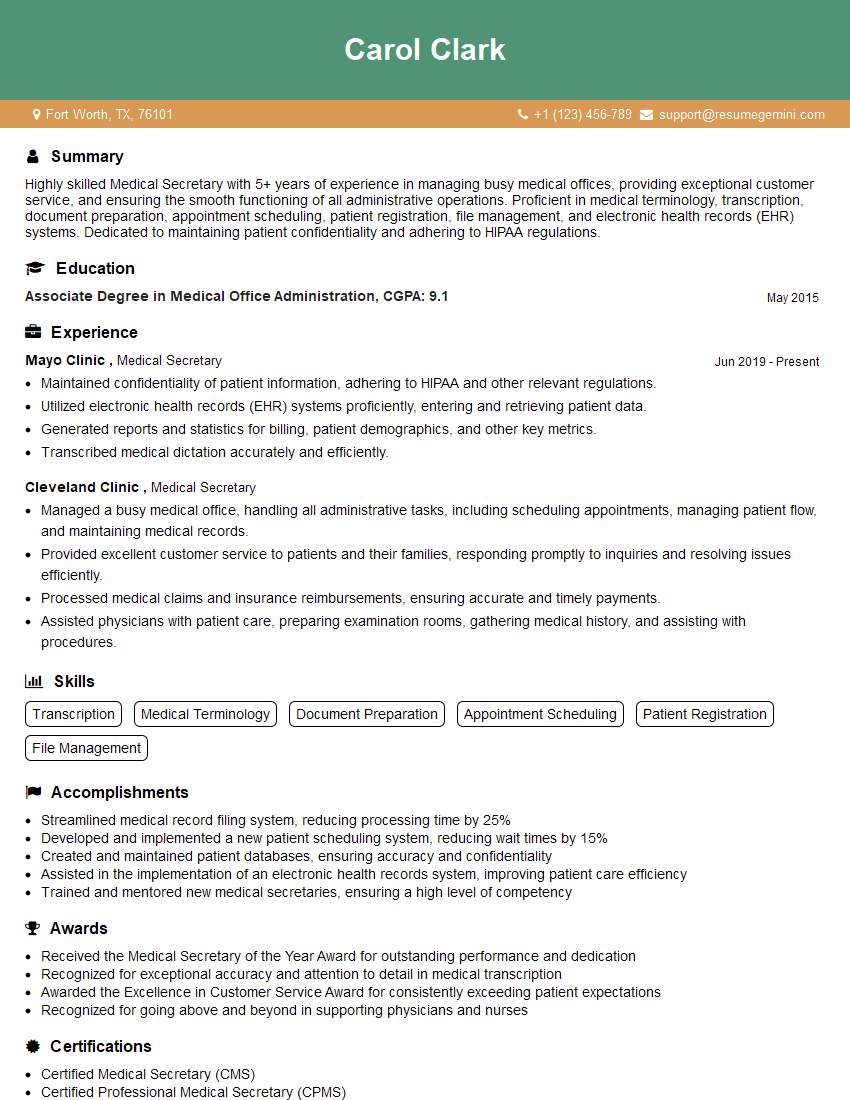
Medical Secretary Resume Sample
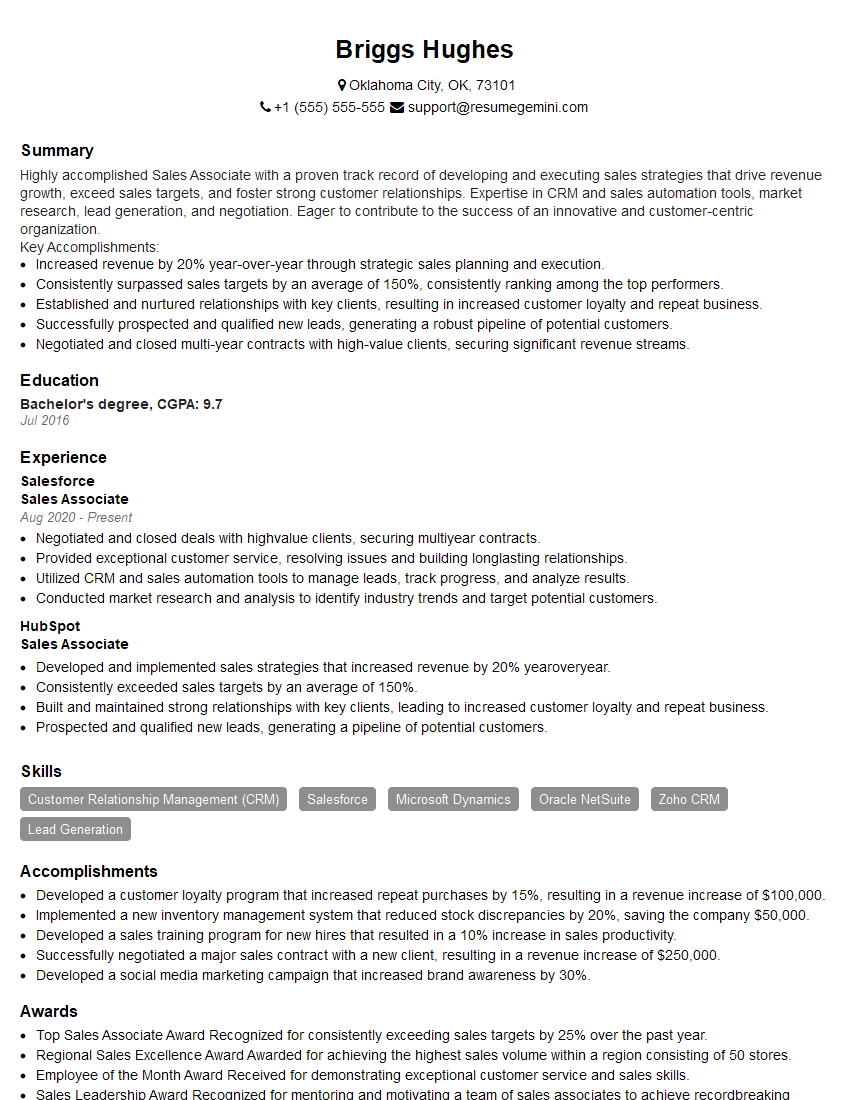
Sales Associate Resume Sample
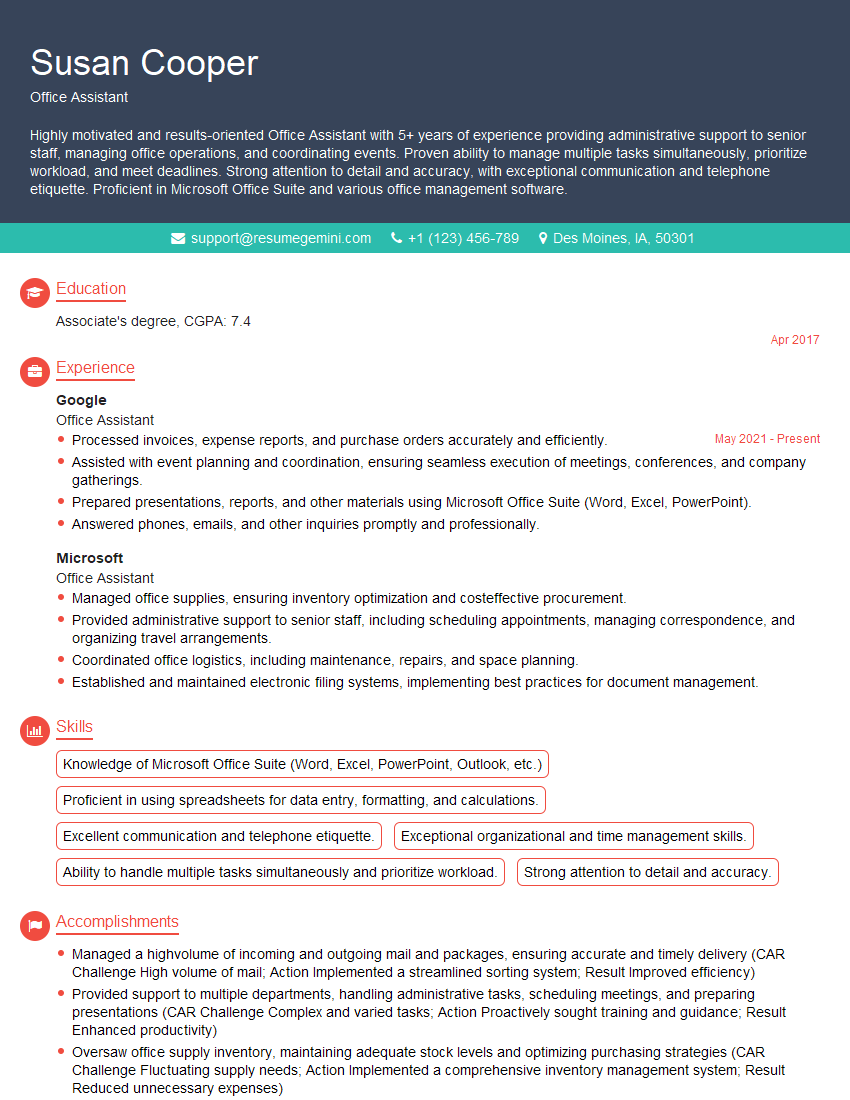
Office Assistant Resume Sample
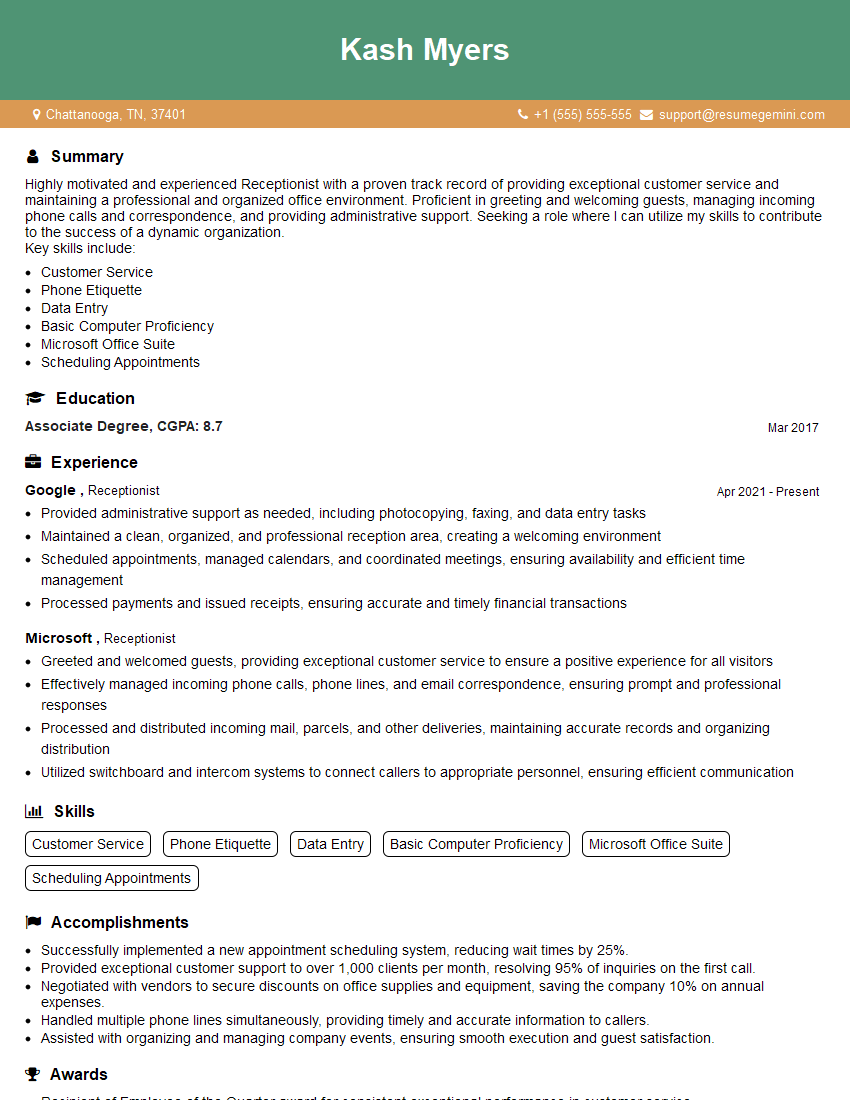
Receptionist Resume Sample

Executive Assistant Resume Sample
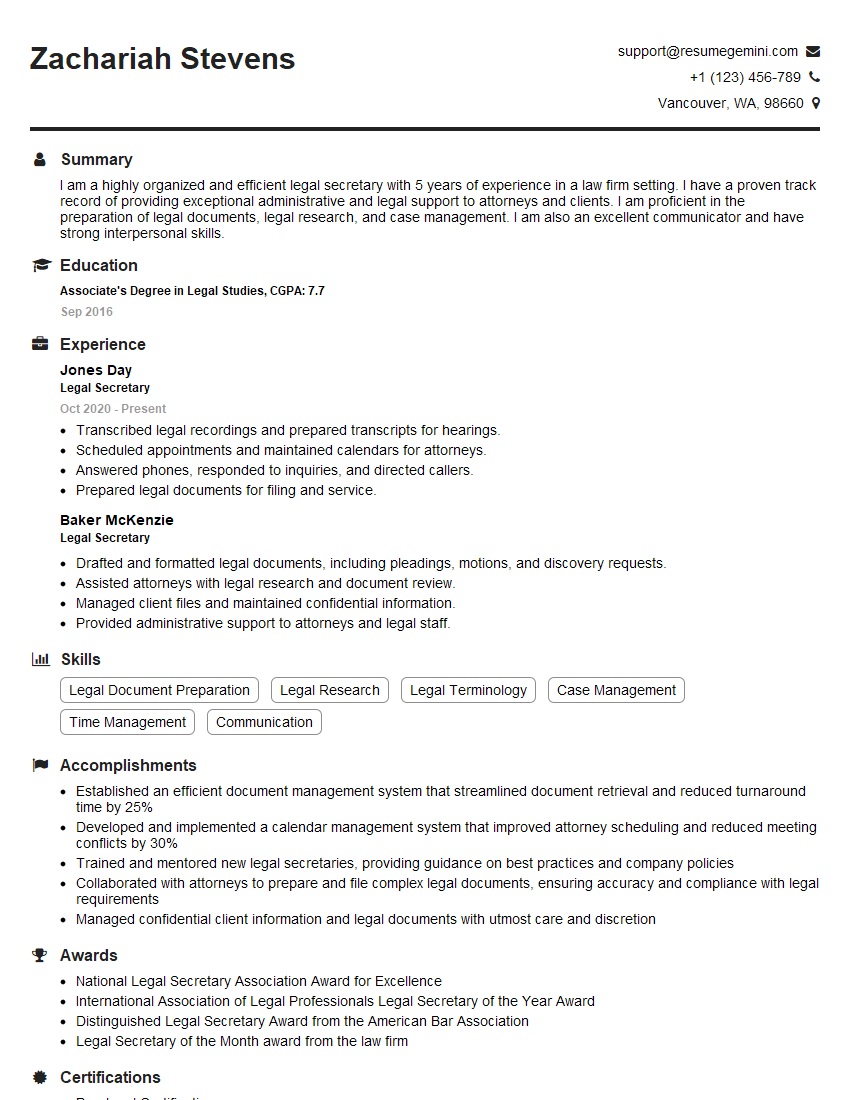
Legal Secretary Resume Sample

Data Entry Clerk Resume Sample
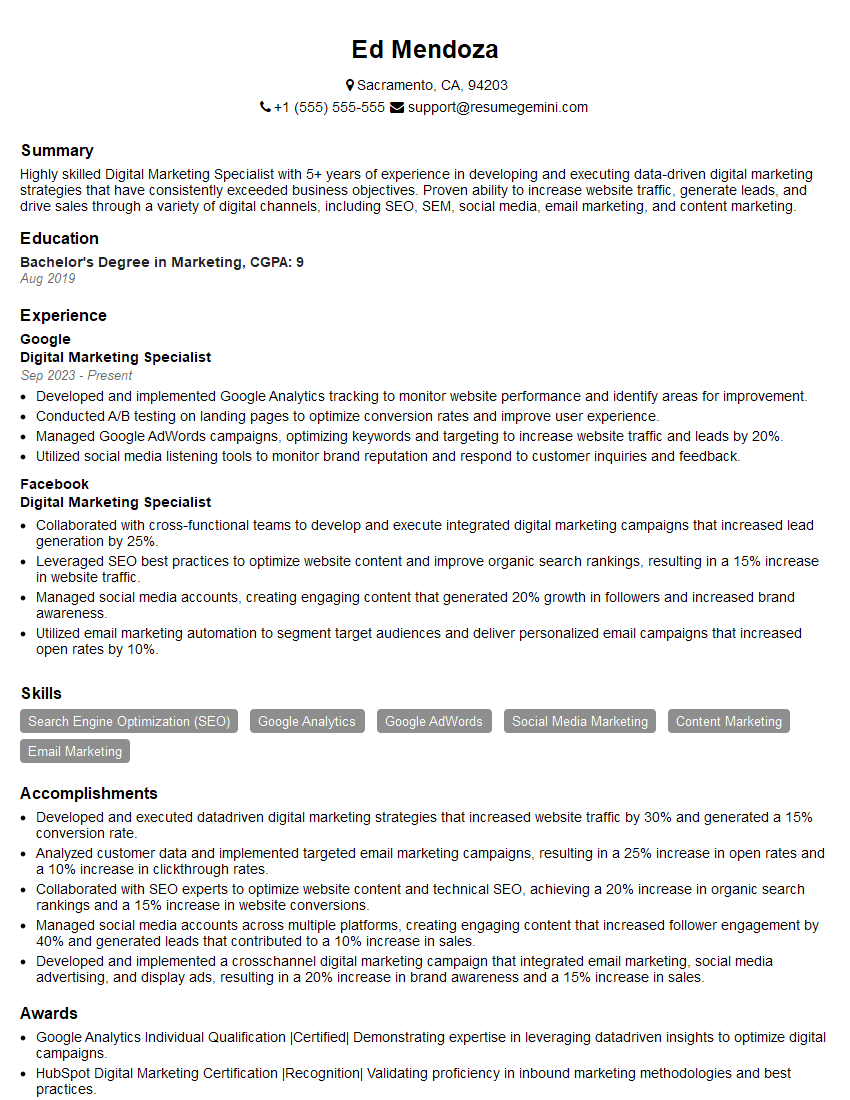
Digital Marketing Specialist Resume Sample
- Administrative Assistant
- Customer Service Representative
- Project Coordinator
- Social Media Manager
- Bookkeeper
- Technical Support Specialist
- Help Desk Analyst
- Research Assistant
- Librarian Assistant
- Medical Secretary
- Sales Associate
- Office Assistant
- Receptionist
- Executive Assistant
- Legal Secretary
- Data Entry Clerk
- Digital Marketing Specialist
Explore more articles
Users Rating of Our Blogs
Share Your Experience
We value your feedback! Please rate our content and share your thoughts (optional).
What Readers Say About Our Blog
I Redesigned Spongebob Squarepants and his main characters of my artwork.
https://www.deviantart.com/reimaginesponge/art/Redesigned-Spongebob-characters-1223583608
IT gave me an insight and words to use and be able to think of examples
Hi, I’m Jay, we have a few potential clients that are interested in your services, thought you might be a good fit. I’d love to talk about the details, when do you have time to talk?
Best,
Jay
Founder | CEO