Preparation is the key to success in any interview. In this post, we’ll explore crucial Laserfiche Quick Fields interview questions and equip you with strategies to craft impactful answers. Whether you’re a beginner or a pro, these tips will elevate your preparation.
Questions Asked in Laserfiche Quick Fields Interview
Q 1. Explain the purpose and functionality of Laserfiche Quick Fields.
Laserfiche Quick Fields are customizable fields that you add directly to your Laserfiche document entry forms. They streamline the metadata entry process by allowing you to quickly and consistently capture important information about your documents. Think of them as pre-built, intelligent input boxes that ensure data is entered correctly and consistently, boosting efficiency and search accuracy.
Instead of manually typing metadata into separate fields every time, you can use Quick Fields to instantly populate relevant data. For example, a Quick Field could automatically populate the ‘Client Name’ field when a specific client folder is selected.
Q 2. How do you create a new Quick Field in Laserfiche?
Creating a Quick Field is straightforward. First, navigate to the ‘Repository’ section of your Laserfiche Client. Then, access the ‘Quick Fields’ administration area. Click ‘New Quick Field’ to start the process. You’ll be prompted to provide a name for your Quick Field (e.g., ‘Invoice Number’), select a data type (more on this in the next answer), and optionally define validation rules and default values. Finally, save your new Quick Field. It will then appear in your document entry forms.
Imagine you frequently handle invoices. Creating a ‘Invoice Number’ Quick Field ensures consistent data entry and eliminates the need to manually type this information every time.
Q 3. What are the different data types supported by Laserfiche Quick Fields?
Laserfiche Quick Fields support a variety of data types to accommodate various information needs. Common data types include:
- Text: For free-form text entries, like descriptions or comments.
- Number: For numeric data, such as invoice amounts or quantities. You can define whether the number should be an integer or allow decimals.
- Date: For date-related information, with options for different date formats.
- Boolean (Yes/No): For binary choices. For example, ‘Is this document confidential?’
- Choice: To present a predefined list of options for the user to select from. This is excellent for standardized fields like ‘Document Type’ or ‘Department’.
- User: Allows you to select a user from your Laserfiche user directory. Useful for assigning ownership or responsibility.
Selecting the correct data type is crucial for data integrity and efficient searching.
Q 4. Describe how to configure validation rules for Quick Fields.
Validation rules ensure data quality and consistency. During Quick Field creation or editing, you can specify validation rules to restrict the type of data entered. For example:
- Required Field: Ensures the field must be filled out before saving the document.
- Regular Expressions: Allow you to enforce specific formats, such as ensuring a phone number or email address conforms to a predefined pattern.
- Minimum/Maximum Length: Set limits on the number of characters allowed in a text field.
- Range Check (for numbers): Define a minimum and maximum value.
These rules significantly reduce errors and ensure data reliability. For instance, requiring a valid email address in a ‘Contact Email’ field prevents incorrect entries.
Q 5. How do you handle different data types within Quick Fields?
Handling different data types within Quick Fields is largely automated through the data type selection during creation. Laserfiche intelligently handles the data entry and validation based on the chosen data type. For example, a date field will automatically provide a date picker, ensuring the user selects a valid date. Number fields might offer input validation to prevent non-numeric characters. Choice fields provide drop-down menus for easier selection and consistency.
The system ensures proper data storage and retrieval based on the specified type, simplifying data management.
Q 6. Explain the difference between a calculated field and a standard Quick Field.
A standard Quick Field simply stores user-entered data. A calculated Quick Field, however, performs calculations based on other data fields, either within the same document or across linked documents. It automatically updates its value based on changes in the source fields.
For example, a standard Quick Field might store the ‘Unit Price’ of a product. A calculated Quick Field could then multiply this ‘Unit Price’ by a ‘Quantity’ Quick Field to automatically compute the ‘Total Price’. Calculated fields save manual calculations and prevent potential errors.
Q 7. How do you use Quick Fields to improve document search and retrieval?
Quick Fields are instrumental in improving document search and retrieval. By consistently capturing relevant metadata, such as client names, invoice numbers, project IDs, or document types, into Quick Fields, you drastically enhance search capabilities.
Laserfiche’s search functionality can leverage these indexed Quick Fields, allowing you to quickly locate documents based on specific criteria. Instead of relying on keyword searches within the document content, you can directly filter results using the structured data in your Quick Fields. This delivers more precise and faster search results, boosting productivity and simplifying information retrieval.
Q 8. Describe how to use Quick Fields in workflow automation.
Quick Fields in Laserfiche are custom fields that streamline data entry and retrieval within workflows. They allow users to easily add pre-defined values or data to documents during the workflow process, automating data capture and reducing manual effort. Imagine a scenario where you’re processing invoices: instead of manually typing the invoice number, date, and vendor each time, you can use Quick Fields to automatically populate these fields from a scanned invoice using Optical Character Recognition (OCR) or have the user select them from a dropdown menu.
To use Quick Fields in workflow automation, you’ll typically create the Quick Fields within the Laserfiche repository, define their data type (text, number, date, etc.), and then integrate them into your workflow. This integration happens in the workflow designer where you can configure actions to populate Quick Fields based on various triggers (e.g., document entry, user input, external system data). The workflow might then use these populated Quick Fields to route the document to the appropriate department, update a database, or generate a report.
Example: Let’s say you have a workflow for processing employee expense reports. You could create Quick Fields for ‘Employee ID,’ ‘Expense Date,’ ‘Expense Type,’ and ‘Amount.’ In the workflow, you can set up an action to automatically populate ‘Employee ID’ using data from the employee’s login, and use other actions to require the user to select the appropriate ‘Expense Type’ from a dropdown (thus ensuring data consistency) and enter the ‘Amount’ and ‘Expense Date’.
Q 9. How do Quick Fields integrate with other Laserfiche features (e.g., reports, workflows)?
Quick Fields seamlessly integrate with various Laserfiche features, significantly boosting efficiency. For instance, they are readily used in reports to filter or group data based on Quick Field values. Imagine generating a report of all invoices from a specific vendor – the Quick Field containing vendor information becomes crucial for accurate filtering.
Within workflows, Quick Fields act as dynamic data entry points, enabling the automation of routing, data updates, and other actions. The workflow can use the Quick Field values to trigger conditional logic, route documents based on specific criteria (e.g., route high-value invoices to a manager), or update external databases. Even Laserfiche’s integration with other systems can utilize Quick Field data to pass information between different applications.
Example: If you have a Quick Field for ‘Invoice Status,’ a workflow could automatically update this field to ‘Paid’ when the invoice is processed, and this updated field can be shown in a Laserfiche report to track payment status. Integration with an accounting system could further send this information for automated processing.
Q 10. How do you manage and maintain Quick Fields in a large Laserfiche repository?
Managing Quick Fields in a large repository demands a structured approach. A critical element is establishing a clear naming convention for all Quick Fields – this greatly enhances findability and understanding. Using a consistent naming structure, such as ‘Department_DocumentType_FieldName,’ ensures organization and prevents duplication.
Regular auditing of Quick Fields is essential. This involves checking for unused fields, outdated data types, or inconsistencies in naming. Laserfiche’s administration tools provide various reporting mechanisms to identify underutilized fields, which can then be archived or deleted to improve performance. Version control, if implemented, helps track changes and revert if needed. Furthermore, creating comprehensive documentation for each Quick Field (describing purpose, data type, validation rules) is vital for maintainability and onboarding new team members.
Example: A regular audit might reveal a Quick Field called ‘InvoiceNumber_Old’ which is no longer used. This should be archived or deleted to streamline the repository. Similarly, regularly reviewing the data types of Quick Fields ensures they align with current needs. Using a structured approach minimizes the risk of data inconsistency or confusion in a large repository.
Q 11. Explain the best practices for designing and implementing effective Quick Fields.
Effective Quick Field design begins with a thorough understanding of the data you need to capture and how it’ll be used. Begin by identifying the essential information for each document type. The goal is to capture data accurately and consistently, minimizing manual entry and errors.
- Clear Naming Conventions: Use descriptive names reflecting the field’s purpose and context.
- Appropriate Data Types: Select the most suitable data type (text, number, date, dropdown, etc.) to ensure data integrity.
- Data Validation: Implement validation rules (e.g., required fields, data format restrictions) to prevent incorrect data entry.
- Controlled Vocabularies: Use dropdown lists or controlled terms for fields where only specific values are allowed. This ensures consistency and reduces errors.
- User-Friendly Interface: Design the Quick Field layout in a way that is intuitive and easy to use for all users.
Example: Instead of a free-text field for ‘Invoice Status,’ use a dropdown with options like ‘Pending,’ ‘Approved,’ ‘Paid,’ ‘Rejected.’ This ensures consistency and reduces variations in how this data is recorded.
Q 12. How do you troubleshoot common issues related to Quick Fields?
Troubleshooting Quick Field issues requires a systematic approach. Start by checking the Quick Field’s properties – ensure the data type is correct, validation rules are properly set, and the field is correctly integrated within the workflow.
If data isn’t populating correctly, inspect workflow actions. Verify that the actions linked to the Quick Field are correctly configured and triggered. Check for errors in any custom code or scripts associated with the Quick Field. If the issue persists, review the Laserfiche event logs for any errors related to Quick Field operations.
Example: If a Quick Field isn’t populating correctly, examine the workflow action responsible for populating that field. Is the data source correct? Is there a missing connection or incorrect mapping between data source and the Quick Field?
Q 13. What are the limitations of using Quick Fields?
While incredibly useful, Quick Fields do have limitations. They are primarily designed for structured data; handling unstructured data like free-form text requires different approaches (like OCR and keyword extraction). The number of Quick Fields on a single document is also limited by the system’s capacity and performance considerations.
Moreover, changes to Quick Fields can impact workflows and reports. Careful planning and testing are crucial when making significant alterations. Lastly, while complex validation rules can be implemented, they can’t address all possible data integrity issues; human oversight is still important.
Q 14. How do you ensure data integrity when using Quick Fields?
Data integrity is paramount when using Quick Fields. Implementing appropriate validation rules is the first line of defense. These rules can prevent invalid data from being entered. For example, you could set a rule requiring a numerical value for a field representing quantity, or a specific date format for a ‘Date’ field.
Using controlled vocabularies (dropdowns) for fields with limited acceptable values eliminates inconsistencies. Regular audits of Quick Field data help identify and correct errors. By combining these strategies with comprehensive documentation and user training, you can significantly improve data integrity. Finally, data backup and recovery measures are essential to safeguard your data against unforeseen issues.
Q 15. Describe a situation where you had to use Quick Fields to solve a business problem.
We had a client struggling with inconsistent data entry for invoices. Their staff was manually entering key data points like invoice number, date, and total amount into Laserfiche, leading to errors and inefficiencies. To address this, we implemented Quick Fields. We created a custom entry form with Quick Fields for each data point, making the fields mandatory and using data validation to ensure consistency (e.g., only numerical input for invoice amounts). This drastically reduced errors, improved data accuracy, and streamlined the invoice processing workflow.
For instance, we used a Quick Field with a regular expression to validate invoice numbers, ensuring they followed a specific format. Another Quick Field used a date picker to enforce correct date entry. The impact was immediate: error rates plummeted by over 60%, and processing time decreased by approximately 30%.
Career Expert Tips:
- Ace those interviews! Prepare effectively by reviewing the Top 50 Most Common Interview Questions on ResumeGemini.
- Navigate your job search with confidence! Explore a wide range of Career Tips on ResumeGemini. Learn about common challenges and recommendations to overcome them.
- Craft the perfect resume! Master the Art of Resume Writing with ResumeGemini’s guide. Showcase your unique qualifications and achievements effectively.
- Don’t miss out on holiday savings! Build your dream resume with ResumeGemini’s ATS optimized templates.
Q 16. How would you explain Quick Fields to a non-technical user?
Imagine a simple form you fill out, like an online order. Quick Fields in Laserfiche are like those pre-filled or automatically populated sections. Instead of manually typing information into a document, you input the data directly into designated fields on a form within Laserfiche. Laserfiche then automatically populates that information into your document metadata, making searching and finding files much faster and easier. Think of it as a supercharged way to add key information to your documents, reducing errors and saving time.
Q 17. Compare and contrast Quick Fields with other data entry methods in Laserfiche.
Quick Fields offer a superior, more streamlined approach to data entry compared to other methods in Laserfiche. Manually typing data directly into documents is prone to errors and inconsistencies. Using metadata entry alone requires navigating separate screens and fields. Quick Fields elegantly combine both, offering a user-friendly interface to capture essential data directly within the document workflow, which automatically populates the metadata fields. The advantage is a far more intuitive and efficient workflow.
- Quick Fields: Direct data entry, automated metadata population, validation capabilities, improved accuracy.
- Manual Data Entry: Time-consuming, error-prone, inconsistent data.
- Metadata Entry (without Quick Fields): Requires navigating to separate metadata screens, less intuitive workflow.
Q 18. How do you handle errors or inconsistencies in Quick Field data?
Handling errors in Quick Field data involves a multi-pronged approach. First, implementing strong data validation rules within the Quick Fields themselves minimizes errors at the source. This includes mandatory fields, data type validation (e.g., numeric only), regular expressions for specific formats, and range checks. Second, we utilize Laserfiche’s reporting capabilities to identify inconsistencies or erroneous entries. This often involves creating custom reports to highlight fields with unexpected values. Third, workflow automation can flag records with problematic data, routing them to a specific user or group for review and correction.
For example, if a Quick Field for ‘Invoice Amount’ contains non-numeric characters, a custom report can pinpoint this immediately. We also use conditional logic in our workflows to automatically reject submissions with invalid data, prompting the user to correct the error before proceeding.
Q 19. How can you use Quick Fields to enforce data standards?
Quick Fields are instrumental in enforcing data standards. By defining specific data types, formats, and validation rules within the Quick Fields, you ensure that all entered data adheres to predefined standards. For instance, you could enforce a specific date format (e.g., MM/DD/YYYY), restrict character length for certain fields, or mandate the use of specific controlled vocabularies using dropdown menus. This ensures data consistency across your Laserfiche repository, making searches and reports more reliable and easier to interpret.
Imagine a scenario where you want to ensure all invoice numbers follow the format ‘INV-YYYY-####’. A Quick Field with a regular expression can enforce this, preventing the entry of invalid invoice numbers. This simple measure dramatically improves data quality and consistency.
Q 20. What security considerations should be taken into account when using Quick Fields?
Security with Quick Fields is paramount. Access control should be implemented at both the repository and individual Quick Field levels. This means limiting who can create, edit, or view Quick Fields and the data they collect. Sensitive data within Quick Fields should be encrypted both in transit and at rest, leveraging Laserfiche’s security features. Regular audits of Quick Field configurations and data access permissions are also crucial to maintain a secure environment. Additionally, adhering to relevant data privacy regulations (such as GDPR or HIPAA) is essential when handling personal or sensitive information.
Q 21. Describe the process of migrating Quick Fields between Laserfiche repositories.
Migrating Quick Fields between Laserfiche repositories is not a simple copy-paste operation. It usually involves exporting the Quick Field definitions from the source repository, and then importing them into the destination repository. This often requires technical expertise, potentially utilizing the Laserfiche API or scripting tools, as direct import/export functionality might be limited. You’ll need to carefully review and adjust any field dependencies or validation rules to ensure they align with the destination repository’s structure and business needs. Thorough testing is vital after migration to ensure the fields function correctly and the data integrity is maintained.
Q 22. How do you optimize Quick Fields for performance in a large system?
Optimizing Quick Fields for performance in a large Laserfiche system is crucial for maintaining responsiveness. Think of it like optimizing a database – you need to streamline data access for speed.
- Limit the Number of Quick Fields: Too many Quick Fields can slow down the system. Prioritize only the most essential fields for quick access and retrieval. Having 50 fields is rarely more beneficial than having 5 highly useful ones.
- Index Strategically: Laserfiche allows indexing of Quick Fields. Ensure your most frequently searched fields are indexed. This is like creating an index for a book – it makes finding specific information much faster.
- Data Type Optimization: Use appropriate data types. For example, using integers instead of text strings for numerical data is more efficient. A numerical field for a quantity is processed much faster than a text field containing a number.
- Regular Maintenance: Regularly review and remove unused or redundant Quick Fields. Just like cleaning out a cluttered desk improves workflow, removing unnecessary fields speeds up the system.
- Efficient Retrieval Strategies: Use advanced search techniques within Laserfiche to filter and refine results efficiently. Avoid broad, unfocused searches that require processing vast amounts of data. Instead, refine your search criteria to target specific data.
For instance, if you have a large repository of invoices, you would index fields like ‘Invoice Number’, ‘Invoice Date’, and ‘Vendor Name’ for quick searching, instead of indexing less relevant data, such as ‘Invoice description’ (unless it’s specifically searchable using keywords).
Q 23. What are some common challenges encountered when working with Quick Fields, and how do you overcome them?
Common challenges with Quick Fields often involve data integrity, user adoption, and performance issues. Let’s tackle each one.
- Data Inconsistency: Users may enter data inconsistently (e.g., different spellings for the same value). Implementing data validation rules, such as dropdowns or regular expressions within Quick Fields, ensures consistency. Imagine a field for ‘Department’; a dropdown list will prevent errors like entering ‘Marketing’ and ‘Mktg’ for the same department.
- User Adoption: Training is paramount. If users don’t understand how to use Quick Fields correctly, the value diminishes. Interactive training sessions, clear documentation, and consistent communication are crucial (See answer 6 for more detail).
- Performance Bottlenecks: Too many Quick Fields or inefficient data types can slow down the system. (See answer 1 for optimization strategies).
- Integration Complexity: Integrating Quick Fields with other systems sometimes requires custom development, potentially adding complexity to the overall solution.
Overcoming these challenges requires a proactive approach. Thorough planning, regular maintenance, and user-centric design are key ingredients.
Q 24. Explain how to use Quick Fields in conjunction with Laserfiche forms.
Laserfiche Quick Fields and forms work synergistically to enhance data entry and retrieval. Think of them as a dynamic duo.
Quick Fields can be embedded directly into Laserfiche forms. This allows users to populate Quick Fields automatically based on data entered into the form, and vice versa. Data entered in a form can populate a Quick Field, or a Quick Field’s value can pre-populate a field in a form. This eliminates redundant data entry.
Example: In a customer onboarding form, you could have a Quick Field for ‘Customer Type’. When a user selects ‘Enterprise’ in the form, the Quick Field automatically updates and this allows the system to automatically assign the customer to the appropriate workflow, enhancing the efficiency of the process.
This integration streamlines workflows and ensures data consistency between forms and repository metadata.
Q 25. How do you ensure that Quick Fields are properly indexed for efficient searching?
Proper indexing of Quick Fields is essential for efficient searching. It’s similar to creating an index in a physical book for quick access to chapters.
In Laserfiche, you explicitly select which Quick Fields should be indexed during the repository setup or configuration. These indexed fields will be included in the system’s search capabilities, leading to faster search results. When a user searches, the system only has to check indexed fields rather than potentially combing through every single document.
For optimal indexing, index fields that are frequently searched and those containing unique identifiers. Avoid indexing large text fields unless absolutely necessary, as it can significantly increase the index size and negatively affect performance. Again, prioritization and strategic planning are essential.
Q 26. Discuss the advantages and disadvantages of using Quick Fields compared to using metadata.
Quick Fields and metadata serve similar purposes – providing searchable information about documents – but with different strengths and weaknesses. It’s like choosing between a sports car and an SUV; each has its place.
- Quick Fields:
- Advantages: Easy to implement and use, readily available within the Laserfiche interface, quick retrieval of specific data points. Great for simple, frequently used data.
- Disadvantages: Limited data structure and relationships compared to metadata, challenges in complex data management, potential performance issues with excessive fields.
- Metadata:
- Advantages: Highly structured, allows for complex data relationships, robust search capabilities, allows for controlled vocabulary to enhance consistency. Ideal for highly structured and complex data scenarios.
- Disadvantages: More complex to configure and maintain, may require development or customization to implement, steeper learning curve for users.
The best choice depends on the complexity of your document management needs. Quick Fields are suitable for simple, frequently accessed information, while metadata is more appropriate for complex, structured information.
Q 27. How would you approach training end-users on the effective use of Quick Fields?
Effective end-user training is crucial for successful Quick Field adoption. Think of it as teaching someone to drive; they need clear instructions and practice.
- Hands-on Training: Provide practical, hands-on training sessions with clear examples. Step-by-step instructions are essential.
- Interactive Tutorials: Create short, interactive video tutorials or online modules to guide users through the process.
- User Documentation: Provide comprehensive and accessible user documentation, including quick reference guides and FAQs.
- Practice Exercises: Incorporate practice exercises and scenarios to reinforce learning and build confidence.
- Ongoing Support: Offer ongoing support and answer questions; users should feel supported as they use Quick Fields daily.
- Gamification: Consider gamifying the training to make it more engaging and memorable. A points-based system or badges for completing modules can incentivize participation.
By combining various training approaches, you can increase user adoption and ensure Quick Fields are used efficiently.
Key Topics to Learn for Laserfiche Quick Fields Interview
- Understanding Quick Fields Functionality: Explore the core purpose and capabilities of Laserfiche Quick Fields. How does it streamline document management and data entry?
- Practical Application: Data Entry and Workflow Optimization: Consider real-world scenarios where Quick Fields improve efficiency. How would you use them to automate a repetitive task or improve data accuracy?
- Data Validation and Error Handling: Learn how to implement data validation rules within Quick Fields to ensure data integrity. How would you handle potential errors or inconsistencies?
- Integration with other Laserfiche components: Understand how Quick Fields interacts with other modules within the Laserfiche system. How does it contribute to the overall workflow?
- Security and Access Control: Discuss the importance of security within Quick Fields and how access rights are managed to maintain data confidentiality.
- Troubleshooting and Problem Solving: Be prepared to discuss common challenges encountered when using Quick Fields and how you would approach troubleshooting these issues.
- Customization and Configuration: Explore the options available for customizing Quick Fields to meet specific organizational needs. How would you adapt Quick Fields to a new workflow?
Next Steps
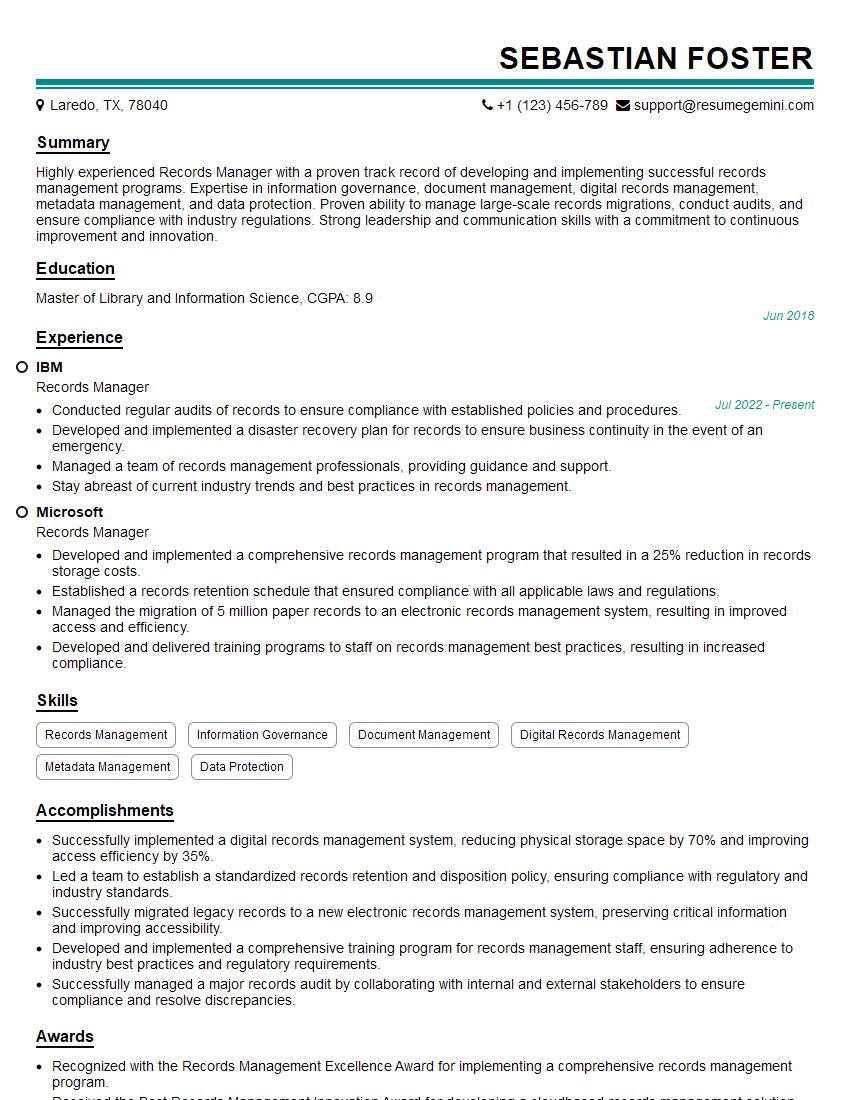
Mastering Laserfiche Quick Fields significantly enhances your value to potential employers, showcasing your proficiency in document management and process automation. This skill is increasingly sought after, opening doors to exciting career opportunities in various industries. To maximize your job prospects, creating an ATS-friendly resume is crucial. ResumeGemini is a trusted resource to help you build a professional and impactful resume that highlights your Laserfiche Quick Fields expertise. Examples of resumes tailored to Laserfiche Quick Fields are available to guide you. Take the next step in your career journey by crafting a compelling resume that showcases your skills effectively.

Explore more articles
Users Rating of Our Blogs
Share Your Experience
We value your feedback! Please rate our content and share your thoughts (optional).
What Readers Say About Our Blog
Really detailed insights and content, thank you for writing this detailed article.
IT gave me an insight and words to use and be able to think of examples