The thought of an interview can be nerve-wracking, but the right preparation can make all the difference. Explore this comprehensive guide to Experience with data visualization tools (e.g., Tableau, Power BI) interview questions and gain the confidence you need to showcase your abilities and secure the role.
Questions Asked in Experience with data visualization tools (e.g., Tableau, Power BI) Interview
Q 1. Explain the difference between Tableau and Power BI.
Tableau and Power BI are both leading business intelligence (BI) tools offering data visualization and analysis capabilities, but they cater to different needs and preferences. Think of them as two different restaurants offering similar dishes but with distinct flavors and atmospheres.
Tableau excels in its ease of use for exploratory data analysis (EDA). Its drag-and-drop interface and intuitive design make it easier for less technical users to create compelling visualizations quickly. It’s often favored for its strong visual capabilities and its ability to rapidly generate insightful charts and dashboards. However, its data modeling capabilities can be considered less robust than Power BI’s.
Power BI, on the other hand, is more geared towards enterprise-level deployments. It offers powerful data modeling features, excellent integration with Microsoft’s ecosystem (Excel, Azure, etc.), and robust data governance capabilities. While its initial learning curve might be steeper, the advanced functionalities it provides, especially regarding data transformation and management, are very valuable for complex projects. It shines in scenarios requiring extensive data manipulation and detailed reporting.
In essence, Tableau is like a quick-service restaurant – fast, easy, and visually appealing. Power BI is more like a fine-dining establishment – more complex, offering a wider range of options and customizable experiences but requiring a higher degree of expertise.
Q 2. What are the key features of Tableau’s data blending functionality?
Tableau’s data blending allows you to combine data from multiple sources into a single visualization, even if those sources don’t share a common key. This is extremely useful when dealing with data residing in disparate systems. Imagine you’re analyzing sales performance and want to incorporate customer demographics. Sales data might be in one database, and customer info in another.
Key features include:
- Joining on non-identical fields: You can blend data based on approximate matches or partial string matches, not just exact key matches. This is incredibly powerful when dealing with messy, real-world data.
- Flexible relationship management: You can establish various types of relationships between data sources, including left, right, and inner joins, offering granular control over which data points are combined.
- Data source selection: You can easily choose which data source to prioritize in case of conflicts between blended data sets.
- Performance considerations: Understanding how blending affects performance is crucial. Large datasets can impact visualization speed; optimizations like data extracts are essential.
For example, I once used data blending to combine sales figures from an e-commerce platform with customer segmentation data from a CRM system, enabling me to analyze sales performance across different customer segments. This provided valuable insights for targeted marketing campaigns.
Q 3. Describe your experience using DAX in Power BI.
DAX (Data Analysis Expressions) is Power BI’s formula language used to create calculated columns, measures, and other calculated objects within the data model. It’s akin to Excel formulas but far more powerful, allowing for complex calculations and data manipulation directly within the Power BI environment.
My experience with DAX ranges from creating simple measures (like calculating total sales) to complex ones involving iterative functions and time intelligence. I’ve used DAX extensively for tasks such as:
- Calculating key performance indicators (KPIs): Creating measures for metrics like year-over-year growth, average order value, customer lifetime value, etc.
- Filtering and segmenting data: Using DAX to dynamically filter visualizations based on user selections.
- Creating custom calculated columns: Adding new columns to tables based on existing data to improve reporting. For example, creating a ‘Customer Segment’ column based on customer purchase history and demographics.
- Time intelligence functions: Utilizing functions like
SAMEPERIODLASTYEARorYTDto compare data across time periods. For example, determining if current month sales exceed those of the same month last year.
For instance, I once created a DAX measure to calculate the rolling 12-month average of sales, providing a smoother view of sales trends and allowing better identification of seasonal fluctuations.
// Example DAX measure for Rolling 12-Month Average Sales Rolling 12 Month Average Sales = CALCULATE ( AVERAGE ( Sales[Sales Amount] ), DATESINPERIOD ( Sales[Date], LASTDATE ( Sales[Date] ), -12, MONTH ) )Q 4. How would you optimize a slow-performing Tableau dashboard?
Optimizing a slow Tableau dashboard involves a multi-pronged approach, focusing on both data and visualization aspects. Think of it as diagnosing a car’s performance issues – you need to check multiple components to pinpoint the problem.
My troubleshooting steps would typically include:
- Data Extraction and Optimization: Instead of connecting directly to the data source each time, create an extract. This significantly improves performance, especially for large datasets. Further optimize the extract by limiting the data to what’s necessary for the dashboard.
- Data Source Optimization: If possible, optimize the data source itself. Ensure efficient database queries and indexing. This may involve collaborating with database administrators to improve data retrieval efficiency.
- Reducing the number of marks: Complex visualizations with a massive number of data points can slow down performance. Consider aggregation, filtering, or simplifying visualizations to reduce the number of marks displayed.
- Level of Detail (LOD) Expressions: LOD expressions can help you efficiently aggregate data at different levels of detail without impacting performance. This avoids unnecessary calculations at the visualization level.
- Visualization Optimization: Avoid using too many calculations or complex formulas within the visualization itself. Simplify the charts and reduce unnecessary visual elements.
- Using High-Performance Visualizations: Certain visualization types are more performant than others. For instance, replacing a highly detailed map with a simpler heatmap might improve response time.
By systematically addressing these aspects, performance bottlenecks can be identified and mitigated, resulting in a more responsive and efficient dashboard. I’ve successfully applied these techniques to several dashboards, dramatically reducing load times and improving user experience.
Q 5. What are some best practices for creating effective data visualizations?
Creating effective data visualizations is about clear communication; you’re telling a story with your data. It’s not just about creating pretty pictures; the goal is to convey insights accurately and efficiently.
Best practices include:
- Know your audience: Tailor your visualizations to the audience’s knowledge and needs. A technical audience might appreciate more detail, whereas a management audience might prefer high-level summaries.
- Choose the right chart type: Select the chart type best suited to the data and the message you’re trying to convey. A bar chart might be perfect for comparisons, while a line chart is ideal for showing trends over time.
- Prioritize clarity and simplicity: Avoid clutter and overwhelming the audience with too much information. Use clear titles, labels, and legends.
- Data integrity and accuracy: Ensure your data is accurate and reliable. Misleading visuals can have serious consequences.
- Tell a story: Arrange visualizations in a logical sequence to guide the user through the data and insights.
- Use color effectively: Color should enhance readability, not distract from the message. Use consistent color schemes and avoid too many colors.
- Consider accessibility: Ensure visualizations are accessible to people with disabilities, including those with color blindness.
A good example is using a combination of a bar chart showing year-over-year sales growth and a map highlighting regional sales performance to paint a complete picture of business performance. This storytelling approach enhances understanding far beyond individual charts alone.
Q 6. Explain the concept of calculated fields in Tableau.
Calculated fields in Tableau are custom formulas that allow you to create new fields based on existing data. Think of them as adding new columns to your dataset on the fly, but without altering the underlying data source. They’re incredibly useful for tailoring your analysis and creating more meaningful visualizations.
You create calculated fields using Tableau’s built-in formula editor, leveraging various functions to perform calculations, aggregations, and data manipulations. The calculated fields are then treated as regular fields, allowing you to use them in visualizations, filters, and other parts of your analysis.
For example:
- Calculating profit margin: You could create a calculated field:
[Sales] - [Cost]to determine the profit for each transaction, or([Sales] - [Cost])/[Sales]to calculate the profit margin. - Creating a new categorical field: Suppose you have a numerical ‘Age’ field. You could create a calculated field to segment customers into age groups (e.g., ‘Young’, ‘Middle-aged’, ‘Senior’) based on their age.
- Complex calculations: You can leverage more advanced functions for tasks like calculating running totals, moving averages, and other dynamic aggregations directly within the calculated field.
Calculated fields provide tremendous flexibility in adapting your analysis to specific needs, improving the efficiency and depth of your insights. They are a cornerstone of creating dynamic and effective visualizations.
Q 7. How do you handle large datasets in Power BI?
Handling large datasets in Power BI requires a strategic approach focusing on data optimization and efficient visualization techniques. It’s like managing a large library – you need an organized system to find what you need quickly and efficiently.
Strategies include:
- Data Modeling: Design your data model effectively, using star schemas or snowflake schemas to optimize query performance. This involves careful consideration of relationships between tables and minimizing redundant data.
- Data Reduction Techniques: Techniques like data sampling, aggregation at the source, and using summarized data can drastically reduce the dataset size before importing it into Power BI. I’ve effectively used these techniques in many projects to improve performance.
- DirectQuery: Using DirectQuery allows Power BI to query the data source directly instead of importing it. This is ideal for extremely large datasets where importing isn’t feasible. However, it is crucial to understand and prepare the database appropriately.
- Data Extracts (with limits): Even with large datasets, properly prepared extracts can be effective. Defining appropriate filters and limiting the amount of data extracted can significantly improve performance.
- Optimize Visualizations: Keep visualizations simple and avoid over-complex calculations directly within the report. Use pre-calculated measures and aggregations whenever possible.
- Incremental Refresh: For datasets that change frequently, utilizing incremental refresh can reduce the data refresh time by only updating changed data, instead of refreshing the whole dataset each time.
The best approach depends on the specific dataset and the nature of the analysis. It often involves a combination of these strategies to find the optimal balance between data completeness and performance.
Q 8. What are measures and dimensions in data visualization tools?
In data visualization, measures and dimensions are fundamental concepts that define how your data is structured and presented. Think of them as the ‘what’ and the ‘who/when/where’ of your data.
Measures are numerical values that you want to analyze and visualize. They’re typically things you want to summarize, like sales figures, website traffic, or profit margins. They can be aggregated (summed, averaged, counted, etc.) to provide insights. For example, ‘Total Sales’ or ‘Average Order Value’ are measures.
Dimensions are qualitative attributes that provide context to your measures. They are usually categorical values that help you segment and understand your data. Think of them as the labels or categories that help you interpret the measures. Examples include ‘Region’, ‘Product Category’, ‘Date’, or ‘Customer Segment’. You use dimensions to slice and dice your measures, allowing you to compare sales across different regions, for instance.
Consider a retail dataset: ‘Total Revenue’ would be a measure, while ‘Store Location’ and ‘Month’ would be dimensions. You might visualize total revenue by store location to see which stores are performing best.
Q 9. Describe your experience with data cleaning and preparation for visualization.
Data cleaning and preparation are crucial before any visualization. I’ve handled everything from dealing with missing values and outliers to transforming data types and creating calculated fields. My approach is always iterative and involves several steps:
- Data Profiling: I start by exploring the dataset to understand its structure, identify data types, and spot potential issues like inconsistencies or missing values. This often involves using tools within Tableau or Power BI to get a quick overview of the data.
- Data Cleaning: This might include handling missing values (imputation or removal), correcting inconsistencies (e.g., standardizing date formats), and identifying and addressing outliers. The approach to outliers depends on the context – sometimes they’re genuine data points, and sometimes they represent errors.
- Data Transformation: I might need to create new calculated fields (like profit margins or growth rates) or pivot tables to reshape the data for better visualization. I also handle data type conversions (e.g., converting text to numbers).
- Data Validation: Before loading the data into visualization tools, I always perform checks to ensure the data’s accuracy and consistency. This might include comparing data against known sources or using cross-referencing techniques.
For example, in a project involving customer data, I encountered inconsistencies in address formats. I used string manipulation techniques to standardize the addresses before building visualizations showing customer distribution by region.
Q 10. How do you create interactive dashboards using Tableau or Power BI?
Creating interactive dashboards in Tableau and Power BI involves leveraging their powerful features. I typically follow a structured approach:
- Define Objectives: Clearly outlining the key insights to be conveyed is vital. What story do you want to tell? What questions should the dashboard answer?
- Choose Appropriate Visualizations: Select charts and graphs tailored to the data and the insights needed. A well-designed dashboard often uses a combination of charts for comprehensive storytelling.
- Utilize Interactive Elements: Filters, parameters, and tooltips allow users to explore the data dynamically. Filters let users drill down into specific segments, while parameters offer adjustable controls (e.g., date ranges).
- Layout and Design: Organize elements logically, ensuring clarity and ease of navigation. A clean and intuitive layout is crucial for user engagement.
- Story Point Navigation: Guide users through the data story using clear labels, titles, and annotations. Organize visualizations logically to support a clear narrative.
- Data Actions: In both tools, you can link visualizations to create seamless navigation between different views, enriching the interactive experience.
For example, I built a dashboard that tracked website traffic. Users could filter by date range, traffic source, and geographic location. Interactive maps highlighted regional trends and clicking a specific region automatically updated other visualizations to show detailed data for that area.
Q 11. What are some common data visualization pitfalls to avoid?
Many pitfalls can hinder effective data visualization. Here are some common ones to avoid:
- Over-cluttering: Too much information on a single chart can be overwhelming. Prioritize key insights and avoid unnecessary details.
- Poor Chart Choice: Using an inappropriate chart type can misrepresent data. For example, using a pie chart for a large number of categories is confusing.
- Misleading Scales: Manipulating axes can create a false impression. Always start scales at zero unless there’s a compelling reason not to.
- Lack of Context: Charts should always be accompanied by clear labels, titles, and explanatory text to provide context.
- Ignoring Data Quality: Visualization cannot fix flawed data. Ensure data is clean, accurate, and reliable before creating any visualization.
- Ignoring the audience: Design your visualizations for your target audience. Technical charts are inappropriate for a non-technical audience.
For example, I once reviewed a presentation that used a 3D pie chart with too many slices. The chart was difficult to interpret, and the information was poorly conveyed. I recommended replacing it with a bar chart for better clarity.
Q 12. How do you choose the appropriate chart type for a given dataset?
Choosing the right chart type depends on the type of data and the message you want to convey. Here’s a simple framework:
- For showing comparisons: Bar charts, column charts, and dot plots are effective for comparing categories.
- For showing trends over time: Line charts are ideal for displaying changes over time.
- For showing relationships between two variables: Scatter plots are excellent for identifying correlations.
- For showing proportions: Pie charts (for a small number of categories) and treemaps can visualize parts of a whole.
- For geographical data: Maps are necessary for showing location-based data.
- For hierarchical data: Treemaps and sunburst charts can be used to visualize hierarchies.
If you’re comparing sales across different regions, a bar chart is a suitable choice. If you want to show website traffic over time, a line chart is appropriate. Always consider the data and the insights you want to highlight when making your selection.
Q 13. Explain your experience with different chart types (bar charts, line charts, scatter plots, etc.).
I have extensive experience using various chart types. My familiarity goes beyond just creating them; I understand their strengths and limitations, and know when to use them effectively.
- Bar Charts: Excellent for comparing discrete categories. I’ve used them to compare sales figures across different product lines or customer segments.
- Line Charts: Ideal for showing trends over time. I’ve used them to track website traffic, sales growth, and other time-series data. I can handle various complexities, such as multiple lines and smoothed lines.
- Scatter Plots: Useful for exploring relationships between two continuous variables. I’ve used them to identify correlations between advertising spend and sales revenue.
- Pie Charts: Good for showing proportions of a whole, but only effective with a small number of categories. I’ve used them sparingly, preferring bar charts for more robust comparisons.
- Maps: Essential for visualizing geographical data. I’ve used them extensively to showcase sales distribution by region, customer locations, or other spatial data.
Beyond these, I’m also comfortable with more specialized charts like heatmaps (for showing correlations between variables), box plots (for comparing distributions), and area charts (for showcasing cumulative data).
Q 14. How do you incorporate storytelling into your data visualizations?
Storytelling is crucial to effective data visualization. It’s about guiding the viewer through a narrative using data as the evidence. My approach involves these key aspects:
- Identify the Key Message: Before creating any visualization, I identify the core insight I want to communicate.
- Choose the Right Visualizations: I select charts and graphs that best illustrate the narrative, ensuring they’re visually appealing and easy to understand.
- Use a Logical Flow: I organize the visualizations in a sequence that guides the viewer through the story, creating a clear progression of ideas.
- Add Context and Explanations: Titles, labels, and annotations are vital for providing context and interpretation.
- Highlight Key Findings: I use annotations, color coding, and other visual cues to draw attention to important findings.
- Consider the Audience: I tailor the story and the level of detail to the target audience.
In a recent project, I visualized the impact of a marketing campaign. I started with a high-level overview of overall sales growth, then used additional charts to drill down into specific customer segments and channels, showing the campaign’s impact on each. The visuals were ordered to tell a clear story, showcasing the positive effects of the campaign.
Q 15. Describe your experience with data security and access control in BI tools.
Data security and access control are paramount in Business Intelligence (BI). My experience involves implementing robust security measures to protect sensitive data within Tableau and Power BI. This includes leveraging row-level security (RLS) to restrict access based on user roles and permissions. For example, in Tableau, I’ve used RLS to ensure that sales representatives only see data related to their assigned territories, preventing unauthorized access to confidential sales figures of other regions. Similarly, in Power BI, I’ve utilized row-level security and data-level security to control access to datasets based on user roles, ensuring that only authorized personnel can access specific data points. Beyond RLS, I’ve also worked with data encryption both at rest and in transit, utilizing the security features provided by the BI platforms and integrating with enterprise-level security solutions for enhanced protection. This ensures compliance with data privacy regulations such as GDPR and CCPA. Regular audits and security reviews are also critical components of my approach.
Career Expert Tips:
- Ace those interviews! Prepare effectively by reviewing the Top 50 Most Common Interview Questions on ResumeGemini.
- Navigate your job search with confidence! Explore a wide range of Career Tips on ResumeGemini. Learn about common challenges and recommendations to overcome them.
- Craft the perfect resume! Master the Art of Resume Writing with ResumeGemini’s guide. Showcase your unique qualifications and achievements effectively.
- Don’t miss out on holiday savings! Build your dream resume with ResumeGemini’s ATS optimized templates.
Q 16. How do you use filters and parameters to enhance dashboard interactivity?
Filters and parameters are essential for creating interactive dashboards. Filters allow users to dynamically filter the data displayed based on specific criteria, providing a more focused view. For instance, a dashboard showing sales performance can utilize a filter allowing users to select a specific product category, time period, or region. Parameters provide another level of interactivity by enabling users to input specific values, such as a target sales amount or date range. Consider a dashboard displaying sales targets: a parameter would allow users to select a specific year, and the dashboard would dynamically update to show the data for that chosen year. The combination of filters and parameters greatly enhances user experience, allowing exploration of data based on user-defined criteria. I often use parameter actions to trigger filter changes, creating a smooth and intuitive user flow.
Q 17. What are your preferred methods for data source connectivity in Tableau or Power BI?
My preferred methods for data source connectivity vary based on the specific data source. For relational databases like SQL Server or MySQL, I typically use direct database connections in both Tableau and Power BI. This provides optimal performance and allows for live data updates. For cloud-based data sources such as Snowflake or Google BigQuery, I utilize the respective connectors provided by the BI tools, taking advantage of optimized connectors for efficient data transfer. I also have experience connecting to various file formats including CSV, Excel, and JSON files using the built-in import functions. When dealing with large datasets, I often leverage data extracts to enhance performance, carefully balancing the need for real-time data with the performance benefits of extracts. Choosing the optimal connection method is crucial for efficient data loading and seamless data visualization.
Q 18. How do you ensure the accuracy and reliability of your data visualizations?
Ensuring data accuracy and reliability is central to my visualization process. I begin by rigorously validating the data source, checking for inconsistencies, missing values, and outliers. I utilize data profiling techniques to understand the data’s characteristics and identify potential issues. Within the BI tool, I employ data cleansing and transformation techniques to address any identified issues. Data validation rules are implemented to ensure data integrity. Clear data provenance is maintained through documentation and metadata management, enabling traceability. Moreover, I always cross-reference visualizations with data from other sources to verify the accuracy of the insights presented. Finally, user feedback is crucial, and I actively seek it to identify potential inaccuracies or misinterpretations of the data.
Q 19. Describe your experience with data modeling for business intelligence.
Data modeling is the foundation of effective BI. My experience spans various modeling techniques, including star schema and snowflake schema. I understand the importance of dimensional modeling for efficient data querying and visualization. For instance, I’ve designed star schemas for sales data, with a central fact table containing sales transactions linked to dimension tables for time, product, customer, and location. This structure allows for fast and flexible querying, enabling the creation of comprehensive dashboards and reports. I use the in-built modeling capabilities of both Tableau and Power BI, creating relationships between tables and managing data types effectively. My focus is always on creating a model that’s both efficient and easily understood by business users, ensuring that the data is readily accessible and insightful.
Q 20. How do you perform data analysis and interpretation from visualizations?
Data analysis and interpretation from visualizations are iterative processes. I start by understanding the context of the visualization, considering its purpose and target audience. Then, I systematically explore the data presented, looking for patterns, trends, and anomalies. This might involve comparing different visualizations, filtering data to isolate specific segments, and calculating key metrics like averages, percentages, and growth rates. For example, observing a sudden drop in sales on a line chart would prompt further investigation into the underlying causes. I also consider potential biases or limitations of the data, ensuring that conclusions drawn are well-supported and not misleading. Clear communication of insights is key, and I always strive to present findings in a clear, concise, and actionable manner.
Q 21. What is your approach to troubleshooting issues in data visualizations?
Troubleshooting data visualizations involves a systematic approach. I start by reproducing the issue and identifying the specific component causing the problem – is it the data source, the data transformation, the visualization itself, or the connection? I then check data quality, ensuring that the underlying data is accurate and complete. I carefully examine the data connections, verifying that the data is being correctly fetched and processed. If the issue lies within the visualization itself, I review the calculations, filters, and formatting to ensure they’re accurate. Using debugging tools provided by Tableau and Power BI is crucial for pinpointing the root cause. If the problem persists, I might consult online communities or support documentation. Documentation plays a critical role; well-documented work greatly assists in troubleshooting.
Q 22. How familiar are you with different data visualization libraries (e.g., matplotlib, seaborn)?
My familiarity with data visualization libraries extends beyond the basic plotting capabilities. While I’m proficient in popular libraries like matplotlib and seaborn in Python, I also have experience with ggplot2 in R, and understand their strengths and weaknesses in different contexts. matplotlib provides a fine-grained level of control, ideal for highly customized visualizations, while seaborn builds upon it, offering a higher-level interface for creating statistically informative plots more quickly. ggplot2, known for its grammar of graphics, allows for elegant and reproducible visualizations. My choice of library depends on the project’s complexity, the desired level of customization, and the overall team’s preference and existing codebase. For instance, for a quick exploratory data analysis, seaborn‘s ease of use is a great advantage. However, if I need a highly specific and customized visualization for a presentation, I might opt for the power and control offered by matplotlib.
Q 23. Describe your experience with version control for data visualization projects.
Version control is absolutely crucial for any data visualization project, especially those involving collaboration. I consistently use Git for version control, integrating it into my workflow from the initial data cleaning and exploration stages to the final dashboard deployment. This allows me to track changes, revert to previous versions if needed, and collaborate effectively with team members. I typically create separate branches for different features or bug fixes, ensuring that the main branch always reflects a stable and functional version. Commit messages are detailed and descriptive, explaining the changes made in each commit. This approach helps me maintain a clean and well-documented project history, facilitating future maintenance and updates. Using platforms like GitHub or GitLab further enhances collaboration and allows for code reviews, ensuring code quality and consistency.
Q 24. How do you collaborate with stakeholders to define visualization requirements?
Collaborating with stakeholders is a key aspect of successful data visualization. I start by actively listening to understand their needs and business objectives. I employ a series of interactive sessions, incorporating wireframing and prototyping to visually represent potential solutions and gather feedback early on. This iterative approach allows for adjustments throughout the development process. I often use tools like Miro or Mural for collaborative whiteboard sessions, where we can collectively brainstorm ideas, refine designs, and ensure alignment on the visualization’s purpose, target audience, and key performance indicators (KPIs) to be highlighted. Clear communication and documentation are paramount, ensuring that all parties have a shared understanding of the project goals and timelines.
Q 25. How do you handle conflicting data sources or inconsistencies in data?
Handling conflicting data sources or inconsistencies is a common challenge. My approach involves a systematic process: First, I identify and document the discrepancies. This often involves comparing data profiles, examining data dictionaries, and looking for patterns in the inconsistencies. Next, I prioritize data sources based on their reliability and relevance. Data validation checks and quality assessments are crucial here. I use techniques such as data profiling to identify anomalies. For inconsistencies, I decide on a resolution strategy, which may involve data cleaning, transformation, or imputation techniques. Finally, I document the chosen resolution and its impact, ensuring transparency and traceability. For instance, if two sources report different values for the same metric, I might investigate the reasons for the discrepancies and choose the most reliable source based on data provenance and accuracy. If both sources are equally reliable, a weighted average or reconciliation process might be applied, always with transparent documentation of the approach taken.
Q 26. How do you maintain and update dashboards over time?
Maintaining and updating dashboards is an ongoing process. I employ a version control system (Git) to track all changes made to the dashboards. Automated testing helps ensure that updates don’t break existing functionality. Regular reviews of the dashboard’s performance are essential, tracking key metrics to see if they’re still providing relevant insights. If the data sources change or the business needs evolve, I update the dashboard accordingly. This includes modifying queries, updating visualizations, and adding new features as needed. A well-defined maintenance schedule and clear documentation of updates make it easy to track changes and troubleshoot potential issues.
Q 27. What are some advanced techniques you’ve used in Tableau or Power BI (e.g., level of detail calculations, custom visualizations)?
In Tableau and Power BI, I’ve extensively used advanced techniques to enhance data visualization capabilities. For example, Level of Detail (LOD) expressions in Tableau allow me to create calculations at different granularities, providing more nuanced insights into the data. I’ve used these to create dynamic visualizations that respond to user interactions. Custom visualizations are incredibly powerful. In Power BI, I’ve built custom visuals using D3.js or other JavaScript libraries, providing unique visualizations tailored to the specific needs of a project. These custom visuals allow for greater flexibility and the creation of engaging and informative dashboards that go beyond the standard chart types.
Q 28. Describe a time you had to create a complex visualization to solve a business problem.
In a previous role, we needed to analyze the impact of a new marketing campaign on customer acquisition. The data was spread across multiple sources and involved various metrics. Creating a single, coherent visualization was challenging due to the volume of data and different timeframes involved. My solution involved creating an interactive dashboard using Tableau. It allowed users to filter by different marketing channels, time periods, and customer segments. Using a combination of bar charts, line charts, and maps, we were able to clearly show the campaign’s effectiveness, highlighting key areas of success and areas needing improvement. The dashboard was instrumental in guiding subsequent marketing strategies, leading to a significant increase in customer acquisition.
Key Topics to Learn for Data Visualization Tool Interviews (Tableau, Power BI)
- Data Cleaning and Preparation: Understanding data types, handling missing values, and transforming data for effective visualization. Practical application: Preparing a messy dataset from a CSV for analysis in Tableau.
- Choosing the Right Chart Type: Selecting appropriate visualizations (bar charts, line graphs, scatter plots, etc.) based on the data and the message you want to convey. Practical application: Justifying the choice of a specific chart type for presenting sales trends versus customer demographics.
- Data Storytelling with Visualizations: Creating compelling narratives using visualizations to highlight key insights and drive decision-making. Practical application: Developing a dashboard that clearly communicates key performance indicators (KPIs).
- Dashboard Design Principles: Understanding principles of effective dashboard design, including layout, color schemes, and interactive elements. Practical application: Designing a user-friendly dashboard that is easy to navigate and interpret.
- Data Analysis Techniques: Applying basic statistical analysis and data mining techniques to extract meaningful insights from data. Practical application: Using calculated fields in Tableau to derive new metrics and identify trends.
- Tool-Specific Features (Tableau/Power BI): Demonstrating proficiency in the specific features and functionalities of the chosen tool(s). Practical application: Explaining the use of advanced features like parameters, filters, and calculated fields.
- Performance Optimization: Understanding techniques for optimizing the performance of dashboards and reports, particularly with large datasets. Practical application: Describing methods to improve the loading speed and responsiveness of a complex dashboard.
- Data Security and Governance: Understanding data security best practices and data governance principles within the context of data visualization. Practical application: Discussing considerations for protecting sensitive data in visualizations.
Next Steps
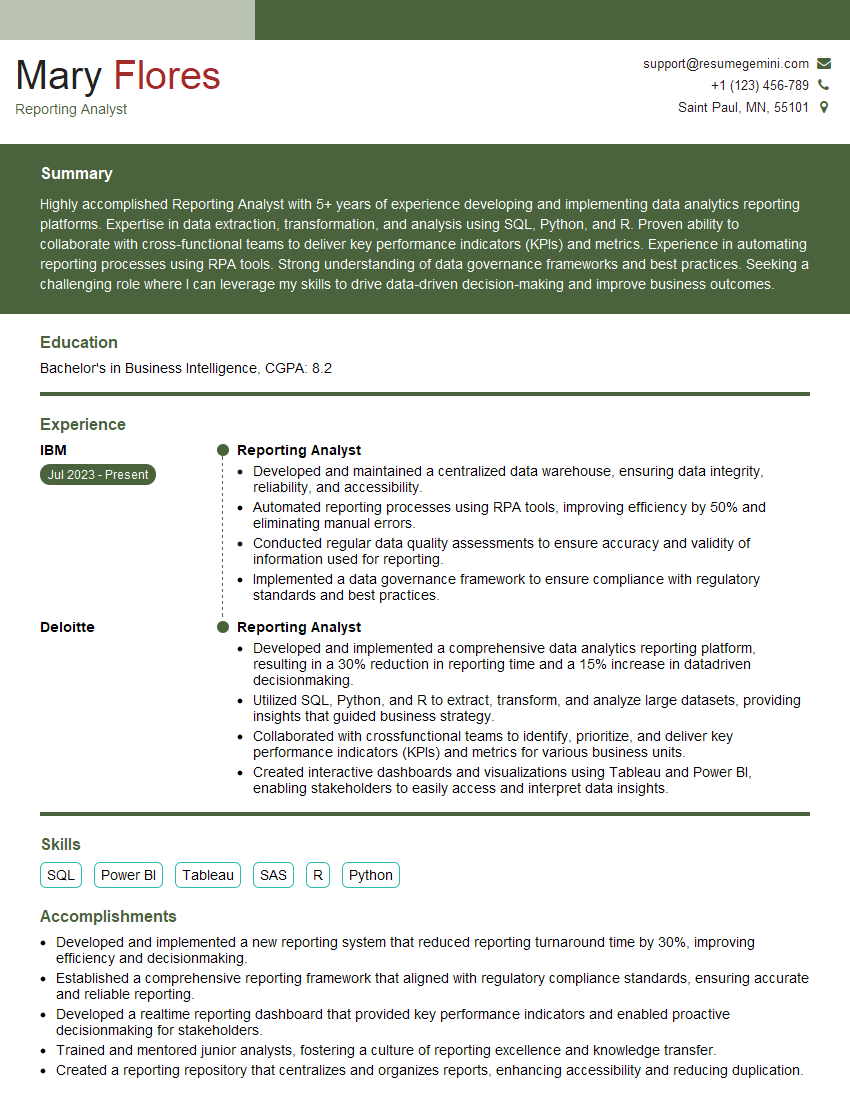
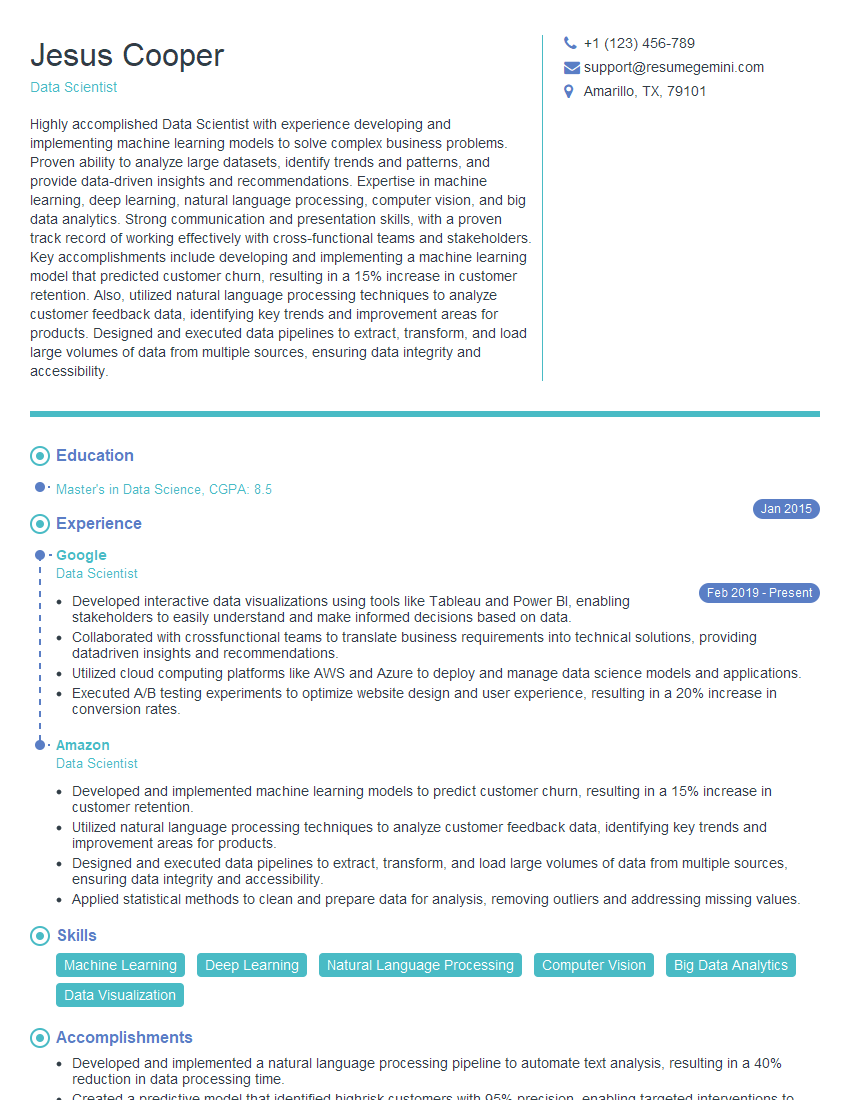
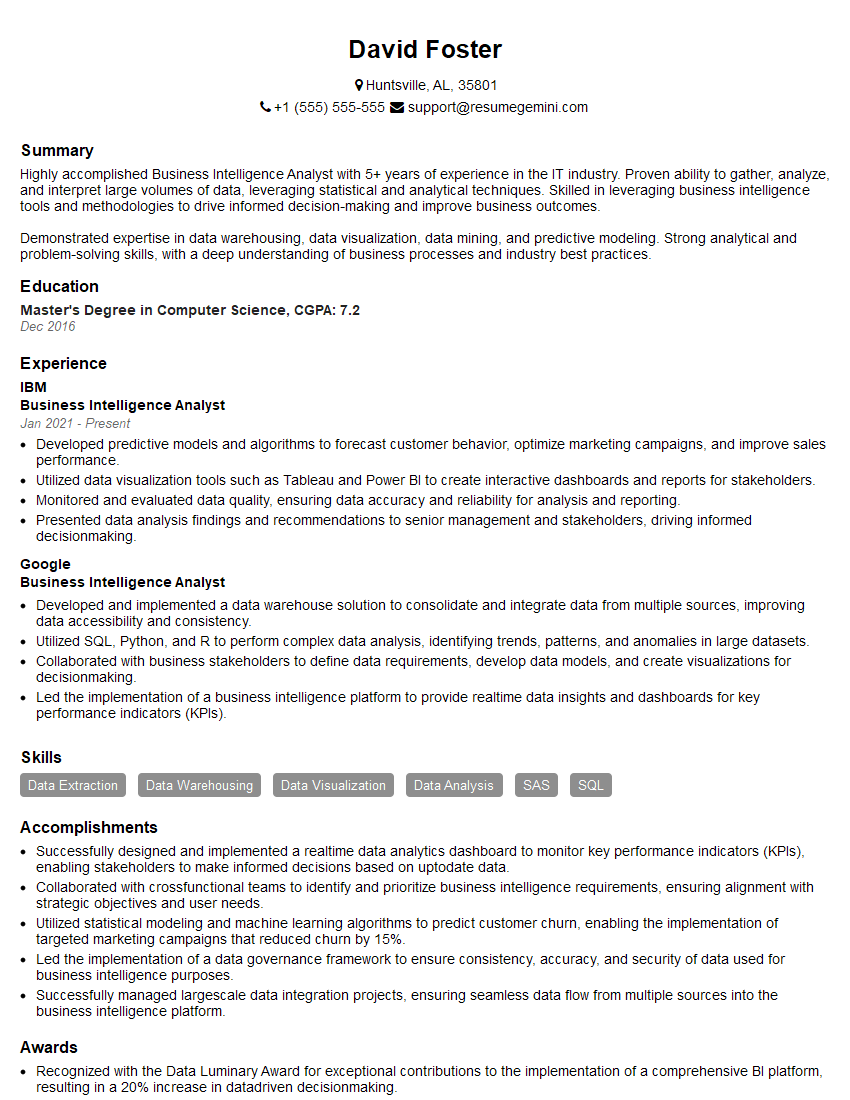
Mastering data visualization tools like Tableau and Power BI is crucial for career advancement in today’s data-driven world. These skills are highly sought after, opening doors to exciting opportunities and higher earning potential. To maximize your job prospects, create a compelling and ATS-friendly resume that highlights your skills and experience. ResumeGemini is a trusted resource to help you build a professional and impactful resume. We provide examples of resumes tailored to showcase expertise in data visualization tools like Tableau and Power BI to help you get started.

Explore more articles
Users Rating of Our Blogs
Share Your Experience
We value your feedback! Please rate our content and share your thoughts (optional).
What Readers Say About Our Blog
I Redesigned Spongebob Squarepants and his main characters of my artwork.
https://www.deviantart.com/reimaginesponge/art/Redesigned-Spongebob-characters-1223583608
IT gave me an insight and words to use and be able to think of examples
Hi, I’m Jay, we have a few potential clients that are interested in your services, thought you might be a good fit. I’d love to talk about the details, when do you have time to talk?
Best,
Jay
Founder | CEO