The thought of an interview can be nerve-wracking, but the right preparation can make all the difference. Explore this comprehensive guide to Virtual Machine Management (VMWare, Hyper-V) interview questions and gain the confidence you need to showcase your abilities and secure the role.
Questions Asked in Virtual Machine Management (VMWare, Hyper-V) Interview
Q 1. Explain the difference between Type 1 and Type 2 hypervisors.
Hypervisors are the foundation of virtualization, acting as a bridge between the physical hardware and the virtual machines (VMs) running on top. They’re categorized into two main types: Type 1 and Type 2.
Type 1 hypervisors, also known as bare-metal hypervisors, run directly on the host’s hardware without needing an underlying operating system (OS). This direct access provides better performance and security. Examples include VMware ESXi and Microsoft Hyper-V.
Type 2 hypervisors, also called hosted hypervisors, run as software on top of an existing operating system, like Windows or Linux. This makes them easier to install and manage but generally results in slightly lower performance due to the additional layer of software overhead. Examples include VMware Workstation Player and Oracle VirtualBox.
Think of it like this: Type 1 is like building a house directly on the land – efficient and direct. Type 2 is like building a house on top of an existing structure – easier to start but potentially less efficient.
Q 2. What are the advantages and disadvantages of using VMware vSphere over Hyper-V?
Choosing between VMware vSphere and Hyper-V depends heavily on your specific needs and existing infrastructure. Both are powerful hypervisors, but they have key differences.
- VMware vSphere Advantages: vSphere generally boasts a more mature ecosystem with broader third-party support, more advanced features like vSAN (software-defined storage) and vRealize (management and automation tools), and a wider range of management options. Its robust features often make it the preferred choice for large-scale enterprise deployments.
- VMware vSphere Disadvantages: vSphere typically comes with a higher licensing cost and can have a steeper learning curve compared to Hyper-V.
- Hyper-V Advantages: Hyper-V is tightly integrated with Windows Server, making it a cost-effective option for organizations already heavily invested in Microsoft’s ecosystem. It’s generally easier to manage and learn, particularly for users already familiar with Windows Server.
- Hyper-V Disadvantages: Hyper-V might lack the breadth and depth of features found in vSphere, especially when it comes to advanced management, automation, and large-scale deployments. Its third-party tool support is also less extensive.
In essence, vSphere is often a better fit for complex, large-scale environments demanding high performance and advanced features, whereas Hyper-V excels in simpler, smaller deployments within a Microsoft-centric infrastructure.
Q 3. Describe the process of creating a virtual machine in VMware vSphere.
Creating a VM in VMware vSphere typically involves these steps:
- Open the vSphere Client: Connect to your vCenter Server or ESXi host.
- Select a Host: Choose the ESXi host where you want to deploy the VM.
- Create a New Virtual Machine: Navigate to the ‘Create/Register VM’ option.
- Specify VM Settings: This involves choosing the VM’s name, location, guest operating system (e.g., Windows Server 2022, CentOS 7), and resource allocation (CPU cores, RAM, disk space). You’ll also select the storage datastore where the VM’s virtual disks will reside.
- Customize Hardware: You can adjust the VM’s hardware configuration, such as adding network adapters, CD/DVD drives, and other devices.
- Install the Guest OS: After the VM is created, you’ll need to install the chosen guest operating system within the VM. You might use an ISO image or a network installation method.
- Post-Installation Configuration: Once the OS is installed, you’ll need to configure the guest OS settings, networking, and any other required applications.
It’s crucial to properly allocate resources to ensure the VM performs optimally. Over-allocating can lead to wasted resources, while under-allocating can result in performance bottlenecks.
Q 4. How do you manage storage in a VMware vSphere environment?
Storage management in VMware vSphere is a critical aspect of maintaining performance and availability. It typically involves these key elements:
- Datastores: These are logical storage containers that present storage capacity to VMs. Datastores can be created from various physical storage solutions, like SANs, NAS devices, or local disks.
- Storage vMotion: This allows you to migrate the virtual disks of a running VM to a different datastore without downtime.
- Storage DRS (Distributed Resource Scheduler): Storage DRS automatically balances storage utilization across datastores, optimizing storage space usage and preventing bottlenecks.
- VMFS (VMware File System): This is the primary file system used for datastores in VMware vSphere. It offers features like clustering and high availability.
- vSAN (VMware vSAN): This is a software-defined storage solution that pools local disks from multiple ESXi hosts to create a shared storage capacity. It simplifies storage management and reduces the reliance on external storage arrays.
Effective storage management involves monitoring datastore usage, proactively managing capacity, implementing storage policies for different types of VMs, and using features like Storage vMotion and Storage DRS to optimize performance and availability.
Q 5. Explain the concept of vMotion in VMware vSphere.
vMotion is a VMware vSphere feature that allows you to migrate a running virtual machine from one ESXi host to another without any downtime or interruption to the guest operating system. It’s essentially live migration. This is incredibly useful for several reasons:
- Maintenance: You can easily migrate VMs off a host undergoing maintenance without affecting users.
- Resource Balancing: vMotion helps balance the workload across your ESXi hosts, preventing overutilization of any single host.
- High Availability: vMotion can facilitate the migration of VMs away from failing hardware, ensuring business continuity.
- Capacity Planning: You can more effectively manage capacity by shifting VMs based on current needs.
Imagine it like moving a running computer from one desk to another without turning it off—the user experiences no disruption.
Q 6. How do you perform a VM backup and restore in Hyper-V?
Backing up and restoring VMs in Hyper-V can be achieved in several ways:
- Windows Server Backup: This built-in tool allows you to create backups of your Hyper-V VMs. It’s a simple option, but it may not offer advanced features.
- Third-Party Backup Solutions: Many vendors offer comprehensive backup and recovery solutions specifically designed for Hyper-V. These often provide features like granular recovery, incremental backups, and offsite replication for disaster recovery.
- Exporting VMs: You can export Hyper-V VMs as .xml configuration files and virtual hard disks (.vhdx). This allows you to move the VM to another Hyper-V host or create a copy for backup. However, this method requires downtime.
Example using Windows Server Backup (simplified): You would typically open the Windows Server Backup tool, select the VMs you want to back up, and specify the backup location. The restoration process involves selecting the backup, choosing a restore point, and selecting the destination Hyper-V host. Third-party tools provide more advanced options, such as scheduled backups, compression, and deduplication.
Q 7. What are snapshots and how do they impact performance?
Snapshots are point-in-time copies of a virtual machine’s state. They capture the virtual disks and memory, allowing you to revert to a previous state if something goes wrong. Think of them like saving a document – you can go back to an earlier version.
While snapshots are crucial for recovery, they can impact performance. Each snapshot creates a delta (difference) file that tracks changes made since the snapshot was taken. As more snapshots are created, the chain of delta files grows, leading to longer boot times, slower I/O operations, and increased storage consumption. Furthermore, the performance impact can be more significant in high-I/O situations.
Best practices include removing unnecessary snapshots regularly and using snapshots sparingly. Consider using backups instead for long-term data protection while reserving snapshots for quick rollbacks from immediate errors or configuration changes.
Q 8. Explain the role of vCenter Server in a VMware environment.
vCenter Server is the central management platform for VMware vSphere environments. Think of it as the brain of your virtual infrastructure. It allows you to manage multiple ESXi hosts (the physical servers running your virtual machines), virtual machines, storage, networking, and other aspects of your virtualized environment from a single console. Without vCenter, managing a larger VMware environment would be incredibly difficult and time-consuming, requiring you to log into each ESXi host individually.
Key functions of vCenter Server include:
- Centralized Management: Provision, manage, and monitor all your VMs and ESXi hosts from a single pane of glass.
- High Availability and Disaster Recovery: Implement features like High Availability (HA) and Distributed Resource Scheduler (DRS) to ensure business continuity.
- Resource Allocation: Manage and allocate CPU, memory, and storage resources efficiently across your virtual infrastructure.
- VMware Update Manager (VUM): Patch and update your ESXi hosts and virtual appliances easily and securely.
- vCenter Server Appliance (vCSA): A streamlined, virtualized version of vCenter Server that simplifies deployment and maintenance.
For example, imagine needing to update the firmware on multiple ESXi hosts. With vCenter, you can do this from a single console, saving significant time and effort compared to manual updates on each host.
Q 9. How do you manage virtual machine resources (CPU, memory, disk)?
Managing virtual machine resources is crucial for optimal performance and efficiency. You can adjust CPU, memory, and disk resources both during VM creation and after deployment. This is primarily done through the vCenter Server client or the vSphere Web Client.
- CPU: You can allocate a specific number of virtual CPUs (vCPUs) to a VM, set CPU shares (prioritization), and enable features like CPU hot-add (adding CPUs while the VM is running). Over-allocating vCPUs can lead to contention and performance issues, while under-allocating can limit the VM’s potential.
- Memory: Similar to CPU, you allocate a specific amount of RAM to the VM. Memory ballooning (dynamically reclaiming unused memory) and memory hot-add are important features for optimizing memory usage. Insufficient memory leads to swapping (using hard drive space as RAM), causing severe performance degradation.
- Disk: You can create virtual disks (VMDKs) of different sizes and types. You can expand existing disks, create snapshots (point-in-time copies), and manage storage profiles to optimize disk I/O performance. Insufficient disk space can halt VM operations.
Consider a scenario where a VM is experiencing slow performance. Checking the resource usage in vCenter (CPU, memory, disk I/O) can quickly pinpoint the bottleneck and suggest solutions, like increasing RAM or upgrading the storage.
Q 10. Describe different virtual switch types in VMware and Hyper-V.
Virtual switches act as the network layer within a virtualized environment, connecting VMs to physical networks. Both VMware and Hyper-V offer different virtual switch types:
VMware:
- Standard vSwitch: The basic switch type, suitable for smaller deployments. It offers simple network configuration and limited features.
- Distributed vSwitch (dvSwitch): Designed for larger, more complex environments. Provides centralized management of multiple physical switches and offers advanced features like network virtualization and port grouping.
Hyper-V:
- External Virtual Switch: Connects VMs to a physical network adapter. Think of it as a direct link to your physical network.
- Internal Virtual Switch: VMs connected to this switch can only communicate with each other and not the outside world. Ideal for isolating VMs.
- Private Virtual Switch: Similar to an internal switch but also allows connection to other Hyper-V hosts. Use it for creating virtualized networks within a cluster.
Choosing the right virtual switch depends on your environment’s size, complexity, and networking requirements. A large enterprise might opt for a dvSwitch for better management, while a small business might be fine with a standard vSwitch.
Q 11. How do you troubleshoot network connectivity issues in a virtualized environment?
Troubleshooting network connectivity issues in a virtualized environment requires a systematic approach. Here’s a step-by-step process:
- Check the VM’s network settings: Verify the VM is connected to the correct virtual switch and has the correct IP address, subnet mask, and gateway. Look for any network configuration errors in the VM’s guest operating system.
- Examine the virtual switch: Check if the virtual switch is active and properly configured. Inspect the port groups to ensure the VM is assigned to the correct port group.
- Inspect physical network connectivity: Check cabling, network devices (switches, routers), and ensure the physical network is up and running. Use tools like
pingandtracerouteto check connectivity. - Analyze network traffic: Use tools like Wireshark to capture and analyze network traffic. This can help pinpoint the source of connectivity problems.
- Check for firewall rules: Make sure that firewalls on both the VM and physical network are not blocking necessary traffic.
- Review vCenter logs: vCenter Server logs often contain valuable information about network errors.
- Verify vMotion or DRS issues: If applicable, check for errors related to vMotion (live migration of VMs) or DRS (dynamic resource scheduling), which can sometimes interfere with network connectivity.
For example, if a VM can’t access the internet, you’d systematically check the VM’s IP configuration, the virtual switch settings, the physical network connection, and the VM’s firewall rules.
Q 12. Explain the concept of high availability (HA) and failover clustering.
High Availability (HA) and failover clustering are crucial for ensuring business continuity in virtualized environments. They allow your VMs to automatically restart on a different host if a failure occurs on the original host.
High Availability (HA): HA is a feature that automatically restarts a VM on another host in the cluster if the host it’s running on fails. It’s simpler to set up than failover clustering and is ideal for smaller deployments.
Failover Clustering: Failover clustering offers more advanced features than HA, including load balancing and planned maintenance. It provides a more robust solution for mission-critical applications and larger deployments. It typically involves shared storage, allowing VMs to be restarted on any host in the cluster with access to the shared storage.
Think of HA as a simple backup mechanism – if your primary server fails, your VM automatically restarts on a spare. Failover clustering is a more sophisticated system, allowing for a more seamless transition, even handling multiple simultaneous failures.
Q 13. How do you manage virtual machine templates?
VM templates are pre-configured virtual machines that serve as a blueprint for creating new VMs. They save time and effort by providing a consistent base configuration for your VMs. Managing templates efficiently is essential for standardized deployments.
- Creating Templates: You create a template by taking a snapshot of a properly configured VM and converting it into a template. Ensure the template is optimized with minimal bloatware and unnecessary applications.
- Storing Templates: Templates are typically stored in a dedicated datastore for easy access. A well-organized template repository is crucial for efficient management.
- Version Control: Maintain version control of your templates. This is critical for tracking changes and ensuring consistency.
- Updating Templates: Regularly update your templates with security patches and updates. Use VMware Update Manager (VUM) for easier patching.
- Template Deployment: Deploy new VMs quickly from the template using the vCenter Server client.
For instance, instead of manually configuring each new Windows Server VM, you create a template of a pre-configured Windows Server VM with your organization’s standard settings. Then, creating new servers becomes as simple as deploying the template.
Q 14. What are the best practices for virtual machine security?
Virtual machine security is paramount. Best practices include:
- Strong Passwords: Use strong and unique passwords for both the VMs and the vCenter Server.
- Regular Patching: Regularly update the guest operating systems, applications, and ESXi hosts with security patches.
- Firewall Configuration: Configure firewalls on both the VMs and the physical network to block unwanted traffic.
- Antivirus Software: Install and regularly update antivirus software on all VMs.
- Network Segmentation: Separate VMs into different networks based on their security requirements.
- Access Control: Implement robust role-based access control (RBAC) in vCenter to limit access to the virtual infrastructure.
- Regular Security Audits: Perform regular security audits to identify and address vulnerabilities.
- VMware vShield Endpoint: Consider using security tools like VMware vShield Endpoint for advanced VM security features.
Imagine a scenario where a VM is compromised. Regular patching and strong firewalls would significantly reduce the risk of successful attacks. Regular security audits help to identify vulnerabilities before they can be exploited.
Q 15. How do you monitor the performance of virtual machines?
Monitoring virtual machine (VM) performance is crucial for maintaining application uptime and resource efficiency. We use a multi-pronged approach, leveraging both the hypervisor’s built-in tools and third-party monitoring solutions.
Hypervisor Monitoring Tools: VMware vCenter provides comprehensive performance metrics including CPU usage, memory consumption, disk I/O, and network activity. Hyper-V Manager offers similar capabilities. These tools allow us to create dashboards visualizing key performance indicators (KPIs) and set alerts for critical thresholds. For example, if CPU usage consistently exceeds 90%, we’re alerted to potential performance issues.
Third-Party Monitoring Tools: Tools like PRTG, Nagios, or Zabbix offer advanced monitoring and alerting capabilities, often integrating with hypervisors to provide a centralized view across multiple VMs and physical hosts. These tools enable deeper analysis, trend identification, and proactive problem resolution. For instance, we can use them to track historical performance data to identify recurring bottlenecks or predict future resource needs.
VM-Specific Metrics: We also focus on VM-specific metrics such as application response times and error rates. This requires integrating monitoring tools with the applications running within the VMs. This ensures we aren’t just looking at the VM’s resource consumption but also its impact on the actual business applications.
Career Expert Tips:
- Ace those interviews! Prepare effectively by reviewing the Top 50 Most Common Interview Questions on ResumeGemini.
- Navigate your job search with confidence! Explore a wide range of Career Tips on ResumeGemini. Learn about common challenges and recommendations to overcome them.
- Craft the perfect resume! Master the Art of Resume Writing with ResumeGemini’s guide. Showcase your unique qualifications and achievements effectively.
- Don’t miss out on holiday savings! Build your dream resume with ResumeGemini’s ATS optimized templates.
Q 16. Explain the concept of DRS (Distributed Resource Scheduler) in VMware.
VMware DRS (Distributed Resource Scheduler) is an automated resource management feature that dynamically balances the workload across a cluster of ESXi hosts. Imagine it as a smart traffic controller for your virtual machines. Instead of manually moving VMs between hosts, DRS automatically migrates VMs based on predefined rules and resource utilization, ensuring optimal performance and high availability.
How it Works: DRS analyzes resource utilization (CPU, memory, etc.) on each host and compares it to the overall cluster capacity. If a host is overloaded, DRS will automatically migrate VMs to underutilized hosts. This process can be fully automated or semi-automated, depending on the chosen DRS automation level (e.g., Fully Automated, Manual, Partially Automated).
Benefits: DRS enhances resource utilization, reduces the need for manual intervention, improves high availability by automatically migrating VMs away from failing hosts, and simplifies capacity planning.
Example: If a host experiences a hardware failure, DRS automatically migrates the running VMs on that host to other hosts in the cluster ensuring business continuity.
Q 17. How do you perform live migration of a virtual machine?
Live migration of a VM involves moving a running VM from one host to another without interrupting service. Think of it as seamlessly moving a running application from one computer to another without the user even noticing.
Process (VMware): Within vCenter, we select the VM, right-click, and choose the ‘Migrate’ option. We then specify the destination host and select ‘Live Migration’ as the migration type. The process involves transferring the VM’s memory and state to the new host while the VM continues to operate. This requires shared storage accessible by both the source and destination hosts.
Process (Hyper-V): Similar functionality is available in Hyper-V Manager. You select the VM, right-click, and choose the ‘Move’ option, selecting the target host for live migration. This too requires shared storage.
Considerations: Successful live migration requires sufficient network bandwidth between the hosts, compatible hardware and virtualization versions, and properly configured storage.
Example: We might use live migration to perform scheduled maintenance on a host without downtime for the VMs running on it. Alternatively, we might move a VM to a host with more resources to improve performance.
Q 18. What are the different types of virtual disks?
Virtual disks are files that represent storage for a VM. Several types exist, each with its own characteristics and performance implications:
- Thick Provisioned Lazy Zeroed: The virtual disk file is created at its full allocated size, but the space isn’t actually consumed until data is written. This offers faster initial VM creation, but slower initial write performance.
- Thick Provisioned Eager Zeroed: The virtual disk file is created at its full allocated size, and all space is immediately zeroed out. This offers slower initial VM creation, but faster initial write performance and potential for better performance overall because of pre-allocation.
- Thin Provisioned: Only the space actually used by the VM is allocated initially. As more data is written, the virtual disk file grows dynamically. This is space-efficient but can impact performance if the disk becomes fragmented or I/O increases.
- Sparse Virtual Disks: Similar to thin provisioning, but uses space more efficiently.
- Differencing Disks: These track changes from a parent disk. This allows multiple VMs to share a base image, saving storage. However, it can be slower than a full disk.
The choice of virtual disk type depends on the specific requirements of the VM and the overall storage infrastructure.
Q 19. Explain the concept of resource pooling in virtualization.
Resource pooling in virtualization is the practice of centralizing and managing computing resources (CPU, memory, storage, network) and making them available to multiple VMs on demand. Think of it as a shared resource center, enabling efficient resource utilization and flexible allocation.
Benefits: Resource pooling reduces hardware costs by consolidating multiple physical servers into fewer, more powerful ones, allowing for greater flexibility and scalability. VMs can easily be created and migrated between hosts as needed, without requiring manual configuration of individual physical servers. It also simplifies administration and management.
Implementation: Resource pooling is implemented through virtualization platforms like VMware vSphere and Microsoft Hyper-V. They provide mechanisms for creating resource pools and assigning VMs to them, allowing for granular control over resource allocation. For example, we can create separate resource pools for different departments or applications, ensuring each receives the appropriate level of resources.
Example: A company could create a resource pool for its development team with dedicated resources for testing new applications, ensuring it does not impact production environments.
Q 20. How do you handle virtual machine performance bottlenecks?
Handling VM performance bottlenecks requires a systematic approach involving monitoring, analysis, and optimization. This is like diagnosing a patient – we need to find the root cause before applying a treatment.
Step 1: Identify the Bottleneck: This begins with thorough performance monitoring using tools mentioned earlier (vCenter, Hyper-V Manager, or third-party monitoring solutions). We analyze metrics such as CPU usage, memory consumption, disk I/O, and network traffic to pinpoint the limiting factor.
Step 2: Analyze the Root Cause: Once the bottleneck is identified, we analyze its root cause. Is it due to insufficient resources (CPU, memory, storage)? Is it a problem with the application within the VM? Is it related to network connectivity or storage latency? This step frequently involves examining application logs and performance counters.
Step 3: Implement Solutions: Based on the root cause, we implement appropriate solutions:
- Add Resources: If the bottleneck is due to insufficient resources, we add more CPU, memory, or storage to the VM or its host.
- Optimize the Application: If the application within the VM is inefficient, we work with developers to optimize its performance. This might involve code changes, database tuning, or caching strategies.
- Improve Storage Performance: If storage I/O is a bottleneck, we can consider using faster storage (SSD), improving storage array configuration, or optimizing VM disk layout.
- Enhance Network Connectivity: Network bottlenecks can be addressed by upgrading network infrastructure, optimizing network settings, or using faster network adapters.
Step 4: Monitor and Iterate: After implementing solutions, we continuously monitor VM performance to ensure the bottleneck has been resolved and to identify any new issues.
Q 21. Describe your experience with VMware vSAN or Hyper-V storage solutions.
I have extensive experience with both VMware vSAN and Hyper-V Storage Spaces Direct (SDS). Both provide software-defined storage solutions, eliminating the need for dedicated SAN or NAS appliances, thereby reducing costs and improving flexibility.
VMware vSAN: I’ve deployed and managed vSAN in various environments, leveraging its features like all-flash configurations, hybrid storage options (combining SSDs and HDDs), and its ability to scale easily to support demanding applications. I’ve worked with vSAN’s stretched clusters, providing high availability and disaster recovery capabilities across multiple sites. vSAN’s ease of management within the vCenter interface is a key benefit. I’ve also worked with performance tuning, optimizing vSAN configurations based on the specific workload requirements of the VMs.
Hyper-V Storage Spaces Direct: I’ve designed and implemented SDS clusters utilizing commodity hardware, creating highly available storage solutions for Hyper-V environments. My experience includes configuring storage tiers (caching and capacity tiers), implementing resiliency features (mirroring, parity), and managing storage capacity and performance. SDS also provides a cost-effective and scalable way to deliver highly available storage to Hyper-V VMs, and I’ve found it especially beneficial for environments with varying storage needs. The management interface is straightforward and integrates well with Hyper-V Manager, making it easier to manage the storage solution alongside the VMs.
In both cases, careful planning and capacity forecasting are crucial to ensuring performance and availability. Selecting the appropriate storage policies and configurations, based on the requirements of the workload, is also key to success.
Q 22. What are the differences between physical and virtual networking?
The core difference between physical and virtual networking lies in how network resources are allocated and managed. In physical networking, each device has its own dedicated network interface card (NIC) and directly connects to the physical network infrastructure (switches, routers, etc.). This offers high performance but is less flexible and scalable. Think of it like having separate phone lines for each person in a house – expensive and limiting.
Virtual networking, on the other hand, uses virtualization to create virtual networks within a physical server or across multiple servers. Virtual machines (VMs) share the physical network infrastructure through virtual switches managed by the hypervisor (e.g., VMware vSwitch, Hyper-V Virtual Switch). This approach is far more efficient, allowing multiple VMs to share the same physical network connection. It’s like having a shared phone system with extensions; more cost-effective and easier to manage.
Key differences summarized:
- Physical Networking: Dedicated hardware, higher performance, less flexible, more expensive.
- Virtual Networking: Shared resources, more flexible, better scalability, cost-effective.
Q 23. How do you implement and manage virtual networks?
Implementing and managing virtual networks involves several steps, varying slightly depending on the hypervisor. Let’s take VMware vSphere and Hyper-V as examples.
In VMware vSphere: You typically use the vSphere Client or vCenter Server to create virtual switches (vSwitches), define port groups (VLANs or other network segmentation), and assign virtual NICs to VMs. You can configure various networking options like distributed switches for advanced management and features like teaming for redundancy.
In Hyper-V: You use the Hyper-V Manager or PowerShell to create virtual switches (external, internal, or private), define VLANs, and connect VMs to the appropriate switches. PowerShell offers extensive automation capabilities.
Management encompasses:
- Monitoring network performance: Tracking bandwidth usage, latency, and packet loss using tools like PRTG or VMware vRealize Operations.
- Security configuration: Implementing firewalls, network access control lists (ACLs), and virtual private networks (VPNs) for VM security.
- Capacity planning: Proactively monitoring network utilization to anticipate future needs and scale infrastructure accordingly.
- Troubleshooting: Using tools like
ipconfig,ping, andtracerouteto diagnose network connectivity issues.
Q 24. Explain your experience with PowerShell or PowerCLI for VM management.
I have extensive experience using both PowerShell and PowerCLI for VM management. PowerShell is the command-line interface for Windows Server, including Hyper-V, while PowerCLI is VMware’s equivalent for managing vSphere environments. I find them invaluable for automation and scripting.
Examples of tasks I’ve automated using these tools include:
- Creating and deleting VMs:
New-VM(Hyper-V),New-VM(PowerCLI) - Managing VM networks:
Set-VMNetworkAdapter(Hyper-V),Set-VMNetworkAdapter -VirtualSwitchName 'vSwitch0'(PowerCLI) - Starting, stopping, and restarting VMs:
Start-VM,Stop-VM,Restart-VM(both) - Cloning VMs:
Export-VMandImport-VM(Hyper-V),Get-VM | Export-VM -Destination ...(PowerCLI) - Monitoring VM performance and resource utilization through cmdlets that retrieve performance counters.
My proficiency extends to creating complex scripts for managing large-scale VM deployments and automating repetitive tasks, significantly improving efficiency and reducing manual errors.
Q 25. How do you troubleshoot virtual machine boot failures?
Troubleshooting virtual machine boot failures requires a systematic approach. I typically follow these steps:
- Check the VM’s power state: Ensure the VM is actually powered on.
- Review the VM console logs: Look for error messages or clues during the boot process. This often identifies the root cause.
- Inspect the VM’s configuration: Verify the network settings, storage connections, and BIOS settings are correct.
- Check the host’s resources: Ensure sufficient CPU, memory, and disk space are available for the VM.
- Verify storage connectivity: Make sure the virtual disks are accessible and not corrupted. Tools like
chkdsk(Windows) can help. - Examine the hypervisor logs: The hypervisor’s logs (VMware vCenter logs or Hyper-V event logs) may provide information about hardware failures or other issues impacting the VM.
- Test the guest operating system’s boot media: If possible, try booting from a recovery disc to rule out OS corruption.
For instance, a boot failure might be due to a missing or corrupted virtual disk, insufficient RAM, or a network connectivity problem. Careful examination of the logs and VM configuration is crucial for pinpointing the problem.
Q 26. Describe your experience with cloning or replicating virtual machines.
I have considerable experience with both cloning and replicating virtual machines. Cloning creates a complete copy of a VM, including its configuration and disks, whereas replication creates a replica of the VM’s state that can be used for disaster recovery or testing. Both are powerful tools for efficient VM management, but they serve different purposes.
Cloning is useful for quickly deploying identical VMs or creating copies for testing. In VMware, I frequently use tools like vCenter Converter or the CloneVM command in PowerCLI. In Hyper-V, the Hyper-V Manager or PowerShell’s Export-VM and Import-VM cmdlets are my go-to methods.
Replication, on the other hand, requires more advanced solutions like VMware vSphere Replication or Hyper-V Replica. This provides near real-time synchronization of VM changes to a secondary location, ensuring business continuity in case of hardware failure or disasters. I’ve implemented and managed these replication solutions in several projects, ensuring minimal downtime and data loss.
Q 27. What are your preferred methods for virtual machine maintenance?
My preferred methods for virtual machine maintenance focus on a proactive and automated approach. This includes:
- Regular patching and updates: Keeping both the host operating system and the guest operating systems updated with security patches and performance improvements is paramount.
- Scheduled backups: Implementing a robust backup strategy to ensure data protection and disaster recovery capabilities is critical. Tools like Veeam or VMware vCenter Backup & Recovery are invaluable.
- Performance monitoring: Regularly monitoring CPU usage, memory consumption, disk I/O, and network activity to identify potential bottlenecks or performance issues before they escalate.
- Resource optimization: Regularly reviewing resource allocation to ensure VMs only use what they need, improving overall efficiency and reducing costs.
- Automated tasks: Using PowerShell or PowerCLI to automate tasks like defragging virtual disks, updating antivirus definitions, and performing system checks, minimizes manual effort and potential errors.
- Regular VM scans for malware: Using anti-virus software within the VMs and monitoring for any suspicious activities is an essential security practice.
By combining these approaches, I ensure my virtual machine environments are stable, efficient, and secure.
Q 28. Explain your understanding of VM optimization strategies.
VM optimization strategies aim to maximize performance and resource utilization while minimizing costs. These strategies encompass various aspects:
- Right-sizing VMs: Ensuring each VM has the appropriate amount of CPU, memory, and disk space to meet its needs. Over-provisioning leads to wasted resources, while under-provisioning results in performance bottlenecks.
- Storage optimization: Utilizing efficient storage solutions like SSDs for frequently accessed data and using thin provisioning to allocate disk space only as it’s used. Regular defragmentation or storage tiering strategies help further improve I/O performance.
- Network optimization: Employing network teaming, VLAN segmentation, and QoS policies to optimize network bandwidth and ensure smooth VM communication.
- Resource allocation policies: Implementing resource allocation policies such as DRS (Distributed Resource Scheduler) in VMware or similar features in Hyper-V to automatically balance resource usage across the host servers.
- Memory ballooning and swapping: Using memory ballooning (claiming back unused memory) and swapping (using disk space as virtual memory) can reduce the overall memory footprint of VMs and improve performance in memory-constrained environments.
- Regular maintenance: Proactive maintenance, including patching, updates, and performance monitoring, significantly impacts the long-term efficiency and stability of your VM environment.
An example: I once optimized a client’s VM environment by right-sizing VMs, resulting in a 20% reduction in server costs and a 15% improvement in application response times.
Key Topics to Learn for Virtual Machine Management (VMware, Hyper-V) Interview
- Virtualization Fundamentals: Understanding Type 1 vs Type 2 hypervisors, hardware virtualization (Intel VT-x, AMD-V), and the benefits of virtualization.
- VMware vSphere (or Hyper-V equivalent): Hands-on experience with creating, managing, and troubleshooting virtual machines. This includes resource allocation (CPU, RAM, storage), networking configuration (virtual switches, VLANs), and snapshot management.
- Storage Management: Working knowledge of virtual disk formats (VMDK, VHDX), storage technologies (iSCSI, Fibre Channel, NFS), and storage optimization techniques (thin provisioning, storage vMotion).
- Networking Concepts in Virtual Environments: Understanding virtual networking, including virtual switches, VLANs, port groups, and network configuration best practices for VMs.
- High Availability and Disaster Recovery: Familiarity with HA and DR strategies using technologies like VMware HA, vCenter Server, and replication technologies (e.g., VMware vSphere Replication).
- VMware vCenter Server (or Hyper-V Manager): Experience with managing multiple VMs and hosts centrally, performing tasks like resource monitoring, performance analysis, and capacity planning.
- Troubleshooting and Performance Optimization: Ability to diagnose and resolve common VM issues, optimize VM performance, and understand performance monitoring tools.
- Security Best Practices: Understanding security considerations for virtual environments, including VM security hardening, access control, and network security.
- Cloud Integration (Optional but beneficial): Experience with integrating VMs with cloud platforms like vCloud or Azure.
- Scripting and Automation (Optional but beneficial): Familiarity with scripting languages (PowerShell, Python) for automating VM management tasks.
Next Steps
Mastering Virtual Machine Management (VMware, Hyper-V) is crucial for a successful career in IT infrastructure, cloud computing, and DevOps. These skills are highly sought after, opening doors to exciting opportunities and career advancement. To maximize your job prospects, focus on building a strong, ATS-friendly resume that effectively showcases your expertise. ResumeGemini is a trusted resource that can help you create a professional, impactful resume tailored to your skills and experience. Examples of resumes tailored to Virtual Machine Management (VMware, Hyper-V) roles are available to help guide you.
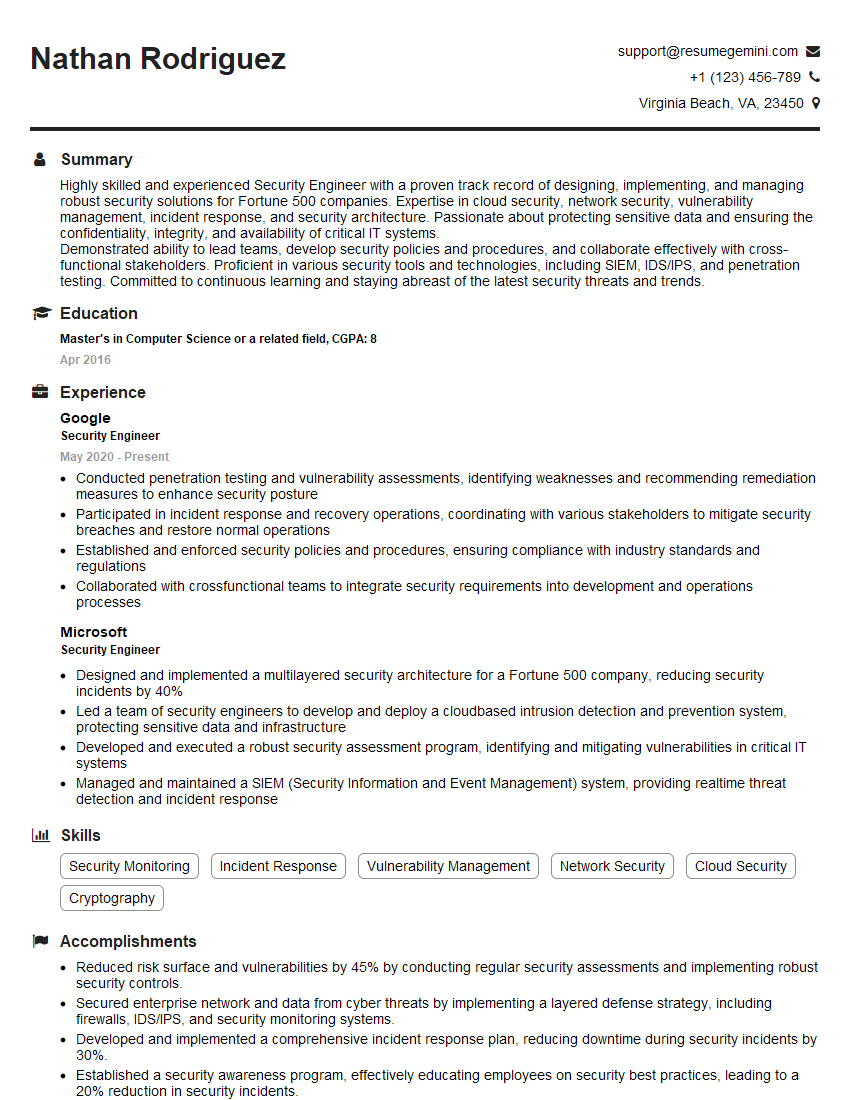
Security Engineer Resume Sample
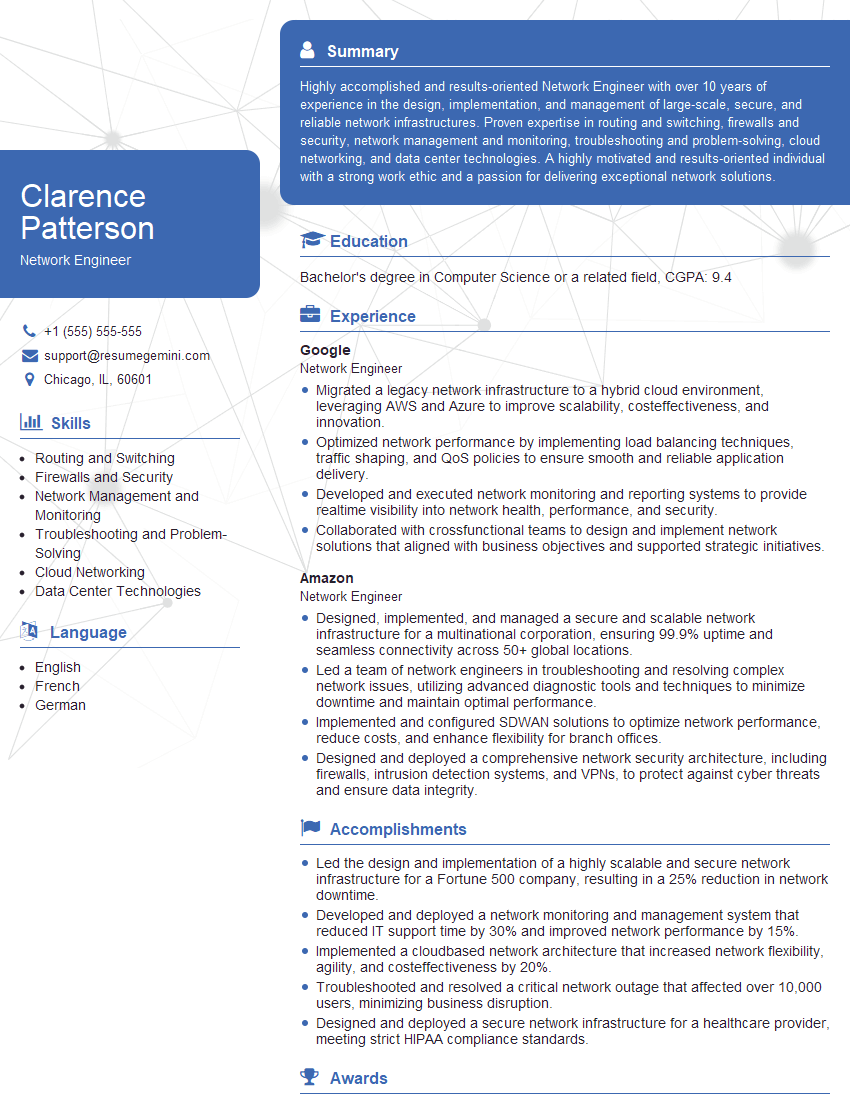
Network Engineer Resume Sample
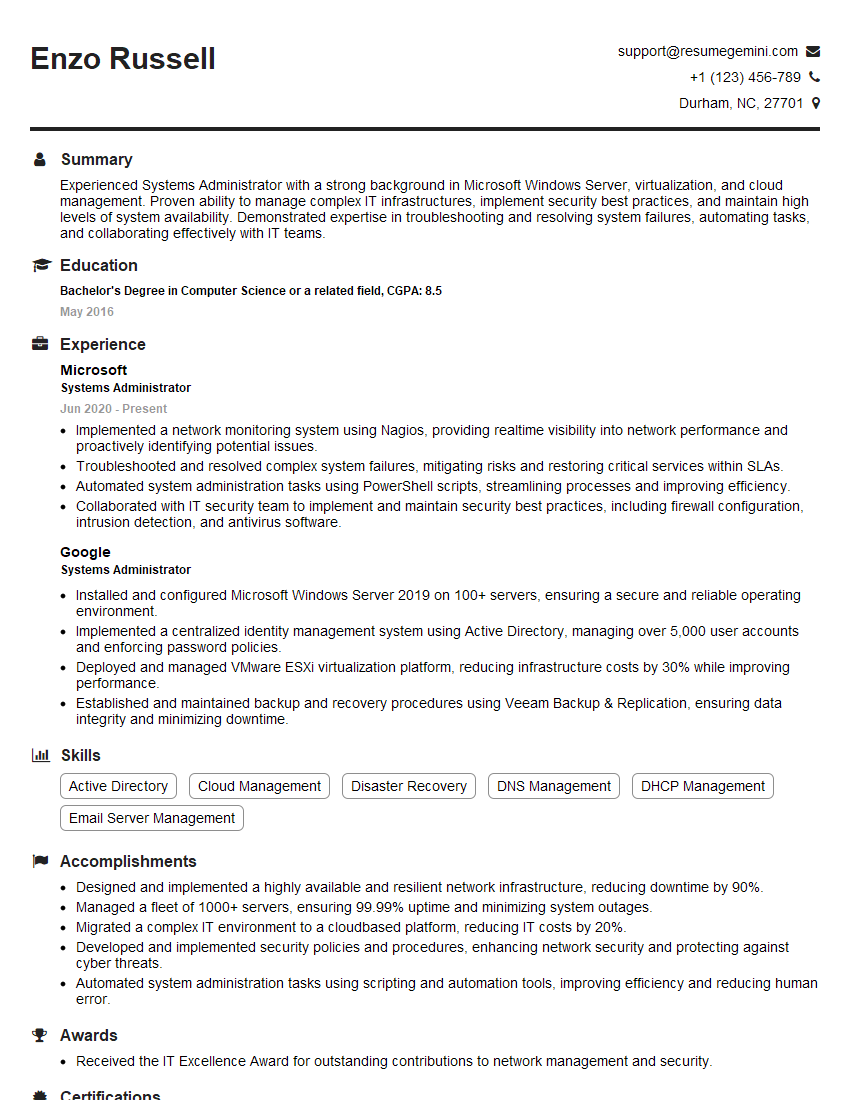
Systems Administrator Resume Sample
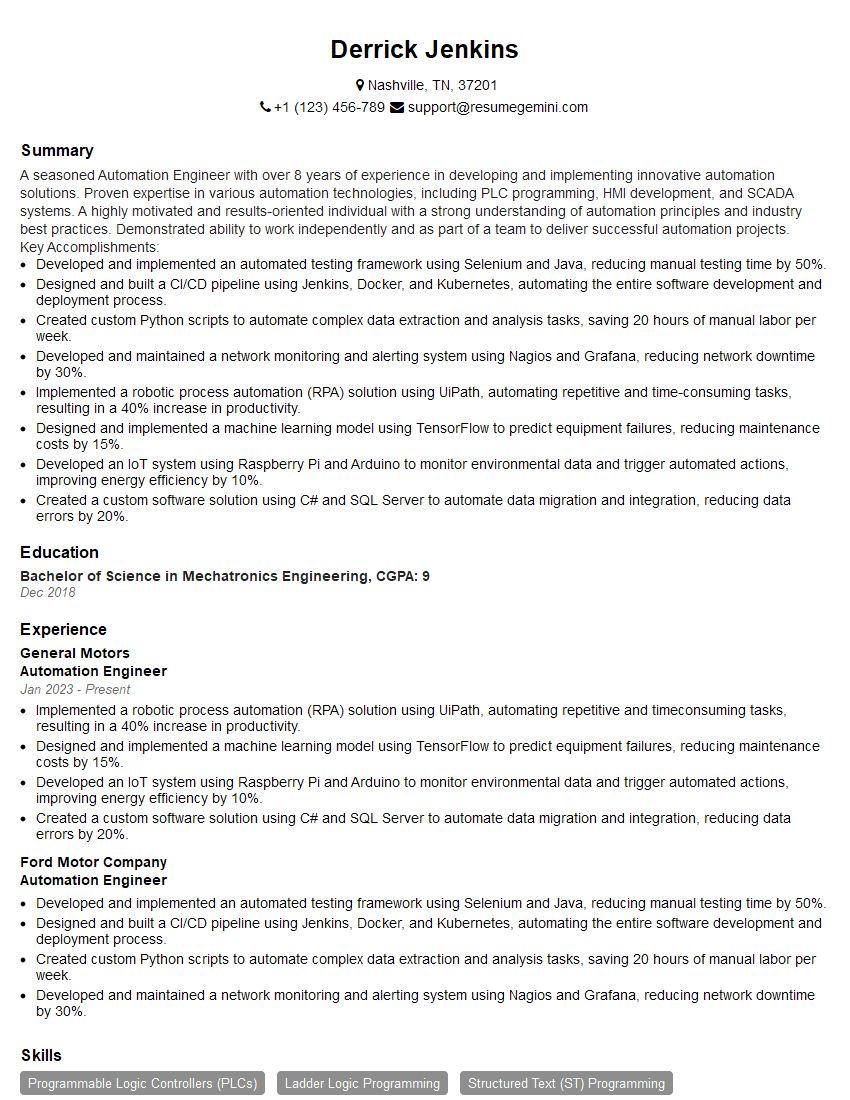
Automation Engineer Resume Sample

IT Manager Resume Sample

IT Specialist Resume Sample
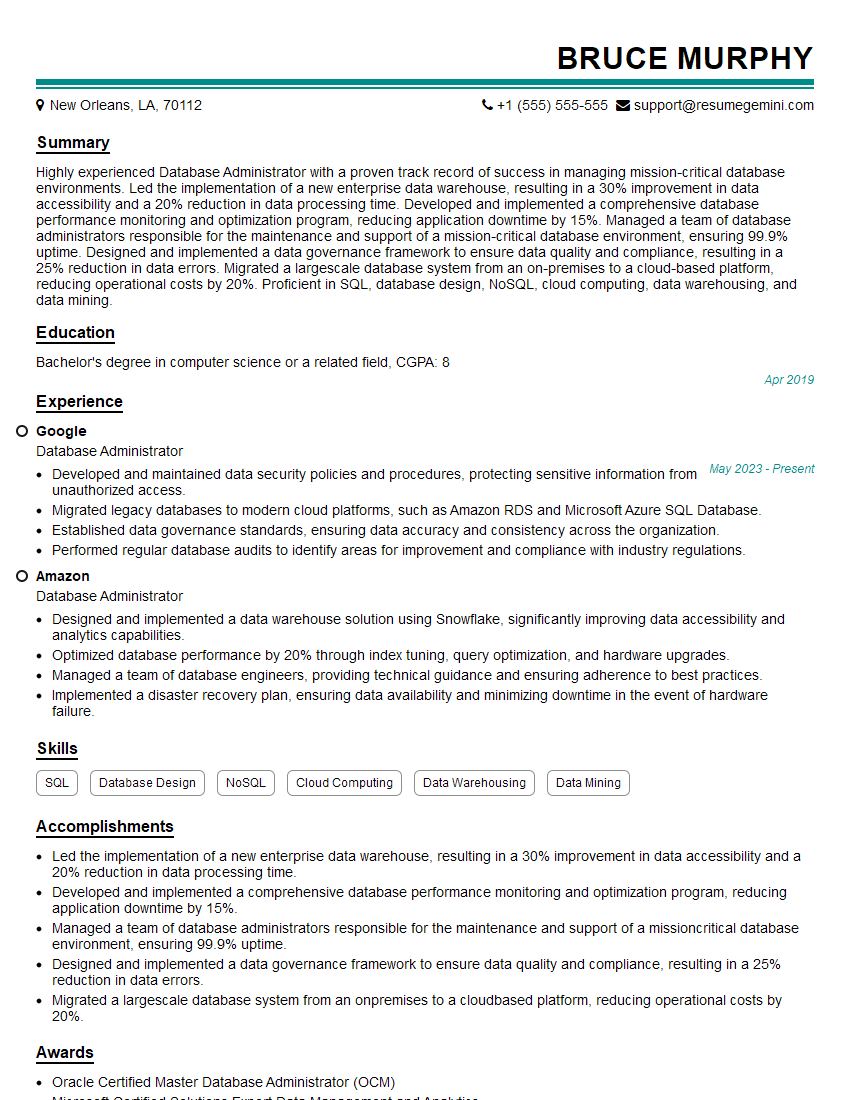
Database Administrator Resume Sample
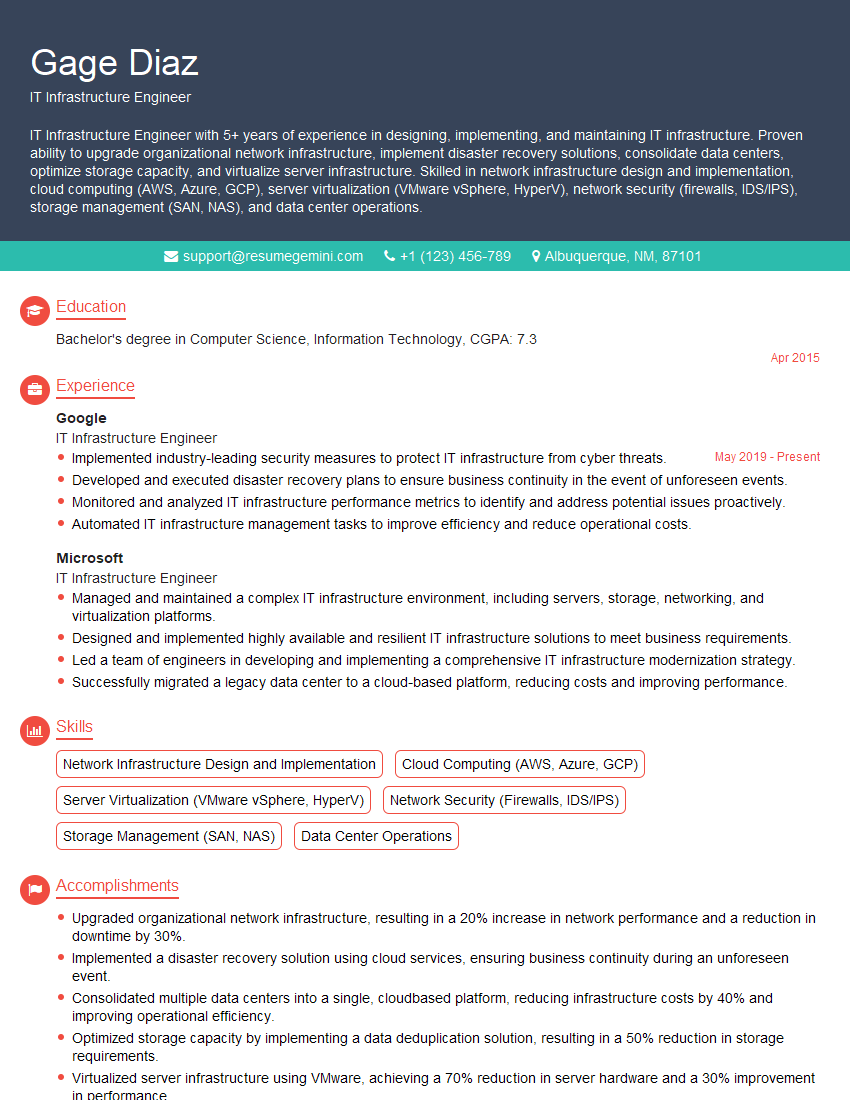
IT Infrastructure Engineer Resume Sample
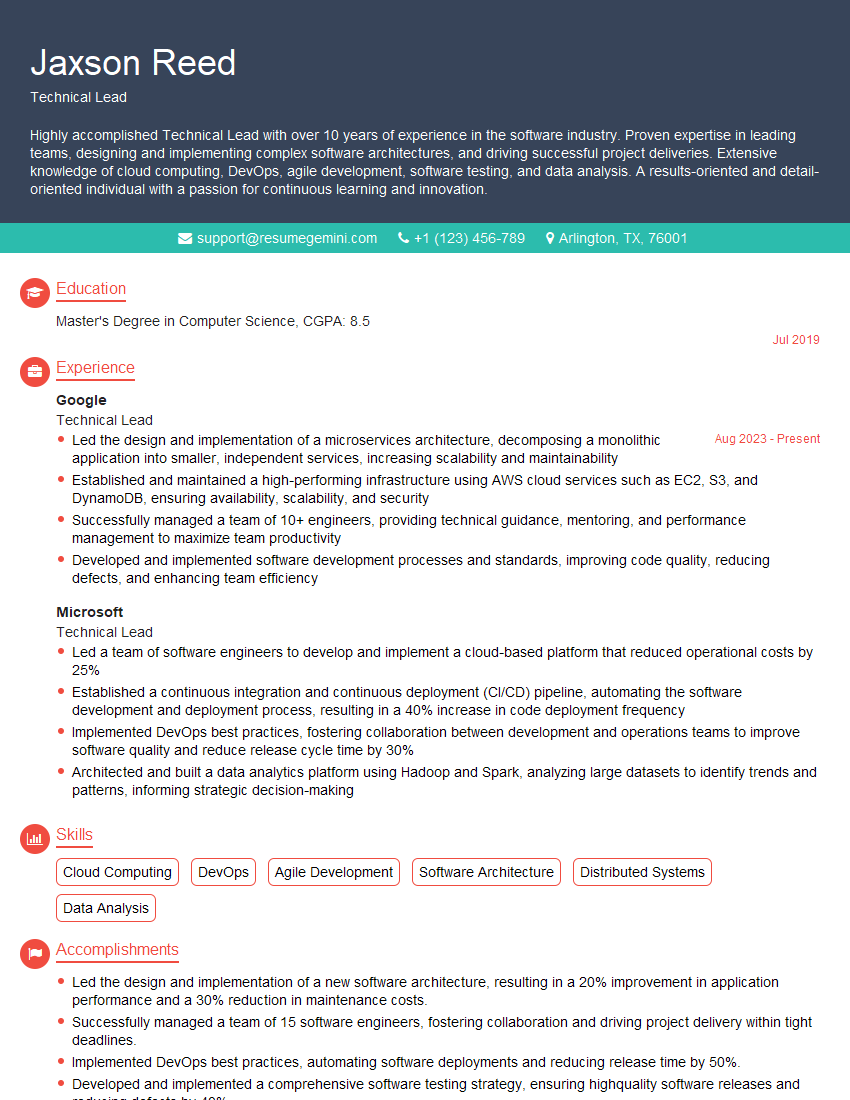
Technical Lead Resume Sample

DevOps Engineer Resume Sample
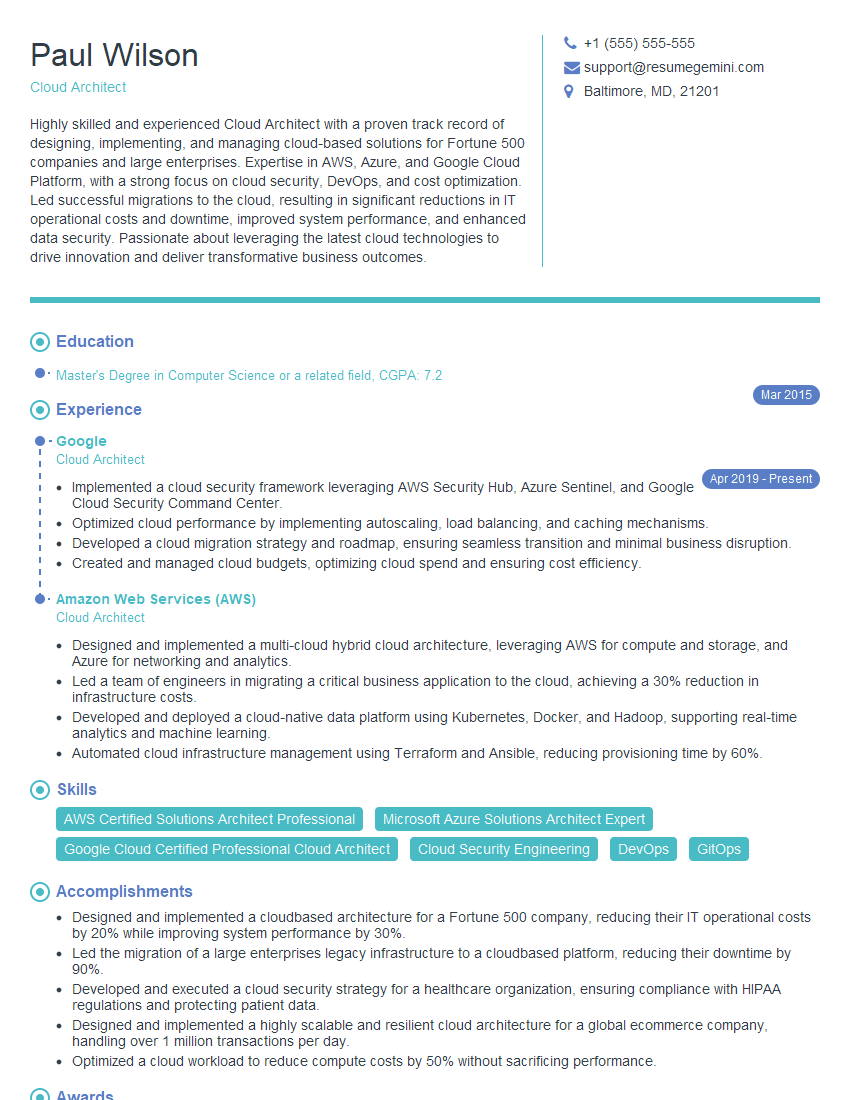
Cloud Architect Resume Sample
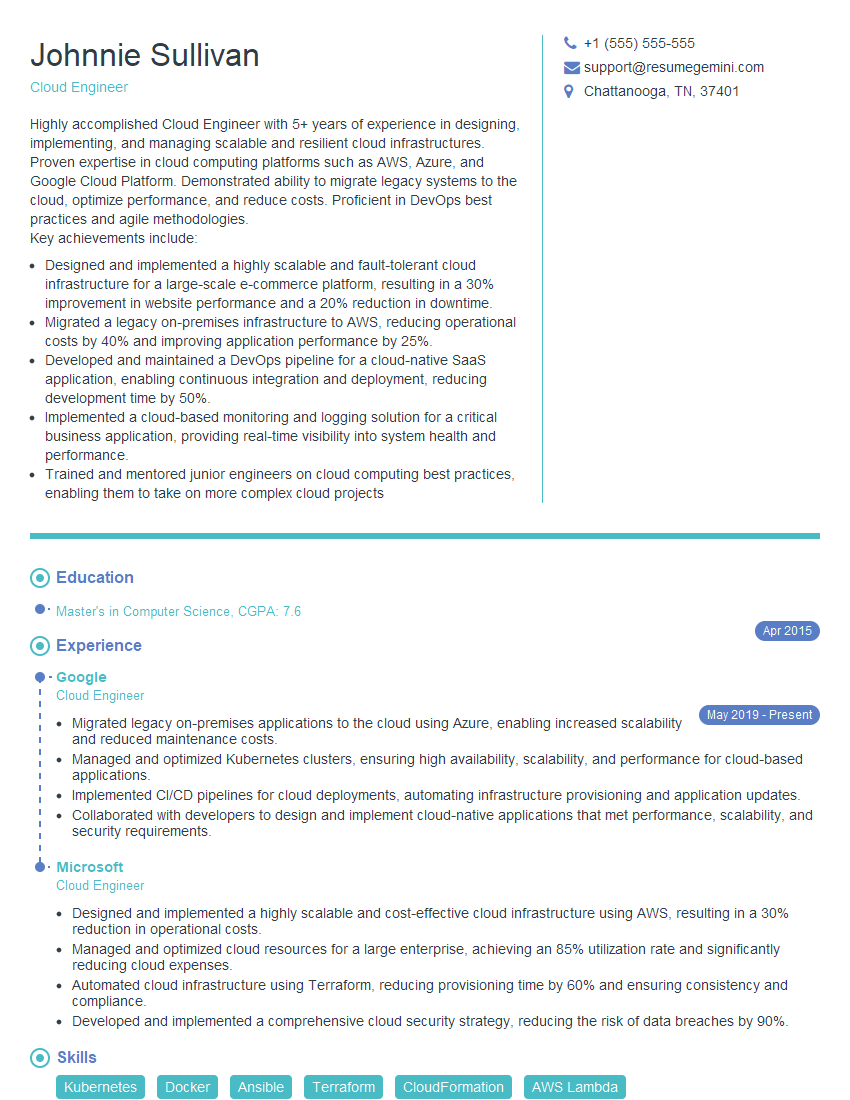
Cloud Engineer Resume Sample
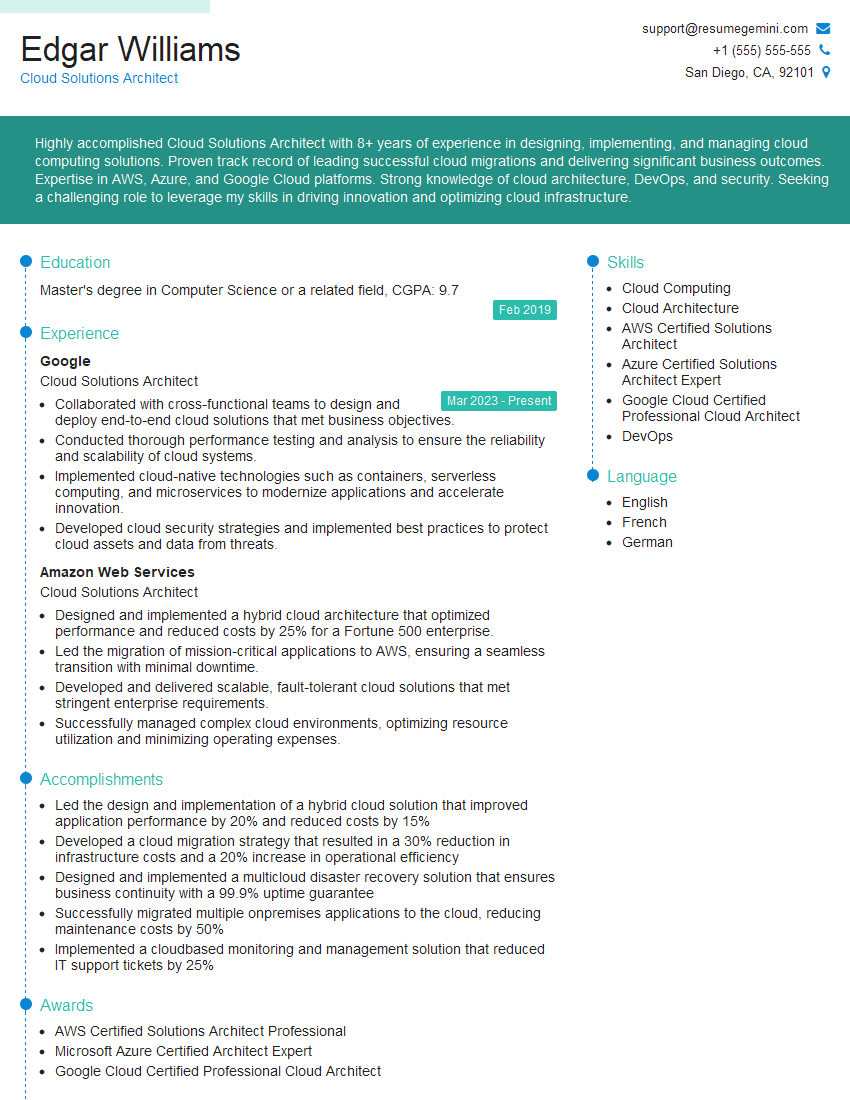
Cloud Solutions Architect Resume Sample
Explore more articles
Users Rating of Our Blogs
Share Your Experience
We value your feedback! Please rate our content and share your thoughts (optional).
What Readers Say About Our Blog
I Redesigned Spongebob Squarepants and his main characters of my artwork.
https://www.deviantart.com/reimaginesponge/art/Redesigned-Spongebob-characters-1223583608
IT gave me an insight and words to use and be able to think of examples
Hi, I’m Jay, we have a few potential clients that are interested in your services, thought you might be a good fit. I’d love to talk about the details, when do you have time to talk?
Best,
Jay
Founder | CEO