Preparation is the key to success in any interview. In this post, we’ll explore crucial PowerPoint or Google Slides interview questions and equip you with strategies to craft impactful answers. Whether you’re a beginner or a pro, these tips will elevate your preparation.
Questions Asked in PowerPoint or Google Slides Interview
Q 1. Explain the difference between a PowerPoint master slide and a slide layout.
Think of a PowerPoint presentation as a house. The master slide is the blueprint – it defines the overall look and feel, including things like fonts, colors, background, and the placement of headers and footers. Every slide you create is built upon this blueprint. A slide layout, on the other hand, is a specific room in that house. It’s a pre-designed template with placeholders for different content elements like titles, subtitles, images, and charts. You choose the layout that best suits the content for each slide.
For example, you might have a master slide that uses a consistent blue theme with a company logo in the top left corner. Then, you might choose different layouts based on your content: a title slide layout for the introduction, a two-column layout for comparing different ideas, and a bullet point layout for listing key features. Changes made to the master slide will automatically propagate to all slides using that master; however, changes to an individual slide layout won’t affect other layouts or the master itself.
Q 2. How do you create and manage animations in PowerPoint?
PowerPoint offers a robust animation system. You can add animations to individual elements on a slide, controlling their appearance and exit. This is done through the Animations tab. You select an object, then choose an animation effect from the library (e.g., fade, fly-in, spin). You can also adjust the animation’s timing, duration, and speed, and add trigger effects. Animations should be used judiciously—too many animations can be distracting. I typically prefer subtle animations to highlight key information, focusing on enhancing the message, not overpowering it.
For example, to emphasize a key statistic, I might have it fly in with a gentle zoom effect. To ensure a smooth and professional presentation, I often group similar objects together and apply animations to the groups, rather than animating individual objects. This allows for more complex, coordinated effects with less effort. PowerPoint also offers Transitions, which animate how one slide changes to the next. Similar to animations, they should be used sparingly and thoughtfully.
Q 3. Describe your experience using Google Slides’ collaboration features.
Google Slides’ collaboration features are integral to my workflow. I’ve extensively used its real-time co-editing capabilities for collaborative projects. Multiple users can work on a single presentation simultaneously, seeing each other’s changes instantly. This allows for efficient feedback and iterative design. I’ve leveraged the commenting feature for detailed feedback, resolving design conflicts and incorporating suggestions efficiently. The version history is also incredibly valuable, enabling me to revert to previous versions if needed and track all changes made to the document. One project I recall involved a large team creating a marketing presentation. Real-time collaboration allowed for seamless integration of everyone’s expertise, drastically reducing the time and effort needed for review cycles.
Q 4. How would you handle conflicting feedback on a presentation design?
Conflicting feedback is inevitable in design. My approach involves a structured process. First, I analyze the feedback to identify the core issues and common ground. Often, conflicting feedback stems from different interpretations of the goals or target audience. I’d schedule a meeting with the stakeholders to openly discuss the different perspectives. I use active listening to fully understand each point of view, and I guide the conversation towards finding a consensus that addresses all concerns. If a complete consensus isn’t possible, I prioritize feedback based on project goals and stakeholder importance, justifying my design choices with data and logical arguments.
For example, if one stakeholder wants a very minimalist design and another wants something more visually vibrant, I might suggest a compromise – a design that’s clean but strategically uses color accents to highlight key information. Visual aids, such as mock-ups, are crucial for clarifying discussions and achieving a shared understanding.
Q 5. What are some best practices for creating visually appealing charts and graphs?
Visually appealing charts and graphs are crucial for effective communication. I follow several best practices. First, I choose the right chart type for the data. A bar chart is ideal for comparisons, while a line chart shows trends over time. I keep the design clean and uncluttered, avoiding unnecessary ornamentation. I use clear and concise labels, ensuring the data is easily understandable. I employ a consistent color palette, maintaining visual harmony. I leverage data visualization best practices, such as avoiding 3D effects which often distort perception, and using clear visual hierarchies (e.g., using size or color to emphasize important data points). Finally, I ensure the chart is properly scaled and labeled for clarity and accuracy.
Q 6. Explain your process for designing effective slide transitions.
Effective slide transitions should be subtle and serve a purpose – guiding the audience’s attention and enhancing the flow of information. I avoid flashy transitions that can be distracting. My choice of transition depends on the content and the narrative. A simple fade or dissolve often works well for maintaining continuity. If I want to emphasize a shift in topic, a more pronounced transition might be appropriate, such as a push or a wipe. However, I maintain consistency throughout the presentation, using the same or a limited set of transitions to create visual harmony. Consistency is key to avoid jarring interruptions in the audience’s flow. The goal is to support the narrative, not dominate it. A jarring transition can easily break the flow and distract the audience, so keeping things seamless is paramount.
Q 7. How do you ensure accessibility in your PowerPoint or Google Slides presentations?
Accessibility is paramount. I ensure my presentations are inclusive by using sufficient color contrast, avoiding complex backgrounds that hinder readability for those with visual impairments. I include alternative text descriptions for all images, allowing screen readers to convey the visual information to users who cannot see it. I use clear and concise language, avoiding jargon, and I use a consistent font with sufficient size. For those with auditory impairments, I provide transcripts or captions if the presentation includes audio or video. For people with motor impairments, I make sure interactive elements are appropriately sized and easy to use. I also follow WCAG (Web Content Accessibility Guidelines) as a benchmark for designing accessible presentations.
Q 8. How do you incorporate multimedia elements effectively into presentations?
Multimedia elements significantly enhance presentations, making them more engaging and memorable. The key is strategic integration, not just throwing in visuals for the sake of it. I prioritize selecting high-quality, relevant media that directly supports the message. For example, instead of a generic image, I’d use a high-resolution photograph showcasing a key concept or a short, professionally-produced video explaining a complex process.
- Video: I use short, impactful video clips to illustrate complex concepts or processes more effectively than lengthy explanations. Think of a quick animation demonstrating a software workflow or a concise testimonial from a satisfied customer.
- Audio: Background music can set the mood, but it should be subtle and non-distracting. Sound effects can add emphasis, but overuse can be jarring. A carefully chosen sound clip might underscore a dramatic point, or a brief audio segment of an interview could add credibility.
- Images: I prioritize high-resolution images from reputable sources like Unsplash or Pexels to ensure visual quality. The images should be relevant and visually appealing, avoiding cluttered or distracting elements. I carefully consider image placement and size for optimal viewing.
- Animations and Transitions: Animations should be used sparingly and purposefully. Overuse can be distracting. Simple transitions between slides ensure a smooth flow without being overwhelming. I prefer subtle transitions that maintain visual continuity.
In a recent presentation for a tech startup, I incorporated a short animated explainer video to demonstrate their new software’s functionality. This proved far more effective than a lengthy slide filled with text and diagrams. The video held the audience’s attention and significantly improved comprehension.
Q 9. What are your preferred methods for incorporating data visualization into presentations?
Data visualization is crucial for effectively communicating complex information. I avoid overwhelming audiences with raw data; instead, I transform it into easily digestible visuals. My preferred methods include:
- Charts and Graphs: Bar charts, line graphs, pie charts, and scatter plots are all versatile tools, each best suited for different types of data. I carefully choose the chart type that best represents the data and its key insights. I ensure clear labeling and appropriate scaling to avoid misinterpretations.
- Infographics: Infographics are excellent for presenting complex data in a visually appealing and easily understandable format. They combine data visualizations with text and icons to tell a compelling story.
- Data Maps: For geographical data, I use data maps to highlight spatial patterns and relationships. These visually represent data distribution across locations, providing a clear picture of regional variations.
- PowerPoint/Google Slides Built-in tools: Both platforms offer robust charting tools. I leverage these features to create professional-looking charts directly within the presentation, ensuring seamless integration and consistency.
- External Tools: For more complex visualizations, I might use tools like Tableau or Power BI to create highly interactive and customizable visuals which I then embed into my presentations.
For instance, when presenting sales figures, instead of a table of numbers, I’d use a bar chart to clearly show sales growth over time. This allows the audience to quickly grasp trends and key performance indicators.
Q 10. Describe your approach to creating engaging and informative presentations for different audiences.
Adapting presentations to different audiences is critical for effective communication. My approach involves understanding the audience’s background, knowledge level, and interests.
- Audience Analysis: Before creating a presentation, I research the audience. Who are they? What are their interests and prior knowledge? What are their expectations? This informs my content, style, and language.
- Content Customization: I tailor the content to address the audience’s specific needs and interests. Technical presentations for experts will differ significantly from presentations for a general audience.
- Language and Tone: The language and tone should be appropriate for the audience. Technical jargon should be minimized or clearly explained for non-expert audiences. A formal tone might be suitable for a corporate setting, while a more conversational tone might be appropriate for a smaller, informal gathering.
- Visual Aids: Visual aids must be relevant and engaging for the specific audience. Images, charts, and animations should be tailored to improve comprehension and maintain interest.
For example, a presentation to a board of directors would require a formal tone, precise data, and a focus on financial performance. Conversely, a presentation to potential customers might emphasize the product’s benefits and user experience using more visual elements and a conversational style.
Q 11. How do you manage large and complex presentations?
Managing large and complex presentations requires a structured approach. My strategy involves:
- Modular Design: I break down the presentation into smaller, manageable modules, each focusing on a specific topic. This allows for easier organization, editing, and collaboration.
- Outline and Storyboarding: I create a detailed outline before starting the presentation. This helps me ensure a logical flow and avoids inconsistencies. Storyboarding helps visualize the presentation’s structure and visual elements.
- Master Slides and Templates: I consistently use master slides or templates to maintain design consistency and branding. This ensures a professional look and saves time.
- Version Control: For collaborative projects, I utilize version control systems or cloud-based platforms to track changes and revert to earlier versions if needed. This is crucial for avoiding conflicts and maintaining a clean presentation history.
- Hyperlinks and Navigation: For extremely long presentations, I incorporate hyperlinks to allow for easy navigation between sections, improving audience experience.
Think of building a house – you wouldn’t start without blueprints. Similarly, a detailed outline and storyboard help structure large presentations efficiently.
Q 12. Explain your experience using different PowerPoint/Google Slides features (e.g., SmartArt, shapes, tables).
I’m proficient in using a wide range of PowerPoint and Google Slides features.
- SmartArt: SmartArt graphics are invaluable for visually representing processes, hierarchies, and relationships. I utilize them to create clear and concise diagrams, avoiding complex text-heavy explanations.
- Shapes: I use shapes to create visual emphasis, highlight key points, or add visual interest to the slides. I avoid overusing shapes to ensure the slides remain clean and uncluttered.
- Tables: Tables are effective for presenting structured data, but I ensure that they are formatted clearly and concisely. Excessive data in a table should be avoided; instead, visualize the data using charts.
- Animations and Transitions: I use animations and transitions sparingly to enhance engagement but avoid overdoing it to prevent distraction. Subtly animated elements can emphasize key information or guide the viewer’s eye.
- Images and Multimedia: I integrate images, videos, and audio to create engaging and informative presentations. The quality and relevance of these elements are paramount.
For instance, in a presentation on project management, I used SmartArt to depict the project timeline, while charts and tables displayed progress and key metrics. Shapes were used to highlight important milestones.
Q 13. How do you ensure the consistency of branding and messaging across multiple slides?
Maintaining branding consistency across multiple slides is crucial for a professional and cohesive presentation. I accomplish this through:
- Master Slides/Themes: I leverage the master slide or theme functionality in both PowerPoint and Google Slides. This allows for applying consistent fonts, colors, logos, and background styles across all slides, ensuring a uniform look and feel.
- Brand Guidelines: I carefully adhere to pre-defined brand guidelines, ensuring the presentation accurately reflects the organization’s visual identity. This might involve using specific fonts, colors, and logo placements.
- Style Guides: I use style guides to maintain consistency in formatting, such as heading styles, bullet points, and paragraph spacing. This adds professionalism and readability.
- Customizable Templates: For consistent branding, creating custom templates is essential. This allows for quick creation of multiple slides maintaining a consistent look throughout.
By following a brand style guide and utilizing the master slide feature, I recently created a series of presentations for a client that maintained a perfect brand identity across all slides, without any discrepancies. This professionalism greatly increased the impact of the message.
Q 14. How do you handle last-minute changes or revisions to a presentation?
Handling last-minute changes requires flexibility and a structured approach. My strategy involves:
- Prioritize Changes: I quickly assess the urgency and impact of each change, prioritizing the most critical ones first.
- Efficient Editing: I leverage the software’s features (like find and replace) to efficiently implement changes across the presentation. I avoid manual edits where possible to minimize errors and maintain consistency.
- Version Control: I save frequent backups, noting changes made. This ensures that I can easily revert to previous versions if needed.
- Clear Communication: I confirm the changes with the client or stakeholders before implementing them to ensure clarity and avoid further revisions.
- Time Management: I realistically assess the time required to implement the changes and communicate any potential delays.
Once, I received significant changes just hours before a crucial presentation. By prioritizing the changes, using find-and-replace, and working efficiently, I managed to integrate them without compromising the quality or the presentation’s timeline.
Q 15. What software or tools do you use to create high-quality images for presentations?
Creating high-quality images for presentations is crucial for visual impact. I use a combination of tools depending on the image’s purpose and complexity. For professional-looking photos, I rely on stock photo websites like Unsplash or Pexels for royalty-free images. These sites offer a vast library of high-resolution photos categorized by subject and style. For more customized visuals, I utilize design software like Canva. Canva provides user-friendly tools to create graphics, charts, and illustrations from scratch, or from readily available templates. For complex illustrations or edits to existing images, I leverage Adobe Photoshop or GIMP (a free, open-source alternative).
For example, if I need a photo of a diverse team working collaboratively, I’d search Unsplash for relevant images. If I need a custom infographic showing sales data, I’d create it in Canva, leveraging its intuitive chart-building tools. If I require sophisticated image manipulation like removing a background or enhancing color, then Photoshop is my go-to.
Career Expert Tips:
- Ace those interviews! Prepare effectively by reviewing the Top 50 Most Common Interview Questions on ResumeGemini.
- Navigate your job search with confidence! Explore a wide range of Career Tips on ResumeGemini. Learn about common challenges and recommendations to overcome them.
- Craft the perfect resume! Master the Art of Resume Writing with ResumeGemini’s guide. Showcase your unique qualifications and achievements effectively.
- Don’t miss out on holiday savings! Build your dream resume with ResumeGemini’s ATS optimized templates.
Q 16. Describe your experience with creating and using templates in PowerPoint or Google Slides.
Templates are invaluable for creating consistent and professional-looking presentations. Both PowerPoint and Google Slides offer a wide array of built-in templates, categorized by style and purpose. I frequently start with a template that aligns with the presentation’s overall tone and then customize it to fit my specific needs. For example, a corporate presentation might benefit from a clean, minimalist template, while a more creative presentation could use a more visually dynamic one.
Beyond the built-in options, I also create and save my own custom templates. This allows me to maintain branding consistency across multiple presentations. Think of a logo, specific color palette, and font choices all pre-set within the template. This dramatically reduces the time spent on formatting each slide and ensures a cohesive look. I save these custom templates for easy reuse on future projects.
Q 17. How do you ensure your presentations are engaging and keep the audience’s attention?
Keeping an audience engaged requires a multi-pronged approach focusing on visual appeal, clear communication, and interaction. Firstly, I avoid text-heavy slides, opting for concise bullet points and compelling visuals. Visuals, such as high-quality images, charts, and graphs, break up large blocks of text, improving readability and engagement. I use varied visual elements to maintain interest; for instance, alternating between photos and data visualizations. Secondly, I incorporate storytelling techniques. I begin with a strong hook to capture attention and maintain a clear narrative throughout the presentation. Thirdly, I build in opportunities for audience interaction, such as polls, Q&A sessions, or interactive activities to keep them actively involved.
For instance, during a product launch, I’d begin with a captivating video demonstrating the product’s key features, followed by concise slides illustrating its benefits and use cases. Then, I’d incorporate a live poll to gauge audience interest in specific product features. This multi-faceted approach ensures the audience stays focused and engaged.
Q 18. What are some of your favorite tips and tricks for using PowerPoint or Google Slides efficiently?
Efficiency in PowerPoint or Google Slides is crucial. Here are some of my favorite tips and tricks:
- Mastering keyboard shortcuts: Using shortcuts like Ctrl+A (Select All), Ctrl+C/Ctrl+V (Copy/Paste), and Ctrl+Z (Undo) significantly speeds up the workflow.
- Using the ‘Notes’ section effectively: The ‘Notes’ pane allows you to add detailed information for yourself, ensuring you don’t miss key points during the presentation. I use this for speaking notes or extra data.
- Leveraging the ‘Presenter View’: This feature displays the current slide, next slide, speaker notes, and timer simultaneously on your monitor, making transitions seamless.
- Grouping objects: Grouping related elements (like text boxes and images) makes editing and moving them around much easier. This simplifies adjustments and maintains visual consistency.
- Using the alignment guides: These visual aids ensure perfect alignment of objects on your slides, improving overall aesthetics.
For instance, instead of manually selecting each bullet point to change its font, I use Ctrl+A to select all, and then change the font, saving time and effort.
Q 19. How do you choose appropriate fonts and colors for your presentations?
Font and color choices significantly impact a presentation’s readability and overall aesthetic. I generally follow these guidelines:
- Font Selection: I choose clear, legible fonts like Arial, Calibri, or Helvetica for body text. For headings, I might opt for a more visually striking font but still maintain readability. I avoid using more than two fonts in a single presentation to maintain consistency.
- Color Palette: I stick to a limited color palette, typically 2-3 colors, derived from the presentation’s branding or a complementary color scheme. I ensure sufficient contrast between text and background colors to improve readability. High contrast (dark text on a light background or vice-versa) is paramount.
- Consider Accessibility: I always ensure enough contrast between text and background, following WCAG guidelines to make the presentation accessible to people with visual impairments.
For example, if the presentation theme is corporate, I might use a dark blue and gray palette with a clean, sans-serif font like Arial. Conversely, for a more creative presentation, I might opt for a bolder color palette and a more playful font, keeping in mind overall cohesiveness.
Q 20. How do you create visually appealing infographics in PowerPoint or Google Slides?
Creating visually appealing infographics within PowerPoint or Google Slides involves careful planning and design. I begin by defining the key data I want to convey and then select the most appropriate chart or graph type for the data. Simple charts like bar graphs, pie charts, and line graphs are effective for straightforward data. For more complex data, I might use combination charts or other specialized visualizations. To enhance the visual appeal, I use high-quality icons, incorporate a consistent color scheme, and add clear labels to all chart components.
I might use Canva or similar tools to create custom icons if the built-in options are insufficient. Tools that allow for data import directly into the chart creation process streamline the workflow. For instance, if presenting sales data for different regions, a well-designed bar chart with clear labels for regions and sales figures is more engaging than a table of numbers.
Q 21. Explain your understanding of using hyperlinks and embedded media within presentations.
Hyperlinks and embedded media are powerful tools for enriching presentations. Hyperlinks allow you to connect your presentation to external resources such as websites, documents, or other presentations. This is useful for providing additional information or directing the audience to relevant resources. To insert a hyperlink in both PowerPoint and Google Slides, you select the text or object, go to the ‘Insert’ tab, and choose ‘Hyperlink’. Then you provide the URL of the intended destination.
Embedded media, such as videos and audio clips, adds dynamism and engages the audience more effectively than static content. PowerPoint and Google Slides allow for embedding various media formats. Simply go to the ‘Insert’ tab and choose the media type, then browse and select the file. Ensure that the media you embed is relevant, high-quality, and appropriately sized to avoid disrupting the flow of the presentation. Testing the media before the presentation is essential to prevent unexpected technical issues. For instance, I might embed a short video showcasing a product’s functionality during a product demonstration.
Q 22. Describe your experience with using speaker notes in presentations.
Speaker notes are a crucial feature in PowerPoint and Google Slides, allowing presenters to add detailed information beyond what’s visible on the main slides. Think of them as your personal script or reminder. I extensively use them to jot down key talking points, statistics, anecdotes, or even transitions between ideas. This ensures I stay on track, deliver a consistent message, and avoid forgetting important details during the presentation.
For example, if I’m presenting sales figures, my slide might show a concise graph, but my speaker notes would contain the specific numbers, their percentage change, and relevant context like market trends. I often use bullet points and short sentences in my notes to make them easily scannable during the presentation. This approach helps me present confidently and engagingly, even if I get momentarily off track.
In collaborative projects, sharing speaker notes can also be beneficial. It allows team members to see the full depth of the presentation, facilitating better understanding and providing valuable feedback.
Q 23. How do you ensure your presentations are easily printable and readable?
Ensuring printability and readability is vital for presentations, particularly when distributing them for later review. My strategy involves several key steps:
- Choosing the right page setup: I always select ‘Landscape’ orientation for better visual presentation of data or charts on printed pages. I also adjust margins to ensure text and visuals aren’t cut off.
- Font selection: I stick to clear, easily readable fonts like Arial or Calibri in a size that’s comfortable to read in print (at least 10-12 points). Avoid overly stylistic fonts that might be difficult to decipher in print.
- Background and color contrast: I choose a background color that contrasts well with the text, ensuring high readability. Excessive use of dark colors or complex background images can make the printouts look cluttered and difficult to read. The best strategy is to opt for a simple, clear background.
- Image resolution: High-resolution images are necessary for clear prints. Low-resolution images will appear blurry and pixelated. I make sure to use images with a sufficient resolution for print (at least 300 DPI).
- Testing: Before distributing, I always print a test copy to check the layout, font size, color contrast and image quality. This helps me identify and address any issues before the final distribution.
Q 24. What is your experience with exporting presentations in various formats (e.g., PDF, JPEG)?
Exporting presentations in different formats is a regular part of my workflow. I frequently export to PDF for archiving and sharing, especially when needing a format that preserves formatting and ensures everyone sees the presentation exactly as intended, regardless of their software. PDFs also offer better security options to prevent unauthorized editing.
JPEG is a useful format for images and individual slides that need to be shared online or incorporated into other documents. I use JPEG when I want a smaller file size compared to PDF, especially beneficial for web usage. However, I’m aware that JPEG loses some quality during compression, which isn’t ideal if fine details in charts or graphs need to be maintained.
Other formats I’ve used include PowerPoint (.pptx) or Google Slides (.gslides) for continued editing and collaboration and PNG for high-quality image export with transparency.
Q 25. How do you use revision history to manage changes in collaborative projects?
Revision history is essential for managing changes in collaborative projects. Both PowerPoint and Google Slides have built-in version history features. I encourage all collaborators to save their changes frequently and utilize comments within the presentation itself. This allows us to track specific edits, understand who made them, and revert to previous versions if necessary.
For instance, if a team member accidentally deletes a crucial section, the revision history lets us easily restore it. If disagreements arise, we can review past versions to compare edits and identify points of conflict. Using clear version names (e.g., ‘Version 1 – Initial Draft’, ‘Version 2 – Data Updated’, ‘Version 3 – Final Review’) improves organization and understanding of the changes.
Q 26. Explain your approach to creating a clear and concise narrative within a presentation.
Creating a clear and concise narrative is paramount to an effective presentation. My approach involves a structured planning process:
- Defining a central theme: I begin by identifying the core message I want to convey. All content should support this central theme.
- Outlining the key points: I create a detailed outline, structuring the presentation logically and ensuring a smooth flow of information from one point to the next. This often involves using a mind map or storyboarding approach.
- Using strong visuals: I incorporate visuals such as charts, graphs, and images to support and illustrate key points, enhancing understanding and engagement. Simplicity is key: avoid overwhelming visuals.
- Maintaining brevity: I avoid information overload. Each slide should focus on a single, clearly defined idea, using concise language and avoiding unnecessary jargon. I adhere to the ‘one idea per slide’ rule.
- Practicing the delivery: A strong narrative is meaningless without clear delivery. I practice thoroughly, ensuring smooth transitions and a compelling presentation style.
Q 27. How would you troubleshoot a technical issue during a presentation?
Troubleshooting technical issues during a presentation requires a calm, methodical approach. My strategy involves:
- Identifying the problem: First, I assess the nature of the issue: is it a software glitch, a hardware problem (projector malfunction, laptop issues), or a connectivity problem (internet, projector cable)?
- Simple fixes first: I try simple solutions, such as restarting the laptop or projector, checking cable connections, or ensuring the projector is properly powered on and set to the correct input.
- Seeking help: If the issue persists, I don’t hesitate to ask for assistance from the venue’s technical support or a colleague who might have relevant expertise.
- Have a backup plan: I always have a backup copy of the presentation on a USB drive and ideally, a printed copy as well. This is crucial for handling unexpected crashes or technical failures.
- Adapting: If the technology fails completely, I’m prepared to adapt my presentation. I can utilize a printed copy or focus on key points, emphasizing verbal delivery to keep the audience engaged.
For example, if my laptop crashes, I would quickly connect my USB drive, use the venue’s computer (if available), or switch to my printed copy and present without slides, focusing on the narrative and key points.
Key Topics to Learn for PowerPoint or Google Slides Interview
- Mastering the Interface: Understanding the ribbon, menus, and toolbars in both PowerPoint and Google Slides. Knowing shortcuts for efficient navigation and task completion.
- Slide Design Principles: Applying design principles like visual hierarchy, color theory, and typography to create engaging and professional presentations. Understanding the importance of a clear narrative and consistent branding.
- Content Creation and Organization: Structuring presentations logically, using effective headings and subheadings, and incorporating visuals (charts, graphs, images) to enhance understanding.
- Data Visualization: Effectively presenting data using charts, graphs, and tables. Choosing the appropriate visualization type for different data sets and ensuring accurate and clear representation.
- Animation and Transitions: Using animation and transitions strategically to enhance engagement without being distracting. Understanding the difference between subtle and over-the-top effects.
- Presentation Delivery: Practicing effective presentation skills, including confident delivery, clear communication, and engaging with the audience. Understanding how to handle questions and feedback.
- Collaboration and Sharing: Working collaboratively on presentations, using version control, and sharing presentations effectively using various methods.
- Troubleshooting and Problem-solving: Identifying and resolving common issues, such as formatting problems, compatibility issues, and technical glitches.
Next Steps
In today’s competitive job market, proficiency in PowerPoint or Google Slides is invaluable. Mastering these tools demonstrates crucial skills in communication, organization, and data visualization – all highly sought after by employers. To significantly boost your job prospects, create a resume that’s not only compelling but also optimized for Applicant Tracking Systems (ATS). This ensures your application gets noticed. ResumeGemini is a trusted resource to help you build a professional, ATS-friendly resume that showcases your skills effectively. We provide examples of resumes tailored to highlight experience with PowerPoint and Google Slides to help you get started.
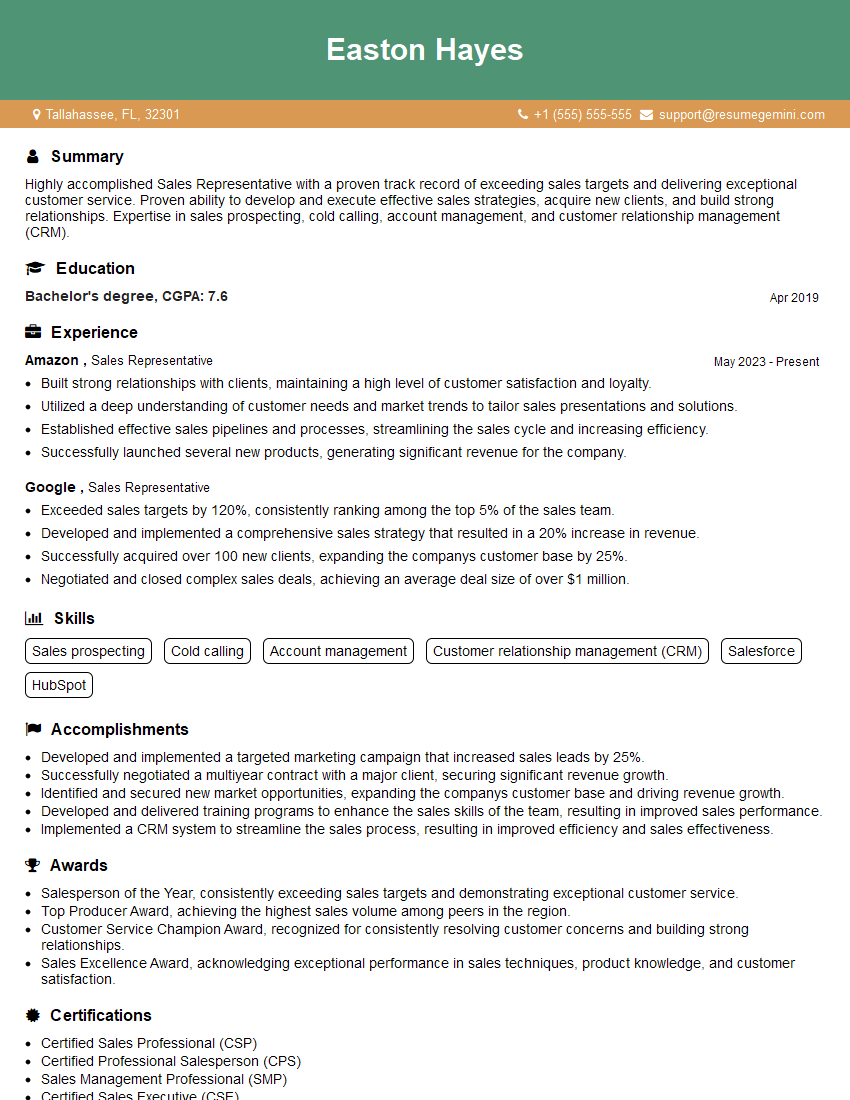
Sales Representative Resume Sample

Communications Manager Resume Sample
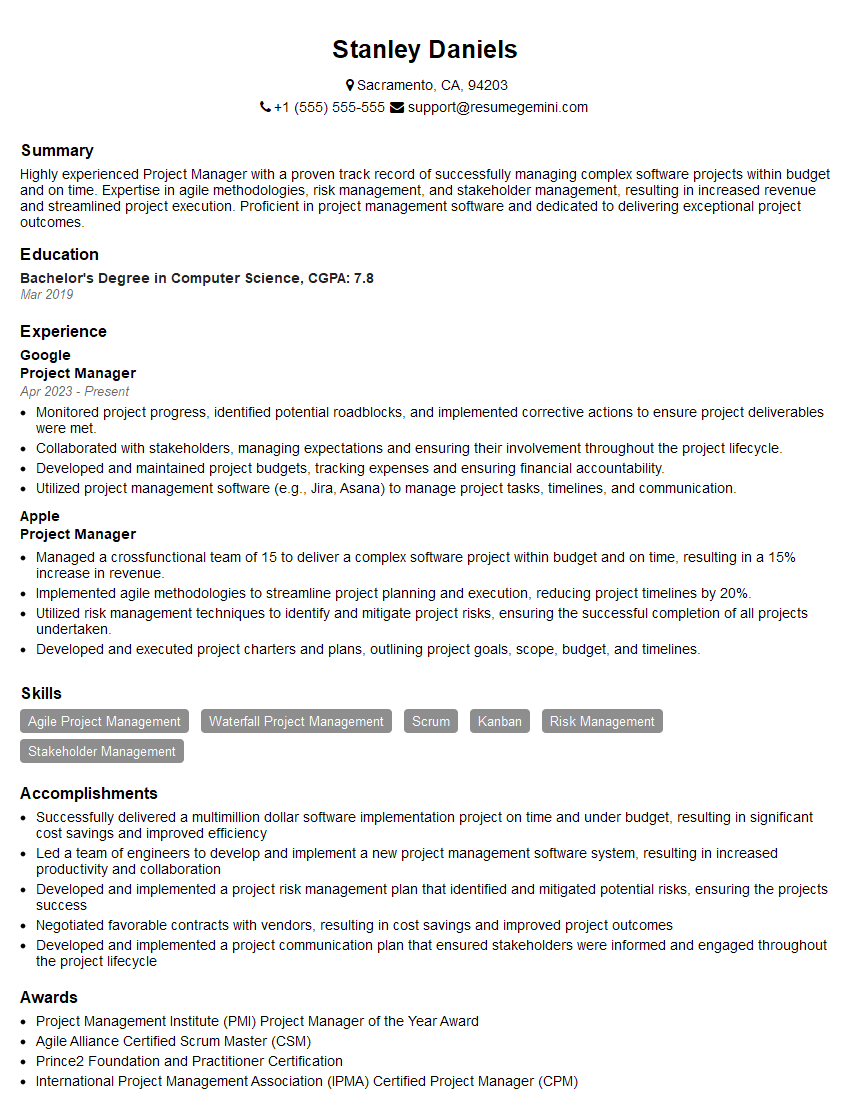
Project Manager Resume Sample

Business Analyst Resume Sample

E-Learning Developer Resume Sample

Training Specialist Resume Sample
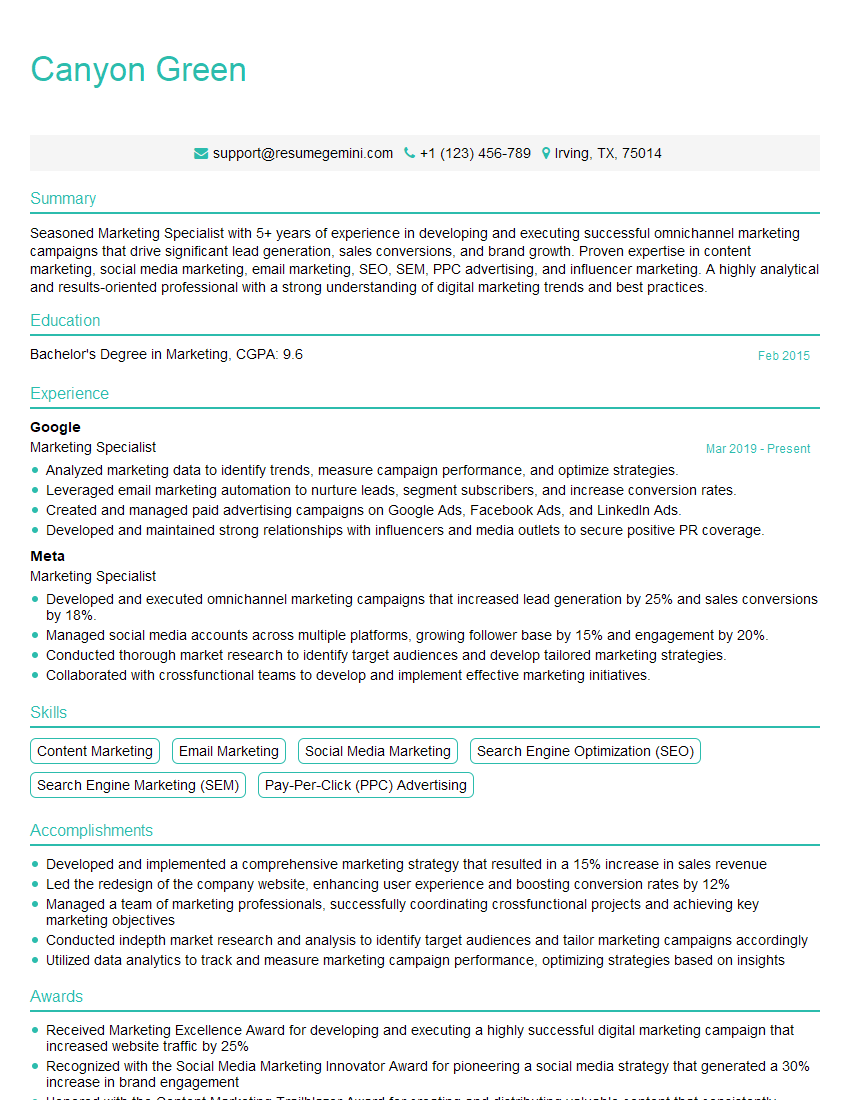
Marketing Specialist Resume Sample

Web Designer Resume Sample
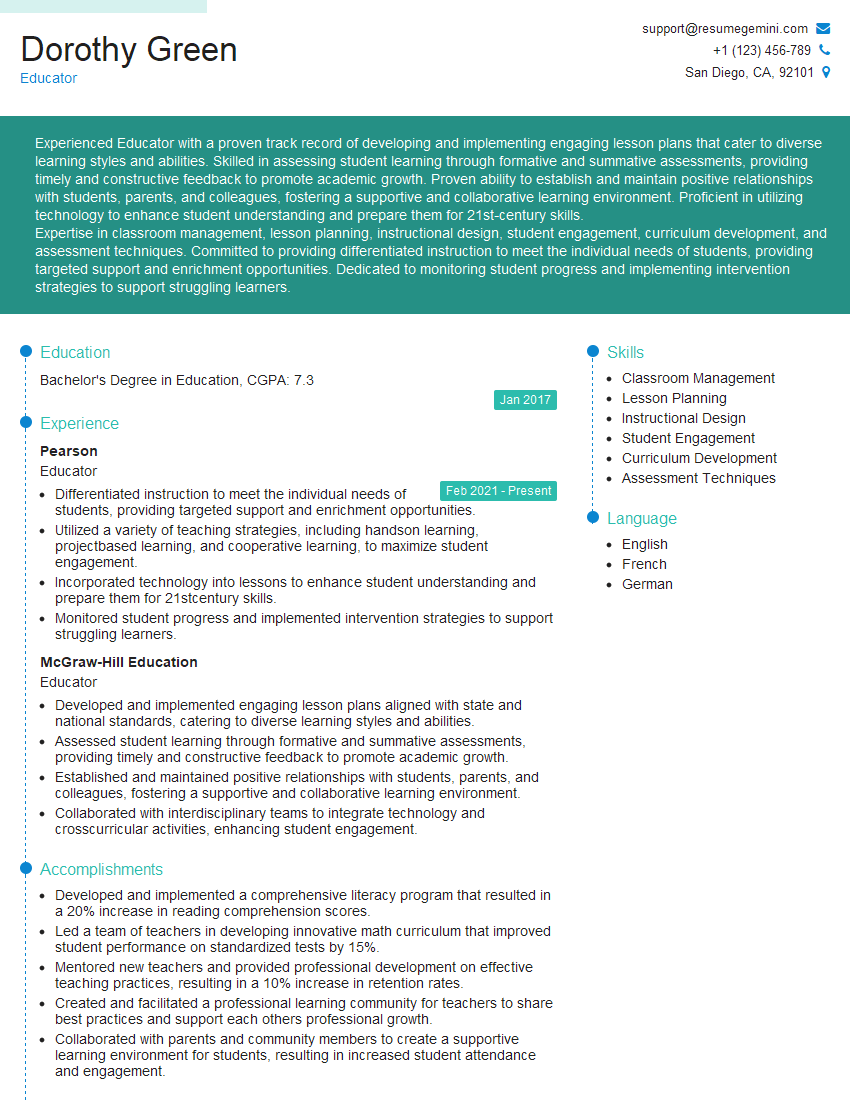
Educator Resume Sample

Multimedia Specialist Resume Sample
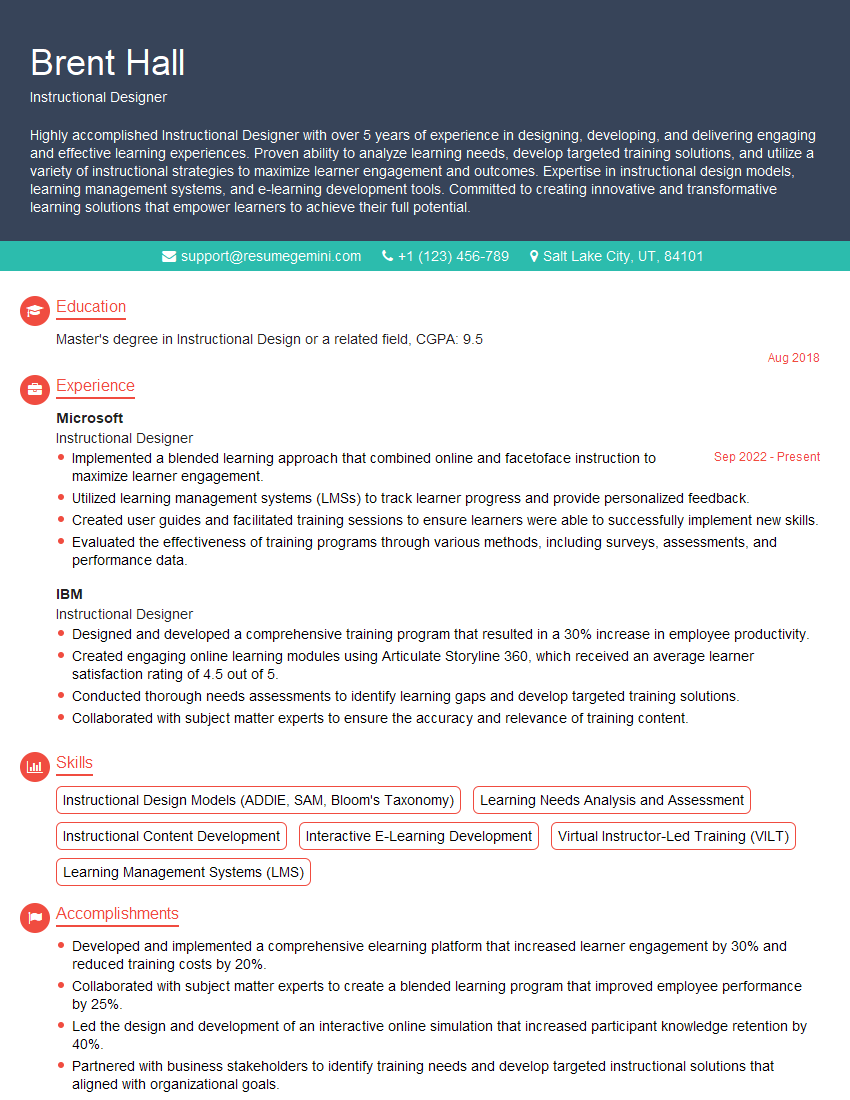
Instructional Designer Resume Sample
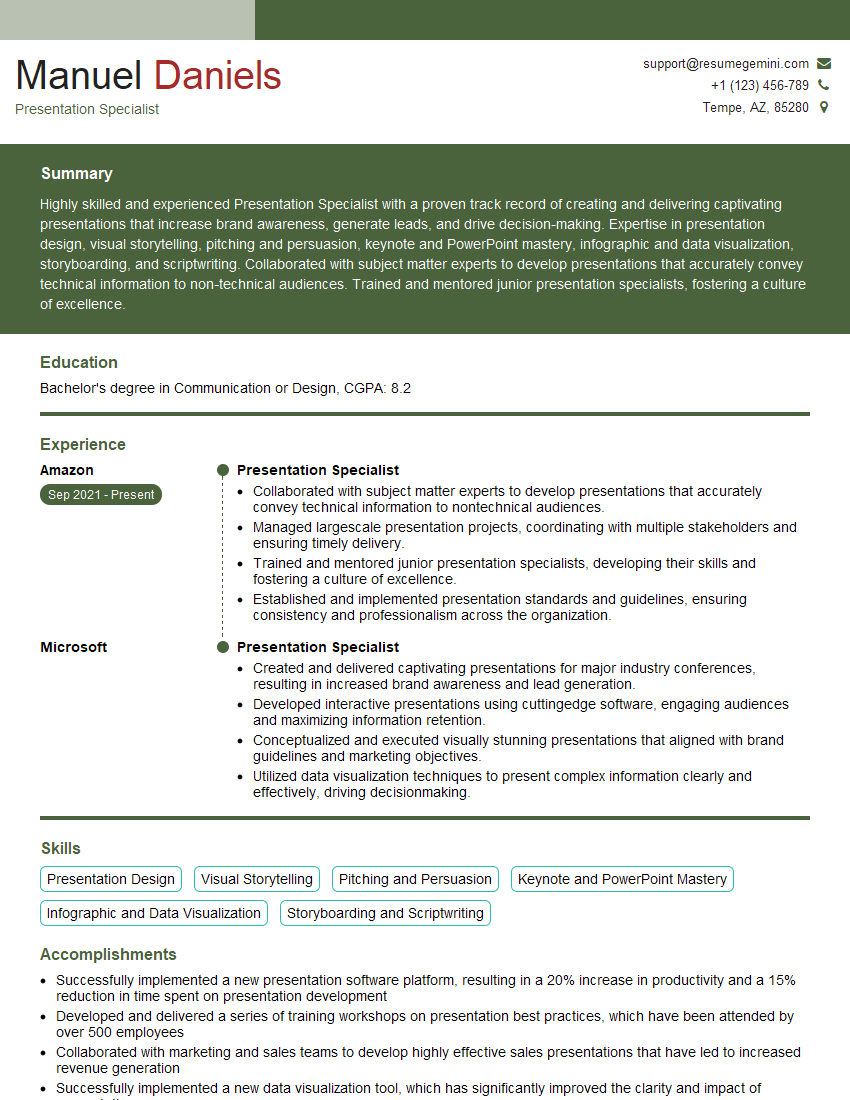
Presentation Specialist Resume Sample

Graphic Designer Resume Sample

Executive Assistant Resume Sample

Content Creator Resume Sample
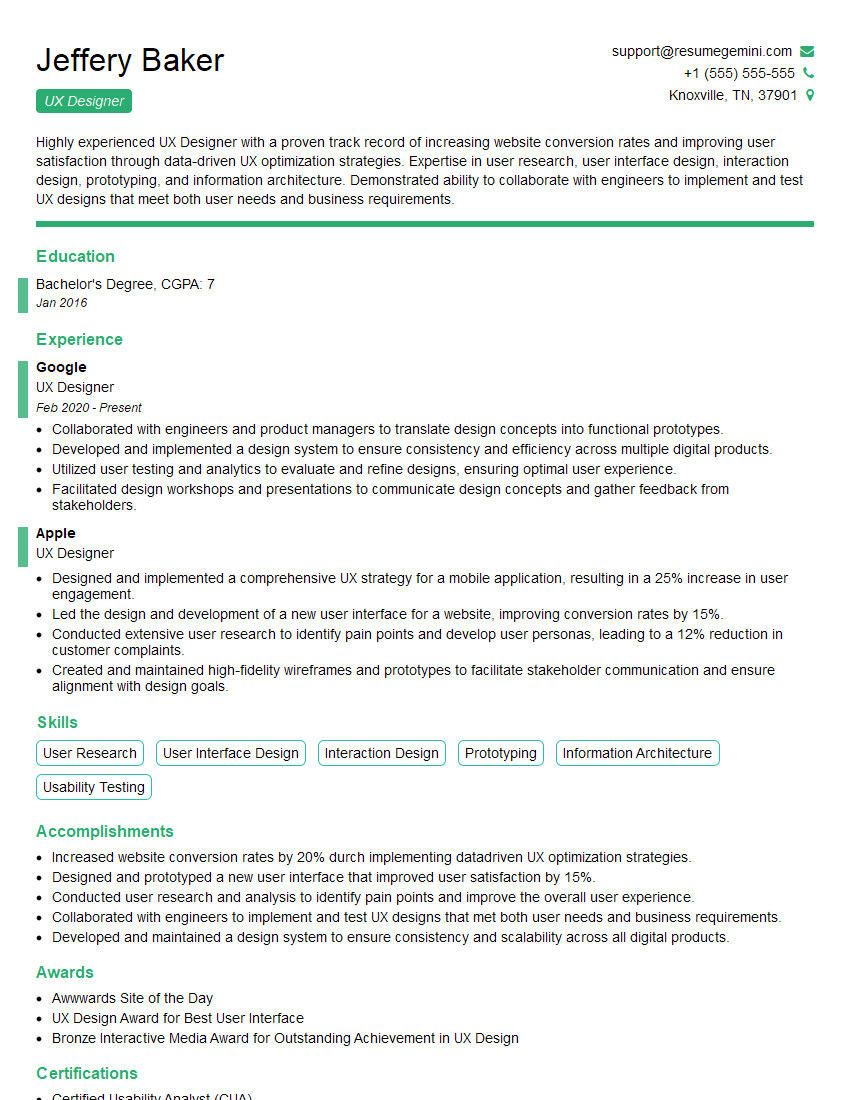
UX Designer Resume Sample
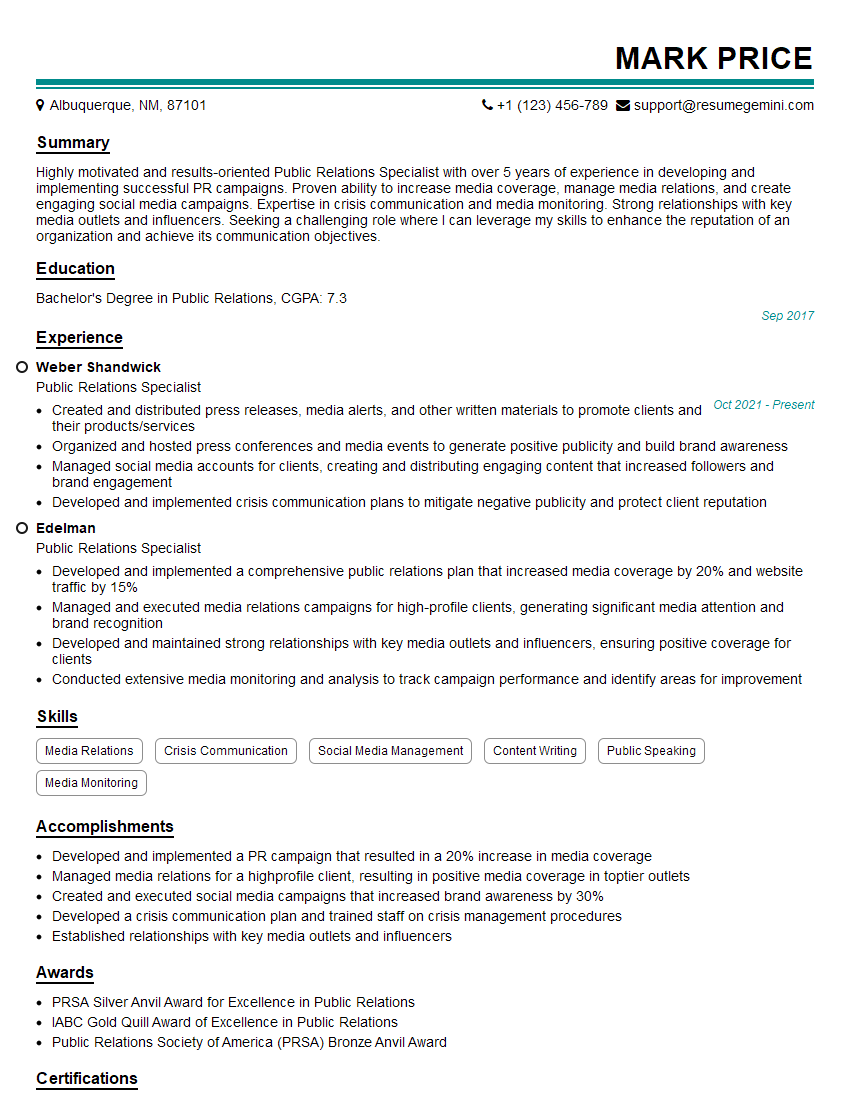
Public Relations Specialist Resume Sample
- Sales Representative
- Communications Manager
- Project Manager
- Business Analyst
- E-Learning Developer
- Training Specialist
- Marketing Specialist
- Web Designer
- Educator
- Multimedia Specialist
- Instructional Designer
- Presentation Specialist
- Graphic Designer
- Executive Assistant
- Content Creator
- UX Designer
- Public Relations Specialist
Explore more articles
Users Rating of Our Blogs
Share Your Experience
We value your feedback! Please rate our content and share your thoughts (optional).
What Readers Say About Our Blog
I Redesigned Spongebob Squarepants and his main characters of my artwork.
https://www.deviantart.com/reimaginesponge/art/Redesigned-Spongebob-characters-1223583608
IT gave me an insight and words to use and be able to think of examples
Hi, I’m Jay, we have a few potential clients that are interested in your services, thought you might be a good fit. I’d love to talk about the details, when do you have time to talk?
Best,
Jay
Founder | CEO