The right preparation can turn an interview into an opportunity to showcase your expertise. This guide to Network Monitoring Tools (Wireshark, Tcpdump) interview questions is your ultimate resource, providing key insights and tips to help you ace your responses and stand out as a top candidate.
Questions Asked in Network Monitoring Tools (Wireshark, Tcpdump) Interview
Q 1. Explain the difference between Wireshark and Tcpdump.
Wireshark and Tcpdump are both powerful network protocol analyzers, but they differ significantly in their approach and functionality. Think of Tcpdump as a command-line-based, raw packet capturing tool, while Wireshark is a full-featured graphical user interface (GUI) application that provides much more analysis and visualization capability on top of captured packets.
Tcpdump is lightweight and ideal for capturing packets on servers or in environments where a GUI isn’t available or desirable. Its output is typically text-based, requiring some expertise to interpret. Wireshark, on the other hand, offers a rich GUI with features like packet filtering, color-coding, and detailed protocol dissection, making it easier to understand captured network traffic, even for those less familiar with network protocols.
In essence, Tcpdump is perfect for initial capture and basic filtering, whereas Wireshark excels at in-depth analysis and investigation.
Q 2. How would you use Wireshark to troubleshoot a slow network connection?
Troubleshooting slow network connections with Wireshark involves a systematic approach. First, you’d identify the affected application or communication path. Then, you would use Wireshark to capture packets related to that activity. This might involve specifying a filter based on the IP addresses or ports involved (we’ll discuss filtering later).
Once you have the capture, you’d analyze the packet timing. Look for significant delays between packets, retransmissions (indicated by duplicate acknowledgments), or high latency. You can use Wireshark’s statistics and timeline features to visualize this data.
Let’s say you’re experiencing slowness while accessing a web server at 192.168.1.100. You’d filter your capture for packets involving that IP address and examine the round-trip times (RTTs) of requests and responses. High RTTs, numerous retransmissions, or packets simply dropping out are strong indicators of the cause of the slowness. Possible root causes include network congestion, high latency, faulty network hardware, or even issues with the web server itself.
Q 3. Describe the process of capturing packets using Tcpdump.
Capturing packets with Tcpdump is done from the command line. The basic syntax is tcpdump [options] [filter]. The most crucial step is to specify an interface. This tells Tcpdump where to listen for network traffic. You would then add options to control the capture process, like specifying a time limit or file size. Finally, a filter (optional) refines the captured data by specifying which packets you’re interested in.
For example, to capture all traffic on the eth0 interface for 10 seconds, you might use: tcpdump -i eth0 -w capture.pcap -t -s 0 -c 1000. This command captures 1000 packets on the ‘eth0’ interface and writes them to a file named ‘capture.pcap’. The ‘-t’ option omits the timestamp, ‘-s 0’ captures the whole packet, and ‘-c 1000’ limits to 1000 packets. Without a filter, *all* packets will be captured.
Remember to run Tcpdump with appropriate privileges (often as root) to access network interfaces.
Q 4. What are the common command-line options used with Tcpdump?
Tcpdump boasts many command-line options. Some of the most frequently used are:
-i interface: Specifies the network interface to capture from (e.g.,eth0,wlan0).-w file: Writes the captured packets to a file (often with a.pcapextension).-r file: Reads packets from a previously saved capture file.-c count: Limits the number of packets captured.-t: Omits the timestamp from the output.-s snaplen: Sets the snapshot length (number of bytes captured from each packet). A larger value captures more data but uses more disk space.-f: Promiscuous mode: captures all traffic on the interface, not just traffic addressed to your machine.
Combining these options allows for precise control over the capture process. For instance, tcpdump -i eth0 -w mycapture.pcap -c 1000 host 192.168.1.100 captures 1000 packets from eth0, only those involving the host 192.168.1.100, and saves them to mycapture.pcap.
Q 5. How do you filter packets in Wireshark based on IP address, port, or protocol?
Wireshark’s filtering capabilities are powerful. You can filter packets using the display filter bar, a text box where you enter expressions to select packets to view. The syntax is based on a rich set of operators and functions.
- IP Address:
ip.addr == 192.168.1.100(matches packets with the source or destination IP address 192.168.1.100). - Port:
tcp.port == 80(matches packets with TCP port 80 – HTTP). You can also useportwithout specifying TCP or UDP. - Protocol:
tcp(matches TCP packets),udp(matches UDP packets),http(matches HTTP packets),dns(matches DNS packets).
You can combine filters using logical operators like && (AND), || (OR), and ! (NOT). For instance, ip.addr == 192.168.1.100 && tcp.port == 80 matches packets to or from 192.168.1.100 using port 80. Wireshark’s filter language provides a wide array of options, allowing complex filtering scenarios. Remember the ‘==’ is for an exact match and you can use other operators for greater or lesser than etc.
Q 6. Explain the concept of a packet capture filter.
A packet capture filter, whether in Tcpdump or Wireshark, is a rule that determines which packets are captured or displayed. It’s essentially a way to reduce the amount of data you need to analyze by focusing on the relevant parts. This is crucial for efficient troubleshooting because network traffic can be massive. Imagine trying to find a needle in a haystack without knowing where to look!
Filters are typically written as expressions that evaluate to true or false for each packet. Packets that evaluate to true are captured or displayed; those that evaluate to false are discarded. This significantly speeds up the analysis.
For instance, a filter focusing on traffic to a specific web server would dramatically reduce the size of a capture and thus the analysis time.
Q 7. What are the different display filters available in Wireshark?
Wireshark offers a broad range of display filters. These filters, unlike capture filters, work *after* the packets have been captured. They refine the display rather than the initial capture process itself. This allows interactive investigation of an already captured file.
The display filter language is similar to the capture filter language but operates on the captured data. Examples include:
http(shows only HTTP traffic).tcp.port == 80 || tcp.port == 443(shows traffic on ports 80 and 443).ip.src == 192.168.1.100(shows packets originating from 192.168.1.100).contains "error"(shows packets containing the string “error” in their payload). This is great for identifying error messages within application traffic.
The power of Wireshark’s display filters lies in their ability to dynamically refine the view of the captured data, allowing for quick and efficient investigation without needing to recapture data.
Q 8. How do you analyze TCP handshakes using Wireshark?
Analyzing TCP handshakes in Wireshark involves examining the three-way handshake process that establishes a TCP connection. Think of it like a polite phone conversation: First, one side calls (SYN), then the other answers and initiates a return call (SYN-ACK), and finally, the original caller confirms the connection (ACK).
In Wireshark, you’ll see this sequence as three packets:
- SYN: The first packet, containing the SYN flag, initiates the connection request.
- SYN-ACK: The second packet, containing both SYN and ACK flags, acknowledges the request and confirms the server’s willingness to connect.
- ACK: The third packet, containing only the ACK flag, acknowledges the SYN-ACK and completes the handshake.
To analyze, open your capture file in Wireshark. Filter the traffic (using the filter bar) for tcp.flags.syn == 1 to isolate the initial SYN packets. Then, look at the subsequent packets in the conversation to identify the SYN-ACK and ACK packets. Examine the source and destination IP addresses and ports to understand which systems are communicating. You can also examine the sequence numbers and acknowledgements to check for proper TCP behavior. Irregularities here might hint at connection issues or even attacks.
Example: Let’s say you suspect a problem with a connection to a web server. By examining the TCP handshake, you might find that the server isn’t responding with a SYN-ACK, indicating a possible server-side problem.
Q 9. How would you identify a denial-of-service attack using network monitoring tools?
Identifying a denial-of-service (DoS) attack using network monitoring tools hinges on observing unusual traffic patterns. A DoS attack floods a target with traffic, making it unavailable to legitimate users. It’s like overwhelming a phone line with thousands of calls – no one else can get through.
Wireshark and Tcpdump can help by highlighting these anomalies:
- High traffic volume from a single source: A sudden spike in traffic originating from one IP address could indicate a single source trying to overwhelm the target.
- Traffic flood from multiple sources (Distributed DoS): A large number of sources concurrently sending traffic to the target suggests a distributed DoS attack.
- Unusual packet sizes or patterns: Malicious traffic might exhibit abnormal packet sizes or unusual patterns not seen in normal traffic.
- High error rates: A significant increase in dropped packets or connection failures can indicate an attack attempting to disrupt communication.
Using Wireshark/Tcpdump: You’d monitor key metrics like packets per second (pps) and bits per second (bps). Filters can isolate traffic to a specific target or from suspected attacker IPs. Statistical analysis of the captured data can reveal significant deviations from the baseline, confirming your suspicions. For instance, you can use filters like ip.src == to focus on traffic from a suspect.
Real-world application: If you observe a sudden surge in traffic directed towards a web server, exceeding its capacity and causing it to become unresponsive, it’s a strong indicator of a DoS attack.
Q 10. What are the key performance indicators (KPIs) you would monitor in a network?
Key Performance Indicators (KPIs) for network monitoring depend on the specific network and its purpose. However, some universally important KPIs include:
- Bandwidth utilization: Measures the percentage of available bandwidth being used. High utilization might indicate congestion or bottlenecks.
- Latency: Measures the delay in data transmission. High latency can impact application performance and user experience.
- Packet loss: Measures the percentage of packets that fail to reach their destination. High packet loss points to network problems, such as cable issues or routing errors.
- Jitter: Measures the variation in latency, making data delivery irregular. High jitter can negatively impact VoIP or video conferencing.
- CPU and memory utilization on network devices: Overloaded devices can cause performance degradation and potential failure.
- Number of active connections: A sudden increase could signal an attack or a legitimate surge, depending on context.
Practical Application: Monitoring these KPIs allows for proactive identification of network issues before they impact users or services. For example, consistently high latency might point to a need for network upgrades or adjustments to optimize routing.
Q 11. How can you use Wireshark to analyze HTTP traffic?
Wireshark is a powerful tool for HTTP traffic analysis. It allows for deep inspection of HTTP requests and responses, revealing valuable information about website interactions. Think of it as a powerful magnifying glass for your online activities.
Analyzing HTTP traffic in Wireshark involves:
- Filtering: Use filters like
httporhttp.request.method == GETto focus on specific HTTP traffic (e.g., only GET requests). - Inspecting HTTP headers: Examine the headers (in the packet details) to find information about the request method, URLs, cookies, user agents, and response codes (e.g., 200 OK, 404 Not Found).
- Decoding HTTP payloads: Wireshark automatically decodes HTTP payloads, showing the actual data transferred, such as HTML, images, or JSON.
- Analyzing response times: By examining the timestamps, you can measure the time taken for requests to complete, helping in performance diagnostics.
Example: You might use Wireshark to troubleshoot a slow website. By analyzing the HTTP traffic, you could identify long response times from the server, hinting at a backend problem. Or, you might investigate security issues by examining the HTTP headers for vulnerabilities.
Q 12. Explain the concept of a network trace.
A network trace is a record of network traffic captured over a period. It’s like a detailed log of every conversation happening on a network, providing a snapshot of communications in real-time.
The trace usually contains individual network packets, each with information such as:
- Source and destination IP addresses
- Source and destination port numbers
- Protocol used (TCP, UDP, ICMP, etc.)
- Packet size
- Timestamp of capture
- Packet content (payload)
Network traces are crucial for troubleshooting and security analysis. They provide granular visibility into network activity, allowing for deep investigation of communication issues, performance problems, and security incidents. Tools like Wireshark and Tcpdump are used to create and analyze network traces.
Q 13. How would you use Tcpdump to capture only specific types of traffic?
Tcpdump allows for highly specific traffic capture using powerful filters. Think of it as a highly selective sieve, allowing only the traffic you need to pass through.
Here’s how to capture specific traffic types:
- By protocol:
tcpdump -i eth0 port 80captures only HTTP traffic (port 80) on the interfaceeth0. - By IP address:
tcpdump -i eth0 host 192.168.1.100captures all traffic to or from the IP address 192.168.1.100. - By port number:
tcpdump -i eth0 port 22captures all SSH traffic (port 22). - By protocol and port:
tcpdump -i eth0 'tcp port 443'captures only HTTPS traffic (port 443) using TCP.
The -i option specifies the network interface. The expression within single quotes is the filter. Tcpdump’s powerful filtering language allows very precise selection of packets, helping avoid large and unmanageable capture files.
Q 14. What is the significance of timestamps in packet capture?
Timestamps in packet captures are crucial for understanding the sequence of events and analyzing network behavior over time. They’re like the timestamps on emails – showing when each message was sent.
Their significance lies in:
- Timing analysis: Timestamps allow you to determine the time taken for packets to travel across the network, indicating latency issues.
- Ordering events: They ensure that events are viewed in chronological order, facilitating investigation of communication flows.
- Correlation of events: They enable you to correlate events across different parts of the network, connecting related activities.
- Identifying anomalies: Deviations from expected timing patterns might reveal problems or malicious activity. For example, unusually delayed packets may indicate network congestion or an attack.
Example: In a security investigation, timestamps can help determine the precise time an attack occurred and aid in reconstruction of the attack timeline.
Q 15. How do you identify network bottlenecks using Wireshark?
Identifying network bottlenecks with Wireshark involves analyzing packet capture data to pinpoint areas where network traffic is slowed or congested. Think of it like looking at a highway – Wireshark shows you the individual cars (packets) and their speed. Bottlenecks appear as areas with significant delays or high packet loss.
Here’s a step-by-step approach:
- Capture Traffic: Use Wireshark to capture network traffic on the suspected bottleneck segment. Ensure you capture enough data to get a representative sample.
- Filter Traffic: Apply filters to isolate specific conversations or protocols (e.g.,
tcp.port == 80for HTTP traffic) to focus your analysis. - Analyze Statistics: Use Wireshark’s statistics features (Statistics > I/O Graph, Statistics > Conversation List) to identify slow connections, high latency, retransmissions, or dropped packets. High retransmission rates are a clear indicator of congestion.
- Examine Packet Details: For suspected slow connections, dive into individual packets to understand the cause. Look at timing information, packet sizes, and protocol-specific fields to identify issues such as excessive packet fragmentation, inefficient routing, or slow server response times.
- Protocol Analysis: Different protocols have different performance characteristics. Analyzing TCP retransmissions, HTTP response times, or DNS query latencies provides valuable insights into the source of the bottleneck.
Example: If you see many TCP retransmissions between a client and server, this points to a bottleneck somewhere between them, possibly due to network congestion, bandwidth limitations, or faulty network hardware.
Career Expert Tips:
- Ace those interviews! Prepare effectively by reviewing the Top 50 Most Common Interview Questions on ResumeGemini.
- Navigate your job search with confidence! Explore a wide range of Career Tips on ResumeGemini. Learn about common challenges and recommendations to overcome them.
- Craft the perfect resume! Master the Art of Resume Writing with ResumeGemini’s guide. Showcase your unique qualifications and achievements effectively.
- Don’t miss out on holiday savings! Build your dream resume with ResumeGemini’s ATS optimized templates.
Q 16. How would you troubleshoot DNS issues using network monitoring tools?
Troubleshooting DNS issues involves analyzing DNS queries and responses to pinpoint the root cause. Think of it as tracing a phone call – you want to see if the call connects, and if not, where the problem lies.
Using Wireshark or tcpdump, you’d typically:
- Capture DNS Traffic: Capture network traffic with a filter like
port 53(DNS uses port 53). This isolates only the DNS packets from the overall traffic. - Examine DNS Queries: Look at the DNS queries sent by clients. Verify that the queries are properly formatted and are targeting the correct DNS servers.
- Analyze DNS Responses: Examine the responses from the DNS servers. Check for timeouts, errors (like NXDOMAIN, SERVFAIL), or unusually slow response times. A slow response indicates a problem with the DNS server or network connectivity to it.
- Trace the DNS Path: If the client is using multiple DNS servers, trace the path to determine which server(s) are causing delays or errors.
- Check for DNS Cache Issues: Verify that the client’s local DNS cache isn’t causing problems. Flushing the cache is a quick diagnostic step.
Example: If you see a DNS query with a response indicating `NXDOMAIN` (Non-Existent Domain), then the problem is either with the DNS server not being able to find the domain or the domain simply not existing.
Q 17. Explain the different types of network attacks you can identify using packet analysis.
Packet analysis with Wireshark or tcpdump allows identification of various network attacks. Think of it as forensic science for networks – the packets are the clues that reveal the attacker’s actions.
Here are some examples:
- Port Scans: These attacks try to identify open ports on a target system by sending packets to various ports. Wireshark can reveal the source IP address and the ports being scanned.
- Denial-of-Service (DoS) Attacks: These flood a target system with traffic, rendering it unavailable. Wireshark would show a massive increase in packets from a single or multiple sources targeting the victim.
- Man-in-the-Middle (MitM) Attacks: These attacks intercept communications between two parties. Wireshark would reveal communication between the target and an unexpected intermediary host.
- SQL Injection Attacks: Although not directly visible in the network packets themselves, the sequence of HTTP requests revealing malformed SQL queries would suggest such an attempt.
- Session Hijacking: This attack involves taking over an existing session. Wireshark can reveal the unauthorized use of valid session cookies or tokens.
- Eavesdropping/Sniffing: This involves capturing sensitive information like passwords or credit card numbers being sent in cleartext. Wireshark would reveal unencrypted communication passing over the network.
Important Note: Identifying an attack requires understanding the normal network behavior; deviations from this baseline can suggest malicious activity.
Q 18. What are some limitations of using Wireshark or Tcpdump?
While powerful, Wireshark and tcpdump have limitations:
- Performance Overhead: Capturing and analyzing large amounts of traffic can significantly impact network performance, especially on resource-constrained systems. Think of it like constantly taking photos – it slows down the action.
- Scalability: Analyzing massive capture files can be time-consuming and resource-intensive. Tools like tcpdump are better for capturing large amounts of data initially, but post-processing in Wireshark can be challenging with massive files.
- Encrypted Traffic: Wireshark cannot decrypt encrypted traffic (HTTPS, SSL/TLS) without the encryption keys, limiting the visibility into such communications.
- Live Capture Limitations: In high-speed networks, some packets might be dropped during live capture due to limitations in processing speed of the capture interface.
- Specialized Protocol Understanding: While Wireshark supports a wide range of protocols, some obscure or custom protocols might not be fully understood or decoded.
Q 19. How can you ensure the integrity of your packet captures?
Ensuring the integrity of packet captures is crucial for reliable analysis. Think of it as preserving evidence at a crime scene – if it’s tampered with, it’s worthless.
Here are key steps:
- Digital Signatures: Some tools allow digitally signing capture files to guarantee their authenticity and prevent tampering.
- Hashing: Generating a cryptographic hash (e.g., MD5, SHA-256) of the capture file provides a fingerprint. Any change to the file will result in a different hash, immediately revealing tampering.
- Secure Storage: Store captured files on a secure, write-protected system to prevent unauthorized modification.
- Chain of Custody: Maintain a detailed record of who had access to the capture file and when to maintain accountability.
- Verification of Capture Settings: Document all capture settings (interface, filters, etc.) used to reproduce the capture if necessary.
Q 20. Explain the process of analyzing a large packet capture file.
Analyzing large packet capture files requires a strategic approach. Think of it as searching a massive library – you need a plan to find the relevant information.
Here’s a process:
- Filtering and Selection: Use Wireshark’s powerful filtering capabilities (Display Filters) to narrow down the scope of your analysis, focusing on specific protocols, time ranges, or IP addresses. This dramatically reduces the size of the data you need to directly examine.
- Summary Statistics: Utilize Wireshark’s statistics tools to get a high-level overview of the traffic. This can reveal patterns, such as unusually high traffic volume during specific time periods or to specific destinations, which narrows your focus.
- Dissector Analysis: Explore the details of individual packets by using Wireshark’s dissectors to understand the protocols used. Analyze patterns in headers and payload data. This helps discover subtle anomalies.
- Time Line Analysis: Focus on chronological order of events. Wireshark’s timeline view shows the sequencing of events, helpful in tracking down the root cause.
- Export and Subsets: Export subsets of the capture file or specific conversations into smaller, easier-to-manage files for deeper investigation.
Remember: patience and a systematic approach are vital when dealing with large capture files.
Q 21. How would you use Wireshark to investigate a security incident?
Investigating a security incident with Wireshark involves carefully analyzing network traffic to uncover the attacker’s actions. Think of it as detective work – you’re piecing together clues to solve a mystery.
The process typically involves:
- Identify the Timeline: Determine when the incident occurred to focus your analysis on the relevant timeframe.
- Identify Affected Systems: Pinpoint the systems involved to filter the capture data and concentrate analysis on communications between those hosts.
- Analyze Network Traffic: Examine communication patterns, focusing on unusual traffic (e.g., high volume from unexpected sources, access to restricted services) or anomalies in protocols used.
- Identify the Attack Vector: Discover how the attacker gained access to the system. This involves examining successful login attempts (or brute-force attempts), unusual port activity, or signs of exploits.
- Correlate with Other Logs: Combine Wireshark results with logs from firewalls, intrusion detection systems (IDS), or web servers for a more complete picture of the incident. Correlation brings a holistic view.
- Reconstruction of Events: Once you’ve gathered all the information, reconstruct the sequence of events leading up to and during the attack to provide a clear timeline for incident response and future prevention.
Q 22. Describe the difference between a full-duplex and half-duplex connection.
Imagine a two-lane road. In a half-duplex connection, only one device can transmit at a time. It’s like having a single lane where cars can only go in one direction at a time; they have to wait for oncoming traffic to clear before proceeding. This leads to collisions and inefficiencies. Think of old walkie-talkies – only one person can speak at once.
In contrast, a full-duplex connection allows simultaneous transmission and reception. It’s like having two separate lanes of traffic flowing in opposite directions simultaneously. This is much more efficient. Ethernet networks are a prime example of full-duplex communication. You can send and receive data simultaneously without interference.
The key difference lies in the ability to transmit and receive data concurrently. Half-duplex is simpler to implement but suffers from lower throughput, while full-duplex offers significantly improved performance but requires more sophisticated hardware.
Q 23. How do you interpret the different flags in a TCP packet header?
TCP packet headers contain several flags that control the flow of communication. Let’s examine some of the most important ones:
- SYN (Synchronize): Used to initiate a connection. Think of it as a request to establish a phone call. A SYN flag set means ‘I want to start a conversation’.
- ACK (Acknowledgement): Confirms the receipt of a data packet. It’s like saying ‘I received your message’. Crucial for reliable communication.
- FIN (Finish): Indicates that a side wants to terminate the connection. Like hanging up the phone.
- RST (Reset): Abruptly closes a connection, typically used to recover from errors or handle unwanted connection attempts. Imagine the phone call suddenly being cut off.
- PSH (Push): Urges the receiving host to process the data immediately. A gentle push to expedite delivery.
- URG (Urgent): Indicates that urgent data is present within the packet. Think of it as a high-priority message that needs immediate attention.
By analyzing the combination of these flags in a captured packet using Wireshark or tcpdump, you can determine the state of a TCP connection (e.g., establishing, closing, data transfer) and potentially identify issues such as connection problems or slowdowns.
Q 24. What are the different layers of the OSI model and how do they relate to packet analysis?
The OSI model is a conceptual framework that divides network communication into seven layers:
- Physical Layer: Deals with the physical transmission of data (cables, wireless signals).
- Data Link Layer: Handles local addressing and error detection (MAC addresses, Ethernet frames).
- Network Layer: Responsible for routing packets across networks (IP addresses, routing protocols).
- Transport Layer: Provides reliable data delivery and flow control (TCP, UDP).
- Session Layer: Manages sessions between applications.
- Presentation Layer: Handles data formatting and encryption.
- Application Layer: Provides network services to applications (HTTP, FTP, DNS).
Packet analysis heavily relies on understanding the OSI model. For instance, Wireshark allows you to examine packets at each layer. You can dissect a packet to see its IP address (Network Layer), port numbers (Transport Layer), and payload (Application Layer). This layered approach helps in isolating problems; for example, if a packet doesn’t arrive at all, the problem may be at the physical or data link layer. If packets arrive but are corrupted, the data link or transport layer might be at fault. By understanding the layer where the issue occurs, the troubleshooting process becomes targeted and efficient.
Q 25. How do you handle a situation where the network is heavily congested?
Network congestion is a common issue. My approach would involve a multi-pronged strategy:
- Identify the Bottleneck: Using tools like Wireshark, I’d capture network traffic and analyze it for slowdowns or high latency. This might involve looking at packet loss rates, high CPU utilization on network devices (switches, routers), or specific applications consuming excessive bandwidth. Tools like
tcpdumpcan help identify sources of high traffic volume. - Isolate the Cause: Once the bottleneck is identified, I’d investigate the root cause. Is it a faulty network device? An application generating excessive traffic? A Denial of Service attack?
- Implement Solutions: Solutions would vary depending on the root cause. They could range from upgrading network hardware (e.g., faster switches), optimizing network configurations (e.g., QoS settings), implementing traffic shaping or filtering (to prioritize critical applications), to addressing faulty applications or security threats.
- Monitoring and Optimization: Continuous monitoring is key. After implementing solutions, I’d monitor network performance using various tools to ensure the issue is resolved and that congestion doesn’t reoccur. This involves setting up alerts for crucial metrics like latency and bandwidth utilization.
In short, handling network congestion is a systematic process involving diagnosis, analysis, and implementation of appropriate solutions, followed by continuous monitoring and optimization.
Q 26. What is the role of port numbers in network communication?
Port numbers are like apartment numbers in a large building. They specify which application or service is receiving the data. Each port number corresponds to a particular application or service. For instance, port 80 is typically used for HTTP (web browsing), port 21 for FTP (file transfer), and port 25 for SMTP (email). Each application listens on a specific port, so when data arrives with that port number, the application knows it is meant for it.
Imagine your computer as a large building with various applications acting as tenants. Port numbers act as their unique addresses, allowing incoming data to be directed to the correct tenant. Without port numbers, the operating system wouldn’t know which application to deliver the data to.
The use of port numbers allows multiple applications to run simultaneously on a single computer, sharing the same network connection without interfering with each other. They’re critical for multiplexing and demultiplexing network traffic.
Q 27. Explain how to use Wireshark to analyze ICMP traffic and identify potential network problems.
Analyzing ICMP (Internet Control Message Protocol) traffic with Wireshark is crucial for troubleshooting network connectivity issues. ICMP is used for things like ping and traceroute.
- Capture ICMP Packets: Start Wireshark and select the network interface you want to monitor. Apply a display filter:
icmp. This shows only ICMP packets. - Identify ICMP Types: Examine the ICMP type field in each packet. Type 8 indicates an echo request (ping), and type 0 indicates an echo reply. Other types include destination unreachable, time exceeded, etc.
- Analyze Packet Loss: Look for missing echo replies in response to echo requests. High packet loss suggests network connectivity problems (e.g., faulty cables, network congestion, firewall issues).
- Investigate Time to Live (TTL): TTL represents the number of hops a packet can traverse before being discarded. Lower than expected TTL values in traceroute (using ICMP time exceeded messages) might indicate routing problems.
- Examine Error Messages: Carefully review ICMP error messages (e.g., destination unreachable). They often contain specific error codes that help pinpoint the location and cause of network problems.
Example: If you see many ‘destination unreachable’ messages, it might indicate a problem with the destination IP address, a misconfigured router, or a network firewall blocking the connection.
By carefully analyzing the ICMP traffic, you can effectively diagnose network connectivity issues, identify faulty network devices, and pinpoint the source of network problems.
Key Topics to Learn for Network Monitoring Tools (Wireshark, Tcpdump) Interview
- Network Fundamentals: Understanding basic networking concepts like TCP/IP, OSI model, IP addressing, subnetting, and common network protocols (HTTP, DNS, FTP) is crucial for interpreting captured packets.
- Wireshark Interface & Functionality: Become proficient in navigating the Wireshark interface, applying filters (display filters and capture filters), and understanding the different packet details displayed.
- Protocol Analysis (Wireshark & Tcpdump): Learn to analyze network traffic at a detailed level, identifying potential issues, and understanding how different protocols behave. Practice interpreting various packet headers and payloads.
- Tcpdump Command-Line Usage: Master the essential Tcpdump commands for capturing and filtering network traffic from the command line. Understand options for specifying interfaces, capturing specific protocols, and time limits.
- Troubleshooting Network Issues: Develop your problem-solving skills by using Wireshark and Tcpdump to diagnose common network problems like connectivity issues, slow performance, and security breaches. Practice recreating scenarios and analyzing the captured packets.
- Performance Analysis: Learn how to utilize Wireshark and Tcpdump to identify network bottlenecks and performance issues. This involves analyzing packet sizes, latency, and throughput.
- Security Analysis: Understand how to identify security threats and vulnerabilities using packet capture tools. Learn to recognize signs of malicious activity within captured traffic.
- Practical Application Scenarios: Prepare to discuss real-world scenarios where you have used (or could use) these tools to solve network problems. The more specific and detailed your examples, the better.
Next Steps
Mastering network monitoring tools like Wireshark and Tcpdump is essential for career advancement in networking and cybersecurity roles. These skills demonstrate a deep understanding of network protocols and problem-solving abilities, making you a highly valuable asset to any organization. To significantly boost your job prospects, it’s crucial to create a professional and ATS-friendly resume that highlights your expertise. ResumeGemini is a trusted resource to help you build a compelling resume that showcases your skills effectively. Examples of resumes tailored to network monitoring tools like Wireshark and Tcpdump are available to guide you in creating your own stand-out application.

Compliance Analyst Resume Sample
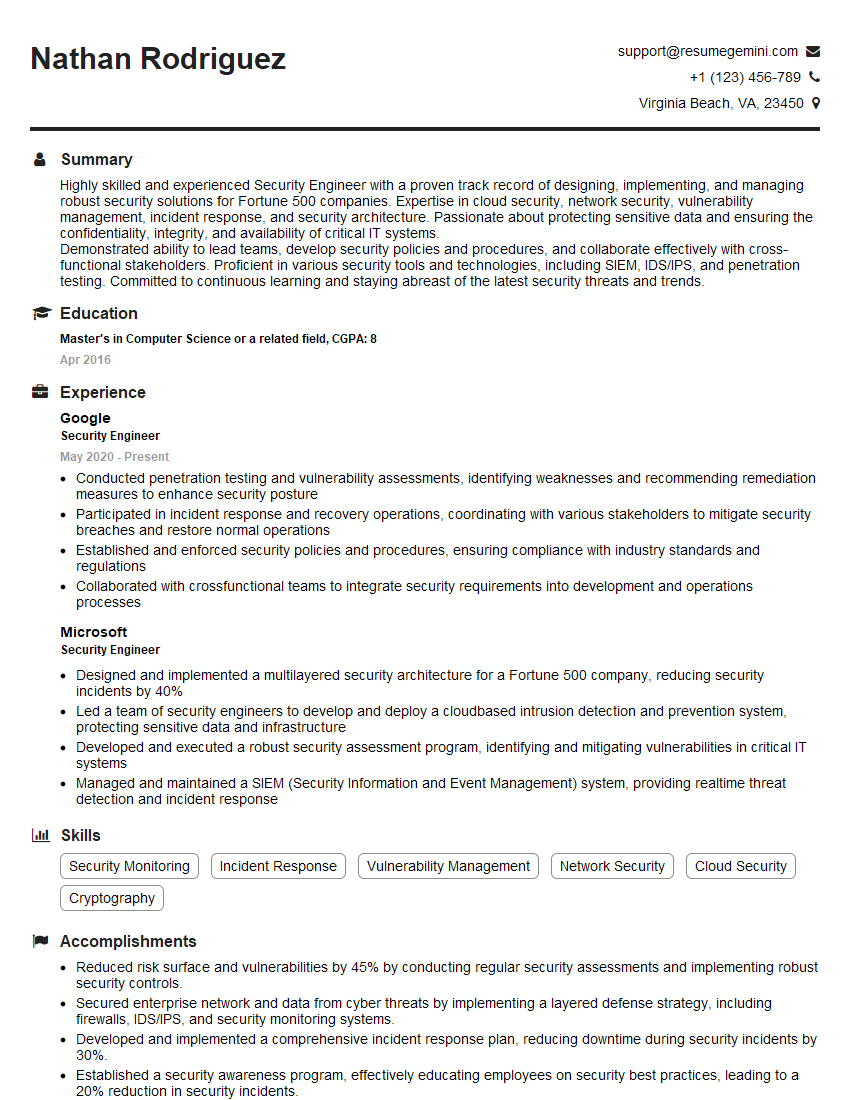
Security Engineer Resume Sample

Network Administrator Resume Sample
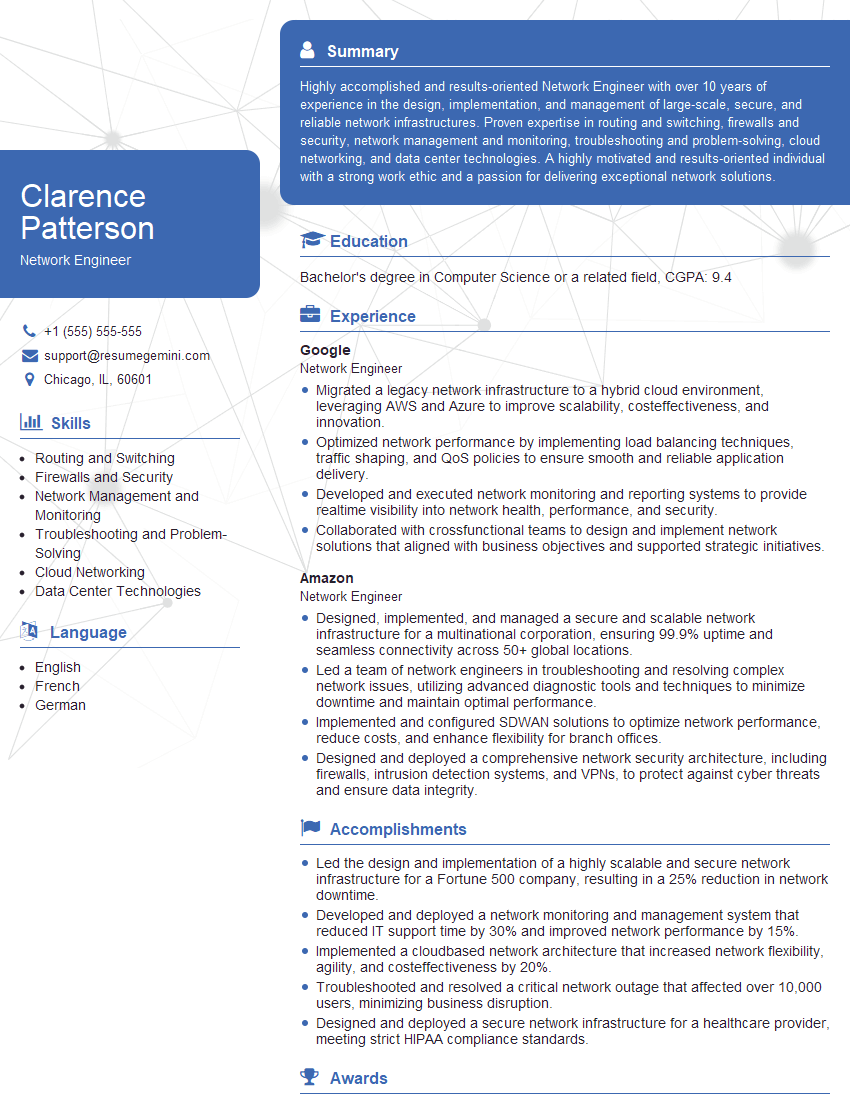
Network Engineer Resume Sample
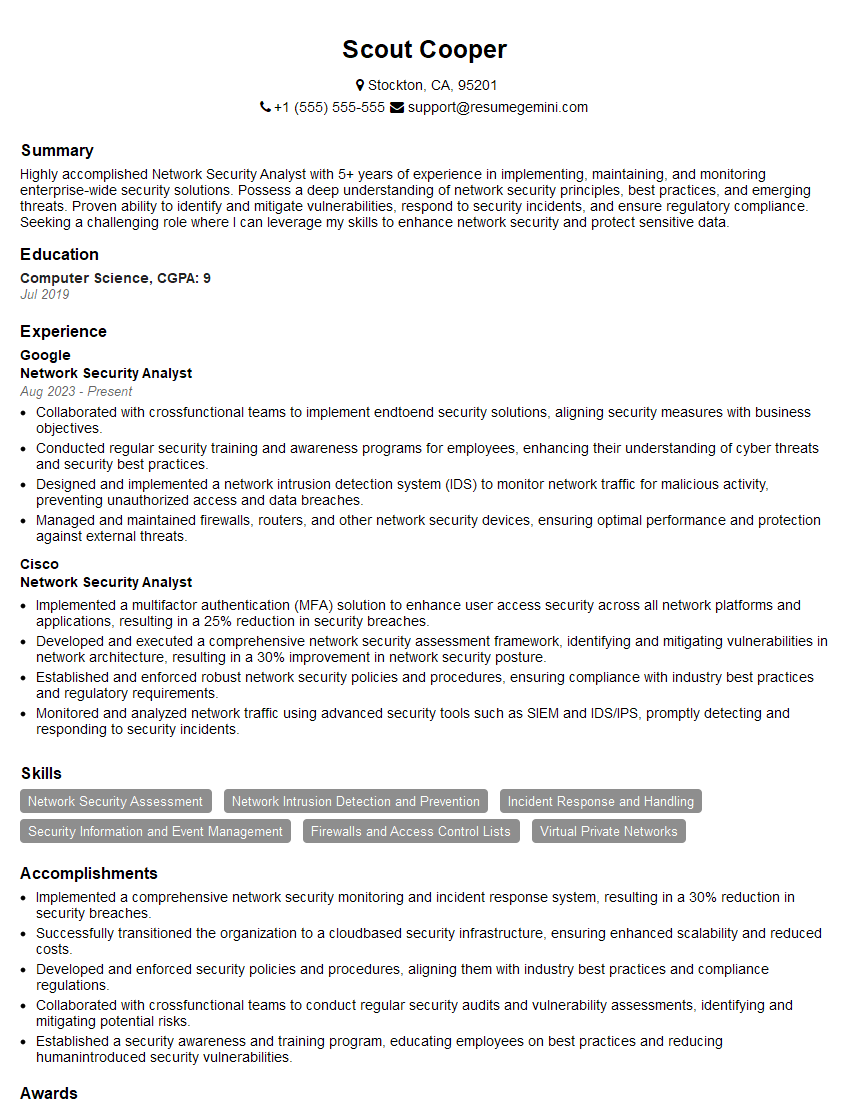
Network Security Analyst Resume Sample

Infrastructure Engineer Resume Sample
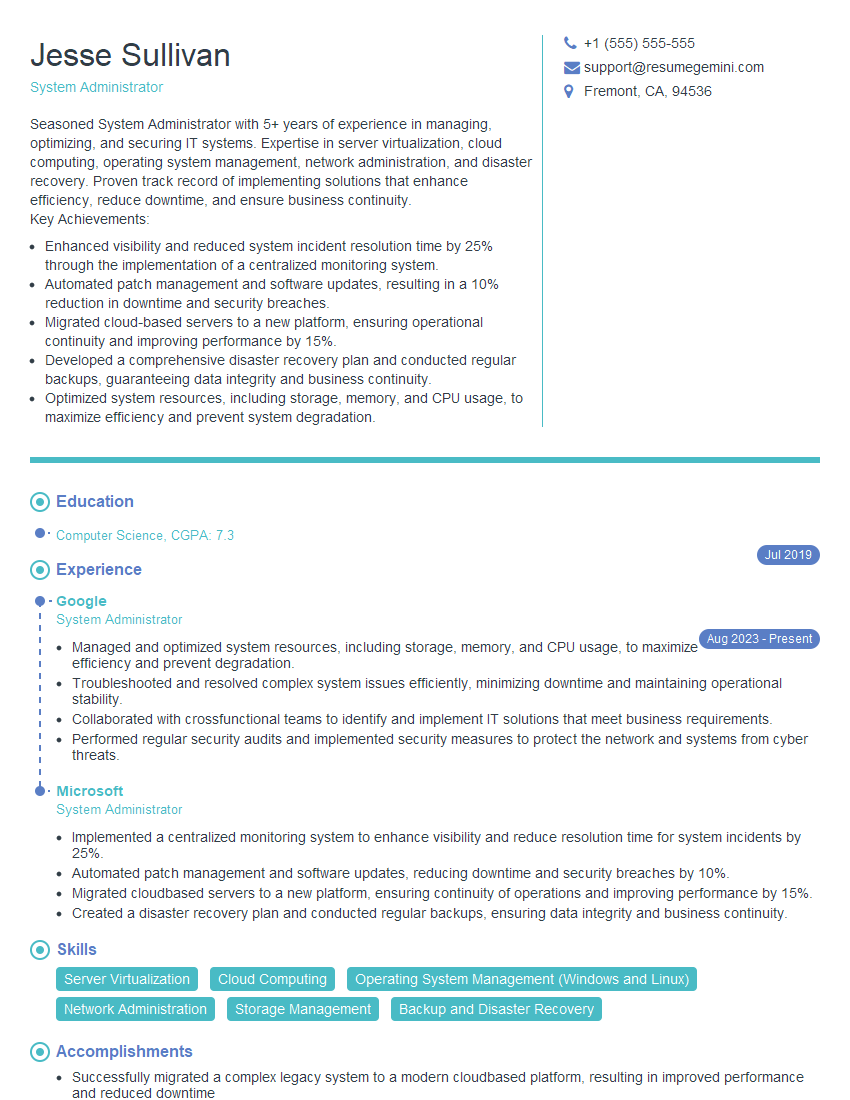
System Administrator Resume Sample
Network Analyst Resume Sample
Network Technician Resume Sample
Network Architect Resume Sample
Help Desk Analyst Resume Sample

IT Manager Resume Sample
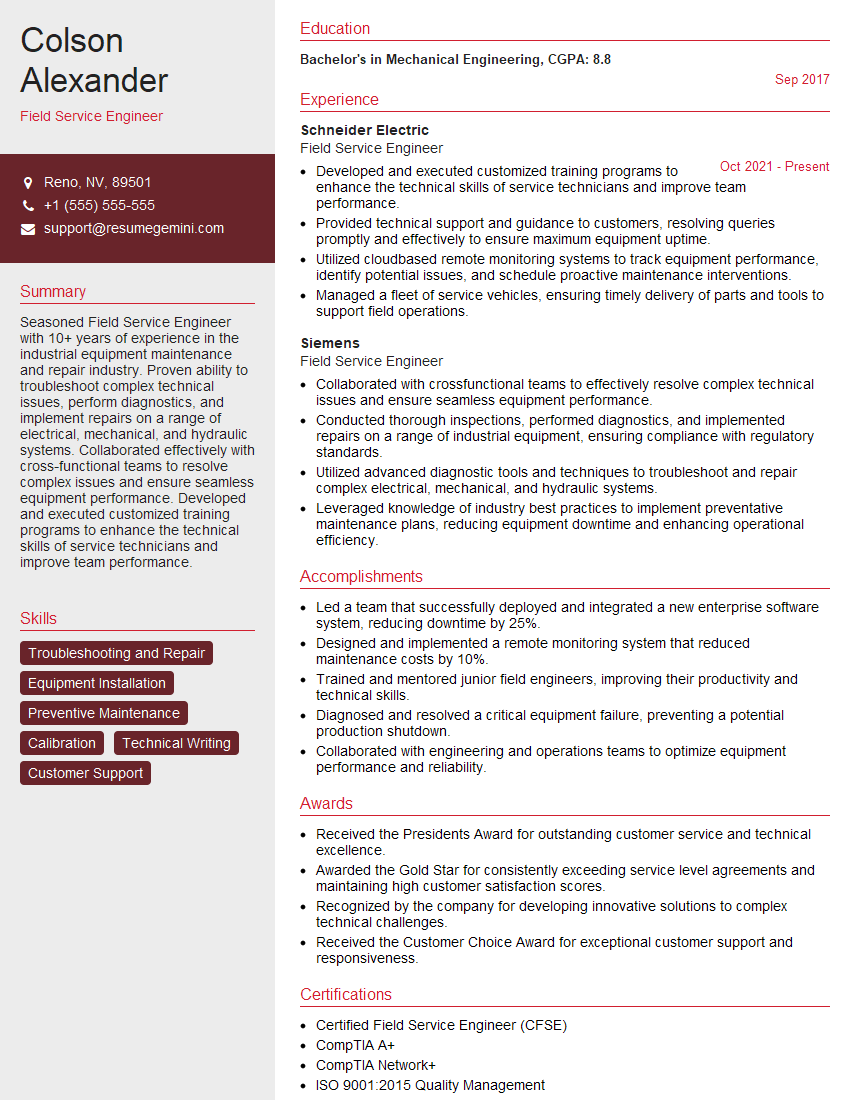
Field Service Engineer Resume Sample

IT Security Specialist Resume Sample
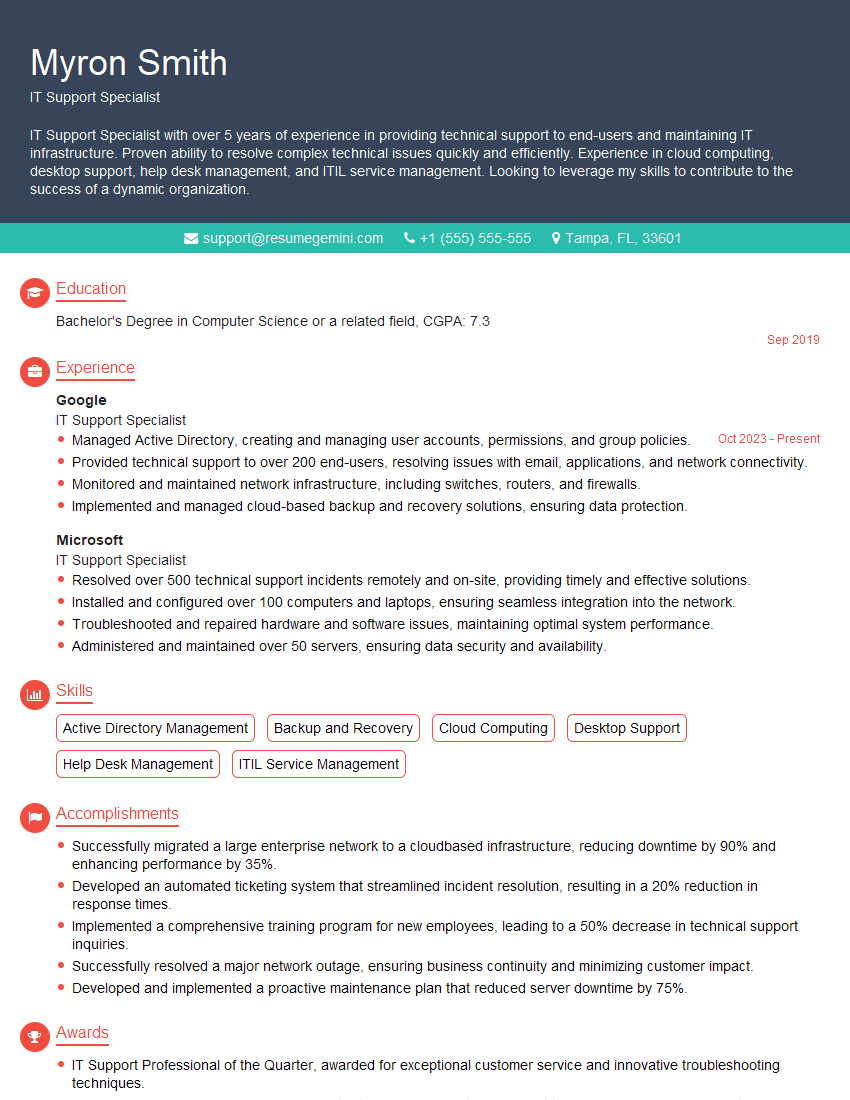
IT Support Specialist Resume Sample

DevOps Engineer Resume Sample

Cloud Engineer Resume Sample
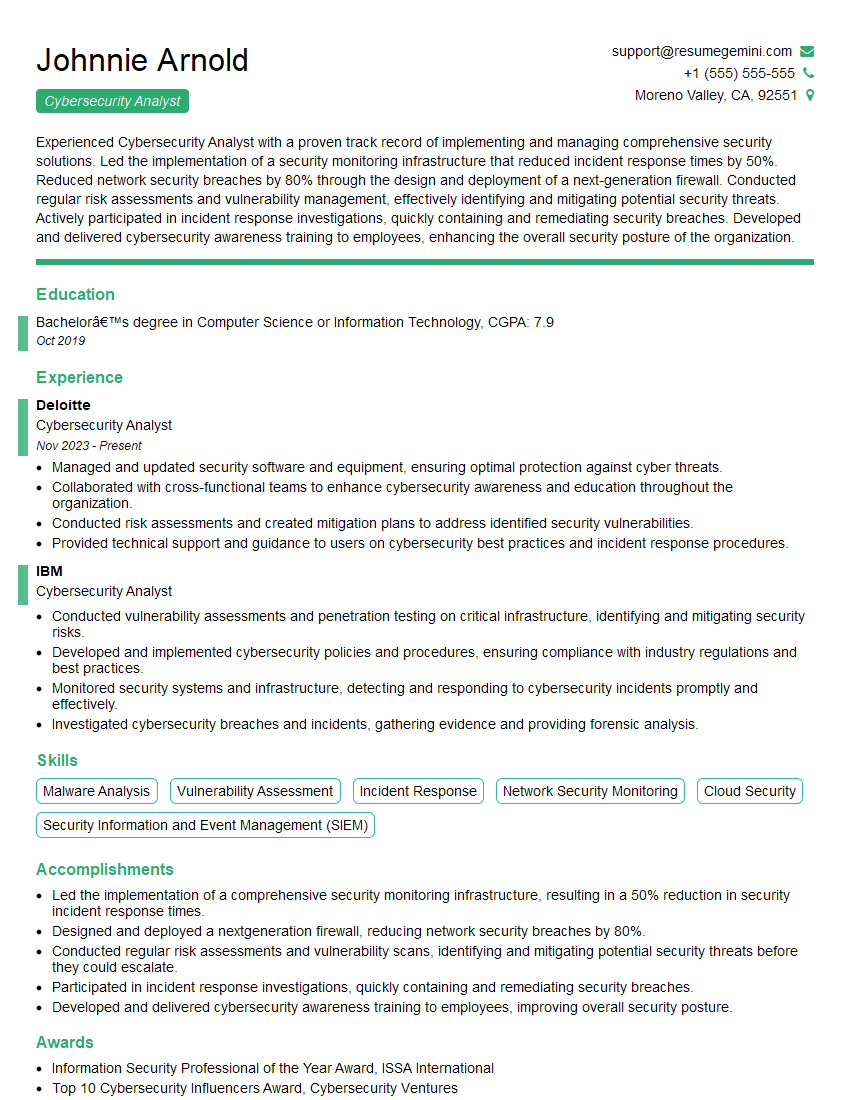
Cybersecurity Analyst Resume Sample
- Compliance Analyst
- Security Engineer
- Network Administrator
- Network Engineer
- Network Security Analyst
- Infrastructure Engineer
- System Administrator
- Network Analyst
- Network Technician
- Network Architect
- Help Desk Analyst
- IT Manager
- Field Service Engineer
- IT Security Specialist
- IT Support Specialist
- DevOps Engineer
- Cloud Engineer
- Cybersecurity Analyst
Explore more articles
Users Rating of Our Blogs
Share Your Experience
We value your feedback! Please rate our content and share your thoughts (optional).
What Readers Say About Our Blog
I Redesigned Spongebob Squarepants and his main characters of my artwork.
https://www.deviantart.com/reimaginesponge/art/Redesigned-Spongebob-characters-1223583608
IT gave me an insight and words to use and be able to think of examples
Hi, I’m Jay, we have a few potential clients that are interested in your services, thought you might be a good fit. I’d love to talk about the details, when do you have time to talk?
Best,
Jay
Founder | CEO