Every successful interview starts with knowing what to expect. In this blog, we’ll take you through the top ERDAS Imagine interview questions, breaking them down with expert tips to help you deliver impactful answers. Step into your next interview fully prepared and ready to succeed.
Questions Asked in ERDAS Imagine Interview
Q 1. Explain the difference between orthorectification and georeferencing in ERDAS Imagine.
Georeferencing and orthorectification are both crucial steps in bringing remotely sensed imagery into a geographic coordinate system, but they differ significantly in their approach and accuracy.
Georeferencing is the process of assigning geographic coordinates (latitude and longitude) to an image. Think of it like pinning a map onto a picture – you’re aligning the image to a known geographic location using control points (locations with known coordinates). While this improves spatial accuracy, it doesn’t correct for geometric distortions caused by terrain relief or sensor perspective. Imagine a slightly skewed photo of a flat surface; georeferencing would simply align it to the map, but the skew remains.
Orthorectification, on the other hand, is a more advanced process that removes these geometric distortions. It uses a Digital Elevation Model (DEM) representing the terrain’s elevation to correct for the effects of perspective and terrain relief. The result is a geometrically corrected image where features appear in their true map position. Imagine taking that same skewed photo and digitally flattening it before pinning it to the map, resulting in a much more accurate representation. This is crucial for accurate measurements and spatial analysis.
In ERDAS Imagine, both processes are accessible through the georeferencing tools. Georeferencing is a simpler, faster process suitable for less demanding applications, whereas orthorectification is essential for high-accuracy mapping and analysis requiring precise spatial relationships.
Q 2. How do you perform atmospheric correction in ERDAS Imagine?
Atmospheric correction in ERDAS Imagine compensates for the effects of the atmosphere on remotely sensed data. The atmosphere scatters and absorbs electromagnetic radiation, resulting in distortions in the image’s spectral values. This means the pixel values don’t accurately reflect the ground’s true reflectance.
ERDAS Imagine offers several methods for atmospheric correction, often accessed through the ‘Model’ or ‘Atmospheric Correction’ toolsets, depending on the software version. Common approaches include:
- Dark Object Subtraction (DOS): A simple method assuming a dark object in the scene has zero reflectance. It’s fast but less accurate.
- Empirical Line Methods: These use statistical relationships between known atmospheric conditions and sensor measurements. They require additional information like atmospheric parameters (e.g., water vapor content).
- Radiative Transfer Models (RTMs): These are complex models that simulate the atmosphere’s interaction with radiation. They provide the most accurate results but require extensive input data and computational resources. Examples include MODTRAN.
The choice of method depends on the data quality, available ancillary data, and the desired accuracy. For example, DOS might suffice for a quick assessment, while an RTM is preferable for high-precision analysis requiring accurate reflectance values for detailed spectral analysis or classification.
Q 3. Describe the process of creating a mosaic in ERDAS Imagine.
Creating a mosaic in ERDAS Imagine involves seamlessly combining multiple images into a single, larger image. This is frequently needed when a scene is covered by several overlapping images from satellite or aerial platforms.
The process typically involves these steps:
- Image Preparation: Ensure all images are georeferenced and have consistent spatial resolution and projection. If necessary, perform geometric corrections (orthorectification) to minimize overlap and alignment issues.
- Seamline Definition (Optional): This step defines the boundaries of the mosaic. You can use automatic seamline detection or manually select them. This helps control the appearance of the edges of the individual images within the final mosaic.
- Mosaic Creation: Utilize ERDAS Imagine’s mosaic tool. This tool offers various options for blending overlapping areas, like ‘Weighted Average’, ‘Maximum’, ‘Minimum’ or others; selecting an appropriate method is critical for preventing artifacts.
- Quality Check: Inspect the resulting mosaic for any artifacts, such as seams or inconsistencies. If necessary, adjust mosaic parameters or re-process parts of the mosaic to obtain an aesthetically pleasing and accurate combined image.
Consider using techniques like feathering or blending to minimize visible seams between overlapping images. The choice of blending method will depend on the image content and the desired visual output.
Q 4. What are the different resampling methods available in ERDAS Imagine and when would you use each?
Resampling is crucial when changing the resolution or projection of a raster image. It involves assigning pixel values to the new grid cells. ERDAS Imagine offers several methods, each with its strengths and weaknesses:
- Nearest Neighbor: This method assigns the value of the nearest pixel in the original image to the new pixel. It’s fast but can create artifacts (blocky appearance) and is best suited for categorical data where exact values need to be preserved.
- Bilinear Interpolation: This method averages the values of the four nearest neighboring pixels. It produces smoother results than nearest neighbor but can blur sharp edges. A good general purpose method.
- Cubic Convolution: This uses a weighted average of 16 neighboring pixels, providing smoother results than bilinear interpolation, suitable for images with many subtle variations in tone and color. But it can also create subtle ringing artifacts.
- Cubic Convolution (Sharp): A variation of cubic convolution that enhances the sharpness, minimizing blurring. It’s a good option to reduce blurring with improved accuracy.
The selection depends on the data type and the acceptable level of accuracy and smoothness. For example, categorical data like land cover classification would often use nearest neighbor, while continuous data such as elevation models benefit from bilinear or cubic convolution.
Q 5. How do you perform image classification in ERDAS Imagine? Explain different classification methods.
Image classification in ERDAS Imagine assigns each pixel to a specific category or class based on its spectral signature. This is fundamental for tasks like land cover mapping, vegetation analysis, and urban planning.
ERDAS Imagine supports various classification methods:
- Supervised Classification: This involves training the classifier using samples of known classes. The software then uses these training data to classify the rest of the image. Methods include Maximum Likelihood, Minimum Distance, and Support Vector Machines (SVM).
- Unsupervised Classification: This involves grouping pixels based on their spectral similarity without prior knowledge of the classes. Common methods are ISODATA and k-means clustering.
- Object-Based Image Analysis (OBIA): OBIA considers both spectral and spatial information to group pixels into meaningful objects. This approach is often more effective for complex scenes.
The steps typically involve:
- Pre-processing: This includes atmospheric correction, geometric correction, and potentially image enhancement techniques to improve classification accuracy.
- Training Data Selection (for supervised methods): Manually select representative samples of each class from the image.
- Classification: Run the chosen classification algorithm.
- Accuracy Assessment: Evaluate the classification accuracy using independent ground truth data. Common metrics are producer’s accuracy, user’s accuracy, and overall accuracy.
- Post-processing: This may involve filtering, smoothing, or editing the classified image.
The choice of method depends on the available data, the complexity of the scene, and the desired level of detail.
Q 6. Explain the concept of digital elevation models (DEMs) and their use in ERDAS Imagine.
A Digital Elevation Model (DEM) is a digital representation of the Earth’s surface topography. It shows the elevation of the terrain at various points, typically represented as a raster dataset where each cell’s value corresponds to its elevation. DEMs are fundamental for various geographic applications, including hydrological modeling, slope analysis, and visualization.
In ERDAS Imagine, DEMs are used extensively for:
- Orthorectification: As mentioned earlier, DEMs are crucial for correcting geometric distortions in remotely sensed images caused by terrain relief.
- Hillshade and Slope generation: DERIVED products like hillshades and slope maps provide crucial contextual information about the landscape.
- 3D visualization: DEMs are the basis for creating three-dimensional representations of the terrain.
- Terrain analysis: Various spatial analysis functions in ERDAS Imagine use DEMs to calculate aspects like surface area, volume, and hydrological flow direction.
For example, a DEM can be used to generate a hillshade image, revealing the terrain’s shape and shadows. This is often visually compelling for presentations, but also enhances interpretation.
Q 7. How do you handle large raster datasets in ERDAS Imagine for efficient processing?
Handling large raster datasets efficiently in ERDAS Imagine is critical to prevent crashes and improve processing speeds. Several strategies can help:
- Data Subsetting: Process the image in smaller, manageable chunks. This allows the software to work with less data simultaneously, preventing memory overload.
- Pyramid Generation: ERDAS Imagine supports generating image pyramids – lower-resolution versions of the original image. These greatly improve display speed and allow for interactive work with very large images.
- Using appropriate data formats: Select formats optimized for efficiency, such as GeoTIFF or IMG, which support compression and tiling.
- Utilizing parallel processing: If your system allows it, leverage multi-core processing capabilities to distribute the computational load across multiple processors for faster execution times.
- Employing efficient algorithms: Choose the right algorithms for your specific task that are optimized for speed and efficiency. Some operations might be computationally more expensive than others.
- Managing temporary files: Ensure sufficient disk space for temporary files generated during processing. Avoid letting temporary files consume excessive disk space during processing.
The best approach often involves a combination of these techniques. For instance, you might subset a large image, generate pyramids for fast visualization, and then apply a parallel processing algorithm to the subsets to ensure efficient use of both memory and processing power.
Q 8. What are the different types of spatial data formats supported by ERDAS Imagine?
ERDAS Imagine boasts extensive support for a wide variety of spatial data formats, catering to diverse data sources and user needs. It seamlessly handles raster data formats like GeoTIFF, IMG (Erdas Imagine’s native format), MrSID, JPEG 2000, and many more. These formats differ primarily in compression, storage efficiency, and metadata capabilities. For vector data, Imagine integrates with shapefiles (.shp), allowing for combined raster-vector analysis. The ability to handle these diverse formats is crucial for interoperability with other GIS software and data providers.
- GeoTIFF: A widely used, georeferenced TIFF format offering good compression and metadata support.
- IMG: ERDAS Imagine’s proprietary format, often offering optimal performance within the Imagine environment.
- MrSID: Known for its high compression ratios, ideal for large datasets and efficient storage.
- JPEG 2000: Provides excellent lossy and lossless compression options, useful for managing large imagery.
Choosing the right format depends on factors like dataset size, required compression level, and compatibility with other software. For instance, GeoTIFF is a safe bet for broad compatibility, while MrSID is preferred when storage space is a major constraint.
Q 9. Describe your experience with ERDAS Imagine’s Model Builder.
My experience with ERDAS Imagine’s Model Builder is extensive. I’ve leveraged its powerful capabilities for automating complex geospatial workflows, significantly increasing efficiency and reproducibility. Model Builder allows you to visually design and execute sequential processing steps, connecting different tools and algorithms. This is invaluable for tasks requiring repetitive image processing, such as batch conversions, orthorectification of multiple images, or multi-step analysis pipelines.
For example, I recently used Model Builder to create a workflow that automatically orthorectifies hundreds of aerial photographs, applies atmospheric correction, and then performs a change detection analysis between two time periods. This process, which previously took days to complete manually, now runs smoothly and consistently in a few hours. The ability to easily modify and re-run these workflows is a key advantage.
Beyond simply chaining tools, Model Builder allows for conditional branching and looping using variables, adding a high degree of flexibility. This feature is particularly useful in handling varying data inputs or performing iterative operations. It’s a powerful tool that has become indispensable in my workflow.
Q 10. How do you perform change detection analysis using ERDAS Imagine?
Change detection in ERDAS Imagine typically involves comparing two or more images acquired at different times to identify areas of change. The simplest approach is image differencing (subtracting one image from another), but more sophisticated methods offer better results. Here’s a common workflow:
- Image Preprocessing: Ensure the images are georeferenced and have consistent radiometric properties. This often involves geometric correction and atmospheric correction.
- Image Registration: If the images are not perfectly aligned, use ERDAS Imagine’s registration tools to align them spatially.
- Change Detection Method: Several methods are available, including:
- Image Differencing: Simple subtraction, highlighting areas with significant pixel value changes.
- Image Ratioing: Dividing one image by another, which can reveal subtle changes.
- Post-Classification Comparison: Classify both images separately and compare the classification results to identify changed areas.
- Change Map Creation: The results of the chosen method are processed to generate a change map, visually representing the areas of change.
- Analysis and Interpretation: The change map is analyzed to understand the nature and extent of the changes.
For example, I used this process to monitor deforestation in a rainforest region. By comparing satellite images from different years, I could identify areas of significant tree cover loss and quantify the extent of deforestation.
Q 11. Explain the concept of image segmentation and its applications.
Image segmentation is the process of partitioning an image into multiple meaningful regions or segments, each with relatively homogeneous characteristics. Imagine this as dividing a puzzle into its individual pieces, but instead of arbitrary shapes, the pieces are formed based on meaningful differences in color, texture, or other image properties.
Several algorithms are employed in ERDAS Imagine for image segmentation, including:
- Region growing: Starts with a seed pixel and grows the region by including neighboring pixels with similar properties.
- Split and merge: Recursively splits the image into smaller regions until homogeneity is achieved, then merges similar regions.
- Edge detection-based segmentation: Identifies edges in the image and uses them to delineate regions.
Applications of image segmentation are diverse:
- Object-based image analysis (OBIA): Segments the image into objects (e.g., buildings, trees) for further classification and analysis.
- Feature extraction: Useful for delineating features of interest for subsequent processing.
- Image compression: Segmenting an image can improve compression efficiency.
For instance, I used image segmentation in a project to automatically map individual trees in an orchard from aerial imagery. This provided accurate counts and measurements of the trees, crucial for efficient orchard management.
Q 12. How do you handle geometric distortions in satellite imagery using ERDAS Imagine?
Geometric distortions in satellite imagery, such as those caused by sensor perspective, atmospheric refraction, or Earth’s curvature, are addressed in ERDAS Imagine primarily through geometric correction or orthorectification. This involves transforming the image from its original projected coordinate system to a desired map projection.
The process generally involves:
- Ground Control Points (GCPs): Identifying points in the image and their corresponding locations on a reference map or ground survey data.
- Transformation Model Selection: Choosing an appropriate transformation model (e.g., polynomial, projective) based on the level of distortion and accuracy requirements.
- Transformation Parameter Estimation: Using the GCPs, ERDAS Imagine computes the transformation parameters to mathematically correct the geometric distortions.
- Resampling: The image is resampled to a new grid using an interpolation method (e.g., nearest neighbor, bilinear, cubic convolution) to fill the gaps created during the transformation.
Orthorectification, a specific type of geometric correction, aims to remove relief displacement by modeling the terrain elevation. This involves using a Digital Elevation Model (DEM) to accurately project image features onto a horizontal plane. This is crucial for applications where accurate measurements are essential.
I’ve frequently used these methods to correct satellite imagery for land cover mapping and environmental monitoring projects, ensuring that the data is geographically accurate and suitable for precise measurements and analysis.
Q 13. What are the advantages and disadvantages of using different image formats (e.g., GeoTIFF, MrSID)?
Different image formats offer unique advantages and disadvantages, affecting storage, processing, and compatibility. Let’s compare GeoTIFF and MrSID:
| Feature | GeoTIFF | MrSID |
|---|---|---|
| Compression | Lossless or lossy (various compression options) | Highly efficient lossy compression |
| File Size | Relatively larger for the same imagery | Significantly smaller file sizes |
| Processing Speed | Generally faster processing | Can be slower for certain operations, especially lossless decompression |
| Compatibility | Widely supported by most GIS software | Good support, but not as universal as GeoTIFF |
| Metadata | Good support for metadata | Supports metadata |
GeoTIFF is a safe choice for broad compatibility and relatively fast processing, particularly suitable for moderate-sized datasets. However, MrSID excels when dealing with enormous images where file size and storage are primary concerns. The trade-off is potentially slower processing, especially when lossless decompression is needed. The choice depends on project-specific needs, balancing storage, processing speed, and compatibility requirements.
Q 14. How do you perform pan-sharpening in ERDAS Imagine?
Pan-sharpening combines the high spatial resolution of a panchromatic image with the spectral information of a multispectral image to create a higher-resolution multispectral image. In ERDAS Imagine, this is typically achieved using one of several algorithms. A common approach utilizes fusion techniques such as:
- Intensity-Hue-Saturation (IHS) transform: This method transforms the images into IHS space, where the intensity component is replaced by the high-resolution panchromatic image, and then transforms back to RGB or other spectral bands.
- Brovey Transform: This approach uses a weighted average of the multispectral bands and the panchromatic image to enhance the resolution of the multispectral data.
- Wavelet transform: This more sophisticated method decomposes the images into different frequency components, allowing for a more controlled fusion of high and low-frequency information.
The choice of algorithm depends on the specific characteristics of the images and the desired outcome. The process often involves image preprocessing steps like geometric correction and radiometric normalization to ensure optimal results. After pan-sharpening, the resulting image has increased spatial detail, valuable for tasks such as object detection and feature extraction. For example, I have used pan-sharpening to enhance satellite imagery for urban planning projects, making it easier to identify individual buildings and roads.
Q 15. Explain your experience working with different types of sensors (e.g., Landsat, Sentinel).
My experience with various sensor data in ERDAS Imagine is extensive. I’ve worked extensively with Landsat data, utilizing its multispectral bands for applications like land cover classification, change detection, and vegetation monitoring. Landsat’s long history provides valuable time-series data for trend analysis. I’ve also processed Sentinel data, leveraging its higher spatial and temporal resolution for more detailed analyses, particularly in urban areas or for monitoring rapidly changing environments. For example, I used Sentinel-2’s near-infrared bands to map agricultural fields with high accuracy, differentiating between various crops based on their unique spectral signatures. The key difference in my workflow lies in the pre-processing steps – atmospheric correction is often more crucial for Sentinel data due to its higher resolution, revealing finer details that need to be accounted for. I’m proficient in handling both the raw data formats and the various pre-processed derivatives available for both sensor types.
Career Expert Tips:
- Ace those interviews! Prepare effectively by reviewing the Top 50 Most Common Interview Questions on ResumeGemini.
- Navigate your job search with confidence! Explore a wide range of Career Tips on ResumeGemini. Learn about common challenges and recommendations to overcome them.
- Craft the perfect resume! Master the Art of Resume Writing with ResumeGemini’s guide. Showcase your unique qualifications and achievements effectively.
- Don’t miss out on holiday savings! Build your dream resume with ResumeGemini’s ATS optimized templates.
Q 16. Describe your understanding of spectral indices (e.g., NDVI) and their calculation in ERDAS Imagine.
Spectral indices are mathematical combinations of different spectral bands that highlight specific features within imagery. The Normalized Difference Vegetation Index (NDVI) is a prime example, effectively measuring vegetation health. In ERDAS Imagine, NDVI is calculated using the near-infrared (NIR) and red bands. The formula is: NDVI = (NIR - Red) / (NIR + Red). The result is a value ranging from -1 to +1, where higher values indicate healthier vegetation. I’ve utilized NDVI in numerous projects, including monitoring deforestation, assessing crop yields, and tracking vegetation recovery after natural disasters. Beyond NDVI, I’m familiar with other indices like the Enhanced Vegetation Index (EVI), which is less sensitive to atmospheric effects and soil background, and the Normalized Burn Ratio (NBR) used to assess burn severity after wildfires. ERDAS Imagine’s image calculator provides a straightforward way to compute these indices, allowing for efficient processing of large datasets.
Q 17. How do you perform feature extraction using ERDAS Imagine?
Feature extraction in ERDAS Imagine is a critical step in image analysis. It involves identifying and isolating meaningful features from the imagery. I employ various techniques depending on the project goals. For example, I use image segmentation to partition the image into homogeneous regions, which can then be classified. This is often done using algorithms like ISODATA or region growing. Another method I frequently utilize is object-based image analysis (OBIA), where image objects are identified and their characteristics analyzed. This approach is particularly useful for complex scenes with heterogeneous features. Additionally, edge detection algorithms can be employed to highlight boundaries between features, useful in urban mapping or identifying roads and rivers. These extracted features can then be used for classification, pattern recognition, or further analysis. The choice of technique depends heavily on the data characteristics and the specific research questions. For instance, in a project mapping urban land use, OBIA proved significantly more effective than pixel-based classification.
Q 18. Describe your experience with ERDAS Imagine’s batch processing capabilities.
ERDAS Imagine’s batch processing capabilities are essential for handling large datasets efficiently. I’ve used the Model Builder extensively to automate complex workflows, saving significant time and reducing manual errors. For example, I’ve created models to process hundreds of Landsat images, encompassing geometric correction, atmospheric correction, mosaicking, and finally, classification. These models ensure consistency and reproducibility across large-scale projects. The ability to schedule batch processes is particularly beneficial for overnight or weekend processing, allowing for optimal utilization of computing resources. Furthermore, I have experience using the command-line interface for more advanced scripting and automation, extending the functionalities beyond the graphical interface. This is crucial for integrating ERDAS Imagine into larger GIS workflows or data pipelines.
Q 19. Explain the use of spatial analysis tools within ERDAS Imagine.
ERDAS Imagine offers a robust suite of spatial analysis tools vital for geospatial data analysis. I frequently use tools for proximity analysis, such as buffer creation, to determine areas within a specified distance of features like roads or rivers. Overlaying datasets is crucial for integrating different data sources, for example, combining elevation data with land cover information to assess flood risk. Raster calculator allows for complex mathematical operations between different raster datasets. I frequently use this for creating indices, like the NDVI mentioned earlier or for combining multiple layers to enhance classification accuracy. Spatial analysis also includes overlay operations, such as union, intersect, and erase, enabling efficient manipulation of vector data. This functionality is often used to refine analysis areas and eliminate unnecessary information. For example, I used these tools to analyse the impact of a new highway on surrounding land cover by overlaying the highway vector with classified land cover raster data.
Q 20. How do you manage and organize your geospatial data in ERDAS Imagine?
Managing and organizing geospatial data in ERDAS Imagine involves a structured approach. I utilize the workspace effectively, creating separate folders for different projects and organizing datasets logically. This helps maintain clarity and prevents confusion during complex analysis. Metadata is crucial; I always ensure that comprehensive metadata is associated with all datasets, including information about the source, acquisition date, and processing steps. Utilizing naming conventions is essential to maintain consistency and track data throughout the workflow. Furthermore, I leverage Imagine’s database capabilities to manage large collections of data. By storing information in a database, I can easily search, filter, and retrieve specific datasets according to attributes or keywords. This organized structure improves efficiency and reduces time spent searching for specific data.
Q 21. Describe your experience with data visualization and map creation in ERDAS Imagine.
Data visualization and map creation are integral parts of my workflow in ERDAS Imagine. The software provides versatile tools for creating high-quality maps, from simple thematic maps to complex 3D visualizations. I utilize different color ramps and symbology to effectively represent data and convey information clearly to the audience. Creating legends and annotations is essential for making the maps easily interpretable. Beyond static maps, I’ve also created interactive maps using Imagine’s capabilities and utilized the exporting functionalities to various formats (like PDF, JPEG, and TIFF) for different purposes. For example, I created an interactive map of deforestation over a decade to present findings to stakeholders. I also often incorporate basemaps (e.g., topographic maps, street maps) to provide context and enhance the understanding of the spatial data. The ability to customize the appearance and content of the maps is critical in communicating complex information effectively.
Q 22. How do you ensure the accuracy and quality of your geospatial data processing?
Ensuring the accuracy and quality of geospatial data processing in ERDAS Imagine is paramount. It’s a multi-step process that begins even before data import. Think of it like baking a cake – you need the right ingredients and a precise recipe for a perfect result.
Data Validation: Before any processing, I meticulously check the metadata of the input data – its projection, resolution, and coordinate system. Inconsistencies here can lead to significant errors. I use ERDAS Imagine’s built-in tools to verify this information and perform any necessary corrections.
Pre-processing Steps: This includes atmospheric correction to remove distortions caused by the atmosphere, geometric correction to rectify geometric distortions, and radiometric correction to adjust for variations in sensor response. For example, if I’m working with satellite imagery, atmospheric correction is crucial for accurate analysis of land cover.
Quality Control Checks at Each Step: I perform visual inspections at each stage of the process, using histograms, statistical summaries, and visual comparisons to identify potential anomalies or errors. For instance, after orthorectification, I would visually check for any residual geometric distortions.
Accuracy Assessment: This is a critical final step. I use ground control points (GCPs) or other reference data to assess the accuracy of my processed data. Root Mean Square Error (RMSE) is often calculated to quantify the accuracy. A low RMSE indicates high accuracy.
Metadata Management: Finally, comprehensive and accurate metadata is crucial. I carefully document all processing steps, parameters used, and quality control results, ensuring traceability and reproducibility.
For instance, on a recent project involving flood mapping, rigorous quality control using GCPs and accuracy assessments were crucial for ensuring the reliability of the flood extent maps delivered to the stakeholders.
Q 23. Explain your experience with integrating ERDAS Imagine with other GIS software.
My experience integrating ERDAS Imagine with other GIS software is extensive. ERDAS Imagine excels in image processing, but its strength is enhanced when combined with other tools for analysis and visualization. I’ve successfully integrated it with several platforms.
ArcGIS: I frequently use ERDAS Imagine for pre-processing imagery (orthorectification, atmospheric correction, etc.) and then export the processed data to ArcGIS for spatial analysis, overlaying it with vector data like roads or boundaries. This workflow allows me to leverage the strengths of each software.
QGIS: Similar to ArcGIS, I’ve used ERDAS Imagine for image processing and then imported the results into QGIS for further analysis and visualization, particularly when working with open-source solutions.
ERDAS APOLLO: For larger projects requiring high-performance computing, I’ve utilized ERDAS APOLLO to distribute image processing tasks across multiple cores, speeding up processing significantly. This is especially useful when dealing with very large datasets or complex analyses.
A recent project involved creating land-use maps from high-resolution satellite imagery. I used ERDAS Imagine for image classification and then imported the resulting raster data into ArcGIS to perform further spatial analysis and create thematic maps for reporting.
Q 24. How do you troubleshoot common issues encountered during image processing in ERDAS Imagine?
Troubleshooting in ERDAS Imagine often involves systematic investigation. Think of it like diagnosing a car problem – you need to isolate the source of the issue.
Error Messages: I always carefully examine error messages. They usually provide clues about the nature and location of the problem.
Data Inspection: I thoroughly inspect the input data for any inconsistencies or errors. This often involves checking file formats, projections, data types, and metadata.
Parameter Review: I carefully review the processing parameters used in the tool. An incorrect parameter setting can lead to unexpected results.
Step-by-Step Debugging: For complex processing workflows, I often break down the process into smaller, manageable steps and test each step individually to identify the source of the problem.
Consult Documentation and Online Resources: The ERDAS Imagine documentation and online communities are invaluable resources for troubleshooting specific issues.
For example, I once encountered a memory error during a large image processing task. By carefully reviewing the system resources and adjusting processing parameters, I was able to resolve the issue. This involved optimizing memory usage and processing the image in tiles rather than as a single large file.
Q 25. Describe your experience using ERDAS Imagine’s scripting capabilities (e.g., using Python).
I have extensive experience using ERDAS Imagine’s scripting capabilities, primarily with Python. This significantly enhances efficiency and reproducibility of my workflows. Python scripting allows for automation of repetitive tasks and customization of processing steps.
Batch Processing: I frequently use Python to automate batch processing of multiple images. This saves considerable time and effort compared to manual processing.
Custom Tools: I’ve developed custom tools using Python to perform specialized image processing tasks not available in the standard ERDAS Imagine toolbox.
# Example Python script for batch orthorectification import os import subprocess # List of image files image_files = ['image1.img', 'image2.img', 'image3.img'] # Orthorectification parameters dem_file = 'dem.img' gcp_file = 'gcp.txt' for image_file in image_files: # Construct the command-line arguments for the orthorectification tool command = ['ortho.exe', image_file, '-dem', dem_file, '-gcp', gcp_file] # Execute the command subprocess.run(command) print(f'Orthorectification of {image_file} completed.')
This example shows a simplified batch orthorectification script. In real-world scenarios, error handling and more sophisticated parameter management are essential.
Q 26. What are your preferred methods for documenting your geospatial data processing workflows?
Documenting geospatial data processing workflows is critical for transparency, reproducibility, and future reference. I employ a multi-faceted approach to documentation.
Detailed Processing Logs: ERDAS Imagine automatically generates processing logs which I supplement with additional notes on any decisions made during processing. These are invaluable for troubleshooting and auditing.
Metadata Updates: I always update the metadata of the processed data to reflect all processing steps performed, parameters used, and quality control results. This ensures complete traceability.
Flowcharts and Diagrams: For complex workflows, I create flowcharts or diagrams to visually represent the processing steps. This helps visualize the entire process and makes it easy to understand.
Comprehensive Reports: For larger projects, I create comprehensive reports that document the entire workflow, including data sources, processing methods, results, and quality assessments. This creates a clear record for both internal and external stakeholders.
Imagine trying to recreate a recipe without detailed instructions – it would be nearly impossible. My documentation ensures that anyone, including my future self, can easily understand and reproduce the processing steps.
Q 27. How would you approach a project requiring the analysis of a very large dataset in ERDAS Imagine?
Analyzing very large datasets in ERDAS Imagine requires a strategic approach to manage computational resources and processing time effectively. The key is to avoid loading the entire dataset into memory at once.
Data Subsetting: I would divide the large dataset into smaller, manageable subsets. This can be done spatially (e.g., processing by tiles) or temporally (e.g., processing data for different time periods separately).
Parallel Processing: ERDAS Imagine’s parallel processing capabilities and integration with ERDAS APOLLO are crucial here. By distributing processing tasks across multiple cores, significant speed improvements can be achieved.
Optimized Data Formats: Using efficient data formats like ERDAS Imagine’s native IMG format or GeoTIFF can minimize file sizes and processing times.
Data Compression: Where appropriate, data compression can reduce storage requirements and improve processing speeds.
Cloud Computing: For extremely large datasets, leveraging cloud-based platforms for processing and storage can be essential.
For example, in a project involving processing nationwide Landsat imagery, I would divide the country into smaller regions, process each region individually using parallel processing, and then mosaic the results to create a national-level product. This approach ensures efficient resource management and faster processing times.
Key Topics to Learn for your ERDAS Imagine Interview
- Image Processing Fundamentals: Understand core concepts like image formats, spatial resolution, radiometric resolution, and data types. Practice converting between different formats and understanding the implications.
- Data Import and Export: Master importing various geospatial data formats (e.g., GeoTIFF, shapefiles, CAD files) into ERDAS Imagine and exporting processed data in desired formats. Be prepared to discuss the challenges of handling large datasets.
- Image Enhancement and Restoration: Familiarize yourself with techniques like histogram equalization, contrast stretching, filtering (spatial and frequency domain), and noise reduction. Be ready to explain when to apply specific techniques and their effects.
- Image Classification: Understand supervised and unsupervised classification methods (e.g., maximum likelihood, minimum distance, ISODATA). Practice classifying imagery and interpreting classification results, including accuracy assessment.
- Orthorectification and Georeferencing: Master the process of geometrically correcting imagery using ground control points (GCPs) and DEMs. Understand the importance of accurate georeferencing for spatial analysis.
- Spatial Analysis Techniques: Explore techniques like raster calculations, overlay analysis, and distance measurements. Be prepared to discuss practical applications of these tools in various fields.
- Working with Multispectral and Hyperspectral Data: Understand the differences between these data types and their applications. Practice analyzing multiband imagery and extracting meaningful information.
- Model Builder and Automation: Learn to create and use model builders to automate repetitive tasks and improve workflow efficiency. This demonstrates advanced proficiency.
- Data Management and Organization: Discuss strategies for organizing and managing large geospatial datasets effectively within ERDAS Imagine. This shows understanding beyond basic processing.
Next Steps
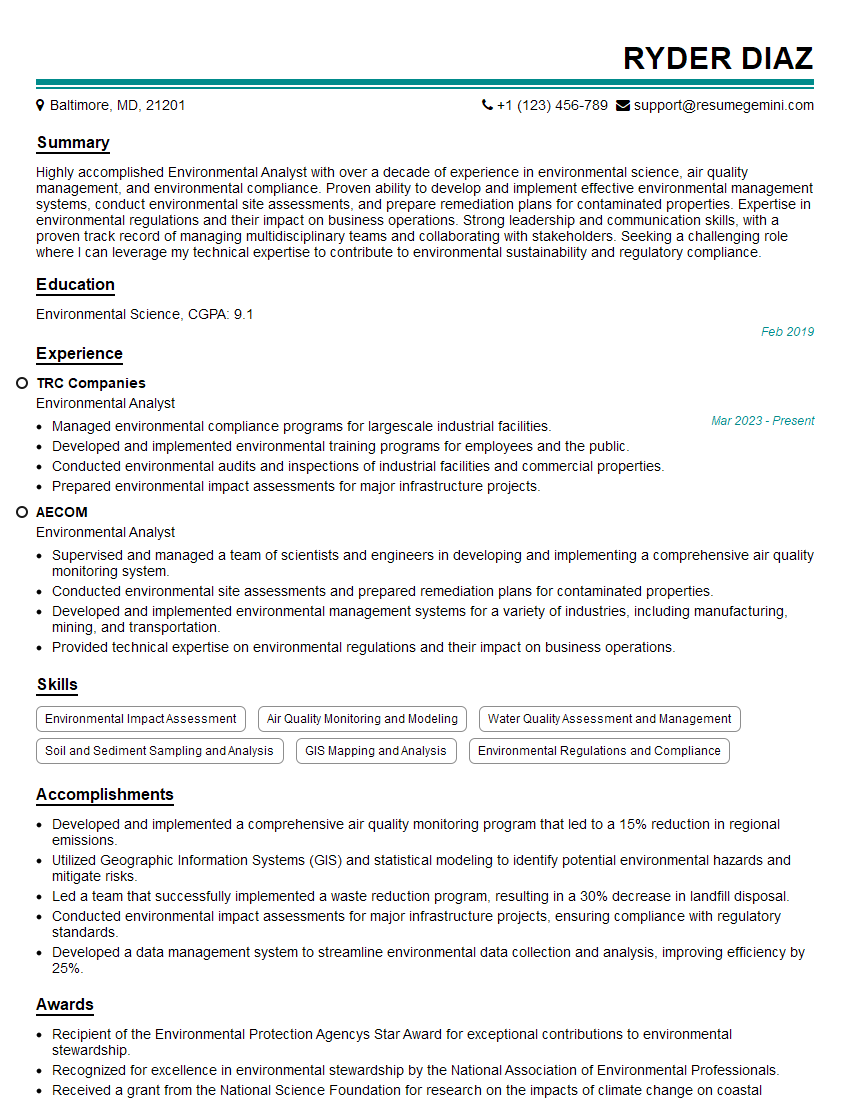
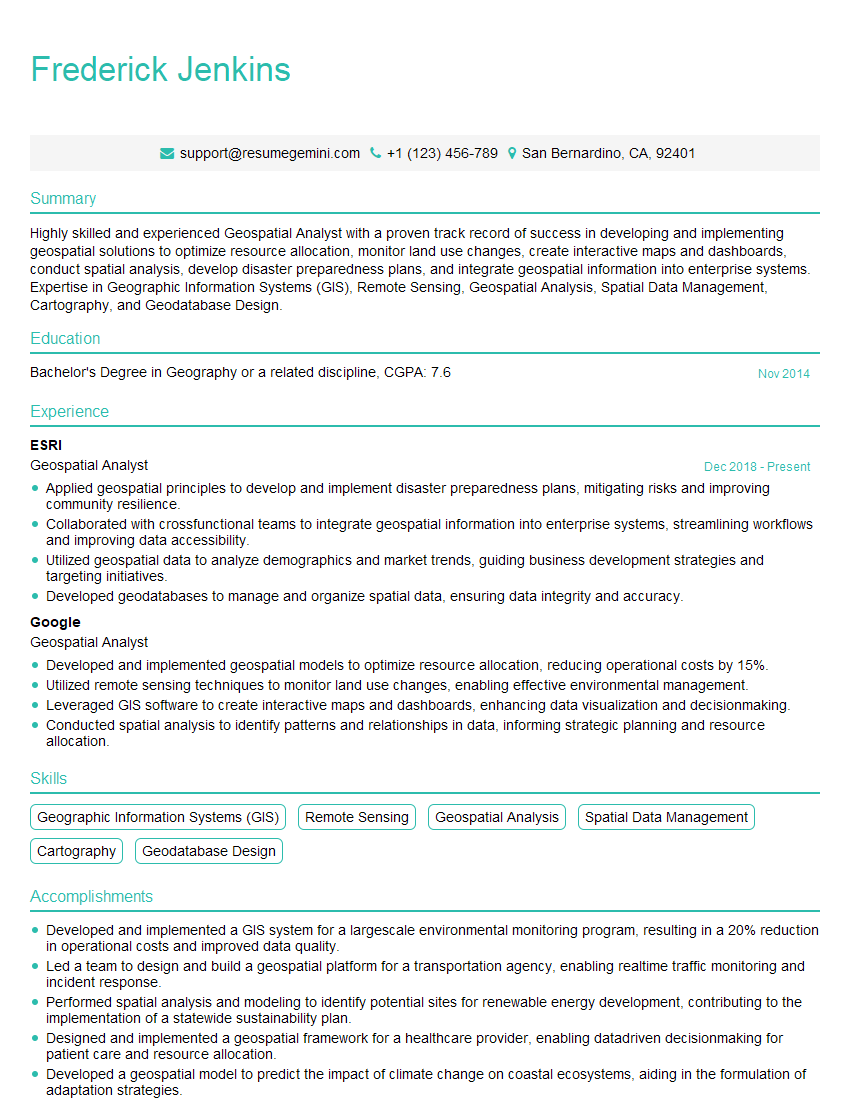
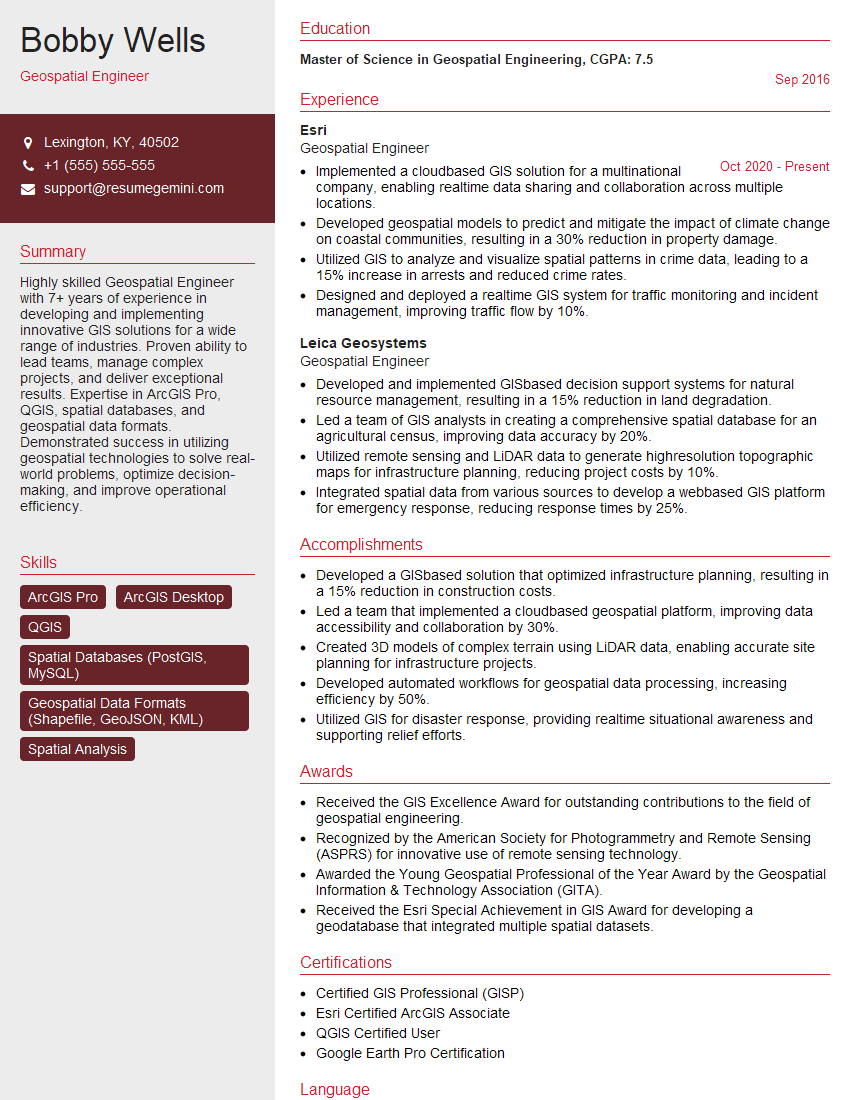
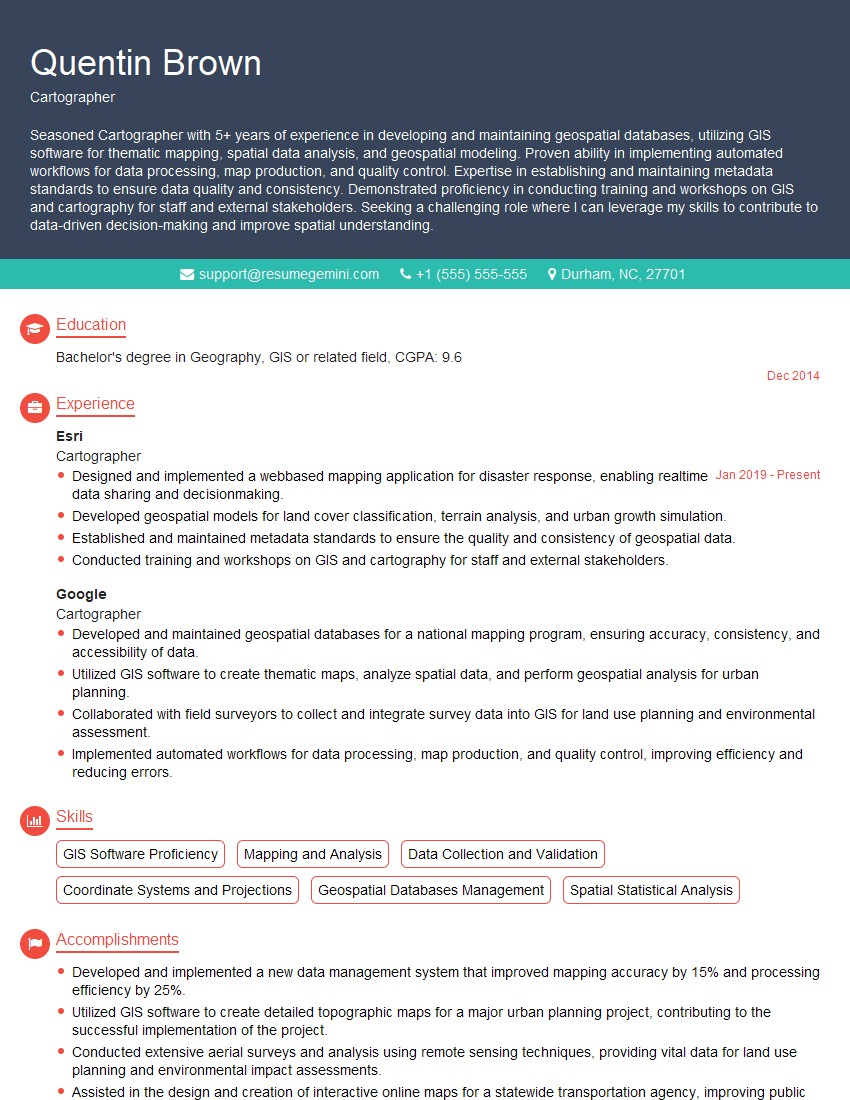
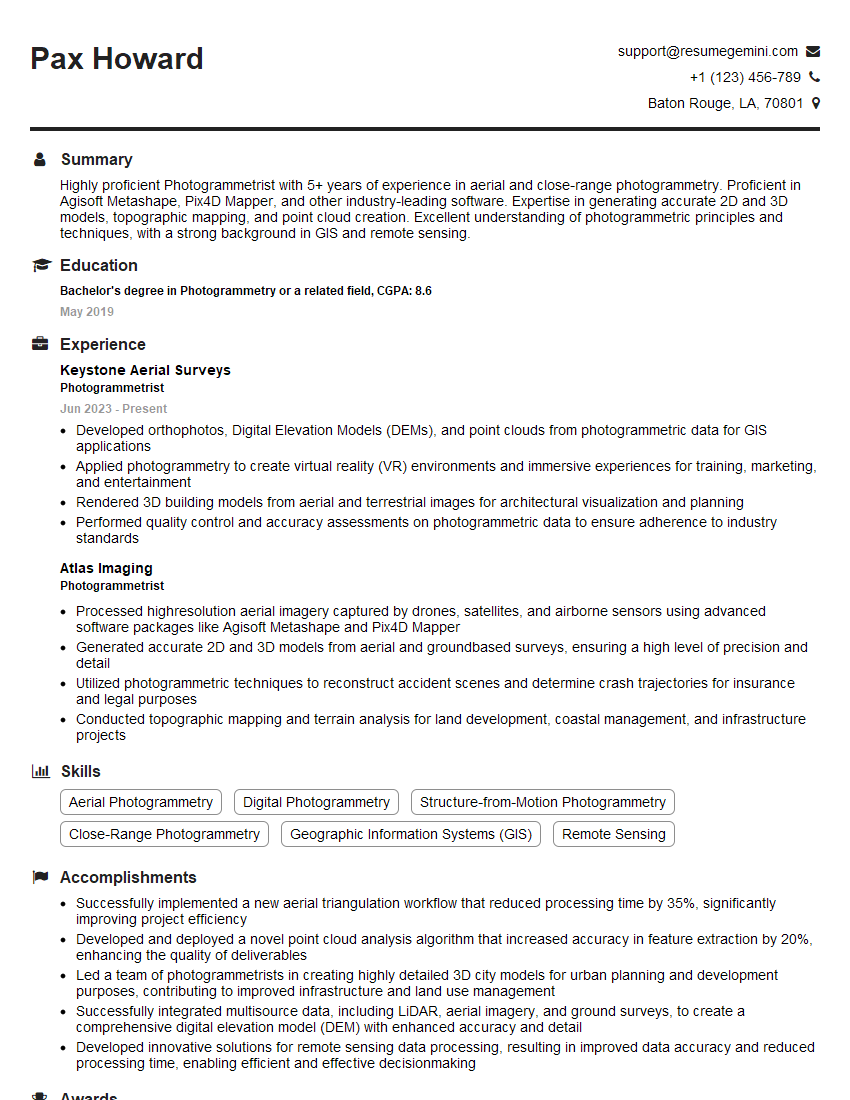
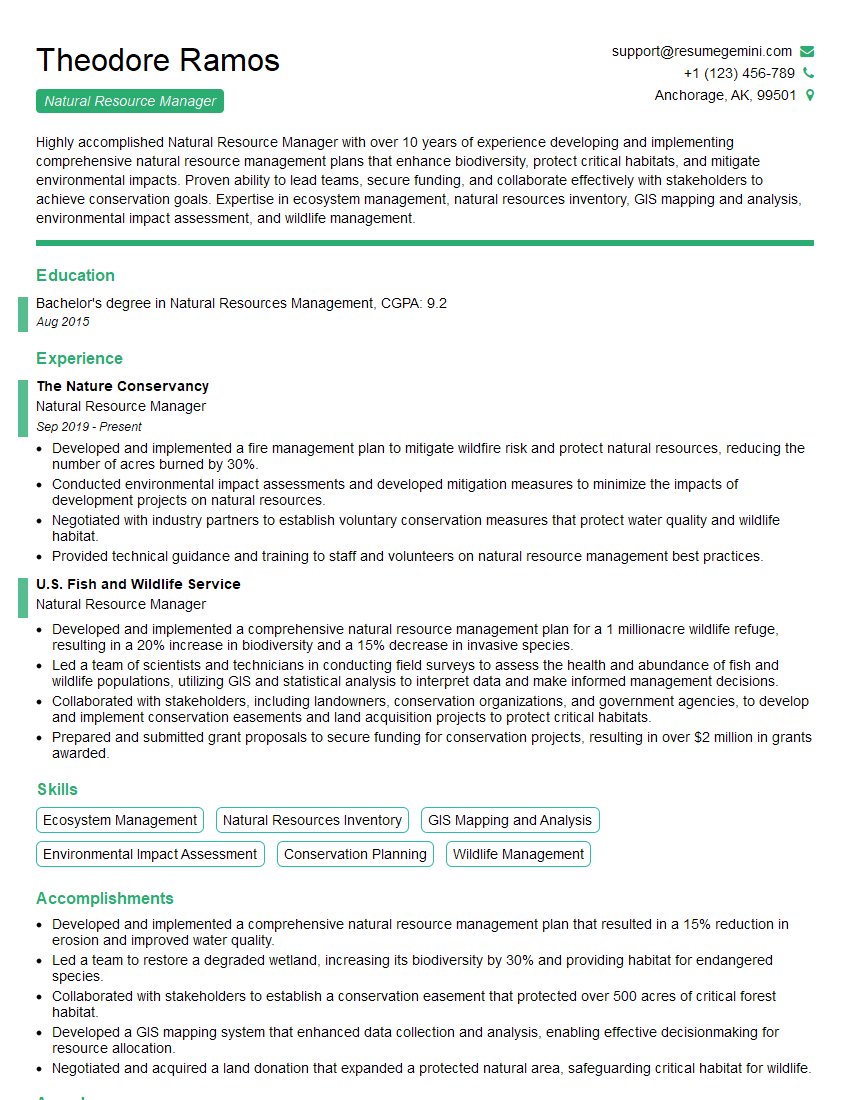
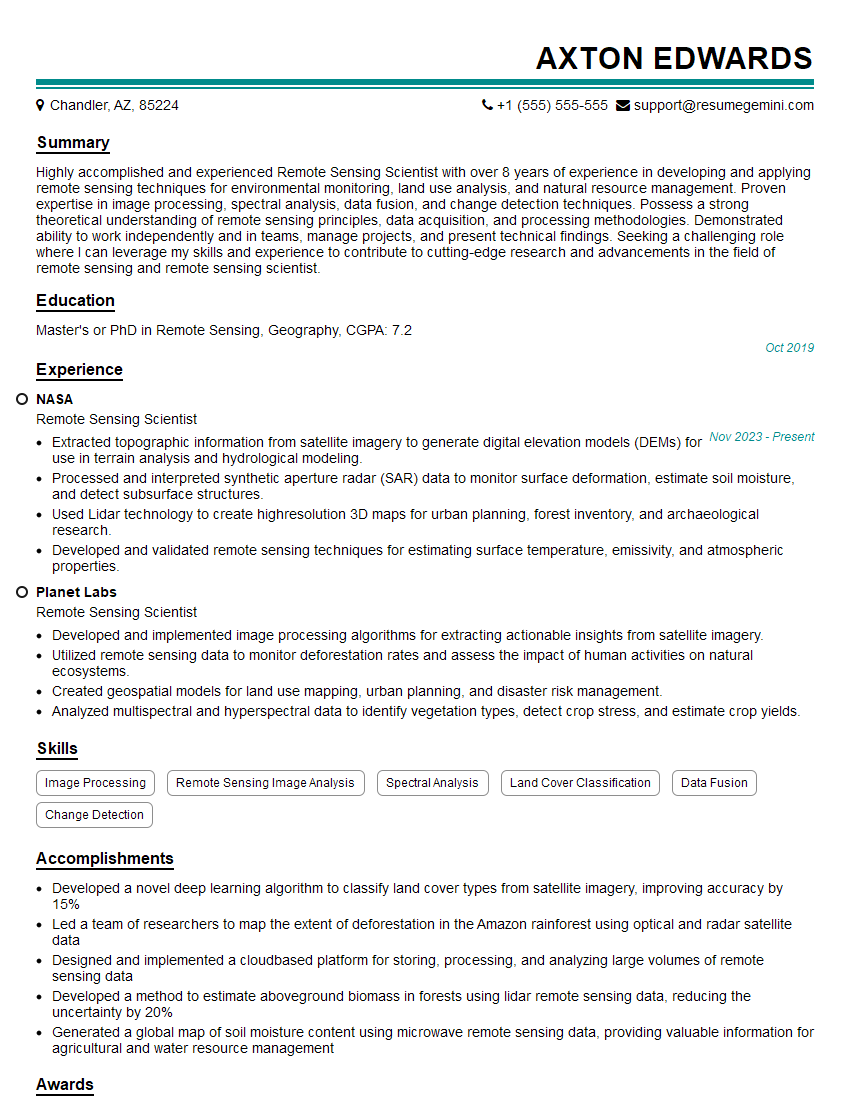
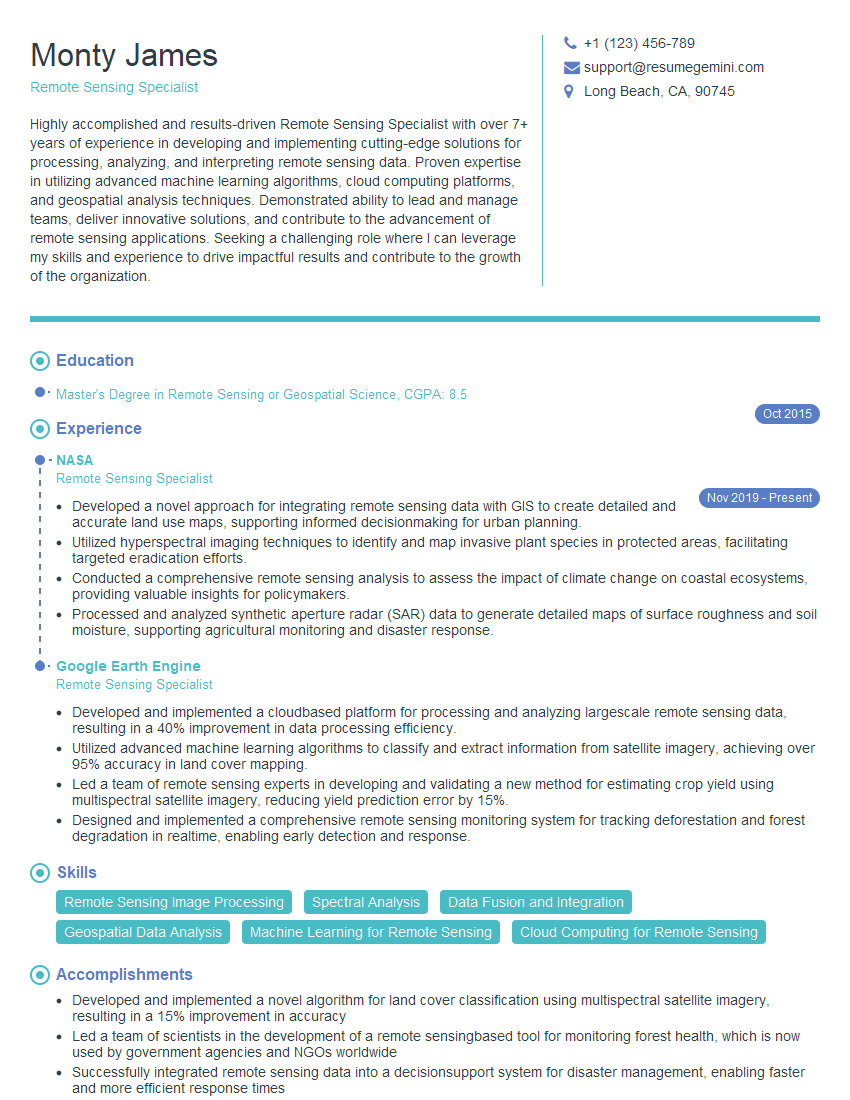
Mastering ERDAS Imagine opens doors to exciting careers in GIS, remote sensing, and environmental science. To maximize your job prospects, it’s crucial to have an ATS-friendly resume that highlights your skills and experience effectively. We strongly recommend using ResumeGemini to craft a professional and impactful resume that gets noticed. ResumeGemini provides examples of resumes tailored to ERDAS Imagine roles, helping you present your expertise in the best possible light.
Explore more articles
Users Rating of Our Blogs
Share Your Experience
We value your feedback! Please rate our content and share your thoughts (optional).
What Readers Say About Our Blog
I Redesigned Spongebob Squarepants and his main characters of my artwork.
https://www.deviantart.com/reimaginesponge/art/Redesigned-Spongebob-characters-1223583608
IT gave me an insight and words to use and be able to think of examples
Hi, I’m Jay, we have a few potential clients that are interested in your services, thought you might be a good fit. I’d love to talk about the details, when do you have time to talk?
Best,
Jay
Founder | CEO