Interviews are opportunities to demonstrate your expertise, and this guide is here to help you shine. Explore the essential Cartoon Animator interview questions that employers frequently ask, paired with strategies for crafting responses that set you apart from the competition.
Questions Asked in Cartoon Animator Interview
Q 1. Explain the difference between bone and puppet rigging in Cartoon Animator.
In Cartoon Animator, both bone and puppet rigging are used to control character animation, but they differ significantly in their approach and functionality. Think of bone rigging as the traditional method, akin to building a skeleton for your character. Each bone represents a part of the body (arm, leg, head), and their movement influences the connected parts. It’s precise and good for nuanced control but can be more time-consuming to set up.
Puppet rigging, on the other hand, uses a simpler, more intuitive system. It relies on pre-defined controls and less complex hierarchies. You essentially manipulate the character’s pose directly through intuitive handles, making it faster for quick animations or less complex characters. It’s less flexible than bone rigging for extreme poses or subtle movements, but perfect for rapid prototyping and simpler projects. For example, if you’re animating a character with many complex clothing layers, bone rigging might become overwhelmingly complex, whereas puppet rigging may be the more efficient solution.
Q 2. How do you create realistic lip-sync in Cartoon Animator?
Creating realistic lip-sync in Cartoon Animator is achieved primarily through its powerful audio lip-sync feature. This works by analyzing an audio track and automatically generating corresponding mouth shapes for your character. It’s not a completely automated solution though. You’ll typically need to fine-tune the results. You start by importing your audio. Cartoon Animator then analyzes the audio and maps phonemes (basic sounds) to pre-defined mouth shapes or visemes in your character’s rig. It’s very effective for basic lip-sync. For more advanced lip-sync, you might need to manually adjust individual frames to perfect the timing and create more nuanced expressions. You can also create custom visemes tailored to your character’s specific mouth design.
Remember, realistic lip-sync isn’t just about the mouth. You need to consider the overall performance—eye movements, head tilts, and body language—for a convincing result. For example, if your character is singing, you’ll likely need more expressive mouth movements.
Q 3. Describe your workflow for animating a character’s walk cycle in Cartoon Animator.
My workflow for animating a walk cycle in Cartoon Animator typically involves several key steps: First, I create a character with a properly rigged skeleton or puppet. Then, I use the timeline to define keyframes for the character’s feet placement, body rotation, and arm swing. For a natural walk cycle, I refer to reference videos or images of real-world walking motions. I typically start with the root motion and create keyframes for the feet hitting the ground at regular intervals. Then I refine the leg and body movement, making sure the hips and torso move in a natural way. I refine the movement using the onion skin feature, which shows previous and next frames, helping maintain smooth transitions. Once the body is properly animated, I add in the arm swing, adjusting the timing to keep it consistent with the feet.
Finally, I use the timeline to adjust the timing and spacing of the keyframes, ensuring a smooth, natural movement. The process involves continuous iteration and refinement until the walk cycle appears convincingly natural.
Q 4. What are some common troubleshooting techniques for dealing with unexpected behavior in Cartoon Animator?
Troubleshooting in Cartoon Animator often involves a systematic approach. Firstly, I check the character’s rigging to ensure there are no unintended bone constraints or conflicting animations. Unexpected behaviour can sometimes stem from the character’s layers being improperly ordered. For example, if a layer with clothing is below the character’s body, it might appear to clip through. So, I always double-check the layer order.
Sometimes, unexpected behaviour might stem from issues with the imported assets. For instance, if I’m using external assets, I ensure their formats are compatible with Cartoon Animator. If the issue persists, I check the project settings, ensuring frame rates, resolutions, and render settings are correctly configured. Sometimes a simple restart can resolve minor issues. Cartoon Animator’s documentation is a valuable resource that often has solutions to common problems.
Q 5. How do you optimize Cartoon Animator projects for performance?
Optimizing Cartoon Animator projects for performance involves several strategies. High resolution images and complex effects increase processing demands. I prefer using smaller, optimized images and using lower resolution during the development stage to speed up the preview and testing. The use of unnecessary effects can also lead to performance slowdowns. It’s best to use the most appropriate effects, and keep the number of effects used on each layer to a minimum. Also, keeping the number of layers to a minimum will significantly improve performance. Avoid layers that are not being used, and consider merging layers when possible. Finally, I always render the animation in the lowest resolution necessary. If the animation is intended for online use, there’s no need to render at 4K if 720p will suffice.
Q 6. Explain your experience with different Cartoon Animator features like physics, facial expressions, and layers.
My experience with Cartoon Animator’s features is extensive. I frequently leverage its physics engine to create realistic interactions, such as clothing reacting to a character’s movement. I find that it’s easier to manipulate realistic cloth and hair physics with Cartoon Animator than many other software options. Cartoon Animator’s facial expression tools are incredibly powerful. They allow for very precise control over individual facial features. The layer system allows me to create complex characters with multiple clothing pieces or hair without compromising performance. For instance, I created a character with flowing hair by utilizing separate layers for strands of hair, each animated independently, then using masking to control how they blend together. This allowed me to create the look of wind blowing through the character’s hair without making the animation too heavy.
Q 7. What are the advantages and disadvantages of using Cartoon Animator compared to other animation software?
Cartoon Animator offers several advantages over other animation software, especially its intuitive interface and ease of use. It’s exceptionally user-friendly compared to professional packages like Maya or After Effects. It simplifies the animation process significantly, making it much quicker to create animations, especially for 2D cartoon style. It’s exceptionally strong in the area of lip-sync and facial animation, simplifying processes considerably. However, Cartoon Animator has some limitations. Its 3D capabilities are not as comprehensive as those in dedicated 3D animation software, and its physics engine, while improving, might not match the sophistication of industry-standard physics engines.
Ultimately, the choice of software depends on your needs. If you need sophisticated 3D modelling and animation, Cartoon Animator might not be the best choice. But if you need a user-friendly program specifically for 2D animation, particularly character animation with strong lip-sync and realistic facial expressions, then Cartoon Animator is a powerful and efficient option.
Q 8. Describe your experience with exporting animation from Cartoon Animator to various formats.
Cartoon Animator offers a robust export pipeline, allowing for flexibility in delivering animations to various platforms and software. The process generally involves selecting the desired format from the export options, specifying resolution and frame rate, and choosing options like alpha channel inclusion or compression settings.
For example, exporting to video formats like MP4 or AVI is ideal for sharing on social media or integrating into video editing software like Adobe Premiere Pro or DaVinci Resolve. These formats are widely compatible and offer good compression for smaller file sizes. On the other hand, exporting as image sequences (e.g., PNG sequences) provides maximum control and quality, perfect for compositing within more advanced 2D or 3D applications like After Effects or Blender. Finally, exporting to GIF is suitable for quick, looping animations for web use. The choice depends heavily on the intended use and required level of quality and compatibility.
I’ve personally used the export functionality to deliver projects for clients ranging from social media campaigns to short films. Selecting the right export settings became crucial in ensuring efficient workflows and maintained image quality across different projects and platforms.
Q 9. How do you manage character assets and project organization within Cartoon Animator?
Efficient asset and project management is key in Cartoon Animator, especially for larger projects. I usually organize characters into folders based on their role or features (e.g., ‘Main Characters,’ ‘Supporting Characters,’ ‘Enemies’). This ensures easy identification and prevents confusion. Within each character folder, I maintain separate files for different poses, expressions, and animation clips. This allows for modularity; you can easily reuse assets in other projects.
For project organization, I use a naming convention for all files – a consistent structure for filenames helps in file retrieval and organization. For instance, a character’s file might be named ‘Hero_Idle_01.ca2’ or ‘Villain_Attack_02.ca2’. Furthermore, I create separate folders for assets (props, backgrounds, sound effects) to separate them from character assets and project files, making the overall structure organized and manageable. This meticulous organization significantly streamlines the workflow and minimizes time spent searching for specific assets.
Q 10. How would you address a situation where your Cartoon Animator project is experiencing lag or low frame rate?
Lag and low frame rate in Cartoon Animator often stem from several factors: overly complex scenes, high-resolution textures, excessive particle effects, or a less powerful computer. Troubleshooting requires a systematic approach.
- Reduce Scene Complexity: Start by simplifying the scene. Are there unnecessary objects or overly detailed backgrounds? Reducing the number of objects can significantly improve performance.
- Lower Texture Resolutions: High-resolution textures consume substantial resources. Try reducing their resolution; the difference might be imperceptible at smaller sizes but greatly affects the performance.
- Optimize Particle Effects: Particle effects can be resource-intensive. Reduce their density, lifespan, or particle count. Consider using lower-resolution textures for the particles themselves.
- Check CPU and GPU Usage: Monitor your computer’s resource usage while working on the project. If CPU or GPU usage is consistently high, it points to a bottleneck. Consider upgrading your hardware if necessary.
- Lower Frame Rate: If necessary, consider reducing the frame rate from 30 fps to 24 fps. This can improve performance while still providing acceptable animation smoothness.
I once had to tackle such a situation when working on a large-scale animation with numerous characters and particle effects. By systematically reducing texture resolutions and scene complexity, I managed to achieve a smooth frame rate, allowing me to deliver the project on time.
Q 11. Describe your approach to creating believable character expressions in Cartoon Animator.
Creating believable character expressions in Cartoon Animator is all about subtle adjustments and understanding the principles of animation. It’s not just about exaggerating features; it’s about conveying emotion realistically, even within a stylized context.
- Puppet Editor: I heavily utilize Cartoon Animator’s puppet editor. By manipulating the character’s facial features – eyebrows, eyes, mouth – I can achieve a wide range of expressions. Subtle movements, like a slight eyebrow raise or a quiver in the lip, can add depth and nuance.
- Blend Shapes: I often create custom blend shapes for exaggerated expressions, allowing for smooth transitions. This allows me to precisely control the intensity of the emotion.
- Timing and Spacing: Timing and spacing are crucial for believable acting. The speed and duration of expressions impact how the audience interprets them. A quick flash of anger conveys something different than sustained rage.
- Reference: I always reference real-life expressions. Observing real human reactions helps in creating expressions that resonate with the audience.
For instance, to animate a character feeling surprised, I might quickly widen their eyes, raise their eyebrows, and slightly open their mouth, ensuring the timing is brief to capture the momentary nature of surprise.
Q 12. What’s your experience with integrating Cartoon Animator with other software or pipelines?
Cartoon Animator’s integration with other software is a significant advantage. It’s designed to work smoothly with various industry-standard applications.
- Video Editing Software: I frequently export animations from Cartoon Animator to video editing software such as Adobe Premiere Pro or Final Cut Pro for final compositing and post-processing. This integration allows me to incorporate the animation into larger video productions.
- 3D Software: Cartoon Animator can be integrated with 3D software like Cinema 4D or Blender for creating more complex scenes with combined 2D and 3D elements. This opens up opportunities for richer visuals and dynamic storytelling.
- Image Editing Software: Software like Photoshop or GIMP can be used to create and enhance the assets used within Cartoon Animator. It’s a common workflow to create character textures, backgrounds, and props outside Cartoon Animator and then import them.
In a recent project, I used Cartoon Animator to create animated characters, then exported them as image sequences and composited them into a 3D environment rendered in Blender. This seamless integration enhanced the overall quality and complexity of the project.
Q 13. How do you create and manage custom assets for use in Cartoon Animator?
Creating and managing custom assets is crucial for tailoring Cartoon Animator to your specific needs. Cartoon Animator supports various file types allowing for flexibility and control.
- Image Formats: You can create custom character sprites and props using image editing software like Photoshop or GIMP. Supported formats include PNG (for transparency) and JPG. Proper resolution and format selection is vital for efficient rendering.
- Sound Effects: Custom sound effects greatly enhance the animation’s impact. I typically use audio editing software to create or modify sound effects and import them as WAV or MP3 files.
- 3D Models: While Cartoon Animator is primarily 2D, you can integrate 3D models in some cases. Ensure your 3D models are properly textured and exported in a supported format.
- Organization: As with project files, meticulously organize your custom assets in folders with clear naming conventions for easy access and reuse.
I regularly create custom assets, like stylized environments and unique character designs, to ensure that my animations align perfectly with my artistic vision. A well-organized asset library allows for efficient workflows and easier re-use of these valuable resources across various projects.
Q 14. What are your preferred methods for creating smooth transitions between animations?
Smooth transitions are crucial for believable animation. Cartoon Animator offers several methods to achieve this:
- Easing Functions: Cartoon Animator provides various easing functions (like linear, ease-in, ease-out) that control the speed of transitions between keyframes. Adjusting these curves allows for natural-looking movements, avoiding abrupt changes.
- Blending and Crossfading: Blending or crossfading between animations is a powerful technique for creating seamless transitions. This involves carefully layering and adjusting the opacity of multiple animation clips over time. This method is particularly useful for subtle changes in expression or posture.
- Keyframing: Precise keyframing is essential for creating smooth movements. I often add extra keyframes to subtly adjust the character’s pose or expression between major animation phases, creating a fluid effect.
- In-Between Animation: In some cases, I might create custom ‘in-between’ frames to refine the animation’s smoothness further. This manual process offers the most precise control but requires more time and effort.
In practice, I often combine several techniques. For example, I might use easing functions to control the timing of a transition, then blend between two expressions using crossfading to create a natural transition.
Q 15. Describe your experience working with different cameras and perspectives in Cartoon Animator.
Cartoon Animator offers a robust camera system allowing for dynamic and expressive shots. I’m experienced in utilizing various camera movements, including panning, tilting, zooming, and even more complex camera paths created through keyframes. This allows me to control the perspective and pacing of the animation effectively. For example, I might use a slow zoom on a character’s face to emphasize a reaction, or a fast pan to create a sense of urgency. Beyond standard camera movement, I’m also proficient in adjusting camera angles, shifting from a high-angle shot to emphasize vulnerability to a low-angle shot to convey power. I frequently experiment with different perspectives to create visual interest and enhance storytelling. Understanding how camera work affects the emotional impact of the scene is key, and I always consider the narrative when choosing a specific camera angle and movement.
Beyond basic camera angles, Cartoon Animator allows for 3D camera controls, enabling me to create more complex camera movements and work in 3D space. This lets me generate dynamic shots with perspective changes, creating a more immersive experience for the viewer. For instance, I can smoothly orbit a character in a fight scene, following the action from different vantage points. I’m also comfortable adjusting field of view and depth of field to further enhance the depth and focus of the animation.
Career Expert Tips:
- Ace those interviews! Prepare effectively by reviewing the Top 50 Most Common Interview Questions on ResumeGemini.
- Navigate your job search with confidence! Explore a wide range of Career Tips on ResumeGemini. Learn about common challenges and recommendations to overcome them.
- Craft the perfect resume! Master the Art of Resume Writing with ResumeGemini’s guide. Showcase your unique qualifications and achievements effectively.
- Don’t miss out on holiday savings! Build your dream resume with ResumeGemini’s ATS optimized templates.
Q 16. How do you handle revisions or feedback on animation projects in Cartoon Animator?
Handling revisions and feedback is a crucial part of the animation workflow. My process starts with clearly understanding the client’s (or director’s) notes. I use a version control system, generally saving different versions of the animation with clear naming conventions reflecting changes (e.g., ‘v1_initial’, ‘v2_revised_timing’, ‘v3_final’). This ensures that I can easily revert to earlier versions if needed. I then systematically address each feedback point, focusing on the specifics. For major changes, I’ll often present a rough cut of the revisions to ensure alignment before spending extensive time on final polish. I believe in clear and open communication; I actively involve the client throughout the revision process, providing regular updates and seeking clarification when necessary. Detailed annotations on the timeline help communicate the location and nature of specific changes clearly. Using layers within Cartoon Animator enables me to make isolated changes without affecting other parts of the animation. Finally, I always document each iteration’s changes, noting decisions and explaining the reasoning behind them. This not only aids future iterations, but also fosters transparency and trust in the collaborative process.
Q 17. What is your understanding of animation principles (e.g., squash and stretch, anticipation, follow-through)?
Animation principles are the foundation of believable and engaging animation. I have a strong understanding and practical application of core principles such as squash and stretch, anticipation, staging, follow-through, and overlapping action. Squash and stretch gives weight and flexibility to objects, for example, showing a ball bouncing realistically by distorting its shape as it impacts the ground. Anticipation is essential to prepare the audience for an action, like a character winding up for a throw. Staging clearly communicates the main action and emotion of the scene, ensuring the viewer understands what’s happening. Follow-through and overlapping action add realism by having parts of a character or object continue to move after the main action is complete, such as hair or clothing flowing behind a running character. These principles work together to create animation that feels natural and engaging. I always strive to incorporate these principles into my projects to make them more dynamic and visually captivating, as ignoring them often leads to stiff or unnatural movement.
Q 18. Explain your process for creating realistic-looking hair or cloth simulations in Cartoon Animator.
Cartoon Animator offers several ways to simulate realistic-looking hair and cloth. For hair, I primarily utilize the built-in physics engine combined with carefully crafted bone structures and animation curves. I start by creating a detailed hair model using appropriate materials, adjusting the physics properties to control the weight and bounciness of the hair. Precise keyframing and the use of physics simulations work together to ensure natural-looking movement. For instance, I can add keyframes to gently sway long hair during a slow walk or give more dynamic movement to short, choppy hair during a vigorous run. The physics simulation handles finer details, ensuring a realistic flow. For cloth, a similar approach is taken, but with careful attention to the fabric’s material properties (weight, stiffness, etc.) within Cartoon Animator. I often use different layers to manipulate the hair and cloth independently for greater control and refinement of the simulation. It’s an iterative process involving fine-tuning physics parameters, keyframing, and careful observation to get the desired realistic result. This often involves trial and error to achieve the perfect balance between realistic movement and the artistic style of the animation.
Q 19. How familiar are you with using the timeline and keyframe animation in Cartoon Animator?
I am highly proficient in using the timeline and keyframe animation in Cartoon Animator. The timeline is the heart of animation, allowing for precise control over the animation’s timing and pacing. I regularly use keyframes to control character movements, expressions, and camera angles. Understanding the concept of keyframes and their importance in achieving fluid motion is fundamental to my animation workflow. I can create various animation types such as walk cycles, jump animations, and complex facial expressions using keyframes. I leverage the onion skinning feature to compare frames and ensure smooth transitions. My experience includes creating both simple and intricate animations using keyframes, ranging from subtle character movements to highly dynamic action sequences. Understanding how to efficiently place and manipulate keyframes is crucial for delivering high-quality animations quickly and accurately. I’m also experienced in using different easing functions (like ease in, ease out) to make the motion smoother and more natural.
Q 20. Describe your proficiency in using the various tools for editing and manipulating animation curves.
Manipulating animation curves is crucial for achieving natural-looking movement and precise control over timing and easing. In Cartoon Animator, I’m proficient in using the curve editor to fine-tune the animation curves for any parameter, whether it’s position, rotation, scale, or even facial expressions. I understand the different curve types and how to adjust tangents to create smooth transitions and dynamic movements. I can easily create ease-in, ease-out effects and other custom curves to achieve specific stylistic choices or solve timing issues. For instance, I might use a sharp curve for a sudden movement or a more gradual curve for a smooth, flowing transition. My skill includes adjusting the curve’s shape to fine-tune the timing and flow of the animation, resolving issues such as choppy or jerky movements. It’s about understanding not just the mechanics of the tool, but also how to use it artistically to add realism and personality to the characters.
Q 21. What techniques do you use to create a sense of depth and perspective in your Cartoon Animator animations?
Creating depth and perspective is crucial for visually engaging animations. In Cartoon Animator, I employ various techniques to achieve this. Firstly, I use multiple layers to create a sense of overlapping objects, placing items closer to the camera on top layers. This simple technique creates an immediate sense of depth. Next, I leverage perspective drawing principles, ensuring objects shrink in size and converge towards vanishing points to simulate depth. Cartoon Animator’s 3D capabilities are invaluable here, allowing for the manipulation of camera angles and the use of parallax techniques to enhance depth. For example, using a shallow depth of field blurs the background elements further away from the camera, focusing attention on the key subject. I also pay close attention to lighting and shadow placement. Strategic use of lighting can emphasize the form of objects, creating highlights and shadows that simulate 3D space. Finally, I might incorporate atmospheric perspective; elements far away appear hazier and less saturated than closer objects, reinforcing the depth of the scene. Combining these techniques effectively allows me to craft animations with a clear sense of depth and visual appeal, leading to an enhanced viewing experience.
Q 22. Explain your experience with using the different types of layers (e.g., image, vector, particle) in Cartoon Animator.
Cartoon Animator offers a robust layering system crucial for creating complex animations. Understanding the different layer types is essential for efficient workflow and creative control. Let’s explore the key layer types:
- Image Layers: These are the foundation, holding static images like character sprites, backgrounds, and props. Think of them as the building blocks of your scene. I often use image layers for character assets created in programs like Photoshop or Clip Studio Paint, importing them as PNGs for optimal transparency. Managing image layers involves careful organization, using folders to group related assets for clarity.
- Vector Layers: These layers use scalable vector graphics, making them ideal for elements that need resizing without losing quality. For instance, I’ve used vector layers for simple UI elements or decorative borders that might need to be scaled across different resolutions. They’re incredibly useful for maintaining crisp lines, even at larger sizes. They are less common for character animation compared to image layers, as the complexity for animation can be higher.
- Particle Layers: These layers add dynamic effects like sparks, smoke, or rain. They provide visual flair and realism. In a recent project, I used particle layers to simulate falling snow, adding a touch of winter atmosphere to my scene. Careful adjustment of particle parameters like density, speed, and lifetime is critical for achieving a believable effect. It also helps to keep particle layers separate from core animation to maintain performance.
Efficient layering involves careful planning. I always start with a solid foundation of image layers, then add vector or particle layers as needed, ensuring each layer has a clear purpose and is properly named for easy management. This prevents clutter and ensures a streamlined animation process.
Q 23. How familiar are you with the Cartoon Animator’s scripting capabilities (if any)?
Cartoon Animator’s scripting capabilities, while not as extensive as dedicated scripting languages like Python, are quite powerful through its Lua scripting interface. I’m proficient in using Lua within Cartoon Animator to automate tasks and extend its functionality. This is especially useful for larger projects and repetitive actions.
For example, I’ve written Lua scripts to automate the process of applying specific expressions to a character based on audio input, creating dynamic and responsive animations. I’ve also used scripting to batch-process files, adjusting the timing of animations or applying consistent post-processing effects across many files. This significantly reduces manual work and accelerates workflow.
-- Example Lua script (simplified):
local character = GetCharacter()
character:SetExpression("Happy")
The Lua scripting API allows access to various aspects of the animation process, including character manipulation, timeline control, and audio interaction. This makes it a powerful tool for automating repetitive tasks and creating unique animation solutions that go beyond the standard features.
Q 24. Describe your approach to testing and quality assurance in an animation pipeline involving Cartoon Animator.
My approach to testing and quality assurance in a Cartoon Animator pipeline is multi-faceted and emphasizes both automated and manual checks. It’s crucial to catch errors early to prevent costly rework.
- Automated Tests: I often use the built-in playback functionality of Cartoon Animator to check for glitches and timing errors in animations. If possible, I also use external tools that automate repetitive aspects like comparing frames, identifying inconsistencies, or detecting dropped frames.
- Manual Reviews: A thorough visual review is essential. I meticulously check each animation sequence, paying close attention to lip-sync (if dialogue is involved), character movement, and overall flow. I usually involve another person for a fresh perspective, ensuring that the animation is consistent with the overall narrative and intended message.
- Version Control: I use version control systems (like Git) to track changes made to my project files. This allows me to easily revert to earlier versions if errors occur, greatly improving the project’s resilience.
- Platform Testing: Before finalizing the animation, it’s critical to test its compatibility across different platforms and resolutions. I use various devices and software to ensure that the animation plays smoothly and looks good on different screen sizes.
By combining automated and manual checks, and by using a robust version control system, I ensure high-quality and consistent animations, significantly reducing the risk of errors reaching the final product.
Q 25. How do you maintain consistency in style and character design across a series of Cartoon Animator animations?
Maintaining style and character design consistency across a series of animations is paramount. It builds a recognizable brand and immerses viewers in a cohesive world.
- Style Guide: I begin by creating a detailed style guide document that includes examples of character poses, expressions, color palettes, and background styles. This acts as a visual reference point for the entire team, ensuring everyone adheres to the established aesthetic.
- Asset Management: I use a well-organized asset library to store all character sprites, props, and backgrounds. This ensures that consistent assets are used throughout the project, eliminating the risk of unintentional style variations.
- Reference Sheets: For each character, I create comprehensive reference sheets illustrating different poses, expressions, and clothing variations. These help maintain consistency in how characters are animated and drawn over time.
- Template Projects: To speed up workflow, I create template projects in Cartoon Animator, pre-loaded with consistent settings, backgrounds, and character rigs. This speeds up production and keeps the style consistent throughout the animation series.
By using these methods, I can ensure that the style and characters in a series are consistent, creating a seamless and professional animation.
Q 26. What are some of the limitations of Cartoon Animator, and how do you work around them?
While Cartoon Animator is a powerful tool, it does have limitations. Understanding these limitations allows for effective workarounds.
- Complexity of Advanced Effects: Creating highly realistic or complex effects might require external tools. For example, creating highly detailed explosions or complex fluid simulations would often require supplementing with external tools such as After Effects.
- Physics Engine Limitations: While Cartoon Animator has a basic physics engine, it may not be as powerful as dedicated physics engines. For complex physics simulations, such as cloth or highly realistic character movement, external tools or techniques would be necessary.
- Rendering Limitations: For very high-resolution renders or complex scenes, the rendering time might become substantial. Optimizing the scene, utilizing lower resolutions where appropriate, or even using external renderers can mitigate this.
I typically address these limitations through a combination of external tools (like After Effects for compositing or other 3D software for complex effects), careful planning of the animation to minimize the reliance on the areas where Cartoon Animator is less strong, and thorough testing to ensure high-quality output despite these constraints. The key is to know the tool’s strengths and weaknesses and utilize external tools as needed to augment its capabilities.
Q 27. Describe a complex animation project you completed using Cartoon Animator and the challenges you overcame.
One complex project involved creating a short animated film with multiple characters, intricate backgrounds, and a dynamic storyline. The biggest challenge was managing the large number of assets and animations involved. We needed to ensure seamless transitions, consistent character designs, and a fluid narrative flow.
To overcome this, we implemented a strict pipeline. First, we created a detailed shot breakdown with storyboards and animatics. This allowed us to plan out every scene thoroughly. We used a hierarchical folder structure to manage our assets. Then we leveraged Cartoon Animator’s layering system and built-in features to handle lip-sync and character rigging. Finally, we implemented a robust review process with multiple feedback stages, ensuring consistency across all scenes. This structured approach allowed us to manage the complexity of the project, deliver a high-quality animation on time and within budget.
Through meticulous planning, and a solid understanding of Cartoon Animator’s strengths, we were able to deliver a product that exceeded our expectations despite the significant challenges inherent in complex projects.
Q 28. Explain your experience with using motion capture data in Cartoon Animator (if any).
I have extensive experience integrating motion capture data into Cartoon Animator. It significantly accelerates the animation process and adds realism to character movement. Cartoon Animator supports various motion capture formats allowing for easy import and integration.
Typically, I would use a motion capture suit to capture an actor’s performance, then import the resulting data into Cartoon Animator. I then use Cartoon Animator’s tools to fine-tune the motion capture data, adjusting and modifying it to match the stylistic choices of the animation. This might include scaling, adjusting timing, or even blending the motion capture with hand-animated keyframes for greater control. Sometimes minor adjustments in the character rigging are required for optimal compatibility with the motion capture data.
Using motion capture provides a great base for realistic and convincing animations but requires careful refinement to match the animation’s overall style. It’s important to understand that motion capture data is a tool to assist, not replace, the artistic director’s vision. A skillful animator will know how to blend and modify it to achieve the best results.
Key Topics to Learn for Your Cartoon Animator Interview
- Character Creation & Rigging: Understanding the process of creating and rigging 2D characters, including bone structures, inverse kinematics (IK), and forward kinematics (FK). Practice creating characters with various levels of complexity.
- Animation Techniques: Mastering keyframe animation, motion capture integration, and utilizing Cartoon Animator’s built-in animation tools for realistic and expressive character movement. Experiment with different animation styles.
- Facial Animation & Lip-Syncing: Learn how to create believable facial expressions and accurate lip-syncing using audio input and Cartoon Animator’s facial rigging tools. Practice with different voice styles and emotional ranges.
- Scene Setup & Composition: Understanding the principles of visual storytelling within Cartoon Animator. Practice creating dynamic and engaging scenes using cameras, lighting, and layers.
- Exporting & File Formats: Mastering different export options for your animations, including resolutions, codecs, and file formats for various platforms (web, video, etc.).
- Plugin Integration & Customization: Explore the possibilities of expanding Cartoon Animator’s functionality using plugins and custom scripts (if applicable to the role). Showcase your adaptability and problem-solving skills.
- Performance Optimization: Learn techniques to optimize your animations for smooth playback and efficient rendering, especially when working with complex scenes and characters.
- Troubleshooting & Problem-Solving: Develop your ability to identify and resolve technical issues encountered during the animation process. Document your solutions and demonstrate your proactive approach.
Next Steps
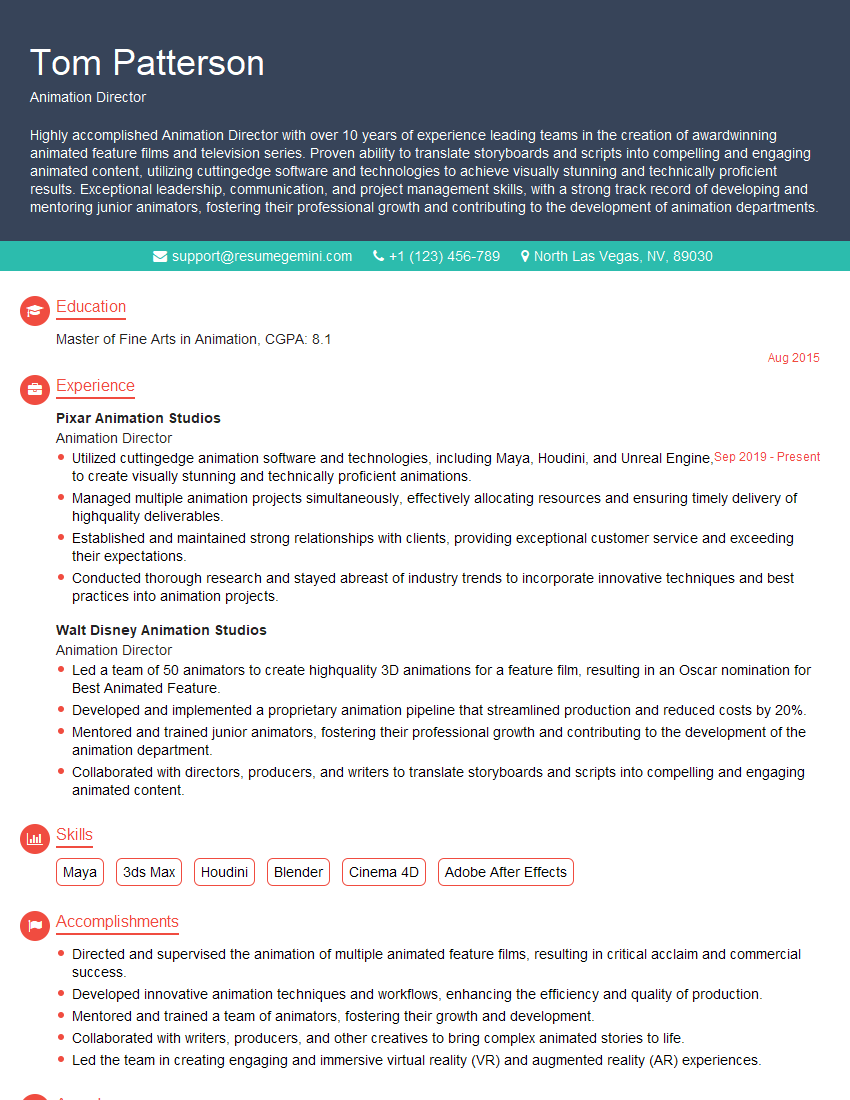
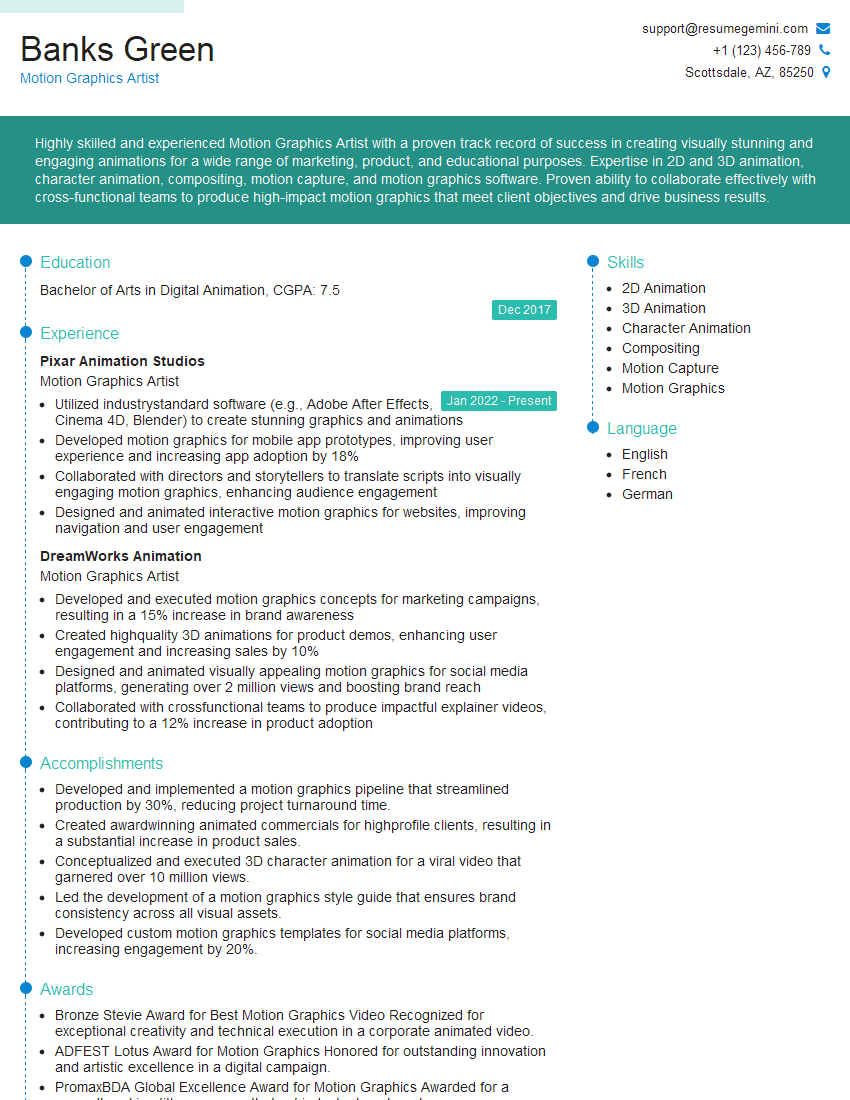
Mastering Cartoon Animator significantly enhances your prospects in animation, game development, and motion graphics. A strong grasp of its features opens doors to exciting career opportunities. To make sure you land your dream job, it’s crucial to have a resume that effectively showcases your skills. Building an ATS-friendly resume is key to getting noticed by recruiters. We strongly recommend using ResumeGemini to craft a professional and impactful resume that highlights your Cartoon Animator expertise. ResumeGemini provides examples of resumes tailored to Cartoon Animator roles, giving you a head start in the application process.
Explore more articles
Users Rating of Our Blogs
Share Your Experience
We value your feedback! Please rate our content and share your thoughts (optional).
What Readers Say About Our Blog
Really detailed insights and content, thank you for writing this detailed article.
IT gave me an insight and words to use and be able to think of examples