Unlock your full potential by mastering the most common Saturation Adjustment interview questions. This blog offers a deep dive into the critical topics, ensuring you’re not only prepared to answer but to excel. With these insights, you’ll approach your interview with clarity and confidence.
Questions Asked in Saturation Adjustment Interview
Q 1. Explain the concept of saturation in image editing.
Saturation, in image editing, refers to the intensity or purity of a color. Think of it like this: a highly saturated color is vibrant and bold, like a bright red apple, while a low-saturation color is muted and dull, like a faded grey. It essentially controls how much of a particular hue is present. A fully saturated color contains only that specific hue, with no white or grey mixed in. A desaturated color, on the other hand, has a significant amount of grey mixed into it.
Q 2. What are the different methods for adjusting saturation?
There are several ways to adjust saturation. Most image editing software offers a direct saturation slider or adjustment layer. This allows for a global adjustment, affecting all colors equally. More sophisticated methods involve:
Selective color adjustment: This allows you to adjust the saturation of individual colors independently. For instance, you could boost the saturation of reds while leaving blues unchanged.
Hue/Saturation adjustment layers: These provide a more nuanced control, letting you adjust hue, saturation, and lightness simultaneously or individually, often with the ability to target specific color ranges.
Curves adjustment: While primarily used for tonal adjustments, curves can subtly manipulate saturation by affecting the color channels directly. This is a more advanced technique.
Color mixing: In some programs, you can directly manipulate color channels (Red, Green, Blue) to indirectly control saturation. This is generally less intuitive than dedicated saturation tools but offers fine-grained control.
Q 3. How does saturation impact the overall mood and tone of an image?
Saturation profoundly impacts the mood and tone of an image. High saturation creates vibrant, energetic, and sometimes even dramatic images, suitable for conveying excitement, joy, or passion. Think of a brightly saturated sunset photo versus a washed-out grey one. The saturated sunset evokes a strong emotional response.
Conversely, low saturation results in subdued, calm, or even melancholic images. It can be used to create a sense of nostalgia, tranquility, or mystery. Desaturated images often feel more vintage or timeless. A photographer might choose low saturation to emphasize a somber mood in a portrait.
Q 4. Describe the difference between hue, saturation, and brightness.
Hue, saturation, and brightness (or lightness) are the three primary attributes that define a color. Think of them as three independent dials controlling different aspects:
Hue: This represents the pure color itself – red, green, blue, etc. Changing the hue shifts the color along the color wheel (e.g., from red to orange).
Saturation: As discussed earlier, this determines the intensity or purity of the hue. Increasing saturation makes the color more vibrant, decreasing it makes it duller.
Brightness/Lightness: This refers to the overall lightness or darkness of the color. Increasing brightness makes the color lighter, approaching white; decreasing it makes it darker, approaching black.
Imagine painting: hue is the color of the paint, saturation is how much of that pure color you use (mixed with white or grey), and brightness is how much white you add to the mix.
Q 5. What are the potential downsides of over-saturating an image?
Oversaturation can lead to several undesirable effects:
Unnatural appearance: Highly saturated images often look unrealistic and artificial, losing their natural appeal.
Distracting: Excessively vibrant colors can overwhelm the viewer and distract from the subject or overall composition.
Loss of detail: In some cases, oversaturation can obscure details within the image, particularly in areas of high contrast.
Color banding: In digital images, over-saturation can sometimes result in visible banding artifacts—a stair-step effect in color transitions.
The goal is always to find a balance—enough saturation to enhance the image without making it look garish.
Q 6. How can you use saturation adjustment to enhance specific colors in an image?
Selective color adjustment is key to enhancing specific colors. Most editing software allows you to target specific color ranges within a Hue/Saturation adjustment layer. For example, you might:
Isolate a color range: Select the ‘Reds’ option in the Hue/Saturation panel and increase saturation for only the red tones in the image. This will make the reds more vibrant without affecting other colors.
Use a masking technique: Create a mask to target specific areas. For instance, you can mask a person’s skin and increase its saturation separately from the background.
Fine-tune with curves: Advanced users can use the curves adjustment layer to fine-tune the saturation of specific color channels, providing a non-linear control.
This targeted approach allows subtle enhancements that maintain a natural and balanced look, unlike global saturation adjustments.
Q 7. Explain how you would adjust saturation selectively in a portrait photograph.
In a portrait, selective saturation adjustment can make a huge difference. The goal is typically to enhance skin tones and perhaps the subject’s eyes while avoiding oversaturating the background. I’d proceed as follows:
Create a Hue/Saturation adjustment layer: This keeps the original image intact.
Use a masking technique: Create a mask and carefully select the subject’s skin using a brush tool or selection tools. Refine the mask to isolate the skin as accurately as possible.
Adjust saturation for skin tones: Using the Hue/Saturation controls, gently increase the saturation of skin tones (typically by focusing on the orange and red ranges) in the masked area to give the skin a more vibrant and healthy look, avoiding oversaturation which can look artificial.
Optional: Enhance eye color: Create a new mask on the same layer, or a new Hue/Saturation layer, to target the eyes. Adjust saturation of the eye color to make them pop. Be subtle here; slight enhancements make a bigger difference than dramatic ones.
Check overall balance: Step back and review the image to ensure the saturation adjustments are subtle and enhance the image naturally.
This selective approach avoids an overly saturated look, ensuring the photo remains realistic and aesthetically pleasing.
Q 8. Describe your experience using different saturation adjustment tools (e.g., Photoshop, DaVinci Resolve).
My experience with saturation adjustment spans years of professional work using both Photoshop and DaVinci Resolve. In Photoshop, I frequently leverage the Hue/Saturation adjustment layer, finding its precise control over individual color channels invaluable. I utilize the selective color adjustments to target specific hues, enhancing or diminishing their saturation independently. DaVinci Resolve, on the other hand, offers a more nuanced approach with its powerful color wheels and curves. I often employ the color wheels for intuitive saturation adjustments, particularly in color grading for film and video projects. The curves in Resolve allow for very fine adjustments to saturation, and often even creating specific saturation curves for certain parts of the color spectrum. For example, I might boost the saturation in the greens of a landscape photo in Photoshop to make them pop, while in DaVinci Resolve I might use a curve to subtly reduce saturation in the mid-tones of a film scene to create a more moody atmosphere.
The choice between the tools depends heavily on the project’s requirements. For quick adjustments to individual images, Photoshop’s layers are efficient; for intricate color grading in film or video, DaVinci Resolve’s precision and range of options are preferred.
Q 9. How do you approach saturation adjustment in different color spaces (e.g., RGB, LAB)?
Approaching saturation adjustment in different color spaces significantly impacts the results. RGB (Red, Green, Blue) is the most common and intuitive space, but manipulating saturation directly in RGB can lead to unexpected color shifts and imbalances. Adjusting saturation in LAB (Luminosity, a, b) color space provides more predictable results because it separates luminance from color. ‘L’ represents brightness, ‘a’ represents the green-red axis, and ‘b’ represents the blue-yellow axis.
In RGB, altering saturation affects all three channels simultaneously; sometimes, this results in undesirable changes to the hue or brightness of the image. In LAB, you modify the ‘a’ and ‘b’ channels independently to control chroma (colorfulness) without affecting the overall brightness (‘L’). This leads to a more controlled and often natural saturation adjustment. I typically prefer LAB for accurate and precise control, especially in situations where preserving color balance is crucial. For instance, when color grading a film, I nearly always work in a color space like LAB or ACES for maximum flexibility and control.
Q 10. What is clipping, and how does it relate to saturation adjustment?
Clipping, in the context of saturation adjustment, occurs when you push the saturation levels beyond the limits of the color space. This results in a loss of detail and color information, creating areas that appear either completely desaturated (black) or oversaturated (white or excessively vibrant and unnatural). It’s similar to overexposing or underexposing an image. For instance, increasing the saturation of a bright red object too far might result in parts of the red becoming pure white, losing the subtle variations of the color.
To avoid clipping, I carefully monitor histograms and use tools that help visualize clipping, such as the highlight and shadow warnings in Photoshop or the scopes in DaVinci Resolve. Instead of abruptly increasing saturation, I often prefer gradual adjustments, checking for clipping at each step. Working in a wider color gamut also helps provide more headroom before clipping occurs. Understanding your color space’s limits is paramount for avoiding clipping.
Q 11. How do you maintain color accuracy while adjusting saturation?
Maintaining color accuracy while adjusting saturation requires a delicate balance. Over-saturation can lead to unnatural and unrealistic colors, while under-saturation can result in a dull and lifeless image. A key technique I employ is using targeted adjustments rather than global changes. This involves utilizing masking techniques (in Photoshop) or selective color adjustments (in both Photoshop and DaVinci Resolve) to isolate specific areas or color ranges for saturation modifications.
Reference images are also incredibly helpful. Comparing my adjusted image to a similar, accurately colored image helps me maintain realism. Finally, understanding the context of the image is crucial. What mood are you trying to convey? A slightly unrealistic saturation might be acceptable in a stylized photograph, but it would be detrimental in a photo meant to be documentary-style.
Q 12. How would you handle a situation where an image is excessively desaturated?
Handling an excessively desaturated image involves a careful, multi-step process. Firstly, I’d assess the cause. Is it a result of poor shooting conditions (e.g., flat lighting), image compression, or a deliberate artistic choice? Understanding the root cause helps determine the best approach.
My strategy typically includes: selectively increasing saturation using curves (in either Photoshop or Resolve), utilizing the Hue/Saturation adjustment layer in Photoshop (paying close attention to the individual color channels), and considering vibrance adjustments. Vibrance is a useful alternative to saturation because it protects saturated colors from being overly-modified while it helps boost the overall color intensity of the under-saturated areas. If the image is severely desaturated, it might require a more involved approach involving color grading techniques in a professional program like DaVinci Resolve, potentially including careful adjustment of color balance and contrast to restore vibrancy while minimizing color artifacts. For example, if the image has very dull blues, I might selectively increase saturation of just the blue hues, leaving others unaffected.
Q 13. Explain the relationship between saturation and contrast.
Saturation and contrast have a close relationship, although they are distinct concepts. Contrast refers to the difference in brightness between light and dark areas in an image, while saturation describes the intensity or purity of colors. However, increasing saturation can often *enhance* the perceived contrast. This is because more saturated colors stand out more prominently against their surroundings, creating a stronger visual separation between different areas of the image.
Conversely, a desaturated image, with muted colors, will often appear to have lower contrast because the colors blend together more readily. Therefore, manipulating one can often indirectly affect the other. While you can adjust contrast independently, adjusting saturation will often have a secondary impact on the overall contrast.
Q 14. How does saturation affect the perceived sharpness of an image?
Saturation subtly affects perceived sharpness. Highly saturated images often appear sharper because the more vibrant colors create stronger visual edges and better define boundaries between objects. The increased contrast, a side effect of boosted saturation, further contributes to this perceived sharpness. Conversely, a desaturated image, with its muted colors and reduced contrast, often appears softer and less sharp because the lack of color distinction makes it harder for the eye to discern edges and fine details.
This is important to remember, especially when processing images for print or screen. Over-saturation might create an illusion of sharpness that doesn’t exist in reality, while insufficient saturation could make a detailed image appear blurry or less defined. Therefore, a balanced approach to saturation is necessary to maintain true image quality and sharpness.
Q 15. What are the common pitfalls to avoid when adjusting saturation?
Oversaturation is the most common pitfall when adjusting saturation. It leads to unrealistic and often jarring visuals. Think of a vibrant sunset – if you boost the saturation too much, it loses its natural beauty and appears cartoonish. Another pitfall is neglecting the impact on skin tones. Over-saturated skin can look unnatural and even sickly. Finally, inconsistent saturation across different parts of an image or video can create an unbalanced and unprofessional look. You want a cohesive and natural-looking result.
- Avoid oversaturation: Subtle adjustments are usually best. Think small increments rather than large jumps.
- Protect skin tones: Use masking techniques or selective saturation adjustments to avoid affecting skin tones negatively.
- Maintain consistency: Ensure a balanced saturation across the entire image or video, avoiding stark contrasts in color vibrancy.
Career Expert Tips:
- Ace those interviews! Prepare effectively by reviewing the Top 50 Most Common Interview Questions on ResumeGemini.
- Navigate your job search with confidence! Explore a wide range of Career Tips on ResumeGemini. Learn about common challenges and recommendations to overcome them.
- Craft the perfect resume! Master the Art of Resume Writing with ResumeGemini’s guide. Showcase your unique qualifications and achievements effectively.
- Don’t miss out on holiday savings! Build your dream resume with ResumeGemini’s ATS optimized templates.
Q 16. Describe your workflow for adjusting saturation in a video editing project.
My saturation adjustment workflow is iterative and context-dependent. It begins with a careful assessment of the footage’s existing color palette. I then determine the desired stylistic effect. Is it a natural look, a vintage feel, or a hyper-realistic representation? Next, I use a combination of global and selective adjustments. Global adjustments affect the entire image, useful for establishing a base level. Selective adjustments, using masks or layers, let me fine-tune specific areas, such as a character’s face or a vibrant sunset. Throughout, I regularly check my work against a calibrated monitor. I might use a waveform monitor to check luminance levels, ensuring I don’t introduce clipping or crush shadows. I frequently zoom in to check for artifacts or unnatural shifts. This allows me to make incremental improvements rather than drastic changes. It’s a process of refinement, and it’s vital to work non-destructively so that I can easily revert if needed.
Q 17. How do you use saturation adjustment to achieve a specific stylistic effect (e.g., vintage, vibrant)?
Achieving specific stylistic effects requires targeted saturation manipulation. For a vintage look, I might desaturate the image slightly, then selectively boost the saturation of specific colors, such as reds and yellows, to mimic the faded appearance of old photographs. Adding a slight grain or vignette effect enhances this further. For a vibrant look, I might globally increase the saturation, paying close attention to skin tones. I’d then consider selectively reducing saturation in certain areas to create visual interest and prevent the image from looking overly processed. The key is understanding the color palettes associated with each style and using saturation as a tool to achieve that palette.
For example, to create a retro 80s feel, I’d boost the saturation of cyan and magenta, which are characteristic of that era’s color palettes.
Q 18. How do you calibrate your monitor for accurate color representation during saturation adjustment?
Accurate color representation is crucial. My monitor calibration involves using a colorimeter, a device that measures the color output of my monitor. I use software such as X-Rite i1Display Studio to guide me through the process, creating a profile that corrects for inconsistencies in my monitor’s display. This ensures that the colors I see on my screen accurately reflect the final output. Regular calibration, ideally monthly, is key. I also use reference images with known color values to double-check my adjustments. If the reference image looks off, then I know I have a problem, and further calibration is needed. It’s important to have a standardized, reliable method for comparing the images to the reference images. This consistent approach is essential for professional color grading.
Q 19. Explain the impact of different file formats on saturation adjustment.
Different file formats impact how saturation data is stored and processed. Lossless formats like TIFF or PNG maintain the maximum amount of color information, offering the most flexibility during saturation adjustments. Lossy formats like JPEG discard some color data during compression, limiting the range of saturation adjustments you can make before introducing artifacts. Working with lossless formats is generally preferred for color grading because it provides the widest latitude for adjustments without the risk of data loss. It is also beneficial to work at the highest bit depth possible (10-bit or 12-bit) to provide maximum precision in the adjustments.
Q 20. How does white balance affect the perceived saturation of an image?
White balance significantly affects perceived saturation. An inaccurate white balance shifts the overall color temperature, influencing how saturated colors appear. For instance, a cool white balance (bluish) can make warmer colors seem less saturated, while a warm white balance (yellowish) can diminish the saturation of cooler colors. Accurate white balance is crucial because it establishes a neutral baseline for color, ensuring that saturation adjustments are applied correctly and consistently. If white balance is off, your saturation adjustments will be affected, and the result will look inaccurate and unnatural.
Q 21. How would you approach saturation adjustment in low-light conditions?
Low-light conditions present challenges for saturation adjustment. The limited light information results in a compressed dynamic range and often noisy images. Aggressive saturation boosts in low-light scenarios can exacerbate noise and make the image look grainy and artificial. Instead of directly manipulating saturation, I would prioritize noise reduction first. Then, I would use more subtle saturation adjustments, potentially employing selective adjustments in the brighter areas to give the image a more natural look and feel. It’s a more nuanced process where subtlety reigns supreme; significant saturation changes might lead to unwanted artifacts.
Q 22. Explain how different color profiles (e.g., sRGB, Adobe RGB) influence saturation.
Different color profiles define the gamut—the range of colors—a device or system can reproduce. sRGB, commonly used for web and monitors, has a smaller gamut than Adobe RGB, frequently used in professional printing. This directly impacts saturation. Imagine a vibrant red: sRGB might display it as a slightly duller red because it’s outside its gamut, effectively clipping the color information. Adobe RGB, having a wider gamut, will reproduce the same red with much higher saturation, closer to the original intended color.
For example, a highly saturated turquoise might appear perfectly vibrant in Adobe RGB, but noticeably less saturated when viewed in sRGB. This is because the sRGB profile lacks the capacity to display the full intensity of that color, thus reducing its saturation. Always consider your target output; if the final destination is the web, sticking to sRGB is crucial to ensure the image renders as intended, while choosing Adobe RGB might be more beneficial for print work where higher saturation is possible.
Q 23. How do you handle the adjustment of saturation on different skin tones?
Adjusting saturation on skin tones requires sensitivity. Over-saturation can make skin look unnatural and unrealistic, while under-saturation can lead to a washed-out appearance. I typically avoid globally applying saturation adjustments to portraits; instead, I use selective adjustments with masking to only enhance or reduce saturation in specific areas.
For example, I might use a mask to selectively increase saturation in the cheeks to add a healthy glow, leaving other areas like the forehead largely untouched. Furthermore, I pay close attention to the undertones of the skin. Different ethnicities have diverse undertones, and aggressive saturation changes can accentuate these undertones improperly, resulting in an unrealistic or even offensive portrayal. The strategy involves subtle, localized adjustments that aim for natural enhancement rather than drastic alteration.
Q 24. What is the role of masking in selective saturation adjustment?
Masking is essential for controlling where saturation adjustments are applied. Think of it like using a stencil: you only paint where the stencil allows. In image editing, a mask allows you to isolate specific parts of an image, applying adjustments only to those masked areas. This prevents unwanted changes to other parts of the image.
For example, if I want to boost the saturation of flowers in a landscape photo without affecting the sky or grass, I would create a mask covering only the flowers. Then, adjusting the saturation only affects the pixels within that masked area, keeping the rest of the image intact. The more refined your masking is, the more precise and nuanced your saturation adjustments become. This is a critical tool for avoiding harsh and unrealistic changes.
Q 25. How do you ensure consistent saturation across multiple images or a video sequence?
Maintaining consistent saturation across multiple images or a video sequence requires a workflow that emphasizes standardization and reference points. I often establish a target saturation level either based on a reference image or a standardized look-up table (LUT). This reference point guides my adjustments across all images or frames.
In video editing, using color correction tools that apply consistent adjustments across the whole sequence is crucial. For stills, I often batch process adjustments, ensuring consistent settings are applied to a series of images. It’s also very helpful to use a calibrated monitor with consistent color temperature, as inconsistent displays can introduce significant variations in perceived saturation.
Q 26. Describe your experience with color management systems in relation to saturation.
Color management systems (CMS) are crucial for consistent saturation across different devices and workflows. A CMS helps ensure that colors are interpreted and displayed correctly regardless of the device or profile used. It’s like a universal translator for color. Without a properly configured CMS, the saturation of an image can vary wildly depending on the monitor, printer, or software used.
My experience includes extensive work with ICC profiles and color spaces, ensuring that images are consistently calibrated and displayed with accurate saturation. This has been essential in ensuring consistent color reproduction for print jobs and ensuring accuracy across client review processes. I utilize professional-grade CMS software and regularly calibrate my hardware to ensure the accuracy of my saturation adjustments.
Q 27. How would you troubleshoot issues related to unexpected saturation changes in your workflow?
Troubleshooting unexpected saturation changes involves systematically checking different aspects of my workflow. First, I would verify my color profile settings. Are they correctly assigned and consistent across the entire pipeline? Next, I would check for any unintended clipping or banding issues. Clipping occurs when the color values exceed the maximum range of the chosen color profile resulting in loss of detail and saturation.
Additionally, I would examine the software’s settings. Are there any unintentional adjustments or filter effects that might be affecting the saturation? Finally, I would review the source images themselves. Are there any underlying issues in the original files that are being exaggerated through the processing? A methodical approach helps pinpoint the source of the problem.
Q 28. What are some advanced techniques for fine-tuning saturation?
Advanced saturation techniques go beyond simple sliders. One technique involves using curves to selectively adjust saturation in different tonal ranges. For example, I might use curves to increase saturation only in the mid-tones while leaving the shadows and highlights relatively unchanged. This allows for more nuanced control, avoiding the harshness often associated with global adjustments.
Another technique involves using split toning, which allows separate adjustments for the highlights and shadows. This allows for more artistic control, adding a unique feel and look. These sophisticated techniques provide much more control and precision than simple saturation sliders, enabling the creation of a wide range of artistic effects.
Key Topics to Learn for Saturation Adjustment Interview
- Understanding Saturation: Defining saturation, its perceptual effects, and the difference between saturation and intensity.
- Color Models and Saturation: How saturation is represented in different color spaces (RGB, HSV, HSL) and the implications for adjustment.
- Saturation Adjustment Techniques: Exploring various methods for adjusting saturation, including curves, levels, and selective color adjustments.
- Practical Applications: Analyzing real-world scenarios where saturation adjustment is crucial, such as photography, video editing, and graphic design.
- Color Balance and Saturation: Understanding the interplay between saturation and overall color balance and how to achieve harmonious results.
- Problem-Solving in Saturation Adjustment: Identifying and troubleshooting common issues related to saturation, such as color clipping and unnatural-looking results.
- Advanced Techniques: Investigating more advanced techniques like masking, selective adjustments, and using plugins or specific software features for precise control.
- Algorithmic Approaches: Understanding the underlying algorithms used in software for saturation adjustments, if applicable to your specific role.
Next Steps
Mastering saturation adjustment is vital for career advancement in fields like image processing, video editing, and graphic design. A strong understanding of these concepts showcases your technical skills and creative problem-solving abilities. To significantly improve your job prospects, focus on creating an ATS-friendly resume that effectively highlights your expertise. ResumeGemini is a trusted resource to help you build a professional and impactful resume. We provide examples of resumes tailored to Saturation Adjustment to help guide you. Take the next step in your career journey – build a resume that showcases your skills and lands you that interview!

Quality Control Specialist Resume Sample
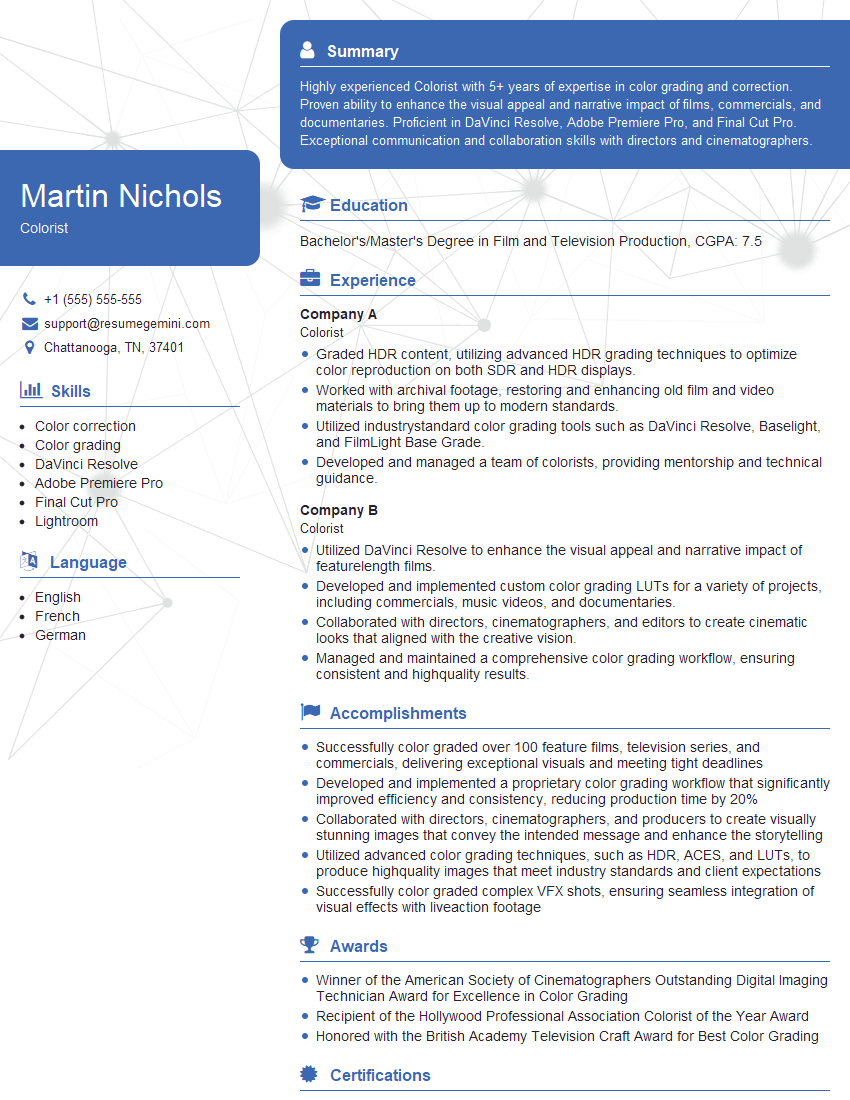
Colorist Resume Sample

Multimedia Specialist Resume Sample

Compositor Resume Sample

Graphic Designer Resume Sample

Media Producer Resume Sample
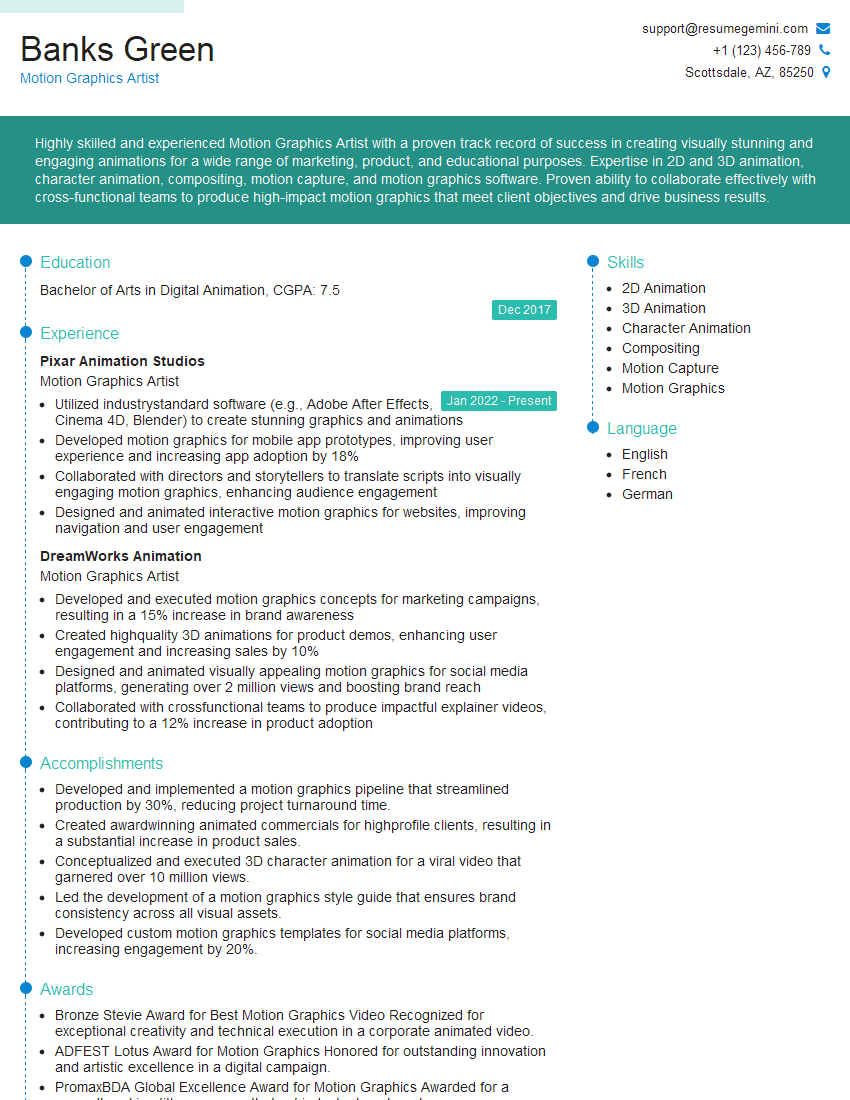
Motion Graphics Artist Resume Sample
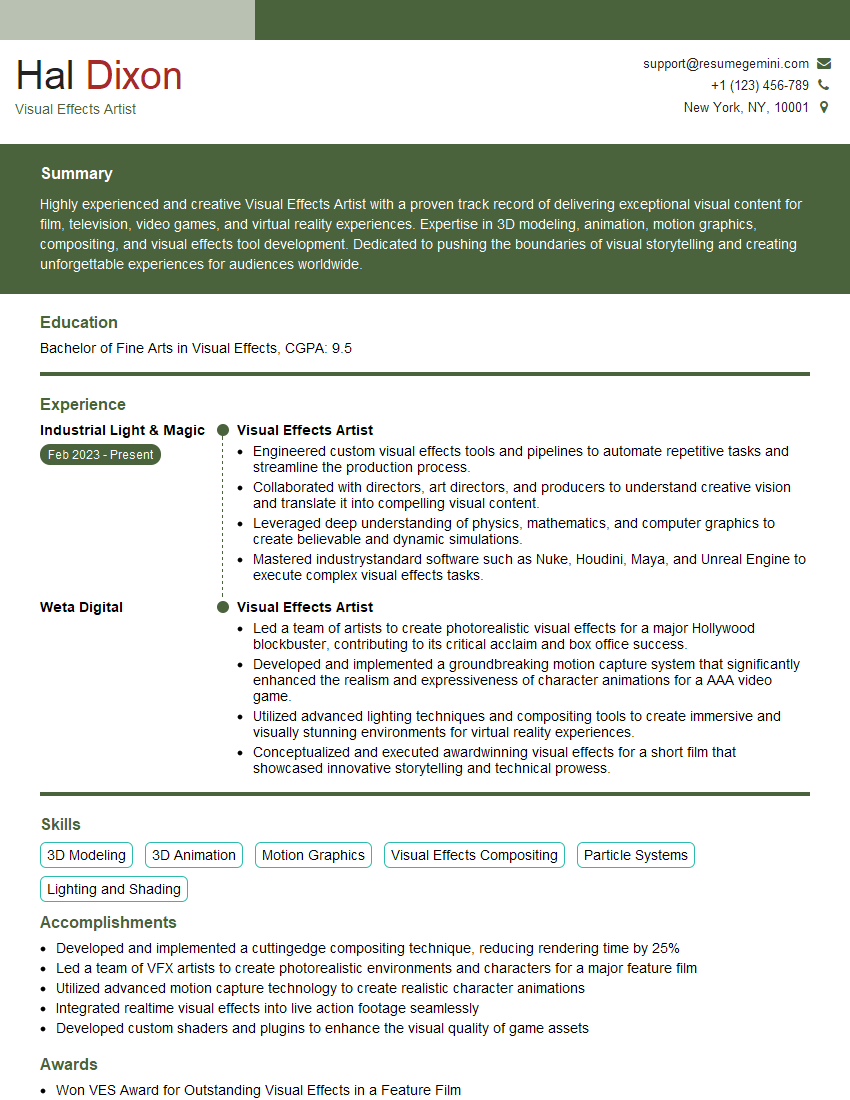
Visual Effects Artist Resume Sample
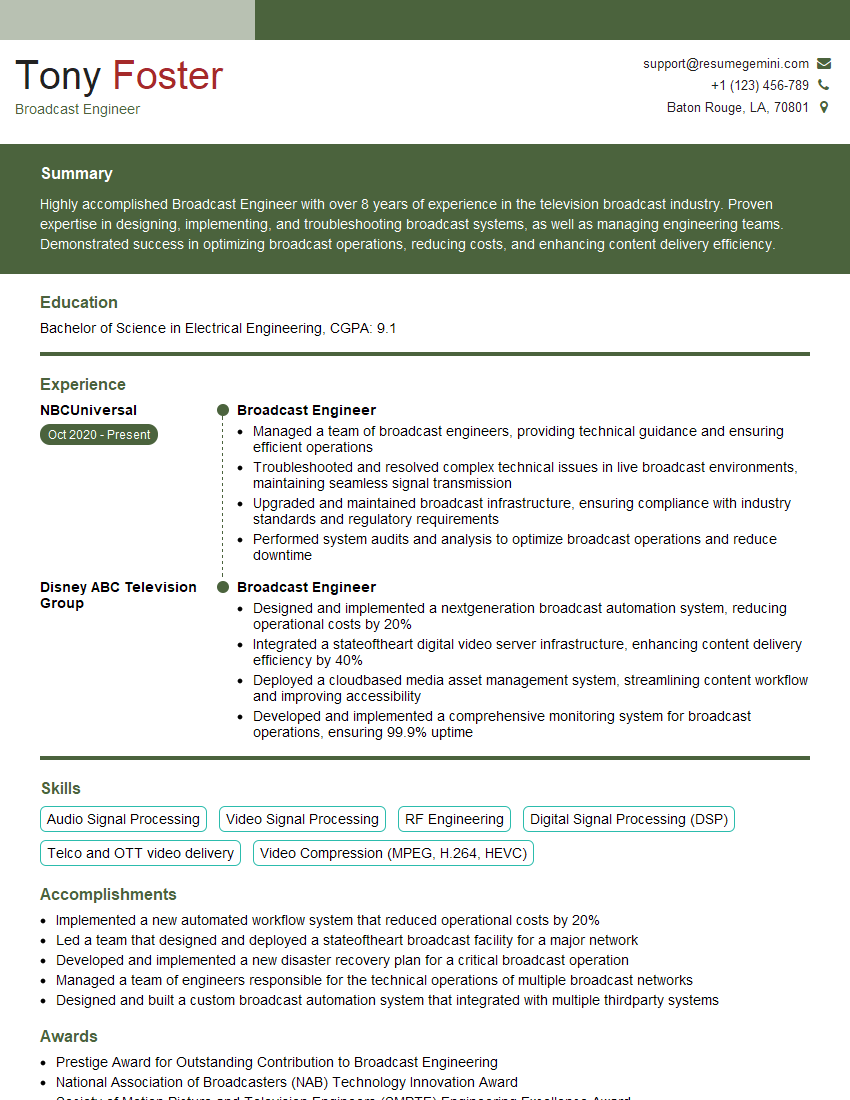
Broadcast Engineer Resume Sample

Photo Editor Resume Sample
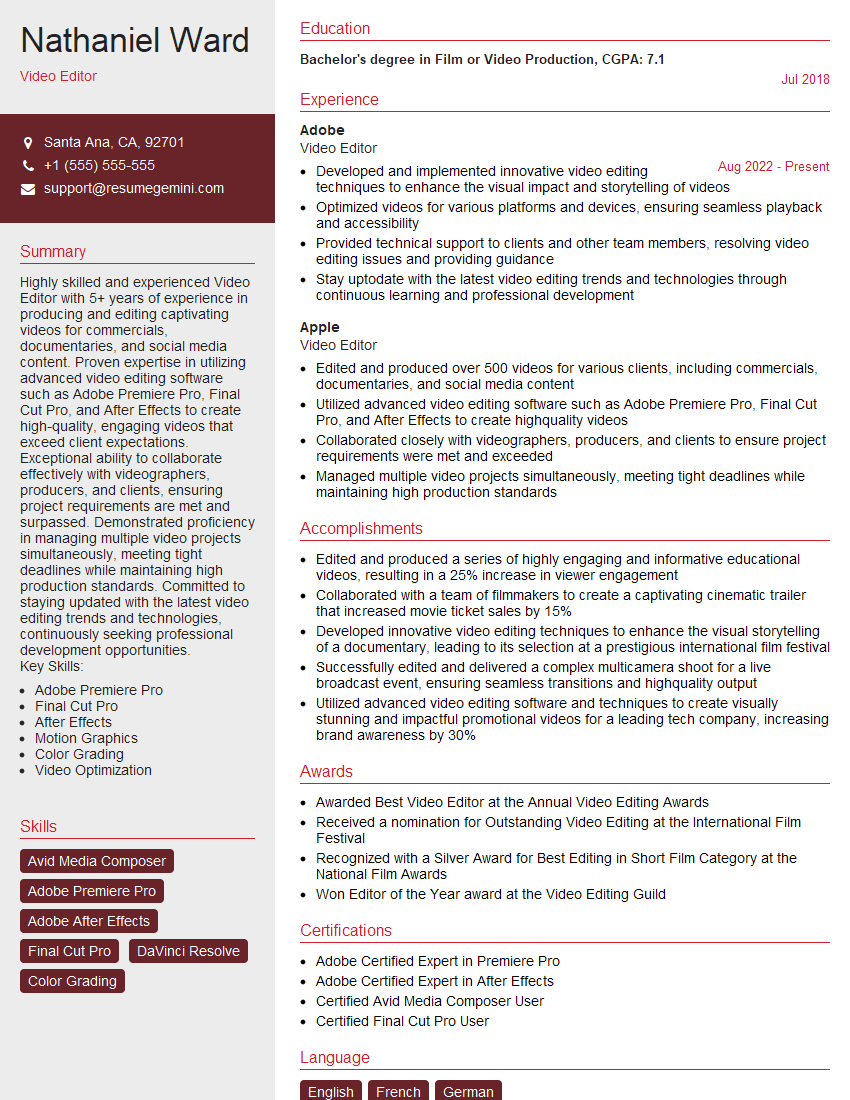
Video Editor Resume Sample
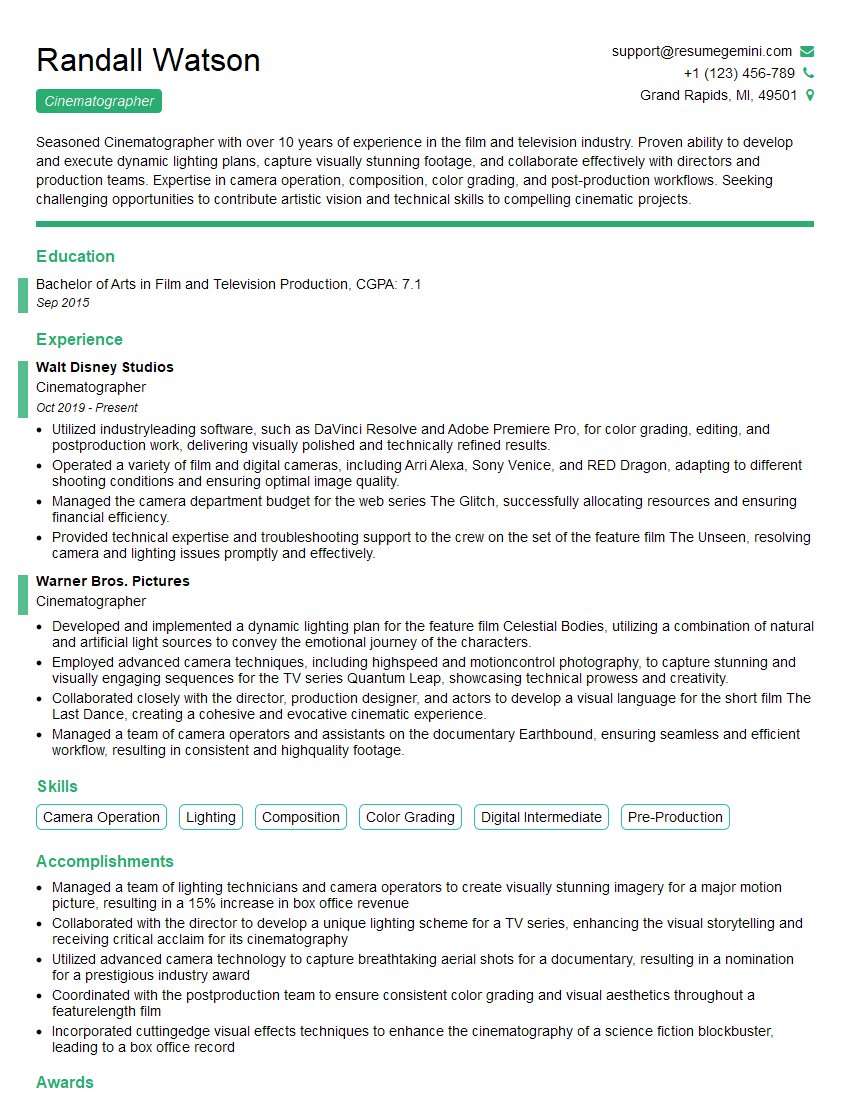
Cinematographer Resume Sample
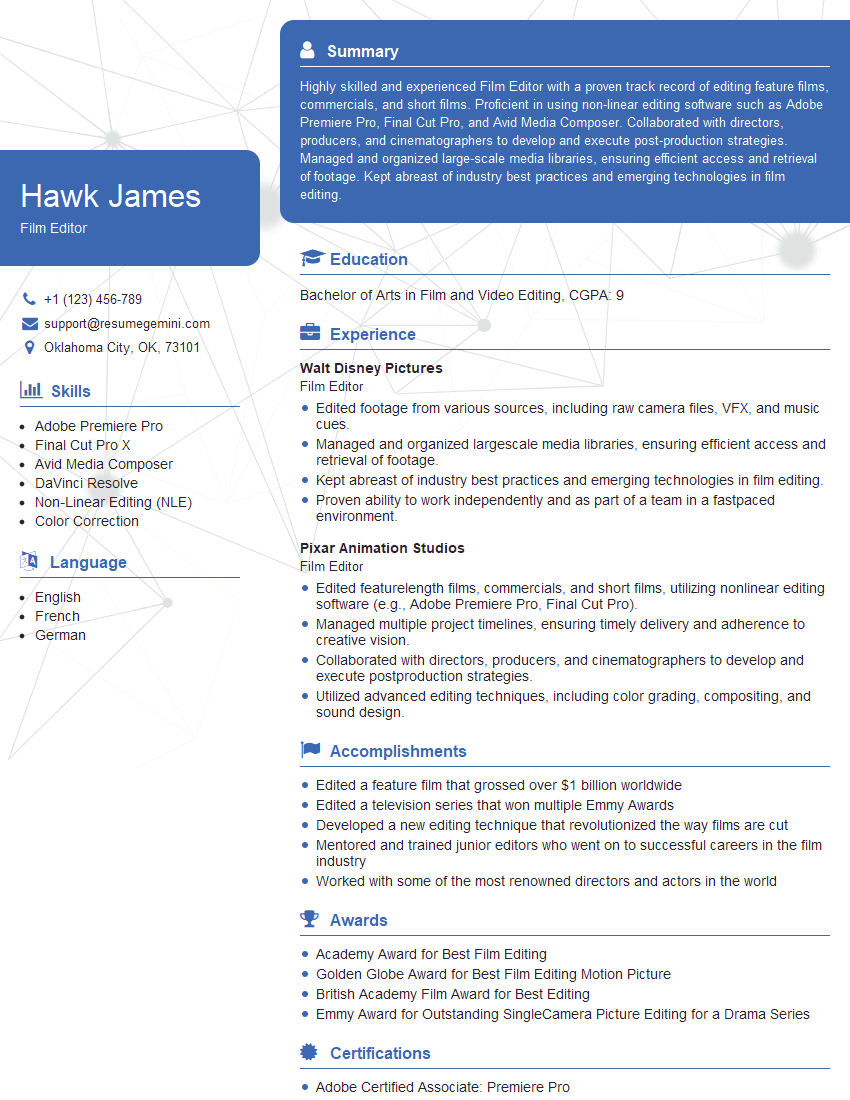
Film Editor Resume Sample
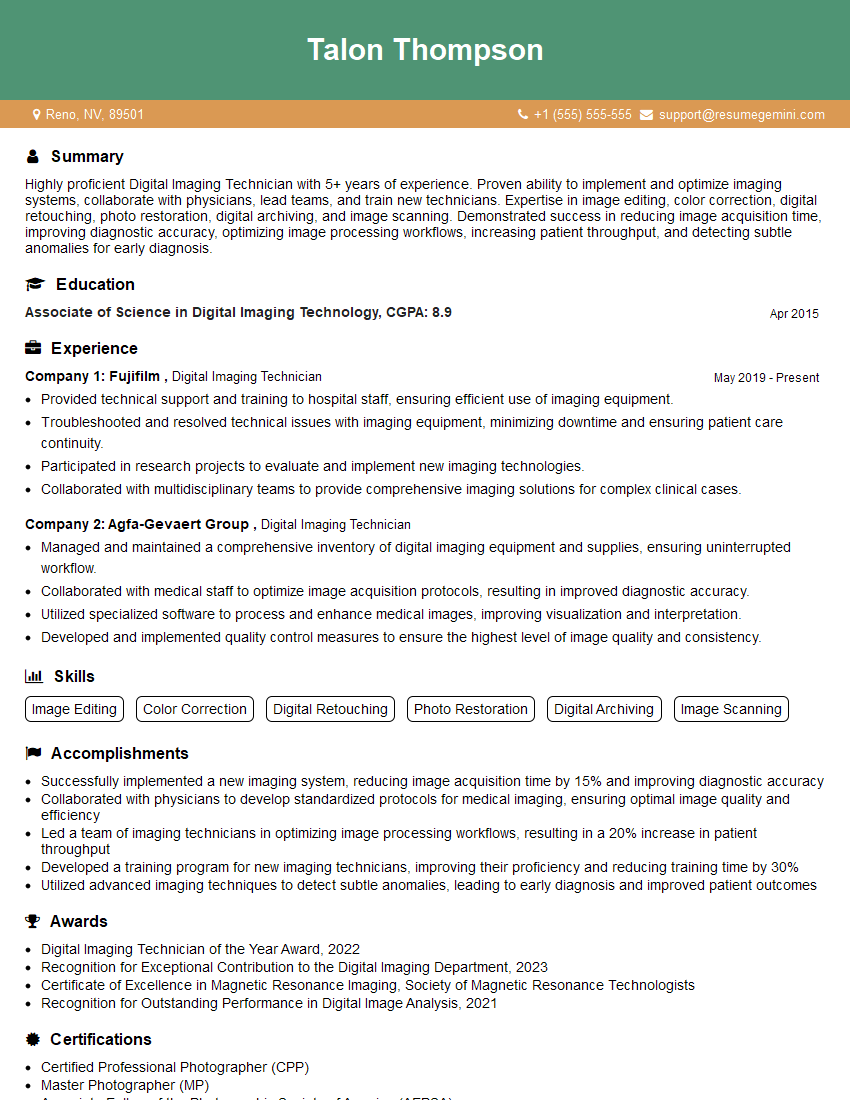
Digital Imaging Technician Resume Sample
Explore more articles
Users Rating of Our Blogs
Share Your Experience
We value your feedback! Please rate our content and share your thoughts (optional).
What Readers Say About Our Blog
Really detailed insights and content, thank you for writing this detailed article.
IT gave me an insight and words to use and be able to think of examples