Are you ready to stand out in your next interview? Understanding and preparing for Active Directory Integration interview questions is a game-changer. In this blog, we’ve compiled key questions and expert advice to help you showcase your skills with confidence and precision. Let’s get started on your journey to acing the interview.
Questions Asked in Active Directory Integration Interview
Q 1. Explain the difference between a domain controller and a global catalog server.
Both domain controllers and global catalog servers are crucial components of an Active Directory (AD) environment, but they serve different purposes. Think of a library: domain controllers hold specific books (information about users, computers, and groups), while the global catalog acts as a comprehensive index, allowing you to quickly find a book (account) regardless of which section (domain) it’s in.
A domain controller (DC) is a server that holds a replica of the Active Directory database for a domain. It authenticates users and computers, and enforces security policies. Every domain needs at least one DC. Multiple DCs in a domain provide redundancy and improved performance.
A global catalog server (GC) is a special type of domain controller that holds a partial replica of every partition in the forest. This means it contains a condensed index of all objects within the entire forest, enabling users to search for accounts across multiple domains. It’s essential for cross-domain authentication and locating resources.
In short: Every GC is a DC, but not every DC is a GC. DCs handle authentication and policy enforcement within their domain; GCs facilitate searching and authentication across the entire forest.
Q 2. Describe the process of creating a new Active Directory domain.
Creating a new Active Directory domain involves several steps and careful planning. It’s like building a new city – you need to plan the layout, infrastructure, and services before construction begins.
- Prepare the Server: Ensure the server meets the minimum hardware and software requirements. This includes sufficient RAM, disk space, and a stable network connection.
- Install Active Directory Domain Services (AD DS): Use the Server Manager or the command line to install the AD DS role.
- Promote to Domain Controller: This is the core step. The wizard guides you through specifying the domain name (e.g.,
example.com), the functional level (determines features available), and the Directory Services Restore Mode (DSRM) password. Choose a secure password! - Configure DNS: AD DS requires DNS for locating domain controllers. The installer often integrates DNS; you might need to create new DNS zones.
- Create Organizational Units (OUs): Structure your domain using OUs for better management. Think of OUs as departments within a company, allowing you to apply policies to specific groups of users or computers.
- Add additional Domain Controllers (Optional): For redundancy and performance, add more DCs to your domain.
Important Considerations: Before you begin, carefully plan your domain structure, consider the forest functional level, and ensure you have appropriate backups.
Q 3. How do you troubleshoot Active Directory replication issues?
Troubleshooting Active Directory replication issues requires a systematic approach. It’s like diagnosing a car problem – you need to check different systems to find the root cause.
- Check Replication Status: Use tools like
repadmin(command-line) or the Active Directory Sites and Services MMC snap-in to check the replication status between domain controllers. Look for errors or delays. - Verify Network Connectivity: Replication relies on network communication. Check for network connectivity issues between DCs using tools like
pingandnetstat. Firewalls or network configuration problems are common culprits. - Examine Event Logs: Check the Directory Service event logs on the affected DCs for errors related to replication. These logs provide crucial clues about the cause of the issue.
- Check DNS Resolution: Proper DNS resolution is essential for replication. Ensure that DCs can correctly resolve the names of other DCs.
- Investigate Site Links: If the DCs are in different sites, check the site link configuration to ensure that replication is properly configured between sites.
- Use DCDiag:
dcdiagis a powerful diagnostic tool that can identify various Active Directory problems, including replication issues. It provides detailed reports that can help pinpoint the root cause.
Example: If repadmin /showrepl shows errors related to a specific DC, further investigation might reveal a network issue, a problem with the database on that DC, or a configuration problem.
Q 4. What are Group Policy Objects (GPOs) and how are they used?
Group Policy Objects (GPOs) are the central mechanism for managing settings in an Active Directory domain. They allow administrators to centrally manage settings for users and computers, streamlining administration and ensuring consistency. Imagine it as a rule book for the network.
A GPO is a collection of settings that determine how users and computers behave within the domain. These settings can range from simple password policies to complex application deployments. GPOs are linked to specific OUs or sites, allowing for targeted policy application.
How GPOs are used:
- User Configuration: Controls settings specific to user accounts, such as desktop settings, start menu items, and software restrictions.
- Computer Configuration: Manages settings for computers, including software installations, security configurations, and hardware settings.
- Software Deployment: Use GPOs to deploy applications and updates to users and computers.
- Security Settings: Enforce security policies, such as password complexity and account lockout thresholds.
Example: A GPO can be created to enforce a strong password policy across an entire organization, ensuring all users have secure passwords.
Q 5. Explain the different types of Active Directory groups.
Active Directory uses different group types to organize users and resources, each with distinct characteristics and security implications. They are like different teams within a company, each with specific roles and responsibilities.
- Domain Local Groups: These groups are scoped to a single domain and can only contain users and groups from that domain. They’re useful for managing access to resources within a single domain.
- Global Groups: These groups can span multiple domains and contain users and groups from any domain in the forest. They’re commonly used for centralized management of permissions across multiple domains.
- Universal Groups: Similar to global groups, these groups can also span multiple domains. However, they are more flexible and can be nested within other universal, global, or domain local groups, offering greater organizational structure.
- Security Groups: Used for managing access to resources such as shared folders, printers, and applications. Membership in a security group grants or denies permissions.
- Distribution Groups: Used primarily for email distribution. They are not used for access control, only for sending emails to a set of users.
Example: You could have a global group for ‘Marketing Team’ containing users from multiple domains. This group can then be added to a domain local group with permissions to access a specific shared drive.
Q 6. How do you manage user accounts and permissions in Active Directory?
Managing user accounts and permissions in Active Directory involves using various tools and techniques to create, modify, and control access to resources. It’s like managing employees’ access to different areas of a building.
- Active Directory Users and Computers (ADUC): This MMC snap-in provides a graphical interface for managing user accounts, computer accounts, and groups. You can create, modify, delete, and move objects within the AD structure.
- Command-Line Tools: Tools like
net user,dsadd, anddsmodoffer command-line options for managing AD objects. These are useful for automation and scripting. - Permissions Management: Use ADUC or command-line tools to assign permissions to users and groups. This involves setting access control lists (ACLs) on objects, controlling who can access which resources.
- Delegation of Control: For efficient administration, delegate control over specific OUs or objects to other administrators. This allows you to distribute administrative tasks and responsibilities.
- Group Membership Management: Adding and removing users from groups is a key aspect of managing permissions. Using groups simplifies managing access control.
Example: To grant a user access to a shared folder, you would add them to a security group that has the appropriate permissions for that folder.
Q 7. Describe the process of migrating users from one domain to another.
Migrating users from one domain to another can be complex and requires careful planning and execution. It’s like moving from one office building to another – you need to ensure a smooth transition with minimal disruption.
Several approaches exist:
- Active Directory Migration Tool (ADMT): This Microsoft tool provides a robust mechanism for migrating user accounts, computer accounts, and security groups between domains. It helps maintain security identifiers (SIDs) and group memberships.
- Using a Third-Party Tool: Various third-party tools offer features beyond ADMT, providing additional features and automation capabilities.
- Manual Migration (Less Recommended): While possible, manual migration is time-consuming and error-prone. It’s generally only suitable for small-scale migrations.
Key Steps (using ADMT):
- Prepare Source and Destination Domains: Ensure both domains are properly configured and meet the requirements.
- Install and Configure ADMT: Install ADMT on a server with appropriate permissions.
- Identify and Prepare Objects for Migration: Select the user accounts, computer accounts, and groups to be migrated.
- Perform the Migration: Use the ADMT wizard to initiate the migration process.
- Verify the Migration: Check that all accounts and memberships have been migrated correctly.
Important Considerations: Proper testing, thorough planning, and backups are crucial for a successful migration. Consider any potential downtime and communicate the process to users in advance.
Q 8. What are the security best practices for Active Directory?
Active Directory security is paramount. Think of it like a fortress protecting your valuable data. A multi-layered approach is crucial. Here’s how we bolster that fortress:
Strong Passwords and Policies: Enforce complex passwords with length, complexity, and expiry requirements. Imagine a castle gate with a complicated lock – harder to breach!
Regular Security Audits and Penetration Testing: Regularly check for vulnerabilities. This is like having guards patrol the castle walls, looking for weaknesses.
Least Privilege Access Control: Grant only the necessary permissions to users and groups. Instead of giving everyone a key to the entire castle, only provide keys to specific rooms.
Multi-Factor Authentication (MFA): Implement MFA for all critical accounts. This adds an extra layer of security, like a second gate with a unique passcode.
Regular Updates and Patching: Keep your Active Directory infrastructure updated with the latest security patches to close known vulnerabilities. This is like reinforcing the castle walls with stronger materials.
Account Lockout Policies: Configure sensible lockout policies to prevent brute-force attacks. Too many incorrect login attempts trigger a lock, preventing unauthorized access.
Secure Administrative Accounts: Use separate administrative accounts for different tasks, and protect them rigorously. Think of having different keys for different parts of the castle.
Regular Backups: Regularly back up your Active Directory database. This is your insurance policy – a copy of your castle blueprints in case of a disaster.
Q 9. How do you delegate administrative control in Active Directory?
Delegating administrative control is crucial for efficiency and security. Think of it as appointing trusted lieutenants to manage different sections of your castle. You don’t need to handle everything yourself!
You can achieve this using Active Directory’s built-in delegation features. In Active Directory Users and Computers (ADUC), right-click the organizational unit (OU) or object you want to delegate control over. Select ‘Delegate Control…’, then use the wizard to grant specific permissions to users or groups. You can choose specific tasks, like resetting passwords or creating users, or grant more general control.
Example: You could delegate the ability to reset passwords within a specific department to the department’s manager, without giving them full control over the entire domain.
Example: Granting 'Reset User Passwords' permission to the 'Department Managers' group.Q 10. Explain the concept of Active Directory forests and trees.
Imagine a sprawling kingdom. A forest is the top-level structure of your Active Directory environment, representing a single, independent directory instance. A tree, on the other hand, is a collection of domains within a forest. It’s like a region within that kingdom.
Multiple domains within a tree share a common directory schema and Global Catalog server, allowing for trust relationships and single sign-on (SSO) capabilities. This improves administration and resource sharing. However, each domain maintains its own database of users, computers, and other objects.
Example: A large organization might have a forest named ‘example.com’. Within this forest, you might have trees representing different business units, such as ‘sales.example.com’ and ‘marketing.example.com’. Users in ‘sales.example.com’ can access resources in ‘marketing.example.com’ (with proper permissions) because they’re in the same forest.
Q 11. What are the different authentication methods in Active Directory?
Active Directory offers various authentication methods to verify user identities:
Password-based authentication: The traditional method using usernames and passwords. Think of a key to unlock the castle gate.
Kerberos authentication: A network authentication protocol offering secure and efficient authentication. This is like a royal seal, proving your identity without having to constantly show your key.
Smart card authentication: Uses physical smart cards for stronger security. Like a personal identification card, only you can use it.
Certificate-based authentication: Employs digital certificates for authentication and encryption. This is like a notarized letter of introduction from the kingdom, verifying your identity to other domains.
The choice of authentication method often depends on the security requirements and the available infrastructure.
Q 12. How do you troubleshoot password reset issues?
Password reset issues can be frustrating. Let’s troubleshoot systematically:
Verify Account Status: Is the account locked out? Check ADUC or use the
net usercommand. If locked, unlock it.Check Password Complexity: Does the password meet the domain’s complexity requirements? A weak password may be rejected.
Verify Password History: Is the user trying to reuse a previous password? Password history policies often prevent this.
Check User Permissions: Can the user even reset their password? Their permissions might be restricted.
Examine Event Logs: Examine the Security logs in Event Viewer for error messages related to password changes. This provides valuable clues.
Domain Controller Health: Is the domain controller reachable and functioning correctly? Network connectivity issues can prevent password resets.
Check Self-Service Password Reset (SSPR): Is SSPR enabled and configured correctly? This often provides users a way to resolve the issue themselves.
If the issue persists, consider consulting Active Directory documentation or seeking support from experienced IT professionals.
Q 13. How do you manage Active Directory from the command line?
You can manage Active Directory from the command line using various tools and commands. This is powerful for scripting and automation.
net user: Manage users and groups (creating, deleting, modifying passwords).net group: Manage groups (adding, removing members).dsquery: Search the Active Directory database for specific objects.dsaddanddsmod: Add and modify Active Directory objects.dsrm: Remove Active Directory objects.repadmin: Manage Active Directory replication.nltest: Test network connectivity and trust relationships.
Example: To create a new user using the command line:
net user newuser password /addQ 14. What are the different tools used for managing Active Directory?
Many tools facilitate Active Directory management:
Active Directory Users and Computers (ADUC): The primary graphical user interface (GUI) for managing users, groups, and computers.
Active Directory Sites and Services: Manage replication, sites, and services.
Active Directory Domains and Trusts: Manage trusts between domains.
PowerShell: A powerful command-line shell with extensive cmdlets for Active Directory management (e.g.,
Get-ADUser,Set-ADGroup).RSAT (Remote Server Administration Tools): Allows management of remote Active Directory servers from a client machine.
ADSI Edit: Advanced tool for direct editing of the Active Directory database (use with caution).
The choice of tool depends on the task at hand and the user’s familiarity with different interfaces.
Q 15. Explain the concept of schema in Active Directory.
Think of Active Directory’s schema as a blueprint defining the structure of your directory. It’s a comprehensive collection of object classes, attributes, and their relationships, dictating what kind of information can be stored and how it’s organized. For example, the schema defines the ‘user’ object class, specifying attributes like ‘givenName’, ‘sn’ (surname), ‘userPrincipalName’, and many others. It also defines the relationships between objects, such as a user’s membership in groups. Modifying the schema, while powerful, should be done cautiously as incorrect changes can severely impact Active Directory functionality.
Example: Adding a custom attribute to track employee certifications would involve schema extension. This allows you to store additional data relevant to your organization beyond the standard user attributes. However, this requires careful planning and testing to ensure compatibility and avoid conflicts.
Career Expert Tips:
- Ace those interviews! Prepare effectively by reviewing the Top 50 Most Common Interview Questions on ResumeGemini.
- Navigate your job search with confidence! Explore a wide range of Career Tips on ResumeGemini. Learn about common challenges and recommendations to overcome them.
- Craft the perfect resume! Master the Art of Resume Writing with ResumeGemini’s guide. Showcase your unique qualifications and achievements effectively.
- Don’t miss out on holiday savings! Build your dream resume with ResumeGemini’s ATS optimized templates.
Q 16. Describe the process of deploying and managing Group Policy settings.
Deploying and managing Group Policy settings is crucial for centralized control over user and computer configurations within Active Directory. It involves creating Group Policy Objects (GPOs) linked to specific Organizational Units (OUs) or domains. GPOs contain settings that affect various aspects of the system, from software installations to security policies. Deployment happens through linking the GPOs, and management entails editing their settings, updating them, and monitoring their effect.
Process:
- Create a GPO: Using the Group Policy Management Console (GPMC).
- Configure Settings: Specify settings within the GPO. This could involve software deployment, security settings (like password policies), or even desktop customizations.
- Link the GPO: Link the GPO to the target OU or domain. The settings will then be applied to all objects (users or computers) within that scope.
- Test and Monitor: Verify the settings are applied correctly and monitor for any issues using tools like Resultant Set of Policy (RSoP).
Example: Implementing a company-wide password policy requiring strong passwords and regular changes involves creating a GPO with the relevant password settings and linking it to the domain. This ensures consistency across all user accounts.
Q 17. How do you implement multi-factor authentication in Active Directory?
Implementing multi-factor authentication (MFA) in Active Directory enhances security by requiring users to provide two or more forms of authentication before gaining access. While Active Directory doesn’t natively support MFA, it can be integrated with various MFA solutions. These solutions typically act as an intermediary, authenticating the user separately and then granting access to Active Directory resources based on the successful MFA check.
Methods:
- Third-party MFA solutions: Many vendors offer solutions integrating with Active Directory, like Azure Multi-Factor Authentication, which can be deployed on-premises or in the cloud.
- RADIUS servers: Active Directory can be configured to work with RADIUS servers providing MFA capabilities. The RADIUS server acts as the authentication broker, challenging users for secondary authentication factors.
Example: Using Azure MFA, a user would be prompted for a one-time code sent to their phone or email after entering their username and password. Only upon successful verification by Azure MFA would Active Directory grant access.
Q 18. Explain the role of DNS in Active Directory.
DNS (Domain Name System) is the cornerstone of Active Directory. It provides name resolution, enabling devices and users to locate Active Directory domain controllers and other network resources. Active Directory relies on DNS to locate domain controllers for authentication and other directory services operations. Without functional DNS, Active Directory would struggle to operate, as machines would be unable to find domain controllers to authenticate against.
Key Roles:
- Locating Domain Controllers: DNS records (SRV records) identify the location of domain controllers.
- Service Location: DNS helps locate various Active Directory services, like Kerberos and LDAP.
- Name Resolution: DNS translates user names and computer names into network addresses.
Example: When a user logs in, their computer uses DNS to locate a domain controller holding the user’s account information. This allows for authentication and access to network resources.
Q 19. What are the different types of Active Directory sites?
Active Directory sites are geographical representations of your network infrastructure, enabling efficient replication and improved performance. They group servers into logical locations based on network proximity, improving response times.
Types:
- Standard Sites: The most common type, representing a physical or logical location.
- Stub Sites: Contain minimal directory information and rely on replication from other sites. Useful for branch offices with limited bandwidth.
- Non-Replicated Sites: They do not participate in replication and are primarily used to isolate specific resources.
Example: A large organization might have sites for ‘Headquarters’, ‘New York Office’, and ‘London Office’. This helps manage replication between locations, ensuring that users in each location can access resources quickly without long latency.
Q 20. How do you monitor and maintain Active Directory health?
Monitoring and maintaining Active Directory health is critical for ensuring reliable and secure operations. Regular monitoring helps identify potential problems before they significantly affect your organization. This involves proactive monitoring of key components and regular maintenance tasks.
Monitoring Techniques:
- Event Logs: Regularly review event logs on domain controllers for errors and warnings.
- Performance Monitoring: Use Performance Monitor to track key metrics like CPU utilization, memory usage, and disk I/O on domain controllers.
- Replication Health: Monitor replication health between domain controllers to ensure consistent data across the network.
- Active Directory Health Check tools: Use built-in tools like the Active Directory Diagnostics tool and third-party monitoring solutions.
Maintenance:
- Regular backups: Back up Active Directory regularly to protect against data loss.
- Security auditing: Regularly audit security settings and user permissions.
- Software updates: Keep domain controllers and related software updated with the latest patches and security fixes.
- Capacity planning: Monitor resource utilization to plan for future growth and prevent performance bottlenecks.
Example: Monitoring replication latency alerts you to potential connectivity or performance problems between domain controllers, allowing for timely intervention.
Q 21. Describe the process of backing up and restoring Active Directory.
Backing up and restoring Active Directory is crucial for disaster recovery and data protection. The process involves creating backups of the directory database, logs, and system state. Restoration involves using these backups to recover Active Directory in case of failures or data loss.
Backup Methods:
- NTDS.dit Database: The core Active Directory database needs to be backed up.
- Transaction Logs: These logs record changes to the database and are essential for recovery.
- System State: This includes the registry, boot files, and other critical system components.
Backup tools: You can use Windows Server Backup, third-party backup software, or command-line tools like ntdsutil. The choice depends on your organization’s needs and infrastructure.
Restoration: Restoration procedures vary depending on the backup method and the scenario. You may need to use tools like ntdsutil to restore the database or perform an authoritative restore of a domain controller.
Example: A domain controller failure requires restoring Active Directory from a recent backup. This involves using a backup to restore the NTDS.dit database and system state on a new or existing server, making it a functioning domain controller.
Q 22. What is the role of the Domain Naming System (DNS) in Active Directory?
DNS is the cornerstone of Active Directory’s functionality. Think of it as the phone book for your network. It translates human-readable names (like www.example.com) into IP addresses (like 192.168.1.100) that computers use to communicate. In Active Directory, DNS is crucial for locating domain controllers, allowing clients to authenticate and access resources. Specifically, Active Directory uses DNS for:
- Locating Domain Controllers: Clients use DNS to find the IP addresses of domain controllers to authenticate and access resources.
- Service Location (SRV records): SRV records in DNS point clients to specific services, like the Global Catalog server, which holds a partial replica of the entire directory.
- Name Resolution: DNS resolves the names of users, computers, and other Active Directory objects, enabling seamless access to resources.
Without properly configured DNS, clients wouldn’t know where to find the domain controllers, making authentication and resource access impossible. Imagine trying to find someone without a phone book – it would be extremely difficult. DNS plays that vital role in Active Directory.
Q 23. Explain the differences between Kerberos and NTLM authentication.
Both Kerberos and NTLM are authentication protocols used in Windows networks, but they differ significantly in their security and architecture. Kerberos is a more secure, ticket-based system, while NTLM is a challenge-response protocol.
- Kerberos: Uses tickets to authenticate users to services without repeatedly sending passwords. This is a much more secure approach, as passwords are never directly transmitted across the network. Imagine it as a backstage pass – once you get your ticket (authenticated), you have access without needing to show your ID every time. It also offers mutual authentication, ensuring both the client and server are who they claim to be.
- NTLM: This older protocol sends password hashes across the network during authentication. It’s less secure because of this, and more vulnerable to attacks like password sniffing. Think of it like repeatedly showing your ID to gain access – each time, there’s a chance someone could copy it.
In modern Active Directory environments, Kerberos is the preferred authentication protocol. NTLM is generally used as a fallback mechanism, though its use should be minimized for better security.
Q 24. How does Active Directory integrate with other Microsoft services?
Active Directory seamlessly integrates with many Microsoft services, forming a powerful ecosystem for managing users, devices, and resources. Here are some key examples:
- Exchange Server: Active Directory provides user authentication and authorization for access to email, calendars, and other Exchange services. Users’ email addresses often directly correlate to their Active Directory accounts.
- SharePoint: Users authenticate to SharePoint sites and access documents based on their Active Directory credentials. Permissions and access controls are frequently managed through Active Directory groups.
- SQL Server: Active Directory can be used for Windows Authentication to SQL Server databases, allowing users to access database resources using their Active Directory logins. This simplifies user management and security.
- Azure Active Directory (Azure AD): Azure AD Connect synchronizes on-premises Active Directory with Azure AD, enabling hybrid cloud environments and single sign-on across on-premises and cloud-based resources.
- Microsoft 365: Active Directory, particularly in conjunction with Azure AD Connect, enables authentication and access control for various Microsoft 365 services, including Office applications, OneDrive, and Teams.
This integration streamlines IT management, enhances security, and enables centralized control over user access across multiple Microsoft services. It’s like having a single master key to unlock various aspects of your digital infrastructure.
Q 25. Explain how to troubleshoot slow logon times.
Slow logon times in Active Directory can be frustrating for users and indicate underlying problems. Troubleshooting involves a systematic approach:
- Check DNS Resolution: Ensure that DNS is resolving domain controller names correctly. Use
nslookupto verify. - Network Connectivity: Test network connectivity to domain controllers. Ping the domain controllers to check responsiveness.
- Group Policy Processing: Examine Group Policy processing times. Too many GPOs or complex settings can significantly slow down logons. Use the
gpresultcommand to analyze GPO application. - Profile Loading: Slow user profile loading is a common culprit. Check the size and complexity of user profiles. Consider using roaming profiles and optimizing their settings.
- Resource Constraints: Low resources on the domain controller (CPU, memory, disk I/O) can cause slow logons. Monitor resource usage on the domain controller.
- Event Logs: Examine the event logs on both client and server machines for errors related to authentication and logon processes.
- Antivirus/Firewall: Ensure that antivirus software and firewalls aren’t interfering with network communications.
The approach is to systematically eliminate the possibilities, starting with the most likely causes and moving to more complex issues. The Event Logs are particularly important, giving specific clues about potential problems.
Q 26. Describe your experience with Active Directory schema extensions.
I have extensive experience with Active Directory schema extensions. I understand the importance of careful planning and testing before implementing any schema changes. Modifying the schema is a powerful but potentially risky operation that should only be performed with thorough understanding and complete backups in place. My experience includes:
- Adding custom attributes: Extending the schema to add custom attributes to objects (users, computers, etc.) for storing organization-specific information.
- Creating custom object classes: Defining entirely new types of objects to represent unique entities within the organization’s infrastructure.
- Replicating schema changes: Ensuring that schema changes are properly replicated across all domain controllers.
- Understanding the impact on applications: Recognizing how schema extensions might affect applications that interact with Active Directory.
- Utilizing schema management tools: Employing tools like Active Directory Schema Manager to plan, execute, and manage schema changes.
One specific project involved adding custom attributes to user objects to track employee certifications and training records. This enabled us to automate reporting and streamline compliance efforts.
Q 27. How would you troubleshoot user profile issues?
Troubleshooting user profile issues requires a methodical approach. First, you need to identify the type of profile (local, roaming, mandatory) involved. Then you can focus on specific areas:
- Check Profile Path: Verify that the profile path is correctly configured and accessible. Incorrect paths or network issues can prevent profile loading.
- Profile Size: Large user profiles take longer to load and can cause problems. Analyze the size and contents of the profile.
- Permissions: Ensure the user has appropriate permissions to access the profile directory and its contents.
- Disk Space: Verify that sufficient disk space is available on the server or client machine.
- Profile Corruption: If the profile is corrupted, you might need to delete the profile (creating a new one) or restore it from backup. Be aware of potential data loss if using this method.
- Roaming Profile Synchronization: If using roaming profiles, ensure the synchronization process is working correctly. Check the event logs for any errors.
- Group Policy Settings: Review Group Policy settings that affect user profiles.
The key is to analyze the symptoms carefully and methodically check the most common causes first. If the problem persists, consider checking the event logs for specific error messages.
Q 28. What is your experience with Azure Active Directory Connect?
I have significant experience with Azure AD Connect, which is a crucial tool for hybrid cloud deployments. My experience covers:
- Installation and Configuration: I’ve installed and configured Azure AD Connect in various environments, customizing settings like password hash synchronization, pass-through authentication, and federation.
- Synchronization Rules: I understand how to create, modify, and troubleshoot synchronization rules to map on-premises attributes to Azure AD attributes.
- Health Monitoring: I regularly monitor the health of Azure AD Connect using the built-in monitoring tools and identify potential issues proactively.
- Troubleshooting: I can troubleshoot various synchronization issues, including password synchronization errors, attribute mapping problems, and connectivity issues.
- Upgrades and Maintenance: I have experience upgrading Azure AD Connect to newer versions and performing regular maintenance tasks to ensure optimal performance.
A recent project involved implementing Azure AD Connect to synchronize our on-premises Active Directory with Azure AD, enabling single sign-on for our users to access Microsoft 365 and other cloud-based applications. This improved user experience and enhanced security.
Key Topics to Learn for Active Directory Integration Interview
- Understanding Active Directory Structure: Grasp the hierarchical organization of domains, OUs, and groups. Learn how to navigate and manage this structure effectively.
- User and Group Management: Practice creating, modifying, and deleting user accounts, groups, and their associated attributes. Understand the implications of different group memberships and permissions.
- Active Directory Replication: Explore the mechanisms behind replication and its importance for maintaining data consistency across multiple domain controllers. Understand potential issues and troubleshooting strategies.
- Security and Access Control: Become proficient in implementing and managing access control lists (ACLs) to secure resources and enforce granular permissions. Understand different authentication methods.
- Active Directory Schema: Familiarize yourself with the Active Directory schema and its role in defining object attributes. Understand how modifications to the schema impact the entire directory.
- Troubleshooting and Diagnostics: Develop problem-solving skills by learning to diagnose common Active Directory issues, such as replication failures, authentication problems, and permission conflicts. Utilize available tools for effective troubleshooting.
- Integration with Other Systems: Explore how Active Directory integrates with other systems, such as Exchange Server, SharePoint, and other applications. Understand how to leverage this integration for streamlined administration.
- Group Policy Management: Master the use of Group Policy Objects (GPOs) for managing user and computer settings, software deployment, and security policies. Understand how to create, deploy, and manage GPOs effectively.
- PowerShell for Active Directory Administration: Learn to use PowerShell cmdlets for efficient automation of Active Directory tasks, improving productivity and reducing manual errors.
- High Availability and Disaster Recovery: Understand the critical importance of high availability and disaster recovery planning for Active Directory. Explore different strategies and best practices to ensure business continuity.
Next Steps
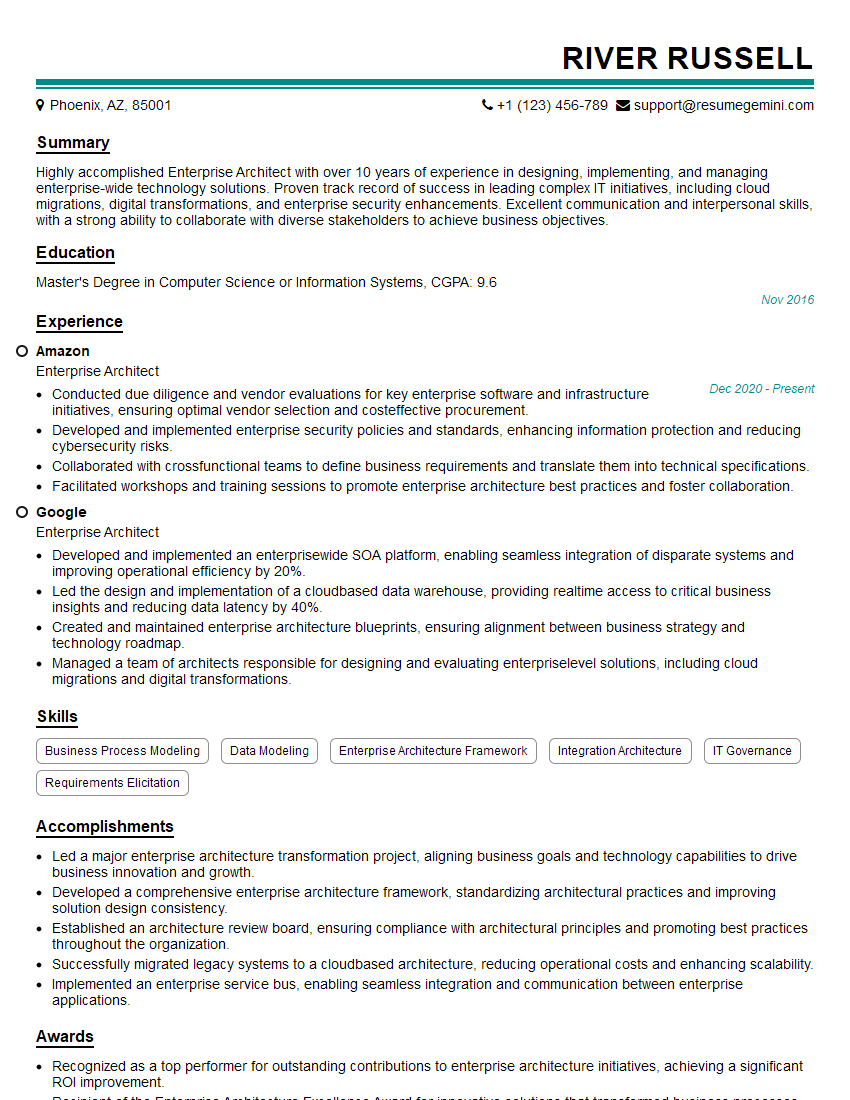
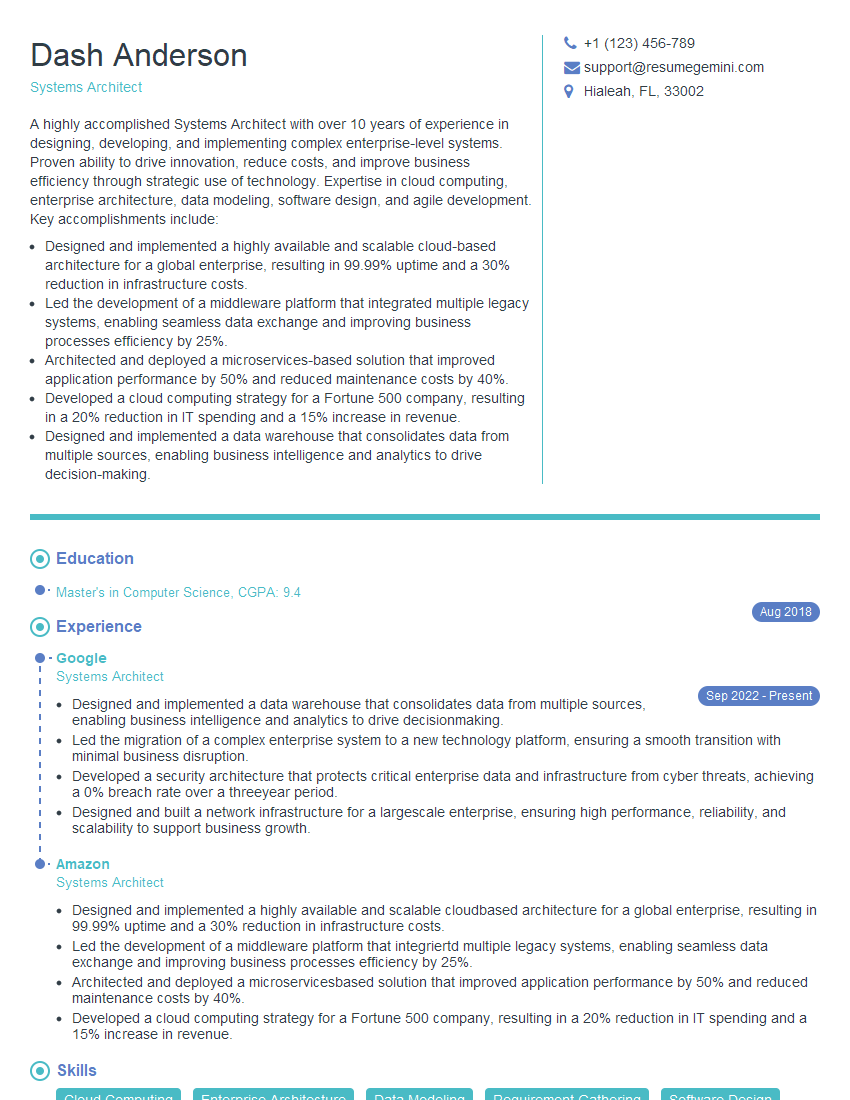
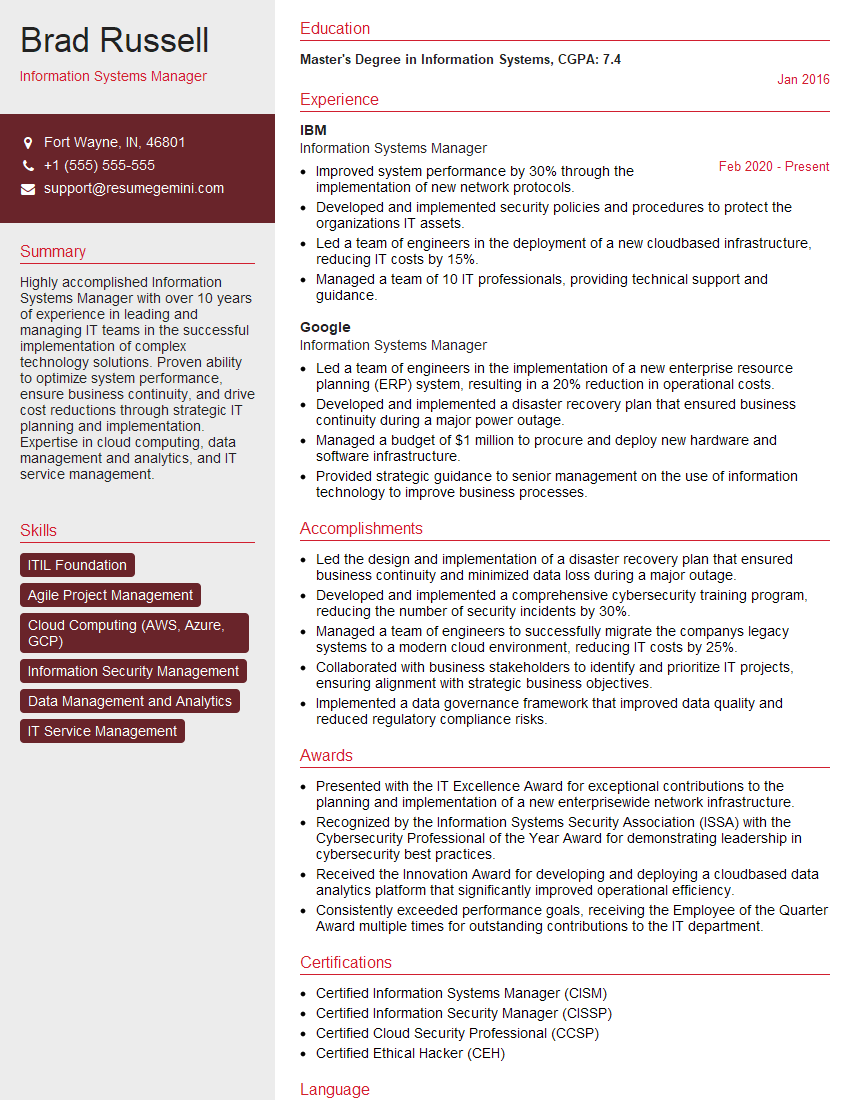
Mastering Active Directory Integration is crucial for advancing your career in IT infrastructure management and security. Strong skills in this area are highly sought after, opening doors to exciting opportunities and increased earning potential. To maximize your job prospects, create an ATS-friendly resume that highlights your skills and experience effectively. ResumeGemini is a trusted resource to help you build a professional and impactful resume. Examples of resumes tailored to Active Directory Integration are available to guide you, ensuring your application stands out from the competition.
Explore more articles
Users Rating of Our Blogs
Share Your Experience
We value your feedback! Please rate our content and share your thoughts (optional).
What Readers Say About Our Blog
I Redesigned Spongebob Squarepants and his main characters of my artwork.
https://www.deviantart.com/reimaginesponge/art/Redesigned-Spongebob-characters-1223583608
IT gave me an insight and words to use and be able to think of examples
Hi, I’m Jay, we have a few potential clients that are interested in your services, thought you might be a good fit. I’d love to talk about the details, when do you have time to talk?
Best,
Jay
Founder | CEO