Are you ready to stand out in your next interview? Understanding and preparing for Experience with SolidWorks or AutoCAD software interview questions is a game-changer. In this blog, we’ve compiled key questions and expert advice to help you showcase your skills with confidence and precision. Let’s get started on your journey to acing the interview.
Questions Asked in Experience with SolidWorks or AutoCAD software Interview
Q 1. Explain the difference between 2D and 3D modeling.
The core difference between 2D and 3D modeling lies in the dimensionality of the representation. 2D modeling creates flat, two-dimensional drawings, like blueprints, showing only length and width. Think of a simple floor plan – it accurately depicts the layout but lacks depth. 3D modeling, on the other hand, creates a three-dimensional representation incorporating length, width, and depth. It’s like having a virtual model of the actual object, allowing for a much more comprehensive understanding of its design and functionality. You can visualize the object from any angle, and analyze its properties more thoroughly.
For example, in 2D, you might draw the outline of a chair leg. In 3D, you’d model the leg’s shape, including its thickness and any curves or details. This allows you to not only see the leg from all sides but also perform simulations like stress analysis, which is impossible in 2D.
Q 2. Describe your experience with SolidWorks features like FeatureManager Design Tree.
The FeatureManager Design Tree in SolidWorks is a critical element of my workflow. It’s a hierarchical tree-like structure that displays every feature added to a SolidWorks model in chronological order. This is invaluable for managing complexity. I frequently leverage it for several key reasons:
- Feature Editing: I can easily go back and modify any feature, like changing dimensions of an extrude or adjusting a cut-out, without affecting the overall design flow. This saves significant time in iterative design processes.
- Component Management: In assemblies, it provides clear visibility into the hierarchy, letting me understand the relationship between parts and subassemblies. I can suppress or show specific components for better visualization and analysis.
- Design History: The tree provides a complete record of how the model was built. This is essential for troubleshooting, documentation, and ensuring design consistency across different revisions.
- Collaboration: The FeatureManager tree is critical for communication with colleagues. It clearly shows the design intent and simplifies any collaborative editing processes.
For instance, I once had to troubleshoot a complex assembly with hundreds of parts. Using the FeatureManager Design Tree, I quickly pinpointed the source of interference between specific components, speeding up the resolution process considerably.
Q 3. How proficient are you with AutoCAD commands like TRIM, EXTEND, and OFFSET?
I’m highly proficient in AutoCAD’s TRIM, EXTEND, and OFFSET commands, using them daily for precise editing and manipulation of geometry.
- TRIM: I use TRIM to shorten lines, curves, and polylines by cutting them off at a specified intersection point with another object. For example, I regularly use it to clean up overlapping lines created during the drafting phase of a project.
- EXTEND: EXTEND is my go-to command to lengthen lines or curves to a specific intersection point with another object. This is especially useful when aligning elements accurately or creating consistent connections between different drawing parts.
- OFFSET: OFFSET allows the creation of parallel lines or curves at a specified distance. I frequently use this for things like creating building setbacks or generating clearance space around components.
I often combine these commands in sequence. For example, I might use EXTEND to create a line, then TRIM and OFFSET it to achieve the desired geometry and spacing. My proficiency in these commands allows me to work efficiently and precisely on even the most intricate drawings.
Q 4. What are your preferred methods for creating and managing layers in AutoCAD?
My preferred method for creating and managing layers in AutoCAD is to establish a clear naming convention from the outset. I typically use a hierarchical structure that reflects the design elements, for example, ’01_Architecture’, ’02_Structure’, ’02A_Columns’, ’03_MEP’, etc. This ensures logical organization and quick identification. I avoid using the default layers and create new layers for every distinct aspect of the drawing. I also utilize layer properties effectively—setting colors, line weights, and linetypes that enhance readability and improve visual communication.
Beyond naming and properties, I rely heavily on AutoCAD’s layer management tools like the Layer Properties Manager to freeze or thaw layers, turn them on and off, and control their visibility as needed. This lets me focus on specific parts of the drawing without the clutter of irrelevant details.
Q 5. How do you handle complex assemblies in SolidWorks?
Managing complex assemblies in SolidWorks requires a strategic approach. I employ several techniques to maintain efficiency and avoid performance issues:
- Component Management: Subassemblies are crucial for breaking down the complexity. I create logical subassemblies, grouping related components to simplify the overall assembly structure.
- Lightweight Components: For components that are not critical for interactive manipulation, I utilize lightweight components which are faster to load and manipulate.
- Configuration Management: Configurations allow me to create various versions of the assembly based on different design choices or component selections, all within one file.
- Efficient Part Modeling: Creating optimized, simplified parts in the first place is key to reducing assembly complexity. I avoid unnecessary detail or features unless absolutely essential.
- Assembly Constraints: Using mates and constraints effectively is paramount for a stable and reliable assembly. I carefully consider the relationships between parts to minimize potential errors.
For example, while designing a complex engine, I would create separate subassemblies for the cylinder head, crankshaft assembly, and valve train. This allows me to focus on a particular area while easily assembling and disassembling the entire engine.
Q 6. Explain your experience with creating and using design templates.
Design templates are essential for consistency and efficiency in my CAD workflows. I create and use them extensively, establishing standardized settings, layers, and parts that are consistently applied to new projects. These templates include:
- Standard Drawing Settings: Predefined sheet sizes, title blocks, annotation styles, and text fonts ensuring uniform presentation of all my designs.
- Layer Structure: My templates include a detailed layer structure mirroring my company’s standards, simplifying layer management for new projects.
- Common Parts and Features: Repeating components, such as standard fasteners or specific geometries, are pre-defined within my templates for quick reuse.
Creating a template may take some initial effort, but it yields huge time savings and reduces the risk of errors on subsequent projects. I regularly update my templates to incorporate improvements and reflect changes in company standards, maintaining a consistent and efficient design process.
Q 7. Describe your experience with different CAD file formats (e.g., DWG, DXF, STEP).
I have extensive experience working with various CAD file formats, including DWG, DXF, STEP, and others. Understanding their strengths and limitations is vital for effective collaboration and data exchange:
- DWG (AutoCAD Drawing): This is the native format for AutoCAD, providing full preservation of all drawing data, including layers, styles, and attributes. It’s frequently used for 2D drawings and detailed designs.
- DXF (Drawing Exchange Format): A more neutral format than DWG, allowing for better compatibility between different CAD systems. However, some data loss might occur during conversion.
- STEP (Standard for the Exchange of Product Data): A widely adopted neutral 3D file format. It’s ideal for sharing 3D models between different CAD packages. It retains most of the 3D geometry information but often strips away proprietary software-specific features.
I regularly use STEP files for exchanging models with external collaborators using different CAD software, ensuring that geometry remains intact. Conversely, I primarily use DWG files for 2D design work within our internal team.
Q 8. How do you ensure the accuracy and precision of your CAD models?
Ensuring accuracy and precision in CAD modeling is paramount. It’s like building a house – a shaky foundation leads to a shaky structure. My approach involves a multi-pronged strategy focusing on meticulous input, rigorous verification, and consistent quality control.
Precise Input Data: I always start with accurate dimensions and specifications. This includes double-checking units (millimeters vs. inches!), tolerances, and material properties. For example, if I’m designing a gear, I’ll meticulously check the module, pressure angle, and number of teeth to ensure perfect meshing.
Constraint-Based Modeling: I heavily rely on parametric modeling (discussed further in a later answer) which inherently promotes accuracy by defining relationships between geometric elements. Changes in one parameter automatically update related components, minimizing errors. For instance, if I alter the diameter of a shaft, the related hole dimensions adjust accordingly.
Regular Checks and Verification: Throughout the modeling process, I conduct frequent checks using SolidWorks’ or AutoCAD’s built-in tools, like dimension measurement, interference detection, and mass property calculations. Think of it as a construction worker regularly checking the levelness of a wall.
Design Reviews: Before finalizing a design, I always conduct thorough design reviews, either internally or with clients, to identify potential issues and ensure that the model meets all requirements. This is like a final inspection before handing over the house keys.
Q 9. How do you manage revisions and version control in your CAD projects?
Version control is critical in any CAD project, especially in collaborative environments. Imagine trying to build a house with multiple teams working on the same blueprints simultaneously – chaos ensues! To avoid this, I utilize the version control features built into SolidWorks and also external systems like PDM (Product Data Management) systems.
SolidWorks/AutoCAD’s Revision History: These programs allow saving different versions of the model, tracking changes, and reverting to previous states if needed. Think of it as having a time machine for your design.
PDM Systems: For larger projects or team collaboration, I leverage PDM systems to manage revisions, check in/check out files, and control access. These systems provide a centralized repository for all project-related data, ensuring everyone is working with the latest version and preventing conflicts. It’s like a central blueprint storage for the entire construction project.
Clear Naming Conventions: I employ a consistent file naming convention that clearly indicates revision numbers (e.g., ‘Part_A_Rev_01.sldprt’). This helps maintain organizational clarity and avoids confusion.
Q 10. Describe your experience with parametric modeling.
Parametric modeling is the heart of my CAD workflow. It’s a powerful technique that allows you to define a model using parameters and relationships instead of just fixed dimensions. It’s like building with LEGOs – you define the parts and how they connect, and the system automatically adjusts as you change the parameters.
My experience includes extensive use of parametric features in both SolidWorks and AutoCAD. I’ve used them to create everything from simple parts to complex assemblies, exploiting the benefits of automation and design exploration. For example, I’ve created a parametric model of a valve body where changing the valve size automatically updates all related dimensions and clearances.
Q 11. What are the benefits and limitations of using parametric modeling?
Parametric modeling offers significant advantages, but it’s not without limitations.
Benefits:
- Design Exploration: Easily explore design variations by modifying parameters. Think of quickly trying different valve sizes without manually redrawing the entire model.
- Automation: Automatic updates across the model save time and reduce errors. Changing one parameter automatically updates related parts.
- Design Reusability: Parametric models can be reused and adapted for similar designs.
Limitations:
- Complexity: Overly complex parametric models can become difficult to manage and understand.
- Performance: Complex models can be slower to regenerate.
- Learning Curve: Mastering parametric modeling requires a learning curve.
Q 12. How do you troubleshoot errors and inconsistencies in your CAD models?
Troubleshooting errors is a regular part of the CAD design process. It’s like debugging code – you need a systematic approach.
Visual Inspection: Start with a visual check for obvious errors like gaps, intersections, or misplaced components. Sometimes, a simple visual inspection catches the problem immediately.
Feature Tree Analysis: Examine the feature tree (SolidWorks) or the model history (AutoCAD) to identify the source of the problem. This helps pinpoint the problematic feature or step.
Diagnostics Tools: Use the software’s built-in diagnostics tools, like interference detection or model validation tools, to identify specific issues.
Simplify the Model: In complex scenarios, temporarily simplifying the model by removing some components can help isolate the source of the error.
Online Resources and Community Support: When I encounter a stubborn error, I consult online forums, help documents, and community support groups. The CAD community is very helpful.
Q 13. Describe your experience with creating detailed drawings and specifications.
Creating detailed drawings and specifications is a crucial aspect of my work, as these documents communicate the design intent to manufacturing and other stakeholders. It’s like creating a detailed instruction manual for building the house.
Dimensioning and Tolerancing: I apply precise dimensioning and tolerancing (GD&T) according to industry standards (e.g., ASME Y14.5) to ensure the manufactured part meets the design specifications. This is crucial for manufacturability.
Bill of Materials (BOM): I create comprehensive BOMs that list all components required to assemble the product.
Section Views and Detail Views: I use section views and detail views to clearly illustrate critical design features and dimensions. These are like zoomed-in sections of the house blueprints.
Annotations: I use clear and concise annotations to add necessary information, such as notes, material specifications, and surface finishes.
Drawing Standards: I adhere to relevant drawing standards (ISO, ANSI, etc.) to ensure consistency and clarity.
Q 14. How familiar are you with CAD standards and best practices?
I am very familiar with CAD standards and best practices. My experience working on various projects across multiple industries has solidified my understanding of these standards. Adhering to standards ensures consistency, interoperability, and ultimately, a successful project.
ISO and ANSI Standards: I’m well-versed in relevant ISO and ANSI standards for drawing creation, dimensioning, and tolerancing.
Layer Management: I use effective layer management techniques to organize and manage complex drawings, improving clarity and making collaboration easier.
File Management: I follow best practices for file naming, organization, and version control (as discussed earlier).
Data Exchange: I am proficient in various data exchange formats (STEP, IGES, DXF) ensuring seamless collaboration with other teams and software.
Q 15. Explain your process for creating and managing design documentation.
Creating and managing design documentation is crucial for effective communication and project success. My process begins with establishing a clear naming convention for all files, ensuring easy identification and retrieval. I utilize a structured folder system, categorizing files by project, revision number, and file type (e.g., part files, assembly files, drawings).
For each design, I create detailed drawings including dimensions, tolerances, materials, and finish specifications. I leverage SolidWorks’ drawing tools extensively to generate orthographic views, section views, and detailed annotations. These drawings are meticulously reviewed for accuracy and completeness before being released.
Revision control is paramount. I utilize SolidWorks’ built-in revision management features, diligently documenting changes with descriptive revision notes in the drawing metadata and file names themselves (e.g., ‘PartA_RevB.sldprt’). This ensures a clear audit trail and facilitates easy tracking of design iterations. Finally, all relevant documentation, including design specifications, calculations, and test results, are compiled into a centralized project folder for easy access.
Career Expert Tips:
- Ace those interviews! Prepare effectively by reviewing the Top 50 Most Common Interview Questions on ResumeGemini.
- Navigate your job search with confidence! Explore a wide range of Career Tips on ResumeGemini. Learn about common challenges and recommendations to overcome them.
- Craft the perfect resume! Master the Art of Resume Writing with ResumeGemini’s guide. Showcase your unique qualifications and achievements effectively.
- Don’t miss out on holiday savings! Build your dream resume with ResumeGemini’s ATS optimized templates.
Q 16. How do you collaborate with other team members on CAD projects?
Collaboration is key in CAD projects. I’ve extensively used SolidWorks’ PDM (Product Data Management) system and cloud-based platforms like Autodesk Collaboration for Revit (while not strictly SolidWorks, the principles are similar) to facilitate efficient teamwork. These platforms enable multiple users to simultaneously access and modify design files while maintaining version control.
Before starting any collaborative effort, I always ensure all team members have access to the correct version of the project files and are aware of their individual roles and responsibilities. Regular team meetings, along with clear communication channels (e.g., email, instant messaging), are vital for addressing any issues or questions that may arise during the design process.
For instance, on a recent project involving the design of a complex robotic arm, I used PDM to manage the numerous parts and assemblies, allowing mechanical, electrical, and software engineers to concurrently work on their respective components. Regular check-ins prevented conflicts and ensured a streamlined workflow.
Q 17. Describe your experience with rendering and visualization techniques.
Rendering and visualization are critical for effectively communicating design concepts to clients and stakeholders. I’m proficient in utilizing SolidWorks Visualize and KeyShot for photorealistic rendering. These tools allow me to generate high-quality images and animations that clearly illustrate the design’s aesthetics, functionality, and overall impact.
For example, when designing a new line of consumer electronics, I used KeyShot to create stunning renders showcasing the product’s sleek design and various color options. This helped the marketing team effectively communicate the product’s appeal to target audiences. SolidWorks Visualize is particularly helpful for creating detailed exploded views that visually explain the assembly process. My experience also extends to producing animations showing product movement and functionality, which are crucial for conveying complex mechanisms.
Q 18. How do you incorporate client feedback and revisions into your CAD models?
Incorporating client feedback is a continuous process. I always maintain open communication channels with clients, actively seeking feedback at various stages of the design process. I typically use markup tools within SolidWorks, or cloud-based review tools like Bluebeam, to track and address comments efficiently.
Each revision is carefully documented, with changes clearly labeled and explained. For significant revisions, I often create a separate version of the design file, maintaining the original as a baseline. A change log within the PDM system tracks the modifications. This approach ensures that all design iterations are easily accessible and auditable.
For example, during a recent project redesigning a piece of medical equipment, a client requested a modification to the handle’s ergonomics. I used markup software on the 3D model images to carefully track their feedback, then updated the CAD model to accommodate the changes. A new revision was then created in PDM with detailed descriptions and images of the changes.
Q 19. Explain your experience with using constraints in SolidWorks.
Constraints are fundamental to SolidWorks modeling, enabling the creation of robust and well-defined parts and assemblies. My experience encompasses a wide range of constraint types, including geometric constraints (mate, flush, concentric), dimensional constraints (distance, length, angle), and advanced constraints like insertion and alignment constraints. I understand the importance of fully constraining parts to avoid over-constraining or under-constraining, which can lead to design errors or model instability.
For instance, when designing a complex mechanism with multiple moving parts, I meticulously use constraints to define the relationships between components. This ensures the assembly moves as intended, eliminating unwanted degrees of freedom. Properly applied constraints significantly reduce the risk of errors and streamline the design process.
I also understand how to use underdefined sketches strategically to allow for flexibility within the design. This is often helpful when dealing with parts that require later adjustment or during the initial stages of design.
Q 20. How do you manage large and complex datasets in AutoCAD?
Managing large and complex datasets in AutoCAD requires a strategic approach. I utilize techniques like external referencing (xrefs) to link smaller, manageable drawings together. This approach helps improve file size management and reduces load times. Additionally, I employ AutoCAD’s layer management system effectively, organizing elements logically to enhance model clarity and maintainability.
Purge and Audit commands are regularly employed to remove unnecessary data and improve file health. Regular file backups are crucial for data integrity, safeguarding against loss or corruption. I also employ external databases (like Microsoft Access or other relational databases) to manage large amounts of associated data, avoiding overloading the AutoCAD drawing files themselves.
For example, when working on a large-scale architectural project, I used xrefs to manage individual floor plans, section views, and elevations as separate, manageable files. This improved overall performance and simplified the revision process, as changes in one section would not drastically affect the performance of the entire project file.
Q 21. Describe your experience with creating custom tools or macros in CAD software.
I have experience in creating custom tools and macros in both SolidWorks and AutoCAD using VBA (Visual Basic for Applications) and AutoLISP respectively. This has significantly enhanced my productivity and allowed me to automate repetitive tasks. For example, in SolidWorks, I created a macro to automate the creation of detailed assembly drawings with consistent annotation styles, reducing the time required for this process.
'Example VBA code snippet (SolidWorks): 'This is a simplified example and would need to be adapted to a specific context. Sub CreateDetailedDrawing() ' Code to create a drawing and add annotations End Sub
In AutoCAD, I developed an AutoLISP routine to automate the creation of complex linework patterns for electrical schematics, saving considerable time and improving consistency. Custom tools streamline workflows, allowing for faster turnaround times and reducing the likelihood of errors associated with manual processes. This ability to extend the functionality of these powerful CAD platforms is crucial for optimizing workflow and productivity.
Q 22. How do you handle conflicts between different design iterations?
Managing design iterations effectively is crucial. Think of it like building a house – you wouldn’t just build everything at once without checking the blueprints. We utilize version control, typically through SolidWorks’ built-in revision management or external systems like PDM (Product Data Management). Each iteration is saved as a separate revision, allowing us to compare changes, revert to previous versions if needed, and track who made which modifications.
For instance, if we’re designing a complex mechanism and discover a flaw in iteration three, we can easily revert to iteration two, make the necessary corrections, and continue with iteration four. This prevents a cascading effect of errors and keeps the design process organized. To prevent conflicts during concurrent work on the same file, we might establish a clear workflow with defined check-in/check-out procedures to avoid overwriting each other’s changes.
Q 23. What are your strategies for optimizing CAD model performance?
Optimizing CAD model performance is key to efficiency. A slow model significantly impacts productivity. My strategies involve simplifying geometry where possible, using fewer features, and employing lightweight components. For instance, instead of using complex curves where straight lines suffice, I’ll opt for the simpler geometry. This reduces the computational load.
I also regularly purge unnecessary data, such as history and unused components. Think of it as cleaning up your desk – removing unnecessary items allows for smoother workflow. In SolidWorks, the ‘Purge’ command is invaluable for this. For very large assemblies, I might utilize techniques like component suppression to temporarily hide parts not currently being worked on. Finally, upgrading hardware to more RAM and a faster processor makes a huge difference.
Q 24. How do you ensure the manufacturability of your designs?
Ensuring manufacturability is paramount. A brilliant design is useless if it can’t be made efficiently and cost-effectively. My approach involves considering manufacturing processes from the initial design phase. This means understanding constraints like material availability, tooling capabilities, and production methods. For example, while designing a part for injection molding, I would ensure that draft angles (angles allowing for easy removal from the mold) are incorporated and that wall thicknesses are uniform to avoid warping.
I also employ Design for Manufacturing (DFM) principles, checking for things like undercuts, sharp corners (which can be difficult to machine), and accessibility for tooling. I often use SolidWorks’ simulation tools to validate the design’s robustness during manufacturing processes like casting or machining. This proactive approach significantly reduces costly redesigns later in the process.
Q 25. Describe your experience with using simulations or analysis tools in CAD.
Simulation and analysis are integral to my workflow. They allow for validation of designs without building expensive prototypes. I regularly use SolidWorks Simulation for stress analysis, determining how a component will behave under various loads. For example, I’ve used it to evaluate the structural integrity of a bracket under tensile and bending forces. This helped to optimize its design for strength and weight reduction.
I also utilize flow simulation for fluid dynamics analysis in designs involving pipes or cooling systems. The results give valuable insights into pressure drops, flow rates, and potential issues like cavitation. This predictive capability helps to prevent costly failures and ensures optimal performance. This analysis is invaluable for product validation and optimization.
Q 26. What are your preferred methods for creating technical drawings?
Creating clear, accurate technical drawings is essential for communication and manufacturing. My preferred method involves using the drawing tools within SolidWorks or AutoCAD. I utilize standard views like orthographic projections (front, top, side views), section views (to show internal details), and detail views (to enlarge critical features). All dimensions are carefully added to ensure clarity.
I also include appropriate annotations, such as material specifications, surface finishes, and tolerances. Following company and industry standards, such as ASME Y14.5 for geometric dimensioning and tolerancing (GD&T), is crucial for accurate communication. The drawings should clearly convey all necessary information to the manufacturing team without ambiguity, essentially serving as a blueprint for the manufacturing process.
Q 27. How do you stay up-to-date with the latest CAD software updates and features?
Staying updated is vital in the rapidly evolving CAD world. I regularly attend webinars, online training courses, and industry conferences to learn about new features and best practices. SolidWorks and AutoCAD regularly release updates, and I make it a point to explore those updates thoroughly. I also follow industry blogs and online forums, keeping myself abreast of new techniques and troubleshooting solutions.
Additionally, I actively participate in online communities and forums. This allows for knowledge sharing and learning from experienced users. This continuous learning helps ensure that I’m utilizing the most efficient and effective tools and techniques in my projects.
Q 28. Describe a challenging CAD project and how you overcame the challenges.
One challenging project involved designing a complex assembly for a robotic arm. The challenge lay in the intricate geometry and the tight tolerances required for smooth, precise movement. The initial design faced issues with interference between components, leading to slow and inaccurate robotic motion.
To overcome this, I used SolidWorks’ assembly constraints and interference detection tools to identify areas of conflict. Through iterative design adjustments and detailed simulations, I managed to eliminate these interferences, improving the assembly’s kinematics. The use of simulations allowed us to test for issues before manufacturing, saving significant time and resources. The project’s successful completion demonstrated my ability to handle complex designs, applying both creativity and problem-solving skills.
Key Topics to Learn for Experience with SolidWorks or AutoCAD Software Interviews
- SolidWorks/AutoCAD Interface and Navigation: Mastering the software’s user interface, toolbars, and navigation techniques is crucial for efficient workflow demonstration.
- 2D/3D Modeling Techniques: Showcase your proficiency in creating precise 2D drawings and complex 3D models, including sketching, extrusion, revolution, and surface modeling.
- Part and Assembly Design: Explain your understanding of designing individual components and assembling them into functional systems, emphasizing constraints and assembly features.
- Design for Manufacturing (DFM): Demonstrate your knowledge of designing parts considering manufacturing processes, tolerances, and material selection for optimal production.
- Dimensioning and Tolerancing: Explain your experience with applying geometric dimensioning and tolerancing (GD&T) principles to ensure accurate manufacturing and assembly.
- Drawing Creation and Annotation: Highlight your skill in creating detailed technical drawings with proper annotations, including dimensions, notes, and bill of materials (BOM).
- Rendering and Visualization: Discuss your experience creating realistic renderings and visualizations to effectively communicate design intent.
- Simulation and Analysis (if applicable): If relevant to your experience, demonstrate your understanding of using simulation tools within SolidWorks or AutoCAD to analyze designs for stress, strain, or other factors.
- File Management and Data Exchange: Explain your experience with managing project files, version control, and exchanging data with other software applications.
- Problem-Solving and Troubleshooting: Be prepared to discuss how you approach and solve technical challenges encountered during design projects.
Next Steps
Mastering SolidWorks or AutoCAD is vital for career advancement in engineering, design, and manufacturing. These software packages are industry standards, and proficiency significantly enhances your job prospects. To increase your chances of landing your dream role, it’s essential to craft an ATS-friendly resume that highlights your skills effectively. We encourage you to leverage ResumeGemini, a trusted resource, to build a professional and impactful resume. ResumeGemini provides examples of resumes tailored specifically to highlight experience with SolidWorks and AutoCAD, ensuring your qualifications shine through.

Project Engineer Resume Sample
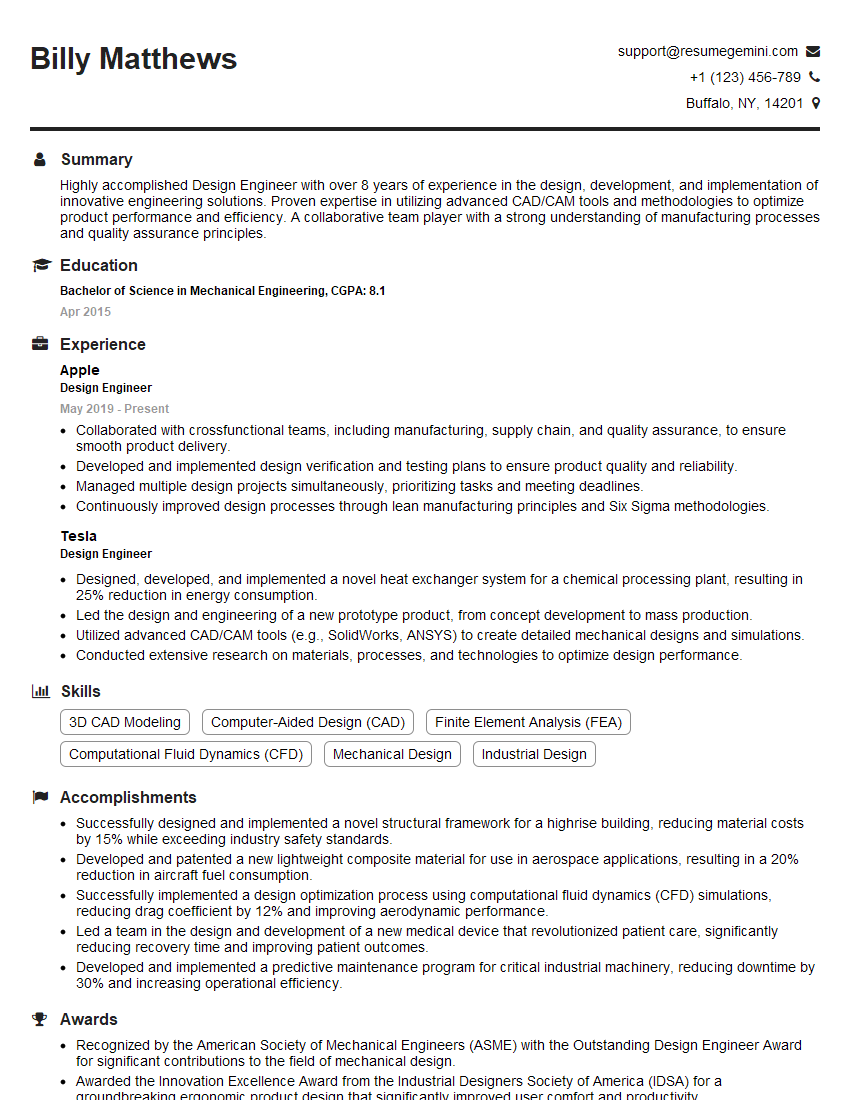
Design Engineer Resume Sample
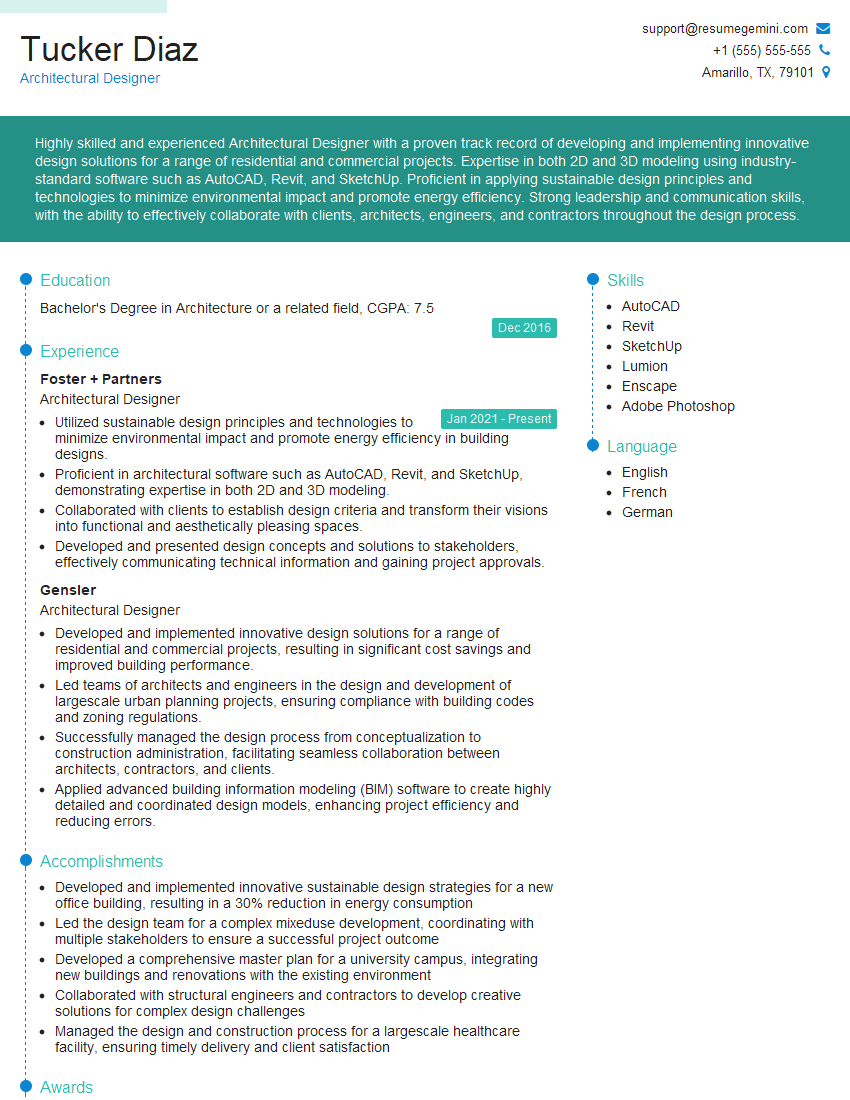
Architectural Designer Resume Sample
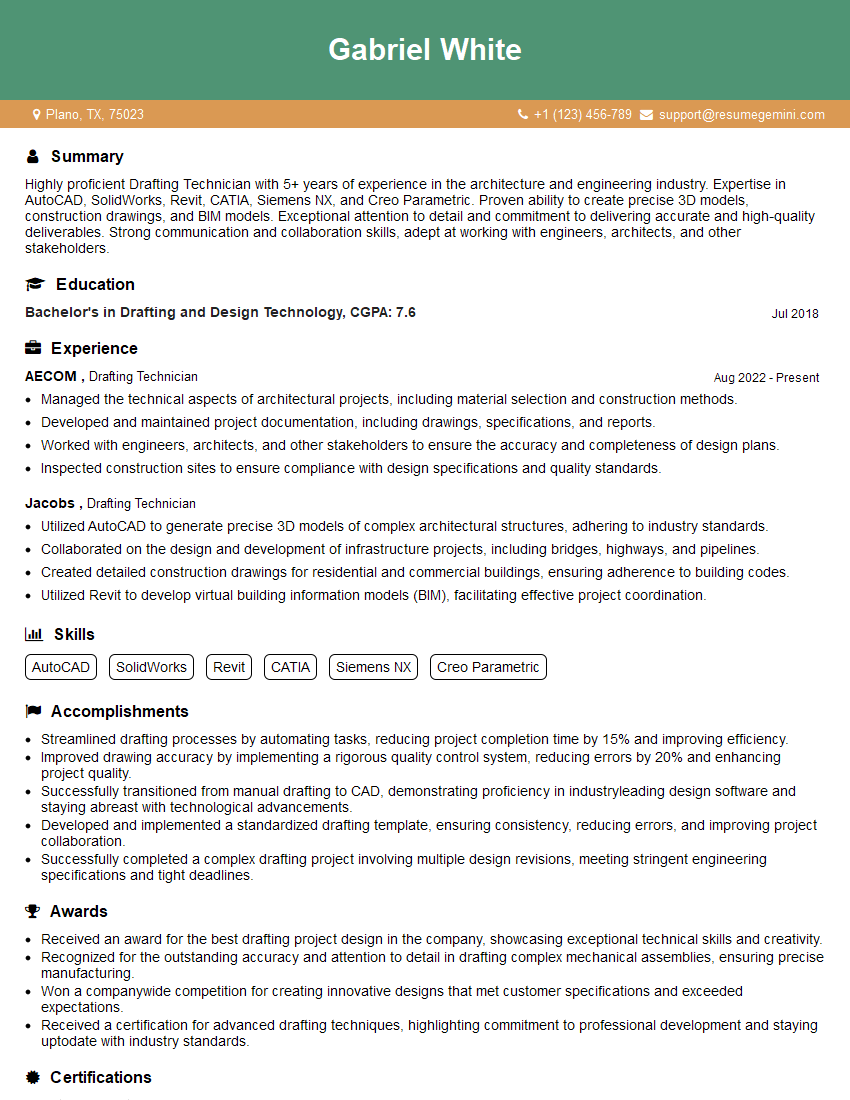
Drafting Technician Resume Sample
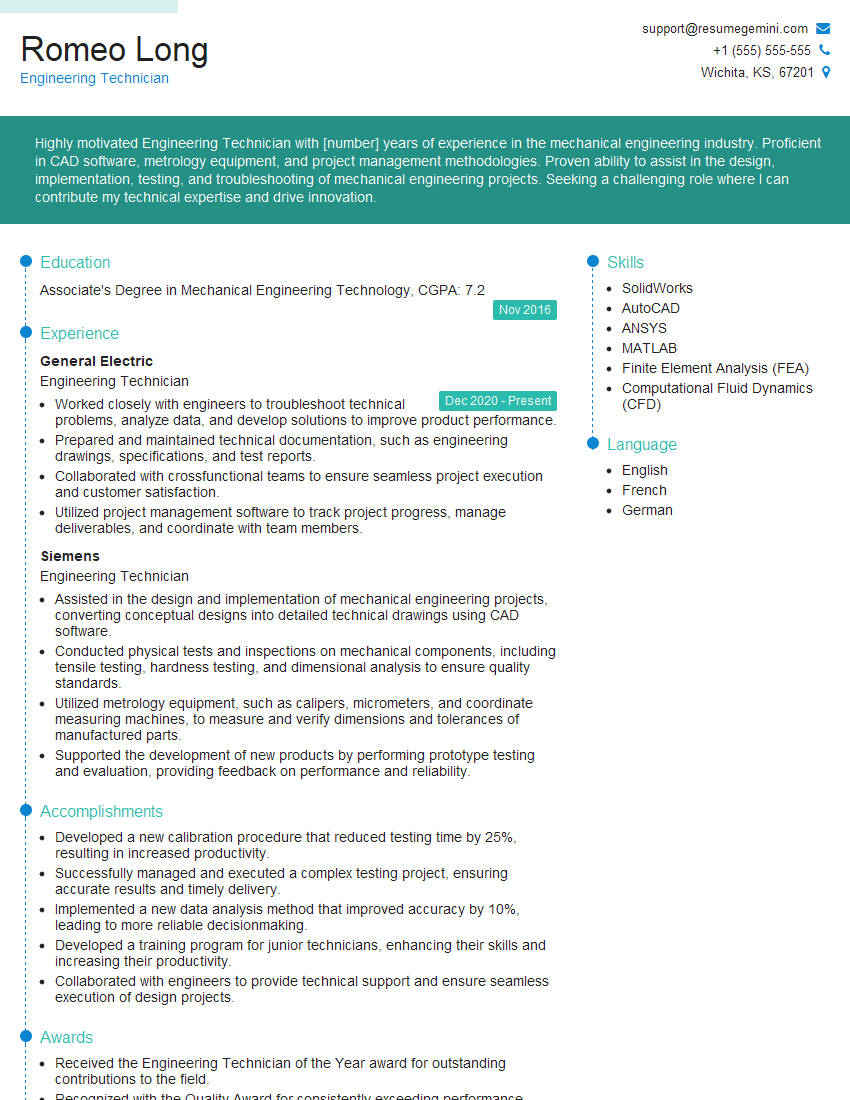
Engineering Technician Resume Sample
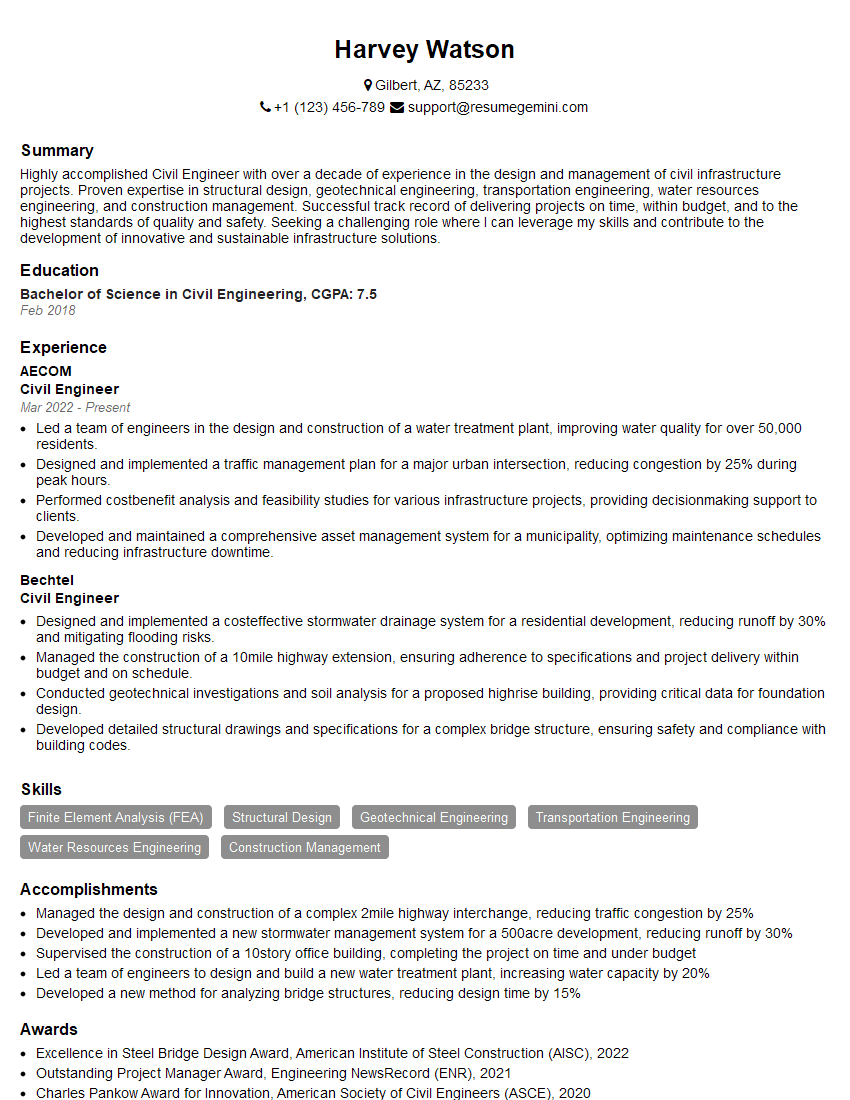
Civil Engineer Resume Sample
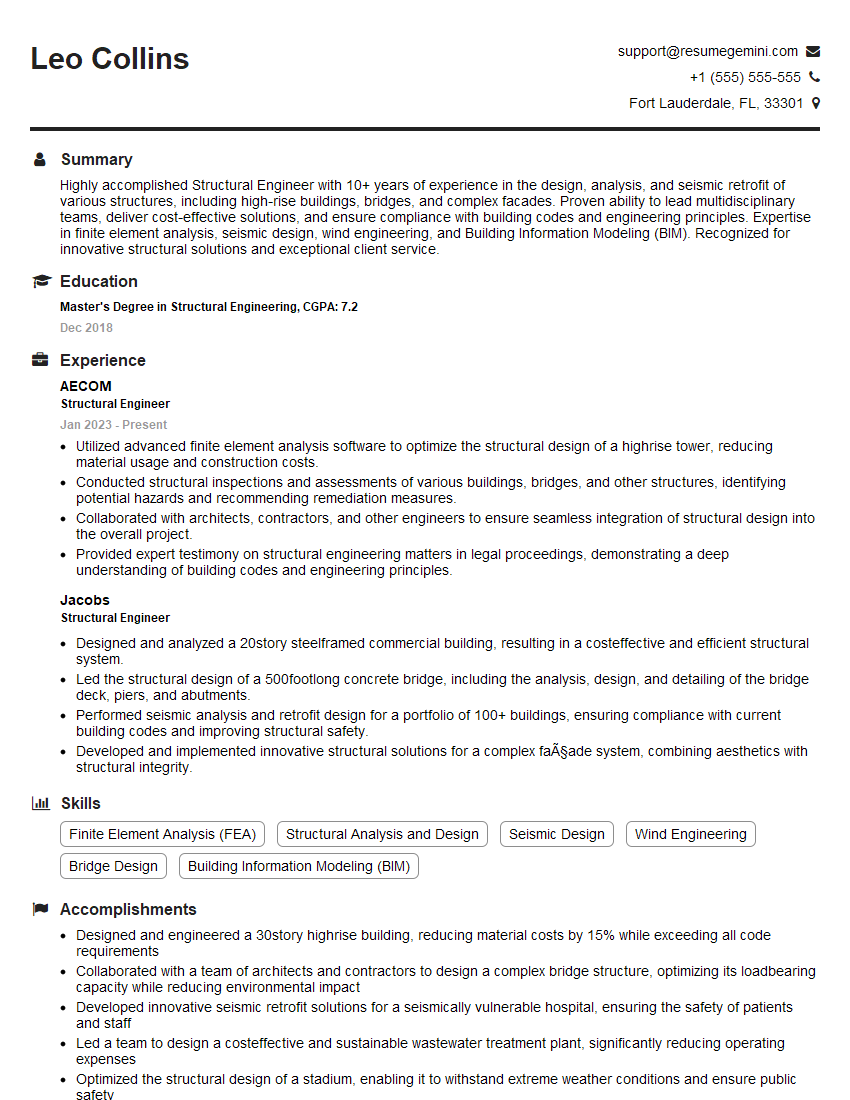
Structural Engineer Resume Sample
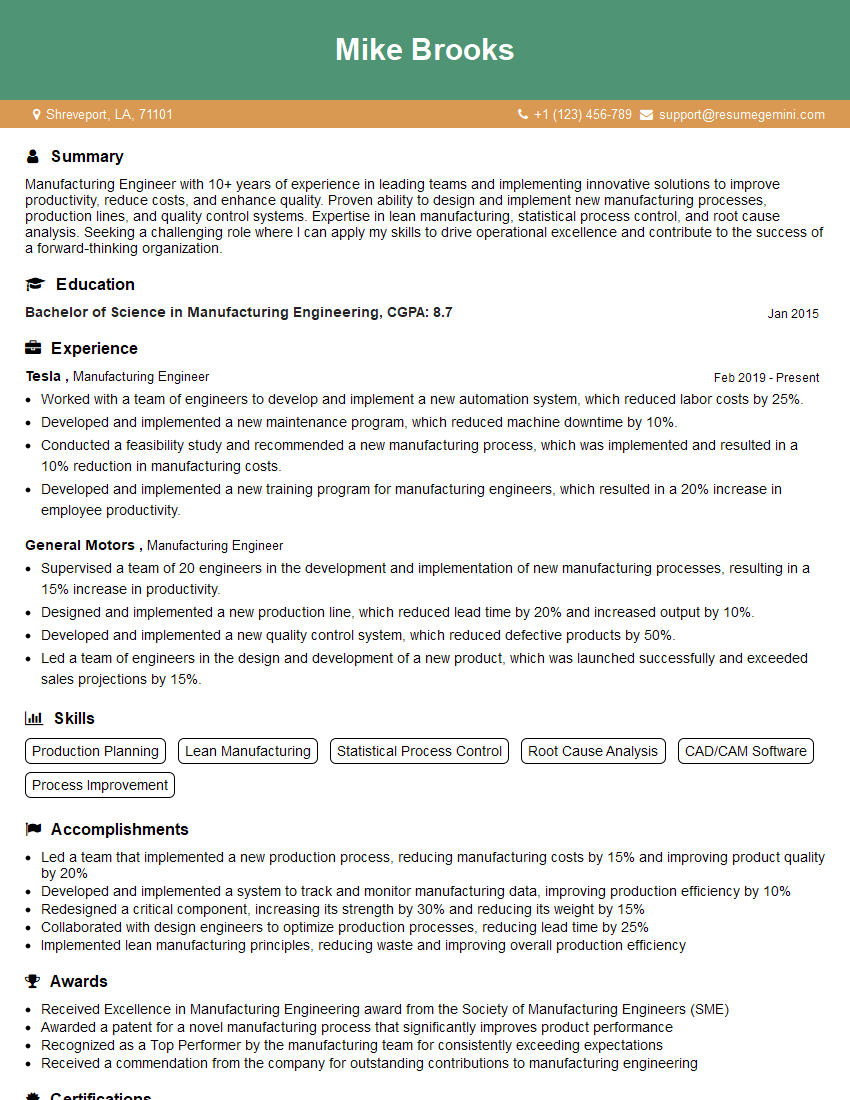
Manufacturing Engineer Resume Sample
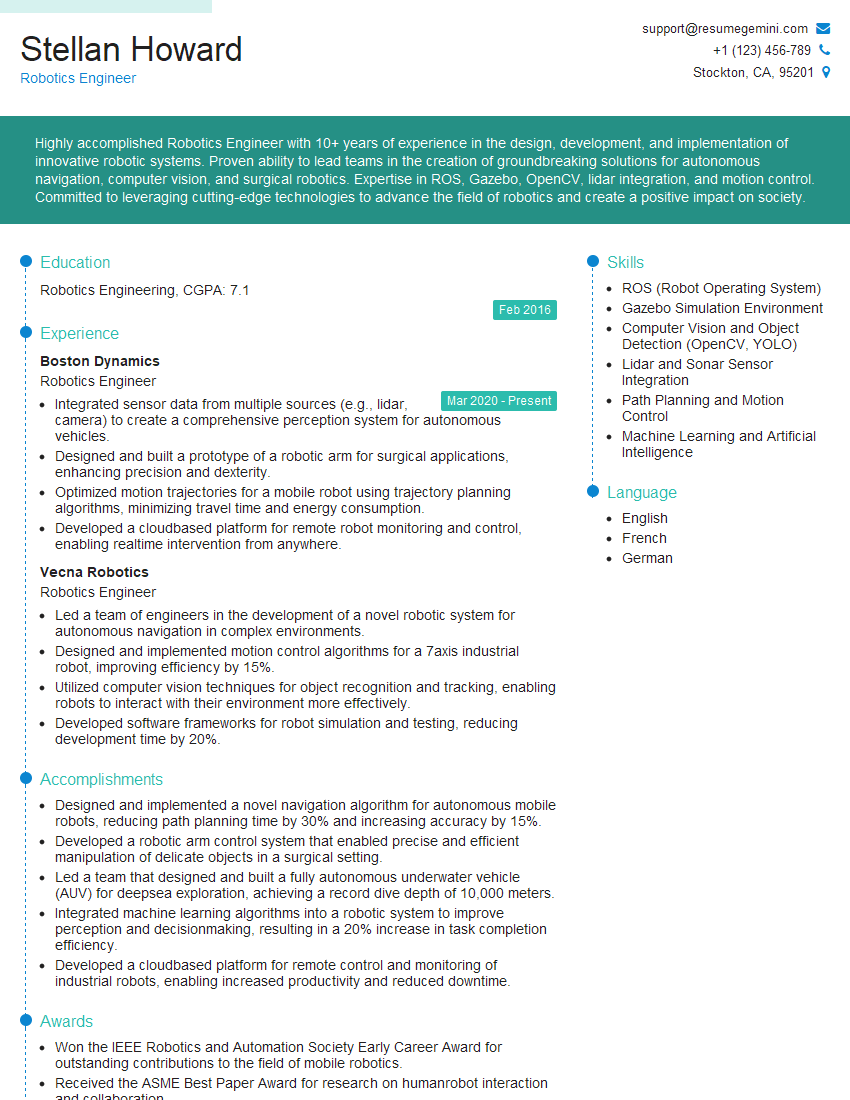
Robotics Engineer Resume Sample
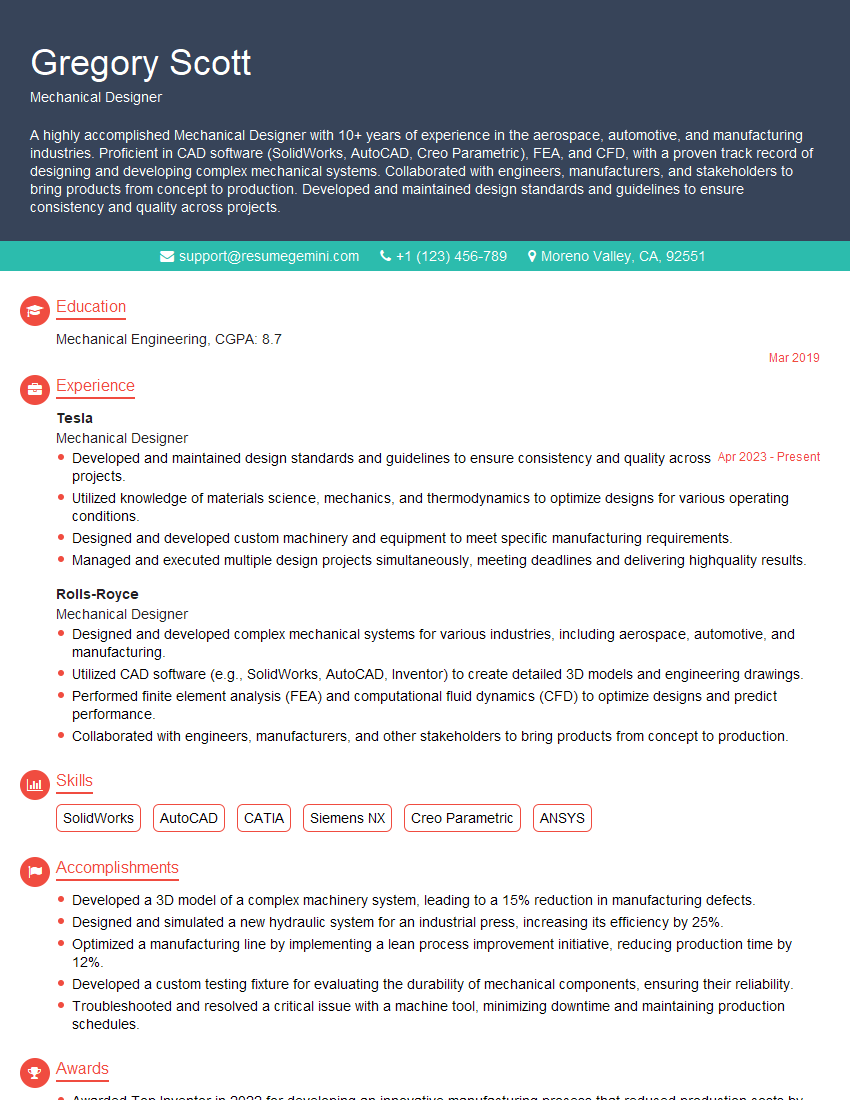
Mechanical Designer Resume Sample
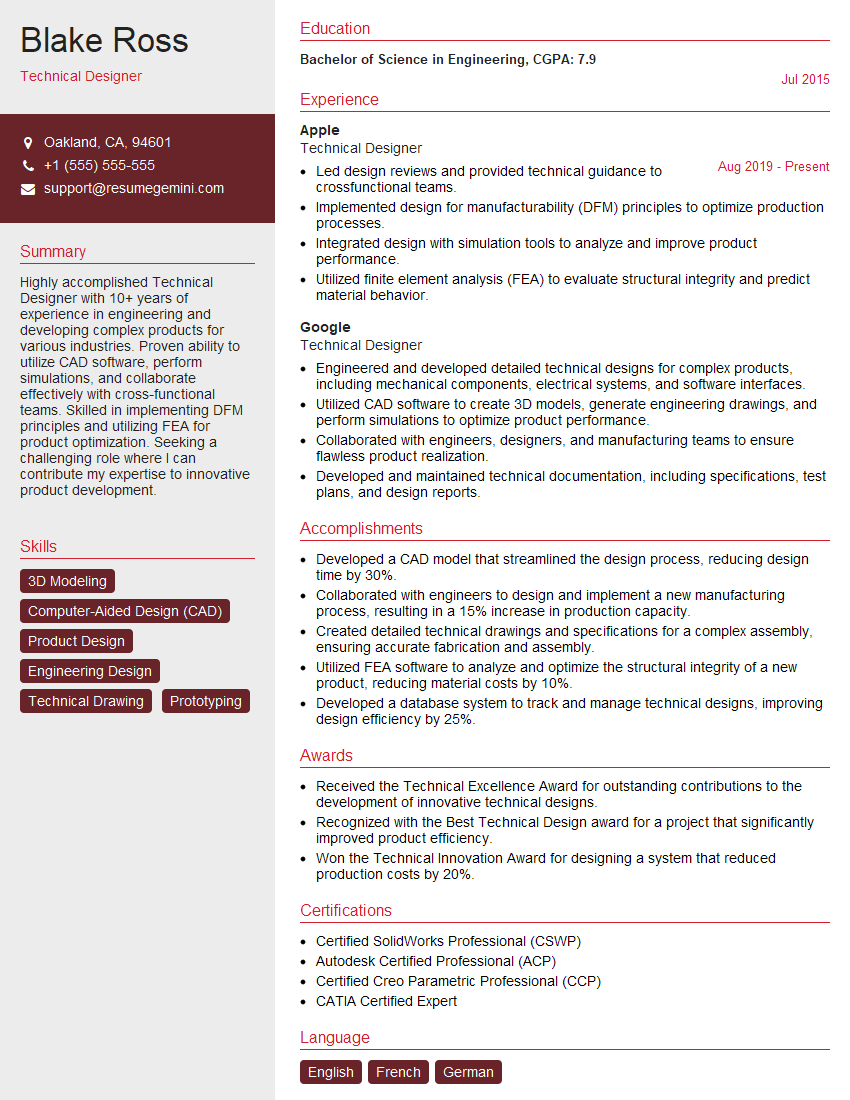
Technical Designer Resume Sample
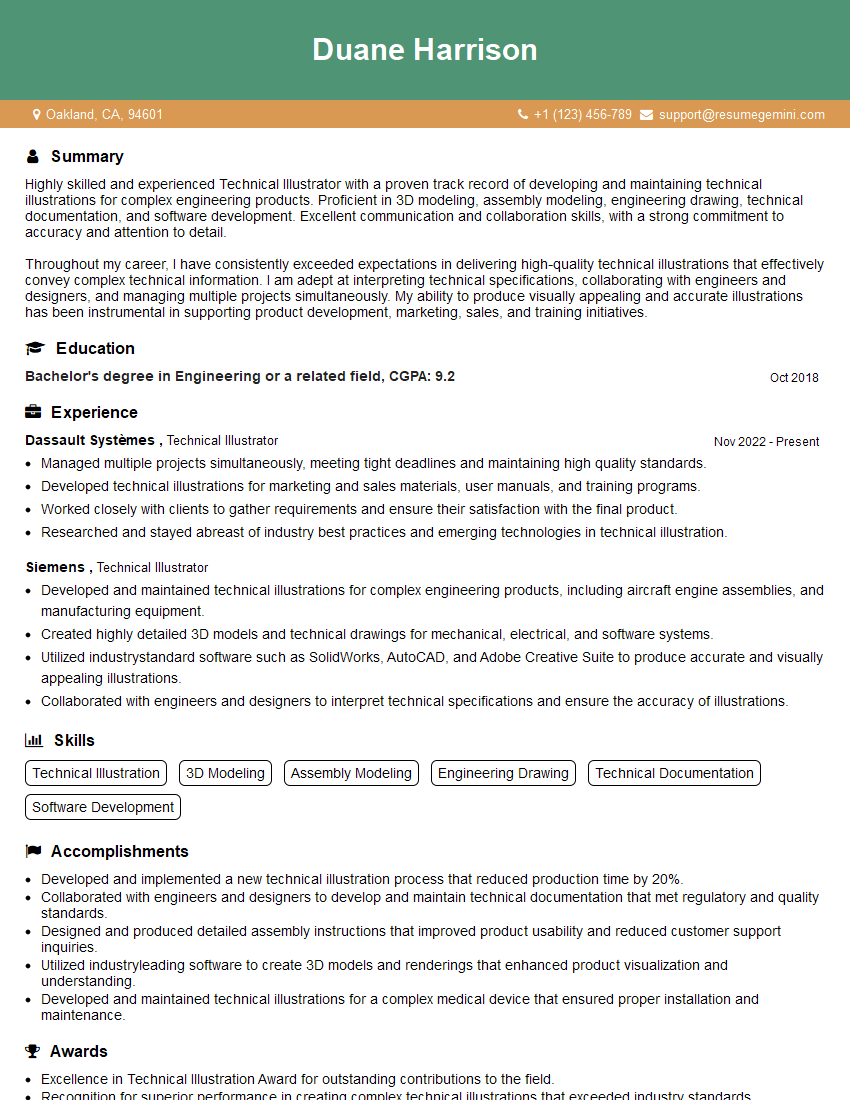
Technical Illustrator Resume Sample
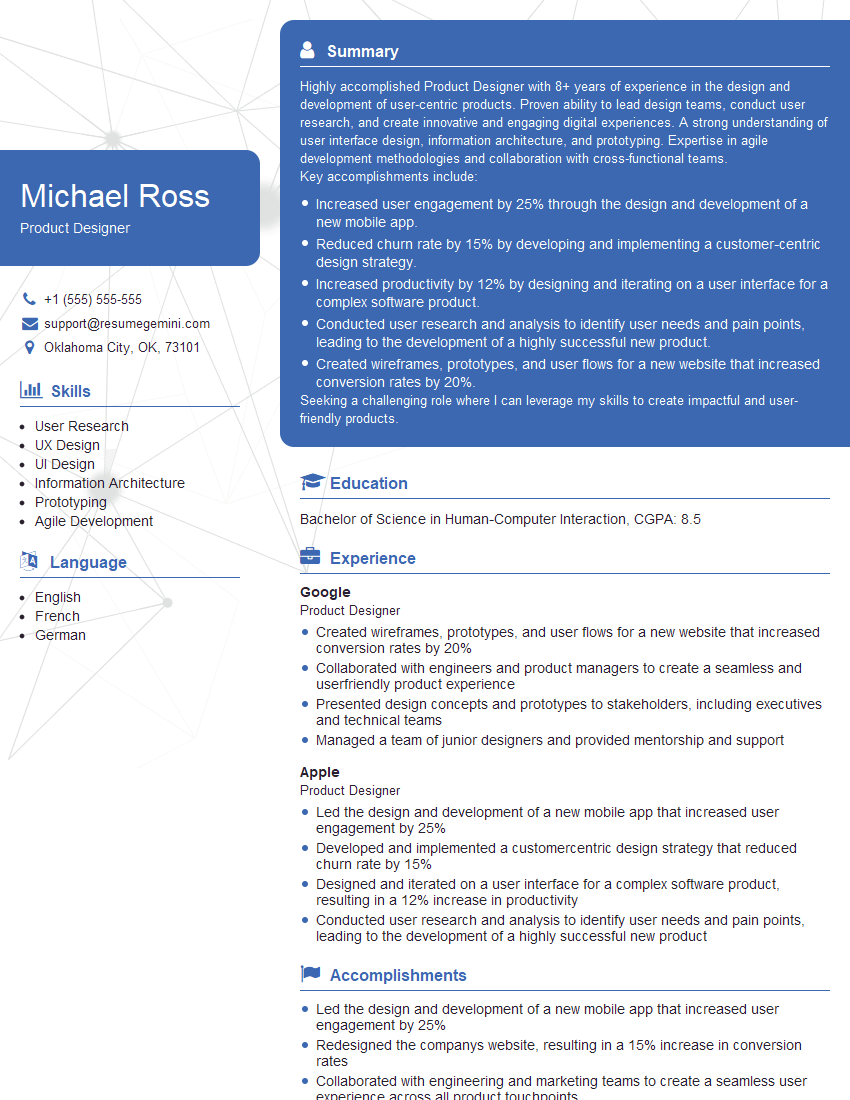
Product Designer Resume Sample

3D Modeler Resume Sample
Quality Control Inspector Resume Sample
Explore more articles
Users Rating of Our Blogs
Share Your Experience
We value your feedback! Please rate our content and share your thoughts (optional).
What Readers Say About Our Blog
I Redesigned Spongebob Squarepants and his main characters of my artwork.
https://www.deviantart.com/reimaginesponge/art/Redesigned-Spongebob-characters-1223583608
IT gave me an insight and words to use and be able to think of examples
Hi, I’m Jay, we have a few potential clients that are interested in your services, thought you might be a good fit. I’d love to talk about the details, when do you have time to talk?
Best,
Jay
Founder | CEO