Unlock your full potential by mastering the most common Exterior Design Software (SketchUp, AutoCAD, Revit) interview questions. This blog offers a deep dive into the critical topics, ensuring you’re not only prepared to answer but to excel. With these insights, you’ll approach your interview with clarity and confidence.
Questions Asked in Exterior Design Software (SketchUp, AutoCAD, Revit) Interview
Q 1. Describe your experience using SketchUp for exterior design projects.
SketchUp has been my go-to for quick conceptualization and iterative design in exterior projects. Its intuitive interface allows for rapid model creation, making it perfect for exploring different design options and presenting initial concepts to clients. I’m proficient in using its various tools, from the basic push/pull functionality to advanced components and groups, to create detailed and accurate exterior models. For example, I recently used SketchUp to model a complex residential building with varying rooflines and intricate detailing. I leveraged components to efficiently replicate repeating elements like windows and siding, saving significant time and ensuring consistency. The ability to easily import and export models in various formats also makes it a great collaborative tool.
I also frequently use extensions like the ‘V-Ray’ renderer to create high-quality visualizations that effectively communicate the design’s aesthetic appeal and spatial qualities to clients and stakeholders. This allows for better client engagement and informed decision-making early in the design process.
Q 2. Explain your proficiency in AutoCAD’s 2D drafting tools for exterior design.
My AutoCAD skills are deeply rooted in 2D drafting for exterior design. I’m adept at creating precise plans, sections, and elevations using commands like LINE, ARC, CIRCLE, and POLYLINE. I understand the importance of layering and proper annotation for clarity and organization, a crucial aspect of creating professional construction documents. I’m comfortable working with various drawing scales and creating detailed schedules for doors, windows, and other exterior elements. For instance, I recently used AutoCAD to draft detailed shop drawings for a custom-designed pergola, meticulously detailing its dimensions, materials, and connections. This ensured seamless communication between the design team and the fabricators.
Beyond basic drafting, I’m also proficient in utilizing blocks, xrefs, and attributes to streamline the workflow and maintain consistency across multiple drawings. This ensures efficiency and reduces the likelihood of errors during the documentation process.
Q 3. How familiar are you with Revit’s BIM capabilities for exterior modeling?
I possess a strong understanding of Revit’s Building Information Modeling (BIM) capabilities, particularly for exterior modeling. I’m comfortable creating detailed 3D models of buildings, incorporating parameters for various components like walls, roofs, and windows. This allows for accurate quantity take-offs, clash detection, and efficient coordination with other disciplines like structural and MEP engineering. I’m familiar with using Revit’s families to create custom components, ensuring accurate representation of specific design elements.
Furthermore, my Revit expertise extends to generating high-quality construction documents directly from the model, including elevations, sections, and schedules. This integrated approach minimizes errors and ensures consistency between the model and the drawings, a crucial aspect of streamlining the construction process. I’ve successfully utilized Revit’s BIM capabilities in numerous projects, enhancing collaboration and improving the overall project delivery.
Q 4. Compare and contrast SketchUp, AutoCAD, and Revit for exterior design workflows.
SketchUp, AutoCAD, and Revit each excel in different aspects of exterior design workflows. SketchUp shines in its intuitive interface and rapid modeling capabilities, ideal for early-stage design and conceptualization. It’s a great tool for quickly exploring different design options and creating impressive visualizations. AutoCAD is a powerful tool for 2D drafting and detailed documentation, essential for generating precise construction drawings. Its accuracy and precision are unmatched for detailing complex geometries in 2D. Revit, on the other hand, leverages BIM principles to create intelligent 3D models, facilitating coordination, quantity take-offs, and the generation of construction documents directly from the model. It’s perfect for complex projects requiring detailed coordination and data management.
Think of it like this: SketchUp is like sketching on paper – quick, intuitive, and great for exploration. AutoCAD is like drafting with precise instruments – accurate, detailed, and ideal for documentation. Revit is like building a 3D puzzle – each piece is interconnected, and the end result is a highly detailed and coordinated whole.
Q 5. Explain your process for creating detailed exterior elevations in Revit.
My process for creating detailed exterior elevations in Revit involves several key steps. First, I ensure the 3D model is accurately built and properly coordinated with other disciplines. Next, I utilize Revit’s elevation views to create the desired perspectives. I then use detailed families to accurately represent materials, windows, doors, and other elements. I meticulously adjust the view properties to control the level of detail displayed, ensuring the elevation clearly communicates the design intent. This includes selecting appropriate line weights and using annotations like dimensions, notes, and callouts to enhance clarity.
Finally, I carefully review and refine the elevations to ensure accuracy and completeness before incorporating them into the construction documents. I frequently use Revit’s schedule functionality to generate accurate window and door schedules directly from the model to ensure no discrepancies between the elevation and the materials list.
Q 6. How do you handle complex geometry and detailing in SketchUp?
Handling complex geometry and detailing in SketchUp requires a strategic approach. I often employ techniques like using components and groups to manage complexity, creating reusable elements that maintain consistency. For intricate details, I leverage the ‘Follow Me’ tool to create complex forms by extruding along a path. The ‘Offset’ tool is invaluable for creating precise offsets from existing geometry, crucial for maintaining accurate dimensions. For truly complex shapes, I may break down the geometry into smaller, manageable components. This modular approach allows for easier editing and modification without affecting the entire model.
Additionally, I use SketchUp’s ability to import and export models in different formats, allowing for detailed work in other software if needed, and then reimporting back into SketchUp for final visualization. Using plugins can also simplify the process of generating complex forms, enhancing efficiency and precision.
Q 7. Describe your experience with rendering exterior designs using SketchUp or other software.
My experience with rendering exterior designs extends beyond SketchUp to encompass other industry-standard software such as V-Ray and Lumion. I utilize these rendering engines to create photorealistic visualizations that effectively communicate the design’s aesthetic and spatial qualities. This is crucial for conveying the design’s impact and feel to clients, often influencing their decisions significantly.
For example, I recently used V-Ray to render a series of high-resolution images for a modern residential project, highlighting the interplay of light and shadow on the building’s facade. The use of realistic materials and lighting enabled the client to understand the building’s overall ambiance, contributing to a more informed decision-making process. Choosing the right renderer depends on the project requirements and desired level of realism; Lumion, for example, offers a faster workflow ideal for quick client presentations, whereas V-Ray provides more control and detail for high-quality renderings.
Q 8. How do you manage and organize large Revit models for exterior design projects?
Managing large Revit models for exterior design requires a strategic approach focused on organization and efficiency. Think of it like building a well-organized city: you need distinct neighborhoods (families), well-maintained roads (links), and a clear city map (project browser).
- Well-Defined Families: I create and utilize custom families for recurring elements like windows, doors, and cladding panels. This prevents model bloat and allows for easy updates. For instance, a single window family can be used throughout the project, ensuring consistency and simplifying modifications.
- Worksets (for larger projects): For exceptionally large projects, worksets provide a way to divide the model into manageable chunks, allowing different team members to work concurrently without conflicts. This is analogous to assigning different construction crews to different areas of a building site.
- Project Browser Organization: I meticulously organize the project browser using folders and subfolders based on building systems (e.g., structure, facade, landscaping). This is like a detailed index for the entire model, making navigation quick and intuitive. Regularly purging unused elements is critical for model health.
- Phases: Revit’s phasing capabilities allow me to track design iterations and manage different stages of the project. This helps visualize the evolution of the design and easily compare different options.
- Central Model and Worksharing: Utilizing a central model and implementing proper worksharing protocols is essential for collaborative projects. This ensures everyone works on the same version and reduces the risk of conflicts.
By implementing these strategies, I ensure that even the most complex exterior designs remain organized, manageable, and collaborative.
Q 9. How do you ensure accurate dimensions and scale in your AutoCAD exterior drawings?
Accuracy and scale are paramount in AutoCAD exterior drawings. Imagine trying to build a house with imprecise measurements – it’s a recipe for disaster! My approach involves a multi-step process:
- Setting up the Drawing: I begin by establishing a precise drawing scale using the
UNITScommand. I carefully define the units (e.g., millimeters or feet) and precision (e.g., decimal places). - Using Templates: I use pre-configured templates with predefined layers, text styles, and linetypes, ensuring consistency across all drawings. This is like using a blueprint template that’s pre-set for building codes and standards.
- Precise Dimensioning: I utilize AutoCAD’s dimensioning tools to add precise dimensions to all elements. Regular checks against the design brief and architectural plans ensure alignment with requirements. I also use dimension styles for a consistent look.
- Coordinate Systems: Using accurate base points and coordinate systems is crucial. This creates a precise spatial reference, crucial for accurate placement of elements and integration with other disciplines.
- Regular Checks: I regularly perform model checks, verifying dimensional accuracy and resolving any inconsistencies found. This could include running geometric checks or comparing against BIM data if available.
These methods ensure that the final AutoCAD drawings are accurate, consistent, and ready for construction.
Q 10. Explain your approach to creating realistic material representations in your 3D models.
Creating realistic material representations is key to conveying the design intent effectively. It’s about bringing the design to life and helping the client visualize the final product.
- High-Resolution Textures: I use high-resolution textures sourced from various libraries or created using specialized software. A simple brick texture can dramatically enhance the realism. The higher the resolution, the more realistic the result.
- Material Properties: I meticulously define material properties, such as reflectivity, roughness, and transparency. These settings heavily influence the final appearance, mimicking real-world interactions of light and material.
- Realistic Lighting: Proper lighting is crucial. I simulate natural light sources like sun and sky to create realistic shadows and highlights, enhancing depth and realism. Different times of day can create varied moods and textures.
- Environmental Settings: I incorporate environmental elements like skyboxes and fog to further enhance the realism of the renderings. A sunset sky dramatically changes the perception of a building’s exterior.
- Post-processing (Rendering Software): I often use rendering software such as V-Ray or Lumion to enhance the realism further. Post-processing techniques, such as color correction and shadow adjustments, can add significant improvement to the final visuals. This is like using photo editing software to improve the visual impact of a photograph.
This combination of techniques ensures realistic representations that communicate the design effectively and bring the architect’s vision to life.
Q 11. Describe your experience with collaborating on exterior design projects using cloud-based platforms.
Cloud-based platforms are essential for effective collaboration on exterior design projects. They allow for real-time access to models and drawings, facilitating efficient teamwork and design review.
- BIM 360: I’ve extensively used Autodesk BIM 360 for collaborative projects. It provides a central hub for storing models, drawings, and other project documents, allowing for easy access and version control. Think of it as a central online repository.
- Collaboration Features: BIM 360’s markup and issue tracking features facilitate efficient communication and coordination among team members, consultants, and clients. This significantly streamlines the review process.
- Cloud Rendering: Cloud-based rendering services, often integrated into platforms like BIM 360, enable high-quality renderings without requiring high-powered local machines. This saves time and resources.
- Version Control: Cloud-based platforms provide robust version control. This ensures that every iteration is archived and can be easily retrieved if necessary, and minimizes the risk of overwriting the wrong file.
Through the use of such platforms, we can efficiently share, review, and update design files, minimizing conflicts and promoting smooth workflow across different locations and time zones.
Q 12. How do you address design changes and revisions in Revit during the design process?
Design changes are inevitable in any project. In Revit, I manage these changes systematically to maintain model integrity and prevent conflicts.
- Revit’s Parametric Modeling: I leverage Revit’s parametric modeling capabilities. Changes to one parameter automatically update related elements. This minimizes manual adjustments and reduces the chances of errors.
- Worksets (if applicable): If using worksets, changes are made within the designated workset and then synchronized with the central model. This prevents simultaneous editing by different users.
- Version Control: I maintain a clear version history using Revit’s built-in versioning or cloud-based platforms. This provides a track record of the design evolution and enables easy rollback if needed.
- Collaboration: I work collaboratively with the team to understand and implement changes effectively. This involves open communication and discussion about the impacts of changes across various aspects of the design.
- Regular Model Checks: After implementing changes, I run model checks to identify and resolve any conflicts or errors caused by the modifications.
This approach to managing design changes ensures that revisions are integrated smoothly, efficiently, and with minimal disruption to the overall project.
Q 13. How do you troubleshoot errors and resolve conflicts in your CAD models?
Troubleshooting errors and resolving conflicts in CAD models requires a systematic approach. Imagine a detective solving a crime – we need to gather clues, analyze the evidence, and identify the root cause.
- Identify the Error: The first step is pinpointing the specific error. This involves carefully examining error messages, inconsistencies in the model, or unexpected behavior.
- Isolate the Problem: Once the error is identified, I try to isolate the source. This often involves temporarily disabling or deleting parts of the model to identify the culprit.
- Revit’s Tools: Revit provides diagnostic tools like the ‘Audit’ command to help identify and fix model inconsistencies. This acts like a diagnostic test on a car to pinpoint mechanical faults.
- Review the Process: If the error persists, I analyze the process that led to the error. This helps prevent similar mistakes in the future. It’s like a post-mortem analysis to learn and improve.
- External Resources: If I’m still struggling, I consult online forums, documentation, or colleagues for guidance. This leveraging of community expertise can significantly reduce troubleshooting time.
This methodical approach, combined with a keen eye for detail and knowledge of the software, ensures efficient resolution of errors and conflicts.
Q 14. What are your preferred methods for exporting and sharing exterior design files?
Exporting and sharing exterior design files involves choosing appropriate formats and methods tailored to the intended audience and purpose.
- Industry Standard Formats: I use industry-standard formats like DWG (AutoCAD), RVT (Revit), SKP (SketchUp), and 3D PDF. These ensure compatibility across different software platforms and devices.
- Image Formats: For presentations and client reviews, I export high-resolution images in formats like JPG, PNG, or TIFF. These offer superior image quality and are easily viewed by all.
- Cloud Storage: For easy sharing and collaboration, I often upload files to cloud storage platforms like Dropbox, Google Drive, or BIM 360. This enables easy access to project files for team members and clients.
- Rendering Outputs: For high-quality visualizations, I export renderings in formats like JPG, PNG, or high-resolution TIFF. This enhances design presentation and ensures visual impact.
- Coordination: When sharing with other disciplines, the format needs to align with the software that others will use, potentially including 3D models, 2D drawings, and data exchange formats like IFC.
Choosing the right export method and format is crucial for seamless collaboration and effective communication. The ultimate goal is to ensure that the design information is easily accessible and understandable by everyone involved.
Q 15. Describe your experience with creating construction documentation from your 3D models.
Generating construction documentation from 3D models is a crucial step in translating design visions into buildable realities. My process involves leveraging the power of SketchUp, AutoCAD, and Revit to create detailed drawings, schedules, and specifications. I begin by meticulously modeling the exterior in SketchUp, focusing on accuracy and detail. This detailed model then forms the basis for generating 2D drawings in AutoCAD. I use SketchUp’s export functionalities to import the geometry into AutoCAD, where I create plans, elevations, sections, and details. For larger projects, I prefer using Revit, as it allows me to create a Building Information Model (BIM) that’s directly linked to the construction documentation. Revit’s automated capabilities help in generating schedules, quantity take-offs, and other essential documentation. I always ensure that the final documentation is clear, concise, and adheres to industry standards. For example, on a recent project designing a multi-family dwelling, I used SketchUp’s extensive plugin library to model the intricate facade details, then exported these into AutoCAD to generate highly detailed construction drawings for the masons and carpenters. Finally, Revit’s clash detection features helped avoid potential conflicts between different building services.
Career Expert Tips:
- Ace those interviews! Prepare effectively by reviewing the Top 50 Most Common Interview Questions on ResumeGemini.
- Navigate your job search with confidence! Explore a wide range of Career Tips on ResumeGemini. Learn about common challenges and recommendations to overcome them.
- Craft the perfect resume! Master the Art of Resume Writing with ResumeGemini’s guide. Showcase your unique qualifications and achievements effectively.
- Don’t miss out on holiday savings! Build your dream resume with ResumeGemini’s ATS optimized templates.
Q 16. How do you utilize layers and view templates effectively in AutoCAD?
Layers and view templates are fundamental to organizing and managing complex AutoCAD drawings. Think of layers as a way to categorize different elements in your drawing – walls on one layer, doors on another, and landscaping on yet another. This allows for selective visibility and editing, preventing accidental modifications. Effective layer management involves a consistent naming convention (e.g., using prefixes like ‘W-‘ for walls, ‘D-‘ for doors), and using layer properties such as color and linetype to easily differentiate between elements. View templates, on the other hand, are like pre-set configurations of your drawing’s display. They define which layers are visible, the scale, the plot style, and other visual settings. This ensures that all your drawings have a consistent look and feel, saving considerable time and effort. For instance, I might have a view template for site plans, another for architectural plans, and another for detailed sections. By saving each as a template, I can apply these settings quickly to new drawings, guaranteeing uniformity across my entire project.
Example of layer naming convention: W-ExteriorWalls, W-InteriorWalls, D-Doors, D-WindowsQ 17. How familiar are you with different rendering engines for exterior visualizations?
My experience encompasses a range of rendering engines, each with its strengths and weaknesses. I’m proficient in using V-Ray, Lumion, and Enscape. V-Ray is powerful and offers photorealistic results, ideal for showcasing intricate details and textures. However, it can be computationally intensive. Lumion excels in speed and ease of use, making it perfect for quick iterations and client presentations. Enscape provides real-time rendering, enabling dynamic interaction with the model. The choice of engine depends on the project’s demands. For a high-end residential project requiring extremely realistic visuals, I would opt for V-Ray. If a client needs quick visualizations for a presentation, Lumion’s speed would be beneficial. For collaborative design reviews, Enscape’s real-time rendering is invaluable.
Q 18. Describe your experience with creating and using custom families in Revit.
Creating custom families in Revit is essential for achieving a high level of detail and accuracy in a BIM model. I’ve extensively used this functionality to create custom families for everything from unique window and door types to complex architectural components like custom railings and decorative façade elements. The process involves understanding Revit’s family editor, which allows you to define the parameters and geometry of a family. This includes defining properties like size, material, and other characteristics. Once created, these families are reusable across multiple projects, significantly improving efficiency and consistency. For example, I developed a custom family for a specific type of ornate balcony railing used in a recent historic renovation project. This custom family incorporated all the required details, ensuring that the railing appeared accurately in plans, sections, and 3D views, saving considerable time compared to manually modeling each instance.
Q 19. How do you manage clash detection and coordination in Revit?
Clash detection in Revit is crucial for coordinating different building disciplines. I utilize Revit’s built-in clash detection tools to identify conflicts between architectural, structural, and MEP (Mechanical, Electrical, and Plumbing) models. This process typically involves setting up the clash detection parameters, defining which model elements to check against each other, and then running the clash detection analysis. The results are displayed as a report, highlighting the locations and types of clashes. For instance, I might run a clash detection between the architectural model and the MEP model to identify conflicts between ductwork and structural beams. This allows me to resolve potential issues early in the design process, reducing costly rework during construction. Following up on this, I also employ Navisworks for more advanced clash detection and coordination when managing complex multi-disciplinary projects, allowing for better visualization of issues and collaborative issue resolution.
Q 20. What are some common challenges in exterior modeling, and how do you overcome them?
Exterior modeling presents unique challenges. One common issue is accurately representing complex geometries, such as curved walls or intricate rooflines. Another is dealing with large datasets, which can slow down performance. Finally, ensuring consistency between the model and site context also requires careful attention. To overcome these, I employ several strategies. For complex geometries, I utilize precise modeling techniques, such as using curves and surfaces effectively. For large datasets, I employ techniques like component management and model simplification, dividing large models into smaller, more manageable parts. To ensure site context accuracy, I use high-resolution site surveys and integrate them into the model. Also, utilizing the ‘purge’ function in programs like AutoCAD is useful to eliminate unnecessary data and increase efficiency. On a project featuring a complex sloped site, I used topographical data to create a precise site model in Revit, ensuring that the building’s placement and grading were accurately represented, which significantly reduced issues later in the construction phase.
Q 21. How do you balance aesthetics and functionality in your exterior designs?
Balancing aesthetics and functionality is paramount in exterior design. It’s about creating a design that’s both visually appealing and practically sound. My approach involves a collaborative process with the client, engaging early to establish their priorities. I then create several design iterations, exploring different options to find the optimal balance. For instance, I might explore different materials to achieve the desired aesthetic while ensuring the chosen materials are durable and weather-resistant. Similarly, the placement of windows might be modified to maximize natural light while considering factors such as solar gain and privacy. I constantly refer to building codes and best practices to ensure functionality is not compromised. Using rendering software, I showcase the various options to clients, allowing for informed decisions. On a recent project, the client wanted a modern, sleek aesthetic, but we needed to ensure the design was also energy efficient. Through careful material selection and strategic window placement, we achieved both objectives, creating a building that’s both beautiful and sustainable.
Q 22. Describe your experience with creating site plans and grading in AutoCAD or Revit.
Creating accurate site plans and grading is crucial for any exterior design project. In AutoCAD and Revit, I leverage the powerful tools available for terrain modeling and site analysis. In AutoCAD, I typically start by importing survey data (often in .txt or .dxf format) representing the existing topography. Then, I utilize commands like SURF to create a 3D surface from the data points, allowing visualization of the existing land contours. Grading is achieved by manipulating this surface using tools like GRADE and TRIM to adjust elevations, creating slopes and cuts/fills according to design requirements. I frequently use section views and analysis tools to ensure proper drainage and compliance with local regulations.
Revit offers a similar workflow, but with more integrated features. The Topography surface is created similarly, importing point cloud data or using existing survey data. The advantage in Revit is the ability to link this site model directly to the building model, enabling accurate integration of site features with the building design. This allows for automated calculations of cut and fill volumes, crucial for cost estimation and earthwork planning. For complex grading schemes, I often utilize families and components to represent specific grading elements such as swales, retaining walls, and terraces, further refining the model’s accuracy and detail.
Q 23. How do you incorporate sustainable design principles into your exterior models?
Sustainable design is a core principle in my work. I incorporate these principles throughout the modeling process, starting with the site analysis phase. This involves studying sun orientation, wind patterns, and the local climate to optimize building placement and minimize energy consumption. For example, I might orient a building to maximize passive solar gain in winter and minimize solar heat gain in summer. In my models, I utilize materials with high recycled content, low embodied carbon, and high thermal performance. I select materials based on their Environmental Product Declarations (EPDs) where available, to quantify their environmental impact.
Beyond material selection, I model strategies like green roofs, rainwater harvesting systems, and shading devices to reduce environmental impact. These are not merely visual elements; they’re accurately modeled within the software to assess their effectiveness. I use energy simulation plugins (like those integrated with some versions of Revit) to evaluate the building’s energy performance based on the incorporated sustainable design choices, allowing for informed decision-making throughout the design process. It’s about creating a holistic model that reflects not just aesthetics, but also environmental responsibility.
Q 24. What are your preferred methods for creating photorealistic renderings?
Creating photorealistic renderings is essential for conveying the design intent effectively to clients and stakeholders. My preferred workflow usually involves a combination of methods. I start by ensuring the model itself has a high level of detail, including accurate textures, materials, and lighting information. In SketchUp, I commonly use V-Ray or Thea Render for their ability to create high-quality, physically-based renderings. These renderers allow for fine-tuned control over lighting, shadows, and materials, resulting in visually stunning and realistic images. In Revit, I utilize features like Enscape or Lumion. These renderers are known for their real-time rendering capabilities, which is particularly useful for exploring different design options and quickly generating multiple perspectives.
For post-processing, I often use Photoshop to make final adjustments, such as color correction, adding subtle atmospheric effects, or enhancing certain details. This combined approach leverages the strengths of both rendering software and post-processing tools to achieve the highest quality photorealistic visualizations. The key is not just the software, but a methodical approach to model preparation and a keen eye for detail, ensuring the final rendering accurately reflects the design’s intended look and feel.
Q 25. How do you stay updated with the latest advancements in exterior design software?
The landscape of exterior design software is constantly evolving. To stay updated, I utilize several strategies. I actively participate in online forums and communities dedicated to these software packages. These forums provide a space for exchanging knowledge, troubleshooting issues, and learning about new features and techniques from fellow professionals. I also subscribe to industry publications and newsletters that focus on architectural design and technology. These publications keep me informed about the latest software releases, updates, and industry trends.
Furthermore, I regularly attend webinars and online courses offered by the software developers (like Autodesk and Trimble) and third-party training providers. These resources often cover advanced techniques and best practices that aren’t readily available through other channels. Finally, I consider hands-on experience crucial. I actively experiment with new features in my projects, pushing my boundaries and finding innovative ways to enhance my workflows, thereby ensuring that I stay at the forefront of technological advancements.
Q 26. Describe your experience with using plugins or extensions to enhance your workflow.
Plugins and extensions are vital for streamlining workflows and adding specialized functionality in exterior design software. In SketchUp, I extensively use plugins like the Curviloft extension for creating complex curved surfaces, or FredoScale for precise scaling and component manipulation. These extensions significantly speed up the modeling process by automating repetitive tasks or providing specialized tools not available in the base software. In Revit, I frequently use plugins related to energy modeling (as previously mentioned), structural analysis, and clash detection. These plugins integrate seamlessly into the Revit environment, adding powerful capabilities while maintaining the overall workflow.
For example, using a plugin for generating detailed railings or staircase elements saves a significant amount of time compared to manual modeling. This allows me to focus on the design rather than the tedious aspects of model creation. The selection of plugins depends heavily on the project’s specific needs; I carefully evaluate each plugin’s capabilities and reliability before integrating it into my workflow, ensuring it enhances my efficiency without compromising model quality or stability.
Q 27. How do you handle large datasets and ensure model performance in Revit?
Handling large datasets in Revit requires a strategic approach to maintain model performance. One key strategy is to utilize Revit’s worksharing capabilities. This allows multiple users to work on the same model simultaneously without performance bottlenecks, greatly accelerating the design process. Another crucial aspect is model simplification. I frequently employ techniques like level of detail (LOD) modeling, where different levels of detail are used depending on the model’s purpose. For example, high-detail modeling is used for rendering, while simplified geometry is used for coordination and analysis.
Furthermore, proper organization is critical. I use naming conventions and family organization to maintain a clear structure within the model. This makes it easier to manage and locate specific components, improving navigation and reducing file size. Regular model cleanup (purging unused elements, removing unnecessary geometry) helps to reduce file size and maintain responsiveness. Finally, efficient use of Revit’s view templates allows selective visibility of model elements within different views, significantly improving performance when working with complex models. Utilizing high-performance hardware and optimizing the software settings for the specific project also contributes to better workflow.
Q 28. Explain your understanding of building codes and regulations related to exterior design.
Understanding building codes and regulations is paramount for successful exterior design. This knowledge ensures that my designs comply with all applicable local, regional, and national standards, avoiding costly delays and potential legal issues. I familiarize myself with codes related to fire safety, accessibility (ADA compliance), energy efficiency, and structural requirements as they pertain to exterior elements. These codes dictate aspects such as the materials used for cladding, the placement of windows and doors, and the required clearances around the building for fire exits and accessibility.
My approach involves reviewing the relevant codes at the outset of each project. I frequently use online resources and code books to check specific requirements for a given location. I build this knowledge into the modeling process; for example, I ensure that the modeled building’s exterior elements comply with fire-resistance ratings. I also maintain communication with relevant authorities and stakeholders to clarify any ambiguities or challenges encountered during the design process. Incorporating compliance into the design early avoids costly and time-consuming revisions later in the project lifecycle. It’s a proactive approach, ensuring the final design is not only aesthetically pleasing but also legally sound and safe.
Key Topics to Learn for Exterior Design Software (SketchUp, AutoCAD, Revit) Interview
- Modeling Techniques: Mastering 3D modeling principles in each software. Understand the differences in workflow and strengths of each program for exterior design.
- Material Application & Rendering: Explore realistic material application and rendering techniques to showcase design intent effectively. Practice creating visually appealing presentations.
- Site Context & Integration: Learn how to accurately import and incorporate site data (topographies, existing structures) into your models for realistic representations.
- Annotation & Detailing: Understand the importance of clear and concise annotation, section cuts, and detail drawings for effective communication of design solutions.
- Collaboration & Teamwork: Familiarize yourself with cloud-based collaboration features (if applicable) and discuss your experience working with others on design projects.
- Construction Documentation: Depending on the role, know how to generate construction drawings from your model using the chosen software (particularly Revit).
- Problem-Solving & Design Thinking: Be prepared to discuss your approach to problem-solving in design, demonstrating your ability to overcome challenges and find creative solutions.
- Software-Specific Features: Deepen your understanding of advanced features and tools unique to SketchUp, AutoCAD, and Revit. Be prepared to demonstrate expertise in the specific software used by the company.
- Design Principles & Standards: Demonstrate knowledge of relevant design principles, codes, and accessibility standards as they relate to exterior design.
Next Steps
Mastering exterior design software like SketchUp, AutoCAD, and Revit is crucial for career advancement in architecture, landscape architecture, and related fields. These skills are highly sought after, opening doors to exciting projects and opportunities for professional growth. To maximize your job prospects, crafting a strong, ATS-friendly resume is essential. ResumeGemini is a trusted resource that can help you build a professional resume tailored to showcase your expertise. Examples of resumes specifically designed for candidates proficient in SketchUp, AutoCAD, and Revit are available to guide you.
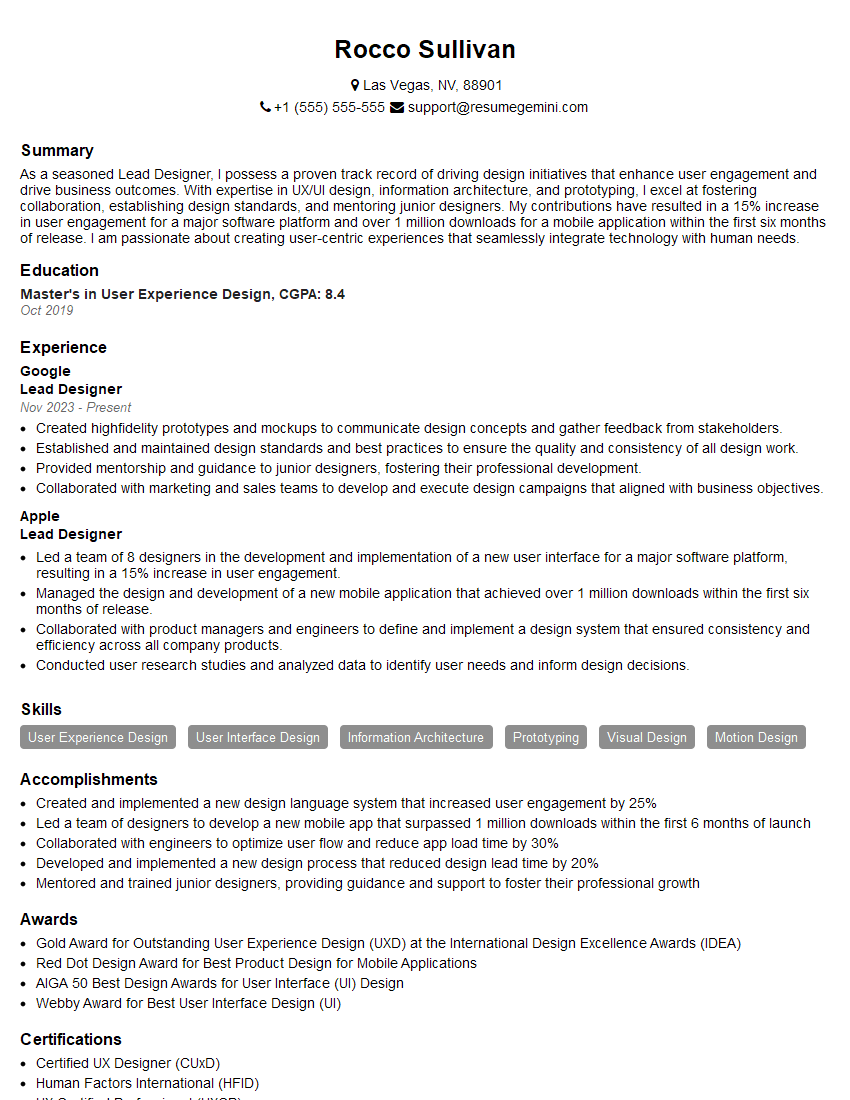
Lead Designer Resume Sample
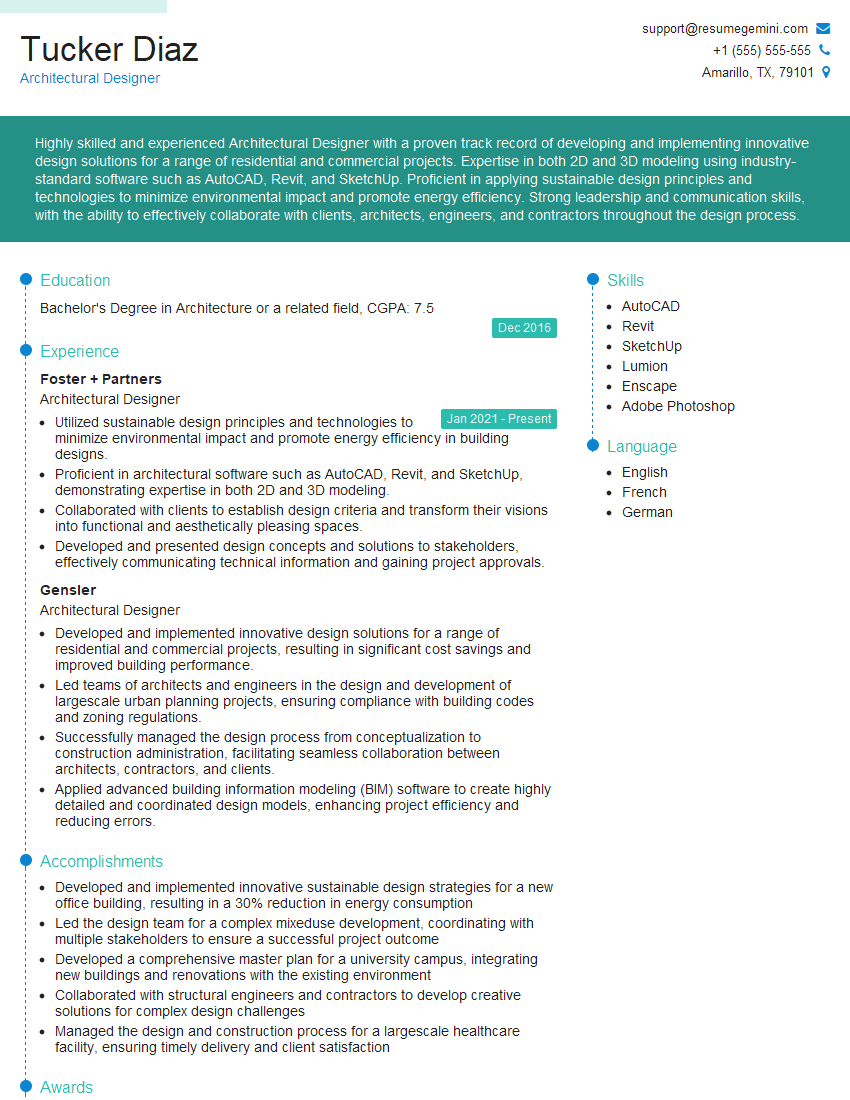
Architectural Designer Resume Sample
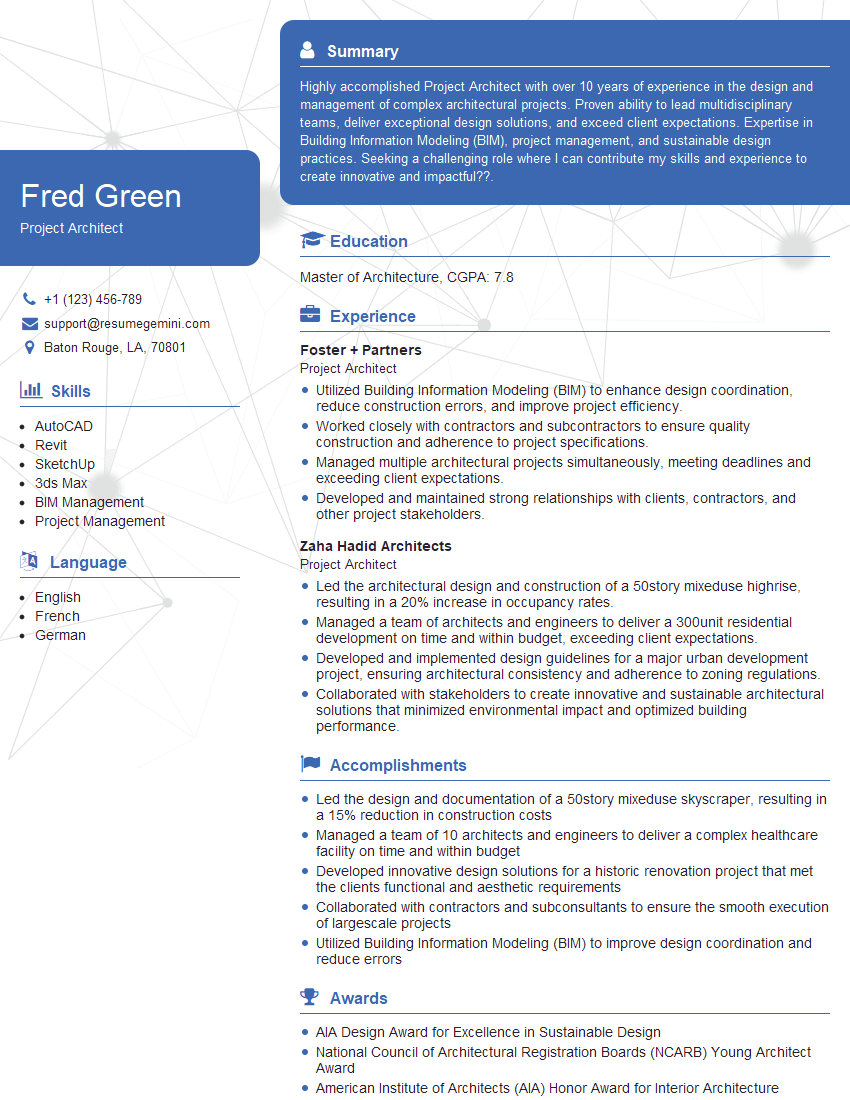
Project Architect Resume Sample
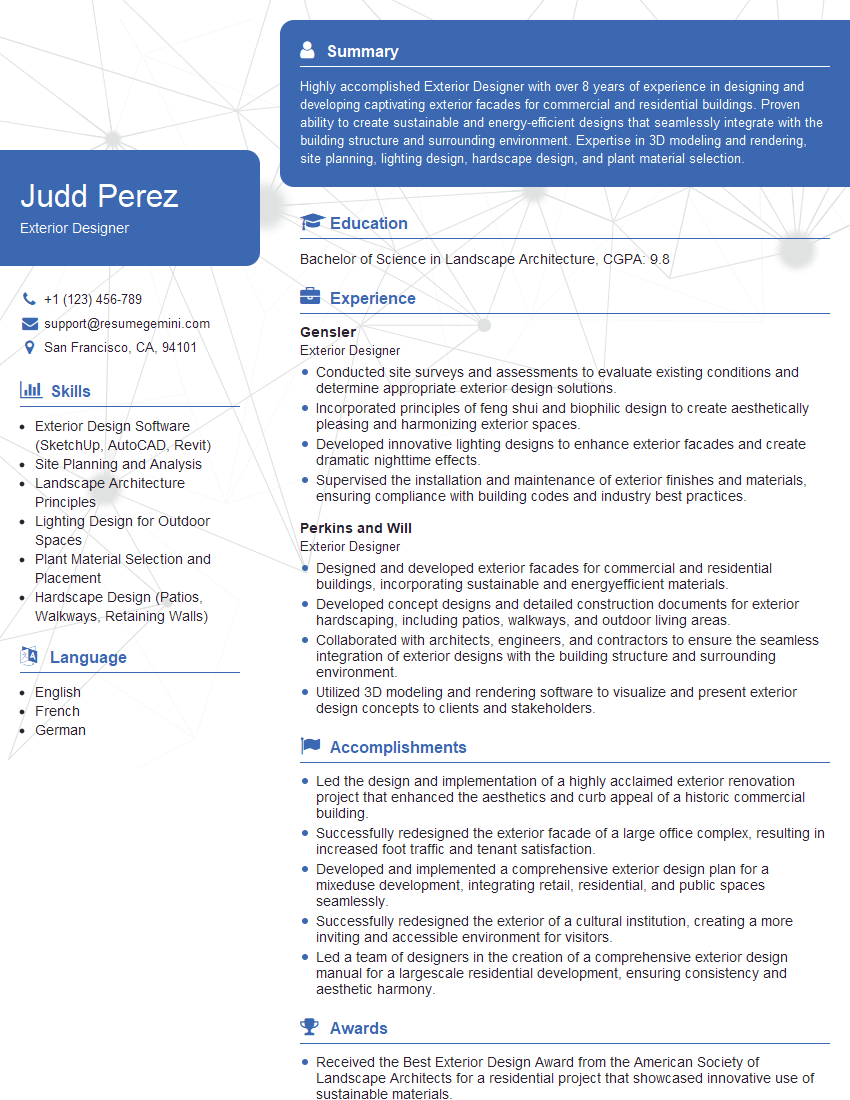
Exterior Designer Resume Sample
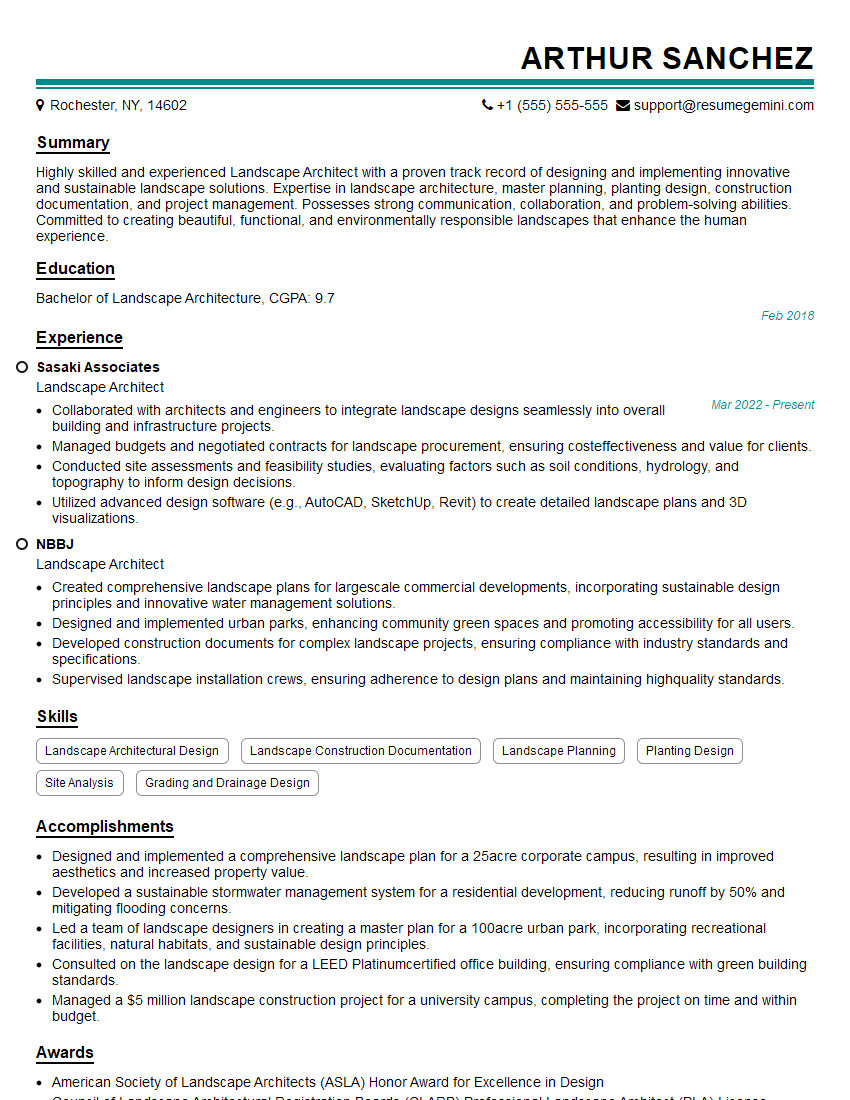
Landscape Architect Resume Sample
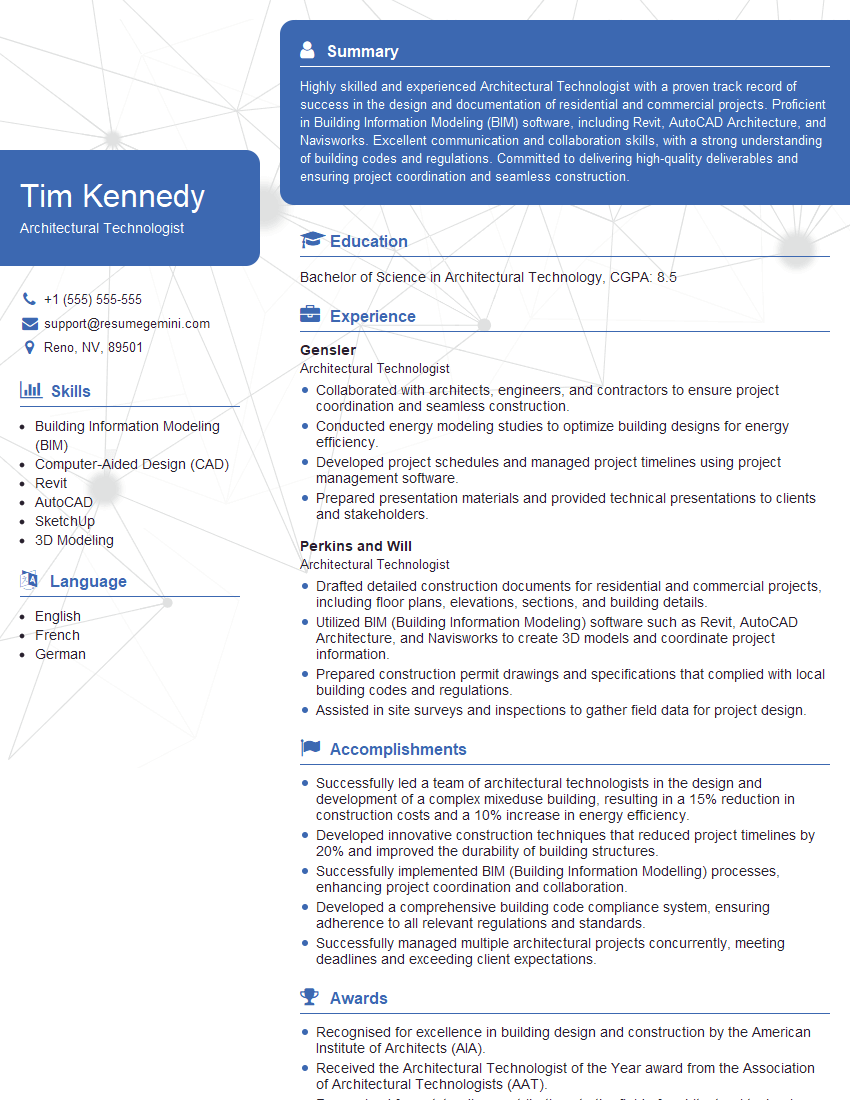
Architectural Technologist Resume Sample

Design Technician Resume Sample
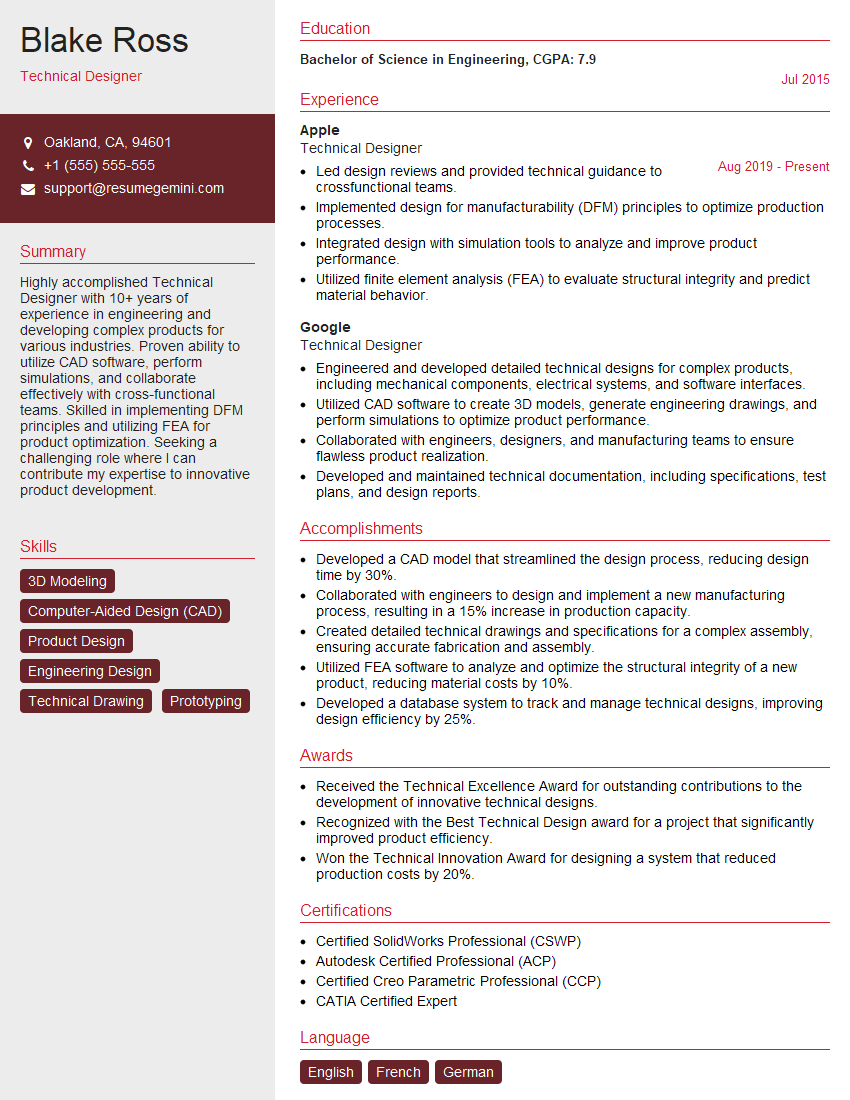
Technical Designer Resume Sample

3D Modeler Resume Sample
Explore more articles
Users Rating of Our Blogs
Share Your Experience
We value your feedback! Please rate our content and share your thoughts (optional).
What Readers Say About Our Blog
I Redesigned Spongebob Squarepants and his main characters of my artwork.
https://www.deviantart.com/reimaginesponge/art/Redesigned-Spongebob-characters-1223583608
IT gave me an insight and words to use and be able to think of examples
Hi, I’m Jay, we have a few potential clients that are interested in your services, thought you might be a good fit. I’d love to talk about the details, when do you have time to talk?
Best,
Jay
Founder | CEO