The right preparation can turn an interview into an opportunity to showcase your expertise. This guide to Jupyter interview questions is your ultimate resource, providing key insights and tips to help you ace your responses and stand out as a top candidate.
Questions Asked in Jupyter Interview
Q 1. Explain the difference between Jupyter Notebook and JupyterLab.
Jupyter Notebook and JupyterLab are both interactive computing environments, but they differ significantly in their user interface and features. Think of Jupyter Notebook as a single document, like a Word file, while JupyterLab is a more sophisticated workspace, similar to a desktop environment where you can manage multiple notebooks, terminals, code editors, and other tools concurrently.
- Jupyter Notebook: A web-based application that allows you to create and share documents that contain live code, equations, visualizations, and narrative text. It’s simpler and easier to learn for beginners but can become less efficient for large projects.
- JupyterLab: A more advanced, extensible environment that offers a flexible and customizable layout. You can have multiple notebooks, terminals, and file browsers open simultaneously, enhancing productivity for larger or more complex projects. It’s more powerful but has a steeper learning curve.
In essence, Jupyter Notebook is a *part* of the JupyterLab environment. If you’re comfortable with a simple, document-centric approach, Jupyter Notebook is great. If you need more advanced features and a flexible workspace, JupyterLab is the better choice.
Q 2. How do you manage dependencies in a Jupyter Notebook environment?
Managing dependencies in Jupyter is crucial for reproducibility and collaboration. The most common method is using virtual environments along with a package manager like pip or conda. Virtual environments isolate your project’s dependencies from other Python projects on your system, preventing conflicts.
- Using
conda(recommended):condais a powerful package and environment manager. To create a new environment:
conda create -n myenv python=3.9- Activate the environment:
conda activate myenv- Install packages:
conda install pandas numpy scipy- Using
pip:pipis another package manager, often used within a virtual environment created usingvenv.
python3 -m venv myenv- Activate the environment (may vary slightly depending on your OS):
source myenv/bin/activate- Install packages:
pip install pandas numpy scipyAfter installing your dependencies, you can then use these packages within your Jupyter Notebook. Remember to always specify your environment before launching Jupyter to ensure your notebook uses the correct packages.
Using a requirements.txt file is also best practice for documenting your dependencies. This makes it easy for others to reproduce your environment. You can create this file using: pip freeze > requirements.txt.
Q 3. Describe different ways to create and manage cells in a Jupyter Notebook.
Jupyter Notebooks are organized into cells, which can contain code, Markdown, or raw text. Managing cells is fundamental to creating and maintaining your notebooks.
- Creating Cells: You can insert a new cell above or below the currently selected cell using the menu options (Insert > Insert Cell Above/Below) or the keyboard shortcuts (
Esc + bfor below,Esc + afor above). - Cell Types: You can change the type of a cell using the dropdown menu in the toolbar or the keyboard shortcut (
Esc + yfor code,Esc + mfor Markdown). - Moving Cells: Use the up/down arrow keys or drag-and-drop to reposition cells within the notebook.
- Merging Cells: Select multiple cells and use the menu option (Edit > Merge Cells) to combine them.
- Splitting Cells: Place the cursor where you want to split and use the menu option (Edit > Split Cell).
- Deleting Cells: Use the keyboard shortcut (
d + d) or the menu option (Edit > Delete Cells).
Proficiently managing cells is key to organizing your code and creating a clear and readable notebook. Consider grouping related code sections into cells and using Markdown cells to add explanations and context.
Q 4. How do you handle large datasets within Jupyter Notebooks?
Working with large datasets in Jupyter Notebooks requires strategies to avoid memory issues and ensure efficient processing. Loading the entire dataset into memory is often infeasible. Here are some approaches:
- Dask: Dask is a parallel computing library that allows you to process large datasets in chunks, distributing the workload across multiple cores. It’s particularly useful for numerical and scientific computing tasks.
- Vaex: Vaex is a high-performance Python library for out-of-core dataframes. It lets you work with datasets much larger than your available RAM by utilizing memory mapping and lazy evaluation.
- Pandas with chunking: Even with Pandas, you can process large CSV or other files in chunks using the
chunksizeparameter in theread_csv()function. This reads the data in manageable portions. - Sampling: If your dataset is massive and you only need a representative subset for analysis, then consider sampling a portion of your data before loading into your notebook.
- Data reduction techniques: Employ data reduction techniques to summarize or aggregate data before analysis, reducing the volume of data you need to handle.
Choosing the right approach depends on the nature of your data and your computational resources. Dask and Vaex are powerful choices for very large datasets, while chunking with Pandas is a good approach for moderately large ones.
Q 5. Explain the use of magic commands in Jupyter Notebooks.
Magic commands in Jupyter Notebooks are special commands that provide additional functionality beyond standard Python. They typically start with a % (line magic) or %% (cell magic) prefix. They extend Jupyter’s capabilities and streamline common tasks.
%timeit: Measures the execution time of a single line of code.
%timeit sum(range(1000))%%time: Measures the execution time of an entire cell.
%%time
for i in range(1000):
  pass
%matplotlib inline: Displays plots directly within the notebook.
%matplotlib inline
import matplotlib.pyplot as plt
plt.plot([1, 2, 3])%lsor!ls: Lists files in the current directory (similar to the shell command).
!ls%who: Lists all currently defined variables in the kernel’s namespace.
Magic commands significantly boost your productivity by allowing direct interaction with the operating system, measuring performance, and controlling the display of output.
Q 6. How can you improve the performance of your Jupyter Notebooks?
Improving the performance of Jupyter Notebooks involves several strategies, focusing on both code optimization and environment configuration.
- Optimize your code: Use efficient data structures (e.g., NumPy arrays instead of lists), avoid unnecessary loops, and vectorize computations whenever possible. Profiling tools can identify bottlenecks in your code.
- Use appropriate libraries: Leverage libraries like NumPy, Pandas, and Dask that are optimized for numerical and data manipulation tasks.
- Close unused kernels: Running multiple kernels can consume significant resources. Close kernels you’re not actively using.
- Upgrade your hardware: More RAM and a faster processor will significantly improve the notebook’s performance, particularly when dealing with large datasets.
- Restart the kernel: Sometimes a simple restart can clear memory leaks or other issues that are slowing down your notebook.
- Use appropriate data structures: Choose the right data structure for the task (e.g., use NumPy arrays for numerical computation, Pandas DataFrames for tabular data).
- Use Generators instead of Lists: When dealing with large data use generators that produce data on-demand instead of creating the entire list in memory.
By combining code optimization and efficient resource management, you can dramatically improve the speed and responsiveness of your Jupyter Notebooks.
Q 7. How do you share Jupyter Notebooks with collaborators?
Sharing Jupyter Notebooks with collaborators is facilitated by several methods, each with its own advantages and disadvantages.
- GitHub: GitHub is excellent for version control and collaborative editing. You can create a repository, commit your notebooks, and allow collaborators to contribute and review the changes.
- NBViewer: NBViewer allows you to render and share your notebooks publicly even without a GitHub repository. It’s simple to use and suitable for quick sharing.
- JupyterHub: JupyterHub provides a multi-user server that allows you to deploy your notebooks for others to access and work on remotely in a collaborative setting.
- Google Colab: Google Colaboratory is a cloud-based platform that lets you easily share and collaborate on notebooks. It’s convenient for quick sharing, but has some limitations on data persistence.
- Exporting to other formats: You can export your notebooks to various formats like HTML, PDF, or Python scripts, enhancing accessibility.
The best method depends on your workflow and the level of collaboration required. GitHub is generally preferred for serious projects and version control, while simpler methods work well for quick sharing.
Q 8. Describe different methods for version control of Jupyter Notebooks.
Version control is crucial for any collaborative project, and Jupyter Notebooks are no exception. Think of it like saving different versions of a document, allowing you to revert to earlier states or compare changes. Several methods exist for version controlling Jupyter Notebooks:
Git: This is the most popular choice. Git is a distributed version control system that tracks changes to files over time. You can use Git directly from your terminal or through a GUI client like GitHub Desktop or Sourcetree. Integrating Git with Jupyter Notebooks involves committing your notebook files (typically `.ipynb` files) to a repository. This allows you to track every change, branch out for experimental features, and collaborate seamlessly with others.
GitHub, GitLab, Bitbucket: These are popular platforms that host Git repositories. They provide convenient web interfaces for managing your repositories, including features like pull requests, code review, and issue tracking. These are ideal for team projects and publicly sharing your work.
Other Version Control Systems (e.g., Mercurial, SVN): While less common for Jupyter Notebooks, other version control systems can also be used. The principles remain the same: track changes and manage different versions of your notebook files.
Example (using Git): After making changes to your notebook, you would use commands like git add ., git commit -m "Added new analysis", and git push origin main (or similar commands based on your remote repository configuration).
Q 9. How do you troubleshoot common Jupyter Notebook errors?
Troubleshooting Jupyter Notebook errors requires a systematic approach. First, carefully read the error message. It often provides valuable clues about the location and nature of the problem. Here are some common issues and their solutions:
Kernel Errors: If the kernel dies (often indicated by a message like “The kernel appears to have died”), try restarting the kernel. This clears up any memory leaks or internal errors. Sometimes, restarting the Jupyter server is necessary. If this problem persists, check your code for infinite loops or computationally intensive tasks that might overwhelm the kernel.
Import Errors (e.g.,
ModuleNotFoundError): This means Python cannot find the required library. Ensure the library is installed usingpip install <library_name>orconda install <library_name>. Also, check that your import statement is correct (correct casing and spelling).Syntax Errors: Python will highlight syntax errors directly in the notebook. Carefully review the line indicated by the error message. Common mistakes include incorrect indentation, missing colons, or typos.
Runtime Errors (e.g.,
TypeError,NameError,IndexError): These errors occur during code execution. Examine the surrounding code carefully, checking data types, variable names, and array indices. Using a debugger (discussed later) can be incredibly helpful here.Cell Execution Order: Jupyter executes cells sequentially. If the order of your cell execution is incorrect, it can lead to unexpected errors. Make sure dependent cells are executed in the proper order.
Debugging often involves a combination of careful code inspection, using print statements to check intermediate values, and employing debugging tools.
Q 10. Explain how to use Markdown in Jupyter Notebooks for documentation.
Markdown is a lightweight markup language used to create formatted text. In Jupyter Notebooks, Markdown cells allow you to write formatted text, including headings, lists, bold text, and even embed images and links directly within your notebook. This makes it an excellent tool for documentation and creating visually appealing reports.
Headings: Use `#` for headings (e.g., `# My Report`, `## Section 1`).
Bold and Italics: Use `**bold text**` and `*italic text*`.
Lists: Use `*` or `-` for unordered lists, and `1.` for ordered lists.
Links: Use `[Link text](URL)` (e.g., `[Google](https://www.google.com)`).
Images: Use `` (e.g., ``).
Example:
# My Data Analysis Report ## Introduction This report summarizes the analysis of... * Key Finding 1 * Key Finding 2 **Important Note:** Remember to...By combining code cells with Markdown cells, you can create interactive documents that seamlessly blend code, results, and explanations, making your work much easier to understand and share.
Q 11. What are Jupyter extensions, and give examples of useful ones.
Jupyter extensions add extra functionality to your Jupyter Notebook environment. Think of them as plugins that enhance your workflow. They range from simple enhancements to powerful tools.
Table of Contents (nbextensions_toc): Generates a table of contents for easy navigation in large notebooks.
Variable Inspector (variableinspector): Provides a visual representation of the variables in your current notebook’s memory, making it easier to track values.
Code Prettifier (hinterland): Automates code formatting for improved readability.
Jupyter Notebook Cell Tags (jupyter-notebook-cell-tags): Allows you to tag cells with metadata, aiding organization and filtering.
RISE (Reveal.js Jupyter/IPython Slideshow Extension): Transforms your notebook into a slideshow presentation.
You typically install extensions using pip install jupyter_contrib_nbextensions and then enable them through the Jupyter Notebook extension manager.
Q 12. How do you debug code within a Jupyter Notebook?
Debugging in Jupyter Notebooks can be done in a few ways:
Print Statements: The simplest method. Insert
print()statements to display variable values at various points in your code. This is effective for simple debugging, but can become cumbersome for larger projects.Python’s
pdb(Python Debugger): Insertimport pdb; pdb.set_trace()in your code. This will pause execution at that point, allowing you to inspect variables, step through the code line by line, and set breakpoints. It’s a more powerful approach for complex debugging scenarios.Integrated Development Environments (IDEs): IDEs like VS Code, Spyder, or PyCharm offer robust debugging tools that integrate seamlessly with Jupyter Notebooks. These typically offer features like breakpoints, stepping, variable inspection, and call stacks, providing a more visual and user-friendly debugging experience.
Example using pdb:
import pdb def my_function(x, y): result = x + y pdb.set_trace() # Debugging breakpoint return result my_function(5, 3)This will pause execution at the breakpoint, allowing you to examine the values of `x`, `y`, and `result` using pdb commands.
Q 13. Explain the concept of kernels in Jupyter.
A kernel is the computational engine that executes the code within a Jupyter Notebook. Think of it as the brains behind the notebook. Each notebook is associated with a specific kernel, and the kernel determines the programming language used for code execution. Jupyter supports various kernels, including:
Python: The most common kernel, allowing you to write and execute Python code.
R: For executing R code.
Julia: For executing Julia code.
JavaScript: And many others, depending on your installed kernels.
Choosing the appropriate kernel depends on the programming language your code is written in. When you open a notebook, Jupyter will automatically select a kernel (usually the default Python kernel) or provide options to select a different kernel. Switching kernels allows you to work with different programming languages within a single Jupyter environment.
Q 14. How do you integrate Jupyter Notebooks with other tools or platforms?
Jupyter Notebooks can be integrated with various tools and platforms to enhance productivity and streamline workflows.
Version Control Systems (Git): As discussed earlier, Git is essential for tracking changes and collaborating on notebooks.
Cloud Platforms (e.g., Google Colab, Kaggle Kernels, Azure Notebooks): These platforms provide hosted Jupyter Notebook environments, allowing you to run notebooks remotely without needing to set up a local Jupyter server. They are often integrated with cloud storage and computing resources.
Dashboards and Reporting Tools (e.g., Tableau, Power BI): Notebooks can be used to generate data visualizations and analysis. The results can then be exported and integrated into dashboards or reports to share insights with stakeholders.
Automated Workflows (e.g., using tools like `papermill`): You can parameterize and run notebooks programmatically, automating repetitive tasks or creating reproducible analysis pipelines.
Other IDEs: Jupyter Notebooks can be opened and edited using many IDEs including VS Code, providing additional benefits such as enhanced debugging and code completion.
The specific integration methods vary depending on the tool or platform, but often involve exporting data, using APIs, or leveraging libraries designed for interoperability.
Q 15. Discuss the benefits and drawbacks of using Jupyter for different types of data analysis.
Jupyter Notebooks are incredibly versatile for various data analysis tasks, but their suitability depends on the specific needs. Let’s explore the benefits and drawbacks:
Benefits:
Interactive Exploration: Jupyter’s interactive nature allows for iterative data exploration. You can easily test different approaches, visualize results immediately, and refine your analysis in real-time. Think of it like a digital lab notebook, where you can record your entire workflow alongside the results.
Reproducibility: Jupyter Notebooks integrate code, visualizations, and explanatory text. This makes sharing and reproducing your analysis much easier compared to just sharing raw code. This is crucial for collaboration and ensuring your findings are verifiable.
Data Visualization: Libraries like Matplotlib, Seaborn, and Plotly integrate seamlessly with Jupyter, allowing you to create a wide range of interactive visualizations directly within the notebook. This makes it easy to communicate insights effectively.
Multiple Languages: Jupyter supports various programming languages (Python, R, Julia, etc.) through kernels, enabling diverse analytical approaches within a single environment. For example, you could use Python for data cleaning and machine learning, then switch to R for statistical modeling.
Drawbacks:
Version Control Challenges: Managing versions of Jupyter Notebooks can be tricky, especially in collaborative projects. Tools like Git are necessary for effective version control, but integrating them requires discipline and understanding.
Reproducibility Issues (Without Careful Planning): While Jupyter facilitates reproducibility, it’s not automatic. If you rely on external data sources or specific library versions, inconsistencies can easily arise unless these dependencies are explicitly managed (e.g., using virtual environments and requirements.txt).
Scalability Limitations: Jupyter is less suitable for extremely large datasets or computationally intensive tasks. For such scenarios, more specialized tools and distributed computing frameworks are often necessary.
Security Concerns: If notebooks contain sensitive information, robust security measures are paramount to prevent unauthorized access or data breaches, particularly when sharing or deploying.
Career Expert Tips:
- Ace those interviews! Prepare effectively by reviewing the Top 50 Most Common Interview Questions on ResumeGemini.
- Navigate your job search with confidence! Explore a wide range of Career Tips on ResumeGemini. Learn about common challenges and recommendations to overcome them.
- Craft the perfect resume! Master the Art of Resume Writing with ResumeGemini’s guide. Showcase your unique qualifications and achievements effectively.
- Don’t miss out on holiday savings! Build your dream resume with ResumeGemini’s ATS optimized templates.
Q 16. How do you create interactive visualizations within Jupyter?
Creating interactive visualizations in Jupyter is straightforward thanks to powerful plotting libraries. Here’s how:
1. Choose a Library: Popular choices include Matplotlib, Seaborn (built on Matplotlib, offering higher-level statistical plots), Plotly (for interactive web-based visualizations), and Bokeh (another interactive library, great for dashboards).
2. Install Libraries: Use pip or conda to install the libraries you need. For example: pip install matplotlib seaborn plotly
3. Generate Plots: Write code within your Jupyter Notebook to create your visualizations using the selected library’s functions.
Example using Plotly:
import plotly.express as px
data = {'x': [1, 2, 3], 'y': [4, 1, 2]}
fig = px.scatter(data, x='x', y='y')
fig.show()
This code generates a simple interactive scatter plot. Plotly provides many options for customization and interactivity, such as zooming, panning, and hover tooltips.
Example using Matplotlib:
import matplotlib.pyplot as plt
plt.plot([1, 2, 3, 4], [5, 6, 7, 8])
plt.show()
This creates a simple line plot. Matplotlib is extremely versatile but generally requires more explicit coding for complex plots. Seaborn bridges the gap by offering higher-level functions for statistically informative plots.
Q 17. Describe your experience with JupyterHub and its administration.
My experience with JupyterHub centers around its ability to manage multiple Jupyter Notebook servers for users within an organization or team. This makes it excellent for teaching, collaborative projects, and providing centralized access to computational resources.
Administration involves several key aspects:
- User Management: Setting up user accounts, authentication methods (e.g., local authentication, OAuth), and authorization (defining user permissions and access control). We typically use authentication providers like GitHub or Google for smoother user onboarding.
- Server Configuration: Configuring the JupyterHub server itself, including specifying resources (CPU, memory, storage) allocated per user, setting up custom environments or kernels, and selecting a suitable scheduler (e.g., systemd, Kubernetes).
- Monitoring & Maintenance: Regularly monitoring server performance, resource utilization, and log files to identify and resolve issues proactively. This also involves keeping the JupyterHub software and related packages updated for security and performance improvements.
- Security: Implementing robust security measures is crucial. This involves using HTTPS, restricting access using IP whitelisting, and potentially integrating with network security tools for added protection. Regular security audits and penetration testing are highly recommended.
- Scalability: For larger deployments, careful planning is needed to scale JupyterHub effectively. This might involve using containerization (Docker) and orchestration tools (Kubernetes) to manage multiple JupyterHub instances and automatically scale resources based on demand.
In my experience, a well-administered JupyterHub provides a smooth, reliable, and secure environment for collaborative data science work. Effective planning and proactive monitoring are key to ensuring a successful deployment.
Q 18. How do you use Jupyter for reproducible research?
Reproducible research is essential for ensuring the validity and transparency of scientific findings. Jupyter Notebooks play a vital role in this by integrating code, results, and narrative within a single document.
Here’s how to use Jupyter for reproducible research:
Version Control (Git): Use Git to track changes to your notebooks and other project files. This allows you to revert to previous versions, branch for parallel work, and collaborate effectively with others. This is paramount for traceability.
Detailed Documentation: Clearly document your code, data sources, methods, and any assumptions you make. Use Markdown cells in your Jupyter Notebook to provide context and explain your decisions. This increases transparency and understanding.
Environment Management (Virtual Environments): Use virtual environments (e.g., conda or venv) to isolate project dependencies. This ensures that your code runs consistently across different machines and prevents conflicts between different projects. Having a
requirements.txtfile is crucial for reproducibility.Data Management: Carefully manage your data. Clearly label your datasets, store them in a structured manner, and document their origin and any preprocessing steps. Consider storing your data in a version control system as well to track changes to the data itself.
Containerization (Docker): For more complex projects, containerizing your environment using Docker can guarantee a perfectly reproducible environment regardless of the operating system or machine architecture. This is particularly useful for sharing your research with others.
By following these practices, you can significantly improve the reproducibility and transparency of your research, making it easier for others to validate your findings and build upon your work.
Q 19. How can you create and use custom Jupyter kernels?
Custom Jupyter kernels allow you to use different programming languages within the Jupyter Notebook environment beyond the default Python kernel. This is invaluable when you need to integrate code from different languages in a single project.
Creating a Custom Kernel: This typically involves the following steps:
Kernel Specification: You’ll need to create a kernel specification file (usually a JSON file) that tells Jupyter where to find the interpreter for your custom language. This includes details like the interpreter path, display name, language information etc.
Interpreter Setup: Ensure your custom language interpreter is properly installed and accessible on your system. The kernel specification file needs to point to the correct location.
Kernel Development (Advanced): For more sophisticated kernels, you might need to write code (in the language you’re creating the kernel for) that handles communication between the Jupyter frontend and your language interpreter. This involves implementing protocol messages to execute code and receive results.
Installation: Once the kernel specification is created, you can install it in Jupyter by placing it in the appropriate directory (usually found by running
jupyter --paths). Jupyter will automatically detect the kernel and make it available for selection.
Example (Simplified): Imagine you want to use the R language. After installing R and the necessary R packages, you might find a pre-built R kernel already available (such as the IRkernel). The installation involves using the corresponding R package installer, thereby making it available.
Using a custom kernel is as simple as selecting it from the ‘New’ notebook dropdown menu in the Jupyter interface.
Q 20. How do you secure Jupyter Notebooks?
Securing Jupyter Notebooks is crucial, especially when dealing with sensitive data. Here are some key strategies:
Authentication: Use strong authentication mechanisms like password protection, multi-factor authentication, or integrating with enterprise authentication systems like LDAP or OAuth. Avoid default passwords.
Authorization: Restrict access to Jupyter Notebooks and associated resources using roles and permissions. This means only authorized users should have access to specific notebooks or directories.
HTTPS: Always use HTTPS to encrypt communication between your browser and the Jupyter server. This protects against eavesdropping and data interception.
Network Security: Control access to the Jupyter server through firewalls, restricting access to specific IP addresses or subnets. This prevents unauthorized external access.
Regular Updates: Keep Jupyter and its dependencies up to date to patch security vulnerabilities. Regular security scans are a good idea.
Least Privilege: Run Jupyter with the least privileges necessary. This limits the damage that could be done if the server is compromised.
JupyterHub for Collaboration: If you’re working collaboratively, use JupyterHub to manage user access and resource allocation securely.
Avoid Sharing Sensitive Data Directly: Don’t include sensitive data (passwords, API keys, etc.) directly in your notebooks. Use environment variables or secure configuration files to store this information separately.
A layered security approach is necessary. No single measure is sufficient; a combination of these strategies offers the best protection.
Q 21. How do you handle different file types within Jupyter?
Jupyter excels at handling various file types through its ability to integrate with external libraries and system commands. The approach varies slightly depending on the file type:
Text Files (CSV, TXT, JSON): Libraries like Pandas (for CSV and JSON) and the built-in
open()function (for text files) provide efficient ways to read and manipulate data. Pandas, in particular, makes data cleaning and manipulation straightforward.Images: Libraries like Matplotlib, Pillow, or OpenCV can be used to load, process, and display images. You might use Matplotlib to overlay visualizations on images for analysis.
Audio/Video: Libraries like Librosa (for audio) and OpenCV (for video) allow the analysis and manipulation of multimedia files. This is useful for tasks like audio signal processing or video analysis.
Binary Files: Handling binary files usually requires specialized libraries depending on the file format. The approach involves using the relevant library to read the data in the correct format.
Database Interaction: Libraries like SQLAlchemy and database connectors (e.g., for MySQL, PostgreSQL) allow you to interact with databases. You can load data from databases directly into your notebooks and perform analysis.
System Commands: For certain file types or operations, you can use the
!prefix to execute shell commands directly within your notebook. For example,!ls -llists files in a directory; however, using libraries is generally preferred for data manipulation as it results in more reproducible and manageable code.
The choice of the method for handling different file types depends on the specific task, and often involves using suitable libraries to read, process, and write data effectively.
Q 22. What are your preferred methods for exporting results from Jupyter Notebooks?
Exporting results from Jupyter Notebooks is crucial for sharing your work and integrating it into larger projects. My preferred methods depend on the type of output I need. For sharing with colleagues who might not have Jupyter installed, I frequently export to HTML, creating a static webpage that’s easily viewed in any browser. This preserves formatting, including code and output, making it ideal for reports.
For reproducible analysis, I often export to PDF. This generates a clean, printable document suitable for formal reports or presentations. The PDF format ensures the integrity of the document’s layout and contents.
If I need to share the notebook’s underlying code for others to run or modify, I export to .ipynb format, preserving all code, outputs, and metadata. This maintains full interactivity. Finally, for integration into data pipelines or further processing, exporting to other formats like CSV or JSON for data manipulation is also useful. The choice ultimately depends on the intended audience and use case.
Q 23. Explain your approach to documenting your code in Jupyter Notebooks.
Documentation is paramount for ensuring code readability, maintainability, and collaboration. In Jupyter Notebooks, I use a multi-pronged approach. First, I begin each notebook with a clear and concise title and a description explaining its purpose and methodology. Then, within the notebook, I use Markdown cells extensively.
I add Markdown cells above each code section to explain what the code does, including its inputs, outputs, and any important assumptions. I use headings (#, ##, etc.) to structure the notebook logically. Within the Markdown cells, I also include mathematical equations (using LaTeX) when appropriate, for clear explanations of formulas or algorithms. Inline comments within the code itself further clarify complex steps or logic.
For more formal documentation or longer projects, I also generate a separate README file alongside the notebook. This README summarizes the project, installation instructions (if applicable), usage examples, and details on data sources. Consistent and clear documentation improves not just the understanding of my work but also its reusability over time.
Q 24. Describe a challenging Jupyter-related problem you faced and how you solved it.
I once encountered a significant performance bottleneck while processing a large dataset (several gigabytes) within a Jupyter Notebook. My code, which involved extensive data manipulation using Pandas, was incredibly slow, making interactive exploration nearly impossible. Initially, I suspected a problem with my algorithm, but profiling showed that the bottleneck was I/O-bound—the notebook was struggling to load the data into memory.
My solution involved a multi-step approach. First, I switched to Dask, a library that allows parallel and out-of-core computation. Dask efficiently handles large datasets by dividing them into smaller chunks and processing them in parallel. Second, I optimized data loading, using techniques like reading the data in batches instead of loading everything at once. Finally, I carefully optimized my Pandas operations, using vectorized functions whenever possible to minimize loop iterations. This combined approach dramatically reduced processing time, making the analysis interactive and manageable.
Q 25. What are the limitations of using Jupyter for data analysis tasks?
While Jupyter Notebooks are powerful tools for interactive data analysis, they have limitations. One major limitation is scalability. Handling extremely large datasets or computationally intensive tasks can be challenging, as Jupyter’s architecture is not inherently designed for distributed computing. While tools like Dask can mitigate this, it adds complexity.
Another limitation is version control. While Git can be used, managing code, outputs, and metadata effectively within a notebook environment can be cumbersome compared to a dedicated version control system used with traditional scripts. The linear nature of notebooks can make collaboration and tracking changes difficult.
Furthermore, reproducibility can be a concern. Dependencies need to be carefully managed to ensure that others can reproduce your results. Hidden state and unintended side effects from running cells out of order can make notebooks difficult to rerun from scratch. Finally, debugging in Jupyter can be less straightforward than in dedicated IDEs that offer advanced debugging tools.
Q 26. How do you manage memory usage within Jupyter Notebooks?
Managing memory usage in Jupyter is crucial, especially when dealing with large datasets. My approach involves several strategies. First, I always strive to use efficient data structures and algorithms. Pandas’ optimized data structures and vectorized operations can significantly reduce memory footprint compared to using lists or loops.
Second, I avoid unnecessary data duplication. I try to reuse dataframes instead of creating copies whenever possible. I utilize methods like .copy() judiciously. Third, I explicitly clear variables when they are no longer needed using the del keyword. For instance, del large_dataframe will release the memory associated with that dataframe.
For extremely large datasets that exceed available RAM, I leverage libraries like Dask or Vaex, which enable out-of-core computation, minimizing the amount of data loaded into memory at any given time. Finally, restarting the kernel can be a last resort if memory issues persist, clearing all variables and freeing up resources.
Q 27. Discuss your experience with using Jupyter for specific libraries like Pandas, NumPy or Scikit-learn.
I have extensive experience using Jupyter with Pandas, NumPy, and Scikit-learn. Pandas forms the backbone of most of my data analysis workflows within Jupyter. Its ability to handle dataframes makes data cleaning, transformation, and exploration incredibly intuitive. I regularly use Pandas for data manipulation, merging, filtering, and aggregation.
NumPy is essential for numerical computations, particularly when dealing with large arrays. I frequently use NumPy for efficient array operations, linear algebra tasks, and mathematical functions. Its integration with Pandas is seamless, allowing me to easily transition between dataframe operations and raw array manipulations.
Scikit-learn is my go-to library for machine learning tasks in Jupyter. The interactive nature of Jupyter enables rapid experimentation with different models and hyperparameters. I leverage Scikit-learn for model training, evaluation, and prediction, making extensive use of its visualization tools to assess model performance within the notebook itself.
Q 28. Compare and contrast Jupyter Notebook with other IDEs like VS Code or PyCharm for data science tasks.
Jupyter Notebooks, VS Code, and PyCharm all serve different purposes in data science, though they can overlap. Jupyter excels at interactive exploration and visualization. Its cell-based execution model and easy integration with plotting libraries make it ideal for experimentation and prototyping. However, for large projects, advanced debugging, and sophisticated code management, it has limitations.
VS Code and PyCharm are powerful IDEs offering robust debugging tools, integrated version control, and sophisticated code completion features. They are better suited for larger, more complex projects where maintainability and collaboration are crucial. While both support Jupyter notebooks (through extensions in VS Code), their strengths lie in managing entire projects rather than just interactive experimentation. The choice depends on the project’s size, complexity, and the team’s workflow preferences. For quick exploration and prototyping, Jupyter is often preferable; for large-scale projects demanding rigorous code management and debugging, VS Code or PyCharm are generally preferred. Many data scientists use a hybrid approach, leveraging the strengths of both.
Key Topics to Learn for Jupyter Interview
- Jupyter Notebook Interface: Mastering navigation, cell types (code, markdown, raw), and keyboard shortcuts for efficient workflow.
- Python in Jupyter: Demonstrate proficiency in core Python concepts relevant to data science, such as data structures (lists, dictionaries, NumPy arrays), control flow, and functions. Practice writing clean and efficient code.
- Data Manipulation with Pandas: Showcase your skills in data cleaning, transformation, and analysis using Pandas. Be prepared to discuss different data manipulation techniques and their applications.
- Data Visualization with Matplotlib & Seaborn: Practice creating various types of charts and graphs to effectively communicate insights from data. Understand best practices for visualization design.
- Working with External Libraries: Demonstrate familiarity with importing and utilizing external libraries beyond the standard Python library. This could include Scikit-learn for machine learning or other data science tools.
- Version Control (Git): Understanding basic Git commands and workflow for collaborative projects is highly valuable. Be ready to discuss your experience managing code versions in Jupyter.
- Problem-Solving & Debugging: Practice tackling coding challenges within the Jupyter environment. Demonstrate your ability to identify and resolve errors efficiently.
- Interactive Computing Concepts: Understand the power of Jupyter’s interactive nature for exploration and experimentation. Be able to discuss the benefits and limitations of this approach.
- Jupyter Extensions & Magic Commands: Familiarity with common extensions and magic commands can showcase advanced usage and efficiency.
Next Steps
Mastering Jupyter is crucial for success in many data science and related roles. It’s a highly sought-after skill that demonstrates your ability to work with data effectively and communicate findings clearly. To maximize your job prospects, it’s essential to create a strong, ATS-friendly resume that highlights your Jupyter skills. We highly recommend using ResumeGemini to build a professional and impactful resume that grabs recruiters’ attention. ResumeGemini provides examples of resumes tailored to Jupyter roles to help guide you in creating your own compelling application.

Research Associate Resume Sample

Business Analyst Resume Sample

Financial Analyst Resume Sample

Data Analyst Resume Sample

Quantitative Analyst Resume Sample
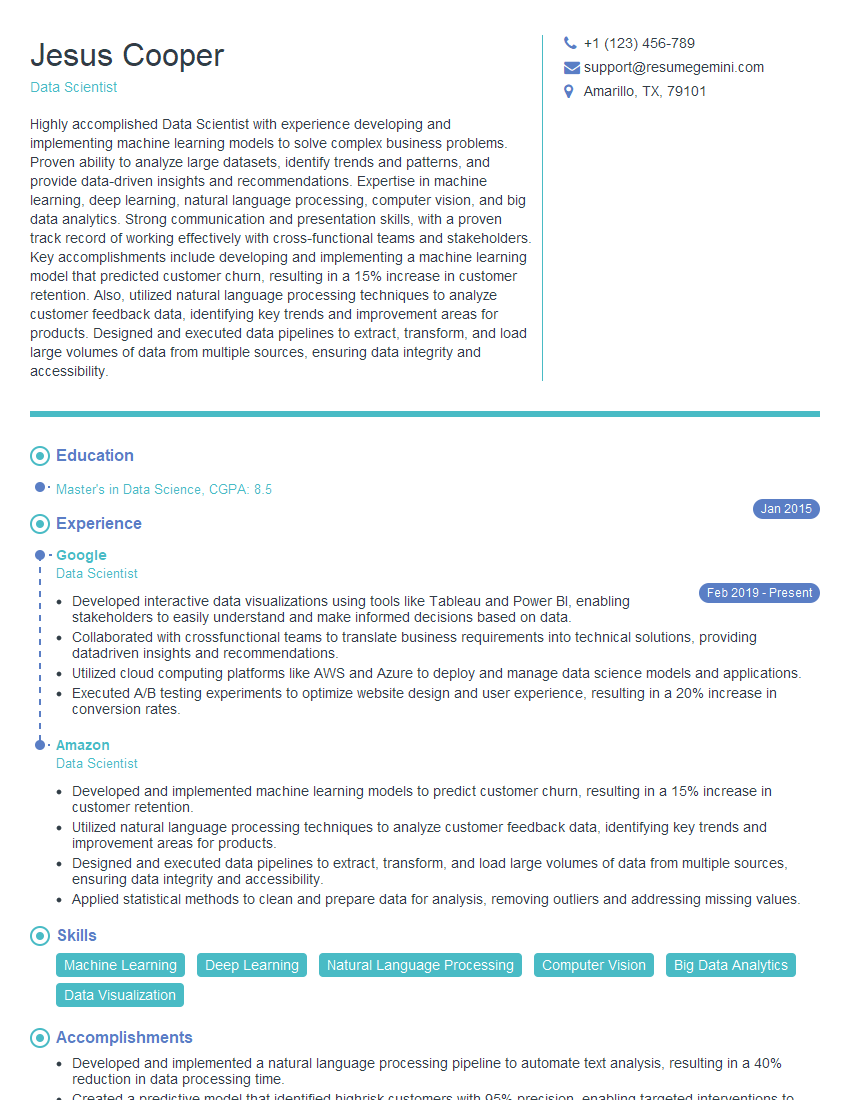
Data Scientist Resume Sample

Research Scientist Resume Sample
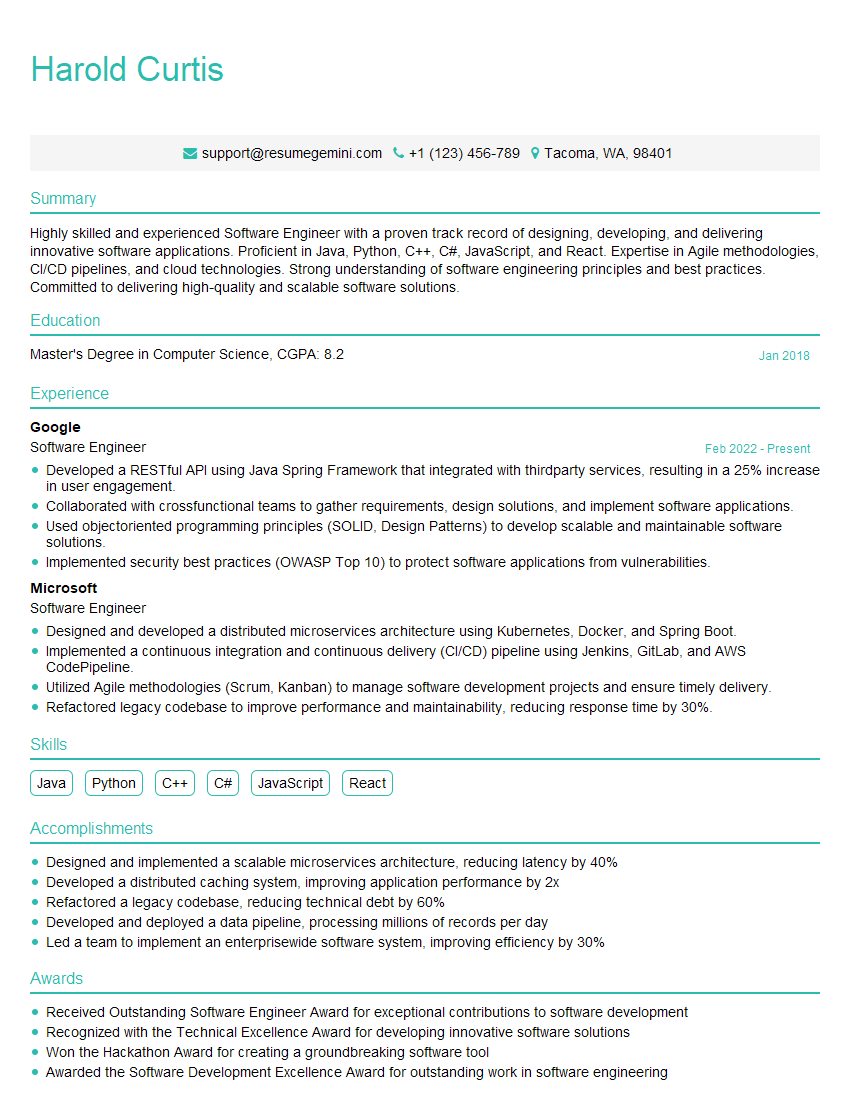
Software Engineer Resume Sample
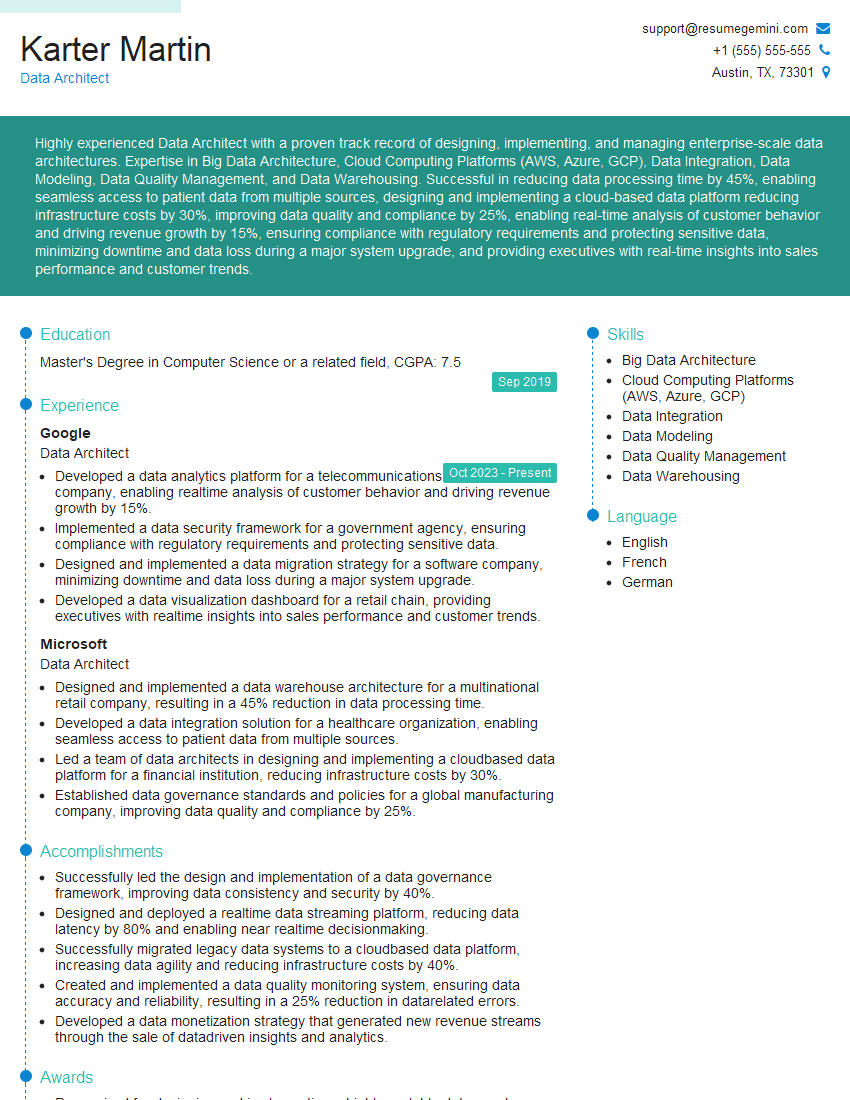
Data Architect Resume Sample

ETL Developer Resume Sample
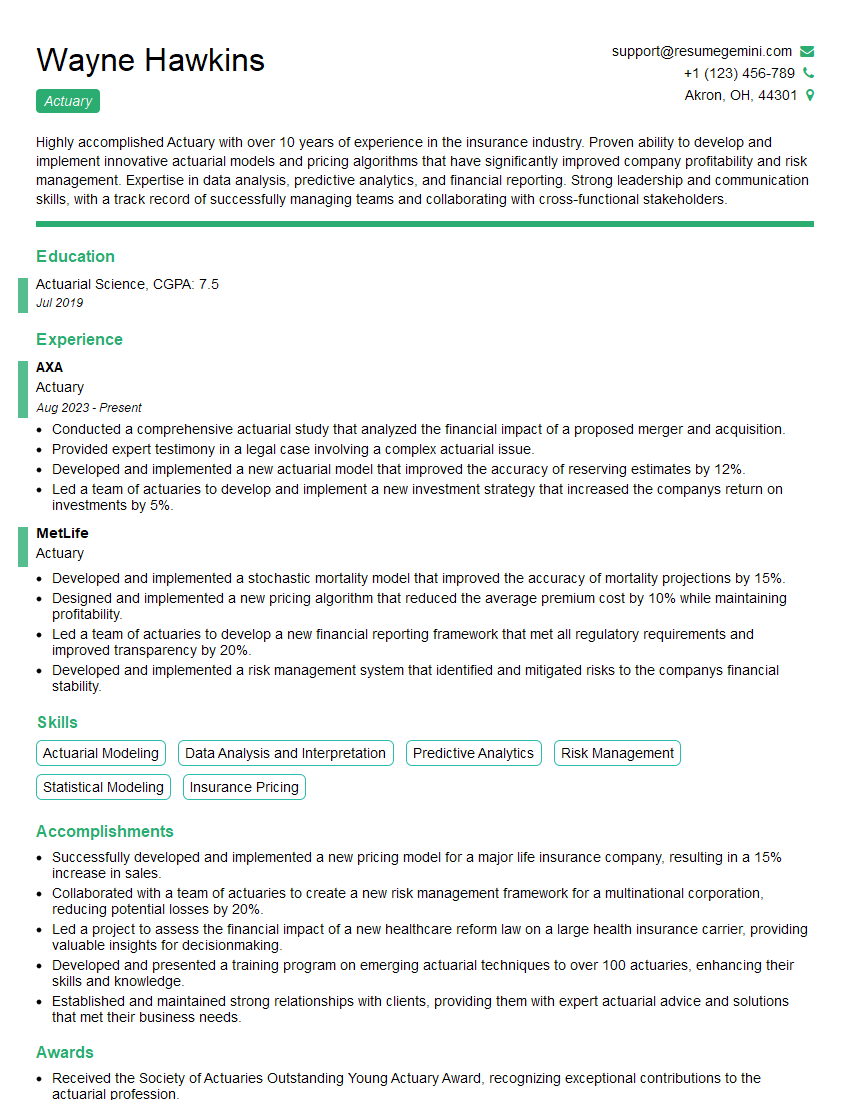
Actuary Resume Sample

Analytics Consultant Resume Sample
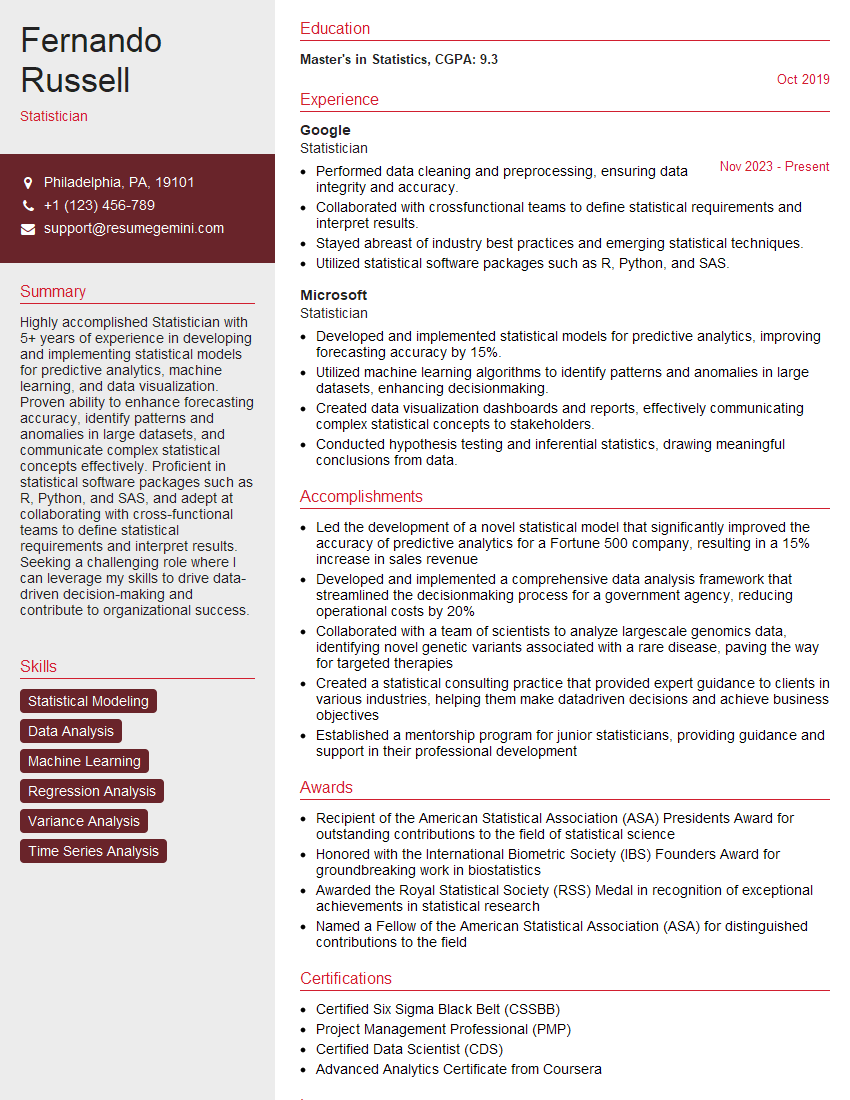
Statistician Resume Sample

Computational Biologist Resume Sample
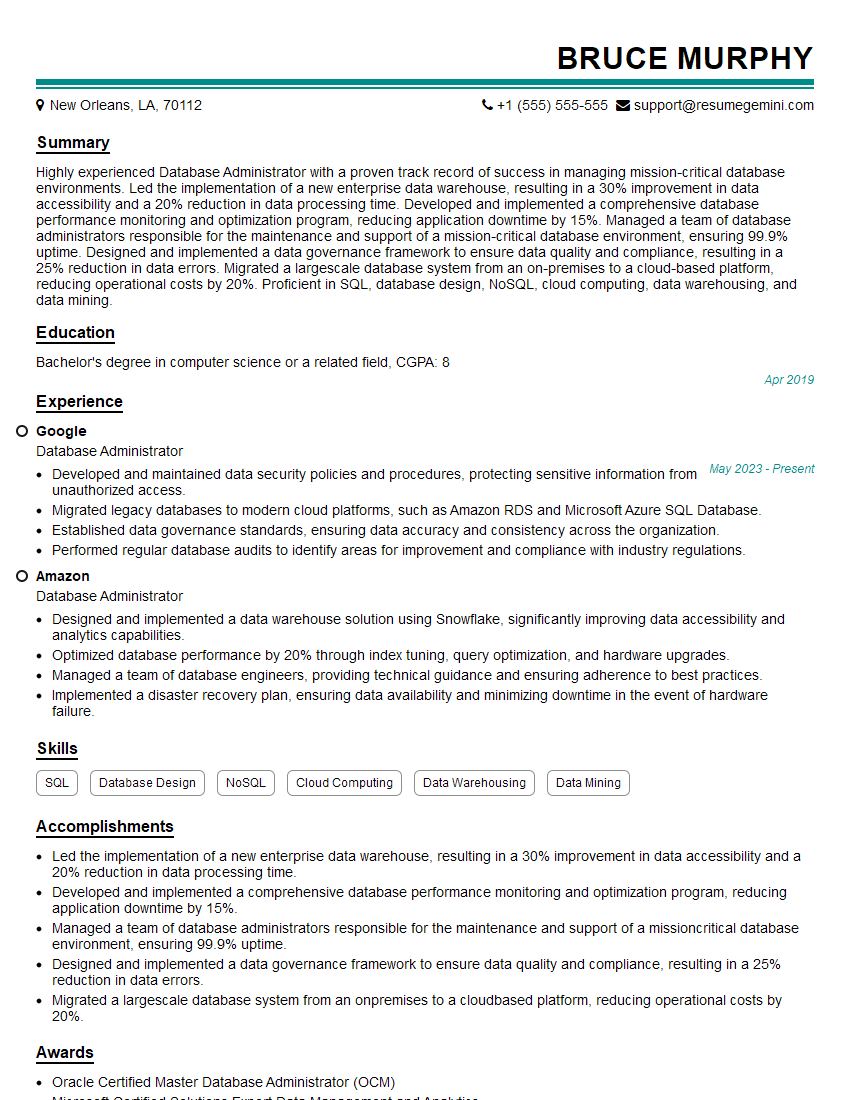
Database Administrator Resume Sample
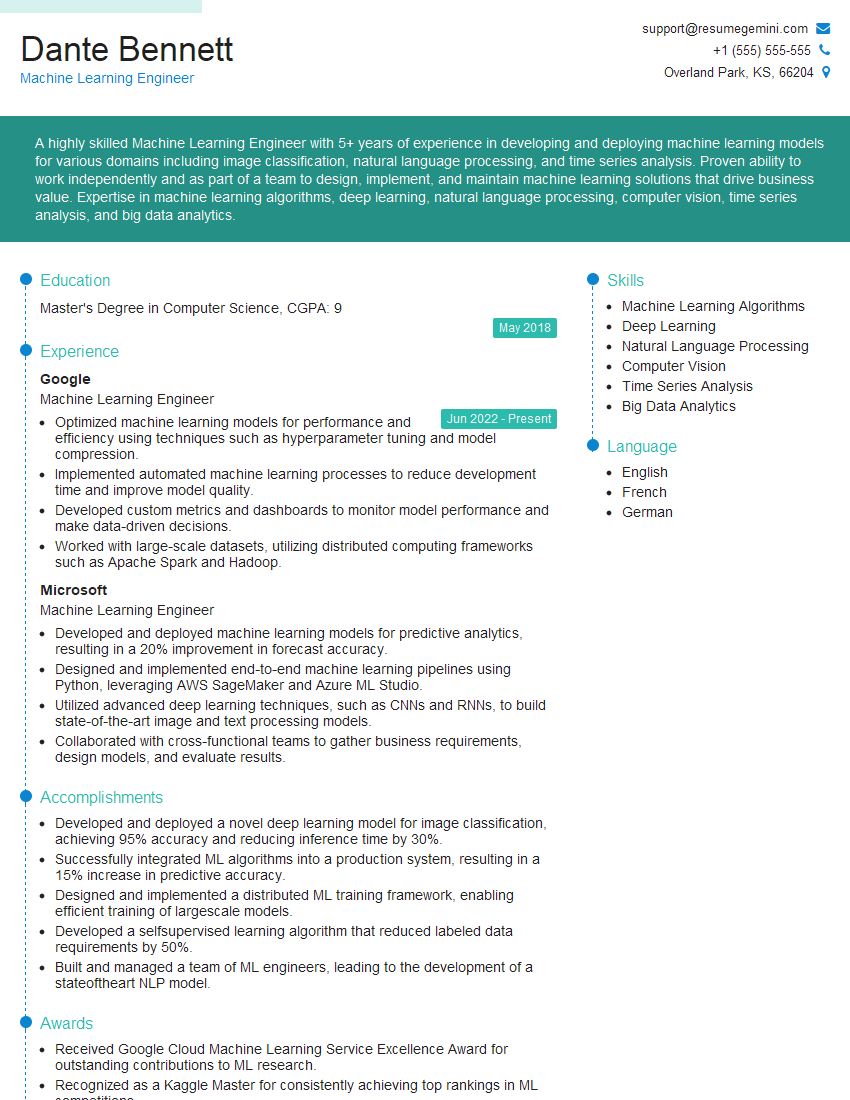
Machine Learning Engineer Resume Sample
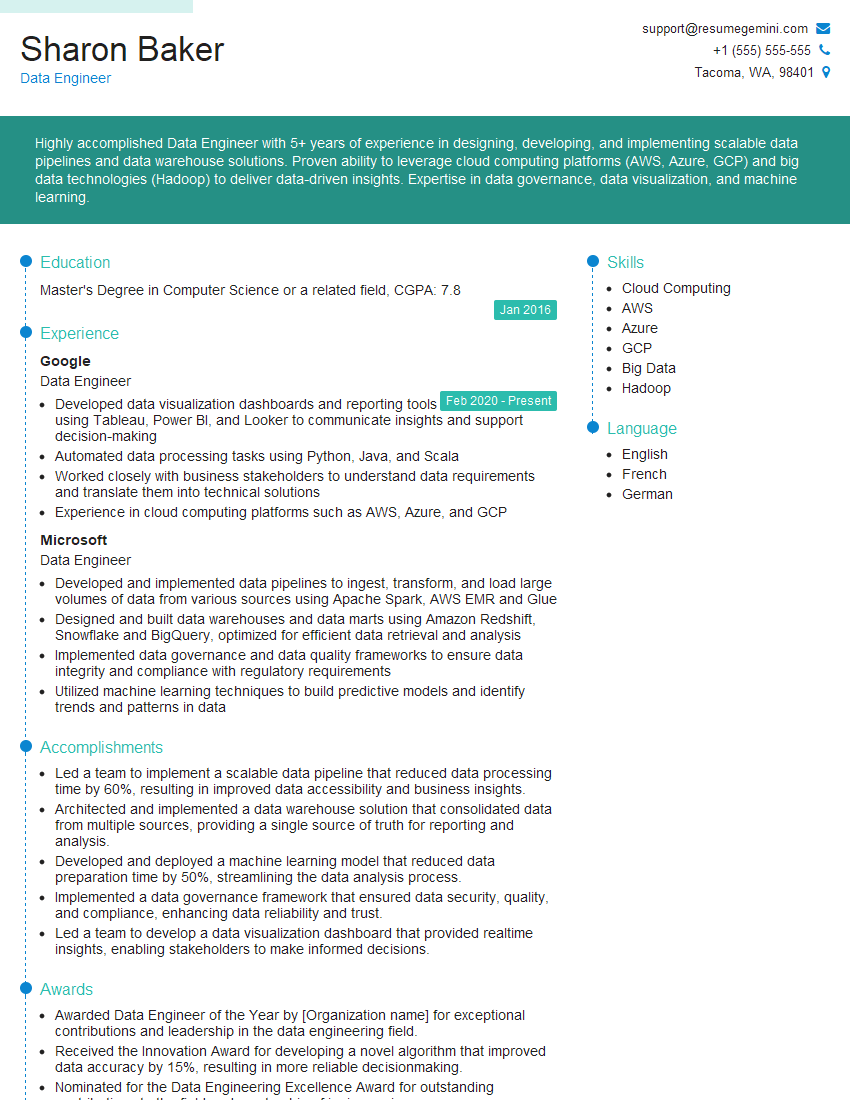
Data Engineer Resume Sample
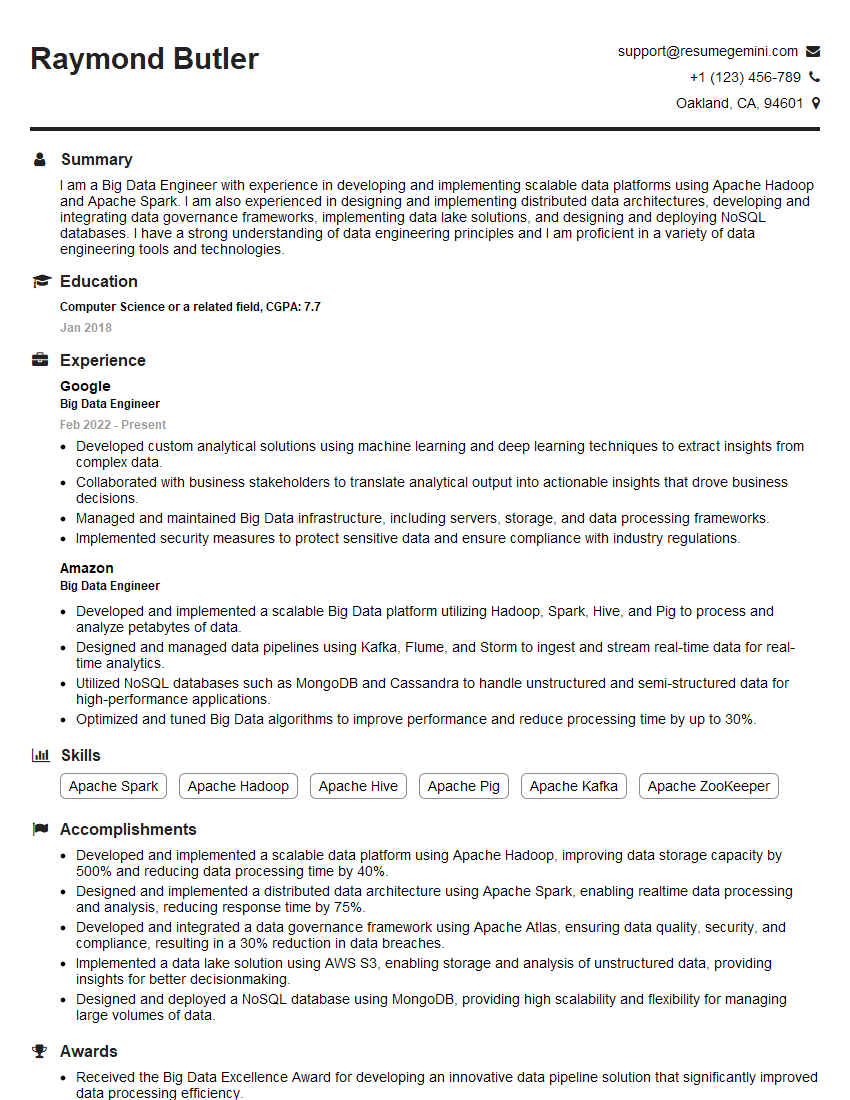
Big Data Engineer Resume Sample
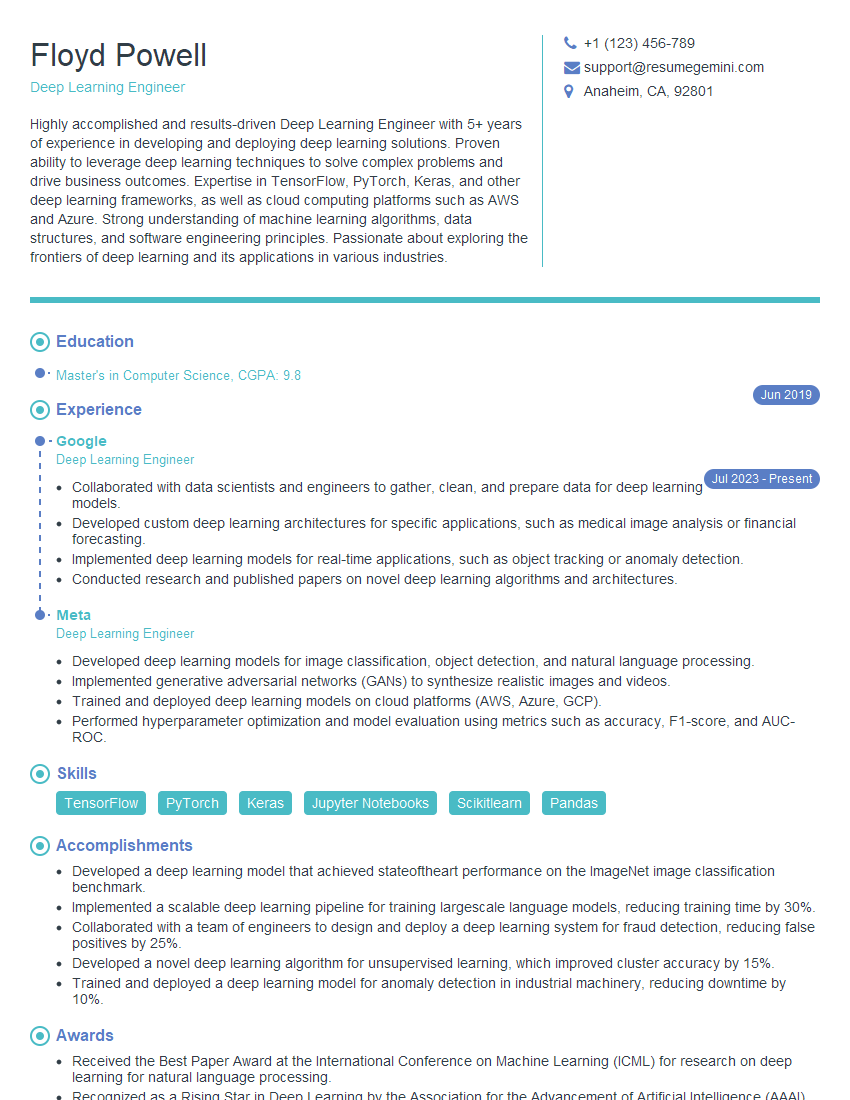
Deep Learning Engineer Resume Sample
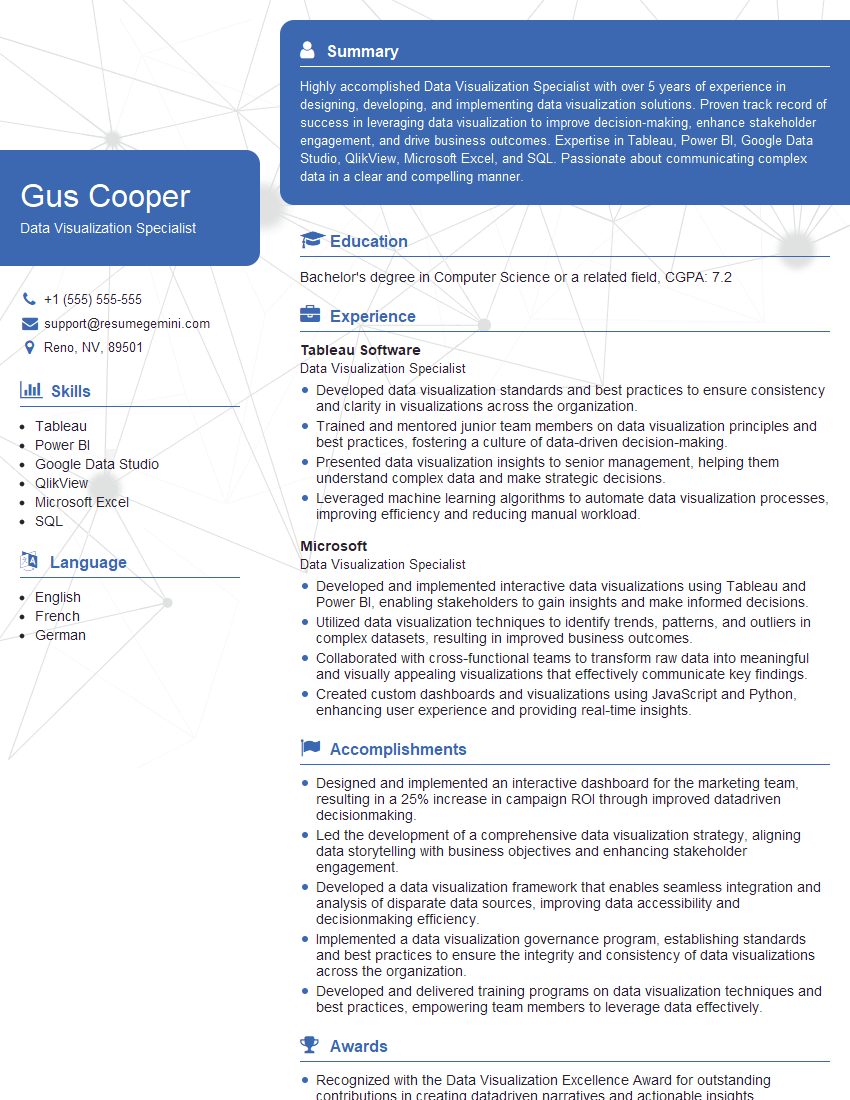
Data Visualization Specialist Resume Sample
- Research Associate
- Business Analyst
- Financial Analyst
- Data Analyst
- Quantitative Analyst
- Data Scientist
- Research Scientist
- Software Engineer
- Data Architect
- ETL Developer
- Actuary
- Analytics Consultant
- Statistician
- Computational Biologist
- Database Administrator
- Machine Learning Engineer
- Data Engineer
- Big Data Engineer
- Deep Learning Engineer
- Data Visualization Specialist
Explore more articles
Users Rating of Our Blogs
Share Your Experience
We value your feedback! Please rate our content and share your thoughts (optional).
What Readers Say About Our Blog
I Redesigned Spongebob Squarepants and his main characters of my artwork.
https://www.deviantart.com/reimaginesponge/art/Redesigned-Spongebob-characters-1223583608
IT gave me an insight and words to use and be able to think of examples
Hi, I’m Jay, we have a few potential clients that are interested in your services, thought you might be a good fit. I’d love to talk about the details, when do you have time to talk?
Best,
Jay
Founder | CEO