Every successful interview starts with knowing what to expect. In this blog, we’ll take you through the top Print File Preparation interview questions, breaking them down with expert tips to help you deliver impactful answers. Step into your next interview fully prepared and ready to succeed.
Questions Asked in Print File Preparation Interview
Q 1. What are the common file formats used in print production?
Several file formats are commonly used in print production, each with its strengths and weaknesses. The choice depends on the complexity of the project and the printing method.
- PDF (Portable Document Format): This is the industry standard for print-ready files due to its reliability in preserving formatting and fonts across different platforms. Specifically, PDF/X formats (like PDF/X-1a) are crucial for ensuring color consistency and avoiding font issues.
- TIFF (Tagged Image File Format): TIFF is excellent for high-resolution images, offering lossless compression which is important for preserving image quality. It’s often used for images within a larger PDF document.
- JPEG (Joint Photographic Experts Group): While JPEG is widely used for web images, its lossy compression can reduce print quality. It’s acceptable for lower-resolution images that won’t be significantly enlarged in print.
- EPS (Encapsulated PostScript): This vector-based format is useful for illustrations and logos, ensuring crisp lines at any size. However, its use is becoming less prevalent with the rise of PDF.
- AI (Adobe Illustrator): The native file format of Adobe Illustrator, AI files are best for vector graphics and designs that require high scalability and precision. They usually need to be exported to PDF for printing.
For example, a project with complex illustrations and high-resolution photography would likely use a PDF containing embedded TIFF images and potentially EPS files for logos. For simple projects, a single PDF might suffice.
Q 2. Explain the importance of color profiles (CMYK, RGB) in print file preparation.
Color profiles are absolutely essential to ensure that the colors you see on screen accurately reflect the colors in the final printed piece. Different devices display and interpret colors differently. Think of it like this: your monitor uses RGB (Red, Green, Blue) light to create colors, while your printer uses CMYK (Cyan, Magenta, Yellow, Key [Black]) inks.
- RGB: Used for screens (monitors, phones, etc.). It’s an additive color model, meaning colors are created by adding light.
- CMYK: Used for print. It’s a subtractive color model, where colors are created by subtracting light from white.
Without correct color profiles, your vibrant reds on screen might appear dull in print. A consistent workflow using the correct CMYK profile throughout the design and prepress process prevents this. For example, a professional print shop will usually specify the CMYK profile they use (e.g., Coated FOGRA39), and you should make sure your design uses the same profile to avoid color shifts.
Q 3. How do you ensure a print-ready file meets the required resolution and DPI?
Resolution and DPI (dots per inch) directly impact print quality. Low resolution leads to blurry or pixelated images. Ensuring the correct resolution is crucial.
For print, a minimum resolution of 300 DPI is generally recommended, but some print processes might require higher resolutions depending on the final size and desired quality. I usually check and adjust the resolution in image editing software (like Photoshop). It is important to understand that scaling an image down doesn’t increase its resolution; you’re just reducing the number of pixels.
To ensure the proper resolution:
- Check image dimensions and resolution: Most image editors display the resolution in DPI. Adjust if needed, but upscaling will not improve quality.
- Use high-resolution images: Start with high-resolution source images. If an image is too small, it might be better to find a replacement rather than trying to enlarge it.
- Verify the final print size: Calculate the required resolution based on the final printed dimensions and the desired DPI (300 DPI is a good starting point).
- Resample Carefully (Downsampling): Use image editing software’s resampling options carefully. The software uses various algorithms to reduce image size without losing too much detail. Avoid doing upsampling as it will just blur the image.
For instance, if a print requires a 5×7 inch image at 300 DPI, the image should have a minimum resolution of 1500 x 2100 pixels. Always double-check these specifications with your printer before sending your files to avoid delays and unwanted results.
Q 4. Describe your experience with image editing software for print (e.g., Photoshop, Illustrator).
I have extensive experience using Adobe Photoshop and Illustrator for print preparation. Photoshop is my go-to for raster image editing – retouching photos, adjusting color, and preparing high-resolution images for print. Illustrator is perfect for vector-based graphics, creating and editing logos, illustrations, and typography for crisp, scalable results.
Photoshop: I routinely use Photoshop for tasks like color correction, image retouching, creating bleed areas, adding trim marks, and preparing images for embedding in PDF documents. I’m proficient in using adjustment layers, masking techniques, and sharpening filters to achieve the desired image quality for print. For example, I once used Photoshop to remove a distracting object from a client’s product photo before sending it to print.
Illustrator: I frequently use Illustrator to create and edit vector graphics, ensuring that logos and illustrations remain sharp even at large print sizes. I use its features to create, edit, and export vector files which are perfect for scalable designs. For example, I’ve used Illustrator to create complex multi-color logos that needed to be printed on various sizes of merchandise.
Beyond Photoshop and Illustrator, I am also familiar with other software like InDesign (for page layout) and Acrobat Pro (for PDF manipulation and creation).
Q 5. What are bleed and trim marks, and why are they crucial?
Bleed and trim marks are essential elements in print file preparation. They ensure that your final printed piece looks exactly as intended. Imagine you’re printing a poster with an image extending to the edge; the printer needs a little extra space to account for slight variations in cutting.
- Bleed: This is the extra area around the edges of your design that extends beyond the final trim size. It’s usually 0.125 inches (3 mm) or more, depending on the print shop specifications. Bleed prevents white edges from showing after trimming.
- Trim Marks: These are small marks placed at the corners of the design that guide the printer during cutting. They ensure your design is precisely trimmed to the intended size.
Without bleed, you might end up with uneven white borders around your design after trimming. Without trim marks, your print shop might not trim it correctly, leading to an inaccurate final product. In my experience, neglecting bleed or trim marks leads to reprints and client dissatisfaction. It’s always better to be safe than sorry!
Q 6. How do you handle font issues when preparing print files?
Font issues are a common problem in print file preparation, which can cause delays and even affect the final output. To avoid this, I use several strategies:
- Outline or Embed Fonts: The best approach is to embed fonts directly into the PDF. This ensures that the correct fonts are used regardless of the viewer’s system. If embedding isn’t an option (due to licensing restrictions for example), converting fonts to outlines (creating vector representations of the text) is an alternative, though it can increase file size.
- Use readily available fonts: Choosing commonly used fonts (like Times New Roman or Arial) that are pre-installed on most systems reduces the chance of font errors.
- Pre-flight checks: Thoroughly check your files using PDF preflight tools to identify potential font issues before sending them to print.
- Font management software: Utilizing dedicated font management software helps to organize fonts and prevents conflicts.
- Specify fonts in the document: Explicitly define fonts used in the document using the software itself.
For example, I recently encountered a situation where a client used a custom font that wasn’t available on the printer’s system. By converting the fonts to outlines within the design software before creating the PDF, we successfully avoided any problems during the printing phase.
Q 7. Explain the process of creating a PDF/X-1a compliant file.
Creating a PDF/X-1a compliant file is crucial for consistent color reproduction and reliable printing across different printing presses and systems. PDF/X-1a is a subset of the PDF standard designed to eliminate potential issues related to fonts, color spaces, and embedded images. It’s like creating a standardized package that the printer can reliably interpret.
The process involves the following steps:
- Set up your document: Ensure all images are in the correct CMYK color space, that fonts are embedded or outlined, and that you have the appropriate bleed and trim marks.
- Choose the correct color profile: Select the CMYK profile specified by the print shop (e.g., Coated FOGRA39).
- Convert to PDF/X-1a: Use your design software or a dedicated PDF creation tool (like Adobe Acrobat Pro) to export the file as PDF/X-1a. The software will perform several checks to verify compliance. Pay close attention to any warnings or errors reported during this process.
- Preflight the PDF: Use a PDF preflight tool to perform a final check for errors, missing fonts, or color inconsistencies. This can help catch problems before they reach the print shop.
By following these steps, you create a standardized print-ready file that reduces the risk of errors and ensures the final print accurately reflects your design.
Q 8. How do you check for potential print problems before sending a file to the press?
Before sending a file to press, a meticulous pre-flight check is crucial. Think of it like a pilot performing a pre-flight checklist before takeoff – essential for a smooth and successful outcome. This involves several steps:
Resolution Check: Verify image resolution meets the required print resolution (typically 300 DPI for high-quality results). Low-resolution images will appear blurry and pixelated in print. I use software like Adobe Acrobat Pro to check image resolution.
Color Mode: Ensure the file is in the correct color mode (CMYK for print, not RGB which is for screens). Incorrect color mode leads to significant color shifts during printing. I always double-check this setting before proceeding.
Font Embedding: Check all fonts are embedded or outlined. Missing or incorrect fonts can cause unexpected character substitutions, font rendering errors, or even file corruption during the printing process. I prefer outlining fonts to avoid these problems.
Bleed and Margins: Confirm sufficient bleed (the extra area around the page edge that’s trimmed off during printing) and proper margins are included. Without sufficient bleed, the printed edges might show unsightly white lines. This is a common mistake I often see in beginner’s files.
Overprint Settings: Review overprint settings. Overprinting occurs when one color is printed on top of another, which is sometimes necessary, but can lead to unwanted results if not carefully planned. I always check and confirm overprinting is used intentionally and correctly.
File Format: Ensure the file is in a format compatible with the printer (PDF/X-1a is a standard choice for print-ready files). Incompatibility can lead to significant problems and even make it impossible for the printer to process the file.
Visual Inspection: Finally, a visual inspection is critical. I always thoroughly check for any typos, low-resolution areas, or any other anomalies that might affect the final print. This is where experience plays a key role, as you learn to quickly identify potential problems.
Q 9. What is imposition, and what are the different types?
Imposition is the process of arranging pages of a document on a press sheet in a way that allows for efficient printing and binding. It’s like planning a jigsaw puzzle – you need to arrange the pieces (pages) in the right order to get the complete picture (final printed piece). Different types of imposition include:
Sheetwise Imposition: Each sheet prints a complete set of pages, suitable for smaller print runs or documents not needing sophisticated binding.
Work and Turn Imposition: The press sheet is printed on one side, then flipped and printed on the other, significantly reducing the number of sheets required. This is particularly cost-effective for larger print runs.
Tumble Imposition: This involves printing on one side of the sheet and then rotating it 180° to print the other side. This is common for booklets and magazines.
Perfect Binding Imposition: Specific layout designed for books bound with perfect binding, requiring careful page sequencing for easy binding and accurate page order.
The choice of imposition method depends on factors such as the type of document, print run size, binding method, and the capabilities of the printing press. Software like Adobe InDesign or professional pre-press software simplifies this process.
Q 10. Describe your experience with color management software.
I have extensive experience with various color management software, including Adobe Acrobat Pro, X-Rite i1Profiler, and GMG ColorProof. My workflow typically involves:
Profile Creation: Creating ICC profiles for printers and monitors using colorimeters ensures accurate color representation across devices.
Color Conversion: Converting color spaces (e.g., RGB to CMYK) using appropriate profiles minimizes color shifts during printing. I ensure that the conversion is done correctly and aligned to the specific requirements for the print project.
Proofing: Soft proofing using color management software helps to preview the final print output, allowing for adjustments before sending to press. This eliminates the risk of costly reprints due to unexpected color deviations.
Color Consistency: I maintain consistency across different projects and devices by utilizing a standardized color management workflow, reducing discrepancies and maintaining brand identity.
For instance, I recently worked on a project with a client who needed precise pantone colors for their corporate brochure. Using X-Rite i1Profiler, I created a custom printer profile to ensure the colors matched their brand guidelines precisely. It is important that I can show strong understanding of color spaces, profiles, and managing colour across different devices.
Q 11. What is trapping, and why is it important?
Trapping is a pre-press technique used to prevent unwanted gaps between colored areas in a printed document. Think of it as creating a slight overlap between colors to ensure there’s no white space between them. It’s particularly important with different colored inks that might not align perfectly during printing. For example, you may get a tiny white gap between two different colours if there is no trap. The importance of trapping stems from:
Preventing Gaps: The primary function is to prevent gaps between colors, resulting in a cleaner, more professional finish.
Improving Registration: Even with highly precise printing machines, slight misregistration (inaccurate alignment of colors) can happen. Trapping helps compensate for this.
Enhancing Readability: In text, trapping improves the readability by preventing gaps between different colored text. This is particularly important when dealing with very thin fonts.
Trapping techniques can be manual (adjusting individual objects) or automated (using software that automatically applies traps based on settings). The method chosen often depends on the complexity of the design and the experience of the pre-press operator.
Q 12. How do you handle different paper types and their impact on print quality?
Different paper types significantly impact print quality. The choice of paper affects color reproduction, ink absorption, texture, and overall feel of the final product. For instance, uncoated paper is often more absorbent, leading to richer color saturation but potentially less sharpness compared to glossy coated stock. Here’s how I handle this:
Understanding Paper Properties: I thoroughly research the paper specifications – its weight, finish (coated, uncoated, matte), brightness, and absorbency. This knowledge is critical to selecting appropriate ink coverage, color profiles, and trapping settings.
Adjusting Ink Coverage: Heavier paper may require higher ink coverage for vibrant colors while lighter paper might need less to prevent show-through (ink appearing on the reverse side).
Color Adjustments: Coated paper generally reflects more light, requiring color adjustments compared to uncoated paper to avoid appearing too dull. I use color profiles and software to manage this.
Paper Testing: When a new or unusual paper is used, I always recommend a test print run to ensure the settings are optimized for that specific type.
Client Communication: I maintain clear communication with the client about the paper choice and its effect on the print quality, offering recommendations to optimize the print outcome.
For example, a client wanted a luxurious feel for their invitations. We selected a thick, textured paper. We then adjusted the ink coverage to prevent the ink from sinking too deeply into the paper, affecting the sharpness and color vibrancy. Test prints ensured the final result met their expectations.
Q 13. Explain your process for reviewing and correcting errors in a print file.
My process for reviewing and correcting errors in a print file is systematic and thorough, ensuring high quality. I usually start with a detailed pre-flight check (as mentioned earlier) to identify potential problems. My error correction workflow typically includes:
Using Pre-flight Tools: Software like Adobe Acrobat Pro provides pre-flight profiles that automatically check for common errors. These are often the first tools used to check files for problems.
Visual Inspection: A careful visual inspection is critical to identify subtle errors that automated checks might miss. I zoom into the file to examine details closely.
Addressing Specific Errors: The correction steps depend on the type of error. For example, a typo requires editing the text; an incorrect image resolution necessitates finding a higher resolution replacement; color issues might require adjusting the color profile or individual colors.
Version Control: To ensure I can track changes and revert if necessary, I always save different versions of the file, and I carefully annotate what changes were made.
Proofing: Before finalizing, I create multiple proofs (soft proofs using software and often a hard proof from a test print) to validate corrections and ensure accuracy. This multiple proofing stage is a crucial quality check.
It is important that I always ensure the client is informed of the changes made, especially if significant changes affect design or cost.
Q 14. What are your preferred methods for quality control in print file preparation?
My preferred methods for quality control in print file preparation emphasize both automated checks and manual review. A multi-layered approach ensures no errors slip through:
Automated Pre-flight Checks: Using software’s pre-flight tools helps to automatically identify common errors like missing fonts, low-resolution images, and incorrect color spaces. This is the first line of defense against print issues.
Visual Inspection: Manual visual inspection is indispensable for catching subtle errors that automated checks might miss. This includes zooming in on images and text to check for quality and clarity.
Proofing: Creating both soft and hard proofs is vital. Soft proofs provide a digital preview, while hard proofs – test prints – give a physical representation of the final product. Comparing the two is an excellent quality assurance measure.
Client Review: Whenever possible, I involve the client in the review process to ensure the final output meets their expectations. This helps to prevent costly reprints and maintains client satisfaction.
Collaboration with Printers: Maintaining open communication with the printer is essential. They often offer valuable insight into potential issues specific to their equipment and printing process.
This multi-faceted approach ensures high-quality results and minimizes the risk of costly errors during printing. By using these techniques, I have consistently delivered print-ready files that meet and exceed expectations.
Q 15. How do you manage large print projects with multiple files?
Managing large print projects with numerous files requires a systematic approach. Think of it like conducting an orchestra – each instrument (file) needs to play its part perfectly in harmony. I typically employ a project management software to organize all files, track revisions, and maintain a clear timeline. This allows me to keep everything organized and prevents confusion. Furthermore, I establish a clear file naming convention (e.g., ProjectName_Version_Filetype) to maintain consistency and easily identify files. This prevents accidental overwriting or misplacement of critical documents. I also use preflight checks on each file before combining them to catch errors early. Finally, for very large projects, I often break down the work into smaller, manageable packages to streamline the process. For example, if it’s a multi-page brochure, I might preflight and prepare each page individually before assembling them into the final document. This allows for more efficient error correction.
Career Expert Tips:
- Ace those interviews! Prepare effectively by reviewing the Top 50 Most Common Interview Questions on ResumeGemini.
- Navigate your job search with confidence! Explore a wide range of Career Tips on ResumeGemini. Learn about common challenges and recommendations to overcome them.
- Craft the perfect resume! Master the Art of Resume Writing with ResumeGemini’s guide. Showcase your unique qualifications and achievements effectively.
- Don’t miss out on holiday savings! Build your dream resume with ResumeGemini’s ATS optimized templates.
Q 16. Describe your experience with prepress workflow software.
I have extensive experience with various prepress workflow software, including Adobe Acrobat Pro, PitStop Pro, and Enfocus Switch. Adobe Acrobat Pro is invaluable for preflighting files, creating PDFs, and managing annotations. PitStop Pro is my go-to for automated preflight checks and for fixing common PDF issues such as incorrect color spaces or missing fonts. Enfocus Switch allows for efficient automation of the entire workflow, from trapping to imposition. It’s like having a tireless assistant that handles repetitive tasks and ensures consistency. For instance, in one project involving hundreds of files, Switch automated the color profile conversion and ensured the final output adhered strictly to the client’s Pantone specifications. This saved considerable time and minimized the risk of human error.
Q 17. How do you handle client revisions during the print file preparation process?
Handling client revisions is a crucial aspect of print file preparation. Clear communication is key. I use version control software and a clearly defined revision process. Each revision is clearly labeled (e.g., Rev_A, Rev_B) and saved separately to maintain a complete history of changes. This allows us to easily revert to earlier versions if necessary. I also utilize annotation tools within Adobe Acrobat to communicate directly on the document, highlighting areas needing revisions and providing detailed feedback. For example, a client might request changes to text formatting or image placement. Using annotation tools lets me precisely pinpoint the changes needed and ensure everyone is on the same page. This reduces ambiguity and avoids costly mistakes in the final print.
Q 18. What is your experience with different printing processes (offset, digital, etc.)?
My experience encompasses various printing processes including offset, digital, and large format printing. Offset printing is ideal for large-volume, high-quality projects, but it demands meticulous preparation including precise color separations and proper trapping. Digital printing is more versatile and efficient for smaller runs and quick turnaround times. It requires attention to file resolution and color profiles to ensure accurate color reproduction. Large format printing presents unique challenges regarding file size, resolution, and media selection. For example, a client needed a large outdoor banner, requiring careful consideration of the printing method, substrate type, and resolution to ensure the banner was both eye-catching and durable. Understanding the capabilities and limitations of each process is crucial to provide clients with the best possible results.
Q 19. How do you ensure consistent brand colors across different print jobs?
Maintaining consistent brand colors is critical for brand identity. I achieve this by utilizing a central Pantone color library and specifying colors using Pantone numbers. This removes any ambiguity and ensures consistent color reproduction across different print jobs. For example, if a client utilizes a custom Pantone color, I would meticulously input that specific Pantone number in the design software and ensure it remains consistent throughout the entire project. I also use color management profiles to control the color space and ensure that the colors on screen match the printed output as closely as possible. It’s similar to using a precise recipe—the same ingredients and steps always lead to the same result.
Q 20. Explain the importance of metadata in print file preparation.
Metadata in print file preparation is often overlooked but critically important. It’s like adding a label with crucial information to your file—information such as the project name, client name, date created, and color profile used. This information helps in organizing, searching, and identifying files. It also ensures efficient collaboration within a team. Proper metadata also helps prevent confusion and reduces the chance of errors when files are transferred or archived. For instance, accurate metadata allows us to quickly find a specific file needed for reprint or archival purposes, saving valuable time and effort.
Q 21. How do you troubleshoot common print file errors?
Troubleshooting print file errors requires a systematic approach. I begin by using preflight checks to identify potential issues before sending the files to print. Common errors include missing fonts, incorrect color spaces, low-resolution images, and embedded profiles. I utilize software like PitStop Pro to automatically detect and often fix these issues. If errors persist, I meticulously examine the file structure and settings, paying close attention to details. For example, a common error is using the wrong color space (CMYK vs. RGB). If the files aren’t pre-flighted properly, errors might not show up until after printing, resulting in rework and delays. My experience allows me to quickly diagnose and resolve these issues, minimizing disruptions to the workflow.
Q 22. What is your understanding of Pantone Matching System (PMS)?
The Pantone Matching System (PMS) is a standardized color reproduction system. It’s essentially a color library, providing a universally understood reference for specific colors. Instead of relying on RGB or CMYK values, which can vary across devices, PMS uses unique numerical codes (like 18-1664 TPX) to represent distinct colors. This ensures consistency across different printing processes and locations. Imagine trying to describe a shade of blue using words – everyone would have a slightly different idea. PMS eliminates this ambiguity, guaranteeing the same ‘Pantone 300 C’ blue will be printed identically in New York and London.
For print designers, PMS is crucial for achieving accurate color reproduction, particularly for branding and projects where consistent color is critical, like logos or corporate stationery. If a client demands their logo be printed in ‘Pantone 186 C,’ it’s the designer’s responsibility to specify this in the print file, ensuring the printer uses the correct Pantone ink. Otherwise, the color will likely differ from the client’s expectations.
Q 23. Describe your experience with print finishing techniques (e.g., die-cutting, embossing).
My experience with print finishing encompasses a wide range of techniques, each adding value and unique aesthetic qualities to printed materials. Die-cutting, for instance, involves using a custom-shaped steel blade to cut intricate shapes or patterns into paper or cardstock. I’ve used this to create unique shapes for invitations, business cards, and even custom packaging. I have extensive experience specifying die lines and ensuring they’re accurately incorporated into the print file. The precision of die-cutting is crucial; a slight misalignment in the die line can ruin an entire print run.
Embossing adds a three-dimensional texture to the surface of the paper. It involves pressing the paper into a heated die, creating a raised or indented design. I’ve worked on projects where embossing was used to add a sophisticated feel to greeting cards and high-end brochures. The choice between embossing (raised) and debossing (indented) depends greatly on the desired aesthetic and the type of paper used. I’m meticulous about specifying the correct embossing pressure and plate to avoid damaging the paper or compromising the final result. Similarly, I have experience with other finishing techniques like foil stamping, lamination, and UV coating, understanding how to correctly prepare files for each to ensure a high-quality outcome.
Q 24. How do you handle variations in color between screen and print?
Color discrepancies between screen and print are almost inevitable due to the difference in color models used. Screens display RGB (Red, Green, Blue), while printing predominantly utilizes CMYK (Cyan, Magenta, Yellow, Key/Black). RGB has a wider color gamut; therefore, some vibrant colors displayed on screen might not be fully reproducible in print. To mitigate this, I always create print-ready files in CMYK, converting the RGB design beforehand using a calibrated profile that accurately translates colors. I usually employ a color management system (CMS) for accurate color transformations, making sure that all color adjustments are done consistently. It is extremely helpful to provide printed color proofs to the client before proceeding to the full print run.
In addition to profile use, careful selection of printing inks and paper is critical. The paper’s inherent color and its interaction with the inks can significantly affect the final color appearance. I communicate closely with printers to ensure they understand the desired colors and use the appropriate materials. I also thoroughly review color proofs, comparing them to the digital design, to catch any significant inconsistencies before mass production begins. This collaborative approach minimizes the likelihood of disappointing color variations.
Q 25. What is your experience with different types of printing presses?
My experience encompasses various printing processes. I’m familiar with offset printing, which is ideal for large-scale projects requiring high-quality results and consistent color reproduction. I understand the complexities of preparing files for offset printing, such as creating imposition layouts (arranging pages for efficient printing on large sheets), and ensuring the correct bleed and trim settings. For smaller runs or specialized projects, I’ve worked with digital printing, appreciating its flexibility and speed, especially for personalized or on-demand printing. I know the necessary file preparation requirements for each type, including resolution and file formats.
Furthermore, I have some experience with other printing techniques like screen printing (perfect for bold graphic designs on textiles or promotional merchandise) and flexographic printing (common for packaging materials). Understanding the capabilities and limitations of each press is crucial to producing high-quality printed materials that meet the client’s expectations and project requirements. My knowledge allows me to advise clients on the most appropriate printing method based on their budget, quantity, and desired print quality. I can effectively prepare files for whichever technique is chosen.
Q 26. How do you ensure the accessibility of print files for people with disabilities?
Ensuring accessibility for people with disabilities is paramount in print file preparation. For visually impaired individuals, I use techniques like adding alt text to images in PDF files which is then converted to alternative text when a screen reader processes the document. This provides a verbal description of the visual content. I also adhere to WCAG (Web Content Accessibility Guidelines) to select font sizes and colors with adequate contrast to guarantee readability for those with visual impairments. This might involve avoiding overly complex layouts, ensuring sufficient white space and clear visual hierarchy.
For those with other disabilities, including dyslexia or cognitive impairments, I follow guidelines by using a structured document format that is easily navigable. I might use clear and concise language, avoiding jargon where possible. For those with motor impairments, ensuring that the document remains accessible and usable regardless of how it is navigated is a key consideration. These steps ensure that the printed materials are inclusive and usable for everyone.
Q 27. Describe your experience with version control in a print file preparation workflow.
Version control is critical in print file preparation to manage revisions and prevent confusion. Throughout my career, I’ve consistently used a version control system, usually a combination of file naming conventions and cloud-based storage solutions. For example, I’ll name files using a clear structure like Project Name_Version Number_Date.pdf (e.g., Brochure_v3_20240308.pdf). This allows me to easily track revisions. This methodology is then paired with a cloud storage platform that provides version history. This provides both quick access to all iterations and a record for reference purposes.
Collaborating with designers and clients is greatly facilitated through cloud-based version control. This ensures that everyone works on the most recent version of the file, and any edits are clearly documented and easily tracked. This system avoids accidental overwriting of important revisions and guarantees everyone’s input is considered. I communicate effectively regarding which version is the most current and the rationale behind any changes made.
Q 28. How do you prioritize tasks when managing multiple deadlines in print file preparation?
Managing multiple deadlines requires a structured approach. I typically begin by creating a detailed project timeline, breaking down each task into smaller, manageable components. I then prioritize tasks based on urgency and impact. Tasks with the closest deadlines and the greatest potential impact on the overall project are tackled first. This might involve using a project management tool such as a Kanban board or a simple spreadsheet to visually track progress and identify potential bottlenecks.
I’m proficient in estimating task durations realistically. This allows for contingency planning. If I encounter unexpected delays or issues with one project, I adjust the schedule accordingly and communicate proactively with clients or colleagues to manage expectations. Open communication and clear prioritization are crucial for successfully handling multiple deadlines in a fast-paced print environment. A flexible yet structured approach remains highly effective.
Key Topics to Learn for Print File Preparation Interview
- File Formats & Conversions: Understanding the nuances of PDF, TIFF, JPEG, and other relevant formats; mastering conversion techniques for optimal print quality and compatibility with various printing presses.
- Color Management: Applying color profiles (CMYK, RGB), managing color spaces, and troubleshooting color discrepancies between digital and print outputs. Practical application: Diagnosing and correcting color shifts in print proofs.
- Image Resolution & DPI: Knowing the implications of different resolutions for print quality; scaling images appropriately without compromising sharpness. Practical application: Preparing high-resolution images for large-format printing versus smaller brochures.
- Pre-flighting & Quality Control: Mastering pre-flight checks to identify potential issues like missing fonts, low-resolution images, or color inconsistencies before sending files to print. Practical application: Implementing a robust pre-flight checklist to guarantee consistent output quality.
- Bleeds & Margins: Understanding the importance of bleeds for preventing white edges after trimming; setting up correct margins to ensure content doesn’t get cut off. Practical application: Setting up documents correctly in InDesign or other relevant software.
- Imposition & Finishing: Familiarity with imposition techniques for efficient printing and binding; understanding various finishing options like folding, cutting, and binding. Practical application: Preparing files for different types of print projects (e.g., booklets, brochures, business cards).
- Troubleshooting Common Print Issues: Developing problem-solving skills to address common printing challenges like banding, color mismatches, and registration errors. Practical application: Effectively communicating with printers to resolve print-related issues.
- Software Proficiency: Demonstrating expertise in relevant software like Adobe Acrobat, InDesign, Photoshop, Illustrator. Practical application: Efficiently using these tools to prepare files for diverse print projects.
Next Steps
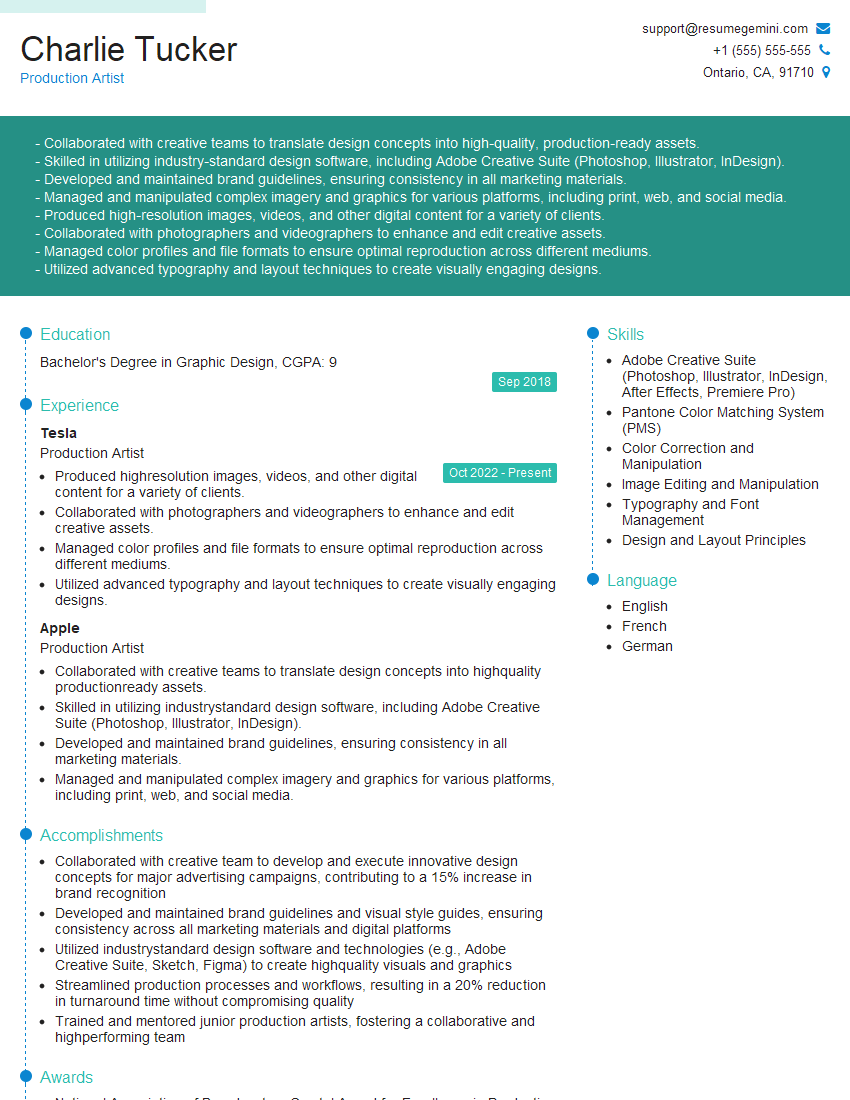
Mastering Print File Preparation is crucial for a successful career in the printing industry, opening doors to diverse and rewarding roles. A well-crafted resume is your key to unlocking these opportunities. An ATS-friendly resume increases your visibility to potential employers, ensuring your skills and experience are effectively communicated. To create a compelling and effective resume, consider using ResumeGemini. ResumeGemini provides a user-friendly platform and offers examples of resumes tailored to Print File Preparation to guide you. Invest in your future; build a standout resume that highlights your expertise and secures your next interview.


Explore more articles
Users Rating of Our Blogs
Share Your Experience
We value your feedback! Please rate our content and share your thoughts (optional).
What Readers Say About Our Blog
I Redesigned Spongebob Squarepants and his main characters of my artwork.
https://www.deviantart.com/reimaginesponge/art/Redesigned-Spongebob-characters-1223583608
IT gave me an insight and words to use and be able to think of examples
Hi, I’m Jay, we have a few potential clients that are interested in your services, thought you might be a good fit. I’d love to talk about the details, when do you have time to talk?
Best,
Jay
Founder | CEO