Preparation is the key to success in any interview. In this post, we’ll explore crucial Professional Microsoft Office Suite Proficiency interview questions and equip you with strategies to craft impactful answers. Whether you’re a beginner or a pro, these tips will elevate your preparation.
Questions Asked in Professional Microsoft Office Suite Proficiency Interview
Q 1. Explain your experience using Microsoft Word’s mail merge functionality.
Mail merge in Microsoft Word is a powerful tool that allows you to personalize and automate the creation of multiple documents from a single template. Imagine you need to send personalized thank-you notes to hundreds of clients – instead of writing each one individually, mail merge lets you create a template with placeholders for personalized information, then populate those placeholders with data from a spreadsheet or database. This significantly increases efficiency and ensures consistency across all documents.
My experience with mail merge includes creating personalized letters, certificates, and marketing materials. For example, I once used mail merge to create personalized graduation certificates for over 500 students. I linked a Word document containing the certificate template to an Excel spreadsheet with student names, courses, and graduation dates. The mail merge function populated the placeholders in the template with the corresponding data from each student’s row in the spreadsheet, generating unique certificates for each graduate. This process saved me considerable time and effort, ensuring accuracy and consistency in the output.
I’m proficient in handling various data sources with mail merge, including Excel spreadsheets, Access databases, and even CSV files. I understand how to properly format the data source to ensure accurate merging and troubleshoot common issues, such as matching fields and handling data errors. I can also leverage advanced features like inserting different sections based on criteria, which greatly expands the capabilities of mail merge.
Q 2. Describe your proficiency in creating and managing spreadsheets in Microsoft Excel.
My proficiency in Excel extends beyond basic data entry. I’m adept at creating complex spreadsheets for data management, analysis, and reporting. This includes designing spreadsheets with clear layouts, using formulas and functions for calculations, and employing data validation techniques to maintain data integrity. I regularly use features like conditional formatting, data sorting and filtering, and creating charts and graphs to visualize data effectively. I’m comfortable working with large datasets and am proficient in using various Excel tools to manage and analyze them.
For example, I created an interactive sales dashboard for my previous company. It involved consolidating sales data from multiple sources, performing complex calculations to track key performance indicators (KPIs), and creating dynamic charts and graphs to visually represent sales trends, regional performance, and individual sales representative achievements. The dashboard provided valuable insights and contributed to better decision-making.
Q 3. How do you handle large datasets in Excel? What techniques do you use for data manipulation and analysis?
Handling large datasets in Excel efficiently requires a strategic approach. Simply opening a massive dataset and trying to work with it directly can lead to slowdowns and crashes. My strategy involves leveraging Excel’s features and potentially external tools to streamline the process.
- Data Cleaning and Transformation: Before analysis, I ensure data quality by removing duplicates, handling missing values, and correcting inconsistencies. Power Query (Get & Transform Data) is invaluable here for importing, cleaning, and transforming data from various sources.
- Data Subsetting: For complex analyses, I often work with subsets of the data instead of the entire dataset. This improves performance and makes analysis more manageable. Filtering and advanced filtering are crucial tools for creating these subsets.
- PivotTables and Charts: For summarizing and visualizing large datasets, I rely heavily on PivotTables. They allow me to quickly aggregate, summarize, and analyze data across different dimensions, uncovering hidden patterns and insights.
- Formulas and Functions (Array Formulas): For more advanced analysis, I utilize array formulas, which can perform calculations across multiple cells simultaneously. This is particularly efficient for large datasets where typical formulas would be too cumbersome.
- External Tools (Optional): For extremely large datasets that strain Excel’s capabilities, I would consider using tools like Power BI, which is designed for handling and analyzing massive amounts of data more efficiently.
Using these techniques I ensure efficiency and accuracy when working with substantial datasets in Excel.
Q 4. How familiar are you with Excel’s pivot tables and their applications?
PivotTables are incredibly powerful tools in Excel for summarizing and analyzing large datasets. They essentially let you create interactive summaries of your data by choosing which fields you want to group by (rows and columns) and which fields you want to summarize (values). Think of them as dynamic, interactive reports that you can easily rearrange and filter.
I frequently use PivotTables to:
- Summarize sales data by region, product, and time period.
- Analyze customer demographics to identify key market segments.
- Track project progress by task and team member.
- Identify trends and outliers in large datasets.
Beyond the basic functionality, I understand how to use PivotCharts to visually represent data summarized in PivotTables, Slicers for interactive data filtering, and Calculated Fields to add custom calculations to the summary data. PivotTables are integral to my data analysis workflow, enabling quick insights from complex data sets.
Q 5. Describe your experience with advanced Excel formulas (e.g., VLOOKUP, INDEX/MATCH, SUMIFS).
I am very familiar with advanced Excel formulas such as VLOOKUP, INDEX/MATCH, and SUMIFS. These are essential for efficient data manipulation and analysis, allowing me to perform complex lookups, data retrieval and conditional sums.
VLOOKUP: Searches for a value in the first column of a table and returns a value from the same row in a specified column. However, it is limited in that the lookup column must be the first column of the table.INDEX/MATCH: This powerful combination overcomes the limitation of VLOOKUP.INDEXreturns a value from a specified position in a range, whileMATCHfinds the position of a value within a range. Combining them allows flexible lookups in any column. For example:=INDEX(return_range,MATCH(lookup_value,lookup_range,0))SUMIFS: Sums values in a range that meet multiple criteria. This is more versatile thanSUMIF, allowing for complex conditional sums. For example:=SUMIFS(sum_range,criteria_range1,criteria1,criteria_range2,criteria2)
I utilize these formulas routinely to automate data extraction, calculations, and reporting processes. My proficiency in these formulas allows me to efficiently handle complex tasks and build dynamic and flexible spreadsheets.
Q 6. How would you use conditional formatting in Excel to highlight important data?
Conditional formatting in Excel is a fantastic tool for highlighting important data visually, making it easier to identify trends, outliers, and critical information at a glance. Instead of manually reviewing each cell, conditional formatting automatically applies formatting based on specified criteria.
For example, I might use conditional formatting to:
- Highlight cells above a certain threshold (e.g., sales figures exceeding a target).
- Apply color scales to show a gradient based on the value of cells (e.g., higher values are darker shades of green, lower values are lighter shades of red).
- Use data bars to visualize the relative magnitude of values in cells.
- Highlight duplicate values to identify potential data entry errors.
- Apply icon sets to visually represent different performance levels (e.g., green upward-pointing arrow for exceeding target, yellow sideways arrow for meeting target, red downward-pointing arrow for not meeting target).
I choose the most appropriate conditional formatting option depending on the data and the message I want to convey, always ensuring that the formatting improves readability and quickly communicates key insights.
Q 7. Explain your experience creating professional presentations in PowerPoint.
Creating professional presentations in PowerPoint involves more than just putting text and images on slides. I focus on crafting visually appealing and engaging presentations that effectively communicate information and maintain the audience’s attention. This includes careful consideration of layout, color schemes, typography, and the use of multimedia elements.
My experience includes developing presentations for various purposes, including business proposals, training materials, product demos, and executive briefings. I’m proficient in using animations and transitions effectively, but only when they enhance the presentation, not distract from the message. I also understand the importance of keeping text concise, using visuals to support key points, and maintaining a consistent brand identity throughout the presentation.
For instance, I developed a training presentation for new employees at my previous company, which utilized engaging visuals, clear explanations, interactive elements, and concise bullet points. It resulted in greatly improved comprehension and retention of training material by participants.
I’m familiar with advanced features such as creating custom animations, using master slides for consistent branding, and embedding videos or interactive content to enhance audience engagement. A well-designed presentation, in my opinion, should be informative, visually stimulating, and memorable.
Q 8. How do you incorporate charts and graphs effectively in PowerPoint presentations?
Incorporating charts and graphs effectively in PowerPoint presentations is crucial for conveying data clearly and concisely. The key is choosing the right chart type for your data and ensuring it’s visually appealing and easy to understand.
- Data Type Matters: Use pie charts for showing proportions, bar charts for comparing categories, line charts for trends over time, and scatter plots for correlations. Don’t force data into an inappropriate chart type.
- Visual Clarity: Keep the chart simple and uncluttered. Use clear labels for axes, data points, and legends. Choose a color palette that’s easy on the eyes and provides good contrast. Avoid excessive use of 3D effects, which can be distracting.
- Context is Key: Never just plop a chart onto a slide. Always provide context. Briefly explain what the chart shows and the key takeaways. Highlight important data points with annotations or callouts.
- Data Source Credibility: If the data is from an external source, cite the source. This adds to the credibility of your presentation.
- Example: Instead of simply presenting a bar chart comparing sales figures for four quarters, I’d add a title like “Quarterly Sales Performance,” label the axes clearly (Quarter and Sales Amount), use a contrasting color scheme, and add a brief summary statement like, “Q4 saw a significant increase in sales compared to previous quarters.”
Q 9. How familiar are you with PowerPoint’s animation and transition features?
I’m very familiar with PowerPoint’s animation and transition features. I view them as powerful tools to enhance engagement, but I use them judiciously to avoid overwhelming the audience. Overuse can detract from the message.
- Animations: I use animations to highlight key points within a slide, often revealing information gradually. For example, I might animate bullet points to appear one by one, or use emphasis animations to draw attention to specific data on a chart. I avoid distracting or overly flashy animations.
- Transitions: Transitions are used sparingly between slides, creating a smooth flow. Subtle transitions like fades or pushes are generally preferred over more jarring effects. Consistency in transitions throughout the presentation is also crucial.
- Purposeful Use: I always consider the purpose of each animation and transition. Does it genuinely enhance understanding or engagement? If not, I omit it. Animations should support the message, not overshadow it.
- Testing is Crucial: Before presenting, I always test the animations and transitions to ensure they work smoothly and don’t interrupt the flow of the presentation.
Q 10. Describe your process for creating and managing presentations for large audiences.
Creating and managing presentations for large audiences requires a structured approach. My process involves several key steps:
- Audience Analysis: I tailor the presentation to the specific audience. Understanding their prior knowledge, interests, and expectations is crucial for effective communication.
- Content Structuring: I create a clear and logical structure for the presentation, typically using a narrative approach with a beginning, middle, and end. This provides a roadmap for the audience.
- Visual Design: Visual appeal is crucial for maintaining audience attention. I use high-quality images, consistent branding, and a clear, readable font.
- Rehearsal and Feedback: I rehearse the presentation multiple times, practicing the delivery and timing. Seeking feedback from colleagues helps refine the content and delivery.
- Technology Check: Before the actual presentation, I thoroughly check all the technology—projector, microphone, etc.—to prevent any technical glitches.
- Engagement Strategies: I incorporate interactive elements, such as Q&A sessions or polls, to increase audience participation.
- Post-Presentation Follow-up: I usually send a summary or the presentation slides to the audience as a follow-up.
Q 11. How do you ensure consistency and branding in PowerPoint presentations?
Maintaining consistency and branding in PowerPoint presentations is essential for creating a professional and unified image. My approach focuses on several aspects:
- Template Creation: I typically create a master template with consistent fonts, colors, logos, and layouts. This ensures uniformity across all slides.
- Style Guide Adherence: I strictly follow any existing brand guidelines provided by the organization, paying close attention to logo usage, color palettes, and font choices.
- Image Consistency: I use high-quality images that align with the brand’s aesthetic and maintain a consistent visual style throughout the presentation.
- Master Slides: PowerPoint’s master slide feature allows me to easily apply consistent formatting to all slides within the presentation.
- Example: If a company uses a specific blue shade in its logo and marketing materials, I ensure that this same shade is used consistently throughout the presentation for headings, charts, and other elements.
Q 12. What are your strategies for creating visually appealing and easy-to-understand slides?
Creating visually appealing and easy-to-understand slides involves careful consideration of several factors:
- Minimalist Design: I avoid cluttering slides with excessive text or images. The ‘less is more’ approach enhances readability and comprehension.
- Visual Hierarchy: I use visual cues, such as font size and color, to guide the audience’s eye to the most important information. Headings are larger and bolder than body text.
- High-Quality Images: I use relevant, high-resolution images and graphics to support the message and maintain visual interest. I avoid low-quality or blurry images.
- White Space: I incorporate sufficient white space (or negative space) around text and images to prevent overcrowding and improve readability.
- Consistent Formatting: I maintain consistency in font choices, colors, and overall layout throughout the presentation for a professional look.
- Data Visualization: I use charts and graphs effectively to present data in a visually appealing and easy-to-understand format.
Q 13. How proficient are you in using Microsoft Outlook for email management and calendar scheduling?
I am highly proficient in using Microsoft Outlook for email management and calendar scheduling. I leverage its features for efficient workflow and organization.
- Email Management: I use folders and rules to organize my inbox, ensuring that important emails are prioritized and less important ones are archived or deleted.
- Calendar Scheduling: I effectively schedule meetings, appointments, and tasks, using recurring events and reminders to manage my time effectively. I also utilize Outlook’s sharing features to collaborate on calendars with colleagues.
- Contact Management: I maintain a well-organized contact list, utilizing categories and groups to efficiently manage my professional relationships.
- Task Management: Outlook’s task management features help me create and track tasks, setting deadlines and reminders to stay organized.
Q 14. Explain your experience using Outlook’s rules and filters for email organization.
Outlook’s rules and filters are indispensable for managing a large volume of emails. I use them to automatically organize incoming mail, ensuring important messages are prioritized and less important ones are handled efficiently.
- Example Rule: I have a rule set up to automatically move emails from specific senders (like newsletters) into a designated folder, removing them from my inbox. This prevents my inbox from being overwhelmed.
- Filters: I use filters to flag emails containing specific keywords or phrases. For example, I might flag emails containing “urgent” or “action required” in the subject line or body.
- Automated Responses: I utilize Outlook’s automatic reply feature for managing out-of-office responses and other scenarios requiring automated replies.
- Sweep Function: I regularly use Outlook’s Sweep function to automatically archive or delete older emails based on specified criteria, helping to keep my inbox clean and organized.
Q 15. How do you manage multiple calendars and appointments effectively in Outlook?
Managing multiple calendars and appointments effectively in Outlook is crucial for productivity. I leverage several key features to streamline this process. First, I utilize multiple calendar views to see all my schedules at a glance, including personal, work, and shared team calendars. This allows for immediate identification of scheduling conflicts. Second, I employ color-coding for different calendars or appointment types. For instance, personal appointments might be blue, work meetings green, and deadlines red. This visual cue dramatically improves the ability to quickly grasp the day’s priorities. Third, I make extensive use of Outlook’s categories and flags. I can categorize meetings by project or client, making filtering and searching significantly easier. Flags help me prioritize tasks and ensure critical appointments don’t get overlooked. Finally, I use Outlook’s reminder system diligently, setting reminders for important events well in advance to avoid conflicts and missed deadlines. I also often share my calendar with relevant colleagues to improve collaboration and avoid double-booking resources. For example, during a large project launch, sharing my calendar with the marketing and sales teams ensured everyone was aware of key deadlines and meetings, leading to better coordination and improved team efficiency.
Career Expert Tips:
- Ace those interviews! Prepare effectively by reviewing the Top 50 Most Common Interview Questions on ResumeGemini.
- Navigate your job search with confidence! Explore a wide range of Career Tips on ResumeGemini. Learn about common challenges and recommendations to overcome them.
- Craft the perfect resume! Master the Art of Resume Writing with ResumeGemini’s guide. Showcase your unique qualifications and achievements effectively.
- Don’t miss out on holiday savings! Build your dream resume with ResumeGemini’s ATS optimized templates.
Q 16. Describe your experience with Microsoft Access databases (if applicable).
I have extensive experience working with Microsoft Access databases, designing and managing them for various purposes. My experience encompasses database design, data entry, query creation, report generation, and data analysis. I’ve worked on databases ranging from small, project-specific databases to larger systems tracking complex information. I’m proficient in using Access’s tools to create forms for data input, queries for data retrieval and manipulation, and reports for visualizing data insights. In one instance, I developed an Access database for a small business to manage customer orders, inventory, and sales data. This involved designing tables for efficient data storage, creating user-friendly forms for data entry, and designing comprehensive reports to track key performance indicators (KPIs) for the business. The database significantly improved their workflow by providing a centralized and easily accessible source of information.
Q 17. How familiar are you with database design principles and normalization?
I’m very familiar with database design principles and normalization. Normalization is a systematic approach to organizing data to reduce redundancy and improve data integrity. It involves breaking down larger tables into smaller, more manageable ones, thereby minimizing data anomalies. I understand the different normal forms (1NF, 2NF, 3NF, etc.) and their implications. For example, the First Normal Form (1NF) requires eliminating repeating groups of data within a table, while the Second Normal Form (2NF) focuses on removing redundant data that depends on only part of the primary key. Proper normalization makes the database easier to maintain, update, and query, reducing data inconsistencies and improving overall database performance. In practical terms, imagine a customer database with multiple addresses stored in a single field. This is not normalized. A well-normalized database would have separate tables for customers and addresses, with a clear relationship between them, minimizing redundancy and improving data integrity.
Q 18. Explain your experience with querying and manipulating data in Access (if applicable).
My experience with querying and manipulating data in Access involves using SQL (Structured Query Language) to retrieve and modify information within the database. I am proficient in writing various types of queries, including SELECT queries for retrieving data, INSERT, UPDATE, and DELETE queries for manipulating data. I also utilize Access’s query design tools to visually construct queries, which is particularly helpful for less complex tasks. For example, I might use a SELECT query with a WHERE clause to retrieve all customers from a specific region: SELECT * FROM Customers WHERE Region = 'North';. I can also use aggregate functions like SUM, AVG, COUNT, MAX, and MIN to perform calculations on data. For complex queries, I would use subqueries and joins to combine data from multiple tables. This is useful for tasks such as generating reports that aggregate data from different sources within the database.
Q 19. What is your experience with creating forms and reports in Access (if applicable)?
Creating forms and reports in Access is a crucial part of making database information accessible and useful. I’m skilled at designing user-friendly forms for data entry and modification, ensuring data integrity and minimizing user error. This involves using controls like text boxes, combo boxes, and checkboxes. I often incorporate validation rules to ensure data accuracy. For instance, ensuring a date field only accepts valid dates. Report creation involves selecting relevant data from the database, formatting it clearly, and presenting it in a visually appealing and informative way. I am proficient in creating various report types such as summary reports, group reports, and crosstab reports to meet diverse informational needs. I frequently utilize report design features such as grouping, sorting, and filtering to enhance the clarity and effectiveness of my reports. In a project involving student records, I created forms for efficient data input and generated custom reports summarizing student performance, attendance, and demographic information.
Q 20. How would you troubleshoot a common issue in Microsoft Word, Excel, or PowerPoint?
Troubleshooting issues in Microsoft Office applications is a regular part of my work. A common problem in Word is document corruption. If a document becomes unresponsive or displays errors, I start by trying to open it in safe mode. If that fails, I look for a previous autosaved version. In Excel, a frequent issue is formula errors. I meticulously check the cell references, data types, and function arguments, often using the ‘Evaluate Formula’ feature to step through calculations and identify the source of the error. A common PowerPoint problem is issues with embedded media, such as videos not playing correctly. I first check the file path of the embedded video to ensure it still exists and is accessible. I might also try re-embedding the media file. If the problem persists, I’ll often try creating a new presentation and importing the content to see if that resolves the problem. The key to effective troubleshooting is a systematic approach, starting with simple steps and gradually progressing to more advanced solutions.
Q 21. Describe a time you had to solve a complex problem using Microsoft Office tools.
In a previous role, we needed to analyze sales data from multiple sources, which were in different formats and levels of organization. The data included spreadsheets, databases, and even some text files. The challenge was to create a comprehensive analysis report showing key sales trends and performance indicators across various product lines and regions. I leveraged Excel’s powerful data manipulation and analysis tools to solve this problem. I started by consolidating the data from various sources into a single Excel workbook, using Power Query to clean, transform, and standardize the data. Then I used pivot tables and charts to summarize the data, identify key trends, and create visually compelling charts and graphs for the final report. The result was a comprehensive report showing clear insights into sales performance, helping management make informed business decisions. This experience demonstrated my ability to integrate data from disparate sources, clean and prepare it effectively, and then use the insights to drive business decisions.
Q 22. What are some keyboard shortcuts you frequently use in Microsoft Office applications?
Keyboard shortcuts are essential for boosting efficiency in Microsoft Office. Think of them as power-ups for your productivity. I frequently use a range of shortcuts across Word, Excel, and PowerPoint. In Word, Ctrl+B (bold), Ctrl+I (italicize), and Ctrl+U (underline) are staples for quick formatting. Ctrl+C (copy), Ctrl+X (cut), and Ctrl+V (paste) are universally used across all applications. In Excel, Ctrl+Shift+Down selects the entire column, and Ctrl+Enter fills the same data across selected cells. For PowerPoint, Ctrl+M adds a new slide, and Ctrl+A selects all objects on a slide. Mastering these shortcuts significantly reduces the time spent on repetitive actions, allowing me to focus more on the content itself. For example, during a presentation preparation, instead of using the mouse to select and bold a title, I simply use Ctrl+B, saving precious seconds that accumulate over the course of a large project.
Q 23. What are some tips for improving efficiency when using Microsoft Office Suite?
Improving efficiency in Microsoft Office involves a multi-pronged approach. Firstly, mastering keyboard shortcuts, as discussed earlier, is paramount. Secondly, leveraging built-in features like autocorrect, styles, and templates streamlines the workflow. For instance, creating a consistent style guide for documents ensures uniformity and reduces formatting time. Templates pre-populate documents with common structures, significantly reducing setup time for reports or presentations. Thirdly, effective use of the ribbon, knowing where to find specific features quickly, is critical. Finally, I always try to organize my files logically – using clearly named folders and consistent file-naming conventions. This ensures easy retrieval and minimizes time spent searching for documents. Think of it like decluttering your desk; a well-organized workspace enhances productivity immensely.
Q 24. How do you stay updated on the latest features and updates in Microsoft Office?
Staying updated on the latest features and updates is crucial for maximizing my productivity and leveraging the full potential of the Microsoft Office Suite. I primarily rely on three methods. First, I regularly check the Microsoft Office website for announcements of new features and updates. This official channel guarantees accurate and reliable information. Secondly, I subscribe to relevant technology newsletters and blogs, which often provide insightful reviews and tutorials on new functionalities. Finally, I actively participate in online forums and communities where users share their experiences and tips on the latest features. This combination of official channels and community insights ensures I’m well-informed about enhancements and quickly adapt my workflow to incorporate them.
Q 25. Are you familiar with Microsoft OneNote or Microsoft Teams?
Yes, I am proficient with both Microsoft OneNote and Microsoft Teams. OneNote is a powerful note-taking application that I use for brainstorming, project planning, and knowledge management. I find its flexibility and ability to incorporate various media types (text, images, audio) invaluable. Microsoft Teams, on the other hand, is essential for collaboration and communication. I use it for team meetings, file sharing, and project management. The integration between Teams and other Office applications makes collaborative workflows seamless. For example, I often share OneNote notebooks within a Teams channel to facilitate team brainstorming and track project progress.
Q 26. Describe your experience with collaborating on documents using Microsoft Office online tools.
I have extensive experience collaborating on documents using Microsoft Office online tools, such as Word Online, Excel Online, and PowerPoint Online. These tools enable real-time co-authoring, allowing multiple users to work on the same document simultaneously. This feature has been incredibly beneficial for teamwork, eliminating version control issues and fostering quick feedback cycles. For example, during a recent project, our team used Word Online to collaboratively draft a report. We could see each other’s edits in real-time, discuss changes, and resolve conflicts immediately, leading to a significantly faster and more efficient process than traditional email-based collaboration.
Q 27. How do you ensure data integrity and accuracy when working with Microsoft Office applications?
Data integrity and accuracy are paramount when working with Microsoft Office applications. I employ several strategies to ensure this. First, I always review and validate data before using it in calculations or analysis, especially data imported from external sources. Second, I utilize data validation features within Excel to constrain input and prevent errors, ensuring data consistency. Third, for sensitive data, I utilize password protection and restricted access controls to prevent unauthorized modifications. Regular backups also act as a safeguard against data loss or corruption. Consider it like building a solid foundation for your project; accurate and reliable data are the cornerstone of any successful project.
Q 28. What are your preferred methods for backing up and securing your Microsoft Office files?
I prioritize backing up and securing my Microsoft Office files using a multi-layered approach. Firstly, I regularly utilize the built-in auto-save function in Office applications. Secondly, I maintain cloud-based backups using services like OneDrive or SharePoint. These services provide automated backups and version history, ensuring I can revert to previous versions if needed. Thirdly, for critical files, I also perform manual backups to an external hard drive, providing an additional layer of security against potential cloud service disruptions. This layered approach ensures data redundancy and minimizes the risk of irreversible data loss. It’s like having multiple copies of your insurance policy – it’s always best to be prepared for the unexpected.
Key Topics to Learn for Professional Microsoft Office Suite Proficiency Interview
- Word Processing (Microsoft Word): Mastering advanced formatting, styles, tables, mail merge, and document automation. Think about how you’d create a complex report, newsletter, or formal letter efficiently and flawlessly.
- Spreadsheet Management (Microsoft Excel): Focus on data analysis, formula creation (including advanced functions like VLOOKUP, INDEX/MATCH), pivot tables, charting, and data visualization. Consider scenarios where you’d analyze sales data, track project budgets, or create insightful dashboards.
- Presentation Design (Microsoft PowerPoint): Go beyond basic slides. Learn to create visually appealing and engaging presentations using animations, transitions, effective use of graphics, and incorporating multimedia elements. Think about presenting complex data in a clear and concise manner.
- Database Management (Microsoft Access): Understand database design principles, query creation, report generation, and data manipulation. Consider how you’d organize and manage a large dataset efficiently.
- Collaboration & Sharing: Practice using features like co-authoring, version control, and sharing documents securely across different platforms. This is crucial for demonstrating teamwork and efficiency.
- Problem-Solving & Efficiency: Be prepared to discuss scenarios where you had to solve a problem using Microsoft Office tools. Highlight your ability to find efficient solutions and optimize workflows.
- Advanced Features & Automation: Explore macros, VBA scripting (for Excel and Word), and other automation tools to demonstrate your expertise beyond basic functionalities.
Next Steps
Mastering the Professional Microsoft Office Suite is vital for career advancement across numerous fields. Proficiency in these tools significantly enhances productivity and showcases your ability to manage information efficiently, a highly valued skill by employers. To maximize your job prospects, creating a strong, ATS-friendly resume is paramount. ResumeGemini is a trusted resource that can help you build a professional and impactful resume. Examples of resumes tailored to showcasing Professional Microsoft Office Suite Proficiency are available within ResumeGemini, helping you present your skills effectively to potential employers.

Office Manager Resume Sample
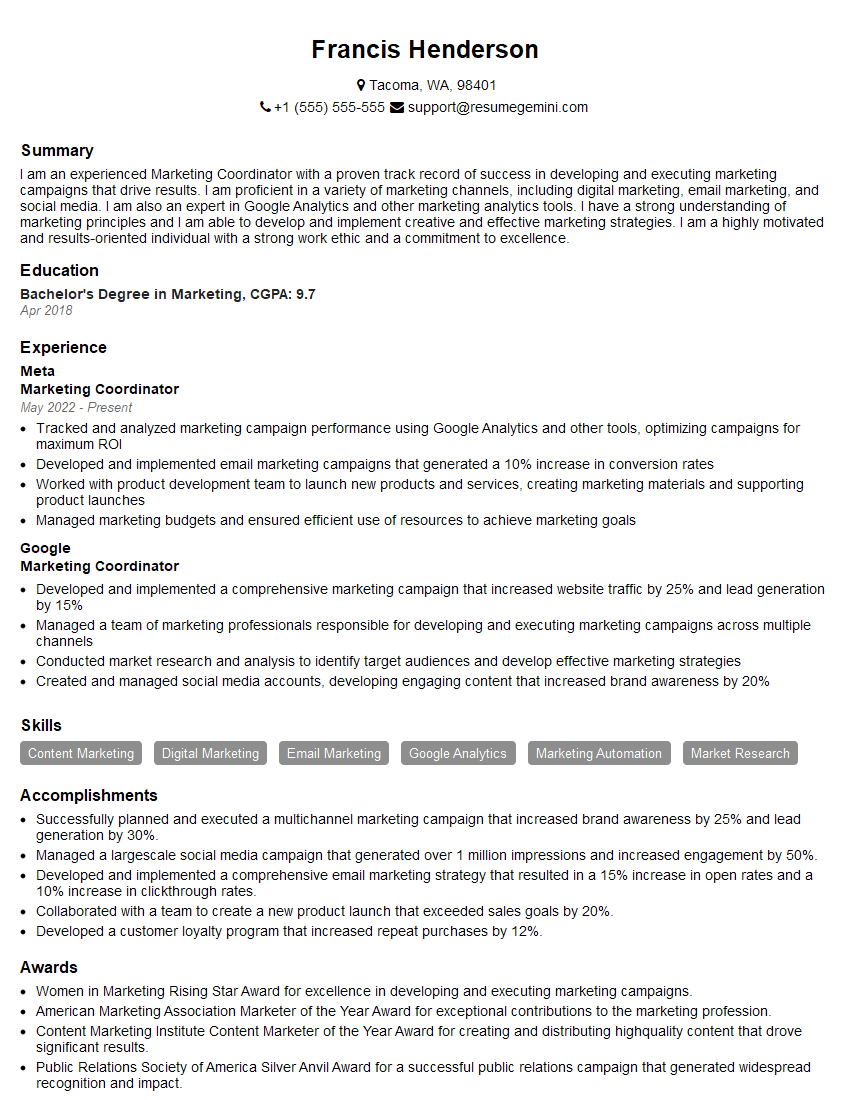
Marketing Coordinator Resume Sample
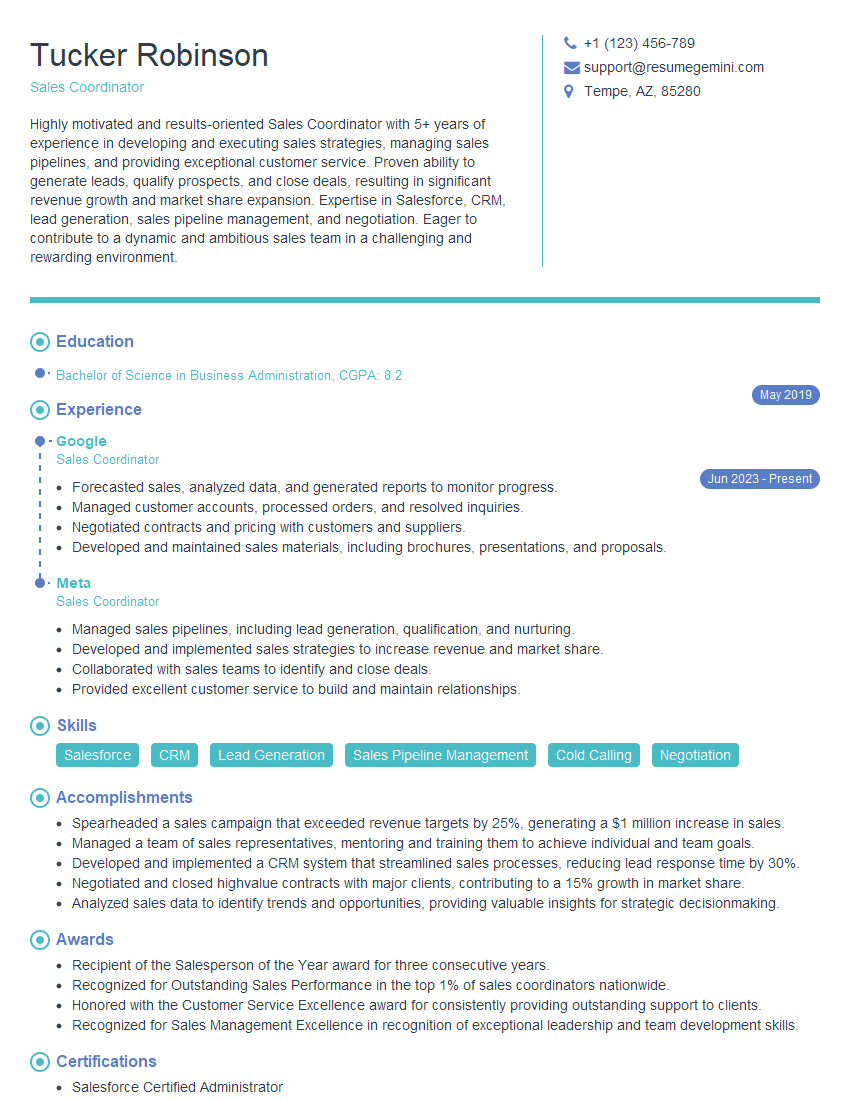
Sales Coordinator Resume Sample

Administrative Assistant Resume Sample
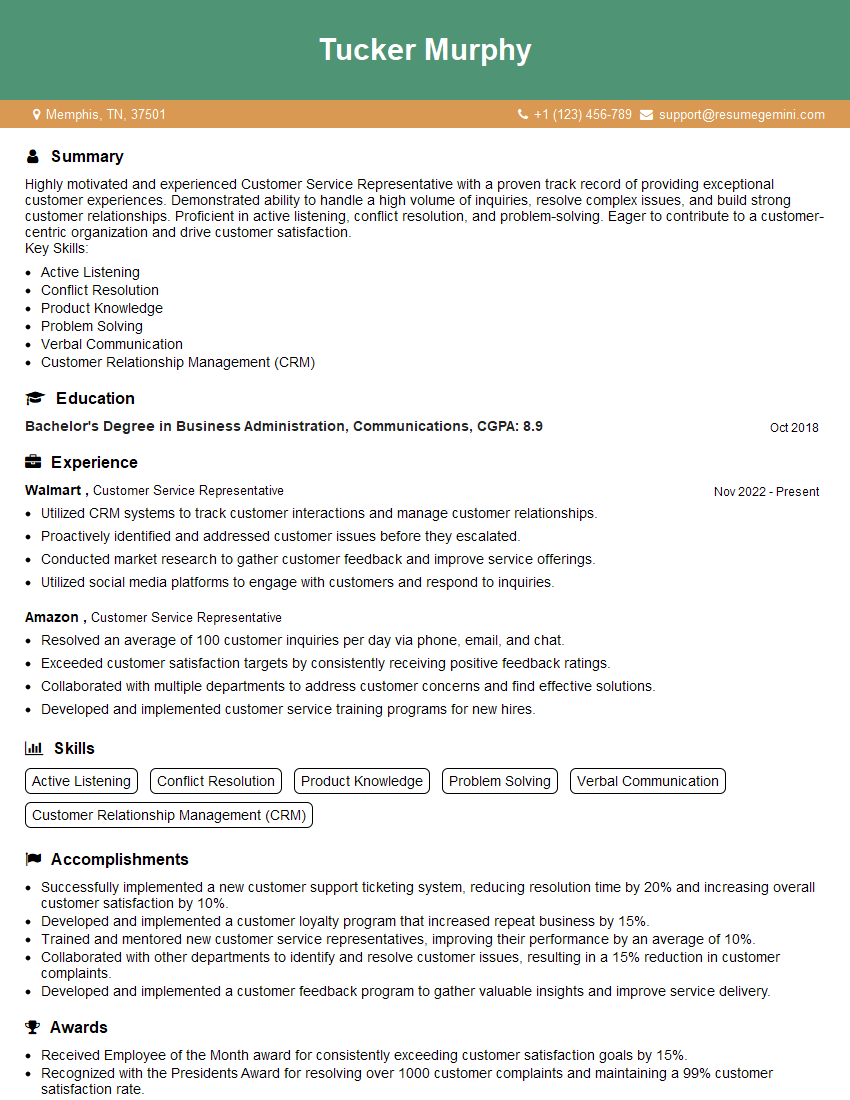
Customer Service Representative Resume Sample
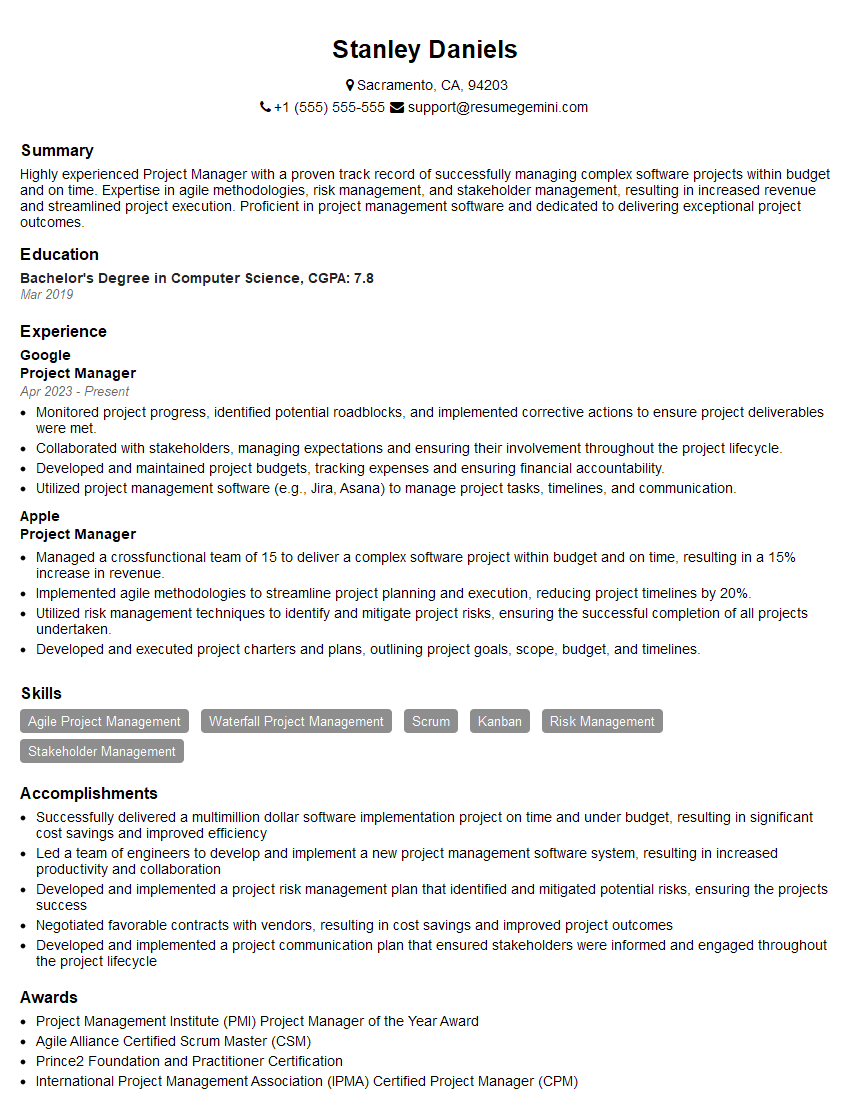
Project Manager Resume Sample
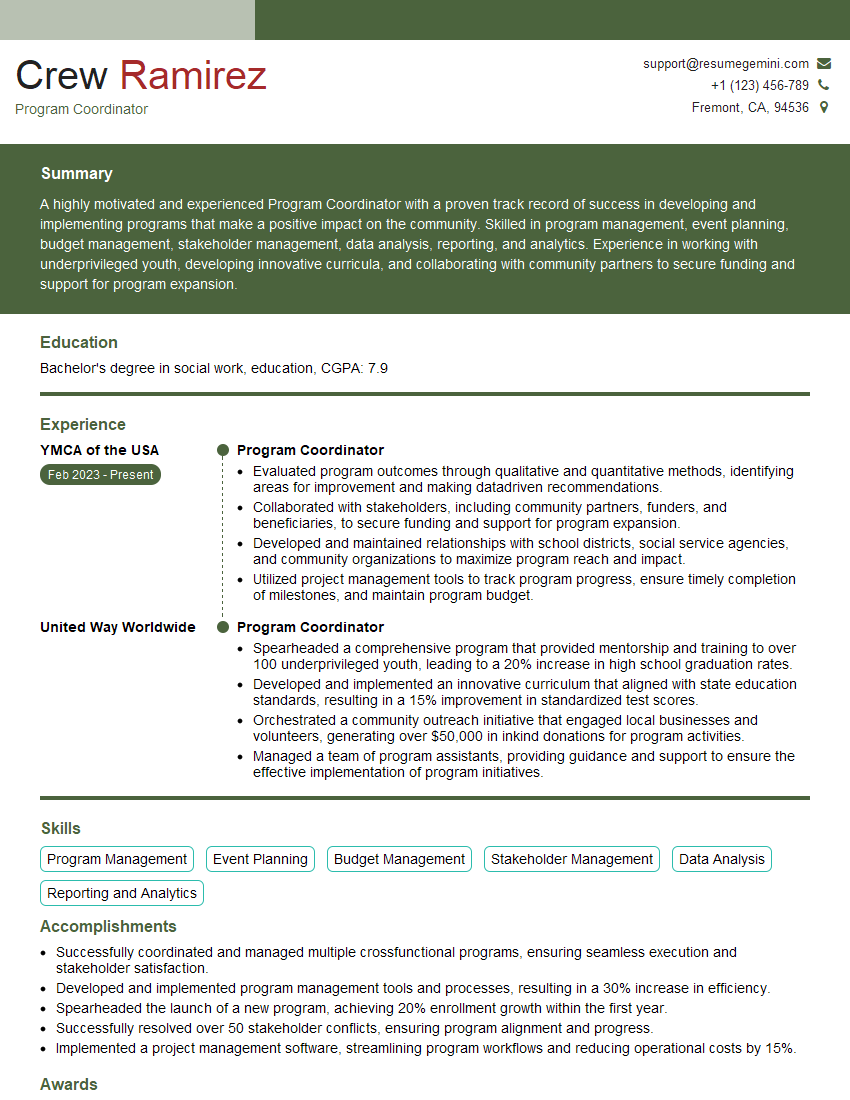
Program Coordinator Resume Sample
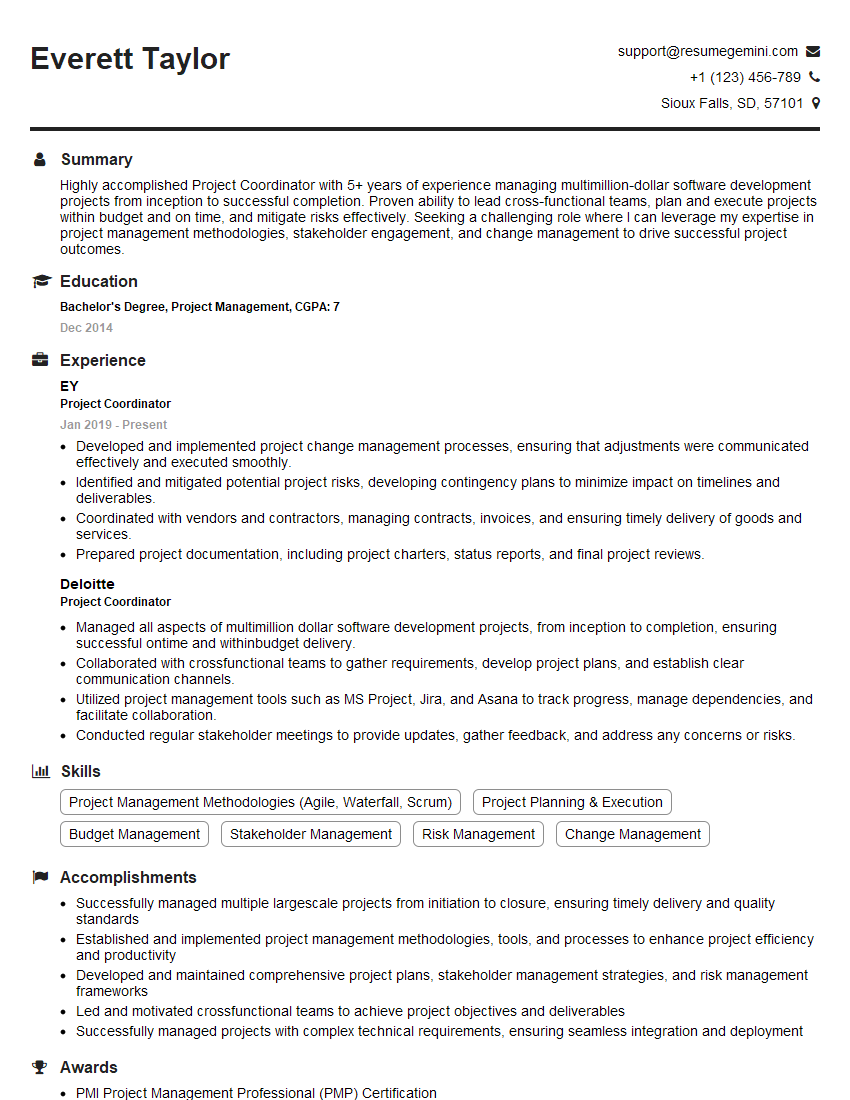
Project Coordinator Resume Sample
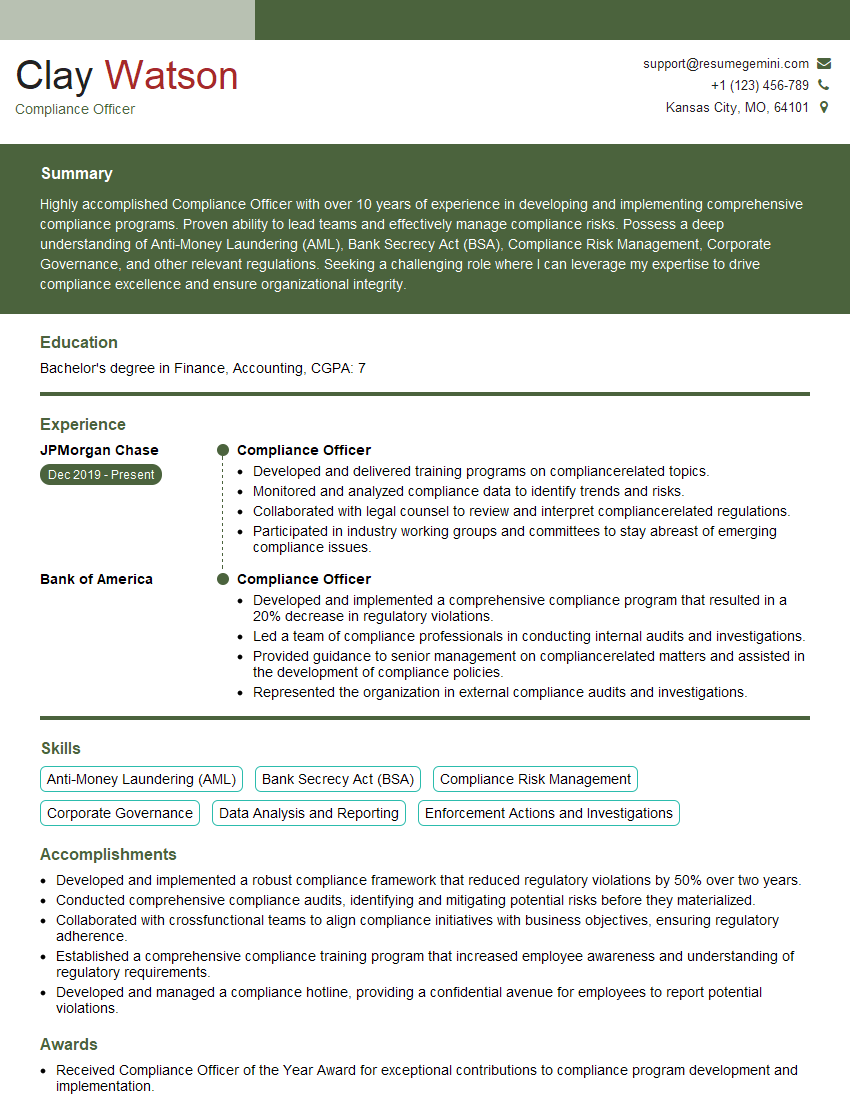
Compliance Officer Resume Sample

Business Analyst Resume Sample
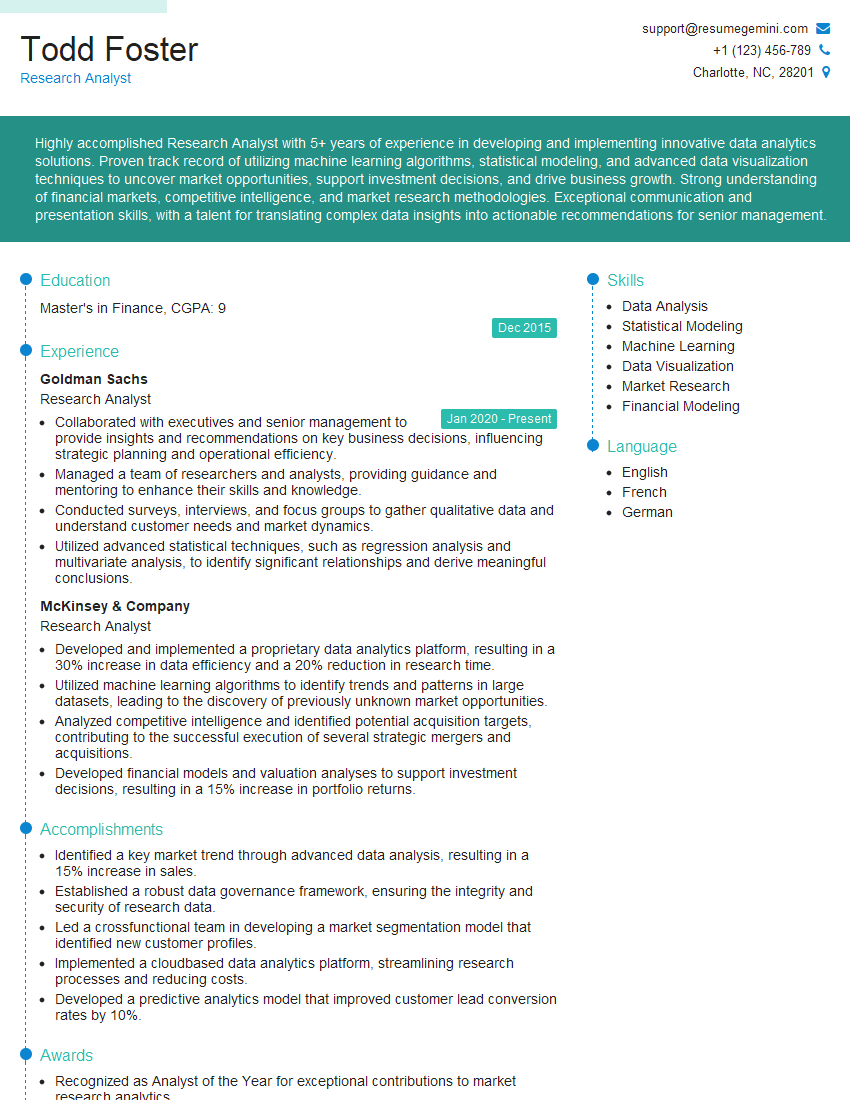
Research Analyst Resume Sample
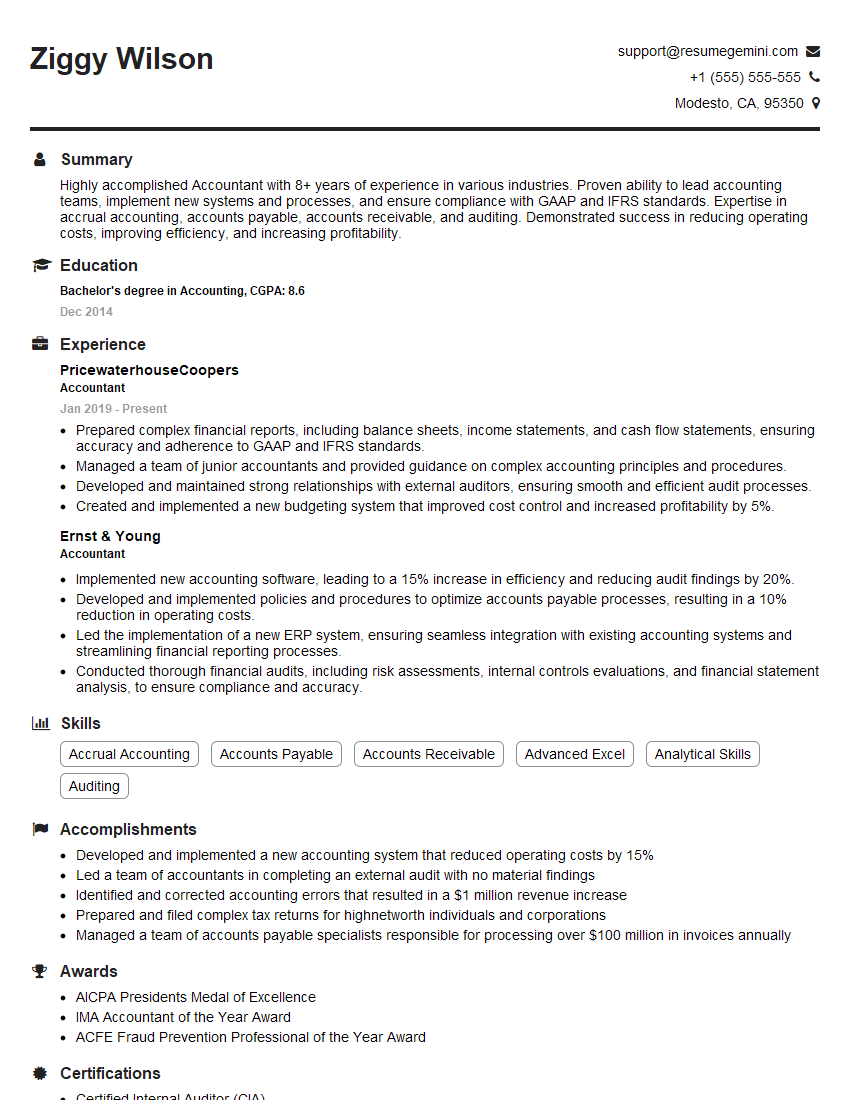
Accountant Resume Sample
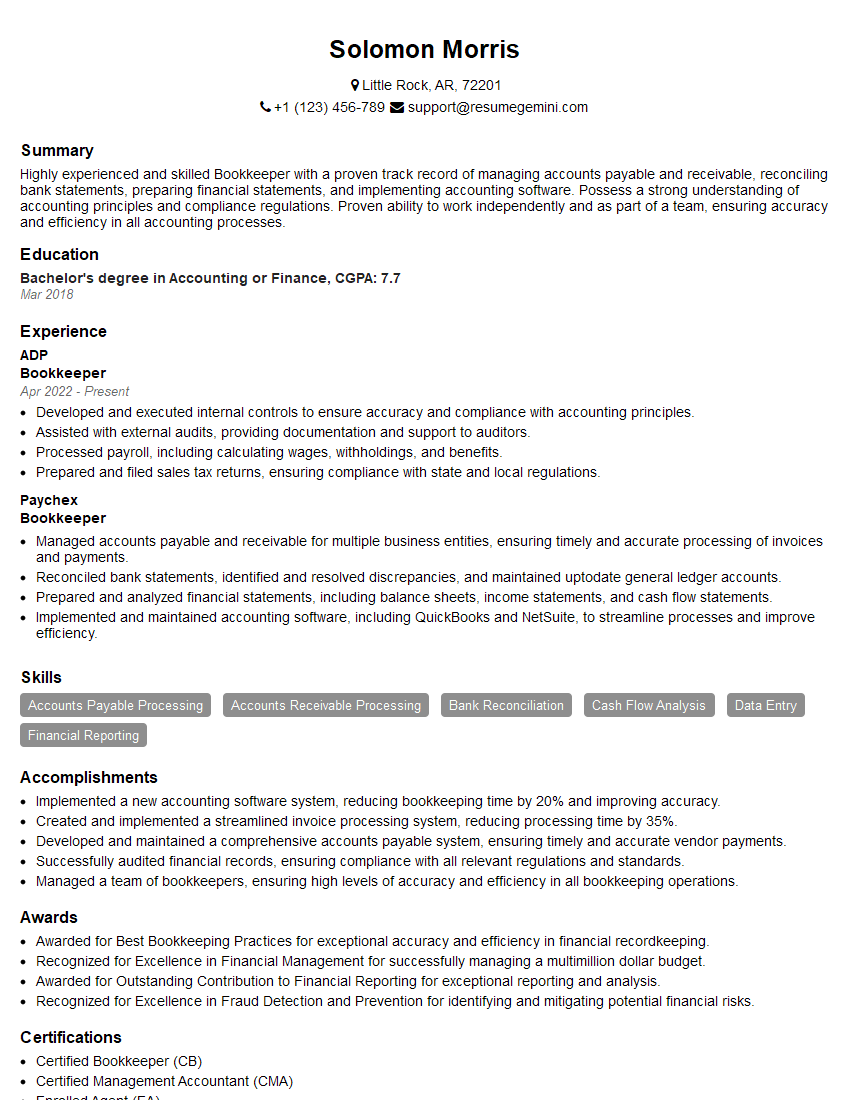
Bookkeeper Resume Sample
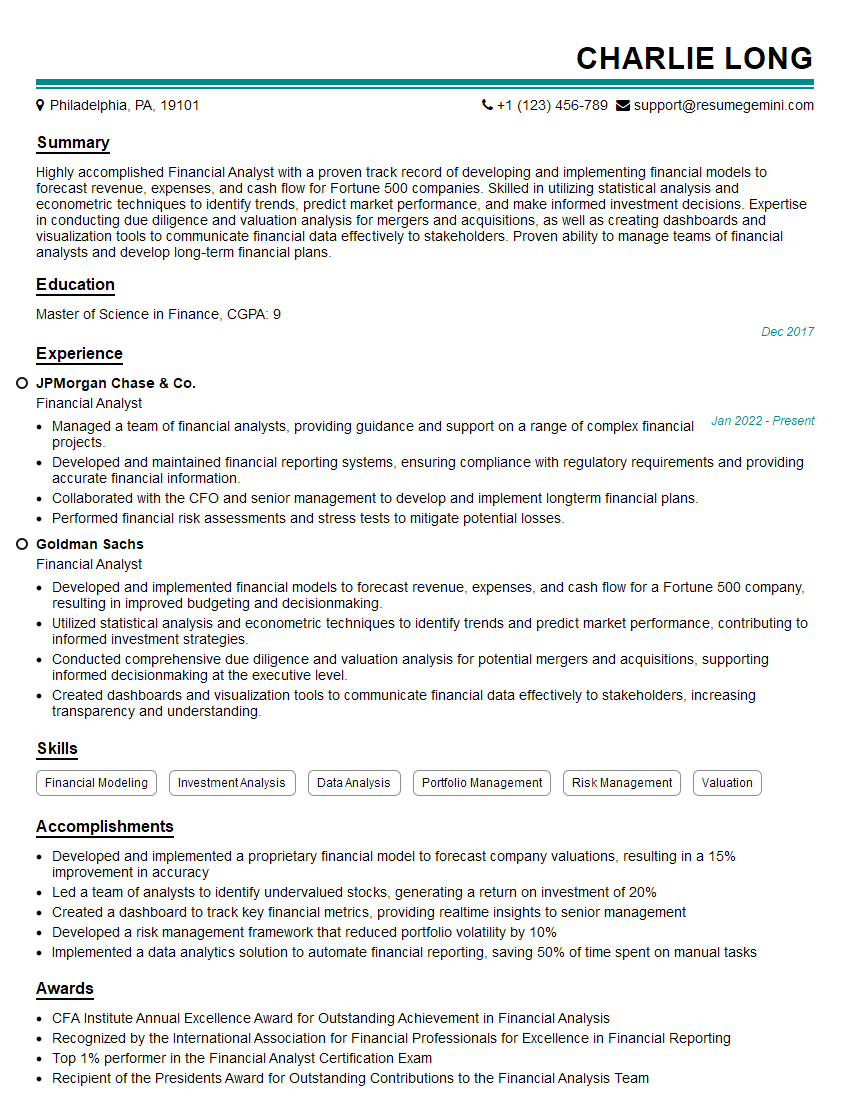
Financial Analyst Resume Sample

Data Analyst Resume Sample
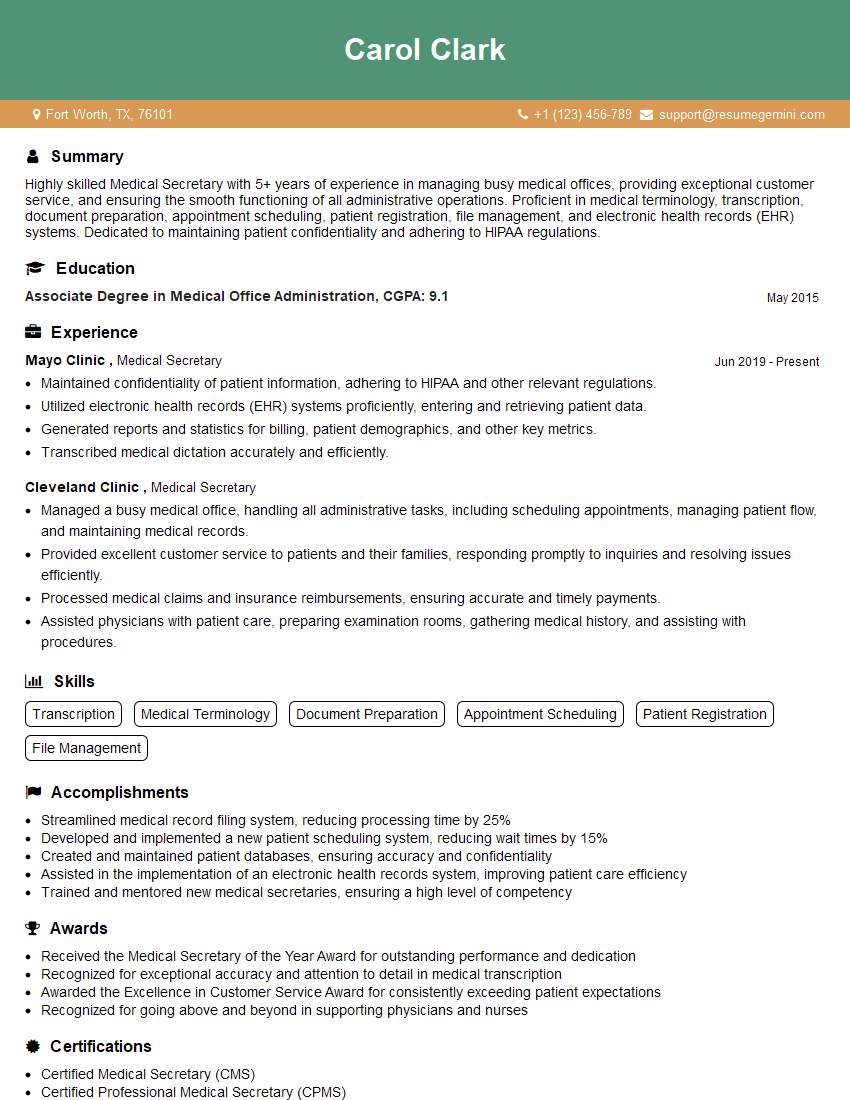
Medical Secretary Resume Sample
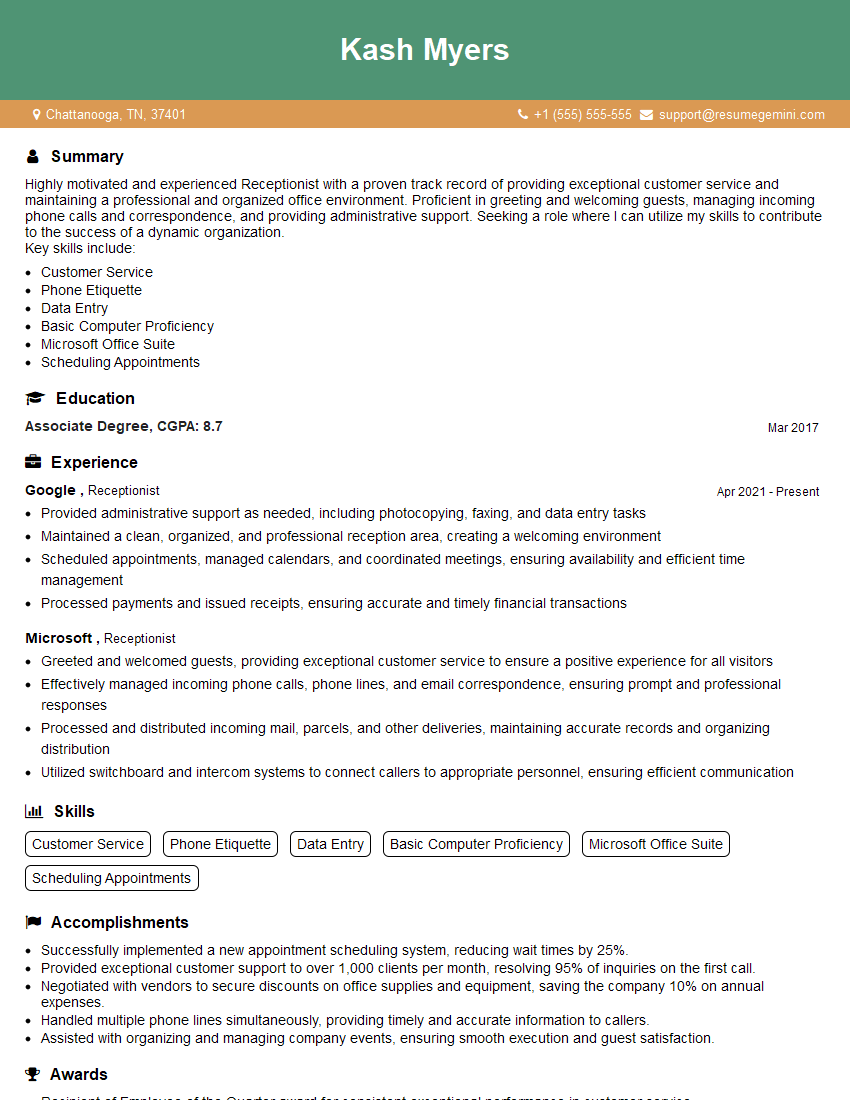
Receptionist Resume Sample

Executive Assistant Resume Sample
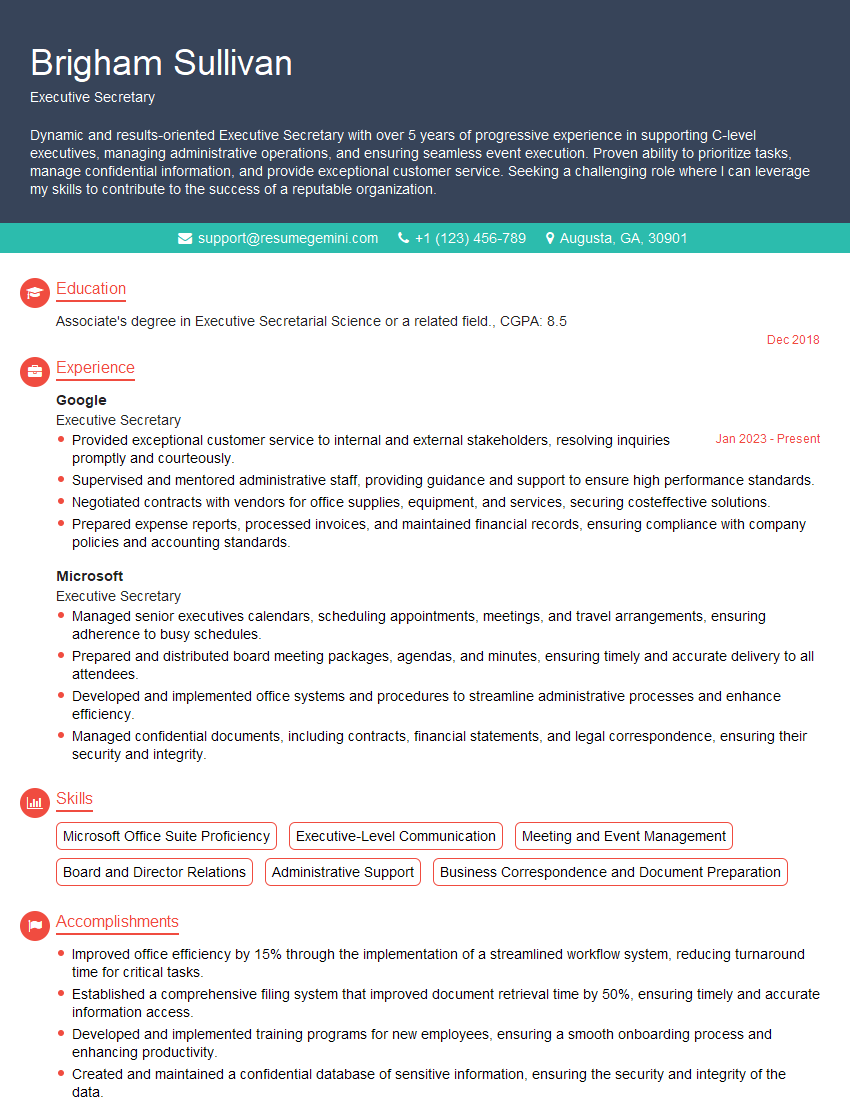
Executive Secretary Resume Sample
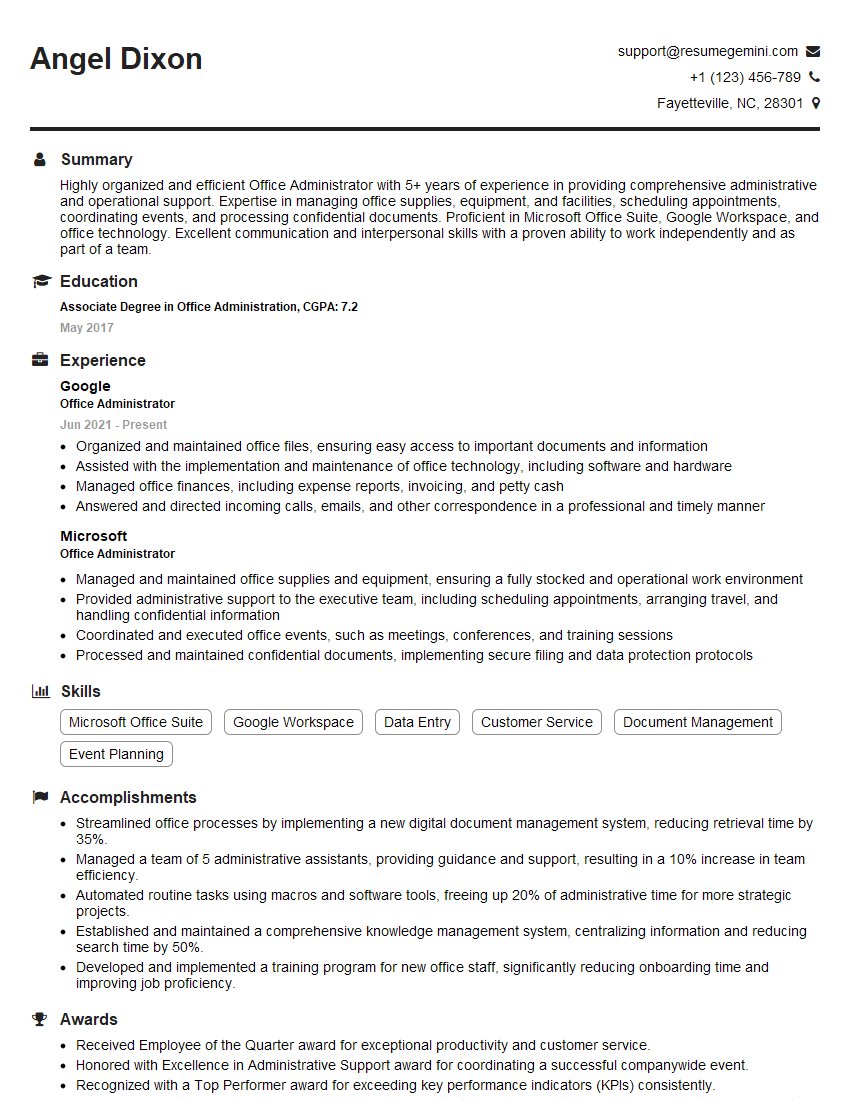
Office Administrator Resume Sample
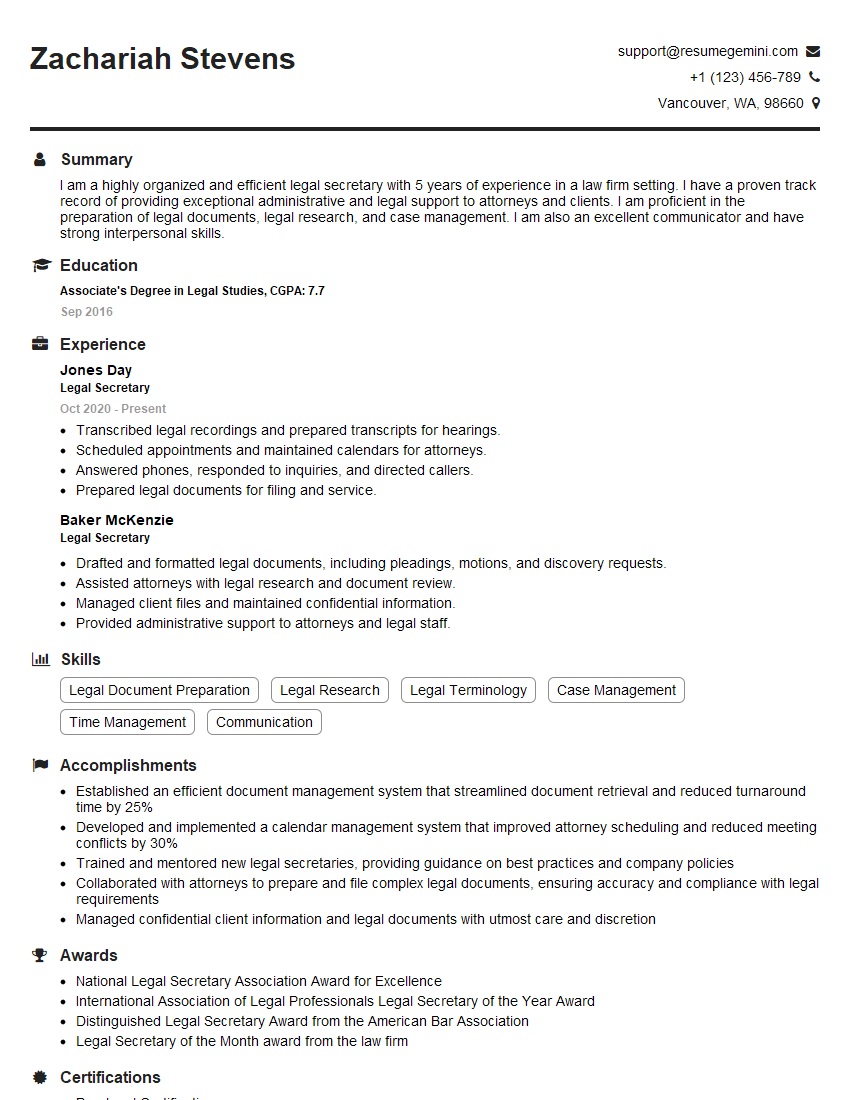
Legal Secretary Resume Sample

Data Entry Clerk Resume Sample
- Office Manager
- Marketing Coordinator
- Sales Coordinator
- Administrative Assistant
- Customer Service Representative
- Project Manager
- Program Coordinator
- Project Coordinator
- Compliance Officer
- Business Analyst
- Research Analyst
- Accountant
- Bookkeeper
- Financial Analyst
- Data Analyst
- Medical Secretary
- Receptionist
- Executive Assistant
- Executive Secretary
- Office Administrator
- Legal Secretary
- Data Entry Clerk
Explore more articles
Users Rating of Our Blogs
Share Your Experience
We value your feedback! Please rate our content and share your thoughts (optional).
What Readers Say About Our Blog
I Redesigned Spongebob Squarepants and his main characters of my artwork.
https://www.deviantart.com/reimaginesponge/art/Redesigned-Spongebob-characters-1223583608
IT gave me an insight and words to use and be able to think of examples
Hi, I’m Jay, we have a few potential clients that are interested in your services, thought you might be a good fit. I’d love to talk about the details, when do you have time to talk?
Best,
Jay
Founder | CEO