The right preparation can turn an interview into an opportunity to showcase your expertise. This guide to Proficient in Microsoft Office Suite and Google Workspace. interview questions is your ultimate resource, providing key insights and tips to help you ace your responses and stand out as a top candidate.
Questions Asked in Proficient in Microsoft Office Suite and Google Workspace. Interview
Q 1. Describe your experience using Microsoft Word’s mail merge feature.
Mail merge in Microsoft Word is a powerful tool for creating personalized documents, such as letters, emails, or labels, from a single template. Think of it like a stamp machine, but instead of stamps, you’re creating personalized documents. It works by combining a main document (your template) with data from a data source, like an Excel spreadsheet or a database. Each record in the data source populates the placeholders in your template, generating a unique document for each recipient.
In my experience, I’ve used mail merge extensively for tasks like sending personalized thank-you notes to clients after a project, generating customized invoices with client-specific information, and creating address labels for mass mailings. For example, I once used mail merge to create 500 personalized invitations for a company event. I created a Word template containing the event details and placeholders for recipient names and addresses. Then, I imported a spreadsheet containing the guest list, and Word automatically populated the placeholders with the correct information, saving me countless hours of manual work.
The process typically involves selecting the mail merge recipient list, inserting merge fields into the document (e.g., <, <>), previewing the merged documents, and finally printing or saving the resulting documents.
Q 2. How proficient are you with Excel’s pivot tables and VLOOKUP function?
I’m highly proficient with both Excel’s pivot tables and the VLOOKUP function. Pivot tables are incredibly useful for summarizing and analyzing large datasets. They allow you to quickly create interactive summaries and reports by dragging and dropping fields to explore relationships between different data points. Think of them as a dynamic, interactive way to explore the trends and insights hidden in your data.
The VLOOKUP function, on the other hand, is excellent for retrieving data from one table based on a value found in another table. It’s like having a super-fast search engine within your spreadsheet. You provide it with a lookup value, the table to search, the column containing the result, and whether or not you need an exact match, and it returns the corresponding value.
For example, I once used pivot tables to analyze sales data across different regions and product categories, revealing which products performed best in each region. Then I used VLOOKUP to automatically populate a separate sheet with pricing information based on the product codes from the sales data. This integration allowed for quick and efficient analysis and reporting.
=VLOOKUP(A2,Sheet2!A:B,2,FALSE)This formula, for example, looks up the value in cell A2 of the current sheet in the first column of Sheet2’s A:B range and returns the corresponding value from the second column (column B). The FALSE argument ensures an exact match.
Q 3. Explain your experience with creating and managing spreadsheets in Google Sheets.
I have extensive experience creating and managing spreadsheets in Google Sheets. Its collaborative nature and accessibility are invaluable assets. I’ve used Google Sheets for various purposes, from simple budgeting to complex data analysis projects. Its real-time collaboration feature is particularly useful for team projects, allowing multiple users to work on the same sheet simultaneously without version control conflicts.
I’ve utilized many of Google Sheets’ features, including formulas (like SUM, AVERAGE, IF), charting capabilities, data validation, and conditional formatting to build dynamic and user-friendly spreadsheets. For instance, I built a project tracking spreadsheet for my team, where each member could input their progress, and I could track the overall project status using formulas and charts. The ability to share and access the sheet from any device with an internet connection simplifies data management and team communication.
Q 4. How would you use Google Forms to collect and analyze data?
Google Forms is a fantastic tool for collecting and analyzing data efficiently. It allows you to create customized questionnaires or surveys with various question types, such as multiple-choice, text boxes, and checkboxes. Once you’ve created your form, you can easily share it via a link or embed it on a website. The responses are automatically collected and organized in a Google Sheet, making analysis effortless.
For data analysis, I leverage the Google Sheet linked to the form. I can use various functions and features to analyze the collected data, including creating charts and graphs to visualize trends, using formulas to calculate averages or percentages, and filtering data to isolate specific responses. For instance, I once used Google Forms to collect feedback on a new product. The data collected was then analyzed using the linked spreadsheet to help inform future product development and marketing strategies.
Q 5. Describe your experience with PowerPoint presentations, including animations and transitions.
PowerPoint is a cornerstone of my presentation creation workflow. I’m comfortable crafting engaging and informative presentations, incorporating animations and transitions to enhance visual appeal and audience engagement. I use animations subtly to highlight key points and transitions to smoothly guide the audience through the narrative. The key is to use these features sparingly to avoid overwhelming the viewers; simplicity and clarity are key.
I’ve created presentations for a variety of purposes, from internal team meetings to external client presentations. I focus on clear visuals, concise messaging, and a consistent design style to ensure that the presentation is both informative and aesthetically pleasing. I believe a well-designed PowerPoint presentation can significantly influence how an audience receives information.
For example, I once created a presentation for a client to pitch a new marketing strategy. I used animations to gradually reveal data points, highlighting key takeaways, and transitions to guide the narrative between different sections of the presentation. The result was a compelling and effective presentation that secured the client’s approval.
Q 6. How familiar are you with Google Slides’ collaboration features?
I’m very familiar with Google Slides’ collaboration features. Its real-time co-editing capabilities are a game-changer for team projects. Multiple users can work simultaneously on the same presentation, making it easy to collaborate and iterate on ideas efficiently. This reduces the need for cumbersome email exchanges and version control issues.
Features like commenting and suggesting edits allow for streamlined feedback and revision processes. The ability to track changes and see who made which edits ensures transparency and accountability. I find Google Slides’ collaboration features particularly valuable for projects requiring quick turnaround times or distributed teams, as it allows for seamless teamwork regardless of location or time zone differences.
Q 7. Explain your experience with Microsoft Access databases.
My experience with Microsoft Access involves designing, creating, and managing relational databases. I’m proficient in creating tables, defining relationships between tables, designing forms for data entry and retrieval, and creating queries to extract specific information. I understand the importance of data normalization to maintain data integrity and efficiency.
I’ve utilized Access to manage various types of data, from inventory management for a small business to tracking customer information for a marketing campaign. I find that Access is a powerful tool for organizing and analyzing structured data, providing a robust and efficient solution for tasks that exceed the capabilities of simple spreadsheets. The ability to create custom queries to analyze data in various ways is particularly valuable.
For instance, I designed a database to track project tasks, resources, and deadlines, enabling efficient project management. This involved creating tables for projects, tasks, resources, and assigning relationships to track task assignments and resource allocation. Then, I developed custom queries to generate reports on project status, resource utilization, and potential bottlenecks. This allowed for proactive project management and identification of areas for improvement.
Q 8. How would you use Google Drive to share and collaborate on documents?
Google Drive offers seamless collaboration through its shared document feature. Think of it like a digital workspace where multiple people can work on the same file simultaneously. To share a document, you simply click the ‘Share’ button, add the email addresses of collaborators, and choose their permission level – can they view, comment, or edit? For instance, if I’m working on a marketing proposal with a team, I’d upload the document to Drive, share it with my team, and set permissions to ‘Edit’ so everyone can contribute. Real-time co-authoring allows everyone to see each other’s changes instantly, eliminating version control issues. This is incredibly useful for projects with tight deadlines and multiple contributors. Furthermore, Drive’s version history allows us to revert to previous versions if necessary, ensuring we don’t lose any work.
Q 9. Describe your experience with Microsoft Outlook email management, including calendar and contacts.
My experience with Microsoft Outlook is extensive. I’m proficient in managing emails using folders, rules, and flags for prioritization. I often use the calendar feature for scheduling appointments, meetings, and setting reminders, ensuring I don’t miss crucial events. The contacts feature allows me to organize and maintain a comprehensive list of professional contacts, complete with relevant information like phone numbers, addresses, and company details. For instance, I’ve used Outlook’s calendar to coordinate large-scale project meetings involving multiple stakeholders, ensuring everyone is informed and their schedules are considered. I’ve also leveraged the task management features within Outlook to break down projects into smaller, manageable tasks, setting deadlines and reminders for each.
Q 10. How would you use Gmail filters and labels to organize your inbox?
Gmail’s filters and labels are invaluable for inbox organization. Think of filters as automated rules that sort incoming emails based on criteria you define. For example, I might create a filter that automatically archives emails from newsletters, preventing them from cluttering my inbox. Labels act like virtual folders, allowing you to categorize emails based on topic, project, or sender. So, all emails related to a specific project could be tagged with a ‘Project X’ label. Combined, they drastically reduce inbox overload. Imagine receiving 100 emails daily. By strategically using filters to automatically archive promotional emails and using labels to categorize important client communication, my inbox remains focused and manageable.
Q 11. What is your experience with Microsoft Excel’s data analysis tools?
My Excel skills encompass a wide range of data analysis tools. I’m proficient in using functions like SUMIF, VLOOKUP, AVERAGE, and COUNTIF for summarizing and analyzing data. I’ve used pivot tables extensively to summarize and analyze large datasets, identifying trends and patterns. For instance, I recently used pivot tables to analyze sales data, identifying top-performing products and regions. Beyond basic functions, I’m also comfortable with more advanced techniques like using macros for automation, creating charts and graphs for visual data representation, and using conditional formatting for highlighting key insights.
Q 12. How would you use Google Sheets to create charts and graphs?
Google Sheets provides a straightforward way to create charts and graphs. After selecting the data, you simply navigate to the ‘Insert’ menu and choose the chart type that best suits your data – be it a bar chart, pie chart, line graph, or scatter plot. Sheets automatically generates the chart, but you can customize it further by adjusting colors, labels, titles, and more to ensure clarity and visual appeal. For example, I recently used Google Sheets to create a line graph to visualize website traffic over time. It allowed me to quickly identify trends in user engagement, which was crucial for informing strategic marketing decisions.
Q 13. Describe your experience with creating professional-looking documents in Microsoft Word.
I have extensive experience creating professional-looking documents in Microsoft Word. I utilize styles and templates to ensure consistency and a polished look. My skills include working with tables, images, and headers/footers to enhance document organization and readability. I’m adept at using advanced features like mail merge for creating personalized letters or labels. For instance, I once created a comprehensive company report using Word, incorporating various tables, charts, and images to clearly present the data. I leveraged Word’s built-in styles to maintain a consistent font, formatting, and overall aesthetic, resulting in a professional and visually appealing document.
Q 14. How familiar are you with Google Docs’ revision history and commenting features?
I’m very familiar with Google Docs’ revision history and commenting features. The revision history allows tracking of all changes made to a document, making it easy to see who made which changes and when. This is crucial for collaborative projects, allowing easy identification and correction of any errors. The commenting feature facilitates real-time feedback and discussion on the document; allowing collaborators to suggest edits, ask questions, and have focused discussions directly within the document. This significantly improves collaboration efficiency, reducing the need for separate email chains or meetings to discuss edits. For example, in a recent project, the revision history allowed us to quickly identify the source of an error, revert to a previous version, and continue working collaboratively without significant delays.
Q 15. How would you troubleshoot common issues in Microsoft Excel?
Troubleshooting Microsoft Excel issues often involves a systematic approach. I’d start by identifying the problem’s nature – is it a calculation error, a formatting issue, a file corruption problem, or something else?
- Calculation Errors: These often stem from incorrect formulas or referencing the wrong cells. I’d meticulously check formulas for typos, incorrect cell references (using the ‘Trace Precedents’ and ‘Trace Dependents’ features), and ensure the correct order of operations. For example, if a SUM formula is producing unexpected results, I’d verify each cell being summed is numerically correct and not accidentally containing text.
- Formatting Issues: Problems like misaligned text, incorrect number formatting, or hidden rows/columns are easily addressed. I’d utilize Excel’s formatting tools to adjust alignment, number formats (e.g., currency, percentage), and check for hidden elements via the ‘Unhide’ option. For instance, if a chart is not displaying correctly, I’d carefully review the data source and chart formatting options.
- File Corruption: If the Excel file itself is corrupted, I’d try opening it in ‘Safe Mode’ to disable add-ins which might be the culprit. If that fails, I’d try recovering the file using Excel’s built-in repair feature or look for any backup copies. This situation highlights the importance of regular saving and cloud backups.
- Add-in Conflicts: Sometimes, add-ins can cause unexpected behavior. Disabling add-ins temporarily can help isolate and solve such problems. I’d systematically disable them one by one to pin-point the problematic one.
In all cases, I’d utilize Excel’s Help feature and online resources to find solutions for specific error messages. My approach emphasizes a logical, step-by-step process to pinpoint the cause efficiently.
Career Expert Tips:
- Ace those interviews! Prepare effectively by reviewing the Top 50 Most Common Interview Questions on ResumeGemini.
- Navigate your job search with confidence! Explore a wide range of Career Tips on ResumeGemini. Learn about common challenges and recommendations to overcome them.
- Craft the perfect resume! Master the Art of Resume Writing with ResumeGemini’s guide. Showcase your unique qualifications and achievements effectively.
- Don’t miss out on holiday savings! Build your dream resume with ResumeGemini’s ATS optimized templates.
Q 16. How would you resolve a conflict between collaborators using Google Docs?
Resolving conflicts in Google Docs hinges on effective collaboration practices and Google Docs’ built-in version history. My strategy would involve the following steps:
- Review the Revision History: Google Docs maintains a detailed revision history. I’d carefully examine the changes made by each collaborator to understand where the conflict arose. This often highlights the source of disagreement – perhaps a misunderstanding of requirements or conflicting edits.
- Communication is Key: I’d immediately initiate communication with the other collaborators. A brief discussion can often clarify the discrepancies and avoid further conflict. Suggesting a quick video call or chat to directly discuss the changes helps.
- Suggesting a compromise: Once the conflicting edits are identified, I’d suggest a compromise that incorporates the valuable contributions of each collaborator. This often involves merging the best elements of each version.
- Utilizing Suggestion Mode: If the document requires more extensive collaboration and changes, I’d suggest using Google Docs’ ‘Suggesting’ mode which allows collaborators to propose changes without directly altering the original text, reducing the risk of accidental overwriting and facilitating easier conflict resolution.
- Clear Communication Protocols: For future projects, I’d establish clear communication protocols and work-flow practices before initiating the collaboration. Clearly defining responsibilities and setting up regular check-in meetings are crucial for seamless teamwork.
My approach emphasizes proactive communication and leveraging the tools within Google Docs to effectively manage and resolve conflicts before they escalate.
Q 17. Explain your experience with Microsoft Publisher or Canva for design work.
I have extensive experience with both Microsoft Publisher and Canva, selecting the tool based on the project’s specific needs.
- Microsoft Publisher: I’ve used Publisher for creating professional-looking brochures, newsletters, and marketing materials. Its strength lies in its ability to produce high-quality print-ready publications. I appreciate Publisher’s robust features for designing layouts, incorporating images and text, and controlling the overall visual appeal. I’ve used it to create marketing collateral for a local business, resulting in a consistent brand identity across various materials.
- Canva: Canva excels in its ease of use and accessibility. Its drag-and-drop interface and extensive template library make it ideal for quick design tasks. I’ve leveraged Canva’s intuitive features to create social media graphics, presentations, and even simple website mockups. The collaborative aspects of Canva have proven invaluable in team-based design projects. For example, using Canva, I collaborated with my team to design infographics for a client presentation.
My choice between Publisher and Canva depends on the project’s complexity, timeline, and the desired output quality. For intricate print materials, Publisher often provides more control. For quick designs or online-focused projects, Canva’s simplicity and speed is a significant advantage.
Q 18. How would you use Google Drawings to create simple diagrams?
Google Drawings is a fantastic tool for creating simple diagrams. Its user-friendly interface makes it accessible to even beginners.
To create a diagram, I’d first choose the appropriate shapes from the shapes palette. This includes basic shapes like rectangles, circles, arrows, and lines. These are then dragged onto the canvas and resized as needed. I’d use the ‘Arrange’ menu to control the layering and order of elements. For example, I’d place boxes representing processes below connecting arrows illustrating the flow.
Adding text labels and connectors is easily done by using the text tool and drawing lines or arrows between shapes. I’d use the formatting options (font, size, color) to enhance readability. For instance, I could create a simple flowchart illustrating the steps involved in a particular work process. Once the diagram is complete, I can easily export it in various formats like PNG, JPEG, or SVG, for seamless integration into other documents or presentations.
Google Drawings’ simplicity makes it perfect for quick visualizations, mind maps, or even more complex diagrams with careful planning and layering.
Q 19. What is your experience with Microsoft OneNote or Google Keep for note-taking?
Both Microsoft OneNote and Google Keep are valuable note-taking tools, each with its strengths.
- Microsoft OneNote: I’ve utilized OneNote extensively for organizing complex information, particularly during research and project planning. I appreciate its ability to create hierarchical notebooks, sections, and pages, offering excellent organization for diverse notes, whether they’re handwritten (using a touchscreen device), typed, or screenshots. I can embed images, audio recordings, or even web clippings directly into my notes, making it a comprehensive resource hub. For a recent project, I used OneNote to consolidate research articles, meeting notes, and project milestones – all within a single, well-organized digital notebook.
- Google Keep: I prefer Google Keep for quick, short notes and reminders. Its simplicity and accessibility make it perfect for capturing fleeting thoughts or to-do lists on-the-go. Its ability to add color-coded labels, checklists, and reminders enhances note organization and recall. I regularly use Google Keep for grocery lists, quick reminders, and jotting down ideas. Its seamless integration with other Google services further enhances its utility.
My choice between OneNote and Google Keep depends on the complexity and purpose of the notes. OneNote’s structure and features are more suited to complex and multifaceted projects while Google Keep’s simplicity caters to quick and straightforward notes.
Q 20. Describe your experience using macros in Microsoft Excel or Google Apps Script.
I have experience with both macros in Microsoft Excel and Google Apps Script. While they achieve similar outcomes – automating tasks – their implementation differs significantly.
- Microsoft Excel Macros (VBA): I’ve used VBA to automate repetitive tasks like data cleaning, report generation, and formatting. I’m comfortable writing VBA code to manipulate data, control Excel objects, and interact with other applications. For example, I developed a macro that automatically formatted sales data, creating charts and reports with a single click, significantly reducing manual effort and increasing efficiency. VBA code is powerful but requires programming knowledge.
- Google Apps Script: This JavaScript-based scripting language allows automating tasks within Google Workspace apps like Sheets, Docs, and Slides. I’ve used Apps Script to automate tasks like email notifications, data import/export, and generating reports directly from Google Sheets. For instance, I automated the process of updating a client’s sales data in Google Sheets by pulling information from a database automatically every morning. Apps Script provides similar functionality to VBA but with the advantage of being JavaScript-based, which many are already familiar with.
My choice between VBA and Apps Script is dictated by the environment. For tasks within the Microsoft Office ecosystem, VBA is more direct. For Google Workspace, Apps Script is the natural choice. Both empower significant automation for enhanced productivity.
Q 21. How would you use conditional formatting in Microsoft Excel or Google Sheets?
Conditional formatting in both Microsoft Excel and Google Sheets is a powerful tool for visually highlighting data based on specific criteria. It allows users to quickly identify trends, outliers, and important data points within a spreadsheet.
The process is essentially the same in both applications. You select the range of cells you want to format, then access the ‘Conditional Formatting’ option. You then define the rules based on your criteria. These rules can be based on various conditions:
- Highlight Cells Rules: This allows highlighting cells based on numerical values (greater than, less than, between, equal to), text values (containing, beginning with, ending with), or dates.
- Data Bars: Visual representation of cell values using colored bars within each cell.
- Color Scales: Gradually changing cell colors based on the value within a range.
- Icon Sets: Using small icons (e.g., arrows, traffic lights) to visually represent cell values.
For example, I’ve used conditional formatting to highlight cells containing negative values in red and positive values in green, creating an immediate visual representation of financial performance. This enhances data analysis and aids in quick decision-making. Similarly, I’ve used color scales to visually display sales figures, allowing the quick identification of the highest and lowest-performing regions or products. The specific formatting options and customization available may differ slightly between Excel and Google Sheets, but the core functionality remains consistent.
Q 22. Explain your experience with data validation in Microsoft Excel or Google Sheets.
Data validation in Excel and Google Sheets is a crucial feature for maintaining data accuracy and consistency. It allows you to define rules that dictate what kind of data can be entered into specific cells, preventing errors and inconsistencies before they occur. Think of it as a gatekeeper for your data, ensuring only valid entries are accepted.
In Excel, you access data validation through the Data tab, then selecting Data Validation. In Google Sheets, it’s found under the Data menu, then Data validation. Both offer similar options, including setting criteria like:
- Specific values: Limiting input to a predefined list (e.g., ‘Yes’, ‘No’, ‘Maybe’).
- Numbers: Specifying a range (e.g., between 1 and 100), or requiring whole numbers only.
- Dates: Restricting input to a specific date range or format.
- Text length: Setting minimum and maximum character limits.
- Custom formulas: Applying more complex validation rules using Excel or Google Sheets formulas (e.g., ensuring a cell value is a valid email address).
For example, I once used data validation to ensure that order IDs in a spreadsheet were in a specific numerical format (e.g., starting with ‘ORD-‘ followed by six digits). This prevented typos and ensured consistency across the entire dataset, making reporting and analysis much more reliable. The error alerts provided by data validation also significantly reduced the time spent on manual error checking.
Q 23. Describe your experience with formulas and functions in both Microsoft Excel and Google Sheets.
Formulas and functions are the backbone of spreadsheet analysis in both Excel and Google Sheets. They allow you to perform calculations, manipulate data, and automate tasks, transforming raw data into meaningful insights. While the syntax might differ slightly, the core functionalities are largely the same.
My experience encompasses a wide range of formulas and functions, including:
- Basic arithmetic:
SUM,AVERAGE,MAX,MIN, etc. - Logical functions:
IF,AND,ORfor conditional logic. - Lookup and reference functions:
VLOOKUP,HLOOKUP,INDEX,MATCHfor retrieving data from different parts of the spreadsheet. - Text functions:
CONCATENATE,LEFT,RIGHT,MIDfor manipulating text strings. - Date and time functions:
TODAY,NOW,DATE,TIMEfor working with dates and times.
For instance, I’ve used nested IF statements combined with VLOOKUP to automate pricing calculations based on different product categories and customer discounts. This saved considerable time compared to manual calculations and significantly reduced the risk of errors. Similarly, I’ve leveraged SUMIFS and COUNTIFS to create dynamic summaries and reports based on multiple criteria. The ability to create complex, automated calculations is where the true power of spreadsheets lies, and something I use daily.
Q 24. How familiar are you with using templates in Microsoft Office and Google Workspace?
Templates are pre-designed documents that provide a starting point for creating various types of documents, presentations, and spreadsheets. They save significant time and effort by providing a structured format and consistent styling. I’m proficient in utilizing both Microsoft Office templates (Word, Excel, PowerPoint) and Google Workspace templates (Docs, Sheets, Slides).
In my work, I frequently leverage templates for:
- Creating consistent reports: Using Excel templates to ensure uniformity in financial reports or sales data summaries.
- Designing professional presentations: Using PowerPoint or Google Slides templates to establish a consistent brand image and save time on formatting.
- Generating standardized documents: Employing Word templates for creating invoices, contracts, or letters, ensuring consistency in company branding and legal requirements.
One example was creating a project tracking template in Google Sheets that included sections for task assignments, deadlines, progress updates, and resource allocation. This template not only saved time for each new project but also improved consistency in tracking progress and managing resources across multiple projects. The use of templates ensures professionalism and efficiency, ultimately leading to higher quality output.
Q 25. How would you ensure data integrity when working with spreadsheets?
Data integrity is paramount when working with spreadsheets. It refers to the accuracy, consistency, and reliability of the data. Ensuring data integrity requires a multi-faceted approach:
- Data validation: (As described in answer 1), using data validation rules to restrict invalid entries and ensure consistency.
- Regular data checks: Conducting routine audits to identify and correct inconsistencies or errors. This can involve visual inspections, formula checks, and comparisons with external data sources.
- Version control: Using version control features (like Google Sheets’ revision history or saving multiple versions of Excel files) to track changes and revert to previous versions if needed.
- Data cleaning: Implementing processes to identify and correct data entry errors, inconsistencies, and missing values. This often involves using functions like
TRIM,CLEAN, andSUBSTITUTEin Excel or Google Sheets. - Data backup: Regularly backing up spreadsheet files to prevent data loss due to accidental deletion or system failures.
For example, in a financial reporting project, I implemented a cross-checking system where data from different sources was compared using formulas to flag discrepancies. This significantly improved data accuracy and helped identify and correct errors promptly. A comprehensive approach to data integrity is crucial for making informed decisions based on reliable data.
Q 26. What is your experience with importing and exporting data in both Microsoft Office and Google Workspace?
Importing and exporting data is a common task when working with spreadsheets. Both Microsoft Office and Google Workspace offer seamless integration with various data formats. My experience includes importing and exporting data in formats like:
- CSV (Comma Separated Values): A simple text-based format widely used for exchanging data between different applications.
- TXT (Text): Another text-based format suitable for simpler datasets.
- XLSX (Excel Workbook): The native format for Microsoft Excel, also readable by Google Sheets.
- XLS (Older Excel Workbook): Older format still supported by both platforms.
- Google Sheets format: Native format for Google Sheets.
- Databases (e.g., MySQL, SQL Server): Importing and exporting data to and from database systems using tools and connectors provided by the respective platforms.
For example, I’ve regularly imported customer data from a CRM system (in CSV format) into Excel for analysis and reporting. After processing and analysis, the results were exported back to the CRM or other systems. Understanding different data formats and the best methods for importing and exporting them is critical for efficient data management and analysis.
Q 27. How would you create a professional-looking presentation using either PowerPoint or Google Slides?
Creating a professional-looking presentation requires attention to detail and a cohesive design. Whether using PowerPoint or Google Slides, the key elements are:
- Consistent theme and branding: Using a consistent color palette, fonts, and imagery to establish a professional and unified look.
- Clear and concise messaging: Using bullet points, visuals, and minimal text to convey information effectively.
- High-quality visuals: Using relevant images, charts, and graphs to support and enhance the presentation’s message.
- Effective transitions and animations: Using subtle animations and transitions to improve engagement without distracting from the content.
- Proofreading and editing: Thoroughly proofreading the presentation for typos, grammatical errors, and inconsistencies.
For example, I once created a sales presentation using Google Slides, incorporating data visualizations from Google Sheets directly into the slides. This created a dynamic and informative presentation that clearly showcased key sales metrics and trends. By focusing on visual clarity and concise messaging, I ensured the presentation effectively communicated the key findings to the audience. A well-designed presentation can make a significant difference in conveying your message effectively.
Q 28. Describe your experience working with large datasets in either Excel or Google Sheets.
Working with large datasets requires employing strategies to improve efficiency and performance. Both Excel and Google Sheets have limitations when dealing with extremely large datasets, but several techniques can enhance performance:
- Data filtering and sorting: Focusing analysis on relevant subsets of data to reduce processing time.
- Pivot tables: Summarizing and analyzing large datasets efficiently by creating interactive summaries.
- Power Query (Excel) or Google Query Language (Google Sheets): Using these tools for data transformation and cleaning before loading the data into the spreadsheet for analysis.
- External data sources: Connecting to databases or cloud-based data warehouses to analyze large datasets without loading the entire dataset into the spreadsheet.
- Data sampling: Analyzing a representative sample of the data to gain insights without processing the entire dataset.
In a project involving analyzing millions of customer transactions, I leveraged Power Query in Excel to cleanse and transform the data before loading a summarized version into the spreadsheet for analysis. This approach allowed me to efficiently handle the data volume and perform complex analyses that would have been impossible with the raw dataset. Understanding the capabilities and limitations of your tools and employing appropriate strategies is vital when dealing with large amounts of data.
Key Topics to Learn for Proficient in Microsoft Office Suite and Google Workspace Interview
- Microsoft Word: Mastering document formatting (styles, headers, footers), advanced features like mail merge and track changes, and creating visually appealing and professional documents. Practical application: Demonstrate your ability to create a compelling report or presentation-ready document from raw data.
- Microsoft Excel: Understanding formulas, functions (VLOOKUP, IF, SUMIF, etc.), data analysis, pivot tables, and charting. Practical application: Showcase your proficiency in data manipulation, creating insightful charts, and presenting key findings from a dataset.
- Microsoft PowerPoint: Designing engaging presentations, utilizing animation and transitions effectively, and delivering a compelling narrative. Practical application: Prepare a short presentation summarizing a project or a complex concept.
- Microsoft Outlook: Efficient email management (filtering, organizing, using rules), calendar management, and contact management. Practical application: Discuss your strategies for managing a busy inbox and prioritizing tasks.
- Google Docs: Collaborative document creation and editing, version control, and real-time collaboration features. Practical application: Explain how you’ve used Google Docs to work effectively with a team on a shared project.
- Google Sheets: Spreadsheet functionality similar to Excel, including formulas, functions, and data visualization. Highlight differences and similarities to Excel in your preparation.
- Google Slides: Creating and delivering presentations in a collaborative environment. Focus on the collaborative aspects and integration with other Google Workspace tools.
- Google Drive: File storage, organization, and sharing. Explain how you manage your files and ensure easy accessibility for collaboration.
- Problem-Solving Approach: Practice approaching hypothetical scenarios requiring the use of these tools, emphasizing your logical thinking and ability to find solutions efficiently.
Next Steps
Mastering the Microsoft Office Suite and Google Workspace is crucial for boosting your career prospects across various industries. Proficiency in these tools demonstrates valuable skills in organization, data analysis, communication, and collaboration – highly sought-after qualities by employers. Creating a strong, ATS-friendly resume is essential for getting your application noticed. ResumeGemini is a trusted resource to help you build a professional and impactful resume that highlights your skills effectively. Examples of resumes tailored to showcasing proficiency in Microsoft Office Suite and Google Workspace are available to help you get started.

Office Manager Resume Sample
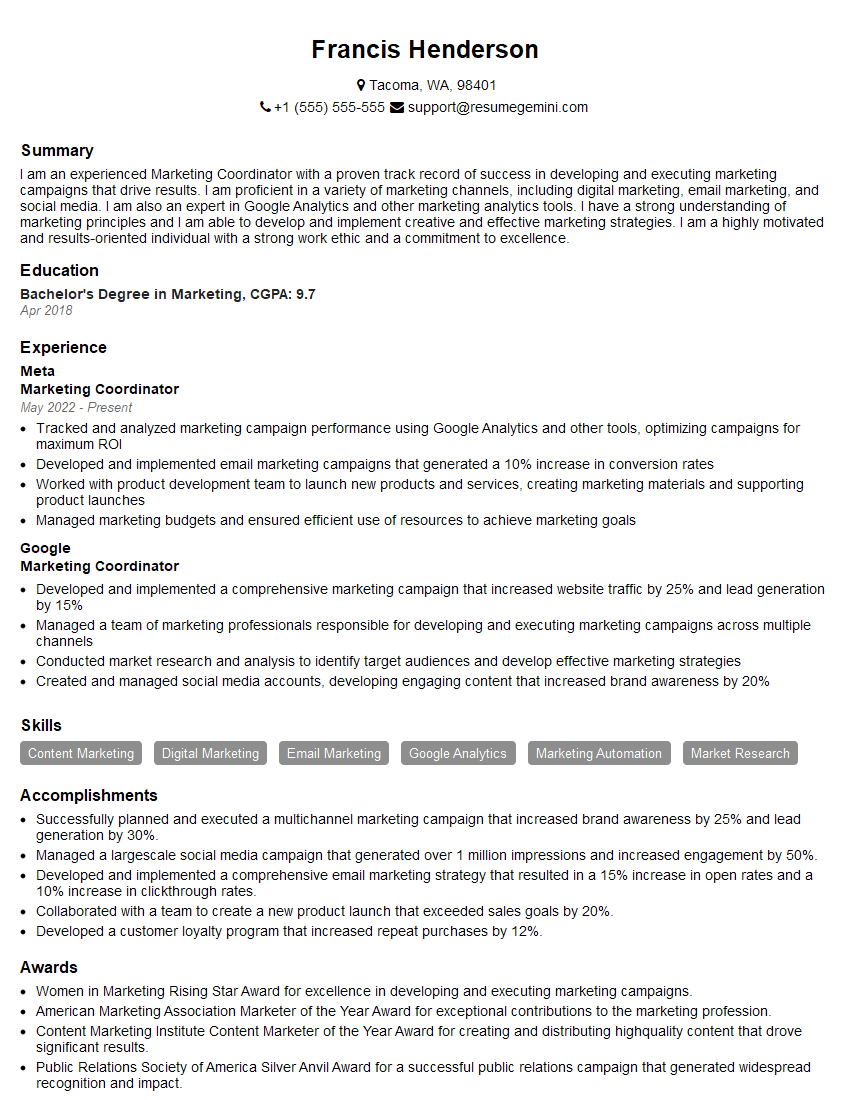
Marketing Coordinator Resume Sample
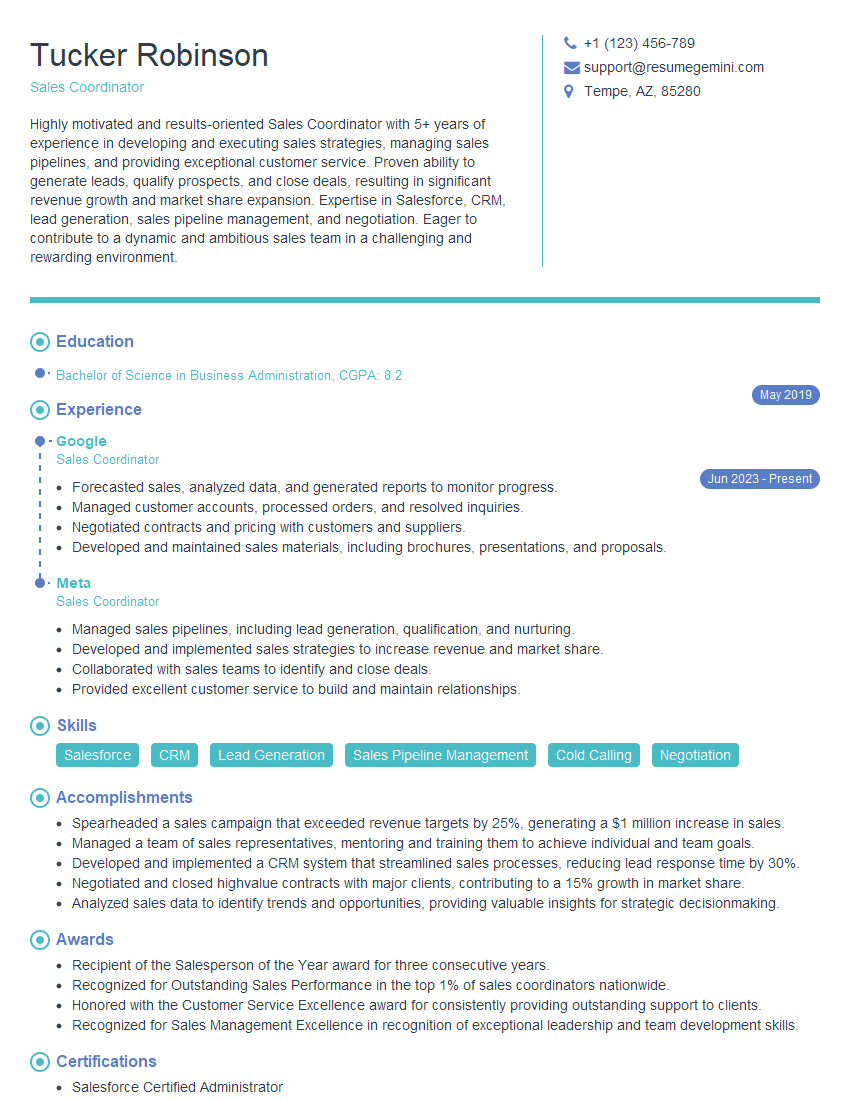
Sales Coordinator Resume Sample

Administrative Assistant Resume Sample
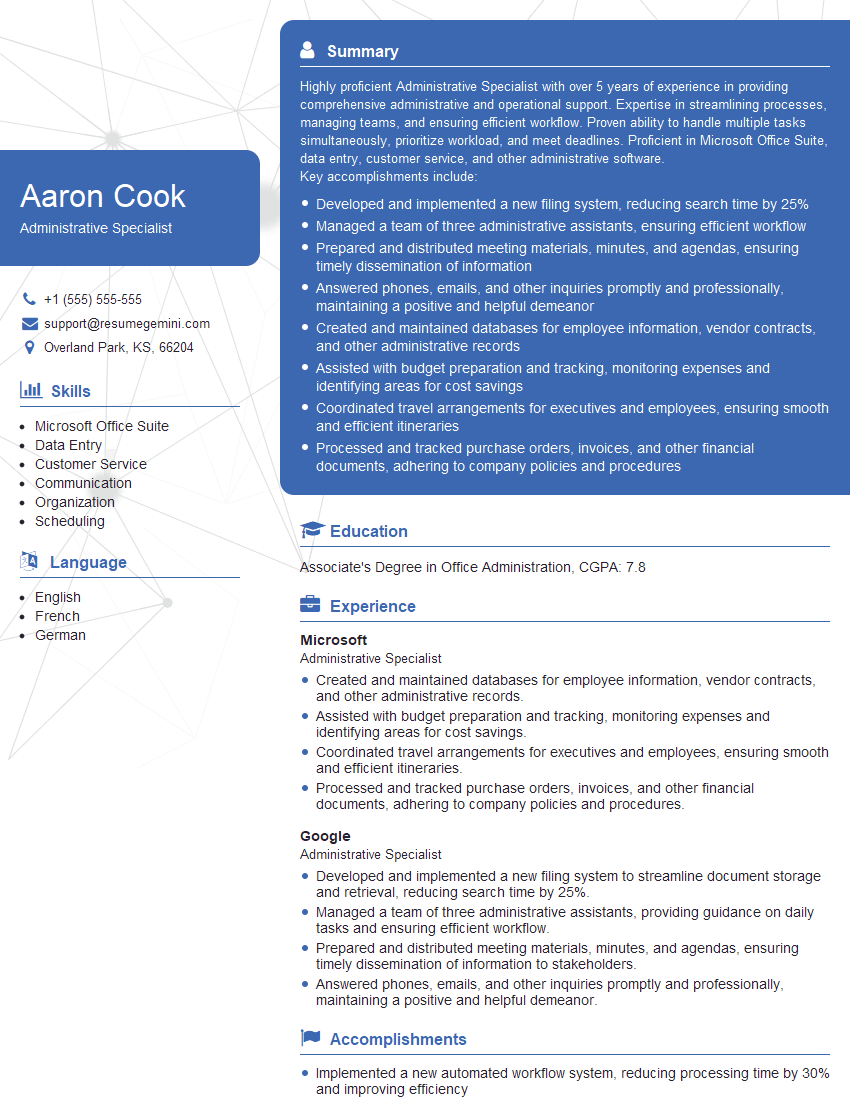
Administrative Specialist Resume Sample
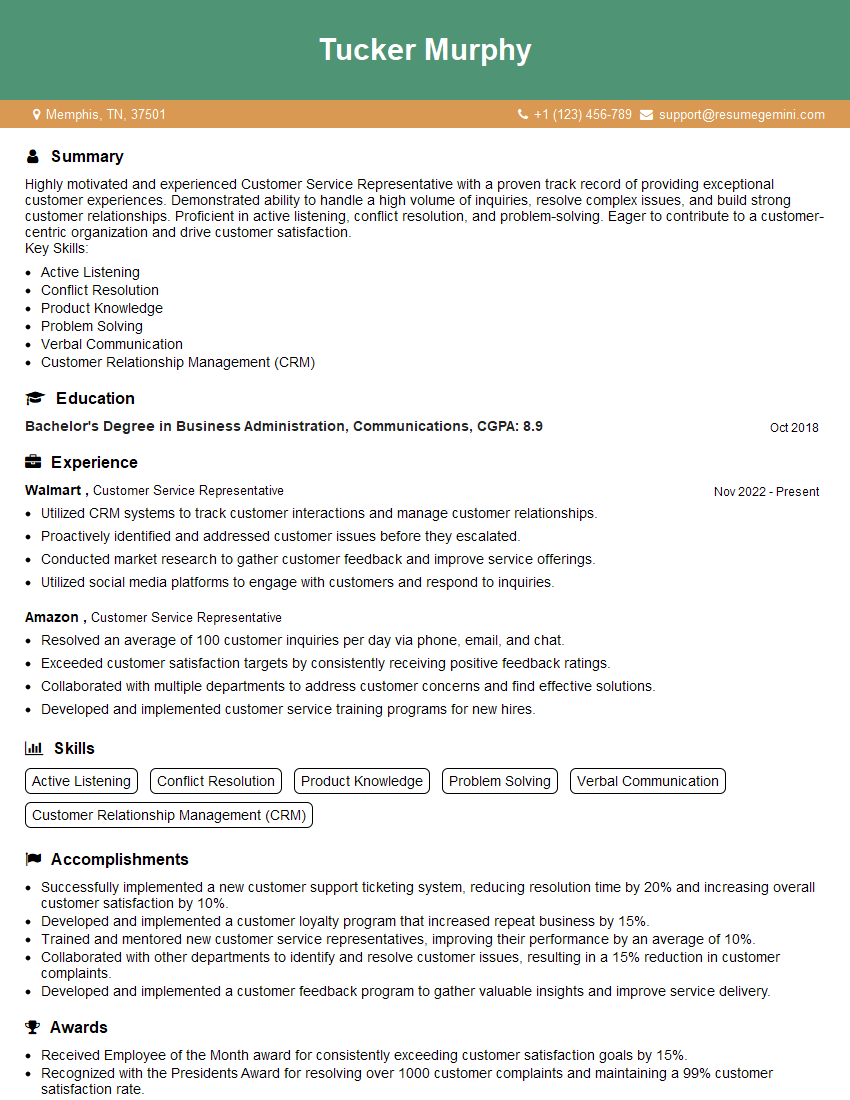
Customer Service Representative Resume Sample
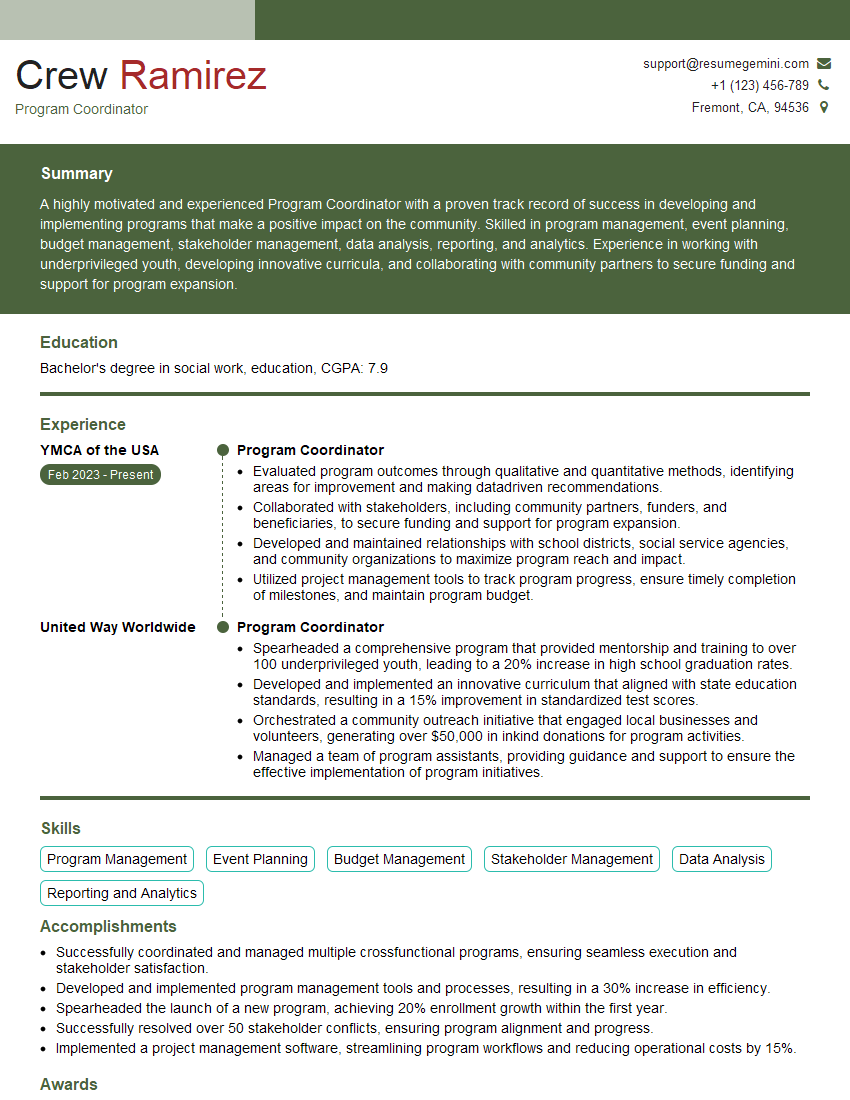
Program Coordinator Resume Sample
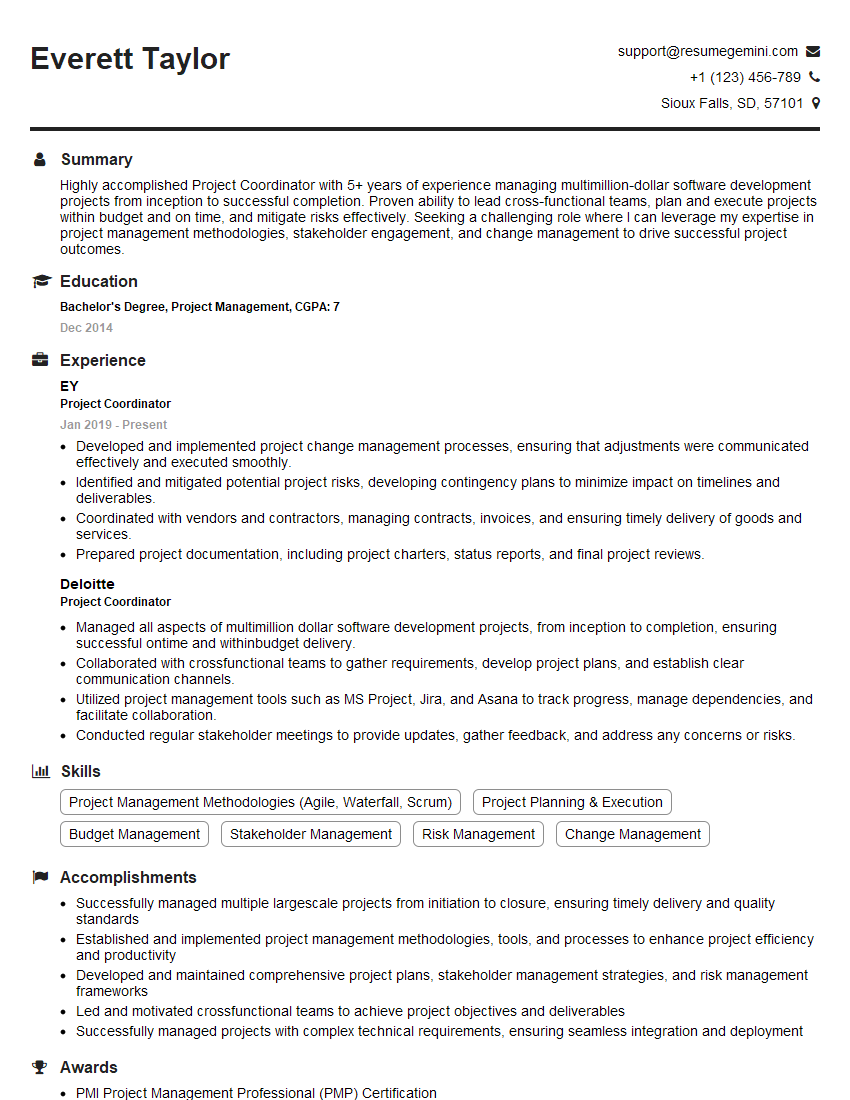
Project Coordinator Resume Sample

Business Analyst Resume Sample
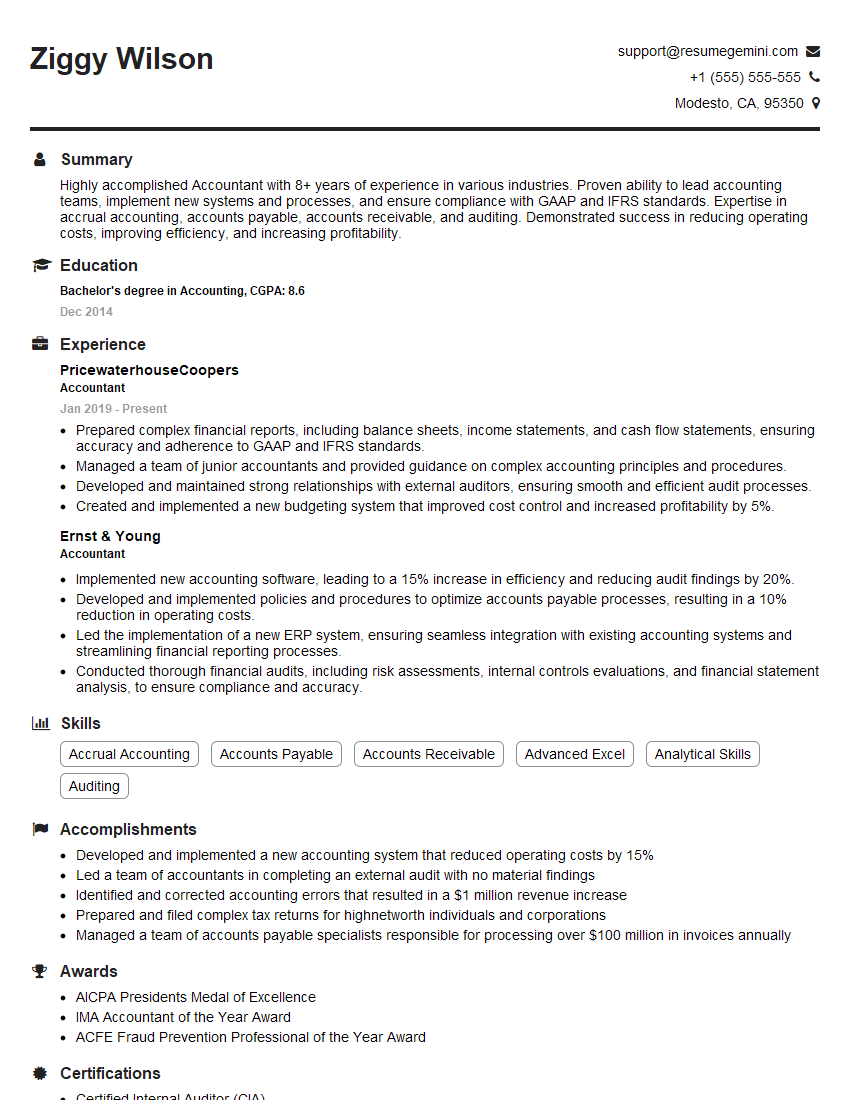
Accountant Resume Sample
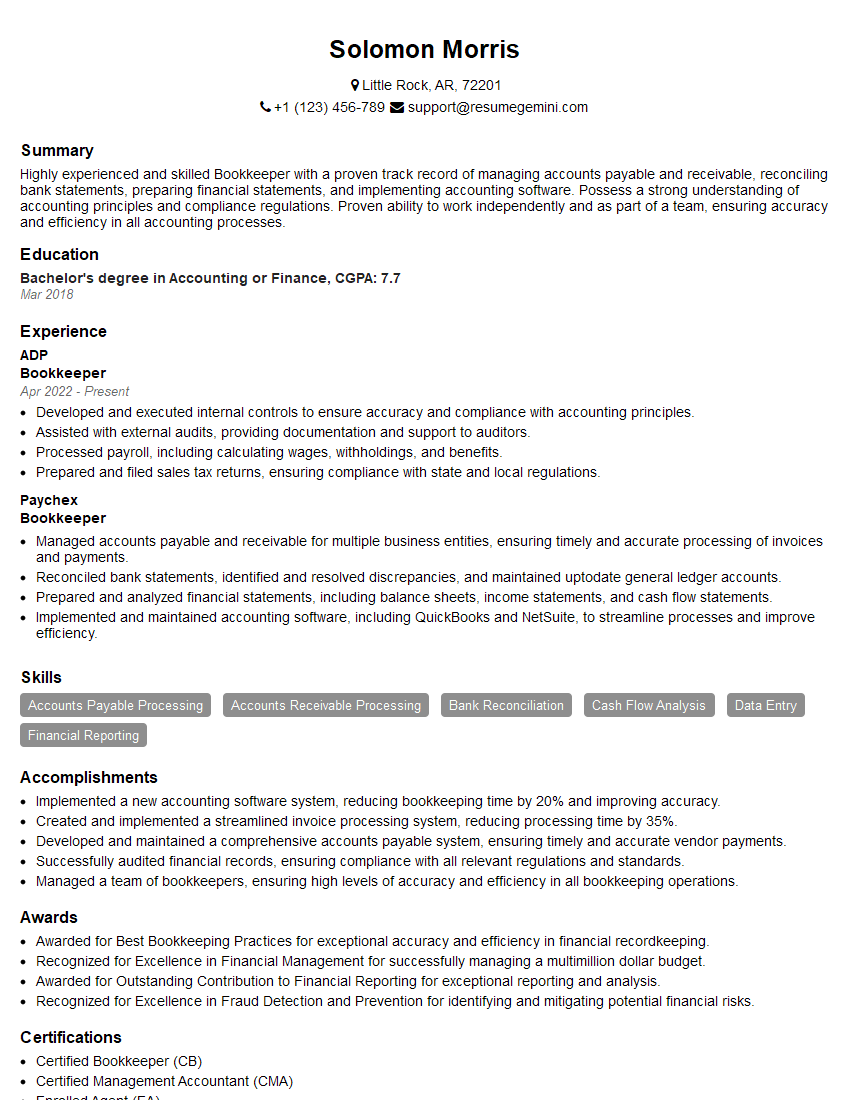
Bookkeeper Resume Sample
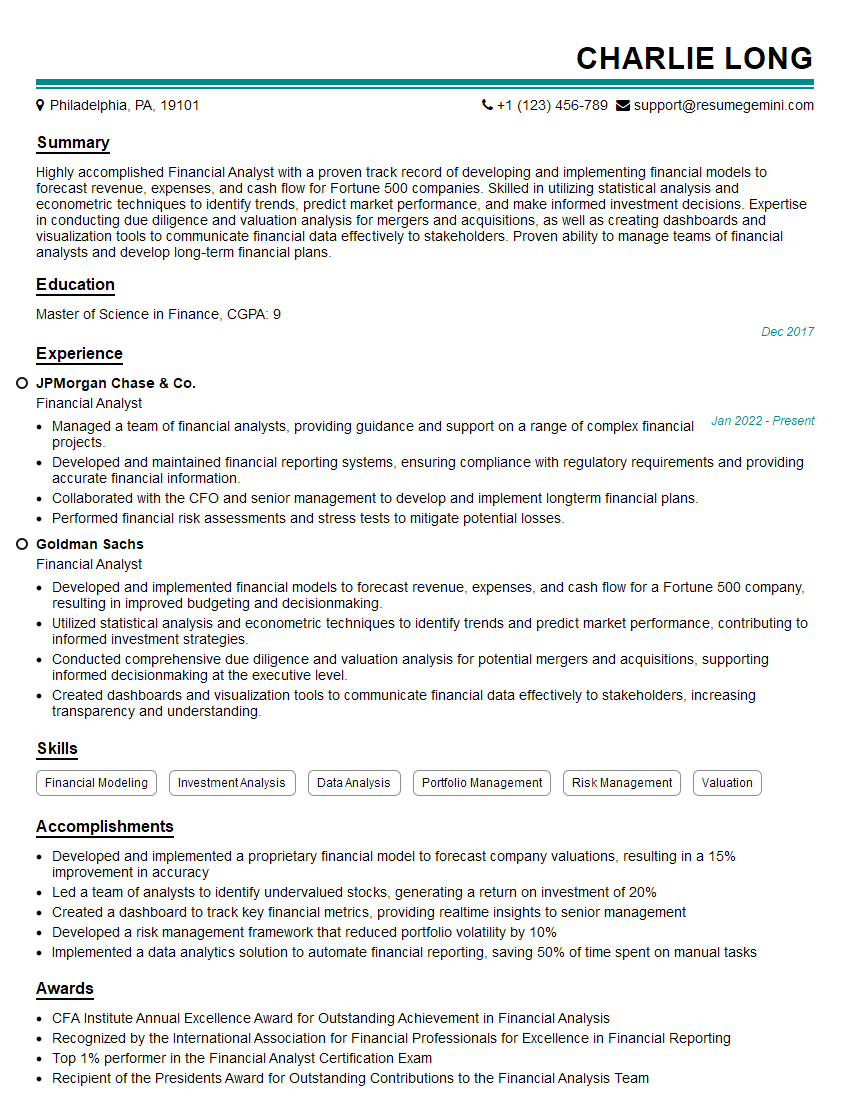
Financial Analyst Resume Sample

Data Analyst Resume Sample
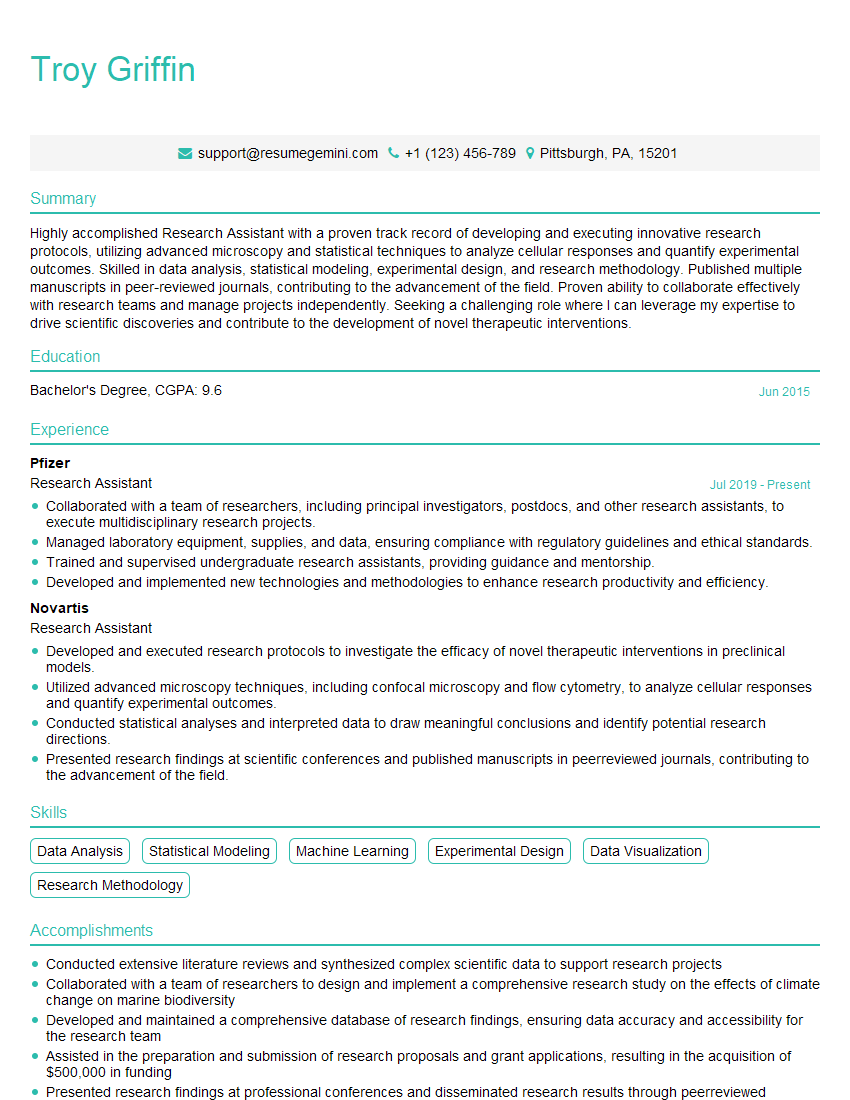
Research Assistant Resume Sample
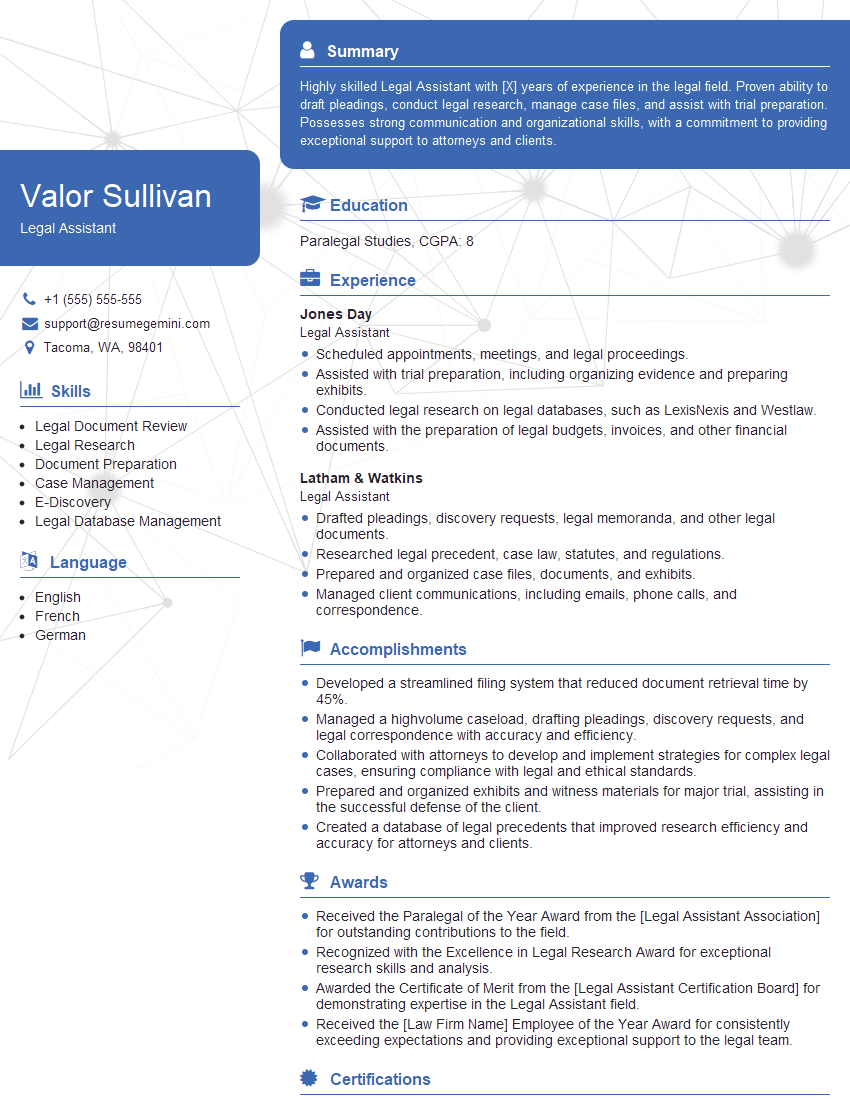
Legal Assistant Resume Sample
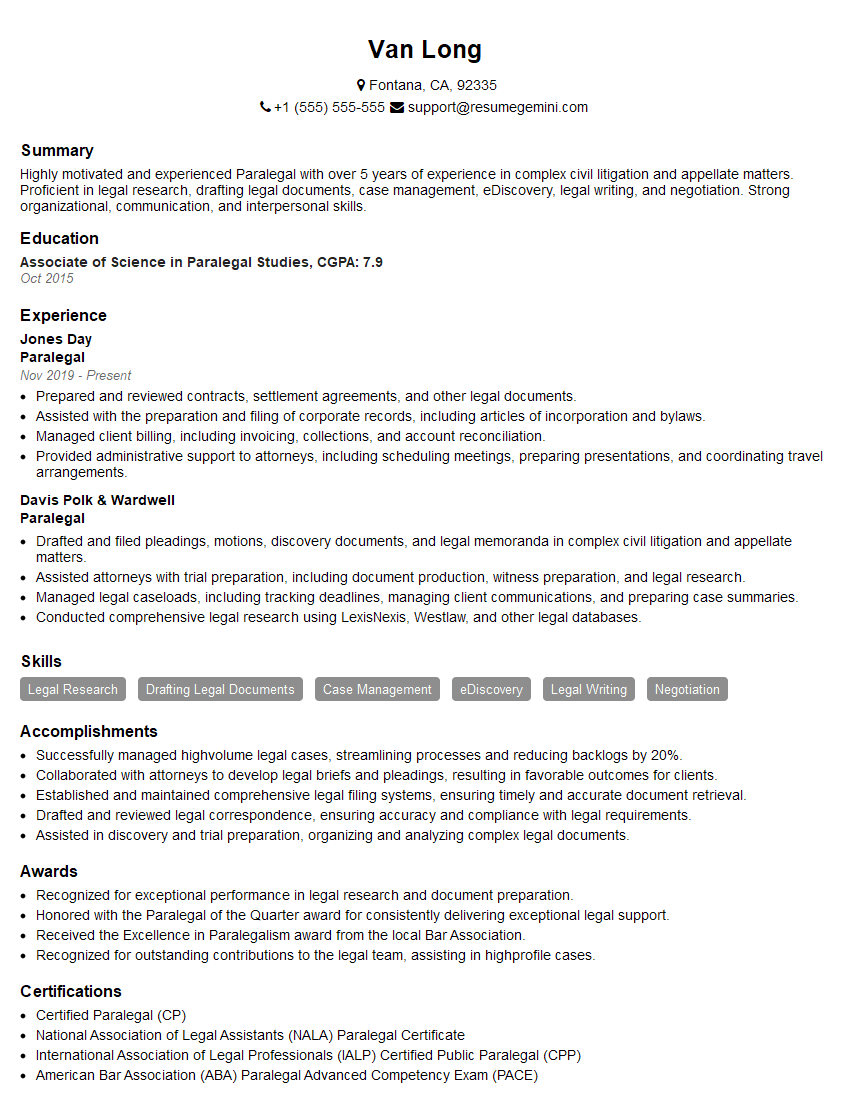
Paralegal Resume Sample
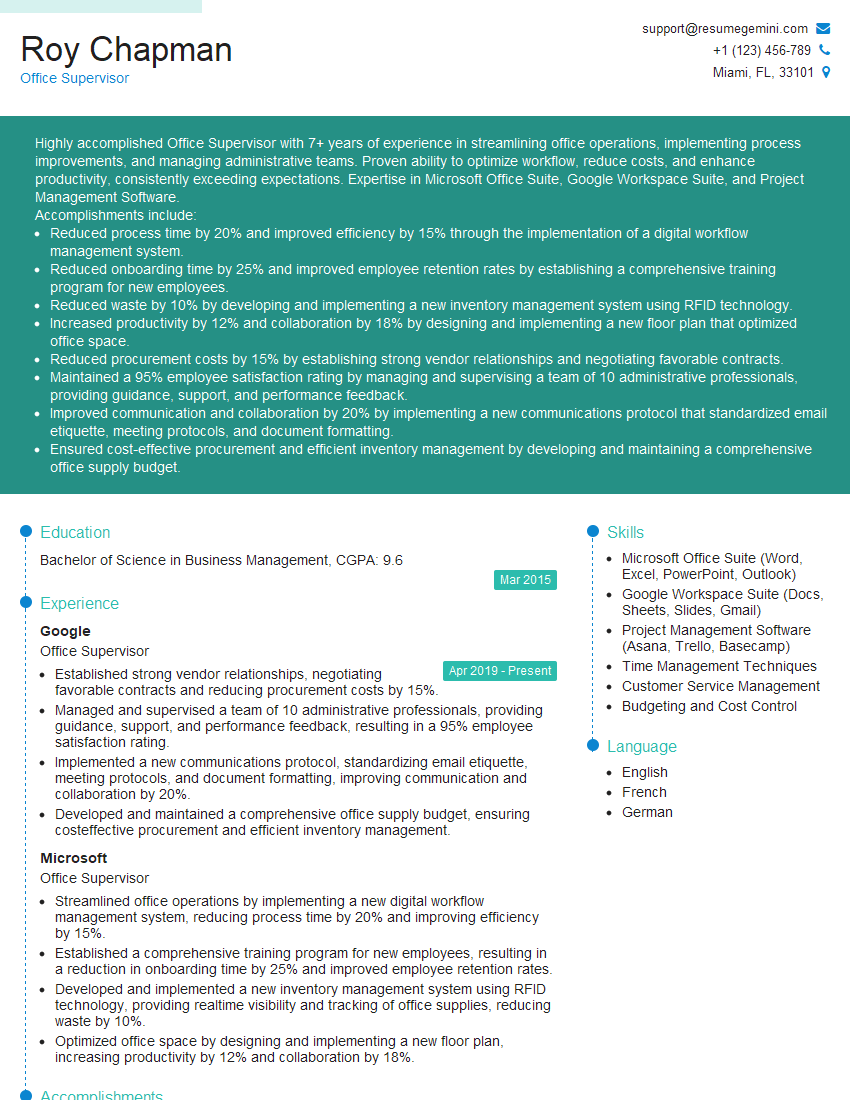
Office Supervisor Resume Sample

Executive Assistant Resume Sample
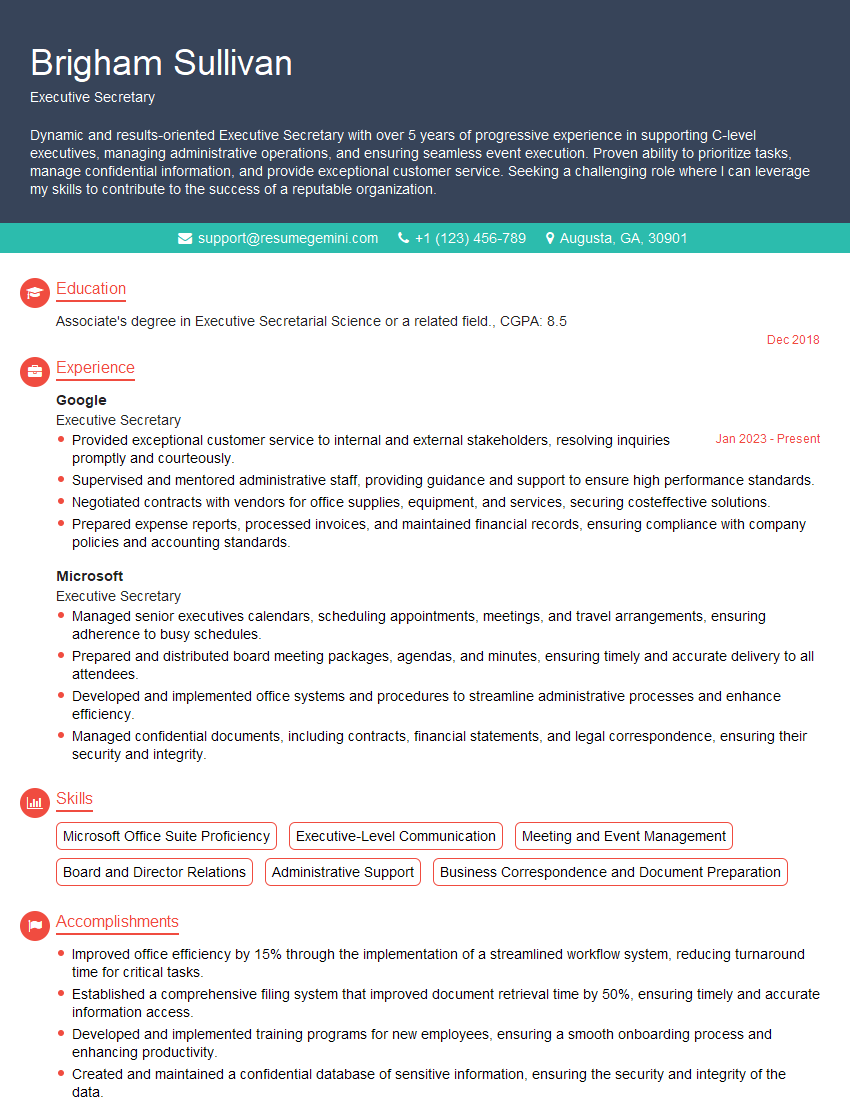
Executive Secretary Resume Sample
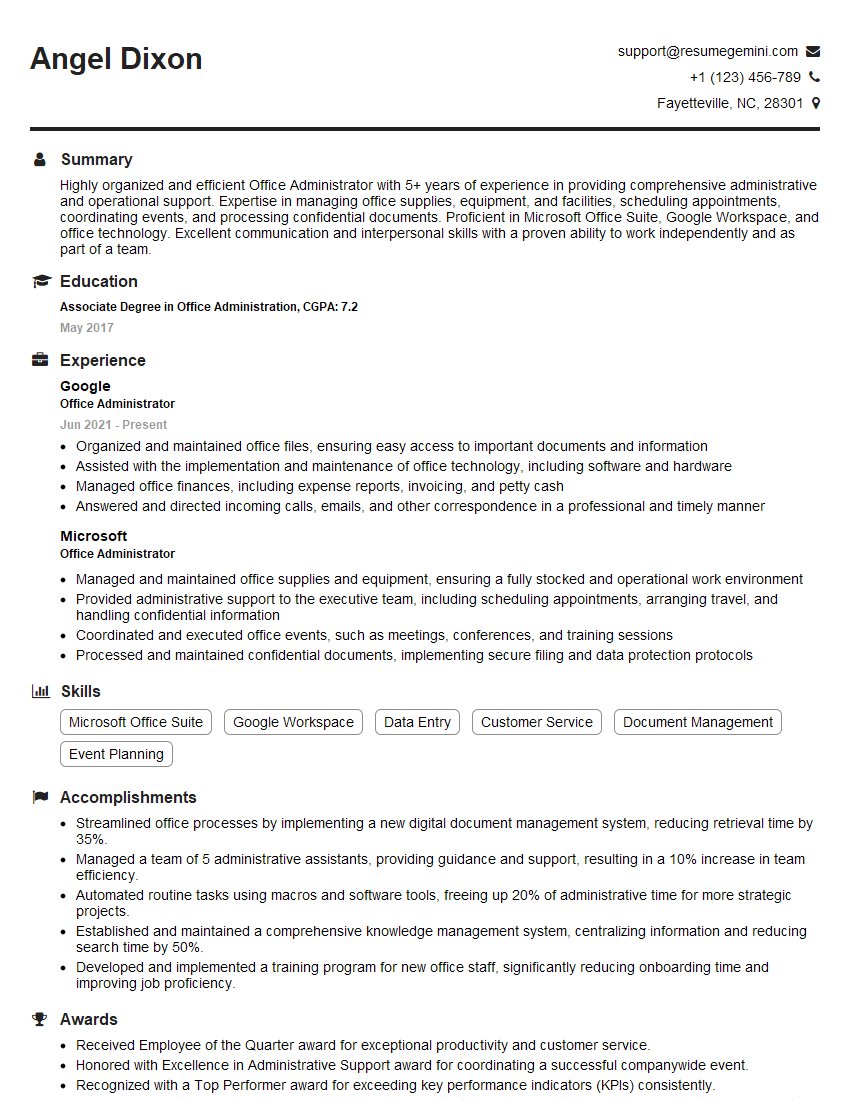
Office Administrator Resume Sample

Data Entry Clerk Resume Sample

Operations Assistant Resume Sample
- Office Manager
- Marketing Coordinator
- Sales Coordinator
- Administrative Assistant
- Administrative Specialist
- Customer Service Representative
- Program Coordinator
- Project Coordinator
- Business Analyst
- Accountant
- Bookkeeper
- Financial Analyst
- Data Analyst
- Research Assistant
- Legal Assistant
- Paralegal
- Office Supervisor
- Executive Assistant
- Executive Secretary
- Office Administrator
- Data Entry Clerk
- Operations Assistant
Explore more articles
Users Rating of Our Blogs
Share Your Experience
We value your feedback! Please rate our content and share your thoughts (optional).
What Readers Say About Our Blog
I Redesigned Spongebob Squarepants and his main characters of my artwork.
https://www.deviantart.com/reimaginesponge/art/Redesigned-Spongebob-characters-1223583608
IT gave me an insight and words to use and be able to think of examples
Hi, I’m Jay, we have a few potential clients that are interested in your services, thought you might be a good fit. I’d love to talk about the details, when do you have time to talk?
Best,
Jay
Founder | CEO