Every successful interview starts with knowing what to expect. In this blog, we’ll take you through the top Software Proficiency (MS Office Suite, AutoCAD, Revit, Bluebeam) interview questions, breaking them down with expert tips to help you deliver impactful answers. Step into your next interview fully prepared and ready to succeed.
Questions Asked in Software Proficiency (MS Office Suite, AutoCAD, Revit, Bluebeam) Interview
Q 1. Describe your experience with different versions of AutoCAD.
My experience with AutoCAD spans several versions, starting with AutoCAD 2010 and extending to the current release, AutoCAD 2024. Each version brought significant improvements, particularly in terms of performance, user interface, and features. For example, the introduction of the ribbon interface in AutoCAD 2009 drastically changed the workflow, making it more intuitive for users familiar with the Microsoft Office suite. I’ve extensively used AutoCAD 2018 and 2022 for large-scale projects, leveraging features like Xrefs (external references) for efficient collaboration and management of complex drawings. I’m comfortable navigating the differences between these versions, adapting my workflow as needed to take advantage of specific features in each release. For instance, the improvements in rendering capabilities from 2018 to 2022 significantly reduced rendering times, improving project turnaround times.
One notable difference I’ve experienced across versions is the handling of large datasets. Earlier versions sometimes struggled with performance when dealing with extensive data. Newer versions, however, incorporate features that significantly enhance performance and stability in such scenarios. This has been crucial for managing projects with numerous layers, blocks, and complex geometries.
Q 2. How proficient are you in creating 3D models using Revit?
I’m highly proficient in creating 3D models using Revit. My expertise extends beyond basic modeling to include advanced techniques like creating complex geometry, managing families, and coordinating with other disciplines’ models through collaborative workflows. I’ve worked on various projects, ranging from residential buildings to large-scale commercial developments, utilizing Revit’s capabilities to generate accurate and detailed 3D models. This includes creating detailed architectural models, structural models, and MEP (Mechanical, Electrical, and Plumbing) models, all coordinated within the same Revit project file.
For example, on a recent project involving a high-rise building, I used Revit to model the entire structure, including intricate details like curtain walls, structural framing, and MEP systems. This enabled us to efficiently detect and resolve clashes between different disciplines before construction, saving time and money. My proficiency extends to using Revit’s analysis tools, such as energy analysis, to optimize building design for energy efficiency.
Q 3. Explain your workflow using Bluebeam for reviewing and marking up PDFs.
My Bluebeam workflow for reviewing and marking up PDFs is highly streamlined and efficient. It typically begins with opening the PDF in Bluebeam Revu. I then utilize the various markup tools to highlight areas needing attention, add comments, and measure dimensions. I heavily rely on the measurement tools to accurately quantify quantities and dimensions, and the ability to create callouts and hyperlinks streamlines communication and makes reviewing very straightforward. After marking up the document, I use the ‘Save As’ function to create a new version, preserving the original file while storing my revisions. The ability to add hyperlinks to specific sections within the same PDF, or even to external files like Revit models, is incredibly useful for project coordination and streamlining workflow.
Furthermore, I frequently utilize Bluebeam’s layer tools for organizing markups and maintaining a clear overview of the document. This is particularly helpful when working with large and complex PDFs with numerous revisions and comments from different stakeholders. Finally, I utilize the ‘Session’ feature to allow team members to simultaneously review and annotate documents, significantly increasing collaborative efficiency.
Q 4. What are your go-to MS Excel functions for data analysis and reporting?
My go-to MS Excel functions for data analysis and reporting are diverse and depend heavily on the task at hand. However, some functions I consistently use include:
SUMIFandSUMIFS: These are invaluable for summing values based on specific criteria. For example, calculating the total cost of materials for a specific project from a large dataset.VLOOKUPandINDEX&MATCH: These functions are crucial for pulling data from different parts of the spreadsheet or even other spreadsheets.INDEXandMATCHoffer greater flexibility thanVLOOKUP, especially when dealing with non-sequential data.AVERAGE,MEDIAN,MODE,STDEV: These descriptive statistics functions are used for understanding the central tendency and variability within datasets. I use them to analyze project timelines, material costs, and other performance indicators.COUNTIFandCOUNTIFS: Essential for counting the number of occurrences that meet specific criteria. For instance, I use them to determine how many projects were completed on time or under budget.PivotTables: This is my go-to feature for summarizing and analyzing large datasets quickly and efficiently. I can quickly generate meaningful summaries and visualize data patterns.
These functions, combined with Excel’s charting capabilities, allow for comprehensive data analysis and clear, concise reporting.
Q 5. How would you use VBA in MS Excel to automate a repetitive task?
Let’s say I have a repetitive task of generating weekly reports that involve copying and pasting data from multiple worksheets and then formatting the report. This is a perfect candidate for VBA automation. I would write a VBA macro to automate this process. Here’s a simplified example:
Sub AutomateReport()
  'Declare variables
  Dim wsSource1 As Worksheet, wsSource2 As Worksheet, wsReport As Worksheet
  Set wsSource1 = ThisWorkbook.Sheets("Sheet1")
  Set wsSource2 = ThisWorkbook.Sheets("Sheet2")
  Set wsReport = ThisWorkbook.Sheets("Report")

  'Copy data from Sheet1 to Report
  wsSource1.Range("A1:B10").Copy wsReport.Range("A1")

  'Copy data from Sheet2 to Report
  wsSource2.Range("C1:D5").Copy wsReport.Range("A11")

  'Format the report (example: bold the header)
  wsReport.Range("A1").Font.Bold = True
End Sub
This macro copies data from “Sheet1” and “Sheet2” into the “Report” sheet and then bolds the header. The actual code would be more complex depending on the specifics of the report, but this illustrates the basic concept of using VBA to automate repetitive tasks, improving efficiency and reducing the risk of human error. I often use loops and conditional statements within my macros to make them more flexible and adaptable to changing data.
Q 6. Explain your experience with Revit families and their creation.
Revit families are the building blocks of any Revit model. They are pre-defined components, such as doors, windows, furniture, or structural elements, that can be reused throughout a project. My experience encompasses both using pre-built families and creating custom families to meet specific project requirements. Creating families requires a deep understanding of Revit’s parameter system and how different parameters affect the family’s behavior within the project. I’ve created numerous custom families, ranging from simple to highly complex components.
For example, I once created a custom family for a unique type of window used in a historical building restoration project. This involved detailed modeling, accurately defining parameters for dimensions, materials, and even incorporating historical details. The ability to create these custom families ensures the accuracy and consistency of the model, and it saves time compared to modeling the component from scratch every time it’s needed.
My workflow for family creation typically involves defining the family category, sketching the basic geometry, adding parameters to control dimensions and other attributes, and then thoroughly testing the family to ensure it works correctly within the project. I also focus on creating well-documented families, making it easy for other team members to understand and use them.
Q 7. How do you manage large datasets in AutoCAD?
Managing large datasets in AutoCAD can be challenging. My strategies involve several key approaches. Firstly, I always utilize external references (Xrefs) to manage large drawings. Breaking down complex projects into manageable smaller drawings, linked together through Xrefs, improves performance and allows for parallel work by different team members. This prevents the single file from becoming too large and cumbersome. Secondly, I use AutoCAD’s layers efficiently to organize different elements within a drawing. This helps in managing complexity, selectively turning layers on and off as needed to improve performance and visualization. Regularly purging unnecessary data and optimizing drawing settings also helps.
Furthermore, I leverage AutoCAD’s purge command to remove unused blocks, layers, and other data, significantly reducing file size and enhancing performance. I also utilize the ‘audit’ command regularly to identify and repair any potential errors within the drawing file, maintaining data integrity. Finally, for extremely large datasets, I might consider using data linking features to connect to external databases, reducing the amount of data stored directly within the AutoCAD file. This approach requires a careful consideration of data structure and management, but it can be extremely beneficial in managing extremely large quantities of data.
Q 8. How do you troubleshoot common issues encountered in Revit?
Troubleshooting in Revit often involves understanding the root cause of the issue, which can range from simple model errors to complex data conflicts. My approach is systematic, starting with identifying the symptoms.
- Performance Issues: Slow rendering or crashes? I’d check for excessive geometry, unnecessary details, corrupted linked files, or insufficient system resources. I might purge unused families, optimize geometry, or upgrade hardware if necessary.
- Family Errors: Problems loading or using families? I’d verify the family’s compatibility with the Revit version, check for corrupted files (try loading a new copy), or examine the family’s parameters for any conflicts.
- Data Conflicts: Issues with linked models or worksharing? I’d check for conflicting elements, resolve clashes using Revit’s collaboration tools, or work with the central model using a robust worksharing strategy. This includes using the ‘Workshared’ option before launching the file and adhering to save/reload discipline.
- Graphical Errors: Unexpected visual glitches? I’d try a ‘Graphics Card’ update, restarting Revit, or checking the graphics card settings within Revit’s options.
- General Errors: Unclear error messages? I’d consult Revit’s help documentation, search online forums for similar issues, or contact Autodesk support for assistance.
For example, I once resolved a project slowdown by identifying a linked model with an excessively complex landscape. By simplifying the terrain in that linked model, I significantly improved performance.
Q 9. What are the different markup tools in Bluebeam and when would you use each?
Bluebeam Revu offers a wide array of markup tools, each suited for specific tasks in the review and collaboration process. I select the tool based on the type of feedback I want to provide.
- Measurements: Distance, area, perimeter, and volume measurements are crucial for verifying design accuracy and taking off quantities. I use this when checking dimensions against the specifications.
- Callouts: These allow highlighting specific areas and adding text descriptions. Excellent for referencing details or drawing attention to potential issues. I frequently use this to point out deviations from the design.
- Text Boxes: Simple and effective for adding general comments or notes. For quick comments and general observations.
- Cloud Markup: Freehand marking ideal for quickly circling or highlighting areas. Often used for general feedback.
- Stickies: Provide a place to add detailed comments, often used for summarizing larger problems or providing explanations.
- Line, Arrow, Shape Markups: Precise visual indicators for pointing out specific locations and elements. Used for detailing specific issues or dimensions.
- Hyperlinks: To tie a markup to relevant documentation or specifications.
Imagine reviewing architectural drawings. I’d use measurements to verify door sizes, callouts to pinpoint discrepancies in wall thicknesses, and text boxes to summarize my overall assessment.
Q 10. How familiar are you with creating and managing sheets in Revit?
I’m highly proficient in creating and managing sheets in Revit. This involves understanding the sheet setup, organization, and the workflow necessary to produce accurate, well-formatted construction documents.
- Sheet Creation: I can efficiently create sheets using various templates, ensuring consistent formatting across the project.
- View Placement: I am skilled in organizing and placing views onto sheets, including adjusting view scale and cropping regions for optimal presentation.
- Sheet Organization: I utilize sheet numbering schemes that meet industry standards for clear and logical organization (e.g., using discipline-specific prefixes). I leverage Revit’s sheet management tools for tracking and updating sheet numbers automatically.
- Annotation: I’m proficient in adding title blocks, revision clouds, and other annotations to ensure sheets are properly identified and documented.
- Sheet Sets: I have extensive experience working with sheet sets to manage and coordinate large sets of drawings, making them easy to navigate and update.
For example, on a recent project, I managed over 100 sheets using sheet sets, ensuring that all revisions and updates were properly tracked and distributed. This involved regular review and reconciliation, ensuring the information on every sheet was accurate and current.
Q 11. Describe your experience with AutoCAD layers and layer management.
AutoCAD layers are fundamental for organizing and managing drawing complexity. Effective layer management is critical for clarity, efficiency, and collaboration.
- Layer Naming Conventions: I follow consistent naming conventions to ensure logical organization and easy identification of drawing elements (e.g., using prefixes for disciplines like ‘ARCH’, ‘STRUCT’, ‘MEP’).
- Layer Properties: I utilize layer properties such as color, linetype, and lineweight to visually distinguish different elements and improve drawing readability. This allows for quick identification of elements even on complex drawings.
- Layer States: I understand how to freeze and thaw layers to control the visibility of specific elements, improving performance and drawing clarity. For example, I might freeze layers containing minor details during initial design reviews.
- Layer Management Tools: I use AutoCAD’s built-in tools for layer management, including layer palettes, layer properties manager, and layer states, to efficiently organize and modify layers.
- External References (Xrefs): I am experienced in managing layers within external references (xrefs), understanding how layers from different drawings interact, and resolving any layer naming conflicts.
On a large-scale project, proper layer management can make the difference between a cluttered, difficult-to-understand drawing and a clear, efficient document. I once streamlined a project by implementing a standardized layer naming convention across all the team members’ drawings, leading to better collaboration and a significant reduction in errors.
Q 12. How do you utilize Bluebeam’s collaboration tools?
Bluebeam’s collaboration tools are essential for efficient project review and communication. I leverage these features to streamline the feedback process and ensure clear communication among team members.
- Markup Sets: I utilize markup sets to categorize and organize markups based on different reviewers or review cycles. This allows for efficient tracking and filtering of comments. For example, I might create a separate markup set for architectural review, structural review, and MEP review.
- Session Tools: I’m familiar with using session-based tools for real-time collaboration with others, enabling concurrent review and discussion. This can dramatically accelerate the review process.
- Sharing and Distribution: I leverage Bluebeam’s tools for distributing study sets or PDFs to relevant stakeholders for review, using secure methods such as password protection or email distribution.
- Hyperlinking within the Study Set: I regularly utilize hyperlinking, associating specific markups with relevant documentation to provide immediate context.
- Markup Summaries: I use markup summaries to quickly get an overview of all comments and issues identified during review, assisting in prioritizing and assigning tasks.
For instance, on a recent project, we used Bluebeam’s session tools to review drawings collaboratively, allowing different team members to discuss and address issues in real-time, greatly reducing the feedback cycle.
Q 13. How proficient are you in using MS PowerPoint for presentations?
I am highly proficient in using MS PowerPoint for creating professional presentations. My skills extend beyond basic slide creation; I focus on effective visual communication and storytelling.
- Slide Design: I create visually appealing and consistent slides using professional templates and design principles, ensuring clarity and readability. I understand the importance of using visuals effectively.
- Data Visualization: I’m proficient in using charts, graphs, and other visual aids to effectively communicate complex data and information, improving audience engagement and understanding.
- Animations and Transitions: I strategically use animations and transitions to enhance the flow and engagement of the presentation, avoiding excessive or distracting elements.
- Presentation Delivery: I’m comfortable delivering presentations, using my understanding of audience needs and the context of the information being presented to create compelling narratives.
- Collaboration Tools: I leverage PowerPoint’s collaboration tools for co-authoring and simultaneous editing with colleagues. This allows me to consolidate feedback and revisions easily.
For instance, I recently presented a project summary to senior management. I used high-quality visuals, compelling storytelling techniques, and clear data visualization, resulting in a well-received and informative presentation.
Q 14. What are some common mistakes to avoid when using Revit?
Avoiding common mistakes in Revit is crucial for maintaining model integrity and efficiency. Here are a few key areas to watch:
- Overly Complex Geometry: Avoid creating excessively detailed models, especially in early design phases. Simplify geometry where possible to improve performance.
- Poor Worksharing Practices: Failing to properly manage worksharing can lead to data loss or conflicts. Regularly synchronizing, using proper detachment, and working within a defined worksharing protocol are crucial.
- Ignoring Revit’s Built-in Tools: Revit has many built-in tools to help manage and clean up models. Failing to use these tools (like ‘purge unused’, ‘audit’, and ‘cleanup’) can lead to inefficiencies.
- Inconsistent Naming Conventions: Use consistent naming conventions for families, views, sheets, and other elements. This improves organization and clarity.
- Insufficient Template Usage: Using a well-structured template helps maintain consistency and efficiency. Failing to use them leads to duplicated effort and potential errors.
- Neglecting Regular Backups: This is a critical one. Regularly back up your work to prevent data loss from crashes or other unforeseen issues.
For example, I once worked on a project where inconsistent family loading and poor worksharing practices caused significant delays. Implementing strict guidelines prevented this problem on subsequent projects.
Q 15. Explain your experience with using external references in AutoCAD.
External references in AutoCAD allow you to link drawings or portions of drawings from other files into your current project. Think of it like inserting a picture, but instead of a static image, it’s a live link to another AutoCAD file. Changes made to the source file are automatically reflected in the linked file, provided the reference is properly updated.
My experience involves extensively using XREF (external reference) commands for managing large and complex projects. For example, while working on a multi-building campus design, each building had its own AutoCAD file. I used external references to seamlessly incorporate individual building plans into a master site plan. This ensured consistency and prevented redundant work. I meticulously managed these references, using the XREF MANAGER to control the visibility, detaching or reloading references as needed, and regularly updating them to reflect the latest design changes. Proper naming conventions and a structured folder system were crucial for keeping track of numerous XREFs, ensuring smooth project workflow and preventing file corruption issues. We even utilized a centralized file server to facilitate collaboration and efficient XREF management.
Career Expert Tips:
- Ace those interviews! Prepare effectively by reviewing the Top 50 Most Common Interview Questions on ResumeGemini.
- Navigate your job search with confidence! Explore a wide range of Career Tips on ResumeGemini. Learn about common challenges and recommendations to overcome them.
- Craft the perfect resume! Master the Art of Resume Writing with ResumeGemini’s guide. Showcase your unique qualifications and achievements effectively.
- Don’t miss out on holiday savings! Build your dream resume with ResumeGemini’s ATS optimized templates.
Q 16. How do you ensure consistency and accuracy in your Revit models?
Maintaining consistency and accuracy in Revit is paramount. My approach focuses on establishing clear standards early in the project and enforcing them rigorously throughout. This involves using:
- Central Model Workflow: We always utilize a central model for collaborative work, eliminating version conflicts. This is complemented by regular workset synchronization and disciplined workset management to avoid conflicts.
- Family Standards: Creating and using standardized families (pre-fabricated components like doors, windows, walls etc.) ensures consistency in appearance and properties throughout the project. We document all families and have a central library for ease of access and version control.
- View Templates: Creating customized view templates with consistent annotations, scales, and visualization settings simplifies consistency across different drawing sheets and views.
- Shared Parameters: I utilize shared parameters for tracking consistent data like material costs, energy performance ratings, and other crucial information across different elements in the model. This allows for easy reporting and analysis.
- Regular Quality Control: Frequent model reviews and audits help to catch and correct errors early. Utilizing tools like clash detection is invaluable for identifying interferences between different building services.
For instance, during a large-scale hospital renovation project, the consistent use of shared parameters allowed us to accurately track the cost of each material used and easily generate reports for budgeting purposes. This rigorous approach minimized errors and saved significant time and resources.
Q 17. How would you create a hyperlinked PDF document using Bluebeam?
Creating hyperlinked PDFs in Bluebeam is straightforward and very useful for navigating large documents or creating interactive reports. You start by opening the PDF in Bluebeam Revu. To create a hyperlink, you’ll use the Hyperlink tool. This tool allows you to select text or an image and link it to another location within the same document, a different PDF, or even a website. You simply highlight the text or image you want to link, click on the Hyperlink tool, specify the target URL or file path, and click ‘OK’.
For example, in a construction project’s specifications document, I might create a hyperlink that links the text ‘Section 3.2.1: Electrical Systems’ to the relevant section within the same document. This allows reviewers to easily jump to the designated section without manual searching. I’ve also used this function to link PDFs of shop drawings to the relevant sections within the main construction documents.
Q 18. Describe your experience using MS Word for technical documentation.
My experience with MS Word for technical documentation is extensive. I regularly use it to create professional, well-formatted documents including specifications, reports, and design presentations. I’m proficient in utilizing features such as:
- Styles and Templates: Creating and using styles and templates ensures consistency in formatting across long documents, saving time and effort.
- Tables and Equations: Word’s table and equation editors are essential for presenting data and complex formulas clearly and accurately.
- Cross-Referencing: Cross-referencing capabilities allow me to link figures, tables, and other elements with ease, ensuring effortless navigation for readers.
- Image and Diagram Integration: I frequently incorporate images and diagrams, resizing and labelling them professionally.
- Collaboration tools: Using track changes, comments, and version control functionalities allows for seamless collaboration and efficient review cycles.
In a recent project, I used Word to prepare a comprehensive report that combined technical specifications, design drawings, and a cost analysis. The use of styles and tables made the information easily digestible and presentable to clients. I even integrated a table of contents using Word’s automatic feature.
Q 19. How do you handle conflicts in Revit when multiple users are working on a model?
Handling conflicts in Revit when multiple users are working on a model requires a robust strategy. The central model workflow is absolutely crucial. Revit’s inherent conflict detection mechanisms, coupled with efficient communication, are key. When a conflict arises (e.g., two users edit the same element simultaneously), Revit will identify the clash and highlight it to each user. One user’s changes will be prioritized, while the other user needs to reconcile their work.
My process involves regular synchronization with the central model, which helps to minimize the potential for conflicts. Clear communication with team members, establishing clear roles and responsibilities within the model, and using worksets to isolate specific areas are vital preventative measures. When a conflict arises, we always opt for a collaborative approach, discussing the changes and finding a solution that respects both parties’ edits. The use of version control and regular backups of the model further reduces the risks.
Q 20. Explain your process for creating and organizing drawing sets in AutoCAD.
Creating and organizing drawing sets in AutoCAD involves a systematic approach. It begins with a well-defined project structure and a consistent naming convention. Each drawing should be named clearly to represent its content and location within the project.
My process typically involves creating separate folders for each discipline (architectural, structural, MEP) and organizing drawings within those folders based on building sections or systems. Sheet numbering follows a logical sequence, for example, A101, A102, etc. I use AutoCAD’s sheet sets functionality to manage multiple drawings efficiently, allowing for easy updates and organization of title blocks, viewports, and revision clouds. This centralized approach helps generate consistent and accurate drawing sets, eliminating the tedious task of manually updating numerous sheets. Within the sheet set, I diligently manage layers and use layer states to control which elements are visible on different sheets. This is crucial for clarity and reducing clutter.
Q 21. What are the advantages and disadvantages of using different Bluebeam tools?
Bluebeam Revu offers a suite of powerful tools, each with its own advantages and disadvantages. The choice of tool depends heavily on the specific task at hand.
- Markup Tools (Highlight, Note, etc.): Advantages: Quick and easy for adding comments, highlighting text, or sketching on PDFs. Disadvantages: Can become cluttered if overused without organization.
- Measurement Tools: Advantages: Precise and efficient for measuring distances, areas, and volumes on drawings and images. Disadvantages: Requires an understanding of proper measurement techniques for accurate results.
- Redaction Tools: Advantages: Essential for protecting sensitive information in documents. Disadvantages: Requires careful planning and execution to ensure full removal without data loss.
- Takeoff Tools: Advantages: Efficient for counting items and calculating quantities from drawings. Disadvantages: The accuracy depends heavily on the clarity and scale of the drawings.
- Hyperlinking Tools (mentioned earlier): Advantages: Easy and powerful for creating interactive PDF documents that enhance readability and navigation. Disadvantages: Can be slow and inconvenient if links are not managed correctly.
For example, while the measurement tools are invaluable for verifying dimensions, overusing markup tools can result in documents that are difficult to navigate. Effective use of Bluebeam requires knowing when to utilize each tool in an organized and efficient manner.
Q 22. What is your experience with Revit’s rendering capabilities?
Revit’s rendering capabilities are quite extensive, allowing for high-quality visualizations of building designs. I’ve used both the built-in rendering engine and external render engines like Enscape and Lumion to create photorealistic images and animations. The built-in engine is great for quick renders and exploring different material options within the Revit environment. It’s straightforward to set up lighting, adjust shadows, and experiment with different rendering styles. For more complex scenes and higher-quality results, I prefer using external renderers. These allow for more control over lighting, materials, and post-processing, resulting in stunning visuals ideal for client presentations and marketing materials. For example, on a recent hospital project, using Lumion allowed me to create a fly-through animation showcasing the patient flow and the overall ambience of the waiting area, significantly improving client comprehension and approval.
I’m proficient in utilizing various rendering settings, including global illumination, ray tracing, and image-based lighting, to achieve realistic lighting conditions and material reflections. I understand the importance of balancing rendering quality with render time, and I optimize settings based on project requirements and deadlines. This includes optimizing geometry and material settings within Revit to improve render times without sacrificing quality.
Q 23. How do you use MS Access to manage large quantities of project data?
MS Access is a powerful tool for managing large datasets, particularly when dealing with structured information like project data. I’ve used it to create databases that track everything from budgets and schedules to material quantities and task assignments. My approach typically involves designing a relational database with multiple tables linked together. For instance, one table might hold project information, another might track tasks, and another might list materials. This allows for efficient data management and querying.
To handle large quantities of data efficiently, I focus on creating well-normalized tables to minimize data redundancy and improve query performance. I leverage Access’s query design tools to create efficient queries for retrieving specific data. For reporting, I use Access’s reporting tools to generate customized reports that meet the project’s requirements. Data validation rules are implemented to ensure accuracy and prevent data entry errors. This might involve setting up input masks, validation rules, and data type constraints. For example, on a large-scale construction project, I used Access to manage over 10,000 individual tasks, their dependencies, assigned personnel, and completion statuses. This allowed for easy tracking of project progress and identification of potential bottlenecks.
Q 24. How do you ensure data integrity when using AutoCAD?
Data integrity in AutoCAD is crucial for accurate drawings and efficient workflows. I ensure data integrity through several methods: First, I always begin with a well-organized template that sets standards for layers, linetypes, and text styles. This helps maintain consistency across the project. Second, I utilize external references (xrefs) and blocks to manage repetitive components and avoid redundant information. Regular purges and audits remove unnecessary objects and unused data, which streamlines file size and speeds up performance.
Further, I use layer management rigorously, assigning specific purposes to each layer and ensuring that all objects are placed on appropriate layers. This makes it easy to isolate and modify specific elements within the drawing without affecting others. Regular backups are essential to prevent data loss due to accidental deletion or software crashes. Finally, I work with a clear naming convention for all files and objects within the files for clarity and consistent understanding within the team. On a recent project, this rigorous process saved considerable time during the revision process and ensured accuracy for construction.
Q 25. What is your experience with coordinating different disciplines within a Revit model?
Coordinating different disciplines within a Revit model is a key aspect of my work, and I leverage Revit’s collaborative features extensively. I’m familiar with the process of setting up a central model and utilizing worksharing to enable multiple users to simultaneously work on the project without conflicts. This involves establishing clear naming conventions and worksets to manage different aspects of the design. I understand the importance of clear communication and coordination among different disciplines, such as architectural, structural, MEP, and landscape design. Regular model coordination meetings are essential to identify and resolve clashes and inconsistencies.
I utilize Revit’s clash detection tools to identify conflicts between disciplines before construction begins. This helps in preventing costly rework and ensures a smooth construction process. Additionally, I’m proficient in using various visualization techniques within Revit to communicate design intent and effectively collaborate with other team members. For example, I use different view templates and schedules to isolate certain elements for better understanding and review with respective consultants.
Q 26. Explain your experience with different Bluebeam Studio features.
My experience with Bluebeam Studio spans a range of features crucial for efficient project collaboration and review. I frequently utilize the markup tools to create detailed annotations and comments directly on PDFs. This allows for effective communication of design changes and feedback. The ability to track changes, comments, and progress within the Studio sessions is extremely valuable for project management. I frequently leverage the Studio Projects feature for large projects, allowing me to organize documents and manage revisions effectively.
I use the measurement tools to accurately verify dimensions and quantities. I routinely use the comparison features to overlay different revisions of a drawing to visually review changes easily and quickly. Studio sessions are a critical element of how we manage our workflows; being able to share PDFs, markup on those documents in real-time, and have a version history are all essential for efficient collaboration, especially with geographically dispersed teams. The ability to incorporate redlines from different disciplines allows for quick issue resolution and better communication.
Q 27. How do you use formulas and functions in MS Excel to manipulate data for reporting?
Formulas and functions in MS Excel are indispensable for data manipulation and reporting. I utilize a wide range of functions, including SUM, AVERAGE, COUNTIF, VLOOKUP, and IF statements, to create dynamic and informative reports. For example, I might use VLOOKUP to extract data from a separate sheet containing material costs and insert them into a summary report. SUMIF and COUNTIF functions are frequently used to perform conditional calculations based on criteria. I regularly use nested IF statements for creating more complex decision-making logic within spreadsheets.
I’m also proficient in creating charts and graphs to visually represent data. I tailor these visuals to enhance clarity and easily convey key findings from the data. I use data validation to ensure accuracy and prevent errors in the input data, contributing to more reliable outputs. Additionally, I utilize Excel’s pivot tables to summarize and analyze large datasets, identifying trends and patterns that are difficult to see otherwise. This data-driven approach to reporting ensures that the information is precise and readily accessible, supporting informed decision-making. For example, I have utilized these skills to create project budgets, track expenses against budget, and provide regular cost reports, effectively summarizing and analyzing complex data sets for client reporting.
Key Topics to Learn for Software Proficiency (MS Office Suite, AutoCAD, Revit, Bluebeam) Interview
- MS Office Suite: Mastering Excel’s data analysis features (pivot tables, formulas, charting), PowerPoint’s presentation design, and Word’s document formatting and collaboration tools are crucial. Focus on demonstrating efficiency and professional presentation.
- AutoCAD: Understand fundamental drawing tools, layers, blocks, and dimensioning. Practice creating and editing 2D drawings, and be prepared to discuss your experience with different drawing standards and file formats.
- Revit: Showcase your knowledge of BIM principles, family creation, and model management. Be ready to discuss your experience with various Revit tools, including views, sheets, and schedules, and your understanding of project collaboration within the Revit environment.
- Bluebeam: Highlight your proficiency in PDF markup tools, collaboration features, and the creation of detailed markups for review and approval. Emphasize your ability to efficiently manage and organize large project documents.
- Practical Applications: Prepare examples from your past projects illustrating how you’ve used these software packages to solve real-world problems. Quantify your accomplishments whenever possible.
- Problem-Solving: Be ready to discuss how you approach technical challenges within these software programs. Highlight your troubleshooting skills and ability to find solutions independently.
- Workflow Optimization: Demonstrate your understanding of efficient workflows and best practices within each software. This shows initiative and a proactive approach to project management.
Next Steps
Mastering the MS Office Suite, AutoCAD, Revit, and Bluebeam is essential for career advancement in many technical fields. Proficiency in these programs demonstrates your technical skills and ability to contribute effectively to collaborative projects. To significantly boost your job prospects, crafting an ATS-friendly resume that highlights your skills and experience is crucial. ResumeGemini is a trusted resource to help you build a professional and impactful resume that will get noticed. Examples of resumes tailored to showcasing Software Proficiency (MS Office Suite, AutoCAD, Revit, Bluebeam) are available to guide you.
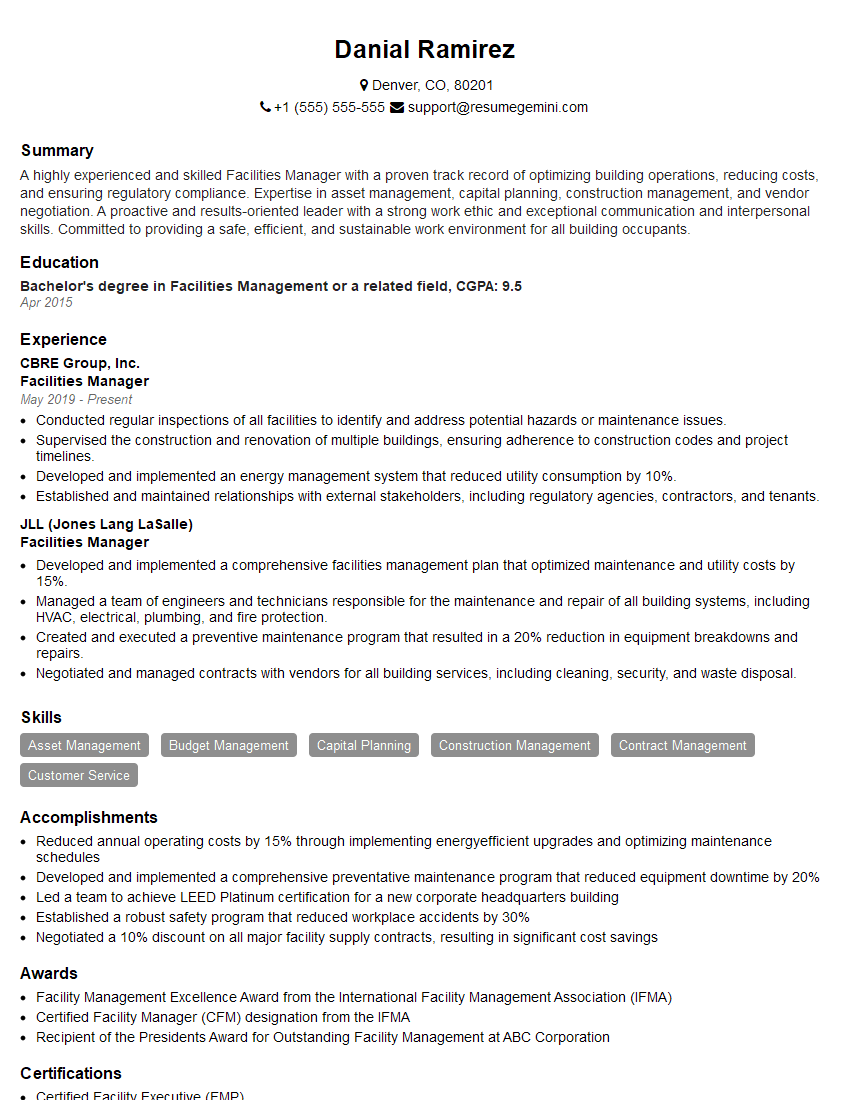
Facilities Manager Resume Sample
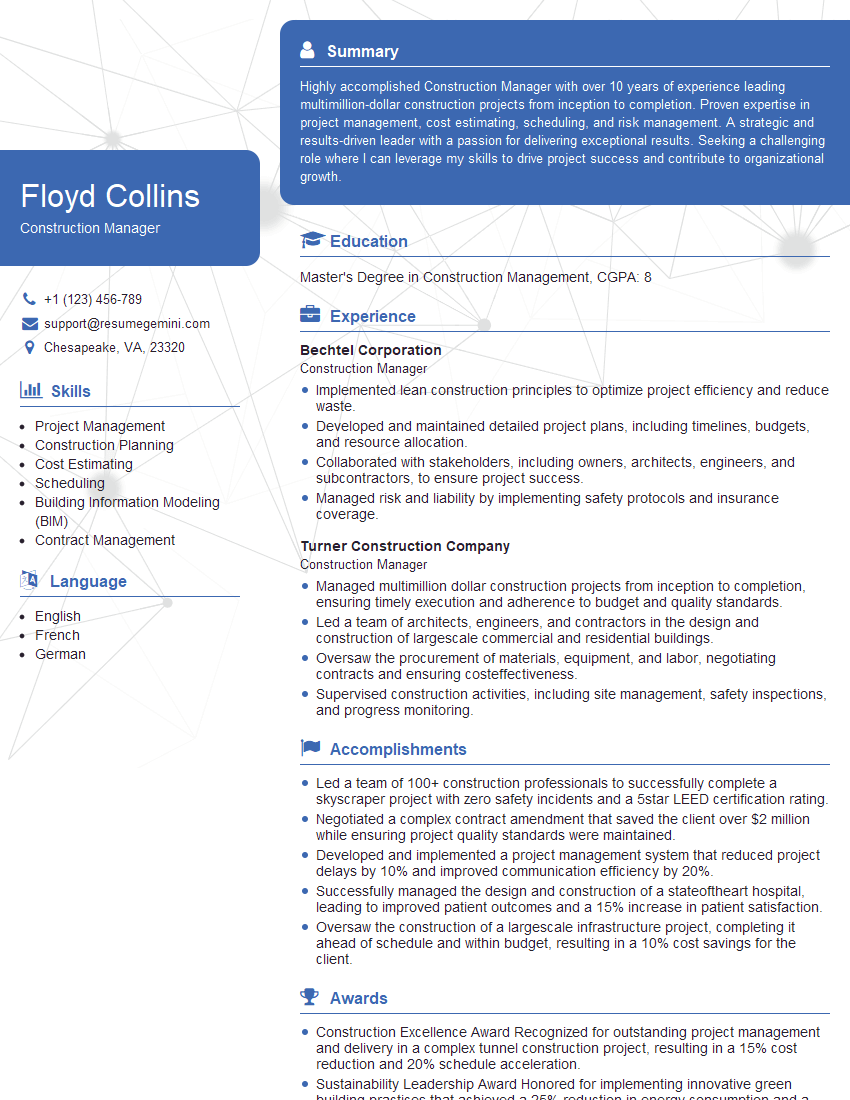
Construction Manager Resume Sample
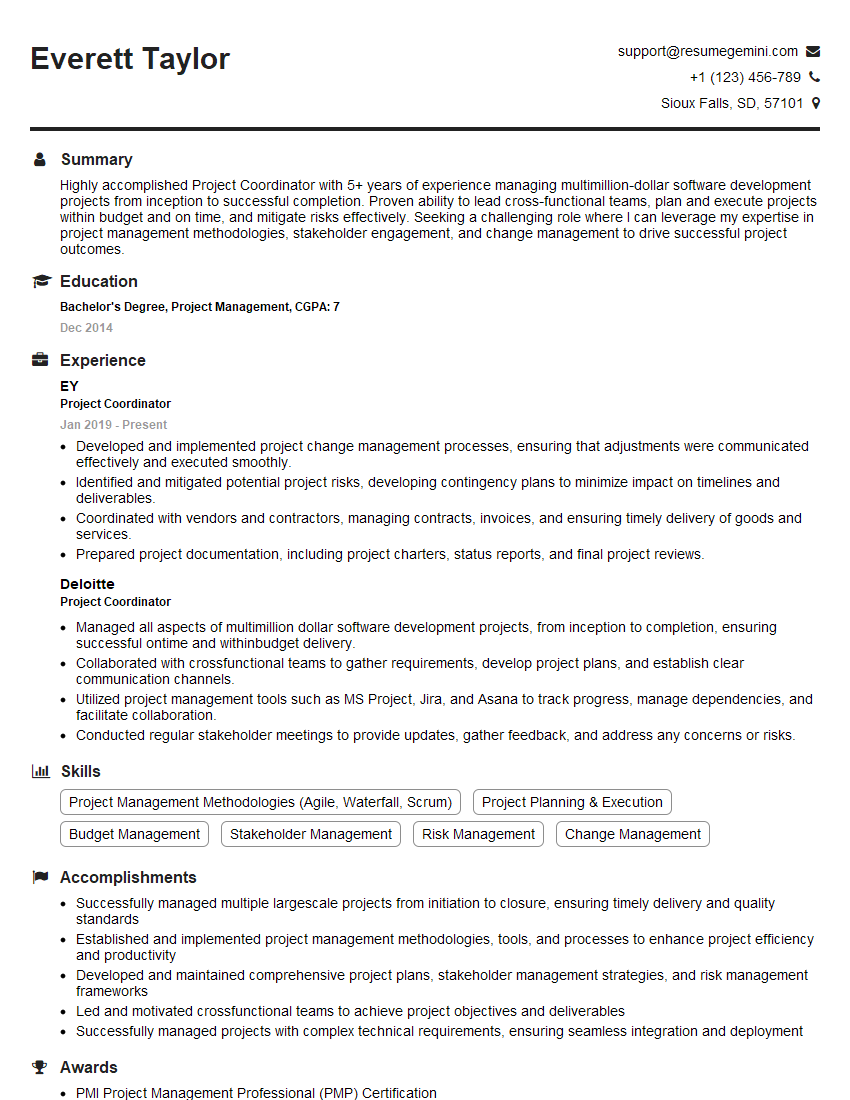
Project Coordinator Resume Sample

Project Engineer Resume Sample
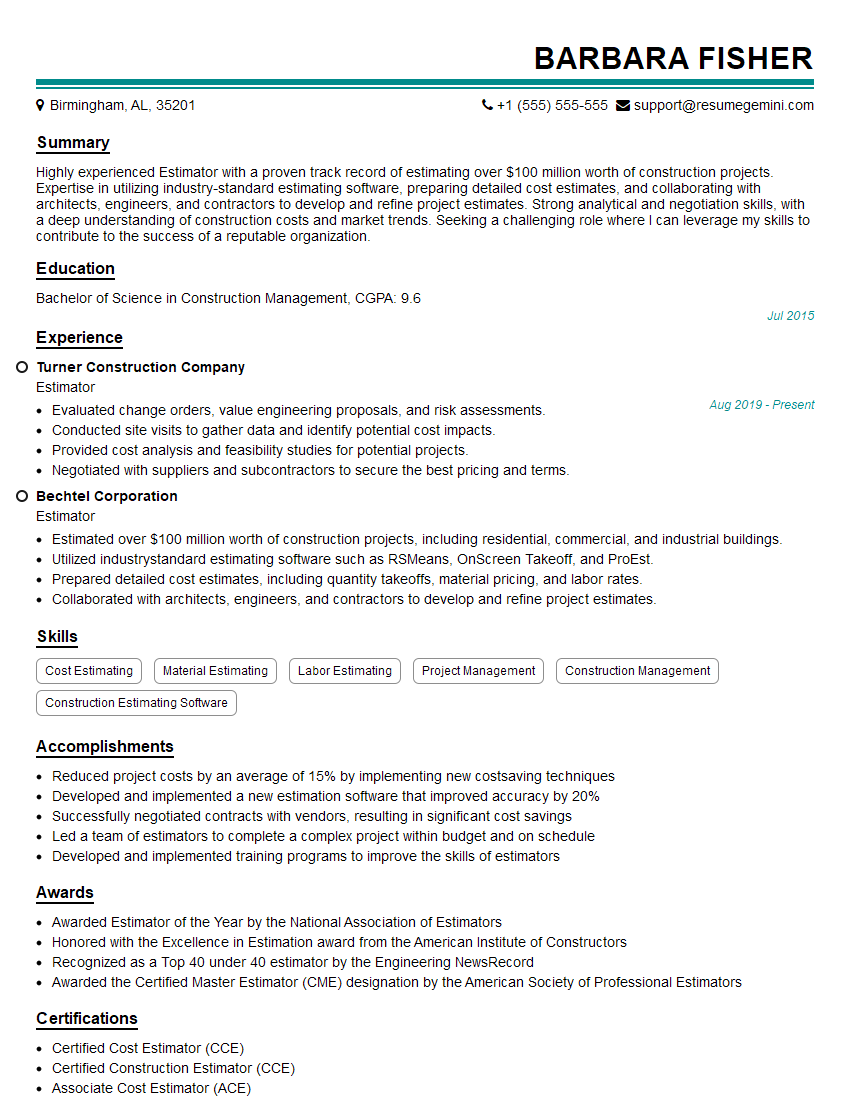
Estimator Resume Sample
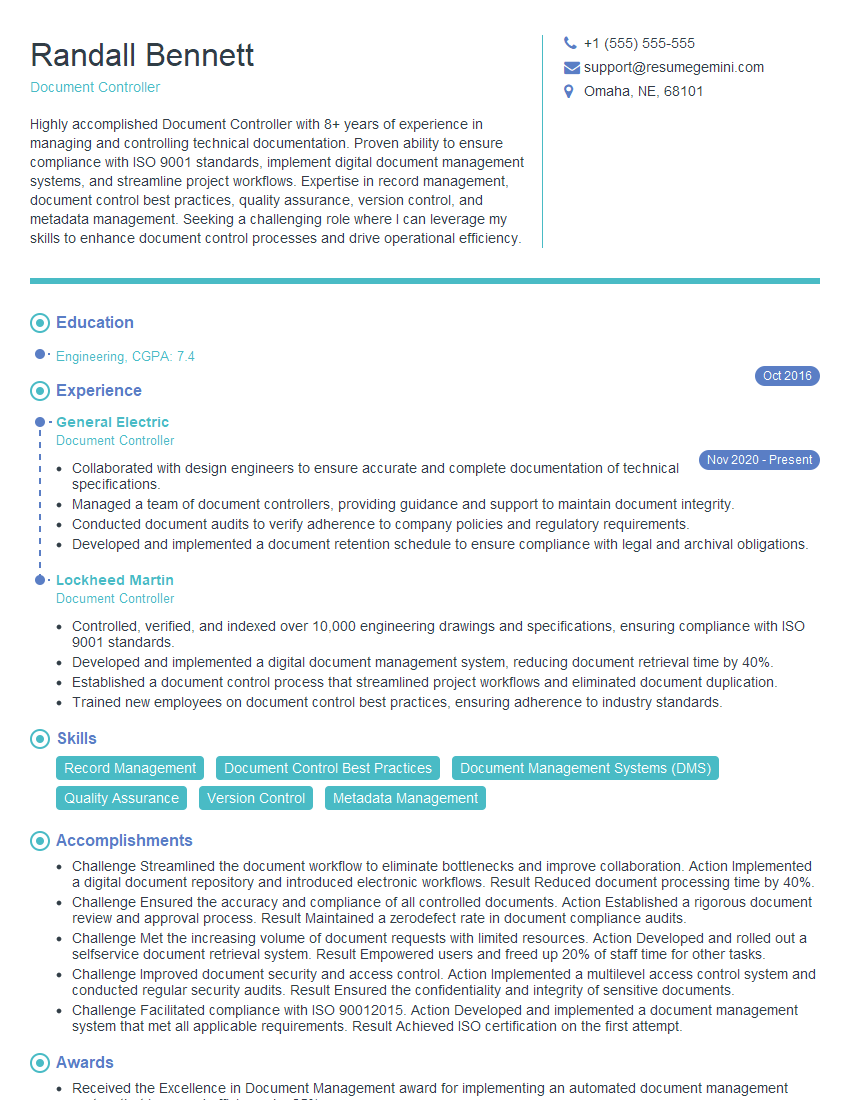
Document Controller Resume Sample
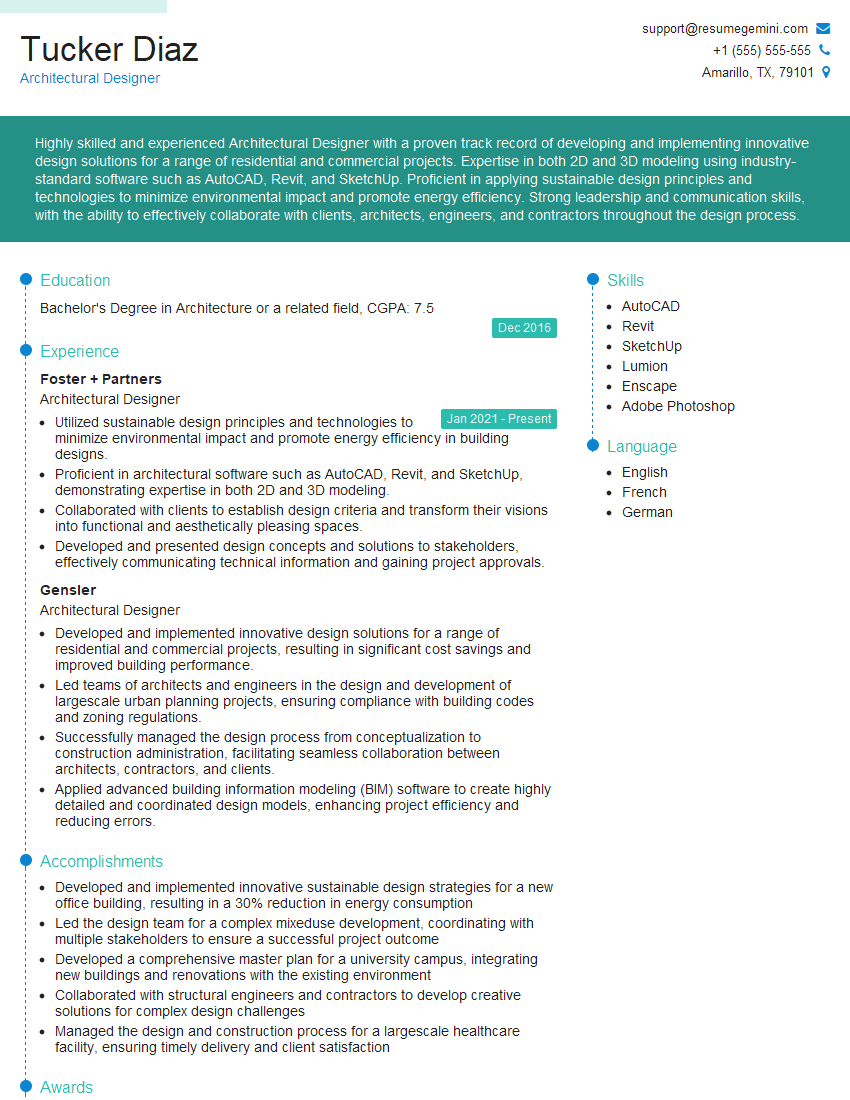
Architectural Designer Resume Sample
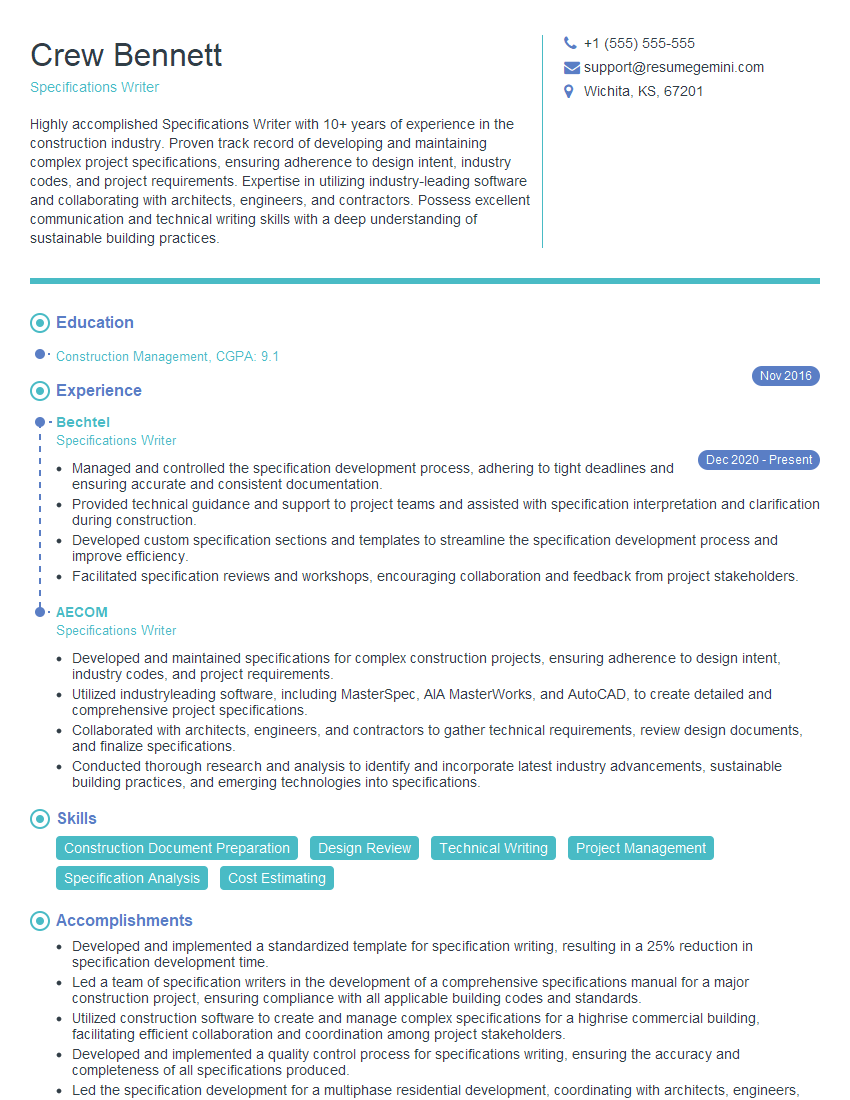
Specifications Writer Resume Sample
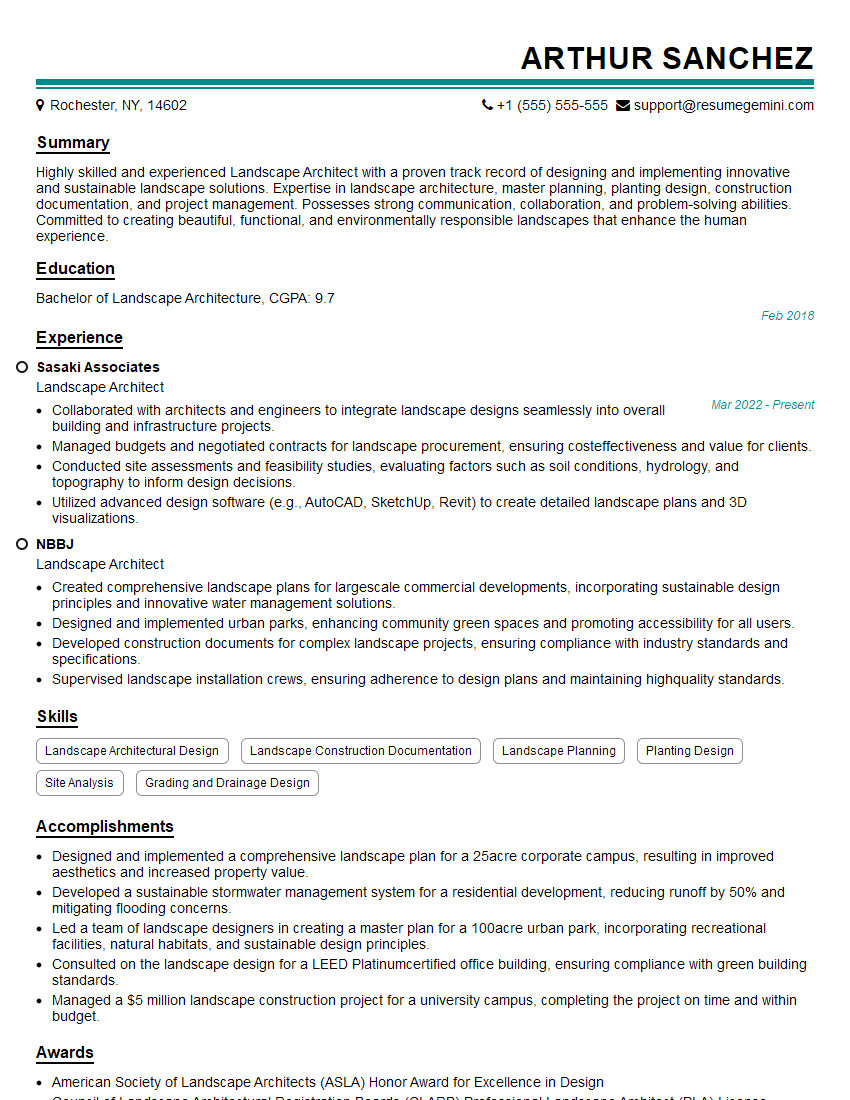
Landscape Architect Resume Sample
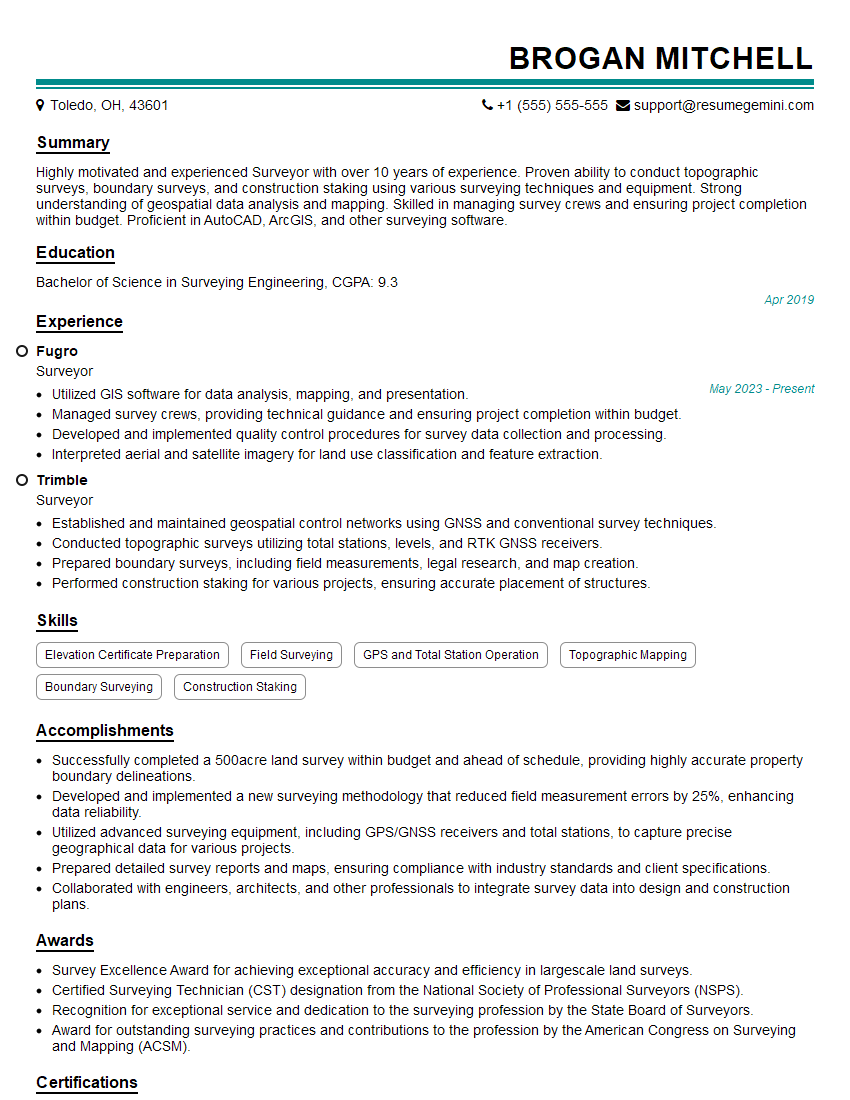
Surveyor Resume Sample
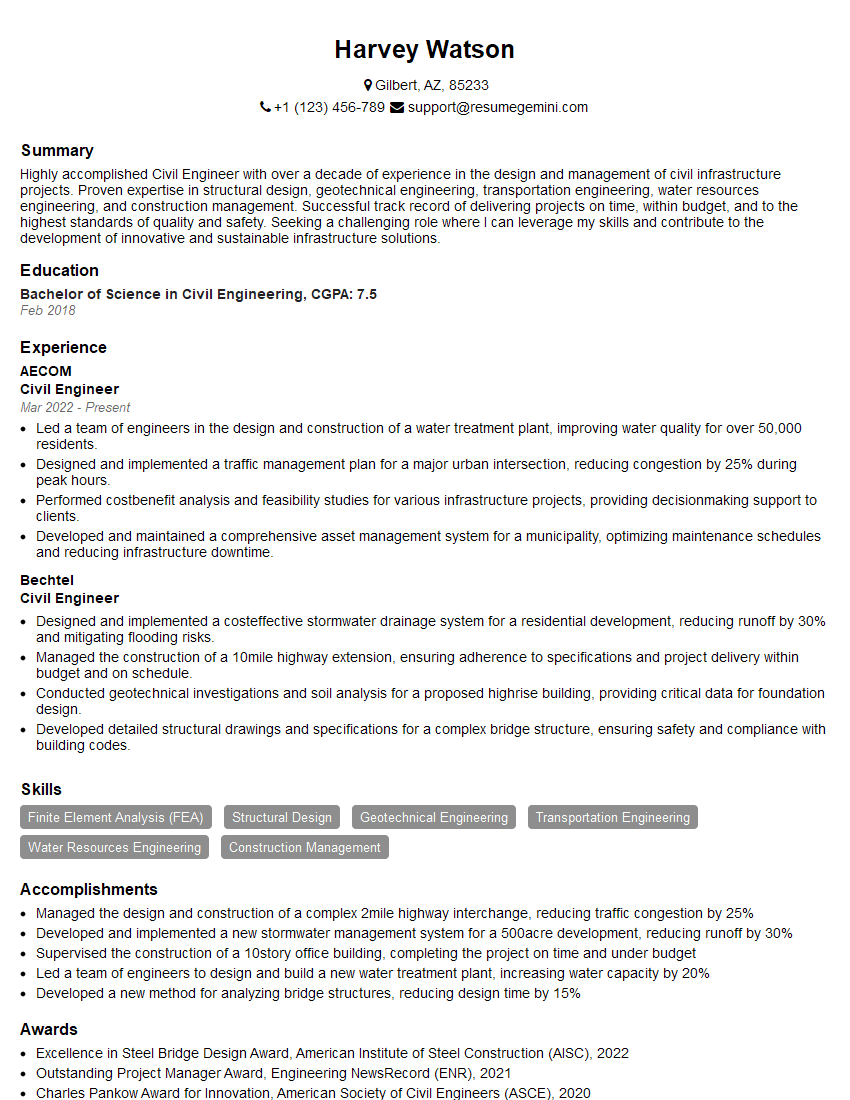
Civil Engineer Resume Sample
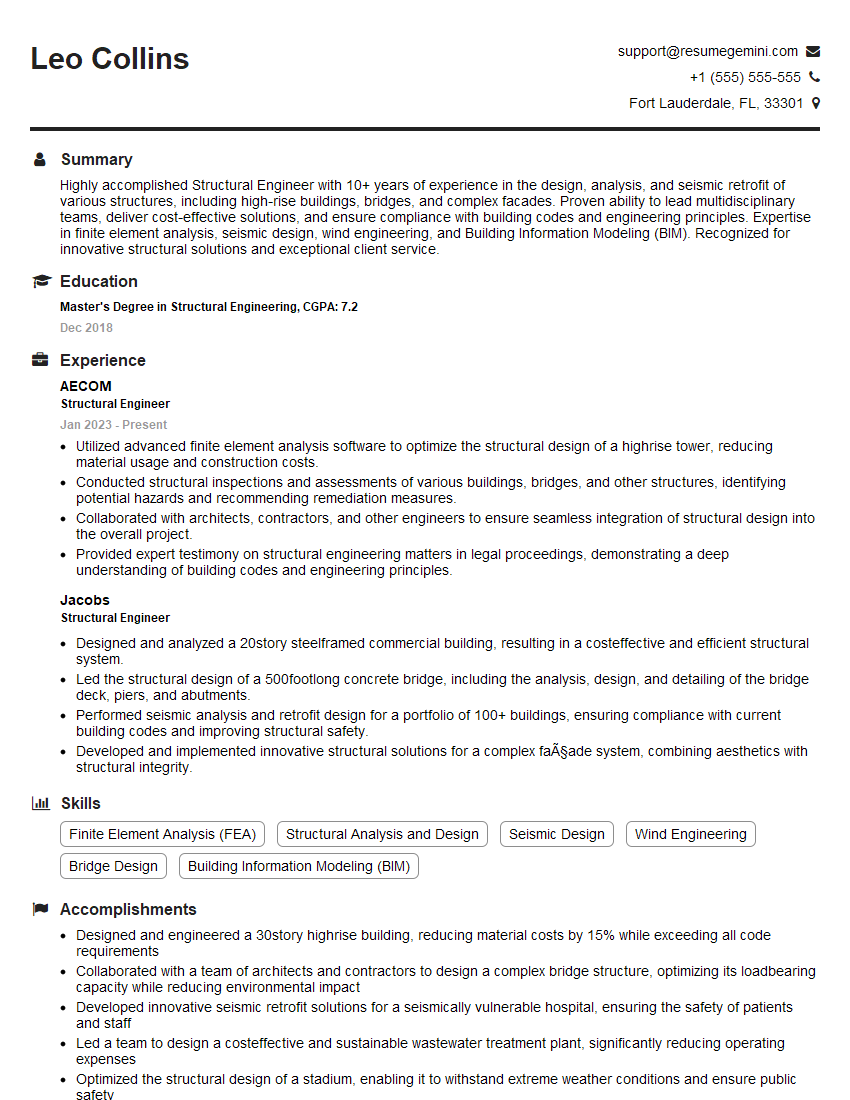
Structural Engineer Resume Sample
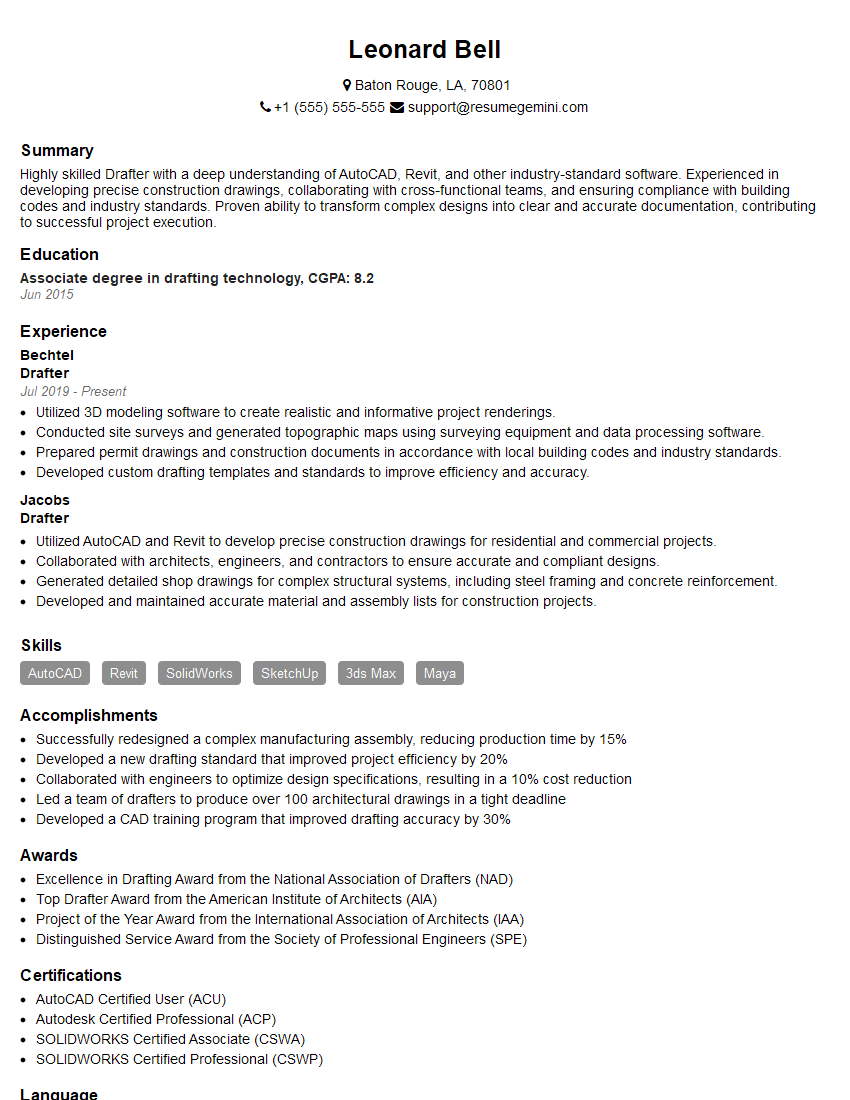
Drafter Resume Sample
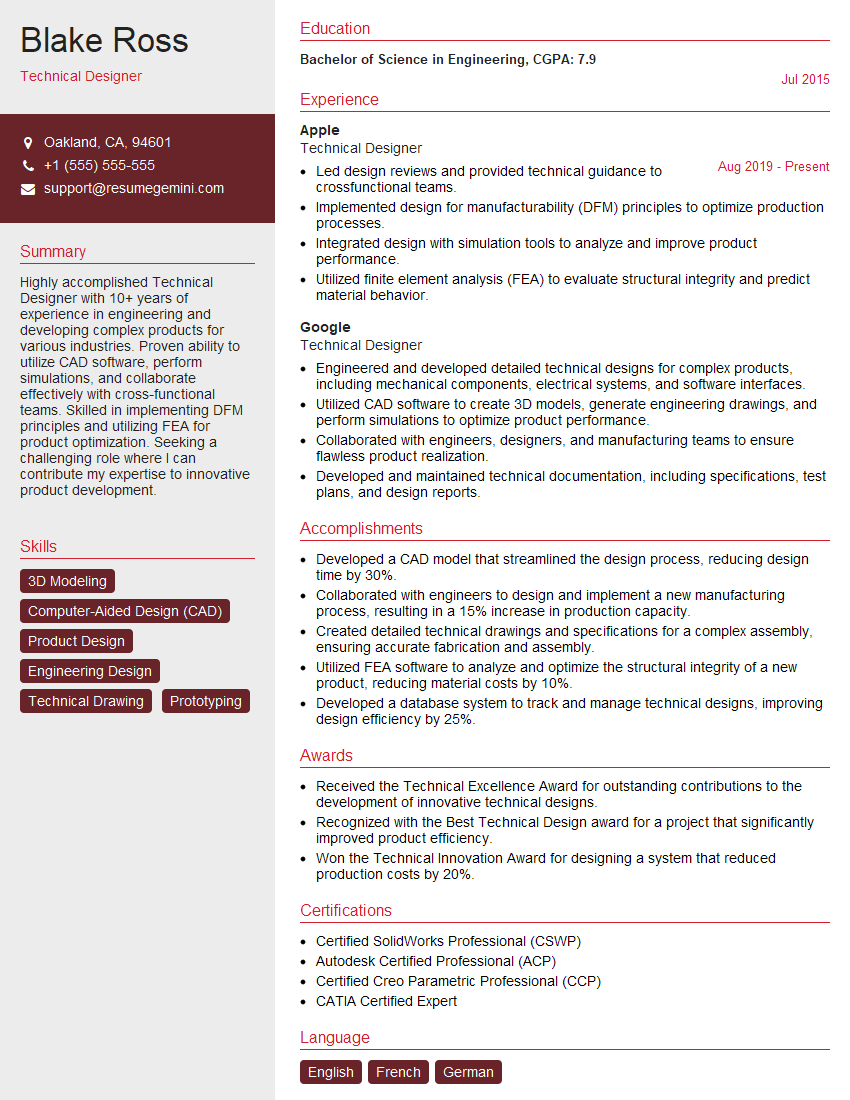
Technical Designer Resume Sample
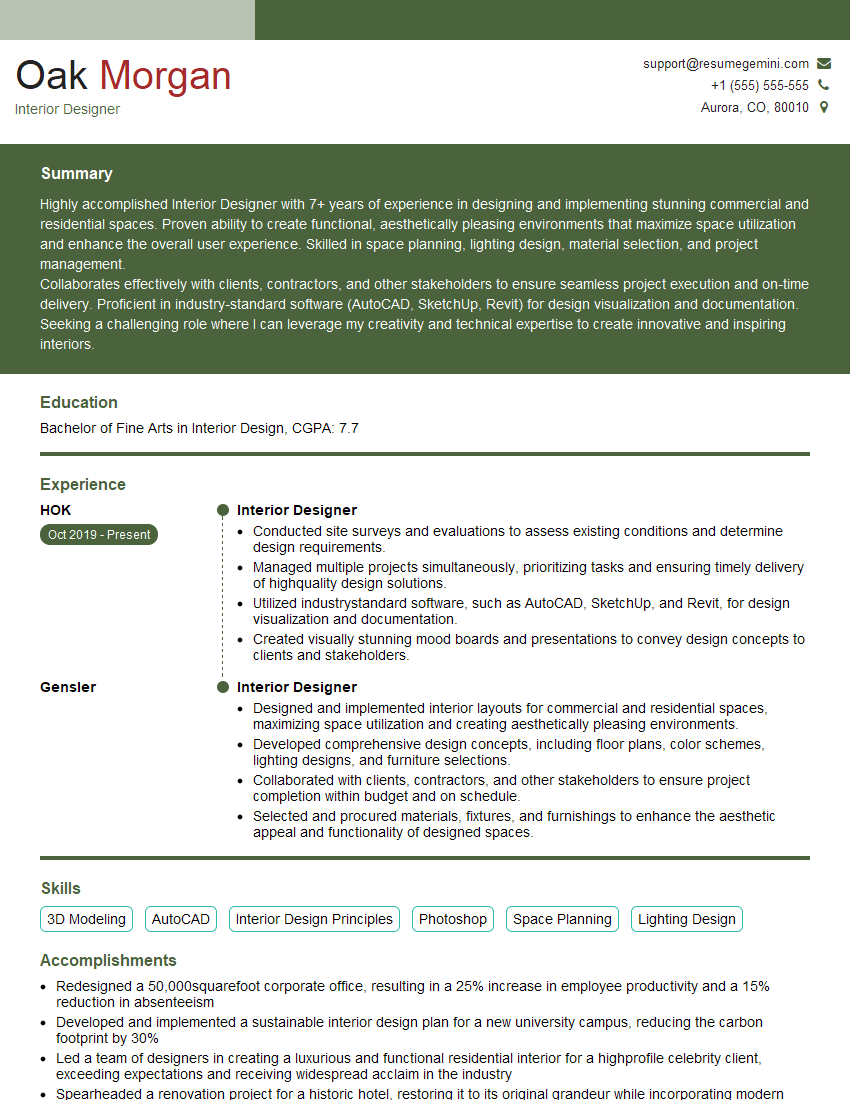
Interior Designer Resume Sample
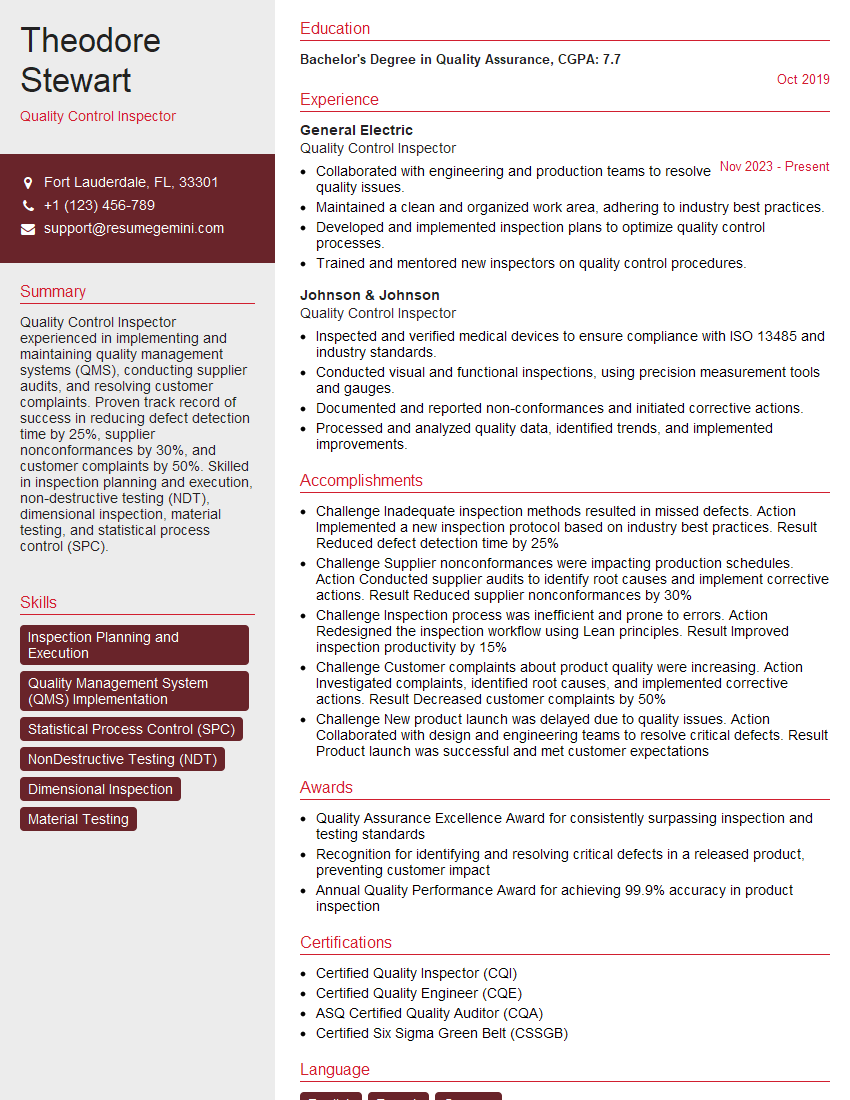
Quality Control Inspector Resume Sample
Explore more articles
Users Rating of Our Blogs
Share Your Experience
We value your feedback! Please rate our content and share your thoughts (optional).
What Readers Say About Our Blog
I Redesigned Spongebob Squarepants and his main characters of my artwork.
https://www.deviantart.com/reimaginesponge/art/Redesigned-Spongebob-characters-1223583608
IT gave me an insight and words to use and be able to think of examples
Hi, I’m Jay, we have a few potential clients that are interested in your services, thought you might be a good fit. I’d love to talk about the details, when do you have time to talk?
Best,
Jay
Founder | CEO