Cracking a skill-specific interview, like one for Troubleshoot Minor Equipment Issues, requires understanding the nuances of the role. In this blog, we present the questions you’re most likely to encounter, along with insights into how to answer them effectively. Let’s ensure you’re ready to make a strong impression.
Questions Asked in Troubleshoot Minor Equipment Issues Interview
Q 1. Describe your process for troubleshooting a malfunctioning printer.
Troubleshooting a malfunctioning printer involves a systematic approach. Think of it like detective work – we need to gather clues to find the culprit.
- Check the Obvious: First, I’d ensure the printer is powered on, connected to the power source correctly, and the power cable is securely plugged into both the printer and the wall outlet. Then, I’d verify that the printer is properly connected to the computer or network, checking cables and network settings.
- Examine the Paper Path: Next, I’d inspect the paper tray for jams. Paper jams are incredibly common! Gently remove any jammed paper, ensuring no stray bits remain. I’d also check that the paper type is appropriate for the printer’s settings. Using the wrong paper weight can cause issues.
- Check the Ink/Toner: Low ink or toner is another frequent cause of problems. I’d check the ink/toner levels and replace cartridges as needed. If the printer indicates a specific cartridge problem, I’d focus on that cartridge first.
- Driver Issues: Sometimes, the printer driver (the software that allows your computer to communicate with the printer) can become corrupted. I’d check the printer’s status in the operating system’s control panel and update or reinstall the driver if necessary. I’ll also look for any error messages on the printer’s control panel for clues.
- Network Connectivity (If applicable): If it’s a network printer, I’d test the network connection. Is the printer showing up on the network? Can other devices print to it? If not, I’d troubleshoot the network itself.
- Restart: Finally, a simple restart of both the printer and the computer can often resolve temporary glitches.
For example, I once spent 30 minutes troubleshooting a printer only to find a piece of stray paper completely blocking the print head. The power of systematic troubleshooting shines in situations like that.
Q 2. How do you identify the source of a network connectivity issue?
Pinpointing a network connectivity issue requires a layered approach. It’s like tracing a circuit – we need to find the break in the connection.
- Check Physical Connections: Begin by visually inspecting all cables: Ethernet cables, power cords. Ensure they’re securely plugged into both the device and the network infrastructure (router, modem, switch).
- Check Network Settings: Verify the IP address, subnet mask, and default gateway on the device are configured correctly. Does it have a valid IP address? Is the device assigned a static or dynamic IP? This is often solved through a simple reset to factory default network settings if there has been a recent configuration change.
- Test Network Connectivity: Use built-in operating system tools (like the command prompt’s
pingcommand or network diagnostics) to test connectivity to the gateway, DNS servers, and other known-good network resources. For example, the commandping 8.8.8.8will test connectivity to Google’s public DNS server. - Check Router and Modem: If the issue persists, check the router and modem for errors or status lights indicating problems. Try restarting both.
- Check Network Infrastructure: If possible and permissions allow, I’d also check network switches and cables in the vicinity of the device to identify any potential physical network connectivity failure.
- Consider External Factors: Consider external factors such as network congestion (many users on the same network), outages, or problems with the internet service provider (ISP).
A recent case involved a user unable to connect to the network. After checking the physical connections and settings, I discovered a faulty Ethernet port on the router.
Q 3. What steps would you take to resolve a computer freezing issue?
A frozen computer is frustrating, but often solvable. The cause could be software or hardware, so a methodical approach is crucial.
- Wait and Observe: First, I’d observe how long the computer has been frozen. If it’s a brief freeze, it might resolve itself. If it’s prolonged, proceed to the next steps.
- Force Restart: If the computer is completely unresponsive, I’d try a forced restart by holding down the power button for several seconds. This will shut down the computer abruptly but will often clear temporary software issues.
- Check for Overheating: Sometimes, overheating can cause the computer to freeze. If the computer is visibly warm to the touch, let it cool down before attempting to restart.
- Check Resource Usage: Once the computer restarts, I would check Task Manager (Windows) or Activity Monitor (macOS) to see if any applications are consuming excessive CPU, memory, or disk resources. High resource usage can lead to freezing.
- Run a Virus Scan: Malware can significantly impact system performance, causing freezes. I’d run a thorough scan with updated antivirus software.
- Check for Updates: Outdated drivers and operating system updates can sometimes cause compatibility issues and lead to freezing. I would ensure all drivers are up-to-date and the operating system is patched.
- Check Hard Drive: A failing hard drive can exhibit symptoms such as freezing. Running a disk check utility could potentially resolve underlying issues or reveal more serious hard drive failure.
I once resolved a recurring freeze by simply updating a graphics card driver. The improvement was immediate.
Q 4. Explain your experience troubleshooting software malfunctions.
Troubleshooting software malfunctions requires a blend of technical skills and problem-solving abilities. It’s akin to debugging code—finding the errors and patching them.
- Identify the Problem: The first step is clearly defining the malfunction. What exactly is going wrong? When did it start? What were you doing when it happened? Getting a detailed description from the user is crucial.
- Check Error Messages: Many software applications display error messages when they malfunction. These messages often provide clues to the cause. Note down the exact message and search online for potential solutions.
- Restart the Application/Computer: A simple restart can often resolve temporary glitches.
- Check for Updates: Outdated software is a frequent source of malfunctions. Ensure the software is up-to-date.
- Reinstall the Software: If updates don’t solve the problem, reinstalling the software can often clear corrupted files or settings.
- Check System Requirements: Verify that the computer meets the minimum system requirements for the software. Insufficient resources can lead to software malfunctions.
- Consult Documentation/Support: The software’s documentation or the manufacturer’s support website might offer solutions to known issues.
I successfully resolved a complex spreadsheet issue by identifying a circular reference in the formula causing instability. This highlight the importance of meticulously reviewing data and code.
Q 5. How do you prioritize multiple equipment issues simultaneously?
Prioritizing multiple equipment issues simultaneously requires a structured approach, much like a triage system in a hospital.
- Impact Assessment: I’d assess the impact of each issue on users and operations. For instance, a network outage affects far more people than a single printer malfunction.
- Urgency Assessment: Next, I’d determine the urgency of each issue. A server crash requiring immediate attention takes precedence over a slow-performing application.
- Ease of Resolution: I would prioritize issues likely to be resolved quickly and easily. A quick fix for a printer jam is better handled before addressing a complex network issue.
- Documentation: I would maintain a log or tracking system to document the status of each issue, the steps taken, and any updates. This helps maintain clarity, ensure accountability and prevents duplicated efforts.
- Escalation: If an issue is beyond my expertise or requires specialized skills, I’d escalate it to the appropriate team or technician.
Imagine a scenario with multiple issues—a server outage, a user’s frozen computer, and a malfunctioning printer. The server outage would naturally take precedence, as it impacts the whole system.
Q 6. What are some common causes of computer hardware failure?
Computer hardware failures stem from a variety of causes, often related to wear and tear, environmental factors, or manufacturing defects.
- Overheating: Excessive heat can damage components, causing malfunctions or complete failure. Dust buildup, poor ventilation, or faulty cooling systems often contribute to overheating.
- Power Surges/Spikes: Sudden power fluctuations can fry sensitive components, particularly the motherboard and power supply.
- Physical Damage: Physical damage like drops, impacts, or liquid spills can lead to hardware failure. This is a common reason for hard drive failure.
- Component Wear and Tear: Mechanical components like hard drives and fans have moving parts that wear out over time. This is why hard drives generally have a lifespan.
- Manufacturing Defects: Sometimes, hardware components are faulty from the start. This can manifest in various ways, and unfortunately, these are more challenging to identify.
- Electrostatic Discharge (ESD): ESD, a sudden electrical discharge, can damage sensitive electronic components, especially during repairs or component installations.
I remember a case where several computers failed due to a faulty power supply unit in the office building causing repeated power surges.
Q 7. How do you utilize diagnostic tools to pinpoint equipment problems?
Diagnostic tools are essential for pinpointing equipment problems. These tools vary depending on the type of equipment but share the common goal of providing objective information.
- Built-in Diagnostics: Many devices (printers, hard drives) have built-in self-diagnostic utilities. These often involve running tests to verify operation. For example, a hard drive has a self-test function to verify health.
- Operating System Tools: Operating systems have utilities for checking disk health, memory usage, and network connectivity. Examples include disk check utilities, Task Manager (Windows), and Activity Monitor (macOS).
- Third-Party Utilities: There are numerous third-party tools for more detailed diagnostics such as comprehensive hard drive health checks, network monitoring utilities, or system performance analysis tools.
- Hardware Monitoring Software: Specialized software can monitor temperature, voltage, and fan speeds in computers, providing insights into potential hardware issues.
- Specialized Hardware: For network troubleshooting, network analyzers and protocol analyzers can capture and analyze network traffic, identifying connectivity and performance issues.
Using a combination of these tools allows me to not only identify issues but also to identify the root cause—a key aspect in resolving issues effectively and preventing their reoccurrence.
Q 8. Describe your experience with remote troubleshooting techniques.
Remote troubleshooting relies heavily on effective communication and diagnostic tools. My experience encompasses utilizing remote desktop software like TeamViewer or AnyDesk to access and control a user’s machine, allowing me to diagnose problems firsthand. I also leverage remote monitoring tools to track system performance and identify potential issues proactively. For network equipment, I use tools like SSH and Telnet to access command-line interfaces, execute diagnostics, and configure settings remotely. A crucial aspect is guiding users through basic troubleshooting steps, such as restarting devices or checking connections, while simultaneously using remote access to perform more advanced diagnostics.
For instance, I once remotely resolved a printer connectivity issue for a client by guiding them through a network reset while simultaneously verifying network settings on my end using a network monitoring tool. This allowed me to identify the problem quickly as a misconfigured IP address, resolving the situation without an on-site visit.
Q 9. How do you document your troubleshooting steps and solutions?
Thorough documentation is critical. I use a structured approach, typically combining a ticketing system with detailed notes. Each ticket includes a clear description of the problem, the steps I took to diagnose it, and the solution implemented. I record timestamps for each action to track progress efficiently. For complex issues, I include screenshots or screen recordings to illustrate specific errors or configurations. This comprehensive documentation ensures accountability, allows for efficient future troubleshooting of similar issues, and facilitates knowledge sharing within the team.
For example, if a server fails, I’ll document the error messages, the results of diagnostic commands (like ping or traceroute), and any hardware checks performed. This detailed log helps me identify the root cause and prevents me from repeating the same steps for similar issues.
Q 10. Explain your approach to resolving a hardware component failure.
My approach to resolving a hardware component failure is systematic and follows these steps: First, I identify the failed component through observation (e.g., a burnt smell, physical damage) or diagnostic tests. Then, I isolate the component to prevent further damage or cascading failures. Next, I safely replace the faulty component with a known good one. After the replacement, I rigorously test the system to ensure the problem is resolved and there are no unintended consequences. Finally, I document the entire process, including the faulty component’s details, the replacement procedure, and verification tests.
For example, if a computer’s hard drive fails, I’d first back up any recoverable data (if possible). Then, I’d safely remove the old hard drive, install a new one, and reinstall the operating system and applications. Throughout the process, I’d meticulously document each step to ensure traceability.
Q 11. How do you handle situations where you cannot immediately resolve an issue?
When facing an irresolvable issue immediately, I prioritize escalation and communication. First, I gather all relevant data: error logs, diagnostic results, and the history of troubleshooting steps. Then, I escalate the issue to a senior technician or engineer with more specialized knowledge or access to resources. Concurrent with escalation, I communicate the situation transparently to the affected parties, setting realistic expectations about resolution timelines. I might also suggest temporary workarounds if possible to minimize disruption.
Think of it like a relay race: I carry the baton as far as my expertise allows, then hand it off to someone better equipped to finish the race. Maintaining open communication throughout is key to managing expectations.
Q 12. What safety precautions do you follow when troubleshooting electrical equipment?
Safety is paramount when troubleshooting electrical equipment. I always start by ensuring the equipment is turned off and unplugged before any physical inspection or repair. I use insulated tools to prevent electrical shocks. When working with high-voltage equipment, I use appropriate personal protective equipment (PPE), including insulated gloves and safety glasses. I’m also aware of potential hazards like heat from components or sharp edges and take necessary precautions to avoid injuries. I frequently refer to safety manuals and follow established safety procedures, and if unsure, I never hesitate to ask for assistance or guidance from more experienced colleagues.
For example, before opening a computer’s power supply, I would ensure it’s fully unplugged and discharged for at least 30 minutes. I would wear appropriate gloves and use anti-static wrist straps to prevent accidental damage to sensitive components.
Q 13. Describe a time you successfully resolved a complex equipment problem.
I once encountered a server experiencing intermittent network connectivity. Initial diagnostics pointed towards a faulty network card, but replacing it didn’t solve the issue. After meticulously reviewing logs and network traffic analysis, I discovered the problem wasn’t the hardware but a conflict with a newly installed software update that was intermittently interfering with network drivers. By carefully uninstalling the update, rebooting the server, and configuring the network settings again using the command line (ifconfig and ip commands), I successfully restored stable network connectivity. This experience emphasized the importance of thorough investigation and a systematic approach, not jumping to conclusions based on initial observations.
Q 14. How do you stay updated on the latest troubleshooting techniques?
Staying updated on troubleshooting techniques involves a multi-pronged approach. I actively participate in online forums and communities related to IT and equipment repair, where I can learn from other professionals and stay abreast of emerging challenges and solutions. I subscribe to technical newsletters and blogs from reputable vendors and industry publications to learn about new technologies and troubleshooting approaches for specific equipment. I also regularly attend webinars and workshops on relevant topics to further enhance my knowledge and skills. Finally, I embrace continuous learning through online courses and certifications, focusing on the latest trends in hardware and software diagnostics. This ensures I maintain a high level of proficiency and adapt to the evolving technological landscape.
Q 15. What are some common causes of slow computer performance?
Slow computer performance is a common frustration, often stemming from a combination of factors rather than a single culprit. Think of your computer like a highway; if there’s too much traffic (processes), or the road is damaged (hardware issues), things slow down.
- Insufficient RAM: Similar to having not enough lanes on the highway, insufficient RAM forces the computer to use slower storage (hard drive), leading to bottlenecks. For example, trying to run multiple video editing programs simultaneously on a machine with only 4GB of RAM will inevitably result in sluggish performance.
- Hard Drive Issues: A fragmented or nearly full hard drive (like potholes on a road) significantly impacts speed. Files become scattered, taking longer to access. Regular defragmentation (or using an SSD) helps address this.
- Malware/Virus Infections: Malware acts like roadblocks, consuming resources and slowing down the system. Regular antivirus scans are crucial.
- Too Many Startup Programs: Many programs automatically launch when the computer starts, consuming resources unnecessarily (imagine all cars trying to exit the highway at the same time). Disabling unnecessary startup programs can significantly boost speed.
- Outdated Software/Drivers: Outdated software or drivers are like using an old, inefficient car – they don’t take advantage of the latest improvements and are usually less optimized. Regular updates are essential.
- Overheating: If your computer is overheating, it’s like driving a car with an overheated engine—it will slow down or even shut down to protect itself. Ensure proper cooling and ventilation.
Career Expert Tips:
- Ace those interviews! Prepare effectively by reviewing the Top 50 Most Common Interview Questions on ResumeGemini.
- Navigate your job search with confidence! Explore a wide range of Career Tips on ResumeGemini. Learn about common challenges and recommendations to overcome them.
- Craft the perfect resume! Master the Art of Resume Writing with ResumeGemini’s guide. Showcase your unique qualifications and achievements effectively.
- Don’t miss out on holiday savings! Build your dream resume with ResumeGemini’s ATS optimized templates.
Q 16. How do you determine if a problem is hardware or software related?
Differentiating between hardware and software problems involves a systematic approach. Imagine your computer is a car; sometimes the engine (hardware) is faulty, other times it’s a problem with the controls (software).
- Observe the symptoms: Does the problem occur consistently, or only under certain conditions? Hardware issues often manifest consistently, while software problems might be intermittent. For instance, a consistently blue screening computer suggests a hardware problem (possibly RAM or hard drive), whereas intermittent crashes could indicate a software bug.
- Perform basic checks: Does the computer boot up at all? Are there any error messages? If the computer doesn’t even power on, the problem is highly likely to be hardware-related. Specific error messages can offer clues.
- Isolate the issue: Try booting the computer into safe mode (a minimal software configuration). If the problem disappears in safe mode, it’s likely a software issue. If the problem persists, it’s more likely hardware.
- Run diagnostics: Utilize hardware diagnostic tools (like built-in memory tests or hard drive diagnostic utilities) to check for hardware malfunctions. Software diagnostics include system file checkers and virus scans.
- Test with different components: If you suspect a hardware component (like RAM), try swapping it with a known good one to see if the problem resolves.
Q 17. What troubleshooting tools are you most familiar with?
My troubleshooting toolkit includes a variety of tools, depending on the situation. It’s like having a well-stocked toolbox for a mechanic – the right tool for the right job.
- System Information Tools:
msinfo32.exe(Windows) orSystem Profiler(macOS) provide details about the system’s hardware and software configuration, helping to identify potential bottlenecks or conflicts. - Resource Monitors: Task Manager (Windows) or Activity Monitor (macOS) show real-time resource usage (CPU, memory, disk I/O), pinpointing resource-intensive processes that could be slowing things down.
- Disk Defragmenter/Optimization Tools: These tools reorganize files on a hard drive, improving access times. Solid State Drives (SSDs) don’t require defragmentation.
- Antivirus and Antimalware Software: Essential for detecting and removing malware that can significantly impact performance.
- Event Viewer (Windows): Logs system events, including errors and warnings, which often provide clues about the cause of problems.
- Hardware Diagnostic Tools: Manufacturer-specific tools to test RAM, hard drives, and other hardware components.
Q 18. Explain your experience working with different operating systems.
I have extensive experience with various operating systems, including Windows (XP, 7, 8, 10, 11), macOS (from 10.6 onwards), and several Linux distributions (Ubuntu, CentOS, Fedora). This cross-platform experience allows me to approach troubleshooting from a broader perspective. For example, while the specific tools might differ, the underlying principles of troubleshooting resource conflicts or diagnosing driver issues remain consistent across platforms. My experience with different OS versions helps me to understand the nuances of each, allowing me to adapt my troubleshooting strategy accordingly. I’ve worked on everything from setting up and maintaining networks to configuring servers and resolving intricate system errors.
Q 19. How do you handle user frustration when troubleshooting equipment problems?
Handling user frustration is a crucial aspect of this role. I view it not as a conflict, but as an opportunity to build trust and provide effective solutions. Empathy is key; I start by actively listening to the user’s description of the problem. I then explain the troubleshooting steps clearly and simply, avoiding technical jargon whenever possible. I frequently use analogies to make technical concepts relatable. For example, instead of saying ‘the hard drive is fragmented’, I might say ‘it’s like your files are scattered all over, making it hard to find things quickly.’ I keep the user informed of my progress, offering regular updates and setting realistic expectations. If I can’t solve the problem immediately, I document the issue and communicate a plan of action, keeping them involved in the process. Positive communication and clear expectations are vital in calming frustration and building confidence.
Q 20. Describe your experience with different types of network hardware.
My experience encompasses a wide range of network hardware, from basic components to more advanced technologies. This is essential for effective network troubleshooting.
- Routers & Switches: I’m proficient in configuring and troubleshooting both wired (Ethernet) and wireless (Wi-Fi) networks, including issues like IP address conflicts, DNS problems, and network connectivity failures.
- Network Interface Cards (NICs): I can diagnose and resolve issues with NICs, including driver problems and hardware failures.
- Modems: I have experience with various modem types (DSL, cable, fiber) and can troubleshoot issues related to internet connectivity and speed.
- Wireless Access Points (WAPs): I can configure and manage WAPs to optimize wireless network coverage and performance.
- Network Attached Storage (NAS) devices: I can set up and troubleshoot NAS devices for data storage and sharing.
This experience allows me to identify and resolve issues efficiently, from simple configuration problems to more complex hardware failures.
Q 21. What are some common causes of data loss?
Data loss is a serious concern, and it can be caused by a variety of factors, ranging from accidental deletion to major hardware failures. Preventing data loss is crucial and involves proactive measures and careful backups.
- Accidental Deletion: This is the most common cause, often due to human error. Regular backups and using the Recycle Bin (or Trash) are crucial preventative measures.
- Hardware Failure: Hard drive crashes, memory stick failure, and other hardware malfunctions can lead to data loss. Regular backups to a separate location (like an external hard drive or cloud storage) are essential.
- Software Errors: Software bugs, corrupted files, and operating system issues can also lead to data loss. Regular software updates and backups are critical.
- Malware/Virus Infections: Malware can encrypt or delete data, rendering it inaccessible. Reliable antivirus software and regular scans are important.
- Power Surges/Outages: Unexpected power fluctuations can corrupt data or damage storage devices. Surge protectors and uninterruptible power supplies (UPS) are vital.
- Physical Damage: Physical damage to storage devices (e.g., dropping a hard drive) can also result in data loss. Proper handling and storage are important.
Data recovery is often possible from damaged devices, but it’s expensive and success isn’t guaranteed. Prevention through regular backups is always the best approach.
Q 22. How do you prevent future occurrences of the same equipment problem?
Preventing future equipment problems requires a multi-pronged approach focusing on proactive maintenance, root cause analysis, and user training. It’s not just about fixing the immediate issue; it’s about understanding why it happened.
Proactive Maintenance: Regularly scheduled maintenance, such as cleaning printers, checking cable connections, and updating software, significantly reduces the likelihood of problems. Think of it like servicing your car – regular oil changes prevent major engine issues. For example, I developed a checklist for our office printers that includes cleaning rollers, checking toner levels, and verifying network connectivity, which dramatically reduced paper jams and print errors.
Root Cause Analysis: When a problem occurs, don’t just fix the symptom; delve into the underlying cause. If a computer keeps freezing, is it a software issue, a hardware failure, or a lack of RAM? Documenting the troubleshooting steps and the ultimate solution helps identify recurring patterns. For instance, a recurring printer error might point to a faulty network connection, prompting a network infrastructure review.
User Training: Often, equipment problems stem from user error. Providing clear instructions and training on proper equipment usage can prevent many issues. For example, training employees on proper paper handling in printers minimized paper jams by 75% in one of my previous roles.
Q 23. What is your experience with ticketing systems for tracking issues?
I have extensive experience with various ticketing systems, including Jira, ServiceNow, and Zendesk. I understand the importance of clear and concise ticket creation, proper categorization, and timely updates. A well-managed ticketing system is crucial for efficient troubleshooting and tracking of issues.
My approach involves creating detailed tickets with precise descriptions of the problem, including error messages, steps to reproduce the issue, and any relevant screenshots. I ensure the ticket is assigned to the appropriate team and promptly update the status as the troubleshooting progresses. I’m also proficient in using reporting features to identify trends and common problems, enabling us to implement preventative measures.
For example, in a previous role, I implemented a new ticketing system that reduced resolution times by 20% by streamlining the workflow and enhancing communication between support teams.
Q 24. How do you ensure data security while troubleshooting equipment?
Data security is paramount during troubleshooting. My approach adheres to strict protocols to protect sensitive information. This includes:
Access Control: Only accessing systems and data necessary for resolving the specific issue. I never browse unrelated files or applications.
Secure Connections: Using secure remote access tools like VPNs (Virtual Private Networks) to connect to company networks. I ensure all connections are encrypted to prevent unauthorized access.
Data Encryption: If handling sensitive data during troubleshooting, I ensure it’s encrypted both in transit and at rest. This includes adhering to company data encryption policies.
Password Management: Following strict password policies and utilizing strong, unique passwords for all accounts I access.
Incident Reporting: Reporting any security incidents or suspicious activities immediately to the appropriate team.
Essentially, I treat every troubleshooting session as if I were handling classified information – cautious, methodical, and responsible.
Q 25. Describe your experience with different types of peripherals (e.g., printers, scanners).
I’m experienced with a wide range of peripherals, including various types of printers (laser, inkjet, dot-matrix), scanners (flatbed, sheetfed), and other input/output devices. My experience encompasses troubleshooting common issues like connectivity problems, driver conflicts, hardware malfunctions, and paper jams.
For example, I’ve diagnosed and resolved issues related to network printer configurations, including IP address conflicts and DNS problems. I have also resolved scanner issues involving faulty cables, driver incompatibilities, and calibration problems. My proficiency extends to understanding different interfaces like USB, serial, and parallel ports and the troubleshooting steps specific to each.
Q 26. How do you effectively communicate technical information to non-technical users?
Communicating technical information to non-technical users requires clear, concise, and jargon-free language. I avoid technical terms whenever possible, using analogies and simple explanations to convey complex concepts.
For example, instead of saying “The DNS server is unreachable,” I might say, “The computer can’t find the address for the website because of a network problem.” I also use visuals like diagrams or screenshots to illustrate technical points and confirm understanding. Active listening is also key, ensuring the user understands the explanation and can provide feedback.
Furthermore, I tailor my communication style to the user’s technical literacy, ensuring the explanation is appropriate for their level of understanding.
Q 27. What are your strategies for managing your time effectively when troubleshooting multiple issues?
Managing time effectively when troubleshooting multiple issues involves prioritization, organization, and efficient workflow. I typically employ the following strategies:
Prioritization: I prioritize issues based on severity and impact, addressing critical problems first. This might involve using a triage system to quickly assess the urgency of each issue.
Time Blocking: I allocate specific time blocks to work on particular issues. This prevents me from getting bogged down in one problem and neglecting others.
Task Management: I use task management tools to track progress, set deadlines, and manage my workload. This ensures that I stay organized and on track.
Delegation: If possible, I delegate tasks to other team members to expedite the resolution process.
Ultimately, effective time management is about strategic planning and efficient execution.
Q 28. Describe a situation where you had to escalate a problem to a higher level of support.
In a previous role, we experienced a widespread network outage affecting all computers in the office. After exhausting all initial troubleshooting steps, including checking cabling, routers, and switches, I couldn’t pinpoint the cause. The outage impacted critical business operations, so I escalated the issue to our network administrator.
I meticulously documented all troubleshooting steps I’d taken, including error messages, diagnostic results, and the systems affected. This detailed report allowed the network administrator to quickly assess the situation and pinpoint the problem, which turned out to be a faulty fiber optic cable. The quick escalation and detailed reporting ensured a rapid resolution, minimizing business disruption.
Key Topics to Learn for Troubleshooting Minor Equipment Issues Interview
- Identifying the Problem: Understanding the symptoms of malfunctioning equipment – learning to differentiate between software glitches, hardware failures, and user error.
- Basic Troubleshooting Techniques: Applying systematic approaches like the “power cycle” (rebooting), checking connections, and visually inspecting for damage. Practical application: Describing your experience troubleshooting a printer jam or a malfunctioning computer.
- Safety Procedures: Prioritizing safety when dealing with equipment – knowing when to escalate issues to a qualified technician and following all relevant safety protocols.
- Documentation and Reporting: Maintaining clear and concise records of troubleshooting steps, outcomes, and any necessary repairs. This includes effective communication to report issues and solutions.
- Common Equipment Issues: Familiarity with typical problems encountered with specific equipment types relevant to your target role (e.g., printers, computers, basic machinery). Understanding the general causes and potential solutions.
- Preventive Maintenance: Discussing the importance of routine checks and minor maintenance to prevent future issues. Examples include cleaning, lubrication, and basic inspections.
- Resource Utilization: Demonstrating your ability to effectively use online resources, manuals, and troubleshooting guides to resolve problems independently.
Next Steps
Mastering troubleshooting skills is crucial for career advancement, showcasing your problem-solving abilities and reliability. A strong resume is your first impression; make it count! Building an ATS-friendly resume significantly increases your chances of getting noticed by recruiters. ResumeGemini is a trusted resource that can help you craft a compelling and effective resume tailored to highlight your troubleshooting expertise. We provide examples of resumes specifically designed for candidates focusing on troubleshooting minor equipment issues to help you get started.
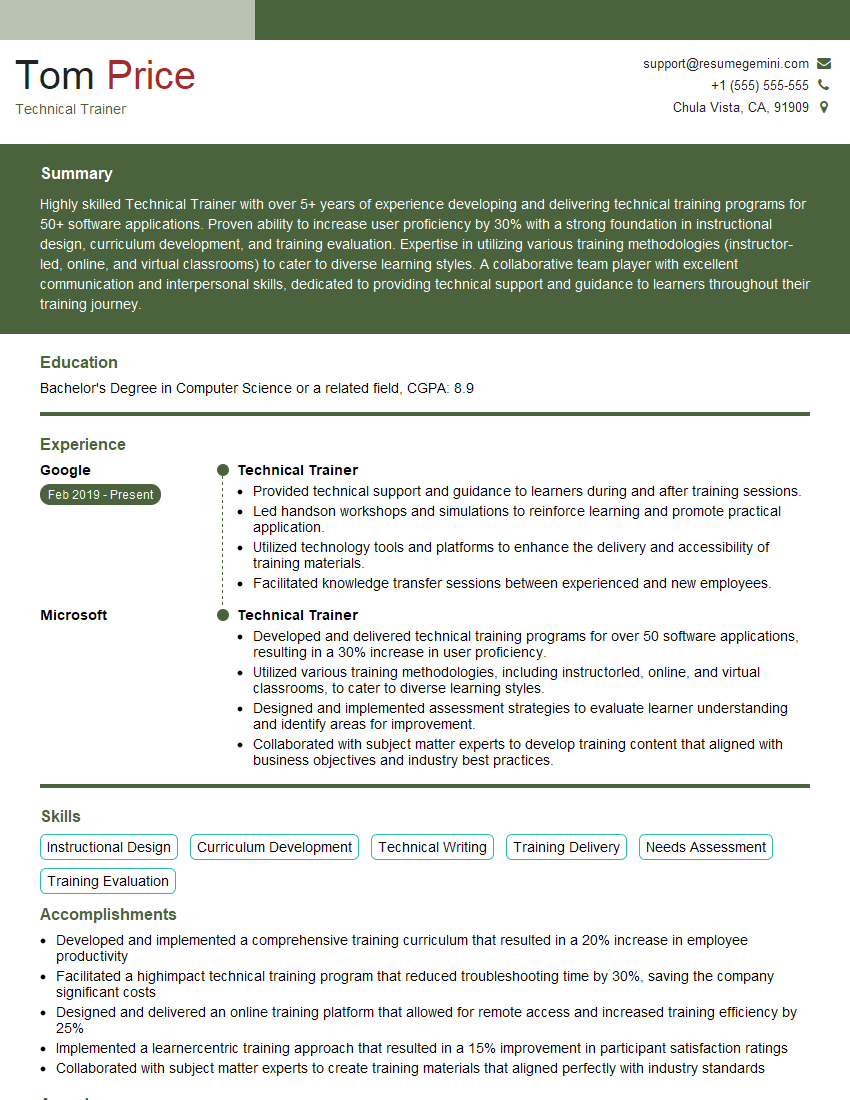
Technical Trainer Resume Sample
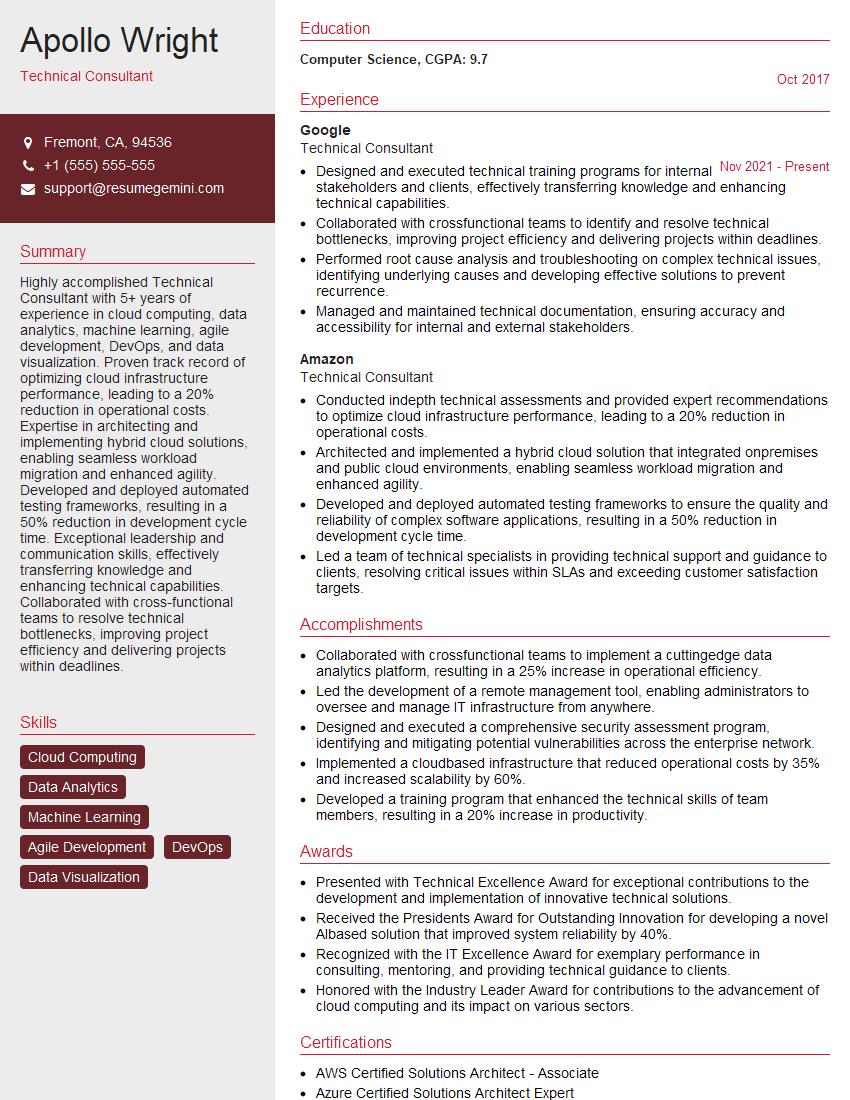
Technical Consultant Resume Sample
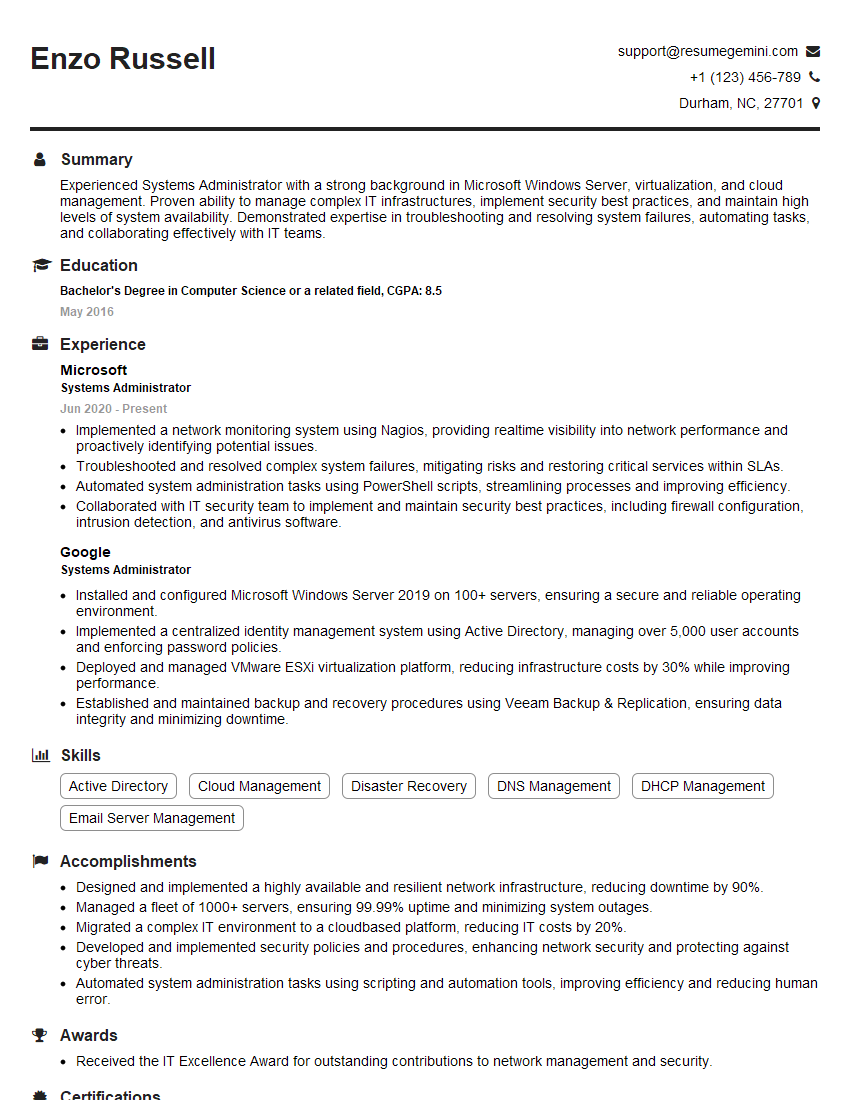
Systems Administrator Resume Sample
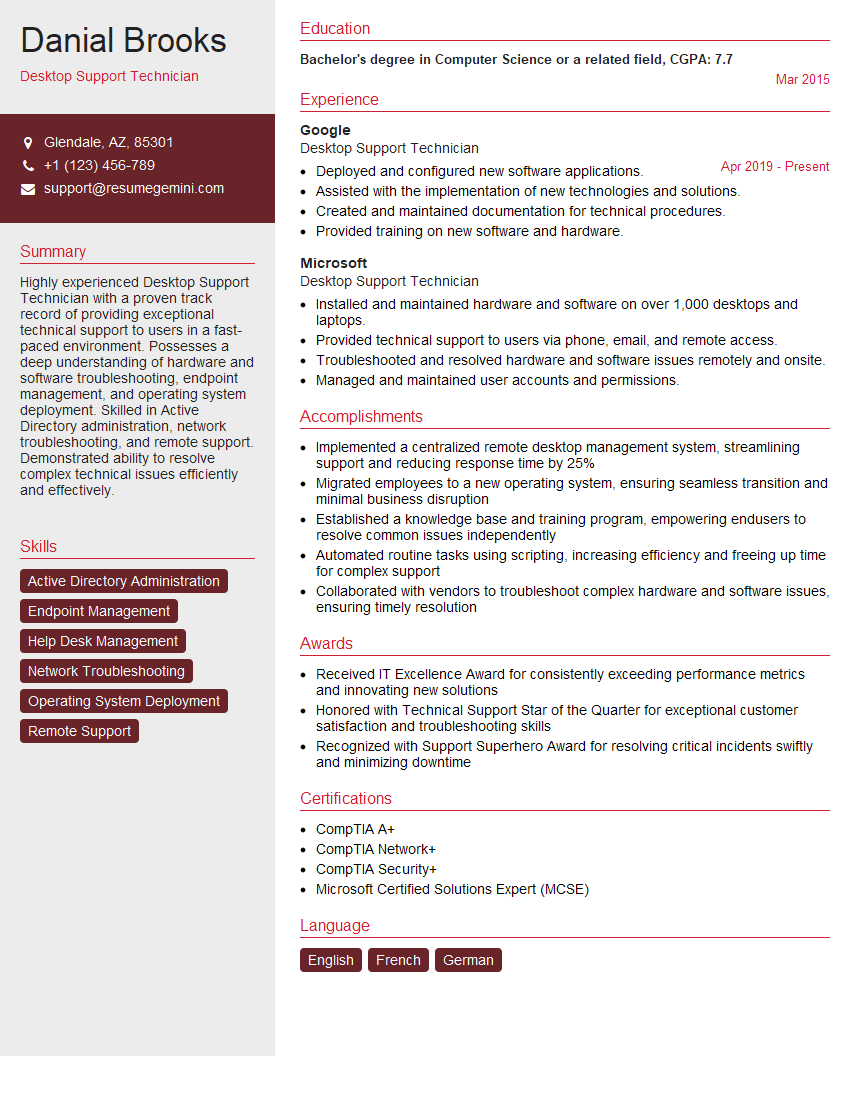
Desktop Support Technician Resume Sample
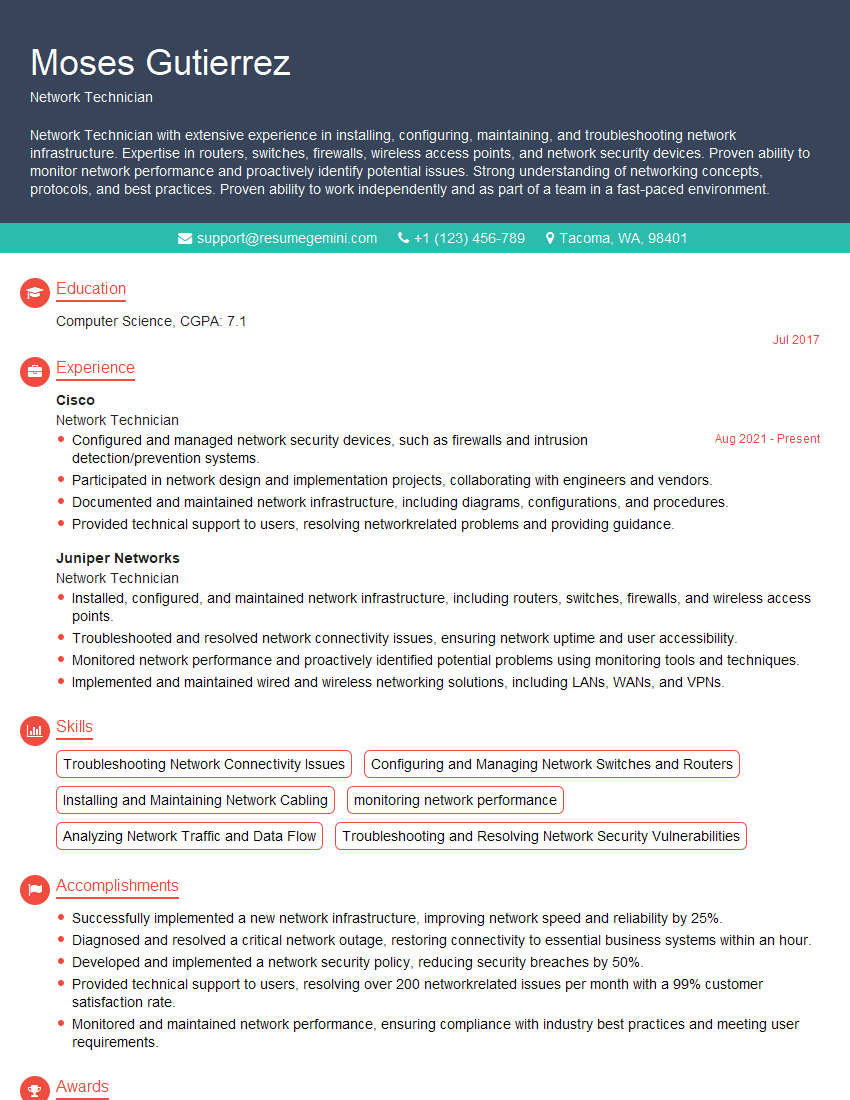
Network Technician Resume Sample
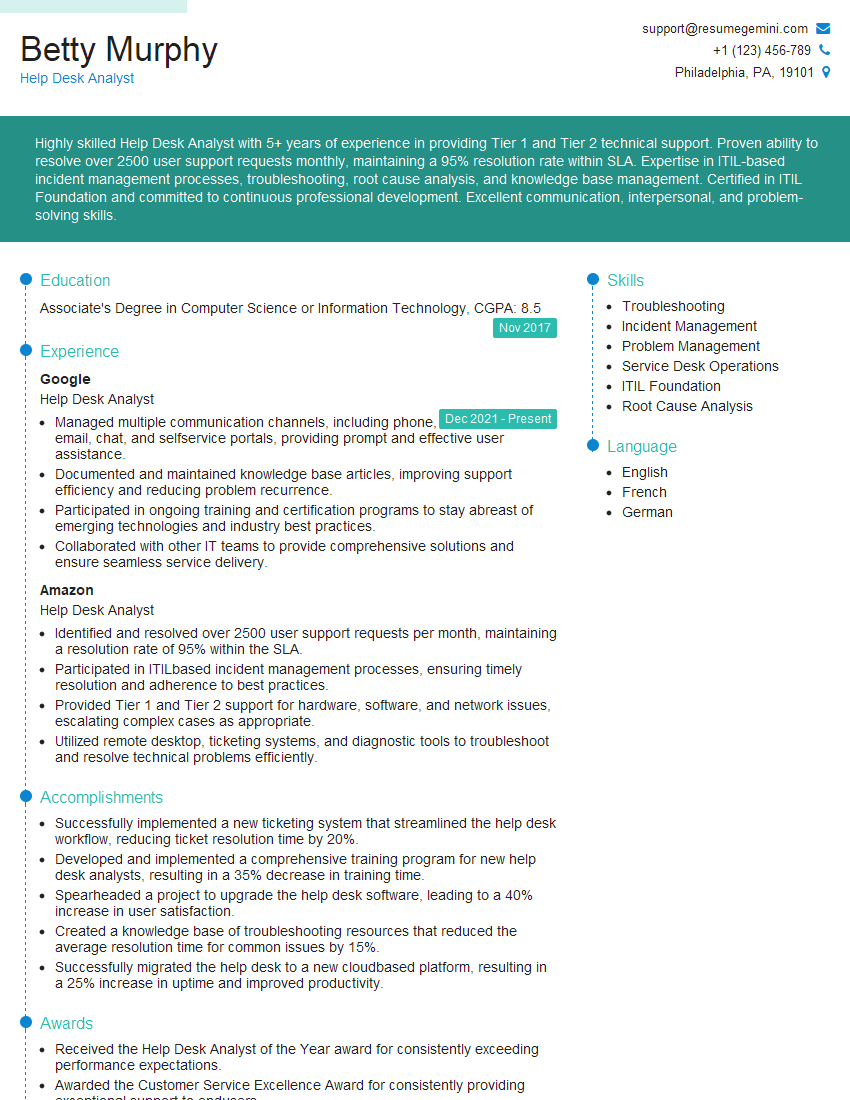
Help Desk Analyst Resume Sample
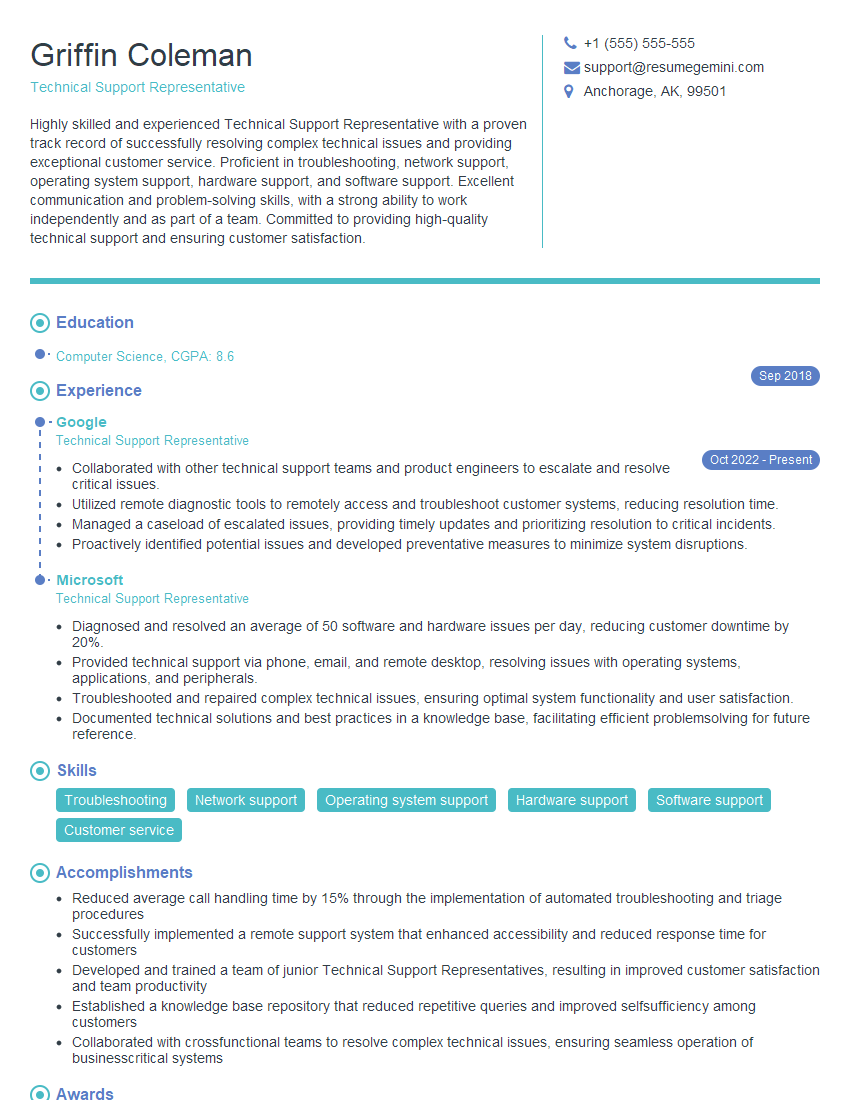
Technical Support Representative Resume Sample
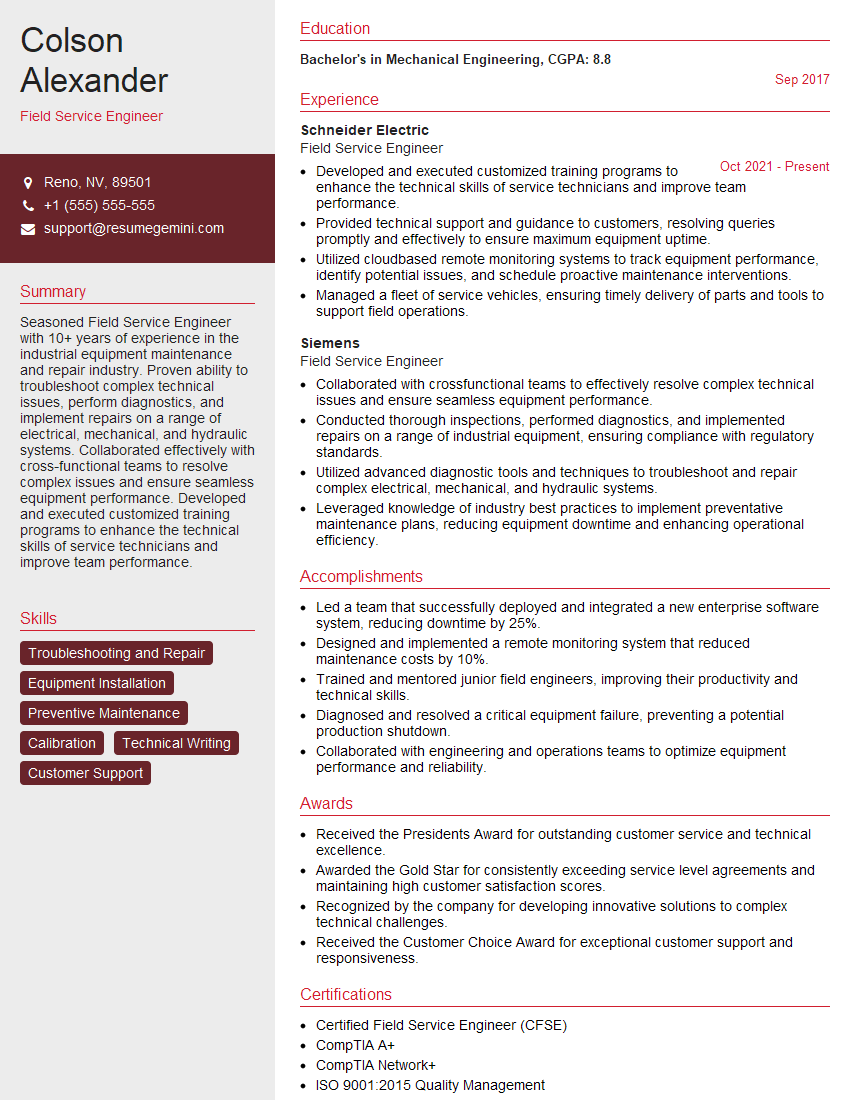
Field Service Engineer Resume Sample
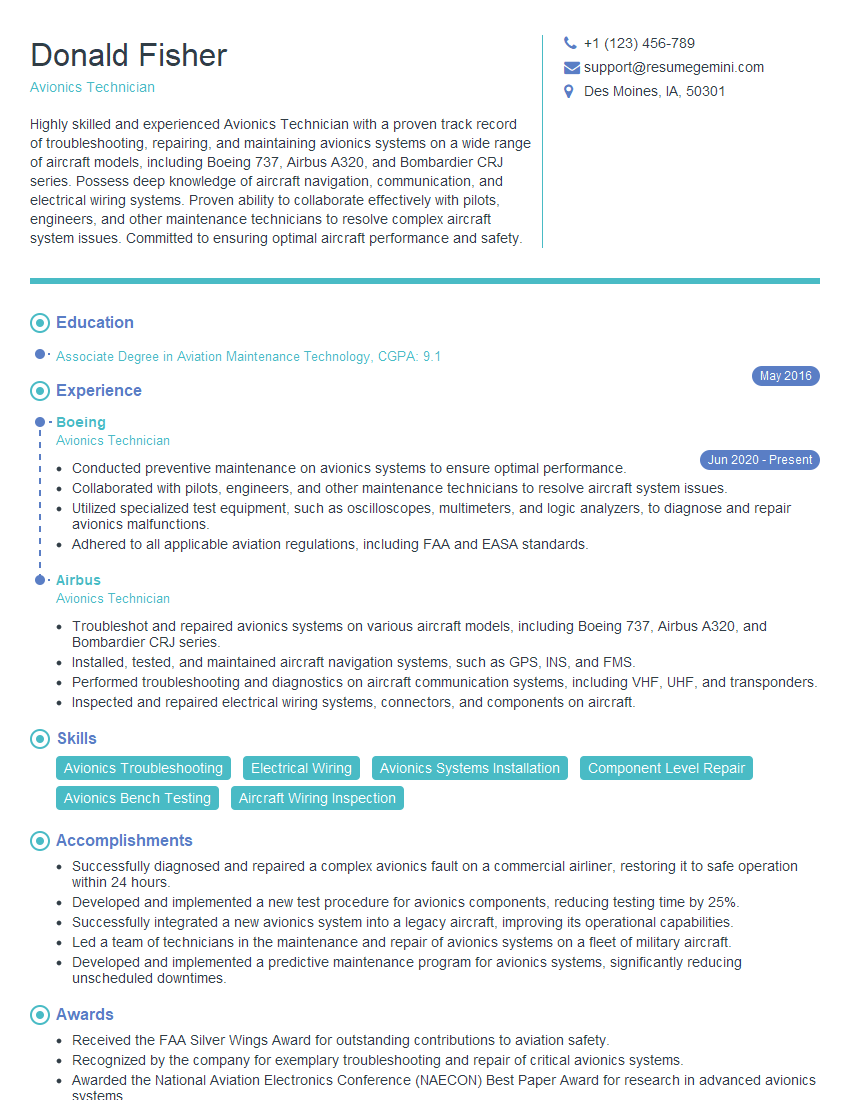
Avionics Technician Resume Sample
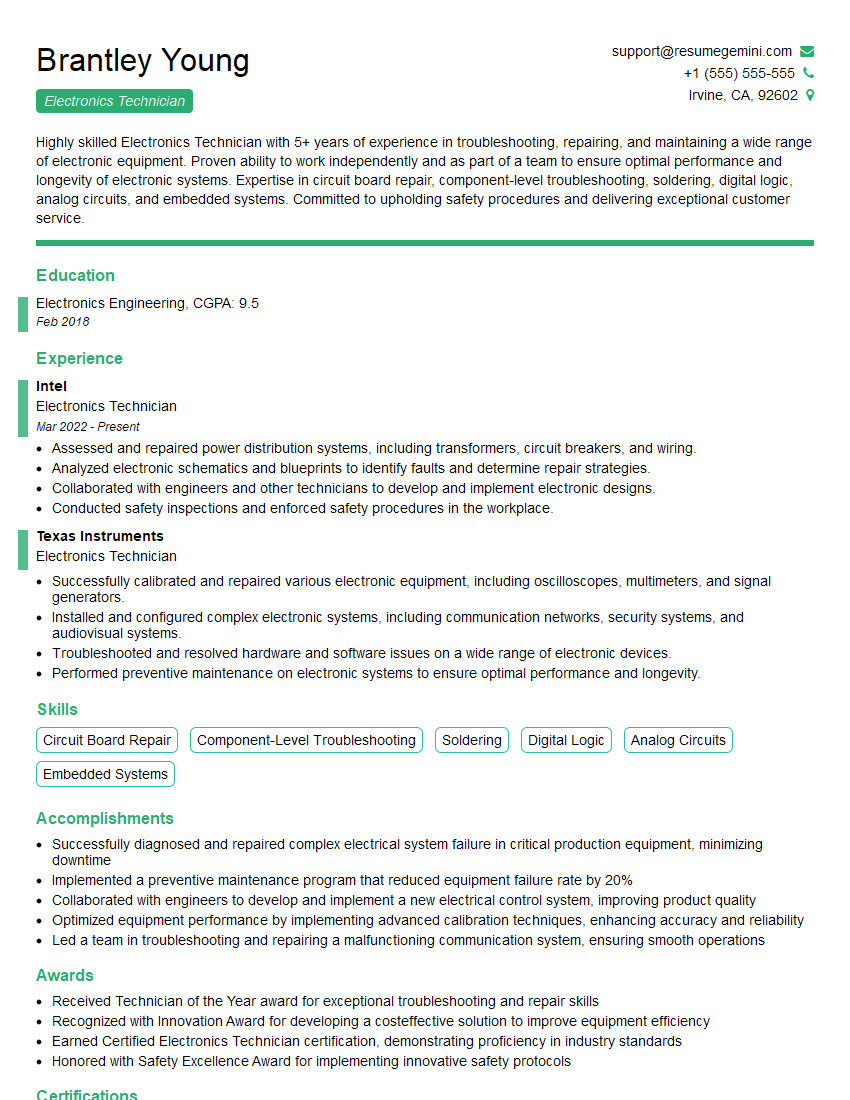
Electronics Technician Resume Sample
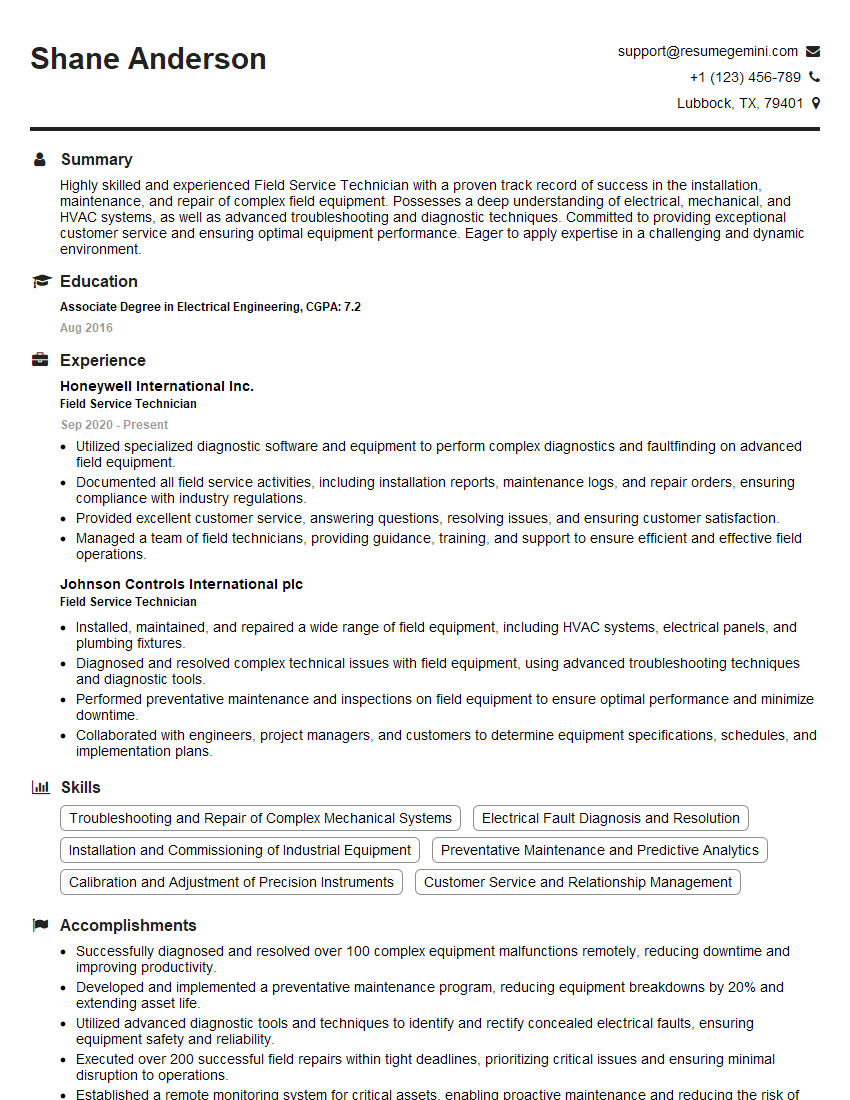
Field Service Technician Resume Sample
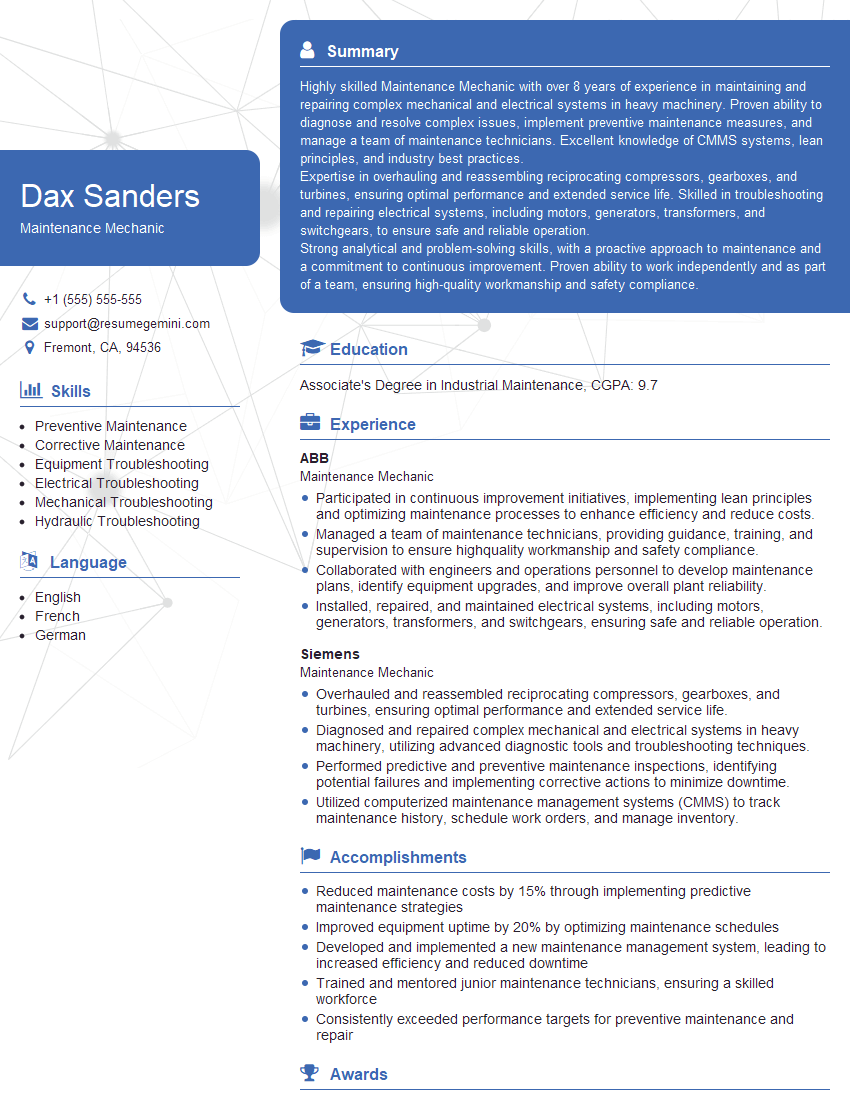
Maintenance Mechanic Resume Sample
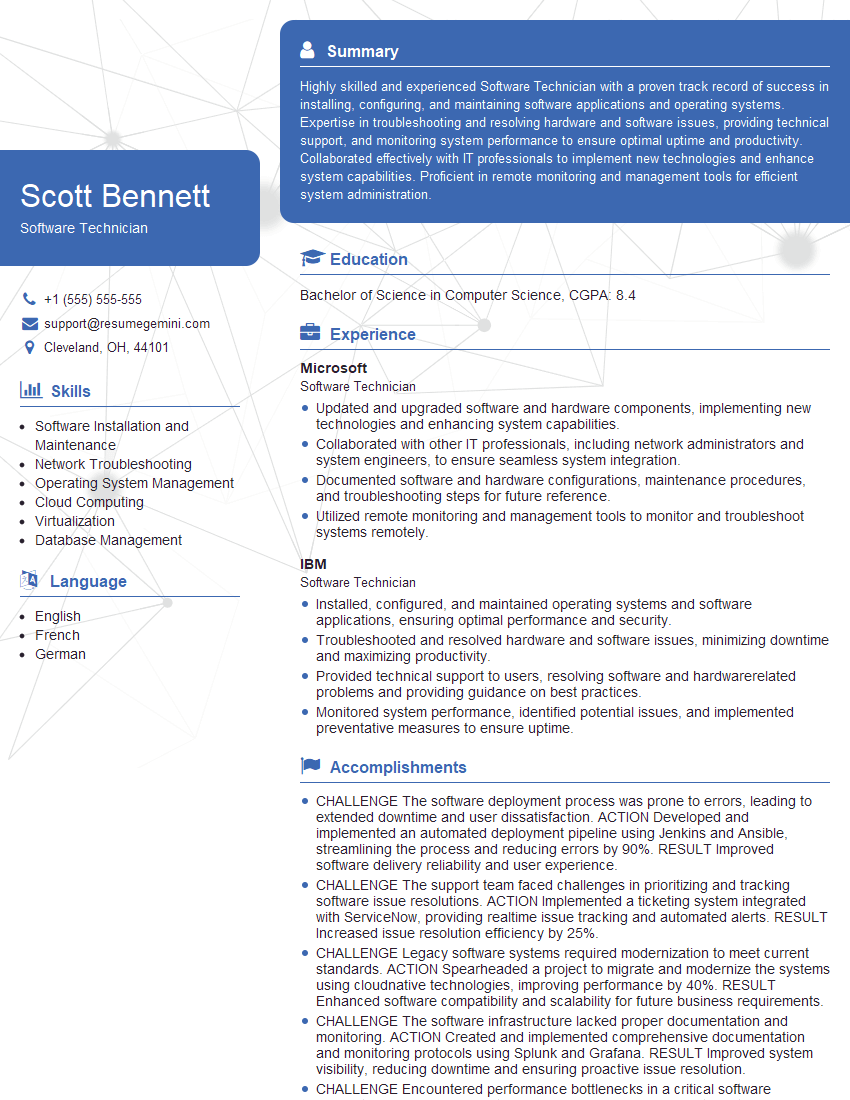
Software Technician Resume Sample
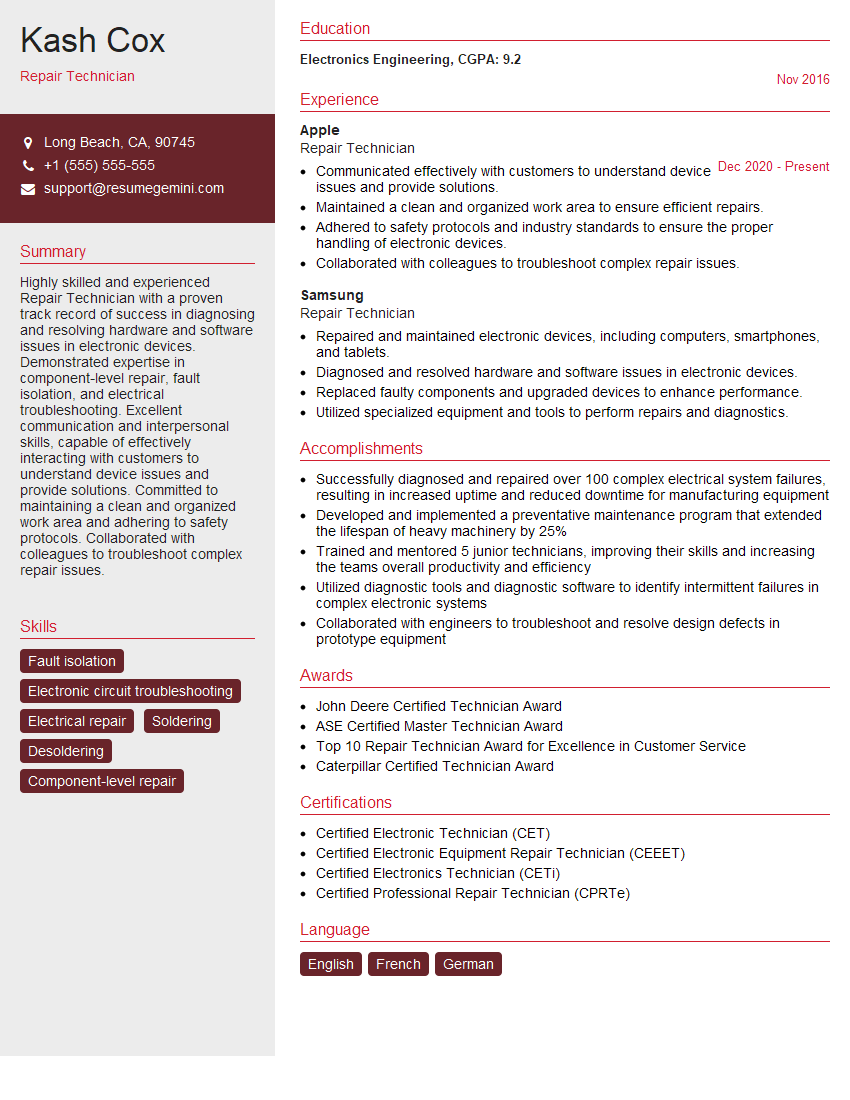
Repair Technician Resume Sample
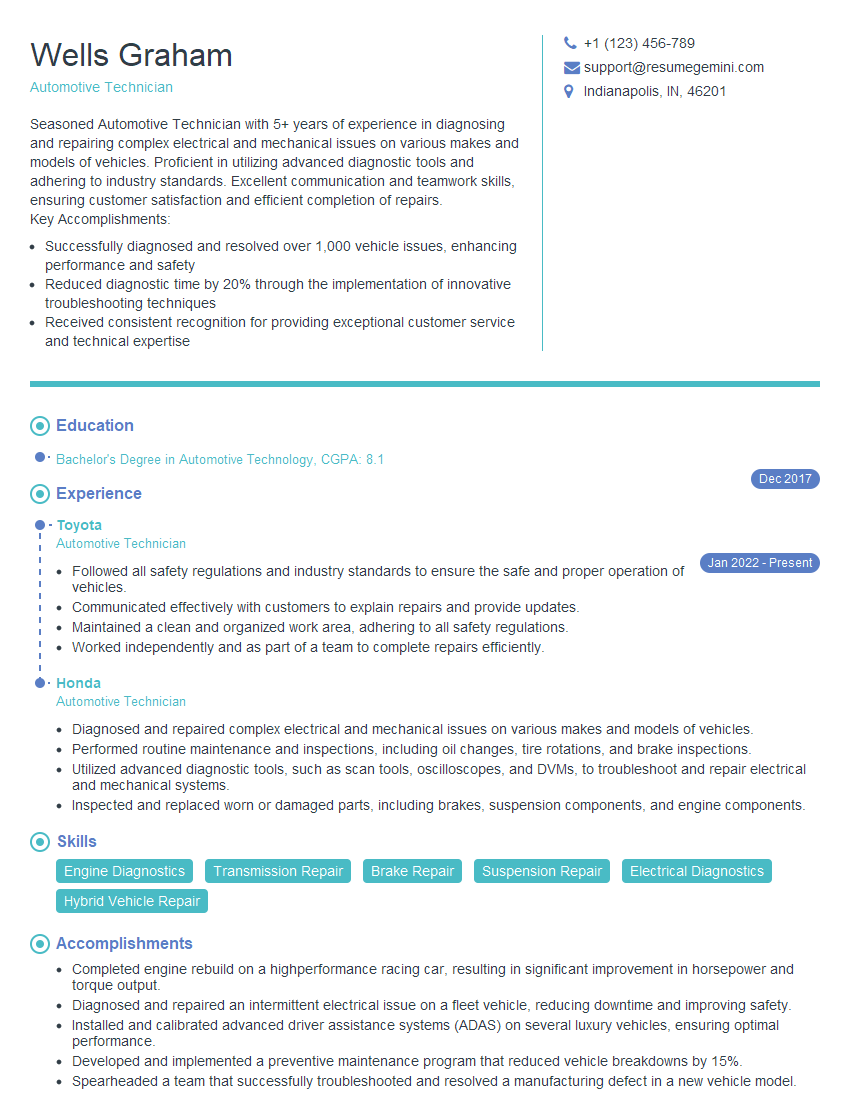
Automotive Technician Resume Sample
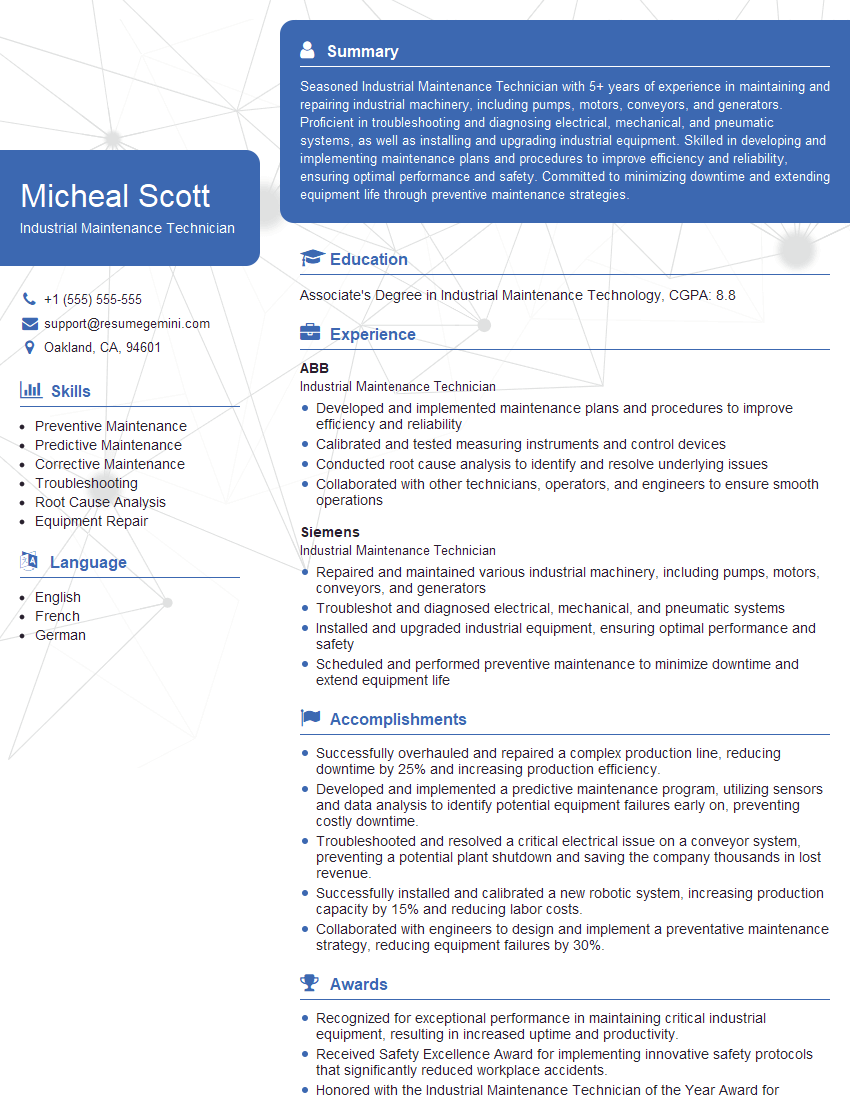
Industrial Maintenance Technician Resume Sample
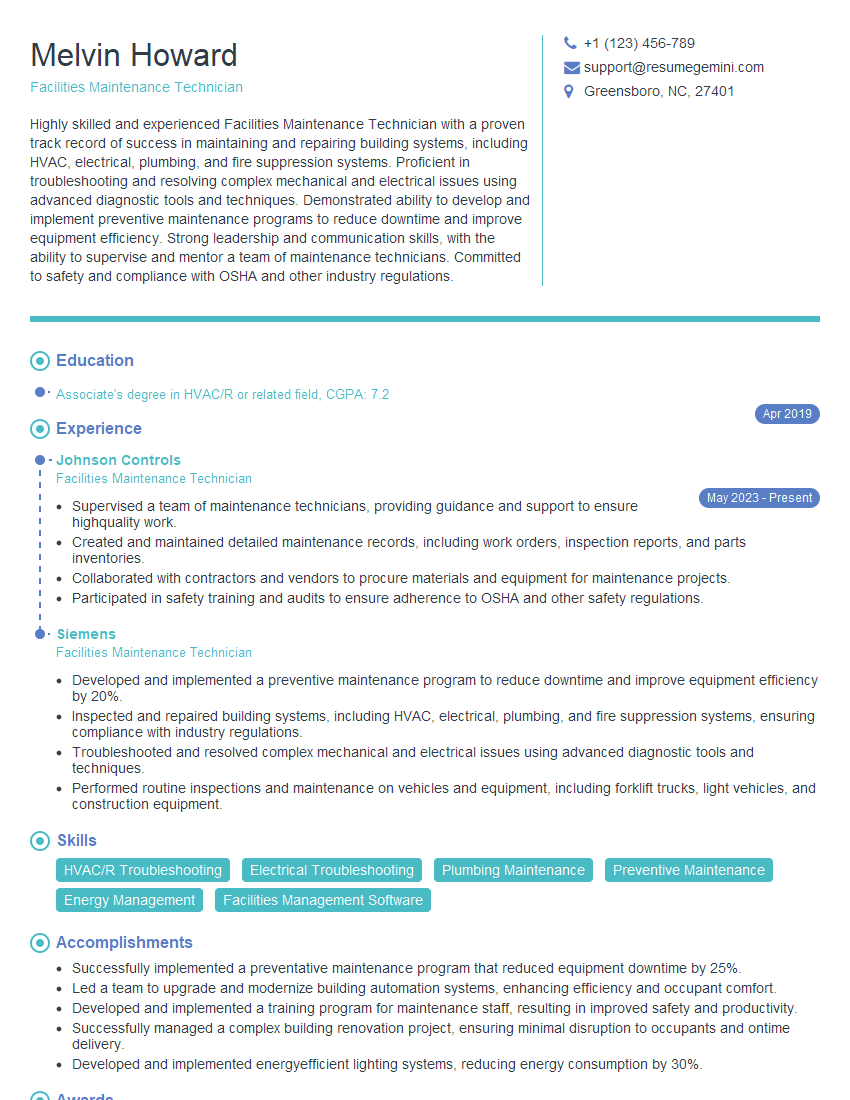
Facilities Maintenance Technician Resume Sample
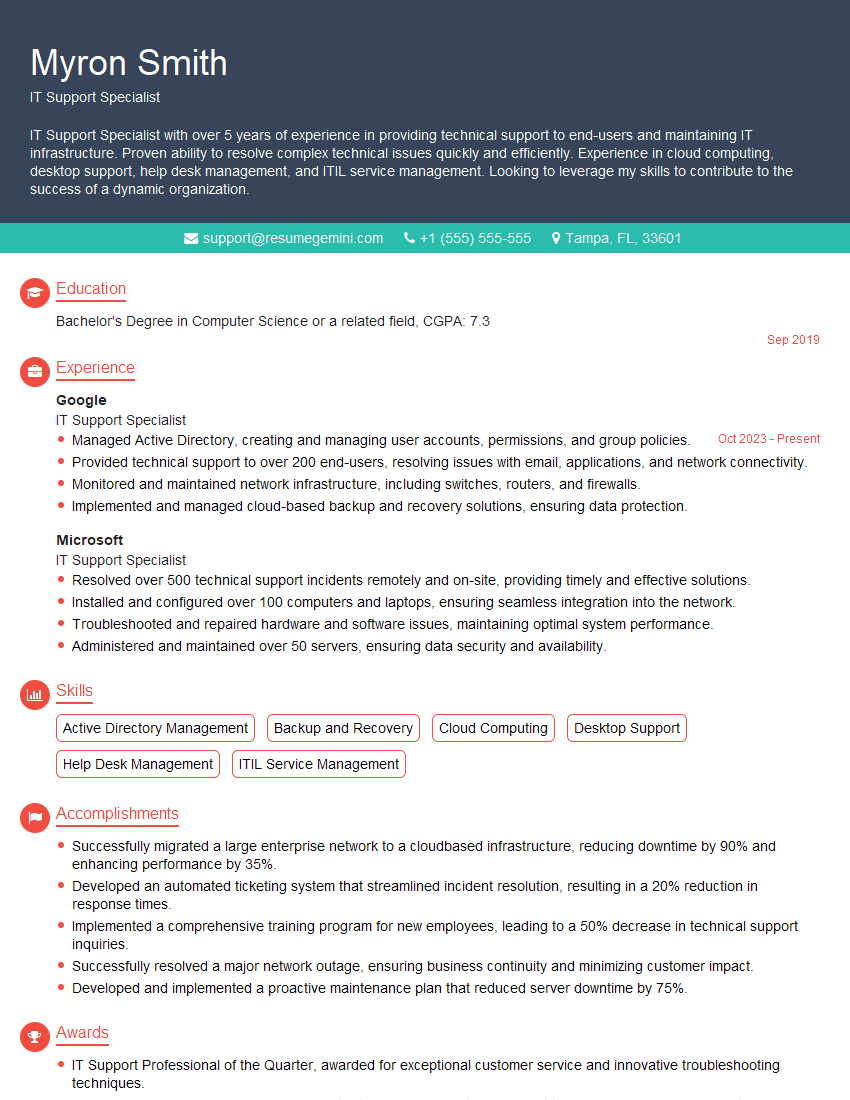
IT Support Specialist Resume Sample
- Technical Trainer
- Technical Consultant
- Systems Administrator
- Desktop Support Technician
- Network Technician
- Help Desk Analyst
- Technical Support Representative
- Field Service Engineer
- Avionics Technician
- Electronics Technician
- Field Service Technician
- Maintenance Mechanic
- Software Technician
- Repair Technician
- Automotive Technician
- Industrial Maintenance Technician
- Facilities Maintenance Technician
- IT Support Specialist
Explore more articles
Users Rating of Our Blogs
Share Your Experience
We value your feedback! Please rate our content and share your thoughts (optional).
What Readers Say About Our Blog
I Redesigned Spongebob Squarepants and his main characters of my artwork.
https://www.deviantart.com/reimaginesponge/art/Redesigned-Spongebob-characters-1223583608
IT gave me an insight and words to use and be able to think of examples
Hi, I’m Jay, we have a few potential clients that are interested in your services, thought you might be a good fit. I’d love to talk about the details, when do you have time to talk?
Best,
Jay
Founder | CEO