The right preparation can turn an interview into an opportunity to showcase your expertise. This guide to Windows 10/11 Support interview questions is your ultimate resource, providing key insights and tips to help you ace your responses and stand out as a top candidate.
Questions Asked in Windows 10/11 Support Interview
Q 1. Explain the differences between Windows 10 and Windows 11.
Windows 11 builds upon Windows 10 with a significant visual overhaul and several functional improvements. Think of it like a car getting a major facelift and some performance upgrades. Here’s a breakdown of key differences:
- User Interface: Windows 11 features a centered Start Menu, rounded corners, and a more modern aesthetic. Windows 10 maintains its traditional layout.
- System Requirements: Windows 11 has stricter system requirements, including a Trusted Platform Module (TPM) 2.0 and a compatible processor. This is designed to improve security but can exclude older hardware.
- Widgets Panel: Windows 11 introduces a dedicated Widgets panel for quick access to news, weather, and other information, which is absent in Windows 10.
- Snap Layouts and Snap Groups: Windows 11 improves window management with more intuitive snap layouts and snap groups, making multitasking smoother. While Windows 10 offers snapping, it’s less sophisticated.
- Microsoft Store Enhancements: The Microsoft Store on Windows 11 has been redesigned with improved app discovery and support for Android apps via Amazon Appstore (with some caveats).
- Performance: While not a drastic difference for most users, Windows 11 generally boasts improved performance and efficiency, especially on newer hardware.
In essence, Windows 11 is a refined and modernized version of Windows 10, offering a sleeker interface and several productivity enhancements but with increased hardware requirements.
Q 2. Describe your experience troubleshooting Windows boot problems.
Troubleshooting Windows boot problems requires a systematic approach. I start by identifying the specific error message, if any. Imagine it like diagnosing a car that won’t start – you need to systematically check the different parts. Here’s my typical process:
- Check for physical issues: Loose connections, damaged cables, or faulty hardware can prevent booting. I’d examine cables, RAM modules, and ensure the hard drive is properly connected.
- BIOS/UEFI settings: Accessing the BIOS or UEFI settings (usually by pressing Del, F2, or F12 during startup) can reveal boot order issues, faulty hardware configurations or even an outdated BIOS. Incorrect boot order or a disabled boot device can prevent the system from loading.
- Boot repair tools: Windows has built-in repair tools. If Windows boots to the advanced startup options, I might use the Startup Repair, System Restore, or the Command Prompt to fix boot sector errors or restore previous configurations. For example, using the
bootrec /fixmbrcommand can repair a damaged Master Boot Record (MBR). - Safe Mode: Attempting to boot into Safe Mode (usually done by repeatedly pressing F8 during startup) can diagnose issues caused by third-party drivers or startup applications. If the system boots in Safe Mode, it points to a software problem, not a hardware one.
- System Image Restore: If a system image backup exists, restoring the system from a previous point is a quick and efficient solution to resolve boot problems caused by software errors or updates.
- Reinstallation: As a last resort, a clean reinstallation of Windows may be necessary if all other options fail.
Each step helps narrow down the issue; I always start with the simplest solutions before moving to more complex ones. Documentation of each step is crucial for tracking the process and sharing information effectively.
Q 3. How do you resolve common network connectivity issues in Windows?
Network connectivity problems are very common. My approach is similar to a doctor diagnosing a patient—gather information, then test and eliminate possible causes.
- Check the basics: Verify the physical connection (cables, Wi-Fi enabled), router status, and modem status. Sometimes, it’s simply a loose cable or a power outage. This is always my first step – it’s amazing how often the simplest solutions work!
- Check network settings: Ensure the correct network adapter settings, IP configuration (DHCP or static), and DNS settings are applied. I’d check for things like IP address conflicts, or incorrect DNS server addresses.
- Run network diagnostics: Windows has built-in network troubleshooting tools which can help identify common issues like driver problems or network adapter problems. The tools will often suggest solutions based on the problem detected.
- Check the router/modem: Restart the router and modem. This clears temporary issues and can resolve many connectivity problems. A power cycle often does wonders!
- Device Manager: Checking for driver issues in Device Manager can point to problems with the network adapter. Outdated or corrupted drivers often lead to connectivity issues.
- Firewall and antivirus: Temporarily disable the firewall or antivirus software to see if they’re interfering. This is done cautiously and should be re-enabled as soon as the test is completed.
- Check for malware or viruses: Malicious software can significantly impact network connectivity. A full scan using updated antivirus software is critical.
I always document my steps and findings. This ensures a consistent approach and helps in tracking the resolution process. For example, I’ll note down the error messages, the steps taken and their outcomes, facilitating easy troubleshooting in future similar situations.
Q 4. What are the steps to reinstall Windows 10/11?
Reinstalling Windows 10/11 is a powerful way to resolve persistent system issues or prepare the computer for a fresh start. It’s like giving your computer a complete spring cleaning. Remember to always back up your important data before proceeding!
- Backup: Back up all important files to an external drive, cloud storage, or a USB drive. This is the single most critical step – you don’t want to lose your data!
- Create installation media: Download the Windows 10/11 installation media (ISO file) from Microsoft’s website and create a bootable USB drive or DVD. Many free tools are available to do this.
- Boot from installation media: Restart the computer and boot from the USB or DVD. This involves changing the boot order in the BIOS/UEFI settings.
- Follow on-screen instructions: The setup wizard will guide you through the installation process. You’ll need to choose your language, region, and keyboard layout.
- Choose installation type: You’ll be given the choice of upgrading or performing a clean install. A clean install will erase all data on the drive, so ensure your backup is complete before making this choice.
- Activate Windows: Once installed, activate Windows using your product key. This usually happens automatically if the product key is associated with your computer.
- Install drivers and applications: After the installation is complete, install necessary drivers for hardware devices and reinstall your applications.
Remember that a clean install will erase everything on your hard drive, so this should be your last resort if other troubleshooting options haven’t worked.
Q 5. Explain the process of creating and managing user accounts in Windows.
User account management is crucial for security and system organization. It’s like managing the access keys to your house – you need to control who has access and what they can do.
Creating User Accounts:
- Go to Settings: In Windows 10/11, open the Settings app (usually by searching for it in the Start Menu).
- Navigate to Accounts: Select the Accounts option in Settings.
- Click Family & other users: Go to the “Family & other users” section.
- Add a user: Click the “Add account” button and follow the instructions to add a new user. You can add a Microsoft account or a local account.
Managing User Accounts:
- Account type: You can define account types (Administrator, Standard user) to control the level of access users have on the system. Administrators have full control, while standard users have limited access.
- Password settings: You can set password policies, including password complexity requirements and password expiration periods. This enhances security.
- User permissions: You can adjust individual user permissions, for example, controlling access to specific folders or applications. This allows granular control over user access.
- Account deletion: If needed, users can be deleted from the system, removing their access to the system.
Proper user account management is critical for security and organizational purposes. It’s essential to create accounts with appropriate permissions and regularly review account settings for security and efficiency.
Q 6. How do you handle hardware issues (e.g., printer problems, slow performance)?
Hardware issues can range from simple printer problems to complex performance bottlenecks. My approach is based on careful observation and systematic troubleshooting.
Printer Problems:
- Check connections: Ensure the printer is correctly connected to the computer (USB, network, wireless).
- Check power: Verify that the printer is powered on.
- Check drivers: Update or reinstall the printer drivers.
- Check print queue: Check the print queue for errors or stuck jobs.
- Restart printer and computer: A simple restart can often solve temporary glitches.
Slow Performance:
- Check disk space: Low disk space can severely impact performance. Free up space by deleting unnecessary files.
- Check resource usage: Use Task Manager to identify processes consuming excessive CPU, memory, or disk resources.
- Check for malware: Malware can significantly slow down the system. Run a full scan with updated antivirus software.
- Check startup programs: Many applications start automatically with Windows; disabling unnecessary ones can improve startup and overall performance.
- Update drivers: Outdated or corrupted drivers can negatively affect performance. Update all drivers.
- Hardware upgrades: If the problem persists, it could indicate that a hardware upgrade (more RAM, faster storage) might be necessary.
I always gather information about the specific symptoms, the history of the problem, and potential contributing factors before undertaking any troubleshooting steps. This approach ensures efficiency and helps me provide effective solutions.
Q 7. What are your troubleshooting strategies for application crashes?
Application crashes can be frustrating. My troubleshooting process is methodical and follows a layered approach, similar to peeling back the layers of an onion to find the core issue.
- Restart the application: This simple step often resolves temporary glitches or software errors. It’s like restarting your browser when it freezes.
- Restart the computer: A computer restart often clears out temporary issues that may be affecting the application’s stability.
- Check for updates: Ensure the application is updated to the latest version. Outdated applications often have bugs that cause crashes.
- Check system requirements: Verify that the application meets the system’s minimum and recommended requirements. Insufficient resources often lead to crashes.
- Check for conflicting applications: Identify potential conflicts between the application and other installed software. Try disabling other apps temporarily to see if that resolves the crashes.
- Check event logs: Windows event logs can provide detailed information about the crash, including error codes and timestamps. This offers valuable insight into the cause.
- Reinstall the application: A clean reinstallation of the application can often resolve problems caused by corrupted installation files.
- Check for driver issues: Sometimes application crashes are caused by problems with device drivers. Updating or reinstalling drivers can help.
- Run a virus scan: Malware can interfere with application stability; a scan helps to rule out this possibility.
I always document my findings. This detailed approach allows me to identify patterns, track progress, and effectively resolve application crashes and prevent future occurrences.
Q 8. Describe your experience with Windows updates and patching.
Windows updates and patching are critical for maintaining system security and stability. My experience encompasses planning, implementing, and troubleshooting update deployments across various Windows 10 and 11 environments. I’m proficient in using both the built-in Windows Update mechanism and WSUS (Windows Server Update Services) for managing updates in larger organizations.
My approach involves carefully reviewing update descriptions to understand potential impacts before deployment. I prioritize testing updates in a controlled environment before rolling them out to production systems. This minimizes disruption and allows for early detection of any compatibility issues. I’m also experienced in managing update deferrals, creating update rings for phased rollouts, and troubleshooting update failures using tools like the Windows Update log and Event Viewer. For example, I once identified a driver incompatibility causing update failures by meticulously analyzing the update logs and resolving the conflict by updating the problematic driver first.
Furthermore, I understand the importance of patching vulnerabilities promptly to protect against cyber threats. I regularly review security advisories from Microsoft and proactively apply critical security updates. I follow best practices for patching, including creating system restore points before significant updates and regularly backing up critical data.
Q 9. How do you use the Event Viewer to diagnose system issues?
The Event Viewer is a powerful diagnostic tool in Windows. It’s essentially a log of system events, ranging from application errors to security audits. I use it extensively to pinpoint the root cause of system issues. Think of it as a detective’s notebook, meticulously recording every significant event on the system.
My process starts with identifying the relevant log – Application, System, Security, or Setup, depending on the nature of the problem. For example, if a program is crashing, I’d look in the Application log for error messages related to that specific application. If there’s a security concern, the Security log is where I’d focus. Once I locate suspicious entries, I analyze the Event ID, source, and description to understand the cause of the problem. The details often provide clues about the error, such as specific file names or registry keys involved.
I’m also skilled in using the Event Viewer’s filtering capabilities to narrow down the results and quickly find relevant events. For instance, I might filter by event ID, source, or keywords to isolate specific errors. If necessary, I can export the log entries for further analysis or to share with other support personnel. A recent instance involved a recurring blue screen error. Using the Event Viewer, I identified a problematic driver as the culprit, enabling a swift resolution by updating the driver to the latest version.
Q 10. How do you manage disk space and optimize performance in Windows?
Managing disk space and optimizing Windows performance are crucial for maintaining a responsive and efficient system. My approach involves a multi-pronged strategy.
First, I identify and remove unnecessary files. This includes temporary files, old downloads, and unused programs. Windows offers built-in disk cleanup tools, which I frequently use. I also utilize third-party tools for more in-depth analysis and cleaning, ensuring I’m removing only files that are safe to delete. For example, I often recommend using Storage Sense to automatically remove temporary files on a schedule.
Next, I optimize system settings. This involves disabling unnecessary startup programs, which can significantly impact boot times and overall performance. I also adjust the paging file size (virtual memory) if needed, based on the available RAM and system usage patterns. Finally, I regularly defragment the hard drive (for HDDs, not SSDs) or use an SSD optimization tool to ensure optimal read/write speeds. I also make sure the system files are organized and not fragmented using the built in tools.
Regularly monitoring disk space usage is crucial. I use a combination of the built-in Windows tools and third-party monitoring software to keep track of free space and proactively address potential issues before they impact performance. For instance, a recent client was experiencing slowdowns. By analyzing disk space, I discovered a rapidly growing log file that was consuming significant storage. Addressing this issue quickly restored system responsiveness.
Q 11. What is your experience with Active Directory?
My experience with Active Directory is extensive, covering user account management, group management, and troubleshooting domain-related issues. I’m proficient in using Active Directory Users and Computers (ADUC) and other related tools to manage user accounts, create groups, and implement security policies.
I understand the hierarchical structure of Active Directory and how it facilitates centralized user and computer management in a network environment. My expertise includes creating and managing Organizational Units (OUs) for better organization and delegation of administrative tasks. I also have experience with Active Directory Domain Services (AD DS) replication and troubleshooting replication issues.
Troubleshooting Active Directory issues typically involves using tools like the Active Directory Diagnostics tool and event logs to isolate the problem. I have experience resolving issues such as password resets, account lockouts, and problems with group memberships. For example, I once resolved a widespread login failure by identifying a faulty Group Policy Object (GPO) that was preventing user authentication. My understanding of DNS and its crucial role in Active Directory functionality is also very strong.
Q 12. Explain your understanding of Group Policy.
Group Policy is a powerful feature in Active Directory that allows administrators to centrally manage settings for users and computers within a domain. Think of it as a centralized rulebook that defines how computers and users should behave.
My understanding of Group Policy encompasses creating and managing Group Policy Objects (GPOs), linking them to OUs, and troubleshooting policy-related issues. I know how to configure settings for various aspects of the operating system, such as software installation, network settings, security settings, and user preferences.
I’m familiar with both the GUI-based Group Policy Management Console (GPMC) and the command-line tools for managing GPOs. I understand the order of precedence for GPOs and how conflicts between different policies are resolved. I can effectively use Group Policy to enforce security policies, deploy software, and manage user configurations. I once used Group Policy to implement a new security standard across a large organization, automatically deploying updated antivirus software and enforcing strong password policies.
Q 13. How familiar are you with command-line tools (e.g., cmd, PowerShell)?
I’m highly proficient in using command-line tools such as cmd and PowerShell. I find them invaluable for automating tasks, troubleshooting issues, and performing administrative functions that are not readily available through the graphical user interface.
cmd provides basic command-line functionality, while PowerShell offers a much more powerful and flexible scripting environment. I use cmd for quick tasks like checking network connectivity (ping, ipconfig) and managing files (dir, copy, del).
PowerShell, however, is my preferred tool for more complex tasks. I regularly use PowerShell cmdlets for managing Active Directory, performing system administration tasks, and automating repetitive processes. For instance, I’ve used PowerShell to automate user account creation, manage services, and create custom reports. A recent example involved using PowerShell to remotely troubleshoot and configure network settings on multiple computers simultaneously. My understanding extends to using scripts for automation, enhancing my efficiency considerably.
Q 14. Describe your experience with remote desktop support.
Remote desktop support is a crucial aspect of my work. I’m experienced in using Remote Desktop Connection (RDP) to connect to and troubleshoot issues on remote computers. I’m proficient in using RDP to provide remote assistance to users, administer servers, and resolve technical problems.
My approach prioritizes security best practices. I ensure that all connections are made over secure networks and utilize appropriate authentication methods. When providing remote support, I clearly communicate with the user, explaining the steps being taken and keeping them informed of the progress. I also take precautions to protect user data and prevent unauthorized access during remote sessions.
Beyond basic RDP, I’m familiar with alternative remote access solutions such as TeamViewer and AnyDesk, providing flexibility in different network environments or situations where standard RDP may be restricted. I understand the importance of documenting remote support sessions to track issues and solutions effectively. A recent example involved remotely resolving a printer connectivity problem by using RDP to access the user’s computer, configure the printer settings, and test the connection.
Q 15. How do you handle escalated support tickets?
Handling escalated support tickets involves a structured approach focusing on thorough investigation, efficient communication, and timely resolution. I begin by meticulously documenting all details from the initial report, including error messages, system specifications, and any previous troubleshooting steps. Then, I systematically recreate the issue in a controlled environment, if possible, to understand its root cause. This often involves checking event logs (Event Viewer in Windows), examining system files, and testing various configurations. I leverage remote access tools to provide real-time assistance and guidance to the user, walking them through solutions step-by-step. If the issue remains unresolved, I consult internal resources such as knowledge bases, documentation, or senior colleagues. Throughout the process, I maintain clear and consistent communication with the user, updating them on my progress and seeking further information when necessary. Finally, once the problem is solved, I document the resolution process thoroughly to aid future troubleshooting efforts. For example, a particularly challenging escalated ticket involved a network connectivity issue that turned out to be caused by a faulty network driver. By systematically investigating, I identified the driver incompatibility, updating it, and resolving the issue quickly, illustrating my methodical approach to resolving complex problems.
Career Expert Tips:
- Ace those interviews! Prepare effectively by reviewing the Top 50 Most Common Interview Questions on ResumeGemini.
- Navigate your job search with confidence! Explore a wide range of Career Tips on ResumeGemini. Learn about common challenges and recommendations to overcome them.
- Craft the perfect resume! Master the Art of Resume Writing with ResumeGemini’s guide. Showcase your unique qualifications and achievements effectively.
- Don’t miss out on holiday savings! Build your dream resume with ResumeGemini’s ATS optimized templates.
Q 16. What is your experience with Windows security features (e.g., firewall, antivirus)?
My experience with Windows security features is extensive. I’m proficient in configuring and troubleshooting the Windows Firewall, including setting up inbound and outbound rules, configuring advanced settings, and diagnosing connectivity problems related to firewall restrictions. For instance, I’ve helped users resolve network access issues by creating exceptions for specific applications or ports in the firewall. Regarding antivirus solutions, I have experience with various products, both integrated (like Windows Defender) and third-party solutions. I understand how to manage their settings, schedule scans, handle detected threats, and ensure they don’t interfere with system performance. I can effectively diagnose and resolve issues like false positives, slowdowns caused by overly aggressive scanning, and conflicts between different security software. Beyond these, I’m familiar with other critical security features such as BitLocker (for disk encryption), User Account Control (UAC), and AppLocker (for application control), allowing me to implement robust security measures tailored to specific user needs and risk profiles.
Q 17. Explain your experience with different types of Windows deployments.
I’ve worked with various Windows deployment methods, including:
- In-place upgrades: Upgrading from one Windows version to another (e.g., Windows 10 to Windows 11) on an existing system. This is often simpler but requires careful consideration of compatibility.
- Clean installations: Performing a fresh install of Windows on a new or wiped drive. This offers a clean slate but requires reinstallation of all applications and data transfer.
- System Center Configuration Manager (SCCM): Using SCCM for deploying Windows to multiple systems simultaneously, managing updates and configurations. This is efficient for large organizations.
- MDT (Microsoft Deployment Toolkit): A powerful tool for automating and customizing Windows deployments, allowing for tailored configurations.
- Windows Autopilot: A cloud-based service enabling zero-touch deployments, where devices are automatically configured without manual intervention. This is ideal for large-scale deployments and mobile device management.
Q 18. How do you manage user permissions and access control?
Managing user permissions and access control is crucial for security and efficient system administration. I use the built-in Windows features, such as the Local Users and Groups console (lusrmgr.msc), to manage user accounts, assign groups, and define permissions for files, folders, and applications. Understanding the different user rights and group memberships is essential to avoid security risks. For example, I’ve often worked with situations where granting specific users access to certain files requires carefully configuring permissions, differentiating read-only access from full control. Furthermore, I’m familiar with Active Directory (AD) for enterprise environments, allowing me to implement robust user management, group policies, and fine-grained access control mechanisms. Properly configuring these settings prevents unauthorized access and maintains data integrity. I always consider the principle of least privilege, meaning users are only granted the minimum access required to perform their tasks.
Q 19. Describe your experience with virtual machines (VMs) on Windows.
My experience with virtual machines (VMs) on Windows involves using both Hyper-V (built-in to Windows Pro and Enterprise editions) and third-party solutions like VMware Workstation or VirtualBox. I can create, configure, and manage VMs, including setting up virtual networks, allocating resources (CPU, memory, disk space), and installing different operating systems within these virtual environments. I understand the importance of snapshots and VM backups for disaster recovery. For instance, I’ve helped clients test new software or configurations within isolated VMs, protecting their main systems from potential problems. The ability to create VMs is valuable for several purposes including software testing, development, and running legacy applications without affecting the host operating system. Working with VMs also enhances my skills in system administration, network configuration, and troubleshooting.
Q 20. Explain your experience with Windows Server (if applicable).
Yes, I have experience with Windows Server. My knowledge extends to various roles, including Active Directory administration, managing Group Policy Objects (GPOs) for centralized configuration, configuring and managing file servers, deploying and managing virtual machines within a server environment (using Hyper-V or other virtualization technologies). I also have experience with setting up and maintaining DHCP, DNS, and other essential network services. Understanding the intricacies of Windows Server allows me to manage and secure a larger network of devices, users, and resources effectively. For example, I’ve been involved in projects where I’ve implemented and maintained Active Directory infrastructure, ensuring smooth user logins, secure access controls, and efficient group management in a large organizational setting.
Q 21. How do you troubleshoot printing problems?
Troubleshooting printing problems often involves a systematic approach. I start by identifying the specific issue – is the printer offline, are there spooler errors, is there a driver problem, or is there a network connectivity issue? I use several methods to diagnose the problem including:
- Checking the printer’s physical connection: Ensuring cables are properly connected and the printer is powered on.
- Reviewing the print queue: Examining the print queue in
Control Panelto see if there are any jobs stuck or causing issues. - Checking the printer’s status: Verifying the printer’s status through the printer properties or directly on the printer’s control panel.
- Inspecting the printer drivers: Making sure the correct driver is installed and updated.
- Troubleshooting network connectivity: If the printer is on a network, verifying network connectivity and appropriate permissions.
- Restarting the Print Spooler service: Sometimes, a simple restart can resolve temporary issues.
Q 22. What are your strategies for managing software installations and updates?
Managing software installations and updates in a Windows 10/11 environment requires a multi-faceted approach focusing on security, efficiency, and user experience. My strategy begins with a centralized management system, typically using tools like Microsoft Endpoint Manager (Intune) or SCCM (System Center Configuration Manager) for larger organizations. This allows for streamlined deployment of software packages, automated patching, and remote management of updates.
For smaller environments, I utilize Windows Update for Business or the built-in Windows Update functionality, ensuring all systems receive critical security patches and feature updates in a timely manner. Before any major update, I meticulously check for compatibility with existing software and hardware. I also create system restore points before significant updates as a precaution.
Testing is crucial. Before rolling out any updates or software installations to the entire network, I always test them on a representative sample of machines to identify and resolve potential issues. This minimizes disruption to productivity and prevents unforeseen problems. Finally, detailed documentation of all software versions, installation procedures, and update schedules is maintained for easy troubleshooting and auditing.
For example, when deploying a new application, I would first create a test group, install the application, and monitor its performance and stability. Only after verification would it be deployed to the rest of the users. This approach minimizes risk and ensures a smooth transition.
Q 23. How do you handle user password resets?
Handling user password resets is a delicate balance between security and user convenience. My approach begins with a clear understanding of the organization’s security policies. If a user forgets their password, I first verify their identity through alternative methods, like security questions or multi-factor authentication. This ensures that only authorized users can regain access to their accounts.
For local user accounts, I usually guide the user through the standard Windows password reset process, either using the built-in tools or by employing a password reset disk if configured. For domain-joined accounts, I use the Active Directory Users and Computers console to reset the password. This approach allows me to maintain a detailed audit trail of password changes, which is important for security and compliance.
However, simply resetting the password is not always the best solution. In cases of suspected compromise, I would encourage a password change, investigate the potential breach, and potentially implement stronger security measures such as enabling multi-factor authentication. This proactive approach helps prevent future incidents.
Q 24. What experience do you have with different Windows versions (XP, 7, 8 etc.)?
My experience with different Windows versions spans from Windows XP to the latest Windows 11. While Windows XP and 7 are largely legacy systems, I have experience troubleshooting them, particularly in maintaining older applications that may not be compatible with newer operating systems. This often involves working with compatibility modes and virtual machine environments.
Windows 8 and 8.1 brought significant changes to the user interface, requiring adaptation in troubleshooting and support techniques. I am proficient in managing these systems, understanding their unique features and challenges. My extensive expertise lies primarily in Windows 10 and 11, encompassing system administration, software deployment, network configurations, security implementations, and advanced troubleshooting.
Understanding the nuances of each version allows me to provide tailored support and solutions. For example, a blue screen error in Windows XP might have a completely different root cause compared to a similar error in Windows 11. This varied experience gives me a broad perspective and problem-solving capability.
Q 25. How do you resolve blue screen errors?
Resolving blue screen errors (BSODs) requires a systematic approach. The first step is always to note the Stop Code displayed on the screen, which provides a clue about the cause of the crash. This code can be searched online to find potential solutions. The information is usually accompanied by a hexadecimal code providing more context.
Next, I examine the system event logs for additional information. These logs can reveal the events that led to the crash, including driver issues, hardware conflicts, or software problems. I then investigate potential causes, which can include faulty drivers, hardware malfunctions (RAM, hard drive, overheating), corrupted system files, or incompatible software.
My troubleshooting steps might involve updating or rolling back drivers, running memory diagnostics, checking for hardware failures, performing a system file checker (sfc /scannow), or reinstalling problematic software. In some cases, a clean installation of Windows might be necessary. A recent example involved a BSOD caused by a faulty RAM module; replacing the module resolved the issue.
Q 26. Describe your experience with system imaging and recovery.
System imaging and recovery are essential for data protection and efficient system restoration. My experience encompasses creating and managing system images using tools like Windows Backup and Recovery, third-party imaging software (e.g., Macrium Reflect), and deployment tools like MDT (Microsoft Deployment Toolkit). I create regular backups to external drives or network shares, ensuring that critical data and system configurations are safe.
In case of system failure, I can efficiently restore the system to a previous working state using the created image, minimizing downtime. This is particularly important for business environments where data loss or system downtime can have significant consequences. Beyond simple restoration, I also utilize system images for cloning hard drives, deploying new systems, and creating identical copies for testing purposes.
For instance, before major software deployments, I create a system image of a test machine to enable quick rollback if any unforeseen issues arise. This iterative testing process greatly reduces the risk of deploying faulty software to the production environment.
Q 27. Explain your approach to diagnosing and resolving slow computer performance.
Diagnosing and resolving slow computer performance requires a methodical approach. I begin by gathering information from the user about the symptoms, including when the slowness started, how it manifests (e.g., slow boot times, lagging applications, high CPU usage), and any recent changes to the system.
I then use performance monitoring tools like Task Manager and Resource Monitor to identify performance bottlenecks. This may reveal high CPU, disk, or memory usage, indicating the source of the slowdown. Common culprits include resource-intensive applications, malware infections, disk fragmentation, insufficient RAM, or startup programs consuming system resources. I would use tools like perfmon for detailed analysis if necessary.
My approach includes steps like running malware scans, updating drivers, disabling unnecessary startup programs, cleaning up temporary files, defragmenting the hard drive (or checking for SSD health), and increasing RAM if necessary. In some cases, reinstalling Windows or upgrading hardware could be the solution. For example, a recent case of slow performance was traced to a failing hard drive causing excessive disk I/O, which was resolved by replacing the drive.
Key Topics to Learn for Windows 10/11 Support Interview
- Operating System Fundamentals: Understanding the core components of Windows 10/11, including the file system (NTFS), registry, and services. Practical application: Troubleshooting basic system errors and performance issues.
- Troubleshooting Hardware Issues: Diagnosing and resolving problems related to peripherals (printers, scanners, etc.), network connectivity, and device drivers. Practical application: Using Device Manager effectively to identify and fix driver problems.
- Software Installation and Configuration: Understanding the process of installing, configuring, and troubleshooting applications, including software updates and patching. Practical application: Successfully installing and configuring critical applications like Microsoft Office.
- User Account Management: Creating, managing, and troubleshooting user accounts, including permissions and security settings. Practical application: Implementing secure user access controls and resolving password-related issues.
- Networking Concepts: Basic understanding of TCP/IP, DNS, and network troubleshooting techniques. Practical application: Resolving network connectivity problems and configuring network settings.
- Security Best Practices: Implementing security measures to protect against malware, viruses, and other threats. Practical application: Understanding and applying Windows Security features effectively.
- Remote Assistance and Support: Familiarity with remote support tools and techniques for assisting users remotely. Practical application: Using tools like Remote Desktop Connection effectively and efficiently.
- Command-Line Interface (CMD & PowerShell): Basic understanding and usage of command-line tools for troubleshooting and system administration. Practical application: Using basic commands to check system information or troubleshoot network issues.
- Windows Update Management: Understanding the process of managing Windows updates and patches, including scheduling and troubleshooting update issues. Practical application: Successfully deploying updates while minimizing downtime.
- Problem Solving and Diagnostics: Developing effective strategies for troubleshooting complex technical issues. Practical application: Utilizing systematic approaches to isolate and resolve problems efficiently.
Next Steps
Mastering Windows 10/11 support opens doors to a rewarding career with excellent growth potential in IT. A strong foundation in these skills makes you a highly valuable asset to any organization. To maximize your job prospects, create an ATS-friendly resume that effectively highlights your expertise. ResumeGemini is a trusted resource that can help you build a professional and impactful resume. They offer examples of resumes tailored to Windows 10/11 Support roles to guide you. Invest the time to craft a compelling resume – it’s your first impression and a crucial step towards landing your dream job.
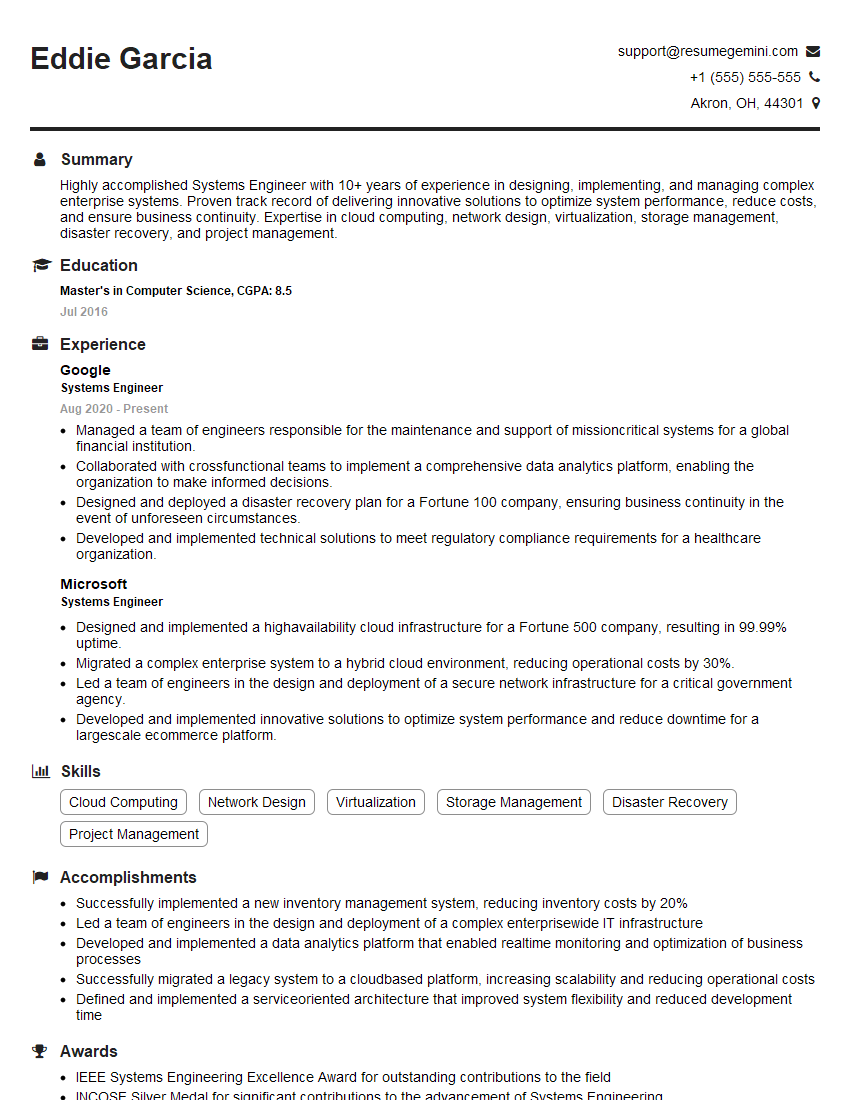
Systems Engineer Resume Sample
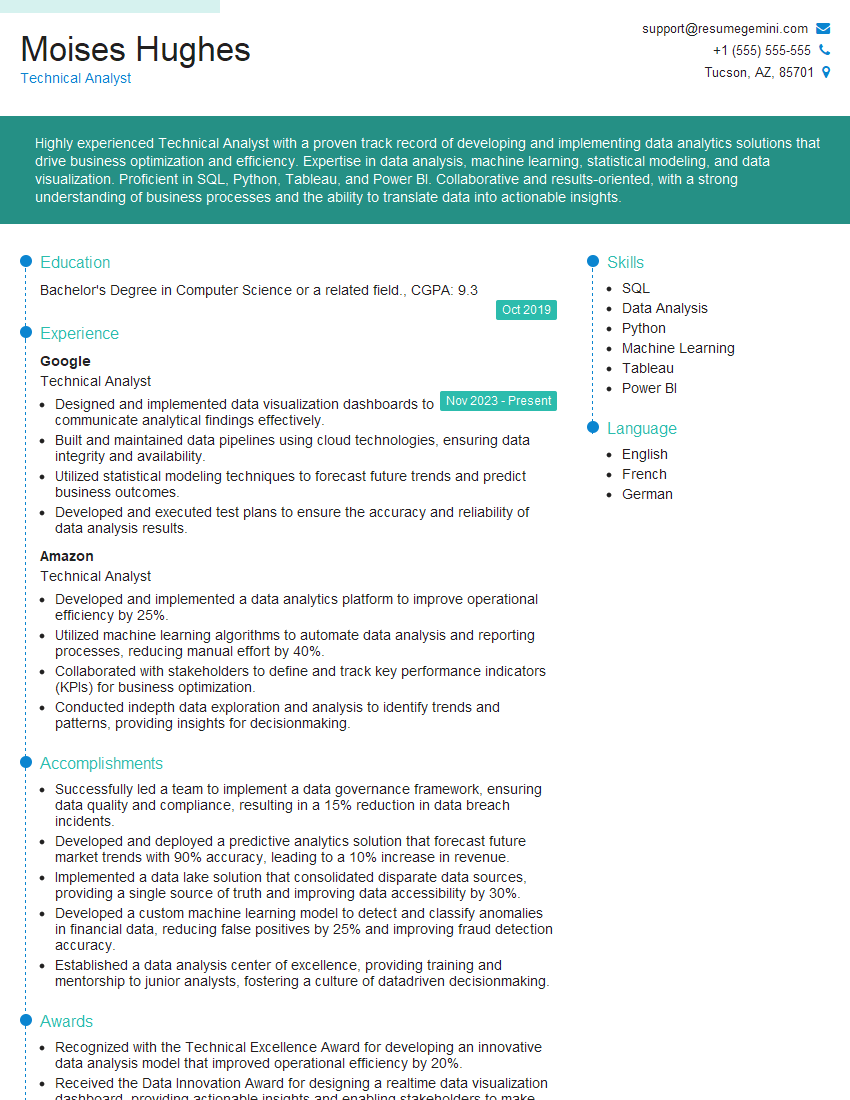
Technical Analyst Resume Sample
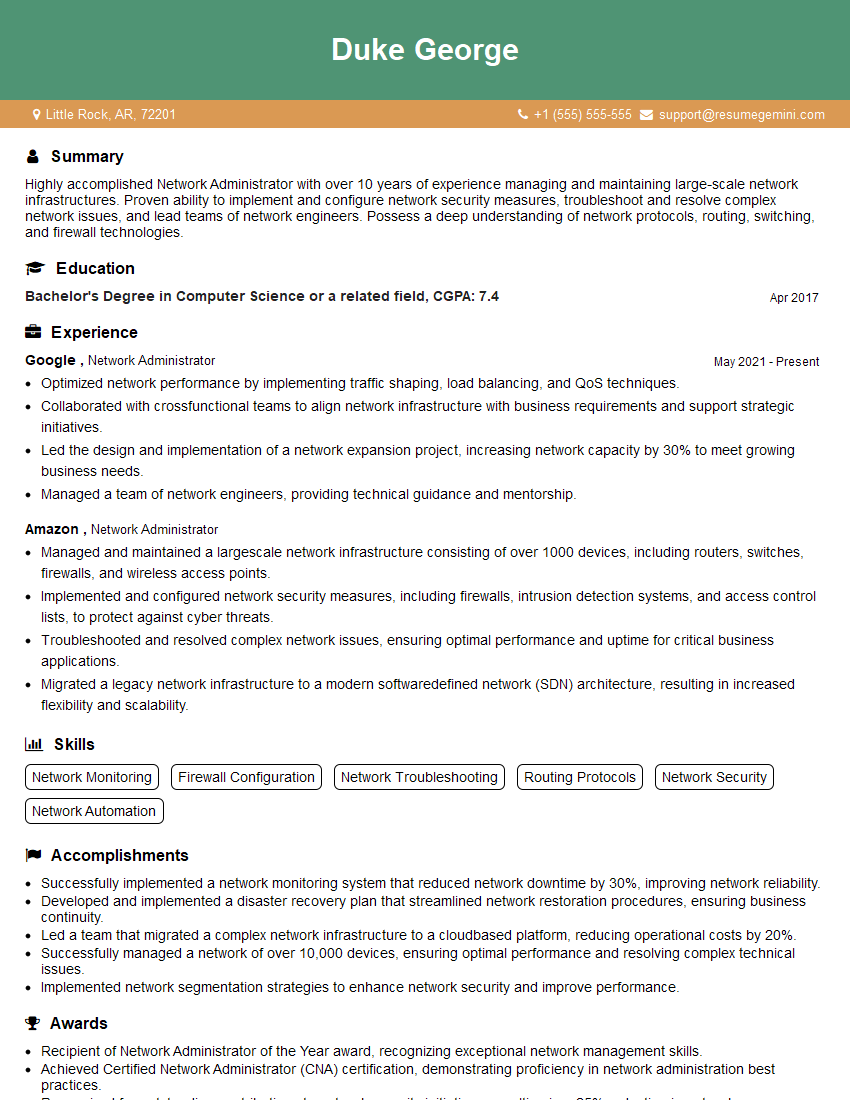
Network Administrator Resume Sample
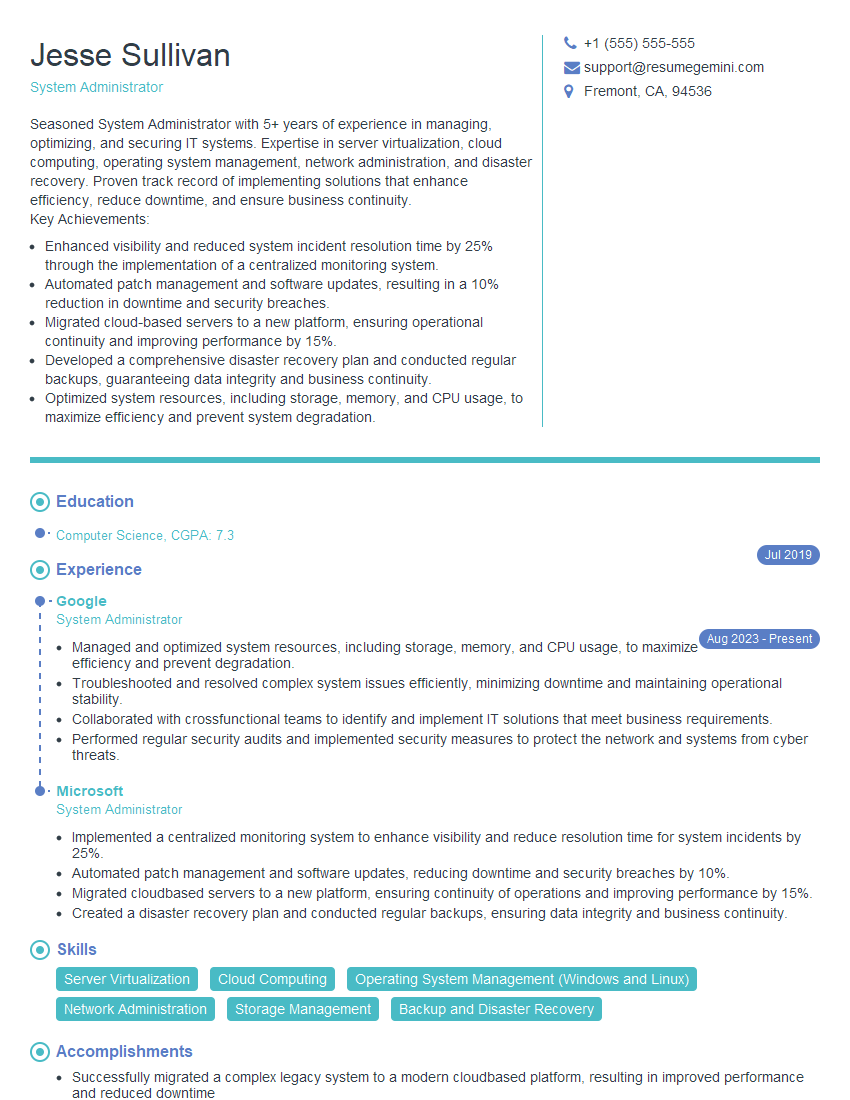
System Administrator Resume Sample
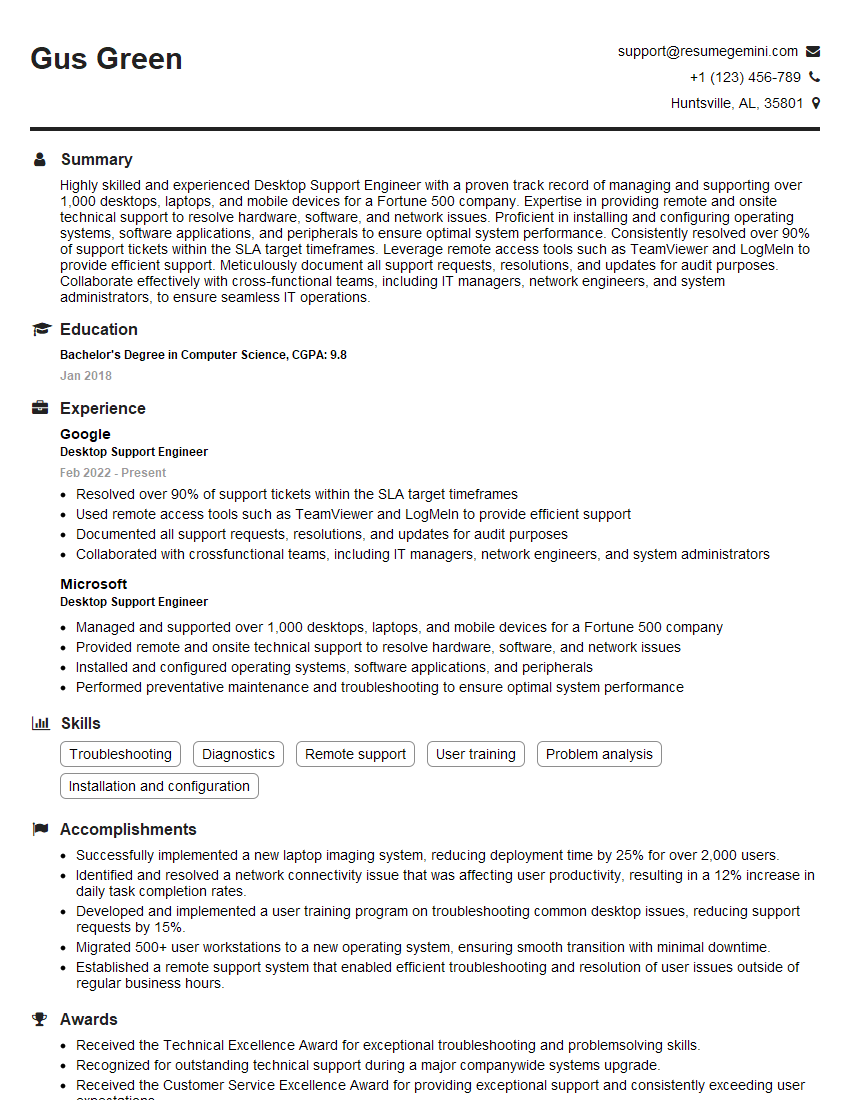
Desktop Support Engineer Resume Sample
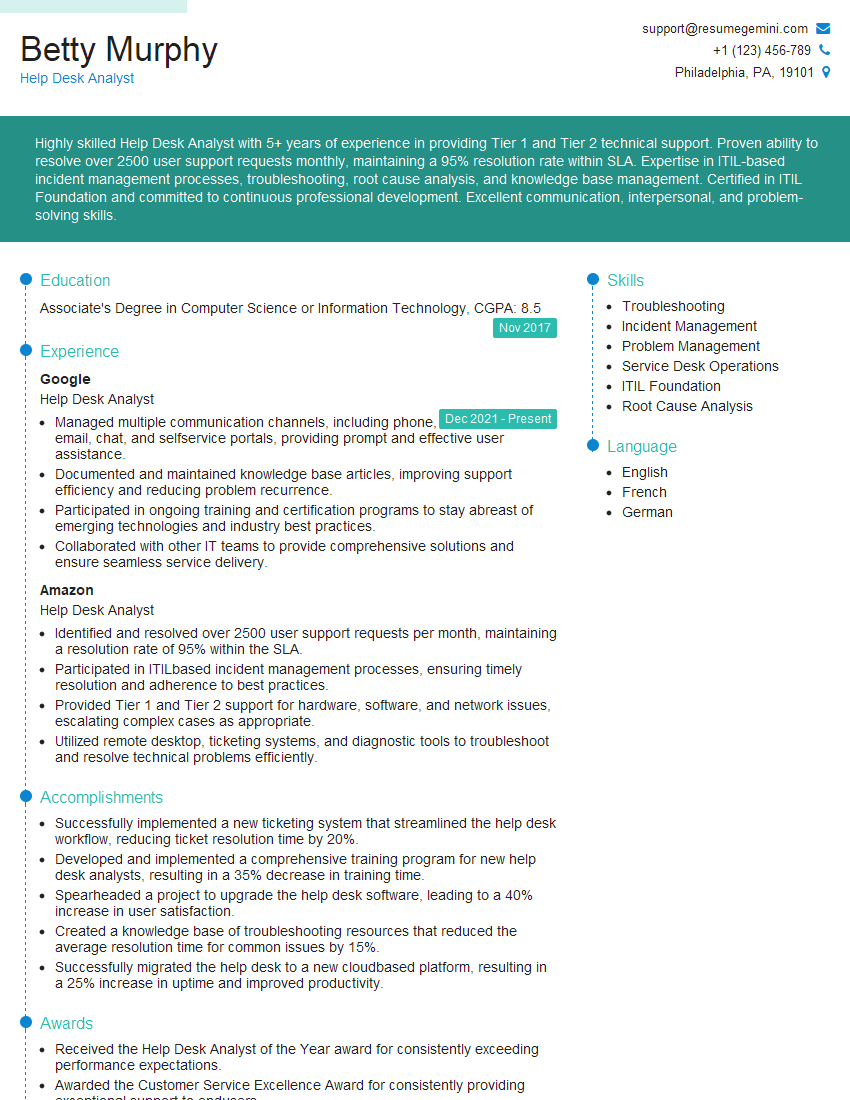
Help Desk Analyst Resume Sample
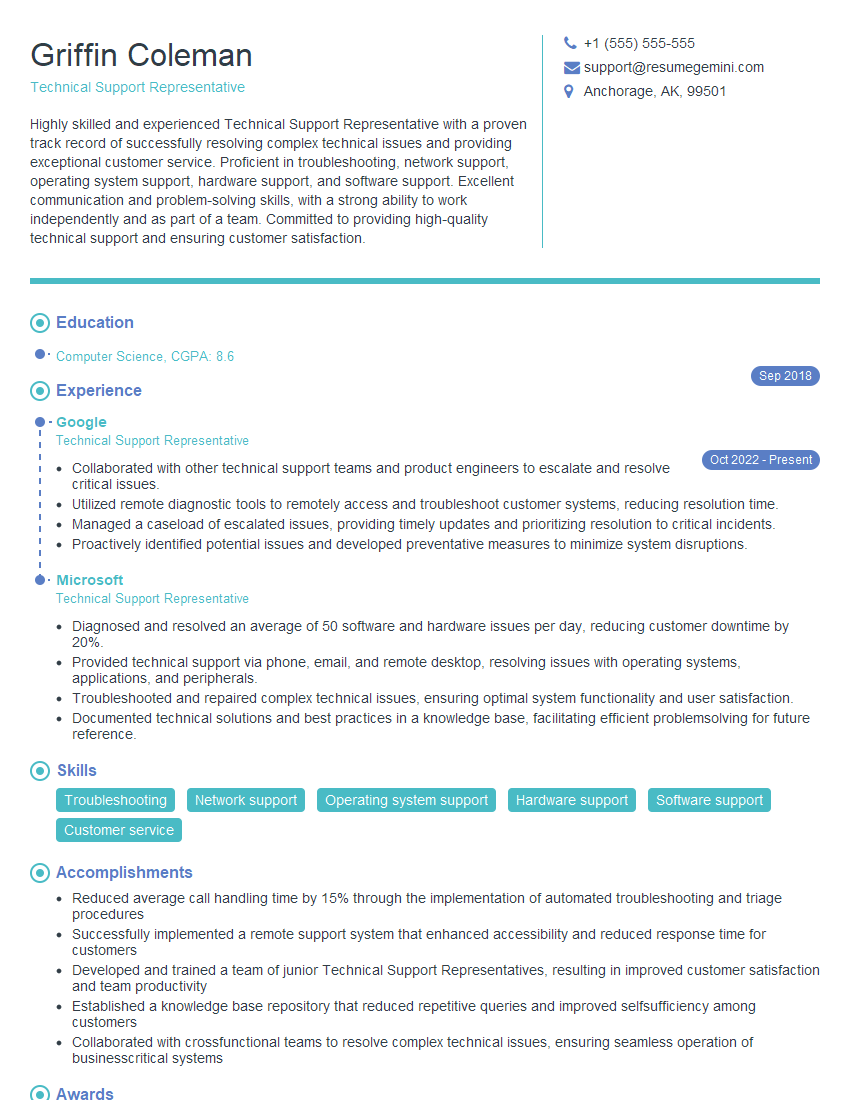
Technical Support Representative Resume Sample

IT Manager Resume Sample
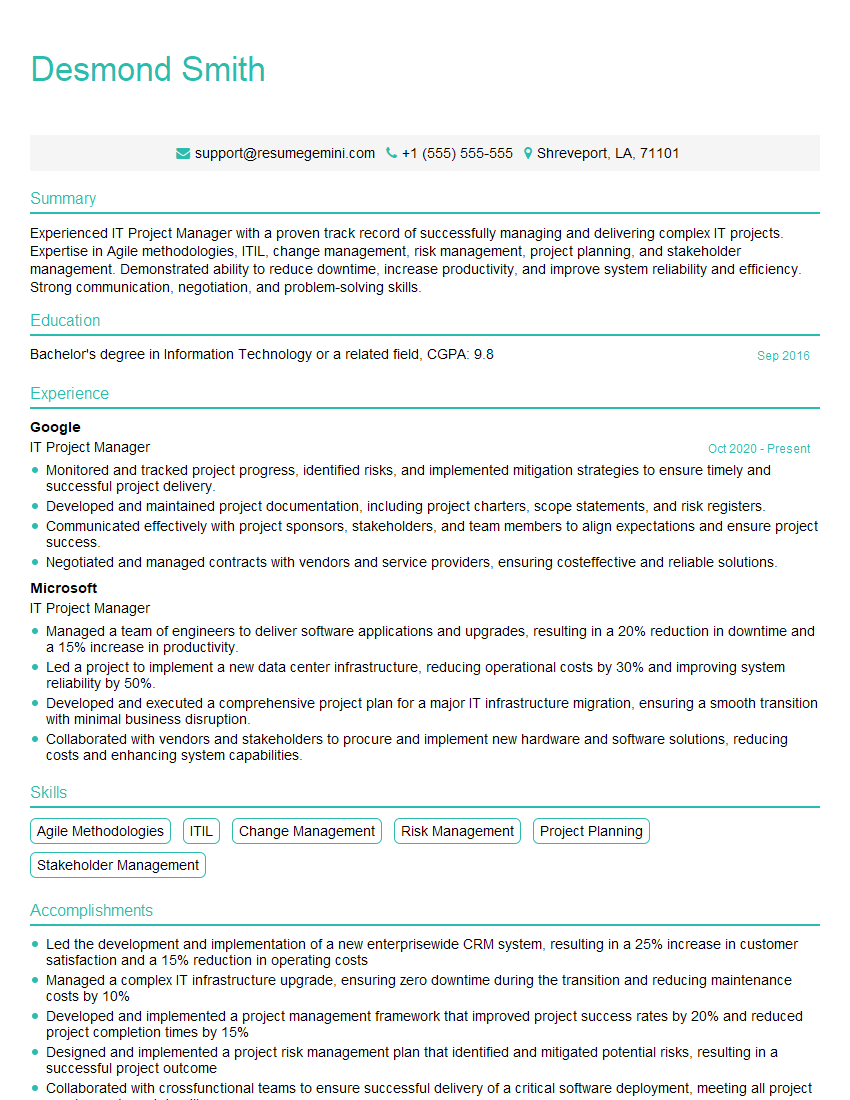
IT Project Manager Resume Sample
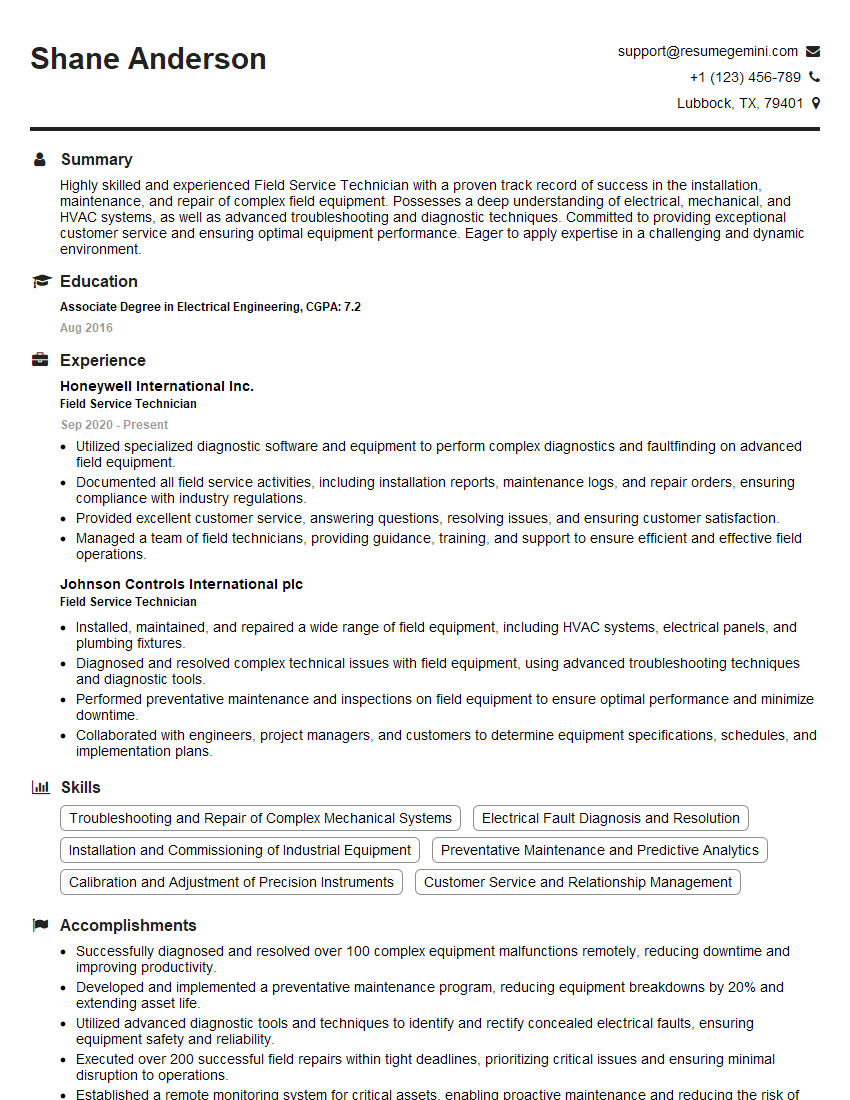
Field Service Technician Resume Sample
Explore more articles
Users Rating of Our Blogs
Share Your Experience
We value your feedback! Please rate our content and share your thoughts (optional).
What Readers Say About Our Blog
I Redesigned Spongebob Squarepants and his main characters of my artwork.
https://www.deviantart.com/reimaginesponge/art/Redesigned-Spongebob-characters-1223583608
IT gave me an insight and words to use and be able to think of examples
Hi, I’m Jay, we have a few potential clients that are interested in your services, thought you might be a good fit. I’d love to talk about the details, when do you have time to talk?
Best,
Jay
Founder | CEO