Interviews are opportunities to demonstrate your expertise, and this guide is here to help you shine. Explore the essential Expertise in version control systems (e.g., Git, SVN) interview questions that employers frequently ask, paired with strategies for crafting responses that set you apart from the competition.
Questions Asked in Expertise in version control systems (e.g., Git, SVN) Interview
Q 1. Explain the difference between Git and SVN.
Git and SVN are both version control systems, but they differ significantly in their architecture and approach. SVN, or Subversion, is a centralized system, meaning all the version history and files are stored in a central server. Think of it like a single, shared document on a network drive – everyone works from the same copy. Git, on the other hand, is a distributed version control system (DVCS). This means each developer has a complete copy of the repository, including the entire history, on their local machine. This allows for offline work and faster operations. Imagine each developer having their own copy of the entire project – they can commit changes locally, and then sync with the central server later.
- Centralized vs. Distributed: SVN is centralized; Git is distributed. This impacts collaboration and offline capabilities.
- Branching and Merging: Branching and merging are far simpler and more efficient in Git, making it suitable for complex projects.
- Speed: Git is generally faster for most operations due to its distributed nature.
- Scalability: Git scales better for large projects and teams.
In short, Git’s flexibility and distributed nature make it the more popular choice today, especially for larger, collaborative projects. SVN remains relevant for simpler projects or where a centralized approach is preferred.
Q 2. What is a Git repository?
A Git repository is essentially a database that stores all the versions of your project’s files, along with their history. Think of it like a time machine for your code. It keeps track of every change made, who made it, and when. This allows you to easily revert to previous versions, compare changes, and collaborate effectively with others. A repository can reside locally on your computer, or it can be hosted remotely on platforms like GitHub, GitLab, or Bitbucket. This remote repository is where you share your code with others and collaborate on projects.
Imagine writing a book. The repository is where you store all the drafts, revisions, and the final version. Each change is carefully tracked, and you can always revisit earlier drafts if needed.
Q 3. What is the purpose of a commit in Git?
A commit in Git is a snapshot of your project at a specific point in time. It records the changes you’ve made since your last commit, creating a permanent record of your work. Each commit includes a unique identifier, a timestamp, and a message describing the changes made. Think of it as saving your progress in a game – you save the state of the game at a particular point, and you can always reload it later. Commits are fundamental to Git’s version control capabilities, allowing you to track changes, revert to previous states, and easily collaborate with others.
A well-written commit message is crucial for collaboration. It should clearly explain what changes were made and why, making it easy for others to understand the evolution of the project. For example, a good commit message might be: "Fix: Resolved bug #123 in user authentication." instead of a vague "Fixed stuff."
Q 4. How do you create a branch in Git?
Creating a branch in Git is like creating a copy of your project’s current state, allowing you to work on new features or bug fixes without affecting the main codebase. This keeps your main code (often called main or master) stable while allowing for experimentation and parallel development. You can create branches locally and then merge them back into the main branch later when they’re ready. This is crucial for collaborative development and efficient release management.
To create a branch, you use the command git branch . For example, to create a branch named ‘feature-new-login’: git branch feature-new-login. To switch to this new branch: git checkout feature-new-login. Now you can make changes on this branch without affecting the main branch.
Q 5. How do you merge branches in Git?
Merging branches in Git combines the changes from one branch into another. After working on a branch (e.g., a new feature), you need to integrate your changes back into the main branch. Git offers several ways to merge, but the most common is a ‘fast-forward’ merge if there are no conflicting changes. If conflicts exist (where the same lines of code have been changed in both branches), Git will mark these conflicts, and you’ll need to manually resolve them before completing the merge.
The basic command for merging is git merge . For example, to merge the ‘feature-new-login’ branch into the main branch: First, checkout the main branch: git checkout main, then git merge feature-new-login. Git will attempt to automatically merge the changes. If conflicts arise, you’ll have to edit the affected files, resolve the conflicts, stage the changes, and then commit the merge.
Q 6. What is a Git pull request?
A Git pull request (PR) is a mechanism for proposing changes to a repository’s main branch (e.g., main or master). After working on a feature branch, you create a PR to request that your changes be reviewed and merged into the main branch by others on the team. This facilitates code review, collaboration, and ensures that only well-tested and reviewed code makes its way into the main codebase. It allows for discussion and collaboration before integration, improving code quality and preventing integration errors.
Think of it as submitting a formal request for your work to be included in the final project. The review process helps catch potential bugs or style inconsistencies before they reach production.
Q 7. Explain the Git workflow.
The Git workflow describes the process developers follow when using Git for version control. There isn’t one single ‘correct’ workflow, as the best approach depends on the project’s size, team structure, and preferences. However, some common workflows include:
- Centralized Workflow: Similar to SVN, everyone works on a single branch (usually
main) and commits directly. Suitable for small projects. - Feature Branch Workflow: Developers create separate branches for each feature or bug fix, work on those branches, and then create pull requests to merge them into the main branch. This is very popular and promotes parallel development and code review.
- Gitflow Workflow: A more formal approach that uses multiple branches (
develop,feature,release,hotfix) for managing different stages of development and releases. Best for larger, complex projects. - GitHub Flow: A streamlined approach emphasizing frequent integration and continuous delivery. All work happens on branches and is merged into the main branch frequently.
In essence, a Git workflow focuses on efficient branching, merging, code review, and deployment strategies. Choosing the right workflow is crucial for collaborative efficiency and software quality.
Q 8. What is a Git stash?
Think of a Git stash as a temporary holding area for your uncommitted changes. Sometimes, you’re working on a feature, and you need to switch branches to fix a bug or address another urgent task. You don’t want to commit your half-finished feature, but you also don’t want to lose your progress. That’s where git stash comes in. It saves your changes, allowing you to switch branches and then restore them later when you’re ready.
To stash your changes, use git stash push -u (the -u option stashes untracked files as well). To list your stashes, use git stash list. And to apply a stash, use git stash pop (this removes the stash after applying it), or git stash apply stash@{0} (this applies the stash without removing it, using the stash’s index). Imagine it’s like putting your work on a shelf temporarily, so you can clear your desk (your working branch) and work on something else.
Q 9. How do you resolve merge conflicts in Git?
Merge conflicts arise when two or more branches have made changes to the same lines of code. Git can’t automatically determine which changes to keep, so it halts the merge process and requires manual intervention. Resolving merge conflicts involves identifying the conflicting sections in the affected files, deciding which changes to keep (or combining them), and then staging and committing the resolved files.
You’ll typically see conflict markers like <<<<<<< HEAD, =======, and >>>>>>> branch-name in the conflicted files. The section between <<<<<<< HEAD and ======= shows your changes, and the section between ======= and >>>>>>> branch-name shows the changes from the other branch. Manually edit the file to include the desired changes, removing the conflict markers. Then, stage the changes using git add and commit the merge using git commit -m "Merged branch-name".
Consider this example: If both branches changed the same line in a file, you might need to carefully review both changes and write a combined, superior solution. If the changes are in distinct parts of the file, it might be as simple as removing the markers and accepting both changes.
Q 10. What is the command to view your commit history in Git?
The most common command to view your Git commit history is git log. This command displays a list of commits, showing the commit hash, author, date, and commit message. For a more concise view, try git log --oneline, which shows each commit on a single line. You can also use git log --graph --oneline --decorate --all for a graphical representation of the commit history across all branches, showing the branch names associated with each commit.
For instance, git log --author="John Doe" will show only the commits made by John Doe, and git log --since="2 weeks ago" will display commits from the last two weeks.
Q 11. What are some common Git aliases you use?
Git aliases are custom shortcuts for frequently used Git commands, significantly boosting efficiency. I often use these:
co: short forcheckout. For examplegit co masterswitches to themasterbranch.ci: short forcommit -m. I usegit ci "My commit message"to commit quickly.st: short forstatus.git stshows my repository status.br: short forbranch.git brlists all branches.ga: short foradd.git ga .adds all changed files to the staging area.
These are defined in your Git configuration file (usually ~/.gitconfig) using commands like git config --global alias.co checkout.
Q 12. Explain the difference between `git fetch` and `git pull`.
Both git fetch and git pull retrieve updates from a remote repository, but they differ in how they integrate these updates into your local repository. git fetch downloads the latest changes from the remote repository without merging them into your local branches. It essentially updates your local knowledge of the remote repository. Think of it like checking your email – you see the new messages, but you haven't opened or read them yet.
git pull, on the other hand, performs a fetch and then merges the changes into your current local branch. It's like checking your email and automatically opening and reading the new messages. So git pull is essentially a shortcut for git fetch followed by a merge.
In short: fetch updates your local knowledge; pull updates your local branches.
Q 13. What is a remote repository in Git?
A remote repository is a version-controlled project that's hosted on a server, accessible through a network. It's the central hub where multiple developers can collaborate on the same project. Popular platforms like GitHub, GitLab, and Bitbucket host remote repositories. Think of it as the 'master' copy of your project, safely stored and accessible to everyone involved. You push your local changes to the remote repository for sharing, and you fetch or pull from the remote to get the latest updates from your team members.
Remote repositories make collaborative software development far more streamlined.
Q 14. How do you clone a Git repository?
Cloning a Git repository creates a complete local copy of a remote repository on your machine. You'll use the git clone command, followed by the URL of the remote repository. For example:
git clone https://github.com/username/repository.gitThis command downloads all the project files, the entire commit history, and the necessary Git metadata to your local machine, effectively creating a fully functional local version of the project. You can then work on the code locally and push changes back to the remote repository when ready. Cloning is the initial step in participating in a collaborative development effort using Git.
Q 15. What is rebasing, and when would you use it?
Rebasing in Git is a powerful operation that rewrites the project history by moving a branch's commits onto a different base commit. Think of it like moving a stack of papers from one table to another, keeping the order intact. It results in a cleaner, more linear project history, making it easier to understand the development flow. You would use rebasing primarily when you have a feature branch that's been developed in parallel with changes on the main branch (like main or develop). Instead of merging, which creates a merge commit, rebasing integrates your changes cleanly on top of the updated main branch. This avoids the clutter of unnecessary merge commits. For example, imagine you've been working on a feature branch for two weeks and there have been several commits to the main branch meanwhile. Instead of merging, which shows a merge commit, you could rebase your feature branch onto main, effectively making your work appear to be done on top of the latest main branch.
When to use it:
- To maintain a clean, linear project history.
- Before submitting a pull request to a shared repository, to make the review process easier.
- To integrate your changes with the latest updates in the main branch before merging.
When NOT to use it:
- On branches that have already been shared with others; rebasing shared branches rewrites history and can cause confusion or conflicts for collaborators.
- When the resulting history must accurately reflect the actual development timeline.
Career Expert Tips:
- Ace those interviews! Prepare effectively by reviewing the Top 50 Most Common Interview Questions on ResumeGemini.
- Navigate your job search with confidence! Explore a wide range of Career Tips on ResumeGemini. Learn about common challenges and recommendations to overcome them.
- Craft the perfect resume! Master the Art of Resume Writing with ResumeGemini's guide. Showcase your unique qualifications and achievements effectively.
- Don't miss out on holiday savings! Build your dream resume with ResumeGemini's ATS optimized templates.
Q 16. What is cherry-picking in Git?
Cherry-picking in Git allows you to selectively apply individual commits from one branch to another. It's like picking out specific cherries from a bowl; you're not taking the whole bowl, just the cherries you want. This is useful when you have a specific commit that contains a bug fix, a small improvement, or a specific feature that you want to integrate into a different branch without merging the entire branch.
Example: Let's say you have a bug fix commit on a feature branch that you want to quickly incorporate into the main branch without merging the entire feature branch. You can use cherry-picking to select and apply only that specific commit to the main branch.
git cherry-pick Where
Q 17. Explain the concept of HEAD in Git.
In Git, HEAD refers to the currently checked-out branch's most recent commit. Think of it as a pointer to the tip of the branch. Every time you commit changes, the HEAD pointer moves to that new commit. Understanding HEAD is crucial for performing various operations, like creating branches, rebasing, and reverting changes. It's the reference point for most Git commands that operate on the current branch's tip.
Q 18. How do you create a tag in Git?
Creating a tag in Git allows you to mark a specific point in your project's history as important, such as a release version (v1.0, v2.0, etc.). Tags are essentially pointers to specific commits, making it easy to refer back to particular versions. Tags can be annotated (containing metadata like tagger name and date) or lightweight (simply a pointer to a commit).
To create an annotated tag:
git tag -a v1.0 -m "Release version 1.0"This creates an annotated tag named v1.0 with a message indicating it's a release version. Replace v1.0 with your desired tag name.
To create a lightweight tag:
git tag v1.0This creates a lightweight tag. Lightweight tags are simpler but don't contain extra information like the annotated tag.
To push your tags to a remote repository:
git push origin --tagsQ 19. What is SVN and how does it differ from Git?
Subversion (SVN) is a centralized version control system (VCS), while Git is a distributed VCS. This is the fundamental difference. In SVN, the entire project history is stored on a central server. Every developer works with a local copy of the project and regularly syncs changes with the central repository. In contrast, Git allows developers to have a complete copy of the project's history on their local machine. This enables offline work and a more efficient branching and merging workflow. SVN relies heavily on the central server; a server failure can severely disrupt the workflow. Git's decentralized nature offers much better resilience against such failures.
- Centralized vs. Distributed: SVN is centralized; Git is distributed.
- Branching/Merging: Branching and merging are generally more complex and less efficient in SVN compared to Git.
- Offline Capabilities: Git supports full offline capabilities.
- Speed: Git tends to be faster for most operations, especially branching and merging, because the operations are primarily local.
- History: Git's history is more flexible and easier to manipulate with features like rebasing.
Q 20. Explain SVN branching and merging.
SVN branching and merging involve creating separate lines of development from the main trunk (similar to Git's main branch). Branches allow developers to work on new features or bug fixes in isolation without affecting the main codebase. Merging integrates changes from a branch back into the main trunk.
Branching: In SVN, you create a branch using the svn copy command. This creates a new branch in the repository, which is essentially a copy of the specified revision of the trunk or another branch.
Merging: Merging is done using the svn merge command. It involves applying the changes from a source branch (the branch you want to integrate) to a target branch (the branch you are merging into). SVN's merging can be complex, especially with significant changes or conflicting revisions. The process generally involves resolving conflicts manually using a text editor and then committing the merged changes.
SVN branching and merging are often less efficient and less flexible than Git's counterparts, and conflicts can be harder to manage.
Q 21. What are the common SVN commands?
Common SVN commands include:
svn checkout: Checks out a working copy of a project from the repository.svn update: Updates your local working copy with changes from the repository.svn commit: Commits changes from your working copy to the repository.svn add: Adds new files to the repository.svn delete: Deletes files from the repository.svn move: Renames or moves files/directories in the repository.svn revert: Reverts local changes to the last committed revision.svn log: Shows the commit history of a project.svn diff: Shows differences between local changes and the repository version or between two revisions.svn copy: Creates a branch or tag.svn merge: Merges changes from one branch to another.
Q 22. How do you handle conflicts in SVN?
Handling conflicts in SVN involves a multi-step process. Unlike Git's more flexible merging, SVN uses a centralized model, meaning conflicts arise when multiple users modify the same lines of the same file simultaneously. SVN notifies you of these conflicts when you try to update your working copy.
Here's how you'd typically handle them:
- Identify the conflict: SVN will mark conflicting files in your working copy. You'll see files with extensions like
.mine,.r(representing the server's version), and.base(the common ancestor). - Resolve the conflict: Open the conflicted file in a text editor. You'll see markers indicating where the conflicts are. You need to manually edit the file, choosing the correct changes, or creating a merge that incorporates parts of both versions. Remember to delete the
.mine,.r, and.basefiles once you've resolved the conflict. - Mark the conflict as resolved: Once edited, you mark the file as resolved using
svn resolved. This tells SVN the conflict has been manually addressed. - Commit your changes: Finally, commit the resolved file to the repository using
svn commit -m "Your commit message".
Example: Imagine two developers, Alice and Bob, both editing the same line in config.xml. Alice updates it to version 1.1, and Bob updates it to version 1.2. When Alice updates her local copy, she'll get a conflict, requiring her to manually choose the correct version or merge the changes.
Q 23. Describe the SVN repository structure.
The SVN repository structure is fundamentally hierarchical, much like a traditional file system. It's a centralized repository, meaning there's one main location where all the project's version history is stored. The structure usually begins with a trunk, which holds the main development line. Then, you have branches for parallel development efforts (new features, bug fixes), and tags for marking specific releases or milestones.
Think of it like this: The trunk is the main road, branches are side roads branching off, and tags are signposts marking important points along the way.
repository/ trunk/ (Main development line) branches/ feature-X/ (A specific feature branch) bugfix-Y/ (A branch for a bug fix) tags/ release-1.0/ (A tag marking a specific release) release-1.1/
Each directory in this structure represents a different version or aspect of the project, providing a clear and organized version history.
Q 24. What is the difference between `svn update` and `svn checkout`?
svn checkout and svn update are fundamental SVN commands with distinct purposes:
svn checkout: This command creates a fresh, local working copy of a repository or a specific part of it. It downloads the entire history of the selected branch/tag. It’s used to get a project for the first time or create a new working copy of an existing project. Imagine you're checking out a library book - you're getting a new copy.svn update: This command synchronizes your existing local working copy with the latest version in the repository. It downloads changes made by others since your last update, merging them into your local copy. This command is for keeping your local copy up-to-date. Think of it like updating the book you checked out with newer editions.
In essence: svn checkout gets you a copy; svn update keeps that copy current.
Q 25. What are the advantages and disadvantages of using Git over SVN?
Git and SVN are both version control systems but differ significantly in their architecture and approach.
Advantages of Git over SVN:
- Distributed Nature: Git is distributed, meaning every developer has a complete copy of the repository. This enables offline work, faster branching and merging, and greater resilience. SVN is centralized, making it reliant on a server.
- Branching and Merging: Git's branching and merging are significantly faster and simpler than SVN's. This encourages more frequent branching, leading to better code organization and collaboration.
- Flexibility: Git offers greater flexibility in workflow and handling complex scenarios.
- Offline capabilities: Git allows for full functionality even without network connectivity.
Disadvantages of Git over SVN:
- Steeper Learning Curve: Git has a steeper initial learning curve compared to SVN.
- Complexity: Managing a large Git repository can be more complex than managing a similar-sized SVN repository.
Choosing between them depends on project size, team size, workflow preference, and technical expertise. Git is generally favored for larger projects and distributed teams, while SVN is sometimes preferred for smaller, simpler projects where the central repository approach is deemed sufficient.
Q 26. Explain the concept of distributed version control.
Distributed version control (like Git) means each developer has a complete, local copy of the entire repository, including its history. This differs from centralized systems (like SVN) where the repository is solely on a central server. Think of a library - in a centralized system, everyone borrows from one main library, whereas in a distributed system, everyone has a complete copy of the library at their homes.
Benefits of a distributed system include:
- Offline work: Developers can continue working even without internet access.
- Faster operations: Many operations, like branching and merging, are significantly faster as they don't require constant communication with a central server.
- Improved Collaboration: Multiple developers can work concurrently on various aspects of the project.
- Enhanced Resilience: The loss of a single server doesn't compromise the entire project's history.
The distributed nature empowers developers, allowing greater autonomy and resilience in managing code.
Q 27. How would you handle a situation where a critical change needs to be made to a production system quickly, and using the standard Gitflow approach would take too long?
When a critical production change is needed quickly, circumventing the standard Gitflow approach might be necessary. The key is to prioritize speed and stability while minimizing risk. Here's how I'd handle it:
- Direct Commit to Production Branch (with extreme caution): In this emergency situation, a direct commit to the production branch might be the fastest option. This needs to be done by the most experienced developer, ensuring thorough testing, and after carefully considering the risk.
- Thorough Testing: Before deploying, rigorous testing on a staging or pre-production environment is crucial to catch potential issues. Automated tests are invaluable here.
- Rollback Plan: A clearly defined rollback plan must be in place. It should outline the steps to quickly revert the changes if problems arise.
- Clear Communication: Team members must be immediately informed of the change and the rollback plan. This allows quick response in case of unforeseen issues.
- Post-Mortem Review: Following the fix, it’s critical to hold a review to analyze what happened, learn from the experience, and implement improvements to the process to reduce the likelihood of similar situations occurring in the future.
This approach is a last resort because it bypasses the safety mechanisms provided by Gitflow. However, in the case of critical production issues, it can be the most practical solution provided extreme care is taken.
Q 28. Describe a time you had to resolve a complex merge conflict. What steps did you take?
I once encountered a complex merge conflict when merging a significant new feature branch into the main branch of a large e-commerce application. The conflict spanned multiple files and involved intricate interactions between the shopping cart functionality and the newly added payment gateway integration.
My steps to resolve it were:
- Understand the Conflict: I started by carefully examining the conflict markers in each file using a merge tool (like KDiff3). I needed to understand the changes from both branches to resolve them effectively.
- Incremental Resolution: I tackled the conflict incrementally, focusing on one file or one section of a file at a time. This reduced the complexity and made debugging easier.
- Testing Each Step: After resolving a portion of the conflict, I ran unit and integration tests to ensure that the changes were correct and that there were no unintended side effects. This iterative testing process identified and prevented several potential bugs.
- Utilizing Version Control History: To understand the rationale behind specific changes, I consulted the commit history for both branches. This helped me trace the origin of conflicting edits.
- Collaboration and Communication: I collaborated with the developers responsible for the feature branch and the main branch to gain insights and reach a consensus on the resolution.
- Thorough Review: Once all conflicts were resolved, I performed a thorough review of the merged code before committing it to the main branch.
The key was breaking down the complex merge into smaller, manageable pieces, and to approach it systematically, with testing at each step. This approach minimized errors and ensured a successful merge.
Key Topics to Learn for Expertise in Version Control Systems (e.g., Git, SVN) Interview
- Fundamental Concepts: Understanding the core principles of version control – branching, merging, commits, repositories, and the overall workflow.
- Git vs. SVN: Knowing the key differences and advantages of each system, and when to choose one over the other. Consider their respective branching models and workflows.
- Branching Strategies: Mastering different branching strategies like Gitflow, GitHub Flow, or simpler approaches. Understand the pros and cons of each and how to select the appropriate strategy for a project.
- Merging and Resolving Conflicts: Practical experience in merging branches, understanding conflict resolution techniques, and strategies to minimize conflicts.
- Command-Line Proficiency: Demonstrate a strong command-line understanding of common Git and/or SVN commands (add, commit, push, pull, branch, merge, revert, etc.).
- Remote Repositories: Working with remote repositories (GitHub, GitLab, Bitbucket, etc.), understanding pull requests, and collaborative workflows.
- Version Control Best Practices: Familiarize yourself with best practices for writing clear commit messages, managing large projects, and maintaining a clean repository history.
- Practical Application: Be prepared to discuss real-world scenarios where version control was instrumental in solving a problem or improving efficiency.
- Troubleshooting: Understand common version control issues (e.g., merge conflicts, accidental commits) and how to resolve them effectively.
Next Steps
Mastering version control systems like Git and SVN is crucial for any developer's career growth. It demonstrates collaboration skills, a meticulous approach to development, and a deep understanding of software development processes. To increase your chances of landing your dream job, focus on building an ATS-friendly resume that highlights your skills and experience effectively. ResumeGemini is a trusted resource to help you craft a compelling and professional resume that stands out. We provide examples of resumes tailored to showcasing expertise in version control systems like Git and SVN, so you can get a head start on creating a winning application.
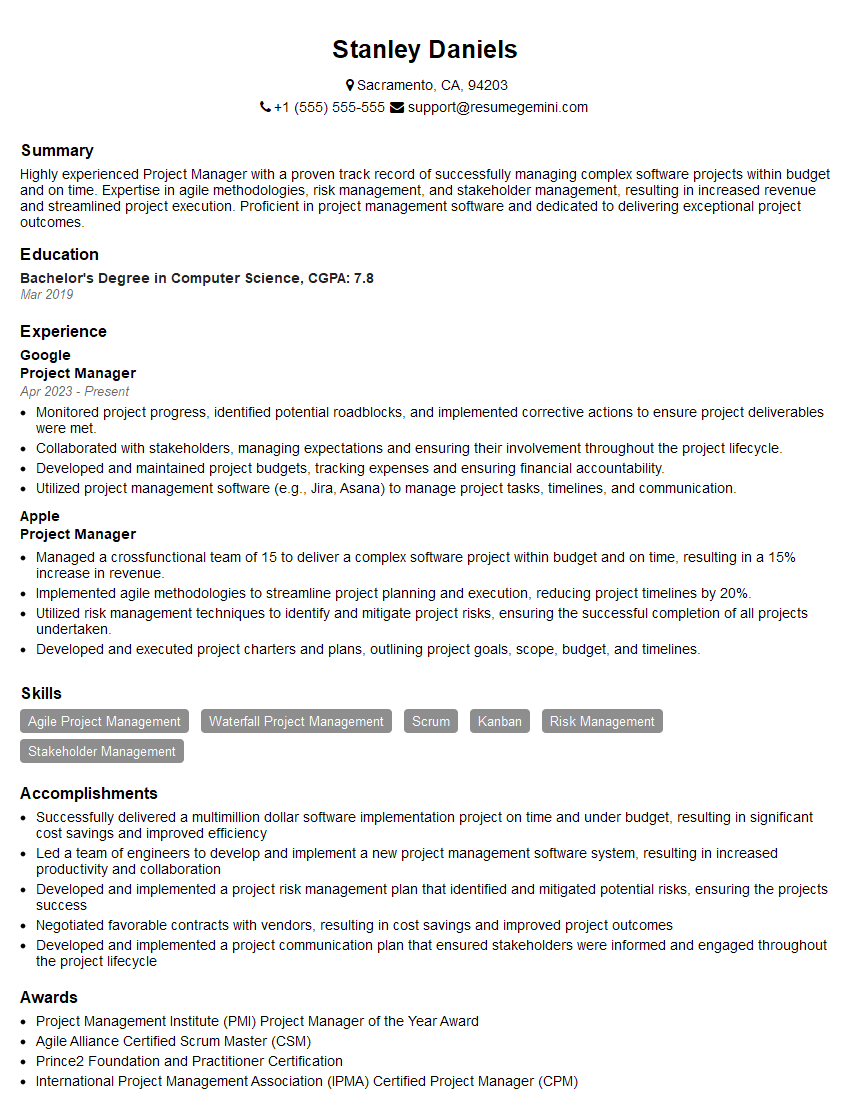
Project Manager Resume Sample
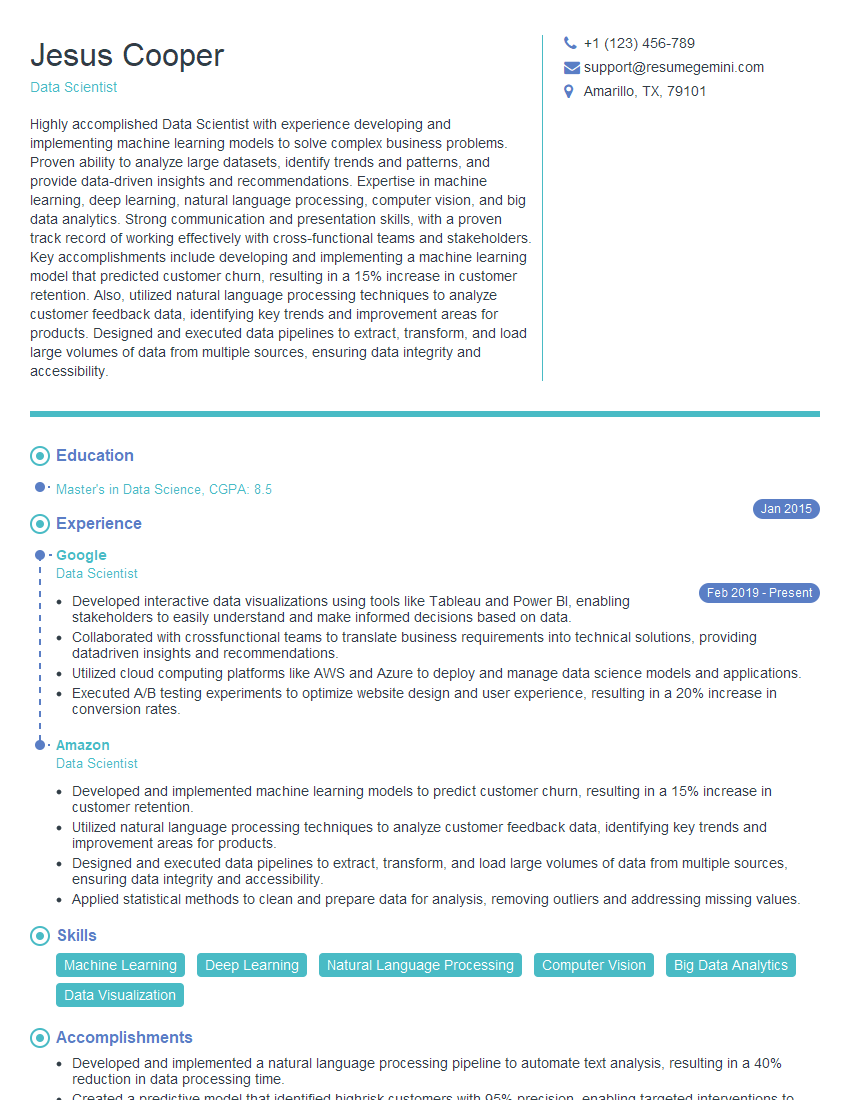
Data Scientist Resume Sample
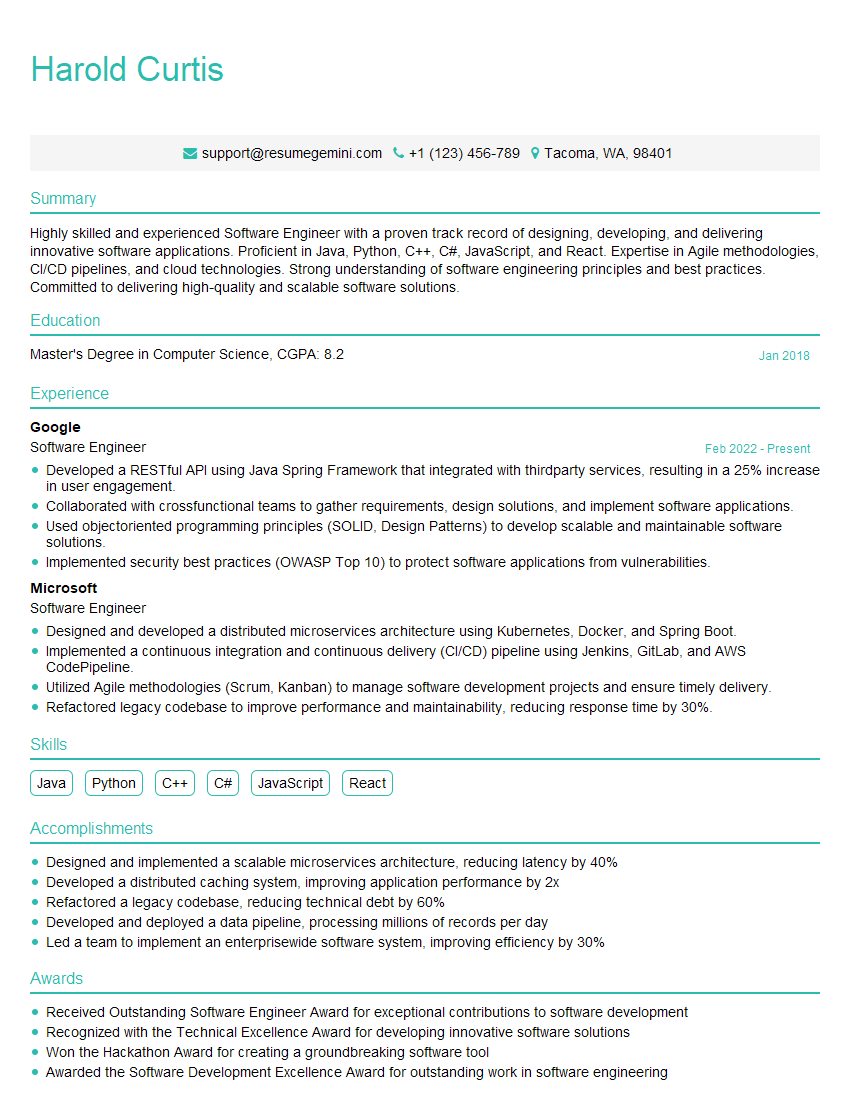
Software Engineer Resume Sample
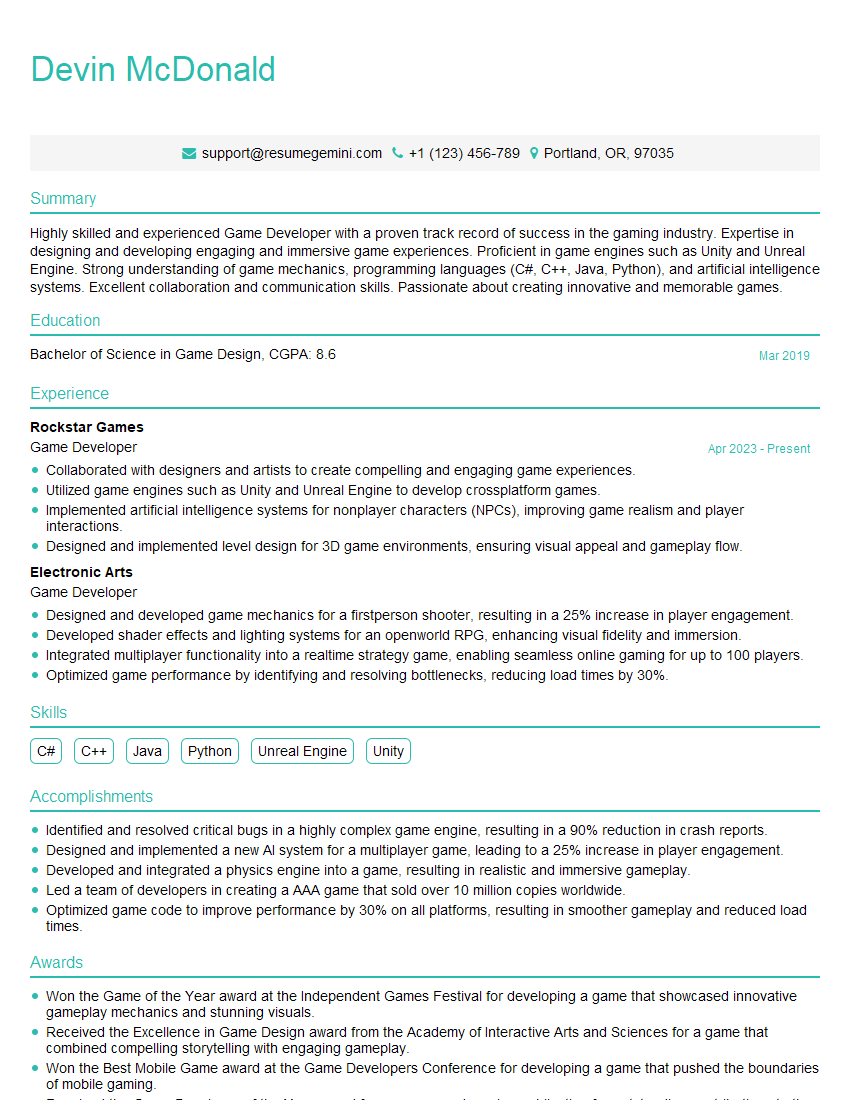
Game Developer Resume Sample
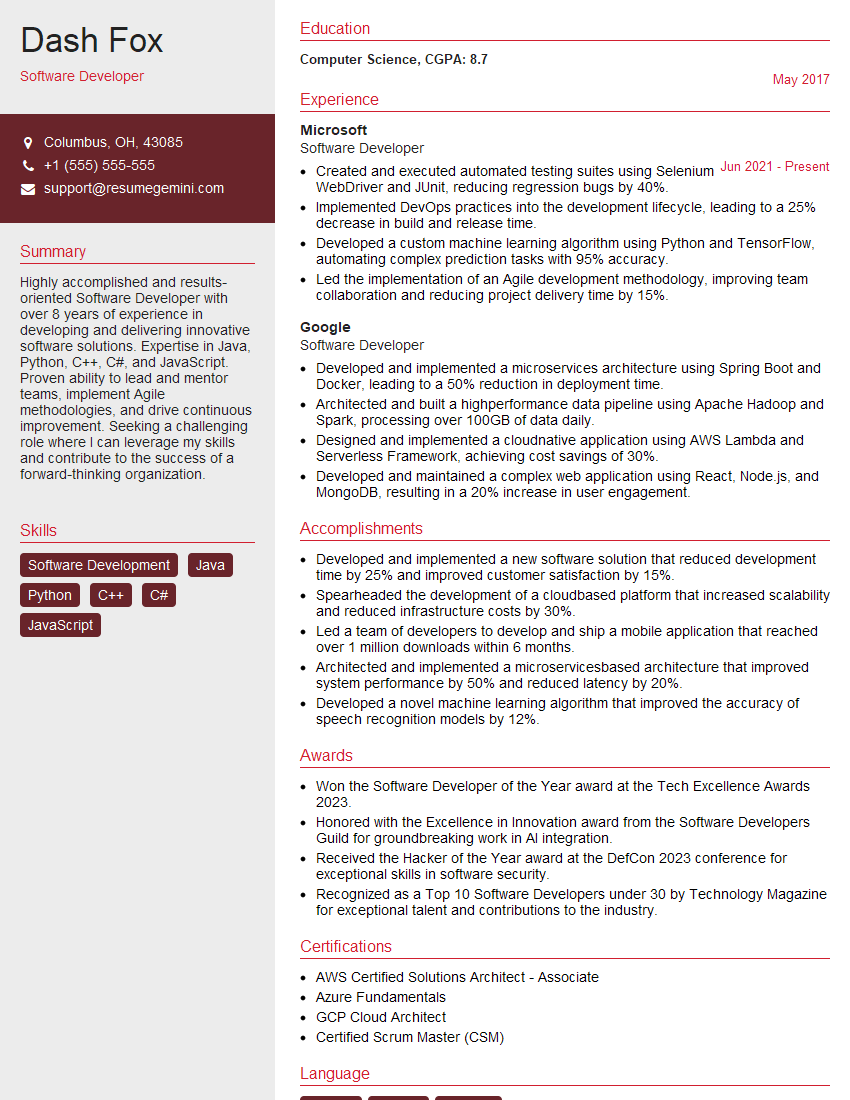
Software Developer Resume Sample

Senior Software Engineer Resume Sample
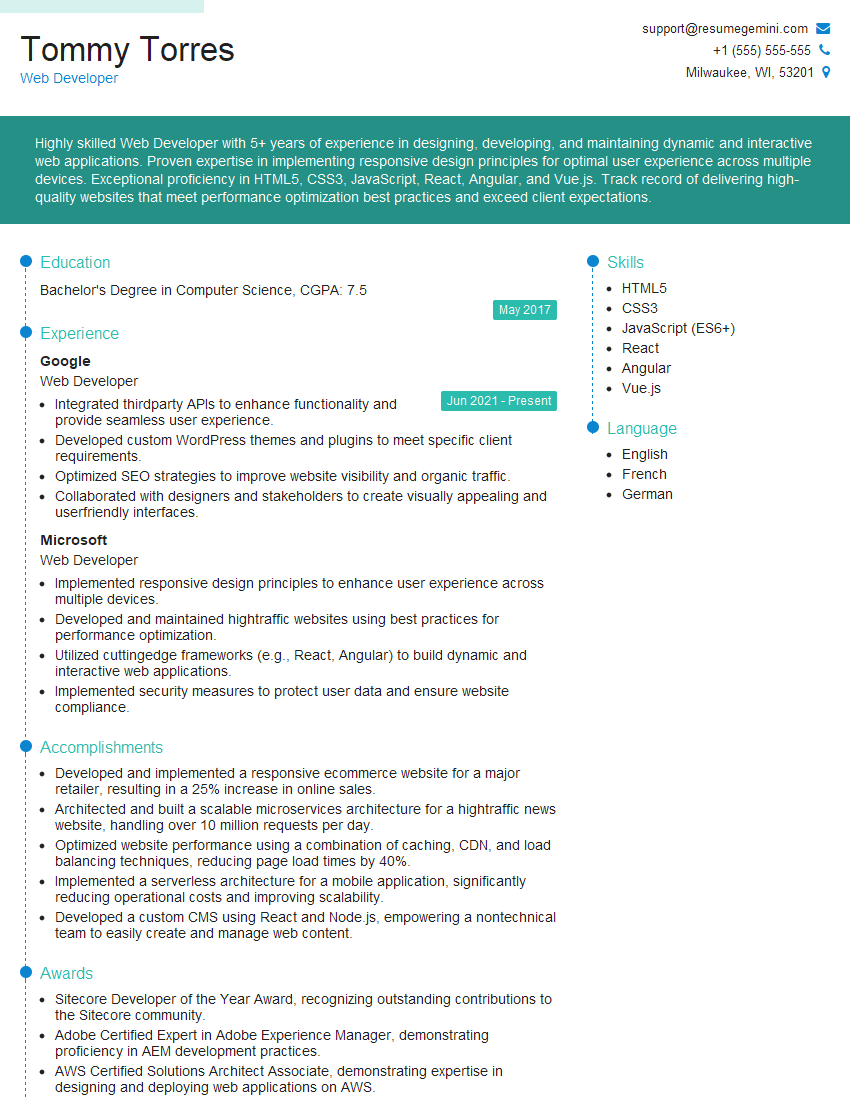
Web Developer Resume Sample
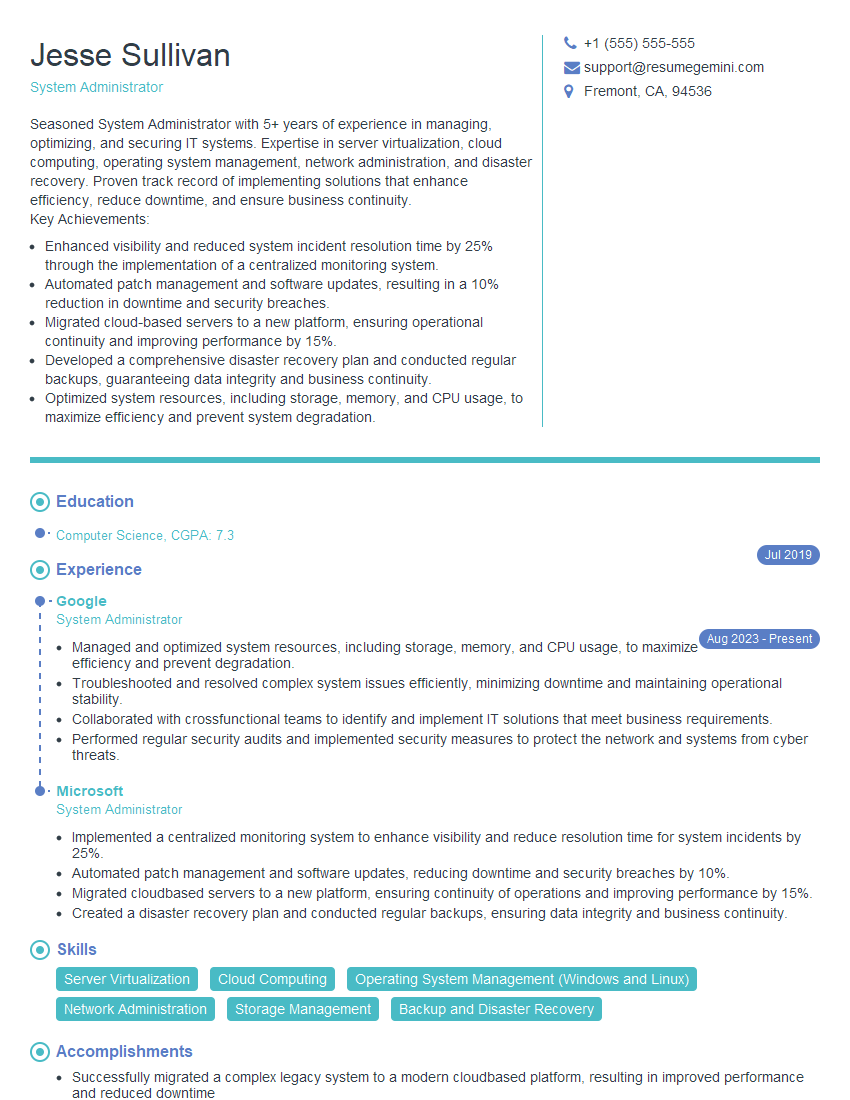
System Administrator Resume Sample

IT Manager Resume Sample
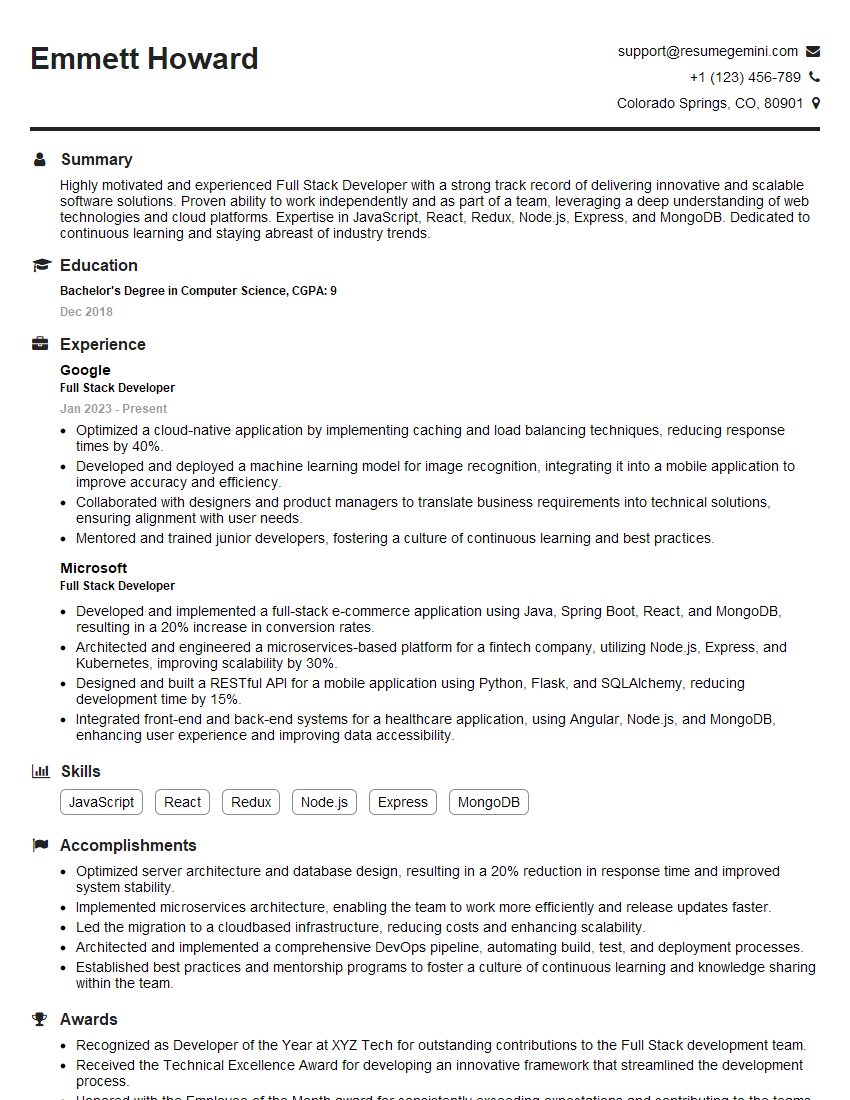
Full Stack Developer Resume Sample
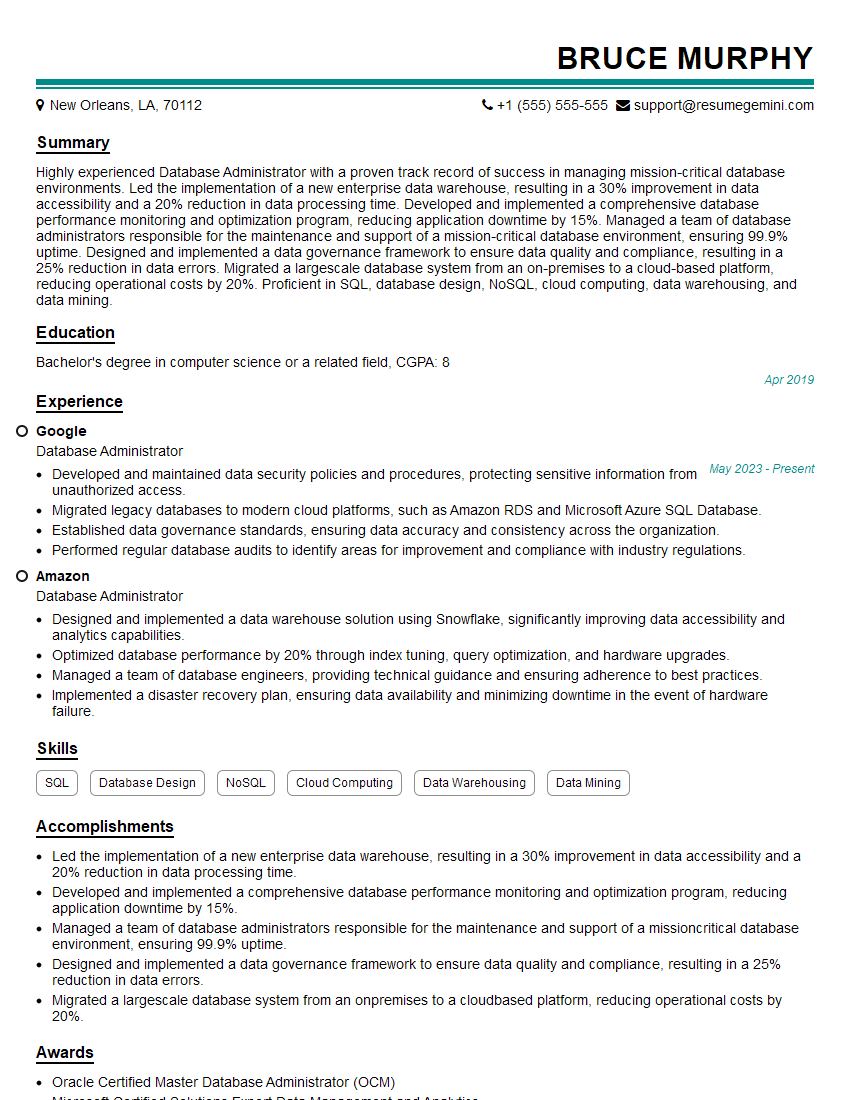
Database Administrator Resume Sample
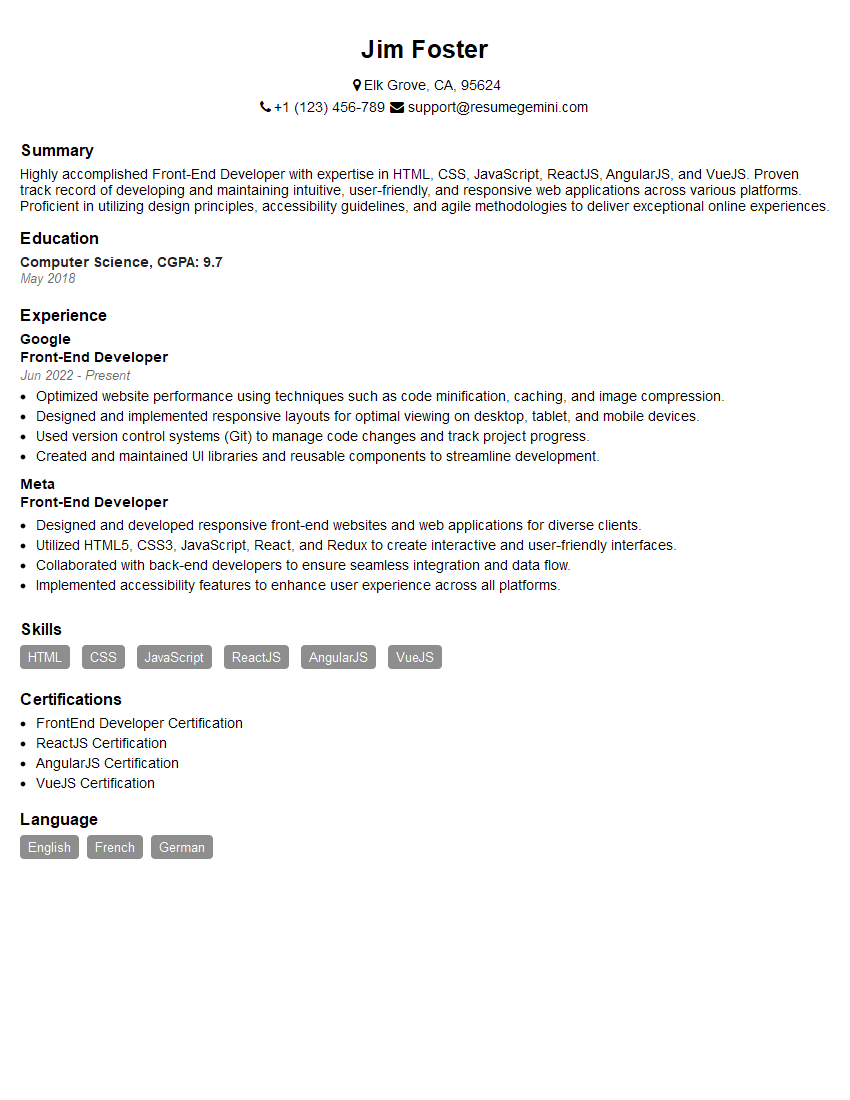
Front-End Developer Resume Sample
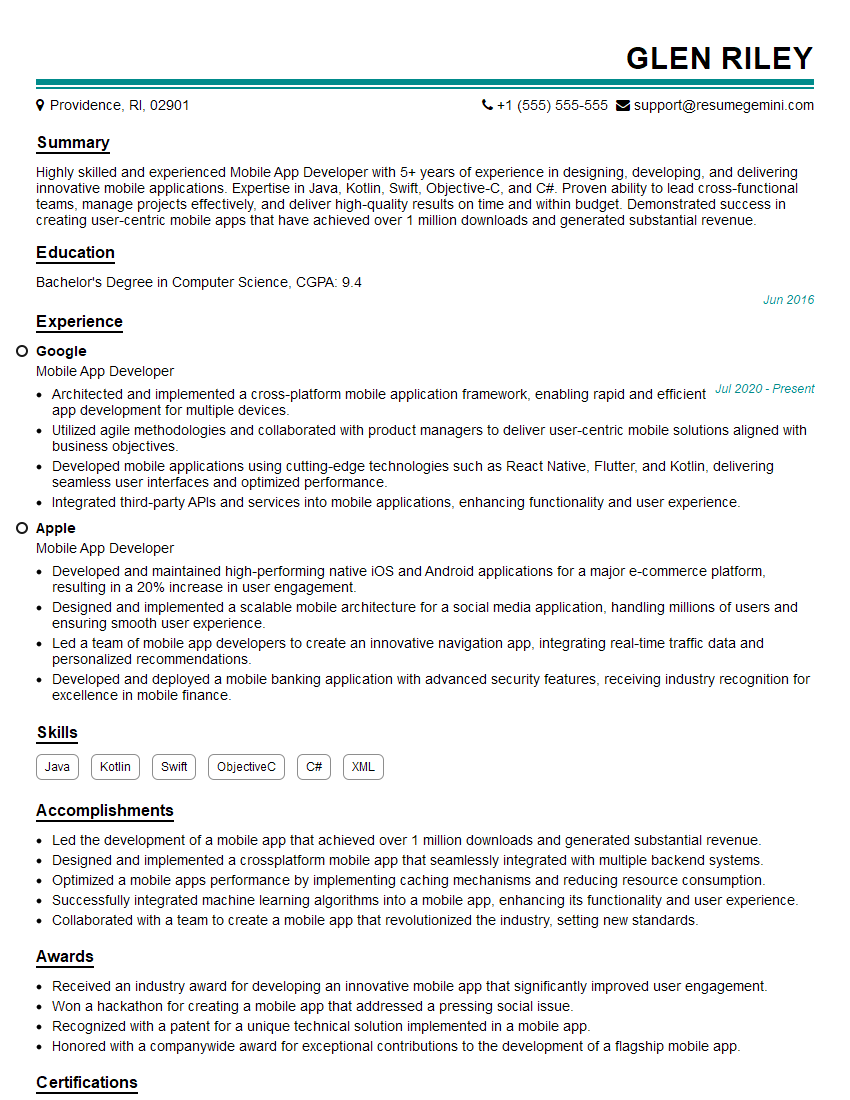
Mobile App Developer Resume Sample
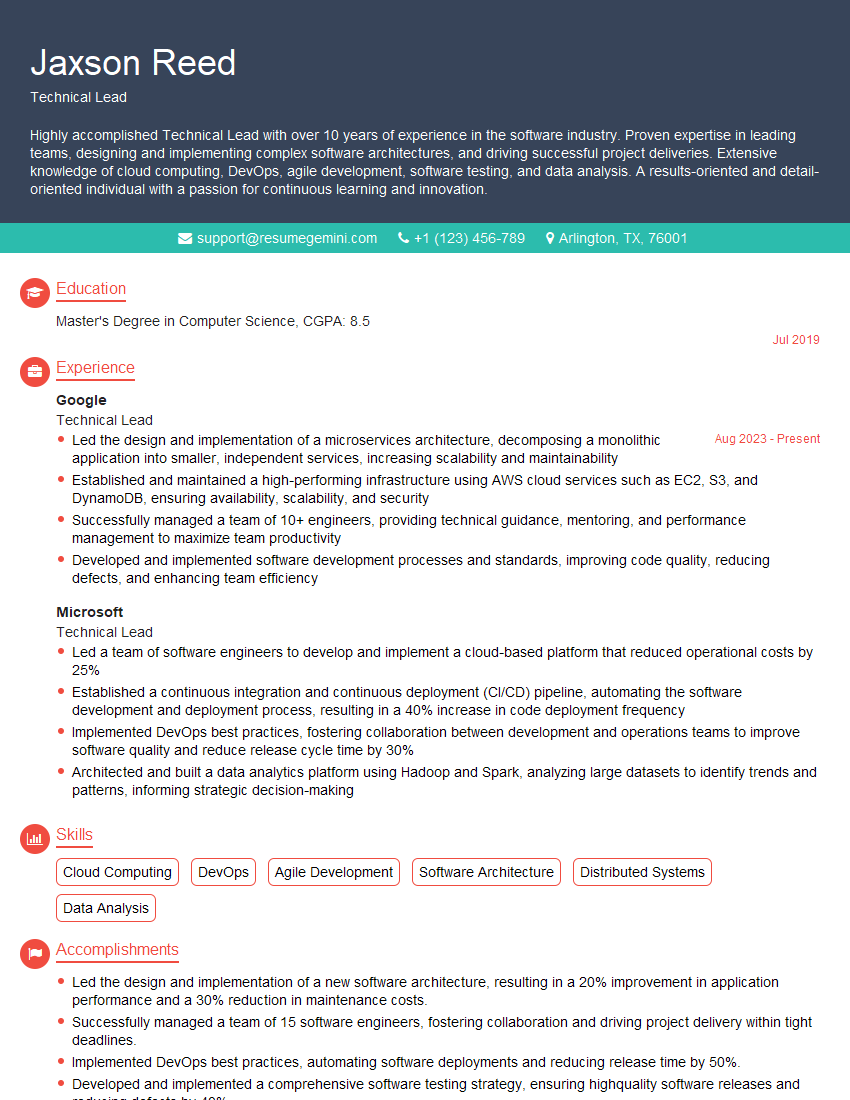
Technical Lead Resume Sample

DevOps Engineer Resume Sample
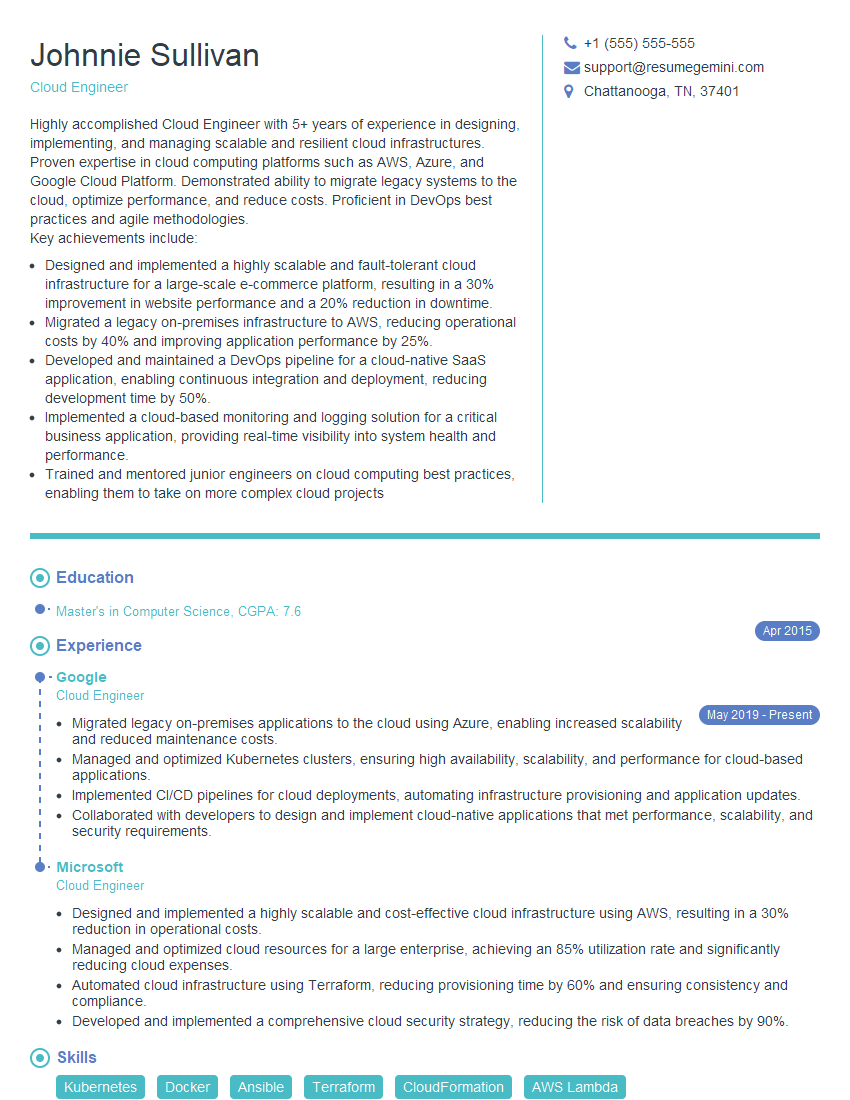
Cloud Engineer Resume Sample
Explore more articles
Users Rating of Our Blogs
Share Your Experience
We value your feedback! Please rate our content and share your thoughts (optional).
What Readers Say About Our Blog
I Redesigned Spongebob Squarepants and his main characters of my artwork.
https://www.deviantart.com/reimaginesponge/art/Redesigned-Spongebob-characters-1223583608
IT gave me an insight and words to use and be able to think of examples
Hi, I’m Jay, we have a few potential clients that are interested in your services, thought you might be a good fit. I’d love to talk about the details, when do you have time to talk?
Best,
Jay
Founder | CEO