The thought of an interview can be nerve-wracking, but the right preparation can make all the difference. Explore this comprehensive guide to MATLAB/Simulink Modeling interview questions and gain the confidence you need to showcase your abilities and secure the role.
Questions Asked in MATLAB/Simulink Modeling Interview
Q 1. Explain the difference between a continuous-time and a discrete-time system in Simulink.
The core difference between continuous-time and discrete-time systems lies in how they handle time. A continuous-time system evolves continuously over time; its variables change at every instant. Think of a smoothly flowing river – the water level changes constantly. In Simulink, this is represented using continuous blocks like integrators and transfer functions. In contrast, a discrete-time system only changes its state at specific, separate points in time. Imagine taking snapshots of the river’s water level every minute – you only observe the level at those discrete moments. Discrete-time systems in Simulink use discrete blocks like Unit Delay and Digital Filter blocks, often employing sample times to define these intervals. This difference is crucial because continuous systems require numerical integration techniques for simulation, while discrete systems can use simpler difference equations.
Example: A simple RC circuit modeled with a continuous integrator block represents a continuous-time system. A digital controller implemented with a discrete-time transfer function block represents a discrete-time system. The choice depends on the nature of the system you are modeling. If you’re modelling a physical system where changes occur seamlessly (like a pendulum’s swing), a continuous-time model is more appropriate. However, if the system involves digital components or sampled data (like a digital control system), you need a discrete-time model.
Q 2. Describe different Simulink solvers and when you would choose each one.
Simulink offers a variety of solvers, each optimized for different types of models and simulation needs. The choice depends on factors like model complexity, accuracy requirements, and simulation speed. Here are some common solvers:
- ode45 (Runge-Kutta 4-5): A versatile, variable-step solver that provides a good balance between accuracy and speed. It’s often the default choice and suitable for many general-purpose simulations. It’s a good starting point unless you have a specific reason to use another.
- ode23 (Runge-Kutta 2-3): Similar to ode45 but less computationally expensive. Use it when speed is more critical than high accuracy, for example, in early stages of model development or for very large models where ode45 becomes too slow.
- ode15s (Variable-order multistep): Designed for stiff systems, which are characterized by vastly different time constants. Stiff systems can be computationally expensive with other solvers, making ode15s an efficient alternative.
- ode1 (Euler): A simple, first-order solver, suitable only for simple models where accuracy isn’t a high priority. It’s the least accurate but fastest option.
- Discrete solvers: Simulink also offers various discrete solvers for discrete-time models. These solvers are often simpler and faster than continuous solvers.
Example: If I’m simulating a highly complex chemical process with rapidly changing variables (stiff system), I would select ode15s. For a simple mechanical model, ode45 would likely suffice. If simulation speed is paramount during a preliminary analysis, ode23 might be the better choice. The right choice is context-dependent and often requires experimentation and comparing results from different solvers.
Q 3. How do you handle model complexity in large Simulink projects?
Managing complexity in large Simulink projects involves careful planning and leveraging Simulink’s organizational features. Key strategies include:
- Modular Design: Break down the model into smaller, manageable subsystems. This improves readability, maintainability, and reusability. Each subsystem should have a clear purpose and well-defined inputs and outputs. Think of it like building with LEGOs – smaller components easily assembled into larger structures.
- Model Hierarchy: Use model referencing and subsystems to create a hierarchical structure. This helps manage complexity by hiding details of lower-level subsystems, allowing for a top-down design and analysis approach.
- Data Dictionary: Use a data dictionary to document all signals and parameters. This improves communication and collaboration within a team.
- Version Control: Use a version control system (like Git) to track changes to the model, which is crucial for collaborative projects and enables rollback to previous versions if necessary.
- Automated Testing: Implement automated tests to verify the behavior of different subsystems, which significantly reduces the effort of manual testing.
- Code Generation: Simulink can generate C, HDL, or other code from your model. This is particularly useful for deployment to embedded systems.
Example: In a large automotive project, we might have separate subsystems for engine control, braking system, and driver assistance. These would be further broken down into smaller units. Version control helps ensure that changes made by different engineers don’t conflict, preventing costly errors.
Q 4. Explain the use of Stateflow in Simulink.
Stateflow is a powerful tool integrated into Simulink that enables the creation of state machines and hierarchical statecharts. It’s ideal for modeling systems with discrete events, logic, and complex control flows. Think of it as a visual programming language for describing control logic within your Simulink model.
Use Cases: Stateflow excels in situations where the system’s behavior changes based on discrete events or conditions. Examples include:
- Control Systems: Modeling hybrid systems with continuous and discrete dynamics. Imagine a traffic light controller – its behavior changes based on timer events and sensor inputs.
- Finite State Machines: Representing systems with well-defined states and transitions, like network protocols or communication systems.
- Software Design: Designing the control logic for embedded systems.
How it works: You design a state machine within Stateflow using states, transitions, events, and actions. These elements represent different operating modes and how the system changes between modes. Stateflow charts are then integrated into Simulink models, allowing seamless interaction between continuous dynamics (from Simulink blocks) and discrete event-driven logic (from Stateflow charts).
Example: A simple traffic light controller could be modeled using a Stateflow state machine with states representing red, yellow, and green. Transitions between states are triggered by timers or external events (like pedestrian button press). Stateflow provides a visual and intuitive way to design such logic, while Simulink handles the continuous aspects of the system (such as traffic flow modeling if needed).
Q 5. What are different ways to perform data logging in Simulink?
Simulink provides several ways to log data during a simulation:
- To Workspace Block: This block sends simulation data to the MATLAB workspace, allowing you to analyze it after the simulation completes. It’s simple to use but can become inefficient for large datasets.
- To File Block: This block writes data to a file directly, preventing the workspace from filling up with large datasets. This is more efficient for large or long simulations.
- Data Logging: The Simulink Data Inspector provides interactive tools for reviewing the data. It can be configured to log specified signals and parameters throughout the simulation, offering real-time insight.
- Signal Builder: It is used to generate signals to stimulate the Simulink model and can simultaneously log signals.
- MATLAB Script: You can use a MATLAB script to programmatically access and log data during a simulation using Simulink’s API. This provides maximum control but requires more programming knowledge.
The best approach depends on the size of the dataset, the required analysis, and your familiarity with MATLAB scripting. For smaller datasets, the To Workspace block is sufficient, while for larger datasets and more sophisticated data management, To File block or the Data Inspector are usually preferred.
Q 6. How do you debug a Simulink model?
Debugging a Simulink model involves a combination of techniques:
- Simulation Data Inspection: Use the Simulink Data Inspector or scopes to visualize signals and identify potential problems. Scopes provide real-time monitoring during simulation, and the Data Inspector allows more detailed analysis after completion. Look for unexpected values or behavior in the signals.
- Breakpoints: Insert breakpoints in your model to pause the simulation at specific points. This lets you inspect the model’s state and variable values at that instant.
- Diagnostic Viewers: Simulink’s diagnostic viewers provide information about model errors, warnings, and solver performance issues.
- Simulation Profiler: Use the simulation profiler to identify computationally intensive parts of your model. This helps in optimizing the model’s performance.
- Step-by-step execution: Use the step-by-step execution feature to trace the flow of data through your model.
- Signal tracing: Trace signals in the model to see where a faulty signal value is originating.
- Data Logging: Strategically place logging blocks (
To FileorTo Workspace) at key points in the model to record data before and after suspicious areas, helping you pinpoint the problem.
A systematic approach, starting with visual inspection and working towards more advanced debugging tools, is usually effective. For example, if an unexpected output is observed, you would first inspect the signals leading to that output using scopes or the data inspector. If that doesn’t reveal the problem, you might insert breakpoints or use the simulation profiler to gain more insight into the execution flow.
Q 7. Explain your experience with Simulink verification and validation techniques.
Verification and validation (V&V) are crucial for ensuring the accuracy and reliability of Simulink models. My experience encompasses various techniques:
- Model Verification: This focuses on ensuring the model accurately represents its design intent. Techniques include:
- Code reviews: Careful examination of the model’s structure and behavior.
- Unit testing: Testing individual components (subsystems) in isolation. This helps identify errors early and simplifies debugging.
- Model checking: Using formal methods to verify model properties (e.g., ensuring a specific condition is never violated).
- Model Validation: This focuses on demonstrating the model accurately reflects the real-world system it represents. Techniques include:
- Simulation-based validation: Comparing simulation results to experimental data from the real system or hardware-in-the-loop (HIL) testing.
- Requirement tracing: Ensuring each requirement is addressed by a corresponding part of the model.
- Sensitivity analysis: Assessing the model’s response to variations in parameters to ensure robustness.
Example: In a recent project involving an aircraft control system, we used unit testing to verify each control algorithm’s individual functionality, and then performed HIL testing (simulation interfaced with real hardware) to validate the overall system’s performance against flight test data. This ensured the model’s accuracy and reliability before deploying it to the actual aircraft.
Q 8. Describe your experience using different Simulink libraries (e.g., Control System Toolbox, DSP System Toolbox).
My experience with Simulink libraries is extensive, encompassing a wide range of applications. I’ve heavily utilized the Control System Toolbox for designing and analyzing control systems, including PID controllers, state-space models, and linearization techniques. For instance, I once used it to model and tune a control system for a robotic arm, successfully achieving precise trajectory tracking. I’m also proficient with the DSP System Toolbox, employing its functionalities for digital signal processing tasks like filtering, FFT analysis, and designing digital filters for audio and image processing applications. A recent project involved designing a real-time audio equalizer using this toolbox, optimizing it for low latency and efficient resource utilization. Beyond these two, I’ve worked with libraries like the Simulink Real-Time™ for real-time testing, Stateflow® for incorporating state machines into my models, and the Powertrain Blockset™ for automotive powertrain simulations. Each library brings unique capabilities, and my expertise allows me to seamlessly integrate them for complex system modeling and analysis.
Q 9. How do you manage different versions of Simulink models?
Managing different versions of Simulink models is crucial for maintaining project integrity and preventing conflicts. I primarily rely on a combination of techniques. First, I use version control systems like Git, meticulously tracking changes and allowing for easy rollback to previous versions if necessary. This is particularly important for collaborative projects. Secondly, I follow a strict naming convention for my models, incorporating version numbers (e.g., Model_v1.0, Model_v2.0) and clear descriptions. Thirdly, I utilize Simulink’s built-in model comparison tools to identify differences between versions, facilitating efficient debugging and integration. Finally, I maintain a centralized repository for all model versions, ensuring accessibility and simplifying the management of different revisions throughout the project lifecycle. Think of it like carefully archiving drafts of a crucial document – it’s about preserving progress and minimizing the risk of losing work.
Q 10. Explain the concept of model referencing in Simulink.
Model referencing in Simulink is a powerful feature that allows you to create modular and reusable models. Essentially, you embed a sub-model (the referenced model) within a larger model (the referencing model). This promotes code reuse, simplifies complex models by breaking them down into smaller, manageable parts, and encourages better organization. For example, imagine designing a flight control system. You might have separate referenced models for the autopilot, the flight instruments, and the engine control unit. These individual models can be developed, tested, and updated independently, then integrated into the main flight control system model. Changes made to a referenced model automatically propagate to all referencing models, providing consistency and ease of maintenance. It’s like using pre-fabricated modules in construction – efficient and scalable.
Q 11. Describe your experience with real-time testing using Simulink.
My real-time testing experience with Simulink involves using Simulink Real-Time™, along with various hardware platforms such as dSPACE and NI cRIO. I’ve been involved in numerous projects where I’ve implemented real-time testing for control systems, robotics, and embedded systems. For example, I worked on a project where we tested the real-time performance of a motor control algorithm for a high-speed robotic arm. This involved configuring the hardware, generating real-time code from the Simulink model, and deploying it onto the target hardware. Data acquisition and analysis were crucial, and I employed Simulink’s tools to record and analyze signals from the real-time execution. Thorough testing ensures the system meets real-world performance requirements under dynamic conditions. It’s the crucial final step before deployment, bridging the gap between simulation and physical implementation.
Q 12. How do you handle data import/export in Simulink?
Simulink offers multiple ways to handle data import and export. For importing data, I frequently use the From Workspace block to import data from MATLAB variables, or the From File block to read data from various file formats (e.g., .mat, .csv, .txt). Similarly, for exporting, the To Workspace block sends data to MATLAB variables, while the To File block allows writing data to files. In more advanced scenarios, I leverage the Simulink Data Dictionary to manage data types and signals across models, enhancing consistency and facilitating code generation. I’ve also integrated Simulink with other tools like databases using custom MATLAB scripts and functions. Choosing the right method depends entirely on the data format, size, and the overall data management strategy of the project.
Q 13. Explain your experience with code generation from Simulink.
Code generation from Simulink is a core aspect of my work. I frequently use Simulink Coder™ to generate efficient and optimized C, C++, or HDL code from Simulink models. This automated code generation process significantly reduces development time and ensures consistency between the model and the deployed code. I have used this extensively for embedded systems development, where manually writing code for complex algorithms is time-consuming and error-prone. Furthermore, I often configure code generation options to optimize for various factors like memory usage, execution speed, and specific hardware constraints. The generated code is often integrated into an embedded system and interacts with other software components. This automated process ensures that the final embedded system accurately reflects the design created in Simulink, thus saving time, reducing errors, and improving overall project quality.
Q 14. What are the advantages and disadvantages of using Model-Based Design?
Model-Based Design (MBD) offers several advantages, primarily early detection of errors through simulation and verification, leading to reduced development costs and time. The reusability of models and the automated code generation further enhance efficiency. However, MBD also presents challenges. The initial investment in model development and training can be substantial, and the complexity of models can sometimes hinder understanding and maintenance. Furthermore, MBD requires a strong understanding of the modeling language and appropriate tools. Ultimately, the success of MBD depends on factors such as project complexity, team expertise, and the careful consideration of the tradeoffs between the benefits and the challenges. It’s a paradigm shift, but the rewards in efficiency and reliability are substantial when done correctly.
Q 15. How do you optimize Simulink models for performance?
Optimizing Simulink models for performance is crucial for handling complex systems and achieving reasonable simulation times. It’s like streamlining a factory assembly line – you want the most efficient process. This involves several strategies:
- Model Reduction Techniques: For large models, techniques like model order reduction (MOR) significantly decrease simulation time by approximating the system’s behavior with a smaller, equivalent model. This is particularly useful for high-fidelity models of complex physical systems.
- Data Type Optimization: Using fixed-point data types instead of floating-point can drastically reduce simulation time, especially for embedded systems. However, careful consideration of quantization errors is essential.
- Solver Configuration: Choosing the appropriate solver and adjusting its parameters (e.g., step size, relative tolerance) impacts simulation speed and accuracy. A stiff solver might be necessary for systems with fast and slow dynamics, while a variable-step solver adapts to the model’s behavior, optimizing for speed.
- Code Generation Optimization: When generating code for embedded systems, optimizing the generated code using compiler flags and appropriate data types can further enhance performance.
- Parallel Computing: Leveraging parallel computing capabilities allows for simulating multiple parts of a model concurrently, dramatically reducing overall simulation time. Simulink supports parallel computation through its built-in features and integration with parallel computing toolboxes.
- Algorithmic Optimization: Review algorithms within custom blocks or embedded MATLAB code to eliminate redundancies and improve computational efficiency. Profiling tools within Simulink can pinpoint performance bottlenecks.
For example, I once worked on a project simulating a power grid. By employing model order reduction and optimizing the solver settings, we reduced the simulation time from several hours to under an hour, making iterative design and analysis much more efficient.
Career Expert Tips:
- Ace those interviews! Prepare effectively by reviewing the Top 50 Most Common Interview Questions on ResumeGemini.
- Navigate your job search with confidence! Explore a wide range of Career Tips on ResumeGemini. Learn about common challenges and recommendations to overcome them.
- Craft the perfect resume! Master the Art of Resume Writing with ResumeGemini’s guide. Showcase your unique qualifications and achievements effectively.
- Don’t miss out on holiday savings! Build your dream resume with ResumeGemini’s ATS optimized templates.
Q 16. Explain your understanding of different Simulink block types (e.g., Transfer Function, Integrator, Gain).
Simulink offers a rich library of blocks, each performing a specific function in the model. Understanding these blocks is fundamental. Let’s consider some common ones:
- Transfer Function: Represents a linear system’s dynamics using its transfer function, expressed in the Laplace domain (e.g., G(s) = (s+1)/(s^2+2s+1)). This is the backbone of classical control system design.
- Integrator: Implements mathematical integration, essential for representing elements like velocity from acceleration or position from velocity. It’s a cornerstone for representing dynamics in many physical systems.
- Gain: A simple block that multiplies the input signal by a constant value. It’s used for scaling signals or implementing proportional control gains.
- Sum: Adds or subtracts input signals. Critical for combining signals or implementing feedback control loops.
- Scope: Visualizes signals during simulation. Essential for monitoring and debugging.
- To Workspace: Sends simulation data to the MATLAB workspace for further analysis or post-processing.
Imagine designing a cruise control system. You’d use an integrator to get vehicle speed from acceleration, a transfer function to model the car’s dynamics, a gain block to set the proportional controller gain, and a sum block to combine the error signal with the output.
Q 17. How do you handle different data types in Simulink?
Simulink supports various data types, each with its own advantages and drawbacks. Choosing the right data type affects simulation accuracy, speed, and code generation for embedded systems.
- Double-precision floating-point: Offers high precision but consumes significant memory and processing power.
- Single-precision floating-point: A good balance between precision and efficiency.
- Fixed-point: Provides control over bit width and quantization, reducing memory and computation but introducing quantization errors. It’s crucial for embedded systems due to resource constraints.
- Boolean: Represents true/false values, useful for logical operations and control flow.
- Integer: Represents integer values, often used for counters or discrete events.
Proper data type selection is like choosing the right tools for a job. For a high-fidelity simulation of a complex aircraft, double-precision might be necessary. However, for an embedded system controlling a motor, fixed-point could optimize performance while keeping sufficient precision.
Simulink offers tools like the Fixed-Point Designer to aid in fixed-point data type selection and analysis of quantization effects. The Fixed-Point Advisor helps automatically convert floating-point models to fixed-point.
Q 18. Describe your experience using Simulink for control system design.
My experience with Simulink in control system design is extensive. I’ve used it for everything from designing simple PID controllers to implementing advanced control strategies like model predictive control (MPC) and Linear Quadratic Regulators (LQR).
I’ve designed and simulated control systems for various applications, including:
- Robotics: Designing controllers for robotic manipulators, ensuring stable and accurate motion.
- Automotive Systems: Developing and simulating control algorithms for cruise control, anti-lock braking systems (ABS), and electric power steering.
- Aerospace: Simulating and verifying flight control systems for unmanned aerial vehicles (UAVs).
In one project, I developed an MPC controller for a quadrotor UAV using Simulink. This involved modeling the UAV’s dynamics, designing the MPC algorithm using Simulink’s optimization tools, and verifying its performance through extensive simulations. The simulations helped fine-tune the controller parameters and predict the system’s behavior in various scenarios, significantly reducing the risk of errors during real-world implementation.
Q 19. Explain your experience with Simulink Report Generator.
Simulink Report Generator is a powerful tool for automating the creation of professional-quality documentation for Simulink models. It allows for generating reports that include model diagrams, simulation results, and other relevant information.
I’ve used it to create reports that:
- Document model architecture and functionality: Clearly illustrating the model’s structure and how its different components interact.
- Present simulation results: Showing plots, tables, and other visualizations of the simulation data.
- Support design reviews and verification activities: Providing a comprehensive document for reviewing the design and ensuring its correctness.
The ability to customize reports, including adding custom headers, footers, and content, is valuable. This allows for generating tailored reports specific to a particular audience or purpose. For instance, I’ve created reports for client presentations that highlight key results and omit intricate technical details, while creating internal documentation that covers the fine points of the model’s implementation.
Q 20. How do you perform unit testing of Simulink models?
Unit testing in Simulink ensures the correctness of individual blocks or subsystems within a larger model. It’s analogous to unit testing in software development – you test individual components before integrating them into the whole system.
Several approaches to unit testing Simulink models exist:
- Test Harness: Creating a test harness model that provides known inputs to the block under test and compares the outputs to expected values. This can involve using assertion blocks to check for specific conditions.
- MATLAB Test Framework: Using the MATLAB Test Framework to create automated unit tests that are executed through a script, often within a CI/CD pipeline. This enables repeatable and consistent testing.
- Simulink Verification and Validation (SVV): Leveraging the SVV toolbox to create more robust and comprehensive unit tests. This allows for coverage analysis to identify untested code paths.
For example, I might test a PID controller block by providing a step input and verifying that the output tracks the setpoint within a specified tolerance. The Test Harness would generate a report detailing whether the test passed or failed. Using automated testing enhances development efficiency and reduces the risk of errors.
Q 21. Describe different techniques for model linearization in Simulink.
Model linearization is crucial for analyzing the behavior of nonlinear systems around an operating point. It simplifies the analysis and allows for using linear control techniques. Simulink provides several methods:
- Linearization around an operating point: Using the ‘Linear Analysis Tool’ in Simulink to linearize the model around a specific operating point. This generates a linear state-space representation of the system.
- Trilinearization: For systems with multiple operating points, trilinearization allows for generating a linear model for each point, capturing the system’s behavior over a range of operating conditions.
- Symbolic Linearization: Using symbolic math tools to obtain an analytical linear model of the system. This can offer greater insight into the model’s dynamics but requires a deeper understanding of the system equations.
In a real-world example, I linearized a nonlinear model of a robotic arm around its equilibrium position. This linearized model was then used to design a linear quadratic regulator (LQR) to control the arm’s position. The linearization simplified the control design process and allowed the use of well-established linear control techniques.
Q 22. Explain how to create a custom Simulink block.
Creating a custom Simulink block allows you to encapsulate complex functionality or specialized algorithms, promoting modularity and reusability within your models. You can create custom blocks using either the built-in MATLAB function blocks or by writing your own code in MATLAB, C, or other supported languages.
Using MATLAB Function Blocks: This is the simplest method for relatively straightforward algorithms. You simply create a MATLAB function (.m file) that takes inputs and produces outputs. Then, within Simulink, add a MATLAB Function block and specify your function. For instance, a function to calculate the square root:
function y = mySqrt(u)
y = sqrt(u);
end
Creating a Level-2 S-Function: For more complex blocks or when performance is critical, a Level-2 S-Function (system function) offers greater control. These are C-MEX files that interact directly with Simulink’s solver. This method requires a deeper understanding of Simulink’s internal workings but provides the most flexibility. The S-function would contain the necessary initialization, output, update, and termination functions to define your block’s behavior. For example, a C-MEX file could implement a sophisticated control algorithm much more efficiently than a MATLAB Function block.
Using Simulink Blocks: Simulink provides a visual programming environment which lets you drag-and-drop existing blocks and connect them. You could then create a subsystem of these blocks and convert it into a library of your own custom block. This is ideal for creating reusable building blocks within complex models.
In all cases, proper documentation is vital for maintainability and collaboration. Clear descriptions of inputs, outputs, and functionalities are essential for others to use and understand your custom blocks.
Q 23. How do you handle model uncertainties in Simulink?
Handling model uncertainties in Simulink is crucial for building robust and reliable systems. Uncertainties can stem from various sources, such as imprecise model parameters, external disturbances, or sensor noise. Simulink provides several tools to address these:
- Parameter Sweeps: Simulink’s Design Verification tools allows you to systematically vary model parameters across a defined range. This allows you to assess the model’s behavior under different conditions and identify sensitivities.
- Monte Carlo Simulations: This technique involves running multiple simulations with randomly varied parameters, generating a statistical distribution of the model’s outputs. This reveals the impact of parameter uncertainties on the system’s performance.
- Uncertainty Blocks: Simulink offers specialized blocks (e.g., the Uncertain Parameter block) to explicitly represent uncertainties within the model. These blocks can introduce random noise or variations to specific parameters.
- Robust Control Design: Techniques from robust control theory, such as H-infinity control or μ-synthesis, can be applied to design controllers that are less sensitive to model uncertainties.
The choice of technique depends on the nature and complexity of the uncertainties and the desired level of analysis. A combination of these methods is often used for comprehensive uncertainty analysis.
Example: Imagine modeling a motor control system. The motor’s inertia might be uncertain due to manufacturing tolerances. Using a Monte Carlo simulation with a distribution representing this uncertainty would provide insights into how much this affects the control system’s performance.
Q 24. What are your experiences with different Simulink toolboxes?
My experience with Simulink toolboxes is extensive, covering a wide range of applications. I have worked extensively with:
- Control System Toolbox: This is my primary toolbox, used for designing, analyzing, and simulating control systems. I’ve worked on projects involving PID controllers, state-space models, and advanced control techniques like model predictive control (MPC).
- Stateflow: This toolbox is vital for modeling hybrid systems and control logic. I’ve used it to design finite state machines to handle complex decision-making in control systems, for example, controlling the various modes of operation of a robotic arm.
- Aerospace Toolbox: I’ve utilized this for aerospace applications including aircraft simulations, which involve modeling complex aerodynamic effects, flight control systems, and guidance, navigation and control algorithms.
- Power Systems Toolbox: I’ve worked on power system simulations and analysis; modeling power grids, renewable energy integration, and fault analysis. For example, simulating the transient behavior of a power system during a fault.
- Simscape: This physical modeling environment is powerful for simulating physical systems involving mechanical, electrical, hydraulic, and thermal components. I’ve used Simscape to model robotic manipulators, electromechanical systems and thermal management systems.
My experience with these toolboxes enables me to develop efficient and effective Simulink models for diverse engineering challenges.
Q 25. Explain your understanding of Simulink’s configuration parameters.
Simulink’s configuration parameters control various aspects of the simulation, influencing its accuracy, performance, and solver behavior. These parameters are accessed through the Model Configuration Parameters dialog box. Key parameters include:
- Solver Type: Choosing the appropriate solver (e.g., ode45, variable-step, fixed-step) is critical for accuracy and simulation speed. Variable-step solvers are generally more accurate but slower, while fixed-step solvers are faster but might compromise accuracy.
- Solver Options: Parameters like relative tolerance and absolute tolerance influence the solver’s accuracy. Stricter tolerances improve accuracy but increase computation time.
- Sample Time: For discrete-time systems, specifying the sample time is crucial for correct simulation. The sample time determines how frequently the system is updated.
- Stop Time: This determines how long the simulation runs. It’s essential to choose a stop time that captures the system’s relevant dynamic behavior.
- Data Import/Export: Parameters related to data logging and exporting simulation results. These settings control how data is stored and analyzed after simulation.
Understanding and appropriately configuring these parameters is essential for obtaining meaningful and reliable simulation results. Improper configuration can lead to inaccurate or unstable simulations.
Q 26. Describe your experience integrating Simulink with other software tools.
I have significant experience integrating Simulink with other software tools. This integration greatly enhances modeling capabilities and workflow efficiency. My experience includes:
- MATLAB: Simulink’s seamless integration with MATLAB allows for pre- and post-processing of simulation data, algorithm development, and custom block creation using MATLAB functions.
- Stateflow: As mentioned earlier, Stateflow’s integration allows for modeling complex logic and control flows. This is crucial for handling various operational modes of a system or modeling discrete events.
- dSPACE/xPC Target: I have experience deploying Simulink models to real-time hardware-in-the-loop (HIL) simulations, using dSPACE/xPC Target for real-time testing and validation.
- Python: I’ve used Python to automate tasks such as model generation, data analysis, and reporting. This is commonly used for model parameter optimization or report generation from Simulink data.
- Excel: Simulink can readily import and export data to and from Excel spreadsheets, facilitating data management and analysis.
This integration streamlines workflows, allowing for efficient automation of processes and integration of various aspects of model development, testing, and deployment.
Q 27. How do you ensure the accuracy and reliability of your Simulink models?
Ensuring the accuracy and reliability of Simulink models is paramount. My approach involves a multi-faceted strategy:
- Model Verification: This involves checking if the model correctly represents the intended design. This includes comparing simulation results against theoretical predictions, experimental data, or other established benchmarks.
- Model Validation: This focuses on determining whether the model adequately represents the real-world system it aims to model. This often involves comparing simulation results with real-world measurements from experiments or tests.
- Code Generation and Verification: For applications involving code generation (e.g., for embedded systems), thorough code verification is essential to ensure that the generated code accurately reflects the Simulink model.
- Testing and Simulation: Rigorous testing is crucial, including unit testing of individual blocks, integration testing of subsystems, and system-level testing of the complete model.
- Review and Documentation: Thorough documentation, including model descriptions, assumptions, and limitations, enhances model transparency and facilitates code review.
By combining these practices, I strive to create reliable and accurate Simulink models that contribute to informed decision-making and successful project outcomes. For example, a well-validated aircraft simulation model can drastically reduce the risk associated with new flight control algorithms.
Q 28. Explain your approach to troubleshooting and resolving Simulink errors.
Troubleshooting Simulink errors requires a systematic approach. My strategy typically involves:
- Understanding the Error Message: Carefully read the error message to identify the specific problem and its location within the model. The message often provides clues about the source of the issue.
- Checking the Model Structure: Examine the model for potential issues such as incorrect connections, missing blocks, or inconsistencies in data types.
- Analyzing Simulation Data: If an error occurs during simulation, review the simulation data (e.g., scopes, data logs) to identify unusual patterns or values that might indicate the source of the problem.
- Using the Simulink Debugger: The Simulink debugger can be invaluable for step-by-step execution and variable inspection during simulation, aiding in pinpointing the location and cause of errors.
- Breaking Down Complex Models: For large or complex models, break them down into smaller, manageable subsystems to isolate the source of the error. This makes it easier to pinpoint the problematic area.
- Searching for Similar Issues: Utilize online resources, forums, or the MathWorks support website to find solutions to commonly encountered problems.
A methodical approach, combined with a solid understanding of Simulink’s functionalities, significantly improves the efficiency of troubleshooting and resolving errors. Remember, patience and persistence are key when facing challenging errors.
Key Topics to Learn for MATLAB/Simulink Modeling Interview
- MATLAB Fundamentals: Mastering basic syntax, data structures (arrays, matrices, structures), and control flow is crucial. Practice working with variables, functions, and scripts.
- Simulink Basics: Understand the Simulink environment, block diagrams, and model creation. Learn how to simulate and analyze system behavior using various block types.
- Signal Processing in Simulink: Gain experience with signal generation, filtering, transformation (FFT), and analysis techniques within Simulink. Understand applications in areas like audio or image processing.
- Control Systems Design: Familiarize yourself with designing and simulating control systems using Simulink’s control system toolbox. Explore topics like PID controllers, state-space representations, and system stability analysis.
- Model-Based Design (MBD): Grasp the principles of MBD and its benefits in the development lifecycle. Understand how Simulink facilitates rapid prototyping, testing, and code generation.
- Stateflow: Learn the basics of Stateflow for modeling and simulating hierarchical state machines. Understand its applications in control logic and event-driven systems.
- Code Generation: Explore the capabilities of generating C/C++ code from Simulink models for deployment on embedded systems. This demonstrates practical application and real-world relevance.
- Simulation and Analysis Techniques: Develop proficiency in analyzing simulation results, identifying potential issues, and troubleshooting model behavior. This includes understanding scope and probe usage, data logging, and visualization.
- Troubleshooting and Debugging: Practice identifying and resolving common errors and issues encountered during model development and simulation.
Next Steps
Mastering MATLAB/Simulink Modeling significantly enhances your prospects in various engineering and scientific fields, opening doors to exciting and challenging career opportunities. A well-structured, ATS-friendly resume is crucial for showcasing your skills effectively to potential employers. To create a compelling resume that highlights your MATLAB/Simulink expertise, we highly recommend using ResumeGemini. ResumeGemini offers a streamlined process for building professional resumes and provides examples tailored to specific fields, including MATLAB/Simulink Modeling. Invest the time to craft a strong resume; it’s your first impression!
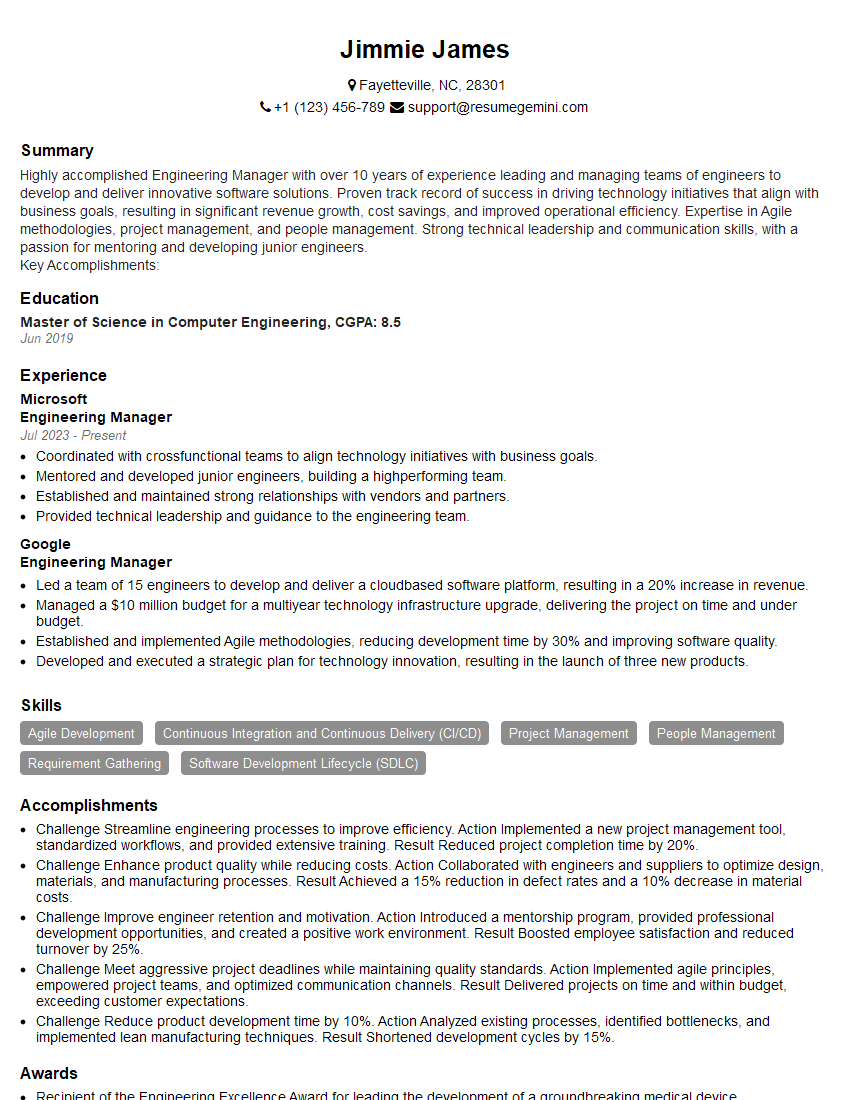
Engineering Manager Resume Sample
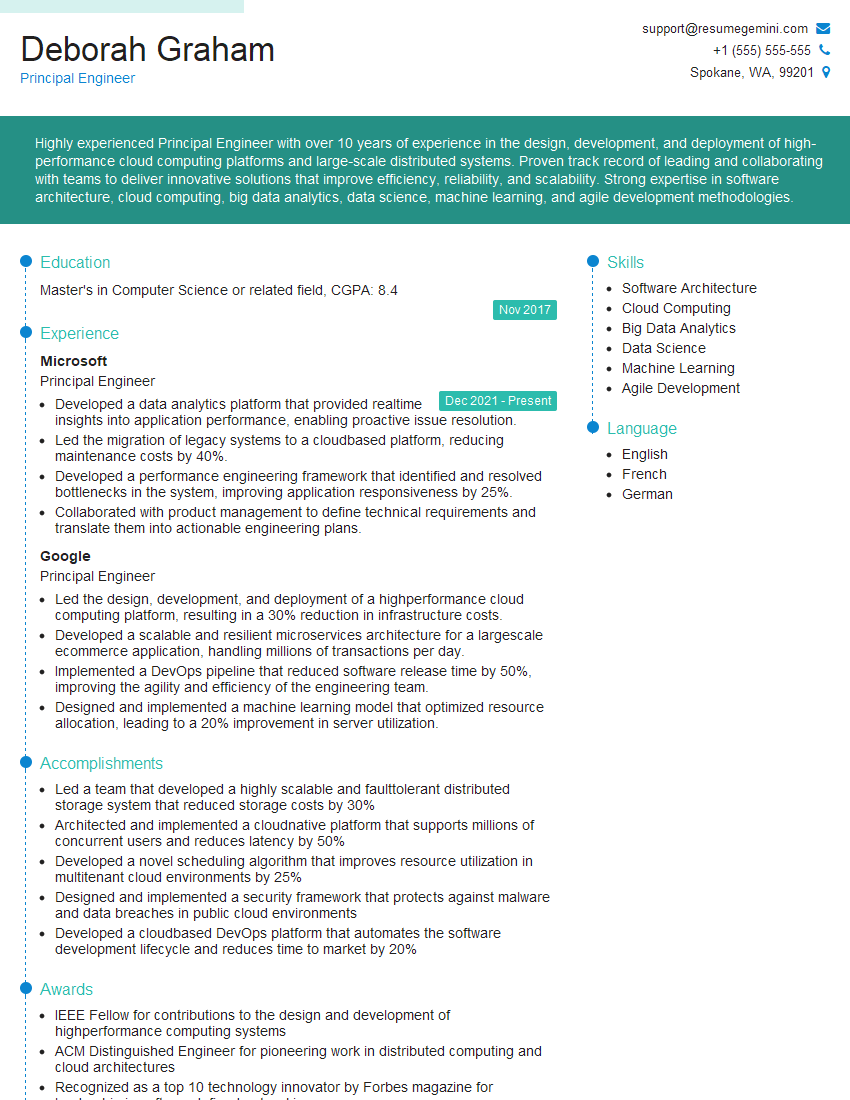
Principal Engineer Resume Sample
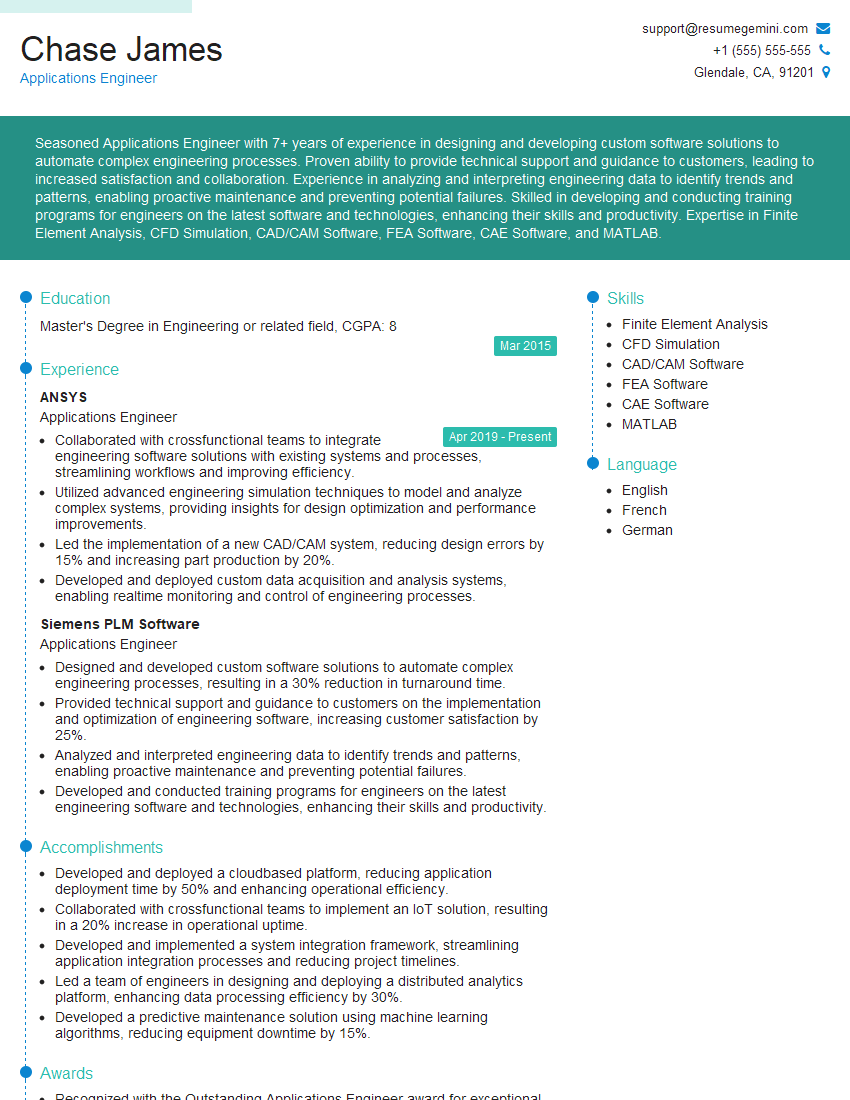
Applications Engineer Resume Sample

Research Scientist Resume Sample
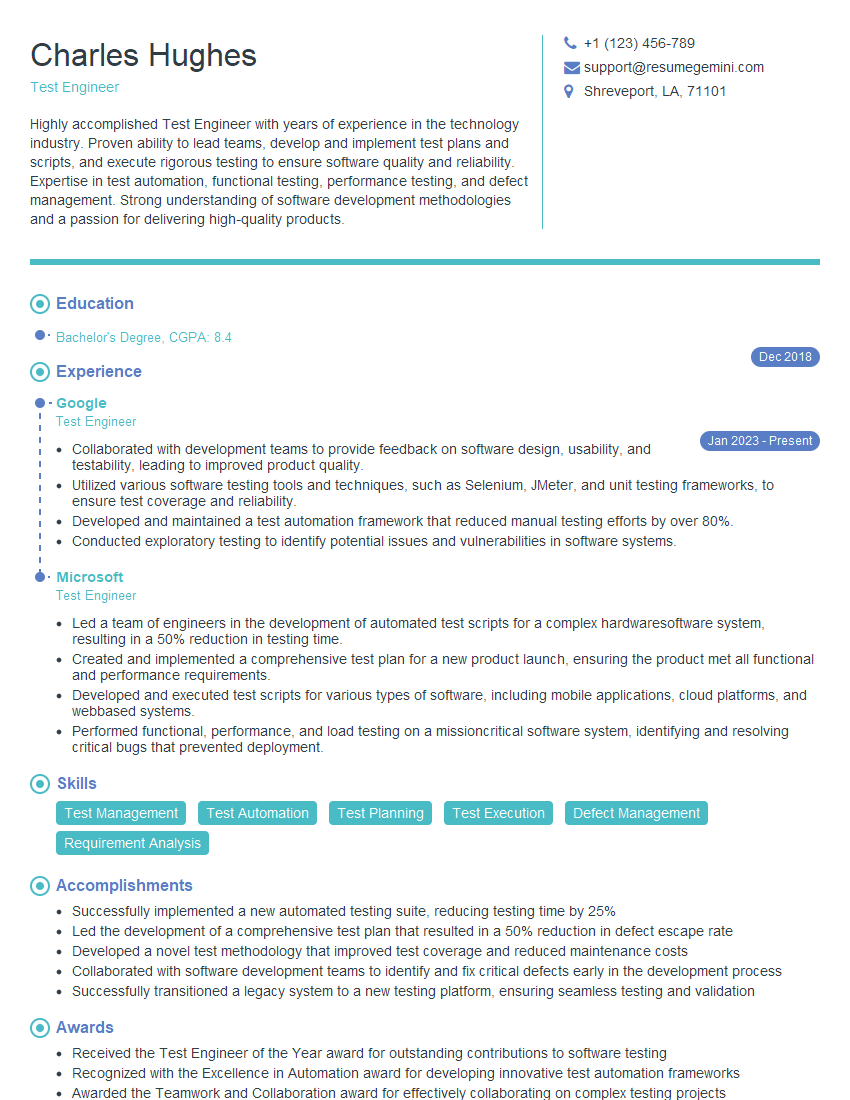
Test Engineer Resume Sample
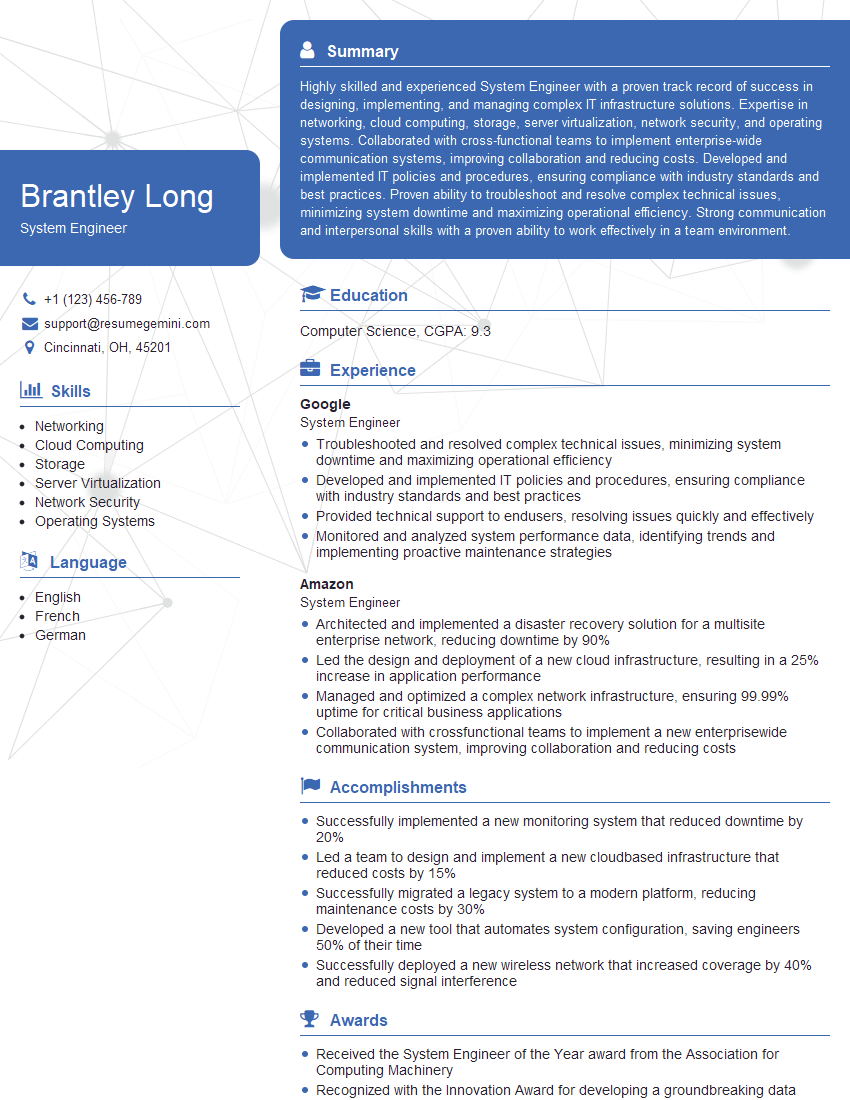
System Engineer Resume Sample
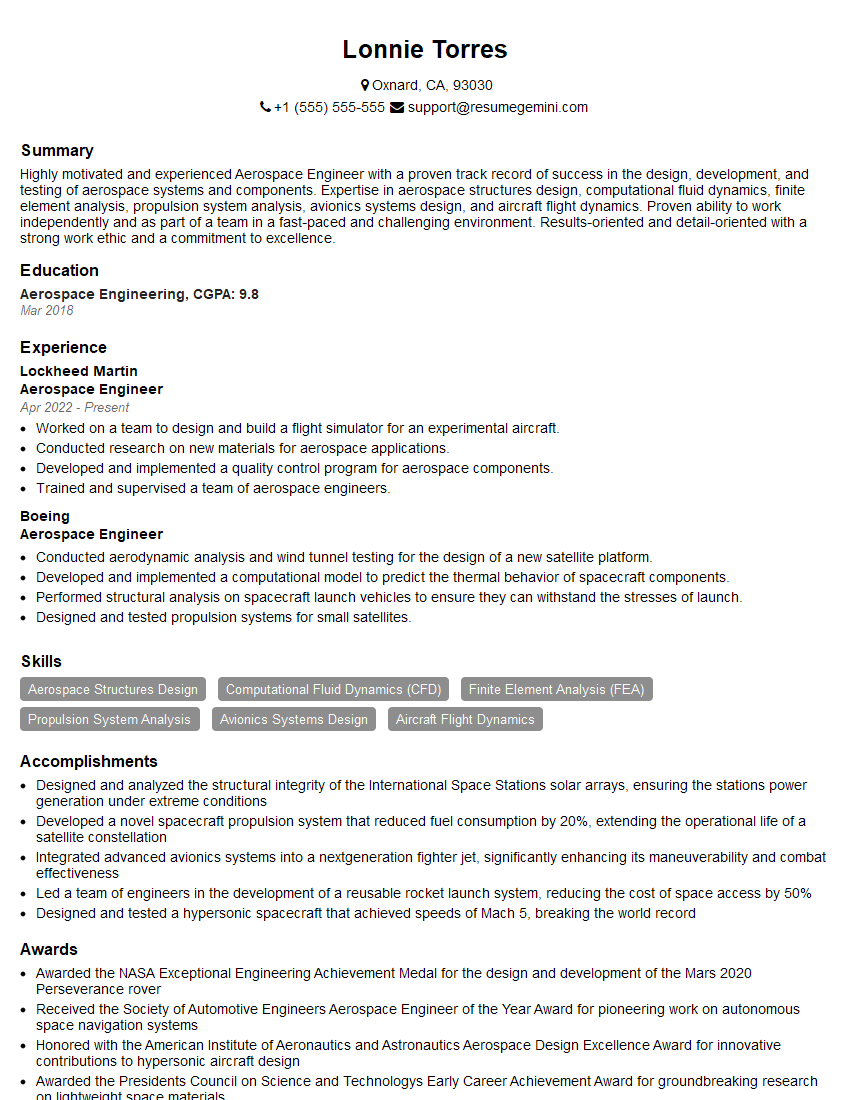
Aerospace Engineer Resume Sample
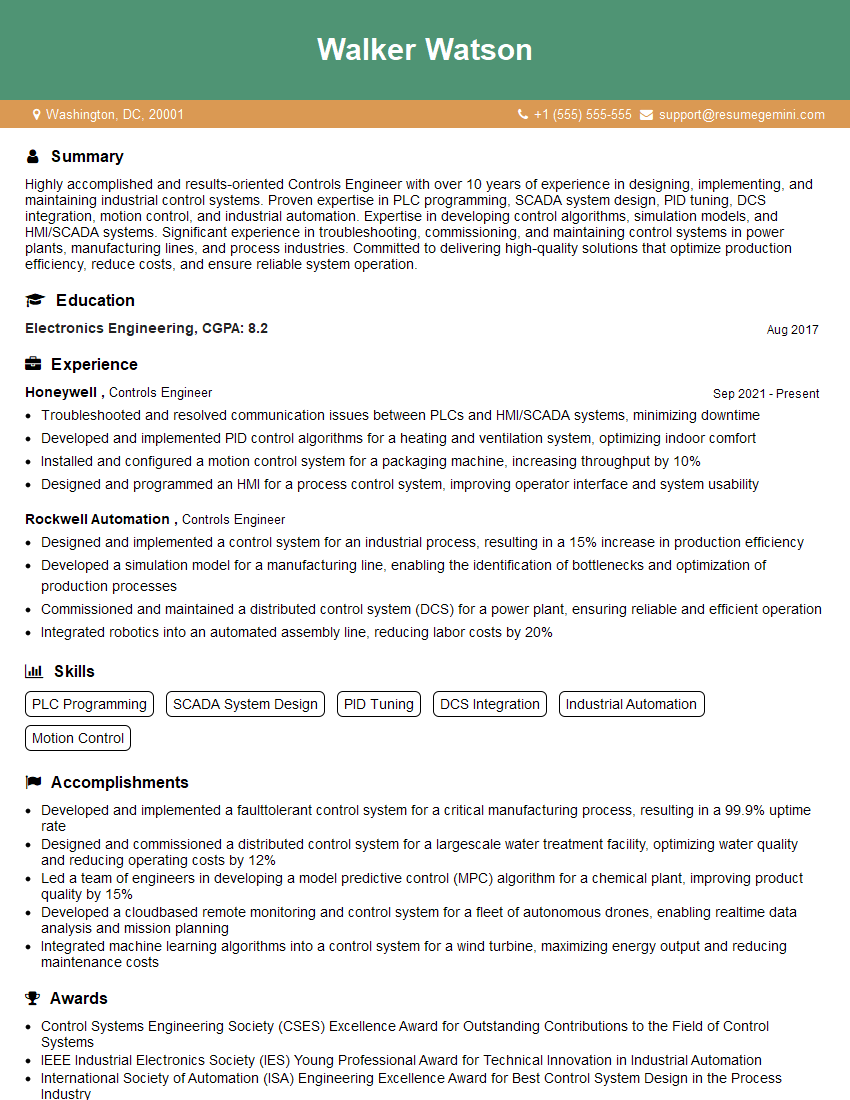
Controls Engineer Resume Sample
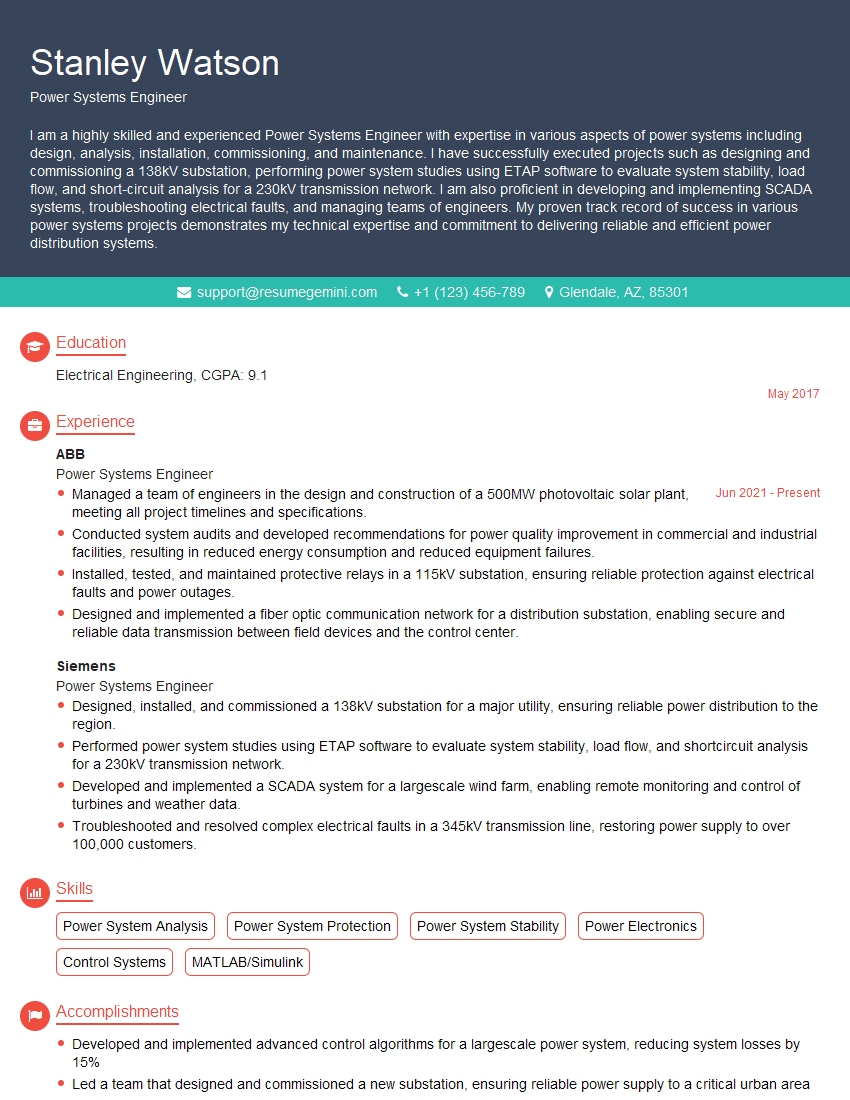
Power Systems Engineer Resume Sample
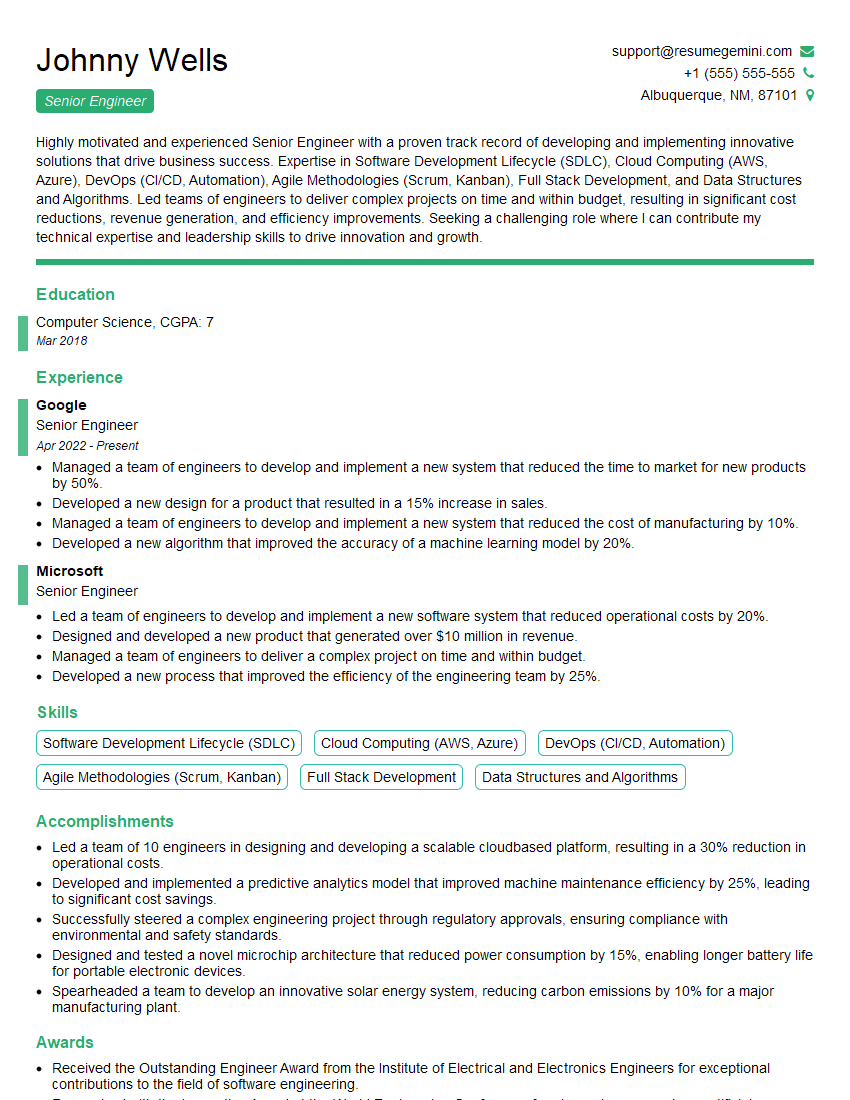
Senior Engineer Resume Sample
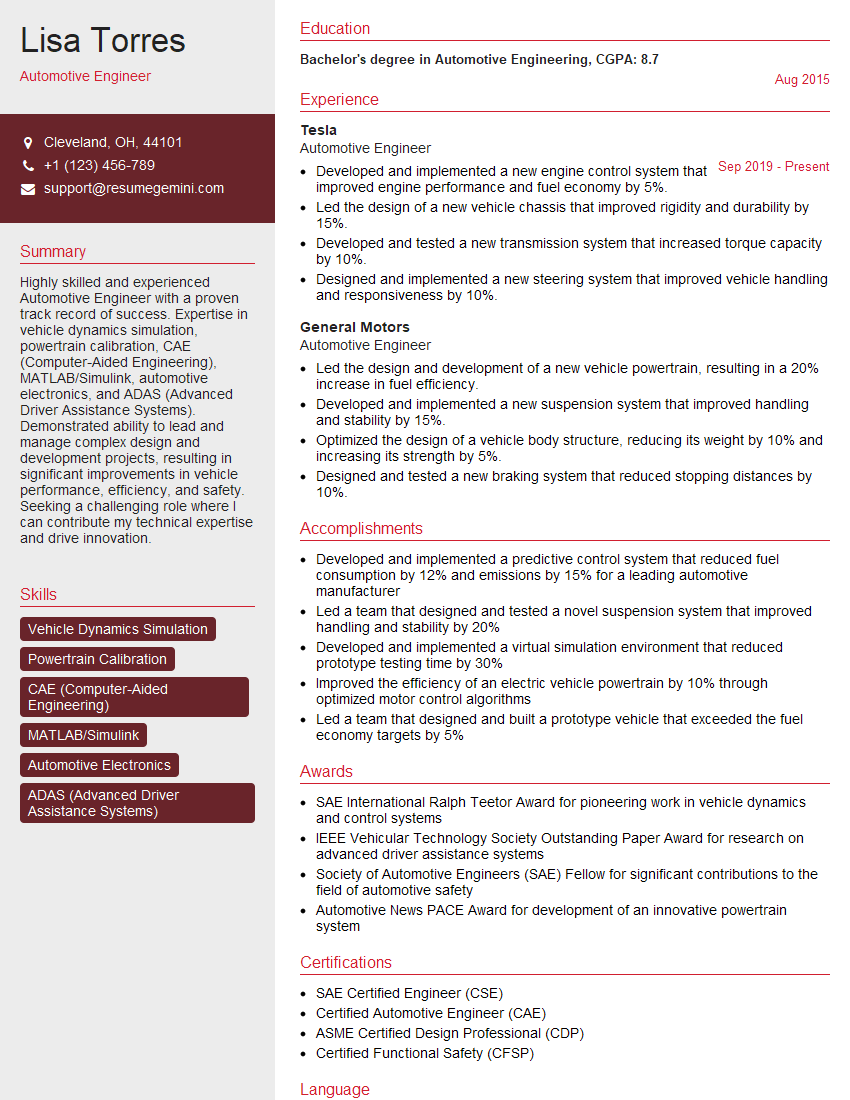
Automotive Engineer Resume Sample
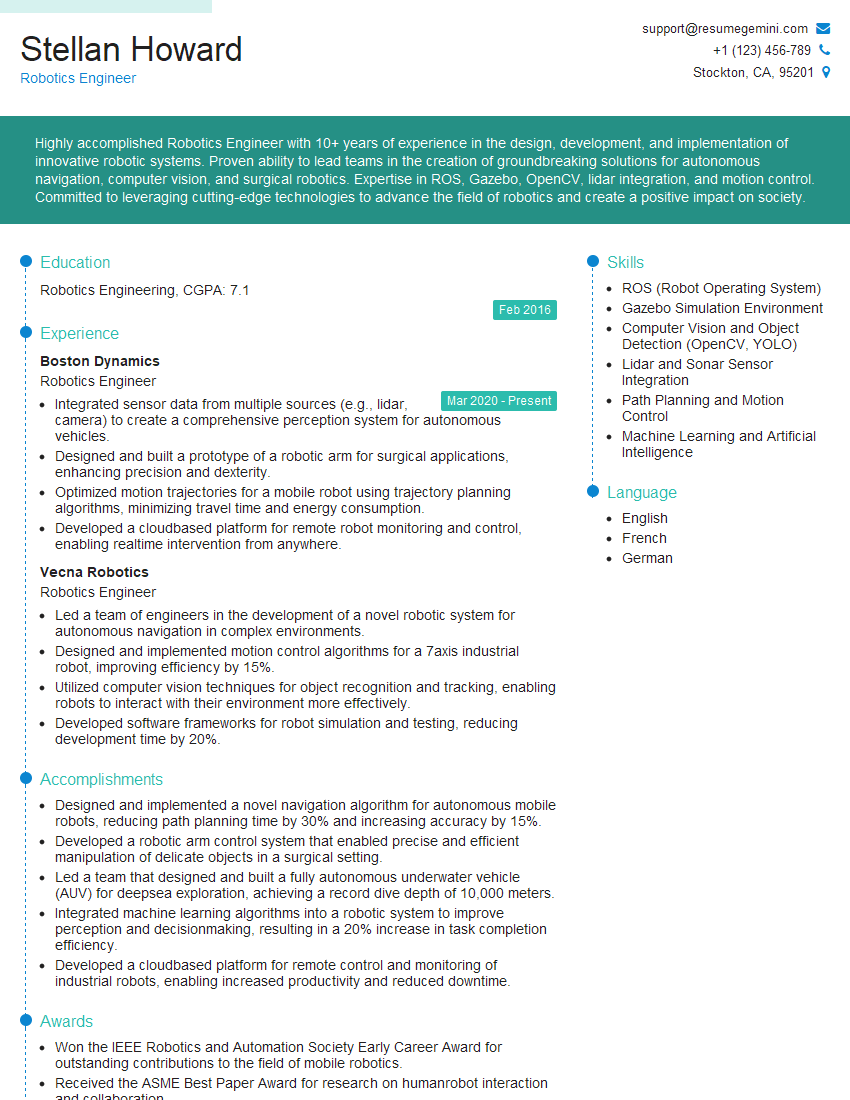
Robotics Engineer Resume Sample
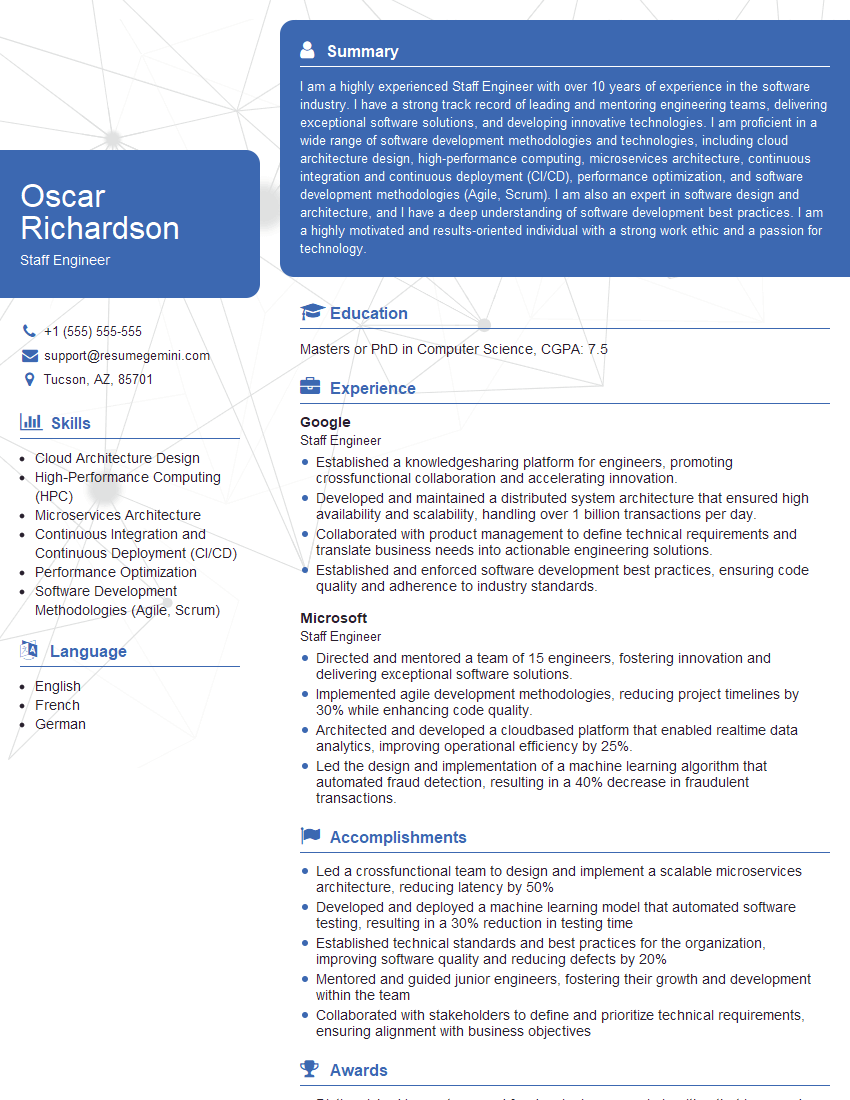
Staff Engineer Resume Sample
Explore more articles
Users Rating of Our Blogs
Share Your Experience
We value your feedback! Please rate our content and share your thoughts (optional).
What Readers Say About Our Blog
Really detailed insights and content, thank you for writing this detailed article.
IT gave me an insight and words to use and be able to think of examples