Interviews are opportunities to demonstrate your expertise, and this guide is here to help you shine. Explore the essential Proficient in office productivity software interview questions that employers frequently ask, paired with strategies for crafting responses that set you apart from the competition.
Questions Asked in Proficient in office productivity software Interview
Q 1. Explain your experience with Microsoft Word’s mail merge feature.
Mail merge in Microsoft Word is a powerful tool for creating personalized documents from a single template. Imagine you need to send personalized thank-you notes to hundreds of clients. Instead of typing each note individually, you can use mail merge. You create a main document (your template) with placeholders for personalized information, and then link it to a data source (like an Excel spreadsheet) containing client names, addresses, and other details. Word then automatically populates those placeholders for each client, generating unique documents.
My experience includes using mail merge for everything from creating personalized marketing materials and customized certificates to generating individualized invoices. I’m comfortable with handling both simple and complex merge operations, including using different data sources and customizing the formatting of merged documents. For example, I once used mail merge to create personalized invitations for a large-scale event, significantly saving time and effort compared to manual creation. I’m proficient in troubleshooting potential issues like data mismatches or formatting inconsistencies.
Q 2. Describe your proficiency in creating and managing spreadsheets using Microsoft Excel.
My proficiency in Excel extends beyond basic data entry. I’m highly skilled in creating complex spreadsheets, including designing effective layouts, implementing data validation rules, and utilizing advanced functionalities. I frequently use features like conditional formatting to highlight important data points, making the information easily digestible. I am adept at managing large datasets, ensuring accuracy through proper formula implementation and data cleaning techniques. For example, I recently designed a spreadsheet to track project timelines and resource allocation for a large-scale project, which allowed for accurate forecasting and efficient resource management.
Beyond basic functions, I’m experienced with utilizing advanced features like creating charts and graphs to visualize data and communicate trends effectively, and using named ranges for increased clarity and easier formula creation. I regularly employ tools for data sorting, filtering, and data analysis to facilitate efficient report generation.
Q 3. How would you use Excel’s pivot tables to analyze large datasets?
Pivot tables are Excel’s secret weapon for analyzing large datasets. Think of them as interactive summaries that allow you to quickly drill down into your data and discover patterns. Instead of manually sifting through thousands of rows, you can use a pivot table to summarize the data by different categories, calculate aggregate values (sums, averages, counts), and create insightful charts and graphs.
For example, let’s say you have sales data for an entire year, spread across multiple regions and product categories. With a pivot table, you could quickly see total sales by region, average sales per product, or sales trends over time. You can easily drag and drop fields to change the view and analyze the data from different perspectives. I’m skilled in creating complex pivot tables, using calculated fields and items, and integrating them with charts for clear data visualization and presentation. This allows for efficient identification of key trends, outliers, and insights that might otherwise be missed.
Q 4. What are your preferred methods for organizing and managing emails in Outlook or Gmail?
My approach to email management focuses on efficiency and organization, regardless of the platform (Outlook or Gmail). I utilize a combination of strategies, including:
- Rule-based filtering: I set up rules to automatically sort emails into specific folders based on sender, subject, or keywords. This prevents my inbox from becoming overloaded and helps me prioritize important messages.
- Categorization and labeling: I use categories or labels to tag emails for easy searching and filtering later. This allows me to quickly locate specific emails without having to manually scan through my inbox.
- Regular archiving: I regularly archive older emails to keep my inbox clutter-free. I use a robust filing system to ensure I can easily retrieve archived emails when needed.
- Utilizing the search function: I leverage the powerful search capabilities of both Outlook and Gmail to quickly locate specific emails based on keywords, senders, dates, or attachments.
This system ensures I maintain a clean and organized inbox, allowing me to focus on responding to urgent emails and prioritizing tasks effectively.
Q 5. How familiar are you with using formulas and functions in Excel?
I’m very familiar with Excel formulas and functions, using them extensively to automate tasks, perform calculations, and analyze data. My skillset encompasses a wide range of functions, from basic arithmetic operations (=SUM(), =AVERAGE()) to more advanced functions like VLOOKUP(), INDEX(), MATCH() for data retrieval, and IF(), COUNTIF(), SUMIF() for conditional logic. I am also comfortable using array formulas for complex calculations and data manipulation.
For instance, I recently used VLOOKUP to automatically populate invoice details from a separate database, saving considerable time and reducing the risk of manual errors. I also frequently utilize SUMIFS to calculate aggregate values based on multiple criteria. My understanding extends to creating and using custom functions using VBA (Visual Basic for Applications) for more complex and repetitive operations.
Q 6. Describe your experience with PowerPoint presentations, including designing slides and animations.
PowerPoint is a crucial tool for me, and I’m experienced in crafting compelling and engaging presentations. My skills go beyond simply adding text and images; I focus on designing visually appealing and informative slides that communicate complex information clearly and concisely. This includes thoughtful use of color palettes, fonts, and visual aids to maintain consistency and enhance readability.
I’m proficient in utilizing animations and transitions strategically to emphasize key points and keep the audience engaged, avoiding overuse which can be distracting. I also incorporate interactive elements where appropriate, depending on the presentation’s context and audience. For example, I’ve created interactive presentations incorporating hyperlinks to relevant documents or websites for deeper dives into specific topics. I’m equally comfortable using templates to create visually consistent presentations and designing presentations from scratch.
Q 7. How would you troubleshoot a slow-performing spreadsheet?
A slow-performing spreadsheet can be incredibly frustrating. Troubleshooting involves a systematic approach:
- Identify the bottleneck: Is it a specific calculation, a large dataset, or numerous charts? Start by observing which actions cause the slowdown.
- Reduce data volume: If the spreadsheet contains unnecessary data, remove it. Consider using external data sources or linking to smaller subsets instead of embedding large tables directly.
- Optimize formulas: Avoid volatile functions (functions that recalculate with every change) unless absolutely necessary. Use more efficient formulas when possible. For instance, using
SUMPRODUCTinstead of multiple nestedIFstatements can significantly improve performance. - Check for circular references: Circular references (where a formula refers back to itself directly or indirectly) can cause infinite calculation loops, leading to extremely slow performance. Excel will often alert you to these, but it’s good practice to check for them yourself.
- Turn off automatic calculation: Manually recalculate the spreadsheet only when needed (Formulas > Calculation Options > Manual). This can speed up data entry significantly if your spreadsheet recalculates frequently.
- Consider data consolidation: If feasible, consolidate data from multiple sheets into one or use Power Query to import and transform data more efficiently.
By systematically addressing these points, you can usually significantly improve a spreadsheet’s performance. In persistent cases, upgrading the computer’s RAM or hardware can also prove beneficial.
Q 8. How do you ensure data accuracy and integrity when working with spreadsheets?
Data accuracy and integrity in spreadsheets are paramount. Think of it like building a house – a shaky foundation leads to a crumbling structure. To ensure accuracy, I employ several strategies. First, data validation is crucial. This involves setting rules to restrict data entry, preventing incorrect information from entering the spreadsheet. For example, I might use a dropdown list for states, limiting input to valid options, or data type validation to only accept numbers in a specific column. Second, I meticulously check formulas for errors. A simple misplaced parenthesis can lead to cascading inaccuracies. I frequently use the formula auditing tools to trace precedents and dependents, pinpointing the source of any problems. Third, regular data cleansing is essential. This might involve removing duplicates, handling missing values (through imputation or deletion), and correcting inconsistencies. Imagine cleaning up a messy database before running analysis – the results are significantly better. Finally, I always document my work thoroughly, including a detailed description of the data sources, formulas used, and any assumptions made. This allows for easy verification and collaboration.
Q 9. Explain your experience with collaborative editing tools in Google Docs or Microsoft Word.
I have extensive experience with collaborative editing tools, primarily Google Docs and Microsoft Word. In Google Docs, I’ve collaborated on large projects, leveraging features like real-time co-authoring and commenting to efficiently work with team members. The ability to see others’ edits instantly minimizes confusion and speeds up the revision process. Think of it like a shared whiteboard where everyone can contribute simultaneously. Microsoft Word’s track changes feature offers a slightly different approach, allowing for more controlled collaboration, where edits are tracked and reviewed before final acceptance. This is beneficial when careful review and approval are required. In both platforms, I’m proficient at resolving merge conflicts and ensuring version control. I’ve worked on documents with multiple authors, using these features to seamlessly manage updates and contributions, resulting in polished, error-free final documents.
Q 10. How would you handle conflicting changes in a shared document?
Conflicting changes in a shared document are inevitable when working collaboratively. My approach involves a combination of technical solutions and communication strategies. In Google Docs, the platform itself often highlights conflicts and allows users to choose which change to keep or to merge them manually. In Microsoft Word, the track changes feature allows us to visually review conflicting edits and make informed decisions. Beyond the technical aspects, clear communication is key. I initiate discussions with the involved parties to resolve discrepancies. We might compare different versions, consider each change’s rationale, and collectively decide on the best option. It’s important to document the resolution to avoid similar conflicts in the future. The key is to approach conflicts not as problems, but as opportunities to improve the document and refine our collaboration process.
Q 11. Describe your experience with data visualization techniques in Excel or Google Sheets.
Data visualization is a powerful tool for communicating insights. In Excel and Google Sheets, I leverage various techniques, including charts (bar, line, pie, scatter), pivot tables, and dashboards. For instance, a bar chart effectively compares sales figures across different regions. A line chart is great for visualizing trends over time, like website traffic. Pivot tables allow me to summarize large datasets and explore data from different perspectives. Dashboards combine various charts and tables to create a comprehensive overview of key performance indicators (KPIs), providing a quick understanding of the data at a glance. I always consider my audience when choosing a visualization technique. If I’m presenting to executives, I’ll focus on creating clean, concise dashboards that highlight key metrics. If I’m presenting to a technical audience, I might use more detailed charts with granular data points. The goal is always to communicate information clearly and effectively.
Q 12. How familiar are you with using macros or VBA in Microsoft Office applications?
I have a solid understanding of macros and VBA (Visual Basic for Applications) within the Microsoft Office suite. I’ve used VBA to automate repetitive tasks, such as data entry, report generation, and data cleaning. For example, I wrote a macro to automatically format spreadsheets based on predefined templates, saving significant time and ensuring consistency. I’ve also created custom functions in VBA to perform specific calculations or data manipulations not readily available in Excel’s built-in functions. Imagine having a macro automatically pull data from a database and populate an entire report – it streamlines workflows enormously. My VBA skills enhance my efficiency and allow me to tailor the software to specific needs, maximizing productivity. I can debug and optimize VBA code for better performance, ensuring smooth operation and reliability.
Q 13. How do you prioritize tasks when managing multiple projects in a fast-paced environment?
In a fast-paced environment, effective task prioritization is essential. I typically use a combination of methods. First, I prioritize tasks based on urgency and importance using a matrix (Eisenhower Matrix or Urgent/Important Matrix). Urgent and important tasks get immediate attention. Important but not urgent tasks are scheduled. Second, I break down large projects into smaller, manageable tasks. This makes the overall goal less daunting and allows for better tracking of progress. Third, I utilize project management tools, like Trello or Asana, to visualize tasks, deadlines, and dependencies. This provides a clear overview of all active projects and helps me stay organized. Finally, I regularly review and adjust my priorities as needed. The business environment is constantly changing, so flexibility is crucial. Regularly reassessing tasks keeps me on track with changing demands and allows me to proactively adapt to evolving priorities. It’s a dynamic, iterative process.
Q 14. What are some best practices for creating professional-looking documents?
Creating professional-looking documents involves attention to detail and a consistent approach. First, choose an appropriate template or design that aligns with the document’s purpose and brand guidelines. Consistency in font, font size, spacing, and headings is crucial. Think of it like a well-designed website – consistency makes it easy to read and understand. Use high-quality images and graphics, but avoid overcrowding the page. White space is your friend. Second, ensure the document is free of grammatical errors and typos. Proofreading meticulously is essential. Third, use clear and concise language. Avoid jargon unless your audience understands it. Fourth, incorporate visual aids (charts, graphs) where appropriate to enhance readability and comprehension. Finally, always check the document’s formatting before sharing. Ensure margins, page numbers, headers, and footers are all correct and professional. These small details create a big impact on the overall impression.
Q 15. How do you handle large volumes of data efficiently?
Handling large volumes of data efficiently involves a multi-pronged approach focusing on organization, leveraging software capabilities, and employing best practices. Imagine trying to find a specific ingredient in a huge, unorganized kitchen – chaos! Efficient data management prevents this.
- Data Filtering and Sorting: Software like Excel allows powerful filtering and sorting capabilities. For example, if I have a spreadsheet with thousands of customer records, I can quickly filter by location, purchase history, or any other relevant criteria to isolate the data I need. This avoids manually searching through endless rows.
- Pivot Tables and Charts: These tools summarize large datasets and present key insights visually. Instead of sifting through raw numbers, I can create a pivot table to analyze sales trends over time or compare performance across different regions.
- Data Validation: Implementing data validation rules prevents errors and inconsistencies. For example, I can set up a rule in Excel to only accept numerical values in a specific column, preventing text entries that could crash formulas or misrepresent data.
- Database Management Systems (if applicable): For extremely large datasets, using a database management system (DBMS) like SQL Server or MySQL is crucial. A DBMS offers structured storage, efficient querying, and data integrity features unavailable in spreadsheets.
- Automation: Macros (VBA in Excel or similar scripting in Google Sheets) automate repetitive tasks. If I need to perform the same data manipulation on multiple files, a macro can drastically reduce the time required.
In a recent project, I used pivot tables and data filtering to analyze sales data for a large retail client, identifying key product categories driving revenue and areas needing improvement. This efficient data analysis enabled faster and more informed decision-making.
Career Expert Tips:
- Ace those interviews! Prepare effectively by reviewing the Top 50 Most Common Interview Questions on ResumeGemini.
- Navigate your job search with confidence! Explore a wide range of Career Tips on ResumeGemini. Learn about common challenges and recommendations to overcome them.
- Craft the perfect resume! Master the Art of Resume Writing with ResumeGemini’s guide. Showcase your unique qualifications and achievements effectively.
- Don’t miss out on holiday savings! Build your dream resume with ResumeGemini’s ATS optimized templates.
Q 16. Describe your experience with using templates in Microsoft Word or Google Docs.
Templates are my best friends! They dramatically accelerate document creation by providing pre-formatted structures and styles. Think of it like having a perfectly set table ready for a feast – you just need to add your ingredients.
- Word Templates: I frequently use Word templates for creating consistent reports, letters, and presentations. I’ve created custom templates with company logos, specific formatting, and standard sections to maintain a professional brand image across all documents.
- Google Docs Templates: Google Docs templates offer excellent collaboration features. When working on a project with a team, we often use a shared template to ensure consistency and streamline the editing process. Real-time collaboration combined with version history means everyone is always working with the most updated document.
- Template Customization: I’m adept at customizing templates to fit specific needs. Whether it’s adjusting fonts, adding sections, or modifying styles, I can quickly tailor a generic template to meet the requirements of a particular project.
For example, I developed a standardized report template for monthly performance reviews that automatically calculates key metrics and includes predefined sections for comments and goals. This saved countless hours of formatting and ensured consistency across all employee reviews.
Q 17. How do you ensure data security and confidentiality when working with sensitive information?
Data security and confidentiality are paramount. I treat sensitive information with the utmost care, following strict protocols to protect it from unauthorized access and breaches.
- Password Protection: I always password-protect documents containing sensitive data, using strong and unique passwords.
- Access Control: If working in a collaborative environment (like Google Docs or SharePoint), I carefully manage user permissions, granting only necessary access levels to prevent unauthorized modifications or views.
- Encryption: For highly sensitive information, I utilize encryption tools to further safeguard data both in transit and at rest.
- Data Minimization: I only collect and retain the minimum necessary data to complete a task, minimizing the risk of a breach impacting sensitive information.
- Regular Backups: I regularly back up important files to secure cloud storage or external hard drives, protecting against data loss from accidental deletion or hardware failure.
- Compliance with Regulations: I am aware of relevant data privacy regulations (e.g., GDPR, HIPAA) and ensure all actions comply with these guidelines.
In one instance, I handled client financial data requiring strict adherence to HIPAA guidelines. I implemented all security measures mentioned above, ensuring the privacy of the Protected Health Information (PHI) and maintained a detailed audit trail of all actions taken.
Q 18. What are some common keyboard shortcuts you frequently use in Microsoft Office applications?
Keyboard shortcuts are essential for boosting productivity. They allow me to perform actions much faster than using a mouse. I use a variety of shortcuts across Microsoft Office applications, including:
Ctrl + C(Copy),Ctrl + X(Cut),Ctrl + V(Paste): Fundamental for text and data manipulation.Ctrl + Z(Undo),Ctrl + Y(Redo): Lifesavers for correcting mistakes.Ctrl + S(Save): A habit I religiously follow to prevent data loss.Ctrl + F(Find): Quickly locates specific text within a document.Ctrl + A(Select All): Selects all content in a document or spreadsheet.Alt + Tab(Switch between applications): Essential for multitasking.Ctrl + P(Print): Initiates the printing process.Ctrl + Shift + Arrows(Select Text): Selects text quickly by blocks.
These are just a few examples. My proficiency in keyboard shortcuts is a major contributor to my efficiency. I constantly strive to learn new ones to further streamline my workflow.
Q 19. How familiar are you with different file formats (.docx, .xlsx, .pptx, .pdf)?
I am very familiar with the common Microsoft Office and Google Workspace file formats:
- .docx (Microsoft Word): The standard file format for Word documents, allowing for rich text formatting, images, and tables.
- .xlsx (Microsoft Excel): The standard file format for Excel spreadsheets, designed for storing and manipulating numerical and textual data.
- .pptx (Microsoft PowerPoint): The standard format for PowerPoint presentations, enabling the creation of visually appealing slideshows.
- .pdf (Portable Document Format): A universal format for document sharing, ensuring consistent formatting and preventing unauthorized modifications. While I can’t directly edit a PDF within Word or other office suites, I can convert to and from this format easily.
Understanding the nuances of these formats allows me to choose the appropriate format for each task, ensuring compatibility and maintaining data integrity. For example, I’ll often use .pdf for final reports to ensure the recipient receives the document exactly as intended.
Q 20. How do you troubleshoot printing issues?
Troubleshooting printing issues involves a systematic approach. I start with the most common causes and progressively investigate more complex problems.
- Check Printer Connection: Ensure the printer is correctly connected to the computer via USB, network, or wireless. Check for any error messages on the printer itself.
- Check Printer Status: Verify the printer is powered on, online, and has sufficient ink or toner.
- Check Print Queue: Look at the print queue in your operating system to see if the job is stuck or requires intervention.
- Check Drivers: Outdated or corrupted printer drivers can cause issues. Update or reinstall the drivers from the manufacturer’s website.
- Check Paper Tray: Ensure the paper tray is properly loaded with the correct type and size of paper.
- Restart the Printer and Computer: A simple reboot often resolves temporary glitches.
- Test Print: Try printing a test page to see if the hardware is functioning correctly.
- Check Network Connectivity (if applicable): If printing over a network, ensure the network connection is stable and the printer is accessible.
Recently, I resolved a printing issue where a document wouldn’t print correctly due to a corrupted printer driver. By reinstalling the updated driver, I quickly solved the problem, ensuring the client could get their necessary documentation printed promptly.
Q 21. Describe your experience with using Google Calendar for scheduling and task management.
Google Calendar is a powerful tool for scheduling and task management. Its integration with other Google Workspace apps enhances collaboration and organization.
- Scheduling: I use Google Calendar for scheduling meetings, appointments, and deadlines. The ability to share calendars with colleagues ensures everyone is aware of each other’s schedules, minimizing scheduling conflicts.
- Task Management: While not solely a task manager, Google Calendar excels at scheduling tasks with deadlines. I create calendar events for tasks, setting reminders to keep myself on track.
- Reminders and Notifications: The reminder feature is invaluable for ensuring I don’t miss important appointments or deadlines. I can customize reminders for specific times before an event.
- Integration with other Google Apps: The seamless integration with Gmail, Google Docs, and other Google Workspace apps streamlines workflows. For example, I can directly add meetings scheduled in Calendar to my Google Meet agenda.
- Color-Coding and Categorization: I use color-coding to categorize events, making it easy to visualize my schedule and prioritize tasks.
I utilized Google Calendar extensively for a large team project. We shared calendars to coordinate meetings, deadlines, and task assignments, ensuring efficient collaboration and timely completion of the project. Its features helped maintain a clear overview of our progress.
Q 22. Explain your experience with Google Drive and its collaborative features.
Google Drive is my go-to cloud storage and collaboration platform. I’ve extensively used its collaborative features for projects ranging from team presentations to complex data analysis. Think of it as a shared workspace where multiple people can work simultaneously on the same document, spreadsheet, or presentation.
For example, during a recent marketing campaign, our team used Google Docs to collaboratively write marketing copy. We used the real-time editing feature, allowing several writers to contribute simultaneously. We could see each other’s cursors, and the document automatically saved every change. This eliminated version control issues and significantly sped up the process. Google Sheets, too, offers similar collaborative functionalities, enabling simultaneous data entry and formula adjustments, ideal for budgeting or data analysis projects. Google Slides’ collaborative features are also fantastic for presentations, allowing simultaneous design and feedback.
- Real-time collaboration: Multiple users can edit simultaneously.
- Version history: Track all changes and revert to previous versions.
- Comment features: Provides a space for feedback and discussion within the document.
- Notification system: Keeps you updated on edits and comments.
Q 23. How familiar are you with using Google Forms for data collection?
I’m highly proficient in using Google Forms for data collection. It’s a remarkably versatile tool for creating surveys, quizzes, and collecting feedback efficiently. The best part is its ease of use and the seamless integration with other Google Workspace applications, like Sheets, for data analysis.
For instance, I recently used Google Forms to gather customer feedback on a new product launch. I created a form with multiple question types, including multiple-choice, short answer, and rating scales. Once the responses were collected, I automatically exported the data into a Google Sheet, ready for analysis. This streamlined process saved significant time compared to manual data entry.
- Diverse question types: Multiple choice, checkboxes, short answer, linear scales, and more.
- Customizable themes and branding: Professional look and feel.
- Automatic data export to Google Sheets: Enables straightforward data analysis.
- Response validation: Enforces data integrity.
Q 24. How do you create and manage shared folders and drives?
Creating and managing shared folders and drives in Google Drive is a core part of my workflow. It’s crucial for organizing files and ensuring efficient collaboration. Think of shared drives as a central repository for team projects; whereas shared folders act as subdivisions within a drive or even a personal drive.
To create a shared drive, I typically start by navigating to the ‘New’ button and selecting ‘Google Drive’. I then choose the users or groups I want to share the drive with, specifying their permission levels (viewer, commenter, or editor). Similarly, I share folders by right-clicking the folder, selecting ‘Share’, and adding the desired individuals or groups with appropriate permissions. I always ensure appropriate permission settings are applied based on the sensitivity and access requirements of the data. Regular organization and clear naming conventions are key to keeping shared drives and folders manageable.
Q 25. How do you use conditional formatting in Excel or Google Sheets?
Conditional formatting in Excel or Google Sheets is a powerful tool to highlight data based on specific criteria, making it easier to identify trends, outliers, or critical information at a glance. It’s like adding visual cues to your data, instantly highlighting what matters most.
For instance, if I’m analyzing sales data, I might use conditional formatting to highlight cells with sales figures exceeding a certain target in green, those below the target in red, and those meeting the target exactly in yellow. This instantly visualizes performance against targets without needing to sift through numbers manually. In Google Sheets, this is done by selecting the data range, going to ‘Format’ -> ‘Conditional formatting’, and defining the rules. Excel has a similar process, offering a wider array of formatting options, including data bars, color scales, and icon sets. =A1>100 is a sample rule that will highlight cells where the value in column A is greater than 100.
Q 26. Describe your experience with data validation techniques in Excel or Google Sheets.
Data validation is crucial for ensuring data accuracy and consistency in spreadsheets. It’s essentially setting rules that control what kind of data can be entered into specific cells, preventing errors and improving data quality. It acts as a gatekeeper, only accepting data that meets predefined criteria.
For example, in a spreadsheet tracking customer information, I might use data validation to ensure that the ‘age’ column only accepts numerical values within a reasonable range, preventing non-numeric entries. Similarly, I might restrict the ‘country’ column to a dropdown list of valid countries. In both Excel and Google Sheets, this is accomplished through the ‘Data Validation’ feature. It allows setting criteria for acceptable data types, ranges, lists, and more. This prevents inaccurate or inconsistent data from entering the spreadsheet, leading to more reliable analysis and reporting.
Q 27. How do you protect your workbooks or documents from unauthorized access?
Protecting workbooks or documents from unauthorized access is paramount to maintain data confidentiality and integrity. This involves using a combination of strategies, depending on the sensitivity of the data and the collaboration needs.
For Excel, I frequently use password protection for the entire workbook or specific worksheets. This prevents unauthorized access and modification. I also utilize permission settings within shared folders or cloud storage to control who can access, edit, or view the files. For Google Workspace files, permission controls and sharing settings are critical: deciding who can view, comment, or edit the document ensures only authorized users have access. These measures, combined with strong passwords and regular updates of software, significantly minimize the risk of unauthorized access.
Q 28. What are some tips for improving your efficiency when using office productivity software?
Improving efficiency in office productivity software involves leveraging its built-in features and adopting best practices. Think of it as optimizing your workflow for maximum output with minimal effort.
- Keyboard shortcuts: Mastering keyboard shortcuts drastically reduces mouse usage and speeds up tasks. For example, Ctrl+C (copy), Ctrl+V (paste), Ctrl+Z (undo) are essential.
- Templates and automation: Using pre-designed templates for common tasks saves time and ensures consistency. Leveraging features like macros (in Excel) or scripting (in Google Apps Script) automates repetitive tasks.
- Data organization: Properly structured data makes analysis and reporting significantly easier. Using clear naming conventions and consistently formatting data greatly improve efficiency.
- Regular backups: Protecting work from data loss by backing up frequently to the cloud or external drives is crucial.
- Use of add-ons and extensions: Expanding software capabilities with add-ons can streamline processes and add functionalities.
By focusing on these tips, I’ve drastically improved my productivity and can complete tasks more efficiently, allowing me to focus on higher-value activities.
Key Topics to Learn for Proficient in Office Productivity Software Interview
- Advanced Spreadsheet Skills (e.g., Excel, Google Sheets): Mastering formulas, functions (VLOOKUP, Pivot Tables, etc.), data analysis, and charting for insightful presentations of complex data. Consider exploring advanced features like macros and data validation.
- Efficient Data Management: Demonstrate your ability to organize, clean, and manipulate large datasets effectively. Practice techniques for data sorting, filtering, and creating efficient databases using spreadsheet software.
- Presentation Software Expertise (e.g., PowerPoint, Google Slides): Go beyond basic slide creation. Focus on creating visually appealing and impactful presentations using effective design principles, animations, and transitions. Practice incorporating data visualizations from spreadsheets.
- Word Processing Mastery (e.g., Word, Google Docs): Showcase your proficiency in document formatting, styles, advanced editing features (track changes, comments), and creating professional-looking documents. Practice advanced features like mail merge and creating templates.
- Collaboration and Cloud-Based Tools: Highlight your experience with collaborative features in office suites, such as real-time co-authoring, version control, and cloud storage solutions. Discuss the benefits and practical applications of these features in a professional environment.
- Problem-Solving and Analytical Skills: Prepare to articulate how you’ve used office productivity software to solve real-world problems, analyze data, and draw meaningful conclusions. Use specific examples from your past experiences.
Next Steps
Mastering office productivity software is crucial for success in today’s competitive job market. These skills are highly sought after across various industries, demonstrating your efficiency, organization, and analytical abilities. To significantly boost your job prospects, create a strong, ATS-friendly resume that highlights your proficiency in these areas. ResumeGemini is a trusted resource to help you build a professional and impactful resume that gets noticed by recruiters. Explore their resources and examples of resumes tailored to showcasing proficiency in office productivity software for inspiration and guidance.
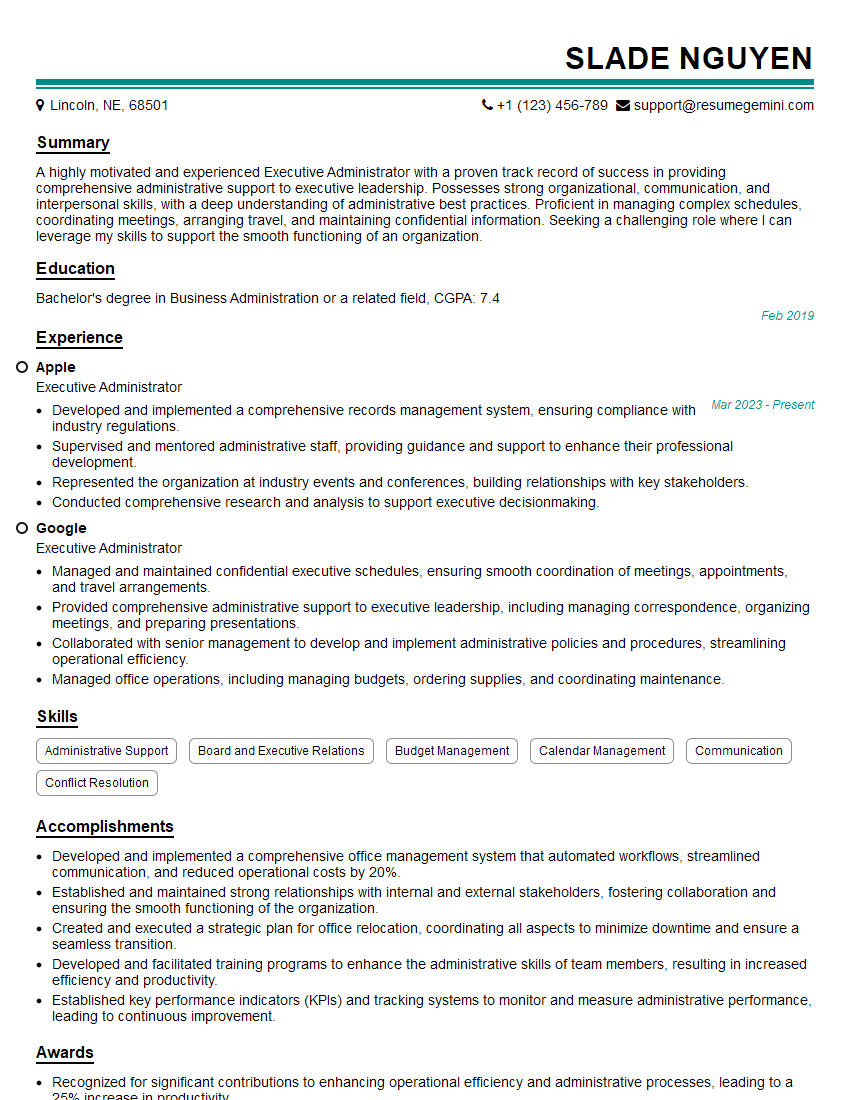
Executive Administrator Resume Sample

Office Manager Resume Sample
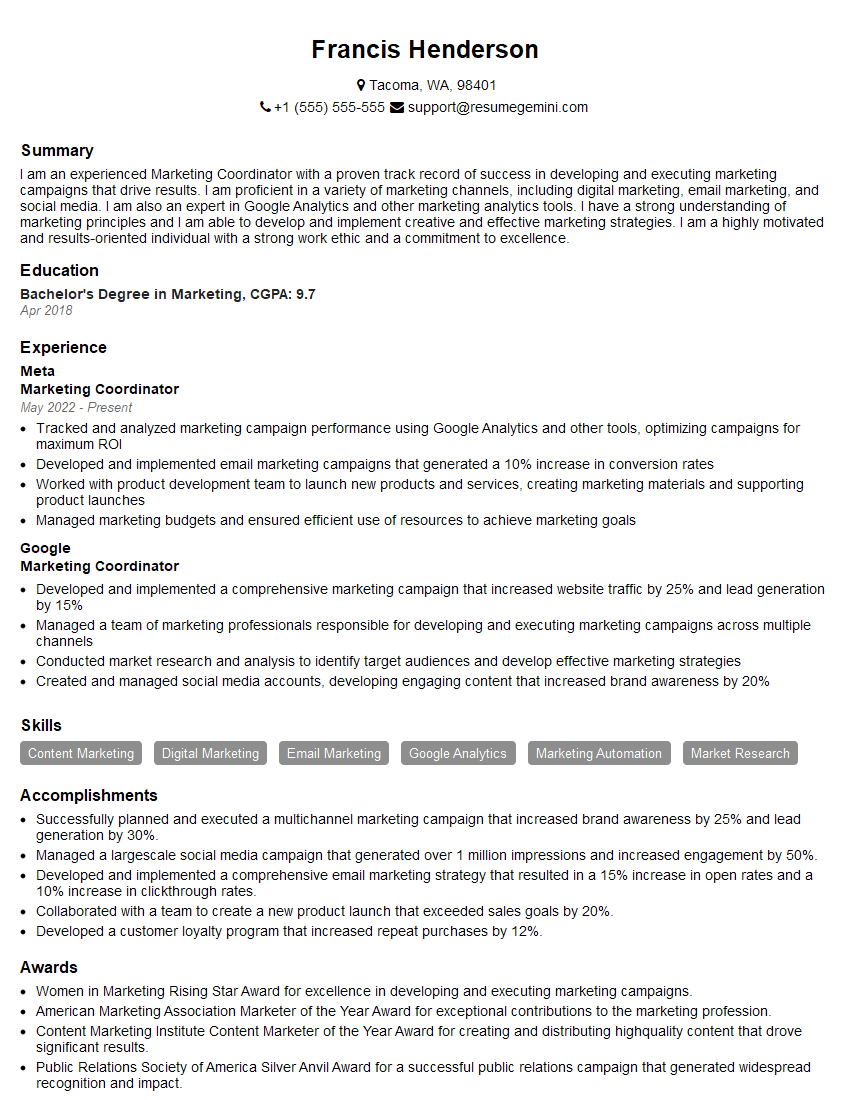
Marketing Coordinator Resume Sample
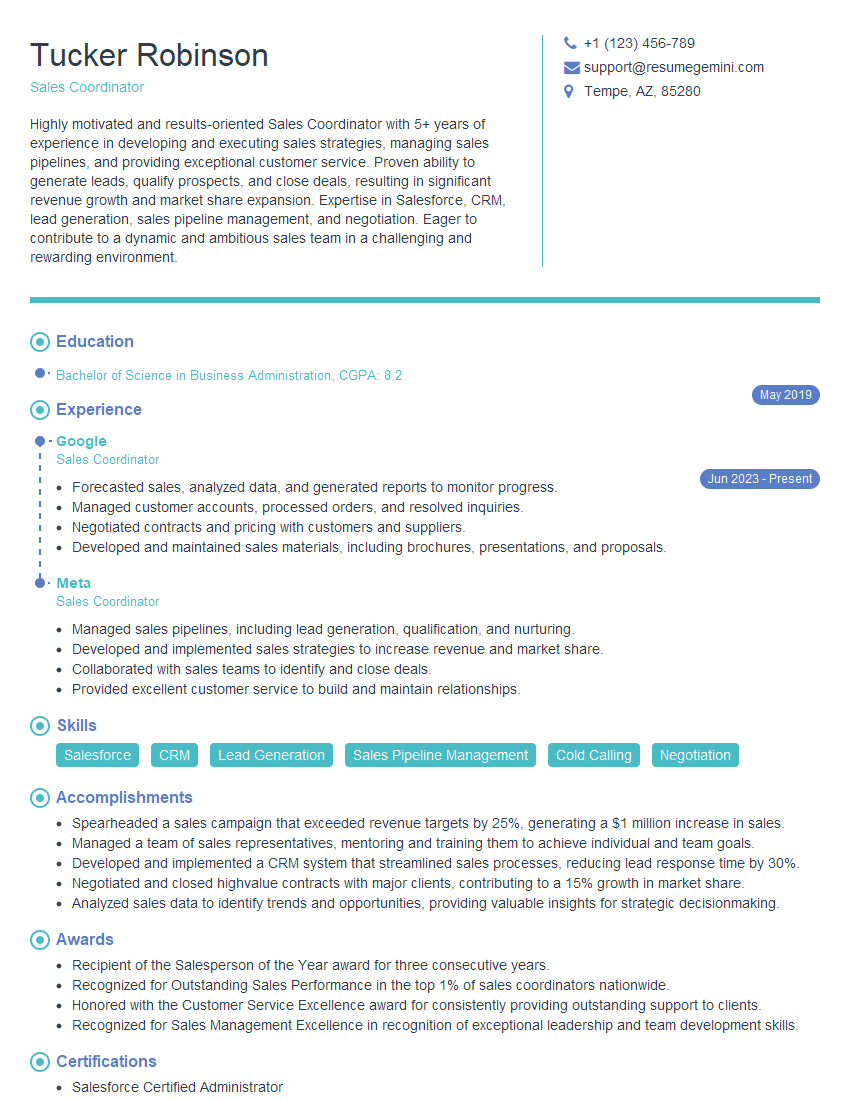
Sales Coordinator Resume Sample

Administrative Assistant Resume Sample
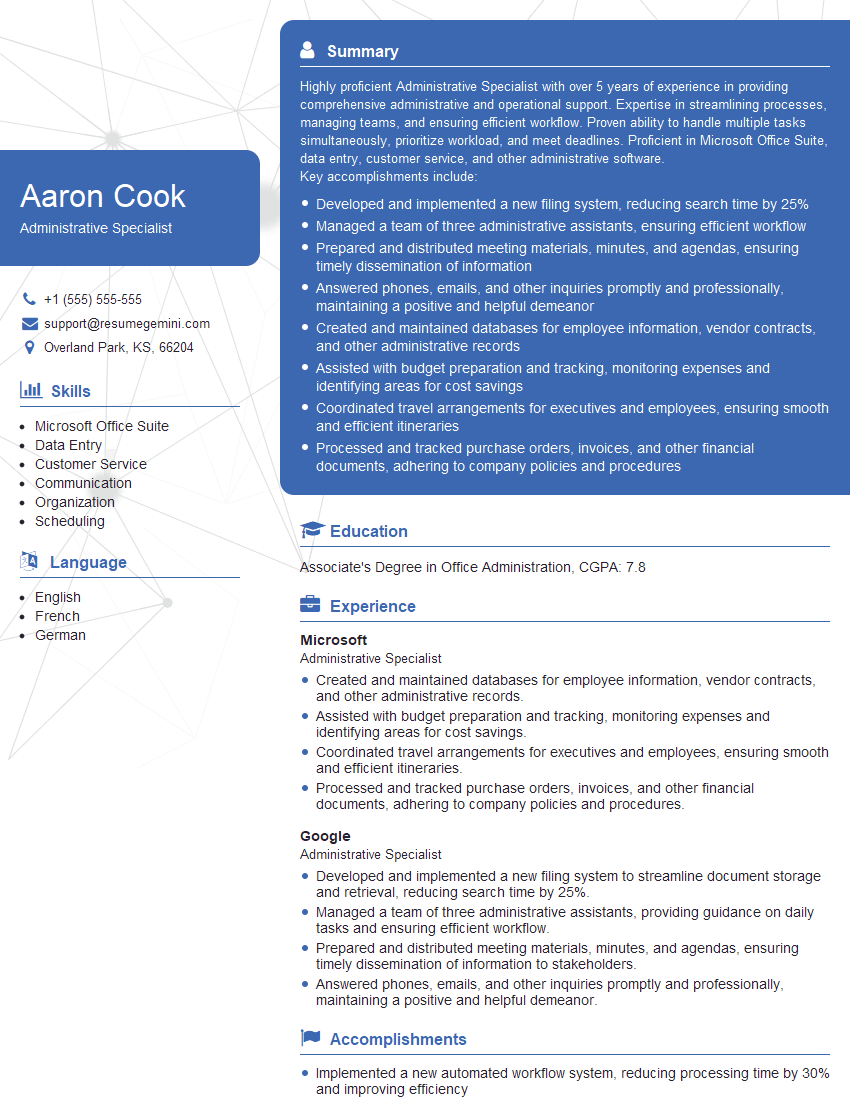
Administrative Specialist Resume Sample
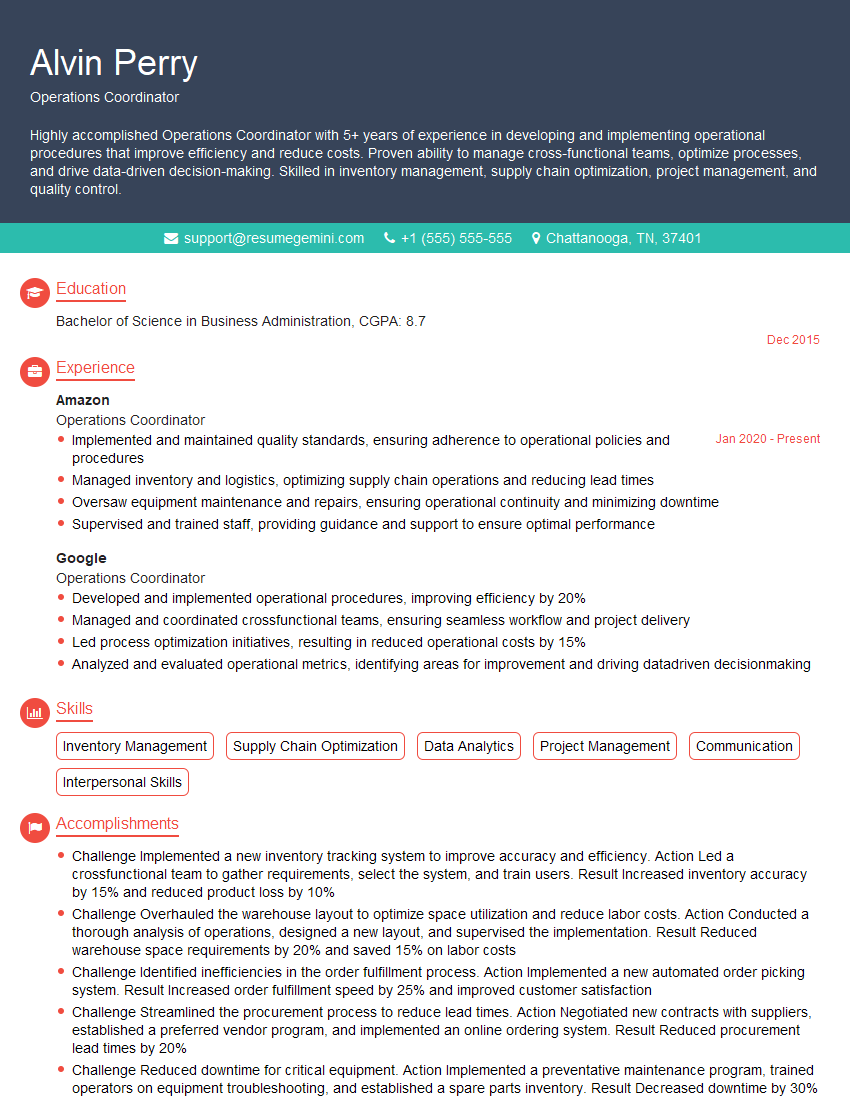
Operations Coordinator Resume Sample
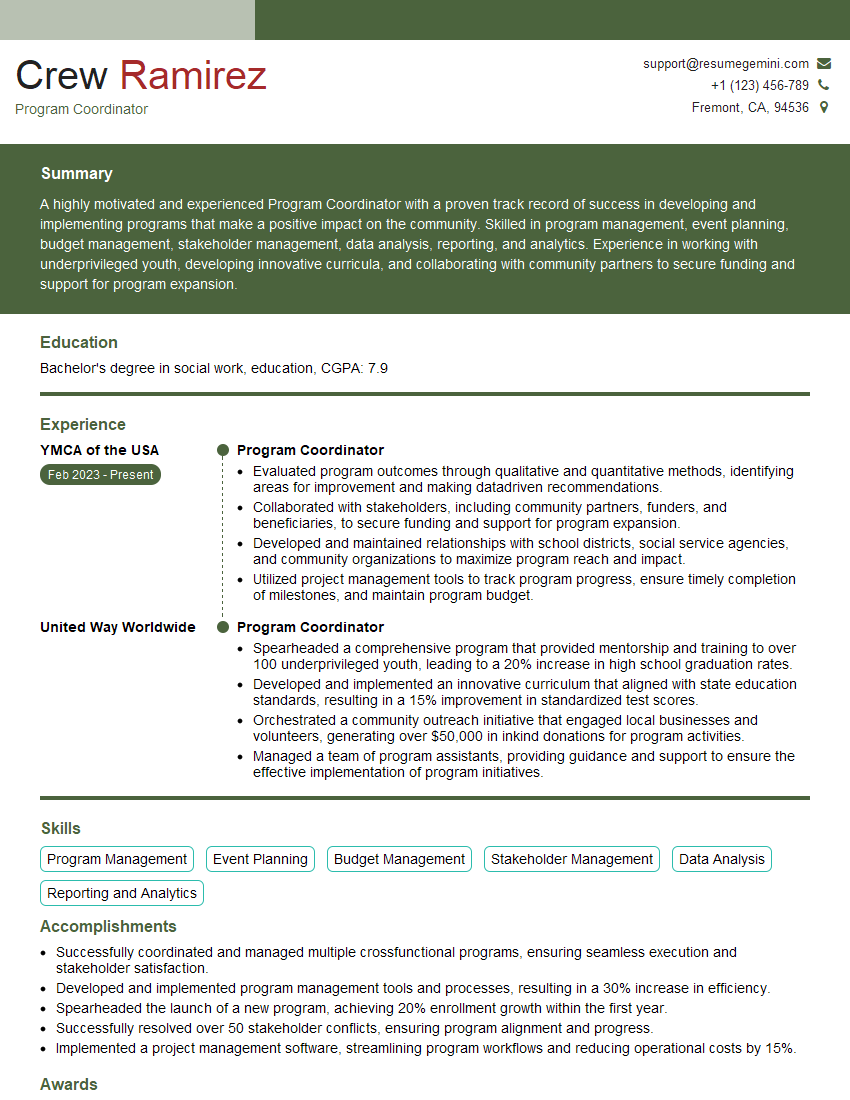
Program Coordinator Resume Sample
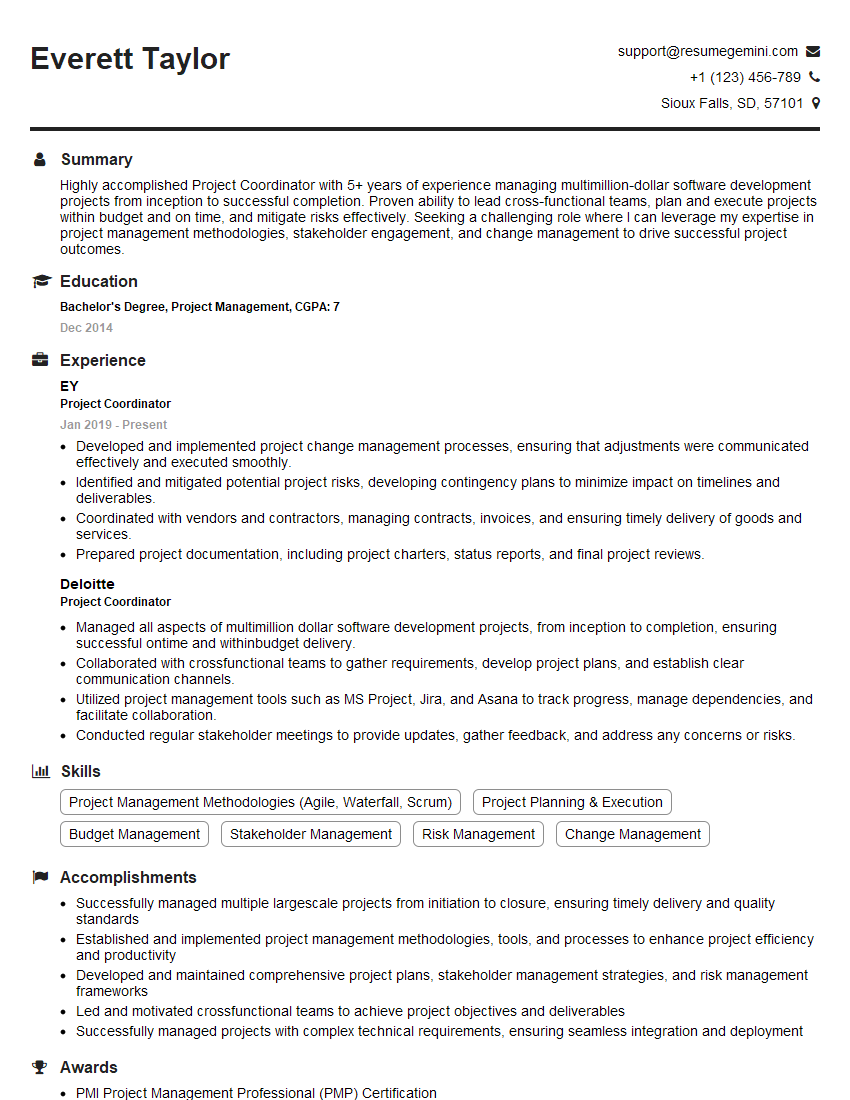
Project Coordinator Resume Sample

Business Analyst Resume Sample
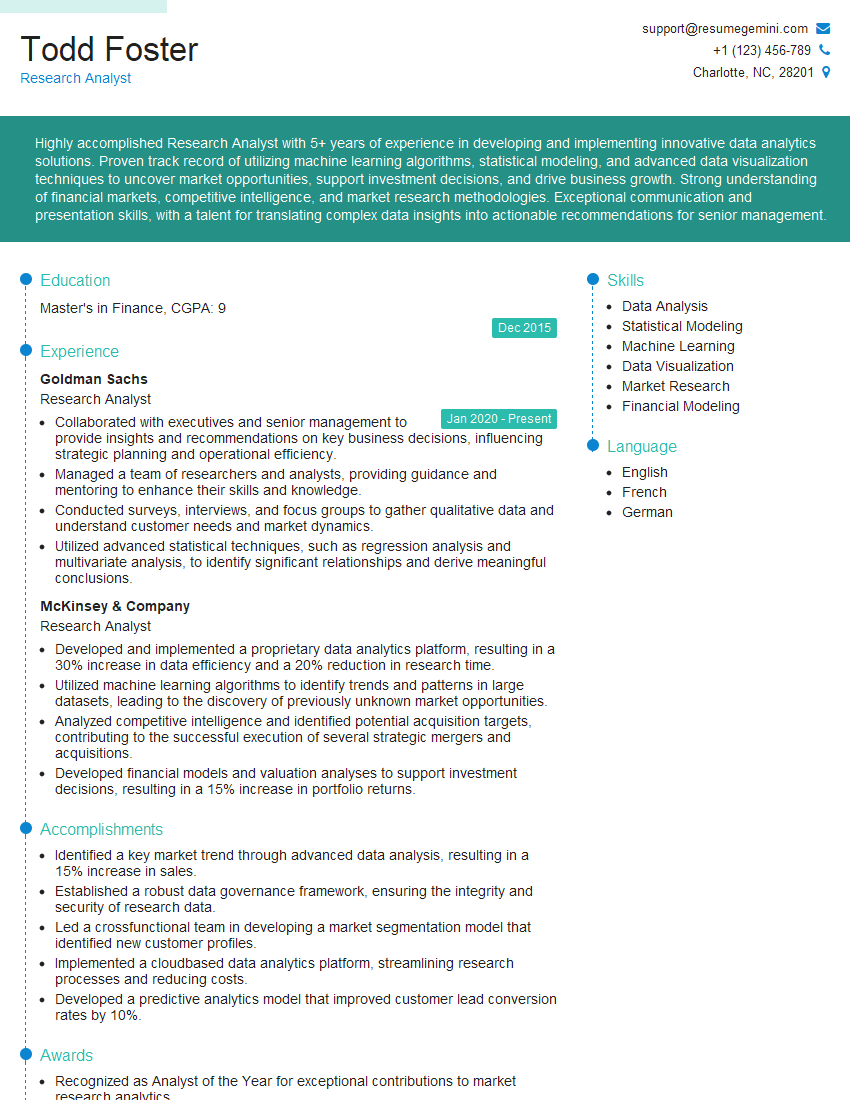
Research Analyst Resume Sample
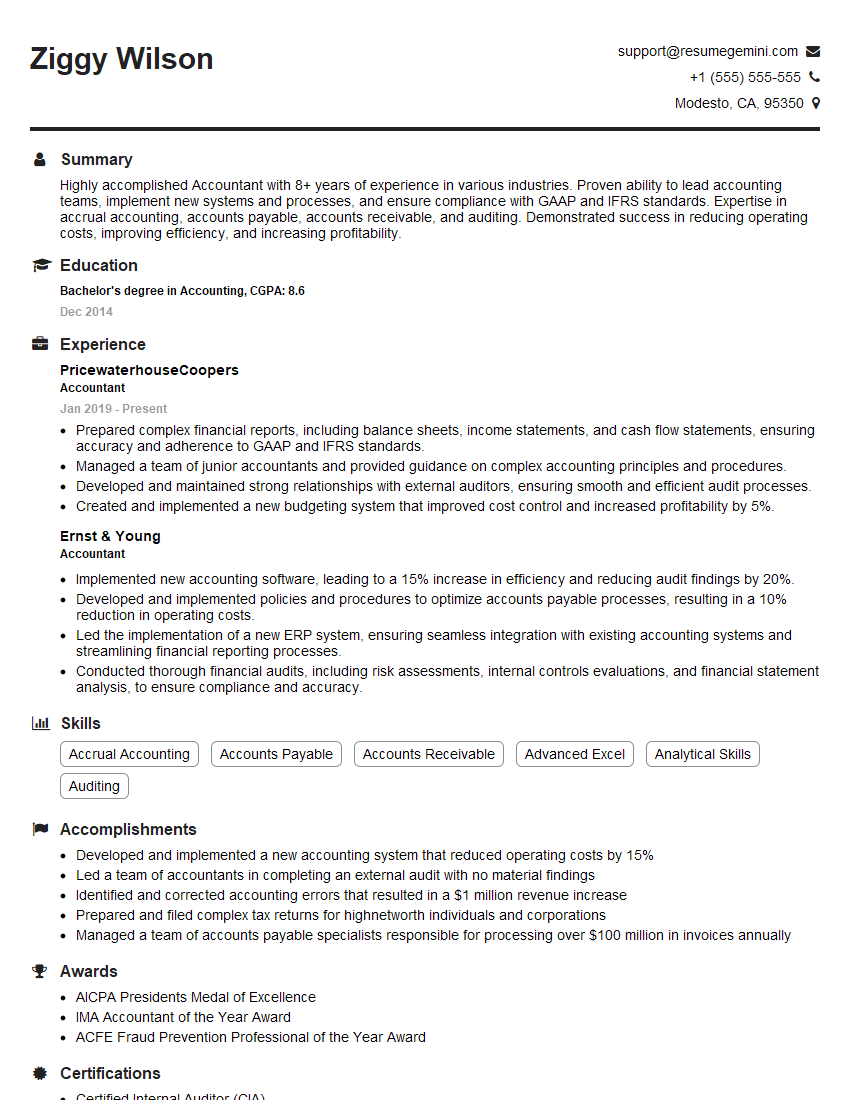
Accountant Resume Sample
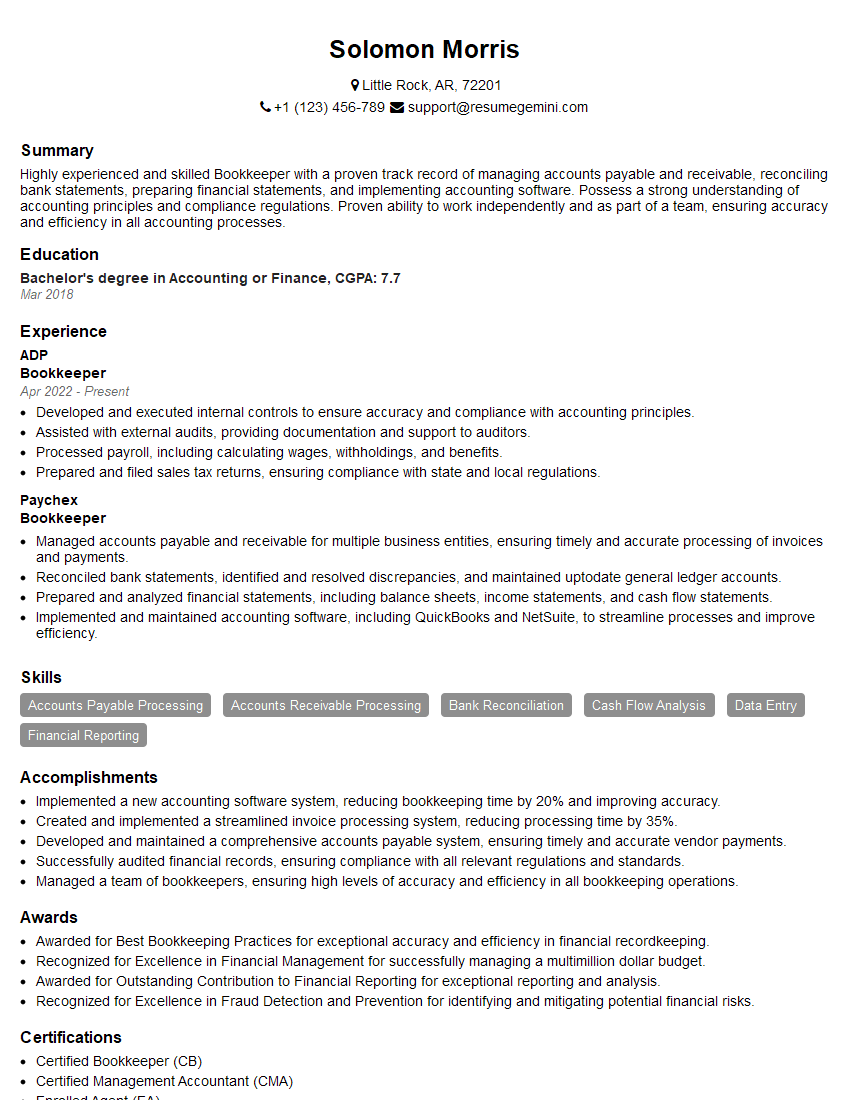
Bookkeeper Resume Sample
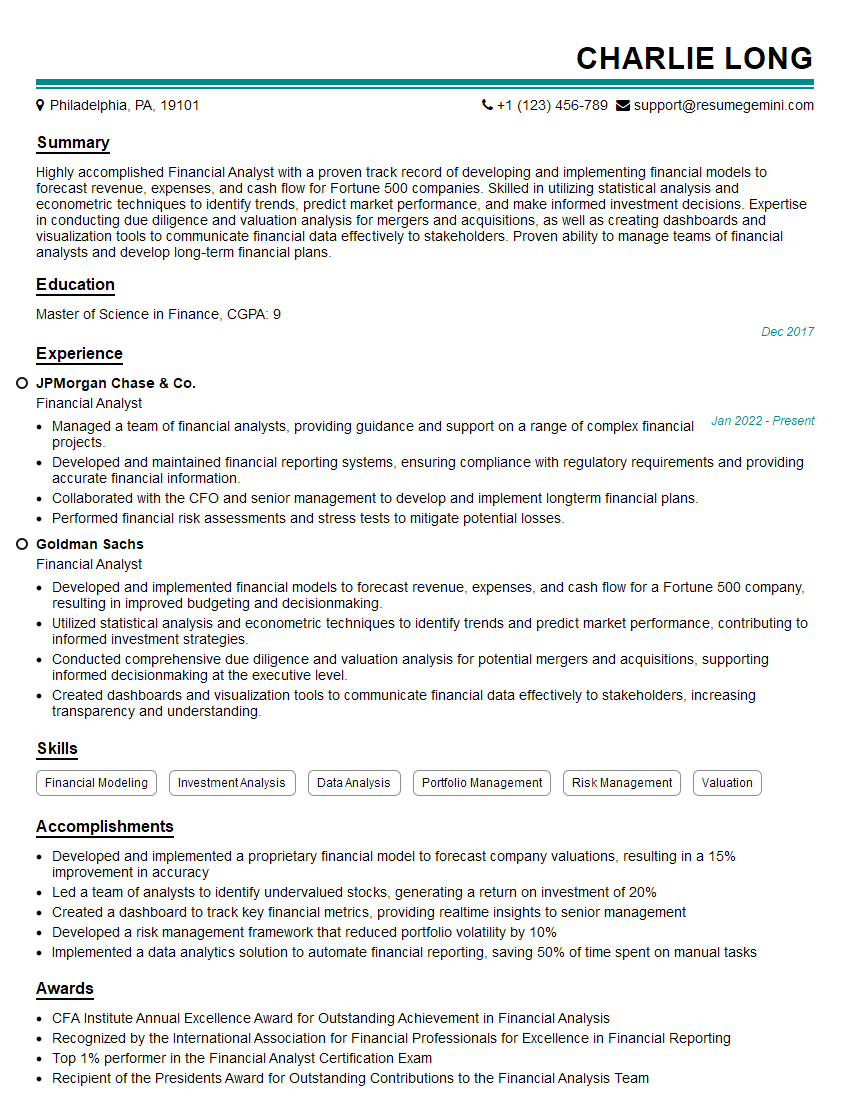
Financial Analyst Resume Sample

Data Analyst Resume Sample
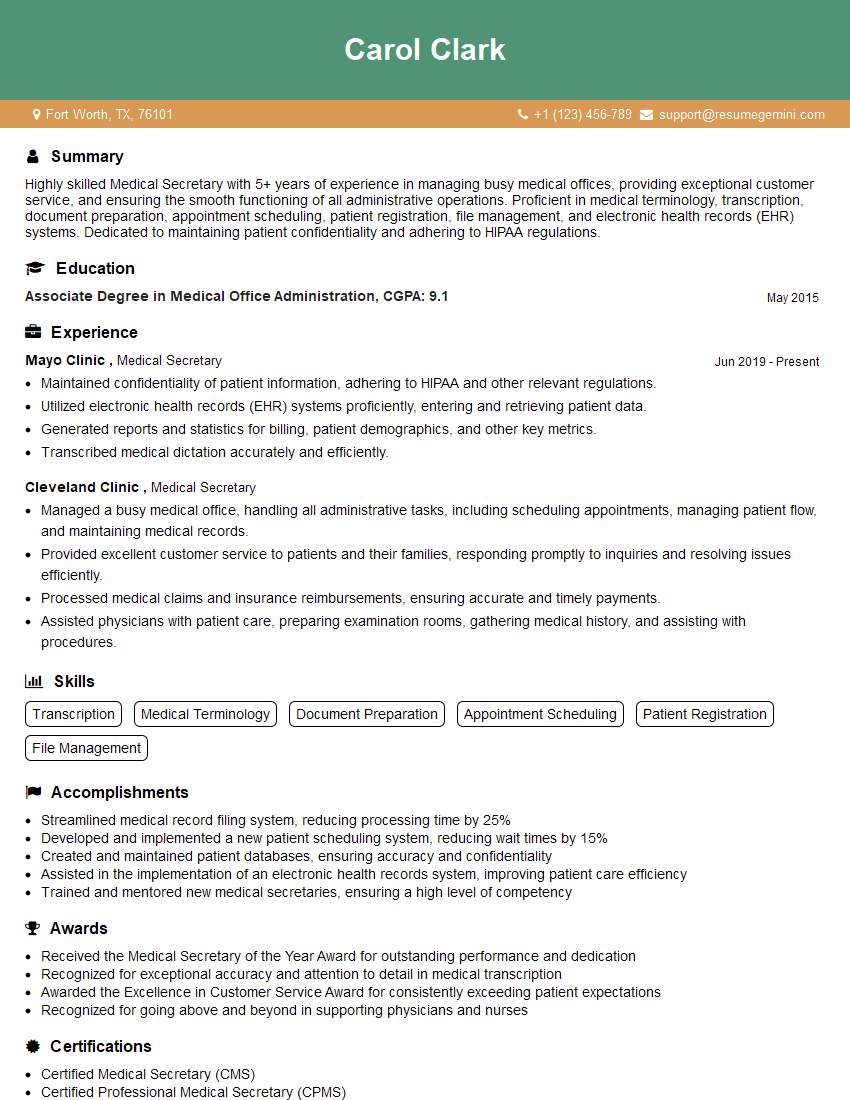
Medical Secretary Resume Sample
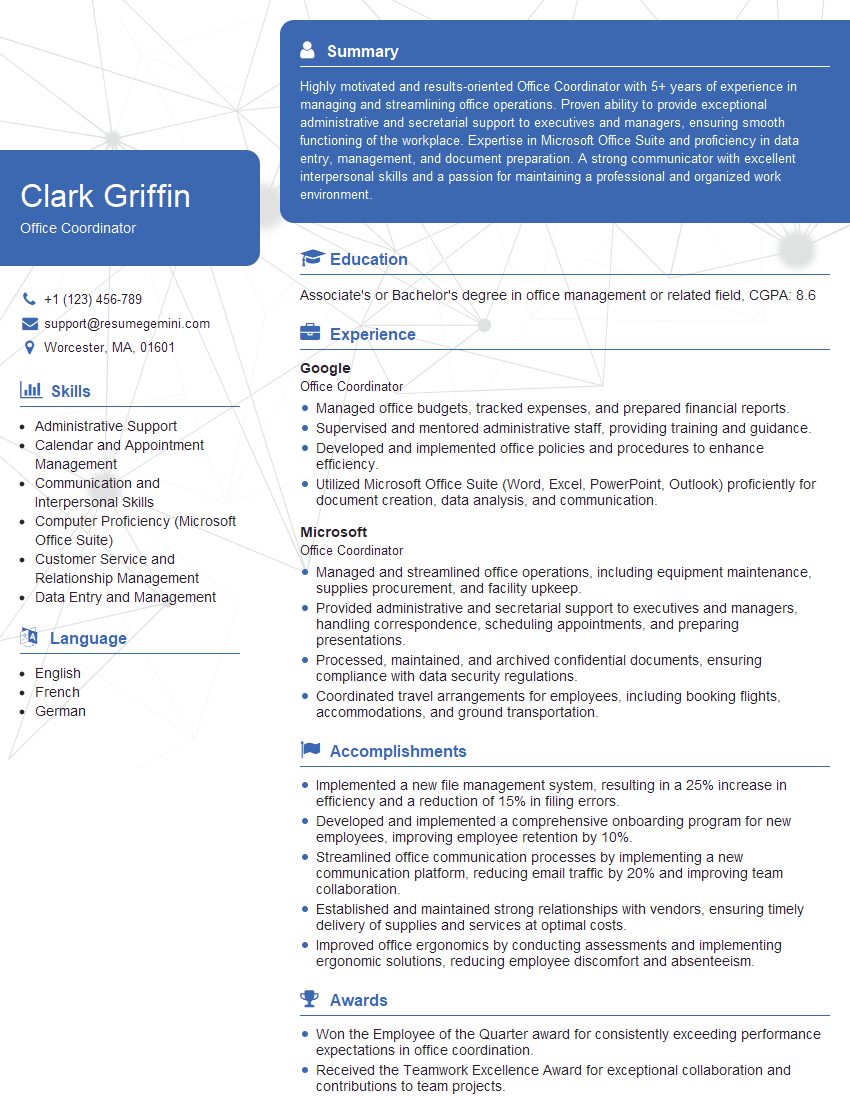
Office Coordinator Resume Sample
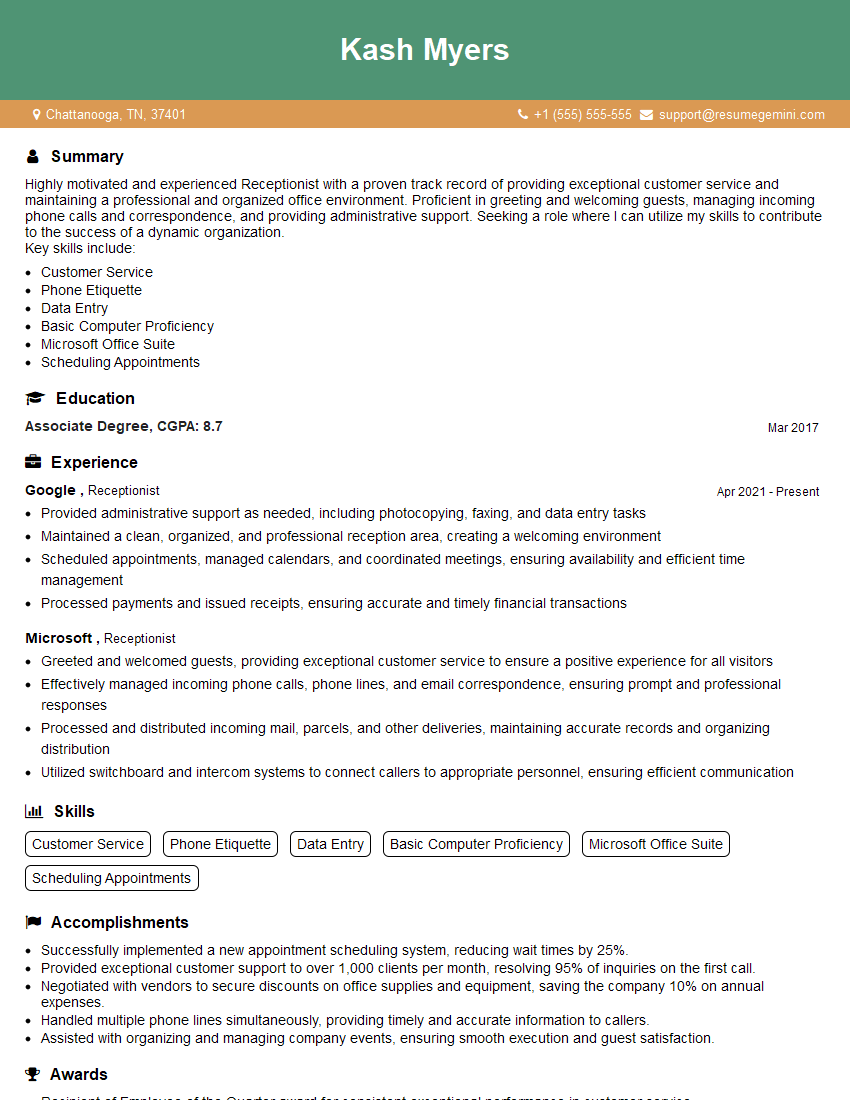
Receptionist Resume Sample

Executive Assistant Resume Sample
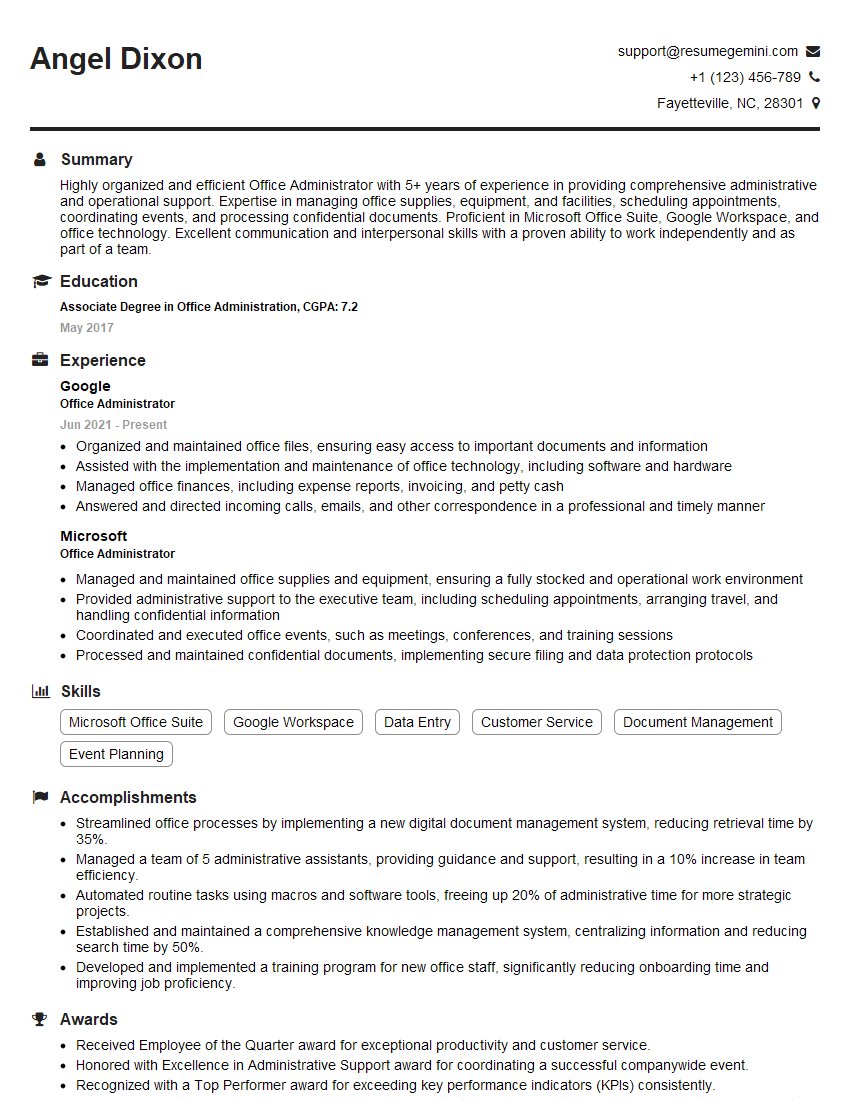
Office Administrator Resume Sample
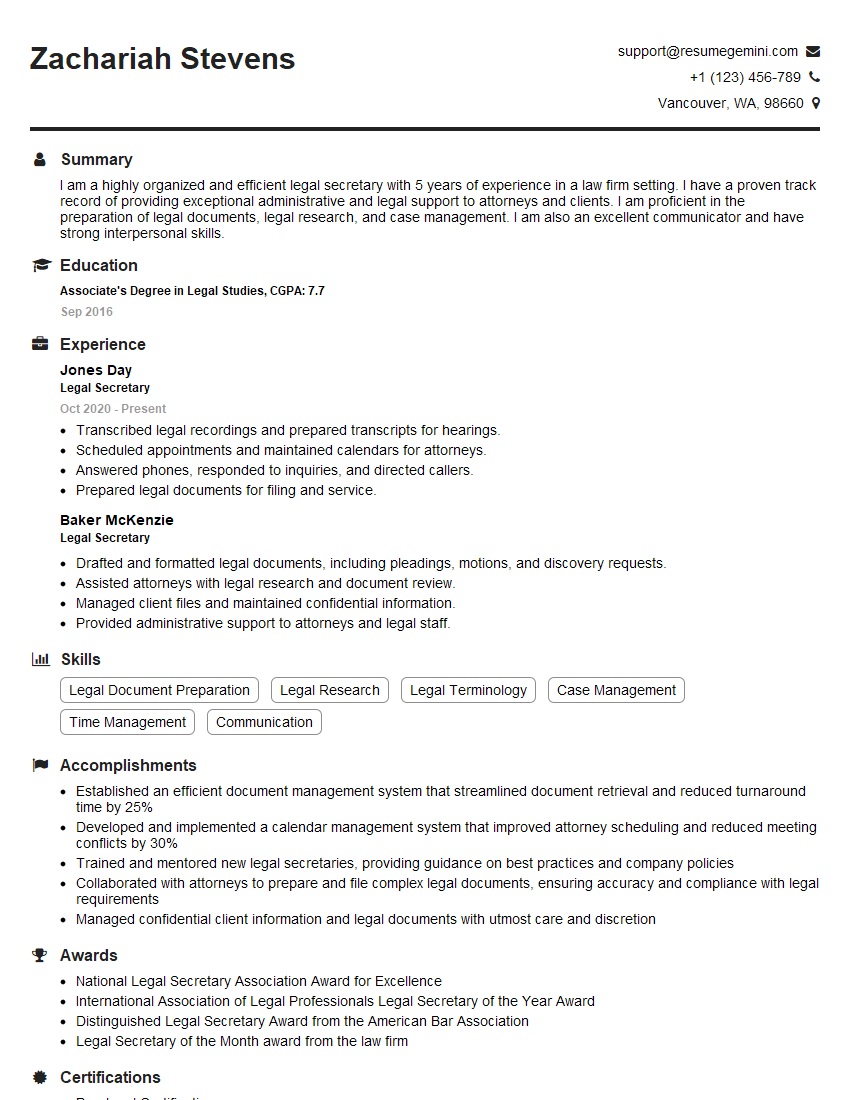
Legal Secretary Resume Sample

Data Entry Clerk Resume Sample
- Executive Administrator
- Office Manager
- Marketing Coordinator
- Sales Coordinator
- Administrative Assistant
- Administrative Specialist
- Operations Coordinator
- Program Coordinator
- Project Coordinator
- Business Analyst
- Research Analyst
- Accountant
- Bookkeeper
- Financial Analyst
- Data Analyst
- Medical Secretary
- Office Coordinator
- Receptionist
- Executive Assistant
- Office Administrator
- Legal Secretary
- Data Entry Clerk
Explore more articles
Users Rating of Our Blogs
Share Your Experience
We value your feedback! Please rate our content and share your thoughts (optional).
What Readers Say About Our Blog
Really detailed insights and content, thank you for writing this detailed article.
IT gave me an insight and words to use and be able to think of examples