Are you ready to stand out in your next interview? Understanding and preparing for Adjustment Layers interview questions is a game-changer. In this blog, we’ve compiled key questions and expert advice to help you showcase your skills with confidence and precision. Let’s get started on your journey to acing the interview.
Questions Asked in Adjustment Layers Interview
Q 1. Explain the difference between clipping masks and adjustment layers.
Clipping masks and adjustment layers are both powerful tools in image editing, but they serve distinct purposes. Think of it like this: an adjustment layer is like a filter you can apply to an image, affecting the entire image or selected parts. A clipping mask, on the other hand, restricts the effect of a layer (often an adjustment layer) to the layer directly beneath it. It’s like using a stencil – only the parts of the layer showing through the stencil are affected.
- Adjustment Layers: These are non-destructive edits that sit above the image layer(s) they affect. Changes made can be easily tweaked or removed without affecting the original image pixels. Examples include Levels, Curves, Hue/Saturation, and Color Balance.
- Clipping Masks: These link a layer (often an adjustment layer) to the layer directly below it, limiting the adjustment’s effect to the visible portions of the underlying layer. This is incredibly useful for making selective edits without having to use selection tools meticulously on every image.
For example, imagine you have a portrait with a bright background and a slightly underexposed face. You could use a Levels adjustment layer to brighten the entire image, but that would also brighten the already bright background. Using a clipping mask on that Levels layer, *only* the face (the layer beneath) would be affected by the brightness adjustment.
Q 2. How do you use adjustment layers to selectively adjust color and tone?
Selective adjustments are where adjustment layers truly shine. To selectively adjust color and tone, you’ll often combine adjustment layers with clipping masks or layer masks.
- Clipping Masks: As explained earlier, a clipping mask confines an adjustment layer’s effect to the layer immediately below. If you have a subject separate from its background, you can adjust the subject’s colors independently by creating a clipping mask from your adjustment layer.
- Layer Masks: Layer masks act as a kind of paintbrush for your adjustments. You paint with black to hide the effect of an adjustment layer, and white to reveal it. This allows for extremely precise and controlled changes. You could, for example, selectively brighten only a person’s eyes without affecting the rest of the face.
Imagine you need to brighten a person’s skin tone without affecting their clothes. You’d create a layer mask on a Levels or Curves adjustment layer, then use the brush tool to paint white on the skin and black on the clothes. The adjustment only affects the white areas.
Q 3. Describe the workflow for using adjustment layers to non-destructively edit an image.
Non-destructive editing using adjustment layers is the cornerstone of professional image editing. Here’s a typical workflow:
- Open your image: Begin with your image in your preferred image editor.
- Create an adjustment layer: From the Layers panel, choose the desired adjustment layer (Levels, Curves, etc.). This will create a new layer above your image layer.
- Adjust settings: Modify the settings of the adjustment layer to achieve the desired effect. Experiment and observe the changes in real time.
- Add more adjustment layers (optional): To achieve complex edits, stack multiple adjustment layers. Each layer is independent, making corrections easy to control and modify.
- Use Clipping Masks or Layer Masks (optional): For selective edits, apply clipping masks or layer masks to target specific areas of your image.
- Save your file: Save your work in a format like PSD (Photoshop Document) to preserve all the layers and adjustments, ensuring you can always go back and change them.
This method preserves the original image data intact, allowing for flexibility and experimentation. You can always tweak adjustments without degrading image quality. It’s like having a series of undo buttons that are independent and adjustable.
Q 4. What are the advantages of using adjustment layers over direct image manipulation?
Adjustment layers offer several crucial advantages over direct image manipulation (directly editing the pixels of the image):
- Non-destructive editing: You can always revert changes or experiment without permanently altering your original image. This is crucial for preserving the integrity of your work and avoiding irreversible mistakes.
- Flexibility: You can easily adjust settings or add/remove adjustment layers without damaging the image. It’s like working with building blocks – easily rearranged and changed as needed.
- Efficiency: With selective adjustments (via clipping or layer masks), you can target specific areas with precision, saving time and effort. No more tedious selections and careful pixel editing.
- Organization: Adjustment layers keep your edits organized and manageable, making it easier to understand and revisit your workflow later. It’s like having a well-documented history of your edits.
Imagine spending hours meticulously correcting the color balance of an image, only to realize you made a mistake. With adjustment layers, a simple tweak is all you need. Without them, you’d have to start again from scratch.
Q 5. How do you use blend modes with adjustment layers to achieve specific effects?
Blend modes interact with adjustment layers to dramatically alter their effect on the underlying image. Each blend mode offers a unique way to combine the adjustment layer’s effect with the existing pixel data. For instance:
- Normal: The default mode; the adjustment layer’s effect is simply layered on top.
- Overlay: Creates a blend that interacts with both light and dark tones, affecting contrast.
- Soft Light: A subtler version of Overlay, providing more gentle adjustments to light and shadow.
- Multiply: Darkens the underlying image by multiplying the colors.
- Screen: Brightens the image by screening the colors.
Experimenting with blend modes can lead to creative and unexpected results. For example, using the ‘Overlay’ blend mode on a Hue/Saturation adjustment layer can dramatically affect the saturation without dramatically changing the overall color balance.
Let’s say you have a photo that’s a bit flat and needs more contrast. Instead of using a Levels adjustment in ‘Normal’ mode, try ‘Overlay’ – it often yields much more effective and natural-looking contrast enhancements.
Q 6. Explain the functionality of the Levels adjustment layer.
The Levels adjustment layer is a powerful tool for controlling the tonal range of an image. It works by adjusting the input levels (the distribution of pixel brightness) and output levels (how those brightness values are mapped). The histogram visually represents this distribution, helping you understand the image’s brightness range.
The three primary controls are input levels (shadows, midtones, highlights) and output levels (black point, white point, gamma). These values modify the brightness of the image.
- Input Levels: Adjusting the sliders beneath the histogram directly manipulates the shadows, midtones, and highlights of your image.
- Output Levels: Adjusting the black and white points expands or compresses the tonal range. Gamma alters the overall brightness curve.
Think of it as fine-tuning the image’s brightness and contrast by adjusting the darkest and brightest parts, as well as the overall range.
Q 7. Explain the functionality of the Curves adjustment layer.
The Curves adjustment layer provides a highly precise method for controlling the tonal range and color of your image. Unlike Levels, which uses sliders, Curves allows for direct manipulation of the tonal curve, providing finer control and granular adjustments.
The curve itself is a graphical representation of the input and output levels; each point on the curve represents an adjustment of one input level to a corresponding output level. A straight diagonal line represents no adjustments. By adjusting the points on the curve, you can fine-tune the brightness and contrast in various regions of the image.
For example, you could selectively brighten the midtones by pulling up that section of the curve. Or, you could increase the contrast by making the curve steeper. This level of control makes curves ideal for making subtle but significant adjustments to color and tone, achieving a more natural, polished look.
Q 8. How do you use the Hue/Saturation adjustment layer?
The Hue/Saturation adjustment layer is your go-to tool for tweaking the color vibrancy and overall tone of your image. Think of it as a powerful color filter, offering precise control over hue (the pure color), saturation (the intensity or richness of the color), and lightness (the brightness or darkness of the color). You can adjust these parameters globally or for specific color ranges (reds, yellows, cyans, etc.), allowing for very targeted color corrections.
For example, if your image is a bit too yellow, you could desaturate the yellows, making them more muted and realistic. Or, if you want to emphasize the blues in a landscape photograph, you could increase the saturation of the blues while slightly reducing the saturation of the other colors to create a more dramatic effect. You access this layer by going to Layer > New Adjustment Layer > Hue/Saturation. The slider controls are intuitive and allow for non-destructive edits, meaning you can always go back and refine your adjustments.
Imagine you’re editing a portrait and the skin tones are a little too ruddy. By carefully adjusting the Hue/Saturation of the reds and oranges using the individual color range sliders, you can achieve a more natural and even skin tone without altering other parts of the image.
Q 9. Explain the use of the Color Balance adjustment layer.
The Color Balance adjustment layer lets you fine-tune the overall color cast of your image by adjusting the balance of shadows, midtones, and highlights. Think of it as subtly shifting the overall temperature and tint of your photo. This is incredibly useful for correcting color imbalances caused by different lighting conditions or to create a specific mood.
For instance, a photo taken under tungsten lighting (like an incandescent bulb) often has an orange tint. The Color Balance layer allows you to dial back the orange in the shadows, midtones, and highlights to neutralize the color cast and achieve a more natural-looking image. Conversely, you could add a subtle blue tint to a daytime photo to create a cooler, more serene feel. You’ll find it under Layer > New Adjustment Layer > Color Balance.
Consider a professional photographer retouching a series of photos from a wedding. Maintaining consistent color across all shots is crucial. The Color Balance adjustment layer provides a fantastic way to achieve this consistency, neutralizing unwanted casts and ensuring all images share a similar color palette.
Q 10. How do you use the Brightness/Contrast adjustment layer?
The Brightness/Contrast adjustment layer offers a straightforward way to control the overall brightness and contrast of your image. Brightness directly alters the luminosity, making the entire image lighter or darker, while contrast manipulates the difference between the darkest and brightest areas. Increasing contrast makes the image appear more vibrant and defined, while reducing it softens the image, bringing the tones closer together.
For example, an underexposed photo might need a boost in brightness to bring out details in the shadows. Conversely, a photo that’s too flat might benefit from increased contrast to make the subject pop. You can access it via Layer > New Adjustment Layer > Brightness/Contrast. Use these controls carefully, as excessive adjustment can lead to loss of detail in the highlights (overexposure) or shadows (underexposure).
Imagine you’re working on a product shot for an e-commerce website. Consistent brightness and contrast across multiple product images are essential for a professional and polished look. The Brightness/Contrast layer helps you maintain visual harmony while ensuring each product is clearly visible and appealing.
Q 11. What is the purpose of the Black & White adjustment layer?
The Black & White adjustment layer is a specialized tool for converting color images to black and white, but with a crucial difference: it gives you incredible control over the tonal values of each color channel. Instead of a simple desaturation, you can adjust how each color contributes to the final grayscale image. This allows for expressive and creative monochrome conversions.
For example, you might want to darken the blues in a landscape to create a more dramatic effect, while brightening the yellows to emphasize certain highlights. This selective control isn’t possible with a simple desaturation. You access this adjustment through Layer > New Adjustment Layer > Black & White. The sliders for each color let you fine-tune the conversion and experiment with unique artistic styles.
Consider a portrait photographer who wants to achieve a classic, timeless black and white look. By using the Black & White adjustment layer, they can selectively emphasize or subdue certain tonal ranges, bringing out texture, emotion, and depth in a way that a simple conversion couldn’t achieve.
Q 12. How do you create a custom adjustment layer?
Creating a custom adjustment layer essentially involves combining multiple adjustment layers into a single, unified layer that can be further modified. While there isn’t a direct ‘Custom Adjustment Layer’ option, you can achieve this effect by grouping multiple adjustment layers together within a folder. Then, you can apply a mask to the folder to control the effect of all the adjustment layers within the group.
For example, let’s say you need to adjust the color balance, brightness, and saturation. Create each adjustment layer individually. Then, select all three layers and right-click to create a group. You now have a combined adjustment effect. The flexibility of this method allows for complex and customized effects, which would be difficult or impossible to achieve with a single adjustment layer.
In a professional setting, this could be particularly useful when creating presets or consistent editing styles across large batches of photos. Once the optimal combination of adjustments is determined, they can be saved as a single unit, and easily applied to future images. The combined adjustment group acts as a repeatable workflow, making the process extremely efficient.
Q 13. How do you use adjustment layers to match the color of different images?
Matching the color of different images is a common task in photo editing and compositing. Adjustment layers are invaluable for this purpose. The key is to use adjustment layers in conjunction with clipping masks or layer masks to selectively apply color corrections to a specific image within a composite.
For example, let’s say you have a product shot taken indoors and a background image shot outdoors. You would paste the product onto the background. Then, create an adjustment layer (e.g., Color Balance) above the product layer. By clipping the adjustment layer to the product layer, you apply the color adjustments *only* to the product, matching it to the color scheme of the background image. You would refine this further using a layer mask if needed to fine-tune the color matching even more precisely.
In professional photography, this is crucial for seamless integration. Imagine a photographer needs to combine several images to create a panoramic shot. Color matching across these different images ensures a cohesive and professional final product. Adjustment layers and clipping masks provide the non-destructive and precise controls needed for this kind of work.
Q 14. Explain the use of adjustment layer masks.
Adjustment layer masks are powerful tools that allow for highly selective application of adjustments. They work just like layer masks, allowing you to paint on or mask areas where you want the adjustment to apply. This is essential for non-destructive editing; changes are easily altered or undone, and they don’t affect the original image data. Areas masked out are unaffected by the adjustment.
For instance, you could use a gradient mask to apply a color correction gradually across an image. This helps create smoother transitions and avoid harsh lines. Alternatively, you could use a brush to paint selectively onto a layer mask, applying adjustments to specific areas, while leaving others untouched.
Imagine a fashion photographer retouching a model’s image. They might want to brighten only the skin, leaving the background unchanged. Using an adjustment layer mask, they can carefully paint the brighter adjustment over the skin, avoiding unwanted changes to the clothing or backdrop. This precision is impossible to achieve with other methods.
Q 15. How do you save and reuse adjustment layer settings?
Saving and reusing adjustment layer settings is a cornerstone of efficient workflow in Photoshop. The most common method is creating and saving adjustment layer presets. Imagine them like templates for your edits. You can apply these presets to other images instantly, maintaining consistency and saving significant time.
To create a preset, adjust your layer to your liking. Then, in the Adjustments panel (or Properties panel), click the small menu icon (usually three horizontal lines) at the top right. Select “Save Preset.” Give it a descriptive name and save it. To reuse, simply navigate to the same menu, choose “Load Preset,” and select your saved preset.
Another powerful method is using adjustment layer groups. Group multiple adjustment layers together and save the entire group as a preset. This is particularly helpful when you’ve created a complex set of edits, like a specific color grading scheme. Remember to give your presets clear, easily understandable names to find them later. You’ll find these methods dramatically improve your productivity for both personal and professional image editing.
Career Expert Tips:
- Ace those interviews! Prepare effectively by reviewing the Top 50 Most Common Interview Questions on ResumeGemini.
- Navigate your job search with confidence! Explore a wide range of Career Tips on ResumeGemini. Learn about common challenges and recommendations to overcome them.
- Craft the perfect resume! Master the Art of Resume Writing with ResumeGemini’s guide. Showcase your unique qualifications and achievements effectively.
- Don’t miss out on holiday savings! Build your dream resume with ResumeGemini’s ATS optimized templates.
Q 16. Describe the differences between using adjustment layers in Photoshop and other image editing software.
While many image editors offer adjustment layers, their implementation and capabilities vary significantly. Photoshop, renowned for its non-destructive editing, excels with its advanced adjustment layers. They offer a level of flexibility and control often unmatched. For example, Photoshop allows for sophisticated masking techniques, creating localized adjustments without affecting the rest of the image. This allows for precise edits that maintain the original image’s integrity.
In contrast, some simpler editors might offer limited adjustment capabilities, often destructive in nature. This means adjustments directly alter the pixel data. Photoshop’s adjustment layers, on the other hand, are non-destructive, allowing you to adjust the settings later without permanently changing the original pixels. This ‘undo’ capability is extremely valuable in professional work where revisions are common.
Moreover, Photoshop’s layer blending modes and masking options interact seamlessly with adjustment layers, enabling complex and creative effects. This is often not the case in other software where the interaction may be limited or less intuitive. You can consider Photoshop’s features as a robust professional toolkit compared to the simpler tools available in other software.
Q 17. How do you troubleshoot issues with adjustment layers?
Troubleshooting adjustment layer issues often involves a methodical approach. First, ensure the adjustment layer is actually affecting the intended layer. Check its layer order; if it’s below the layer you want to adjust, it won’t work. Try moving it above. Check visibility; is the eye icon next to the layer turned on?
Second, examine the layer mask. A fully black mask hides the effect entirely. A completely white mask shows the full effect. Gradients or partially masked areas control the effect’s opacity. Look for unexpected masking behavior and adjust accordingly. An accidentally applied mask can completely negate the effect.
Third, consider blending modes. Different modes interact differently with the underlying layers. Experiment with different blending modes to achieve the desired outcome. Sometimes a simple adjustment to the blending mode solves a baffling issue. Finally, check clipping masks to ensure the adjustment only affects the correct layer. A simple restart of Photoshop can also sometimes resolve minor glitches.
Q 18. How do you optimize adjustment layers for web use?
Optimizing adjustment layers for web use focuses on minimizing file size without sacrificing visual quality. Large, complex adjustment layers can significantly increase file size and loading times. First, you can ‘flatten’ your adjustments to reduce the complexity. Remember, this changes the image permanently! Only do this for images you’re ready to finalize.
Another method involves using a combination of adjustment layers and smart objects. If you have many adjustment layers, consider merging them into a smart object. This keeps the edits non-destructive yet simplifies the layer structure. You’ll then export your images in an optimized format like JPG or WebP – WebP provides better compression ratios than JPG. Use a level of compression that balances image quality with file size. Always test the resulting files on multiple devices and browsers to ensure they load quickly and look as expected.
Q 19. How do you handle large files when working with many adjustment layers?
Working with numerous adjustment layers in large files can tax system resources and slow down performance. The key is organization and strategic use of smart objects. Group related adjustment layers and convert the group into a smart object. This dramatically reduces the number of layers Photoshop needs to manage, boosting speed and efficiency.
Avoid overusing adjustment layers. If you have a large number of similar adjustments, consider creating and saving presets (as discussed earlier) and applying them. Remember that flattening the layers will dramatically reduce file size but removes the non-destructive nature of the workflow. This is best avoided unless absolutely necessary, as it would mean you can no longer adjust things easily later.
Regularly saving your work is crucial. Losing progress with a large file is disheartening. Consider working in a high-resolution but downsampling for web output, which saves you processing power and time.
Q 20. Explain your experience with utilizing adjustment layers to fix color casts.
Color casts, that undesirable tint in an image, are easily corrected using adjustment layers, specifically the White Balance adjustment layer and the Color Balance adjustment layer. The White Balance layer offers a quick fix by selecting a neutral point in the image, allowing Photoshop to automatically adjust the color balance. This is ideal for removing slight color casts.
For more control, the Color Balance adjustment layer lets you fine-tune the color channels (shadows, midtones, highlights) individually. I often use this for more complex adjustments where I want to precisely shift certain color ranges. For instance, a photo with an overall orange cast can be corrected by reducing the orange in the midtones and adding a touch of blue or cyan. Experimentation is key here—understanding how each slider affects the image is fundamental for achieving professional results. The ‘Before and After’ comparison functionality in Photoshop proves very helpful in this workflow.
Q 21. How do you use adjustment layers to create a specific mood or atmosphere in an image?
Adjustment layers are invaluable for setting the mood or atmosphere of an image. Consider a photograph that needs to convey a sense of warmth and nostalgia. A Curves adjustment layer could brighten the highlights and add warmth to the shadows using curves. Combining it with a Color Balance layer to subtly increase the yellows and reds would enhance this effect.
For a cool, mysterious atmosphere, you’d utilize the opposite approach. Reduce the overall brightness, use a Color Balance layer to emphasize blues and purples, and potentially add a slight vignette for visual focus. Experiment with different blending modes to create subtle yet dramatic effects. For example, using ‘Soft Light’ or ‘Overlay’ mode on a Color Fill layer can modify the ambiance subtly. The key is subtle layering and iteration; this results in a more impactful and controlled effect on the atmosphere.
Q 22. How would you use adjustment layers to improve the dynamic range of an image?
Improving an image’s dynamic range using adjustment layers involves manipulating the tonal range – the difference between the darkest and brightest parts. A low dynamic range results in a flat, lifeless image, while a high dynamic range offers rich detail in both shadows and highlights. We achieve this primarily using the Levels and Curves adjustment layers.
Levels provides a visual histogram showing tonal distribution. By adjusting the black point (shadow) and white point (highlight) sliders, you expand the tonal range, revealing detail often lost in overexposed or underexposed areas. The middle slider adjusts midtones. Think of it like stretching out a rubber band – you’re expanding the space between the darkest and lightest points.
Curves offers more granular control. Each point on the curve represents a tonal value; you can adjust individual tones to fine-tune the image. For example, you can subtly lift shadows without affecting the highlights, or compress the bright tones to reduce harshness. Curves are powerful for bringing out subtle details in highlights and shadows, enhancing the dynamic range significantly.
For instance, a landscape photo with a bright sky and dark foreground might benefit from levels adjustment to lift shadows (revealing details in the foreground) and reduce the highlights in the sky, preventing it from becoming completely blown-out, thereby improving the overall dynamic range.
Q 23. How would you use adjustment layers to enhance the detail in an image?
Enhancing detail in an image via adjustment layers relies on subtle adjustments to contrast and sharpness, avoiding harsh artifacts. The key players here are Brightness/Contrast, Curves, and Unsharp Mask.
Brightness/Contrast is a quick, easy method for general adjustments, however, Curves offers superior, nuanced control. Curves can be used to increase local contrast, selectively enhancing detail in specific tonal ranges. For example, slightly increasing contrast in the midtones will sharpen the details of the subject without affecting the highlights or shadows significantly.
Unsharp Mask is a dedicated filter often applied as an adjustment layer to increase the overall sharpness of an image. It’s essential to use this sparingly, adjusting the Amount, Radius, and Threshold parameters carefully to avoid creating halos or overly artificial sharpening. Start with small adjustments and gradually refine them. Using a subtle amount of Unsharp Mask in combination with the carefully adjusted Curves layer yields optimal detail enhancement.
Consider a portrait image. A gentle curve adjustment to increase mid-tone contrast can bring out texture in the skin, while a subtle application of Unsharp Mask adds definition to the eyes and hair, enhancing detail without making the image look over-processed.
Q 24. What are the limitations of adjustment layers?
While incredibly powerful, adjustment layers have limitations:
- Computational overhead: Numerous adjustment layers, especially complex ones like Curves with many points, can slow down Photoshop, especially on older hardware.
- Nesting limitations: While you can group layers, overly complex nesting can make managing the adjustments cumbersome and difficult to track the adjustments applied.
- Clipping Masks: While clipping masks are fantastic for applying adjustments only to specific layers, misusing or over-relying on them can create organizational complexities.
- Destructive editing (indirectly): Adjustment layers are non-destructive, but if you heavily edit the image before adding adjustments, the outcome of your adjustments may be drastically altered based on the changes in the underlying layer. The changes to the underlying layer will be less apparent and more difficult to revert.
Careful planning and efficient workflow are essential to mitigate these limitations.
Q 25. What is the best practice for organizing adjustment layers in a complex project?
Organizing adjustment layers in complex projects requires a systematic approach. I recommend a combination of:
- Color-coding: Assign colors to groups of related adjustment layers (e.g., all color adjustments are blue, all tonal adjustments are green). This visually improves clarity.
- Naming conventions: Use descriptive names (e.g., “Shadows Lift,” “Skin Tone Adjustment”) rather than generic names like “Adjustment Layer 1.”
- Grouping: Group related adjustment layers into folders using appropriately descriptive folder names. For instance, the adjustments applied to a particular subject of the image can be grouped.
- Clipping masks: Strategically use clipping masks to apply adjustments to specific layers, improving organization and reducing complexity.
- Layer comps: For multiple versions or exploration of different adjustments, use layer comps to save various states without actually altering the main image.
Think of it like a well-organized filing system – clear labeling and categorization make it easy to find and understand what adjustments have been made.
Q 26. Describe a situation where you had to use multiple adjustment layers to achieve a specific outcome.
I once worked on a product shot where the client wanted a very specific look: a rich, saturated color palette, bright highlights, but deep, detailed shadows. Achieving this with a single adjustment layer was impossible. Instead, I used a layered approach:
- Color Balance: To fine-tune the overall color palette to get the desired saturation and color balance.
- Curves: To lift the shadows while carefully compressing the highlights, making them brighter without losing detail.
- Levels: To refine the overall tonal range and adjust the black and white points for more precision.
- Selective Color: To fine-tune the color of specific areas (e.g., slightly desaturating the background to make the product pop).
- Vibrance/Saturation: To add another layer of subtle color correction.
By carefully stacking and adjusting these layers, I iteratively refined the image until it matched the client’s vision. Each adjustment layer served a specific purpose, contributing to the overall effect in a controlled and non-destructive way.
Q 27. Compare and contrast the use of adjustment layers with filters.
Both adjustment layers and filters modify images, but they differ significantly in their approach:
- Non-destructive vs. Destructive: Adjustment layers are non-destructive – you can always adjust or remove them without affecting the original image. Filters, in contrast, often make destructive edits to the base image unless applied as Smart Filters.
- Flexibility vs. Specificity: Adjustment layers are highly flexible and allow for fine-tuning after application. Filters often have a single, predetermined outcome. Smart Filters are an exception as these can be altered later without destroying the layer’s original image.
- Control: Adjustment layers offer more granular control over the image. Many filters offer far less control; a filter might introduce a desirable effect on a portion of the image, but altering the intensity or placement is often restricted.
Think of it this way: filters are like using a specific tool for a particular job, while adjustment layers are like having a complete toolbox you can customize based on your needs.
Q 28. How can you improve the performance of Photoshop when working with many adjustment layers?
Improving Photoshop’s performance with many adjustment layers involves strategies to reduce the computational load:
- Merge visible: If you’re satisfied with your adjustments, merge visible layers to create a single layer containing all adjustments and reduce overhead. Note that this makes the edits destructive.
- Group and flatten: Group similar adjustment layers, then use the ‘Flatten Group’ function. This reduces the number of layers without losing the capability to edit adjustments. Note that this also makes the edits destructive.
- Layer comps: Use layer comps to experiment with different adjustment layer combinations without keeping all layers active at once, thus decreasing memory usage. Then only retain the chosen layer comp.
- Reduce layer count: Analyze your adjustments and look for opportunities to combine or simplify them.
- Restart Photoshop: A simple restart can clear up memory and improve performance, especially after working on a complex file for a long period.
- Optimize computer resources: Ensure your computer has sufficient RAM and a fast processor. Close unnecessary applications while working.
Remember, balancing efficiency with non-destructive editing is crucial. Choose the best approach based on your project’s needs and the importance of maintaining editability.
Key Topics to Learn for Adjustment Layers Interview
- Understanding Layer Types: Differentiate between the various adjustment layer types (Brightness/Contrast, Levels, Curves, Hue/Saturation, Color Balance, etc.) and their unique functionalities.
- Non-Destructive Editing: Explain the advantages of using adjustment layers for non-destructive editing workflows and how this impacts image manipulation and workflow efficiency.
- Clipping Masks and Layer Masks: Master the application of clipping masks and layer masks to selectively apply adjustments to specific areas of an image.
- Blending Modes: Understand how blending modes interact with adjustment layers to achieve specific creative effects and solve complex color correction problems.
- Color Correction Techniques: Demonstrate your proficiency in using adjustment layers for tasks such as color balancing, white balance correction, and correcting color casts.
- Practical Applications: Be prepared to discuss real-world scenarios where adjustment layers are crucial, such as retouching, photo restoration, and creating specific moods or aesthetics in images.
- Workflow Optimization: Discuss efficient strategies for organizing and utilizing adjustment layers within a complex image editing project.
- Troubleshooting Common Issues: Be ready to discuss common problems encountered when working with adjustment layers and how to effectively solve them.
- Advanced Techniques: Explore more advanced concepts such as using adjustment layers with Smart Objects, and understanding the impact of different color spaces on adjustments.
Next Steps
Mastering Adjustment Layers is crucial for career advancement in graphic design, photography, and related fields. A strong understanding of these techniques demonstrates your proficiency in image manipulation and your commitment to efficient and professional workflows. To significantly enhance your job prospects, create an ATS-friendly resume that highlights your skills and experience. ResumeGemini is a trusted resource that can help you build a professional and effective resume. Examples of resumes tailored to Adjustment Layers expertise are available to help you get started.

Art Director Resume Sample

Creative Director Resume Sample

Web Designer Resume Sample
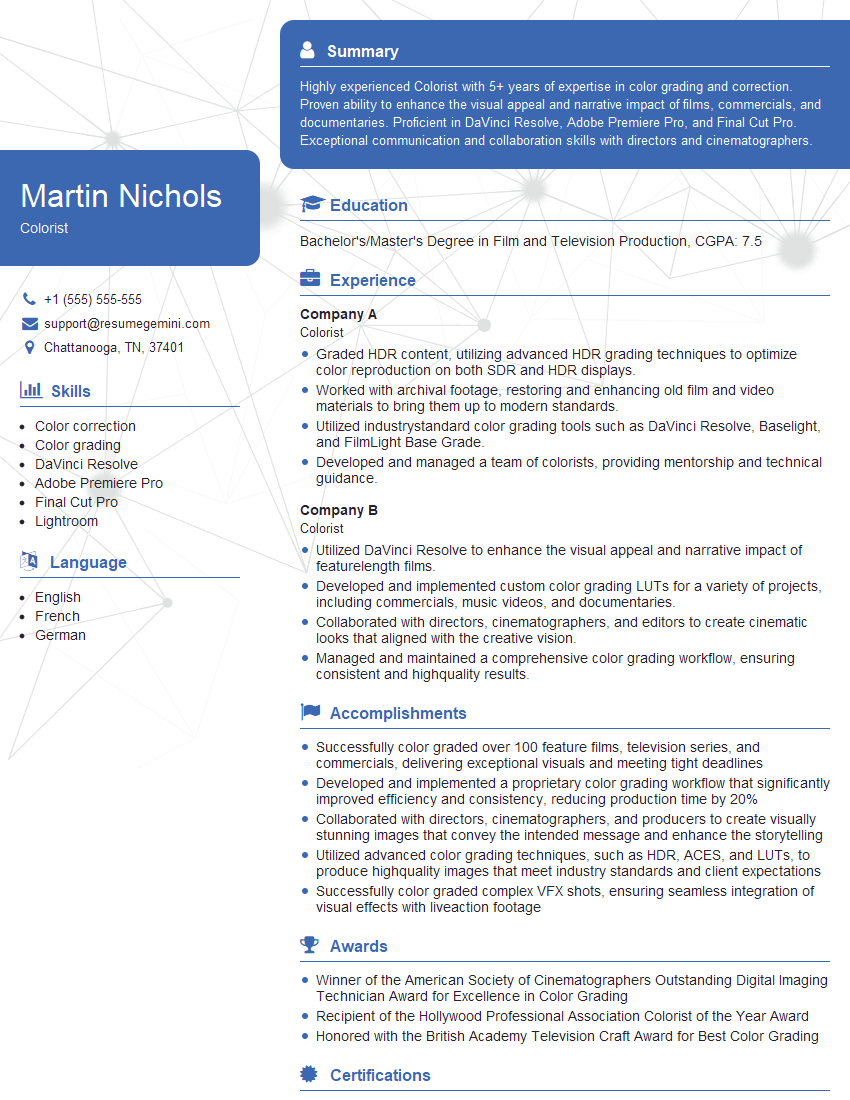
Colorist Resume Sample

Multimedia Specialist Resume Sample

3D Modeler Resume Sample
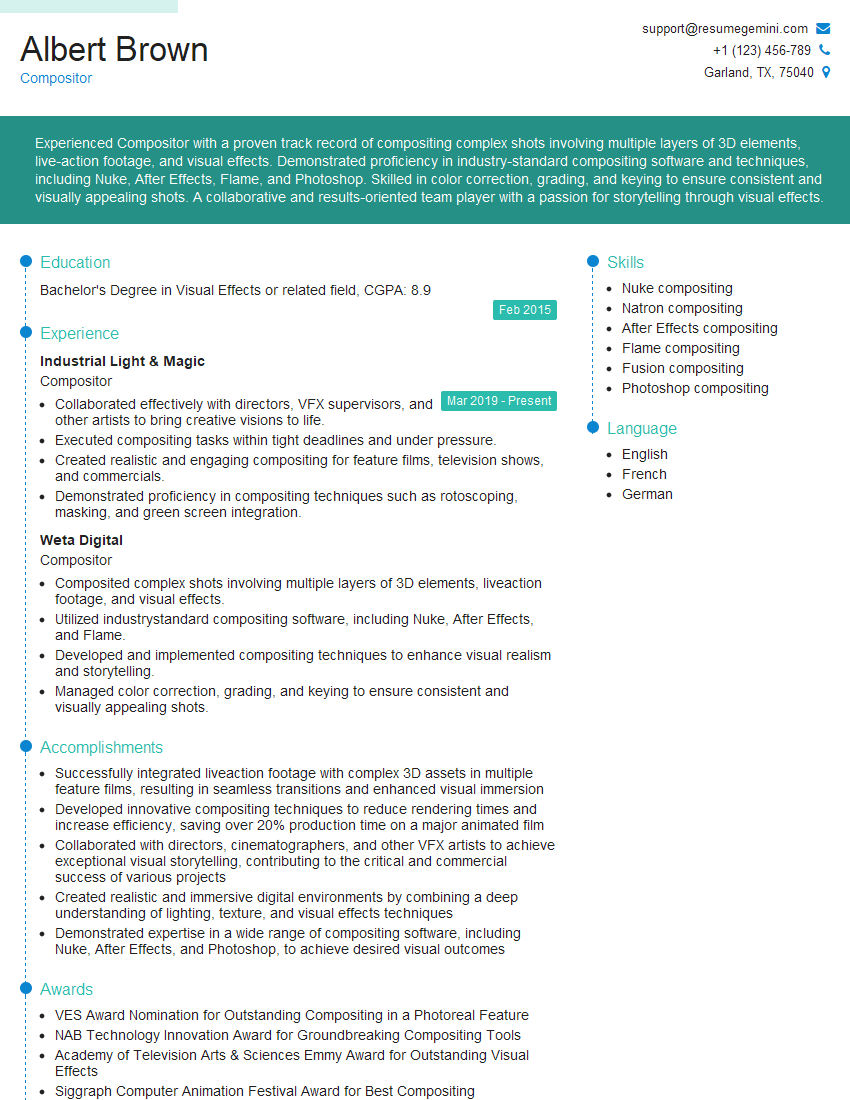
Compositor Resume Sample

Graphic Designer Resume Sample
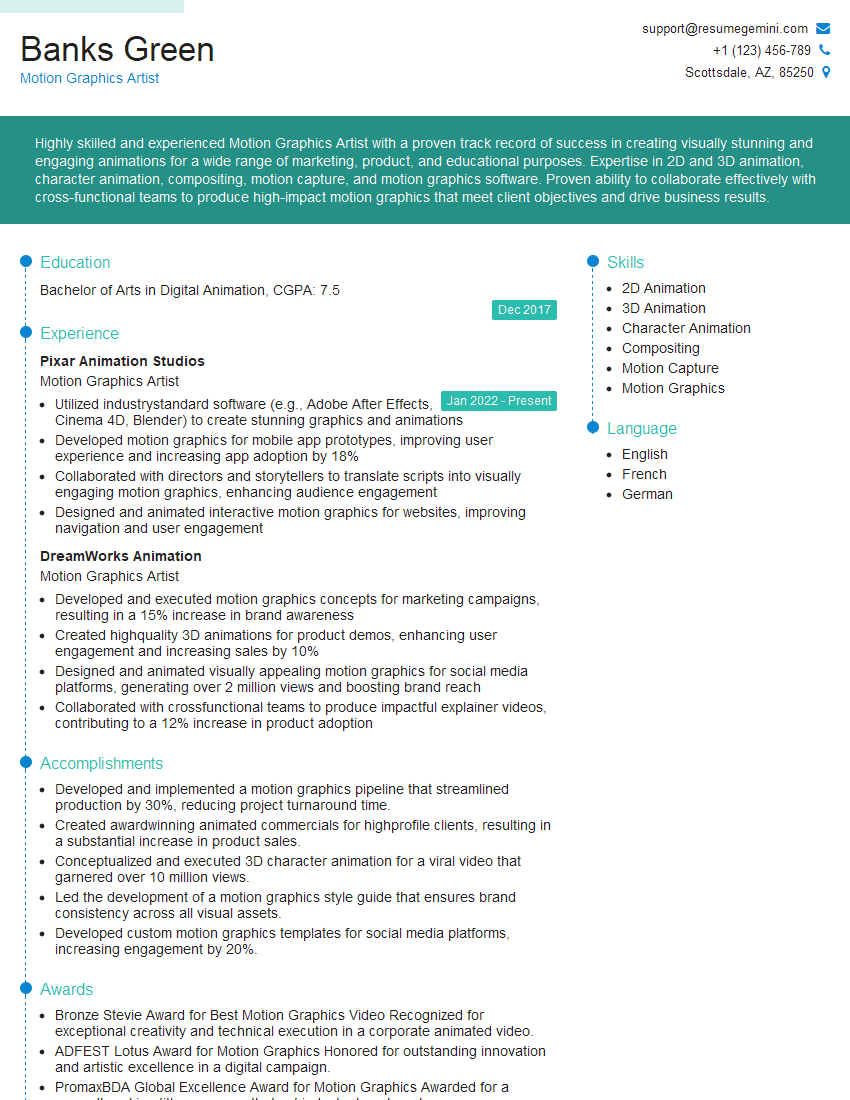
Motion Graphics Artist Resume Sample
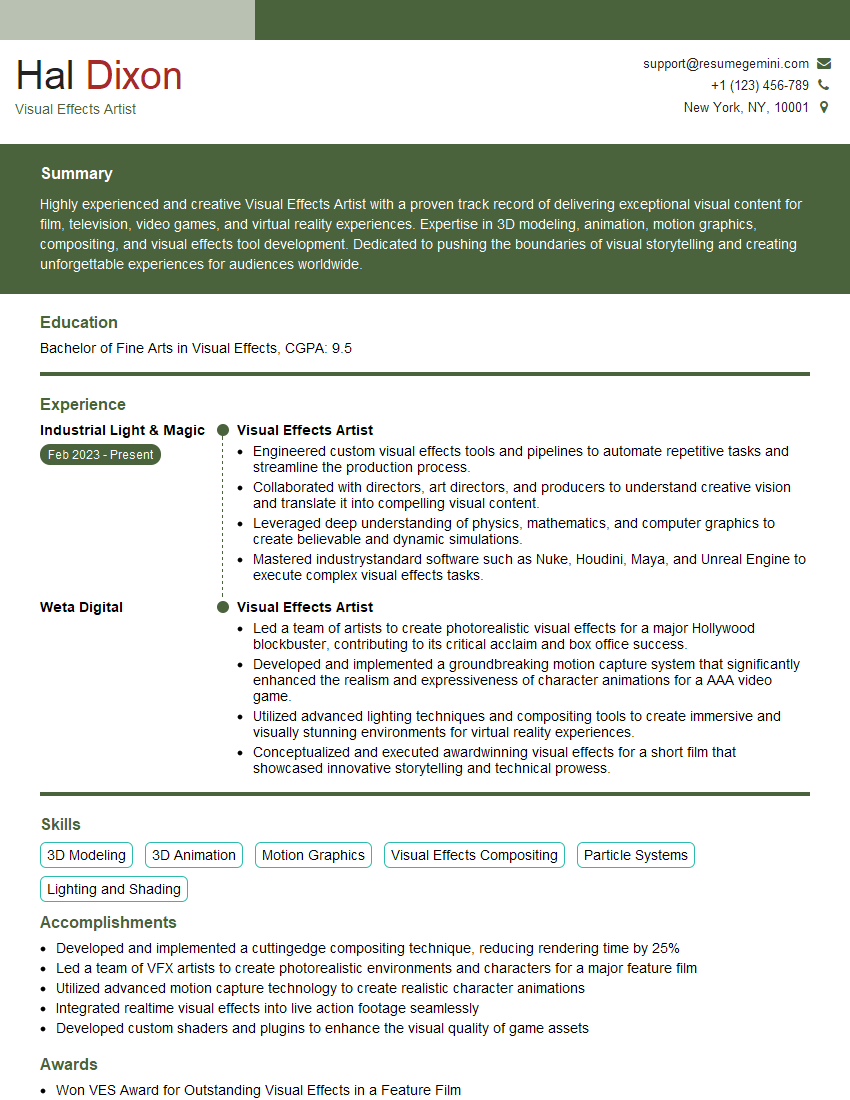
Visual Effects Artist Resume Sample
Production Artist Resume Sample

Photo Editor Resume Sample
Video Editor Resume Sample
Imaging Specialist Resume Sample
Prepress Technician Resume Sample
Explore more articles
Users Rating of Our Blogs
Share Your Experience
We value your feedback! Please rate our content and share your thoughts (optional).
What Readers Say About Our Blog
Really detailed insights and content, thank you for writing this detailed article.
IT gave me an insight and words to use and be able to think of examples