Interviews are more than just a Q&A session—they’re a chance to prove your worth. This blog dives into essential Adobe Animate interview questions and expert tips to help you align your answers with what hiring managers are looking for. Start preparing to shine!
Questions Asked in Adobe Animate Interview
Q 1. Explain the difference between tweening and frame-by-frame animation.
Tweening and frame-by-frame animation are two fundamental approaches to animation in Adobe Animate, each with its strengths and weaknesses. Think of it like this: frame-by-frame is like drawing every single frame of a flipbook, while tweening is like defining the start and end points, letting the software fill in the gaps smoothly.
Frame-by-frame animation involves creating each frame individually. This offers maximum control and allows for highly detailed, complex animations, especially those requiring unique poses or effects impossible to achieve with tweening. However, it’s extremely time-consuming and labor-intensive.
Tweening, on the other hand, automates the process. You create keyframes (start and end points) and Animate interpolates the frames between them. This is much faster and efficient for creating smooth movements and transitions. However, it may not offer the same level of fine-grained control for intricate details as frame-by-frame animation.
For example, animating a realistic walk cycle might benefit from frame-by-frame to capture subtle movements, while a simple bouncing ball would be perfectly suited to tweening.
Q 2. Describe your experience with different types of tweening (motion, shape, etc.).
I have extensive experience with various tweening types in Animate. My go-to methods depend heavily on the project’s requirements. Here are a few examples:
- Motion Tweening: This is the most common type, used to animate the position, rotation, and scaling of objects across frames. I frequently use motion tweening for creating character movements, object interactions, and camera movements. For instance, I recently used motion tweening to create a smooth parallax scrolling effect on a website banner.
- Shape Tweening: This is incredibly powerful for morphing one shape into another. It’s great for subtle transitions, logo animations, or creating fluid, organic movements. I’ve used shape tweening to animate icons transforming into different states, which adds a nice visual touch to user interfaces.
- Classic Tweening: This provides more granular control than motion tweening, allowing for manipulation of individual properties like alpha (transparency), color, and even filter effects. It’s crucial for subtle animations or effects that require precise adjustments.
I often combine these types of tweening within a single project. For example, I might use shape tweening for a logo animation and then motion tweening to move the logo across the screen, creating a more dynamic and engaging experience.
Q 3. How do you optimize Animate projects for web performance?
Optimizing Animate projects for web performance is critical for a smooth user experience. My strategies focus on minimizing file size and optimizing assets. Here’s my typical approach:
- Reduce File Size of Assets: I compress images using appropriate tools like Photoshop’s Save for Web (legacy) or PNG optimization tools. I also prefer vector graphics (SVG) when possible, as they scale without loss of quality.
- Minimize Number of Frames and Layers: Unnecessary frames and layers bloat file size. I carefully plan animations to use only the frames and layers necessary, removing any redundancies.
- Use Symbol Instances: Instead of duplicating assets, I use symbol instances. This significantly reduces file size and makes it easier to update assets across the project.
- Optimize PNG Settings: Using a smaller number of colors (e.g., indexed colors) in PNGs helps shrink file sizes, and using lossless compression methods in JPEGs strikes a good balance between quality and size.
- Efficient Coding (ActionScript): If using ActionScript, I avoid unnecessary loops, memory leaks, and inefficient code structures. I optimize code for speed and performance.
- Publish Settings: I carefully configure publish settings in Animate, selecting appropriate compression levels and file formats based on the project’s requirements. The ‘OAM’ (optimized Adobe Animate file) option is generally preferred for web publishing.
By consistently employing these techniques, I’ve dramatically improved loading times and overall performance in my web animations, leading to positive user feedback.
Q 4. What are your preferred methods for creating and managing assets in Animate?
My preferred method for creating and managing assets involves a combination of organizational techniques and leveraging Animate’s features:
- Library Organization: I meticulously organize my Animate library, categorizing assets into folders based on their type (buttons, characters, backgrounds) and purpose. This ensures quick and easy retrieval and helps maintain a clean workspace.
- External Asset Management: For larger projects, I often store assets outside Animate in a dedicated folder structure. This allows for version control, easier sharing, and prevents the Animate library from becoming overly cluttered. I’ll use the ‘Import’ function to bring assets in from external sources as needed.
- Symbol Creation and Reuse: I extensively utilize symbols to create reusable components. This simplifies the workflow, reduces file size, and allows me to make global changes easily. For example, if I need to update a character design, I just need to modify the master symbol, and all instances will update automatically.
- Naming Conventions: I use a consistent naming convention for all assets, making them easier to identify and manage. Descriptive names improve teamwork and prevent confusion.
This organized approach greatly improves my workflow and project maintainability, especially when working on complex animations.
Q 5. Explain your understanding of the Animate timeline and its functionalities.
The Animate timeline is the heart of the animation process, controlling the sequence and duration of frames. It’s a powerful tool with several crucial functionalities:
- Frame-by-Frame Control: The timeline’s most fundamental function is to manage individual frames. Each frame represents a snapshot in time, and the sequence of frames creates the animation.
- Layer Management: The timeline organizes layers, allowing for complex animations where elements can move independently. This is essential for creating depth and controlling the order of objects on screen. I often use layer grouping to manage large sets of layers during complex scenes.
- Keyframes: Keyframes are crucial for tweening. They define the start and end points of an animation, and Animate interpolates the frames in between. By strategically placing keyframes, I can precisely control the timing and movement of objects.
- Timeline Actions and Events: Animate’s timeline allows me to add ActionScript 3.0 code to control animations through event listeners, providing advanced animation control beyond basic tweening.
- Onion Skinning: This feature overlays previous and subsequent frames, aiding in creating smooth animation and preventing jerky movements. It is particularly useful for frame-by-frame animation.
Mastering the Animate timeline is critical for efficient animation workflow and creating compelling animations.
Q 6. How do you handle complex animations with numerous layers and objects?
Managing complex animations with numerous layers and objects requires a structured approach. My strategy involves several key steps:
- Layer Organization: I meticulously organize layers into logical groups using folders in the timeline. This makes it easier to find specific elements and prevent confusion. Clear naming conventions are essential.
- Modular Design: I break down complex animations into smaller, more manageable modules. Each module can be animated and tested independently, then integrated into the larger project. This simplifies the process and reduces the risk of errors.
- Symbol Instances: I leverage symbol instances extensively, as mentioned before. This reduces complexity and allows for easy updates across multiple layers.
- Parenting: I utilize parenting to link objects together, creating hierarchies. This is especially beneficial for animating character rigs where the movement of one part affects others.
- ActionScript 3.0 (Optional): For very intricate animations, I might use ActionScript 3.0 to automate tasks, create more dynamic behaviours, and manage complex interactions between layers and objects. For instance, using event listeners to trigger animations based on user actions or timing.
These strategies are essential for creating robust, maintainable, and complex animations in Animate.
Q 7. Describe your experience with ActionScript 3.0.
I have significant experience working with ActionScript 3.0 in Animate, going beyond basic tweening. I leverage ActionScript 3.0 for various tasks such as:
- Event Handling: I use event listeners to control animations based on user interactions (mouse clicks, rollovers) or time-based events.
- Game Development: I’ve built several simple games in Animate using ActionScript 3.0 to manage game logic, character movement, collision detection, and scoring.
- Data Binding: I’ve utilized ActionScript 3.0 to dynamically update animation content based on external data sources, such as XML or JSON files.
- Custom Animations: I use ActionScript to create animations that go beyond the capabilities of standard tweening, producing highly customized behaviors and effects.
- Complex Interactions: For example, I’ve used ActionScript to create a scene where multiple animated characters interact dynamically with each other and the environment, responding in real-time to user input.
Here’s a simple example of ActionScript 3.0 to control the alpha (transparency) of a movie clip:
import flash.events.Event; myMovieClip.addEventListener(Event.ENTER_FRAME, onEnterFrame); function onEnterFrame(e:Event):void { myMovieClip.alpha -= 0.01; // Reduce alpha by 0.01 each frame if (myMovieClip.alpha <= 0) { myMovieClip.removeEventListener(Event.ENTER_FRAME, onEnterFrame); } } This demonstrates a basic fade-out effect. My proficiency in ActionScript 3.0 allows me to build far more complex and interactive animations.
Q 8. How do you debug issues in your Animate projects?
Debugging in Animate involves a multifaceted approach. It’s less about a single ‘magic button’ and more about a systematic process of elimination. I start by using Animate’s built-in debugging tools, primarily the Timeline and the Output panel. The Output panel displays errors and warnings, which often pinpoint the source of the problem directly. If the error is less clear, I’ll use the Timeline to step through my animation frame by frame, visually inspecting the behavior of my assets and code.
For more complex issues, especially those involving ActionScript, I heavily rely on the trace() function. This allows me to output variables and expressions to the Output panel, helping me understand the flow of execution and identify values that might be unexpected. For example, trace("My variable x: "+x); would show the current value of variable x in the Output panel. I then use this information to refine my logic or identify where calculations or event handlers are going wrong.
Beyond Animate’s built-in features, I also utilize browser developer tools. If the issue manifests within the published SWF or HTML5 canvas, inspecting the browser’s console often reveals additional errors or warnings that Animate itself might not catch. This is particularly helpful when dealing with interactions between Animate content and other elements on a webpage.
Finally, I often adopt a divide-and-conquer approach. If the issue is within a large animation, I’ll isolate sections to identify the problematic area, working my way to the root cause.
Q 9. How familiar are you with importing and exporting assets in various formats (e.g., SVG, PNG, AI)?
I’m highly proficient in importing and exporting assets in a range of formats. The choice of format depends heavily on the asset itself and its intended purpose. For vector graphics that need to scale seamlessly without losing quality, SVG is my go-to. Animate imports and exports SVGs beautifully, preserving their vector nature. For raster images where fine detail is crucial, PNG offers excellent quality with support for transparency. I often use PNGs for complex illustrations or elements with transparency requirements.
AI (Adobe Illustrator) files are also frequently used, particularly when I’m working with assets created in Illustrator. Animate handles importing AI files efficiently, converting them into editable vector graphics within the Animate environment. Importantly, I always ensure assets are optimized for web use; unnecessarily large files can significantly impact performance. I regularly compress PNGs to reduce their file size while maintaining an acceptable visual quality, and I carefully consider the complexity of my SVGs to avoid bloating the file size.
When exporting, my choice often depends on the output platform. For web projects, I’ll often export to HTML5 canvas to ensure compatibility across modern browsers. For older projects or specific requirements, I might still use SWF, though it’s less common now. The key is flexibility and understanding the trade-offs between file size, compatibility, and visual fidelity for each format.
Q 10. Explain your process for creating and implementing interactive elements in Animate.
Creating interactive elements in Animate typically involves a combination of visual design and ActionScript coding. I begin by sketching out the user flow and desired interactions. This might involve wireframing or prototyping the key elements and transitions. I then design the assets in Animate, utilizing symbols and layers to maintain organizational clarity.
The actual implementation involves attaching ActionScript code to these assets and elements. I often use event listeners to trigger actions, such as button clicks or mouseovers. For instance, a button click might trigger a change in animation state or navigate to a different scene. The addEventListener() method is crucial here. For example:
button.addEventListener(MouseEvent.CLICK, handleClick); function handleClick(event:MouseEvent):void { gotoAndPlay(20); // Navigate to frame 20 } For more complex interactions, I may incorporate variables and conditional logic to create dynamic behavior. This might involve game logic, data manipulation, or conditional display of elements. This helps in creating a responsive and engaging user experience.
Throughout the process, testing is paramount. I regularly test each interactive element to ensure that it functions correctly and consistently across different platforms. I also consider accessibility to ensure the interactive elements are usable for everyone.
Q 11. Describe your experience using Animate’s symbol library.
The Symbol library in Animate is a cornerstone of efficient and organized workflow. I extensively use symbols to create reusable elements, whether they are buttons, characters, or background components. This promotes consistency and reduces file size by avoiding redundant artwork. For example, if I have a character that needs to appear multiple times in my animation, I’ll create a symbol for that character. Any subsequent changes to the symbol are reflected across all instances of the symbol, saving considerable time and effort.
I categorize my symbols meticulously, creating folders within the library to keep everything organized. This is critical for larger projects where you might have hundreds of symbols. Effective symbol management is crucial for maintainability and ease of collaboration. I often use descriptive naming conventions for my symbols to easily identify their purpose and functionality.
Beyond basic symbols, I frequently leverage the different symbol types (graphic, button, movie clip) strategically. Graphic symbols are ideal for static images, button symbols for interactive elements, and movie clip symbols for more complex animations with their own timelines and internal actions.
Q 12. How do you ensure consistent frame rates and performance across different browsers and devices?
Maintaining consistent frame rates and performance across browsers and devices requires careful attention to detail at every stage of development. First, I start by optimizing my assets. Large images and unnecessarily complex animations can significantly impact performance. I compress images to reduce their file size without compromising visual quality. I also ensure that my animations are streamlined, avoiding excessive keyframes or unnecessary elements.
Next, I choose the appropriate output format. HTML5 Canvas, when compared to SWF, offers superior performance and compatibility across a wider range of browsers and devices. I also pay close attention to the Animate’s publish settings, ensuring that the frame rate is set appropriately. Generally, I aim for 24 fps or 30 fps for smooth animations, but this can be adjusted based on the complexity of the animation and target devices.
For complex projects, I might also consider using techniques like animation caching or pre-rendering to minimize processing demands during runtime. Regularly testing on different browsers and devices is critical to ensure the performance remains consistently high. This allows me to identify any potential bottlenecks or performance issues before release.
Q 13. What version(s) of Adobe Animate are you proficient in?
I’m proficient in several versions of Adobe Animate, including Animate CC 2020, Animate CC 2021, and the latest versions. My experience spans across multiple versions, allowing me to adapt to different workflows and feature sets. I understand the evolution of the software, and I can readily utilize features such as the improved HTML5 canvas rendering, enhanced code editing capabilities, and the enhanced timeline features introduced in newer versions. However, I’m equally comfortable working with older versions if needed.
Q 14. Explain your experience working with different animation techniques (e.g., inverse kinematics, bone animation).
My experience with animation techniques includes both classic methods and more advanced techniques such as inverse kinematics (IK) and bone animation. I utilize classic frame-by-frame animation for precise control over character movement and detailed expressions. I also frequently employ tweening techniques for creating smooth transitions between keyframes. This helps in efficiently producing animations, particularly for simple movements or transitions.
Inverse kinematics is a powerful technique for realistic character animation, especially in situations where you want to control the end effector (like a hand or foot) and have the rest of the character’s limbs adjust accordingly. This drastically reduces the manual work needed for complex character poses. I commonly use IK in character rigging to simplify complex motions and create more fluid, natural movements. I typically leverage Animate’s built-in IK functionality or integrate external rigging tools.
Bone animation is similar to IK but offers more control and flexibility, allowing for more organic and dynamic movements. I use bone animation when needing nuanced control over character deformation and pose adjustments. This is particularly relevant when working with more expressive or complex character designs.
The choice of technique depends heavily on the project’s requirements. Frame-by-frame animation is ideal for detailed control, while IK and bone animation are preferred for efficiency and natural-looking movement in complex characters.
Q 15. How familiar are you with using external libraries or plugins in Animate?
I’m highly proficient in integrating external libraries and plugins within Adobe Animate. This significantly extends Animate’s capabilities, allowing for more complex interactions and functionalities that wouldn’t be possible using only the built-in tools. My experience encompasses using libraries for various purposes, from importing custom assets and pre-built components to leveraging third-party plugins for advanced effects and functionalities.
Asset Libraries: I frequently import custom illustration or sound effect libraries to maintain a consistent style and streamline my workflow. This is especially useful in larger projects where consistency is paramount.
UI Libraries: I’ve utilized pre-built UI component libraries to rapidly develop interactive interfaces for games or applications. This drastically reduces development time, allowing me to focus on the core animation and gameplay mechanics.
Plugin Integration: I have experience integrating plugins that enhance animation capabilities, like adding advanced particle effects or physics simulations. For example, I used a physics plugin to create realistic ragdoll effects in a previous project.
Understanding how to effectively manage dependencies and resolve conflicts between different libraries and plugins is crucial. I’m adept at troubleshooting any compatibility issues and ensuring seamless integration into my Animate projects.
Career Expert Tips:
- Ace those interviews! Prepare effectively by reviewing the Top 50 Most Common Interview Questions on ResumeGemini.
- Navigate your job search with confidence! Explore a wide range of Career Tips on ResumeGemini. Learn about common challenges and recommendations to overcome them.
- Craft the perfect resume! Master the Art of Resume Writing with ResumeGemini’s guide. Showcase your unique qualifications and achievements effectively.
- Don’t miss out on holiday savings! Build your dream resume with ResumeGemini’s ATS optimized templates.
Q 16. Explain how you would create a simple game mechanic using Animate.
Creating a simple game mechanic in Animate often involves leveraging the Timeline, Actionscript, and the stage’s interactive elements. Let’s say we’re building a simple ‘catch-the-falling-objects’ game.
Falling Objects: I would create the falling objects (e.g., apples) as Movie Clips, each with its own animation (a simple falling motion using the timeline).
Player Character: Similarly, the player (e.g., a basket) would be a Movie Clip, potentially with animations for movement (left/right) controlled by keyboard input.
Collision Detection: The core mechanic relies on collision detection. Using Actionscript (or the simpler ‘HitTest’ object property for simpler cases), I’d code the logic to detect when an apple collides with the basket. This would trigger a score increment and removal of the apple from the stage.
Game Loop: A loop in Actionscript would continuously spawn new apples at random positions and update their vertical position, creating the falling effect. It would also handle game over conditions (e.g., too many misses).
A basic Actionscript snippet for collision detection (using HitTest) could look like this:
onClipEvent (enterFrame) {if (this.hitTest(_root.basket._x, _root.basket._y)) { //collision detectedremoveMovieClip(); _root.score++;}}This is a simplified example, but it demonstrates the fundamental principles. For a more sophisticated game, I would explore more advanced ActionScript features and potentially integrate a game engine or library for smoother performance and more complex game logic.
Q 17. Describe your experience with working collaboratively on Animate projects.
Collaborative work is essential in animation, and I have extensive experience working in teams using Animate. We typically leverage version control systems like Git to manage our project files, ensuring everyone’s work is tracked and easily merged.
Clear Communication: Effective communication is crucial. We use project management tools (e.g., Jira, Asana) to assign tasks, track progress, and maintain a shared understanding of the project goals and deadlines.
Component-Based Approach: We break down complex animations into smaller, manageable components. This allows team members to work independently on different parts of the animation while maintaining overall consistency.
File Organization: We establish a clear file naming convention and folder structure to prevent confusion and ensure efficient asset management. This often involves using a library to store reusable assets.
Regular Feedback: We conduct regular reviews and provide constructive feedback to ensure that the final animation meets the project’s requirements and maintains a consistent visual style.
In one recent project, we utilized a shared network drive to access project files simultaneously. Each animator was responsible for a specific character or sequence, and we used daily check-ins to identify and resolve any issues quickly.
Q 18. Describe your process for creating and managing animation assets for a mobile application.
Creating and managing animation assets for mobile applications requires a focused approach to optimization and performance. The key is to balance visual quality with file size and frame rate to ensure a smooth user experience.
Asset Optimization: I use various techniques to reduce file sizes without significant visual loss. This includes reducing the number of colors (using indexed colors), optimizing image formats (like PNG-8 for graphics with fewer colors, and JPEG for photorealistic images), and minimizing the number of frames in animations.
Frame Rate: Mobile devices have varying processing power, so choosing the right frame rate (FPS) is crucial. 24 or 30 FPS is usually sufficient for mobile applications, avoiding unnecessarily high frame rates that increase file size and strain device resources.
File Formats: Mobile platforms (iOS and Android) have specific guidelines for asset formats. I ensure compatibility by exporting in the recommended formats, often using tools within Animate to generate optimized sprite sheets for improved rendering performance.
Version Control: Using version control (Git) is essential for managing different revisions and preventing accidental data loss. This helps in tracking changes and reverting to previous versions if necessary.
Testing on Devices: Thorough testing on a variety of mobile devices is crucial to identify and address performance issues before release. This ensures a consistent experience across different screen sizes and hardware specifications.
For example, in a recent project, we significantly reduced the file size of our animations by using sprite sheets and optimizing our images, resulting in a smoother and more responsive mobile app.
Q 19. What is your approach to troubleshooting unexpected behavior in Animate?
Troubleshooting unexpected behavior in Animate often involves a systematic approach. My process begins with carefully examining the code, timeline, and assets to pinpoint the source of the problem.
Isolate the Problem: I start by isolating the problematic area. If it’s a script error, I utilize the debugger in Animate to step through the code and identify the line causing the issue.
Check the Timeline: Many animation issues stem from incorrect timeline settings or unexpected interactions between layers. I meticulously review the timeline for any inconsistencies or conflicts.
Examine the Assets: Sometimes the issue might lie within the imported assets. I check the assets for any corruption or incompatibility issues.
Test in Different Browsers: If the animation is for web deployment, I test it across different browsers to see if the issue is browser-specific.
Online Resources and Community: When facing particularly challenging issues, I consult online forums, Adobe’s documentation, and the Animate community to seek solutions from experienced users.
Recently, I encountered a rendering issue where an animation wasn’t playing smoothly. After systematically checking the code, timeline, and assets, I discovered that a layer’s blending mode was inadvertently set to a value that caused performance problems. Changing the blending mode resolved the issue immediately.
Q 20. How would you approach the creation of a complex character animation?
Creating complex character animation requires a blend of technical skill and artistic vision. My approach is broken down into several stages:
Planning and Design: I begin by carefully planning the animation, including storyboarding, character design, and defining key poses and expressions. This phase ensures a clear vision before diving into the technical aspects.
Rigging: For complex characters, I would create a rig using bones or inverse kinematics (IK). This provides a flexible structure for controlling the character’s movements naturally. This is crucial for achieving fluid and believable animations.
Keyframing and In-betweens: I create keyframes for major poses and then use various techniques (like tweening) to create smooth transitions between those keyframes. The process involves careful attention to timing, spacing, and easing to enhance the animation’s realism and appeal.
Facial Animation: For expressive characters, creating convincing facial animations is essential. I leverage various techniques like morphing, shape tweening, or even external facial rigging tools to create realistic expressions.
Refinement and Polishing: The final stage involves meticulous polishing, ensuring that the animation looks and feels seamless. This often involves adjustments to timing, spacing, and the overall flow of the animation.
In one project, I created a complex character animation using a custom rigging system in Animate. This system allowed for precise control over the character’s limbs, facial features, and even subtle movements, resulting in a lifelike and expressive character.
Q 21. How do you handle revisions and feedback in the animation process?
Handling revisions and feedback is a crucial part of the animation process. My approach involves a collaborative and iterative process:
Clear Communication: I establish clear communication channels with clients or stakeholders. This involves using project management tools and regular meetings to discuss progress and receive feedback.
Organized Feedback: I encourage feedback to be provided in a structured manner, perhaps using annotation tools on the animation itself, to clearly identify areas that need adjustment.
Version Control: Using a version control system allows me to track revisions and easily revert to earlier versions if necessary. This safeguards against accidental overwriting of previous work.
Iterative Process: I embrace an iterative approach, allowing for multiple rounds of revisions and adjustments based on feedback. Each round of revisions is treated as an opportunity to improve the animation.
Documentation: I maintain detailed documentation of all changes and revisions, explaining the rationale behind each decision. This ensures transparency and aids in future troubleshooting.
In a recent project, I received significant feedback on character movement. By using version control, I easily made the requested changes without affecting the rest of the animation. The iterative feedback process resulted in a significantly improved and more polished final product.
Q 22. Describe your knowledge of using Animate to create vector graphics.
Adobe Animate is a powerful tool for creating vector graphics, offering precise control and scalability. Unlike raster graphics (like JPEGs), vectors are defined by mathematical equations, meaning they can be scaled to any size without losing quality. In Animate, I primarily use the drawing tools – the pen tool for precise lines and curves, the brush tool for more organic strokes, and the shape tools for creating basic geometric shapes. I leverage the powerful features of the ‘Stroke’ and ‘Fill’ panels to customize line weights, colors, gradients, and patterns. For complex illustrations, I often utilize layers and symbols to organize my artwork, ensuring efficient editing and reusability. For example, I might create a symbol for a character’s head, then reuse that symbol multiple times throughout the animation, modifying individual instances as needed. This keeps the file size manageable and simplifies the workflow significantly.
One effective technique I often employ is the use of vector shapes as masks for other graphic elements like bitmaps or imported illustrations, allowing for creative control over opacity and revealing elements at specific points in an animation. This is particularly useful for creating intricate visual effects or transitions.
Q 23. What are some common challenges you encounter while working with Animate, and how do you overcome them?
One common challenge is managing file size, especially in complex projects with many assets and frames. To combat this, I optimize vector artwork by avoiding overly complex paths and utilizing symbols effectively. Another challenge is maintaining consistency in the design across a large project. To address this, I establish a comprehensive style guide early on, documenting color palettes, typography, and graphic styles, which ensures a unified visual experience throughout the animation. Sometimes unexpected behavior of the timeline can occur; meticulously planning your animations and using keyframes strategically ensures better predictability. Finally, ensuring cross-browser compatibility can sometimes be tricky. Thorough testing on different browsers and devices is crucial to identify and resolve any inconsistencies before releasing the final product.
Q 24. Describe your experience with using Animate for creating e-learning content.
I have extensive experience creating e-learning content in Animate. My work includes developing interactive tutorials, simulations, and assessments. I leverage Animate’s interactive features, such as buttons, timelines, and ActionScript (though I am also adept at using newer, simpler methods such as timeline-based interactions), to create engaging and effective learning experiences. For instance, I’ve built interactive maps where clicking on different regions triggers corresponding explanations and animations. I also understand the importance of clear visual communication and concise text in this context, focusing on designing visually appealing and information-rich content. The use of branching scenarios and feedback mechanisms are essential elements in designing e-learning materials, which Animate’s capabilities help me implement very effectively.
I’ve also worked on projects incorporating external resources and APIs to bring in real-time data or create personalized experiences, improving user engagement and knowledge retention. This can include things like connecting to databases to dynamically populate quiz questions or using external libraries for more advanced interactions.
Q 25. How familiar are you with accessibility considerations when creating animations?
Accessibility is paramount. I always consider users with disabilities when creating animations. This includes using alternative text for images, ensuring sufficient color contrast, providing keyboard navigation, and adding captions and transcripts for audio content. I’m familiar with WCAG (Web Content Accessibility Guidelines) and strive to meet those standards. For instance, I make sure that animations aren’t distracting or overwhelming for users with certain cognitive impairments. I also ensure that all interactive elements are usable with assistive technologies like screen readers. In practice, this might mean using clear and concise labels for buttons and ensuring that the navigation is intuitive and easily understood by screen reader users.
Q 26. Explain your understanding of animation principles (e.g., timing, spacing, squash and stretch).
Understanding animation principles is crucial. Timing refers to the speed and rhythm of the animation; it dictates how long an action takes and its overall feel. Spacing controls the distance between keyframes, impacting the motion’s smoothness and speed, and can easily be manipulated using Animate’s timeline features. Squash and stretch is a vital principle for conveying weight, flexibility, and impact; it involves distorting shapes to enhance realism and expression. These are foundational principles I apply in every animation project. For example, a bouncing ball will demonstrate squash and stretch as it impacts the ground, while timing and spacing will determine the height and rhythm of its bounces. Mastering these principles, alongside others like anticipation, follow-through, and arcs, is crucial for creating believable and engaging animations.
Q 27. How do you stay updated with the latest features and best practices in Adobe Animate?
I stay updated through several avenues. Adobe regularly releases updates and tutorials, which I actively follow. I regularly check the Adobe Animate community forums and blogs for insights and best practices from other professionals. Attending webinars and online courses, subscribing to relevant newsletters, and actively engaging with industry publications ensure I’m always abreast of the latest features and advancements in the software and animation field. Participating in online communities and forums gives me opportunities to collaborate and exchange knowledge with fellow animators, contributing to my continuing professional development.
Q 28. Explain your experience with using version control systems (like Git) for managing Animate projects.
While Animate projects don’t inherently lend themselves to the same level of granular version control as code-based projects, I understand and utilize version control systems, particularly Git, to manage my assets and project files. I often use Git for managing external assets, especially scripts, images, and sound files imported into the Animate project. This ensures that any changes made to these files are tracked and can be reverted if necessary. While the FLA (Flash file) itself can be version-controlled, it’s less straightforward than other file types. I often employ a process of exporting assets frequently and managing them within Git to maintain a track record of changes and to enable collaborative development with others. I commonly choose to manage my entire project folder within Git, giving me version control for all project-related content.
Key Topics to Learn for Adobe Animate Interview
- Timeline and Animation Principles: Understand keyframes, tweening (classic and motion), easing, and the 12 principles of animation. Practical application: Creating realistic character movement and complex animations.
- Working with Symbols and Instances: Master symbol types (graphic, button, movie clip), symbol management, and the benefits of instance editing for efficient workflow. Practical application: Creating reusable assets and maintaining consistency in complex projects.
- ActionScript Fundamentals (if applicable): Depending on the role, familiarity with ActionScript 3.0 for interactivity, event handling, and controlling animations might be crucial. Practical application: Developing interactive elements, game mechanics, or data-driven animations.
- Vector Graphics and Drawing Tools: Proficiency in using the drawing tools, understanding vector principles, and manipulating shapes effectively. Practical application: Creating clean, scalable assets for animation and user interfaces.
- Exporting and Publishing Settings: Understanding different output formats (SWF, HTML5 Canvas, etc.), optimizing for performance and different target platforms. Practical application: Preparing animations for web deployment, mobile apps, or other mediums.
- Workflow and Collaboration: Understanding version control, asset organization, and best practices for collaborative projects. Practical application: Effectively managing assets and collaborating with designers and developers.
- Debugging and Troubleshooting: Ability to identify and resolve common animation issues, optimize performance, and use debugging tools effectively. Practical application: Ensuring smooth animation playback and resolving unexpected behavior.
Next Steps
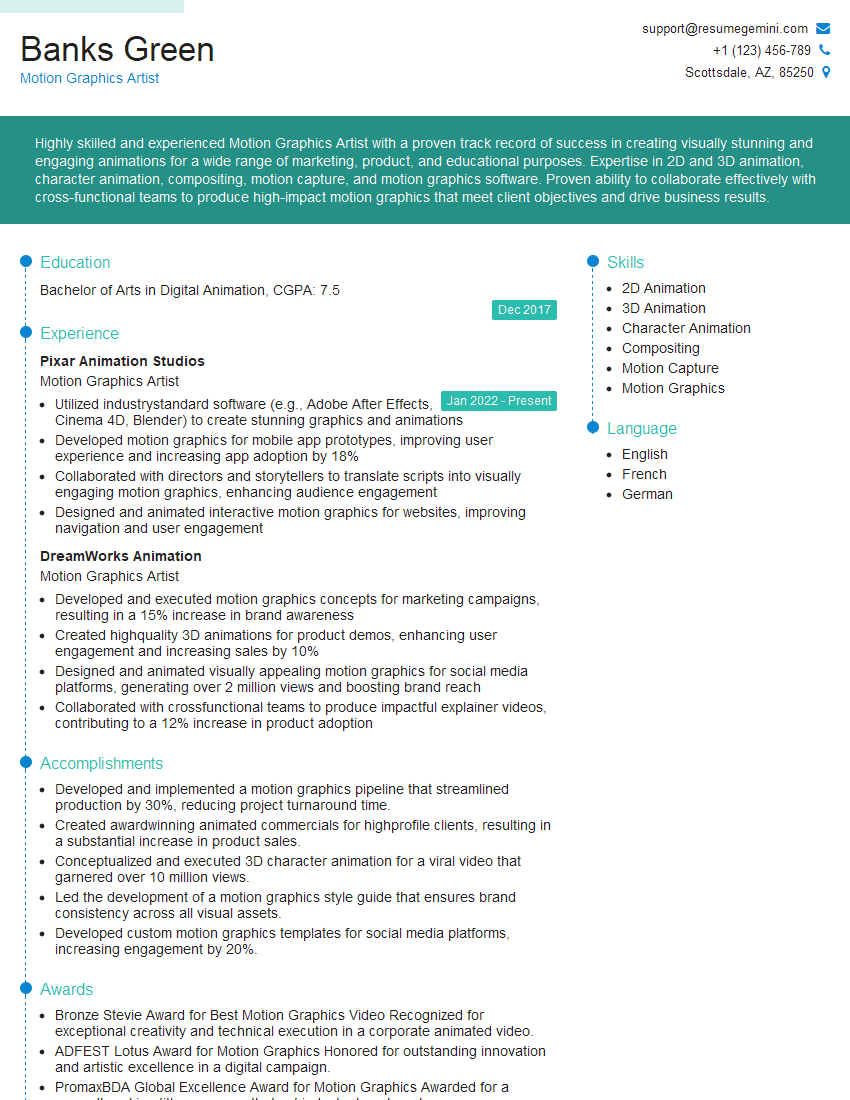
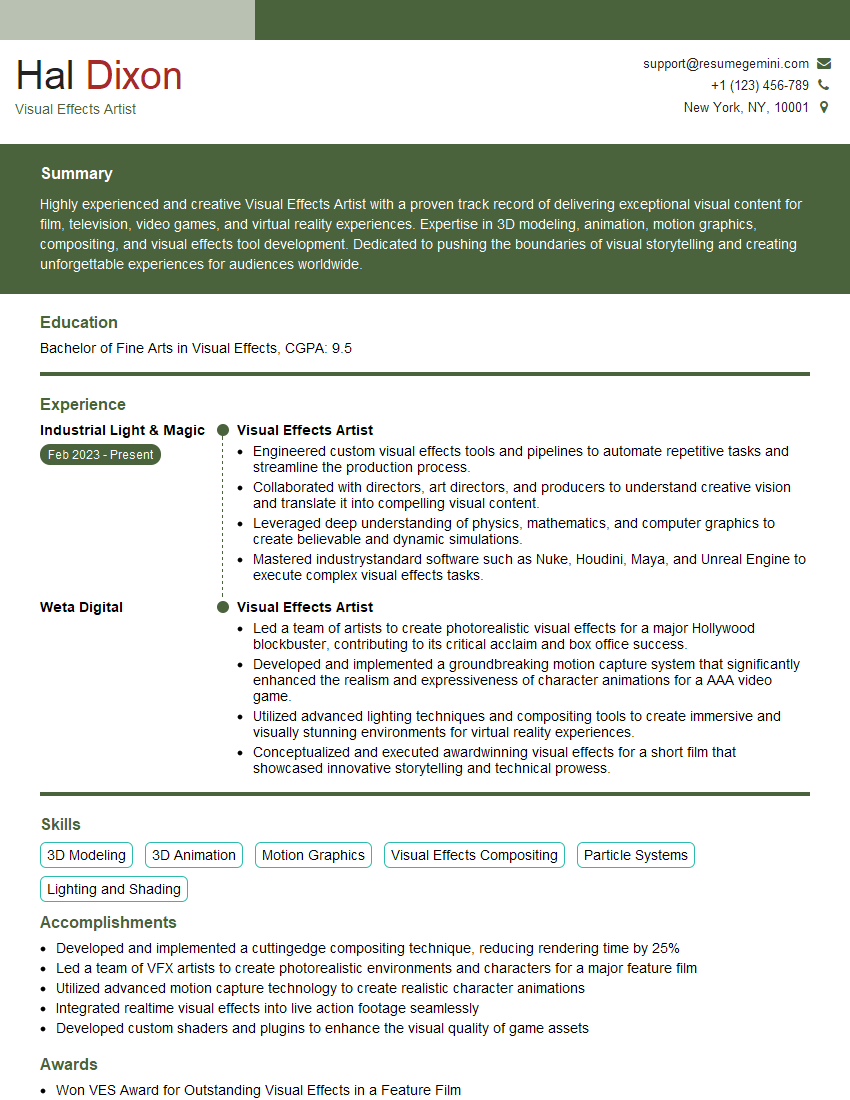
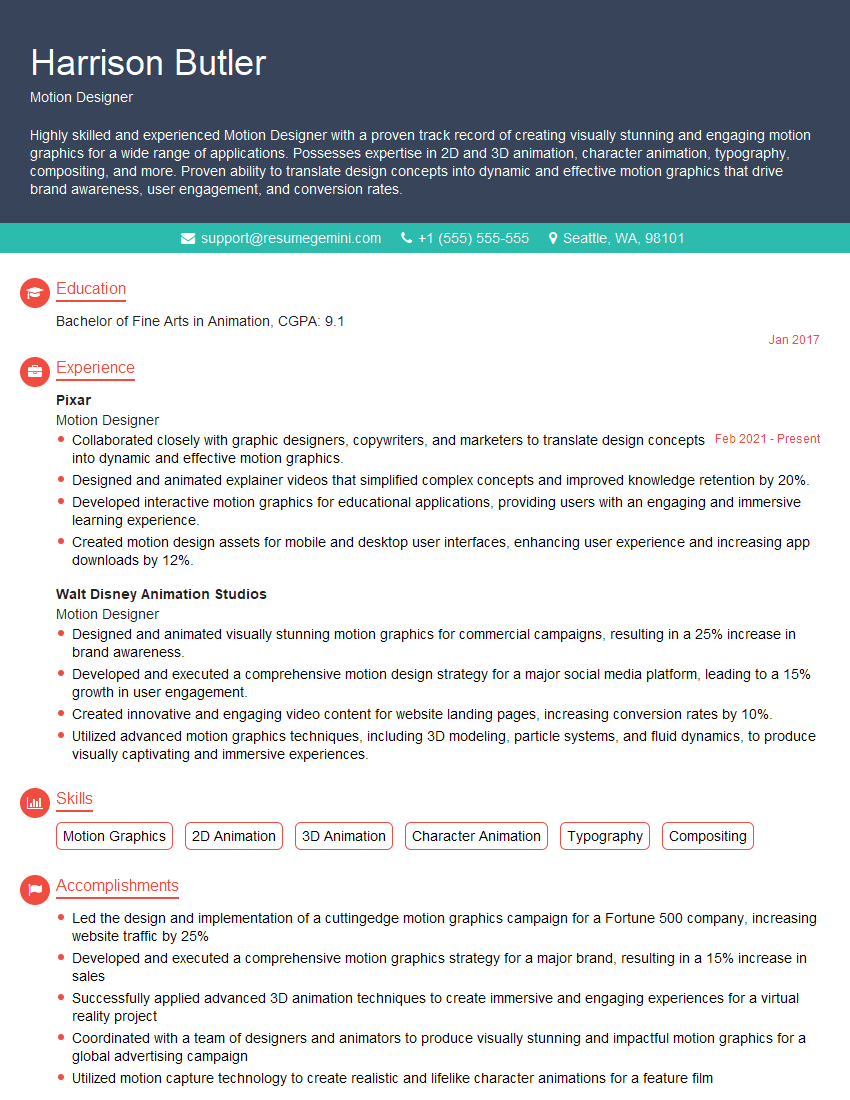
Mastering Adobe Animate opens doors to exciting careers in animation, game development, interactive design, and more. A strong grasp of these skills is highly valued by employers. To boost your job prospects, creating an ATS-friendly resume is essential. ResumeGemini is a trusted resource to help you build a professional resume that highlights your skills and experience effectively. Examples of resumes tailored specifically to Adobe Animate roles are available to help you showcase your expertise. Invest the time to craft a compelling resume – it’s your first impression!

Explore more articles
Users Rating of Our Blogs
Share Your Experience
We value your feedback! Please rate our content and share your thoughts (optional).
What Readers Say About Our Blog
Really detailed insights and content, thank you for writing this detailed article.
IT gave me an insight and words to use and be able to think of examples