The thought of an interview can be nerve-wracking, but the right preparation can make all the difference. Explore this comprehensive guide to AutoCAD 3D interview questions and gain the confidence you need to showcase your abilities and secure the role.
Questions Asked in AutoCAD 3D Interview
Q 1. Explain the difference between a 3D solid and a 3D surface model in AutoCAD.
The core difference between 3D solids and 3D surfaces in AutoCAD lies in their inherent properties. A 3D solid is a completely defined volume; it has mass, and you can perform Boolean operations (union, subtract, intersect) directly on it. Think of a cube – it’s solid, occupies space, and has a defined interior and exterior. In contrast, a 3D surface represents only the outer shell; it’s essentially a collection of faces that define a shape but lack an intrinsic volume or mass. Imagine a very thin, perfectly smooth eggshell; it has a surface area but no meaningful internal volume.
Practical Implications: Solids are ideal for simulations involving mass properties (weight, center of gravity), finite element analysis (FEA), and designs requiring precise volume calculations. Surfaces excel in visual representation, design exploration, and situations where the internal structure isn’t crucial, such as creating a smooth, aerodynamic car body. You can often convert surfaces to solids if needed, though this might lead to some loss of detail or complexity.
Q 2. Describe your experience with various AutoCAD 3D modeling techniques (e.g., extrusion, revolution, sweeping).
I’ve extensively used various 3D modeling techniques in AutoCAD, including extrusion, revolution, and sweeping, adapting them to different project needs. Extrusion is my go-to for creating simple shapes from 2D profiles by dragging them along a path. For example, creating a simple beam from a rectangular profile. Revolution is perfect for generating symmetric objects by revolving a profile around an axis; think of a vase formed by rotating a curve around a central line. Sweeping offers greater flexibility; it lets you create complex shapes by moving a profile along a complex path, creating a shape with variable cross-sections. For instance, sweeping a circle along a curved path could model a pipe with varying diameter.
I’ve combined these techniques frequently. For example, I once modeled a complex architectural component by first creating a base shape with extrusion, then adding intricate details with sweeping, finally adding stylistic elements using revolution and Boolean operations. This layered approach helped manage complexity and ensure accuracy.
Q 3. How do you manage layers and layer properties effectively in a complex 3D model?
Managing layers is paramount in complex 3D models to ensure organization, efficiency, and easy modification. My approach involves a hierarchical system. I start by creating main layers for major components (e.g., ‘Structure’, ‘MEP’, ‘Landscape’). Sub-layers then categorize components within these broader divisions (e.g., under ‘Structure’, I’d have ‘Columns’, ‘Beams’, ‘Walls’). Each layer has a distinct color and linetype for quick visual identification.
I utilize layer properties extensively. For instance, I might freeze or turn off layers not immediately relevant, improving performance. Layer states (On/Off, Freeze/Thaw) are critical for managing the complexity in large projects. I consistently use descriptive layer names, avoiding vague terms to improve model understanding and collaboration. Additionally, I leverage layer filters to focus on specific elements quickly.
Q 4. What are your preferred methods for creating and editing complex 3D geometry?
My preferred methods for complex 3D geometry rely on a combination of direct modeling and parametric design principles. For precise geometry, I use precise commands like 3DPOLY, SURFACE, and SOLIDEDIT to achieve tight control. For more organic shapes, I might utilize NURBS surfaces, enabling the creation of smooth, freeform curves and surfaces. Boolean operations are invaluable for combining and modifying solid objects, such as subtracting material to create cutouts or adding components to form assemblies.
I strive for a balance between precision and efficiency. Using blocks and external references (xrefs) reduces file size and simplifies management of repetitive elements. This approach significantly streamlines workflow, especially when dealing with vast assemblies or repeated components.
Q 5. Describe your experience with rendering and visualization techniques in AutoCAD.
While AutoCAD itself isn’t a dedicated rendering software, I’ve effectively used its rendering capabilities for basic visualizations and client presentations. I’m proficient in utilizing AutoCAD’s rendering settings to adjust lighting, materials, and shadows to create visually appealing images. I’ve explored different render styles, from photorealistic to conceptual, depending on project requirements.
However, for high-fidelity renderings and animations, I understand the benefits of using specialized rendering packages and often export the AutoCAD model in formats like FBX or DWG to external software like 3ds Max or Lumion for more sophisticated results. This approach allows me to leverage the strengths of both programs for optimal visual output.
Q 6. How do you handle large and complex AutoCAD 3D files to maintain performance?
Handling large and complex AutoCAD 3D files efficiently requires a multi-pronged approach. First, optimizing the model itself is crucial: purging unused data, removing unnecessary objects, and using blocks and xrefs effectively reduce file size. Employing external references (xrefs) instead of embedding complex components keeps the main file relatively lightweight while allowing access to detailed components when needed.
Beyond model optimization, hardware upgrades and software settings play a significant role. Having sufficient RAM and a fast processor speeds up operations. Setting the AutoCAD system variables, such as MAXSORT and HIGHLIGHT, appropriately can also improve performance. Lastly, regular saving and using AutoCAD’s purge command helps in managing file size and preventing unnecessary data accumulation.
Q 7. Explain your proficiency in using constraints and parameters in AutoCAD 3D modeling.
I possess strong proficiency in using constraints and parameters within AutoCAD 3D modeling. Geometric constraints (like parallel, perpendicular, coincident, and equal) ensure accurate relationships between objects, reducing manual adjustments and preventing errors. Parametric design takes this a step further by defining relationships between dimensions and parameters. This enables dynamic model updates: changing one parameter automatically adjusts related components, maintaining consistency throughout the design.
For example, when designing a building, I might parameterize the wall thickness, window height, and room dimensions. Modifying one parameter will propagate the changes throughout the model, maintaining proportionality and design intent. This approach is invaluable for efficient design exploration, iterative design changes, and ensuring design consistency in complex projects.
Q 8. Describe your experience working with external references (xrefs) in AutoCAD 3D.
External References (xrefs) in AutoCAD 3D are like including pre-built modules in your project. They allow you to link or attach drawings from other files into your current drawing, keeping your main file cleaner and more manageable. This is crucial for collaborative projects or when working with complex assemblies. I’ve extensively used xrefs in large-scale projects, such as designing a complete manufacturing plant layout. Each building, equipment section, or utility system was a separate xref, allowing different team members to work concurrently without interfering with each other’s progress.
There are two main types: Attached xrefs behave like copies – changes in the source file are not automatically reflected. Overlayed xrefs, on the other hand, dynamically update as the original xref file changes. This provides real-time collaboration benefits, but managing updates requires discipline. I typically prefer overlayed xrefs for their real-time updates, but use attached xrefs when a static snapshot is required.
Effectively managing xrefs involves understanding path management, particularly in shared network environments. Maintaining accurate paths is crucial to prevent broken links. I regularly use the XREF command to manage my xrefs, including binding, detaching, and reloading them as needed. For complex projects, I employ a rigorous file management structure to avoid confusion and ensure consistency.
Q 9. How do you ensure accuracy and precision in your 3D models?
Accuracy and precision are paramount in 3D modeling. Imagine building a real-world structure – even small errors can have huge consequences. I employ several strategies to maintain this accuracy.
- Precise Units and Scales: I meticulously set the correct units and scales from the outset of each project to avoid scaling errors later. This often involves confirming the scale from blueprints or specifications.
- Constraints and Relations: AutoCAD’s constraint tools (geometric and dimensional constraints) are invaluable. By creating constraints, I ensure that geometry maintains its intended relationships, preventing dimensional drift during edits.
- Precise Input Methods: Instead of relying solely on visual estimation, I always use precise numerical input whenever possible – whether it’s coordinates, lengths, angles, or radii. This makes the models much more repeatable and accurate.
- Regular Checks and Audits: Throughout the modeling process, I regularly check the model for errors – inconsistencies, gaps, overlaps – utilizing tools like the
AUDITcommand to detect and correct minor issues before they escalate into major problems. A thorough review before finalizing the model is essential. - Coordinate Systems: Using a well-defined coordinate system – including survey data, if available – ensures accurate spatial positioning. This is particularly important when importing data from other sources, like point clouds.
Q 10. Explain your process for creating detailed and accurate 3D drawings from 2D blueprints.
Converting 2D blueprints to accurate 3D models is a multi-step process. Think of it like sculpting from a picture – you need to understand the underlying structure before you can create the form.
- Blueprint Analysis: I start by thoroughly analyzing the 2D blueprints, studying every detail – dimensions, annotations, and notes. This includes identifying key features, sections, and any ambiguities. I often make annotated sketches to assist in the 3D modelling process.
- Coordinate System Setup: Establishing a precise coordinate system, possibly referencing the provided survey data if available, will provide a critical framework for the 3D model.
- 2D to 3D Translation: I utilize the 2D drawing as a guide to create the 3D model, often starting with the main structural elements. I rely on tools such as
OFFSET,EXTRUDE,REVOLVE, andSWEEPto create accurate 3D geometry based on the 2D dimensions. - Adding Details: Once the main structure is in place, I add details from the blueprints, paying close attention to the specifics of materials, textures, and other design components.
- Verification and Refinement: Continuous verification against the 2D blueprints is crucial throughout the process. I might use section views and 3D visualizations to check accuracy.
I often use layers to organize elements – structure, MEP, finishes – and the use of blocks for repetitive components simplifies the process and maintains consistency. This structured approach ensures that the final 3D model faithfully represents the 2D blueprints.
Q 11. How do you troubleshoot common errors and issues encountered while working in AutoCAD 3D?
Troubleshooting in AutoCAD 3D is a regular part of the job. Common issues can range from minor glitches to more serious errors. My approach is systematic and methodical.
- Understanding Error Messages: Carefully reading the error messages is the first step. They often provide clues about the source of the problem.
- Checking Units and Layers: Incorrect units and layer issues frequently cause problems. I verify these are set up correctly, consistently.
- Purge and Audit: The
PURGEcommand removes unused objects and definitions. TheAUDITcommand checks for and fixes errors in the drawing database. Both are essential for maintaining file health. - Rebuilding the Model (in parts): If errors persist, I might selectively rebuild parts of the model or even revert to earlier saves to pinpoint the error’s introduction.
- Online Resources and Forums: The AutoCAD community is a vast resource. Online forums and help communities are frequently my go-to source for solutions to specific errors.
For example, if I encounter rendering issues, I first check my graphics card drivers and settings. If there are model-related issues, I often resort to isolating components using layers to detect the source of conflicts.
Q 12. Describe your experience with data extraction and reporting from AutoCAD 3D models.
Data extraction and reporting from AutoCAD 3D models are critical for analysis, cost estimations, and manufacturing purposes. I’ve employed several methods:
- AutoCAD’s Measurement Tools: AutoCAD provides built-in tools for measuring distances, areas, and volumes directly from the 3D model. This is straightforward for simple measurements.
- External Reporting Tools: For more complex analyses, I often use external reporting tools that can connect to the AutoCAD file. These tools can generate reports based on object properties, data tags, and even external data linked to the model.
- Data Extraction Using Lisp or VBA: For customized reporting needs, I can utilize AutoLISP or VBA (Visual Basic for Applications) to create custom scripts and macros. This approach enables me to extract and format data precisely as needed.
- Exporting to Other Formats: Exporting the model to other formats like IFC (Industry Foundation Classes) or FBX allows use in other software that provides specialized reporting capabilities. This is particularly useful for collaboration between different disciplines or applications.
In one project, I used a custom AutoLISP routine to extract data from a complex piping system to generate a materials list and a detailed cost estimate. This saved significant time and resources.
Q 13. What are your preferred methods for creating and managing blocks in AutoCAD 3D?
Blocks are fundamental in AutoCAD 3D for creating reusable components and maintaining design consistency. My approach to block creation and management emphasizes organization and efficiency.
- Well-Defined Naming Conventions: I use a clear and consistent naming convention for blocks to avoid confusion and easily identify them later. This is especially important in large projects with numerous blocks.
- Attribute Creation: I always create attributes for blocks whenever possible. These attributes make it easy to manage data associated with the blocks, such as sizes, materials, and other relevant information.
- Block Libraries: I maintain organized block libraries – either within the current drawing or in separate files – to store and reuse frequently used components. This makes it quick to add standard elements to a drawing.
- Proper Block Insertion: When inserting blocks, I use precise coordinates and ensure the proper insertion point is used to achieve accurate placement in the 3D space. I also pay close attention to block scaling and rotation.
- Block Management Tools: I utilize AutoCAD’s block management commands effectively – like
BEDIT,WBLOCK, andMINSERT– for editing, saving, and managing blocks. TheWBLOCKcommand is particularly useful for saving frequently used blocks to external files.
Q 14. Explain your experience with customizing AutoCAD 3D settings and toolbars.
Customizing AutoCAD 3D settings and toolbars significantly enhances productivity. It’s like tailoring a tool to fit your hand perfectly. I regularly customize my settings based on my workflow.
- Workspaces: I leverage AutoCAD’s workspace feature to create custom workspaces suited to specific tasks. This involves customizing toolbars and palettes to keep commonly used commands easily accessible.
- Keyboard Shortcuts: I create and heavily rely on custom keyboard shortcuts for commands I frequently use, streamlining my workflow considerably. This reduces the time spent navigating menus.
- CUI Customization: For more advanced customization, I use the AutoCAD Customization Interface (CUI) to modify toolbars, menus, and commands. This offers fine-grained control over the application interface.
- Custom Settings: Modifying AutoCAD’s system variables often simplifies repetitive tasks or provides a more streamlined experience. This might involve adjusting display settings, units, or drawing limits.
For example, I’ve created a custom workspace for architectural modeling that includes a palette of commonly used architectural blocks and commands, significantly speeding up my design process. By tailoring my settings, I increase my efficiency and reduce the risk of errors.
Q 15. How familiar are you with different coordinate systems (e.g., world, user, object)?
Understanding coordinate systems is fundamental in AutoCAD 3D. It dictates how objects are positioned and manipulated within the model. There are three primary coordinate systems:
- World Coordinate System (WCS): This is the default, absolute coordinate system. Think of it as the global reference for your entire model. The origin (0,0,0) is fixed, and all other points are measured relative to it. It’s like the fixed grid lines on a map.
- User Coordinate System (UCS): This is a customizable coordinate system that you can define to simplify complex modeling tasks. Imagine you’re working on a detailed component; creating a UCS aligned with that component’s axes lets you work in a more intuitive, local reference frame, without constantly thinking about the global coordinates. You can easily translate, rotate, and even define multiple UCS’s to organize different parts of your model.
- Object Coordinate System (OCS): This system is inherent to each 3D object. Its origin is at the object’s insertion point and its axes are defined by the object’s orientation. This is particularly relevant when dealing with complex assemblies where understanding the local orientation of individual parts is crucial. For example, when rotating a part, you might find using OCS more intuitive than rotating it using WCS, especially when dealing with complex assemblies.
I routinely use all three systems, switching between them depending on the task. For example, when creating a building model, I’d start with the WCS for setting up the overall structure, then create multiple UCSs for each floor or room to detail specific areas more efficiently. Understanding their interplay is crucial for precise modeling and efficient workflow.
Career Expert Tips:
- Ace those interviews! Prepare effectively by reviewing the Top 50 Most Common Interview Questions on ResumeGemini.
- Navigate your job search with confidence! Explore a wide range of Career Tips on ResumeGemini. Learn about common challenges and recommendations to overcome them.
- Craft the perfect resume! Master the Art of Resume Writing with ResumeGemini’s guide. Showcase your unique qualifications and achievements effectively.
- Don’t miss out on holiday savings! Build your dream resume with ResumeGemini’s ATS optimized templates.
Q 16. How do you ensure model consistency and data integrity across different revisions?
Maintaining model consistency and data integrity across revisions is paramount, particularly in collaborative projects. My approach involves a multi-pronged strategy:
- Version Control: I leverage AutoCAD’s features, or external version control systems like Autodesk Vault or Git, for tracking changes and reverting to previous versions if needed. This ensures a complete history of the model’s development.
- Data Standardization: I establish clear naming conventions for layers, blocks, and other model elements at the project’s outset. This creates a structured environment and prevents naming conflicts as the model grows. I also enforce consistent use of units, styles, and templates to maintain uniformity.
- Regular Backups: Frequent backups are crucial, using both automated backup solutions and manual saves to different locations. This safeguards against data loss from software crashes or hardware failures.
- External References (Xrefs): I make extensive use of Xrefs to manage large models by breaking them down into manageable chunks. Changes made to external files are reflected in the main model once updated, streamlining revisions while maintaining data integrity.
- Model Auditing: Regular audits are conducted to check for errors such as overlapping geometry, inconsistent units, and dangling references. AutoCAD’s built-in auditing tools are invaluable for this.
These steps ensure that the model remains consistent, accurate and reliable throughout its lifecycle, minimizing potential errors and facilitating collaboration.
Q 17. Describe your experience with AutoCAD 3D’s annotation tools and techniques.
AutoCAD 3D’s annotation tools are essential for creating clear and comprehensive documentation. My experience encompasses a wide range of techniques:
- Dimensioning: I’m proficient in creating various dimension types, including linear, angular, radial, and diameter dimensions, ensuring accurate representation of model features. I understand the importance of dimension style management to maintain consistency across drawings.
- Text and Leader Lines: I use text and leader lines effectively to label components, provide descriptions, and add explanatory notes. I consistently use styles to maintain a professional appearance.
- Hatching: I create hatching patterns to represent materials and surfaces, improving the visual clarity of the model and enhancing the overall understanding of design intent. I master the use of pre-defined and custom hatch patterns for flexibility.
- Annotation Scales: I pay close attention to annotation scales to ensure dimensions and text remain legible at varying levels of detail. This is crucial for creating detailed production drawings.
- Annotation Placement and Organization: I carefully place annotations to avoid cluttering the drawing, ensuring readability and minimizing visual interference. I group annotations for better management and organization.
For instance, in a recent mechanical design project, I used a combination of detailed dimensions, custom leader lines with notes describing material specifications, and section views with hatching to clearly communicate the design to the manufacturing team. Efficient annotation is key to clear communication and error prevention.
Q 18. How familiar are you with the use of scripts or lisp routines for automation?
Automating repetitive tasks through scripts and Lisp routines is a core part of my workflow. It significantly boosts efficiency and reduces the potential for human error. My experience includes:
- AutoLISP: I have a solid grasp of AutoLISP programming, creating custom functions for tasks like automated layer management, creating dynamic blocks, batch processing of files and extracting data.
- Visual LISP: I’ve utilized Visual LISP for developing more complex applications with improved debugging and code management features.
- External Scripting: I am also familiar with utilizing external scripting languages such as Python or Dynamo for more intricate automation needs, particularly when integrating AutoCAD with other software. For example, I might use Python to automate the import of data from a spreadsheet to create a series of components within AutoCAD, rather than manually creating each one.
For example, I created an AutoLISP routine to automatically generate hundreds of similar components with variations in size based on data from a spreadsheet. This saved me hours of tedious manual work and ensured consistency across all components.
Q 19. Explain your experience with 3D printing or other fabrication methods from AutoCAD 3D models.
I have substantial experience preparing AutoCAD 3D models for various fabrication methods, including 3D printing. This involves understanding the limitations and requirements of different manufacturing processes:
- 3D Printing Preparation: I’m experienced in preparing models for STL export, including cleaning up geometry (removing unnecessary surfaces, ensuring manifold geometry), checking for non-printable features, and optimizing the model for the specific 3D printing process (e.g., FDM, SLA). I understand the need for correct orientation and support structures for successful printing.
- CNC Machining: I’ve prepared models for CNC machining, ensuring suitable tolerances, surface finishes, and the creation of appropriate toolpaths for efficient machining. This includes understanding different tool geometries and cutting strategies.
- Casting and Molding: My knowledge extends to preparing models for casting and molding, paying special attention to draft angles, parting lines, and the creation of molds in digital form.
In a recent project, I created a detailed 3D model of a custom fixture that was successfully 3D printed using SLA technology after I carefully optimized the geometry for print quality, checked for errors using mesh repair tools and oriented it optimally to minimize support structures.
Q 20. How do you collaborate on AutoCAD 3D projects within a team environment?
Effective collaboration is crucial in AutoCAD 3D projects. My approach involves several key strategies:
- Centralized Data Management: Using a centralized data management system like Autodesk Vault or a network folder ensures that everyone is working from the same, most up-to-date version of the model and prevents conflicts.
- Clear Communication and Workflow: I establish clear communication protocols, including regular team meetings and clear task assignments, to keep everyone informed and prevent duplication of efforts. A well-defined workflow ensures that revisions are tracked, reviewed, and approved efficiently.
- Model Organization and Naming Conventions: The use of consistent naming conventions and layer organization is essential for collaborative projects. Everyone needs to understand the structure and content of the model easily.
- External References (Xrefs): Breaking the model into manageable chunks using Xrefs allows multiple team members to work concurrently on different parts of the model without causing conflicts. This approach allows parallel workflow.
- Version Control and Change Management: Rigorous version control and change management processes ensure that everyone is aware of the changes being made and that the model’s integrity is maintained.
For example, in a large architectural project, we used Autodesk Vault to manage the model and its revisions. Team members were assigned specific areas of the model, and changes were reviewed and approved before being integrated into the master model. This ensured seamless collaboration and prevented errors.
Q 21. Describe your experience with various file formats used in AutoCAD 3D (e.g., DWG, DXF, FBX).
I possess extensive experience working with various file formats used in AutoCAD 3D:
- DWG (Drawing): This is the native AutoCAD file format and is crucial for preserving all model data, including layers, blocks, and annotations. It supports versioning which is vital for project history and collaboration.
- DXF (Drawing Exchange Format): DXF is a more generic format that enables data exchange with other CAD software. While it’s often used for interoperability, some data might be lost during conversion.
- FBX (Filmbox): FBX is commonly used for exchanging 3D models between different 3D applications, including animation and rendering software. It’s particularly useful for transferring models to be used in other 3D pipelines.
- Other formats (OBJ, 3DS, STL): I’m familiar with exporting to and importing from other 3D model formats as needed for specific purposes like 3D printing (STL) or rendering (OBJ).
The choice of file format often depends on the project’s requirements and the target application. Understanding the strengths and limitations of each format allows for efficient data exchange and ensures that the data integrity remains consistent throughout the entire workflow.
Q 22. How do you manage version control and revisions within a project?
Version control in AutoCAD 3D projects is crucial for managing revisions and collaboration. I typically employ a combination of strategies. First, I use AutoCAD’s built-in features like Xrefs (External References) to manage different parts of a large project separately. Changes to one part don’t affect others until explicitly updated. Think of it like building with LEGOs – each brick is a separate file, and you can modify them independently. This allows for parallel work by different team members.
Secondly, I leverage a dedicated version control system like Autodesk Vault or similar cloud-based solutions. These systems track every change, allowing me to revert to previous versions if necessary, compare revisions side-by-side, and manage file check-in/check-out to prevent conflicts. Imagine it as a detailed history of your project, enabling you to retrace your steps and understand the evolution of the design.
For smaller projects, I might use a simpler approach like saving different versions of the file with clear naming conventions (e.g., ‘Project_v1.dwg’, ‘Project_v2_revised_doors.dwg’). This ensures that I always have backups readily available.
Q 23. Describe your understanding of model cleanup and optimization techniques.
Model cleanup and optimization are essential for maintaining a manageable and efficient AutoCAD 3D model. This involves several key techniques. First, I regularly purge unused objects, such as layers, blocks, and styles. This reduces file size and improves performance significantly – like decluttering your workspace for better productivity.
Next, I employ audit and recover functions to identify and fix corrupted data that can hinder performance and lead to errors. It’s like checking your computer for viruses and fixing them. I also employ layer management, grouping objects into meaningful layers and turning off unnecessary ones to enhance the visualization and manipulation of the model. It’s akin to organizing your files into folders for easy access.
Furthermore, I use simplify commands to reduce the polygon count of complex objects without significantly affecting visual fidelity. This speeds up rendering and overall performance. Finally, I utilize Proxy objects for large assemblies, replacing detailed components with simplified representations until they are needed – a similar process to using low-resolution placeholders for images in a website to enhance loading speed.
Q 24. How do you address discrepancies between the 3D model and the 2D drawings?
Discrepancies between 3D models and 2D drawings are a common issue. To address them, I use a rigorous process. First, I make sure the 2D drawings are generated from the 3D model, leveraging AutoCAD’s powerful view and section features and sheet sets to produce consistent documentation. This is like making sure your blueprints are directly derived from your building model.
If discrepancies already exist, I meticulously investigate the source. This could involve comparing dimensions, checking for layer visibility issues, or analyzing the model for geometry problems. Then, I correct the inconsistency either in the 3D model or the 2D drawings, ensuring a consistent representation. This meticulous approach prevents costly errors in the construction or manufacturing phases.
Finally, I implement a system of regular cross-referencing, always comparing the 3D model and its associated 2D drawings during the design process. Regular checks help in early identification and resolution of issues, avoiding major rework later on.
Q 25. What are some best practices for organizing and managing files in an AutoCAD 3D project?
Organizing files in a large AutoCAD 3D project is paramount for efficiency and collaboration. I follow a clear folder structure, typically based on a hierarchical system. For instance, a top-level folder might contain subfolders for ‘Architectural’, ‘Structural’, ‘MEP’, and ‘Landscape’. Within each subfolder, I organize files by specific systems or building components (e.g., ‘Walls’, ‘Roofs’, ‘Plumbing’).
I also use descriptive file names following a consistent naming convention (e.g., ‘Building_A_Structural_Framing_v2.dwg’). This makes it easy to locate and understand the content of each file. Clear naming prevents confusion during collaboration, making searching and locating files simple.
Furthermore, I regularly clean up and archive completed or obsolete files, preventing the accumulation of unnecessary data. Think of it as cleaning your desk – keeping it organized allows for smoother workflow. This maintains a streamlined project, improving access to information.
Q 26. Explain your experience using AutoCAD 3D with other software applications (e.g., Revit, Navisworks).
I have extensive experience integrating AutoCAD 3D with other software applications. For example, I routinely import and export models between AutoCAD and Revit for building information modeling (BIM) projects. Revit handles detailed building components effectively, while AutoCAD excels at precise detailing and visualization. I use this combination to leverage the strengths of both programs.
I’ve also used Navisworks extensively for clash detection and coordination between various disciplines. Navisworks’ visualization and collaboration features are instrumental in identifying and resolving conflicts early in the project lifecycle. It acts as a central hub for all models, providing a single source of truth.
Moreover, I’m familiar with exporting data to other software, such as rendering engines (like V-Ray or Lumion) to generate high-quality visualizations for client presentations, and exporting to manufacturing software (like CAM programs) to generate CNC code for fabrication.
Q 27. How do you ensure the accuracy of dimensions and tolerances in your 3D models?
Accuracy is paramount in AutoCAD 3D. I ensure precise dimensions and tolerances through several practices. First, I consistently use the model units feature at the start of the project and adhere to them strictly. This ensures consistent scaling throughout the model. It’s like setting the correct scale on a blueprint before you begin drawing.
Second, I utilize parametric modeling techniques, defining relationships between model elements. This approach makes sure if one dimension changes, related elements automatically adjust, maintaining consistency and accuracy. This is similar to using formulas in a spreadsheet where adjustments in one cell cascade to others.
Third, I employ constraints and relations to control geometry and ensure precise alignment. It is like using guides or pre-defined templates in other applications to ensure precision. Finally, I regularly verify dimensions against design specifications and drawings, utilizing tools for measurement and verification provided within AutoCAD.
Q 28. Describe your experience with creating and using custom materials in AutoCAD 3D.
Creating and using custom materials is a critical aspect of realistic 3D modeling. In AutoCAD, I can create custom materials by defining their properties such as color, transparency, reflectivity, and bump maps. This allows for highly customized visualization of the final product. Imagine creating a custom wood material with unique grain patterns for a furniture design – that’s the power of custom materials.
I often use AutoCAD’s Material Editor to create these custom materials. You can define the visual aspects, but you can also link external images (like texture maps) to add detail and realism. It allows for precise control over the visual aspect of the materials, enabling a high-fidelity representation.
Furthermore, I can import materials from external libraries or other software packages. This adds flexibility to the process, for instance, importing specific materials from a library provided by a manufacturer for accurate representation of their products.
Key Topics to Learn for Your AutoCAD 3D Interview
- 3D Modeling Fundamentals: Understanding the core principles of creating and manipulating 3D objects, including primitives, solids, and surfaces. Practice creating complex shapes from basic elements.
- Working with Drawings: Importing and exporting various file formats (DWG, DXF, etc.), managing layers and blocks effectively, and utilizing templates for consistent design.
- Constraints and Parameters: Mastering geometric constraints and parametric modeling to create dynamic and adaptable designs. Understand how these features enhance design flexibility.
- Rendering and Visualization: Explore different rendering techniques to produce high-quality visuals for presentations and client reviews. Consider the impact of lighting and materials on the final render.
- Annotation and Documentation: Develop proficiency in adding dimensions, notes, and other annotations to your models, adhering to industry standards for clear and concise communication.
- Advanced Techniques: Explore features like surfaces, solids modeling, and mesh editing, depending on the specific job requirements. Be prepared to discuss your experience with advanced tools and workflows.
- Problem-solving in AutoCAD 3D: Practice troubleshooting common issues, such as model corruption, slow performance, and file compatibility problems. Be ready to describe your approaches to resolving technical challenges.
Next Steps
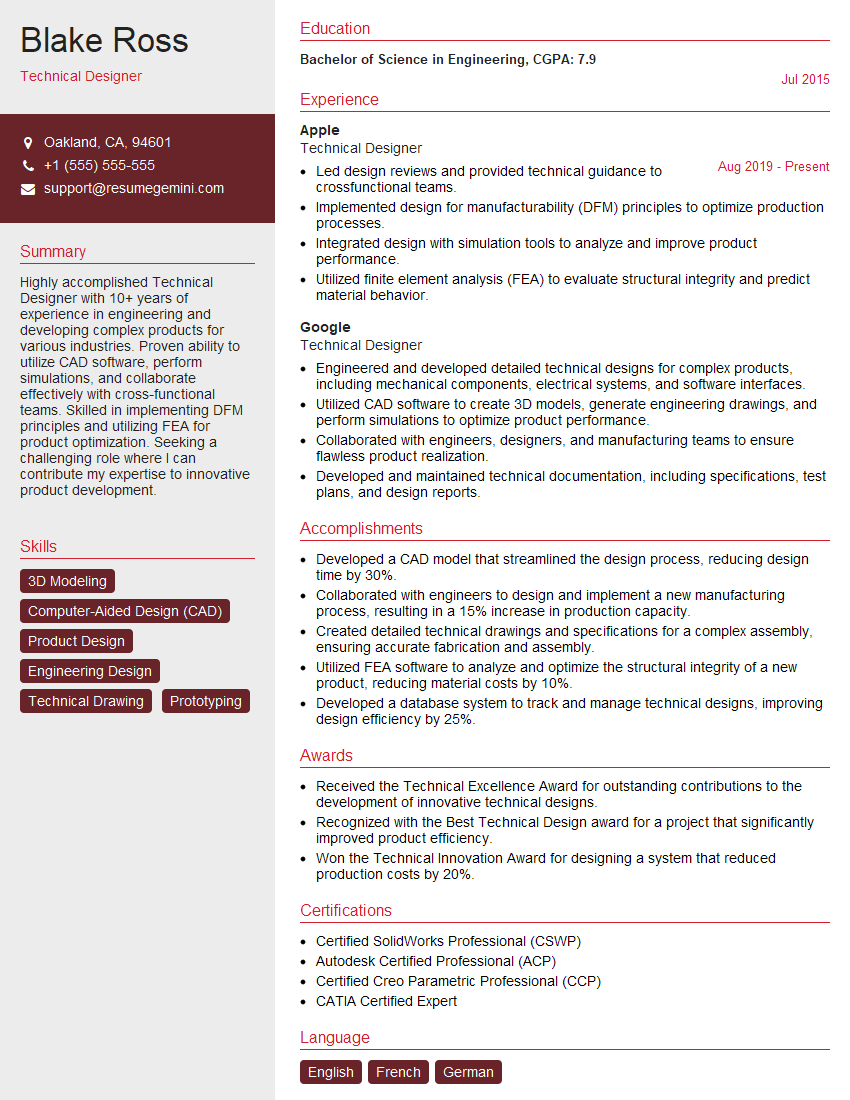
Mastering AutoCAD 3D significantly enhances your career prospects in engineering, architecture, design, and related fields. It opens doors to exciting projects and higher earning potential. To maximize your job search success, create an ATS-friendly resume that highlights your skills and experience effectively. ResumeGemini is a trusted resource to help you build a professional and impactful resume. We provide examples of resumes tailored to AutoCAD 3D expertise to help you get started. Take the next step towards your dream career today!

Explore more articles
Users Rating of Our Blogs
Share Your Experience
We value your feedback! Please rate our content and share your thoughts (optional).
What Readers Say About Our Blog
Really detailed insights and content, thank you for writing this detailed article.
IT gave me an insight and words to use and be able to think of examples