The thought of an interview can be nerve-wracking, but the right preparation can make all the difference. Explore this comprehensive guide to Autodesk 3ds Max interview questions and gain the confidence you need to showcase your abilities and secure the role.
Questions Asked in Autodesk 3ds Max Interview
Q 1. Explain the difference between a polygon and a NURBS surface in 3ds Max.
Polygons and NURBS surfaces are fundamental modeling primitives in 3ds Max, each offering distinct advantages and serving different purposes. Polygons are essentially flat faces defined by vertices and edges, forming meshes. They’re simple, efficient, and widely used for hard-surface modeling like buildings or mechanical parts. Think of them like LEGO bricks – easily manipulated and combined. NURBS (Non-Uniform Rational B-Splines), on the other hand, are mathematically defined curves and surfaces, offering superior smoothness and control over shape. They excel in organic modeling, such as characters or vehicles with smooth curves. Imagine sculpting with clay; NURBS provide that level of continuous fluidity.
The key difference lies in their representation: polygons are faceted, meaning they’re composed of flat planes, while NURBS are smooth, curved surfaces. This impacts their rendering and the level of detail achievable. Polygons are generally faster to render, while NURBS often require more processing power, especially at high resolutions. The choice between them depends entirely on the project’s needs – hard surfaces typically use polygons, while organic forms often benefit from NURBS.
Q 2. Describe your workflow for creating a realistic human character model in 3ds Max.
My workflow for creating a realistic human character model in 3ds Max begins with sculpting in ZBrush or Mudbox to establish the base form and high-detail features. I then bring the high-poly model into 3ds Max and use tools like the Decimation Master modifier to create a low-poly version suitable for animation and rigging. This low-poly mesh will serve as the foundation for animation. Accurate topology is crucial here. I prioritize edge loops strategically placed along anatomical features, allowing for smooth deformation during animation.
Next, I perform UV unwrapping, ensuring minimal distortion to maintain texture quality. I then create the texture maps, using Substance Painter or Photoshop. These maps include diffuse, normal, specular, and potentially other maps depending on the level of realism desired. Once the textures are complete, I move to rigging. I use a robust skeleton, making use of CAT (Character Studio) or a third-party rigging system like HumanIK or MotionBuilder, paying close attention to the joints’ positions and ranges of motion to achieve natural-looking movement. Weight painting ensures the mesh deforms correctly with the skeleton. Finally, I test the rig through posing and basic animation to identify and refine any issues before moving to final animation and rendering.
Q 3. How would you optimize a 3ds Max scene for rendering performance?
Optimizing a 3ds Max scene for rendering performance involves a multifaceted approach. Firstly, I reduce polygon count. Using proxies or level-of-detail (LOD) models for distant objects significantly cuts down on rendering time. This means replacing high-poly models with simpler representations when they’re far from the camera. Secondly, I optimize materials. Complex shaders can heavily impact render times. I opt for simpler materials where possible, avoiding unnecessary reflections, refractions, or bump maps, unless crucial for visual quality. Using instancing helps reduce memory usage, by reusing the same object multiple times with minor transformations, rather than rendering many copies separately.
Another crucial aspect is efficient lighting. Many point lights, area lights or spotlights can slow down rendering significantly. I try to utilize environment maps, Image-Based Lighting (IBL), and strategically placed area lights or HDRI images for global illumination to avoid excessive use of individual light sources. Lastly, I utilize 3ds Max’s viewport optimization settings and reduce viewport rendering quality during modeling and animation phases. This increases interactivity and speeds up workflow without sacrificing render quality in the final output.
Q 4. What are your preferred methods for UV unwrapping and texturing in 3ds Max?
My preferred method for UV unwrapping in 3ds Max is a combination of manual unwrapping and automated tools. For complex models, I leverage the Unwrap UVW modifier, utilizing its different projection methods such as planar, cylindrical, or spherical mapping. Then, I manually adjust seams and islands within the UV editor to minimize distortion and ensure efficient texture space utilization. The goal is to keep UV shells as planar as possible, preventing stretching and ensuring clean texture application. I often use the Pelt method for organic models and planar for hard-surface models.
For texturing, I predominantly use Substance Painter, which is extremely efficient for creating detailed and realistic textures. However, I also utilize Photoshop for some manual painting and image manipulation, especially for smaller projects or details. I create different texture maps—diffuse, normal, specular, roughness, and sometimes ambient occlusion—to add depth and realism to the models. Each texture is carefully adjusted to work in harmony, contributing to the overall visual quality.
Q 5. How do you handle complex rigging tasks in 3ds Max?
Handling complex rigging tasks in 3ds Max often involves using a combination of techniques and tools. For human characters, I generally prefer CAT (Character Studio) or a third-party rigging system like HumanIK. These systems greatly simplify the process of creating believable and efficient rigs. However, for complex mechanisms or non-human characters, I might use bone structures and constraints more directly within 3ds Max. Creating a well-structured bone hierarchy is key for intuitive animation. Careful planning and a modular approach, separating different body parts into independent rigs, simplify the process and increase maintainability.
Beyond the skeleton, I pay significant attention to weight painting, ensuring the skin deforms smoothly and naturally around the joints. I meticulously refine weights in areas like joints and areas of complex mesh geometry to eliminate artifacts like pinching or unnatural stretching. Furthermore, I incorporate constraints like IK (Inverse Kinematics) and FK (Forward Kinematics) to improve flexibility and control. Regular testing and iteration during the rigging process are essential to identify and correct any issues early on.
Q 6. Explain your experience with different animation techniques (e.g., keyframing, motion capture).
My animation experience encompasses a range of techniques. Keyframing is fundamental – it provides precise control over an object’s position, rotation, and scale over time, allowing for intricate animation. I’m adept at creating smooth curves and exploiting keyframing tools to achieve realistic movement. I also have experience with motion capture (MoCap), using systems to record and transfer real-world movements onto virtual characters. MoCap can dramatically speed up the animation process, but often requires significant cleanup and editing in 3ds Max to achieve a stylized look or to seamlessly integrate with keyframed elements.
I blend these techniques frequently. For instance, I might use MoCap for broad, realistic body movements and then keyframe facial expressions or subtle hand gestures for greater detail and control. The choice of technique depends on the project’s style, budget, and timeline. I’ve worked on projects that used solely keyframing, purely MoCap, and combinations of both.
Q 7. Describe your experience with different render engines in 3ds Max (e.g., V-Ray, Arnold, Corona).
My experience encompasses several rendering engines within 3ds Max, including V-Ray, Arnold, and Corona. V-Ray is a highly versatile and industry-standard renderer known for its realism and extensive features. I’ve used V-Ray extensively for architectural visualization and product rendering, leveraging its physically based rendering capabilities, and its extensive lighting options like global illumination and caustics. Arnold offers a robust and highly efficient rendering pipeline that’s particularly well-suited for complex scenes and character animation due to its speed and high-quality results.
Corona Renderer stands out for its user-friendly interface and relatively fast rendering times. Its intuitive setup makes it a great option for projects with shorter deadlines where rendering time is a primary concern. I select the appropriate renderer based on the project’s demands. For instance, I might choose V-Ray for extreme realism and detail in a product shot, Arnold for complex character animation, and Corona for speed in architectural walkthroughs. My selection always considers factors like render time, final image quality, and the specifics of the scene to be rendered.
Q 8. How do you create realistic lighting and shadows in 3ds Max?
Creating realistic lighting and shadows in 3ds Max involves a multifaceted approach, going beyond simply placing lights. It’s about understanding light’s behavior and using the software’s tools effectively to mimic that behavior.
Firstly, I start by considering the scene’s environment and time of day. Is it a sunny day, an overcast day, or nighttime? This dictates my light source choices. For direct sunlight, I’d use a TargetDirect light, carefully adjusting its intensity and shadows. For softer, more diffused light, I might utilize an Omni light or an Area light, potentially using light modifiers like Photometric to control the light’s intensity and falloff more accurately.
Secondly, I heavily rely on the VRay or Arnold renderers (depending on the project’s requirements) for physically-based rendering, as these provide more realistic results regarding light interactions. These renderers allow fine-grained control over light parameters such as color temperature, intensity, and shadow softness. For instance, I might use VRaySun to mimic the sun’s position and intensity, and VRayLight for other light sources.
Finally, I utilize environment maps (HDRI images) to simulate realistic global illumination. This adds bounce light, creating more natural reflections and overall ambiance. This approach contributes significantly to achieving a realistic appearance. I also carefully adjust the shadow parameters like the ray bias, shadow map size, and sample count for optimal shadow quality. For extremely complex scenes, I often explore using light caching or irradiance maps for faster rendering with high-quality shadows.
For example, when working on an architectural visualization, I’d meticulously place lights to simulate window light, ambient light from the sky, and perhaps additional artificial lighting to create a convincing scene.
Q 9. How familiar are you with 3ds Max’s particle systems?
I’m highly proficient with 3ds Max’s particle systems. My experience encompasses using them for a wide variety of effects, from simple rain and snow to complex simulations like explosions, crowds, and fluid dynamics.
I’m comfortable working with different particle systems like Particle Flow and Thinking Particles, each with its own strengths. Particle Flow is excellent for straightforward effects, while Thinking Particles offers more powerful tools for complex simulations and custom behaviors. I understand how to manipulate parameters such as particle speed, size, life span, and decay to achieve the desired visual results. I also know how to use different emitters, operators, and modifiers within these systems to control particle behavior precisely.
For instance, to create realistic rain, I might use Particle Flow, setting up an emitter to release particles from the sky, and using various operators to control their gravity, wind interaction, and collision with surfaces. For more advanced effects like fire or smoke, I’d leverage Thinking Particles for more control over particle interactions and appearance. I can also integrate these particle systems with other aspects of the scene, such as using particle collisions to create realistic destruction effects or using particles as a base for procedural modeling.
Q 10. Describe your experience with creating and managing materials in 3ds Max.
Material creation and management in 3ds Max is a core competency of mine. I’m familiar with both standard and advanced material types, and I understand how different material properties interact with lighting and rendering engines.
My workflow typically involves starting with a base material (Standard, Arch & Design, or a physically based material like a VRayMtl or Arnold Standard Surface) and then adjusting parameters such as Diffuse, Specular, Reflection, Refraction, and Opacity to achieve the desired look. I understand the importance of using maps (Bitmap, Procedural, or VRayDirt) to add surface detail and realism. I frequently use procedural maps to generate seamless textures and noise for creating materials like wood, marble, or concrete.
For complex materials, I utilize material libraries and create custom material templates for reusable assets. This streamlines my workflow and ensures consistency across projects. I’m also experienced in using Multi/Sub-Object materials to assign different materials to different parts of a model, allowing for nuanced textures and visual effects. For instance, to model a car, I’d use separate materials for the body, tires, glass, and lights. To enhance realism I might use displacement maps to add fine surface details, increasing the realism of my models.
Q 11. What are your methods for troubleshooting common 3ds Max errors?
Troubleshooting 3ds Max errors often requires a systematic approach. My first step is to identify the nature of the error. Is it a rendering error, a modeling error, or something else? The error message itself often provides valuable clues.
Common errors I frequently encounter and resolve include: Out of Memory errors, which are typically solved by optimizing the scene (reducing polygon count, using proxies, and adjusting render settings). Max crashes often happen due to corrupted files or insufficient system resources. In such cases, I’ll try to save a copy of the scene frequently and ensure adequate RAM and disk space. Rendering errors can sometimes be resolved by checking render settings, adjusting material settings, or cleaning up any problematic geometry.
My troubleshooting strategy involves:
- Checking the Error Message: Carefully reading the error message often helps pinpointing the issue.
- Simplifying the Scene: Removing or hiding parts of the scene can help determine if a specific object is causing the problem.
- Restarting 3ds Max: A simple restart can sometimes solve temporary glitches.
- Reinstalling Drivers: Outdated or corrupted graphics card drivers can lead to instability.
- Searching Online Forums: Searching for the error message online often reveals solutions from other users.
- Contacting Support: If all else fails, contacting Autodesk support can provide expert help.
Ultimately, experience is key, and a well-organized workflow and frequent backups significantly reduce the impact of errors.
Q 12. How familiar are you with using modifiers in 3ds Max?
Modifiers are a fundamental part of my 3ds Max workflow. I’m highly familiar with the extensive range of modifiers and use them extensively for modeling, editing, and creating complex shapes.
I often use Edit Poly, MeshSmooth, and TurboSmooth modifiers for creating high-quality polygon meshes. Edit Poly offers precise control over individual polygons, while MeshSmooth and TurboSmooth provide efficient ways to subdivide and smooth models. I also regularly utilize modifiers like Bevel, Chamfer, and Extrude to add detail and refine models. These modifiers enable clean and efficient workflow compared to manual polygon manipulation.
Beyond these basic modifiers, I’m comfortable using more advanced ones such as Falloff modifiers to control the intensity of effects and Noise modifiers to introduce randomness and texture variations. My understanding extends to using modifier stacks effectively, adjusting the order and properties of modifiers to achieve the desired result. I understand the concept of modifier inheritance and can effectively manage complex modifier stacks to avoid unexpected behavior or performance issues. For example, using multiple modifiers in sequence to create a realistic wood texture involves strategically combining procedural textures with displacement mapping using modifiers like Noise, Displace, and UVW Map. I regularly analyze the modifier stack to pinpoint and optimize any potential areas of inefficiency to maintain a fluid workflow and optimized performance.
Q 13. Explain your process for creating realistic hair or fur in 3ds Max.
Creating realistic hair or fur in 3ds Max typically involves using specialized tools and techniques. While several options exist, I primarily use Ornatrix or Hair and Fur modifiers.
Ornatrix is a powerful third-party plugin providing advanced control over hair simulation and rendering. It allows precise control over strand parameters such as length, thickness, curl, and color variation. I utilize its guides system to define the overall hair shape and then let the simulation generate realistic hair distribution. Its rendering capabilities, integrated with common renderers like VRay and Arnold, provide excellent realism. I can even use Ornatrix for simulating other fibrous elements like grass or fur.
The built-in Hair and Fur modifier provides a simpler approach for quick and basic hair or fur creation. While less powerful than Ornatrix, it’s useful for simple styles and quick iterations. I often combine it with other modifiers to achieve specific looks. Regardless of the method, I carefully adjust parameters to match the desired level of realism, including controlling guide distribution, density, and overall style for a convincing result. For example, I might use a combination of procedural maps and noise modifiers to introduce natural variations in hair length and color.
Q 14. How do you use layers and groups effectively in a complex scene?
Managing layers and groups in complex scenes is crucial for organization and efficient workflow. It’s like having a well-organized filing system for your 3D project.
My approach involves grouping related objects into logical units. For instance, all the elements of a character (body, clothes, hair) would be grouped together. This simplifies selection, manipulation, and rendering. I then use layers to further categorize groups. A common layer structure might involve layers for different character elements, environment parts, props, and effects. This allows me to easily hide, show, or select parts of the scene without affecting other parts.
For complex scenes, I often use a hierarchical layering structure, with main layers further broken down into sub-layers. This enhances control and reduces clutter. I utilize layer and group naming conventions to ensure easy identification, maintaining a clear and understandable scene structure for ease of collaboration and later editing. Freezing and hiding layers improves performance during editing and rendering of complex scenes.
For example, in a scene depicting a city street, I’d create layers for buildings, vehicles, pedestrians, streetlights, and foliage. Each major element could be a separate group that can be further sub-divided into layers. This allows for individual adjustments and selections without affecting the rest of the scene. This organized approach is crucial for efficient editing, rendering, and managing large and complex projects.
Q 15. Describe your experience with importing and exporting different file formats.
Importing and exporting different file formats is crucial for collaboration and workflow efficiency in 3ds Max. My experience spans a wide range of formats, including industry standards like FBX, OBJ, 3DS, DAE (Collada), and more specialized formats like Alembic (.abc) for high-polygon meshes and animation data. Each format has its strengths and weaknesses. For instance, FBX is excellent for preserving animation data and materials across different software packages, making it my go-to for interoperability. OBJ, on the other hand, is simpler, focusing primarily on geometry. Alembic is vital when dealing with complex, high-resolution models and simulations, ensuring data integrity even with extensive modifications.
When importing, I always preview the model to check for any potential issues like texture mapping errors or geometry problems. Export settings are also crucial; I adjust parameters based on the target application and the type of data I’m exporting. For example, when exporting for game engines, I might reduce polygon counts and optimize textures for performance. When exporting for rendering, I ensure high-resolution textures and meshes are retained. I also extensively use the ‘Merge’ feature to combine several models into one before exporting for a streamlined workflow.
I regularly use this skill in collaborative projects, where I might receive models from external modellers in different formats and need to seamlessly integrate them into my 3ds Max scenes.
Career Expert Tips:
- Ace those interviews! Prepare effectively by reviewing the Top 50 Most Common Interview Questions on ResumeGemini.
- Navigate your job search with confidence! Explore a wide range of Career Tips on ResumeGemini. Learn about common challenges and recommendations to overcome them.
- Craft the perfect resume! Master the Art of Resume Writing with ResumeGemini’s guide. Showcase your unique qualifications and achievements effectively.
- Don’t miss out on holiday savings! Build your dream resume with ResumeGemini’s ATS optimized templates.
Q 16. What is your preferred method for creating realistic water effects?
Creating realistic water effects in 3ds Max involves a multi-faceted approach. My preferred method combines the power of particle systems with procedural shaders and potentially, even external plugins like Krakatoa or Phoenix FD for more complex simulations.
I begin by creating a plane representing the water’s surface. I then utilize a particle system, often using the ‘Spray’ or ‘PFlow’ systems, to generate the water’s movement—waves, ripples, foam, etc. For a realistic look, I avoid oversimplifying, including small details such as wave crests breaking and creating foam. The particle systems’ parameters, like particle size, speed, and lifetime, are carefully adjusted to mimic natural water behaviors.
Next, a custom shader is created. I often use a combination of Fresnel reflections and refractions, complemented with bump maps or displacement maps for texture. I incorporate procedural noise or wave patterns to add realistic surface details. Finally, I meticulously adjust the shader’s parameters to refine the water’s appearance, considering the lighting conditions and surrounding environment. For complex simulations involving massive bodies of water, using fluid simulation software, either integrated or external, becomes vital to achieving photorealistic results.
Q 17. How would you create a convincing explosion effect in 3ds Max?
Creating a convincing explosion effect in 3ds Max typically involves a combination of techniques, primarily leveraging particle systems and realistic material assignments. I start by modeling a basic geometry to represent the initial point of the explosion.
Next, I employ a particle system such as ‘Particle Flow’ or ‘Reactor’ to create the expanding debris. I use various particle emitters and shape modifiers to simulate the fragmented matter, with different particle sizes and speeds to mimic the chaotic energy of an explosion. For improved realism, I add turbulence fields to make the debris behave more realistically.
Then, I carefully create and assign shaders and materials. I use a combination of fire and smoke shaders, potentially employing V-Ray’s advanced material system or other renderers’ relevant functionalities, to simulate the heat and smoke plumes. Using volumetric effects helps create depth and enhance the visual impact. The key is not just the particle movement, but the correct coloration, transparency, and luminosity to convey the intensity of the explosion. Finally, I use post-processing effects, like bloom or lens flares, in the renderer or post-production to add finishing touches, enhancing the overall realism.
Q 18. Explain your understanding of global illumination and its importance in rendering.
Global Illumination (GI) is a rendering technique that simulates the way light bounces around a scene, creating more realistic lighting and shadows. Unlike direct lighting, which only accounts for light directly hitting a surface, GI considers indirect light bounces, producing softer shadows, more realistic ambient lighting, and generally more believable scenes.
In 3ds Max, GI methods vary depending on the renderer used. With V-Ray, for example, I commonly use Irradiance Map or Light Cache for faster rendering times, and use more computationally intensive methods like Brute Force or Path Tracing for extremely high-quality renderings. Mental Ray also offers sophisticated GI options.
The importance of GI is undeniable; it significantly impacts the realism of a rendered image. Without GI, scenes often appear flat and artificial, lacking the subtle interactions of light that make a scene feel truly three-dimensional. GI is essential for creating photorealistic images and adds significant depth and richness to any rendered output.
Q 19. Describe your experience with using different cameras in 3ds Max.
3ds Max offers a variety of camera types, each suited to specific needs. I’m proficient in using standard cameras, target cameras, and free cameras, choosing the most suitable type for different shots and effects. The standard camera is simple and versatile, suitable for many scenarios. The target camera is ideal for shots where a fixed focal point is required, useful for static scenes and animations where the camera follows a specific target object. The free camera offers complete freedom of movement, beneficial for creating dynamic and explorative shots, particularly in video games and virtual reality applications.
Beyond the basic types, I have experience utilizing camera parameters like focal length, depth of field (DOF), and field of view (FOV) to create desired artistic effects and perspectives. DOF, in particular, is essential for creating cinematic depth and drawing the viewer’s eye to specific areas within a scene. Proper camera setup is paramount; I always consider the camera’s placement, angle, and lens properties in relation to the intended mood and story of the scene. This extends to camera animation techniques like smooth camera movements and dolly zooms, which improve engagement and narrative flow.
Q 20. How do you manage your project files and organize your work?
Project file management and organization are critical for efficiency and preventing chaos. I use a well-defined folder structure, usually organized by project name, with subfolders for models, textures, animations, renders, and other related assets. Within 3ds Max itself, I meticulously name objects and layers, following consistent naming conventions to ensure clarity and ease of navigation.
I leverage 3ds Max’s scene organization tools, such as layers and groups, to separate different elements of my scenes, making them easier to manage. I also frequently save incremental versions of my work, ensuring I have backups should something go wrong. This includes frequent ‘autosaves’ and manual saves using descriptive file names (e.g., ‘scene_v01_lighting.max’). Using cloud storage services further enhances the security and accessibility of my project files. This organized approach allows me to quickly locate assets, manage revisions, and effectively collaborate on projects with other team members.
Q 21. How familiar are you with scripting or MAXScript?
I have a solid understanding of MAXScript, 3ds Max’s built-in scripting language. While I don’t consider myself a dedicated programmer, I’m comfortable using MAXScript for automating repetitive tasks, creating custom tools, and extending 3ds Max’s functionalities.
For example, I’ve used MAXScript to create custom scripts for automating material assignments across large numbers of objects, creating custom selection sets based on object properties, and generating procedural geometry. My experience includes working with functions, arrays, loops, and conditional statements to accomplish these tasks. I find MAXScript invaluable for streamlining workflows and boosting productivity. While I haven’t built extensively complex scripts, my skills in this area readily allow me to adapt to new scenarios and improve my workflow in various modeling and rendering tasks. I also readily understand and can modify existing scripts to suit my specific requirements.
Q 22. Describe your experience with using 3ds Max in a team environment.
My experience in 3ds Max team environments centers around collaborative workflows and efficient asset management. I’ve worked on projects ranging from architectural visualizations to game environments, utilizing various methods to ensure seamless teamwork. We typically employ a system of shared network drives to access project files, and version control systems like Perforce or Git for managing scene files and assets. This prevents conflicts and allows for easy tracking of changes. Furthermore, we establish clear naming conventions for models, textures, and animations, utilizing a modular approach to design. This allows team members to work independently on different components while maintaining consistency. For example, on a recent architectural project, one team member focused on modeling the building’s exterior, another on interior design, and a third on landscaping. We used 3ds Max’s layer system to keep these components organized, and we frequently held review sessions to discuss progress and address any inconsistencies.
Communication is key; we leverage tools like Slack or Microsoft Teams for quick queries and daily updates, ensuring everyone stays informed and any issues are promptly addressed. We also utilize established modeling guidelines and file-naming conventions to maintain consistency and to aid in the importing and exporting of assets to other softwares. This collaborative approach not only streamlines the production process but also ensures a higher quality end product.
Q 23. Explain your understanding of different animation workflows (e.g., linear, ease-in/ease-out).
Animation workflows in 3ds Max depend heavily on the desired effect. Linear animation, for instance, creates a constant rate of change over time. Imagine a simple ball moving across a screen at a steady speed – that’s linear animation. It’s straightforward but often unnatural. Most animations require more nuanced control.
Ease-in/ease-out, a far more common method, provides a smoother, more realistic motion. Ease-in slows down the animation at the beginning, and ease-out slows it down at the end. Think of a bouncing ball – it accelerates downward, briefly pauses at the bottom, and then decelerates as it rises. This is achieved through animation curves, which allow for fine-tuning of the speed and acceleration of any given keyframe. 3ds Max provides a graphical interface for manipulating these curves.
Beyond these, there are more complex methods like ease-in-out-in, which incorporates multiple acceleration and deceleration phases, and custom curve editing, which offers complete control over the animation’s timing. The choice depends on the specific needs of the animation – from the simple movement of a camera to the complex rigging of a character.
For example, in animating a character’s walk cycle, ease-in/ease-out is crucial for natural-looking foot placement and body movement. Each leg’s movement utilizes a carefully sculpted ease-in/ease-out curve to avoid jerky or unnatural transitions.
Q 24. What is your approach to dealing with complex geometry in 3ds Max?
Managing complex geometry in 3ds Max requires a strategic approach that prioritizes optimization and efficient workflow. I typically start by analyzing the model’s topology. Is it excessively dense? Are there unnecessary polygons? High-poly models, while detailed, can significantly slow down rendering and animation. Therefore, I often utilize techniques like decimation and retopology to reduce polygon count while preserving the model’s visual fidelity.
Decimation is used to quickly reduce polygon count, but it can sometimes lead to loss of detail. Retopology, on the other hand, involves rebuilding the model’s mesh with a cleaner, more efficient structure. This is a more time-consuming process but offers greater control and often leads to better results. Tools like the ‘ProDecimate’ modifier and manual editing of the mesh are commonly used.
Furthermore, I make extensive use of 3ds Max’s modifier stack to apply non-destructive edits. This allows me to tweak the model’s geometry without permanently altering the original mesh. For instance, I might use a ‘TurboSmooth’ modifier to generate smoother surfaces for rendering, but I can easily disable it when optimizing for game engines. The use of proxy geometry for complex models also helps in reducing rendering times and improving the overall performance.
Q 25. How do you use constraints in 3ds Max for animation?
Constraints in 3ds Max are invaluable for creating realistic and efficient animations. They define relationships between objects, enabling one object to control the movement or orientation of another. Imagine animating a character’s arm – using constraints, you can make the hand follow the elbow, and the elbow follow the shoulder, ensuring natural and coordinated movement. You wouldn’t have to manually keyframe every joint’s movement.
Several constraint types are available. ‘Point’ constraints lock an object’s position to a specific point in space or on another object. ‘Orientation’ constraints control an object’s rotation based on another’s. ‘Parent’ constraints establish a hierarchical relationship, where one object’s transformation affects its children. ‘LookAt’ constraints orient an object to always face another target. For example, if you have a camera following a moving character, a ‘LookAt’ constraint keeps the camera focused on the character.
For example, I might use a ‘Parent’ constraint to attach a character’s hand to its forearm, an ‘Orientation’ constraint to control a car’s steering wheel based on the turning of the front wheels, or a ‘Point’ constraint to keep a prop in a specific location within a scene.
The strategic use of constraints significantly reduces the number of keyframes needed, resulting in more manageable and streamlined animation workflows. It also helps create realistic interactions between objects, improving the overall quality of the animation.
Q 26. Describe your experience working with different types of shaders.
My experience with shaders in 3ds Max encompasses a broad range, from simple diffuse materials to complex physically-based render (PBR) shaders. Understanding shader properties and their interaction with lighting is essential for creating realistic and visually appealing results.
Diffuse shaders, the simplest type, define the base color of an object, while more advanced shaders, like Phong and Blinn, incorporate specular highlights to simulate surface reflectivity. These are suitable for basic rendering but fall short in realism. Physically Based Rendering (PBR) shaders, such as those based on the Standard Surface shader, are currently preferred, they simulate light interactions much more accurately, taking into account factors like roughness, metallicness, and subsurface scattering. These parameters define how a surface reflects and interacts with light, resulting in more realistic materials.
I often use procedural textures, generated algorithmically instead of being mapped directly from an image, to create repeating patterns or to generate varied surface details quickly. VRay, Arnold, and Corona renderers offer advanced shader systems with extensive material libraries and custom options. These advanced systems allow the creation of intricate effects, including subsurface scattering for realistic skin rendering and anisotropic highlights for materials like brushed metal.
For instance, I’ve used the VRayMtl shader to create realistic wood textures by blending several procedural maps for variation in grain, color, and surface roughness. The ability to work with these different shaders is crucial for achieving different levels of realism based on a project’s requirements.
Q 27. Explain your process for creating a realistic environment in 3ds Max.
Creating a realistic environment in 3ds Max is an iterative process involving several key steps. It starts with concept art or reference images to define the environment’s style and mood. I then proceed to model the environment’s core components, such as buildings, terrain, and vegetation, often utilizing high-poly models for detail and low-poly models for optimization. The modeling process leverages various techniques like extrusion, beveling, and subdivision surface modeling to achieve realistic forms.
Next, I apply textures to add visual detail. This typically involves utilizing a combination of photographic textures and procedural textures to create a variety of materials, such as brick, concrete, wood, grass and foliage. For realistic lighting, I prefer using an image-based lighting (IBL) approach, where HDR images are used to simulate realistic lighting conditions, creating more convincing shadows and reflections. Rendering settings are carefully optimized for balance between speed and quality.
Finally, I incorporate post-processing techniques within 3ds Max or in a compositing software like Photoshop to enhance the scene’s realism further. This might involve adjusting color grading, adding atmospheric effects like fog or haze, or enhancing details using color correction and sharpening techniques.
For example, to create a realistic forest scene, I’d model various tree species with detailed branches and leaves, utilize height maps for the terrain, and employ a combination of photographic and procedural textures for bark, leaves, and ground cover. The lighting would be carefully set to simulate natural sunlight, casting realistic shadows and highlights. Post-processing would add subtle atmospheric depth and enhance the scene’s overall realism.
Key Topics to Learn for Autodesk 3ds Max Interview
- Modeling Fundamentals: Understanding polygon modeling, NURBS surfaces, and mesh editing techniques. Practical application: Creating realistic 3D models of objects or environments for animation, visualization, or game development.
- Material and Texture Application: Mastering the use of various shaders, textures, and material editors to achieve realistic and visually appealing surfaces. Practical application: Creating photorealistic materials for architectural visualization or game assets.
- Lighting and Rendering: Proficiency in setting up lighting scenarios, utilizing different render engines (e.g., V-Ray, Arnold), and optimizing render settings for efficiency. Practical application: Producing high-quality renderings for presentations or portfolios.
- Animation Principles: Knowledge of keyframing, animation curves, and character rigging techniques. Practical application: Animating characters or objects for commercials, films, or games.
- Workflow and Optimization: Understanding efficient workflows, scene organization, and methods for optimizing 3ds Max performance. Practical application: Managing large and complex scenes effectively to meet project deadlines.
- Modifiers and Modifiers Stack: Deep understanding of different modifier types and their interaction within the modifier stack. Practical application: Efficiently shaping and altering models for specific design needs.
- Scene Management and Organization: Techniques for organizing layers, groups, and naming conventions for efficient project management. Practical application: Ensuring a clean and well-organized scene for collaboration and future modifications.
- Troubleshooting and Problem-Solving: Ability to identify and resolve common 3ds Max issues and optimize workflows for improved efficiency. Practical application: Demonstrating your ability to handle unexpected problems during the production process.
Next Steps
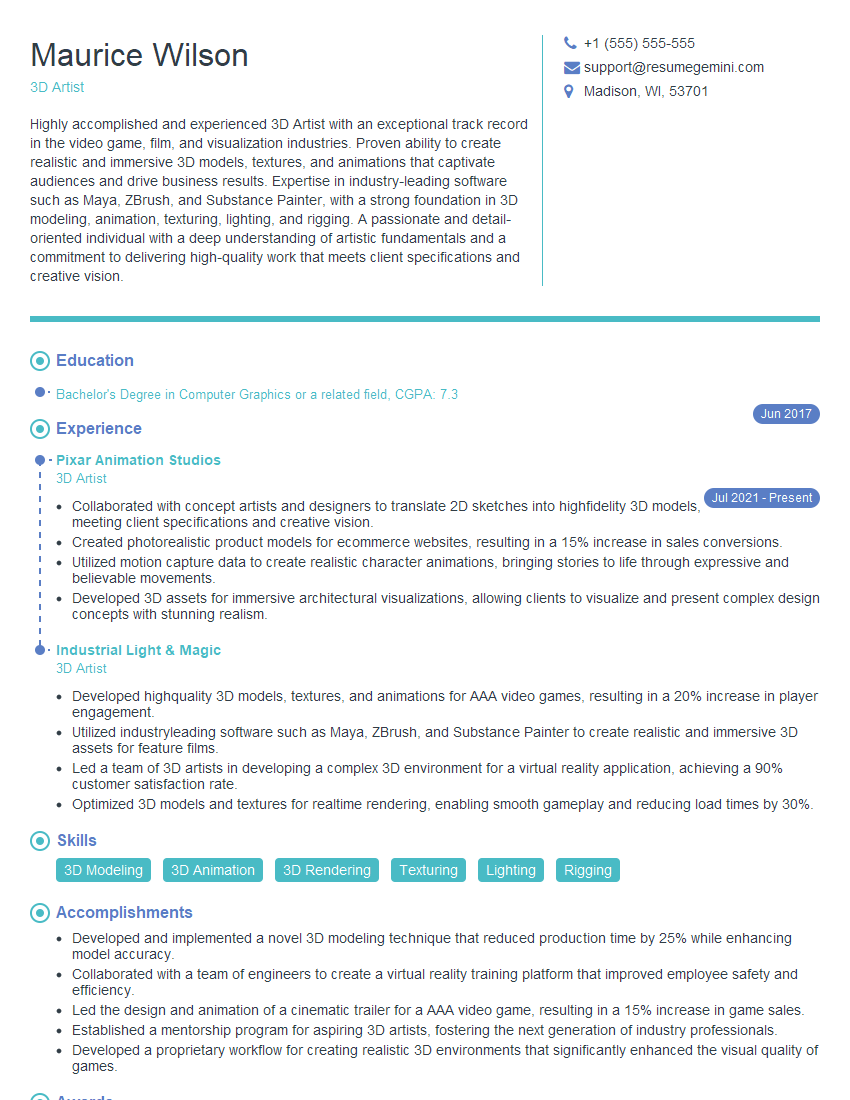
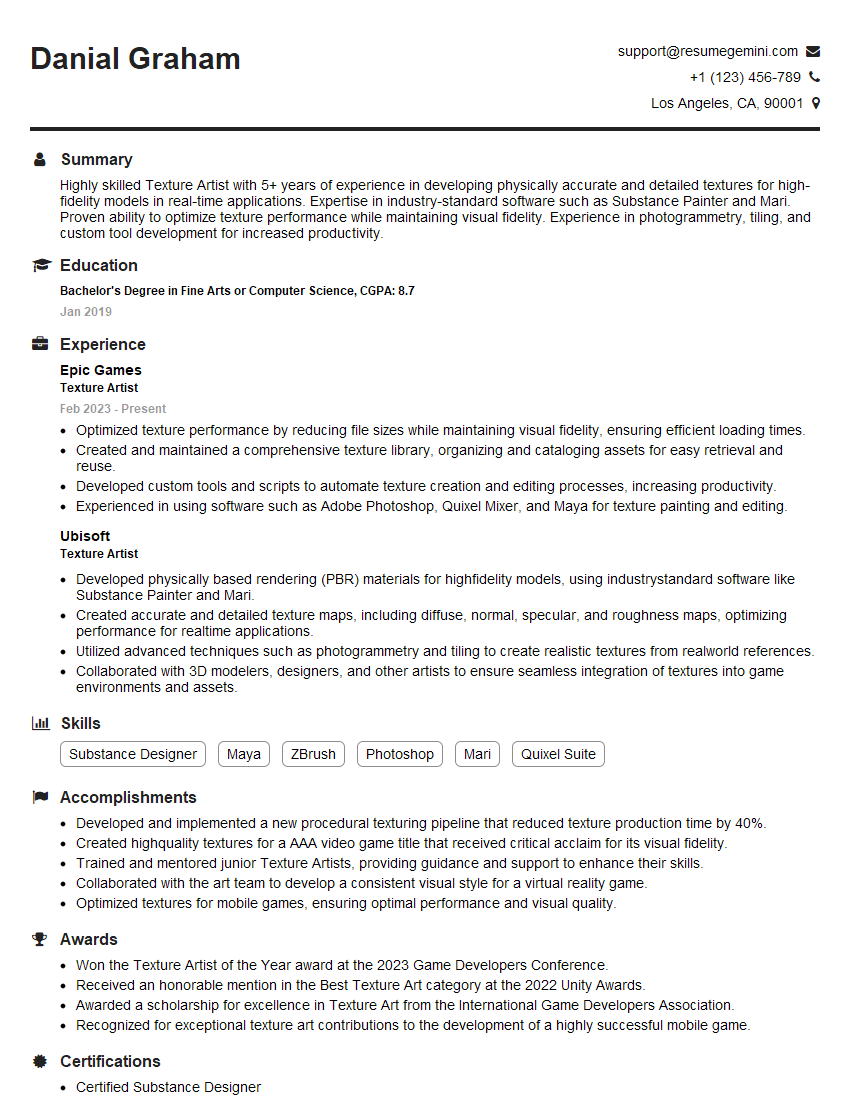
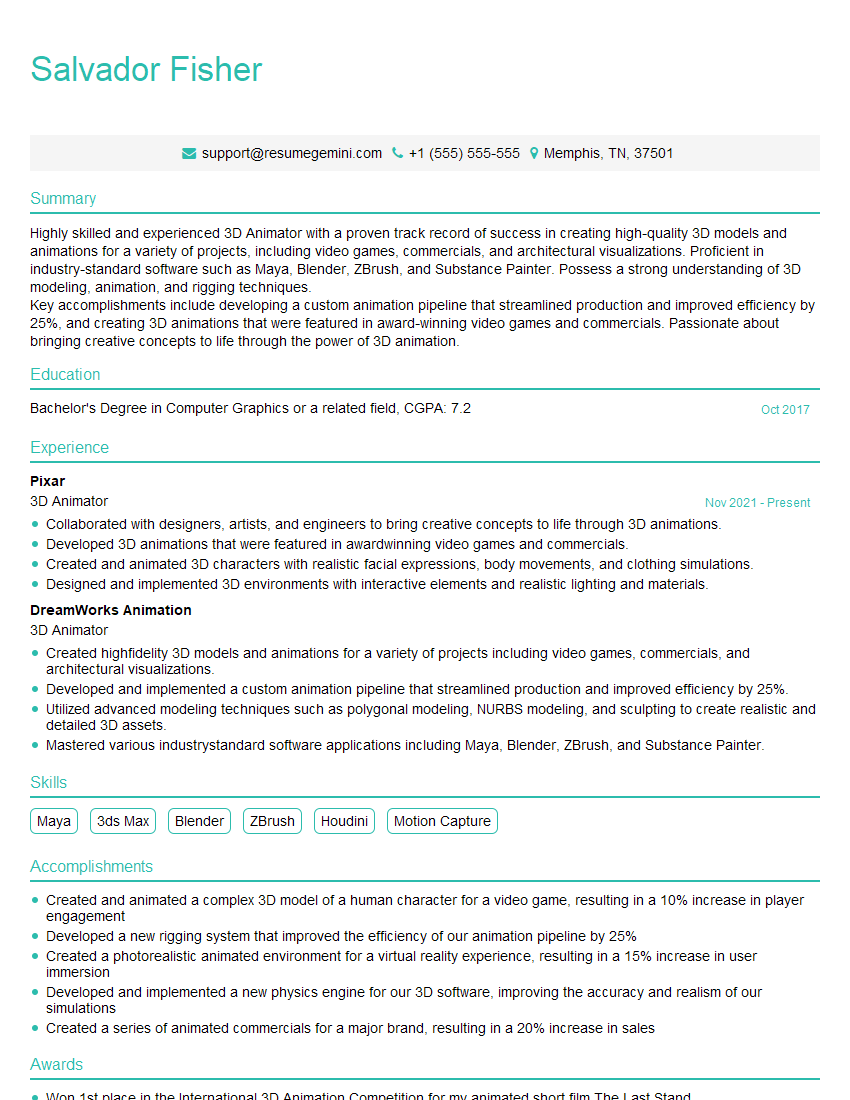
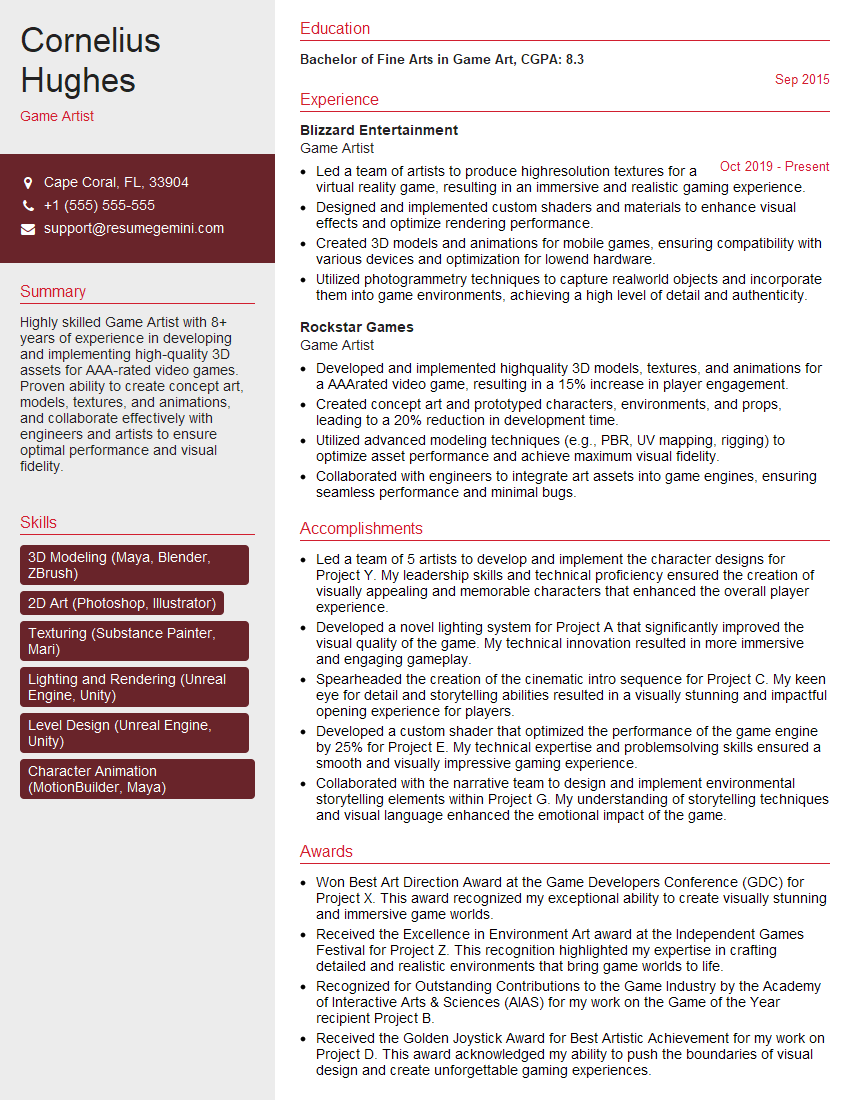
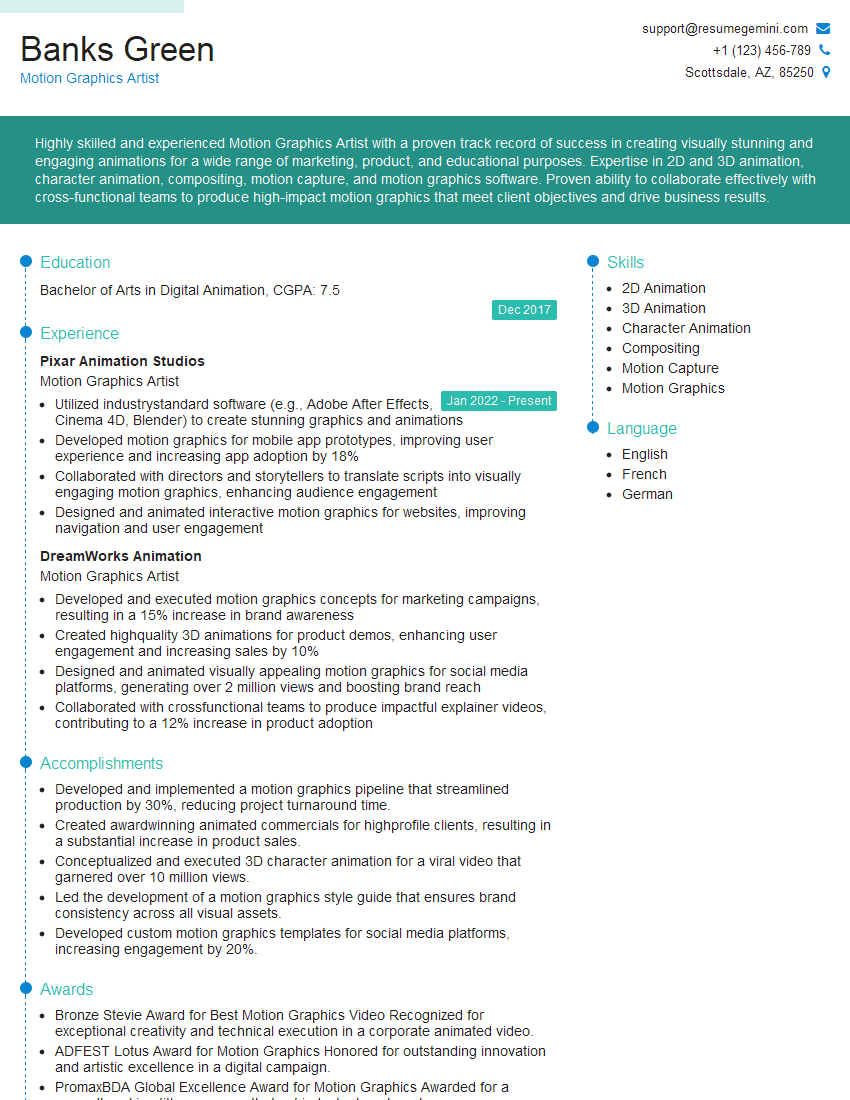
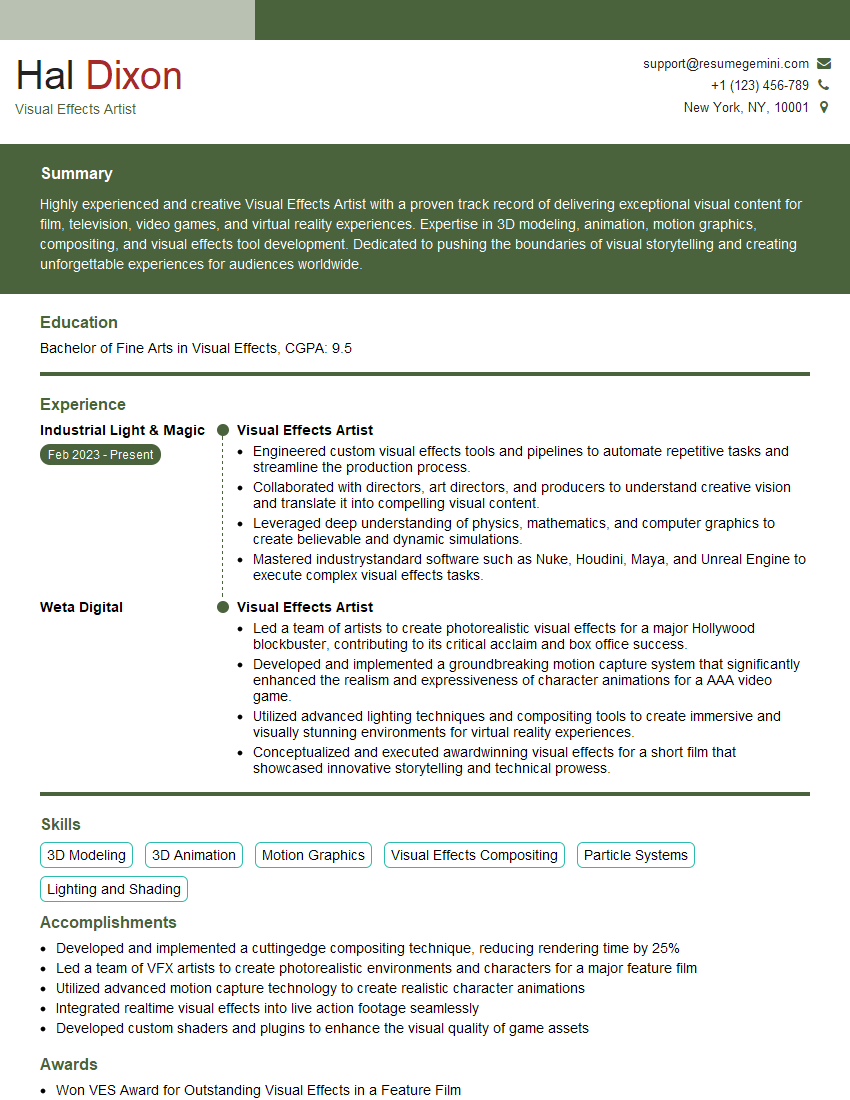
Mastering Autodesk 3ds Max opens doors to exciting careers in animation, game development, architectural visualization, and more. To maximize your job prospects, focus on building an ATS-friendly resume that highlights your skills and experience effectively. ResumeGemini is a trusted resource to help you craft a professional and impactful resume. They offer examples of resumes tailored to Autodesk 3ds Max, ensuring your qualifications shine through. Invest in your resume – it’s your first impression with potential employers.



Explore more articles
Users Rating of Our Blogs
Share Your Experience
We value your feedback! Please rate our content and share your thoughts (optional).
What Readers Say About Our Blog
I Redesigned Spongebob Squarepants and his main characters of my artwork.
https://www.deviantart.com/reimaginesponge/art/Redesigned-Spongebob-characters-1223583608
IT gave me an insight and words to use and be able to think of examples
Hi, I’m Jay, we have a few potential clients that are interested in your services, thought you might be a good fit. I’d love to talk about the details, when do you have time to talk?
Best,
Jay
Founder | CEO