Interviews are more than just a Q&A session—they’re a chance to prove your worth. This blog dives into essential Software Installation and Updates interview questions and expert tips to help you align your answers with what hiring managers are looking for. Start preparing to shine!
Questions Asked in Software Installation and Updates Interview
Q 1. Explain the difference between a full and a partial software update.
The key difference between a full and a partial software update lies in the scope of the changes implemented. A full update replaces the entire software installation with a completely new version. Think of it like replacing an old car with a brand new one – everything is fresh. This often involves downloading a large file and a more significant installation time. A partial update, conversely, only replaces specific components or files within the existing software installation. It’s like fixing a broken part in your car instead of replacing the entire vehicle. This usually involves a smaller download and quicker installation process. Partial updates are commonly used for security patches or minor bug fixes.
Example: Imagine updating a game. A full update might be required when a major expansion pack is released, replacing the entire game data. A partial update might address a bug that only affects a specific game feature, requiring only the affected files to be updated.
Q 2. Describe your experience with different software deployment methods (e.g., push, pull, scripting).
My experience encompasses a variety of software deployment methods, each with its strengths and weaknesses. Push deployment is where the update is automatically distributed to clients, similar to how mobile app updates work. This is efficient for managing large numbers of devices but requires robust client management systems. Pull deployment requires clients to actively request updates from a central server, offering more control to the end-user and reduced risk of unintended disruptions, but relying on user action. Finally, scripting allows for highly automated and customized installations, often using tools like PowerShell or Bash. I’ve successfully used scripting to automate the installation, configuration, and testing of software across diverse environments.
For example, I once automated the deployment of a complex CRM system across 1000 desktops using PowerShell. The script handled everything from pre-installation checks to post-installation verification, drastically reducing deployment time and manual intervention. This ensured consistency and mitigated human error.
Q 3. How do you handle software installation failures?
Handling software installation failures requires a systematic approach. My first step is always to thoroughly review the installation logs for clues about what went wrong. This often reveals errors related to missing dependencies, insufficient permissions, or conflicts with existing software. Once the root cause is identified, the solution can be addressed. This might involve installing missing prerequisites, adjusting system settings, or resolving conflicts.
If log analysis isn’t conclusive, I utilize a combination of techniques including reviewing event logs, testing the installation on a virtual machine to isolate the issue, and checking for hardware limitations. Communication is also crucial – keeping stakeholders informed throughout the troubleshooting process is vital.
For instance, I once encountered a software installation failure due to a corrupted installation file. After identifying this through log analysis and checksum verification, downloading a fresh copy and reinstalling the software resolved the issue.
Q 4. What are the best practices for patching software systems?
Best practices for patching software systems center around thorough planning, testing, and monitoring. Before deploying any patches, I always conduct a thorough risk assessment, identifying potential disruptions and developing mitigation strategies. Patches should be tested in a staging or testing environment to verify their functionality and ensure they don’t introduce new problems before releasing them to production environments. Regular vulnerability scanning and penetration testing are also vital for proactively identifying and addressing security weaknesses.
Furthermore, a robust change management process is essential, ensuring all stakeholders are informed of planned updates and that appropriate approvals are obtained. Post-patch monitoring involves tracking system performance and security logs for any anomalies.
Example: Prior to a large-scale Windows update, we conducted rigorous testing on a mirror image of our production environment. This allowed us to identify and address a compatibility issue with a critical business application before the update was rolled out to all users, preventing potential downtime.
Q 5. What is your experience with automated software deployment tools?
I have extensive experience with various automated software deployment tools, including Ansible, Chef, Puppet, and Jenkins. These tools automate repetitive tasks like installation, configuration, and updates, improving efficiency and consistency. I leverage their capabilities to create automated workflows that streamline the deployment process, often integrating them with version control systems and continuous integration/continuous deployment (CI/CD) pipelines.
For example, using Ansible, I’ve automated the deployment of web applications across multiple servers, ensuring a consistent configuration and minimizing manual intervention. This reduces the risk of human error and significantly improves deployment speed.
Q 6. How do you ensure data integrity during software updates?
Ensuring data integrity during software updates is paramount. My approach involves several key strategies. Firstly, I always back up critical data before initiating any significant updates. This provides a safety net in case something goes wrong during the update process. Next, I utilize robust update mechanisms that perform data validation checks before and after the update. This ensures the data remains consistent and that no data corruption has occurred.
Furthermore, utilizing transactional updates, where changes are committed only if the entire process is successful, is vital. In instances where data migration is involved, I always employ checksum verification methods to verify data integrity after the update. Finally, robust monitoring and alerting systems are crucial to immediately detect any data anomalies following an update.
Q 7. Describe your experience with different operating systems and their update mechanisms.
My experience spans various operating systems, including Windows, macOS, Linux (various distributions such as Ubuntu, CentOS, Red Hat), and even embedded systems. Each operating system has its own unique update mechanism. Windows uses Windows Update, macOS relies on Software Update, while Linux distributions often employ package managers like apt (Debian/Ubuntu), yum (Red Hat/CentOS), or pacman (Arch Linux). Understanding the nuances of each system’s update process is crucial for effective deployment and troubleshooting.
For instance, working with Linux systems necessitates a deep understanding of package dependencies and the use of command-line interfaces for managing updates. With Windows, I am proficient in utilizing group policy objects (GPOs) for centralized update management across many machines.
Q 8. How do you troubleshoot software installation issues?
Troubleshooting software installation issues requires a systematic approach. Think of it like detective work – you need to gather clues, form hypotheses, and test them until you find the culprit. I typically start by gathering information: checking the system logs for error messages (like in the Windows Event Viewer or equivalent on other OS), reviewing the installer’s logs (often found in a dedicated log directory), and confirming system requirements are met (sufficient disk space, RAM, and correct OS version).
Check for Error Messages: These are gold mines! Error codes often point directly to the problem. For example, an error indicating insufficient disk space is straightforward. Others might require looking up the code online to find the root cause.
Verify System Requirements: This step is often overlooked. Ensure the target system has the necessary hardware and software prerequisites. Insufficient RAM, a missing .NET Framework version, or an incompatible graphics card driver are common causes.
Permissions and User Access: Does the user installing the software have the necessary administrative privileges? If not, that could immediately explain the failure.
Antivirus or Firewall Interference: Sometimes, security software might block the installation process. Temporarily disabling these (with caution!) can help isolate whether they’re causing the issue. Remember to re-enable them afterward!
Reinstall with a Clean Boot: A clean boot minimizes the number of startup applications and services, allowing you to rule out interference from other software. This is a powerful troubleshooting technique for stubborn problems.
Contact Support: If all else fails, contacting the software vendor’s support team is essential. They might have specific solutions or workarounds for known installation problems.
For example, I once solved a seemingly impossible installation problem by realizing that a background process was silently locking a crucial system file required by the installer. Identifying and temporarily stopping that process fixed the issue.
Q 9. What are the key considerations for rolling back a software update?
Rolling back a software update should be a carefully considered decision. It’s like reversing a car – you need to know your surroundings before you start. Key considerations include the severity of the problems caused by the update, the availability of a rollback mechanism (many software update systems have a built-in feature), and the potential impact of reverting to the older version.
Impact Assessment: How critical are the issues introduced by the update? Are they just minor annoyances or major system failures?
Data Backup: Before rolling back, always back up your system’s crucial data. This protects against any unforeseen issues during the rollback process.
Rollback Mechanism: Does the software or operating system provide a built-in rollback feature? This is usually the safest method. The specifics will depend on the software and the operating system; Windows, for instance, offers system restore points.
Third-party Tools: In cases where the built-in mechanism is unavailable or fails, third-party system recovery tools can assist. Use reputable tools to avoid compromising your system.
Testing: After the rollback, rigorously test the system to ensure the problems have been resolved and there are no new issues.
Documentation: Keep records of the steps taken during the rollback. This is essential for troubleshooting future issues and analysis.
I once had to roll back a critical database update after it caused widespread performance issues. By following a documented rollback procedure and carefully testing afterwards, we minimized the disruption to the business.
Q 10. What is your experience with software version control and dependency management?
Software version control and dependency management are fundamental to any robust software deployment process. Think of it as building with LEGOs; you wouldn’t just throw random pieces together. Version control (e.g., Git) tracks changes made to software code, allowing for easy reversion to previous versions if needed. Dependency management tools (like npm, NuGet, or Maven) ensure that all required components for a software application are available in their correct versions. Missing or incompatible dependencies can lead to frustrating installation issues or runtime errors.
Version Control: I have extensive experience with Git, utilizing branching strategies like Gitflow to manage concurrent development and releases. This helps to maintain a clean history of code changes and allows for easy collaboration among developers.
Dependency Management: My experience includes using tools like npm for JavaScript projects, NuGet for .NET, and Maven for Java. I understand how to create dependency trees, resolve conflicts between different versions of libraries, and manage dependencies within different environments (development, testing, production).
Automated Builds and Deployment: I’m proficient in integrating version control and dependency management into automated build and deployment pipelines (e.g., using Jenkins, Azure DevOps, or similar tools). This automation significantly reduces manual errors and improves overall efficiency.
In a recent project, we used Git and npm to manage the front-end components of a web application. This enabled us to track changes, manage dependencies, and seamlessly deploy new features without impacting other parts of the application.
Q 11. Explain your approach to testing software updates before deploying them to production.
Testing software updates before deploying them to production is crucial. Think of it as a test drive before launching a new car; you wouldn’t want surprises on the open road. My approach involves a multi-stage testing strategy:
Unit Testing: Testing individual components or modules of the software to ensure they function correctly in isolation.
Integration Testing: Testing how different modules interact and work together.
System Testing: Testing the entire system as a whole to ensure all components function as expected and meet requirements.
User Acceptance Testing (UAT): Having end-users test the software in a realistic environment to gather feedback and identify any usability issues.
Staging Environment: Deploying the update to a staging environment that mirrors the production environment. This allows for a final check before release to end-users.
During staging, we perform load testing and stress testing to ensure the update can handle expected traffic and user loads. We also perform regression testing to verify that the update hasn’t introduced any new bugs or broken existing functionality. Automated testing scripts are invaluable for efficient and thorough testing, enabling quicker turnaround times and higher confidence in the release.
In a previous role, our rigorous testing process helped us identify a critical bug in a major update just before it was scheduled to go live, preventing a potential service outage.
Q 12. How do you prioritize software updates based on criticality and risk?
Prioritizing software updates involves considering factors such as criticality, risk, and business impact. It’s like triage in a hospital; you address the most life-threatening cases first. I usually use a risk-based approach, evaluating updates based on factors like:
Severity of Security Vulnerabilities: Patches that address critical security flaws (e.g., vulnerabilities that could allow attackers to gain unauthorized access) should be prioritized highly.
Impact on Business Operations: Updates that resolve issues that significantly impact business operations (e.g., causing application downtime or data loss) should also take precedence.
User Impact: Updates fixing major user interface issues or improving user experience also play a role in prioritization.
Compliance Requirements: Meeting regulatory or industry compliance mandates is a crucial aspect of update prioritization.
Resource Availability: Consider the resources required for testing and deployment. Very complex updates might take longer and require more resources.
I often use a scoring system to quantify these factors, assigning weights to each criterion. This allows for a more objective and transparent prioritization process. For example, a critical security vulnerability might score higher than an improvement in user interface, even though both are important.
Q 13. How do you manage software licenses and update compliance?
Managing software licenses and ensuring update compliance requires meticulous attention to detail. It’s like managing a valuable collection; each item needs proper care and tracking. I use a combination of methods:
Centralized License Management System: Utilizing a dedicated software asset management (SAM) tool to track license purchases, renewals, and usage. These tools provide reports on compliance status and potential license shortages.
Regular Audits: Periodically auditing the installed software against the available licenses to identify any discrepancies and ensure compliance.
Vendor Communication: Maintaining regular communication with software vendors to stay updated on license agreements, compliance requirements, and available updates.
Automated Updates: Where possible, using automated update mechanisms to simplify the process of applying updates and keeping software up to date. This ensures that license compliance isn’t jeopardized by outdated software.
Documentation: Maintaining thorough documentation of license agreements, purchase records, and compliance activities.
In a past role, I implemented a new SAM tool that significantly improved our ability to manage licenses, ensuring compliance and avoiding costly licensing penalties. Accurate record-keeping and proactive monitoring are crucial to successfully manage software licenses and remain compliant.
Q 14. What is your experience with SCCM or other system center management tools?
I have extensive experience with SCCM (System Center Configuration Manager), now known as Microsoft Endpoint Manager, and other system center management tools. SCCM is a powerful tool for managing software deployment, updates, and device configurations. Think of it as a central control panel for your entire IT infrastructure.
Software Deployment: I’ve used SCCM to deploy software packages, updates, and scripts to a large number of devices efficiently and reliably.
Patch Management: SCCM’s patch management capabilities allow for streamlined and automated patching of operating systems and applications, reducing security risks and ensuring systems are kept up to date.
Inventory Management: SCCM provides robust inventory management features, allowing for tracking of hardware and software assets across the organization.
Remote Control and Monitoring: I’ve leveraged SCCM’s remote control and monitoring features to troubleshoot problems on remote devices and proactively address potential issues.
Reporting and Analytics: SCCM’s reporting tools provide valuable insights into software deployment success rates, compliance levels, and other key metrics.
In one project, we utilized SCCM to automate the deployment of a critical security update to over 500 workstations within a short timeframe, minimizing potential vulnerabilities.
Q 15. What is your experience with creating installation packages?
Creating robust installation packages is crucial for smooth software deployment. My experience spans various technologies, including MSI (Microsoft Installer) for Windows, and creating packages for Linux distributions using tools like RPM and DEB. I’m also proficient in using advanced packaging tools like NSIS (Nullsoft Scriptable Install System) for creating more customized installers. For example, in a recent project involving a proprietary application, I used MSI to create an installer that handled dependencies, registry entries, and shortcuts, ensuring a seamless user experience. Beyond the technical aspects, I prioritize clear user interface design in the installer, making the process intuitive even for less technically inclined users. Consideration for things like language support and rollback capabilities are also key parts of my approach.
Career Expert Tips:
- Ace those interviews! Prepare effectively by reviewing the Top 50 Most Common Interview Questions on ResumeGemini.
- Navigate your job search with confidence! Explore a wide range of Career Tips on ResumeGemini. Learn about common challenges and recommendations to overcome them.
- Craft the perfect resume! Master the Art of Resume Writing with ResumeGemini’s guide. Showcase your unique qualifications and achievements effectively.
- Don’t miss out on holiday savings! Build your dream resume with ResumeGemini’s ATS optimized templates.
Q 16. How do you handle user permissions and access control during software installations?
User permissions and access control are paramount for security and data integrity during software installations. I handle this by leveraging operating system features and the capabilities of the chosen packaging system. For example, using MSI, I can define specific user accounts and groups that have access to certain files and registry keys. This granular control prevents unauthorized access and modifications. In Linux environments, I utilize the file system permissions (using chmod and chown commands) during the installation process to ensure the application runs with the appropriate privileges. I also integrate these security considerations into scripting, using conditional logic to adjust permissions based on the user’s role or context. For instance, a regular user might only have read access to certain configuration files, while an administrator would have full control.
Q 17. How do you document software installation and update procedures?
Thorough documentation is essential for maintainability and support. My approach to documenting software installation and update procedures includes creating comprehensive guides covering installation prerequisites, step-by-step instructions with screenshots, troubleshooting tips, and known issues. I utilize a combination of formats: a concise, user-friendly quick-start guide for basic installation and a more detailed technical guide for advanced users and administrators. For update procedures, I detail the process of upgrading to new versions, including versioning strategy (semantic versioning), steps to back up data before upgrading, and any potential data migration required. All documentation is version-controlled using tools like Git, ensuring traceability and facilitating collaboration among team members.
Q 18. How do you monitor the performance of software after deployment?
Monitoring software performance post-deployment is crucial for identifying and addressing issues proactively. I employ a multi-pronged approach combining application performance monitoring (APM) tools, log analysis, and regular system checks. APM tools provide real-time insights into application behavior like response times, resource usage (CPU, memory, disk I/O), and error rates. Analyzing logs reveals crucial details about application execution and any unusual behavior. I use tools like Splunk, ELK stack, or even simple log viewers to perform this analysis. Regular system checks, which may be scheduled or triggered by events, complement these data sources and allow for timely identification of problems before they significantly impact users.
Q 19. Explain your experience with scripting languages for automation (e.g., PowerShell, Bash).
Scripting languages are invaluable for automating installation and update processes. I have extensive experience with PowerShell for Windows environments and Bash for Linux systems. PowerShell allows me to create robust scripts that manage installations, configure settings, and automate post-installation tasks. For example, I’ve built scripts that deploy software to multiple machines simultaneously, customize installations based on system properties, and manage user accounts. Similarly, in Linux, Bash scripting lets me create automated installation procedures, manage configurations through configuration management tools like Ansible or Puppet, and automate system tasks related to deployment. An example would be a bash script to install and configure an Apache web server on a Linux machine. I am also familiar with other scripting languages such as Python which is useful for developing more advanced automation and integration tasks.
Q 20. How do you ensure the security of software installations?
Ensuring secure software installations involves a layered approach. First, using only verified software sources is crucial, avoiding unofficial repositories or downloads. Second, I utilize code signing to verify the authenticity of the installation package. Digital signatures ensure that the package hasn’t been tampered with. Third, I incorporate strong access control mechanisms throughout the installation process to limit the application’s permissions and prevent unauthorized access. During installation, I would ensure appropriate security settings are configured; for example, limiting network ports to only what’s necessary. Finally, regular security audits and vulnerability scans are important to identify and address security weaknesses in both the software itself and the installation process. Patching and upgrading regularly is crucial to ensure ongoing security.
Q 21. What is your experience with managing software updates in a virtualized environment?
Managing software updates in a virtualized environment requires a strategic approach. I leverage virtualization management platforms like VMware vCenter or Microsoft Hyper-V Manager to manage updates across multiple virtual machines. These platforms often provide features for deploying updates to multiple VMs simultaneously, automating the process to save time and effort. For example, deploying a patch to hundreds of virtual machines can be achieved with just a few clicks within these management tools. Beyond the platform-level tools, I also use scripting (PowerShell, Bash) to automate update processes, integrating with tools like Puppet or Chef to ensure consistency across environments. I employ techniques like snapshotting virtual machines before updates to provide a quick rollback mechanism in case of issues. Careful attention to network traffic during updates is also critical to prevent performance bottlenecks within the virtualized infrastructure.
Q 22. Describe your experience with cloud-based software deployment.
Cloud-based software deployment offers significant advantages over traditional methods, primarily scalability and accessibility. Instead of installing software directly onto individual machines, we deploy it to a cloud environment (like AWS, Azure, or GCP), making it accessible to users through web browsers or lightweight clients. This eliminates the need for manual installations on each device, simplifying updates and maintenance.
My experience encompasses various cloud deployment strategies, including using tools like Docker and Kubernetes for containerization, enabling effortless scaling and version management. I’ve also worked with Infrastructure-as-Code (IaC) tools like Terraform and Ansible to automate the entire deployment process, ensuring consistency and repeatability. For example, I recently managed the deployment of a large-scale SaaS application to AWS using a CI/CD pipeline, which automated the build, testing, and deployment stages. This ensured rapid delivery of updates and minimal downtime.
Furthermore, I have hands-on experience with various cloud deployment models, including Platform as a Service (PaaS) and Serverless architectures, choosing the optimal approach depending on project requirements. This adaptability is crucial in ensuring efficient and cost-effective deployments.
Q 23. How do you handle conflicts between software updates?
Software update conflicts arise when newer versions clash with existing ones, often due to dependency issues or incompatible configurations. Handling these conflicts requires a systematic approach. First, I always prioritize a thorough review of the release notes and compatibility matrices for both the existing software and the update. This helps pinpoint potential conflicts before deployment.
If conflicts are anticipated, I usually employ techniques like staged rollouts, deploying the update to a small subset of users first to identify and resolve any issues before wider deployment. Rollback plans are crucial – having a clear strategy to revert to the previous stable version in case of failure. Sometimes, manual intervention is necessary, involving registry edits, file replacements, or database schema updates, which needs careful consideration and thorough testing.
For instance, I once encountered a conflict between a database driver update and a core application component. By meticulously comparing the driver’s API changes with the application’s code, I was able to identify the points of incompatibility and apply the necessary patches to both components before the complete deployment, thus avoiding a potential system failure.
Q 24. What is your experience with different types of software packaging (MSI, EXE, etc.)?
I possess extensive experience with various software packaging formats, including MSI (Microsoft Installer), EXE (Executable), and more modern formats like App-V and MSIX. Each has its strengths and weaknesses. MSIs are powerful for Windows installations, allowing for complex configurations, dependencies, and uninstall capabilities. EXEs are simpler, often suitable for smaller applications or utilities. App-V offers virtualization for better compatibility and isolation, while MSIX is a newer format designed for improved security and scalability.
My expertise extends to using tools like Advanced Installer and InstallShield to create and manage these packages, tailoring them to specific deployment needs. This includes incorporating custom actions, error handling, and user interface elements to provide a seamless installation experience. For example, I once used Advanced Installer to create an MSI package that automatically configured network settings and database connections during installation, automating a previously manual and error-prone process.
Q 25. How do you communicate updates and their impact to end-users?
Communicating updates effectively is crucial to user adoption and minimizing disruption. My approach involves a multi-faceted strategy. Firstly, I create clear and concise communication materials, including email announcements, in-app notifications, and knowledge base articles. These provide details about the update, its features, and any required actions from users, such as restarting their systems.
Secondly, I leverage various communication channels, choosing the most appropriate one depending on the audience and the update’s criticality. For urgent updates, immediate in-app notifications are essential, followed by detailed email announcements. For less critical updates, email announcements or knowledge base articles might suffice. Thirdly, I always gather feedback from users to gauge their understanding and address any concerns, ensuring smooth transition and maximizing user satisfaction.
For example, during a recent update that involved changes to user interface, we created short video tutorials and interactive guides to aid in a seamless transition and addressed users’ immediate concerns in a timely manner.
Q 26. Explain your process for validating software updates after deployment.
Validating software updates after deployment is a critical step to ensure their effectiveness and stability. My process involves a multi-layered approach. Firstly, we conduct automated testing using tools and scripts to verify functionality and performance. This might involve running unit tests, integration tests, and performance benchmarks, aiming for automated testing to capture obvious issues.
Secondly, we perform manual testing and user acceptance testing (UAT), where real users interact with the updated software to identify any usability or unexpected issues. Finally, we actively monitor the system after deployment, using monitoring tools to track key performance indicators (KPIs) and identify any anomalies. Log analysis is crucial here to quickly pinpoint problems and potential issues. This continuous monitoring and logging enable a proactive approach to identifying and resolving any post-deployment issues. For instance, following a recent update, our monitoring dashboards detected unusual CPU spikes. By analyzing the logs, we quickly identified a memory leak that we addressed with a hotfix deployment.
Q 27. Describe a time you had to troubleshoot a complex software installation issue. What was your approach?
I once encountered a complex installation issue where a critical application failed to launch after an update due to a corrupted registry key. The error messages were generic and unhelpful. My approach was systematic. First, I meticulously reviewed all logs generated during the installation process. This revealed a subtle error during the registry modification phase, not immediately apparent in the main error logs.
Next, I utilized registry editing tools to examine the affected key and its associated values. Comparing these to a known working configuration from a clean installation, I identified the corrupted entry. Then, I developed a script to automatically clean and rebuild the registry key, ensuring data integrity and consistency. The script was tested thoroughly on a test environment before deployment to the production system, avoiding repetition of the error. The issue was successfully resolved, and a preventative measure was added to the installer to monitor for and automatically correct this condition in future deployments.
Q 28. How do you stay up-to-date with the latest software installation and update technologies?
Staying current with software installation and update technologies requires a proactive approach. I regularly follow industry blogs, participate in online forums and communities dedicated to software deployment and packaging, and attend relevant conferences and workshops.
I actively engage with professional organizations and subscribe to newsletters from leading vendors in this field. Furthermore, I dedicate time to hands-on experimentation with new tools and techniques, working on personal projects to explore latest technologies. For instance, I recently completed a training course on the use of containerization technologies for software deployments and have been actively exploring their use in current projects. Continuous learning is integral to mastering this ever-evolving field.
Key Topics to Learn for Software Installation and Updates Interview
- Software Deployment Strategies: Understand different deployment methods (e.g., silent installs, push installations, group policy deployments) and their advantages/disadvantages in various environments.
- Patch Management and Updates: Learn about the lifecycle of software updates, including testing, staging, and rollout processes. Be prepared to discuss strategies for minimizing downtime during updates and handling update failures.
- Software Licensing and Compliance: Understand software licensing agreements and their implications for installation and updates. Discuss how to ensure compliance with licensing terms.
- Troubleshooting Installation Issues: Prepare to discuss common installation problems (e.g., dependency conflicts, permission errors, registry issues) and your approaches to resolving them. Highlight your problem-solving skills and debugging techniques.
- Scripting and Automation: Discuss your experience with scripting languages (e.g., PowerShell, Bash) for automating software installation and update processes. Explain how automation improves efficiency and reduces errors.
- Security Best Practices: Discuss security considerations during software installations, including verifying software integrity, using secure channels for downloads, and implementing appropriate security measures post-installation.
- Operating System Knowledge (relevant to target role): Demonstrate familiarity with the operating systems you’ll be working with (e.g., Windows, macOS, Linux). Be prepared to discuss installation specifics for each.
- Version Control and Rollbacks: Discuss strategies for managing different software versions and the process for rolling back to previous versions if necessary.
Next Steps
Mastering software installation and updates is crucial for career advancement in IT, opening doors to specialized roles and increased earning potential. A strong, ATS-friendly resume is your key to unlocking these opportunities. ResumeGemini is a trusted resource to help you craft a compelling resume that showcases your skills and experience effectively. We provide examples of resumes tailored to Software Installation and Updates professionals to help guide you in creating your own. Take the next step toward your career goals today!

Security Administrator Resume Sample
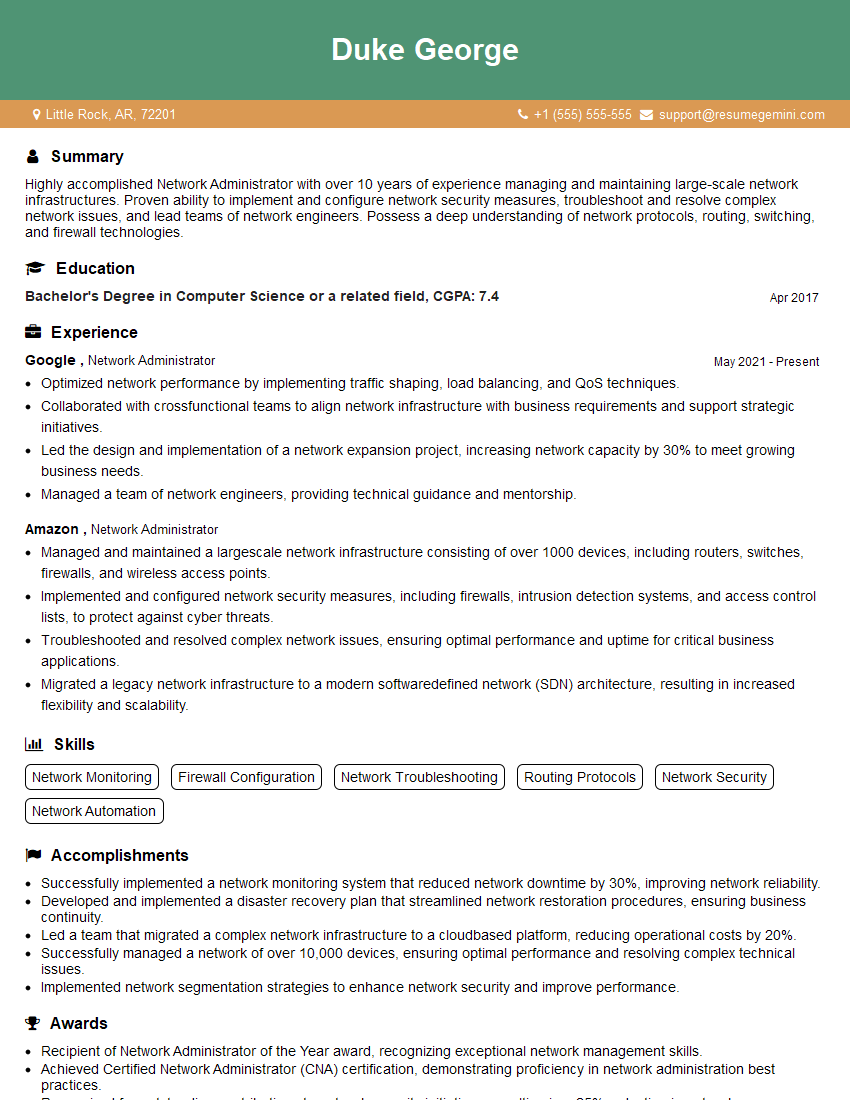
Network Administrator Resume Sample
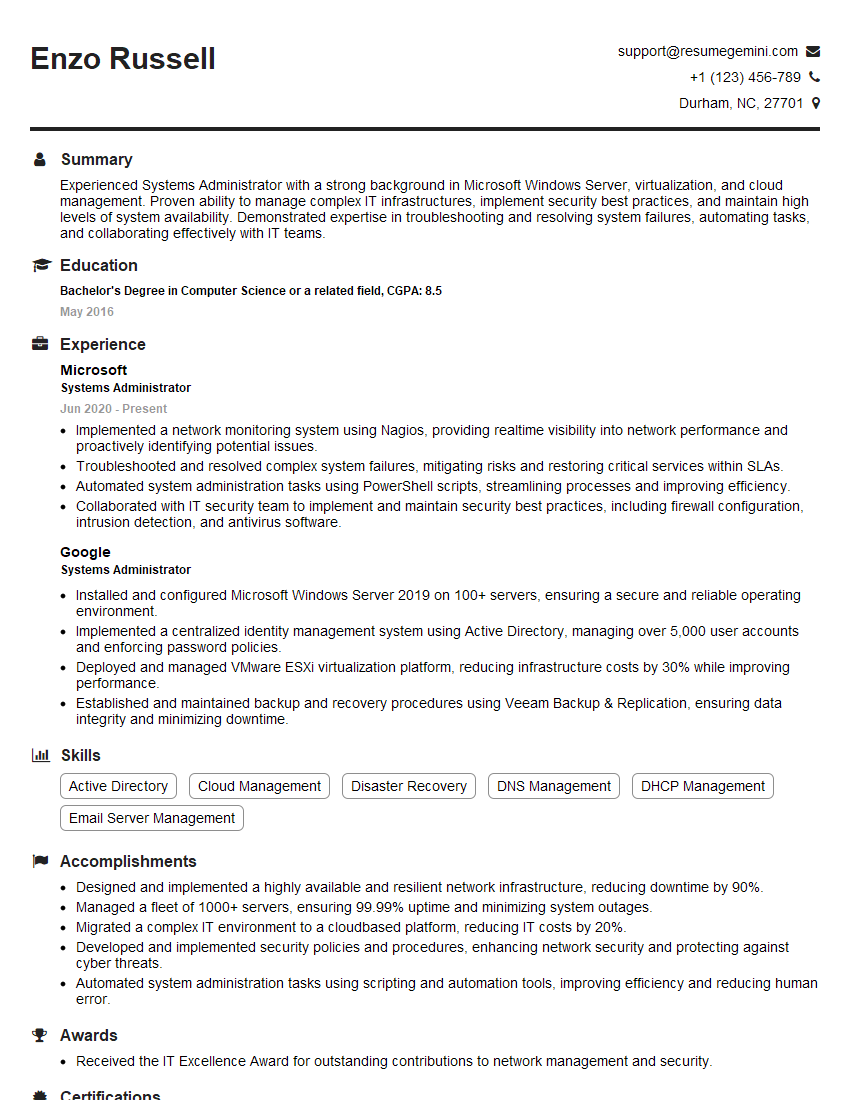
Systems Administrator Resume Sample
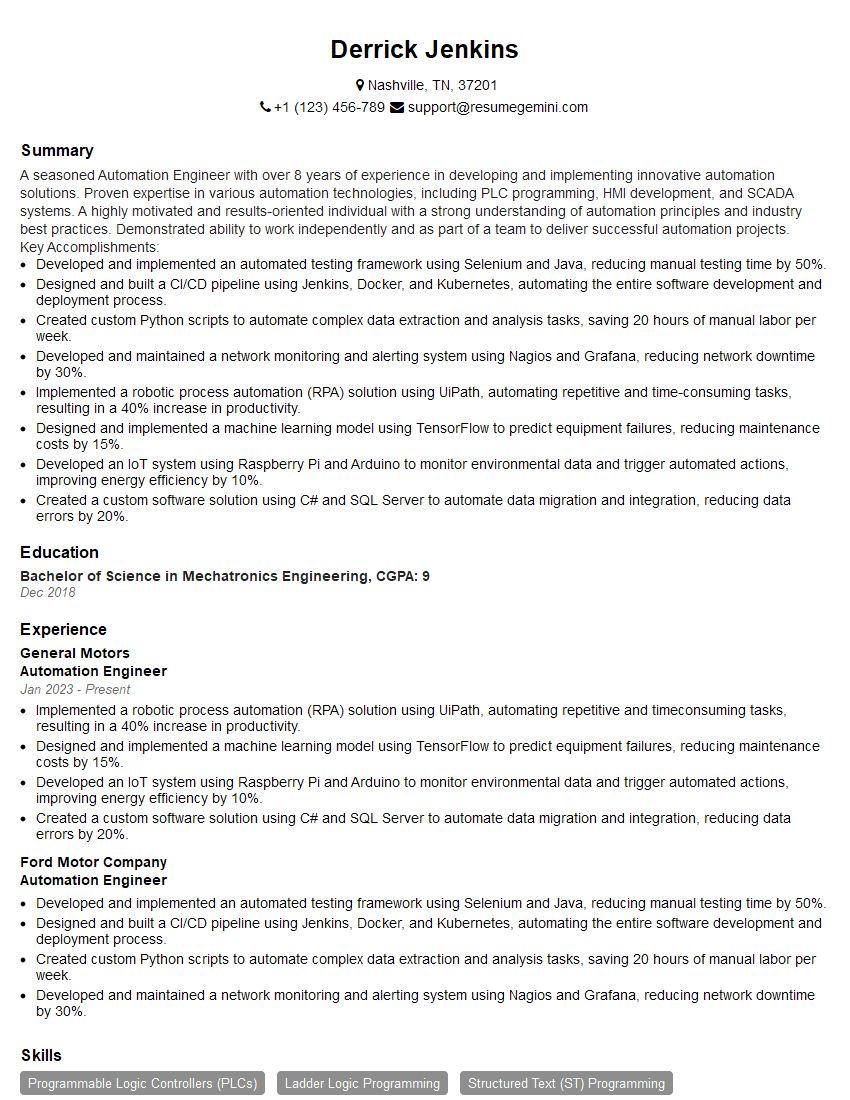
Automation Engineer Resume Sample
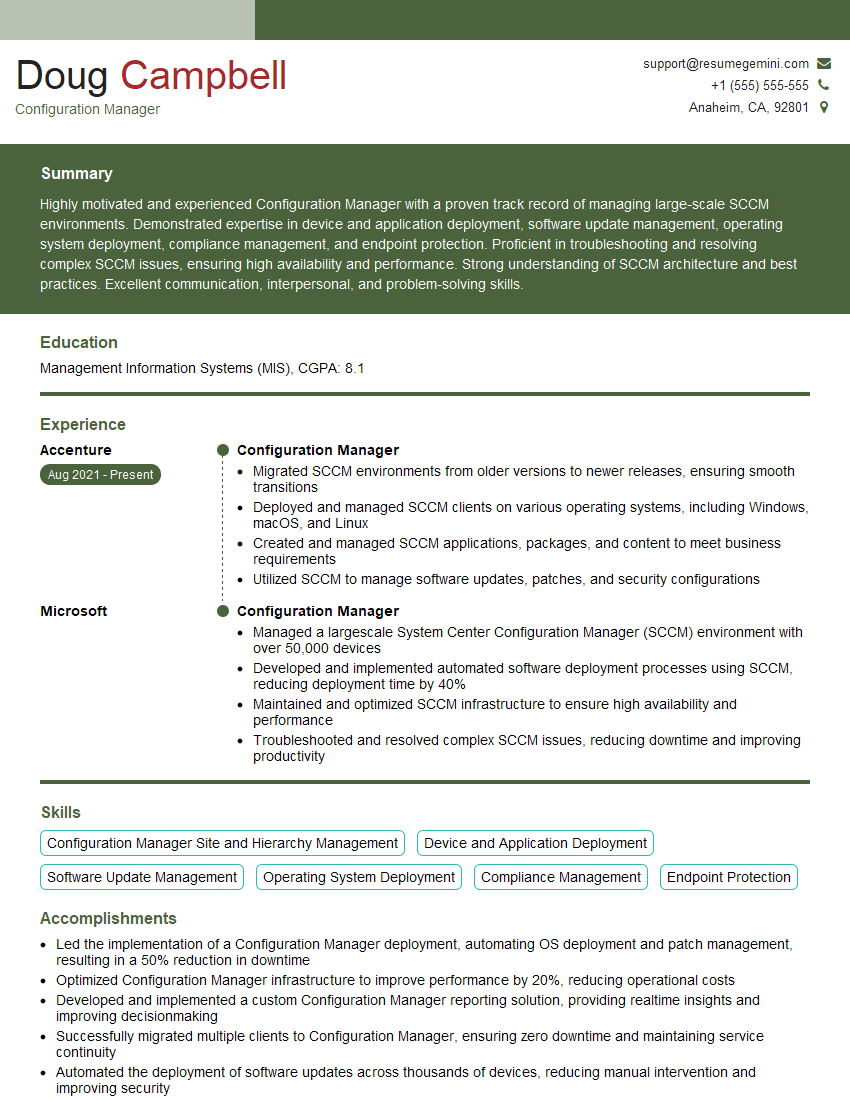
Configuration Manager Resume Sample
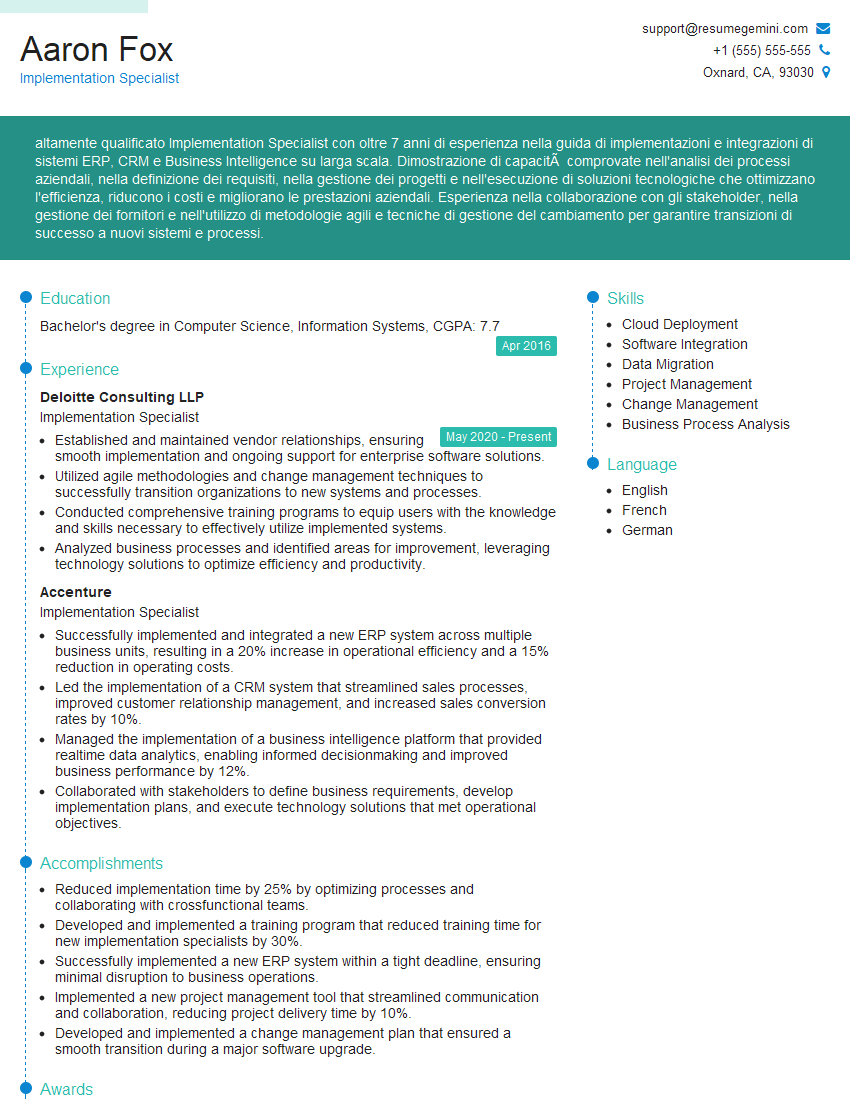
Implementation Specialist Resume Sample

Technical Support Engineer Resume Sample
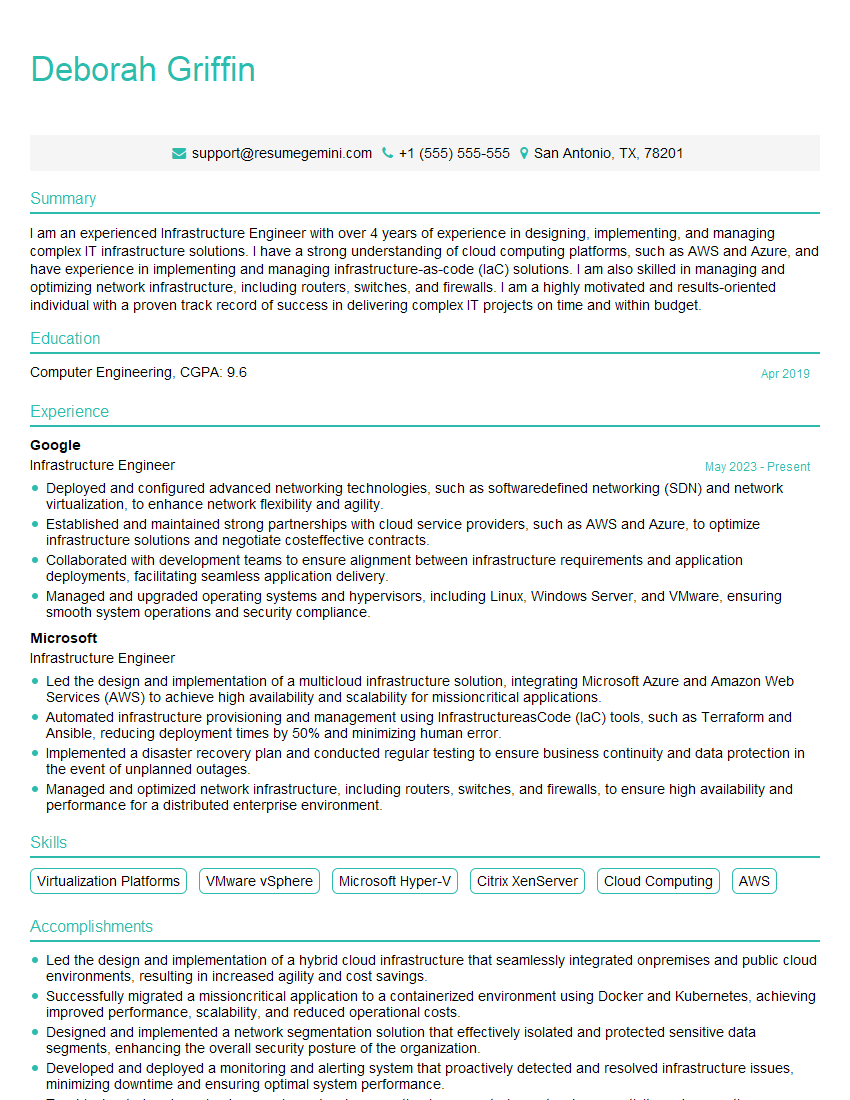
Infrastructure Engineer Resume Sample
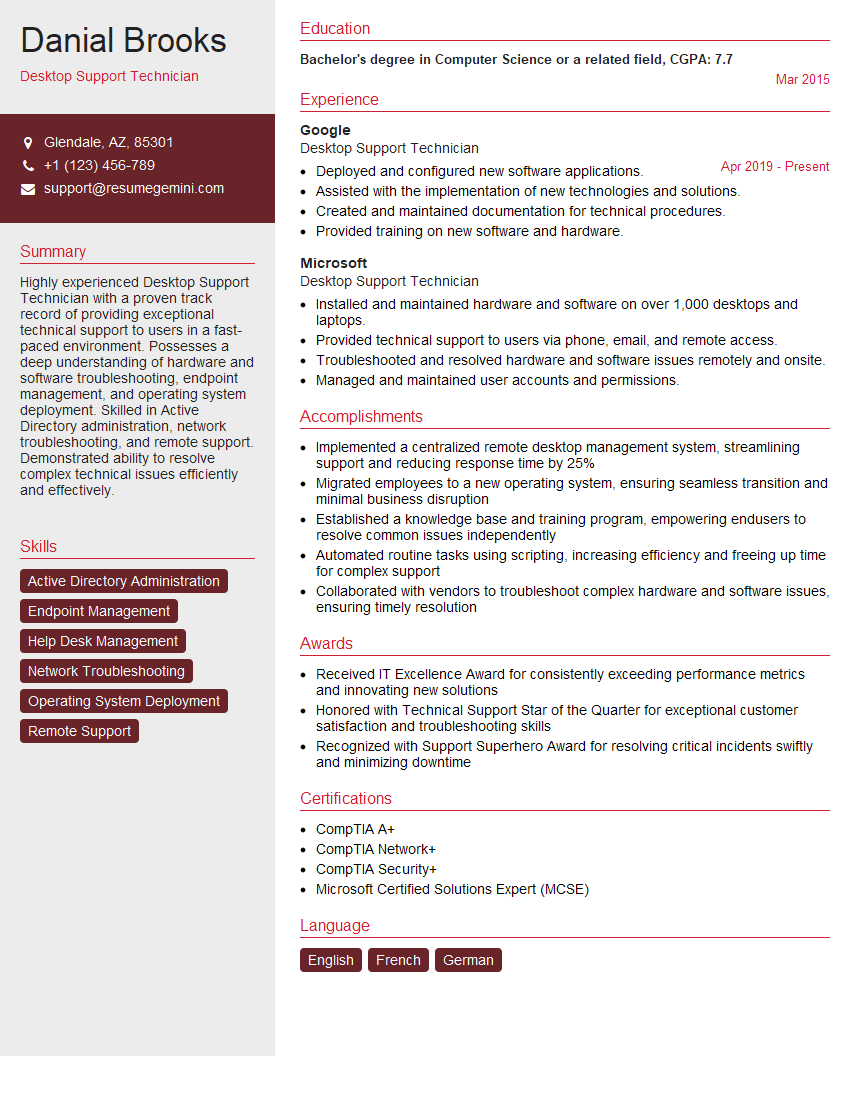
Desktop Support Technician Resume Sample
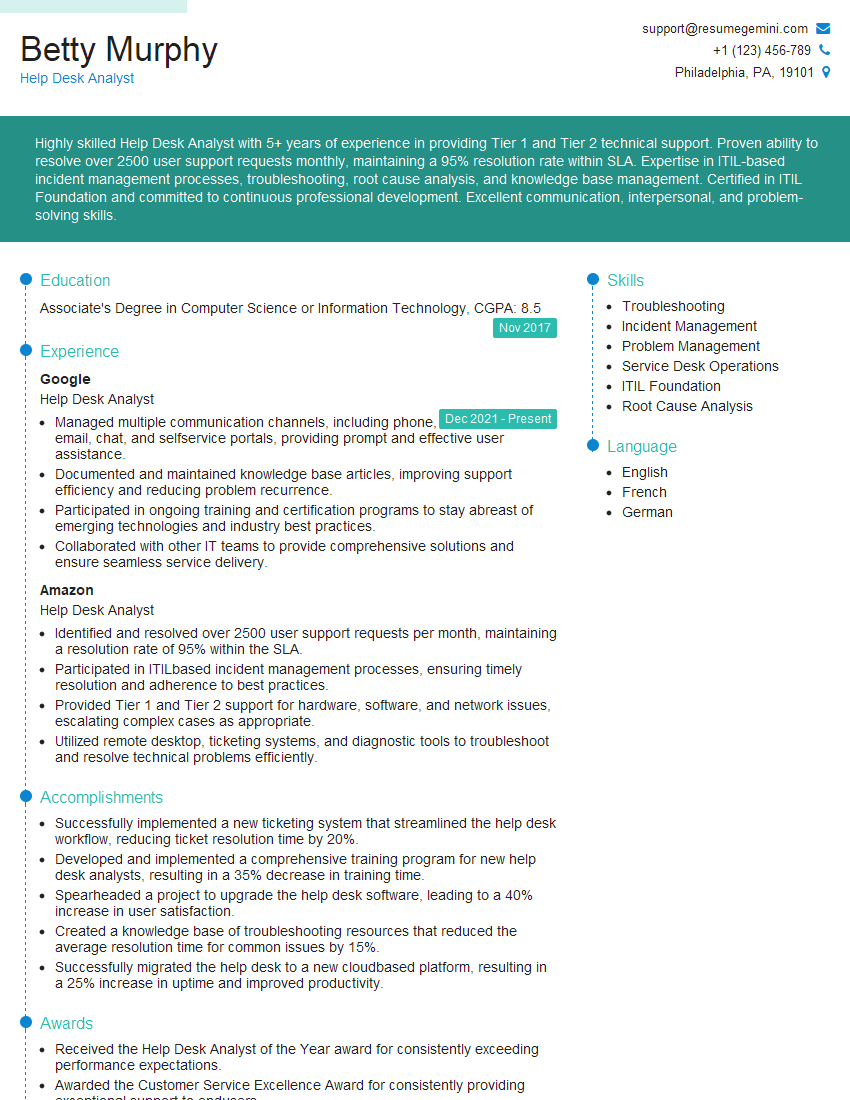
Help Desk Analyst Resume Sample
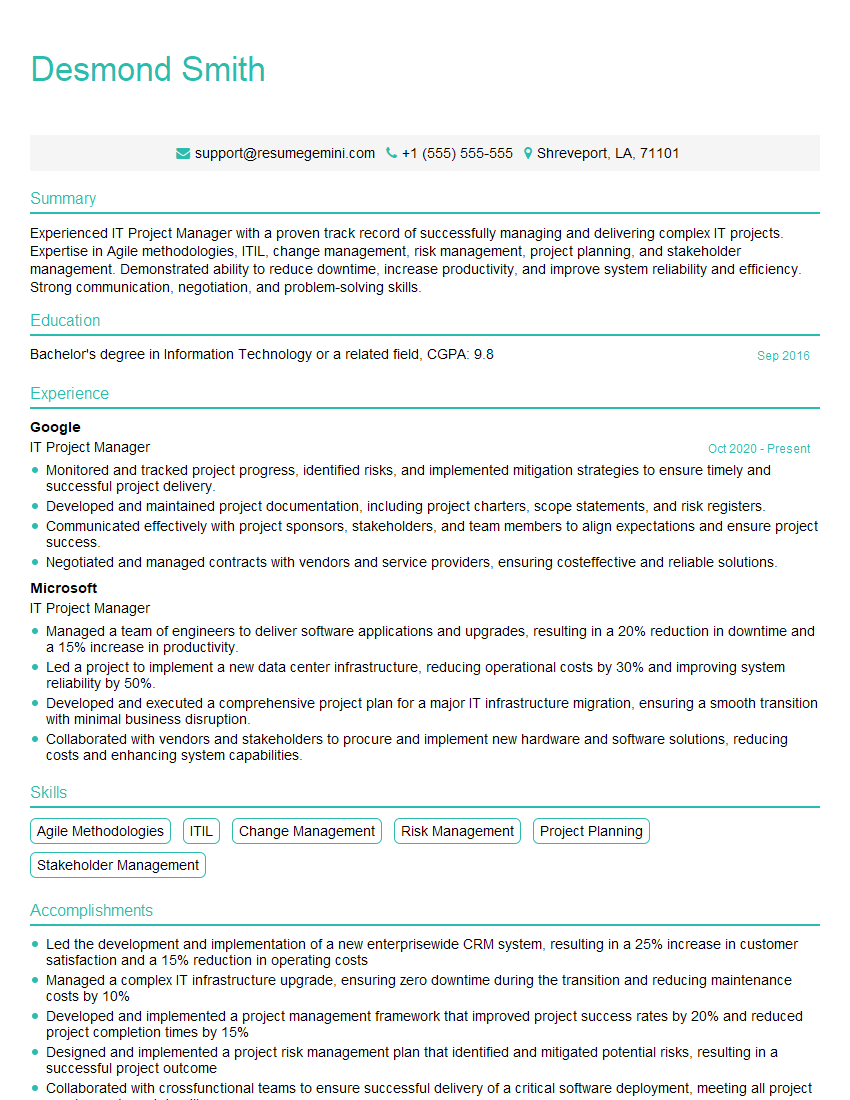
IT Project Manager Resume Sample
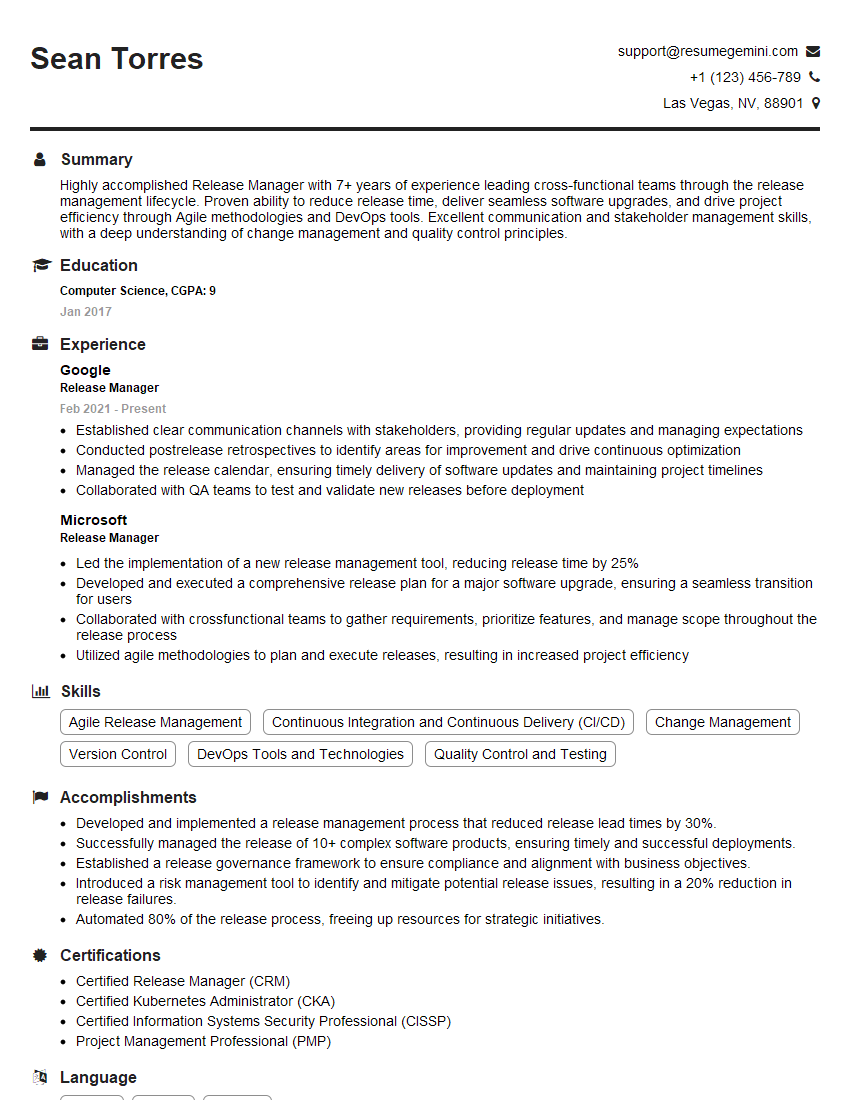
Release Manager Resume Sample
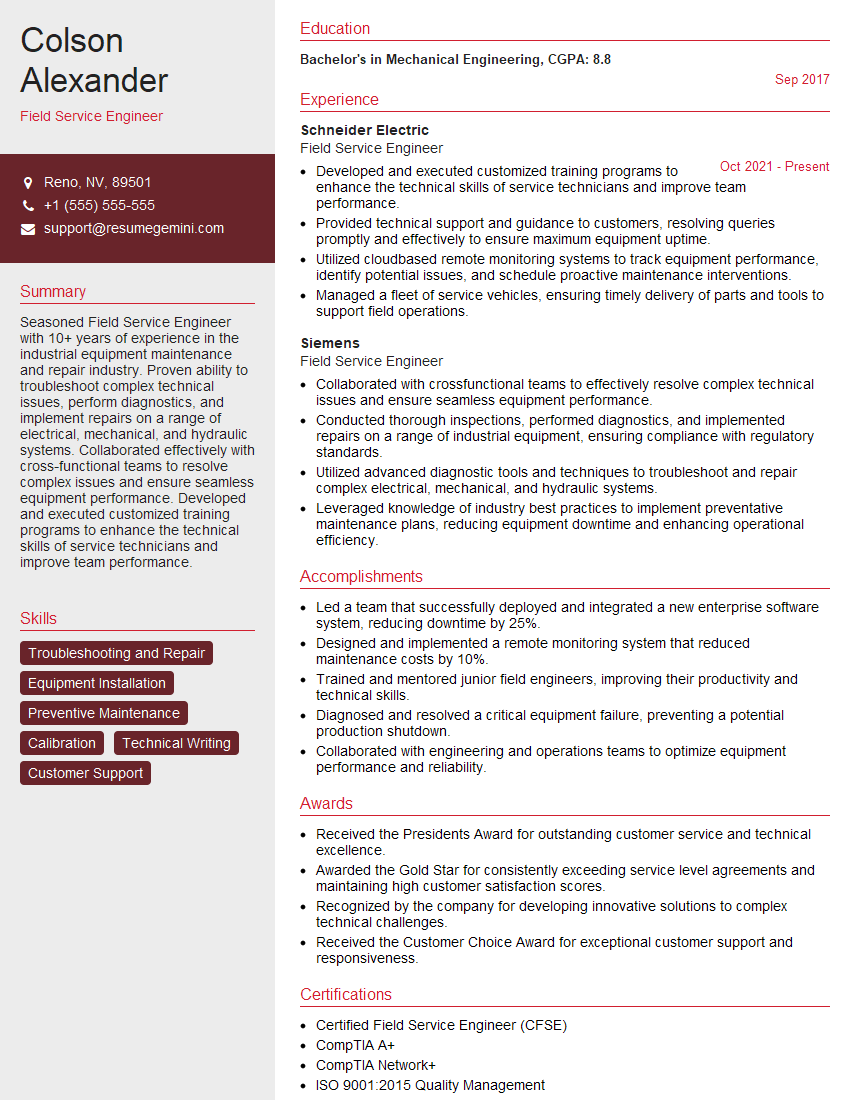
Field Service Engineer Resume Sample
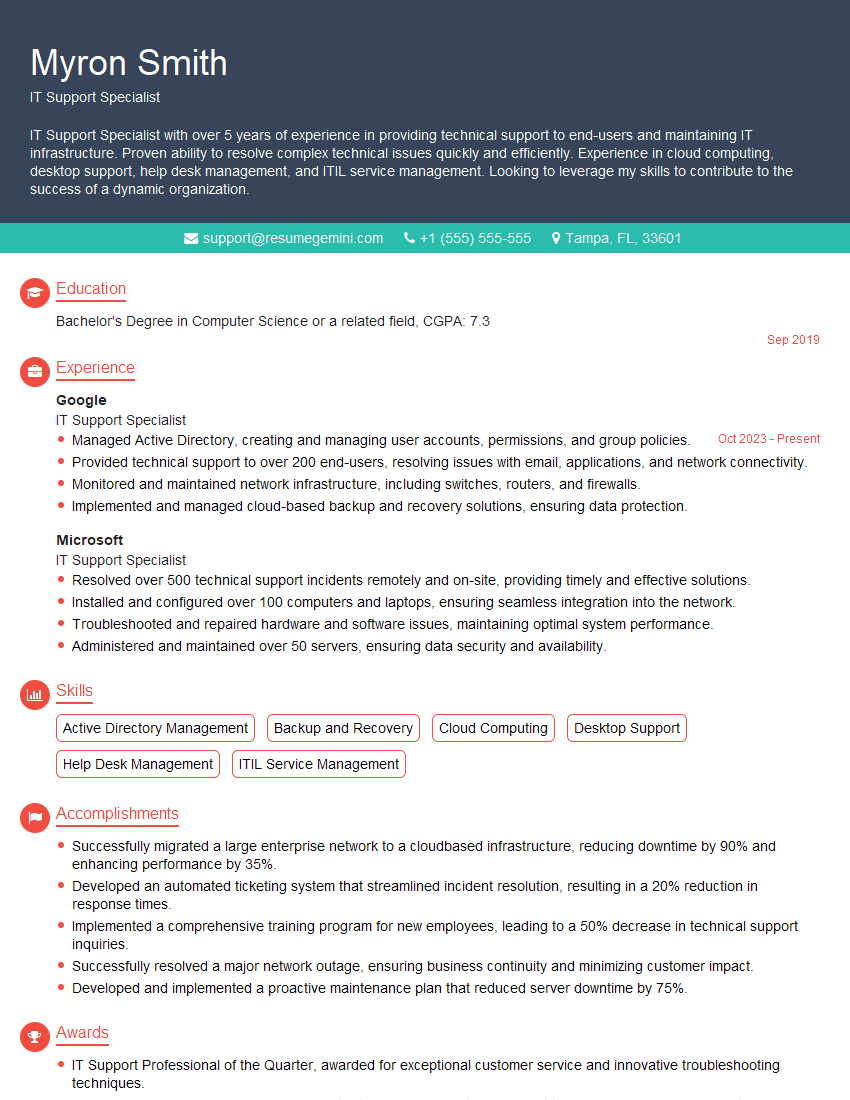
IT Support Specialist Resume Sample
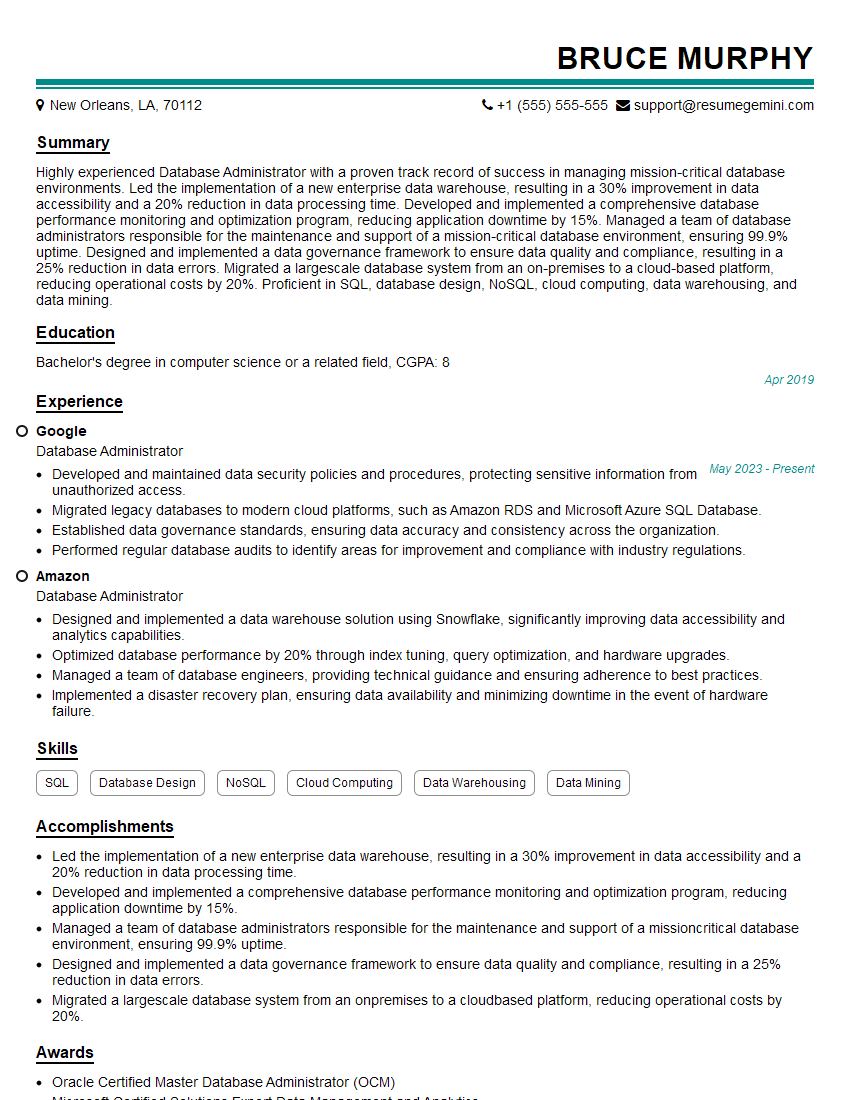
Database Administrator Resume Sample

DevOps Engineer Resume Sample
- Security Administrator
- Network Administrator
- Systems Administrator
- Automation Engineer
- Configuration Manager
- Implementation Specialist
- Technical Support Engineer
- Infrastructure Engineer
- Desktop Support Technician
- Help Desk Analyst
- IT Project Manager
- Release Manager
- Field Service Engineer
- IT Support Specialist
- Database Administrator
- DevOps Engineer
Explore more articles
Users Rating of Our Blogs
Share Your Experience
We value your feedback! Please rate our content and share your thoughts (optional).
What Readers Say About Our Blog
I Redesigned Spongebob Squarepants and his main characters of my artwork.
https://www.deviantart.com/reimaginesponge/art/Redesigned-Spongebob-characters-1223583608
IT gave me an insight and words to use and be able to think of examples
Hi, I’m Jay, we have a few potential clients that are interested in your services, thought you might be a good fit. I’d love to talk about the details, when do you have time to talk?
Best,
Jay
Founder | CEO