The right preparation can turn an interview into an opportunity to showcase your expertise. This guide to Excel Spreadsheets interview questions is your ultimate resource, providing key insights and tips to help you ace your responses and stand out as a top candidate.
Questions Asked in Excel Spreadsheets Interview
Q 1. Explain the difference between VLOOKUP and HLOOKUP.
Both VLOOKUP and HLOOKUP are used to search for a specific value in a table and return a corresponding value from a different column. The key difference lies in the direction of the search: VLOOKUP searches vertically (down a column), while HLOOKUP searches horizontally (across a row).
- VLOOKUP: Imagine a phone book. You know the name (lookup value) and want to find the phone number (return value). VLOOKUP starts at the first column and searches down until it finds the name, then moves across to the specified column to retrieve the number.
- HLOOKUP: Think of a spreadsheet showing monthly sales for different products. You want to find July’s sales (lookup value) for a specific product (return value). HLOOKUP searches across the top row (header) to locate July, then goes down to the specified row to get the sales figure.
Example:
Let’s say you have a table with product names in column A and prices in column B. To find the price of “Apples” using VLOOKUP:
=VLOOKUP("Apples",A1:B10,2,FALSE)Here, “Apples” is the lookup value, A1:B10 is the table array, 2 is the column index number (column B), and FALSE ensures an exact match.
To find the sales for “Product X” in July (assuming July is in column C) using HLOOKUP:
=HLOOKUP("Product X",A1:F2,2,FALSE)Here, “Product X” is the lookup value, A1:F2 is the table array, 2 is the row index number (row 2), and FALSE ensures an exact match.
Q 2. How do you use INDEX and MATCH functions together?
The combination of INDEX and MATCH is a powerful alternative to VLOOKUP and HLOOKUP, offering greater flexibility and efficiency, particularly when dealing with data that isn’t organized in a simple table format. INDEX returns a value from a range based on its row and column number, while MATCH finds the position of a value within a range. Together, they provide a precise and robust lookup solution.
How it works:
- MATCH finds the row or column number of the lookup value within a specified range.
- INDEX uses the row or column number returned by MATCH to retrieve the corresponding value from the specified range.
Example: Let’s say you have a table with product names in column A and prices in column B. To find the price of “Apples”:
=INDEX(B:B,MATCH("Apples",A:A,0))Here, MATCH(“Apples”,A:A,0) finds the row number of “Apples” in column A (0 specifies an exact match). INDEX(B:B,…) then uses this row number to return the corresponding value from column B.
The advantage is that the lookup column (column A here) doesn’t need to be the first column of the table, unlike VLOOKUP, making it more adaptable to various spreadsheet structures. This method is also less prone to errors and faster for larger datasets.
Q 3. Describe your experience with PivotTables and PivotCharts.
I have extensive experience using PivotTables and PivotCharts to summarize, analyze, explore, and present large datasets. They are invaluable tools for transforming raw data into meaningful insights. I’ve used them in various scenarios, from sales analysis to project tracking.
PivotTables: I’m proficient in creating PivotTables from various data sources, including Excel spreadsheets, external databases, and even online data feeds. I know how to choose appropriate fields for rows, columns, values, and filters to generate dynamic summaries. I can easily calculate sums, averages, counts, and other aggregates. Furthermore, I am adept at using calculated fields and items to add custom calculations to the PivotTable’s analysis.
PivotCharts: PivotCharts are a natural extension of PivotTables. I use them to create visualizations directly from the summarized data in a PivotTable. I understand how to select appropriate chart types – bar charts, pie charts, line charts, etc. – depending on the data and the insights I want to convey. I can customize chart elements such as titles, legends, and axis labels for clear and impactful presentation.
Real-world application: For example, in a sales analysis project, I used a PivotTable to summarize sales data by region, product, and sales representative. Then, I created a PivotChart to visually represent sales trends over time, allowing stakeholders to quickly identify top-performing regions and products.
Q 4. How would you perform data cleaning in Excel?
Data cleaning is a crucial step before any analysis. It involves identifying and correcting or removing inaccurate, incomplete, irrelevant, duplicated, or incorrectly formatted data. My approach involves a combination of manual checks and automated techniques using Excel features.
- Identifying and handling duplicates: I use Excel’s built-in duplicate detection features to identify and remove or flag duplicate rows. This is often the first step.
- Handling missing data: Missing data can be handled in different ways depending on the context. Sometimes, I can replace missing values with the mean, median, or mode of the existing data (imputation). Other times, it’s best to remove rows with missing data if the missing data is substantial. Conditional formatting can also be a key element in highlighting the missing cells for review.
- Correcting inconsistent data: I often use Find and Replace to correct inconsistencies in data entry (e.g., standardizing spellings, correcting typos). Text functions such as `TRIM`, `UPPER`, and `LOWER` are used for consistent formatting.
- Data Transformation: Excel’s text-to-columns and Power Query features are vital for cleaning data which is not neatly formatted, such as data from a text file or website. The data can be split or merged, and data types converted as needed.
- Filtering and sorting: Filtering and sorting allow me to isolate specific data points for detailed examination and correction. This is particularly useful when dealing with a large dataset.
Example: If I find inconsistent date formats in a column, I might use text functions to standardize them before any analysis. If I find a large number of missing values, I might investigate the reason for the missing data before deciding on an appropriate imputation strategy.
Q 5. How do you handle errors in Excel formulas (e.g., #N/A, #REF!)?
Error handling is crucial for robust Excel formulas. Various functions help manage and handle errors gracefully, preventing them from disrupting calculations or reports.
- #N/A: This error often occurs when a VLOOKUP or HLOOKUP cannot find a match. The `IFERROR` function can elegantly handle this:
=IFERROR(VLOOKUP(A1,B:C,2,FALSE),"Not Found")This formula returns “Not Found” if the VLOOKUP results in #N/A.
- #REF!: This error indicates a reference error, often caused by deleting a cell or column referenced in a formula. Careful review of the formula and its references is necessary to correct this. The `IFERROR` function can also mask this error.
- #DIV/0!: This appears when a formula attempts to divide by zero. The `IF` or `IFERROR` functions can prevent this:
=IF(B1=0,0,A1/B1)This returns 0 if B1 is zero, avoiding the error.
- Other errors (#VALUE!, #NAME?, etc.): Similar strategies can be applied using `IFERROR` to handle other types of errors, displaying a user-friendly message instead of an error code.
Beyond IFERROR: Error handling goes beyond just masking errors. It’s important to understand the underlying cause to prevent similar errors in the future. Proper data validation and formula design are crucial preventative measures.
Q 6. Explain the concept of data validation in Excel.
Data validation in Excel helps maintain data integrity by restricting the type of data that can be entered into a cell or range of cells. It’s like setting guardrails to ensure only valid entries are accepted.
How it works: Data validation rules can be set to restrict data based on various criteria:
- Data type: Specify that a cell must contain only numbers, text, dates, or specific custom data types.
- List: Restrict entries to a predefined list of values. This is useful for drop-down menus.
- Decimal places: Limit the number of decimal places allowed.
- Length: Restrict the length of text entries.
- Custom formulas: Use custom formulas to define more complex validation rules (e.g., ensuring a value is within a certain range).
Error Alerts: You can customize the error alert message to inform users why their input is invalid. This helps guide users to enter correct data, making the spreadsheet more user-friendly.
Example: In a sales order form, you could use data validation to ensure that the quantity ordered is a whole number greater than zero, the order date is a valid date, and the product selected is from a predefined list of available products. This ensures the data entered into the order form is correct and consistent.
Q 7. How do you use conditional formatting effectively?
Conditional formatting is a powerful tool to highlight important data within a spreadsheet, making it easier to identify trends, outliers, and other significant information. Instead of relying solely on manual scanning, it uses visual cues to draw attention to specific cells.
Effective Use Cases:
- Highlighting duplicates: Quickly identify duplicate entries by highlighting them with a specific color or formatting.
- Data bars: Visually represent the magnitude of numerical values using data bars in cells.
- Color scales: Apply color gradients to a range of cells based on their values (e.g., lowest values are green, highest are red).
- Icon sets: Display icons based on values, providing quick visual summaries (e.g., green checkmark for values above a target, red cross for values below).
- Top/Bottom Rules: Highlight the top 10% or bottom 10% of values in a range.
- Formula-based highlighting: Use custom formulas to highlight cells based on more complex conditions (e.g., highlight cells where a value is greater than the average).
Example: Imagine a sales report. You could use conditional formatting to highlight sales figures above a certain target in green, those below the target in red, and those meeting the target in yellow. This instantly provides a visual overview of sales performance against targets.
Best Practices: Use conditional formatting sparingly to avoid overwhelming the user with too many visual cues. Choose color schemes and formats that are visually distinct and easy to understand.
Q 8. Describe your experience with macros and VBA.
Macros in Excel, powered by VBA (Visual Basic for Applications), are essentially mini-programs that automate tasks. Imagine them as tiny robots performing repetitive actions on your spreadsheets. My experience spans from simple macros automating data entry and formatting to complex ones involving user input, conditional logic, and interaction with external data sources. I’ve used them extensively to streamline workflows, reducing manual effort and improving accuracy. For example, I built a macro to consolidate data from multiple workbooks into a single master file, a task that would have taken hours manually. This macro not only saved time but also minimized the risk of human error during the data transfer.
I’m proficient in all aspects of VBA development within the Excel environment, including:
- Developing event-driven macros that react to user actions.
- Utilizing loops and conditional statements for dynamic processing.
- Working with Excel objects like worksheets, ranges, and charts programmatically.
- Integrating external data sources (databases, text files).
- Debugging and troubleshooting VBA code.
Beyond automation, I’ve leveraged VBA to create custom functions, extending Excel’s built-in functionality to address specific analytical needs. This allows for a more tailored and efficient approach to data manipulation.
Q 9. How do you create and manage named ranges?
Named ranges are like giving nicknames to specific cell ranges or even individual cells in your spreadsheet. They make your formulas and VBA code much more readable and maintainable. Instead of using cryptic cell references like $A$1:$B$10, you can use a descriptive name like SalesData, making your work easier to understand and modify later. For instance, if you’re working with sales figures, you might name the range containing your sales data ‘SalesData’. This makes your formulas much cleaner: Instead of =SUM($A$1:$A$10), you’d write =SUM(SalesData). This not only improves readability but also simplifies updates – if your data range changes, you only need to update the named range definition, not every formula referencing it.
To create a named range:
- Select the cells you want to name.
- In the ‘Formulas’ tab, click ‘Define Name’.
- Give your range a descriptive name and click ‘OK’.
To manage named ranges, you can use the ‘Name Manager’ (also found in the ‘Formulas’ tab), where you can edit, delete, or even create new named ranges. Using the Name Manager makes it simple to track and manage your named ranges, essential for larger, more complex spreadsheets.
Q 10. Explain the difference between relative, absolute, and mixed cell references.
Cell references dictate how a formula refers to a cell or range. Understanding the differences is crucial for creating flexible and dynamic spreadsheets. Let’s break them down:
- Relative References: These are the default. When you copy a formula containing a relative reference, the reference adjusts relative to its new location. For example, if cell A1 contains
=B1, copying it to A2 will automatically change the formula to=B2. This is incredibly useful for applying the same calculation across a range of data. - Absolute References: These references remain constant no matter where you copy the formula. They use dollar signs ($) to lock either the column (
$A1), the row (A$1), or both ($A$1). For instance, if you want to always refer to a specific value in cell B1, regardless of the formula’s location, you would use=$B$1. - Mixed References: These combine aspects of both relative and absolute references. You might have an absolute column and a relative row (
$A1) or vice versa (A$1). This is useful when you need part of the reference to adjust while keeping another part fixed. For example, if you’re summing values in column B across multiple rows, you might use a mixed reference like=SUM($B1:B10)which would adjust the ending row when copied down but always sum the values in column B.
Consider a scenario where you’re calculating a sales commission (10%) on various products. Using absolute references for the commission rate (e.g. =$A$1 for 10%) ensures you consistently use the correct rate, even when replicating the formula across numerous rows.
Q 11. How do you work with large datasets in Excel efficiently?
Working with large datasets in Excel efficiently requires a multi-pronged approach. Simply loading a massive dataset can cause performance issues. Here’s how I optimize:
- Data Filtering and Sorting: Before any analysis, filter and sort your data to focus only on relevant subsets. This significantly reduces the amount of data Excel needs to process.
- Power Query (Get & Transform Data): This powerful tool lets you import, clean, and transform your data *before* it enters your spreadsheet. You can filter out unnecessary columns, handle missing values, and perform data manipulations efficiently. It’s like a pre-processing stage that keeps your main spreadsheet lean and fast.
- Data Tables (Structured References): Use Excel tables to create structured references. This makes formulas more dynamic and adaptable as your data grows. Updates and calculations become much faster because Excel is working on a defined structure.
- Array Formulas: For complex calculations involving large data sets, array formulas can be very efficient. They perform calculations on entire arrays at once instead of cell by cell.
- PivotTables: Summarize and analyze your data effortlessly. PivotTables are ideal for large datasets, allowing you to quickly drill down into the specifics you want.
- External Data Sources: When feasible, work with the data directly from its source (database, etc.) using tools like Power Query to avoid loading everything into your spreadsheet.
By strategically combining these techniques, you can keep your Excel workbook responsive and avoid crashes, even with massive datasets. The key is to avoid unnecessary computations by preparing and structuring your data efficiently before intensive calculations.
Q 12. How do you perform data analysis using Excel functions?
Excel functions are the heart of data analysis. My proficiency extends to a wide range, including statistical, logical, financial, and text functions. I build solutions by chaining multiple functions together to derive meaningful insights. For example, to find the average sales for a particular product category:
- I might use
FILTERto extract data for that category. - Then use
AVERAGEto calculate the average sales from that filtered data.
Consider a scenario where I need to analyze sales data over time, identifying trends and outliers. I’d employ a combination of functions such as:
SUMIFSto aggregate sales based on different criteria (product, region, date).AVERAGEIFSto calculate average sales across different criteria.STDEVorVARto determine the variability in sales data.GROWTHorTRENDto project future sales based on past trends.
I am also adept at using advanced functions like INDEX and MATCH for dynamic lookups and data retrieval, crucial for tasks like cross-referencing data from different tables without relying on cumbersome VLOOKUP formulas.
Q 13. How would you automate a repetitive task in Excel?
Automating repetitive tasks is one of Excel’s biggest strengths. The most effective way is through macros, which are essentially small programs written in VBA. Let’s say you need to format reports daily that involve applying specific styles, calculations, and data cleaning steps. Instead of doing it manually every day, you can record a macro that performs these actions. The macro will record your every step and then lets you replay that sequence of steps automatically at any time. This not only saves time but also ensures consistent results. For instance, if I had to regularly copy data from one sheet to another, reformat columns, apply formulas and create a summary report, I would record a macro to perform these actions. This macro can then be run at any time with a simple click.
Alternatively, for simpler tasks that don’t require the power of VBA, you can use features like the ‘Fill’ handle to quickly copy formulas or formatting down a column, or use Excel’s built-in data validation features to enforce rules and prevent errors.
The decision of using VBA versus built-in features depends on the complexity of the repetitive task. Simple, predictable tasks can often be handled using built-in tools. For more complex, dynamic actions, VBA is the superior choice for robust and customizable automation.
Q 14. Explain your experience with different chart types in Excel.
My experience with Excel chart types is extensive. Choosing the right chart is essential for effective data visualization, and I understand the strengths and weaknesses of each type. I frequently use:
- Column/Bar Charts: Comparing values across categories. Great for showing changes over time or differences between groups.
- Line Charts: Showing trends over time. Ideal for displaying continuous data points.
- Pie Charts: Displaying proportions of a whole. Effective for illustrating the percentage breakdown of different components.
- Scatter Plots: Showing relationships between two sets of data. Useful for identifying correlations.
- Area Charts: Highlighting cumulative totals or showing the magnitude of change over time.
- Combo Charts: Combining different chart types to show multiple aspects of the data.
For example, if I were analyzing monthly sales figures, I’d likely use a line chart to show trends, potentially combined with column charts to compare sales for different product categories. For illustrating the market share of different competitors, a pie chart is perfect. I always tailor my choice of chart type to the specific data and the insights I want to convey. Data visualization is about clarity, and the right chart type makes all the difference in effectively communicating insights.
Q 15. How do you create a dashboard in Excel?
Creating an Excel dashboard involves compiling key performance indicators (KPIs) and other critical data points into a single, easy-to-understand visual representation. Think of it as a car’s dashboard – at a glance, you see speed, fuel level, and other vital information. Similarly, an Excel dashboard provides a snapshot of your data’s health.
Here’s a breakdown of the process:
- Data Source: First, you need clean and organized data. This often involves using tools like Power Query to consolidate data from multiple sources.
- KPI Selection: Identify the most important metrics to track. For a sales team, this might be total revenue, sales conversion rate, and average order value.
- Chart Selection: Choose appropriate charts to visualize each KPI. Bar charts are great for comparisons, while line charts show trends. Consider using gauges or sparklines for a more compact display.
- Layout & Formatting: Arrange charts logically, use consistent formatting (colors, fonts), and add clear labels. Think about your audience – a concise dashboard for executives will differ from a detailed one for analysts.
- Data Slicing & Filtering: Use slicers and filters (available in PivotTables and PivotCharts) to allow users to interactively explore the data from different perspectives.
- Protection: Protect the dashboard’s structure to prevent accidental changes.
Example: Imagine creating a dashboard for a marketing campaign. You could display the campaign’s budget, the number of impressions, click-through rates, and conversion rates using a combination of bar charts, line graphs, and possibly a gauge for budget remaining.
Career Expert Tips:
- Ace those interviews! Prepare effectively by reviewing the Top 50 Most Common Interview Questions on ResumeGemini.
- Navigate your job search with confidence! Explore a wide range of Career Tips on ResumeGemini. Learn about common challenges and recommendations to overcome them.
- Craft the perfect resume! Master the Art of Resume Writing with ResumeGemini’s guide. Showcase your unique qualifications and achievements effectively.
- Don’t miss out on holiday savings! Build your dream resume with ResumeGemini’s ATS optimized templates.
Q 16. Describe your experience with Power Query (Get & Transform Data).
Power Query (now known as Get & Transform Data) is my go-to tool for data preparation. It’s a game-changer for handling messy or disparate datasets. I’ve used it extensively to:
- Clean Data: Remove duplicates, handle errors, fill in missing values, change data types. For example, I’ve used it to automatically convert inconsistent date formats into a uniform standard.
- Transform Data: Add, remove, or rename columns; create new columns from existing ones using formulas; split or combine columns.
- Consolidate Data: Combine data from multiple sources (Excel workbooks, CSV files, databases) into a single, unified dataset. I’ve used this to merge sales data from different regions into one comprehensive report.
- Data Shaping: Pivoting and unpivoting data to transform its structure for analysis.
Example: Recently, I had to work with sales data from three different regions, each with a slightly different format. Using Power Query, I imported the data, standardized the column names, handled missing values, and combined the data into a single table, ready for analysis within Excel.
Q 17. How do you use Power Pivot for data modeling?
Power Pivot is invaluable for building robust data models within Excel, especially when dealing with large datasets. It allows me to create relationships between different tables, ensuring data integrity and efficiency in calculations.
My experience with Power Pivot includes:
- Data Modeling: Creating star schemas or snowflake schemas by defining relationships between fact tables and dimension tables.
- Calculated Columns & Measures: Developing custom calculations to derive new insights from existing data. These calculations are highly efficient because they are performed within the in-memory engine of Power Pivot.
- Data Aggregation: Summarizing large datasets efficiently using aggregations like SUM, AVERAGE, COUNT.
- Performance Optimization: Utilizing techniques like data compression to ensure that large models remain responsive.
Example: I once built a Power Pivot model for a retail company that involved sales data, product information, and customer details. By linking these tables, I could efficiently analyze sales performance by product category, customer segment, and geographic location.
Q 18. How familiar are you with Excel’s data analysis tools (Data Analysis Toolpak)?
I’m very familiar with Excel’s Data Analysis Toolpak. While newer tools like Power Pivot often offer more advanced features, the Data Analysis Toolpak remains useful for standard statistical analysis. I’ve used it for tasks such as:
- Descriptive Statistics: Calculating mean, median, standard deviation, etc., to understand the central tendency and dispersion of data.
- Regression Analysis: Modeling relationships between variables to predict future outcomes. For example, predicting future sales based on advertising spend.
- t-tests & ANOVA: Conducting hypothesis tests to compare means between different groups.
- Correlation Analysis: Determining the strength and direction of relationships between variables.
Example: In a project analyzing customer satisfaction scores, I used the Data Analysis Toolpak to perform a t-test to compare satisfaction scores between two different customer segments.
Q 19. How do you ensure data accuracy and integrity in Excel spreadsheets?
Data accuracy and integrity are paramount. My approach involves a multi-layered strategy:
- Data Validation: Using Excel’s built-in data validation features to restrict data entry to specific formats or ranges. This prevents invalid data from entering the spreadsheet.
- Data Cleaning: Employing techniques like Power Query’s data transformation capabilities to identify and correct errors, inconsistencies, and duplicates.
- Formula Auditing: Regularly reviewing formulas to ensure they are accurate and calculating correctly. Using features like trace precedents and trace dependents is very helpful.
- Cross-Validation: Comparing data from multiple sources to identify discrepancies and inconsistencies.
- Documentation: Maintaining clear documentation of data sources, definitions, and cleaning processes. This is crucial for reproducibility and transparency.
Example: I once discovered inconsistencies in a dataset by cross-referencing it with another database. This highlighted an issue with data entry that was resolved, ensuring the data’s integrity.
Q 20. Describe your experience with protecting and securing Excel workbooks.
Protecting and securing Excel workbooks is essential, particularly when dealing with sensitive information. My approach involves several strategies:
- Password Protection: Protecting workbooks with passwords to restrict access to viewing and editing.
- Restricting Editing: Using the ‘Protect Sheet’ and ‘Protect Workbook’ features to control which cells users can modify. This allows for collaborative editing while maintaining the integrity of specific data or formulas.
- Digital Rights Management (DRM): Utilizing DRM features (if available) to control access and distribution of the workbook.
- Version Control: Using cloud-based storage like OneDrive or SharePoint to track changes and collaborate efficiently. The version history allows you to revert to previous versions if needed.
- Data Encryption: For highly sensitive data, encrypting the workbook using third-party tools or features provided by cloud services ensures data security even if the file is compromised.
Example: When dealing with financial data, I always password-protect the workbook and restrict editing to specific cells to prevent accidental or malicious changes.
Q 21. How do you collaborate on Excel spreadsheets with others?
Collaboration on Excel spreadsheets is smoother with the right tools and practices:
- Cloud Storage: Utilizing cloud-based solutions like OneDrive, SharePoint, or Google Drive allows multiple users to access and edit the same file simultaneously.
- Change Tracking: Enabling change tracking allows you to see who made which changes and when, facilitating collaboration and resolving conflicts.
- Version Control: Utilizing version control features ensures that you can easily revert to previous versions if errors occur.
- Communication: Clear communication among collaborators is vital. Using tools like comments within the spreadsheet, instant messaging, or email helps manage the workflow and address questions or concerns.
- Shared Workbook Features: Utilizing the ‘Shared Workbook’ feature in Excel (with appropriate permissions) can help manage concurrent edits and avoid conflicts.
Example: In a team project, we use SharePoint to store our Excel file. We enable change tracking so everyone can see updates and resolve any discrepancies quickly. We also utilize comments within the spreadsheet to discuss specific data points or formulas.
Q 22. Explain your experience with different Excel file formats (.xlsx, .xls, .csv).
I have extensive experience working with various Excel file formats, each with its own strengths and weaknesses. The most common are .xlsx, .xls, and .csv.
- .xlsx (Excel Open XML Spreadsheet): This is the default format in newer versions of Excel. It’s a versatile format supporting advanced features like macros, charts, and complex formulas. It’s also more efficient in terms of file size compared to .xls.
- .xls (Excel Binary Workbook): This is the older binary format. While compatible with older Excel versions, it’s less efficient and has limitations in terms of features and file size, especially for large datasets. It’s generally recommended to convert .xls files to .xlsx for improved functionality and compatibility.
- .csv (Comma Separated Values): This is a simple, text-based format used for exchanging data between different applications. It’s great for importing and exporting data to other programs like databases or statistical software. However, it lacks the formatting and features of .xlsx and .xls files. It’s primarily used for raw data exchange.
In my work, I often choose the .xlsx format for its versatility and efficiency unless I need to specifically work with a legacy system or share data with applications that only support .csv.
Q 23. How would you troubleshoot a complex formula error?
Troubleshooting complex formula errors requires a systematic approach. I usually start by carefully examining the error message itself. Excel provides helpful error messages that often pinpoint the source of the problem. Here’s my step-by-step process:
- Identify the Error: Note the specific error message (e.g., #VALUE!, #REF!, #DIV/0!, #NAME?). Each error type has a specific cause.
- Check Cell References: Incorrect cell references are a common source of errors. Ensure all references are accurate and point to the intended cells. Use the formula auditing tools (Trace Precedents and Trace Dependents) to visually inspect the formula’s dependencies.
- Data Validation: Verify the data being used in the formula is correct and of the expected type. Incorrect data types (e.g., text instead of numbers) can lead to errors.
- Simplify the Formula: Break down a complex formula into smaller, more manageable parts. This makes it easier to isolate the problem area. Testing each part independently can quickly identify the source of the issue.
- Use the Evaluate Formula Tool: Excel’s Evaluate Formula tool (Formulas tab) allows you to step through a formula calculation step-by-step, revealing intermediate results and helping to identify where the error occurs.
- Check for Circular References: A circular reference occurs when a formula directly or indirectly refers to itself, creating a loop. Excel will warn you about this.
For example, if I get a #DIV/0! error, I know it’s because I’m trying to divide by zero. I’ll then check the cells involved to see why the divisor is zero, and correct the underlying data or formula.
Q 24. How do you optimize Excel files for performance?
Optimizing Excel files for performance is crucial, especially when dealing with large datasets. Slow performance can be frustrating and unproductive. Here are my key strategies:
- Reduce Data Volume: Avoid unnecessary columns or rows. Delete any redundant or irrelevant data. Consider using external databases or data warehousing solutions for extremely large datasets.
- Use Tables and Structured References: Converting ranges of data into Excel Tables improves performance, especially with large datasets. Structured references (e.g., `Table1[Column1]`) are also more efficient and less prone to errors than traditional cell references.
- Avoid Volatile Functions: Volatile functions (like TODAY(), NOW(), RAND()) recalculate whenever any change is made to the workbook, impacting performance. Use them sparingly.
- Limit Formatting: Excessive formatting (e.g., complex cell styles, conditional formatting on large ranges) can significantly slow down Excel. Use formatting judiciously.
- Array Formulas Efficiently: Array formulas can be powerful, but improper use can be slow. Ensure they’re only used when absolutely necessary and optimized correctly.
- Data Consolidation: Instead of having multiple worksheets with the same data, consolidate the data onto one sheet to reduce file size and improve calculation times.
- Regular Cleanup: Periodically remove unused sheets, unnecessary links, and any other unnecessary clutter to keep your files clean and efficient.
Imagine working with a financial model with millions of rows. Optimizing it by reducing data volume and using structured references could reduce calculation times from minutes to seconds.
Q 25. Describe your experience with using Excel for financial modeling.
I have significant experience using Excel for financial modeling, building various models such as discounted cash flow (DCF) analyses, pro forma income statements, and valuation models. My expertise includes:
- Developing Financial Statements: Creating interconnected pro forma income statements, balance sheets, and cash flow statements to project a company’s financial performance.
- DCF Analysis: Building discounted cash flow models to estimate the intrinsic value of businesses or projects, incorporating assumptions about revenue growth, operating margins, and capital expenditures.
- Sensitivity Analysis and Scenario Planning: Incorporating sensitivity analysis and creating what-if scenarios to assess the impact of different assumptions on financial outcomes.
- Leverage and Capital Structure Modeling: Modeling the impact of different capital structures (debt vs. equity) on a company’s profitability and value.
- Valuation Modeling: Utilizing comparable company analysis and precedent transactions to support valuation conclusions.
For example, I built a DCF model for a tech startup that included detailed revenue projections, cost of capital calculations, and terminal value estimations, ultimately providing a valuation range for the company.
Q 26. How would you present data effectively using Excel charts and graphs?
Presenting data effectively in Excel requires choosing the right chart or graph type and formatting it clearly. The goal is to communicate insights quickly and accurately. Here’s my approach:
- Data Type Matters: Choose the chart that best represents the type of data. Bar charts are good for comparisons; line charts show trends over time; pie charts show proportions; scatter plots show correlations.
- Clear Labeling: Always include clear and concise titles, axis labels, and legends. Avoid jargon.
- Data Formatting: Use appropriate scales and number formats. Highlight important data points using color or other visual cues.
- Simplicity and Clarity: Avoid clutter. Keep the chart simple and easy to understand. Too much information can be overwhelming.
- Consistent Style: Maintain consistency in style and formatting throughout the presentation.
For instance, when presenting sales data over time, a line chart is ideal. A clear title like “Sales Revenue (2020-2023)” and labeled axes instantly convey the data’s meaning.
Q 27. What are your preferred methods for data visualization in Excel?
My preferred methods for data visualization in Excel depend on the data and the message I want to communicate. I often use a combination of techniques.
- Pivot Charts: These are incredibly versatile. They dynamically update as the underlying data changes, providing a highly interactive way to explore data and create various chart types quickly.
- Bar Charts/Column Charts: These are great for comparisons, particularly when showcasing differences between categories or groups.
- Line Charts: Excellent for displaying trends over time and showing changes in data over a period.
- Scatter Plots: Useful for visualizing correlations between two variables.
- Combination Charts: Effective for showing multiple datasets with different scales on the same chart (e.g., combining a line chart for revenue with a column chart for costs).
Beyond basic charts, I also leverage conditional formatting to highlight key insights directly within the data itself, making it easier to identify important trends or outliers.
Q 28. How do you stay updated with new features and functionalities in Excel?
Staying updated on new Excel features and functionalities is essential for maintaining my skills. I employ several methods:
- Microsoft’s Official Documentation: I regularly consult Microsoft’s official Excel documentation and support website. They provide detailed explanations of new features and updates.
- Online Tutorials and Courses: I take advantage of online courses and tutorials offered by various platforms, often focusing on advanced Excel techniques and new feature implementations.
- Excel Blogs and Communities: I follow several Excel-focused blogs and participate in online communities. These provide insights and discussions about the latest features and practical applications.
- Experimentation: I dedicate time to experimenting with new features in my own projects. This hands-on approach helps reinforce my understanding and discover new ways to improve my work.
- Excel User Groups: Attending local Excel user groups or webinars can provide valuable insights and networking opportunities.
For example, I recently learned about the new dynamic array formulas and how they simplify complex calculations and reduce the need for array entry. Continuous learning ensures I stay at the forefront of Excel capabilities.
Key Topics to Learn for Excel Spreadsheets Interview
- Data Manipulation & Cleaning: Mastering data import, filtering, sorting, and cleaning techniques is crucial. Think about how you’d handle inconsistencies and errors in a large dataset.
- Formulas & Functions: Go beyond the basics! Practice using advanced functions like VLOOKUP, INDEX-MATCH, SUMIFS, COUNTIFS, and understand their practical applications in data analysis and reporting.
- Data Analysis & Interpretation: Learn to extract meaningful insights from data using descriptive statistics, pivot tables, and charts. Focus on communicating your findings clearly and concisely.
- Data Visualization: Creating effective and informative charts and graphs is vital for presenting data. Explore various chart types and their suitability for different datasets.
- Pivot Tables & Pivot Charts: Understand how to create and manipulate pivot tables to summarize and analyze large datasets. Practice using different aggregation functions and filters.
- Macros & VBA (Optional, but advantageous): Demonstrating knowledge of automation through VBA can significantly enhance your candidacy, particularly for more advanced roles. Focus on practical applications rather than complex code.
- Spreadsheet Design & Best Practices: Learn to create well-organized and user-friendly spreadsheets that are easy to navigate and understand. This includes effective use of formatting, naming conventions, and data validation.
- Problem-Solving with Excel: Practice tackling real-world scenarios where Excel is used to solve problems. Focus on your approach and thought process, rather than memorizing specific solutions.
Next Steps
Mastering Excel is paramount for success in numerous fields, significantly boosting your career prospects and earning potential. A strong foundation in Excel demonstrates analytical skills, attention to detail, and proficiency with a widely-used tool. To maximize your job search success, crafting an ATS-friendly resume is critical. This ensures your application gets noticed by recruiters and hiring managers. We highly recommend using ResumeGemini to build a professional and impactful resume. ResumeGemini provides examples of resumes tailored to Excel Spreadsheet expertise to guide you, ensuring your skills and experience shine through.
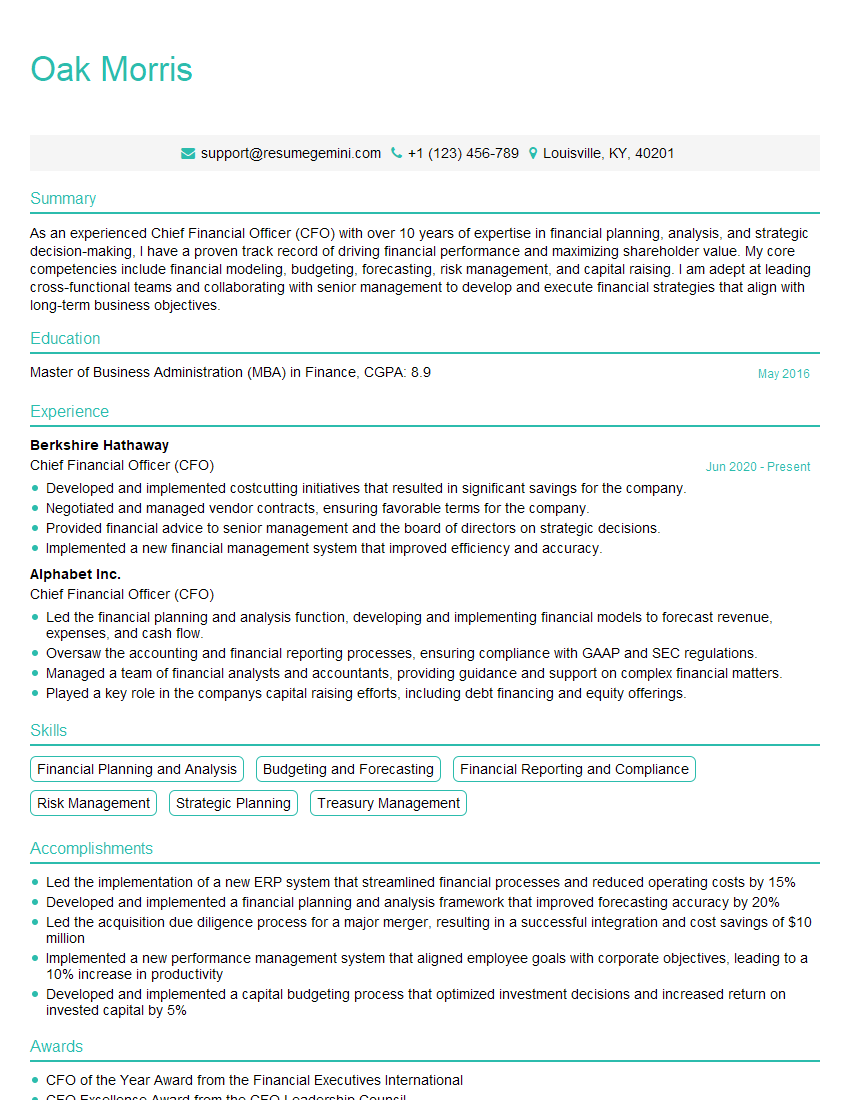
Chief Financial Officer (CFO) Resume Sample
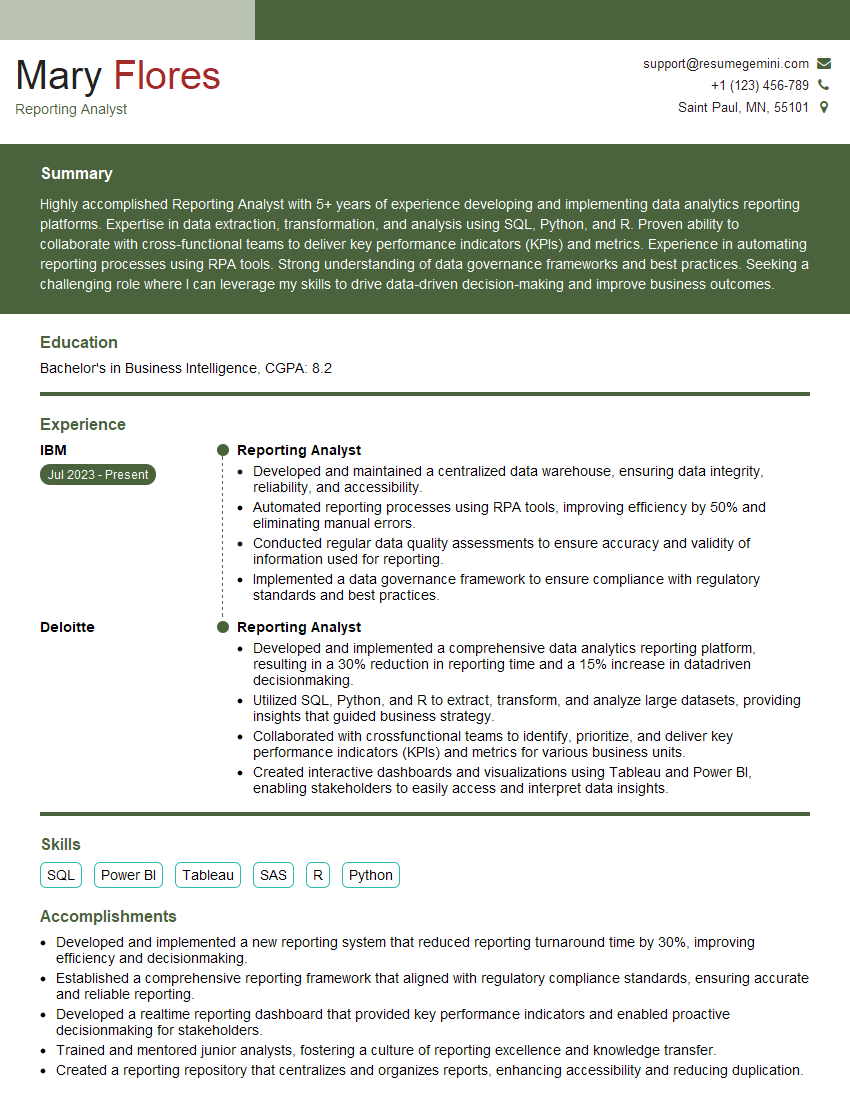
Reporting Analyst Resume Sample
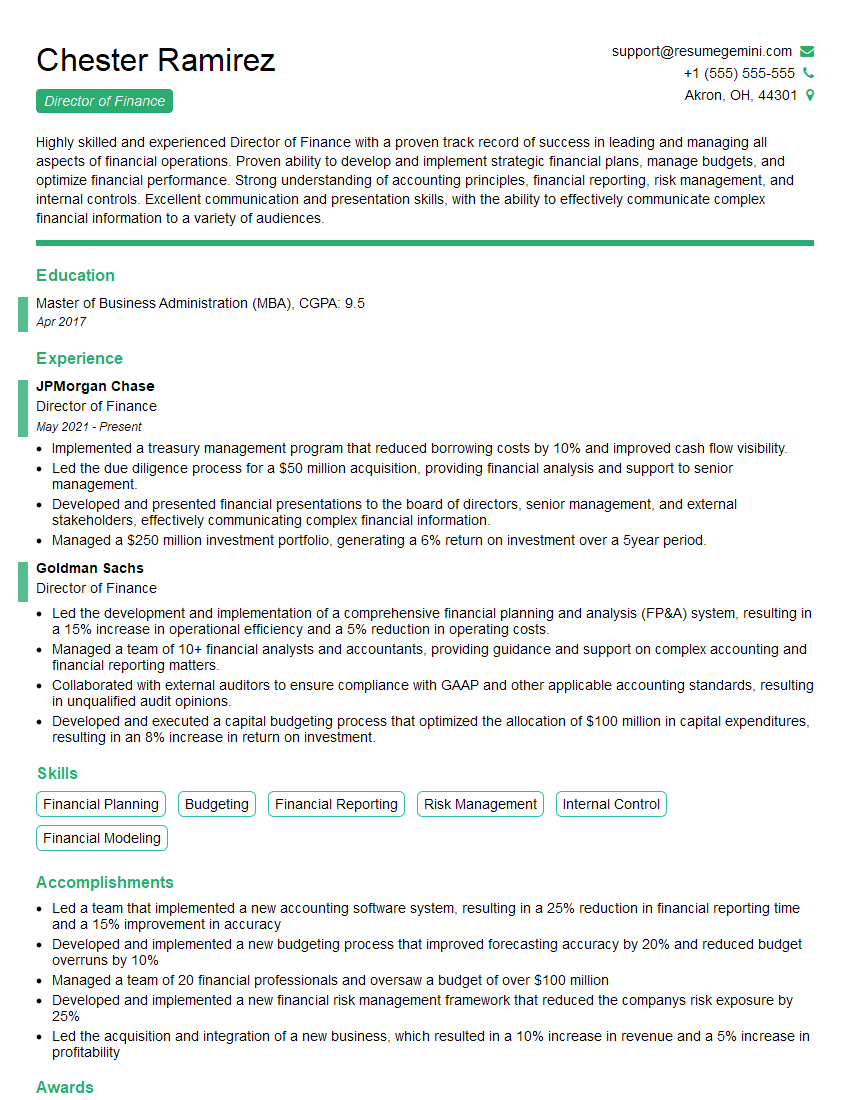
Director of Finance Resume Sample
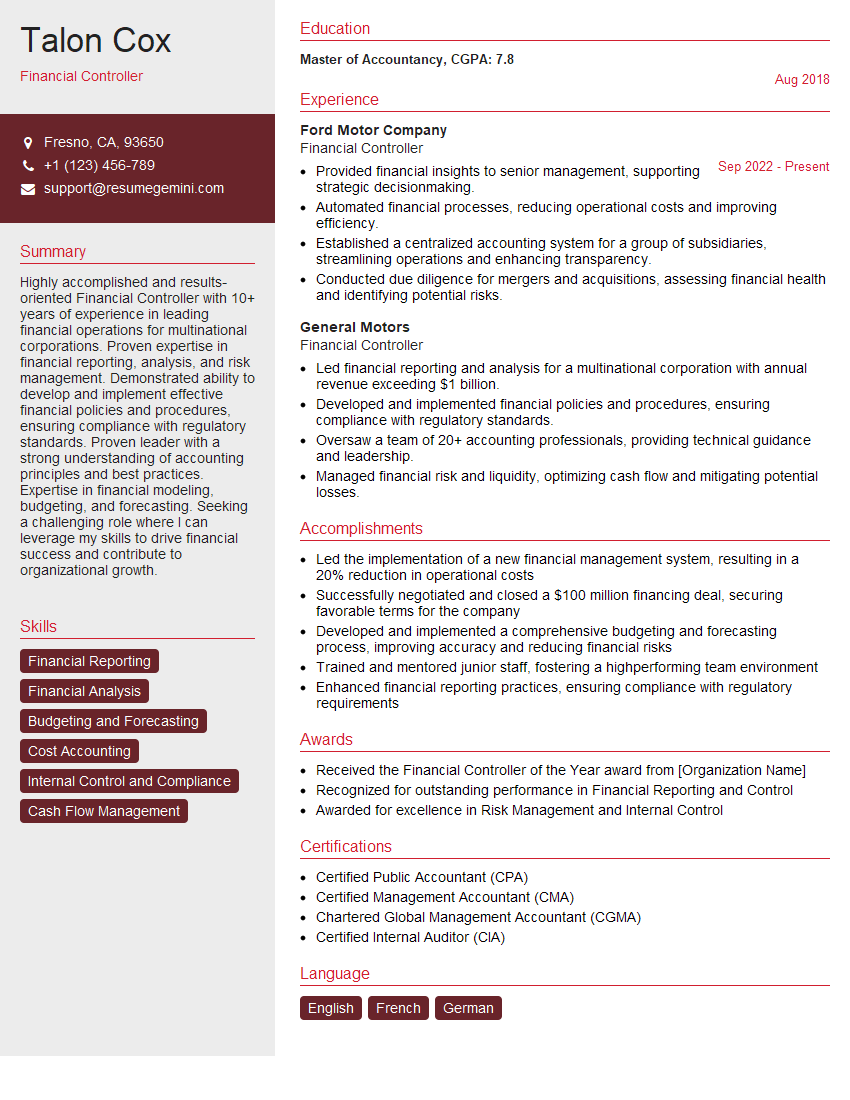
Financial Controller Resume Sample
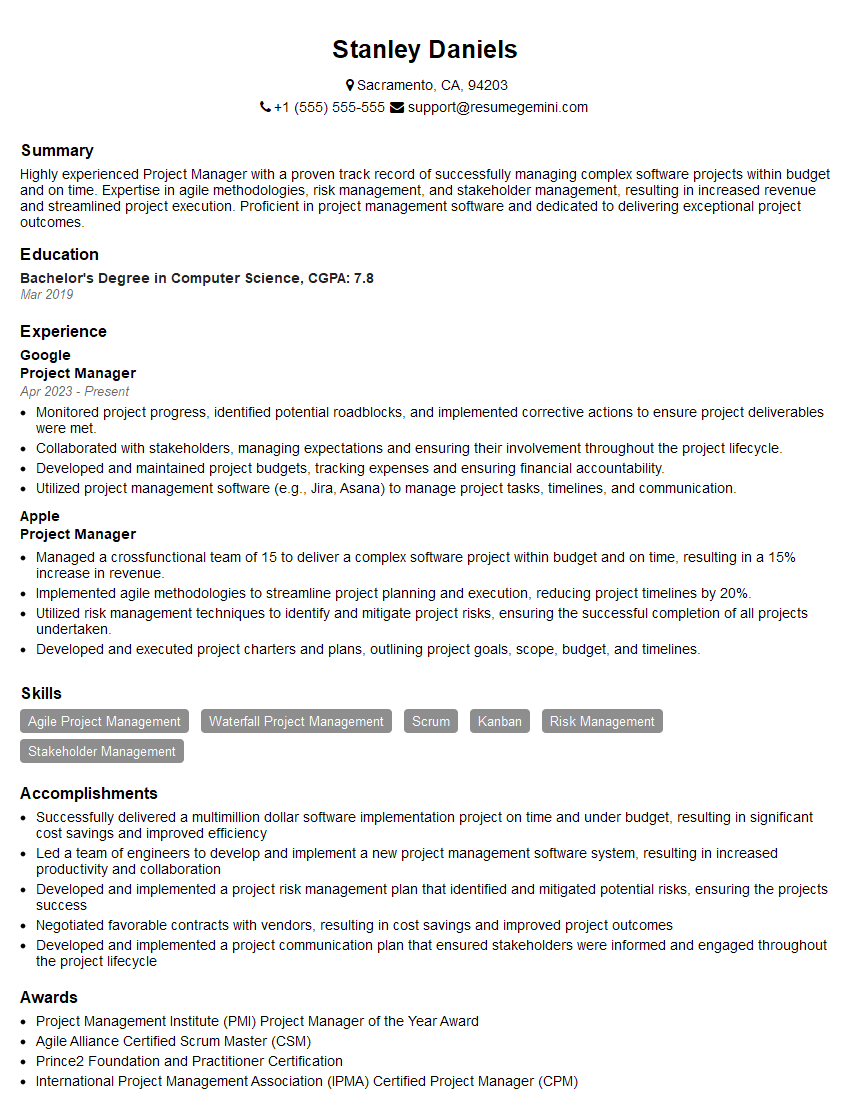
Project Manager Resume Sample
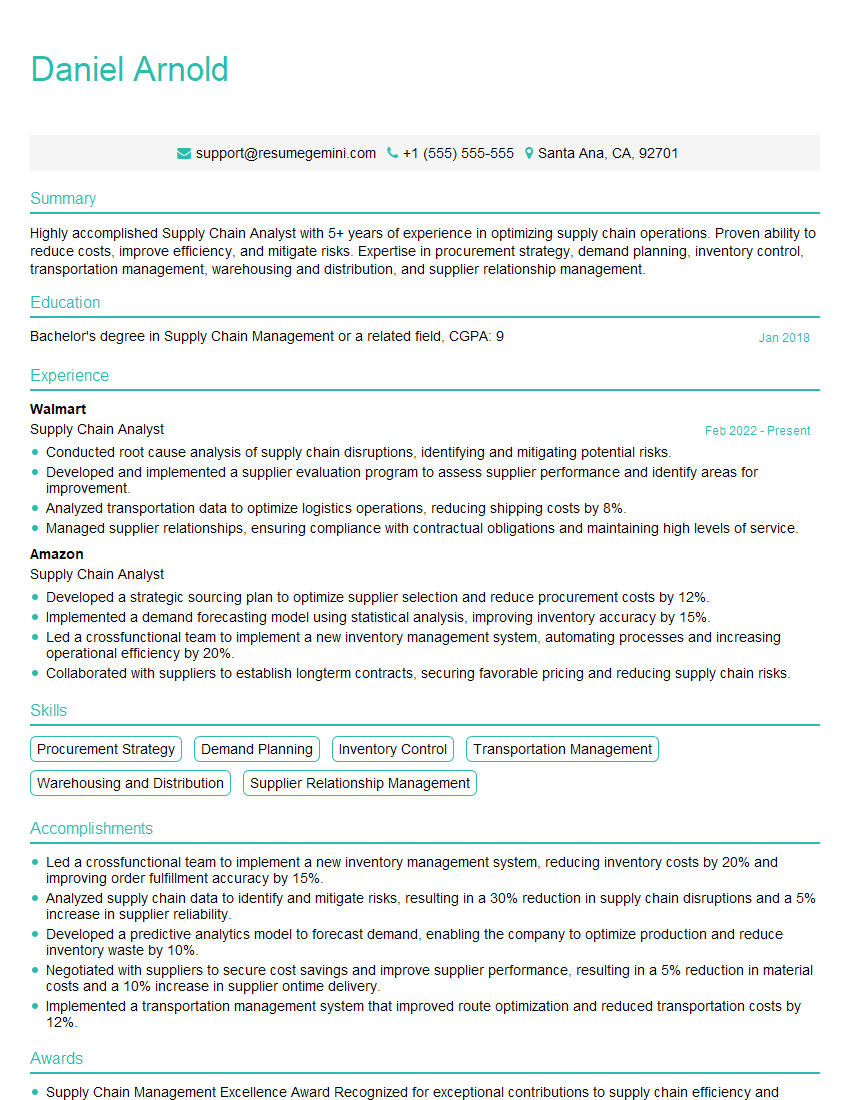
Supply Chain Analyst Resume Sample

Business Analyst Resume Sample
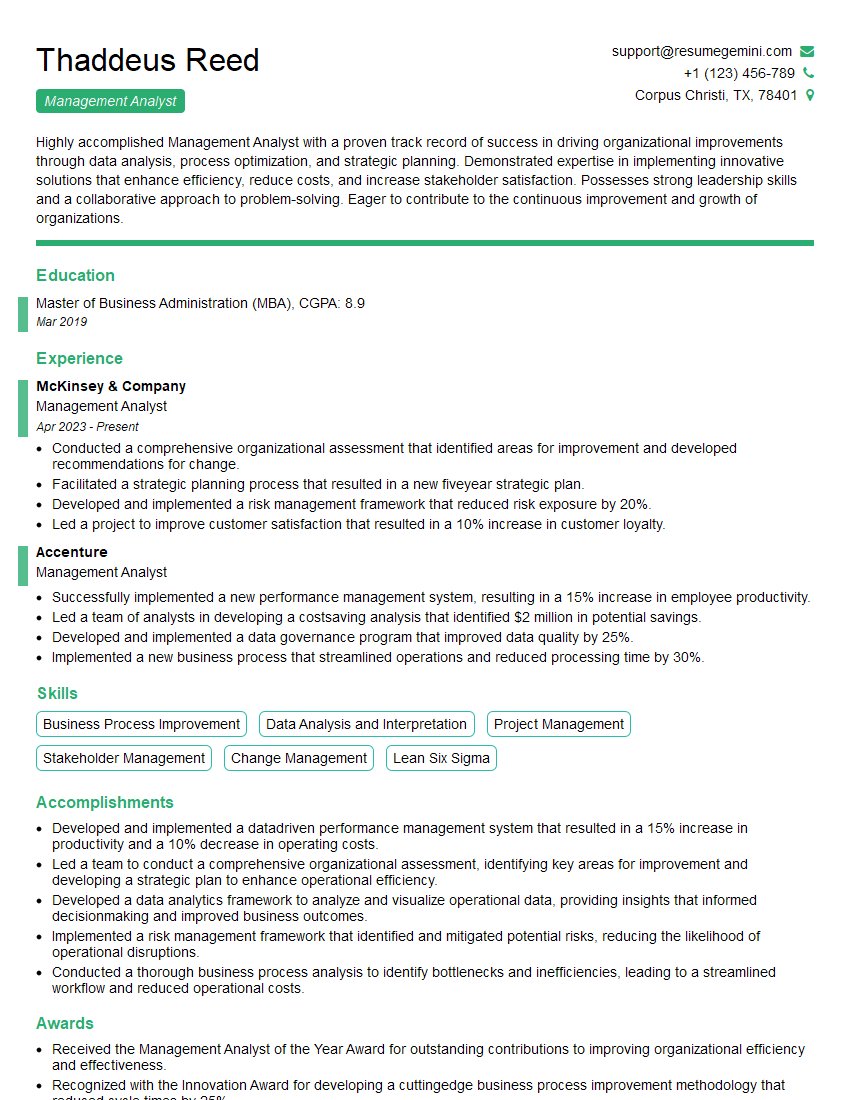
Management Analyst Resume Sample
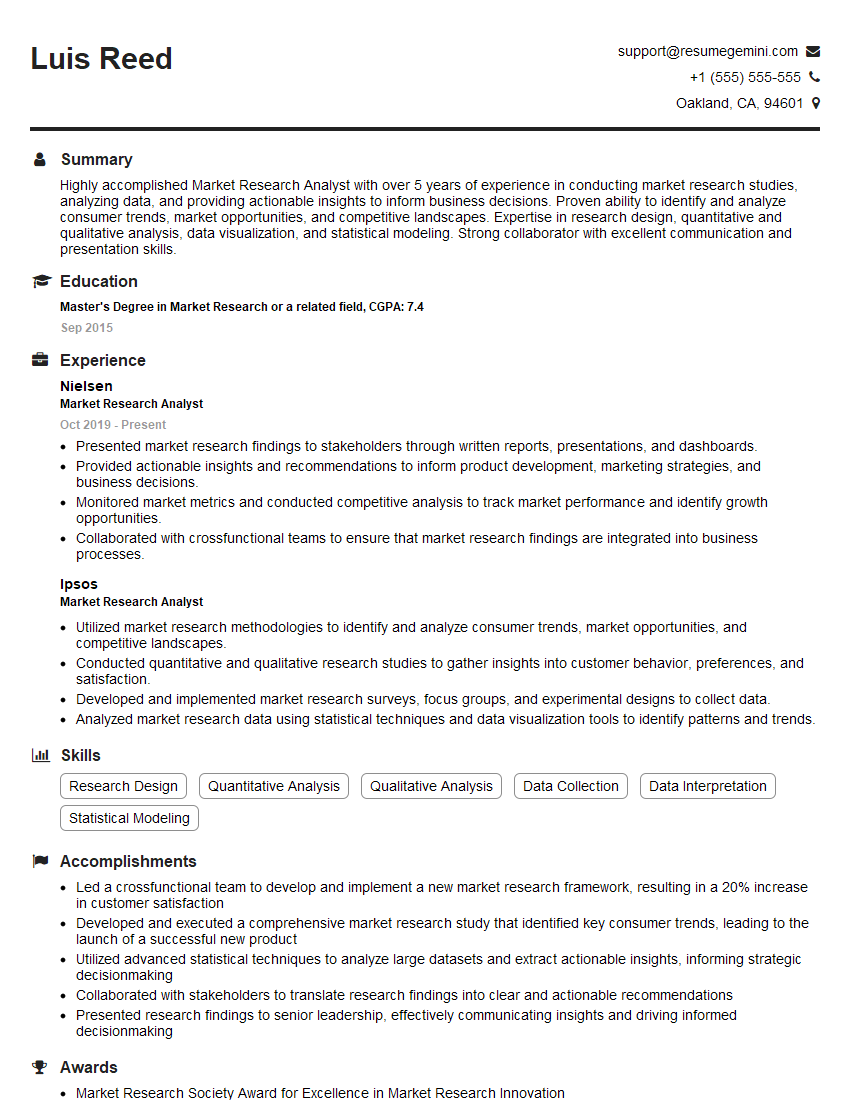
Market Research Analyst Resume Sample
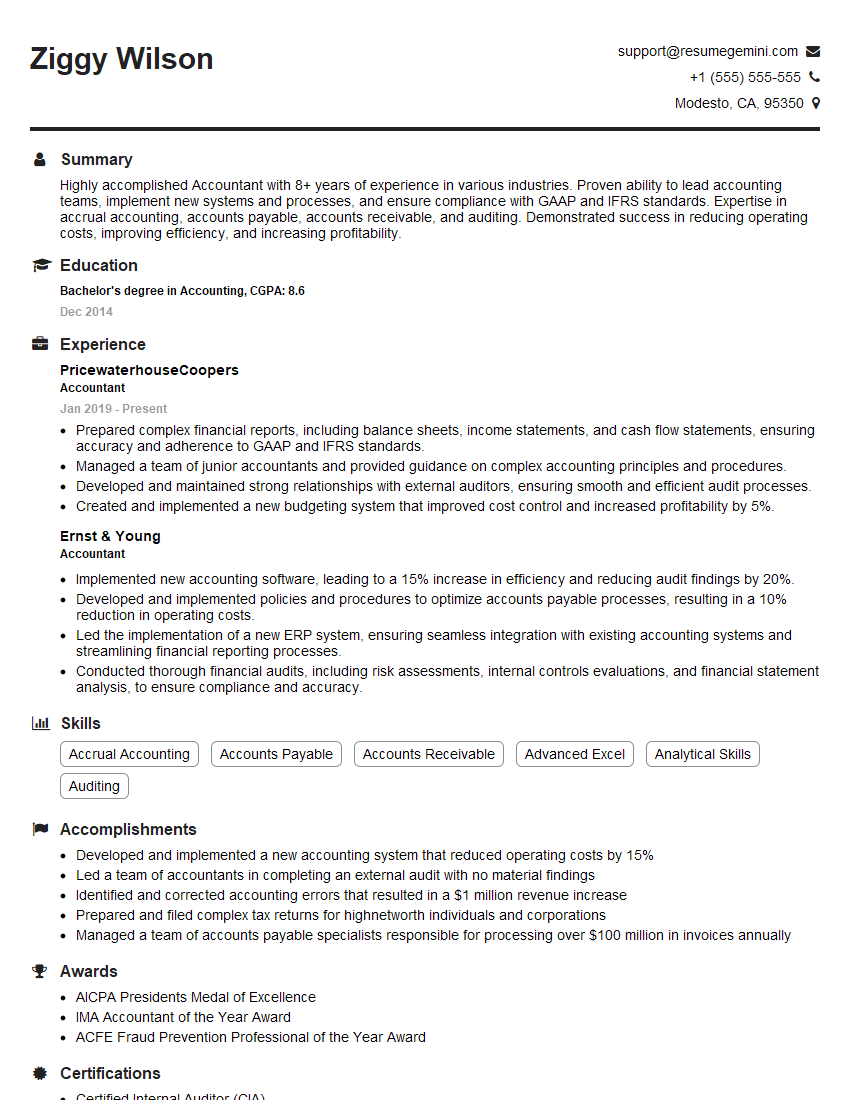
Accountant Resume Sample
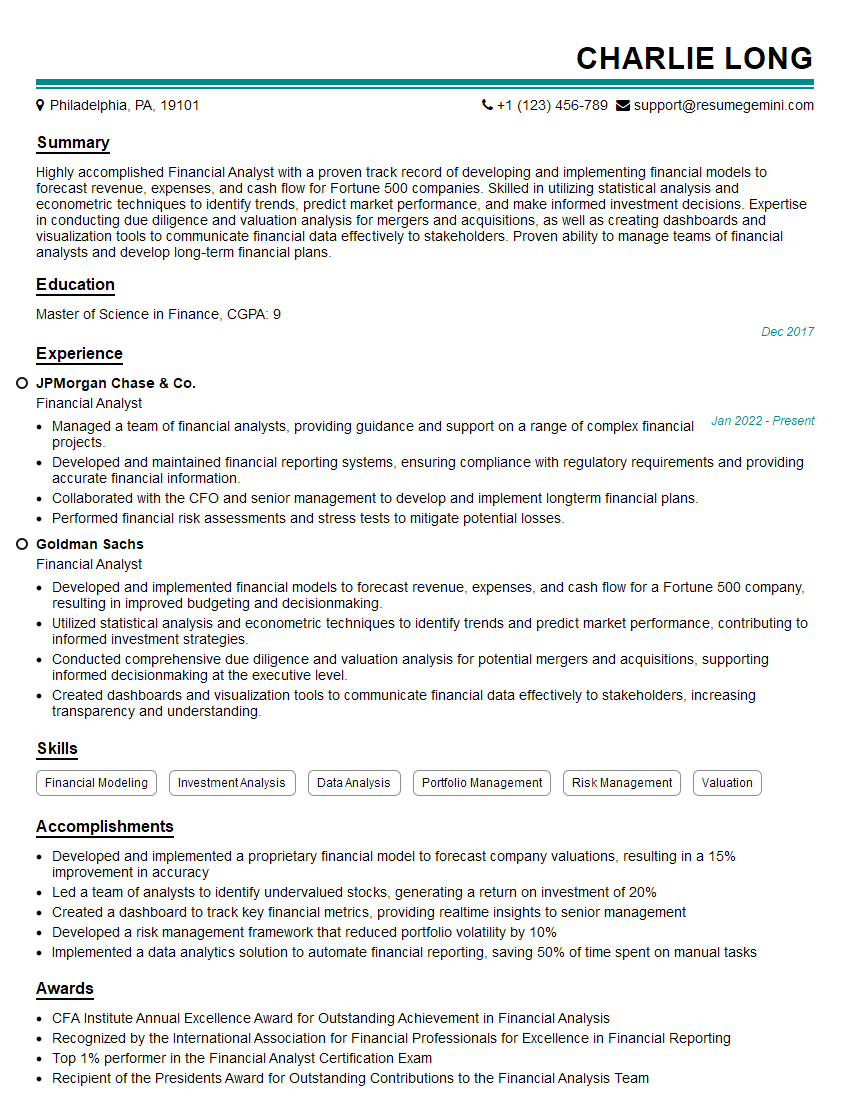
Financial Analyst Resume Sample
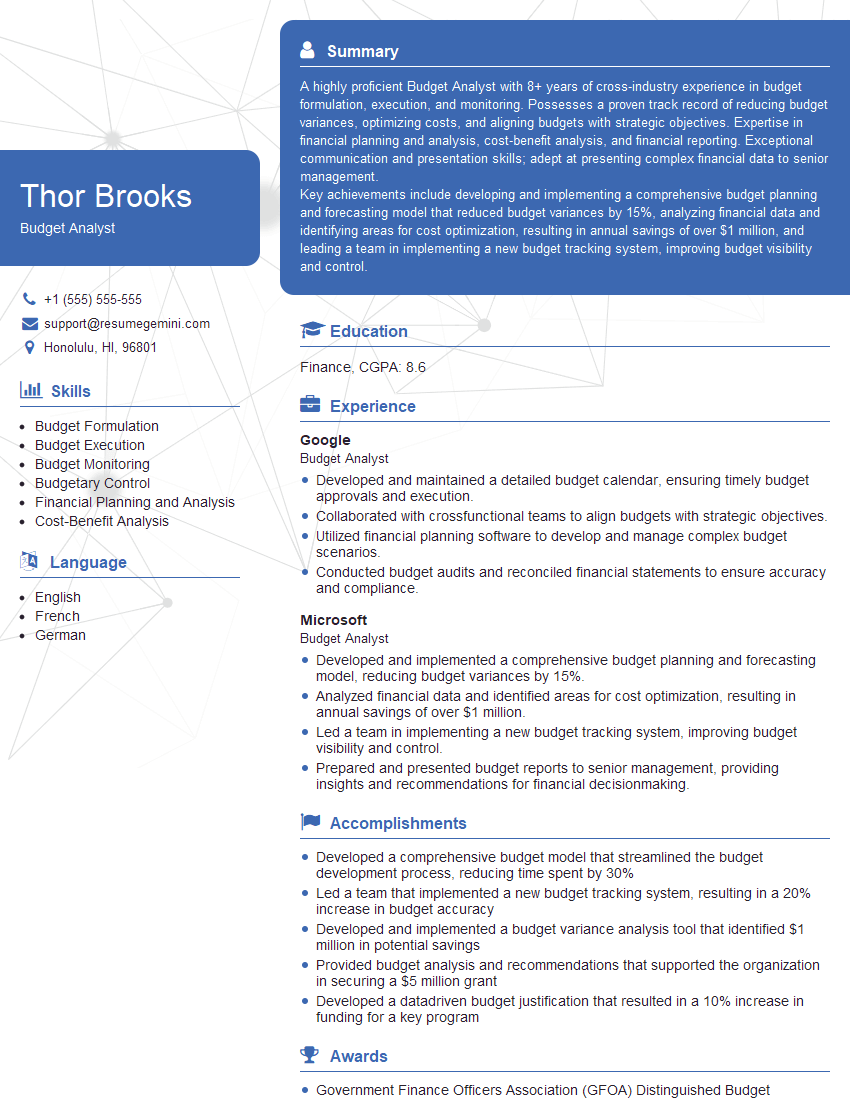
Budget Analyst Resume Sample

Data Analyst Resume Sample
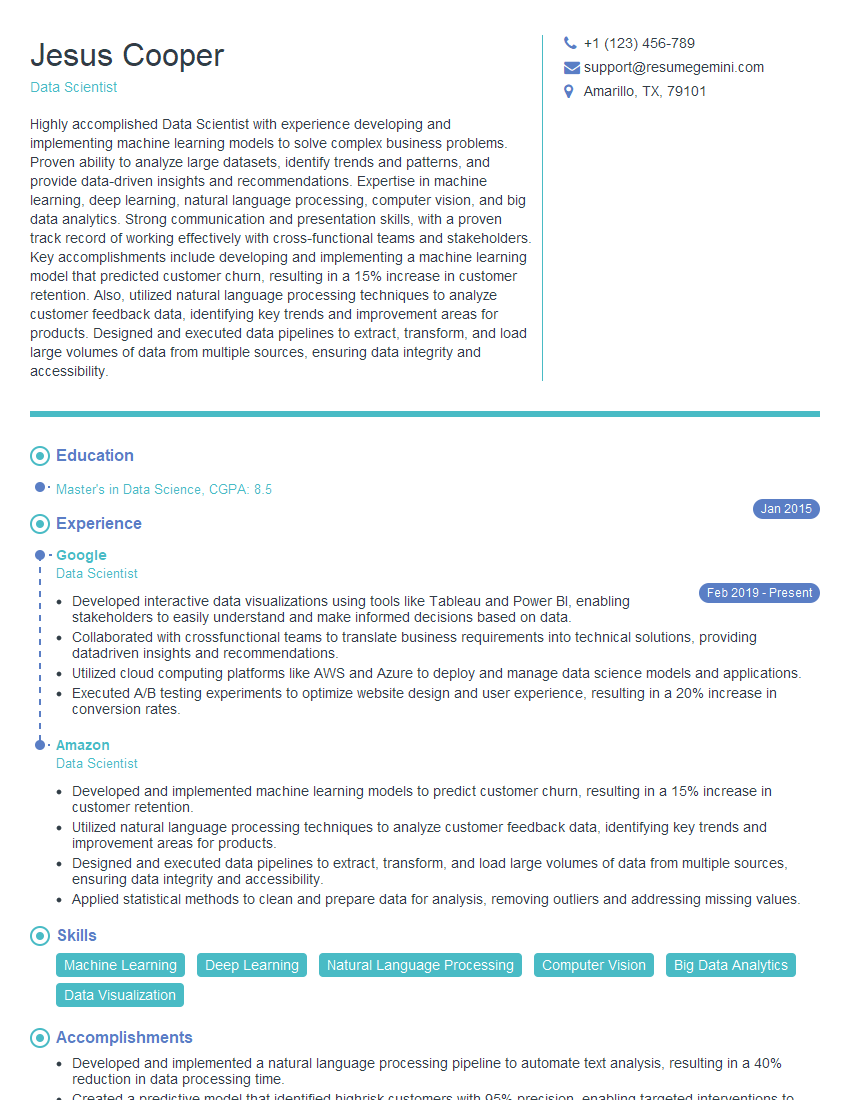
Data Scientist Resume Sample
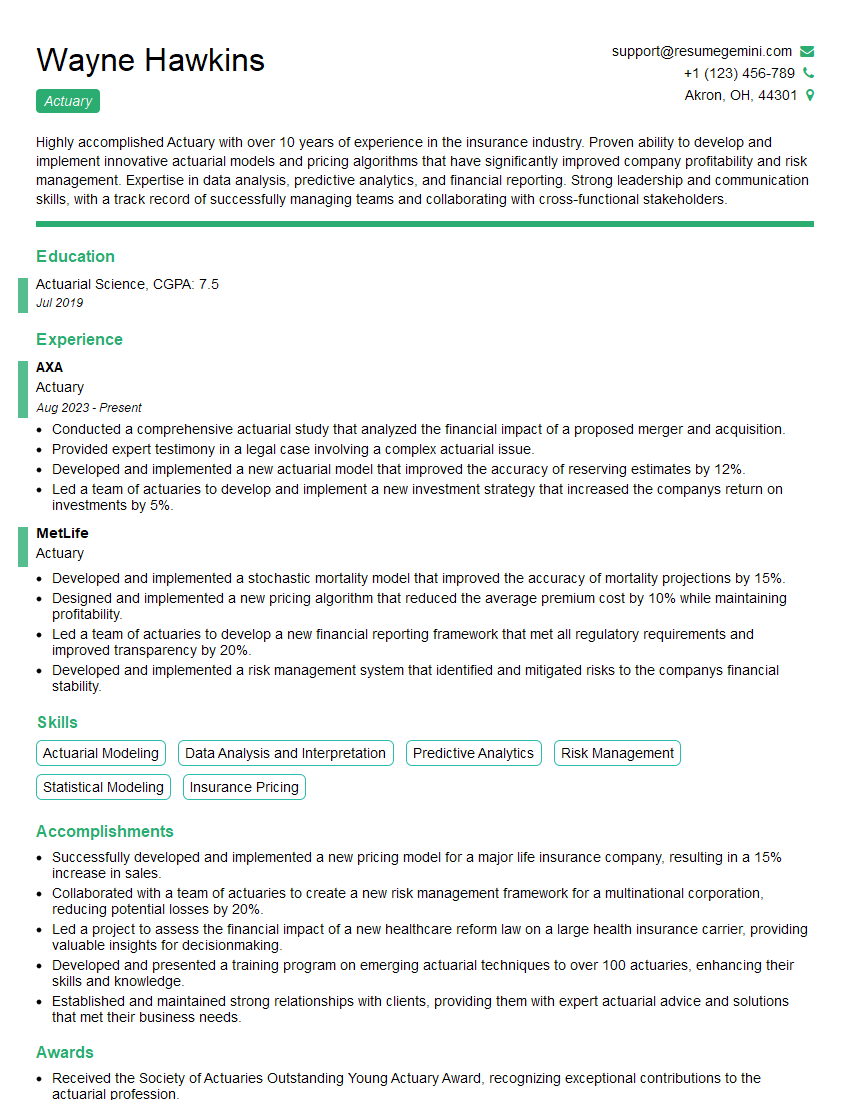
Actuary Resume Sample
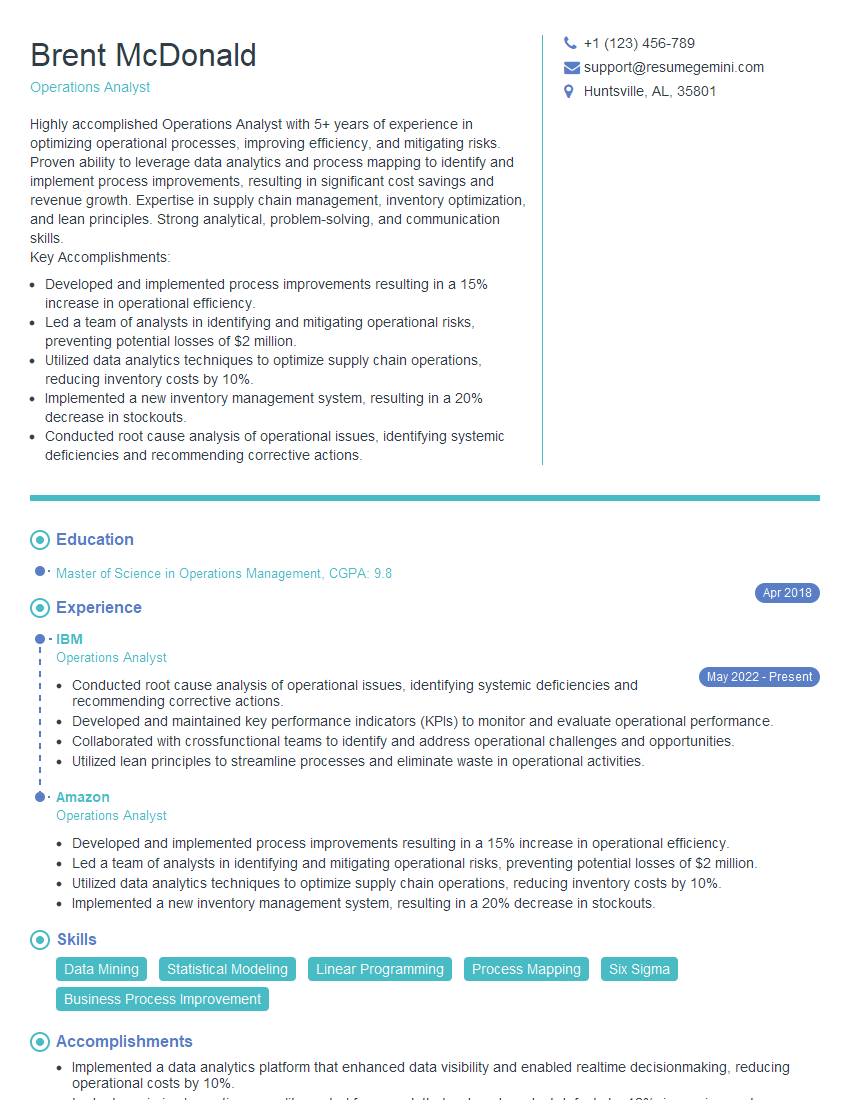
Operations Analyst Resume Sample
Explore more articles
Users Rating of Our Blogs
Share Your Experience
We value your feedback! Please rate our content and share your thoughts (optional).
What Readers Say About Our Blog
Really detailed insights and content, thank you for writing this detailed article.
IT gave me an insight and words to use and be able to think of examples