Every successful interview starts with knowing what to expect. In this blog, we’ll take you through the top Frequency Separation interview questions, breaking them down with expert tips to help you deliver impactful answers. Step into your next interview fully prepared and ready to succeed.
Questions Asked in Frequency Separation Interview
Q 1. Explain the concept of frequency separation in image editing.
Frequency separation in image editing is a technique that separates an image into two layers: one containing the high-frequency details (sharp edges, textures, and fine details) and another containing the low-frequency information (smooth tones, colors, and overall structure). Think of it like separating the ‘texture’ from the ‘base’ of a painting. This separation allows for independent manipulation of these components, offering precise control during retouching and enhancement.
Q 2. What are the advantages of using frequency separation?
Frequency separation offers several key advantages:
- Non-destructive editing: Changes are made to separate layers, allowing for easy adjustments and reversion to the original image.
- Precise retouching: Working on high-frequency details allows for targeted blemish removal and texture adjustments without affecting the underlying tones.
- Improved workflow: Separating frequencies simplifies complex retouching tasks, making them more manageable and efficient.
- Natural results: By preserving the integrity of high-frequency details, frequency separation prevents the unnatural smoothing that can occur with other retouching methods.
Q 3. Describe the process of separating high and low frequencies in Photoshop.
Separating high and low frequencies in Photoshop typically involves these steps:
- Duplicate the background layer: This ensures non-destructive editing.
- Create a copy of the duplicated layer: This layer will hold the high frequencies.
- Apply a Gaussian blur to the duplicated layer (low-frequency layer): This smooths out the details, leaving only the base tones and colors. The radius of the blur determines the extent of smoothing—a larger radius removes more details.
- Subtract the blurred layer from the original high-frequency layer: This is usually done by setting the blending mode of the high-frequency layer to ‘Subtract’ or by using a layer mask. This isolates the high-frequency information.
You now have two layers: one with only low frequencies (smooth tones) and another with only high frequencies (details and texture). You can edit these independently.
Q 4. What tools and techniques do you use for frequency separation?
The primary tools for frequency separation in Photoshop are:
- Gaussian Blur: Used to separate low frequencies from the image.
- Layer Masks: Provide precise control over the areas where high-frequency edits are applied.
- Healing Brush Tool and Clone Stamp Tool: Used to refine and manipulate high-frequency details like blemishes and textures on the high-frequency layer.
- Dodge and Burn Tools: These can be used on the low-frequency layer to subtly adjust tones and brightness.
Beyond these tools, understanding color theory and blending modes significantly enhances results.
Q 5. How do you determine the appropriate radius for your Gaussian blur in frequency separation?
Choosing the appropriate Gaussian blur radius depends on the image resolution and the level of detail. There’s no single ‘correct’ radius. A good starting point is to experiment with different radii, usually in the range of 5-20 pixels, viewing the results on a zoomed-in view to assess how much detail is preserved. A smaller radius retains more detail, while a larger radius produces a smoother low-frequency layer. The goal is to find a balance where the low-frequency layer accurately reflects the underlying tones and the high-frequency layer retains enough detail for effective retouching.
Q 6. Explain how you would use frequency separation to retouch skin blemishes.
To retouch skin blemishes using frequency separation, focus your efforts on the high-frequency layer. Using tools like the Healing Brush or Clone Stamp, carefully sample clean skin texture from nearby areas to seamlessly blend over blemishes. Avoid working directly on the low-frequency layer to prevent unnatural smoothing. Remember to use a soft brush with low opacity for gentle blending to maintain a natural look. The low-frequency layer can then be used to subtly correct any remaining discoloration using the dodge and burn tools.
Q 7. How do you handle edges when using frequency separation?
Handling edges during frequency separation requires careful attention. The key is to use soft brushes and layer masks to limit edits to the desired areas. Avoid abrupt transitions by feathering the edges of your edits. When retouching near hair or sharp lines, it is crucial to be meticulous, as the separation can sometimes create haloing artifacts. Using the low-frequency layer for global color corrections can help to minimise these artifacts.
Q 8. What are some common mistakes to avoid when performing frequency separation?
Frequency separation, while powerful, is prone to errors if not handled carefully. Common mistakes include:
- Incorrect Radius Selection: Choosing a Gaussian blur radius that’s too high or too low for the image’s detail level. Too high, and you lose important texture; too low, and the separation isn’t effective. Think of it like separating sand from pebbles – you need the right sieve size!
- Aggressive High-Frequency Editing: Over-retouching the high-frequency layer can lead to unnatural-looking results, like a mask on the face. Subtlety is key.
- Ignoring Layer Blending Modes: Using the wrong blending mode (usually ‘Linear Light’ or ‘Overlay’ for combining high and low frequencies) will prevent a seamless merge.
- Lack of Masking: Failing to use masks to selectively apply edits, resulting in unwanted changes to areas you wish to preserve. This is like painting with a brush without controlling its strokes.
- Poor Layer Organization: A messy layer palette makes it challenging to manage edits and can lead to mistakes. Think of it as trying to cook a complex dish without a well-organized kitchen!
Q 9. How do you ensure that your adjustments in the high-frequency layer maintain image integrity?
Maintaining image integrity when adjusting the high-frequency layer is crucial. Here’s how I achieve this:
- Subtlety: Avoid large, drastic changes. Small, iterative adjustments yield more natural results.
- Frequency-Specific Tools: Instead of using tools like the clone stamp directly on the high-frequency layer (which can create artifacts), utilize tools designed for textures and details, such as the healing brush or the patch tool with lower opacity.
- Masking: Always use masks to selectively target areas. This allows precise control and prevents accidental edits to unwanted regions. Think of a mask as a stencil, ensuring you only paint where you intend to.
- Regular Zooming: Zoom in frequently to check for unwanted artifacts or unnatural-looking textures. This is like using a magnifying glass to examine your work for imperfections.
- Layer Opacity Control: Reducing layer opacity softens the effects of high-frequency edits and blends them better with the low-frequency layer.
Q 10. Describe your workflow for using frequency separation for portrait retouching.
My workflow for portrait retouching with frequency separation is as follows:
- Duplicate the Background Layer: This keeps your original image untouched.
- Create the Low-Frequency Layer: Duplicate the background layer, apply a Gaussian blur (radius varies based on image size and detail), and set the blending mode to ‘Linear Light’.
- Create the High-Frequency Layer: Create a layer mask on the blurred layer and fill it with black. Use a white brush to paint back the detail. Alternatively, use a ‘High Pass’ filter with appropriate radius to create a high-frequency layer directly.
- Retouch the Low-Frequency Layer: Address skin imperfections, blemishes, and overall tone on this layer. It is smoother, and large scale adjustments are easier.
- Retouch the High-Frequency Layer: Focus on refining textures, sharpening edges, and enhancing finer details like freckles, maintaining the integrity of hair, etc.
- Combine Layers: Ensure both layers are visible; they should naturally blend together.
- Final Adjustments: Make final adjustments to contrast, color, and sharpness as needed.
Q 11. How do you adjust the opacity of your layers during frequency separation?
Opacity adjustment is crucial for blending the high and low-frequency layers seamlessly. I typically start with a lower opacity (around 50%) for both layers, especially the high-frequency layer, to avoid harshness. This is almost always a progressive process; I increase the opacity incrementally until the changes look natural and subtle. If there’s any harshness or unnatural look, I lower the opacity again. Think of it like mixing paint; you gradually add more until you achieve the desired color and consistency.
Q 12. Can you explain how to avoid haloing effects when working with frequency separation?
Haloing effects, those bright or dark rings around edited areas, are often a result of aggressive retouching or poorly defined masks. Here’s how to prevent them:
- Feathering: Use a feathered brush to soften the edges of your mask, preventing sharp transitions. Think of it as gradually fading the edges of your paint stroke to avoid a harsh line.
- Gentle Brushstrokes: Work with a soft brush and low opacity for subtle edits on the high-frequency layer, and even on the low-frequency layer where you’re dealing with blemishes.
- Masking Techniques: Employ layer masks and refine them gradually using gradual brush pressure and opacity, allowing for gentle transitions.
- Blurring: If some minimal haloing appears, use a small blur radius on the high-frequency layer (or the affected area within a mask) to soften the edges.
Q 13. How do you adapt your frequency separation technique for different image types (e.g., product photography, landscape photography)?
Frequency separation adapts well to various image types, but the approach needs adjustment. For product photography, I’d focus more on the high-frequency layer to enhance textures and sharpness, ensuring products look pristine. The low-frequency layer would be used for color correction and global adjustments. Landscape photography might need more focus on the low-frequency layer for adjustments in clouds, sky and overall light and shadow dynamics; high frequency would refine details like rocks and foliage. In essence, it’s all about understanding what requires more global (low-frequency) adjustments vs. detailed (high-frequency) refinement for each image type.
Q 14. What are the limitations of frequency separation?
Despite its versatility, frequency separation has limitations:
- Time-Consuming: It’s a more complex technique than simpler retouching methods.
- Skill-Dependent: Requires practice and a good eye for detail to achieve natural-looking results.
- Not Suitable for All Images: Extremely low-resolution images or those with significant compression artifacts may not respond well.
- Can Exacerbate Existing Problems: If an image has severe issues, frequency separation might highlight these issues instead of correcting them.
Q 15. Compare and contrast frequency separation with other retouching techniques.
Frequency separation is a retouching technique that separates an image into two layers: one containing the low frequencies (smooth tones and colors), and another containing the high frequencies (details and texture). This differs significantly from other methods like dodging and burning, which directly manipulate pixel values, or using healing brushes, which blend areas together. While dodging and burning can adjust brightness, and healing brushes remove blemishes, frequency separation offers a more precise and non-destructive way to edit tones and texture independently. Imagine it like separating the paint from the canvas texture; you can adjust the base paint color without affecting the texture and vice-versa.
- Dodging and Burning: Direct manipulation of brightness and contrast. Less precise for texture adjustments. Prone to visible artifacts.
- Healing Brush: Blends areas to remove imperfections. Not ideal for subtle texture enhancements or tonal adjustments.
- Frequency Separation: Precise, non-destructive editing of tones and texture independently. Allows for more controlled and natural-looking results.
Career Expert Tips:
- Ace those interviews! Prepare effectively by reviewing the Top 50 Most Common Interview Questions on ResumeGemini.
- Navigate your job search with confidence! Explore a wide range of Career Tips on ResumeGemini. Learn about common challenges and recommendations to overcome them.
- Craft the perfect resume! Master the Art of Resume Writing with ResumeGemini’s guide. Showcase your unique qualifications and achievements effectively.
- Don’t miss out on holiday savings! Build your dream resume with ResumeGemini’s ATS optimized templates.
Q 16. How can you use frequency separation to enhance texture?
Frequency separation excels at texture enhancement because it isolates the high-frequency layer, which holds all the textural information. By working solely on this layer, you can subtly sharpen, smooth, or even completely replace the texture without affecting the underlying tones or colors. This is particularly useful when dealing with blemishes, improving the look of skin, or enhancing fabric textures. For example, you might selectively increase contrast in the high-frequency layer to make skin texture more prominent, or reduce contrast to smooth it out, without affecting the overall skin tone.
A common technique is to use a high-pass filter on a duplicate layer to create the high-frequency layer, then subtly adjust the contrast, clarity, and sharpness, applying a mask to control the area of application.
Q 17. Explain how to effectively use masking with frequency separation.
Masking is crucial in frequency separation to control the areas where you apply edits. Without masks, edits would affect the entire layer. By using layer masks, you paint on the mask to reveal (white) or hide (black) the effects of your edits on the high and low-frequency layers. This allows for precise control, targeting specific areas needing adjustments. For example, you might use a mask to enhance the texture of skin on a face while leaving the background untouched. Remember, you can use multiple masks, gradients, and other masking tools for complex edits. Think of masking as painting with selective visibility; you control which parts of your layers are seen, allowing for complex fine-tuning without affecting the overall image.
Q 18. How do you deal with color shifts introduced by frequency separation?
Color shifts can occur due to adjustments made to either the high or low-frequency layers. The most common solution is to carefully match the colors between the layers after making adjustments. This is usually done by using color blending modes (like ‘Soft Light’ or ‘Overlay’) to subtly blend the high and low-frequency layers. Sometimes, using a color balance adjustment layer on the final merged layer can help with global color correction. It’s always a good practice to work non-destructively and save your original high- and low-frequency layers before merging.
Another way to minimize color shifts is to ensure the high-pass filter used to extract the high-frequencies is properly configured to avoid introducing color artifacts. If using a plug-in, check its settings; if manually creating the high-frequency layer, make sure the blending mode is correctly set.
Q 19. What are some alternative methods to frequency separation for similar tasks?
Alternatives to frequency separation exist, each with its strengths and weaknesses. These include:
- Using Adjustment Layers and Masks: This method allows for non-destructive editing by working primarily on adjustment layers and using masks for precision. This is simpler but might not provide the same level of isolated texture and tone control.
- Radial Blur and Other Filter Combinations: Filters like radial blur, Gaussian blur, and Unsharp Mask can be strategically combined to simulate the effect of separating frequencies, but this often lacks the precision of frequency separation and is more prone to artifacts.
- Patch Tool and Content Aware Fill: Useful for removing blemishes and imperfections, but lack the control over texture provided by frequency separation.
The best alternative depends on the specific task and the level of control required. Frequency separation remains superior for detailed control over texture and tone but requires more technical knowledge.
Q 20. How would you troubleshoot problems encountered while using frequency separation?
Troubleshooting frequency separation issues often involves revisiting the process steps:
- Haloing or Artifacts: Check your high-pass filter settings (radius) and blending modes; they might be too aggressive. Reduce the radius or opacity to soften the edges.
- Color Casts: Adjust color balance or use a color correction layer after merging to neutralize any color shifts. Ensure your high-frequency layer isn’t introducing color artifacts.
- Uneven Texture: Examine your masking; you may have unintentionally masked out parts of the texture. Refine your mask to address areas where the texture seems uneven.
- Loss of Detail: If important detail is lost in the high-frequency layer, try lowering the opacity of the high-pass filter or using a less aggressive blending mode.
Working non-destructively and keeping backups of your layers at each step allows you to easily revert changes and pinpoint the source of the problem.
Q 21. How do you maintain consistent results across multiple images using frequency separation?
Maintaining consistency across multiple images is crucial for professional work. Here’s how to achieve this:
- Create Actions (Photoshop): Automate repetitive tasks such as creating the high and low-frequency layers. This helps ensure identical procedures for every image.
- Use Adjustment Layers and Smart Objects: Working with adjustment layers and smart objects maintains a non-destructive workflow, making it easy to adjust settings and copy them across different images.
- Develop a Standard Workflow: Establish a consistent workflow that covers the steps involved in frequency separation, from layer creation to final merging. This includes decisions regarding blending modes, filter settings, and masking techniques.
- Calibration: Make sure your monitor is calibrated to ensure consistent color representation across images.
By implementing a standardized and automated approach, you eliminate inconsistencies and improve the efficiency of your retouching process.
Q 22. Discuss your experience with different software for frequency separation (besides Photoshop).
While Photoshop is the industry standard for frequency separation, my experience extends to other software packages as well. I’ve successfully implemented frequency separation techniques in Affinity Photo, which offers a very similar layer-based workflow to Photoshop. The core principles remain the same—high-pass filtering for texture and low-pass filtering for color/tone—but the specific menu options and filter names might vary slightly. I’ve also experimented with GIMP, a free and open-source image editor. While GIMP’s interface is different, the fundamental process is achievable using its available filters and layer blending modes. The key difference lies in the level of non-destructive editing capabilities and the intuitiveness of the user interface. Photoshop remains my preferred choice due to its robust features and workflow efficiency, but proficiency in other software demonstrates adaptability and a deeper understanding of the underlying principles.
Q 23. How do you optimize your workflow for speed and efficiency with frequency separation?
Optimizing my frequency separation workflow for speed and efficiency involves several key strategies. Firstly, I utilize smart objects whenever possible. This allows for non-destructive editing, making adjustments later without losing quality. Secondly, I utilize keyboard shortcuts extensively, minimizing mouse clicks. For instance, I use the keyboard shortcuts for creating new layers, selecting the high-pass filter, and adjusting layer blending modes. Thirdly, I employ actions in Photoshop to automate repetitive tasks like creating and applying the high and low-pass filters. I’ve even created custom actions that automatically set up the initial layers and blending modes. Lastly, I work on a high-resolution monitor, which speeds up the process of visual assessment and editing. I also frequently save my work as I go, to mitigate risk of data loss.
Q 24. Describe a time you had to troubleshoot a problem related to frequency separation.
During a high-profile portrait retouching project, I encountered an issue with haloing around the subject’s hair after frequency separation. The high-pass layer, intended for texture refinement, created an unnatural, bright edge around the hair strands. To troubleshoot, I first examined my high-pass filter settings, ensuring the radius wasn’t too large, which would create an over-sharpened, haloed effect. This wasn’t the problem. My solution involved using a layer mask on the high-pass layer and meticulously painting out the areas around the hair using a soft brush with low opacity. This allowed for subtle adjustment of the texture while maintaining a natural look. I also refined the blend mode, experimenting with ‘Soft Light’ and ‘Overlay’ to better integrate the textures with the underlying image. Learning from this experience, I now incorporate more masking and selective adjustment within my standard workflow as a preventative measure.
Q 25. Explain how to use frequency separation for non-destructive editing.
Non-destructive editing with frequency separation is crucial for flexibility and avoiding permanent alterations. The key is to utilize smart objects. Create a smart object from your base image. Duplicate this smart object twice. Apply the high-pass filter to one copy (for textures) and a Gaussian blur to the other (for colors/tones). The high-pass filter settings (radius) should be adjusted based on image resolution and desired level of texture preservation. The Gaussian blur radius should be set for sufficient smoothing of the base image, allowing effective separation. Use layer masks on both layers for granular control, ensuring you are only editing where necessary. When merging, use blending modes such as ‘Linear Light’ or ‘Overlay’. This allows modifications to the individual layers without permanently impacting the source image; a smart object will always have the base file as a reference.
Q 26. What are some advanced techniques or variations of frequency separation?
Beyond the basic high-pass/low-pass approach, advanced techniques include using multiple frequency separations to isolate different texture scales. This allows for more precise control over fine details versus larger skin textures, for example, in portrait retouching. Another variation is using the technique on specific color channels (e.g., applying frequency separation only to the red channel for skin tone adjustments) for more targeted edits. Color range masks can also be combined with frequency separation for refining color corrections based on color values. Moreover, some retouchers use dedicated texture and color layers and blend them carefully in a non-destructive way to achieve the desired result. Finally, using a combination of masking, brush work, and frequency separation is a highly effective technique that allows for detailed skin retouching, maintaining a natural and even skin tone.
Q 27. How do you ensure that your use of frequency separation is subtle and natural-looking?
Subtlety and natural-looking results are paramount in frequency separation. Overdoing the process can lead to an artificial, mask-like appearance. I achieve this through careful selection of filter radii, ensuring they are appropriate for the image and the level of detail desired. Using low opacity brushes on layer masks and blending modes like ‘Soft Light’ or ‘Overlay’ instead of ‘Normal’ helps to soften the transition and blend the textures seamlessly. Regularly zooming out to check the overall effect is crucial to prevent over-processing of details. It’s also vital to remember the goal is enhancement, not replacement, of texture. The separation should help improve the appearance of imperfections, but the skin still needs to maintain its natural look and character. Careful observation and attention to detail are paramount.
Q 28. Describe your understanding of color theory in the context of frequency separation.
Color theory plays a significant role in frequency separation. Understanding color harmony and how different colors interact is vital for achieving natural-looking results. For instance, when correcting skin tone using frequency separation, I would leverage my understanding of complementary colors to neutralize unwanted color casts. By selectively adjusting color saturation and hue within the low-frequency layer, I can refine skin tones while retaining the overall harmony of the image. In addition, proper use of blending modes, such as ‘Color’ or ‘Hue/Saturation’, can allow me to subtly adjust colors without affecting the texture or luminosity. By combining the power of frequency separation with a solid understanding of color theory, results are more natural and balanced. This detailed understanding of color helps prevent unnatural color shifts or imbalances during retouching.
Key Topics to Learn for Frequency Separation Interview
- High-Pass Filtering: Understanding the principles behind high-pass filters, their role in isolating high-frequency details, and common filter types (e.g., Gaussian, Unsharp Mask).
- Low-Pass Filtering: Mastering low-pass filters, their function in smoothing images and preserving base tones, and the effects of different filter radii and strengths.
- Blending Techniques: Exploring effective methods for seamlessly merging high-frequency and low-frequency layers, including layer masks, blending modes, and adjustment layers.
- Frequency Separation Workflow: Developing a robust and efficient workflow for applying frequency separation, from initial image preparation to final retouching and optimization.
- Practical Applications: Understanding how frequency separation is used in various image editing scenarios, such as retouching portraits, enhancing textures, and improving image clarity.
- Troubleshooting Common Issues: Identifying and resolving common problems encountered during frequency separation, such as haloing, color shifts, and loss of detail.
- Alternative Techniques: Exploring alternative methods for achieving similar results to frequency separation, such as using dodging and burning or advanced masking techniques.
- Image Analysis and Assessment: Developing the ability to analyze images and determine when frequency separation is the most appropriate retouching approach.
Next Steps
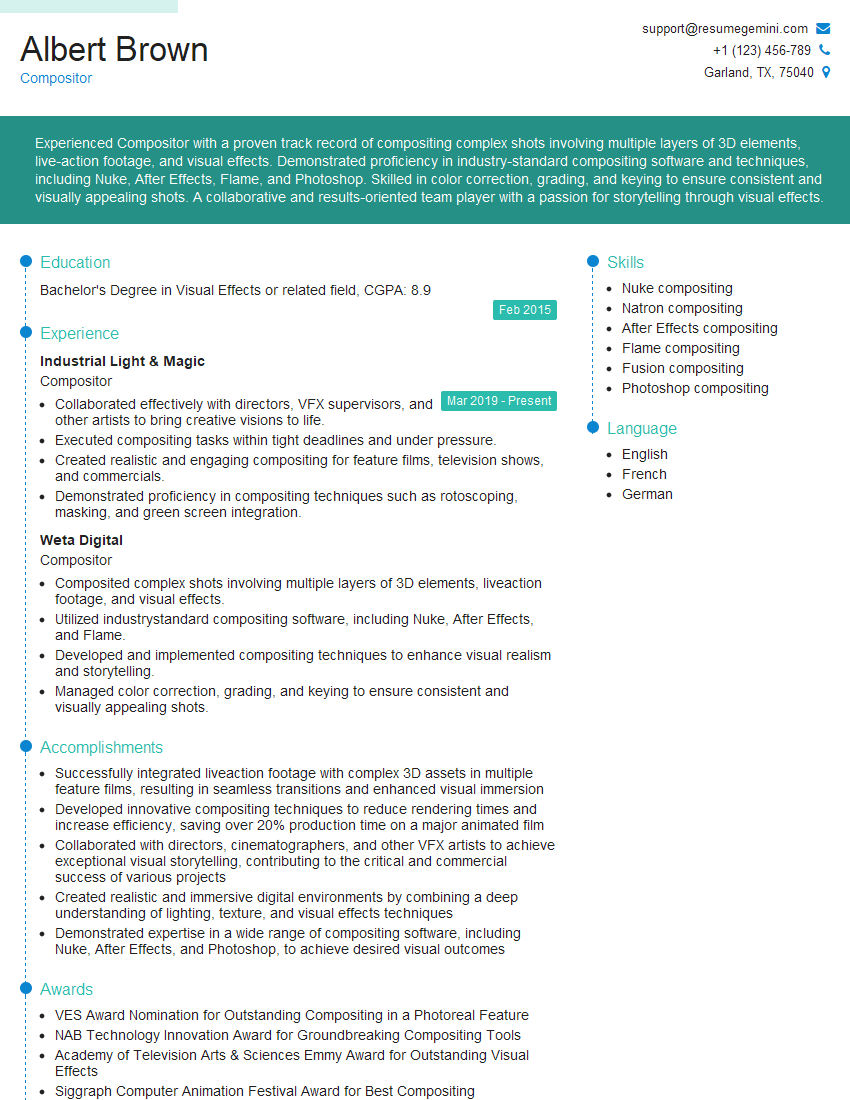
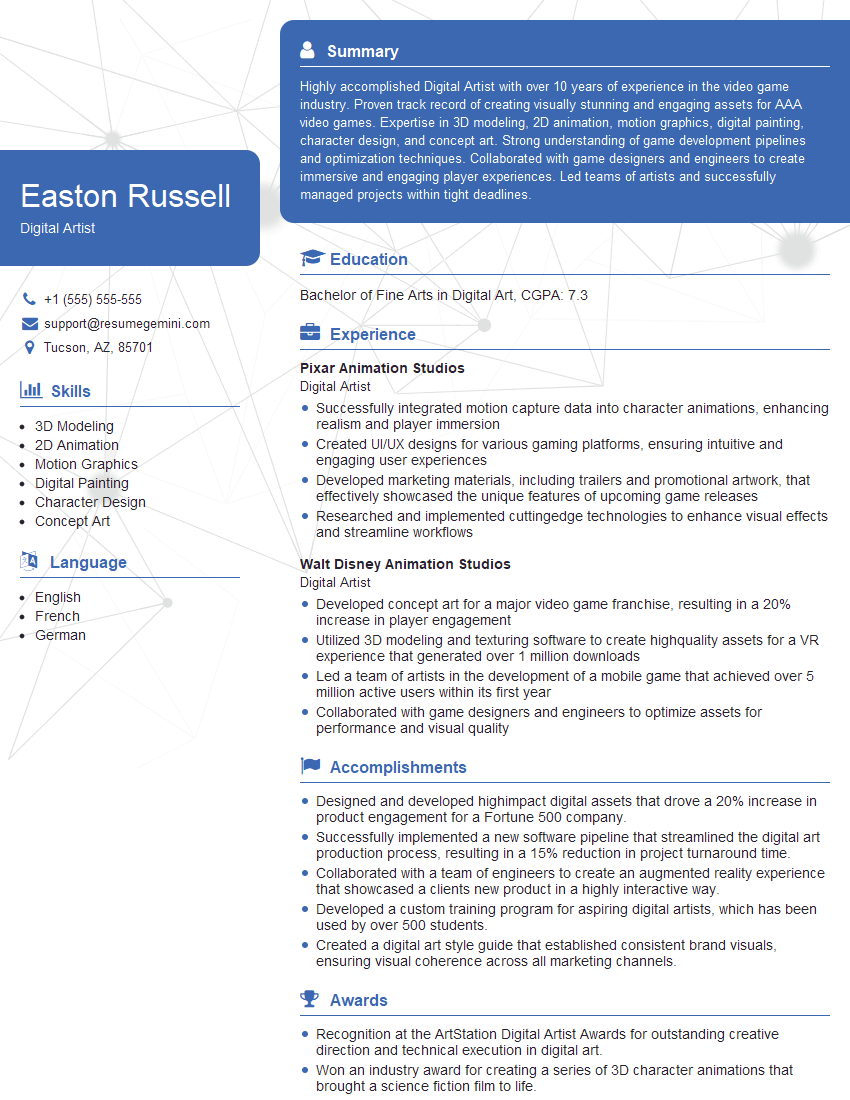
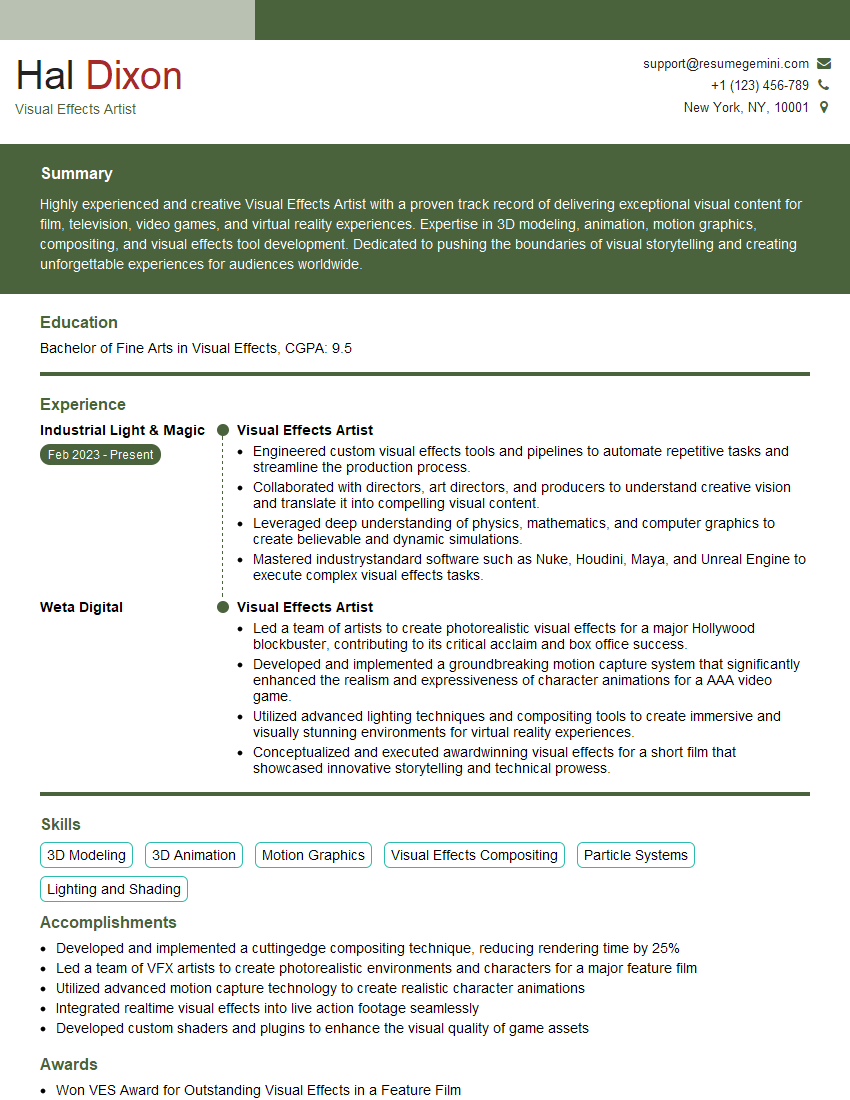
Mastering frequency separation significantly enhances your image editing skills, making you a more versatile and valuable asset in any creative field. A strong understanding of this technique demonstrates a high level of technical proficiency and attention to detail. To further boost your job prospects, creating a professional and ATS-friendly resume is crucial. ResumeGemini is a trusted resource to help you build a compelling resume that highlights your skills and experience effectively. Examples of resumes tailored to highlight Frequency Separation expertise are available to help you get started.





Explore more articles
Users Rating of Our Blogs
Share Your Experience
We value your feedback! Please rate our content and share your thoughts (optional).
What Readers Say About Our Blog
Really detailed insights and content, thank you for writing this detailed article.
IT gave me an insight and words to use and be able to think of examples