Cracking a skill-specific interview, like one for Google Analytics and Tag Manager, requires understanding the nuances of the role. In this blog, we present the questions you’re most likely to encounter, along with insights into how to answer them effectively. Let’s ensure you’re ready to make a strong impression.
Questions Asked in Google Analytics and Tag Manager Interview
Q 1. Explain the difference between Google Analytics 4 (GA4) and Universal Analytics (UA).
Google Analytics 4 (GA4) and Universal Analytics (UA) are both web analytics platforms, but they differ significantly in their architecture, data collection methods, and reporting capabilities. UA, the older platform, relies on a session-based model, focusing on pageviews and visits. GA4, however, uses an event-based model, providing a more holistic view of user behavior across platforms. Think of UA as a snapshot of individual website visits, while GA4 provides a continuous stream of user interactions. This shift allows for more comprehensive cross-platform tracking and improved analysis of user journeys. For instance, UA might tell you how many people visited your homepage, while GA4 could show you the complete journey – from initial ad click to purchase, even across different devices. The key takeaway is GA4’s enhanced flexibility and predictive capabilities, making it better suited for the modern digital landscape. UA is being sunsetted, highlighting the significant advancements in GA4.
Q 2. What are the key metrics you track in Google Analytics, and why?
The key metrics I track in Google Analytics depend heavily on business objectives, but some universally important ones include:
- Acquisition: User Acquisition (new vs. returning users), Traffic Sources (organic, paid, social etc.), and Conversion Rates from different channels, providing insight into how users discover and engage with my website or app. This helps determine which marketing efforts are most effective.
- Engagement: Engagement Rate, Pages per Session, Session Duration, and Event Tracking (e.g., video views, button clicks, scroll depth), giving a detailed understanding of how users interact with content. Low engagement flags potential UX issues needing attention.
- Monetization: Revenue, Average Revenue Per User (ARPU), and Conversion Rate, essential for businesses with e-commerce or subscription models. Tracking these shows the effectiveness of sales funnels and product offerings.
- Retention: User Retention Rate, showing how well a business retains customers over time. High retention signifies product-market fit and customer loyalty.
Why these are important? Because they form a cohesive picture of user behavior, helping understand where users come from, what they do on the platform, and what value they ultimately generate. This allows for data-driven decisions to optimize marketing strategies, improve user experience, and increase revenue.
Q 3. Describe the different dimensions and metrics in GA4.
In GA4, dimensions and metrics work together to provide a comprehensive understanding of your data. Dimensions provide context, while metrics quantify that context.
- Dimensions: These are categorical attributes that describe your data, such as
event_name,user_id,city,page_title,platform(web, iOS, Android), etc. Think of them as the ‘what’ – what happened, who did it, where it happened. - Metrics: These are numerical values associated with dimensions, quantifying the ‘how much’ or ‘how many.’ Examples include
total_events,engagement_time_msec,purchase_revenue,sessions(though sessions are becoming less relevant in GA4), andevent_count.
For example, you might explore the event_name dimension (e.g., ‘Add to Cart’, ‘Purchase’) alongside the purchase_revenue metric to understand which events contribute most to revenue. Or you might examine the city dimension along with engagement_time_msec to identify regional differences in user engagement.
Q 4. How do you use segments in Google Analytics to analyze data?
Segments in Google Analytics allow you to filter your data to focus on specific subsets of users. Imagine you have a vast ocean of data; segments are like sieves, allowing you to isolate specific groups for detailed analysis. This is crucial for understanding user behavior differences.
For example, if you want to analyze the behavior of users who arrived from a specific marketing campaign, you would create a segment based on the campaign dimension. Similarly, you could create a segment of returning users to compare their behavior against new users. You can also create segments based on events, demographics, or any combination of dimensions and metrics to precisely target a group of interest. Segments are dynamic; they are applied to your reports in real-time, so you don’t need to process separate data sets.
A practical application might involve comparing the conversion rates of users who engaged with a specific website feature (segmented by event) against those who didn’t. This helps assess the feature’s effectiveness and influence on the conversion funnel.
Q 5. Explain the concept of data layering in Google Tag Manager.
Data layering in Google Tag Manager (GTM) is a crucial technique for enriching your data collection. It involves pushing custom data from your website or app to GTM, allowing you to use that data within your tags and create more robust and insightful reports. Think of it as adding extra context to your existing data. It’s particularly useful for non-standard data points not directly captured by GTM.
For instance, you might want to track the product ID, price, and category of items added to a shopping cart. You can use JavaScript to push this data to GTM via the dataLayer.push() function. This custom data is then accessible as variables in your GTM tags, providing a richer understanding of the user’s actions and preferences. This avoids relying solely on what’s implicitly available through page URLs.
dataLayer.push({ 'event': 'addToCart', 'productID': '12345', 'price': 29.99, 'category': 'electronics' });
This code snippet sends data to the dataLayer, which then gets processed by your GTM tags, allowing you to accurately track these specific details in GA4 or other analytics platforms.
Q 6. How do you implement event tracking in Google Tag Manager?
Implementing event tracking in GTM involves several steps: First, define the event you want to track, then create a trigger that will fire when the event occurs, and finally, set up a tag to send the event data to GA4. The most common method is using a custom event.
- Create a trigger: This defines *when* the event should be tracked. Options include custom events (triggered by a Javascript function), clicks, form submissions, or link clicks. You’ll specify which element(s) trigger the event.
- Create a tag: This specifies *what* data should be sent. For GA4, you’ll configure a Google Analytics: GA4 Configuration tag and a Google Analytics: GA4 Event tag. The GA4 Event tag is where you specify the event name, parameters (custom data), and other details.
- Connect the trigger and the tag: In your tag’s configuration, select the trigger you’ve previously created. This ensures the tag fires only when the trigger condition is met.
- Verify the implementation: Use GTM’s preview and debug mode to test your event tracking. Check the preview mode to ensure the data is being sent correctly.
A simple example: Tracking a button click. You create a click trigger targeting the button, an event tag sending the event name ‘buttonClicked’ to GA4, and connect the trigger to the tag. Now every button click sends structured data to your GA4 property.
Q 7. Describe different triggering methods in Google Tag Manager.
Google Tag Manager offers various trigger types to control when tags fire. Choosing the right trigger is vital for accurate and efficient data collection. Common triggering methods include:
- Page View: This trigger fires every time a page loads. Useful for tracking page views, but can be inefficient if used for many tags.
- Click: Fires when a specific element is clicked. Allows tracking button clicks, link clicks, etc. Requires careful targeting to ensure it only triggers for intended clicks.
- Form Submission: Fires when a form is submitted. Ideal for tracking form submissions and gathering data from form fields.
- Timer: Fires after a specified time interval. Useful for tracking interactions after a certain delay, but keep in mind that it might not always capture user behavior accurately.
- Custom Event: The most versatile trigger. It fires when a custom event is triggered in your website’s JavaScript code using
dataLayer.push(). Allows for tracking of virtually any custom interaction. - History Change: Fires when the URL changes, even without a full page reload. Useful for tracking single-page applications (SPAs) or AJAX calls.
The choice of trigger depends entirely on the event you’re tracking. A button click requires a click trigger, while a custom action (e.g., video completion) would necessitate a custom event trigger. You can even combine multiple triggers to add more complexity and precision to your tracking setup.
Q 8. How do you troubleshoot common Google Analytics tracking issues?
Troubleshooting Google Analytics tracking issues involves a systematic approach. Think of it like detective work – you need to gather clues and eliminate possibilities. It often starts with checking the basics: Is the tracking code correctly implemented? Are filters interfering? Are there any browser extensions blocking tracking?
Verify Tracking Code Implementation: Ensure the Google Analytics tracking code snippet (
<script>tag) is placed correctly in the<head>section of every page. Use Google Tag Assistant to check for errors.Examine Google Analytics Reports: Look for unusually low traffic numbers, zero events in specific categories, or data discrepancies. This gives you an idea of where the issue might be.
Check for Filters: Incorrectly configured filters can block data. Review your view settings for any filters that might be excluding data unintentionally.
Inspect Network Requests: Use your browser’s developer tools (usually accessed by pressing F12) to check the network requests. You should see requests to
collect.google-analytics.com. Missing or failed requests indicate a problem.Test Different Browsers and Devices: Test tracking on various browsers and devices to rule out browser-specific issues.
Use Realtime Reports: Realtime reports show immediate data, helping you quickly identify if data is being sent correctly.
Google Tag Manager Debug Mode: If you’re using GTM, use the preview and debug mode to step through the tags and see if they’re firing correctly. This is incredibly useful in isolating problems within the tag management system.
By systematically following these steps, you can pinpoint the source of the problem and resolve the issue effectively.
Q 9. Explain the difference between a hit, a session, and a user in Google Analytics.
Understanding the difference between a hit, session, and user in Google Analytics is fundamental. Imagine a website visitor’s journey:
Hit: This is the smallest unit of data in Google Analytics. Every interaction a user has with your website generates a hit – pageviews, events, transactions, etc. Think of it as a single interaction, like clicking a button or loading an image.
Session: A session is a group of hits from a single user within a specified timeframe (typically 30 minutes of inactivity). It represents one visit to your website. If a user returns after 30 minutes, it starts a new session.
User: A user is a unique individual identified by a unique identifier, typically a client ID. This ID persists across sessions, allowing you to track a user’s behavior over time. It’s like tracking an individual customer’s habits across multiple shopping trips.
Example: A user visits your website and browses three pages. This is one user, generating three pageview hits. If the user stays on your website for under 30 minutes, this generates one session. If the user returns the next day, it’s a new session but still the same user.
Q 10. How do you use custom dimensions and metrics in Google Analytics?
Custom dimensions and metrics allow you to tailor your Google Analytics data to answer specific business questions. Think of them as adding extra columns to your dataset.
Custom Dimensions: These are attributes related to a hit (e.g., user segment, product category, campaign source). They provide context to your data, allowing you to segment your audience and understand user behavior more deeply. For example, you might use a custom dimension to track the type of device used (mobile, tablet, desktop).
Custom Metrics: These are numerical values associated with a hit. Examples could be the time spent on a specific page, the number of items added to a cart, or the value of a transaction. This adds quantitative measures to your analysis.
How to Use Them: You define custom dimensions and metrics within your Google Analytics property. Then, you need to send this data along with your hits using either Google Tag Manager or by modifying your tracking code directly. For instance, using GTM, you might pass a custom dimension value (‘Premium User’) using the Data Layer. Your GTM configuration would then push that value to the Google Analytics event tracking.
Example in GTM: You could create a custom dimension to categorize users into segments like ‘Premium’ and ‘Free’. Then you can analyze conversion rates for each of these segments, helping you understand the value of a premium subscription.
Q 11. What are some best practices for setting up Google Tag Manager?
Setting up Google Tag Manager effectively requires a structured approach.
Workspace Organization: Create clear and logical folders and naming conventions for your tags, triggers, and variables. This ensures maintainability and scalability as your implementation grows.
Version Control: Always work on versions, and don’t publish changes directly to the live container. This allows for testing and rollback in case of errors. Use the version history and publish carefully.
Data Layer Implementation: Implement a robust data layer on your website. This enables you to easily pass information to GTM and use it in your tags. A well-structured data layer significantly improves efficiency.
Use Built-in Templates and Variables: Leverage GTM’s built-in templates and variables whenever possible. They save time and simplify your implementation.
Regular Testing and Auditing: Test your GTM setup regularly and audit your tags and triggers to ensure accuracy. The preview and debug mode is essential here.
Prioritize Security: Secure your GTM container by managing user access rights and restricting access to sensitive information.
Following these practices ensures a clean, efficient, and maintainable GTM implementation.
Q 12. Explain how to use Google Tag Manager for A/B testing.
Google Tag Manager is an excellent tool for A/B testing. You can use it to manage different versions of your website code and track their performance.
Implementation:
Create Variations: You’ll need to create different versions of your website elements (e.g., buttons, headlines) and deploy these variations using your chosen A/B testing platform. GTM would then serve up the correct variation based on the test rules.
Use Custom Parameters: Set up custom parameters in your tags to identify which variation a user saw. This parameter will be passed to Google Analytics.
Create Google Analytics Events: You’ll need to set up Google Analytics events that record conversions or other key metrics for each variation.
Analyze Results: Use Google Analytics reports to compare the performance of each variation and determine the winner.
Example: You’re A/B testing two call-to-action buttons. Using GTM, you would trigger different button codes for each group of users. Google Analytics custom dimensions can track which button version each user interacted with. Later, you can compare conversion rates for both buttons.
Q 13. How do you manage multiple Google Analytics accounts?
Managing multiple Google Analytics accounts can be streamlined using a few strategies:
Google Analytics Management View: This allows you to manage all your GA properties from a central location. It provides a unified overview of your various accounts and properties, making navigation and monitoring easier.
Use a Reporting Tool: Tools that integrate with Google Analytics can centralize data from multiple properties, simplifying analysis and providing a holistic view of your business performance.
Consistent Naming Conventions: Employ consistent naming conventions across all your properties to maintain order and easily identify different websites or apps.
Automation: Use scripts or third-party tools to automate tasks such as report generation and data export. This frees up your time for strategic analysis.
The key is organization. Clear naming conventions and a centralized view (whether through Google’s Management View or an external tool) are crucial for efficient management.
Q 14. What are some common Google Tag Manager debugging techniques?
Debugging Google Tag Manager effectively involves a mix of tools and techniques:
Preview and Debug Mode: This built-in feature is your most valuable ally. Enable it, visit your website, and step through the tags to see if they’re firing correctly. Look for errors, unexpected variables, or missed triggers. The debug mode shows you a detailed timeline of all GTM events.
Network Tab in Browser DevTools: Examine network requests to see which tags have sent data to Google Analytics and other platforms. This helps identify missing or failed tags.
Data Layer Inspection: Check the contents of your data layer using the browser’s console. Ensure that the data you expect to be passed to GTM is actually present and correctly formatted.
Google Tag Assistant: This browser extension helps analyze your website and identify potential problems with your Google Analytics and GTM implementation.
Version Control: When debugging, always work with a version of your GTM container and avoid making changes directly on the live version. This prevents accidentally breaking your live tracking.
Systematic debugging, combined with the use of available tools, is key to resolving issues efficiently.
Q 15. Describe how you would use Google Analytics to measure the success of an SEO campaign.
Measuring the success of an SEO campaign in Google Analytics relies on tracking organic search traffic and its impact on key metrics. We don’t just look at traffic volume; we analyze quality traffic.
Here’s a multi-faceted approach:
- Organic Search Traffic Analysis: We’d monitor the Acquisition report, focusing on the ‘Organic Search’ channel. We’d track increases in users, sessions, and new users from organic sources over the campaign’s duration, comparing it to pre-campaign baselines.
- Keyword Performance: The ‘Acquisition > Search Console’ report offers insights into which keywords are driving organic traffic. This helps identify successful keywords and areas needing optimization. We can analyze click-through rates (CTR) and position to see how well our SEO efforts are ranking pages.
- Website Engagement Metrics: Beyond traffic volume, we look at user engagement. Bounce rate, average session duration, pages per session, and conversion rate all provide insights into how effective the SEO changes are at engaging visitors. A low bounce rate and longer session duration suggest content resonates with the target audience.
- Goal Conversions: This is crucial. We need to define goals in Google Analytics that align with the campaign’s objectives (e.g., form submissions, purchases, newsletter sign-ups). By tracking how many of these goals are completed via organic traffic, we understand the campaign’s direct contribution to business outcomes.
- Attribution Modeling: Finally, we need to understand the path users take to convert. Using various attribution models (last-click, linear, position-based) helps provide a more holistic view of the organic traffic’s contribution to the overall conversion funnel, not just the last click.
For example, if we’re targeting a specific keyword related to ‘best hiking boots,’ we’d see if that keyword’s traffic increased, if users from that keyword had a low bounce rate, and most importantly, if they converted (purchased hiking boots).
Career Expert Tips:
- Ace those interviews! Prepare effectively by reviewing the Top 50 Most Common Interview Questions on ResumeGemini.
- Navigate your job search with confidence! Explore a wide range of Career Tips on ResumeGemini. Learn about common challenges and recommendations to overcome them.
- Craft the perfect resume! Master the Art of Resume Writing with ResumeGemini’s guide. Showcase your unique qualifications and achievements effectively.
- Don’t miss out on holiday savings! Build your dream resume with ResumeGemini’s ATS optimized templates.
Q 16. How would you use Google Analytics to track e-commerce conversions?
Tracking e-commerce conversions in Google Analytics involves setting up e-commerce tracking, which allows the platform to capture detailed information about online sales and transactions. This goes beyond basic pageviews – it dives into the revenue generated from each sale.
- Enable E-commerce Tracking: In the Google Analytics admin panel, navigate to the ‘E-commerce Settings’ for your view and enable e-commerce tracking. This is essential for capturing transaction data.
- Define Transaction IDs: Each completed transaction needs a unique identifier (the transaction ID) to avoid duplicate counting. This is typically passed from your e-commerce platform (Shopify, WooCommerce, etc.)
- Track Revenue, Products, and Shipping: Google Analytics requires data points like transaction revenue, individual product revenue, shipping costs, and taxes for accurate financial reporting. The exact implementation depends on the e-commerce platform and its integration capabilities. Usually, this involves placing an enhanced e-commerce tag.
- Use the E-commerce Reports: Once the setup is complete, Google Analytics offers detailed reports on revenue, transactions, and conversion rates. These reports segment data by product, customer demographics, and various other dimensions.
For instance, we might see how many transactions occurred in a specific time frame, the average order value, and the revenue generated by each product category. We’d also analyze conversion funnels to identify any bottlenecks and optimize the checkout process.
Q 17. How do you use Google Tag Manager to implement remarketing tags?
Google Tag Manager (GTM) simplifies remarketing tag implementation by allowing us to manage tags without directly modifying website code. This makes deployment and updates far easier.
- Create a New Tag: In GTM, create a new tag. Select the remarketing provider (e.g., Google Ads, Facebook, etc.) as the tag type.
- Configure the Tag: Provide the necessary information from your remarketing provider, such as your conversion ID or AdWords customer ID. This information is usually found in your respective platform’s settings.
- Set up Triggering: Crucially, you need to define when the tag fires. This is managed via triggers in GTM. Common triggers include ‘All Pages’, specific page views, or custom events like adding items to a cart or completing a purchase.
- Version Control and Testing: GTM allows for version control and easy testing of tags in a preview mode before publishing. This minimizes disruption and risk of errors.
For example, we might use a ‘Page View’ trigger to fire a Google Ads remarketing tag on all product pages, ensuring users who view products are added to a remarketing audience. If we have a higher-value customer, we may trigger on a specific event, like ‘purchase completed’.
Q 18. Explain the difference between a pageview, an event, and a transaction in Google Analytics.
In Google Analytics, these terms represent distinct user interactions:
- Pageview: A pageview is recorded each time a page on your website is loaded. It’s the fundamental unit of measurement. Multiple pageviews can occur within a single session.
- Event: An event is a custom interaction that isn’t a pageview or e-commerce transaction. It’s highly versatile for tracking user behaviors such as video plays, button clicks, file downloads, or custom actions. Events provide richer context about how users engage with your site beyond simple navigation.
- Transaction: A transaction represents a completed e-commerce purchase. It includes key details such as transaction ID, revenue, tax, shipping, and individual items purchased. This is the core metric for e-commerce success.
Think of it this way: a pageview is like someone entering a store. An event is like them interacting with a specific display or asking a question. A transaction is the equivalent of completing a purchase and leaving the store.
Q 19. How do you handle cross-domain tracking in Google Analytics?
Cross-domain tracking addresses the challenge of tracking a user’s journey across multiple websites owned by the same organization (e.g., www.example.com and blog.example.com). Without proper configuration, Google Analytics treats each domain as a separate entity, making it difficult to see a user’s complete path.
- Referral Tracking: This is the easiest approach for simple cases. Ensure that links between domains include parameters to indicate the referral source. This helps Google Analytics connect the visits across domains.
- Google Tag Manager and Cross-Domain Tracking: GTM can efficiently handle cross-domain tracking using features like custom JavaScript variables and sophisticated triggers. We can build custom mechanisms to pass data using cookies or other methods (like URL parameters) to stitch together the interactions across sites.
- Measurement Protocol: The Measurement Protocol enables sending data to Google Analytics from external sources or applications, offering finer control over the tracking process. It’s especially useful for complex cross-domain scenarios.
The choice of method depends on the complexity. For simpler cases, referral tracking might suffice. For more complex scenarios involving multiple domains and specific data needs, GTM or the Measurement Protocol provides the necessary flexibility.
Q 20. What are some key considerations for migrating from Universal Analytics to GA4?
Migrating from Universal Analytics (UA) to Google Analytics 4 (GA4) requires careful planning and execution because of the fundamentally different approaches to data collection and analysis.
- Data Model Differences: GA4 uses an event-based model, unlike UA’s session-based model. This means almost all interactions are recorded as events, requiring a different approach to data collection and structuring. You need to plan how you will map your existing UA data to GA4’s event-based model.
- Parallel Run: Before fully switching to GA4, it’s crucial to run both UA and GA4 concurrently for several months. This ensures you have sufficient time to observe GA4 data and refine your reporting processes. You will be able to compare the data from the two platforms and identify any discrepancies.
- Enhanced Measurement: GA4 offers enhanced measurement which automatically captures many common events without extensive tag implementation. This is both a benefit and challenge. It may not capture everything you need, and you still need to configure events to cover all important behaviors.
- New Reporting: GA4’s reporting interface and metrics are different from UA. Familiarize yourself with GA4’s reporting capabilities and how to create effective reports based on the event data. You may need to recreate reports from your UA dashboards in GA4.
- Machine Learning: GA4 leverages machine learning heavily to provide predictive insights. Understanding and leveraging these features can significantly enhance your analysis capabilities.
A phased approach, starting with a parallel run, ensuring key events are tracked in GA4, and migrating gradually to new reports, is crucial for a smooth transition.
Q 21. Explain how to set up custom reports in Google Analytics.
Custom reports in Google Analytics provide flexibility in visualizing data according to your specific business needs. They go beyond the pre-defined reports, offering tailored insights.
- Navigation: In Google Analytics, navigate to the ‘Customization’ section, and select ‘Custom Reports’.
- Create a New Report: Click on the ‘New Custom Report’ button.
- Dimensions and Metrics: The core of a custom report is selecting appropriate dimensions (characteristics of your data, e.g., source/medium, city, device category) and metrics (quantifiable measurements, e.g., pageviews, bounce rate, conversion rate). This step requires understanding what you want to analyze.
- Segments: You can add segments to filter data (e.g., only show data for users from a specific country or who made a purchase). This allows for granular analysis.
- Report Type: Choose a suitable visualization type (table, pie chart, bar chart, etc.) to present your data effectively.
- Save and Share: After creating the report, save it for future use, and if necessary, share it with others on your team.
For example, you might create a custom report showing conversion rates by different acquisition channels for a specific product category. Or, you might track the average session duration for users accessing your website from mobile devices.
Q 22. How do you use Google Analytics to identify areas for website optimization?
Google Analytics (GA) is a powerful tool for identifying areas needing website optimization. I start by looking at key metrics like bounce rate, average session duration, pages per session, and conversion rates. A high bounce rate, for example, suggests users are leaving quickly without engaging. This could point to issues with website design, content, or page load speed. Analyzing the behavior flow visualization helps trace the user journey, identifying drop-off points. For example, if a significant number of users abandon the checkout process, this highlights areas for improvement in the checkout experience. I also delve into audience reports to segment users by demographics, behavior, and acquisition channels, allowing me to tailor optimizations to specific user groups. Let’s say our analysis shows a high bounce rate from mobile users on a specific landing page – then we’d prioritize optimizing that page’s mobile responsiveness and load time.
Furthermore, I use GA’s custom reports and dimensions to create more granular analyses tailored to specific business goals. For instance, if our goal is improving email open rates, I’d set up custom events to track clicks on email links and compare the performance of different email campaigns using custom dimensions. This allows me to pinpoint specific content improvements that might lead to increased engagement.
Q 23. Describe how you would use data from Google Analytics to inform marketing decisions.
Google Analytics data is crucial for data-driven marketing decisions. For example, if our campaign analysis shows a low conversion rate from a specific paid advertising campaign targeting a particular demographic, we can adjust our targeting parameters or messaging to improve the effectiveness of future campaigns. GA provides insights into which marketing channels deliver the most valuable customers, helping us allocate budget effectively. Analyzing user acquisition and behavior across various channels (organic search, social media, email, paid advertising) allows for a better understanding of channel performance and ROI.
Let’s say we’re launching a new product. GA can provide data on what aspects of similar products have performed well in the past. This could inform the product’s marketing campaign and messaging. Understanding customer behavior through GA allows us to create more personalized and effective marketing strategies, tailoring messages to resonate with different user segments. If our analysis shows that mobile users have a higher engagement rate, we might prioritize optimizing our mobile app or website experiences.
Q 24. What are some limitations of Google Analytics?
While Google Analytics is a powerful tool, it has limitations. One significant limitation is data sampling. For large websites, GA might sample data, resulting in inaccurate reporting, especially for custom reports or segments. Another limitation is the reliance on cookies. With the rise of privacy concerns and privacy-focused browsers, cookie limitations can affect the accuracy of user tracking and attribution. GA also struggles with cross-device tracking – attributing conversions from users who interact with a website across different devices can be challenging. Furthermore, GA’s default reports are often limited, requiring custom configurations for deeper insights. Lastly, GA relies on client-side tracking, which makes it vulnerable to potential manipulation or inaccuracies caused by browser extensions or ad blockers.
Q 25. How do you ensure data accuracy in Google Analytics and Tag Manager?
Ensuring data accuracy in GA and Google Tag Manager (GTM) is paramount. In GA, this involves regular checks for data inconsistencies and anomalies. I frequently review the Realtime reports to ensure data is flowing correctly. Using the GA DebugView tool helps diagnose any tracking issues, while comparing GA data with other analytics platforms or internal databases can highlight discrepancies. For example, if our ecommerce platform shows a different number of transactions than GA, we investigate the potential causes.
In GTM, the use of version control and thorough testing is crucial. Each tag and trigger should be meticulously tested before publishing. Using preview mode allows us to test changes without impacting the live site. Regular audits of GTM containers ensure that all tags are correctly configured, avoiding duplicate tracking or conflicts. Documentation is also key – maintaining clear documentation of all tags, triggers, and variables minimizes confusion and aids in troubleshooting. For example, maintaining a spreadsheet listing all events tracked and their associated GTM configurations can help during troubleshooting.
Q 26. Explain the role of Realtime reports in Google Analytics.
Realtime reports in GA offer a live view of website activity, showing data as it comes in. This is incredibly useful for immediate troubleshooting or monitoring live events, such as webinars or product launches. For instance, if there are technical issues during a live event, Realtime reports can immediately highlight any drop-offs or errors in user interaction. It provides a snapshot of current website visitors, their location, and what pages they are viewing. It helps identify immediate problems, like a broken link impacting conversions during a crucial campaign.
While Realtime reports provide immediate insights, remember that the data is only a snapshot of the current moment and isn’t suitable for long-term analysis or trend identification, which requires aggregated data over time.
Q 27. How would you use Google Tag Manager to implement Facebook Pixel?
Implementing the Facebook Pixel in GTM is straightforward. First, I obtain the Facebook Pixel ID from the Facebook Ads Manager. Then, in GTM, I create a new tag of type ‘Custom HTML’ or ‘Facebook Pixel’ if the built-in option exists. If using Custom HTML, I’d use code like this, replacing YOUR_PIXEL_ID with the actual ID:
<script>fbq('init', 'YOUR_PIXEL_ID');fbq('track', 'PageView');</script>For the trigger, I’d use a ‘All Pages’ trigger to ensure the Pixel fires on every page load. For more granular control, I’d use triggers based on specific pages or events. I’d then test the implementation using GTM’s preview mode and the Facebook Pixel Helper browser extension, ensuring the Pixel is firing correctly. If I need to track specific events like add-to-cart or purchase, I’d create additional tags for those events, with corresponding triggers based on the specific page interactions, ensuring data accuracy.
Q 28. Describe your experience with using Google Analytics APIs.
I have extensive experience using the Google Analytics APIs, primarily the Measurement Protocol and the Reporting API v4. The Measurement Protocol is crucial for sending custom data to GA, allowing me to track events or data not natively captured through traditional GA tracking. For example, I’ve used it to track offline conversions, data from CRM systems, or mobile app events. The Reporting API v4 lets me programmatically access and process GA data, which is invaluable for automating reports, building custom dashboards, or integrating GA data into other business intelligence tools. This is far more efficient than manually extracting data from GA’s interface.
Using the APIs allows for creating automated, custom reporting solutions that go beyond GA’s default capabilities. For instance, I have built custom dashboards to provide a clear overview of key performance metrics across multiple websites and marketing channels. This level of automation allows for quicker insights and better decision-making.
Key Topics to Learn for Google Analytics and Tag Manager Interview
- Google Analytics Fundamentals: Understanding core metrics (sessions, users, bounce rate, conversion rate), navigating the interface, setting up and interpreting reports.
- Google Analytics Dimensions & Metrics: Mastering the difference and effectively using them to answer business questions. Practical application: analyzing website traffic sources and user behavior to identify areas for improvement.
- Google Analytics Data Studio Integration: Creating insightful dashboards and reports to visualize key performance indicators (KPIs) and share findings with stakeholders.
- Google Tag Manager Fundamentals: Understanding the purpose of a tag manager, creating tags, triggers, and variables. Practical application: Implementing website tracking efficiently and accurately.
- Google Tag Manager Data Layer Implementation: Understanding the importance of a structured data layer and its role in data collection and tracking. Practical application: Troubleshooting tag firing issues and ensuring data accuracy.
- E-commerce Tracking in GA & GTM: Setting up and analyzing e-commerce transactions, revenue, and other related metrics. Practical application: Measuring the effectiveness of online marketing campaigns.
- Advanced Segmentation & Analysis: Creating sophisticated segments to analyze specific user groups and their behavior. Practical application: Identifying high-value customers and optimizing conversion funnels.
- Troubleshooting & Debugging: Developing problem-solving skills to identify and resolve common issues in Google Analytics and Tag Manager implementations.
- Data Privacy & Compliance: Understanding data privacy regulations (like GDPR and CCPA) and how they impact Google Analytics and Tag Manager setups.
- Attribution Modeling: Understanding different attribution models and their impact on marketing campaign analysis. Practical application: Determining which marketing channels are most effective.
Next Steps
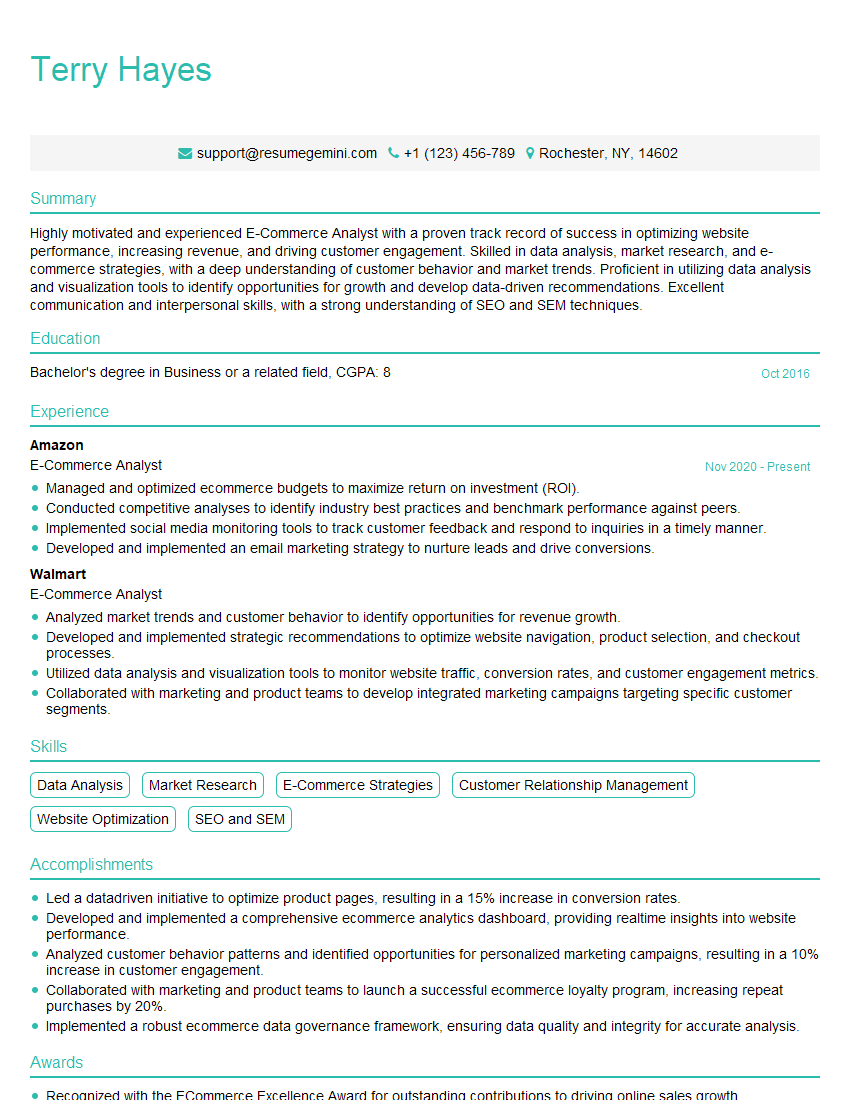
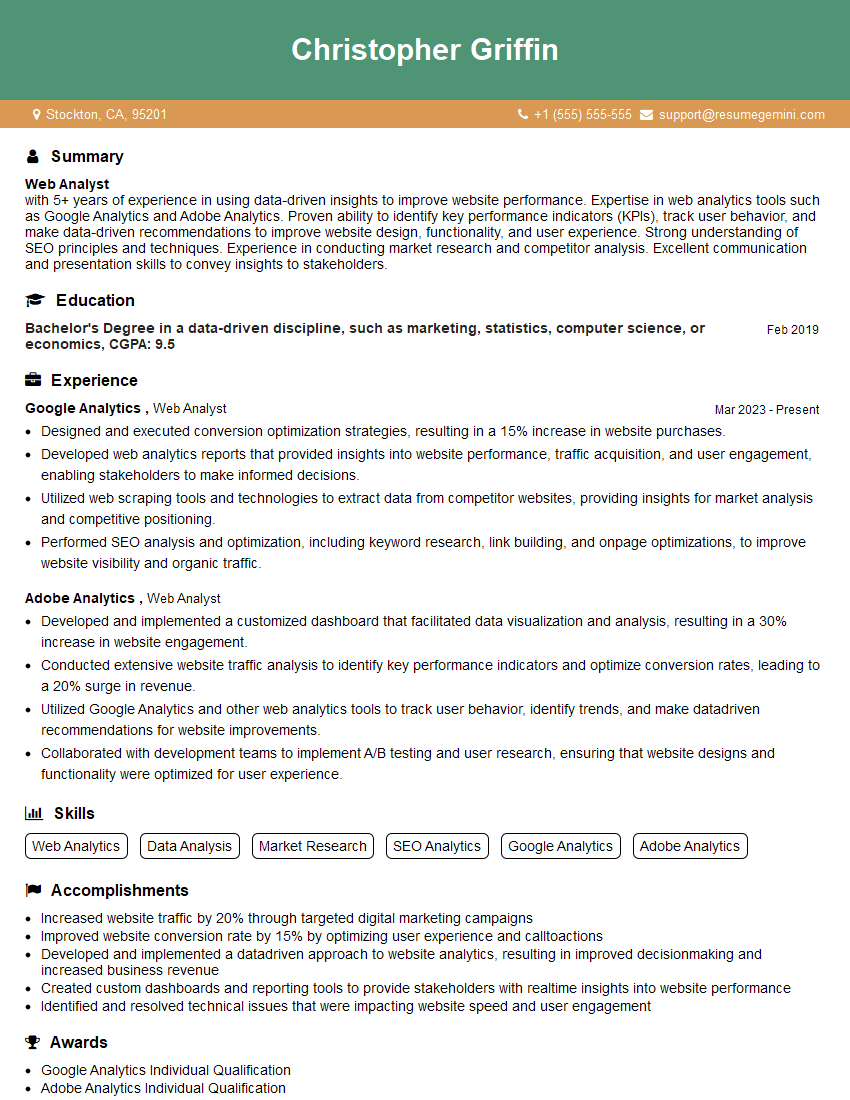
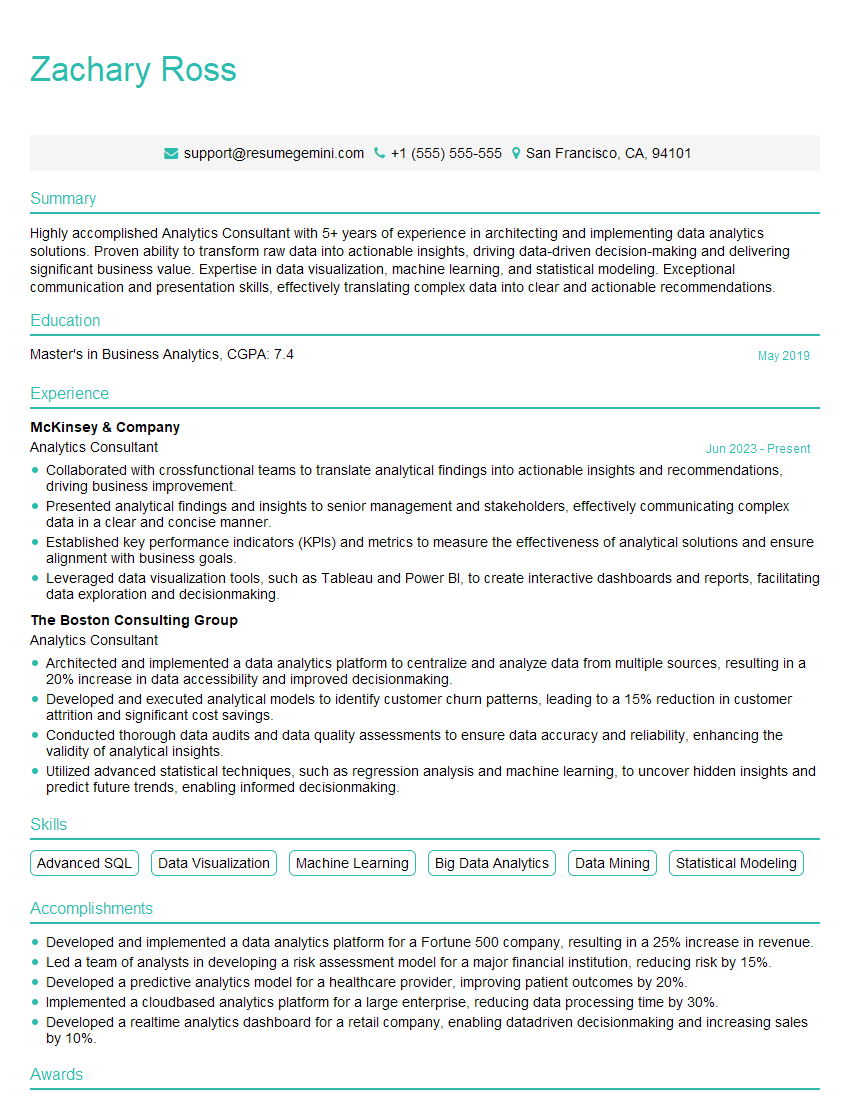
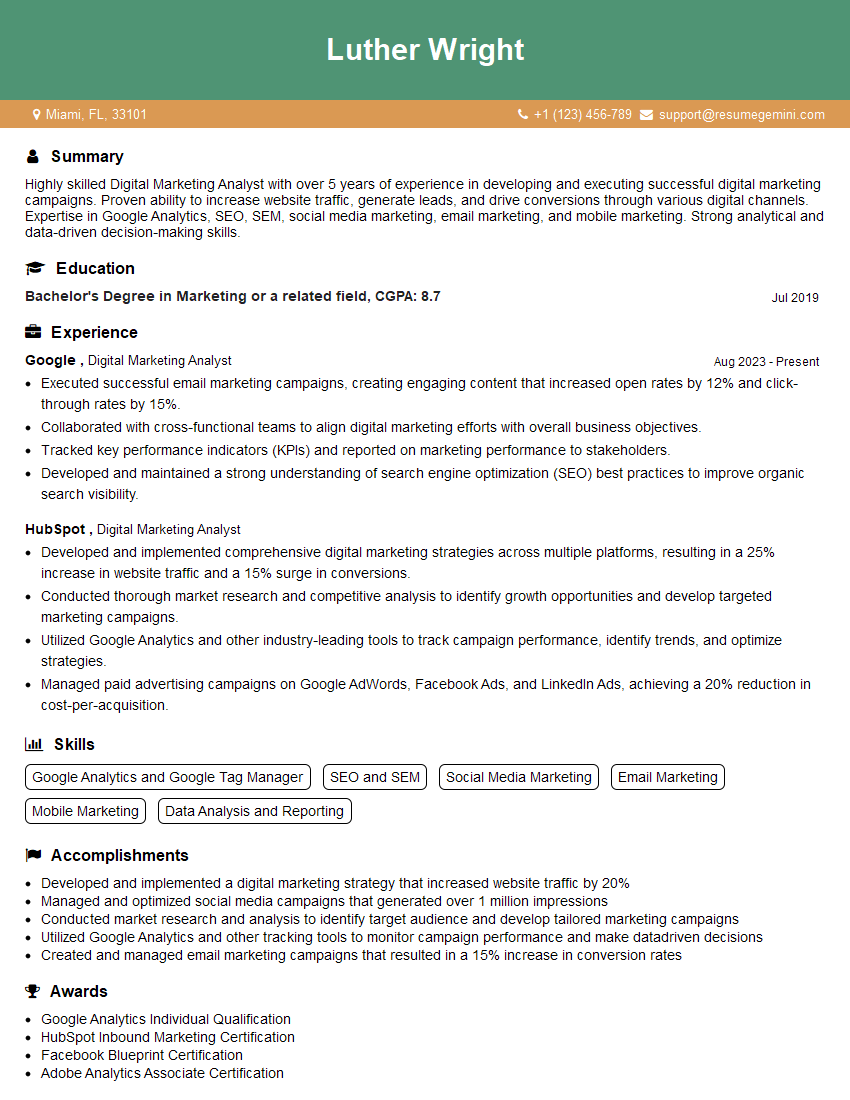
Mastering Google Analytics and Google Tag Manager is crucial for a successful career in digital marketing and analytics. These skills are highly sought after, opening doors to exciting opportunities and career advancement. To maximize your job prospects, create a strong, ATS-friendly resume that highlights your expertise. ResumeGemini is a trusted resource to help you build a professional and impactful resume. They provide examples of resumes tailored specifically to Google Analytics and Tag Manager roles, helping you present your skills effectively to potential employers.

Explore more articles
Users Rating of Our Blogs
Share Your Experience
We value your feedback! Please rate our content and share your thoughts (optional).
What Readers Say About Our Blog
Really detailed insights and content, thank you for writing this detailed article.
IT gave me an insight and words to use and be able to think of examples