Interviews are opportunities to demonstrate your expertise, and this guide is here to help you shine. Explore the essential Layer Masking interview questions that employers frequently ask, paired with strategies for crafting responses that set you apart from the competition.
Questions Asked in Layer Masking Interview
Q 1. Explain the difference between a layer mask and a clipping mask.
Layer masks and clipping masks are both powerful tools in image editing, but they function differently. Think of a layer mask as a stencil – it controls the visibility of a layer, revealing or concealing parts of it without permanently altering the layer’s pixels. A clipping mask, on the other hand, shapes the content of a layer, limiting it to the shape of the layer beneath. It essentially ‘clips’ the top layer to the shape and size of the bottom layer. A layer mask affects only the layer to which it’s applied, while a clipping mask affects the layer it’s linked to.
Example: Imagine you have a photo of a person and you want to place them on a different background. A layer mask allows you to reveal only the person, seamlessly blending them into the new background, preserving the original photo intact. A clipping mask, in this scenario, would constrain the person’s image to the shape of the background layer, only showing them within the area of the background.
Q 2. How do you create a layer mask from a selection?
Creating a layer mask from a selection is incredibly straightforward. After making your selection (using the lasso, marquee, or any selection tool), you simply click the ‘Add Layer Mask’ button (it usually looks like a rectangle with a circle inside) at the bottom of the Layers panel. This instantly creates a mask based on your selection, hiding everything outside the selected area.
Step-by-Step:
- Make a selection using your preferred method.
- Go to the Layers panel.
- Click the ‘Add Layer Mask’ icon.
Important Note: If you want a mask that reveals the selected area rather than hides it, invert the mask after creating it (see question 3).
Q 3. How do you invert a layer mask?
Inverting a layer mask reverses its effect. If a portion of your image is hidden by the mask, inverting it reveals that portion; conversely, if a portion is visible, inverting hides it. This is a critical tool for quickly changing the mask’s impact. You can invert a layer mask by selecting it in the Layers panel, then clicking the ‘Invert’ button (usually a circle within a circle, found on the Layers panel toolbar or via the Edit menu).
Example: Let’s say you’ve masked out a subject from a background using a selection. Inverting this mask would then reveal the subject, hiding the background instead. It is especially useful for refining masks.
Q 4. Describe the use of feathering in layer masks.
Feathering a layer mask softens its edges, creating a gradual transition between the masked and unmasked areas. This is vital for achieving natural-looking results, particularly when dealing with complex subjects like hair or fur. Think of it like gradually fading the edges of a stencil, reducing any harsh lines. The feathering amount is adjustable, allowing you to fine-tune the softness to suit your needs. You set the feathering radius when creating the selection before creating the mask, or using the mask’s properties after creating it.
Example: When isolating a person’s hair from a background, feathering ensures a smooth transition between the hair and the background, preventing a jagged, unnatural look.
Q 5. How do you refine a layer mask’s edge?
Refining a layer mask’s edge is a common practice for perfecting the selection. Several tools facilitate this, including the brush tool (for painting on or off the mask), the eraser tool (for removing portions of the mask), and the gradient tool (for creating smooth transitions). The most powerful tool for edge refinement is the Refine Edge tool which offers precise adjustments for feathering, contrast, and smoothness. Additionally, techniques like using the Quick Mask mode (explained in question 7) and applying color range selections are critical for precise refinement.
Step-by-Step for Brush Refinement:
- Select the layer mask.
- Choose a soft-edged brush.
- Use black to hide areas, white to reveal areas, and shades of gray for partial transparency.
Q 6. What are the advantages of using layer masks over other methods of image editing?
Layer masks offer several key advantages over other image editing methods like using the eraser or other destructive techniques. Primarily, they are non-destructive. This means that you can edit your mask at any time, without permanently altering the original image data. You can always revert changes or refine your edits without losing the original quality. This flexibility is crucial for professional workflows, ensuring that images can be modified repeatedly without degradation.
Example: If you erase a section of your image directly, it is gone forever. Using a layer mask allows for infinite possibilities for changes and refinement without losing the original data. This is essential in maintaining image quality in a professional workflow and reducing the risk of irreversible damage.
Q 7. Explain how to use a quick mask in conjunction with a layer mask.
Quick Mask mode provides an intuitive way to create and refine layer masks using the paintbrush and selection tools. Activate Quick Mask mode (usually a square with a circle inside it in the toolbar) and use your brush to paint directly on the image. The painted area becomes the selection which will then form the basis of your layer mask. After painting, exit quick mask mode and add the layer mask as explained in Question 2. This is particularly useful for creating complex masks that require precision painting. This often allows for greater finesse than making a selection using standard tools.
Example: If you need to isolate a person’s hair from a complex background, using quick mask mode allows precise painting of the hair to create an intricate selection with much greater flexibility than more traditional selections. You can easily refine your selection, adjusting your work as you go without the rigidity of a traditional selection.
Q 8. How do you save a layer mask as a separate file?
You can’t directly save a layer mask as a separate file in the same way you save a layer or an image. A layer mask is intrinsically linked to its parent layer. However, you can achieve a similar result by several methods. One common approach is to save the masked layer as a new file. This preserves the effect of the mask. Alternatively, you can duplicate the layer, delete the original, and then save the duplicated layer. The mask will be preserved with the new layer. Finally, in some applications, you can convert the mask to a selection, then create a new layer and paste the selection onto it. This effectively isolates the masked area.
Think of it like a stencil: you can’t save the stencil separately from the artwork it’s used on, but you can save the final artwork that shows the result of the stencil.
Q 9. How can you apply a layer mask to multiple layers at once?
Applying a layer mask to multiple layers simultaneously isn’t a direct function in most image editing software. Instead, you need to use layer groups. Create a new group and move all the layers you want to mask into that group. Then, add a layer mask to the group. Any changes to the group’s mask will affect all layers within that group. This is incredibly useful for complex compositions where you want consistent masking across multiple elements.
Imagine needing to mask out a background from multiple characters in an animation. Grouping those characters and masking the group saves time and ensures consistency.
Q 10. Describe the use of layer mask modes (e.g., Normal, Multiply, Screen).
Layer mask modes determine how the mask interacts with the layer’s content. Normal mode is the default, showing the masked and unmasked portions as they are. Multiply mode darkens the masked area by blending it with the underlying layer, excellent for subtle fading or creating shadows. Screen mode brightens the masked area, often used to create highlights or a light-leaking effect.
- Normal: Direct application of the mask.
- Multiply: Darkens the masked area.
- Screen: Brightens the masked area.
- Other modes (like Overlay, Soft Light etc.) offer various blending options, allowing for more nuanced control over masking effects.
Choosing the right mode depends entirely on the desired artistic effect. Experimentation is key!
Q 11. Explain how to use vector masks.
Vector masks are created using vector shapes (paths) rather than pixel-based selections. This offers several advantages: they are resolution-independent (meaning they scale without losing quality), and you can easily edit and refine them without affecting the underlying layer’s pixels. They are particularly useful for sharp, clean masking, like masking text or complex geometric shapes.
To use a vector mask, you create a path using tools like the Pen tool or Shape tools. Then, you right-click on the path and select ‘Create Layer Mask’. The path becomes the mask, providing sharp edges and perfect scaling.
Think of using a laser cutter to precisely cut a shape from a sheet of material – that’s the precision and scalability of a vector mask.
Q 12. How do you create a layer mask using the pen tool?
Creating a layer mask with the Pen tool offers precise control over the mask’s shape. First, create a path with the Pen tool, outlining the area you want to keep visible. Then, select the layer you want to mask. Right-click on the path and choose ‘Create Layer Mask’. The mask conforms perfectly to the vector path you’ve created, allowing for sharp edges and detailed shapes.
This method is ideal when you require highly accurate and editable masks, like isolating complex objects with intricate details, or masking out text precisely.
Q 13. How do you create a layer mask from a gradient?
Creating a layer mask from a gradient provides a smooth transition between masked and unmasked areas. First, select the layer you want to mask. Then, select the Gradient tool. Choose your desired gradient type and colors. Draw a gradient across the layer. The gradient’s transition will become your layer mask, creating a smooth fade or blend effect.
This technique is great for creating vignettes, soft-edged transitions, or for smoothly fading elements into a background.
Q 14. How do you adjust the opacity of a layer mask?
Adjusting the opacity of a layer mask controls the strength or visibility of the mask. A lower opacity makes the mask more transparent, allowing more of the underlying layer to show through. To adjust the opacity, select the layer with the mask. You’ll see a slider that controls both layer opacity and mask opacity. Adjust the mask opacity slider (or use the numerical input field), to fine-tune the effect.
This is incredibly useful for creating subtle effects. Imagine you need to mask a person from the background, but still want a little bit of the background to subtly show through. Lowering the mask opacity provides just that flexibility.
Q 15. How do you work with layer mask groups?
Layer mask groups are incredibly powerful tools that allow for complex masking operations while maintaining organizational clarity. Think of them like folders on your computer – they keep related masks together, allowing for easier editing and management. Instead of having numerous individual masks cluttering your layer palette, you can group them logically. For instance, if you’re retouching a portrait, you might group masks for skin smoothing, blemish removal, and eye enhancement.
To create a layer mask group, simply select the masks you want to group in your Layers panel, right-click, and choose ‘Create Layer Mask Group’. You can then adjust the opacity or blending mode of the entire group, affecting all masks simultaneously. This is hugely efficient; imagine adjusting the intensity of multiple individual adjustments vs. a simple opacity slider on the group. The group itself also acts as a mask, allowing for further refinement of the selected masks. You can add, delete, or edit individual masks within the group without affecting the others. This hierarchical structure is critical for complex projects.
Career Expert Tips:
- Ace those interviews! Prepare effectively by reviewing the Top 50 Most Common Interview Questions on ResumeGemini.
- Navigate your job search with confidence! Explore a wide range of Career Tips on ResumeGemini. Learn about common challenges and recommendations to overcome them.
- Craft the perfect resume! Master the Art of Resume Writing with ResumeGemini’s guide. Showcase your unique qualifications and achievements effectively.
- Don’t miss out on holiday savings! Build your dream resume with ResumeGemini’s ATS optimized templates.
Q 16. How do you troubleshoot problems with layer masks?
Troubleshooting layer mask issues often involves careful observation and a systematic approach. The first step is to check the visibility of both the layer mask and the layer itself – often an overlooked detail. Is the layer’s ‘eye’ icon turned on? Is the mask’s thumbnail showing correctly (white represents full visibility, black represents full opacity)?
If the problem persists, examine the mask itself. Zoom in to inspect for unexpected edges or areas of unintended transparency. Sometimes, the problem isn’t a ‘broken’ mask but rather a misapplication of the mask’s settings. Check the blending mode; it might be inadvertently set to something that cancels out the effect. Also, review the mask’s opacity; it might be too low to be visible.
A common problem is a mask that’s unintentionally inverted. To remedy this, simply click the ‘Invert’ mask icon. If the issue still isn’t resolved, temporarily hide or disable all other layers to isolate the problem and ensure the issue is indeed coming from the layer mask. And finally, consider re-creating the layer mask if you’re still stumped; it’s sometimes easier to start again from scratch than to resolve subtle issues buried in a complex mask.
Q 17. Explain non-destructive editing with layer masks.
Non-destructive editing with layer masks is a cornerstone of professional image editing. It means you can make changes to your image without permanently altering the original pixel data. It’s like working with a stencil – you can adjust the stencil (mask) without affecting the underlying painting (image). This flexibility allows for experimentation and easy correction of mistakes. If you hate the effect you’ve achieved, you just simply modify the mask or delete it entirely, restoring the original image.
For example, imagine using a brush tool with a layer mask to selectively remove blemishes from a portrait. You’re not erasing pixels from the image; you’re simply adjusting the layer mask to hide parts of the underlying layer. You can later refine your work, re-adjusting the mask without affecting the untouched areas of the original image. This ability to revert or re-edit is the power of non-destructive workflow.
Q 18. Describe your experience using layer masks in different software (e.g., Photoshop, GIMP).
My experience with layer masks spans both Adobe Photoshop and GIMP, two industry-standard applications. While the interfaces differ slightly, the underlying principles remain consistent. In Photoshop, I’ve utilized advanced masking techniques such as vector masks, clipping masks and adjustment layers to achieve intricate edits and creative effects. My experience includes refining portraits, creating complex composites, and implementing advanced color correction workflows.
In GIMP, I’ve found the layer mask functionality equally powerful, though perhaps requiring slightly different approaches due to the different workflow. I’ve successfully applied layer masks in GIMP for projects ranging from simple image retouching to complex image manipulations. I am proficient in working with various brush tools, gradients, and selection tools to achieve precise and subtle masking effects in both environments.
Q 19. How would you use layer masks to retouch a portrait?
Retouching a portrait with layer masks is a delicate process requiring precision and attention to detail. I’d begin by creating a new layer for each adjustment. For example, I might create a separate layer for smoothing skin, removing blemishes, and enhancing eyes. Each adjustment would have its own corresponding layer mask.
To smooth the skin, I’d use a large, soft brush with low opacity on the skin smoothing layer mask to gently reduce harsh textures. For blemishes, I’d utilize a smaller brush with a higher opacity to precisely mask out imperfections. Finally, to enhance the eyes, I’d employ a smaller brush to selectively brighten highlights and deepen shadows. The key is to work gradually and progressively refine the masks until the result appears natural and subtle.
Q 20. How would you use layer masks to composite images?
Compositing images with layer masks is all about seamlessly blending elements from different images. The process starts with careful selection of images. Ensure that the lighting, shadows and perspectives are consistent to facilitate a realistic outcome. I’d then place the images in separate layers in my image editor.
Next, I would use layer masks to reveal only the relevant parts of each layer, creating a smooth transition between the individual elements. This might involve using soft-edged brushes to gradually blend the edges of the composited images, or utilizing more intricate masking techniques depending on the complexity of the composite. Careful attention to color correction and matching is crucial in creating convincing composites.
Q 21. How would you use layer masks to create a vignette effect?
Creating a vignette effect with layer masks is a simple yet effective technique. A vignette darkens the edges of an image, drawing attention to the center. I’d start by creating a new layer above my image layer and filling it with a solid color, usually black. Then, I would create a layer mask for this new layer.
Using a large, soft, black brush on this layer mask, I’d paint around the edges of the image, revealing the underlying image in the center. The size and softness of the brush determine the vignette’s intensity and falloff. You can achieve subtle or dramatic effects simply by adjusting your brush size and opacity while painting on the layer mask. Radial gradients could also be used on the layer mask for a smoother, more controlled vignette.
Q 22. How would you use layer masks to remove a background from an image?
Removing a background using layer masks is a non-destructive editing technique that allows for precise control and easy adjustments. Instead of directly altering the image, we use a mask to selectively hide or reveal portions of a layer. Think of it like a stencil – you paint on the mask to reveal the underlying image where you want to keep it, and the masked areas become transparent.
Workflow:
- Duplicate the Background Layer: Create a copy of your background layer to protect the original.
- Add a Layer Mask: Click the ‘Add Layer Mask’ button (it looks like a rectangle with a circle inside) at the bottom of the Layers panel.
- Select a Brush Tool: Choose a brush with a hardness appropriate to the edge of your subject. A soft-edged brush is generally better for complex backgrounds.
- Paint with Black: Use black to hide parts of the layer. Painting with black on the mask effectively ‘erases’ the underlying layer, making the background transparent. Zoom in for precise control!
- Paint with White: Use white to reveal areas. If you accidentally mask away part of the subject, paint over it with white to bring it back.
- Refine the Mask: Use different brush sizes and opacities for precise masking. You can also use the eraser tool to refine the edges.
Example: Imagine you’re removing a person from a busy street scene. You’d use black on the mask to hide the street and buildings, leaving only the person visible.
Q 23. How would you create a soft edge using layer masks?
Creating soft edges with layer masks involves using a soft-edged brush and gradually transitioning between masked and unmasked areas. This avoids harsh lines and creates a more natural look. This is crucial for seamlessly blending images or elements.
Method:
- Add a Layer Mask: As before, add a layer mask to the layer you want to soften.
- Select a Soft-Edged Brush: Choose a brush with low hardness (around 0%). A larger brush size helps create a smoother transition.
- Feather the Edges: Use a grayscale gradient or gradually decrease the brush opacity while painting along the edges of the element. This creates a gradual fade from visible to invisible.
- Refine: Zoom in to make minor adjustments to the edge.
Example: When adding a vignette to an image, a soft edge helps to create a more subtle and visually appealing effect, rather than a harsh, abrupt darkening.
Q 24. How would you use layer masks to isolate specific elements within an image?
Isolating specific elements using layer masks is fundamental in image editing. It allows you to work on individual components without affecting others. This is incredibly useful for compositing images, color correction, and retouching.
Workflow:
- Duplicate the Layer: Make a copy of the layer containing the element you want to isolate.
- Add a Layer Mask: Add a layer mask to the duplicated layer.
- Precisely Mask: Carefully paint black on the mask to hide everything *except* the element you need. Use a high-resolution image for best results and zoom in closely.
- Refine the Mask: Use a variety of brush sizes, hardness, and opacities to refine the mask. Consider using the refine edge tool for complex selections.
Example: You need to change the color of a flower in a photograph without altering the background. By isolating the flower layer with a layer mask, you can apply color adjustments only to the flower, preserving the original background.
Q 25. Describe your workflow when working with complex layer masks.
Working with complex layer masks often involves a systematic approach. I typically break down the process into manageable stages to avoid confusion and ensure accuracy. My workflow involves:
- Planning: Before even touching the mask, I carefully assess the image and plan the masking strategy. This might involve identifying key areas, simplifying complex shapes, and considering the best masking tools.
- Rough Mask: I start with a rough mask, focusing on quickly isolating the major areas. I prioritize speed and efficiency at this stage.
- Refining: This is where the precision work happens. I carefully refine the edges and details using a variety of tools, like the brush, eraser, and sometimes the pen tool for more intricate selections.
- Non-Destructive Editing: I leverage adjustment layers to make selective color or tonal corrections to the masked areas without directly affecting the pixel data.
- Layer Organization: I maintain a highly organized layer structure, naming layers clearly to make the process easier to understand and troubleshoot.
- Saving Regularly: I save my work frequently to prevent loss of progress, especially during complex masking tasks.
Example: Masking hair in a portrait requires a refined and careful approach. I might start by roughly masking the major hair sections, then refine the edges by using smaller brushes and varying opacities to create natural-looking transitions around the hairline.
Q 26. What are the limitations of layer masks?
While layer masks are powerful, they have limitations:
- Performance Impact: Very complex masks can significantly slow down image processing, especially in large files.
- Precision Limitations: Achieving perfect results on fine details or extremely intricate areas can be challenging, even with advanced tools.
- File Size: While non-destructive, complex masks can slightly increase the file size.
- Not Suitable for Everything: Layer masks are best for selective edits. They aren’t ideal for tasks like heavy distortion or extreme manipulations where direct pixel editing might be more suitable.
Understanding these limitations helps determine when layer masks are the best choice and when alternative methods might be more efficient.
Q 27. How do you optimize layer masks for performance in large files?
Optimizing layer masks for performance in large files involves several strategies:
- Simplify the Mask: Avoid overly complex masks. Sometimes, a simpler mask, even if slightly less precise, leads to much better performance.
- Use Smart Objects: Converting layers to Smart Objects allows for non-destructive scaling and transformations without impacting image quality or slowing down performance.
- Reduce Layer Count: Combine similar masks or elements where possible. Too many layers can bog down your software.
- Regularly Flatten Layers: Once a section is complete and no further edits are needed, merging layers can reduce processing overhead. Do this judiciously to preserve non-destructive workflow advantages.
- Use High-Resolution Images Strategically: Starting with a high-resolution image is great but only when necessary. If your final output is smaller, you can work with a smaller version to increase speed, then scale up after masking.
By applying these strategies, you can maintain a smooth workflow even when dealing with extremely high-resolution images and complex masks.
Q 28. How would you explain the concept of layer masking to a non-technical person?
Imagine a photograph and you only want to change part of it, not the whole thing. Layer masks are like stencils. You can cut out shapes in the stencil to reveal only the parts of the picture you want to see or change. You paint on this ‘stencil’, and the parts you paint on are revealed while those you don’t paint on are hidden. This lets you make very precise changes to the picture without affecting the rest of it. It’s like having a magic paintbrush that controls what you see, not just what you paint!
For example, if you want to remove a person from a photograph, you’d use a layer mask to ‘erase’ them from the scene. The person would still be in the picture, but the layer mask hides them, so it looks like they’re gone. Then you can easily add someone else or change the background without redrawing the whole image from scratch.
Key Topics to Learn for Layer Masking Interview
- Understanding Layer Masks: Defining layer masks, their purpose, and how they differ from other adjustment layers. Explore the concepts of revealing and hiding portions of a layer.
- Mask Types and Techniques: Mastering vector masks, layer masks, and quick masks. Understand the advantages and disadvantages of each, and when to apply them effectively.
- Working with Mask Properties: Learn how to adjust feathering, opacity, and blending modes within the mask to achieve subtle and dramatic effects.
- Practical Application: Explore real-world examples. How do you use layer masks for compositing images, retouching, creating special effects, or isolating elements for non-destructive editing?
- Non-Destructive Workflow: Explain the importance of non-destructive editing techniques when using layer masks and their impact on workflow efficiency and image integrity.
- Troubleshooting and Problem-Solving: Develop strategies for addressing common issues like unexpected mask behavior, resolving transparency problems, and recovering from mistakes.
- Advanced Techniques: Explore concepts like clipping masks, layer mask groups, and using adjustment layers with masks for more advanced image manipulation.
- Software-Specific Considerations: Discuss how layer masking functionality may vary across different image editing software (e.g., Photoshop, GIMP) and adapt your workflow accordingly.
Next Steps
Mastering layer masking is crucial for enhancing your image editing skills and opens doors to a wider range of opportunities in graphic design, photo editing, and related fields. A strong understanding of these techniques will significantly boost your chances of securing your dream role. To maximize your job prospects, focus on creating an ATS-friendly resume that effectively showcases your skills and experience. ResumeGemini is a trusted resource that can help you build a professional resume tailored to highlight your mastery of layer masking and other relevant skills. Examples of resumes tailored to Layer Masking are provided to help you get started.

Art Director Resume Sample

Creative Director Resume Sample

Web Designer Resume Sample

Multimedia Specialist Resume Sample
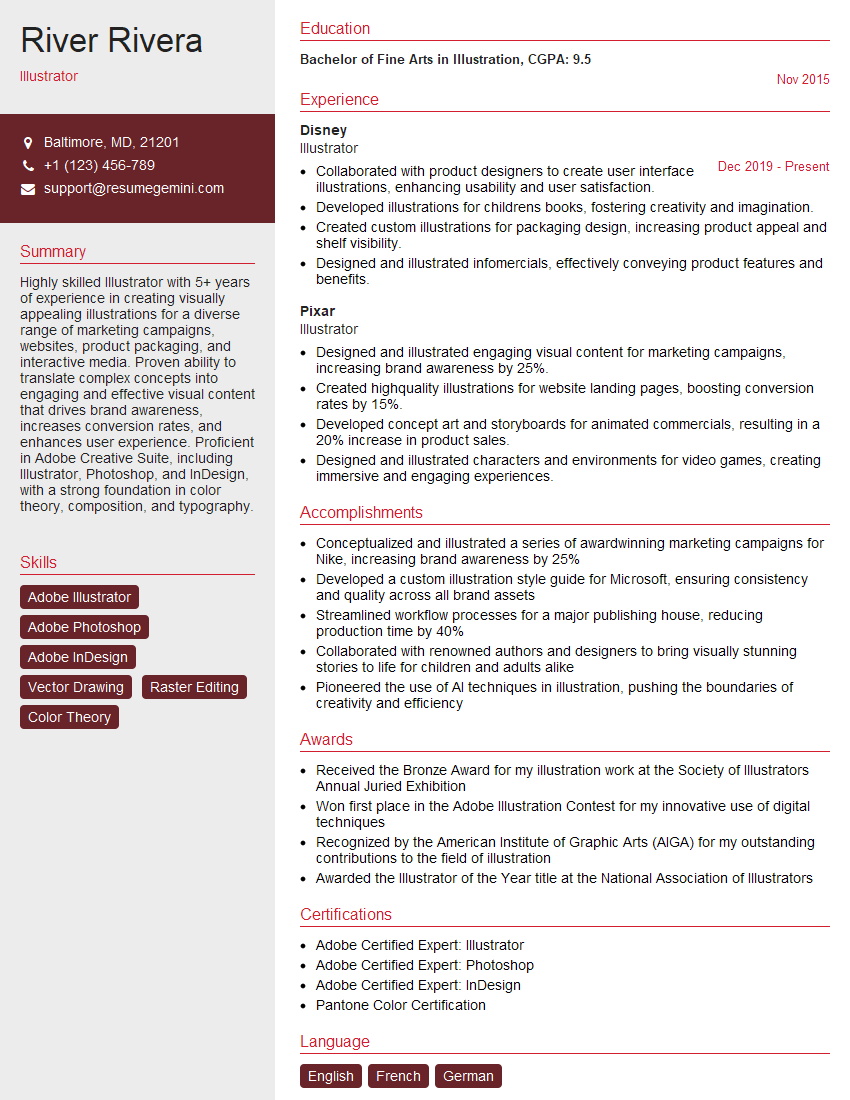
Illustrator Resume Sample

3D Modeler Resume Sample
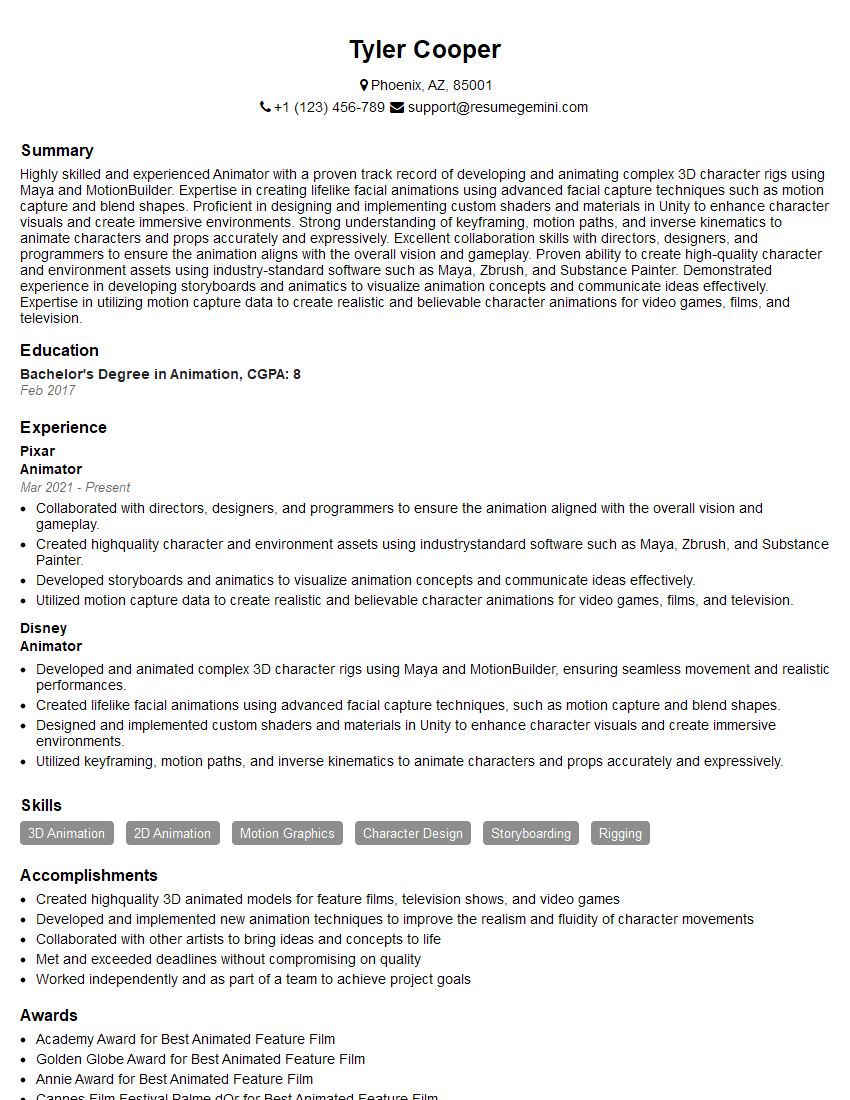
Animator Resume Sample
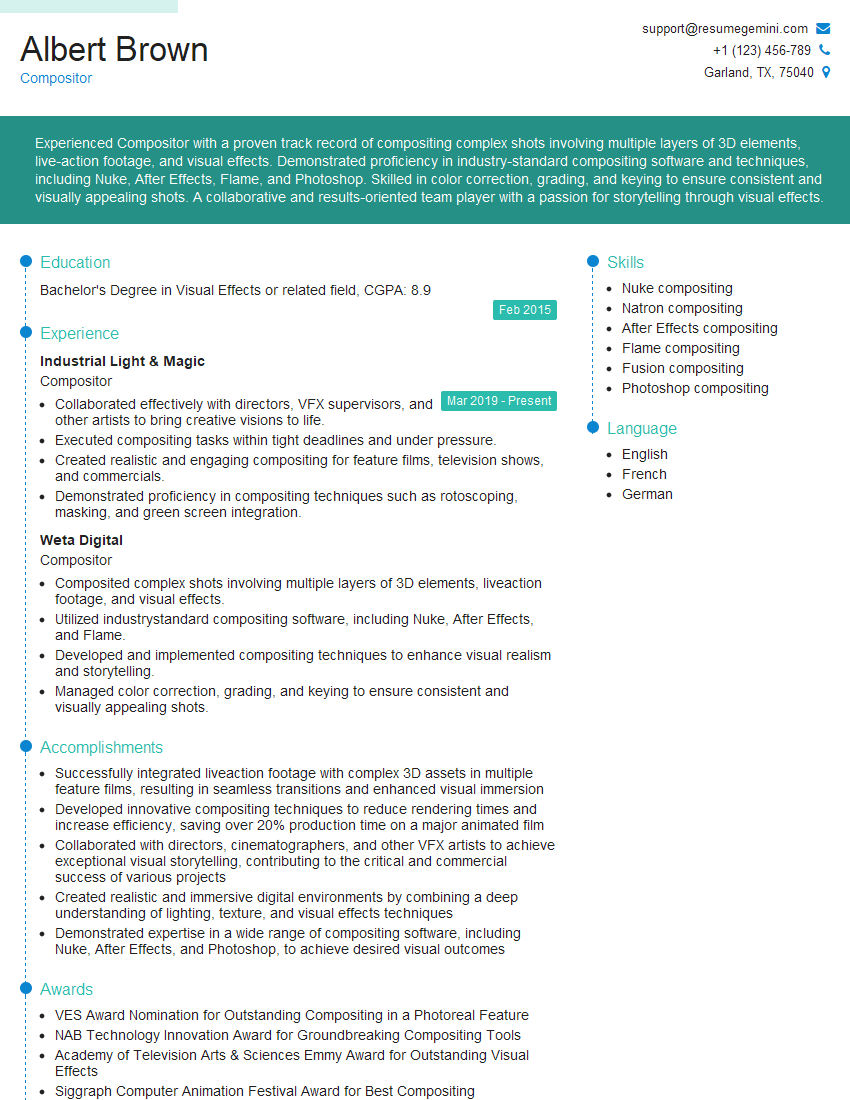
Compositor Resume Sample
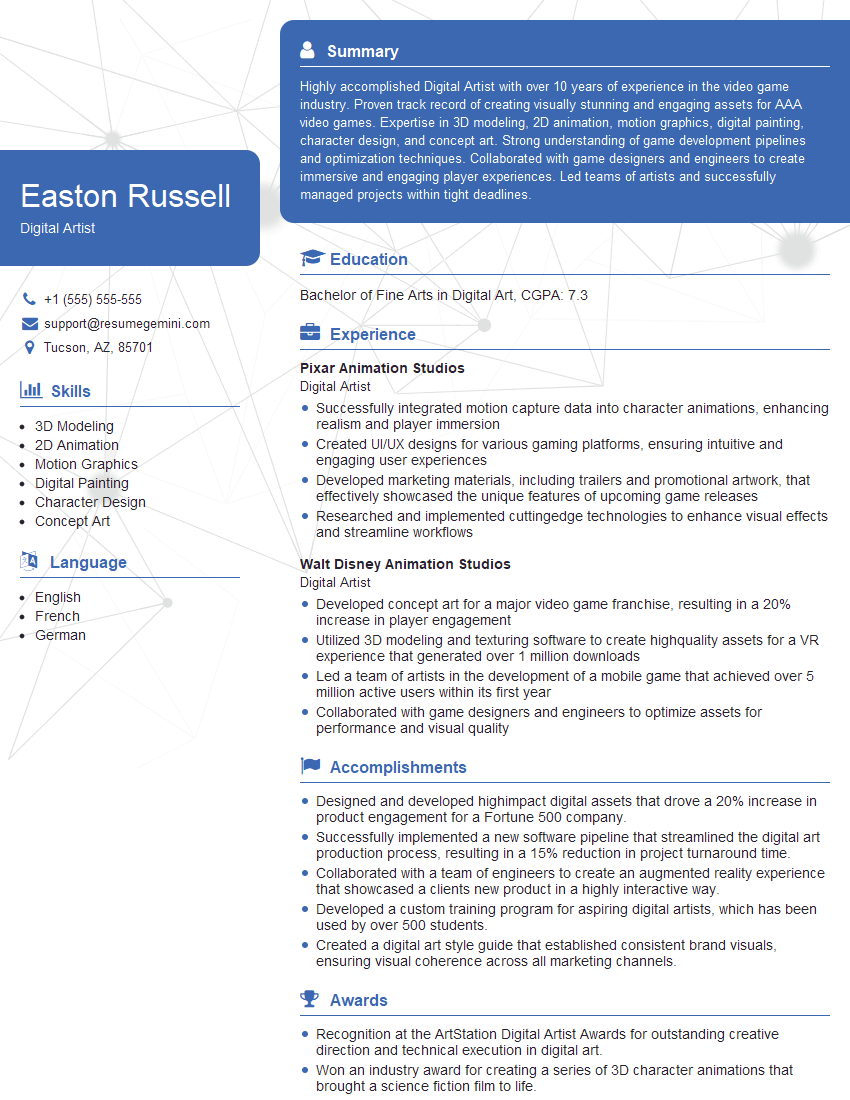
Digital Artist Resume Sample
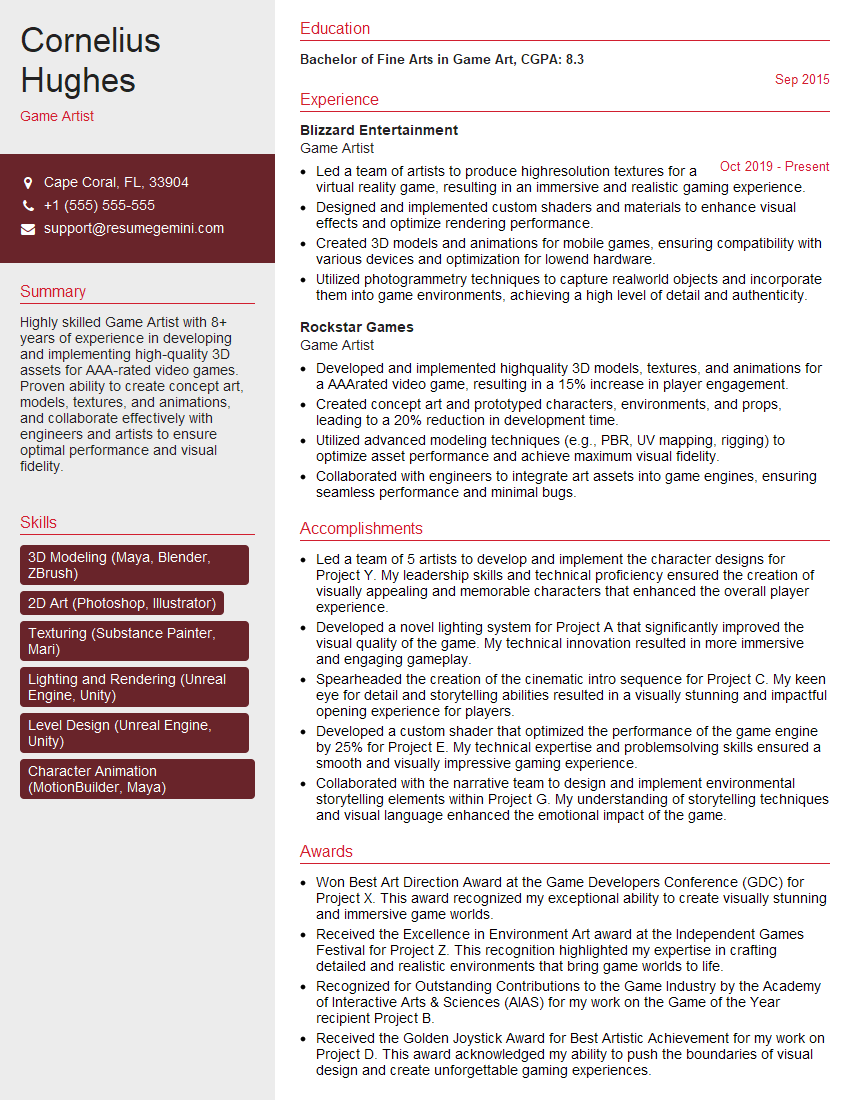
Game Artist Resume Sample

Graphic Designer Resume Sample
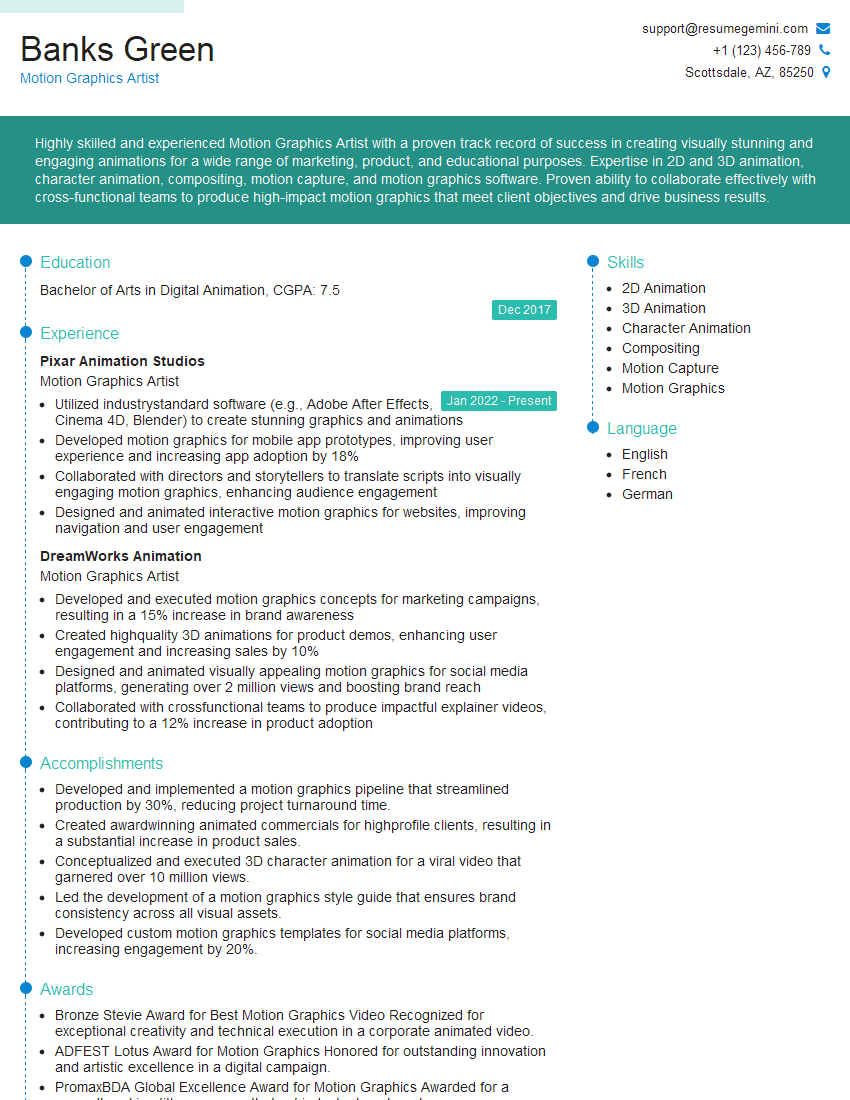
Motion Graphics Artist Resume Sample

Photo Editor Resume Sample
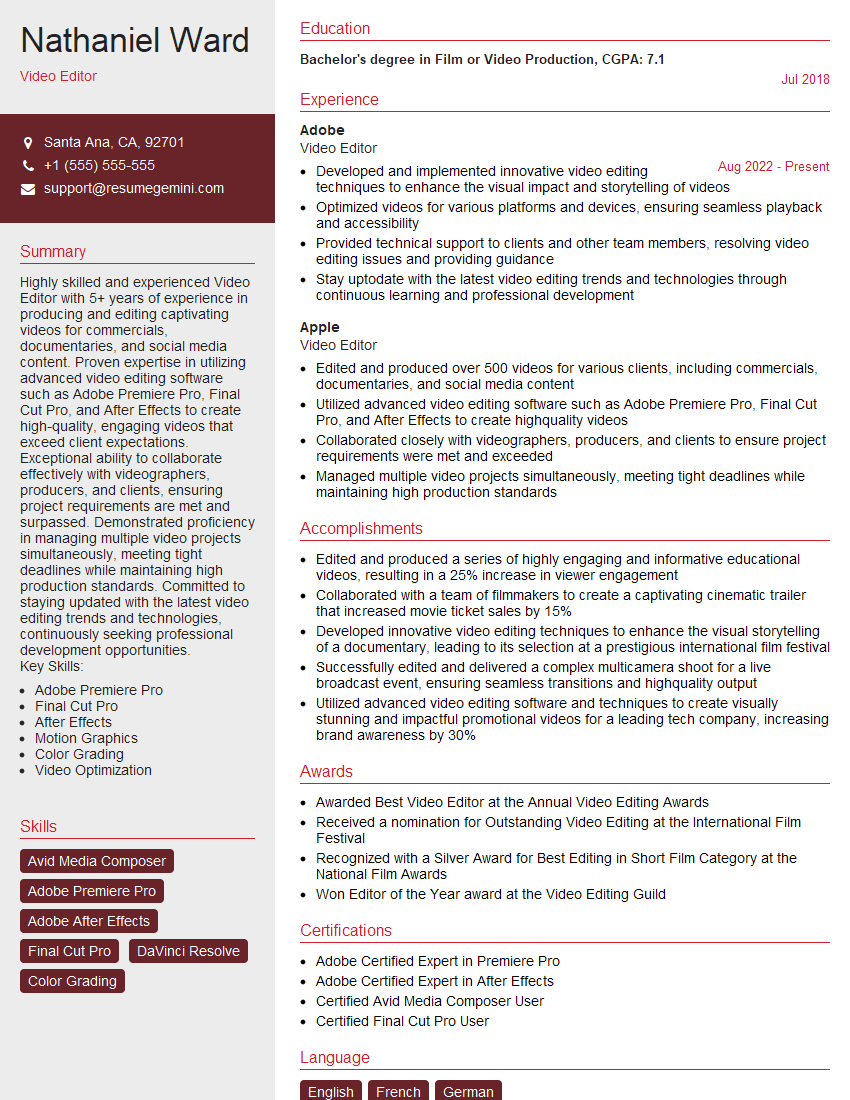
Video Editor Resume Sample
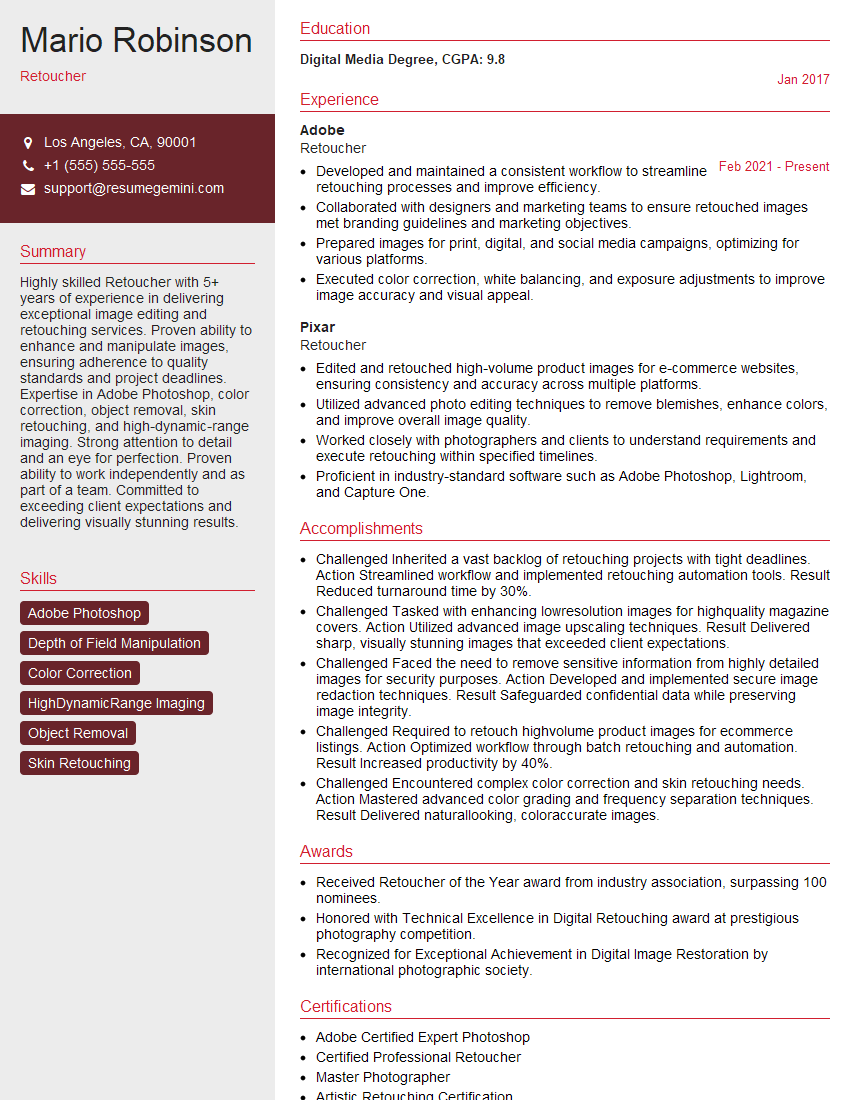
Retoucher Resume Sample
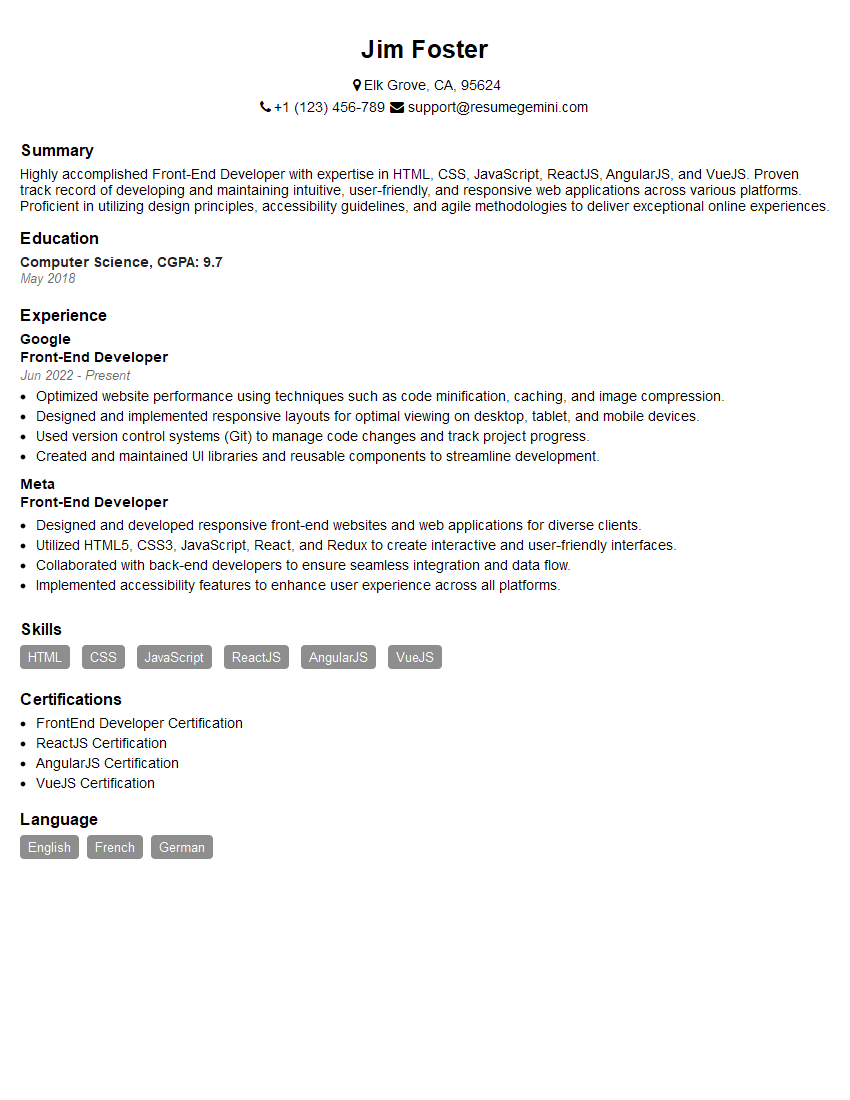
Front-End Developer Resume Sample
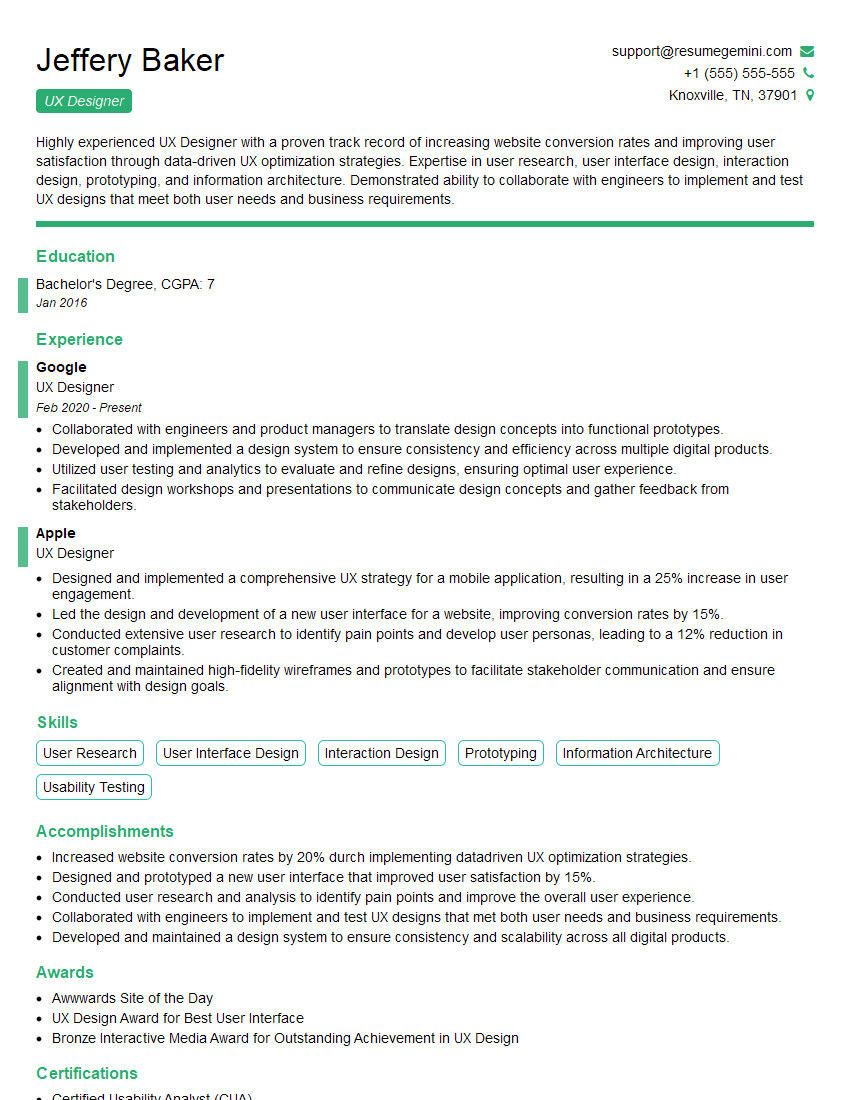
UX Designer Resume Sample
Explore more articles
Users Rating of Our Blogs
Share Your Experience
We value your feedback! Please rate our content and share your thoughts (optional).
What Readers Say About Our Blog
Really detailed insights and content, thank you for writing this detailed article.
IT gave me an insight and words to use and be able to think of examples