Interviews are more than just a Q&A session—they’re a chance to prove your worth. This blog dives into essential Macros interview questions and expert tips to help you align your answers with what hiring managers are looking for. Start preparing to shine!
Questions Asked in Macros Interview
Q 1. Explain the difference between a macro and a subroutine in VBA.
While both macros and subroutines automate tasks in VBA (Visual Basic for Applications), they differ significantly in their scope and application. A subroutine is a self-contained block of code designed to perform a specific task. It’s a modular building block that can be called from various points within your VBA code. Think of it like a well-defined function in any programming language. It can accept input arguments and return values. A macro, on the other hand, is often a broader concept encompassing one or more subroutines, combined with user interface elements like buttons or menu items, to create an automated workflow. In essence, a macro is a higher-level tool built using subroutines as its components. A simple analogy would be: a subroutine is like a single Lego brick, while a macro is a complex Lego structure built from many bricks.
Example: You might have a subroutine to calculate the average of a range of cells (Function CalculateAverage(dataRange As Range) As Double … End Function). A macro could then use this subroutine multiple times across different worksheets, perhaps with user prompts for input ranges before executing the subroutine.
Q 2. How do you handle errors in VBA macros?
Error handling is crucial for robust macros. VBA offers the On Error GoTo statement to manage exceptions gracefully. Instead of letting an error crash the entire macro, you can use this statement to direct execution to a specific error-handling section of your code. Within this section, you can investigate the error (using the Err.Number and Err.Description properties), log the error, take corrective actions, and potentially resume execution or exit cleanly. The On Error Resume Next statement, while seemingly simpler, is generally less preferred as it silently ignores errors, which can mask issues and lead to unexpected results.
Example:
Sub ExampleErrorHandling()
On Error GoTo ErrorHandler
Dim myFile As String
myFile = "C:\MyFile.txt"
Open myFile For Input As #1
 ' ... process file content ...
Close #1
Exit Sub
ErrorHandler:
MsgBox "Error: " & Err.Number & " - " & Err.Description
 ' ... log error, perform cleanup, etc ...
End Sub
Q 3. Describe your experience with different debugging techniques for macros.
Debugging VBA macros effectively relies on a multi-pronged approach. I frequently use the built-in VBA debugger, which allows stepping through code line-by-line (using F8), inspecting variable values (using the Watch window and Locals window), and setting breakpoints to pause execution at specific points. This is invaluable for tracking down logic errors. Beyond that, I also leverage:
MsgBoxstatements: strategically placedMsgBoxstatements can display variable values at various stages, aiding in pinpointing the source of a problem. It’s a quick and dirty way to check intermediate results.Debug.Printstatements: Similar toMsgBoxbut outputs to the Immediate Window, which is particularly helpful when dealing with large amounts of debugging information or when theMsgBoxstatements disrupt the flow too much.- Logging: For complex macros, logging errors and key events to a file provides a detailed audit trail that helps to diagnose intermittent or hard-to-reproduce issues.
- Rubber Duck Debugging: I’ll sometimes explain my code line-by-line to a rubber duck (or a colleague), helping me to identify subtle flaws in logic that I might have overlooked while working on it independently.
Q 4. What are the advantages and disadvantages of using macros?
Macros offer significant advantages, particularly in automating repetitive tasks and increasing efficiency. However, they also come with drawbacks that need careful consideration.
- Advantages:
- Automation: Eliminates manual steps, saving time and effort.
- Consistency: Ensures consistent application of procedures, reducing errors.
- Efficiency: Processes large volumes of data quickly and efficiently.
- Customization: Allows tailoring applications to specific needs.
- Disadvantages:
- Security Risks: Macros downloaded from untrusted sources can contain malicious code.
- Maintenance: Keeping macros up-to-date and functioning correctly as systems change can be challenging.
- Complexity: For complex tasks, macros can become difficult to understand and maintain.
- Platform Dependence: Macros are tied to the specific application (e.g., Microsoft Office) they’re written for.
Q 5. How do you optimize macro performance for large datasets?
Optimizing macro performance for large datasets requires focusing on several key areas. Simply recording actions and expecting speed isn’t enough; a good programmer analyzes the process and targets bottlenecks. Key strategies include:
- Efficient Data Handling: Avoid unnecessary looping and data manipulation. Utilize array processing techniques to operate on whole ranges of data at once rather than iterating cell-by-cell.
- Minimize Screen Updates: Turn off screen updating (
Application.ScreenUpdating = False) during processing to significantly improve speed. Remember to turn it back on at the end (Application.ScreenUpdating = True). - Error Handling: Efficient error handling prevents unexpected halts and provides smooth recovery mechanisms.
- Data Structures: If appropriate, use specialized data structures (like dictionaries or collections) that offer faster lookups than standard arrays.
- Code Optimization: Remove unnecessary code and use optimized algorithms. For instance, using worksheet functions where possible is often faster than looping through cells.
- Database Connections: When dealing with extremely large datasets, consider using database connections (e.g., ADO or DAO) to retrieve and manipulate data more efficiently than working directly within Excel.
For example, instead of looping through each cell to sum values, consider using the worksheet function SUM (e.g., mySum = WorksheetFunction.Sum(myRange)).
Q 6. Explain your experience with different macro recording methods.
I’ve experience with both the built-in macro recorder and manual coding approaches. The macro recorder is a great starting point for simple tasks, allowing you to visually record actions which it translates into VBA code. This can be a good foundation for understanding the basic syntax and functionality. However, recorded macros can be inefficient and may contain unnecessary code. They are also often not robust enough to handle unexpected situations. I generally use the recorder for quick and dirty prototypes or for initial inspiration, but subsequently refactor and optimize the code by hand for better performance, error handling and maintainability.
Manual coding, in my opinion, offers superior control, flexibility, and efficiency. Writing a macro from scratch enables you to implement efficient data structures, optimal algorithms, and comprehensive error handling, leading to robust and scalable solutions.
Q 7. How do you secure macros to prevent unauthorized access or modification?
Securing macros is critical to prevent unauthorized access, modification, or execution of malicious code. Key strategies include:
- Digital Signatures: Digitally signing your macros with a trusted certificate ensures that the code hasn’t been tampered with and verifies the author’s identity. This builds trust and helps users identify legitimate macros.
- Password Protection: Protecting your VBA project with a password prevents unauthorized modification of the macro’s code. Remember that this is not foolproof, as determined individuals can still bypass password protection.
- Code Obfuscation: This involves making the code difficult to understand by renaming variables, removing comments, and restructuring the code. This makes it harder for unauthorized individuals to reverse-engineer and modify the code, but it doesn’t provide complete security.
- Macro Security Settings: Users should configure their macro security settings appropriately, balancing security with functionality. This might involve disabling macros by default unless digitally signed.
- Sandboxing: Executing macros in a sandboxed environment (if available in the application) will help limit any potential damage caused by malicious code.
- Regular Auditing: Regularly review and update macros to address vulnerabilities and ensure ongoing security.
It’s important to understand that no single method provides absolute security. A layered approach combining multiple techniques offers the strongest protection.
Q 8. Describe your experience working with different VBA objects (e.g., Worksheets, Workbooks, Ranges).
VBA (Visual Basic for Applications) provides powerful tools to interact with Excel objects. My experience spans extensive manipulation of Workbooks, Worksheets, and Ranges. Think of a Workbook as the entire Excel file, a Worksheet as a single sheet within that file, and a Range as a specific selection of cells (e.g., a single cell, a row, a column, or a block of cells).
For example, I’ve frequently used code like this to work with multiple sheets:
Sub ProcessMultipleSheets()
  Dim wb As Workbook
  Dim ws As Worksheet
  Set wb = ThisWorkbook
  For Each ws In wb.Worksheets
    'Process each worksheet here, for example:
    ws.Cells(1, 1).Value = "Processed " & ws.Name
  Next ws
End Sub
This code iterates through each worksheet in the active workbook and adds text to cell A1 of each sheet. I’ve also extensively used Range objects for data manipulation, using methods like .Find to locate specific values, .Sort to organize data, and .Copy and .PasteSpecial for flexible data transfers between ranges or workbooks.
In a real-world scenario, I used this to automate monthly report generation. The macro iterated through different worksheets (each representing a department), extracted key performance indicators from specific ranges, and compiled them into a summary sheet within the same workbook, saving hours of manual data entry and reducing the risk of human error.
Q 9. How do you use loops and conditional statements effectively in macros?
Loops and conditional statements are the backbone of any robust macro. For...Next loops are ideal for iterating a set number of times, while Do While...Loop and Do Until...Loop loops are excellent for situations where the number of iterations isn’t known beforehand. Conditional statements like If...Then...Else allow for dynamic behavior based on specific criteria.
Imagine needing to process a column of data and only perform an action if the value is above a certain threshold. This is where conditional statements excel:
Sub ConditionalProcessing()
  Dim i As Long
  Dim threshold As Double
  threshold = 100
  For i = 1 To 10
    If Cells(i, 1).Value > threshold Then
      Cells(i, 2).Value = "Above Threshold"
    Else
      Cells(i, 2).Value = "Below Threshold"
    End If
  Next i
End Sub
Here, the macro checks each cell in column A and writes ‘Above Threshold’ or ‘Below Threshold’ in the corresponding cell in column B based on the value relative to the specified threshold. This simple example showcases the power of combining loops and conditional statements to automate complex data processing tasks.
Q 10. Explain your understanding of VBA data types and their limitations.
Understanding VBA data types is crucial for efficient and error-free macros. VBA offers various data types, including Integer, Long, Single, Double (for numbers), String (for text), Boolean (for true/false values), Date, and others. Each type has a specific memory allocation and range of values it can hold.
For instance, an Integer can only store whole numbers within a limited range, while a Long can accommodate larger whole numbers. Single and Double are used for floating-point numbers, with Double providing higher precision. Misunderstanding these limitations can lead to unexpected results, like overflow errors (when a number exceeds the maximum value for its data type) or data truncation (loss of precision).
I often encounter scenarios where choosing the right data type is paramount. When dealing with large datasets or calculations involving high precision, using Long or Double is crucial to avoid errors. For example, if you’re summing up a large number of sales figures, using Integer might lead to an overflow error if the total exceeds its capacity. Properly selecting data types is an essential part of writing robust, error-free macros.
Q 11. Describe your experience with array manipulation in VBA.
Array manipulation in VBA is a powerful technique for efficiently handling large amounts of data. VBA arrays can be either fixed-size (declared with a specific number of elements) or dynamic (their size can change during runtime). I often leverage arrays to process data more quickly than iterating cell by cell, particularly for large datasets.
For example, consider this code snippet:
Sub ArrayExample()
  Dim myArray(1 To 1000) As Integer
  Dim i As Long
  'Populate the array
  For i = 1 To 1000
    myArray(i) = i * 2
  Next i
  'Process the array (much faster than looping through cells)
  ' ...
End Sub
This code creates an array and populates it with even numbers. Processing this array in VBA is significantly faster than accessing and manipulating the data in individual cells within an Excel worksheet. I have used this extensively in scenarios such as processing large CSV files, performing complex calculations across many data points, and optimizing loops to reduce execution time.
In a real project involving the analysis of thousands of customer records, I used arrays to store and process customer data efficiently, significantly improving the performance of my macro compared to accessing individual spreadsheet cells.
Q 12. How do you handle user input and output in your macros?
Handling user input and output is crucial for creating interactive macros. VBA provides several methods for this. The most common is the InputBox function, which displays a dialog box prompting the user to enter data. Conversely, MsgBox displays a message to the user.
Sub UserInputOutput()
  Dim userName As String
  userName = InputBox("Please enter your name:", "Name Input")
  MsgBox "Hello, " & userName & "!", vbInformation
End Sub
This code prompts the user for their name using InputBox and displays a personalized greeting using MsgBox. For more complex user interaction, I often use userforms, which allow for creating customized dialog boxes with various input controls (text boxes, buttons, etc.). Userforms are ideal for situations requiring multiple input values or more sophisticated visual feedback.
In one project, I created a userform to allow users to specify report parameters (date ranges, filtering criteria) before generating a customized report. This significantly improved the usability and flexibility of the macro.
Q 13. How do you integrate macros with other applications or systems?
Integrating macros with other applications or systems often involves leveraging VBA’s ability to interact with the Windows operating system and other applications through automation objects. This allows for powerful workflows.
For instance, I’ve used VBA to automate tasks involving other Microsoft Office applications like Word and Outlook. Sending emails from Excel using Outlook is a common task:
Sub SendEmail()
  Dim OutApp As Object, OutMail As Object
  Set OutApp = CreateObject("Outlook.Application")
  Set OutMail = OutApp.CreateItem(0)
  With OutMail
    .To = "recipient@email.com"
    .Subject = "Email from Excel Macro"
    .Body = "This email was sent using a VBA macro." & vbCrLf & "Data from Excel:" & Range("A1").Value
    .Display ' or .Send
  End With
  Set OutMail = Nothing
  Set OutApp = Nothing
End Sub
This example demonstrates interacting with Outlook to automatically generate and send emails containing data from the Excel sheet. Similarly, interacting with other applications often involves understanding their respective object models and using VBA to manipulate those objects. The key is knowing the application’s object model to correctly interact with its features.
Q 14. Explain your experience with working with external files (e.g., text files, CSV files) in macros.
Working with external files like text files and CSV files is a common task in VBA. VBA provides functions for reading and writing to these file types. The FileSystemObject is particularly useful for handling file I/O operations.
For example, reading data from a CSV file:
Sub ReadCSV()
  Dim fso As Object, file As Object, txtLine As String
  Set fso = CreateObject("Scripting.FileSystemObject")
  Set file = fso.OpenTextFile("C:\mydata.csv", 1) '1 for ForReading
  Do Until file.AtEndOfStream
    txtLine = file.ReadLine
    'Process each line of the CSV
    Debug.Print txtLine
  Loop
  file.Close
  Set file = Nothing
  Set fso = Nothing
End Sub
This code opens a CSV file, reads it line by line, and prints each line to the immediate window. Similar techniques are used for writing to files. Error handling (checking if the file exists, handling potential read/write errors) is crucial when dealing with external files.
In a real-world project, I used VBA to automate the import of large datasets from CSV files, transforming and cleaning the data before importing it into an Excel database. This streamlined the data import process and reduced manual effort significantly.
Q 15. How do you use event procedures in macros?
Event procedures in macros, primarily within VBA (Visual Basic for Applications), are subroutines that automatically execute in response to specific events within the application. Think of them as little programs triggered by actions like opening a workbook, changing a cell value, or clicking a button. They allow you to automate tasks and add interactive elements to your macros.
For example, you might create an event procedure that automatically formats a worksheet whenever it’s opened. Or, you could write one that validates data entry as the user types, preventing errors before they happen.
- Worksheet_Change Event: This event triggers whenever a cell’s value changes. You can use it to perform calculations, update charts, or implement data validation.
Private Sub Worksheet_Change(ByVal Target As Range) ... End Sub - Workbook_Open Event: This event runs when a workbook is opened. You could use it to load data from an external source, display a welcome message, or set up default settings.
Private Sub Workbook_Open() ... End Sub - CommandButton_Click Event: This is triggered when a user clicks a button placed on a worksheet or form. It’s ideal for initiating complex macro operations based on user interaction.
Private Sub CommandButton1_Click() ... End Sub
These procedures are written within the VBA editor and are linked to specific objects (worksheets, workbooks, controls) within your Excel environment. They dramatically enhance the responsiveness and user experience of your macros, transforming them from simple scripts into interactive tools.
Career Expert Tips:
- Ace those interviews! Prepare effectively by reviewing the Top 50 Most Common Interview Questions on ResumeGemini.
- Navigate your job search with confidence! Explore a wide range of Career Tips on ResumeGemini. Learn about common challenges and recommendations to overcome them.
- Craft the perfect resume! Master the Art of Resume Writing with ResumeGemini’s guide. Showcase your unique qualifications and achievements effectively.
- Don’t miss out on holiday savings! Build your dream resume with ResumeGemini’s ATS optimized templates.
Q 16. Describe your experience with creating custom functions in VBA.
I have extensive experience creating custom functions in VBA, often to streamline repetitive tasks or add functionality not readily available in Excel’s built-in functions. This involves leveraging VBA’s capabilities to perform calculations, manipulate data, and interact with the Excel object model. I find it particularly useful for handling complex data transformations or creating reusable components within larger macro projects.
For instance, I once developed a custom function to automatically extract specific data from a lengthy text string based on predefined patterns. This function significantly reduced the time spent on manual data extraction and ensured consistency across multiple datasets. Another example includes creating a function that validates data entered into a specific range of cells, ensuring that only valid entries are accepted.
Function ExtractData(text As String, pattern As String) As String
  ' Code to extract data based on the pattern
  ' ...
End Function
In designing custom functions, I always prioritize clarity, efficiency, and error handling. I strive to make them as reusable and maintainable as possible, typically employing structured programming techniques and thorough commenting. Proper documentation is crucial for future use and collaboration.
Q 17. Explain your approach to designing and documenting macros.
My approach to designing and documenting macros is driven by the principles of modularity, readability, and maintainability. I begin by breaking down complex tasks into smaller, manageable modules. This not only simplifies the development process but also makes debugging and future modifications easier.
- Detailed Planning: Before writing any code, I create a detailed plan outlining the macro’s functionality, inputs, outputs, and potential error conditions. This includes creating flowcharts or pseudocode to visualize the logic.
- Modular Design: I favor modularity, dividing large macros into smaller, self-contained procedures or functions. Each module should have a clear, concise purpose.
- Meaningful Names: I use descriptive names for variables, procedures, and modules, making the code self-explanatory. Instead of
Sub Macro1(), I would useSub ProcessSalesData(). - Comprehensive Comments: I liberally use comments to explain the purpose of each code section, clarifying complex logic or algorithms.
- Version Control: Using version control (like Git) is crucial for tracking changes, collaborating with others, and easily reverting to earlier versions if necessary.
My documentation goes beyond in-code comments; I also create external documentation that describes the macro’s overall purpose, usage instructions, input parameters, and any dependencies. This ensures that others (or even my future self!) can understand and maintain the macro easily.
Q 18. How do you ensure the maintainability and scalability of your macros?
Ensuring maintainability and scalability of macros involves strategic design choices throughout the development process. Think of it like building a house – a well-planned foundation is crucial for future expansions.
- Modular Design: As mentioned before, breaking down the macro into independent modules allows for easier modification and extension without affecting other parts. If one module needs an update, it’s isolated, preventing ripple effects.
- Error Handling: Implementing robust error handling (
On Error Resume Next,On Error GoTo) is critical. Macros should gracefully handle unexpected errors instead of crashing, providing informative error messages to the user. - Parameterization: Using parameters in procedures and functions increases flexibility. Instead of hardcoding values, pass them as arguments. This lets you easily adapt the macro to different scenarios without rewriting code.
- Consistent Coding Style: Following a consistent coding style (indentation, naming conventions, etc.) improves readability and makes collaboration easier.
- Avoid Hardcoding Paths: Dynamically determine file paths and other settings instead of hardcoding them. This makes the macro more portable and adaptable to different environments.
Scalability is about the macro’s ability to handle larger datasets or increased complexity without significant performance degradation. This often requires optimizing algorithms, using efficient data structures, and possibly exploring techniques like multi-threading for performance-critical sections.
Q 19. Describe your experience with version control for macro projects.
Version control is indispensable for any macro project of significant size or complexity. I typically use Git, a distributed version control system, to track changes, manage different versions of the macro, and collaborate with others if needed. Think of it as a detailed history of your macro’s evolution, allowing you to revert to earlier versions if something breaks or to compare changes over time.
Using a Git repository (like GitHub, GitLab, or Bitbucket) allows for:
- Tracking Changes: Every modification is recorded, enabling you to see what changes were made, when, and by whom.
- Branching and Merging: This allows for parallel development, testing new features without affecting the main codebase. Branches can be merged back into the main code once tested.
- Collaboration: Multiple developers can work on the same macro project simultaneously, merging their changes seamlessly.
- Rollback: Easily revert to previous versions if a change introduces bugs or unexpected behavior.
Incorporating version control from the beginning is a best practice that greatly improves the manageability and collaboration around macro projects, reducing risks associated with large-scale changes or accidental overwrites.
Q 20. How do you test and debug complex macros?
Testing and debugging complex macros require a systematic approach. It’s not just about running the macro and hoping it works; it’s about proactively identifying and fixing potential issues. My approach involves a combination of techniques:
- Unit Testing: Testing individual modules or functions independently to ensure they perform as expected before integrating them into the larger macro. This isolates problems and makes debugging easier.
- Integration Testing: Testing the interaction between different modules to ensure they work together correctly.
- System Testing: Testing the entire macro with realistic datasets and scenarios to identify any unexpected behavior or edge cases.
- VBA Debugger: The built-in VBA debugger is invaluable for stepping through code line by line, examining variable values, and identifying the source of errors. Breakpoints, watches, and stepping through code helps pinpoint the exact location of problems.
- Logging: Adding logging statements (
Debug.Print) to write information to the Immediate Window helps track the execution flow and variable values during runtime. This is especially helpful for debugging complex logic or asynchronous operations. - Error Handling: Well-structured error handling not only prevents crashes but also provides valuable information about the nature and location of errors.
I typically follow a test-driven development approach, writing tests before implementing functionality. This ensures that the code meets specific requirements and helps detect problems early in the development cycle.
Q 21. Explain your experience with using the VBA object model.
My experience with the VBA object model is extensive. I understand and regularly use it to interact with various aspects of the Microsoft Office applications, particularly Excel. The object model provides a structured way to access and manipulate objects like workbooks, worksheets, ranges, charts, and other elements within the application. It’s the key to automating tasks beyond simple cell manipulations.
For instance, I’ve used the object model to:
- Automate report generation: Programmatically create and format reports, including charts and tables, extracting data from multiple sources.
- Manipulate worksheet properties: Change sheet names, protect worksheets, hide columns, or adjust page setup parameters.
- Interact with charts: Dynamically update chart data, modify chart styles, and add or remove chart elements.
- Control user interfaces: Create custom dialog boxes or forms to improve user interaction with the macro.
- Access and modify external data sources: Connect to databases or other applications to retrieve and update data.
Understanding the VBA object model is fundamental for developing powerful and flexible macros. It allows for automating tasks that are far beyond the capabilities of simple recording or basic scripting. Knowing the hierarchy of objects and their properties and methods is crucial for effective macro development.
Q 22. How familiar are you with different error-handling techniques in VBA?
VBA offers several robust error-handling techniques crucial for building reliable macros. The cornerstone is the On Error GoTo statement. This allows you to gracefully handle runtime errors by redirecting execution to a specific error-handling routine. Think of it as a detour on a highway – when you hit a roadblock (error), you take an alternate route (error handler) to avoid a complete shutdown.
For example:
On Error GoTo ErrorHandler
' ... your code ...
Exit Sub
ErrorHandler:
MsgBox "An error occurred: " & Err.Number & " - " & Err.Description
Resume Next 'or Resume 'or Exit Sub depending on your needs
On Error Resume Next is another option, but it’s generally less preferred because it silently ignores errors. Use this sparingly and only when you are certain you can safely ignore the error. This is like ignoring the roadblock and hoping for the best – it might work, but you risk a serious accident (data corruption, application crash). Finally, structured exception handling, using Try...Catch...Finally blocks (available in later VBA versions), provides more elegant and readable error management. The Try block contains the code that might generate errors, Catch handles specific errors, and Finally executes regardless of whether an error occurred. This provides a clearer separation of error handling from the main logic.
On Error GoTo: Classic approach; good for simple scenarios. Requires careful planning of error labels.On Error Resume Next: Use with extreme caution; hides errors, making debugging difficult.Try...Catch...Finally: Modern, structured approach; promotes clean, readable code. Ideal for complex scenarios.
Q 23. Describe your experience with working with API’s within macros.
My experience with APIs in macros centers around leveraging external data sources and functionalities. I’ve extensively used VBA to interact with web services via HTTP requests, retrieving data in JSON or XML formats. This allows macros to automate tasks involving data from various platforms – imagine automatically updating a spreadsheet with live stock prices from a financial API or pulling customer data from a CRM system.
For instance, I used VBA and the MSXML2.XMLHTTP object to connect to a weather API, fetching real-time weather data and displaying it within an Excel sheet. This involved forming the API request URL, sending the request, parsing the JSON response, and then elegantly populating the relevant cells in the worksheet. The process requires careful consideration of error handling, especially network connectivity issues. The same principles apply to other APIs, although the specific request formats and data parsing techniques may differ.
Dim http As Object
Set http = CreateObject("MSXML2.XMLHTTP")
http.Open "GET", "your_api_url", False
http.send
If http.Status = 200 Then
    ' Process successful response
Else
    ' Handle error
End If
Q 24. How do you optimize macros for memory management?
Optimizing macros for memory management is crucial, especially when dealing with large datasets. Poor memory management can lead to slowdowns, crashes, or even system instability. Several techniques help improve memory usage:
- Early object release: Explicitly release object variables using
Set objectVariable = Nothing. This frees up memory occupied by the object. Think of it like putting away your tools when you’re finished with a job – it prevents clutter. - Avoid unnecessary data storage: Process data in smaller chunks instead of loading everything at once into memory. This is particularly important when working with large spreadsheets or databases. Think of eating a large meal in several smaller servings rather than trying to eat everything at once.
- Efficient data structures: Choosing appropriate data structures like arrays instead of collections can reduce memory consumption. Arrays are generally more memory-efficient than collections for numerical data.
- Data type optimization: Using smaller data types (e.g.,
Integerinstead ofLong, where appropriate) reduces memory usage. Choose the smallest data type sufficient for your needs. - Minimize variable scope: Declare variables within the smallest possible scope (e.g., within a specific procedure instead of globally) to prevent unnecessary memory allocation.
By consistently applying these practices, we can ensure the macro runs efficiently without hogging system resources.
Q 25. What are some best practices for writing efficient and readable VBA code?
Writing efficient and readable VBA code is paramount for maintainability and collaboration. Here are some best practices:
- Meaningful variable names: Use descriptive names (e.g.,
customerNameinstead ofcn) to make the code self-documenting. - Proper indentation and formatting: Consistent indentation makes the code structure easy to follow. Use a consistent formatting style throughout your code.
- Comments and documentation: Explain complex logic or non-obvious code sections using clear comments. Add a brief description at the beginning of each module and procedure.
- Modular design: Break down complex tasks into smaller, well-defined procedures or functions. This improves code organization and reusability.
- Error handling: Incorporate robust error-handling mechanisms to prevent unexpected crashes.
- Code review: Have someone else review your code; a fresh pair of eyes can spot mistakes and suggest improvements.
- Version control: Use a version control system (like Git) to track changes to your code and collaborate more effectively.
By adhering to these guidelines, you produce code that is not only efficient in execution but also simple to understand, maintain, and debug.
Q 26. Explain your experience with using classes and objects in VBA.
I have extensive experience using classes and objects in VBA to create reusable components and improve code organization. Classes encapsulate data (properties) and methods (functions) that operate on that data. This promotes a more object-oriented approach, making code cleaner and easier to maintain.
For example, I developed a class named ‘Customer‘ with properties like CustomerID, Name, Address, and methods for adding, updating, and retrieving customer data. This class was then used throughout my VBA project, reducing code redundancy and promoting code reusability. This modular approach makes it easier to update or expand the customer management features without affecting other parts of the application.
'Class Module: Customer
Public CustomerID As Long
Public Name As String
Public Address As String
'... other properties and methods ...
Using classes facilitates the creation of well-structured, maintainable, and scalable VBA applications, especially useful for larger projects.
Q 27. How do you handle unexpected errors or exceptions during macro execution?
Unexpected errors or exceptions require a multi-faceted approach. First, I use robust error handling techniques such as those mentioned earlier (On Error GoTo or Try...Catch...Finally). The error handler should log the error details (error number, description, time, relevant data) to a log file or designated area. This aids in debugging and analysis. Ideally, the handler should gracefully recover from the error, attempt a retry (if applicable), or notify the user with informative messages.
For instance, if a network connection is interrupted during an API call, the error handler would log the error, display a user-friendly message indicating the problem, and possibly provide an option to retry the operation after the connection is restored. A simple MsgBox is not always sufficient; providing structured logging is crucial for larger applications.
Beyond runtime error handling, I also perform comprehensive testing (unit testing where feasible) to identify and resolve potential issues before deployment. Preventive measures like thorough input validation can also significantly reduce the likelihood of unexpected errors.
Q 28. Describe a challenging macro project you worked on and how you overcame the obstacles.
One challenging project involved automating the reconciliation of financial data across multiple disparate systems. The data formats were inconsistent, and the systems lacked a standardized API. The initial approach involved a series of complex VLookup and Match functions within Excel, but this became incredibly slow and prone to errors for large datasets (over 100,000 rows).
To overcome this, I redesigned the solution using a combination of techniques: I created custom classes to represent the data structures from each system, enabling cleaner data manipulation. I then implemented a more efficient algorithm leveraging arrays and optimized data structures. Instead of relying on Excel’s built-in functions, I wrote custom functions for data comparison and reconciliation. This significantly improved performance and accuracy.
Finally, I introduced thorough error handling and logging to track and diagnose any discrepancies. This multi-pronged approach—using object-oriented programming, algorithmic optimization, and robust error handling—transformed the macro from a slow, unreliable tool into a robust and efficient solution, reducing processing time by over 80%.
Key Topics to Learn for Macros Interview
- Macro Definition and Purpose: Understand the fundamental concept of macros, their role in automating tasks, and their benefits in various applications.
- Macro Recording and Playback: Learn the practical steps involved in recording and playing back macros, including handling different input methods and error scenarios.
- Macro Editing and Customization: Master the art of editing and customizing recorded macros to refine their functionality and adapt them to specific needs. This includes understanding macro languages and syntax.
- Conditional Logic in Macros: Explore how to incorporate conditional statements (if-then-else) and loops (for, while) to create dynamic and flexible macros capable of handling varied inputs and situations.
- Debugging and Troubleshooting Macros: Learn techniques for identifying and resolving errors in macros, including using debugging tools and understanding common macro errors.
- Security Considerations for Macros: Understand potential security risks associated with macros and best practices for developing and deploying secure macros. This includes understanding macro sandboxing and security policies.
- Specific Macro Applications (e.g., Excel VBA, Word VBA): Focus on the practical application of macros within your chosen software environment. This includes understanding the specific macro language and its capabilities.
- Advanced Macro Techniques (e.g., API Integration, Data Extraction): Explore more advanced techniques like integrating macros with external APIs or extracting data from various sources.
Next Steps
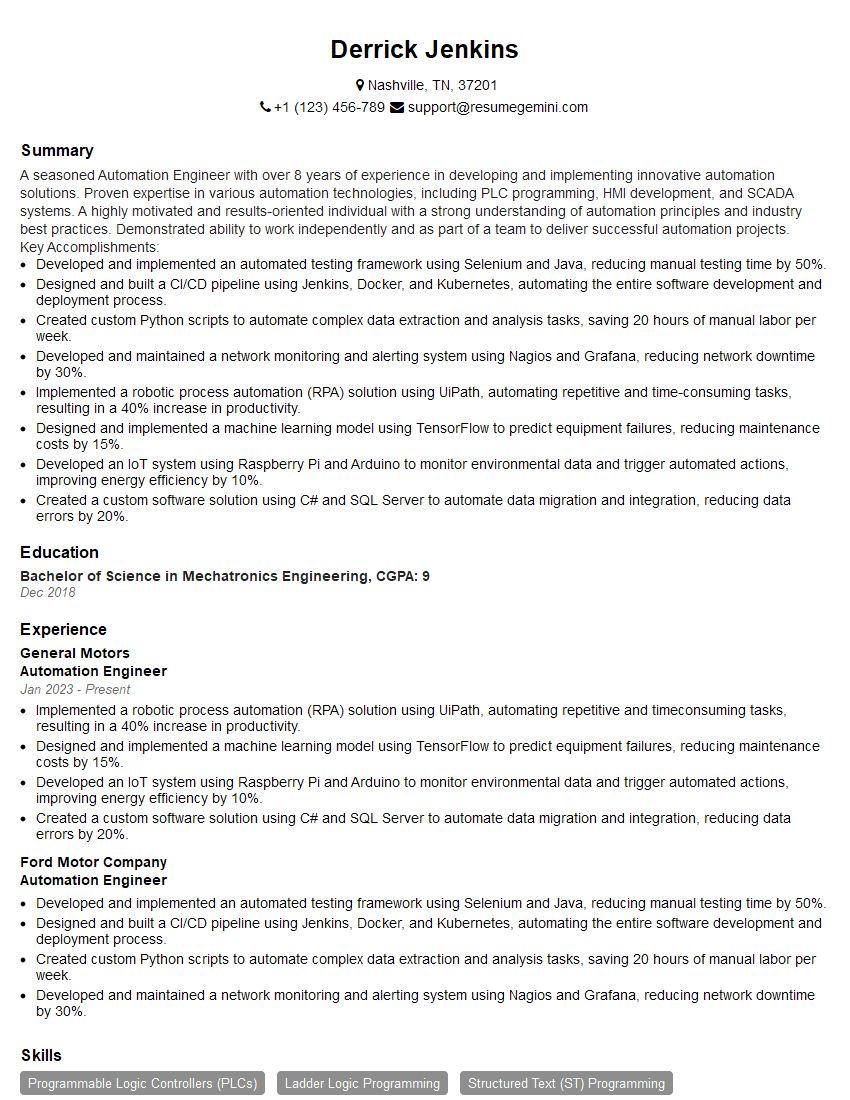
Mastering macros significantly enhances your productivity and problem-solving skills, making you a highly valuable asset in today’s competitive job market. To maximize your chances of landing your dream role, it’s crucial to present your skills effectively. An ATS-friendly resume is key to getting your application noticed. We highly recommend using ResumeGemini to craft a professional and impactful resume that highlights your macro expertise. ResumeGemini provides you with the tools and resources to build a compelling resume, and examples of resumes tailored to Macros are available for your reference.
Explore more articles
Users Rating of Our Blogs
Share Your Experience
We value your feedback! Please rate our content and share your thoughts (optional).
What Readers Say About Our Blog
Really detailed insights and content, thank you for writing this detailed article.
IT gave me an insight and words to use and be able to think of examples