The thought of an interview can be nerve-wracking, but the right preparation can make all the difference. Explore this comprehensive guide to Manga Studio interview questions and gain the confidence you need to showcase your abilities and secure the role.
Questions Asked in Manga Studio Interview
Q 1. Explain the difference between raster and vector graphics in Manga Studio.
In Manga Studio (now CLIP STUDIO PAINT), understanding the difference between raster and vector graphics is crucial for efficient workflow. Raster graphics are made up of pixels; think of a digital photograph. When you zoom in, you’ll see the individual pixels, and enlarging them often results in a blurry or pixelated image. Vector graphics, on the other hand, are made up of mathematical equations defining lines and curves. This means they can be scaled to any size without losing quality – think of the crisp lines in a logo.
In Manga Studio, you’ll primarily use raster graphics for the detailed artwork and textures in your manga pages. The inking, shading, and coloring are almost always raster-based. Vector graphics are less common, but useful for creating clean lines for backgrounds or elements that need to be scaled repeatedly without losing resolution. For example, you might use vector lines to create a repeating pattern that you scale across a large background.
Q 2. Describe your workflow for creating a manga page in Manga Studio, from sketch to final product.
My workflow in Manga Studio typically follows these steps:
- Sketching: I begin with rough sketches on a low-resolution layer, focusing on composition, character poses, and overall panel layout. I use a light grey pencil brush for this stage.
- Line Art: Once satisfied with the sketch, I create a new layer above and refine the lines using a pen brush. I zoom in and meticulously clean up the lines for a polished look. For finer details I often use a smaller pen.
- Inking: With the line art complete, I might add another layer to add darker, thicker lines for emphasis or to add textural effects.
- Flat Colors: Next, I create a new layer below my line art and use the fill tool with the bucket function to apply flat base colors. This keeps the colors separated from the line art and makes future modifications easier.
- Shading and Highlights: On separate layers, I use airbrushes and other brushes to add shading and highlights, building dimension and depth. I often use clipping masks to ensure the shading stays within the lines of the character or object.
- Backgrounds: I work on backgrounds separately, often on their own layers or layer folders to isolate them from the characters and keep my work organised.
- Effects: Finally, I add special effects like light glows or screentones on their own layers for more control and ease of adjustments.
- Final Touches: Once all elements are in place, I perform final color corrections and adjustments before exporting my work.
Q 3. How do you use layers effectively in Manga Studio to manage complexity?
Layers are the backbone of any efficient Manga Studio workflow. They allow you to manage complexity by isolating elements. Think of them as transparent sheets stacked on top of each other. I use layers extensively for various purposes:
- Line art: One layer for line art keeps it separate from other elements, making it easier to modify or adjust without affecting the colors.
- Color Layers: Separate layers for flat colors, shading, highlights, and backgrounds allow me to easily adjust the colors independently. I might even have a separate layer for each character.
- Effects Layers: Special effects like glows, lens flares, or particle effects are added on their own layers, enabling me to tweak their intensity and blending modes without affecting the base artwork.
- Clipping Masks: These ensure that shading or textures are contained within the boundaries of a specific element, preventing bleed-over and saving time.
- Layer Folders: For larger projects, grouping related layers into folders provides excellent organization. This greatly simplifies the process of adjusting settings for related parts of the artwork.
By using layers strategically, I can adjust and refine any aspect of the artwork without disrupting other parts of the drawing. It’s a non-destructive workflow that allows for immense flexibility.
Q 4. What are your preferred brushes and tools in Manga Studio, and why?
My preferred brushes and tools change depending on the task, but some favorites include:
- Pen brushes: These are my go-to for line art, offering smooth and consistent lines. I often experiment with different pen tip shapes and sizes to achieve varied line weights and textures.
- Airbrushes: For shading and adding soft transitions, airbrushes are essential. I adjust the opacity and flow to control the intensity of the color.
- Mapping Pen: This specialized tool is excellent for creating textured lines, allowing for a variety of artistic styles.
- Eraser brushes: I use different eraser shapes, such as a soft eraser to create a gradient, and a hard eraser for quick erasing.
- Selection tools: Lasso, and Magic Wand, especially for selecting large areas quickly and efficiently.
The key is to understand the nuances of each brush and how it responds to pressure sensitivity, opacity, and flow. Experimentation is crucial to finding your perfect combination.
Q 5. How do you handle color correction and adjustments in Manga Studio?
Manga Studio provides powerful color correction tools. My process typically involves:
- Layer Adjustments: Using adjustment layers (like Hue/Saturation, Brightness/Contrast, Levels) allows me to globally adjust the colors without affecting the original pixel data. This is non-destructive and enables flexibility.
- Color Balance: I use the Color Balance tool to fine-tune the overall color temperature and tone.
- Curves: For precise control over color channels, I utilize curves adjustments to target specific areas of the color spectrum.
- Tone Curves: A vital tool for creating more sophisticated effects. This offers control over shades of gray.
- Gradients and Overlays: I sometimes add gradient overlays or color overlays on layers for special effects, or to give more emphasis to certain areas.
I usually start with global adjustments and then move to more localized fine-tuning using layer masks or selection tools to restrict changes to certain areas only. This preserves the integrity and detail of the drawing.
Q 6. Explain your experience using perspective rulers and guides in Manga Studio.
Perspective rulers and guides are invaluable for creating believable environments and consistent perspectives in manga. Manga Studio offers customizable perspective rulers which I use frequently for both backgrounds and character placement.
I find them especially helpful for establishing vanishing points and creating accurate proportions within panels. Using perspective guides adds a professional polish, enhancing the visual appeal and realism of my artwork. I’ll often create multiple sets of vanishing points to create intricate environments. This ensures that all elements within a scene maintain a consistent perspective.
Guides, aside from perspective ones, are used for many aspects of layout design. I use them to evenly space panels, align text, or create consistent margins. The ability to adjust and re-arrange guides is very useful when fine-tuning the positioning and composition of different elements.
Q 7. Describe your process for creating and managing different panels within a manga page.
Managing panels in Manga Studio involves careful planning and organization. I usually start by sketching the layout using light pencil lines, deciding on the number and size of panels for the page. This often involves using rulers and guides to ensure consistent sizing and spacing.
I then create separate layers or layer folders for each panel to keep elements organized and isolated. This modular approach simplifies the workflow. When changes are needed, I can easily modify a panel without affecting others. For instance, I can easily adjust the perspective, shadows or colour for a single panel without impacting the others.
Once all panels have the line art, colouring, and effects added, I can add speech balloons and text to each panel individually, keeping them on separate layers. This helps avoid accidentally overwriting or repositioning things. Using layer folders allows for grouping and easy management of all elements of a single panel, providing efficient organization and workflow.
Q 8. How do you utilize the 3D models within Manga Studio?
Manga Studio’s 3D models are incredibly useful for posing and perspective reference. Think of them as sophisticated mannequins you can manipulate to get the exact angle and body position you need for your character. You don’t directly paint *on* the 3D model; instead, you use it as a guide to trace or project elements onto your 2D canvas.
To utilize them, you import a 3D model (usually in .OBJ format) into Manga Studio. Then, you can rotate, scale, and pose it using the intuitive controls. You can adjust the lighting to see how shadows fall on your character, which helps immensely with accurately portraying depth and form. The most common use is to project a line art sketch directly from the 3D model, making it far easier to achieve dynamic poses, especially for complex character designs. After projection, you can refine the lines as needed.
For example, I once used a 3D model of a samurai to quickly get the correct perspective and proportions for a dramatic action sequence. I posed the model mid-swing and projected the outline onto my canvas. Then, I personalized it, adjusting lines and adding details to fit my artistic style.
Q 9. How do you create and utilize custom brushes in Manga Studio?
Creating custom brushes is where Manga Studio truly shines, allowing you to tailor your tools to your unique style. It’s like having a personal toolbox of artistic instruments. You start by selecting the “Brush” tool and choosing “Create New Brush.” There are several brush types available, like pen, pencil, airbrush etc. each with adjustable parameters.
You can then customize various aspects. The “Shape” tab allows you to define the brush’s tip shape; you can even import custom shapes. The “Dynamics” tab is crucial; here, you control parameters such as opacity, size, and angle variation based on pen pressure. This adds dynamic variation to your strokes, giving them a more organic feel. Finally, the “Texture” tab lets you add texture to your brush. You can create brushes with rough paper textures, or even design your own textures from imported images.
For instance, I created a brush that mimics the texture of charcoal for sketching initial character concepts, and a separate brush with a fine pen tip for detailed inking. The possibilities are endless, and the ability to fine-tune them is what makes custom brush creation so powerful in this software.
Q 10. Explain your experience with the various selection tools in Manga Studio.
Manga Studio offers a range of selection tools, each with its strengths. The most frequently used are the Lasso, Marquee, and Magic Wand tools. The Lasso tool allows for freehand selections, perfect for selecting irregular shapes like character hair or complex backgrounds. The Marquee tool offers precise rectangular or elliptical selections, useful for selecting uniform areas. The Magic Wand selects areas of similar color, which is very time-saving for quickly selecting large, uniform areas of color in backgrounds or clothing.
Additionally, the Polygonal Lasso provides the precision of selecting multiple points for perfectly straight lines, often preferred for selecting geometric elements in an image. The combination of these tools allows for highly flexible and efficient image editing. For example, I often use the Magic Wand to select a character’s background, allowing me to add separate effects or change its color without affecting the character. Then, I might use the Lasso to fine-tune the selection around the character’s hair to prevent any unwanted effects.
Q 11. How do you manage and organize your files within Manga Studio?
File management is critical for any large project. In Manga Studio, I utilize a hierarchical folder structure, separating my work into project folders. Each project folder contains subfolders for line art, coloring, backgrounds, and so on. This allows for easy access and prevents clutter.
I also utilize Manga Studio’s layer management effectively. Layers are categorized to represent different aspects of the artwork (like line art, base colors, shading, etc). Using Layer Folders helps group related layers together, maintaining a well-organized layered structure. This layered approach is especially important during edits, enabling me to selectively work on different elements of the illustration without affecting others. Naming each layer descriptively is equally critical, making it easier to locate specific elements later.
Q 12. Describe your methods for creating line art and inking in Manga Studio.
Line art and inking are the foundation of a Manga style illustration. My process usually starts with rough sketches to establish the composition and pose. I then create a new layer for the line art, using a fine-tipped pen brush. I focus on smooth, clean lines and confident strokes; using pen pressure sensitivity to create varying line weights. This adds a dynamic feel to the illustration. I use the eraser tool sparingly to keep the strokes clean and confident.
After creating the line art, I often add details to the linework and refine it as needed. For inking, I may experiment with different brush textures, changing the opacity slightly to achieve a range of line weights and textures to convey depth and personality. I use multiple layers for different line-weights and line styles—for example, one layer for main outlines, another for details such as clothing folds, and yet another for hair details. This layered approach allows for non-destructive editing and the correction of errors without damaging the initial artwork.
Q 13. How do you achieve different texturing effects in Manga Studio?
Achieving varied texturing effects in Manga Studio relies on a combination of brushes, layers, and blending modes. For example, to create a rough, cloth texture, I’d use a custom brush with a textured tip. I then adjust the brush’s opacity and flow to create variations in color and density, mimicking the irregularities of fabric. I may also use the smudge tool or blending modes like “Multiply” or “Overlay” to further enhance the texture.
For creating wood grain, I might use a brush with a more linear stroke and then add irregular shading to give the illusion of wood grain. Using the Gradient tool is beneficial for creating subtle gradients or color shifts to suggest depth in texture. The combination of these methods allows me to create a wide range of textures, giving my illustrations a more realistic and three-dimensional feel.
Q 14. Explain your process for creating dynamic and expressive characters.
Creating dynamic and expressive characters involves understanding anatomy, pose, and expression. I start with reference images, observing how real people move and express themselves. This helps me avoid stiffness and unrealistic poses. Manga Studio’s 3D model feature is invaluable for this, helping me to determine accurate proportions and poses for dynamic action scenes.
I focus on conveying emotion through subtle details: the tilt of the head, the expression in the eyes, and the position of the hands. Exaggeration plays a crucial role, though it needs to be carefully considered. Sometimes, less is more, especially with a character’s subtle expressions, allowing the viewer to interpret a range of emotions. Paying attention to the character’s overall silhouette also helps in enhancing the dynamism. Combining a strong understanding of anatomy with artistic expression and exaggeration is key to creating characters that are both believable and captivating.
Q 15. How do you use Manga Studio’s features to create special effects?
Creating special effects in Manga Studio involves leveraging a combination of tools and techniques. Think of it like a digital toolbox – you select the right tools for the job. For instance, to create a simple speed line effect, I’d utilize the ‘Pen’ tool to draw dynamic, curved lines. Then, I’d adjust the ‘Line Weight’ to vary the thickness, creating a sense of movement. To add more visual flair, I might apply a ‘Gaussian Blur’ effect for a softer look, or use the ‘Airbrush’ tool for a more textured feel. For more complex effects like explosions or magical bursts, I’d often combine several techniques. This might involve creating multiple layers, using the ‘Gradient’ tool for color transitions, and adding textures or brushes for a more realistic or stylized look. The ‘Perspective Ruler’ is extremely helpful for creating believable explosions that recede into the background. Finally, layer blending modes, like ‘Overlay’ or ‘Screen’, can dramatically enhance the overall impact. Imagine creating a fiery explosion: I’d start with a bright orange base, add smaller, glowing yellow accents using the airbrush at lower opacity, and then use a dark red as a shadow layer set to ‘Multiply’ to add depth.
Career Expert Tips:
- Ace those interviews! Prepare effectively by reviewing the Top 50 Most Common Interview Questions on ResumeGemini.
- Navigate your job search with confidence! Explore a wide range of Career Tips on ResumeGemini. Learn about common challenges and recommendations to overcome them.
- Craft the perfect resume! Master the Art of Resume Writing with ResumeGemini’s guide. Showcase your unique qualifications and achievements effectively.
- Don’t miss out on holiday savings! Build your dream resume with ResumeGemini’s ATS optimized templates.
Q 16. Describe your experience with color palettes and color theory in Manga Studio.
My experience with color palettes and color theory in Manga Studio is extensive. I approach color selection strategically, considering the mood, setting, and characters of the manga. Manga Studio’s color picker is intuitive, and I often use the ‘Eyedropper’ tool to sample colors from reference images. Understanding color harmony is key. I frequently use complementary colors (colors opposite each other on the color wheel) to create contrast and visual interest. For instance, blues and oranges, or purples and yellows, can work very well together. Analogous colors (colors next to each other on the color wheel) offer a more harmonious and subtle palette. For example, shades of greens and blues could establish a calming forest scene. Beyond basic harmony, I consider the overall color temperature. Warm colors (reds, oranges, yellows) evoke feelings of warmth and energy, while cool colors (blues, greens, purples) create a sense of calm or mystery. The ‘Color Mixer’ in Manga Studio allows for precise adjustments to hue, saturation, and brightness, giving me ultimate control over my palette. I also often create custom palettes, saving my favorite color combinations for later reuse.
Q 17. How do you optimize your Manga Studio files for print or web publishing?
Optimizing Manga Studio files for print or web publishing requires a mindful approach to resolution and file size. For print, a high resolution (300 DPI or higher) is crucial for sharp, clear images. I ensure that all layers are properly merged or flattened where appropriate to avoid potential issues during the printing process. For web publishing, however, smaller file sizes are paramount for faster loading times. I typically work at 72 DPI for web-ready images and compress files using tools like PNG, ensuring a good balance between image quality and file size. Before exporting, I always check the final rendered image to ensure clarity and avoid unexpected issues. In Manga Studio, this is usually done via the ‘Preview’ window. If necessary, I may reduce image size without a severe impact on image quality or selectively reduce detail in less important areas.
Q 18. How do you handle file formats and export settings in Manga Studio?
Manga Studio supports various file formats, each with its own strengths and weaknesses. For line art, I often save in .PSD (Photoshop Document) format, which preserves layers and is widely compatible. For completed, colored pages, I might use .PNG (Portable Network Graphics) for its lossless compression and transparency support. JPG (JPEG) is suitable for photographic elements but involves lossy compression so I use it cautiously and only when a smaller file size is a strong priority. When exporting, Manga Studio provides settings to control resolution, color mode (RGB for web, CMYK for print), and compression. I always double-check these settings before exporting, especially when preparing files for professional printing or publishing, where consistent color profiles are essential. I also frequently back up all my files in a dedicated folder to prevent data loss.
Q 19. Explain your knowledge of shortcuts and hotkeys within Manga Studio.
Mastering shortcuts and hotkeys significantly boosts workflow efficiency in Manga Studio. My most frequently used shortcuts include: Ctrl+Z (Undo), Ctrl+Y (Redo), Ctrl+C (Copy), Ctrl+V (Paste), Ctrl+S (Save). These basic shortcuts are essential for any digital artist. Beyond these, I rely heavily on shortcuts for layer manipulation – such as Ctrl+Shift+N (New Layer), Ctrl+G (Group Layers), and Ctrl+J (Duplicate Layer). Knowing the shortcuts for brush selection, zoom, and tool switching is equally important. I also frequently customize my shortcuts to match my personal preferences. This kind of fine-tuning creates a natural and quick workflow.
Q 20. How do you troubleshoot common issues encountered in Manga Studio?
Troubleshooting in Manga Studio often involves identifying the source of the problem. Common issues include unexpected program crashes, corrupted files, or brush tool malfunctions. For crashes, I usually check for software updates and ensure my system meets the minimum requirements. If a file is corrupted, I try to recover it using the software’s ‘Open with Repair’ option if available, or I retrieve a previous autosave version. Brush tool issues often result from faulty brush settings or conflicting plugins. I usually resolve this by resetting brushes to default settings, uninstalling conflicting plugins, or checking brush tip settings. Regularly backing up your work and cleaning up temporary files can also significantly reduce the likelihood of encountering these problems. Sometimes, a simple restart of the program or computer can solve seemingly intractable issues. Finally, Manga Studio’s Help documentation is surprisingly useful for addressing more specific problems.
Q 21. Describe your experience using Manga Studio’s animation features.
Manga Studio’s animation features, while not as comprehensive as dedicated animation software, are sufficient for creating simple animations or adding subtle movements to manga panels. I’ve used the ‘Timeline’ feature to create basic frame-by-frame animations, like adding a subtle swaying motion to hair or a fluttering effect to clothing. The ‘Onion Skin’ feature was particularly helpful for ensuring smooth transitions between frames. It’s crucial to keep the animation simple and avoid overly complex scenes, given the tool’s limitations. I find it most effective for enhancing a static scene with limited movement rather than producing fully fledged animated sequences. My experience primarily focuses on creating short, supplementary animations, rather than full-length cartoons or anime, due to the capabilities of the software.
Q 22. How do you utilize layers, blending modes, and layer masks effectively in Manga Studio?
Mastering layers, blending modes, and layer masks in Manga Studio is fundamental to creating professional-looking manga. Think of layers as transparent sheets stacked on top of each other. Each sheet contains a specific element of your artwork – line art on one, flat colors on another, shading on a third, and so on. This non-destructive workflow allows for easy editing and adjustments later on.
Blending modes determine how the colors of one layer interact with the colors of the layer beneath. For example, using ‘Multiply’ darkens the underlying layer, perfect for adding shadows. ‘Overlay’ adds contrast and saturation, ideal for highlighting. ‘Add’ brightens the underlying layer, good for creating glowing effects. Experimenting with these is key to achieving unique visual styles.
Layer masks are like stencils; they allow you to hide portions of a layer without permanently deleting them. This is invaluable for creating complex effects such as soft edges on shadows or selectively adding details. Imagine you have a layer with a character’s hair. A layer mask would let you carefully reveal just the hair strands, leaving the rest hidden, achieving a realistic look without tedious erasing.
- Example: I frequently use layer masks to refine shading. I’ll create a shadow layer in Multiply mode and then use a soft brush on the layer mask to gradually fade the shadow around the edges, giving it a more natural appearance.
- Example: When drawing a character with intricate clothing folds, I use separate layers for each fold, allowing me to adjust and refine individual creases without affecting other parts of the illustration.
Q 23. Explain how you manage resolution and DPI in your workflow.
Resolution and DPI (dots per inch) are crucial for print quality. Higher DPI means more detail, resulting in crisper prints. Manga Studio allows you to set these at the beginning of your project, but you can also resize later, albeit with potential quality loss. I usually start with a high resolution (300 DPI or higher) for potential print publications, even if the final output is digital. This ensures the art maintains detail if I need to scale it up later.
My workflow involves planning the final output size first. If it’s for web, a lower DPI (72-150 DPI) is sufficient. For print, 300 DPI is a standard. Manga Studio helps by displaying the image dimensions and resolution clearly, preventing unexpected issues down the line. I avoid resizing artwork unnecessarily, as repeatedly scaling images can degrade quality. If I need a different size, I prefer to create a new canvas at the required resolution and redraw, maintaining quality over speed in crucial scenarios.
Q 24. Describe your experience using reference images effectively within Manga Studio.
Reference images are essential for accuracy and realism. In Manga Studio, I use the ‘Reference Image’ function to seamlessly integrate them into my workspace. I usually place them on a separate layer, set to a low opacity, allowing me to draw over them without obscuring my work. This helps maintain perspective, anatomy, and proportions, especially when depicting complex objects or environments. This is particularly useful for backgrounds which are highly detail-oriented and rely heavily on visual references.
Example: When drawing a character interacting with a specific type of flower, I’ll find a high-quality reference image of that flower and use it to guide my drawing, ensuring the petals, stem, and overall shape are accurate.
Example: For dynamic poses, I often use multiple reference images – one for the overall pose, another for hand positions, and perhaps a third for facial expressions. This layered approach makes the process more manageable and allows for accurate representation, preventing anatomical inconsistencies.
Q 25. How do you ensure consistency in your art style throughout a project?
Consistency is key to a unified artistic style. In Manga Studio, I maintain consistency through several methods. First, I create a style guide for my characters – including standard body proportions, hair styles, clothing details, and typical expressions. This is like a blueprint, ensuring all my characters share a familiar visual identity.
Secondly, I maintain a consistent color palette, using a limited set of colors and shades to unify my artwork. I also regularly review my previous works, comparing them against new illustrations to catch any drift in style. Manga Studio’s ability to easily manage layers helps me break down the drawing process into smaller, manageable parts and allows me to easily review specific elements across different pieces of art.
Finally, I frequently use the same brushes and brush settings, building muscle memory that contributes to a consistent line quality and texture throughout the project.
Q 26. Describe your approach to creating backgrounds in Manga Studio.
Creating backgrounds in Manga Studio can be approached in different ways, depending on the complexity and style of the manga. For simpler backgrounds, I might use basic shapes and gradients, focusing on atmospheric perspective to give depth. More detailed backgrounds require careful planning and often utilize a combination of techniques, often starting with rough sketches as references.
I frequently use multiple layers, separating elements like foreground, midground, and background to improve control and depth. I also use perspective rulers and guidelines in Manga Studio to ensure accuracy. Texturing is done through specialized brushes, creating diverse elements like foliage, stones, and buildings. Blending modes are key to creating a cohesive look; I might use ‘Multiply’ for shadows and ‘Overlay’ to add highlights to surfaces.
Example: For a cityscape, I would create separate layers for buildings, streets, sky, and lighting effects. I’d use perspective rulers to accurately depict the vanishing point, ensuring realistic proportions. Finally, I employ blending modes to bring these layers together, giving a sense of atmosphere and depth.
Q 27. How do you utilize the correction tools in Manga Studio for refining your artwork?
Manga Studio offers powerful correction tools that are essential for refining artwork. The Tone Curve is invaluable for adjusting brightness and contrast, allowing for subtle modifications to the overall mood and tone of the piece. It allows for non-destructive changes, enabling me to experiment with different looks without compromising the original artwork.
The Levels adjustment is similar, but it’s specifically useful for adjusting the distribution of light and dark tones. This is particularly helpful for balancing highlights and shadows. Hue/Saturation adjustments let me change the overall color scheme, making it easy to create variations or fix color imbalances.
The Smudge tool is a powerful way to blend colors and create smooth transitions, adding soft edges to the line art and providing a more polished effect. I frequently use the Blur tool for softening edges or creating atmospheric effects in backgrounds. By skillfully applying these tools, I can transform sketches into polished artwork.
Q 28. Explain your understanding of the color management settings in Manga Studio.
Color management in Manga Studio is crucial for ensuring color consistency across different devices and printing methods. Understanding color spaces (such as sRGB and Adobe RGB) is paramount. sRGB is suitable for web use, while Adobe RGB offers a wider color gamut for print. Manga Studio’s color settings allow you to choose the appropriate color profile for your project, ensuring your colors are accurately displayed and reproduced.
I typically work in either sRGB or Adobe RGB, depending on the final output. It’s essential to ensure your monitor is properly calibrated to accurately reflect the colors in your work. This avoids unpleasant surprises when the artwork is printed or viewed on other devices. It’s common to convert to sRGB before publishing online to guarantee compatibility across web browsers and different screens. Understanding these nuances ensures my artwork looks consistent and vibrant regardless of how or where it’s viewed.
Key Topics to Learn for Your Manga Studio Interview
- Interface and Workspace Management: Understanding the layout, toolbars, and customization options for optimal workflow efficiency. Practical application: Demonstrating efficient navigation and personalized setup during a screen share or portfolio review.
- Line Art and Inking Techniques: Mastering various pen tools, brush settings, and layer management for creating clean and expressive line art. Practical application: Presenting a portfolio showcasing diverse line styles and demonstrating control over line weight and texture.
- Coloring and Painting Techniques: Proficiency in using various painting tools, blending modes, and color palettes for achieving desired visual effects. Practical application: Explaining your color choices and demonstrating understanding of color theory in your portfolio work.
- Panel Creation and Layout: Understanding the principles of comic book page design and utilizing Manga Studio’s tools for creating dynamic and engaging layouts. Practical application: Showcasing a well-structured manga page or comic strip from your portfolio.
- Text and Lettering: Using Manga Studio’s text tools and understanding typography principles for creating legible and aesthetically pleasing text in your work. Practical application: Demonstrating skill in creating visually appealing and readable text within panels.
- Exporting and File Management: Understanding different file formats and resolution settings for optimal output and collaboration. Practical application: Explaining your process for preparing artwork for print or online publication.
- Shortcuts and Efficiency: Mastering keyboard shortcuts and efficient workflow techniques to maximize productivity. Practical application: Demonstrating speed and accuracy in completing tasks during a practical test (if applicable).
- Troubleshooting and Problem-Solving: Ability to identify and resolve common technical issues within Manga Studio. Practical application: Articulating your problem-solving approach to technical challenges encountered during projects.
Next Steps
Mastering Manga Studio significantly enhances your prospects in the illustration and manga creation fields, opening doors to exciting career opportunities. To maximize your chances of landing your dream job, creating a strong, ATS-friendly resume is crucial. ResumeGemini is a trusted resource to help you build a professional and effective resume that highlights your skills and experience. Examples of resumes tailored to Manga Studio professionals are available – use them as inspiration to craft your own compelling application.

Art Director Resume Sample
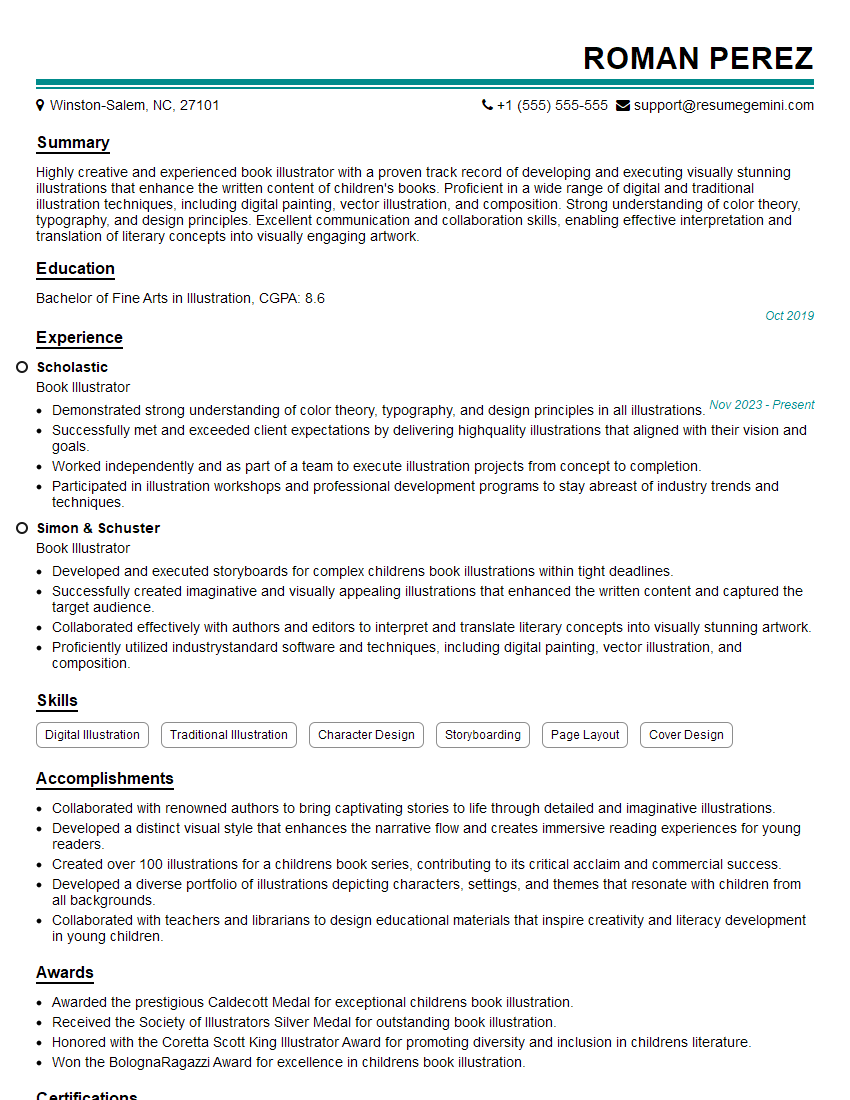
Book Illustrator Resume Sample
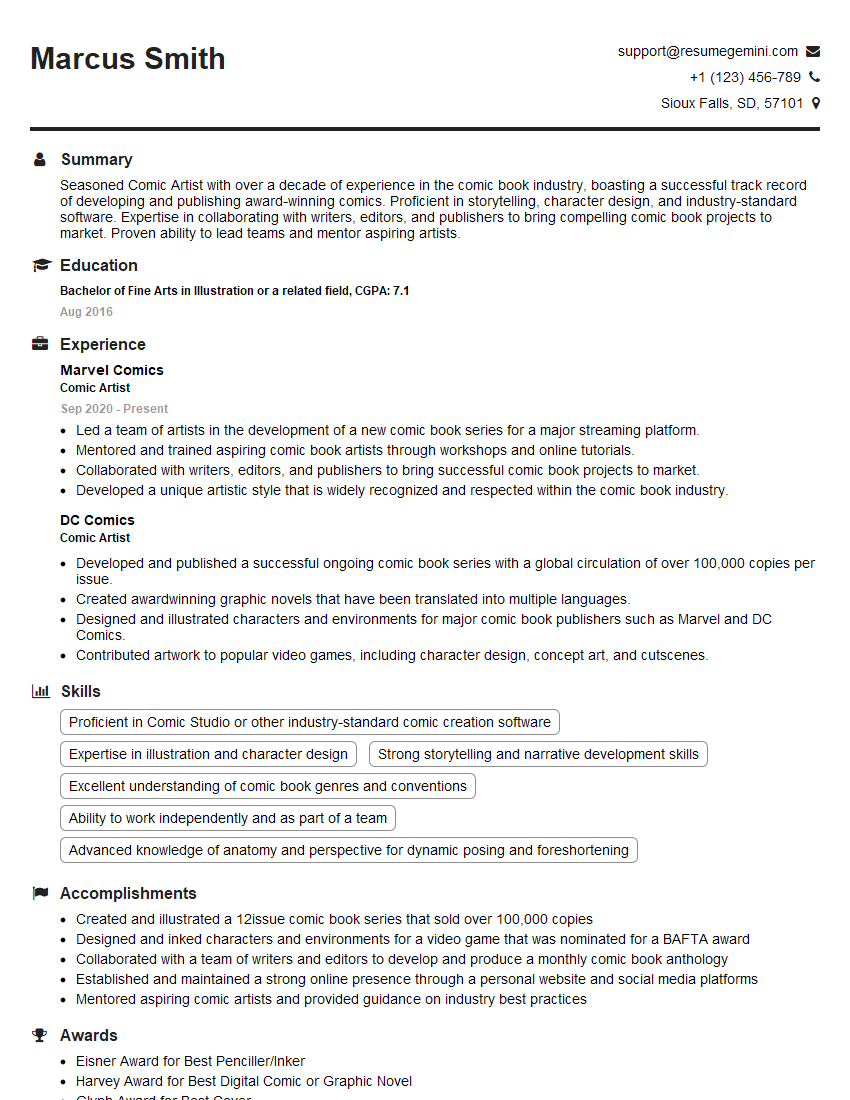
Comic Artist Resume Sample
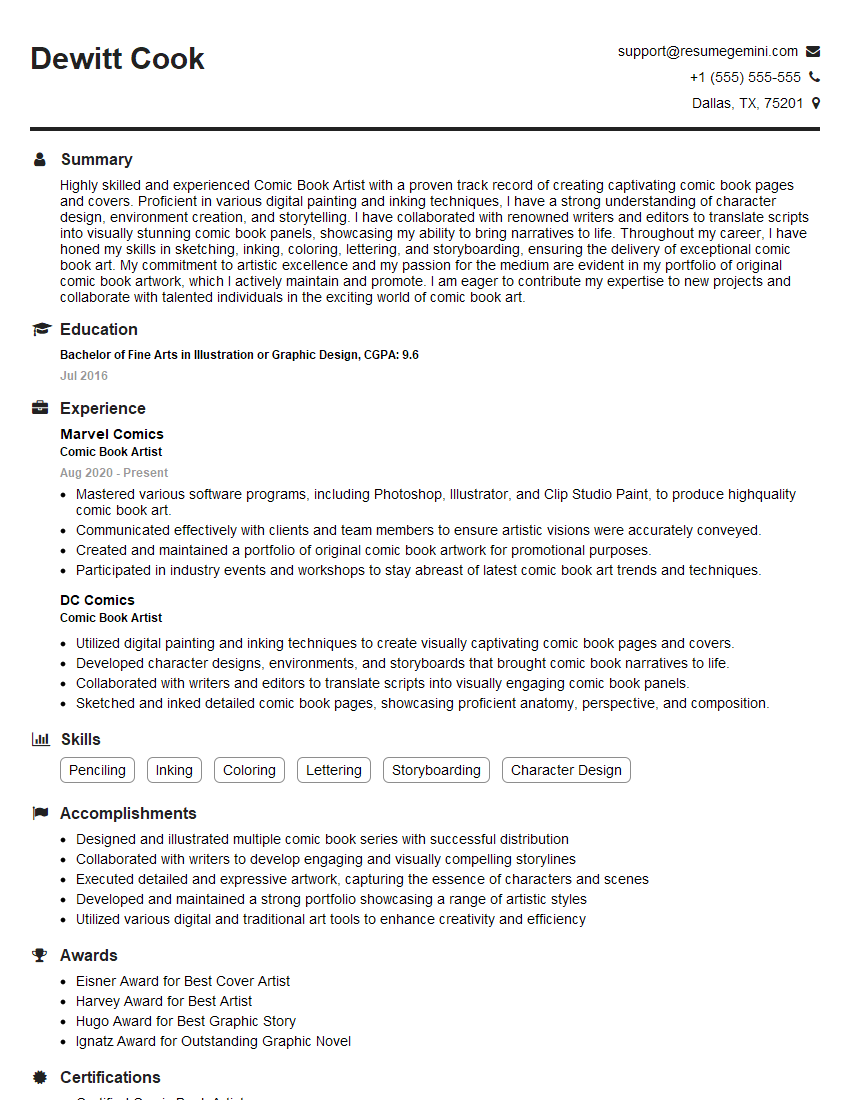
Comic Book Artist Resume Sample
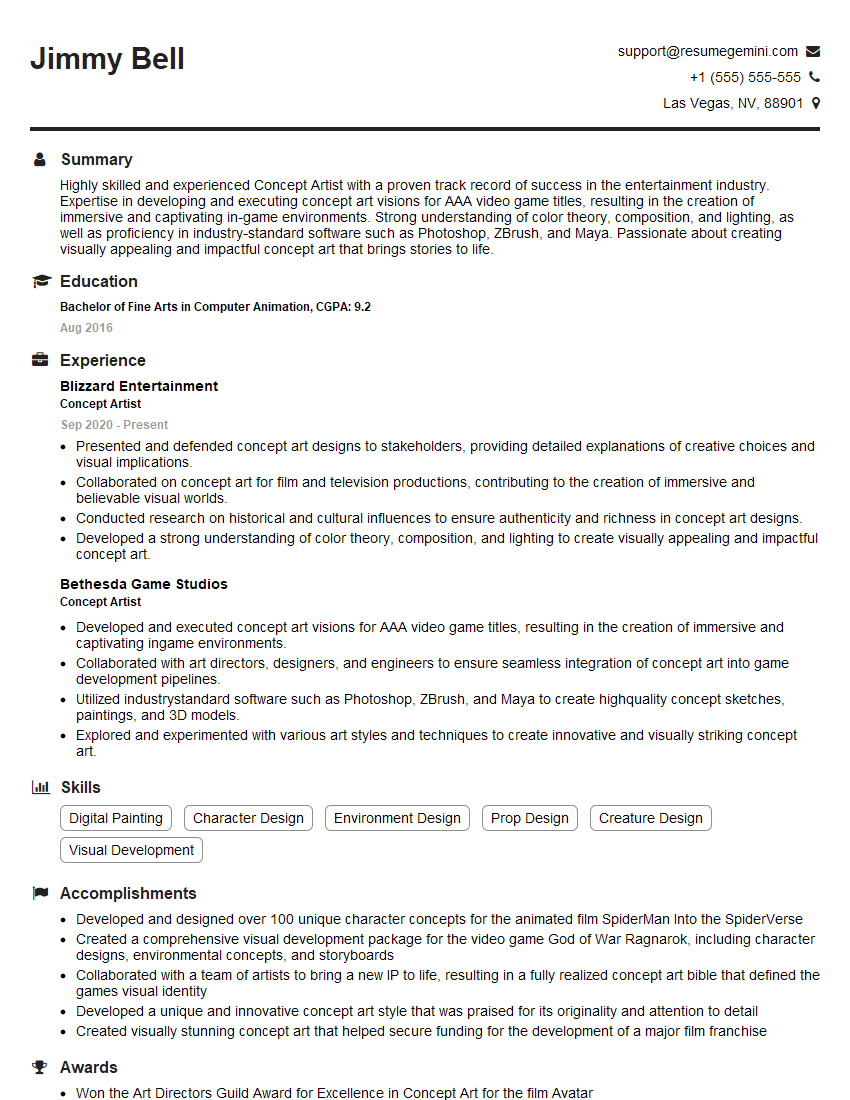
Concept Artist Resume Sample
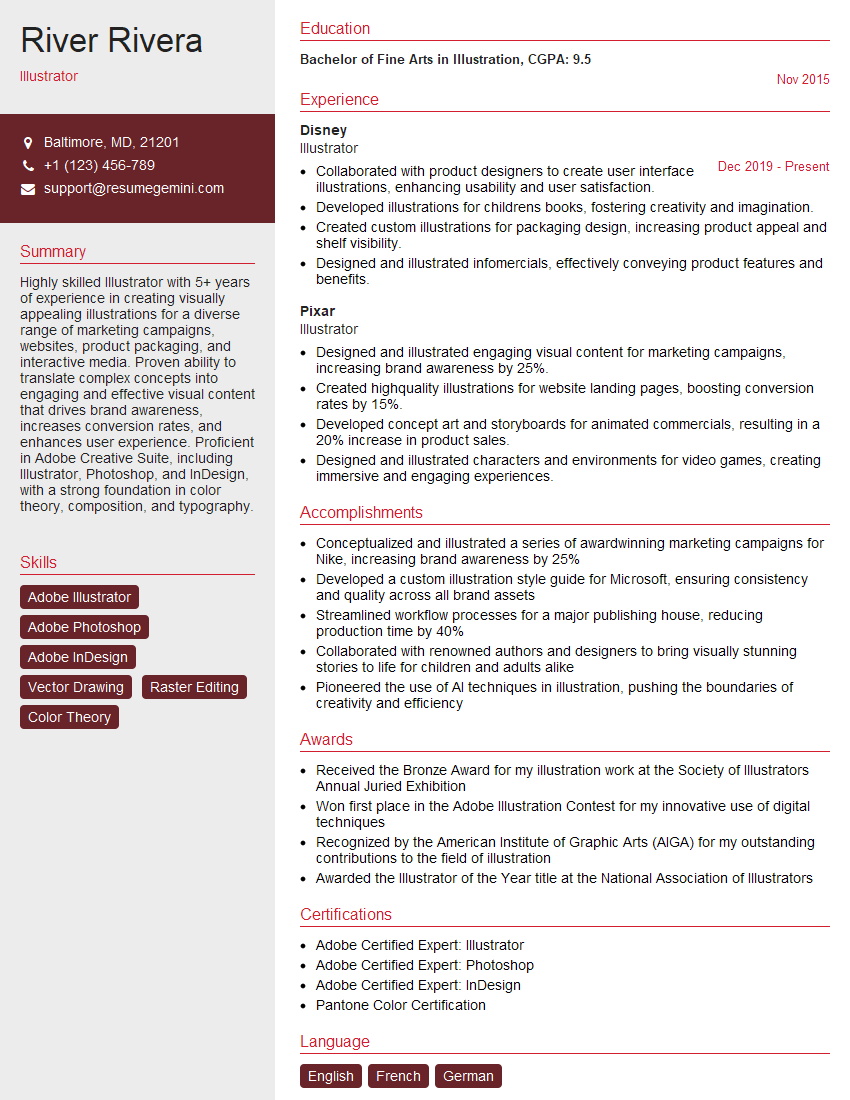
Illustrator Resume Sample
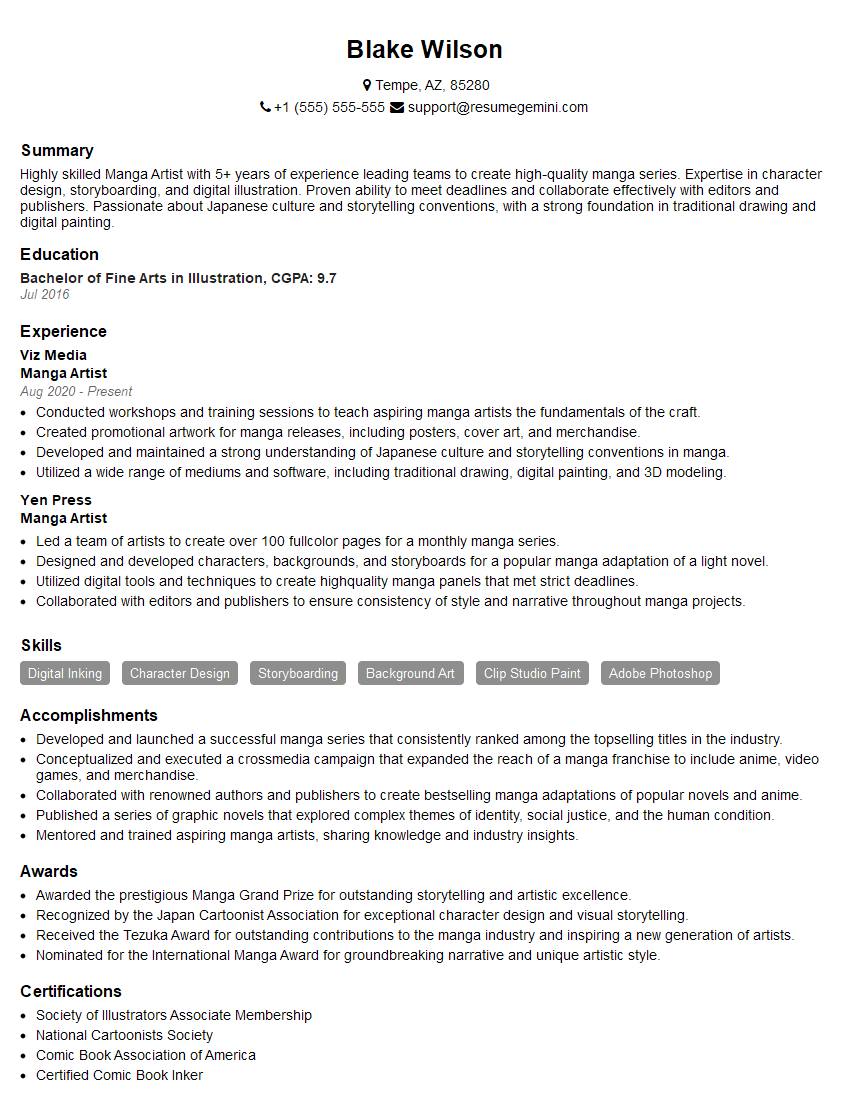
Manga Artist Resume Sample
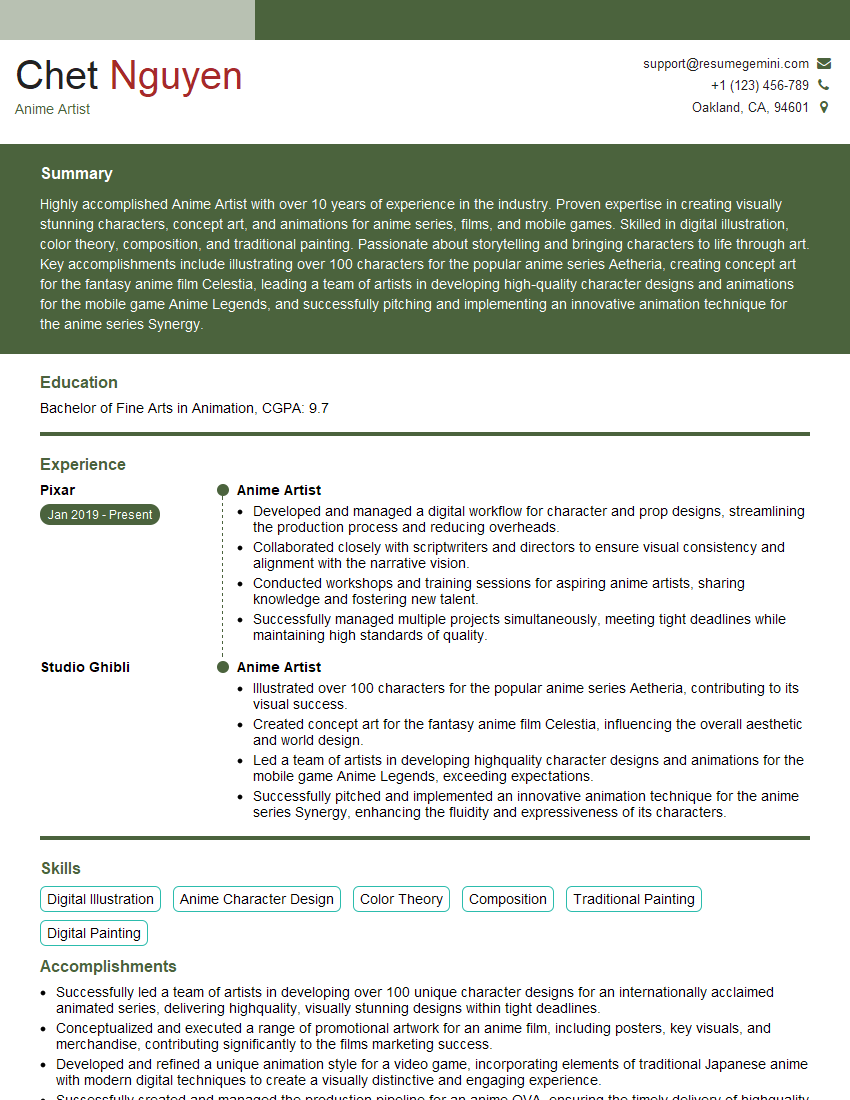
Anime Artist Resume Sample
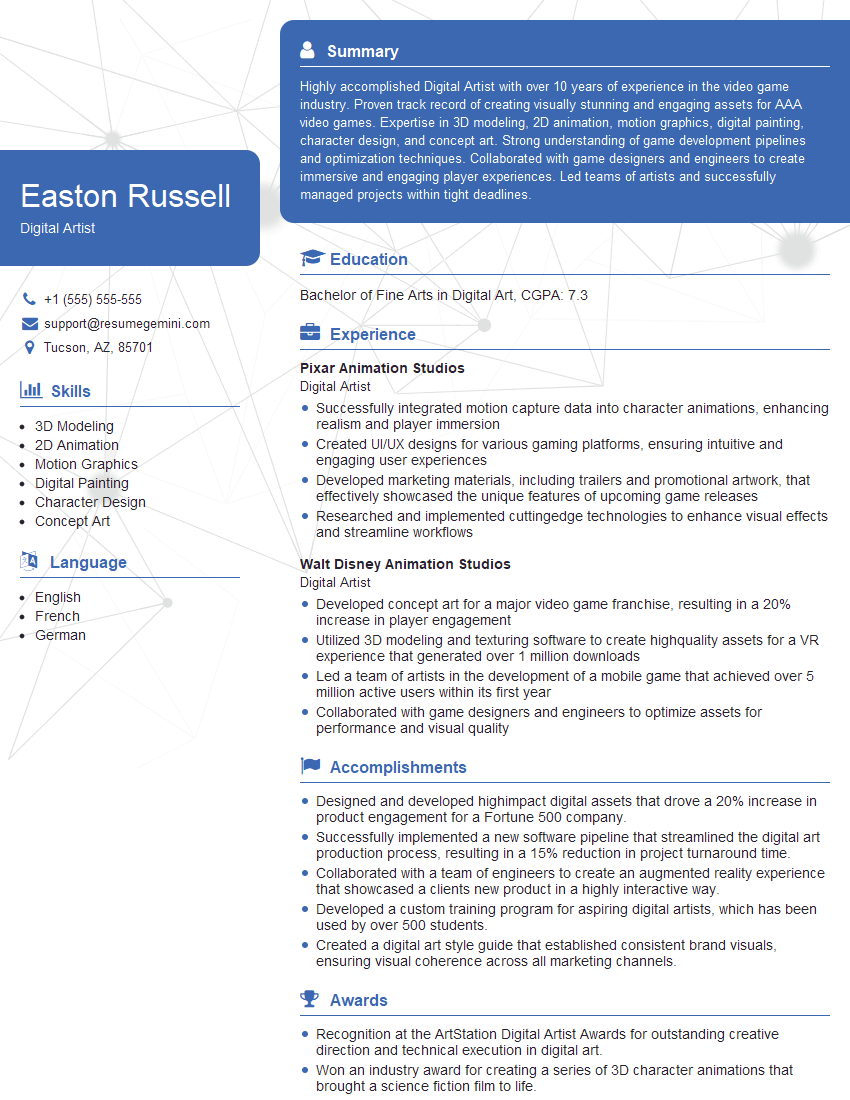
Digital Artist Resume Sample
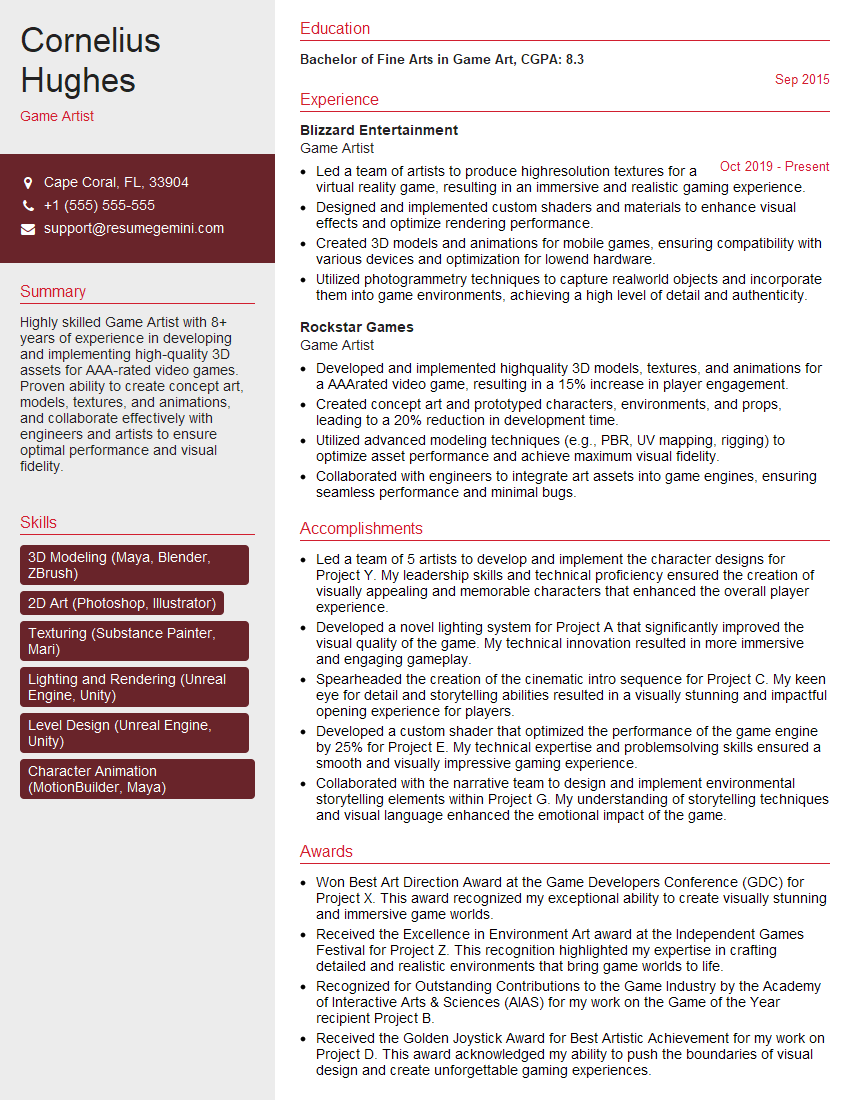
Game Artist Resume Sample

Graphic Designer Resume Sample
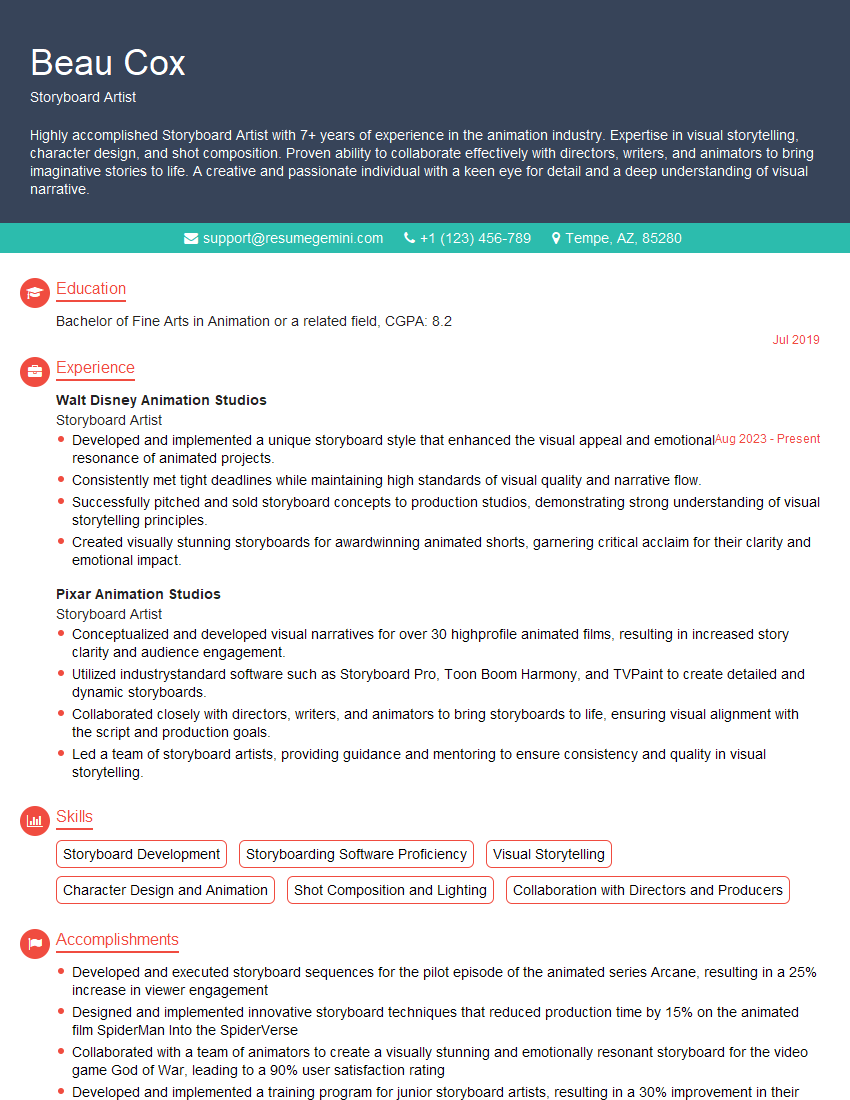
Storyboard Artist Resume Sample
Explore more articles
Users Rating of Our Blogs
Share Your Experience
We value your feedback! Please rate our content and share your thoughts (optional).
What Readers Say About Our Blog
Really detailed insights and content, thank you for writing this detailed article.
IT gave me an insight and words to use and be able to think of examples