Are you ready to stand out in your next interview? Understanding and preparing for MIDI Editing interview questions is a game-changer. In this blog, we’ve compiled key questions and expert advice to help you showcase your skills with confidence and precision. Let’s get started on your journey to acing the interview.
Questions Asked in MIDI Editing Interview
Q 1. Explain the difference between MIDI and audio data.
MIDI (Musical Instrument Digital Interface) and audio data are fundamentally different ways of representing sound. Think of it like this: audio data is a recording of sound waves, like a photograph of a performance. MIDI data, on the other hand, is a set of instructions or a recipe for creating sound. It doesn’t contain the actual sound waves themselves, but rather information about musical events like note pitches, velocities, and timing.
Audio data is a large file size, containing a direct representation of the sound waves. Editing audio often involves manipulating the waveform directly (e.g., cutting, pasting, applying effects). It’s excellent for capturing nuanced performances but less flexible for editing individual notes or changing instrumentation after recording.
MIDI data is a much smaller file size, containing instructions to a synthesizer or sampler. Editing MIDI involves changing these instructions: altering note durations, pitches, velocities, and other parameters. This allows for non-destructive editing and easy modification of entire sections of music. It’s ideal for composition and arrangement, where flexibility and experimentation are crucial.
Q 2. Describe the process of quantizing MIDI notes.
Quantizing MIDI notes is like snapping notes to a grid, making them perfectly aligned with a chosen tempo and rhythmic feel. Imagine a drummer playing slightly ahead or behind the beat. Quantization cleans up these imperfections, resulting in a tighter, more polished sound. This process is crucial for creating professional-sounding music, especially in genres where rhythmic precision is paramount, such as electronic music or pop.
The process involves selecting the MIDI notes you wish to quantize within your DAW. Then, you choose a quantization value (e.g., 1/16th notes, 1/8th notes, etc.). The software will then adjust the timing of each note to fit the nearest grid position. Most DAWs offer different quantization algorithms (e.g., ‘swing’ quantization to create a more natural groove), allowing you to fine-tune the result to suit your style.
For example, if you quantize a slightly late note to the nearest 1/4 note, the software will move the note’s start time to precisely align with the beginning of the next 1/4 note. This process is entirely non-destructive; you can always undo the quantization or experiment with different settings.
Q 3. How do you use MIDI controllers to manipulate sounds in a DAW?
MIDI controllers act as intermediaries between you and your DAW, allowing for real-time manipulation of sounds. They provide a more expressive and intuitive method of control compared to using a mouse and keyboard. Think of it like using a mixing console versus changing volume levels using numbers.
A typical MIDI controller might include knobs, faders, buttons, and keypads. These controls are then ‘mapped’ to various parameters within your DAW. For instance, you might map a knob to control the cutoff frequency of a filter, a fader to adjust the volume of a track, or a keypad to play notes. This mapping creates a direct connection, enabling instant adjustments to sound parameters, offering a more tactile and fluid workflow for creating and shaping music.
For example, using a knob to tweak the resonance of a synthesizer filter in real-time provides a much more immediate and intuitive experience than adjusting numeric values in a software interface. This hands-on control is particularly useful for live performances or when experimenting with sound textures.
Q 4. What are the advantages of using MIDI for music composition?
MIDI offers several significant advantages for music composition, setting it apart from purely audio-based approaches. Its core advantage lies in its flexibility and non-destructive nature.
- Non-destructive editing: Unlike audio editing, changes to MIDI data don’t alter the original information. You can experiment freely, knowing that you can always revert to the original state. This is invaluable during the composition and arrangement process.
- Efficient workflow: MIDI data is significantly smaller than audio data, leading to faster loading times, smoother project management, and less storage space consumption. This is crucial for managing large, complex projects.
- Flexibility and experimentation: Changing instruments, tempos, or harmonies is a simple matter of editing MIDI data. This allows for easy exploration of different sonic possibilities, saving substantial time and effort.
- Automation: MIDI data can be used to automate changes in parameters over time, creating dynamic and evolving soundscapes. This is a cornerstone of electronic music production.
In essence, MIDI empowers composers to focus on the musical ideas and arrangements, rather than getting bogged down in the technicalities of sound manipulation.
Q 5. Explain the concept of MIDI channels and how they’re used.
MIDI channels are like separate communication lines within a MIDI system. Each channel can control a different instrument or group of instruments. Imagine a band: each musician (drums, bass, guitar, vocals) might be on a separate channel. This allows you to control different aspects of your composition independently.
A MIDI file can contain information for up to 16 channels (though software can extend this virtually). Each channel has its own set of MIDI events (note on/off, controller changes, etc.). This allows for independent control of volume, panning, effects, and other parameters for each instrument or sound without affecting the others. This is a key aspect of layering and arranging music, allowing for complex arrangements to be organized cleanly and efficiently.
For instance, channel 1 might control your bassline, channel 2 your drums, channel 3 your piano, and so on. This keeps all tracks separate and easily managed within your DAW. This channel-based organization is crucial for managing even moderately complex music production projects.
Q 6. How do you edit MIDI velocity and aftertouch data?
MIDI velocity and aftertouch data represent dynamic expression in MIDI. Velocity controls the loudness of a note, while aftertouch (if your controller and instrument support it) represents how hard a note is pressed after it has already been played. These elements add nuance and realism to music.
Editing MIDI velocity involves changing the strength of each note event. In most DAWs, you can visualize velocity as a graphical representation, usually a vertical bar associated with each note. You can manually adjust the height of these bars to alter the velocity of individual notes or use automation to create dynamic changes across a range of notes. This allows for creating crescendos, diminuendos, or other dynamic variations within a musical passage.
Aftertouch is a less common but still valuable feature. It allows for real-time control over parameters, such as filter cutoff, resonance, or even vibrato. Editing aftertouch data involves adjusting its value for each note. This is usually done graphically, similar to velocity editing, adding another layer of expression to individual notes. Many instruments lack the capacity to receive or interpret aftertouch data, so it is not always relevant.
Q 7. What is MIDI mapping and how is it used?
MIDI mapping is the process of assigning MIDI controller parameters to specific functions or controls within a DAW or software synthesizer. It’s how you tell your DAW which knob controls which function. Think of it like setting up a control panel for your virtual instruments and effects.
For example, you might map a knob on your controller to control the cutoff frequency of a filter on a synthesizer. Turning the knob would then directly affect the filter’s cutoff, in real-time. Similarly, you could map a fader to control a track’s volume, a button to activate a reverb effect, or a pedal to control modulation depth. This allows for a highly customized and ergonomic workflow. Many controllers offer factory presets, but you can usually create and save your own custom MIDI mappings to fit your specific needs and preferences. This highly customizable aspect is a powerful tool for enhancing the efficiency and effectiveness of music production.
Q 8. Describe different MIDI file formats (e.g., .mid, .midi).
MIDI files, fundamentally, are not audio files; they’re instructions. They contain data that tells a MIDI device (synthesizer, sampler, etc.) what notes to play, how loud, and when. While both .mid and .midi extensions refer to the same standard MIDI file format, there’s often no practical difference between them – it’s usually just a matter of operating system conventions or software preference. Think of it like calling a document myreport.doc vs myreport.docx; they both hold the same type of information. However, there can be nuances within the MIDI standard itself. For example, older MIDI files might adhere strictly to the original MIDI 1.0 specification, while newer ones might incorporate features from later specifications. These can include elements like more sophisticated controller changes or support for larger numbers of tracks and events. The file format itself doesn’t inherently dictate these limits, but it’s the software reading the file that enforces any constraints. You might encounter subtle incompatibilities between very old MIDI files and modern software due to these differences, but most modern DAWs (Digital Audio Workstations) handle both older and newer MIDI 1.0 files with ease.
Q 9. How do you troubleshoot common MIDI synchronization issues?
MIDI synchronization problems are frustrating, but often solvable. The most common causes include incorrect MIDI port assignments, clock issues, and driver conflicts. My troubleshooting steps usually involve:
- Verify MIDI Port Assignments: Make sure that your DAW is correctly communicating with your MIDI devices by double-checking all the inputs and outputs are properly selected. In your DAW’s MIDI settings, there is often a MIDI device setup panel. Ensure the inputs and outputs match what your MIDI devices are plugged into. A simple mistake here is a huge time-waster!
- Check Your MIDI Clock Source: Identify your clock master. Is it your DAW, a hardware sequencer, or a separate MIDI clock generator? Make sure only ONE device is sending clock information, to avoid conflicts. If multiple devices try to send clock, things will get chaotic!
- Update Drivers: Outdated or corrupt drivers are often culprits. Check your manufacturer’s website for the latest drivers for your MIDI interface and devices.
- Test Different Cables and Interfaces: Sometimes, a faulty cable or MIDI interface can cause problems. Try using different cables and/or interfaces to isolate the problem.
- Simplify the Setup: Temporarily disconnect everything except your DAW and one MIDI device to see if the problem persists. This process of elimination will pinpoint the problematic component.
- Buffer Size: Adjusting your audio interface’s buffer size can sometimes resolve clock-related glitches. A smaller buffer size typically offers better timing precision but at the cost of increased CPU load.
Remember to always save your work before making significant changes to your settings!
Q 10. Explain how to create and edit MIDI automation.
MIDI automation is like adding a director to your musical performance; it allows you to change various parameters of your instruments over time – think volume swells, filter sweeps, pan changes, and much more. Creating MIDI automation usually involves drawing automation curves within your DAW’s automation lanes or using automation clips.
Creating Automation:
- Select the Parameter: In your DAW’s mixer or instrument window, choose the parameter you want to automate (volume, pan, a VST parameter, etc.).
- Enable Automation: Ensure that automation is enabled for the selected track/parameter. This is usually done by engaging a button or activating a lane specific to automation.
- Record Automation: Depending on the DAW, you either enable write-mode on the track/parameter then adjust values in real-time while recording, or you may draw the automation curve manually post-recording.
- Draw or Edit the Automation Curve: Manually create your automation curve using your mouse or draw tools. Straight lines are for constant values, while curves create gradual changes.
Editing Automation:
Once recorded, you can edit your automation curve with a high level of detail. Most DAWs offer powerful tools for manipulating automation, including:
- Moving automation nodes: These are the key points on your curve.
- Adjusting the curve’s shape: Smoother changes or sharper transitions, it’s all up to you.
- Copying and pasting automation: To quickly apply similar automation to multiple tracks or sections.
- Automation clip editing: some DAWs offer clip-based automation editing, allowing non-linear changes to the automation curves.
An example would be creating a rising volume automation for a synth pad. The automation curve would start at a low volume then gradually increase over several seconds, giving the pad a very cinematic feel.
Q 11. What are the benefits of using virtual instruments (VSTs) with MIDI?
Virtual instruments (VSTs) are the heart of modern music production. Using them with MIDI unlocks a universe of sonic possibilities. Here are the key benefits:
- Vast Sound Library: VSTs offer incredible sonic diversity. You can access thousands of sounds without the need for expensive hardware synthesizers, samplers, and drum machines.
- Flexibility and Customization: VSTs often come with powerful parameter controls, enabling you to shape sounds with incredible precision. You can tweak oscillators, filters, envelopes, effects, and much more.
- Space-Saving and Cost-Effective: Instead of purchasing and storing numerous physical instruments, you can have a vast library of virtual instruments on your computer.
- Easy Integration: VSTs seamlessly integrate into DAWs. This integration allows easy access to your virtual instruments and the management of their sounds and parameters.
- Regular Updates and New Sounds: VST manufacturers regularly release updates, adding new features and fixing bugs. Plus, you can often purchase new instrument expansions or sound packs at a lower cost than physical counterparts.
Imagine wanting to create a complex soundscape with diverse instruments. Instead of requiring a huge physical studio, I can use MIDI to trigger many different VSTs, layering them and achieving an intricate sonic texture. For instance, I can play a MIDI piano part, which triggers a lush orchestral VST and a gritty electric guitar VST simultaneously, creating a dynamic combination.
Q 12. How do you work with MIDI drum editing and patterns?
MIDI drum editing is a specialized area, but the core concepts remain the same. You’re working with MIDI notes to represent drum hits. Each note represents a different drum sound or percussion element, and the note’s velocity determines its loudness. Creating and editing drum patterns involves:
- Choose a Drum VST: Select your preferred drum virtual instrument within your DAW.
- Inputting MIDI Notes: You can use a MIDI keyboard, drum pads, or your mouse to input notes into your DAW’s piano roll or drum editor. Each key on a MIDI keyboard or pad typically represents a different drum sound, as defined within the drum VST.
- Editing Velocities: Adjust the velocity of each note to control the volume of each drum hit.
- Quantization: This feature snaps notes to the nearest grid value, helping to create tight and rhythmic patterns. Experiment with different quantization values to achieve desired groove and feel.
- MIDI Editing Tools: Use your DAW’s editing tools to create variations, fills, and complex patterns. Features like copy-paste and automation make complex patterns far more manageable.
- Drum Pattern Cloning and Variation: To create complex drum tracks, you might often start with a basic pattern and clone or copy it. Afterwards, you would carefully tweak some of the velocities, notes, and timing to create exciting variations.
An example would be creating a drum fill. You might start with a basic four-on-the-floor kick and snare pattern. Then, you would add some hi-hat variations and rhythmic accents to create a dynamic and exciting drum fill.
Q 13. Describe the process of exporting MIDI data for different uses.
Exporting MIDI data is crucial for collaboration and sharing your work. The process depends on the intended use, but generally involves selecting the MIDI file format (usually .mid or .midi) and choosing a location to save the file. Different uses might necessitate certain considerations:
- Collaboration with Other Musicians: Exporting MIDI allows sharing your compositions or ideas with other musicians so they can add their own instruments or arrangements. In this case, I would export only the MIDI data, without any audio information.
- Use in Different DAWs or Software: Sharing MIDI data with other DAWs or music software programs is a fundamental requirement for collaborative music projects, or for transferring the MIDI content for working on another device or system. Compatibility across programs is usually quite good.
- Archiving MIDI Data: Exporting MIDI files helps to archive and back up musical ideas or projects. This helps in preserving ideas and compositions for use in the future.
- Using MIDI in Other Applications: MIDI can be used in various applications beyond music production, such as controlling lighting systems or other hardware.
Before exporting, ensure that you’ve carefully checked your MIDI data to remove any unwanted or unused tracks and events to reduce the file size. Some DAWs might also allow you to export specific tracks or regions rather than the whole project.
Q 14. How do you create and manage MIDI regions in a DAW?
MIDI regions in a DAW are sections of MIDI data. Think of them as containers for specific parts of your composition. Creating and managing MIDI regions typically involves:
- Creating Regions: Most DAWs automatically create regions when you record MIDI data. However, you can manually create regions by selecting a range of notes in your piano roll or drum editor and creating a region from the selected content.
- Editing Regions: Once created, you can edit regions by adjusting their start and end points, moving them within the arrangement, copying and pasting them, and applying various processing to those regions (effects or alterations).
- Renaming Regions: Renaming regions gives them meaningful names to organize a complex project better, like
Verse 1,Chorus, orSynth Solo. - Grouping Regions: Some DAWs allow you to group regions together which is useful for complex projects, particularly when you have many variations or layers of a certain musical part.
- Color-Coding Regions: Use different colors to visually distinguish various sections or instrument parts in the arrangement.
- Region Effects: Some DAWs also allow for the application of specific effects or processes to regions, which is different from the effects used on the MIDI tracks. This might include things such as tempo or pitch changes, or various manipulation effects on the notes in the region.
Using MIDI regions is essential for organizing large and complex projects. By breaking your arrangement down into manageable regions, you improve your workflow and make editing far simpler and more intuitive.
Q 15. What are some common MIDI effects and their applications?
MIDI effects are essentially digital signal processors that manipulate MIDI data before it reaches a synthesizer or sound module, adding creative flair or fixing timing issues. They don’t directly alter audio; instead, they modify the MIDI messages controlling the audio. Think of them as digital instructions tweaking the musician’s performance.
Arpeggiator: Transforms a chord played simultaneously into a sequence of notes played one after another. Imagine playing a C major chord, and the arpeggiator turns it into a C-E-G melody, possibly with adjustable speed and direction.
Quantizer: This effect ‘snaps’ notes to the nearest grid position, correcting timing imperfections. It’s invaluable for cleaning up live performances, making them sound more precise and polished. For instance, a slightly off-beat drum fill can be perfectly aligned.
Delay: Creates echoes of the MIDI notes, adding depth and ambience. You might apply a subtle delay to a piano part to give it a more spacious feel, or a more pronounced delay to create rhythmic effects.
Chorus: Creates a thicker, richer sound by slightly detuning and delaying multiple copies of the original MIDI data. This adds a lush fullness to melodies and chords. Picture a choir singing the same notes, slightly out of sync, resulting in a thicker sound.
Transposer: Shifts the pitch of all the MIDI notes by a specific interval. Useful for quickly adapting a MIDI track to a different key. Say you have a melody in C major, and you want it in D major – a transposer does this effortlessly.
Career Expert Tips:
- Ace those interviews! Prepare effectively by reviewing the Top 50 Most Common Interview Questions on ResumeGemini.
- Navigate your job search with confidence! Explore a wide range of Career Tips on ResumeGemini. Learn about common challenges and recommendations to overcome them.
- Craft the perfect resume! Master the Art of Resume Writing with ResumeGemini’s guide. Showcase your unique qualifications and achievements effectively.
- Don’t miss out on holiday savings! Build your dream resume with ResumeGemini’s ATS optimized templates.
Q 16. How do you handle MIDI data from different sources?
Handling MIDI from multiple sources requires careful routing and organization. This is particularly crucial in complex projects involving multiple instruments, samplers, and DAWs. A common approach is to use a Digital Audio Workstation (DAW) as a central hub.
Each source – be it a keyboard controller, a drum machine, or a software instrument – is assigned to a unique MIDI channel within the DAW. This prevents signal clashes. Think of it like assigning different colors to different wires; it keeps everything clear and manageable. The DAW then acts as a mixer, allowing you to select which MIDI channels are routed to which virtual instruments or effects. Furthermore, MIDI filters can be used to isolate specific MIDI data, such as only notes from a specific range, or specific controllers. This allows for further control over the incoming MIDI signals.
In instances where multiple DAWs are involved, I usually rely on a protocol like MIDI over OSC for effective communication between the DAWs, providing centralized control.
Q 17. What are your preferred techniques for optimizing MIDI data for efficient playback?
Optimizing MIDI data for playback is critical for smooth performance and to reduce strain on your system. This involves removing redundant data and streamlining the message flow.
Note Density: Reducing excessive note density is a key optimization. Overly dense MIDI data can lead to lag and glitches. This often involves careful editing and sometimes creative compromises.
Redundant Controller Data: Avoid unnecessary controller messages. If you’re not changing a parameter, don’t send redundant messages specifying the same value repeatedly. Think of this like a writer removing redundant sentences to improve the flow of the text.
Velocity Optimization: Avoid using extreme velocity values unless necessary. Often, using a more moderate range of velocities can produce the desired effect while using less processing power.
Automation Lane Consolidation: Review and consolidate automation lanes to eliminate redundant automation data.
Event Consolidation: Use features that allow for merging or combining overlapping MIDI events, if available in the DAW or MIDI editor.
For example, instead of having 100 closely-spaced notes with slightly varying velocities, you might merge them into a single, legato note, which results in a cleaner and simpler MIDI file that plays much more smoothly.
Q 18. Explain your experience using different MIDI editors and plugins.
My experience spans several popular MIDI editors and plugins. I’ve extensively used Logic Pro X’s powerful MIDI editor, renowned for its flexibility and intuitive interface. I also have considerable experience with Ableton Live’s session view, which excels in real-time manipulation of MIDI data. For more specialized editing tasks, I utilize sophisticated editors like Cakewalk by BandLab and Cubase, which provide features like detailed note editing and sophisticated scripting capabilities.
In terms of plugins, I frequently use several different effects processors and MIDI manipulation tools. I use different plugins to achieve specific sounds and effects depending on the project and my creative aims, often experimenting to find unexpected combinations.
For instance, using a particular plugin with a particular type of synthesizer is a part of my process. Often the success of a particular musical idea will heavily depend on these interactions between plugins.
Q 19. Describe your workflow for creating complex MIDI arrangements.
My workflow for complex MIDI arrangements is layered and iterative. I generally start with a skeletal structure – defining the basic melodic and harmonic ideas, and then progressively build on top of that. I often use a combination of techniques to build complex arrangements. For instance, I employ a top-down approach, starting with the overall arrangement and then filling in the details. This gives me control over the overall shape of the music.
I might start with a basic drum pattern, then add a bassline, then chords, and finally the melody. Each layer is carefully considered in relation to the others, with attention to rhythmic interplay and harmonic progressions. I make extensive use of MIDI editing tools and plugins to shape the sound. It is very important to have a mental plan before embarking on such a process.
Throughout the process, I constantly listen back and adjust until I’m satisfied with the overall balance and dynamics. This iterative refinement is critical for achieving the desired result.
Q 20. How do you deal with conflicting MIDI data during editing?
Conflicting MIDI data can occur when multiple MIDI controllers or instruments send messages that interfere with each other, usually on the same MIDI channel. This can manifest as unexpected note cuts, incorrect velocities or controller values. My approach is multi-pronged.
Channel Assignments: The most effective solution is to carefully assign each MIDI source to a unique channel. This ensures that each instrument plays independently without interfering.
MIDI Filtering: I use MIDI filters in my DAW to isolate specific MIDI data, blocking unintended messages from reaching certain instruments.
MIDI Merge and Routing: Some DAWs offer the ability to merge MIDI tracks or to selectively route MIDI data to different destinations, providing granular control and conflict resolution.
MIDI Velocity/Note Length Editing: In some instances, I have to manually edit note velocities or lengths to resolve subtle timing conflicts.
It’s important to check each MIDI track carefully for any anomalies. This can require considerable patience and attention to detail.
Q 21. Explain your understanding of MIDI system exclusive messages.
MIDI System Exclusive (SysEx) messages are manufacturer-specific commands used to configure and control electronic musical instruments and devices in ways not covered by standard MIDI messages. Think of them as secret codes that allow you to access advanced features and customize the device’s behavior. They are often used for loading samples, setting up complex parameters, or communicating with specialized hardware.
SysEx messages are typically longer and more complex than standard MIDI messages. They are not standardized across manufacturers, meaning a SysEx message from one manufacturer’s synthesizer wouldn’t necessarily work on another. Because of their complexity, they are most useful for configuring particular pieces of hardware rather than manipulating musical notes or controllers in general.
In my work, I use SysEx messages primarily for tasks such as loading custom sounds into synthesizers, configuring MIDI controllers, or implementing control over rare and/or sophisticated hardware devices.
Handling SysEx requires caution as incorrect SysEx messages can cause problems with your hardware, so understanding the manufacturer’s documentation is absolutely crucial.
Q 22. How do you troubleshoot issues with MIDI controller response times?
Troubleshooting MIDI controller response time issues involves a systematic approach. Slow response can stem from several sources: driver problems, buffer size settings, USB connection issues, or even conflicts with other applications.
- Check Drivers: Ensure your MIDI controller’s drivers are up-to-date and correctly installed. Outdated or corrupted drivers are a common culprit. Reinstalling or updating them is often the first step.
- Adjust Buffer Size: Your DAW’s buffer size setting directly impacts latency. A smaller buffer size results in lower latency but may increase CPU load and potential for dropouts. Experiment with different buffer sizes (e.g., starting with a larger size and gradually reducing it) to find the optimal balance for your system.
- USB Connection: Try a different USB port, ideally one directly connected to your computer (not a hub). USB hubs can introduce latency or connection instability. Also, try a different USB cable; a faulty cable can cause significant problems.
- Software Conflicts: Close any unnecessary applications running in the background. Other programs competing for system resources can impact your MIDI controller’s responsiveness.
- MIDI Controller Settings: Check your MIDI controller’s own settings. Some controllers have settings that can affect response times. Refer to its manual to see if there are any relevant adjustments.
For example, I once worked on a project where a seemingly unresponsive keyboard was traced back to a faulty USB hub. Switching to a direct USB connection resolved the issue instantly.
Q 23. What is your experience with scripting or automation within your MIDI workflow?
Scripting and automation are integral parts of my MIDI workflow, significantly boosting efficiency and allowing for complex manipulations that would be tedious manually. I’m proficient in several scripting languages, including Python and Lua, within the context of various DAWs.
For instance, I’ve used Python with the mido library to automate tasks like:
- Bulk MIDI file processing: Transposing multiple MIDI files, quantizing events, or applying effects across numerous tracks.
- Custom MIDI effect creation: Developing plugins that manipulate MIDI data in novel ways, such as creating complex rhythmic variations or generating unique melodic sequences.
- DAW automation: Controlling DAW parameters such as track volume, panning, or effects parameters via MIDI CC messages using scripts.
# Example Python snippet (using mido): import mido mid = mido.MidiFile('my_midi_file.mid') for msg in mid.tracks[0]: if msg.type == 'note_on': msg.note += 12 # Transpose up an octave mid.save('transposed_file.mid')
This simple script demonstrates how to transpose all notes in the first track of a MIDI file up an octave. More sophisticated scripts can perform far more complex manipulations.
Q 24. How do you approach editing MIDI data for different musical genres?
Editing MIDI data for different genres requires a genre-specific understanding of rhythmic and melodic phrasing. The approach significantly differs, for example, between the precise, quantized MIDI of electronic music and the more organic, expressive MIDI of jazz.
- Electronic Music: Precise quantization, automation of parameters (like filters or volume), and use of advanced synth techniques are key. I might use step sequencers, heavily utilize automation lanes, and focus on creating complex rhythmic patterns.
- Jazz: Emphasis on phrasing, swing feel, and humanization is paramount. I’d focus on careful velocity editing, applying subtle timing variations (humanization), and using legato and staccato articulation effectively. Extensive use of controllers for vibrato and pitch bend would enhance expressiveness.
- Classical Music: Attention to dynamics, articulation, and accurate note placement is vital. I’d carefully edit note lengths and velocities to reflect the nuances of the score, incorporating techniques like legato and staccato articulations as dictated by the composer’s intentions.
The underlying principles remain similar – manipulating velocity, timing, pitch, and controller data – but the desired outcomes and techniques dramatically vary based on the intended genre’s sonic character.
Q 25. Describe your experience with different DAWs and their MIDI capabilities.
My experience spans several DAWs, including Ableton Live, Logic Pro X, Cubase, and FL Studio. Each DAW offers a unique set of MIDI editing capabilities and workflows.
- Ableton Live: Excellent for live performance and electronic music production, offering powerful clip-based MIDI editing and sophisticated automation features.
- Logic Pro X: A comprehensive DAW with a robust MIDI editor, extensive instrument libraries, and a wide array of built-in effects and processing tools.
- Cubase: Known for its precise MIDI editing capabilities and comprehensive score editing features, ideal for classical music production and more complex projects.
- FL Studio: Renowned for its pattern-based workflow and strong emphasis on electronic music production; it offers a unique approach to MIDI sequencing that’s highly efficient.
The choice of DAW often depends on the project’s specific needs and my personal preference. Each DAW provides a different balance of features, workflow styles, and visual representations of MIDI data that appeal to different approaches and aesthetic sensibilities.
Q 26. How do you maintain organization when working with large MIDI projects?
Managing large MIDI projects requires a structured approach. Disorganization leads to wasted time and frustration. My strategies include:
- Color-coding Tracks: Assigning different colors to different instrument types or sections of an arrangement helps quickly identify tracks.
- Folder Tracks: Grouping related MIDI tracks into folders keeps things organized and visually clear.
- Clear Naming Conventions: Using consistent and descriptive names for tracks, instruments, and MIDI regions makes navigation much easier.
- Regular Backups: Regularly saving project files and creating backups prevents data loss due to crashes or accidental deletions.
- Use of Templates: Creating project templates for common project setups streamlines the start of new projects.
Think of it like organizing a symphony orchestra: each section (strings, woodwinds, brass) is separated and clearly labeled for efficiency and comprehension.
Q 27. What are your strategies for creating expressive and nuanced MIDI performances?
Creating expressive and nuanced MIDI performances involves moving beyond simple note input. It’s about mimicking the subtleties of a live performance.
- Velocity Editing: Varying velocity (note loudness) creates dynamic variation. A static velocity across a performance feels lifeless. I often use automation to create gradual changes in velocity.
- Timing Variations (Humanization): Perfect quantization sounds robotic. Subtle timing deviations, particularly in rhythmic sections, create a more human feel. Many DAWs have built-in humanization tools; I fine-tune them manually.
- Pitch Bend and Modulation: These controllers add expressive vibrato, bends, and other variations to notes, creating a richer sonic palette.
- Aftertouch: If your controller supports aftertouch (pressure sensitivity after a note is played), it allows for dynamic changes in volume and timbre, similar to how a musician would dynamically alter their sound.
- Controller Data Automation: Beyond velocity, you can automate almost anything, including modulation wheel or expression pedal values to create complex and evolving textures.
For example, I recently worked on a project requiring a melancholic piano performance. I carefully used velocity to create a sense of sadness and longing, and I added subtle timing variations to inject a more human, less mechanical feel.
Q 28. Describe your approach to collaborating with other musicians using MIDI data.
Collaborating on MIDI projects often involves sharing MIDI files and using version control systems like Git.
- Standardized File Formats: Using widely compatible formats like Standard MIDI Files (SMF) ensures that collaborators can open and edit the project on their preferred DAWs.
- Clear Communication: Before sharing, establish clear guidelines about the project’s structure, naming conventions, and intended outcome.
- Version Control (e.g., Git): While less common in MIDI-only collaboration, Git can be invaluable for managing changes if the MIDI data is part of a larger project. This enables tracking changes and reverting to previous versions if needed.
- Cloud-Based Collaboration Tools: Using cloud storage services like Google Drive or Dropbox allows for easy file sharing and access.
- Communication Protocols (e.g., OSC): For real-time collaboration, Open Sound Control (OSC) can be used to send control data between instruments and DAWs, allowing musicians to interact in a synchronized way.
Effective communication is key; misunderstandings about the project can lead to frustrating revisions. Clear labeling, consistent file formats, and a shared understanding of the goals are critical for successful collaboration.
Key Topics to Learn for Your MIDI Editing Interview
- MIDI Data Fundamentals: Understanding MIDI messages (Note On/Off, Controller Changes, SysEx), their structure, and how they represent musical information. Practical application: Analyzing MIDI files to identify problematic data or optimize performance.
- MIDI Editors & DAWs: Proficiency in at least one major Digital Audio Workstation (DAW) and its MIDI editing capabilities. Practical application: Demonstrate your ability to efficiently edit MIDI data, quantize notes, and create complex MIDI arrangements.
- MIDI Sequencing & Automation: Creating and editing MIDI sequences, understanding automation lanes, and using them to control various parameters within a DAW. Practical application: Designing dynamic and expressive musical performances through automation.
- MIDI Effects & Processing: Familiarity with MIDI effects (e.g., arpeggiators, pitch shifters, MIDI controllers) and their impact on sound. Practical application: Explain how to use MIDI effects to enhance musical performances and create unique sonic textures.
- MIDI File Formats & Compatibility: Understanding different MIDI file formats (e.g., .mid, .midi) and their compatibility issues. Practical application: Troubleshooting issues related to MIDI file import/export and compatibility across different software and hardware.
- Advanced MIDI Concepts: Explore concepts such as MIDI CC mapping, Sysex implementation, and advanced automation techniques. Practical application: Showcase your ability to handle complex MIDI setups and implement customized solutions.
- Troubleshooting and Problem-Solving: Developing skills in identifying and resolving common MIDI-related issues (e.g., timing problems, note velocity inconsistencies, data corruption). Practical application: Explain your methodical approach to diagnosing and fixing MIDI problems.
Next Steps
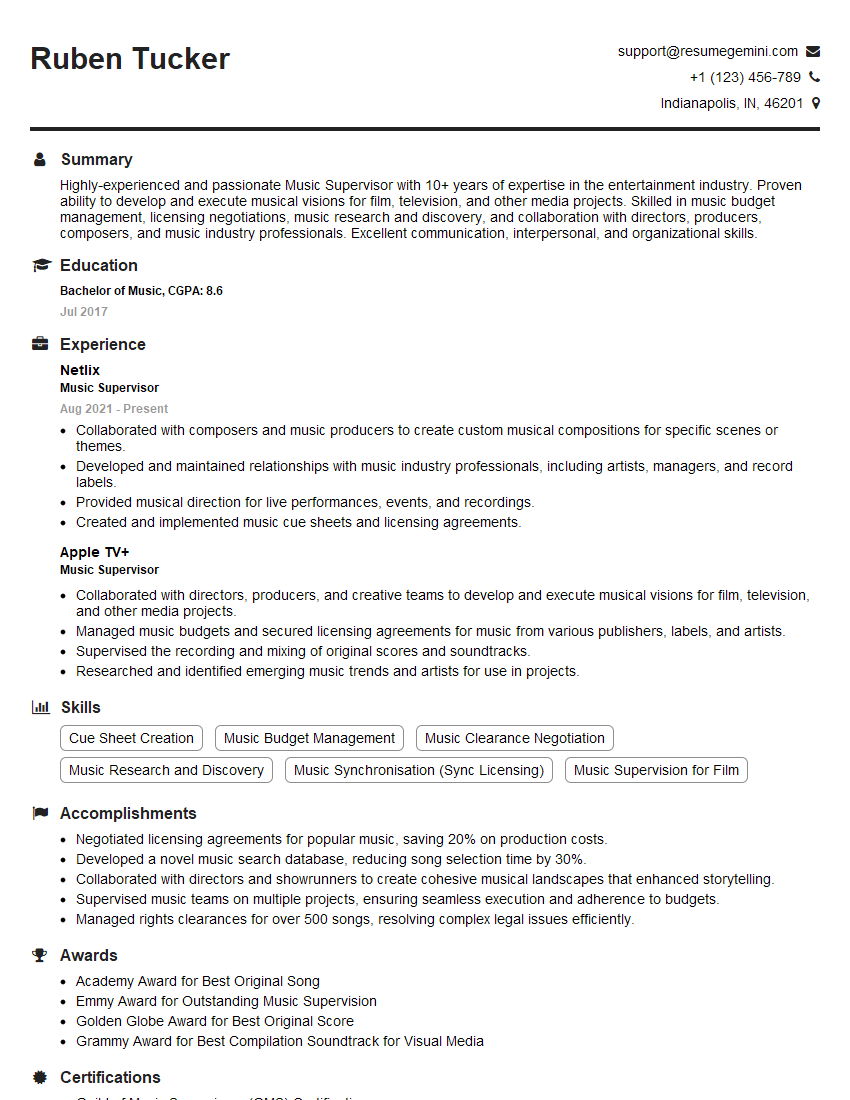
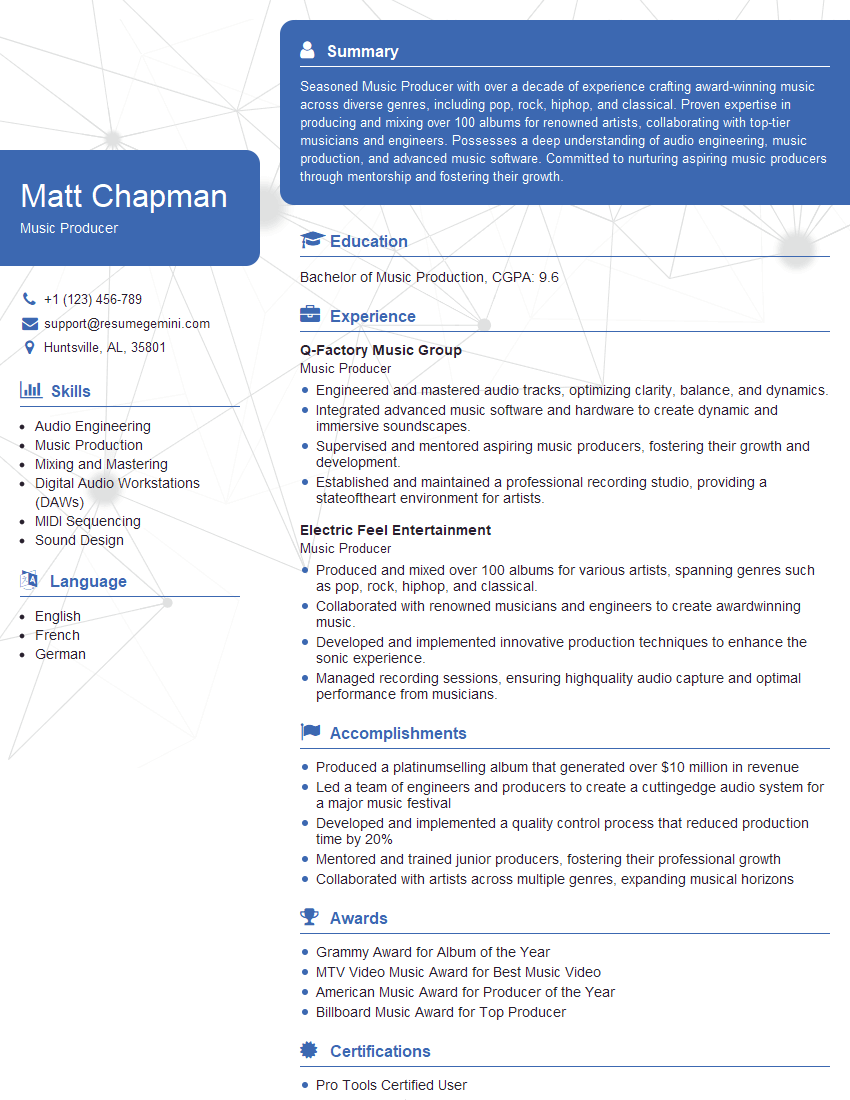
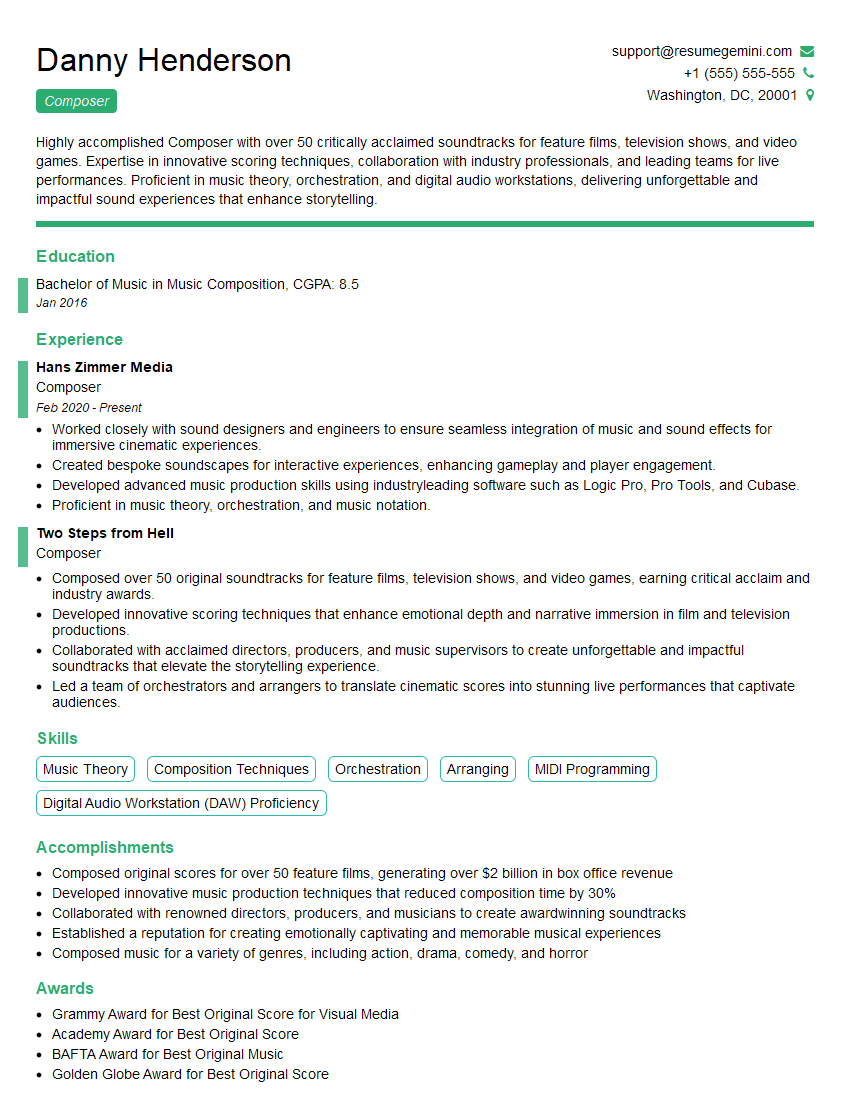
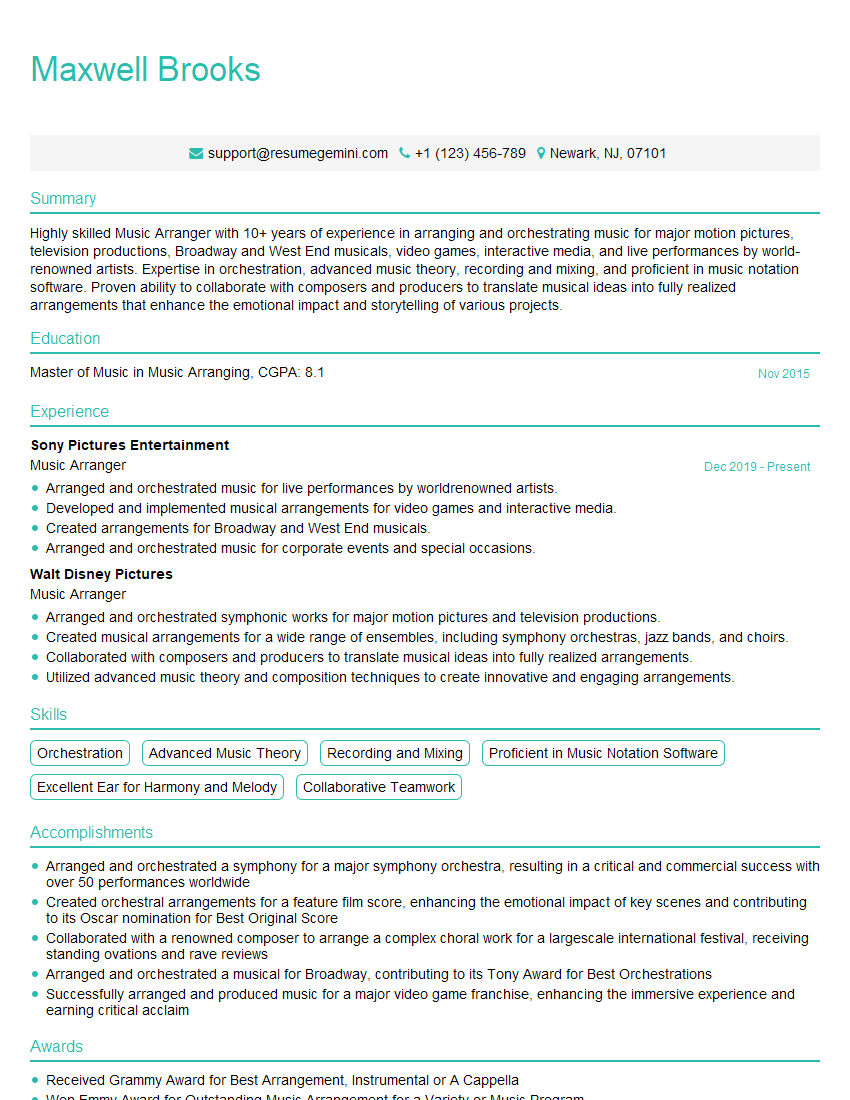
Mastering MIDI editing is crucial for a successful career in music production, sound design, and interactive media. A strong understanding of MIDI is highly sought after in many creative industries. To maximize your job prospects, crafting a compelling and ATS-friendly resume is essential. ResumeGemini is a trusted resource that can help you build a professional and impactful resume, tailored to highlight your MIDI editing skills. Examples of resumes specifically tailored for MIDI Editing positions are available to help you get started.

Explore more articles
Users Rating of Our Blogs
Share Your Experience
We value your feedback! Please rate our content and share your thoughts (optional).
What Readers Say About Our Blog
Really detailed insights and content, thank you for writing this detailed article.
IT gave me an insight and words to use and be able to think of examples