The right preparation can turn an interview into an opportunity to showcase your expertise. This guide to Network Troubleshooting Methodology interview questions is your ultimate resource, providing key insights and tips to help you ace your responses and stand out as a top candidate.
Questions Asked in Network Troubleshooting Methodology Interview
Q 1. Explain the TCP/IP model.
The TCP/IP model is a suite of communication protocols that provides end-to-end data communication across a network. Think of it as a layered recipe for sending data. It’s simpler than the OSI model, with four main layers:
- Application Layer: This is where applications like web browsers (HTTP), email clients (SMTP), and file transfer programs (FTP) interact with the network. It’s the layer you directly interact with.
- Transport Layer: This layer handles reliable data delivery. TCP (Transmission Control Protocol) provides reliable, ordered delivery, while UDP (User Datagram Protocol) offers faster, connectionless delivery. It’s like the postal service (TCP) versus sending a postcard (UDP).
- Internet Layer: This layer is responsible for addressing and routing packets across networks. IP addresses are used to identify devices, and routers determine the best path for data. It’s like the map and navigation system for your data packets.
- Network Access Layer: This layer deals with the physical transmission of data. It includes the network interface card (NIC), cables, and physical network standards (Ethernet, Wi-Fi). This is the actual ‘road’ your data travels on.
Imagine sending an email. The Application layer composes the email, the Transport layer ensures it arrives completely and in order, the Internet layer routes it across the internet, and the Network Access layer transmits the data over the physical network.
Q 2. Describe the OSI model and its layers.
The OSI (Open Systems Interconnection) model is a more comprehensive, seven-layer framework for network communication. It’s like a highly detailed blueprint for network architecture. Each layer has a specific function:
- Layer 7: Application Layer: Provides network services to applications (e.g., HTTP, FTP, SMTP).
- Layer 6: Presentation Layer: Handles data formatting, encryption, and decryption.
- Layer 5: Session Layer: Manages connections between applications.
- Layer 4: Transport Layer: Provides reliable data transfer (TCP) or connectionless data transfer (UDP).
- Layer 3: Network Layer: Responsible for logical addressing (IP addresses) and routing.
- Layer 2: Data Link Layer: Handles physical addressing (MAC addresses) and error detection within a local network.
- Layer 1: Physical Layer: Deals with the physical transmission of data over the network medium (cables, wireless signals).
While conceptually valuable, the OSI model isn’t always strictly adhered to in practice. The TCP/IP model is more commonly used for practical implementation.
Q 3. What are the differences between TCP and UDP?
TCP and UDP are both transport layer protocols, but they differ significantly in how they handle data transmission:
- TCP (Transmission Control Protocol): Connection-oriented, reliable, and ordered. It establishes a connection before sending data, ensures all data arrives correctly, and retransmits lost packets. Think of it as a registered letter – reliable and trackable.
- UDP (User Datagram Protocol): Connectionless, unreliable, and unordered. It sends data without establishing a connection, offering faster transmission but no guarantee of delivery or order. Think of it as a postcard – fast but less reliable.
TCP is used for applications requiring reliable data transfer, such as web browsing (HTTP) and file transfer (FTP). UDP is preferred for applications where speed is more important than reliability, such as online gaming and streaming.
Q 4. How do you troubleshoot a network connectivity issue?
Troubleshooting network connectivity involves a systematic approach. I typically follow these steps:
- Identify the Problem: What exactly isn’t working? Is it a single device, a specific application, or the entire network?
- Gather Information: Collect information from the user, including error messages, the time the issue started, and any recent changes made.
- Check the Obvious: Are the cables plugged in? Is the device powered on? Are there any physical obstructions?
- Test Connectivity: Use basic tools like
ping,tracert, andnslookupto test connectivity and identify potential issues along the path. - Isolate the Problem: Is the issue with the device, the network cable, the router, the switch, or the internet service provider (ISP)?
- Consult Documentation and Resources: Refer to device manuals, network diagrams, and online resources.
- Escalate if Necessary: If the problem persists, seek assistance from a more senior network administrator or the ISP.
For example, if a user can’t access a website, I’d first check the user’s computer and network cable, then use ping to test connectivity to the website’s server. If that fails, tracert would help pinpoint the location of the network failure.
Q 5. Explain the process of using ping, tracert, and nslookup commands.
These command-line tools are invaluable for basic network troubleshooting:
ping: Sends ICMP echo requests to a target host. Successful responses indicate connectivity.ping google.comwill test connectivity to Google’s servers. High packet loss or slow response times indicate problems.tracert(ortracerouteon Linux/macOS): Traces the route packets take to reach a destination host, showing each hop along the way. This helps pinpoint network segments experiencing problems. Iftracertstops at a particular hop, there’s likely a problem there.nslookup: Queries DNS servers to resolve domain names to IP addresses. This is essential for verifying DNS resolution is functioning correctly. Ifnslookup google.comfails to resolve the IP address, there’s a DNS issue.
These commands provide critical information about network connectivity, helping identify the source of network issues quickly and efficiently.
Q 6. How do you identify network bottlenecks?
Identifying network bottlenecks requires monitoring network traffic and performance. Here are some common methods:
- Network Monitoring Tools: Tools like SolarWinds, PRTG, or Wireshark provide real-time visibility into network traffic, bandwidth usage, and latency. They can pinpoint congested links or devices.
- Performance Counters: Operating system tools allow monitoring CPU utilization, memory usage, and network interface statistics. High CPU or memory usage on a network device can indicate a bottleneck.
- Packet Analysis: Wireshark allows capturing and analyzing network packets to identify specific applications or protocols causing congestion.
- Bandwidth Monitoring Tools: These tools provide insight into the bandwidth usage of different applications and users. They help identify applications or users consuming excessive bandwidth.
Imagine a highway with many cars. If one lane is significantly slower than the others, it’s a bottleneck. Similarly, if a specific part of the network is heavily congested, it’ll affect the overall network performance. Identifying the bottleneck involves monitoring the ‘traffic flow’ across the network.
Q 7. Describe different types of network cables and their uses.
Various network cables exist, each suited for specific applications:
- Twisted-Pair Cable: The most common type, used for Ethernet networks. Comes in different categories (Cat5e, Cat6, Cat6a) offering varying speeds and bandwidth. Cat6a is used for high-speed networks.
- Coaxial Cable: Used for older cable television and internet connections. Generally less flexible and less common now.
- Fiber Optic Cable: Uses light pulses to transmit data, offering higher bandwidth and longer distances than copper cables. Commonly used in high-speed networks and long-haul communications.
- USB Cable: Primarily used for connecting peripherals to computers, not directly for networking, though some USB network adapters exist.
Choosing the right cable is crucial for network performance. For example, using a Cat5e cable in a high-speed network might cause bottlenecks. Fiber optic cables are necessary for long distances or very high bandwidth requirements.
Q 8. What are common network security threats and how to mitigate them?
Network security threats are constantly evolving, but some common ones include malware (viruses, worms, Trojans), phishing attacks, denial-of-service (DoS) attacks, man-in-the-middle (MitM) attacks, and SQL injection. Mitigating these threats requires a multi-layered approach.
Malware: Employ robust antivirus and anti-malware software, regularly update it, and educate users about safe browsing and email practices. Regular system patching is crucial to close security vulnerabilities.
Phishing: Implement strong email filtering and user training programs to recognize phishing attempts. Multi-factor authentication (MFA) adds a significant layer of protection against compromised credentials.
DoS/DDoS: Employ intrusion detection/prevention systems (IDS/IPS) and implement strategies like rate limiting and traffic shaping to mitigate the impact of these attacks. Working with your internet service provider (ISP) is essential in case of large-scale DDoS.
MitM: Use strong encryption protocols (HTTPS, VPNs) to protect data in transit. Regularly review and update security certificates.
SQL Injection: Follow secure coding practices to prevent SQL injection vulnerabilities. Utilize parameterized queries or prepared statements to sanitize user inputs.
A comprehensive security strategy includes regular security audits, penetration testing, and incident response planning. Think of network security like a castle – multiple layers of defense are needed to repel attacks.
Q 9. Explain the concept of VLANs and their purpose.
VLANs, or Virtual Local Area Networks, are logical subdivisions of a physical network. Imagine a large office building with different departments. Each department might need its own network segment for security and performance reasons, but you don’t want to physically wire each department separately. That’s where VLANs come in.
They allow you to segment a network logically, creating separate broadcast domains within a single physical network. This improves security (isolating sensitive data), performance (reducing network congestion), and manageability. Each VLAN is assigned a VLAN ID (VID), which is a tag added to the network frames. This tag allows switches to forward traffic only within the designated VLAN.
For example, you might have a VLAN for marketing, another for finance, and another for guest Wi-Fi. Each VLAN would have its own set of security policies and access controls.
Q 10. How do you troubleshoot DNS resolution problems?
Troubleshooting DNS resolution problems involves a systematic approach. Think of DNS as the phonebook of the internet; it translates domain names (like google.com) into IP addresses (like 172.217.160.142).
Check the local DNS configuration: On the client machine, verify the DNS server addresses are correctly configured (usually in network settings). Incorrectly configured DNS servers are a very common cause.
Ping the DNS server: Use the
pingcommand to check connectivity to the DNS server(s). If the ping fails, there’s a network connectivity issue between the client and the DNS server.Use
nslookupordig: These commands allow you to query the DNS server directly. You can use them to see if the DNS server is resolving the domain name correctly. For example:nslookup google.comCheck the DNS server logs: Investigate the logs of the DNS server for any errors or indications of problems with zone files or caching.
Check for network connectivity issues: If the problem persists, there may be a broader network issue preventing communication with the DNS server. Tools like
tracerouteortracertcan help pinpoint network bottlenecks.Consider network firewall rules: Ensure that firewalls aren’t blocking DNS queries. This is a frequent oversight.
Working through these steps methodically will usually pinpoint the root cause of the DNS resolution problem.
Q 11. Describe your experience with network monitoring tools.
I have extensive experience with various network monitoring tools, including Nagios, Zabbix, and SolarWinds. These tools provide comprehensive visibility into network performance and health. My experience encompasses setting up monitoring agents on various network devices (routers, switches, servers), configuring alerts based on predefined thresholds, and analyzing historical data to identify trends and patterns.
For example, I used Zabbix to monitor the CPU utilization, memory usage, and network interface statistics of our servers. We configured alerts to notify us immediately if critical thresholds were exceeded. This allowed us to proactively address potential problems before they impacted our users. I’m also proficient in using tools like Wireshark for packet-level analysis when deeper troubleshooting is needed.
Q 12. Explain your understanding of routing protocols (e.g., BGP, OSPF).
Routing protocols are the backbone of large networks, enabling devices to share routing information and find the best path to send data packets. BGP (Border Gateway Protocol) and OSPF (Open Shortest Path First) are two prominent examples.
BGP: BGP is an exterior gateway protocol (EGP), used for routing between autonomous systems (ASes) – essentially, different networks operated by different organizations. It’s responsible for routing traffic across the internet. BGP uses a path vector routing algorithm, meaning routers exchange routing information about the entire path to a destination. This allows for complex routing policies and allows for routing based on factors beyond just distance.
OSPF: OSPF is an interior gateway protocol (IGP), used for routing within a single autonomous system. It’s a link-state routing protocol, meaning routers maintain a complete map of the network topology. This allows for efficient routing calculations and fast convergence after topology changes. OSPF uses Dijkstra’s algorithm to determine the shortest path to a destination based on cost metrics.
Understanding these protocols is critical for designing and troubleshooting large-scale networks. Their differences in scope and algorithms dictate how they operate and are configured.
Q 13. How do you troubleshoot a DHCP server issue?
Troubleshooting DHCP server issues usually begins with verifying the DHCP server’s configuration. Is the server running? Are the scope and subnet mask correctly configured to match your network? Are there enough available IP addresses in the pool?
Check DHCP server logs: The logs will often contain detailed information about errors, lease allocation failures, or other problems.
Verify IP address allocation: Use tools like
ipconfig /all(Windows) orifconfig(Linux/macOS) on a client machine to check if it’s receiving an IP address from the DHCP server. If not, the DHCP server might not be responding, or there’s a network connectivity issue preventing the client from reaching the server.Check for IP address conflicts: A conflict occurs when two devices have the same IP address. Tools like a network scanner can identify these conflicts.
Inspect DHCP server configuration: Confirm that the correct subnet, lease time, and DNS server addresses are specified in the DHCP server’s configuration. Incorrect configurations are a frequent source of problems.
Test DHCP lease renewal: If a device is getting an IP, try releasing and renewing the lease to see if it’s working correctly.
Check for network connectivity: A network connectivity issue between the client machine and the DHCP server is another common problem.
By systematically checking these areas, you can pinpoint the root cause and resolve the DHCP issue. Remember to restart the DHCP server after making any configuration changes.
Q 14. How do you diagnose and resolve network latency issues?
Network latency, or delay, can stem from various sources. It’s the time it takes for a data packet to travel from one point to another. High latency leads to slowdowns and poor application performance. Troubleshooting involves identifying the bottleneck.
Use ping and traceroute:
pingmeasures the round-trip time to a destination;traceroute(ortracerton Windows) shows the path taken by packets, allowing you to identify any slow hops along the route.Check network utilization: Monitoring tools can show network bandwidth utilization on switches and routers. High utilization may indicate congestion as a root cause.
Investigate application-specific issues: Slow application performance might not be due to network latency alone. Check for issues with the application itself, the server’s processing power, or database performance.
Analyze Wireshark captures: For more in-depth analysis, capture network traffic using Wireshark. You can examine individual packets to identify delays or retransmissions.
Check for wireless interference: In wireless networks, interference from other devices can significantly increase latency. Look for overlapping channels or other sources of interference.
Resolving latency issues requires pinpointing the bottleneck. If it’s network congestion, solutions might include upgrading bandwidth, optimizing network traffic, or improving network design. If the problem is on a specific device or application, optimization on that component will be necessary.
Q 15. What are the common causes of packet loss?
Packet loss, the failure of data packets to reach their destination, is a common networking problem with several potential culprits. Think of it like sending letters – sometimes, they get lost in transit.
- Congestion: Too much traffic on the network overwhelms the infrastructure, leading to dropped packets. Imagine a busy highway – cars (packets) can get stuck in traffic jams.
- Hardware Failures: Faulty network interfaces (NICs), routers, or switches can cause packets to be dropped. This is like a damaged post office sorting machine – letters won’t be processed correctly.
- Software Issues: Bugs in network operating systems or applications can lead to packet loss. Think of it as a faulty address on the letter – it won’t reach its destination.
- Incorrect Configuration: Misconfigured routers, firewalls, or switches can inadvertently drop packets. This is like incorrect postal codes leading to mail getting lost.
- Broadcast Storms: Uncontrolled broadcasting of packets can clog the network, causing substantial loss. Imagine everyone on the street shouting at once – nobody can understand anything.
- Wireless Interference: Wireless networks are susceptible to interference from other devices, impacting signal quality and causing packet loss. Think of a radio station being interfered with by other signals.
Troubleshooting usually involves using tools like ping and traceroute to pinpoint the location of the packet loss, examining network logs, and checking hardware for faults.
Career Expert Tips:
- Ace those interviews! Prepare effectively by reviewing the Top 50 Most Common Interview Questions on ResumeGemini.
- Navigate your job search with confidence! Explore a wide range of Career Tips on ResumeGemini. Learn about common challenges and recommendations to overcome them.
- Craft the perfect resume! Master the Art of Resume Writing with ResumeGemini’s guide. Showcase your unique qualifications and achievements effectively.
- Don’t miss out on holiday savings! Build your dream resume with ResumeGemini’s ATS optimized templates.
Q 16. Explain your experience with network firewalls.
My experience with network firewalls spans several years and various deployment scenarios. I’ve worked with both hardware and software firewalls from vendors like Cisco, Palo Alto Networks, and Fortinet. My responsibilities have included firewall configuration, rule creation and management, intrusion prevention system (IPS) tuning, and security policy enforcement.
For example, in a recent project, I implemented a next-generation firewall to protect a client’s cloud infrastructure. This involved configuring advanced security features such as application control, URL filtering, and threat intelligence integration to mitigate sophisticated cyber threats. I also developed and implemented detailed security policies, ensuring compliance with industry best practices.
My expertise extends to troubleshooting firewall-related issues, which often requires careful analysis of logs and network traffic patterns to identify and resolve problems. I have extensive experience debugging firewall rule conflicts, optimizing performance, and implementing high-availability configurations.
Q 17. How do you troubleshoot wireless network connectivity problems?
Troubleshooting wireless connectivity problems often follows a systematic approach. Think of it like diagnosing a car problem – you need to check different aspects systematically.
- Signal Strength and Interference: I begin by checking the signal strength using a Wi-Fi analyzer tool and investigating potential sources of interference (microwaves, cordless phones, etc.). A weak signal or excessive interference will significantly affect connectivity.
- Network Configuration: I verify the correct SSID, security settings (WPA2/WPA3), and channel selection. Incorrect configurations lead to devices being unable to join the network.
- Device Drivers and Firmware: Outdated or corrupted drivers on the client device can prevent successful connection. Updating them often resolves the issue.
- Hardware Issues: Faulty Wi-Fi adapters on the client device or the router itself can be the root cause. I would test with a different device or router to rule this out.
- DHCP Server Issues: I check if the DHCP server is functioning correctly; if not, devices may not obtain proper IP addresses.
- Wireless Security: I verify that the correct security protocol and passphrase are being used. Incorrect settings will prevent connection.
Tools like iwconfig (Linux) or built-in network diagnostics on operating systems help me gather relevant information during the troubleshooting process.
Q 18. Describe your experience with VPNs.
My experience with VPNs (Virtual Private Networks) includes configuration, deployment, and troubleshooting across various platforms and protocols, including IPsec, OpenVPN, and SSL VPNs. I’ve worked with both client-side VPNs for remote access and site-to-site VPNs for connecting different networks securely.
In one project, I implemented a site-to-site VPN between two corporate offices using IPsec. This involved configuring firewalls at each location, establishing secure tunnels, and ensuring seamless data transmission between the sites. I also monitored the VPN connection’s performance and stability, addressing any issues promptly.
Troubleshooting VPN issues often involves examining VPN logs, checking network connectivity, and verifying the proper configuration of VPN clients and gateways. Problems can range from certificate issues to firewall rule conflicts. Understanding the underlying protocols is crucial for effective troubleshooting.
Q 19. How do you identify and resolve network loop issues?
Network loops are a serious problem where data packets endlessly circulate between devices, causing network congestion and performance degradation. Imagine a runaway train circling a track – it never reaches its destination.
Identifying loops often involves using tools like spanning-tree protocol (STP) debugging features on switches and analyzing network traffic with packet analyzers like Wireshark. STP is designed to prevent loops by intelligently blocking redundant paths.
Resolving loop issues requires carefully examining the network topology and identifying the redundant or incorrectly configured links. This often involves disabling the redundant links or reconfiguring STP parameters to ensure proper operation. In some cases, it requires a complete redesign of the network architecture to avoid potential loops.
Q 20. Explain your experience with network switch configuration.
My experience with network switch configuration covers a wide range of tasks, including VLAN (Virtual LAN) creation and management, port configuration (access, trunk, etc.), QoS (Quality of Service) implementation, and spanning-tree protocol (STP) configuration. I’m proficient with switches from various vendors, including Cisco, Juniper, and HP.
For instance, I recently configured a network of switches to support multiple VLANs for a large organization, separating their network traffic based on departments and security requirements. This involved creating VLANs, assigning ports to specific VLANs, and configuring inter-VLAN routing. I also implemented QoS policies to prioritize critical traffic like VoIP and video conferencing.
Proper switch configuration is crucial for network security and performance. Incorrect configuration can lead to security breaches, broadcast storms, and network instability. My approach emphasizes a structured, methodical configuration process with thorough testing and validation at every step.
Q 21. Describe your experience with network router configuration.
My experience with network router configuration encompasses routing protocols (RIP, OSPF, BGP), access control lists (ACLs), VPN configuration, and network address translation (NAT). I’ve worked with routers from Cisco, Juniper, and other leading vendors.
In a recent project, I configured a core router for an enterprise network using OSPF, a link-state routing protocol. This involved configuring OSPF areas, interfaces, and authentication to provide stable and efficient routing within the network. I also configured ACLs to control access to sensitive network resources.
Router configuration is critical for inter-network connectivity, security, and efficient routing of traffic. Incorrect configuration can lead to routing issues, security vulnerabilities, and performance bottlenecks. I approach router configuration systematically, verifying each step and utilizing diagnostic tools to ensure proper functionality.
Q 22. How do you document network troubleshooting procedures?
Thorough documentation is crucial for effective network troubleshooting. My approach involves a multi-layered system, ensuring clarity and traceability. First, I use a standardized ticketing system, meticulously logging each issue with a unique ID, timestamp, initial description, and the affected area. This ensures easy retrieval and tracking. Next, I maintain detailed step-by-step logs of every troubleshooting action taken, including commands executed (with outputs), tools used, and the results obtained. I also include screenshots and network diagrams when relevant, for visual clarity. Finally, I create a concise summary at the resolution stage, outlining the root cause, solution implemented, and preventative measures taken. This documentation not only aids in future troubleshooting but also facilitates knowledge sharing within the team and helps identify recurring issues.
For example, if a user reports slow internet access, my log entry might include: Ticket ID: #1234; Date: 2024-10-27; User: John Doe; Initial Description: Slow internet speed; Steps Taken: 1. Pinged google.com (high latency); 2. Checked user’s bandwidth usage (normal); 3. Checked for network congestion (high utilization on switch port X); Solution: Restarted the switch; Preventative Measures: Investigating switch capacity upgrade.
Q 23. Explain your experience with network intrusion detection systems.
I have extensive experience with various Network Intrusion Detection Systems (NIDS), including both signature-based and anomaly-based systems. My experience ranges from deploying and configuring these systems to analyzing logs and responding to alerts. I’m proficient in interpreting NIDS alerts to differentiate between true security threats and false positives. For example, I’ve worked with Snort and Suricata, configuring rulesets, customizing alerts, and integrating them with Security Information and Event Management (SIEM) systems for centralized monitoring and analysis. A key aspect of my experience involves understanding the network architecture and traffic patterns to effectively tune NIDS for optimal performance and minimize false positives. This includes adjusting thresholds, creating custom rules, and integrating with other security technologies like firewalls and vulnerability scanners to create a comprehensive security posture.
In a recent project, our NIDS alerted us to a potential DDoS attack targeting our web server. By analyzing the logs and correlating them with other network monitoring tools, I was able to identify the source of the attack and implement mitigation strategies, preventing significant service disruption. The detailed logs provided by the NIDS were invaluable in this process.
Q 24. How do you troubleshoot a network bandwidth issue?
Troubleshooting network bandwidth issues requires a systematic approach. I typically begin by identifying the affected users or applications. Then I use network monitoring tools to pinpoint bottlenecks. This often involves analyzing bandwidth utilization at various points in the network, from the end-user device to the network core, using tools like Wireshark (for deep packet inspection), SolarWinds, or PRTG. I also check for any unusual traffic patterns or spikes. Once the bottleneck is identified, I investigate the underlying causes. Common causes include congested network segments, faulty network hardware (switches, routers), resource exhaustion on servers, application-level issues, or malware. I often isolate the problem using tools like ping, traceroute, and tcpdump to track packet loss and latency.
For instance, if a specific department is experiencing slowdowns, I would first check their network segment’s utilization. If it’s high, I’d then investigate the switch port, looking for potential hardware faults or misconfigurations. If utilization is normal, I’d check the server the department accesses, examining CPU, memory, and disk usage. The process involves carefully ruling out possible causes until the root problem is identified.
Q 25. What are some common network hardware problems?
Common network hardware problems can stem from various issues. Faulty cabling is a frequent culprit, often leading to intermittent connectivity or complete outages. This can involve damaged cables, poorly crimped connectors, or issues with cable management. Hardware failures are another common cause; switches, routers, and network interface cards (NICs) can malfunction due to age, overheating, or power surges. Configuration errors are equally problematic, and misconfigurations in routers, switches, or firewalls can cause connectivity problems, routing loops, or security vulnerabilities. Furthermore, physical damage, like accidental impact or liquid spills, can lead to hardware malfunction. Environmental factors, such as extreme temperatures or humidity, can also affect the lifespan and performance of network equipment.
For example, a seemingly random outage could be due to a loose cable in a server rack. A slow network could be due to an overloaded switch requiring either an upgrade or traffic redistribution.
Q 26. How do you troubleshoot a network authentication issue?
Network authentication issues can manifest in several ways, from users unable to log in to applications crashing due to authentication failures. Troubleshooting these issues requires a methodical approach starting with verifying user credentials – incorrect passwords are a common cause. Next, I verify that the user’s account is enabled and has the necessary permissions. Then, I check the authentication server’s health and availability. If using a Radius server, for instance, I would test connectivity to the server and examine its logs for errors. Furthermore, I examine network connectivity – issues like firewall rules blocking authentication traffic can cause problems. I also investigate the client-side configuration (e.g., incorrect settings on the user’s device or applications). Finally, I look at certificate issues if applicable, verifying validity and proper configuration.
For example, if multiple users are unable to log in, it suggests a problem with the authentication server itself rather than individual user accounts. A single user failure may point to a problem with their device or account permissions.
Q 27. Explain your experience with network management systems (NMS).
I possess considerable experience working with various Network Management Systems (NMS), such as SolarWinds, Nagios, and PRTG. My experience encompasses the deployment, configuration, and management of these systems to monitor network performance, availability, and security. This includes setting up alerts and thresholds to proactively identify potential issues, gathering performance metrics, and generating reports for capacity planning and trend analysis. I can effectively leverage NMS tools to visualize network topology, track network traffic, and diagnose problems in a centralized manner. The ability to correlate data from various monitoring sources, like NIDS and flow monitoring tools, greatly enhances our ability to quickly pinpoint and resolve issues.
For example, using SolarWinds, I’ve created custom dashboards for specific teams providing them with targeted performance metrics. This has helped significantly improve their understanding of network performance and assisted in faster troubleshooting.
Q 28. How do you handle escalated network issues?
Handling escalated network issues demands a calm and structured approach. My first step involves acknowledging the issue and assuring affected users that it’s being addressed. Next, I gather comprehensive information, including the impact, affected users or services, and any initial troubleshooting steps already taken. Depending on the severity, I may engage additional team members or escalate to a higher tier support group. Transparent communication is key; regular updates are provided to stakeholders during the resolution process. I document all communication and actions taken, maintaining a detailed record for future reference. I prioritize the issue based on its impact, resolving critical issues first. After resolving the problem, a post-incident review is conducted to determine the root cause and identify steps for preventing similar issues in the future.
For example, a widespread outage requires immediate escalation to the management team. While communicating status updates, we may simultaneously implement a workaround to restore partial service while addressing the root issue concurrently.
Key Topics to Learn for Network Troubleshooting Methodology Interview
- The OSI Model and TCP/IP Model: Understanding the layers and their functions is fundamental. Be prepared to discuss how issues at different layers manifest and how you would troubleshoot them.
- Troubleshooting Tools and Techniques: Mastering tools like ping, traceroute, ipconfig/ifconfig, netstat, Wireshark, and others is crucial. Practice applying these tools to diagnose various network problems.
- Network Protocols: A deep understanding of common protocols like TCP, UDP, HTTP, HTTPS, DNS, DHCP, and their behavior is essential for effective troubleshooting.
- Network Topologies: Familiarize yourself with common network topologies (star, bus, ring, mesh) and their impact on troubleshooting strategies.
- Common Network Problems and Solutions: Prepare examples of how you’ve resolved connectivity issues, DNS resolution problems, routing issues, and other common network challenges. Focus on your methodical approach.
- Remote Access and VPN Troubleshooting: Be ready to discuss troubleshooting techniques for remote access technologies and Virtual Private Networks (VPNs).
- Network Security Considerations: Demonstrate awareness of security best practices and how they relate to troubleshooting, such as identifying potential security breaches during troubleshooting.
- Documentation and Reporting: Highlight your ability to clearly document troubleshooting steps, findings, and solutions for future reference.
Next Steps
Mastering Network Troubleshooting Methodology is vital for career advancement in networking. It demonstrates a crucial skillset highly valued by employers. To maximize your job prospects, a well-crafted, ATS-friendly resume is essential. ResumeGemini can help you build a professional and impactful resume that showcases your skills and experience effectively. We offer examples of resumes tailored to Network Troubleshooting Methodology to guide you. Invest in your future – build a resume that makes you stand out!

Systems Engineer Resume Sample
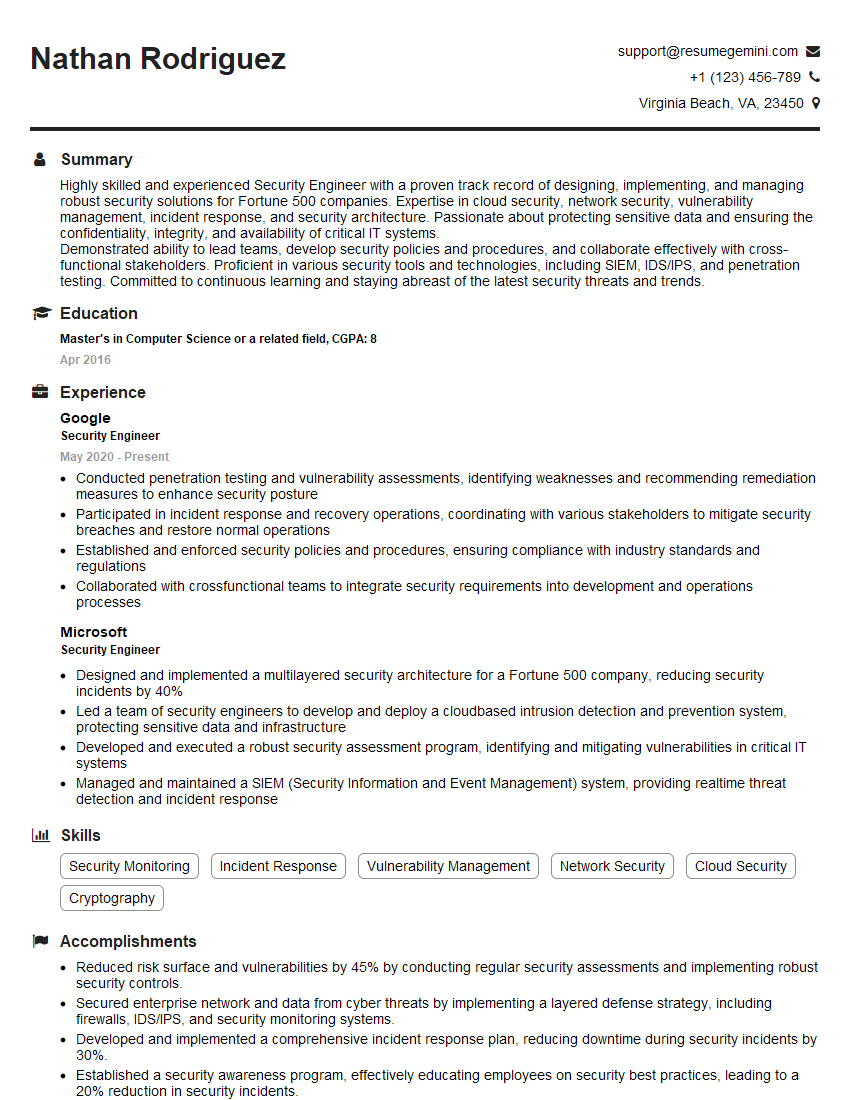
Security Engineer Resume Sample

Network Administrator Resume Sample
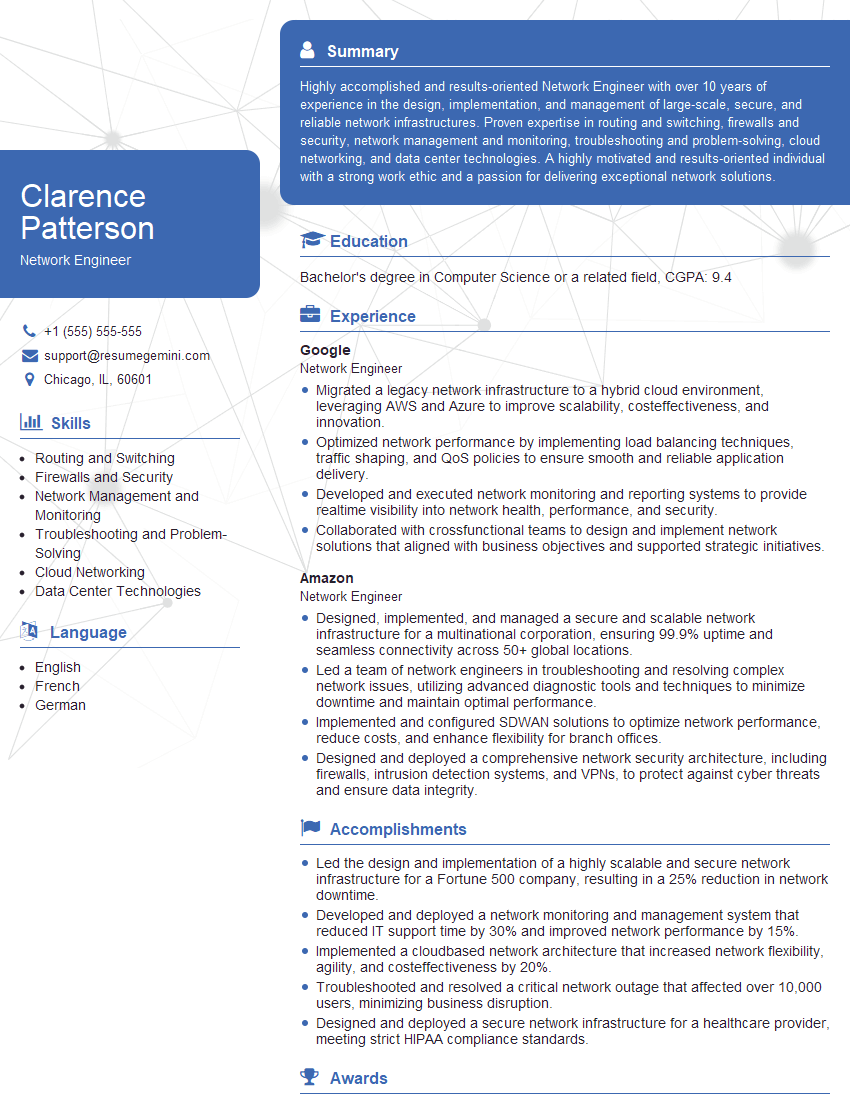
Network Engineer Resume Sample
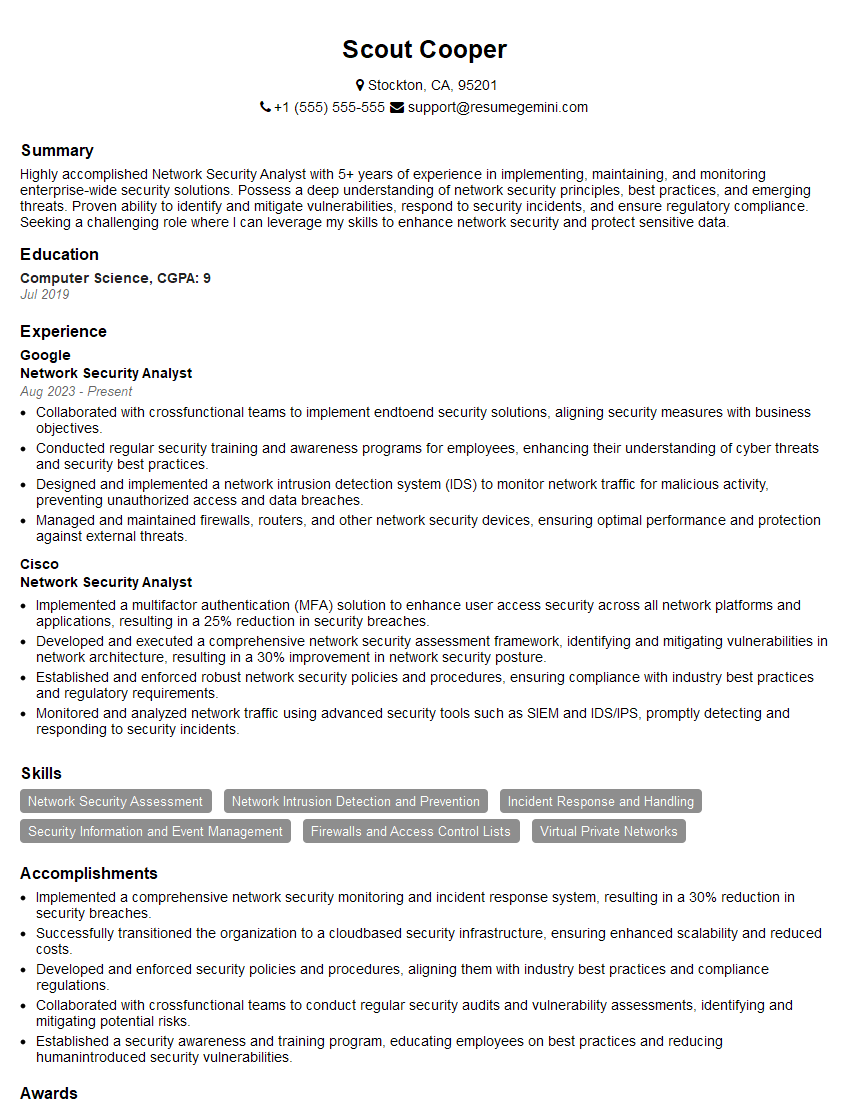
Network Security Analyst Resume Sample
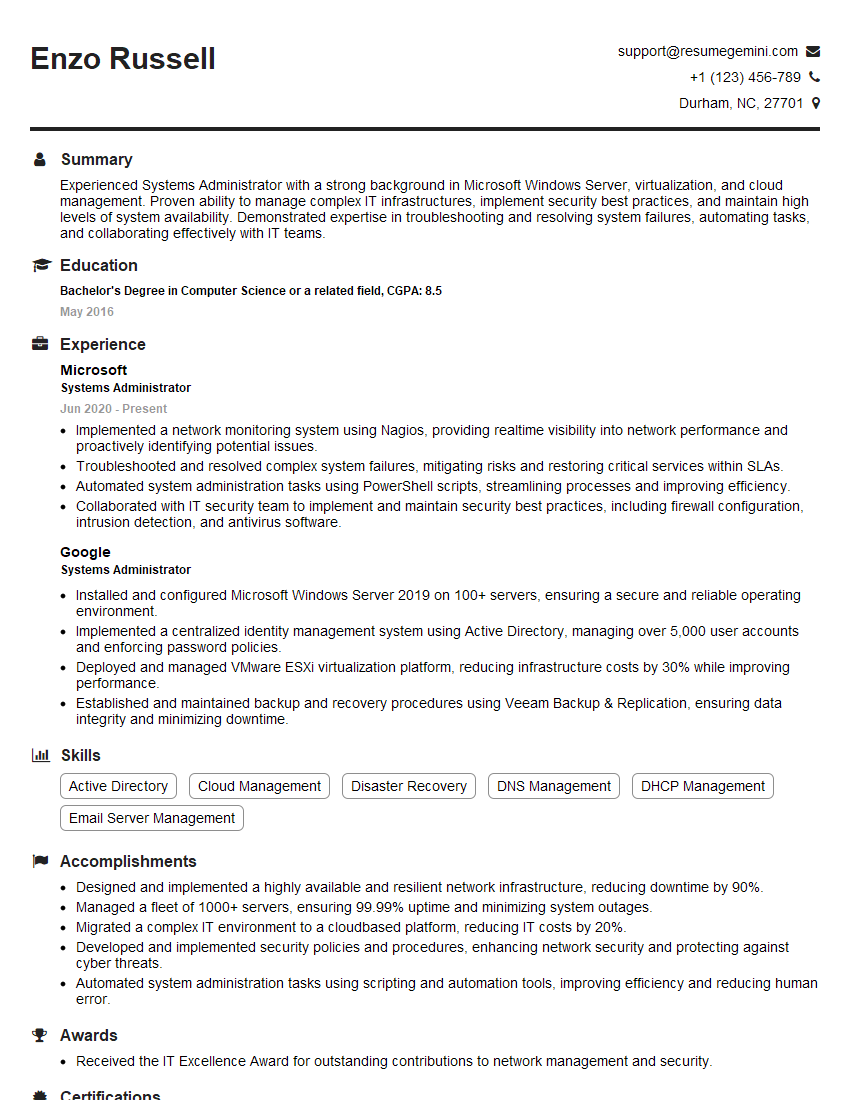
Systems Administrator Resume Sample

Technical Support Engineer Resume Sample

Infrastructure Engineer Resume Sample
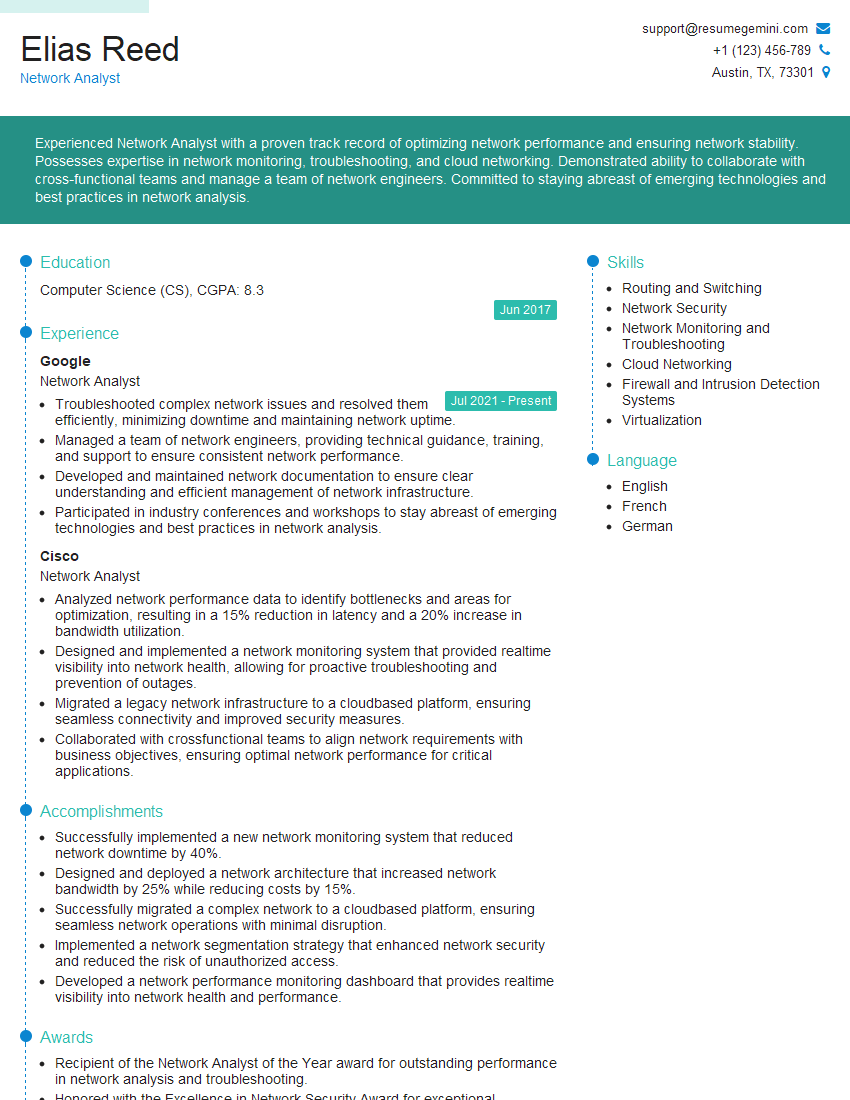
Network Analyst Resume Sample
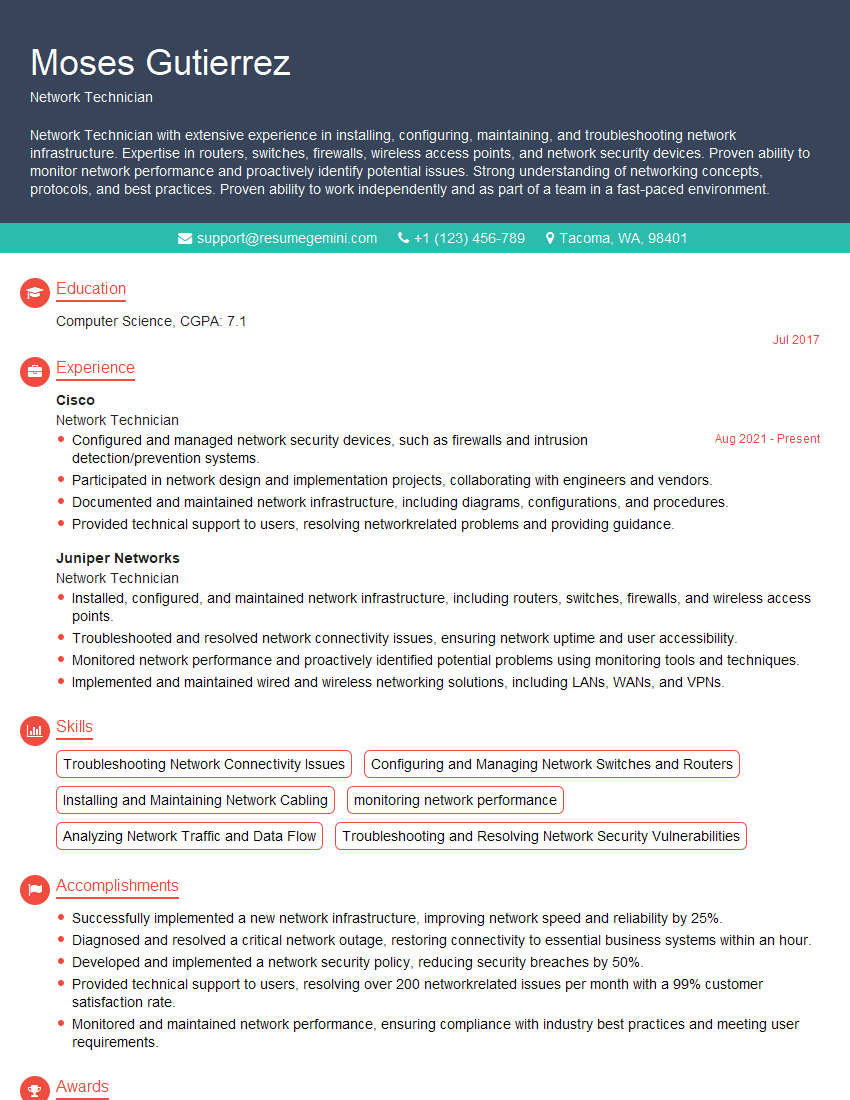
Network Technician Resume Sample
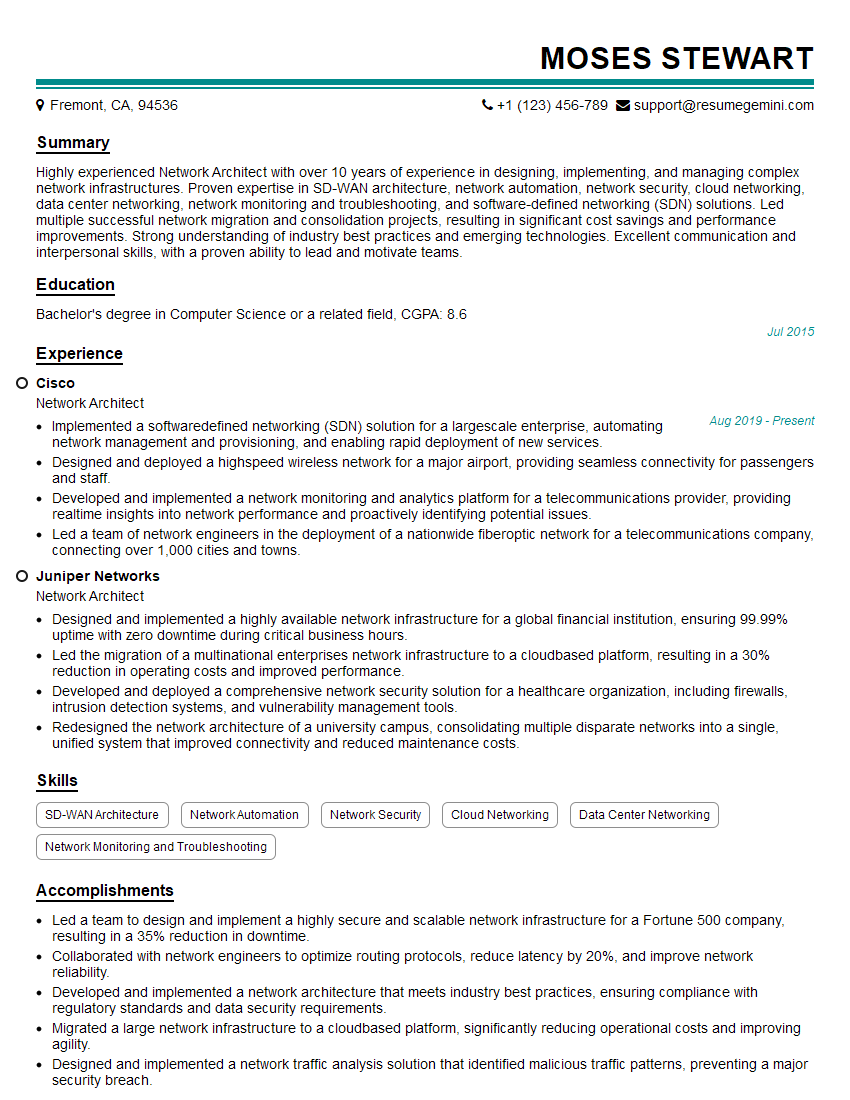
Network Architect Resume Sample
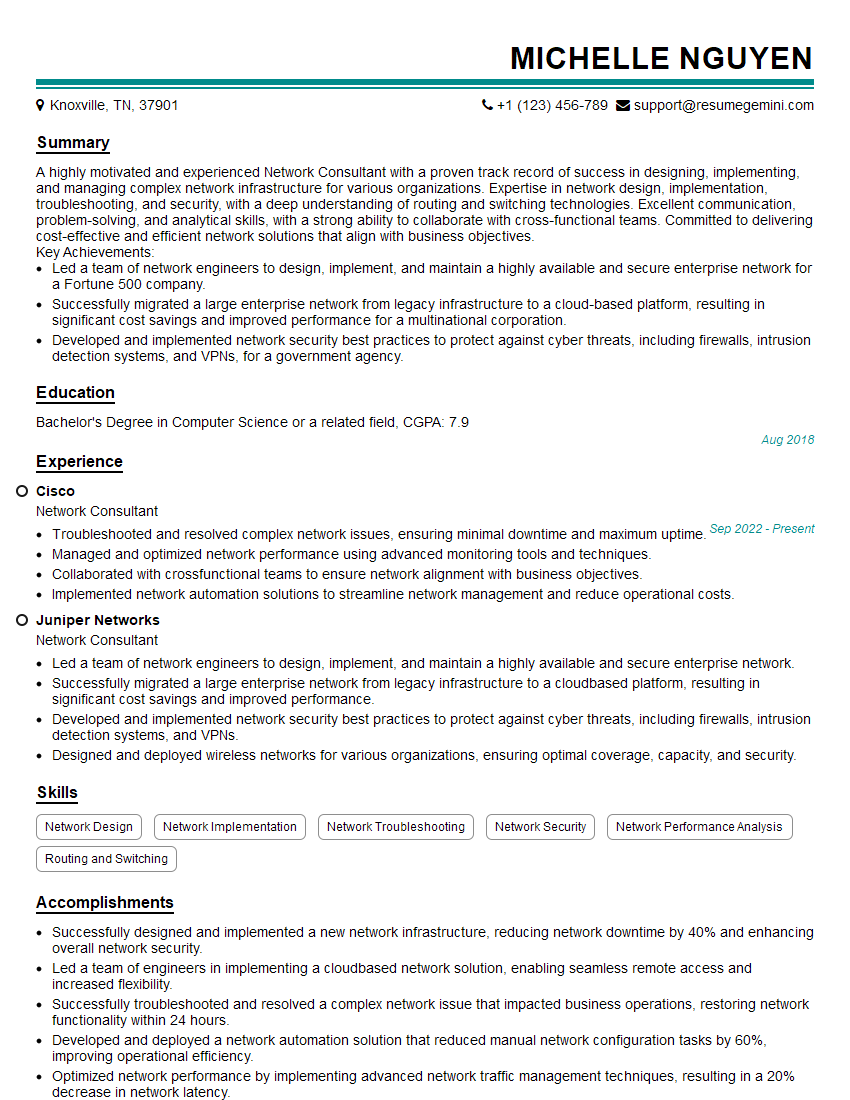
Network Consultant Resume Sample

Help Desk Technician Resume Sample

IT Manager Resume Sample
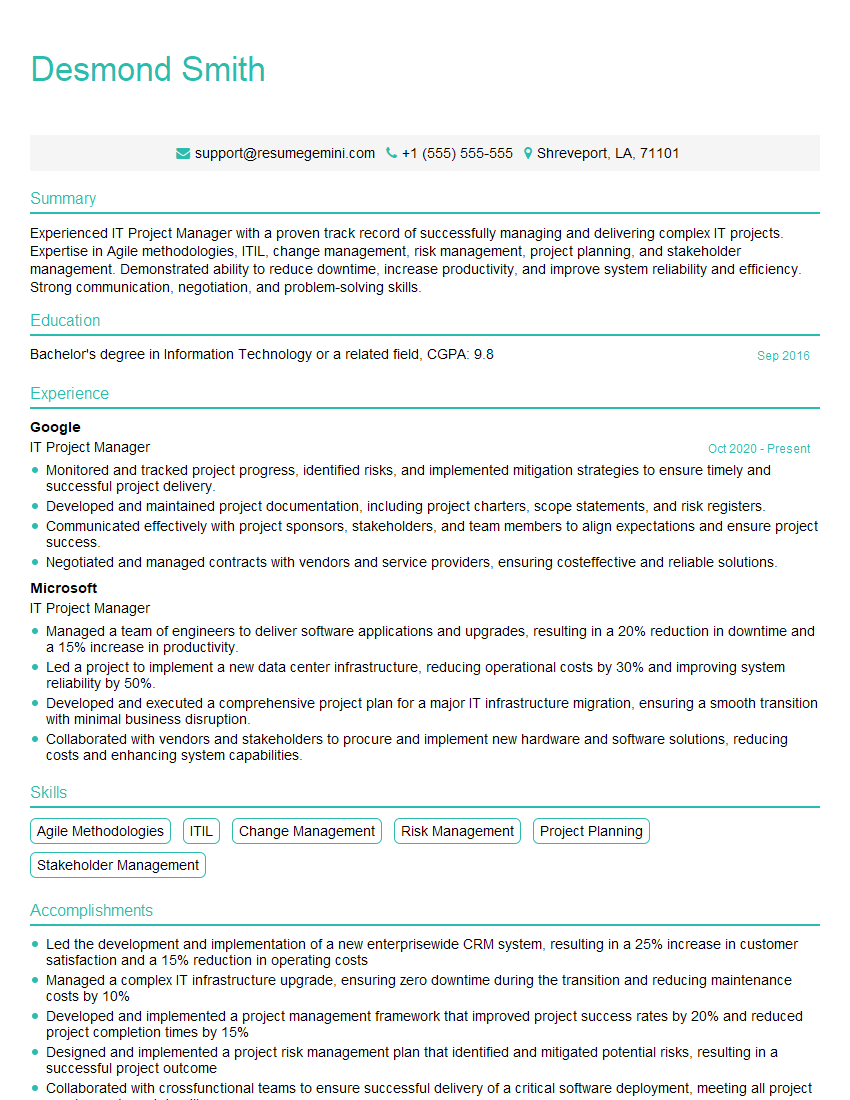
IT Project Manager Resume Sample
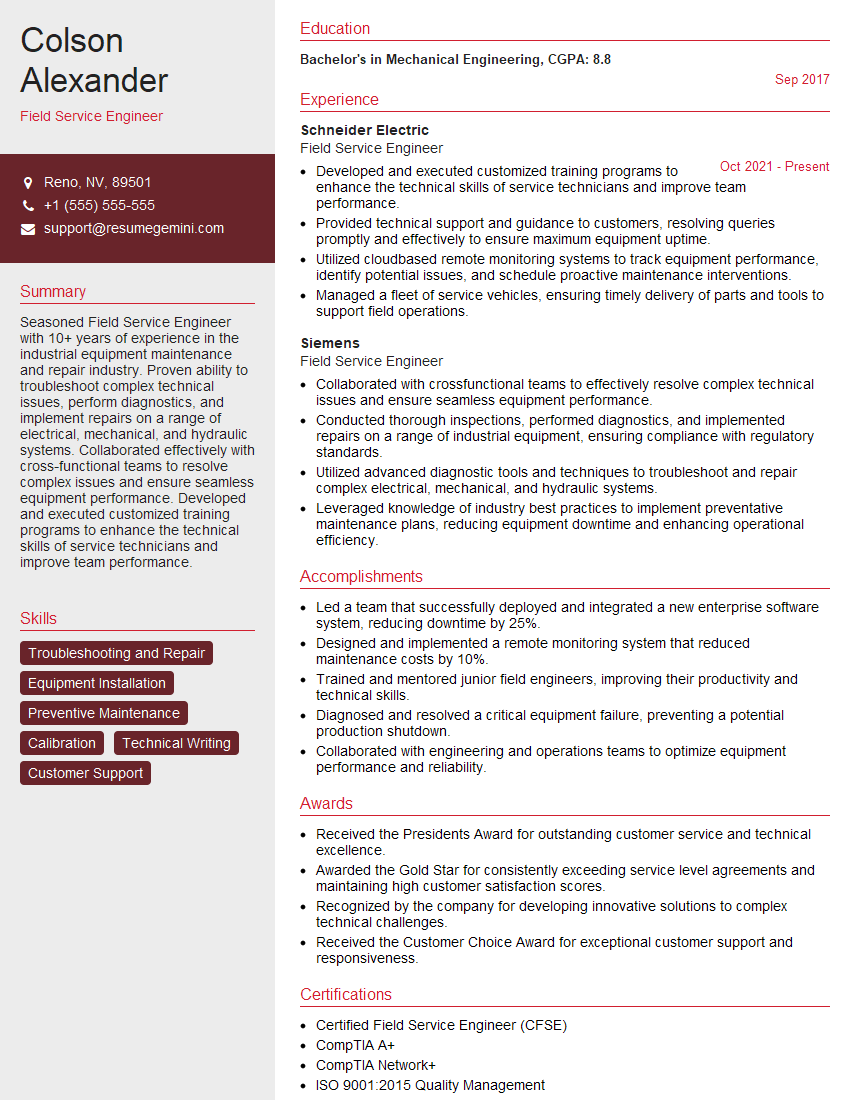
Field Service Engineer Resume Sample
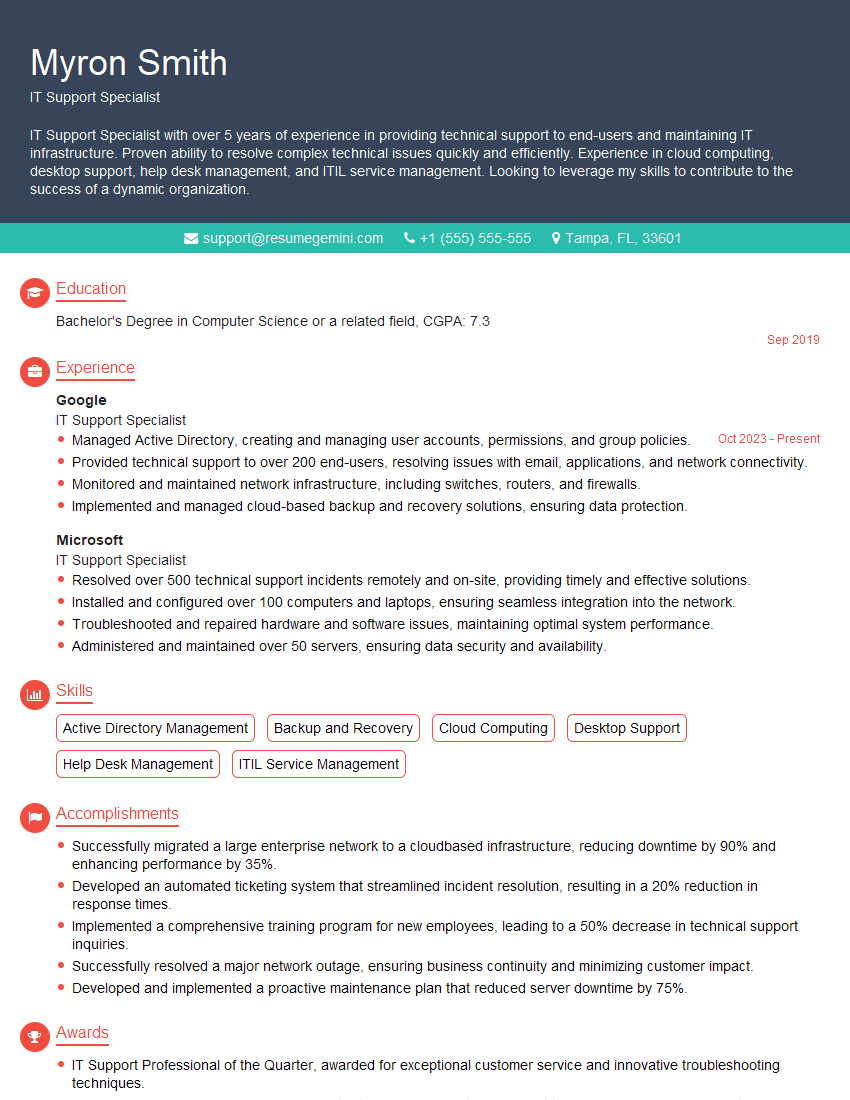
IT Support Specialist Resume Sample

DevOps Engineer Resume Sample
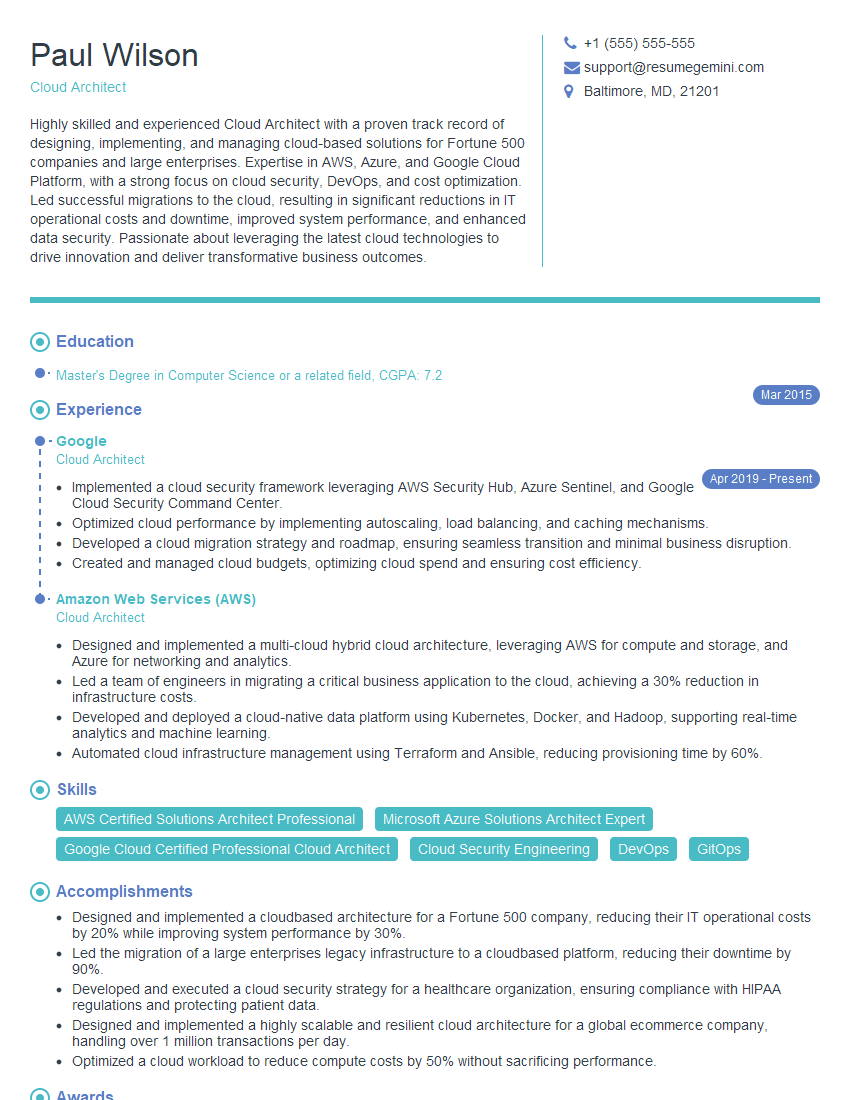
Cloud Architect Resume Sample
- Systems Engineer
- Security Engineer
- Network Administrator
- Network Engineer
- Network Security Analyst
- Systems Administrator
- Technical Support Engineer
- Infrastructure Engineer
- Network Analyst
- Network Technician
- Network Architect
- Network Consultant
- Help Desk Technician
- IT Manager
- IT Project Manager
- Field Service Engineer
- IT Support Specialist
- DevOps Engineer
- Cloud Architect
Explore more articles
Users Rating of Our Blogs
Share Your Experience
We value your feedback! Please rate our content and share your thoughts (optional).
What Readers Say About Our Blog
Really detailed insights and content, thank you for writing this detailed article.
IT gave me an insight and words to use and be able to think of examples