Preparation is the key to success in any interview. In this post, we’ll explore crucial PC/Laptop Proficiency interview questions and equip you with strategies to craft impactful answers. Whether you’re a beginner or a pro, these tips will elevate your preparation.
Questions Asked in PC/Laptop Proficiency Interview
Q 1. What operating systems are you proficient in?
My proficiency spans several operating systems, including Windows (all versions from XP to Windows 11), macOS (from 10.6 Snow Leopard to the latest Ventura), various Linux distributions like Ubuntu, Fedora, and CentOS, and even some experience with ChromeOS. I’m comfortable navigating their respective interfaces, managing files, configuring settings, and troubleshooting issues within each environment. For example, I’ve extensively used Windows Server for network administration tasks and leveraged Linux’s command-line interface for advanced system configurations. My familiarity with macOS stems from supporting users in a creative agency, where I assisted with software installations and troubleshooting.
Q 2. Describe your experience with troubleshooting hardware issues.
Troubleshooting hardware is a core skill for me. It involves a systematic approach. I typically start by identifying the symptoms – is the system completely unresponsive? Are there specific error messages? Is the problem intermittent or consistent? Once I have a good understanding of the symptoms, I proceed with a diagnostic process. This often includes visual inspection for obvious damage, checking connections (cables, RAM, etc.), testing individual components (like memory or hard drives using diagnostic tools), and listening for unusual sounds.
For instance, I once resolved an issue where a laptop was experiencing intermittent shutdowns. Through systematic testing, I found a failing hard drive, replaced it, and the problem was immediately solved. Another time, a desktop PC had no display. I checked all connections, tested the monitor and graphics card individually, and ultimately identified a failing power supply unit. The experience has taught me to always be methodical and consider multiple possibilities.
Q 3. How do you resolve common software glitches?
Resolving software glitches requires a combination of technical skills and problem-solving abilities. My approach often involves the following steps:
- Identifying the issue: What is the specific problem? What error messages are displayed?
- Gathering information: When did the problem start? What actions preceded the error? Were any recent software updates installed?
- Troubleshooting steps: This may involve restarting the system, checking for updates, running system diagnostics, uninstalling and reinstalling the problematic software, checking for conflicting applications, or reviewing event logs for clues. If the problem persists, searching online forums and support websites for solutions related to the specific error message is crucial.
- System restore/rollback: If necessary, I can use system restore points or rollback software updates to revert to a previously stable state.
- Reinstallation: In some severe cases, reinstalling the operating system might be required as a last resort.
For example, I recently helped a colleague resolve a persistent application crash. By checking the application logs, I identified a conflict with a specific driver. Updating that driver solved the problem immediately. In another scenario, a user was experiencing slow system performance. After investigating, I discovered many startup applications were consuming excessive resources. Disabling unnecessary startup programs dramatically improved the system’s speed.
Q 4. Explain your experience with network troubleshooting.
My network troubleshooting experience is extensive. I’m adept at diagnosing and resolving problems ranging from simple connectivity issues to complex network configuration problems. My approach is similar to hardware and software troubleshooting – systematic and methodical.
I start by checking the basics: Is the device connected properly? Are the cables functioning correctly? Are the network settings configured accurately (IP address, subnet mask, gateway)? I then use network diagnostic tools like ping, tracert, and ipconfig (on Windows) or ifconfig (on Linux) to identify bottlenecks or connectivity issues. I understand different network topologies (Ethernet, Wi-Fi) and can troubleshoot problems related to routers, switches, firewalls, and DNS servers. I’ve experience with various network protocols, including TCP/IP and DHCP.
For example, I recently resolved a network connectivity issue where a group of users couldn’t access a shared server. Using tracert, I found a routing problem between the users’ subnet and the server. Working with the network administrator, we corrected the routing tables, resolving the connectivity issue.
Q 5. What is your experience with data backup and recovery?
Data backup and recovery are essential for data security. My experience covers various backup methods, including local backups to external hard drives, network attached storage (NAS) devices, cloud storage services (like Dropbox, Google Drive, OneDrive, and Azure), and image-based backups using tools like Acronis True Image or Macrium Reflect. I understand the importance of regular backups, versioning, and the 3-2-1 backup rule (3 copies of data, 2 different media, 1 offsite location).
I’m also experienced in data recovery techniques. This involves using recovery tools to retrieve data from corrupted hard drives, attempting data recovery from deleted files or partitions, and even utilizing specialized forensic tools when dealing with more severe data loss scenarios. I’ve worked on projects requiring recovery from RAID arrays and formatted drives.
For instance, I once successfully recovered crucial business documents from a client’s failed hard drive, preventing significant data loss. The experience reinforced the importance of a robust backup strategy and the need for various recovery tools and skills.
Q 6. How familiar are you with Microsoft Office Suite?
I’m highly proficient with the Microsoft Office Suite, including Word, Excel, PowerPoint, Outlook, and Access. My expertise extends beyond basic usage to include advanced features such as macros (VBA scripting in Excel), data analysis and visualization in Excel, creating professional presentations in PowerPoint, managing large email inboxes efficiently in Outlook, and database management in Access. I frequently use these applications for creating reports, analyzing data, preparing presentations, and managing communications.
For example, I developed a custom Excel macro to automate a repetitive task, saving countless hours of manual work. In another instance, I created detailed presentations and reports using PowerPoint and Word, effectively communicating complex technical information to both technical and non-technical audiences.
Q 7. Describe your experience with remote assistance software.
I have extensive experience with various remote assistance software, including TeamViewer, AnyDesk, LogMeIn, and Microsoft Remote Desktop. I can effectively use these tools to provide technical support remotely, troubleshoot problems on users’ computers, and offer real-time assistance. I understand the security implications of remote access and always adhere to best practices to ensure the security and privacy of the systems I access. I’m comfortable navigating different operating systems and configurations remotely.
For example, I routinely use TeamViewer to assist clients with technical issues, remotely diagnosing and fixing problems efficiently without needing to be physically present. The ability to provide immediate support remotely is a critical skill, especially in a distributed work environment.
Q 8. What is your experience with different types of printers and scanners?
My experience with printers and scanners encompasses a wide range of technologies, from basic inkjet and laser printers to specialized large-format and multi-function devices (MFDs). I’m proficient in setting up and troubleshooting various printer types, including:
- Inkjet Printers: I’m familiar with their strengths (photographic quality, low initial cost) and weaknesses (higher running costs, slower printing speeds). I can diagnose issues like clogged print heads, paper jams, and connectivity problems.
- Laser Printers: I understand the advantages of laser printers (high speed, sharp text, lower long-term cost) and how to address problems such as toner cartridge issues, fuser unit malfunctions, and paper path jams.
- Multi-Function Devices (MFDs): I have experience configuring and maintaining MFDs that combine printing, scanning, copying, and faxing functionalities. This involves understanding network settings, driver installation, and troubleshooting various component failures.
- Large-Format Printers: I’ve worked with large-format printers for tasks like poster printing and blueprint reproduction, understanding the nuances of specialized inks and media handling.
- Scanners: My expertise includes flatbed scanners, sheet-fed scanners, and document scanners. I’m adept at resolving issues related to image quality, driver compatibility, and connectivity problems.
In my previous role, I successfully resolved a network connectivity issue for a large-format printer that was preventing a team of architects from printing their project blueprints, saving the team valuable time and ensuring a crucial deadline was met. This involved checking network settings, reinstalling drivers, and finally identifying a faulty network cable.
Q 9. How would you handle a situation with a malfunctioning computer?
My approach to a malfunctioning computer is systematic and methodical. I start by identifying the nature of the problem, which often requires a series of diagnostic steps. This might involve checking the following:
- Basic Functionality: Is the computer powering on? Are there any error messages displayed?
- External Peripherals: Are all cables securely connected? Are external devices functioning correctly?
- Software Issues: Are there any recent software changes that could be causing the problem? Is the computer running slowly or freezing frequently? This might point to software conflicts, virus infection or insufficient RAM.
- Hardware Issues: Are there any unusual noises coming from the computer? Is the computer overheating? This could indicate a hardware failure such as a failing hard drive or overheating CPU.
Once I’ve identified the likely cause, I’ll attempt a solution. This might involve restarting the computer, running a virus scan, reinstalling software, updating drivers, or checking hardware connections. For more serious hardware problems, I would carefully troubleshoot the components (RAM, Hard Drive, etc) to pinpoint the source of the failure, and if necessary, recommend or perform repairs or replacement.
For example, I once resolved a computer freezing issue by identifying a failing hard drive. By systematically running diagnostics tools, I was able to pinpoint the drive as the source of the problem, allowing for a timely replacement and preventing data loss.
Q 10. What security measures do you take to protect computer systems?
Protecting computer systems from security threats is paramount. My approach involves a multi-layered strategy including:
- Strong Passwords and Multi-Factor Authentication (MFA): I enforce the use of strong, unique passwords and implement MFA wherever possible to add an extra layer of security.
- Regular Software Updates: I keep all operating systems, applications, and firmware updated with the latest security patches to mitigate known vulnerabilities.
- Antivirus and Anti-malware Software: I utilize robust antivirus and anti-malware software, regularly scanning for threats and ensuring real-time protection.
- Firewall Configuration: I configure firewalls to block unauthorized network access and protect against external attacks.
- Data Backups: Regular data backups are crucial. I employ a strategy of both local and cloud-based backups to ensure data redundancy and recoverability in the event of a system failure or data loss.
- User Education and Awareness: Educating users about phishing scams, malware, and safe internet practices is key to preventing security breaches. I regularly provide training and guidance on these topics.
- Access Controls: Implementing appropriate access control measures based on the principle of least privilege ensures only authorized users have access to sensitive data and systems. This includes implementing appropriate user permissions and access levels.
I always adhere to best practices and stay informed about the latest security threats and vulnerabilities through industry publications and training.
Q 11. Explain your experience with installing and configuring software.
My experience with software installation and configuration is extensive. I’m proficient in installing and configuring a wide range of software, from operating systems (Windows, macOS, Linux) to applications (Microsoft Office Suite, Adobe Creative Cloud, specialized industry applications). My process usually includes:
- Understanding Requirements: Before installation, I thoroughly review the software’s system requirements to ensure compatibility with the target hardware and software environment.
- Download and Installation: I obtain the software from trusted sources and carefully follow the installation instructions. I often check for optional components and customize settings during the installation process according to the user’s specific needs.
- Configuration and Customization: Once installed, I configure the software to meet the user’s specific needs. This may involve customizing settings, integrating with other applications, and creating user profiles.
- Testing and Troubleshooting: After installation and configuration, I thoroughly test the software to ensure it functions correctly and addresses the user’s requirements. If any issues arise, I use my troubleshooting skills to resolve them. This may involve searching for solutions online, consulting documentation, or contacting technical support.
For example, I recently installed and configured a complex ERP system for a small business, integrating it with their existing accounting software and customizing the user interface for their specific workflow. The successful implementation streamlined their operations and improved efficiency.
Q 12. What is your experience with managing user accounts and permissions?
Managing user accounts and permissions is critical for maintaining system security and ensuring efficient resource allocation. My experience involves creating, modifying, and deleting user accounts; assigning appropriate permissions and access levels; and enforcing security policies. I’m familiar with various user account management tools and techniques, including:
- Active Directory (AD): I have experience managing user accounts, groups, and organizational units within an Active Directory environment, setting permissions for file shares, applications, and other resources.
- Local User Accounts: I’m adept at managing local user accounts on Windows and macOS systems, controlling user access and permissions on individual machines.
- Cloud-Based User Management: I’m experienced in managing user accounts and permissions in cloud-based environments such as Google Workspace and Microsoft 365, leveraging their features for centralized account management and granular access control.
- Role-Based Access Control (RBAC): I understand the importance of RBAC and implement it where appropriate to ensure users have only the necessary access privileges, minimizing security risks.
In a previous role, I implemented a new user account management system that improved security and streamlined administrative tasks, significantly reducing the time spent managing user access.
Q 13. Describe your experience with diagnosing and fixing network connectivity issues.
Diagnosing and resolving network connectivity issues requires a systematic approach. I begin by identifying the symptoms (e.g., inability to access the internet, slow network speeds, intermittent connectivity) and then systematically investigate potential causes. My troubleshooting process typically includes:
- Checking Physical Connections: Ensuring all cables are securely connected and that network devices are powered on.
- Verifying Network Settings: Checking IP addresses, subnet masks, default gateways, and DNS servers. This may involve checking both the client machine and the network router.
- Testing Network Connectivity: Using tools like
pingandtracert(or their graphical equivalents) to test connectivity to various network devices and servers. - Examining Network Devices: Checking the status of routers, switches, and other network devices to identify potential bottlenecks or malfunctions.
- Checking for Network Conflicts: Identifying potential IP address conflicts or other network configuration problems.
- Troubleshooting Wireless Networks: Analyzing wireless signal strength, interference, and security settings for wireless network problems.
For example, I recently resolved a network connectivity issue by identifying a faulty network switch. By systematically testing network segments, I was able to pinpoint the problematic switch and replace it, restoring network functionality.
Q 14. How proficient are you with using cloud storage services?
I’m highly proficient with various cloud storage services, including Google Drive, Dropbox, OneDrive, and iCloud. My experience includes:
- File Storage and Sharing: I regularly use cloud storage to store and share files, leveraging features like file versioning, collaboration tools, and access controls.
- Data Backup and Recovery: I utilize cloud storage for data backup and disaster recovery, configuring automatic backups and testing restore procedures.
- Synchronization and Collaboration: I’m adept at using cloud storage for file synchronization across multiple devices and collaborating on projects with others using shared folders and real-time editing tools.
- Security and Access Controls: I understand and implement appropriate security measures, including password management, two-factor authentication, and access controls to protect sensitive data stored in the cloud.
In a previous role, I migrated a company’s entire file server to a cloud-based storage solution, improving accessibility, collaboration, and data security. This involved careful planning, data migration, and user training to ensure a smooth transition.
Q 15. What is your experience with hardware diagnostics tools?
My experience with hardware diagnostic tools is extensive. I’m proficient in using a range of tools, from built-in utilities like Windows System Information and the Event Viewer to advanced diagnostic software such as Memtest86+ for RAM testing, CrystalDiskInfo for hard drive health checks, and HWMonitor for monitoring system temperatures and voltages. I also have experience using manufacturer-specific diagnostic tools, which are often invaluable for pinpointing hardware failures in specific components like motherboards or graphics cards. For instance, I recently used Memtest86+ to identify a failing RAM module in a server, preventing data loss and system instability. The ability to quickly and accurately diagnose hardware problems is crucial for efficient troubleshooting and minimizes downtime.
- Memtest86+: Used for thorough RAM testing, identifying bad memory sticks.
- CrystalDiskInfo: Monitors hard drive health, detecting potential failures (SMART data).
- HWMonitor: Displays real-time hardware sensor data (temperatures, voltages, fan speeds).
Career Expert Tips:
- Ace those interviews! Prepare effectively by reviewing the Top 50 Most Common Interview Questions on ResumeGemini.
- Navigate your job search with confidence! Explore a wide range of Career Tips on ResumeGemini. Learn about common challenges and recommendations to overcome them.
- Craft the perfect resume! Master the Art of Resume Writing with ResumeGemini’s guide. Showcase your unique qualifications and achievements effectively.
- Don’t miss out on holiday savings! Build your dream resume with ResumeGemini’s ATS optimized templates.
Q 16. How familiar are you with different types of computer hardware?
My familiarity with computer hardware encompasses a wide range of components, from the CPU, GPU, and RAM to motherboards, storage devices (HDDs, SSDs, NVMe drives), power supplies, and peripherals such as keyboards, mice, and printers. I understand the interplay between these components and their impact on system performance. I can identify different types of processors (Intel, AMD), understand the differences between various RAM types (DDR3, DDR4, DDR5), and differentiate between various storage technologies. For example, I can explain the advantages and disadvantages of NVMe SSDs compared to traditional SATA SSDs, and I can troubleshoot issues related to BIOS settings and boot order. Understanding hardware is foundational for effective troubleshooting and system optimization.
Q 17. How do you prioritize multiple IT support requests?
Prioritizing IT support requests requires a systematic approach. I utilize a tiered system based on impact and urgency. I use a system that prioritizes requests based on the following criteria:
- Critical: System outages, data loss, security breaches—requiring immediate attention.
- High: Issues impacting multiple users or core business functions—requiring prompt resolution.
- Medium: Issues impacting individual users or minor workflow disruptions—requiring timely resolution.
- Low: Non-critical issues, such as minor software glitches or cosmetic problems—can be addressed when time permits.
I maintain a log of all requests, documenting their status and prioritizing them according to this system. This ensures that critical issues are addressed swiftly, while less urgent problems are still handled efficiently. Think of it like a hospital triage – the most severely injured patients are seen first.
Q 18. What is your experience with maintaining IT inventory?
My experience with maintaining IT inventory involves using both manual and automated methods. I’ve used spreadsheet software like Excel to create and maintain detailed inventories, including asset tags, purchase dates, specifications, warranty information, and locations of each device. For larger organizations, I have experience using dedicated asset management software that provides features such as automated discovery, reporting, and lifecycle management. This ensures accurate tracking of IT assets, facilitating efficient maintenance, procurement, and disposal processes. Accurate inventory management is crucial for budgeting, auditing, and security.
Q 19. Explain your experience with virtual machines.
I have extensive experience with virtual machines (VMs), using both VMware vSphere and Microsoft Hyper-V. I can create, configure, and manage VMs for various purposes, such as software testing, application development, and server virtualization. I understand concepts like resource allocation (CPU, RAM, storage), network configuration (virtual switches), and VM snapshots. I have experience cloning VMs, migrating them between hosts, and troubleshooting VM performance issues. For example, I recently used virtual machines to set up a testing environment for a new application, allowing developers to test the software on various operating systems without impacting the production environment. This significantly reduces the risks associated with software testing and increases efficiency.
Q 20. Describe your experience with troubleshooting internet connectivity problems.
Troubleshooting internet connectivity problems requires a methodical approach. My process typically involves the following steps:
- Verify the physical connection: Check cables, routers, and modem connections.
- Check device settings: Ensure network adapters are enabled and have the correct IP configuration.
- Test other devices: Determine if the problem is device-specific or network-wide.
- Check router and modem status: Restart these devices and check for error messages.
- Check internet service provider (ISP): Contact the ISP to rule out any outages or issues on their end.
- Use diagnostic tools: Employ tools like ping and traceroute to identify network bottlenecks or connectivity issues.
For instance, I recently resolved a connectivity issue by identifying a faulty cable using a simple continuity tester and swapping the faulty cable for a new one. This highlights the importance of a systematic approach to resolving network connectivity problems.
Q 21. What is your experience with mobile device management?
My experience with mobile device management (MDM) includes using various MDM solutions to manage and secure mobile devices within an organization. I understand the importance of implementing policies to control access to corporate data, installing and managing applications, and enforcing security measures (such as passcode policies and device encryption). I’m familiar with features like remote device wiping, application deployment, and device tracking. For example, I have helped organizations configure MDM solutions to ensure compliance with data security regulations, providing a secure platform for employees to access company resources through their mobile devices. This is crucial for protecting sensitive data and maintaining productivity in a mobile-first world.
Q 22. How comfortable are you with command-line interface (CLI)?
I’m highly comfortable with the command-line interface (CLI). It’s a fundamental tool in my troubleshooting and system administration arsenal. I find CLIs more efficient for many tasks than GUIs, especially when dealing with automation or repetitive operations. My experience spans various operating systems, including Windows (using cmd and PowerShell) and Linux (using bash and zsh).
For instance, I routinely use CLI commands to manage files and directories (cp, mv, rm), check system resource utilization (top, htop, Resource Monitor), manage network connections (netstat, ipconfig), and remotely administer servers (using SSH).
Think of it like this: a GUI is like driving a car with an automatic transmission – easy and convenient for most tasks. The CLI is like driving a manual transmission – it requires more skill, but offers greater control and efficiency when you need it.
Q 23. Describe your experience with scripting (e.g., PowerShell, Bash).
I have extensive experience with scripting, primarily using PowerShell and Bash. PowerShell is my go-to for Windows environments, while Bash is my preference for Linux and macOS. I’ve used scripting to automate repetitive tasks, manage systems, and create custom tools to improve efficiency and reduce manual intervention.
For example, I’ve written PowerShell scripts to automate user account creation, manage software deployments, and generate reports on system performance. In Bash, I’ve created scripts for log analysis, system backups, and automating deployments to servers.
# Example PowerShell script to get disk space:
Get-WmiObject Win32_LogicalDisk | Select-Object DeviceID, @{Name="FreeSpaceGB";Expression={$_.FreeSpace / 1GB}}, @{Name="SizeGB";Expression={$_.Size / 1GB}}
Scripting allows me to solve complex problems quickly and efficiently, and to create reusable solutions that can be applied across multiple systems. It’s a critical part of my problem-solving approach.
Q 24. What is your experience with Active Directory?
My experience with Active Directory (AD) is robust. I’ve worked extensively with its management tools and have a deep understanding of its underlying structure and functionality. This includes creating, managing, and troubleshooting user accounts, groups, and organizational units (OUs).
I’ve used AD to implement group policies for enforcing security settings and managing software deployments. I’m proficient in using tools such as Active Directory Users and Computers (ADUC) and Active Directory Administrative Center (ADAC). I have experience troubleshooting AD replication issues and resolving permission-related problems.
For example, I’ve used AD to create specific security groups to control access to network resources based on job roles. This ensures that only authorized personnel can access sensitive information and systems, enhancing overall security and compliance.
Q 25. How do you stay updated on the latest technology trends?
Staying updated on the latest technology trends is crucial in this field. I utilize several methods to achieve this:
- Following industry blogs and publications: I regularly read blogs and articles from reputable sources like TechCrunch, Ars Technica, and official vendor websites.
- Participating in online communities and forums: Engaging in online communities like Reddit’s r/sysadmin and Stack Overflow keeps me abreast of current challenges and solutions.
- Attending webinars and online courses: Platforms like Coursera, Udemy, and LinkedIn Learning provide access to insightful training on new technologies.
- Experimentation and hands-on practice: I dedicate time to testing and experimenting with new software and hardware to gain practical experience.
This multi-faceted approach ensures I’m well-informed about advancements in hardware, software, security best practices, and emerging technologies.
Q 26. Explain your experience with troubleshooting BIOS settings.
Troubleshooting BIOS settings is a regular part of my work. I’ve successfully resolved numerous issues related to boot order, CPU overclocking, and hardware compatibility. This involves understanding the BIOS’s role in initializing and configuring hardware at the lowest level of the system.
A common example is troubleshooting boot issues. If a system fails to boot, I’ll access the BIOS settings (usually by pressing DEL, F2, or F12 during startup, depending on the motherboard manufacturer) to check the boot order. Incorrect boot order, or a failing boot device, is frequently the culprit. I’ve also worked on resolving issues with hardware compatibility, such as incorrect memory settings or compatibility problems between CPU and motherboard.
Troubleshooting BIOS requires a methodical approach: carefully review error messages, consult the motherboard manual, and make changes incrementally, testing after each adjustment. This prevents making irreversible changes that could render the system unusable.
Q 27. Describe your experience with using different types of input devices (mouse, keyboard, etc.)
My experience encompasses a wide variety of input devices, from standard keyboards and mice to specialized gaming peripherals and ergonomic alternatives. I understand the nuances of different input technologies (mechanical vs. membrane keyboards, optical vs. laser mice) and their impact on user experience and productivity.
This knowledge extends to troubleshooting input device issues. For instance, I can diagnose problems with unresponsive keys, erratic mouse movements, and connectivity problems. I can also help users configure input devices to their preferences, such as adjusting mouse sensitivity, customizing keyboard shortcuts, and setting up macro functionality.
Beyond the technical aspects, I also understand the importance of ergonomics and user comfort. I can advise on choosing appropriate input devices to prevent repetitive strain injuries and enhance overall productivity.
Q 28. How do you ensure data integrity and security?
Data integrity and security are paramount. My approach involves a multi-layered strategy:
- Regular backups: Implementing robust backup systems, including both local and offsite backups, to protect against data loss due to hardware failure, software errors, or malicious attacks.
- Access control: Implementing strong password policies, multi-factor authentication, and role-based access control to limit access to sensitive data only to authorized personnel.
- Antivirus and antimalware software: Using updated antivirus and antimalware software to protect against malware and viruses.
- Firewall protection: Configuring firewalls to filter network traffic and prevent unauthorized access to the system.
- Data encryption: Encrypting sensitive data both in transit and at rest to protect it from unauthorized access.
- Regular security audits: Conducting regular security audits to identify and address vulnerabilities.
This proactive approach combines preventative measures with reactive strategies to ensure data remains secure and reliable.
Key Topics to Learn for PC/Laptop Proficiency Interview
- Operating Systems: Understanding Windows, macOS, and potentially Linux. Know their functionalities, basic troubleshooting, and differences in user interfaces.
- Hardware Basics: Familiarity with CPU, RAM, storage (HDD/SSD), and peripherals (printers, scanners). Be able to explain their roles and how they interact.
- Software Applications: Proficiency in Microsoft Office Suite (Word, Excel, PowerPoint, Outlook), and other commonly used productivity applications. Demonstrate your ability to efficiently use these tools.
- File Management & Organization: Showcase your skills in creating folders, organizing files, and efficiently managing large datasets. Discuss strategies for data backup and recovery.
- Troubleshooting & Problem Solving: Describe your approach to resolving common technical issues like software glitches, network connectivity problems, or printer errors. Highlight your analytical and problem-solving skills.
- Internet & Network Basics: Understanding internet connectivity, network security (e.g., firewalls, passwords), and browser functionality. Explain concepts like network protocols (basic understanding).
- Data Security & Privacy: Discuss best practices for protecting sensitive data, including password management, secure browsing habits, and recognizing phishing attempts.
- Software Installation & Updates: Explain your experience with installing and updating software, managing software licenses, and understanding version control.
Next Steps
Mastering PC/Laptop proficiency is crucial for success in today’s digital workplace. It demonstrates essential technical skills and the ability to adapt to various technological environments, boosting your employability across numerous industries. To significantly improve your job prospects, it’s vital to present your skills effectively through a well-crafted, ATS-friendly resume. ResumeGemini is a trusted resource to help you build a professional and impactful resume that highlights your PC/Laptop proficiency. Examples of resumes tailored to this skillset are available to guide you. Take the next step towards your dream job by crafting a compelling resume that showcases your expertise!

Administrative Assistant Resume Sample
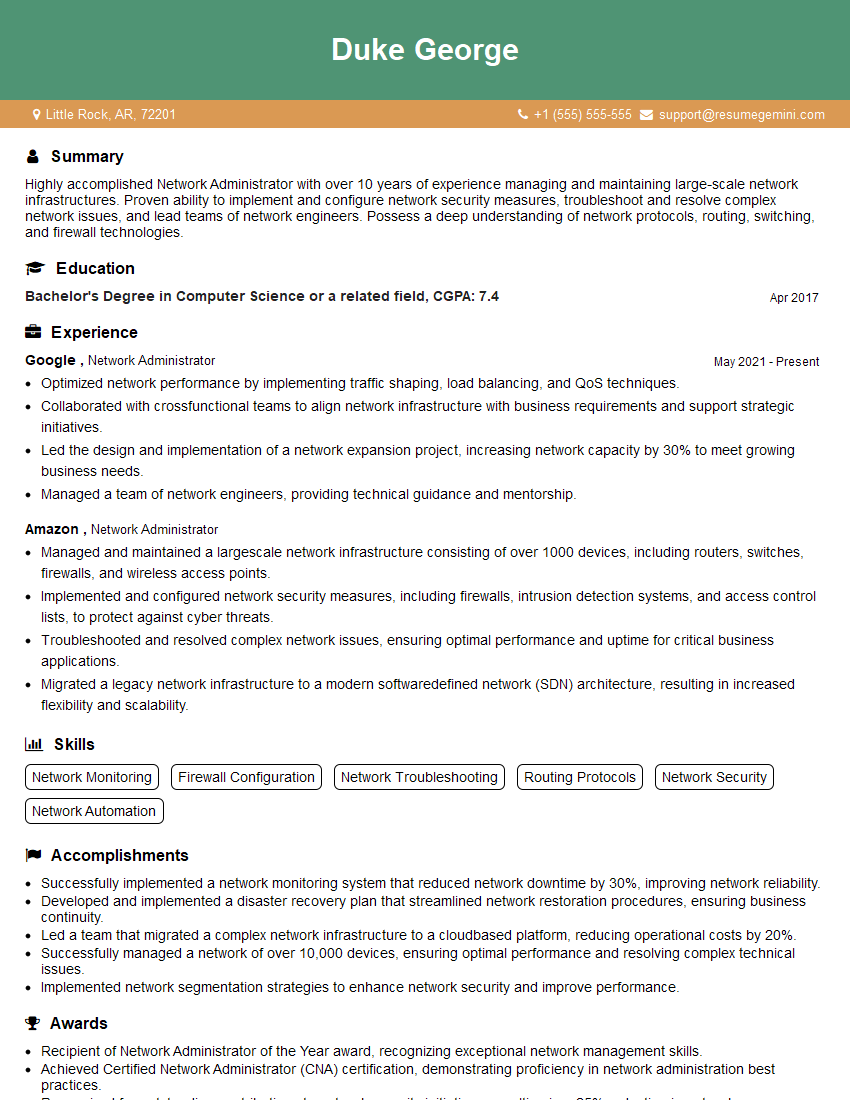
Network Administrator Resume Sample
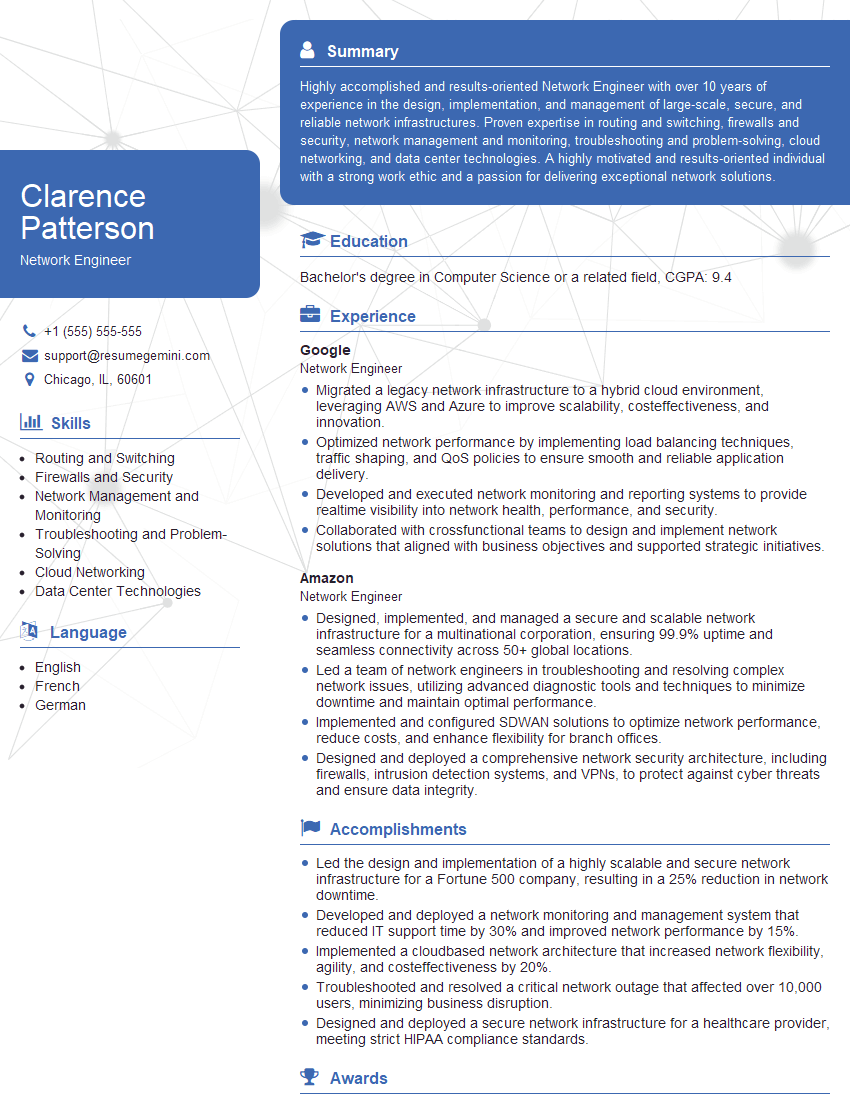
Network Engineer Resume Sample
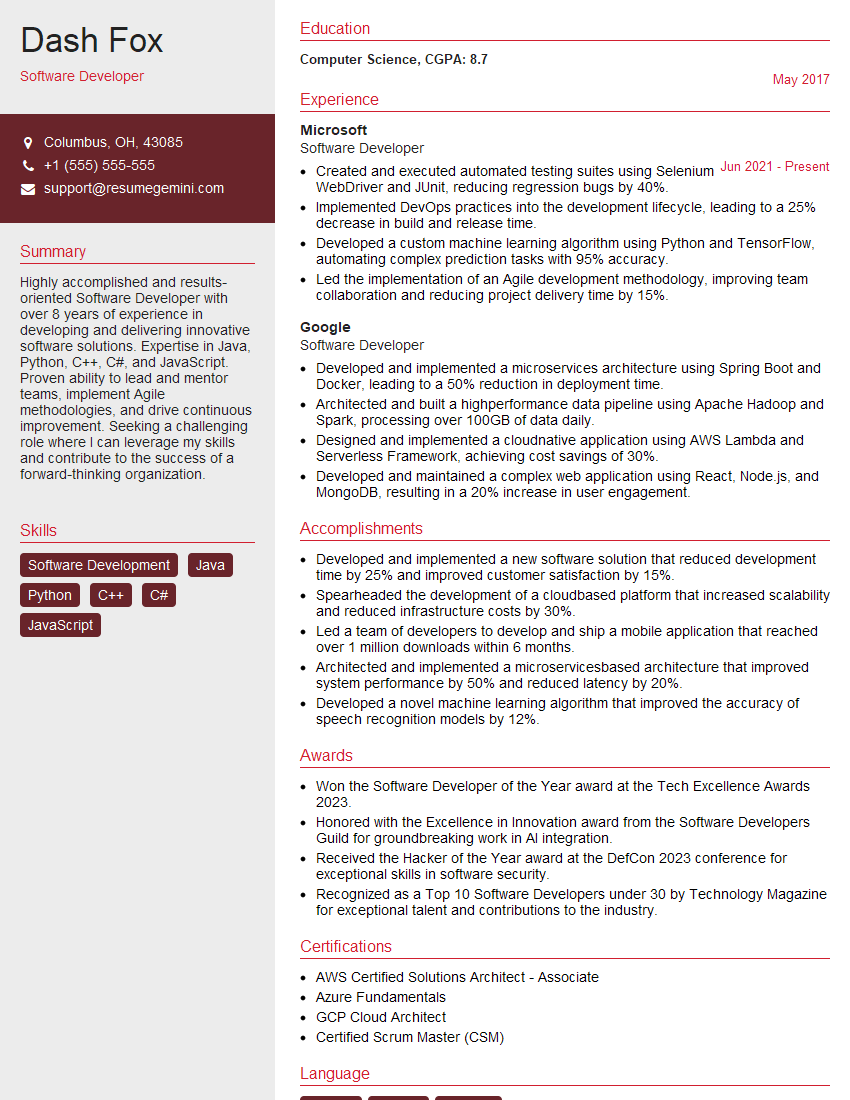
Software Developer Resume Sample

Technical Support Engineer Resume Sample
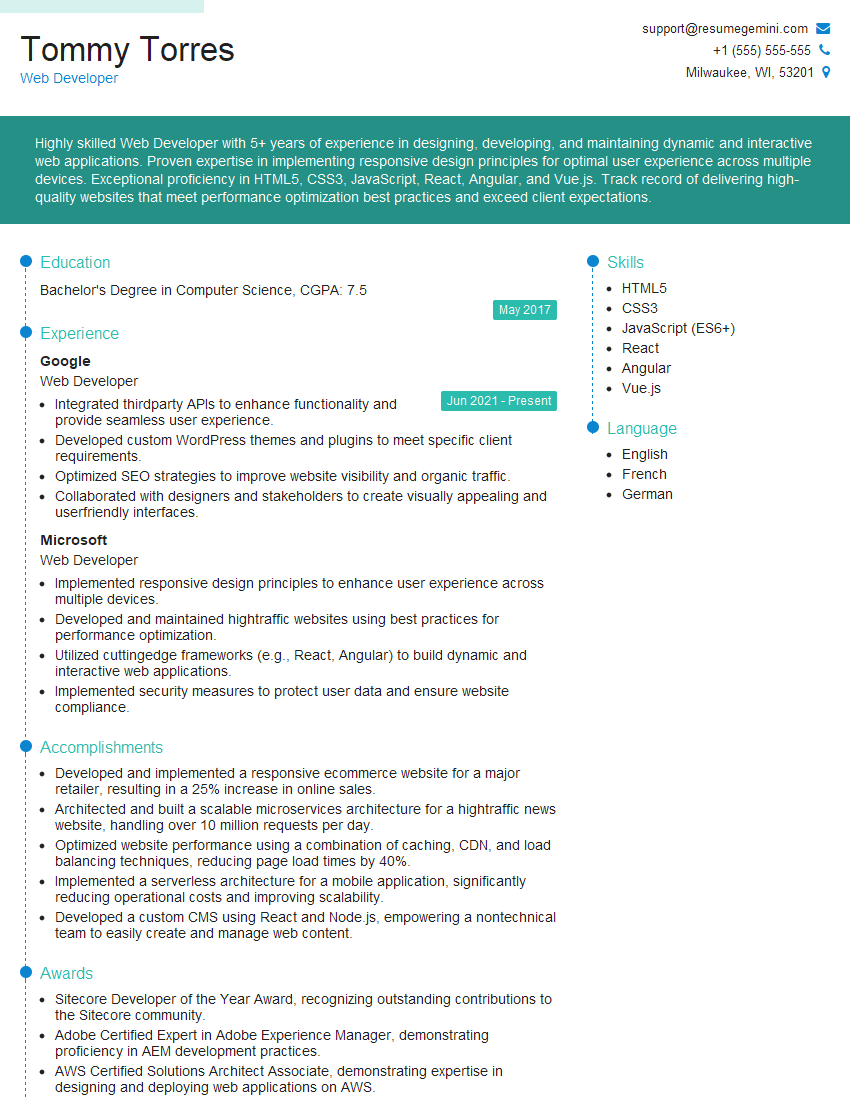
Web Developer Resume Sample
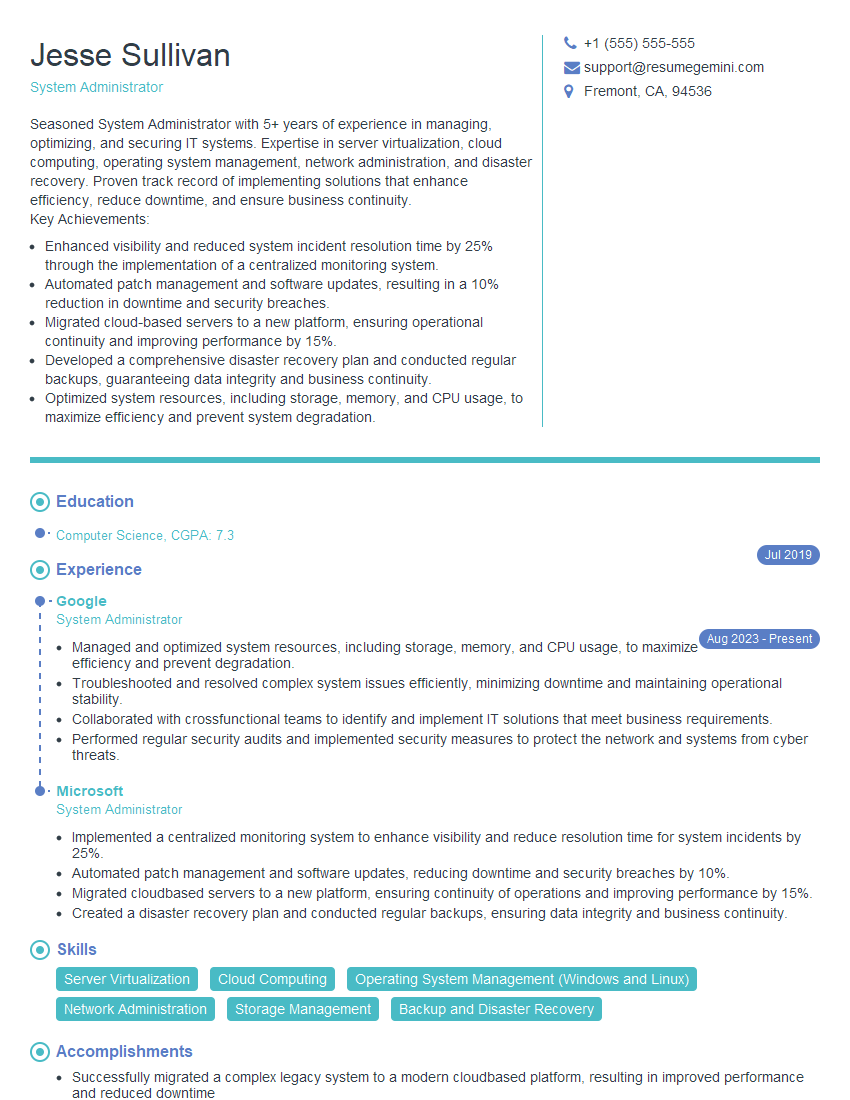
System Administrator Resume Sample
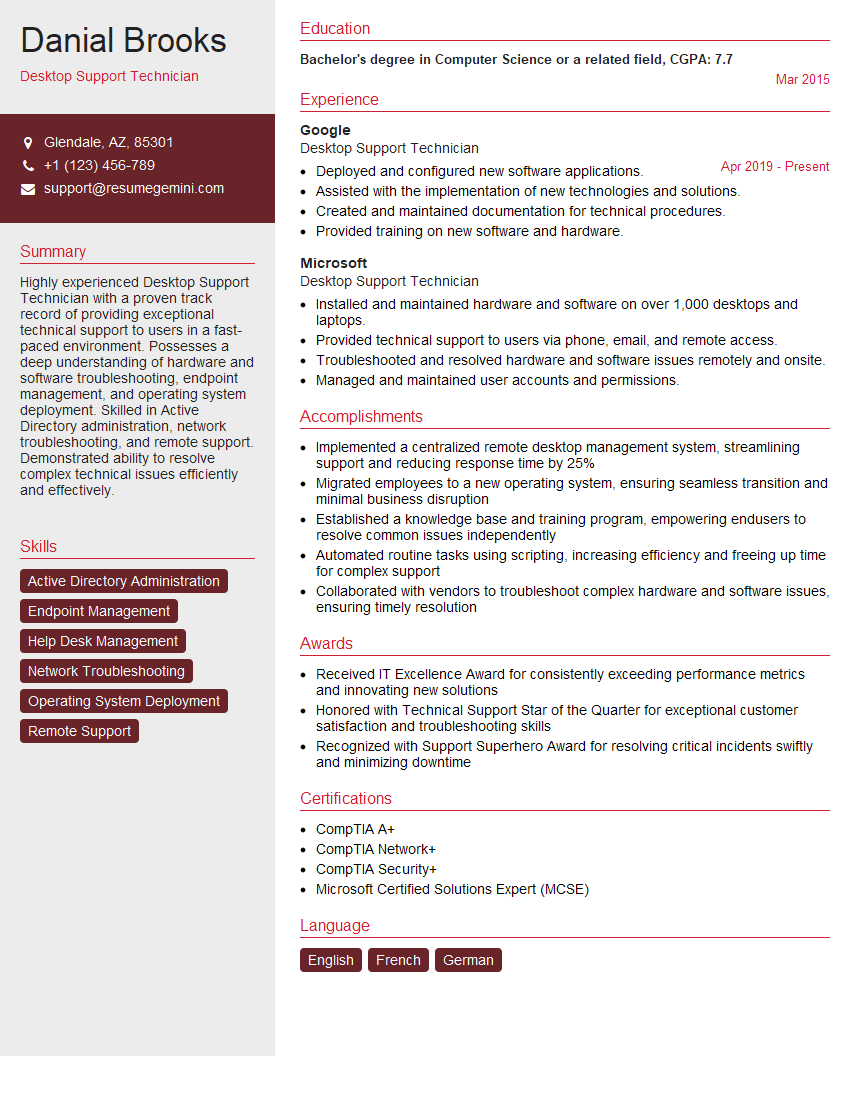
Desktop Support Technician Resume Sample
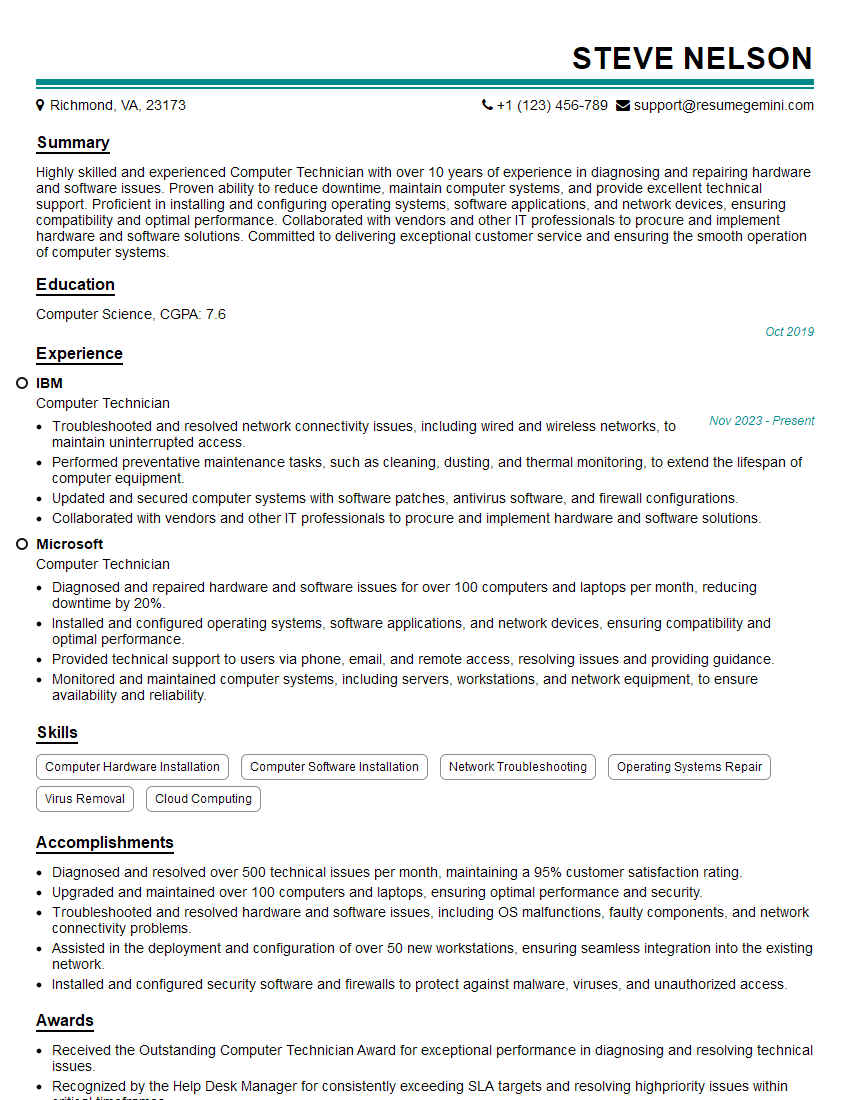
Computer Technician Resume Sample
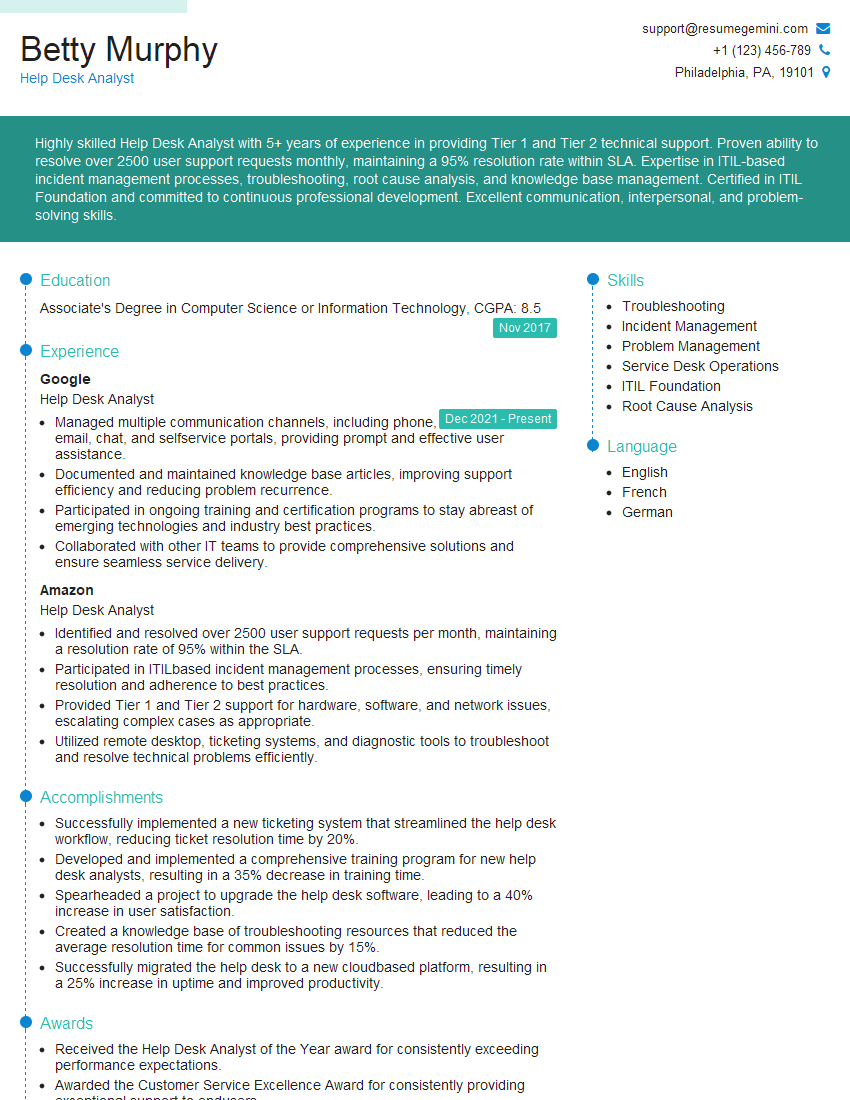
Help Desk Analyst Resume Sample
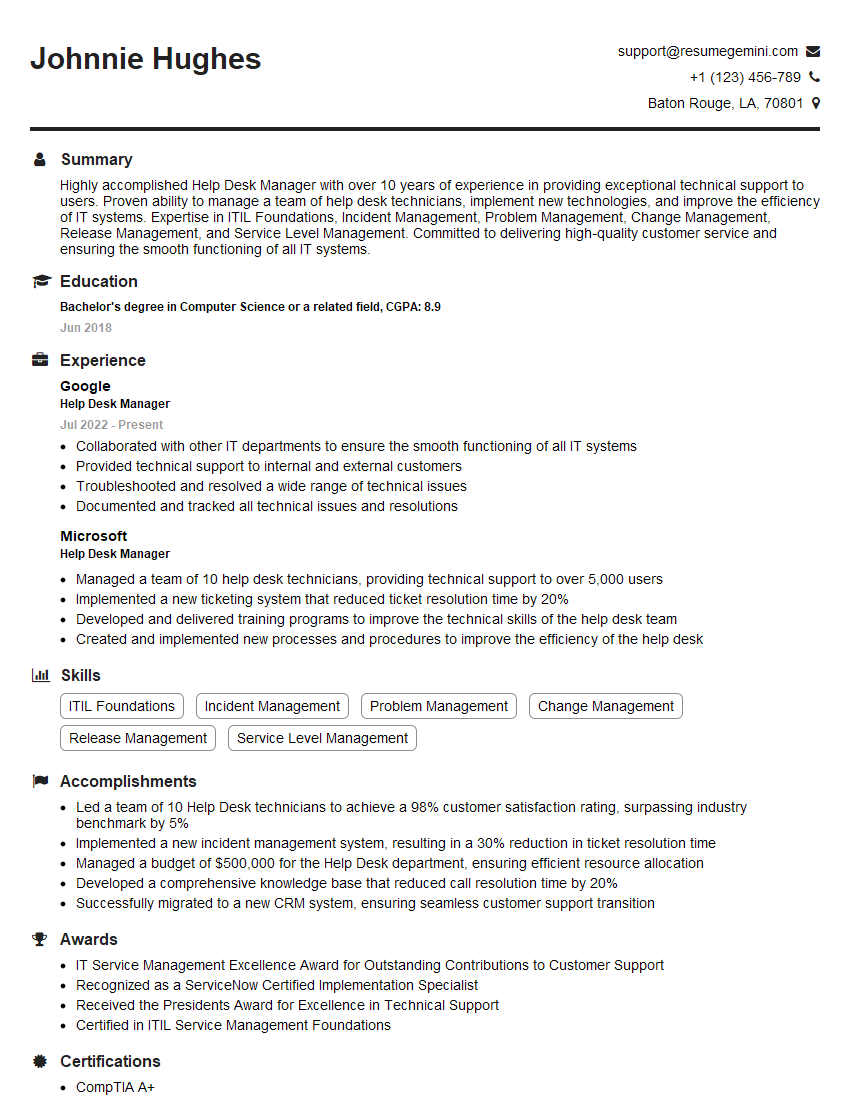
Help Desk Manager Resume Sample

IT Manager Resume Sample
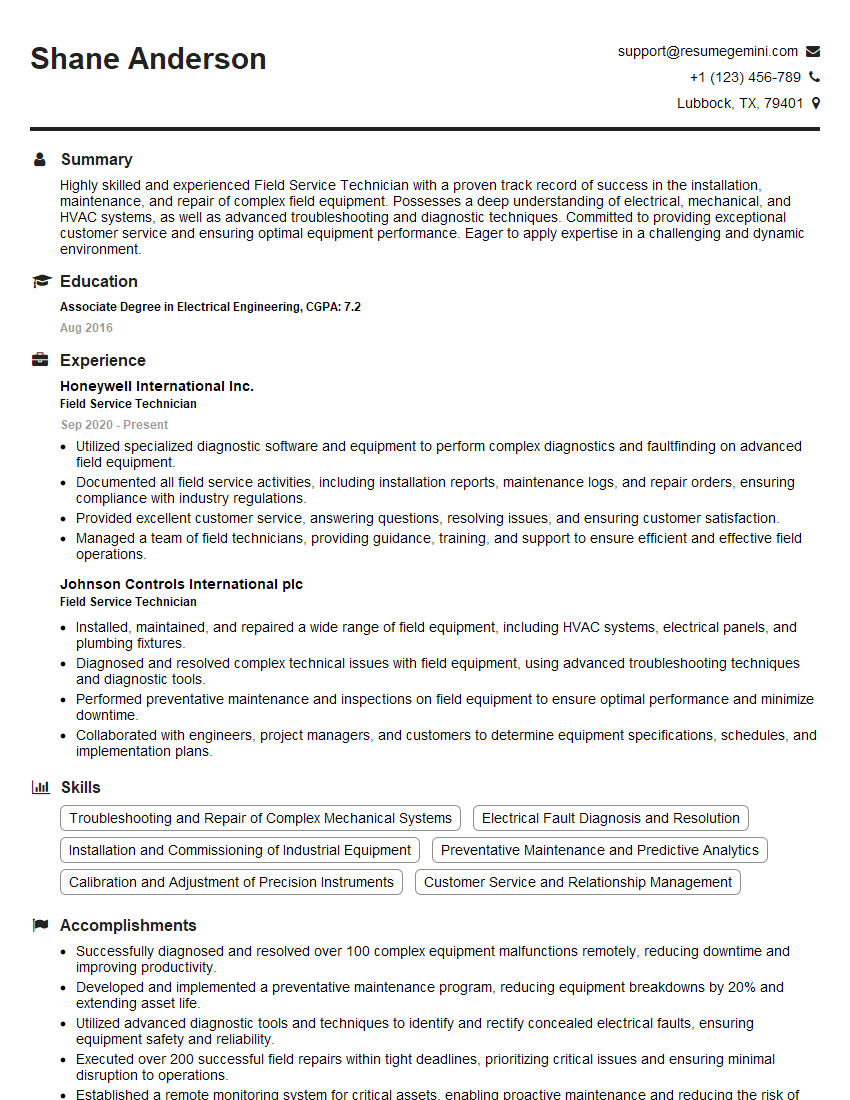
Field Service Technician Resume Sample

Technical Writer Resume Sample
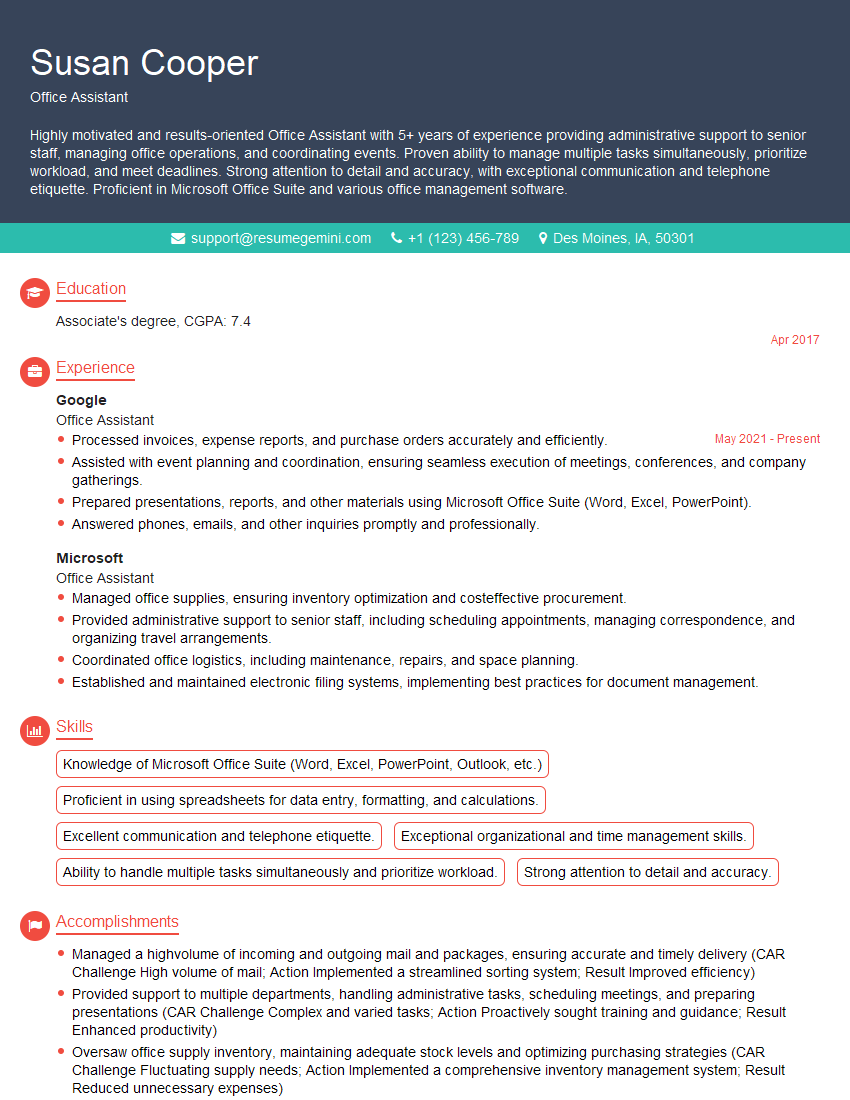
Office Assistant Resume Sample

Data Entry Clerk Resume Sample
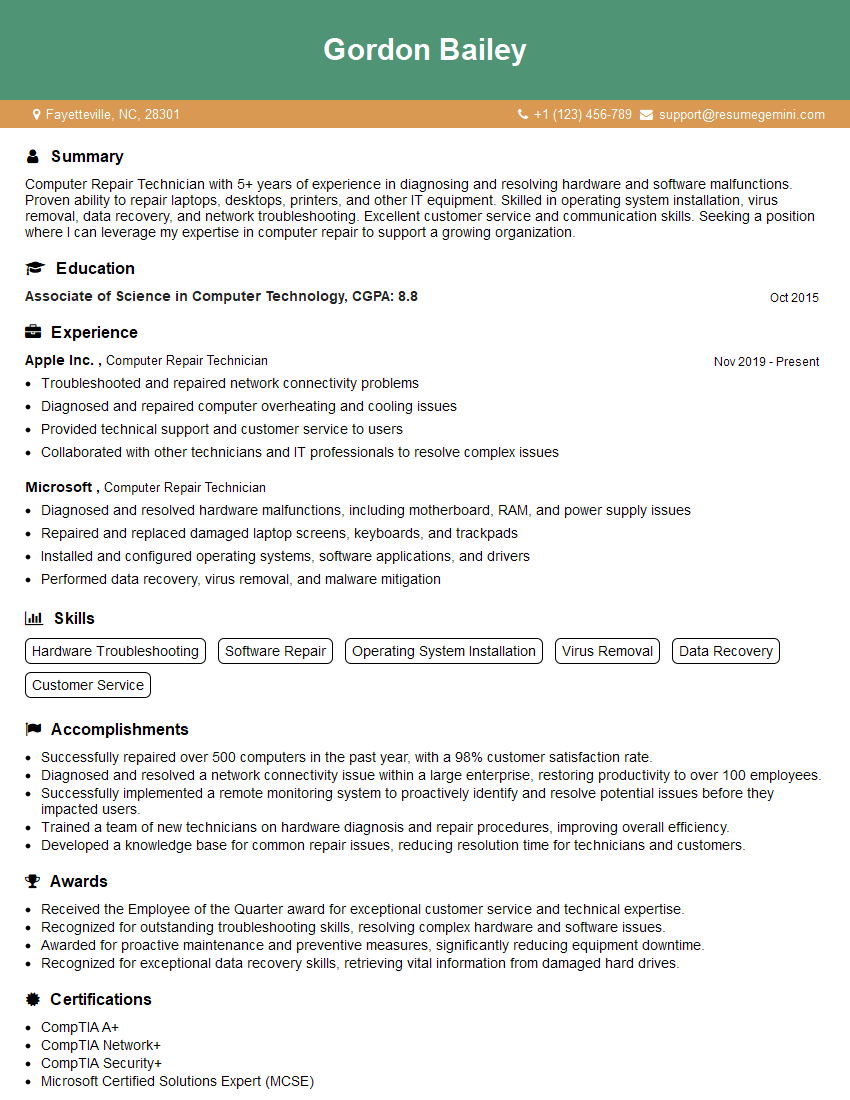
Computer Repair Technician Resume Sample
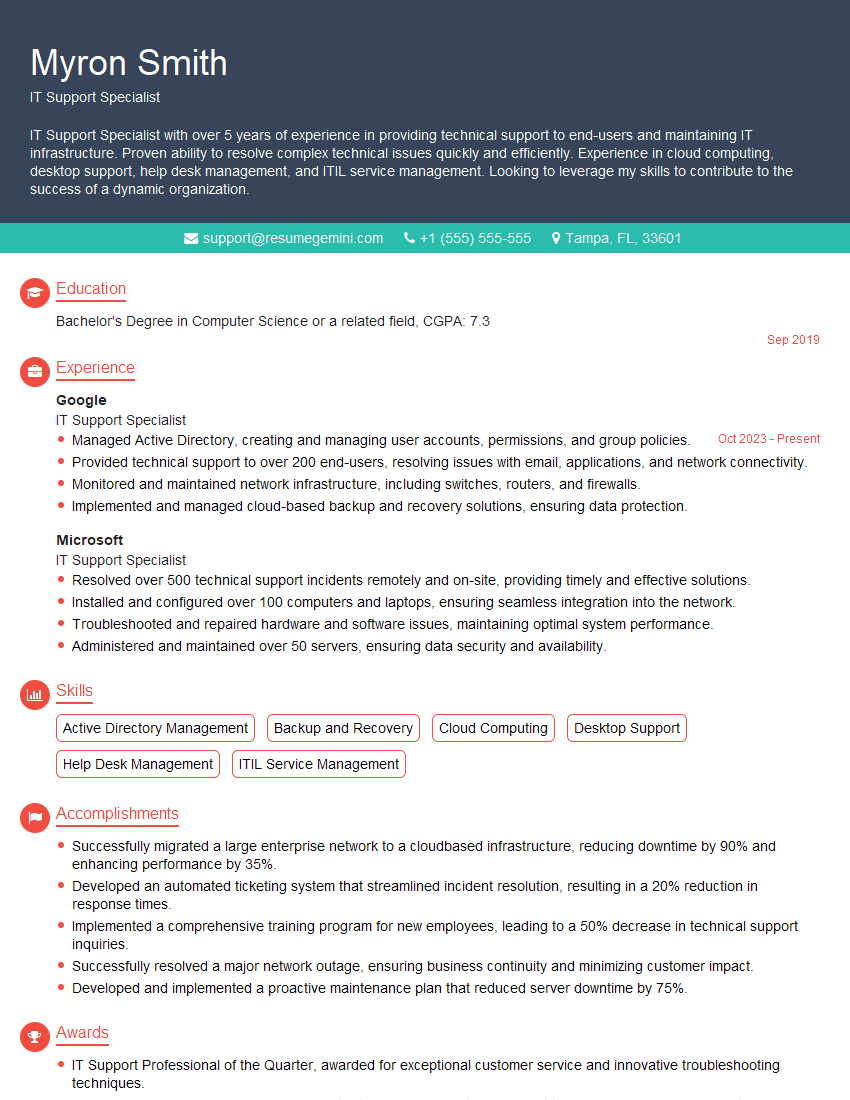
IT Support Specialist Resume Sample
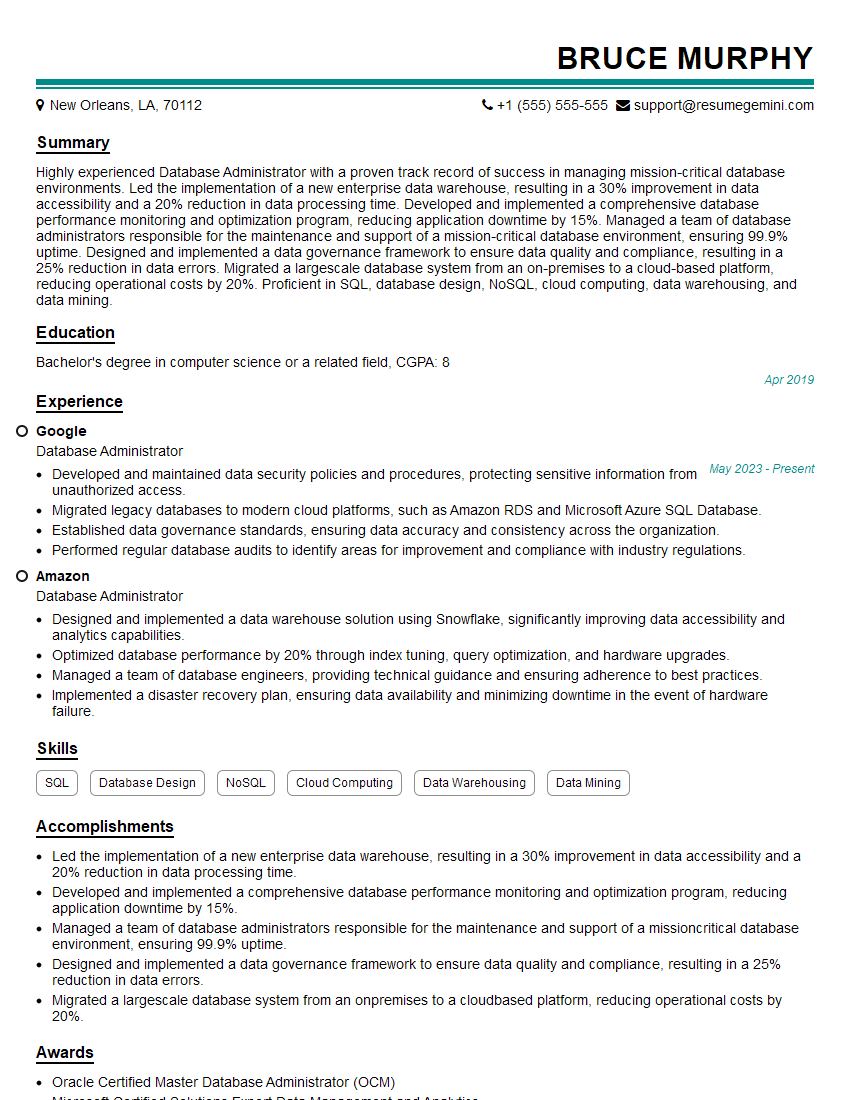
Database Administrator Resume Sample
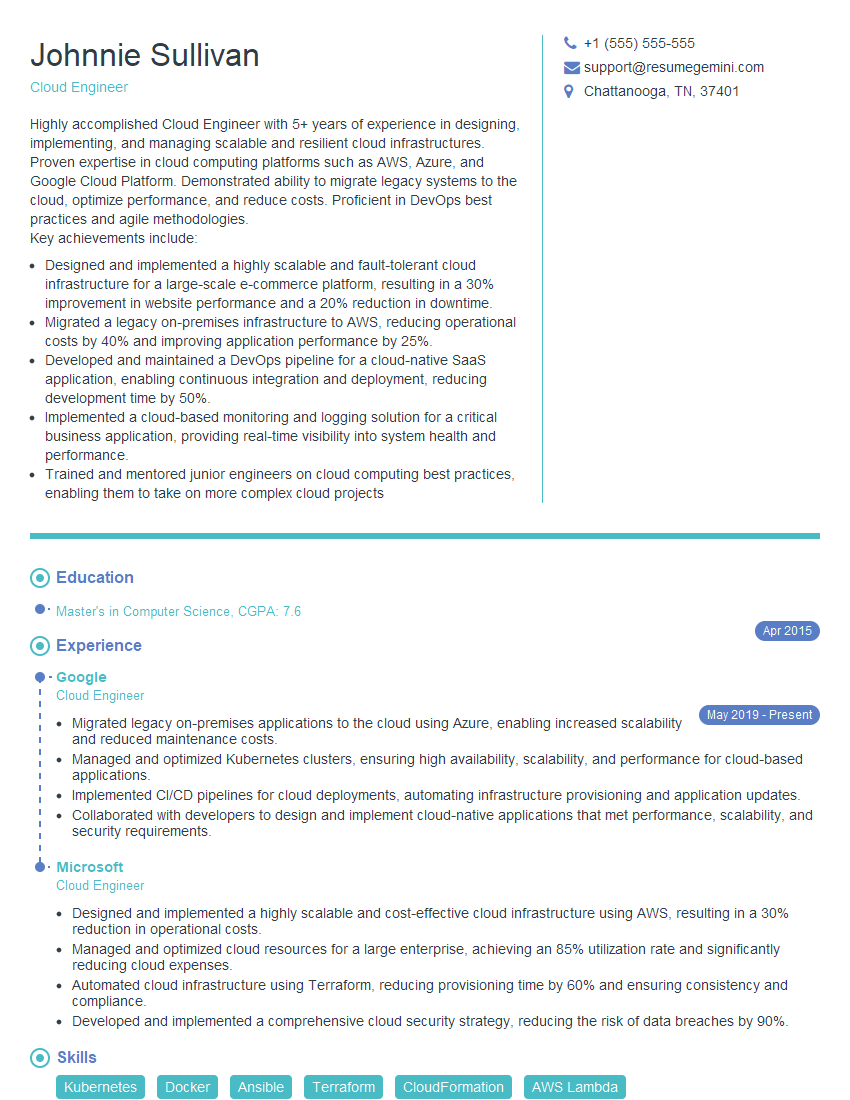
Cloud Engineer Resume Sample
- Administrative Assistant
- Network Administrator
- Network Engineer
- Software Developer
- Technical Support Engineer
- Web Developer
- System Administrator
- Desktop Support Technician
- Computer Technician
- Help Desk Analyst
- Help Desk Manager
- IT Manager
- Field Service Technician
- Technical Writer
- Office Assistant
- Data Entry Clerk
- Computer Repair Technician
- IT Support Specialist
- Database Administrator
- Cloud Engineer
Explore more articles
Users Rating of Our Blogs
Share Your Experience
We value your feedback! Please rate our content and share your thoughts (optional).
What Readers Say About Our Blog
I Redesigned Spongebob Squarepants and his main characters of my artwork.
https://www.deviantart.com/reimaginesponge/art/Redesigned-Spongebob-characters-1223583608
IT gave me an insight and words to use and be able to think of examples
Hi, I’m Jay, we have a few potential clients that are interested in your services, thought you might be a good fit. I’d love to talk about the details, when do you have time to talk?
Best,
Jay
Founder | CEO