Interviews are more than just a Q&A session—they’re a chance to prove your worth. This blog dives into essential Photo Imaging interview questions and expert tips to help you align your answers with what hiring managers are looking for. Start preparing to shine!
Questions Asked in Photo Imaging Interview
Q 1. Explain the difference between raster and vector graphics.
Raster and vector graphics represent images fundamentally differently. Think of it like this: raster graphics are like a mosaic, made up of tiny squares called pixels, while vector graphics are like blueprints, defined by mathematical equations describing lines and curves.
- Raster Graphics (e.g., JPEG, PNG, TIFF): These images are resolution-dependent. Zooming in makes them pixelated and blurry because you’re enlarging those individual pixels. They are ideal for photorealistic images and complex details where subtle color variations are crucial. Think of a photograph – it’s inherently raster.
- Vector Graphics (e.g., SVG, AI, EPS): These images are resolution-independent. You can scale them to any size without losing quality because the image is based on mathematical formulas, not pixels. They are perfect for logos, illustrations, and designs that need to be scalable without distortion. Think of a company logo – it needs to look sharp on a business card and a billboard.
In short, choose raster for photorealistic imagery and vector for scalable designs.
Q 2. Describe your experience with Adobe Photoshop.
I’ve been using Adobe Photoshop extensively for over 10 years, mastering its tools for various tasks, from basic image editing to advanced retouching and compositing. My proficiency spans across:
- Image Retouching: Removing blemishes, wrinkles, and other imperfections, utilizing techniques like frequency separation and healing brushes.
- Color Correction and Grading: Adjusting color balance, white balance, and tone curves to achieve desired aesthetic effects.
- Compositing: Combining multiple images seamlessly to create compelling visuals. This includes masking, layering, and blending modes.
- Workflow Automation: Implementing actions and scripts to streamline repetitive tasks and increase efficiency.
- Advanced Techniques: Utilizing advanced features like layer masks, adjustment layers, and smart objects for non-destructive editing.
For instance, I recently used Photoshop to retouch product photos for an e-commerce client, ensuring consistent lighting and color across all images, resulting in a significantly improved online presence.
Q 3. What color spaces are you familiar with and when would you use each?
I’m proficient in several color spaces, each with its strengths and applications:
- sRGB: The standard color space for the internet and most displays. It’s a good all-around choice for web graphics and images intended for general viewing.
- Adobe RGB (1998): A wider color gamut than sRGB, offering better color reproduction for print and high-quality displays. It’s ideal for professional photographers and printers aiming for vibrant, accurate colors.
- CMYK: The subtractive color model used in printing. Each color (Cyan, Magenta, Yellow, and Key/Black) absorbs light, resulting in the final printed color. Understanding CMYK is crucial for print design to achieve accurate color reproduction.
- LAB: A device-independent color space that separates color information into luminance (L) and color channels (a and b). This makes it useful for advanced color correction because it allows for precise adjustments without affecting luminance.
Choosing the right color space depends entirely on the project’s final destination. If it’s for web use, sRGB is fine. If it’s for print, CMYK is essential, but you’ll likely work in Adobe RGB during the editing process to preserve color information.
Q 4. How do you handle large image files for efficient workflow?
Handling large image files efficiently involves a multi-pronged approach:
- Non-Destructive Editing: Using adjustment layers and smart objects allows for edits without permanently altering the original image data, keeping file sizes smaller.
- Layer Management: Keeping layers organized and merging unnecessary ones helps reduce file size. Avoid excessive layers where possible.
- High-Resolution Downsampling: When sharing images online, downsample (reduce resolution) to the appropriate size for the platform. This significantly reduces file size without sacrificing visual quality for the intended use.
- Lossy vs. Lossless Compression: Using lossy compression (JPEG) for images where slight quality loss is acceptable reduces file size considerably. Lossless compression (PNG, TIFF) preserves all image data, but files are larger.
- Using Proxy Files: Large files can be slow in Photoshop. Proxy files create smaller, lower-resolution previews allowing faster navigation while still working on high-resolution originals.
For example, when editing high-resolution images for a client’s website, I’d typically edit in the highest resolution possible, saving the original as a TIFF or PSD. Then I create optimized JPEGs for web use, downsampled to appropriate sizes for different uses (featured image, thumbnails, etc.).
Q 5. Explain the process of color correction and color grading.
Color correction and color grading are distinct but related processes:
- Color Correction: This aims to fix inaccuracies in the image’s colors, restoring them to a natural and accurate representation. This involves adjusting white balance, fixing color casts (e.g., an overall blue or orange tint), and ensuring consistent color across the image.
- Color Grading: This is a stylistic approach to manipulating colors to evoke a specific mood, aesthetic, or feeling. It’s more about creating a visual style rather than correcting inaccuracies. This might involve enhancing specific colors, creating a particular tone (e.g., a warm sunset feel), or using color palettes to achieve a desired cinematic look.
Imagine a photo of a sunset. Color correction would ensure the colors are accurately representing what a human eye would see. Color grading would involve perhaps enhancing the oranges and reds, or adding a cinematic filter to give the sunset a more dramatic, stylized appearance.
Q 6. Describe your experience with image retouching techniques.
My image retouching experience encompasses a wide range of techniques:
- Spot Healing Brush and Patch Tool: Removing minor blemishes, scratches, and dust spots.
- Clone Stamp Tool: Copying textures and details from one area of an image to another seamlessly.
- Frequency Separation: Separating the image’s texture from its color information, allowing for independent adjustments to smooth skin while preserving detail.
- Dodge and Burn Tools: Adjusting the brightness and darkness of specific areas to shape and sculpt features.
- Liquify Tool: Gently warping and reshaping features for portrait retouching.
I’ve successfully utilized these techniques in various contexts, from portrait retouching for headshots to restoring historical photographs. For example, I recently worked on a project where I had to restore old family photographs with significant damage. I used careful patch work and clone stamping to fill in lost details and maintain the authenticity of the photos.
Q 7. How do you approach restoring damaged or low-resolution images?
Restoring damaged or low-resolution images is a challenging but rewarding process that leverages several techniques:
- Noise Reduction: Reducing digital noise or grain in low-resolution images, often using specialized plugins or filters within Photoshop.
- Sharpening: Carefully sharpening the image to increase detail, but avoiding over-sharpening which can lead to artifacts.
- Content-Aware Fill and Inpainting: Filling in missing sections of an image using surrounding information. Photoshop’s content-aware fill is a great starting point.
- AI-powered upscaling: Using AI tools (often plugins) that can intelligently upscale low-resolution images while attempting to reconstruct details lost to compression or damage.
- Careful cloning and retouching: Manually filling in or reconstructing lost or damaged areas with similar textures from other parts of the image. Requires artistic judgement to maintain integrity.
The approach depends on the severity of the damage. For minor scratches, spot healing might suffice. For heavily damaged images, a combination of AI upscaling, content-aware fill, and manual retouching is often necessary. It’s always crucial to preserve the integrity of the original image, while acknowledging the limitations.
Q 8. What are your preferred methods for removing blemishes and imperfections?
Removing blemishes and imperfections is a crucial aspect of photo retouching. My preferred methods involve a combination of techniques, prioritizing non-destructive edits whenever possible. I typically start with the clone stamp tool, carefully sampling clean skin areas to seamlessly cover blemishes. For more precise work, especially with fine details like wrinkles or small spots, I use the healing brush tool. This tool intelligently blends the sampled area, creating a more natural result. In cases of larger imperfections, I might employ content-aware fill, which analyzes the surrounding area and intelligently fills the selected region. Finally, subtle adjustments with the patch tool can help refine the result, ensuring a smooth, natural-looking skin tone. I always work at a high resolution to avoid pixelation and maintain detail. For instance, working on a portrait, I might clone out a small pimple using the clone stamp, followed by the healing brush to blend the edges and then a final check with the patch tool to ensure the surrounding skin tone matches seamlessly. The key is to be subtle and maintain realism, avoiding an overly processed or unnatural look.
Q 9. Explain your understanding of sharpening techniques and when to apply them.
Sharpening is a critical step to enhance image details and improve clarity. However, over-sharpening can lead to artifacts and a harsh, unnatural look. I generally employ unsharp mask, a widely used technique, which increases the contrast of edges. I carefully control the amount, radius, and threshold parameters. The amount determines the intensity of sharpening; a higher value means more aggressive sharpening. The radius specifies the size of the area affected by the sharpening; a larger radius affects a wider area. The threshold controls the minimum contrast difference between pixels required for sharpening. Pixels with less contrast than the threshold are left untouched. I avoid sharpening until the very end of my editing workflow, after other adjustments such as color correction and exposure have been made. For instance, when working on a landscape image, I might apply a subtle unsharp mask after resizing the image for web, focusing on enhancing fine details in the distant mountains or foliage without creating halos around the edges.
I also consider the type of image and its intended use. Images destined for web viewing might require less sharpening than those intended for print, due to different screen resolutions and viewing distances.
Q 10. How do you manage color consistency across multiple images?
Maintaining color consistency across multiple images, especially in a series or for a portfolio, is essential for a professional look. I usually begin by selecting a reference image – the one with the most accurate color representation. Then, I use the white balance tool to ensure all images share a consistent color temperature. This is particularly crucial for images shot under different lighting conditions. Next, I typically use color matching techniques by leveraging tools like color palettes or color matching profiles provided by professional editing software. This allows me to align the hues and saturations to match the target image. In some cases, using adjustment layers and selectively adjusting the hue, saturation, and lightness (HSL) in specific color ranges can effectively harmonize the images. To achieve consistency across multiple photos of the same subject or scene, I sometimes create and utilize custom profiles in my editing software for easier and faster color matching, especially if I’m dealing with a large number of images. It’s like painting with the same set of colors, ensuring a harmonic whole.
Q 11. What file formats are best for print vs. web and why?
The choice of file format depends heavily on the intended use – print versus web. For print, TIFF or PSD (Photoshop Document) are superior choices because they are lossless formats, meaning they retain all image data without compression artifacts. This is essential for high-quality prints. These formats support various color spaces, like CMYK, needed for professional printing. For web, JPEG is the most commonly used format because of its relatively small file size and wide browser compatibility. However, JPEG is a lossy format, meaning some image data is discarded during compression. For images requiring the highest quality for web use, such as product photography, PNG is a better option, as it’s a lossless format that supports transparency. The trade-off with PNG is larger file sizes compared to JPEG.
Q 12. Describe your experience with RAW image processing.
RAW image processing is a cornerstone of my workflow. RAW files contain uncompressed image data, offering maximum flexibility for post-processing. I utilize dedicated RAW converters, such as Adobe Camera Raw or Capture One, to adjust crucial aspects such as white balance, exposure, contrast, and sharpening. The advantage of RAW is the ability to recover detail in overexposed or underexposed areas, something impossible with JPEGs. I often start with basic adjustments in RAW conversion, carefully correcting exposure and white balance before moving to more advanced edits in Photoshop. For instance, I might correct an underexposed image in RAW, bringing up the shadows and recovering detail that would be lost in a JPEG. This allows for significantly greater control and creative freedom compared to working directly with JPEGs, ensuring I can fully realize the creative vision for each image.
Q 13. How do you handle client feedback and revisions?
Client feedback is integral to the final product. I maintain open communication throughout the project. I always provide preliminary edits for review, encouraging clients to express their preferences early in the process. I use a version control system to keep track of each revision, ensuring transparency and allowing clients to compare different edits. I strive to understand their vision, while offering my professional expertise and suggestions. When necessary, I explain the technical limitations or implications of certain edits. I view revisions not as corrections but as opportunities to refine the image and meet the client’s expectations. Ultimately, happy clients and successful projects go hand in hand.
Q 14. What software and hardware are you proficient in?
My expertise spans a wide range of software and hardware. I’m highly proficient in Adobe Photoshop, Adobe Lightroom, and Capture One, the industry-standard software for photo editing and retouching. I’m comfortable working with both PC and Mac systems. I understand the benefits of high-resolution displays for accurate color representation and use calibrated monitors to ensure color accuracy in my work. I also possess experience with various hardware, including high-quality scanners for digitizing film and different cameras ranging from DSLRs to mirrorless systems. My equipment selection always focuses on maximizing quality and efficiency to deliver the best possible results for my clients. I have extensive experience with professional photo printers as well.
Q 15. Explain your understanding of image compression techniques.
Image compression techniques aim to reduce the size of image files without significantly impacting visual quality. This is crucial for efficient storage, faster transmission, and easier sharing of images. There are two main categories: lossy and lossless compression.
Lossy compression, like JPEG, discards some image data during compression. This allows for much smaller file sizes, but some detail is lost. Think of it like summarizing a long story – you lose some nuances but retain the main points. The amount of compression (and therefore the loss of quality) is adjustable. A higher compression ratio leads to smaller files but more visible artifacts.
Lossless compression, like PNG, preserves all the original image data. It works by finding patterns in the data and representing them more efficiently. This results in smaller files than the original uncompressed file, but the file size reduction is typically less dramatic than with lossy methods. Think of it like carefully packing a suitcase – you rearrange items to fit more, but nothing is left behind.
The choice between lossy and lossless depends on the application. JPEG is ideal for photographs where some loss is acceptable for drastically smaller file sizes. PNG is better for images with sharp lines and text, such as logos or illustrations, where preserving detail is paramount.
Career Expert Tips:
- Ace those interviews! Prepare effectively by reviewing the Top 50 Most Common Interview Questions on ResumeGemini.
- Navigate your job search with confidence! Explore a wide range of Career Tips on ResumeGemini. Learn about common challenges and recommendations to overcome them.
- Craft the perfect resume! Master the Art of Resume Writing with ResumeGemini’s guide. Showcase your unique qualifications and achievements effectively.
- Don’t miss out on holiday savings! Build your dream resume with ResumeGemini’s ATS optimized templates.
Q 16. How do you ensure image quality across different output devices?
Ensuring consistent image quality across different output devices requires a deep understanding of color spaces, color profiles, and resolution. The key is to work in a color space that is device-independent, such as sRGB, which is widely supported. You should also embed the appropriate color profile in your image files. This profile tells the output device how to interpret the color information.
Resolution is another crucial factor. Images designed for print require a much higher resolution (dots per inch or DPI) than those intended for web display (pixels per inch or PPI). Scaling images improperly can lead to pixelation or blurring. Therefore, it’s important to create images at the appropriate resolution for their intended use. For example, a print advertisement might require 300 DPI, while a web banner might only need 72 DPI.
Finally, I always check my work on various devices before final delivery. This involves viewing images on different monitors, printers, and even mobile devices to identify and correct any discrepancies in color or sharpness.
Q 17. Describe your experience with image manipulation software other than Photoshop.
Beyond Photoshop, I have extensive experience with several other image manipulation software packages. I am proficient in GIMP (GNU Image Manipulation Program), a free and open-source alternative to Photoshop that offers a surprising range of features. I’ve utilized it extensively for batch processing and tasks that don’t require Photoshop’s specialized features.
I’m also familiar with Affinity Photo, a powerful and cost-effective alternative that provides a strong feature set similar to Photoshop. I often choose it for projects that require a professional outcome but don’t necessitate the full power (and cost) of Adobe Creative Cloud.
Furthermore, I have experience with Capture One, primarily for its powerful raw processing capabilities and its intuitive workflow for professional photographers. This software helps manage and process high volumes of RAW files efficiently and consistently.
Q 18. How do you manage your digital asset library?
Managing a digital asset library is crucial for efficiency and organization. My strategy involves a combination of well-structured file naming conventions, keyword tagging, and a robust digital asset management (DAM) system.
My file naming convention is consistent and descriptive, typically incorporating date, project name, and a brief description. For example: 20241027_ProjectX_HeroImage.jpg. This allows for easy searching and sorting. I also employ comprehensive keyword tagging, using descriptive terms to help locate specific images quickly. This is particularly important when dealing with large volumes of images.
For larger projects, I utilize a DAM system like Adobe Lightroom or similar software. These tools offer features such as metadata management, image organization using collections and folders, and powerful search capabilities. This ensures efficient retrieval of assets and facilitates collaboration on projects.
Q 19. Describe a challenging photo imaging project you completed and how you overcame obstacles.
One challenging project involved creating a high-resolution panoramic image for a client’s website from hundreds of individual photographs taken at a large-scale event. The challenge stemmed from the variability in lighting, perspective, and exposure across the photos. Many images were poorly exposed or had motion blur.
To overcome this, I started by carefully selecting and pre-processing the best images using Lightroom’s powerful tools for exposure correction, lens correction, and noise reduction. I then employed specialized panoramic stitching software to combine the images. This involved meticulous masking and blending techniques to ensure seamless transitions between images.
Throughout the process, I faced issues with ghosting (double images from moving objects) and color inconsistencies. I addressed these using careful cloning and color balancing techniques. The final result was a high-resolution, visually appealing panoramic image that met the client’s expectations, demonstrating successful problem-solving and attention to detail.
Q 20. What are your strategies for efficient workflow management?
Efficient workflow management hinges on planning, organization, and the use of appropriate tools. I begin by meticulously planning projects, defining goals, deadlines, and required resources. This includes outlining steps, identifying potential bottlenecks, and allocating time effectively.
I utilize project management software like Asana or Trello to track progress, manage tasks, and collaborate with clients. For image editing, I maintain a streamlined workflow within my chosen software, utilizing keyboard shortcuts and actions to accelerate processes. Batch processing is employed whenever possible to significantly reduce processing time.
Regular backups and archiving of projects are essential for data security and future access. I automate backups to both local and cloud storage to prevent data loss.
Q 21. How do you stay current with new technologies and trends in photo imaging?
Staying current in the ever-evolving field of photo imaging requires a multifaceted approach. I actively participate in online communities and forums, attending webinars, and engaging with industry experts on platforms like LinkedIn.
Subscribing to relevant industry publications and blogs helps me stay abreast of new technologies and trends. Experimenting with new software and hardware is crucial to understand their capabilities and limitations. I also actively seek out training opportunities, attending workshops and online courses to enhance my skills and knowledge.
Finally, I regularly review and update my workflow processes, incorporating new techniques and tools to optimize efficiency and improve the quality of my work.
Q 22. Explain your understanding of image resolution and DPI.
Image resolution refers to the detail an image contains. It’s essentially the number of pixels used to represent the image. DPI, or dots per inch, describes the density of those pixels when printed. A higher resolution means a sharper, more detailed image, both on screen and, crucially, in print. Think of it like weaving a tapestry: higher resolution is like using more threads, creating a finer, more detailed picture. A lower resolution image, on the other hand, will appear pixelated and blurry, especially when enlarged.
For example, a 3000×2000 pixel image has a higher resolution than a 1000×750 pixel image. If you print the 3000×2000 image at 300 DPI, it will produce a far clearer print than the 1000×750 image at the same DPI. The DPI setting dictates how those pixels are distributed across the physical print space; a higher DPI means more pixels are packed into each inch, resulting in a sharper image.
Understanding the relationship between resolution and DPI is critical for preparing images for different outputs. A web image needs a lower resolution than a print image, as web images are viewed on screens with lower pixel densities. Neglecting this can lead to blurry web images or unnecessarily large file sizes.
Q 23. What is your experience with masking and layer techniques?
Masking and layer techniques are fundamental to my photo editing workflow. Masking allows for precise selection and manipulation of specific areas within an image without affecting other parts. Layers function like transparent sheets stacked on top of each other, enabling non-destructive editing – you can adjust individual layers without altering others. This is immensely helpful for complex edits.
For example, I might use a layer mask to carefully remove a distracting background element from a portrait, preserving fine details around the subject’s hair. I’ll often utilize adjustment layers (like curves or levels) to fine-tune color and contrast, non-destructively. This is because if I adjust a layer, I can always revert back to the original. Another example would be using multiple layers to composite elements from different photos into a single, cohesive image.
My proficiency with masking extends to various techniques, including quick mask mode, vector masks, and using refined selections with tools like the lasso and pen tool. Combining this with layer styles (like drop shadows or bevels and emboss) enables me to create realistic and stylized effects.
Q 24. Describe your approach to creating consistent branding using photo imaging.
Creating consistent branding through photo imaging involves establishing a visual identity that aligns with the brand’s message and values. This involves careful attention to color palettes, image styles, and overall aesthetic. I use a systematic approach, starting with a defined style guide.
For example, if a brand uses a specific shade of blue and a particular font, I ensure all images used – from website banners to social media posts – incorporate that blue in a way that complements the brand message, and I use the same editing style in post-processing, like color grades or specific filters. Consistency is key. I carefully select images that convey the desired mood and feel, whether it’s sleek and modern, rustic and warm, or playful and vibrant. I might also develop a set of pre-defined Photoshop actions or Lightroom presets to expedite post-processing while maintaining consistency across various images.
Beyond color and style, consistent image composition is crucial. If a brand favors a particular image aspect ratio, cropping to that size becomes standard practice. This attention to detail reinforces brand recognition and visual appeal.
Q 25. How do you handle copyright and intellectual property issues related to images?
Handling copyright and intellectual property is paramount. I always prioritize using royalty-free images from reputable stock photo sites or obtaining explicit permission from copyright holders before using any image in a commercial project. Proper attribution is also crucial, giving credit where it’s due. In instances where I’m uncertain about an image’s copyright, I err on the side of caution and seek alternative options.
For example, I will always check the license details of stock photos, ensuring that the chosen license permits the intended use (such as commercial use or modification). If I need to use a specific photo that is not royalty-free, I directly contact the copyright holder or their agent to request permission, explaining the purpose and ensuring the usage rights are properly negotiated and documented. Failure to do so can lead to costly legal issues. This is a critical aspect that needs to be taken seriously to avoid serious legal and reputational risks.
Q 26. Explain your experience with HDR imaging.
HDR, or High Dynamic Range, imaging combines multiple exposures of the same scene at different exposures to create a single image with a wider dynamic range than a single exposure would allow. This means the image will have more detail in both the highlights (bright areas) and the shadows (dark areas), leading to a more realistic and visually appealing result.
My experience with HDR involves using software like Photoshop or Lightroom to blend these exposures. The process includes careful alignment of the images, tone mapping (adjusting the exposure and contrast to create a pleasing image), and potentially local adjustments to specific areas. I find HDR particularly useful in landscape photography, architectural photography, and situations with significant contrast between light and dark areas. For example, a shot of a landscape with a bright sun and dark shadows would benefit hugely from HDR to preserve detail in both.
However, HDR can be overdone, leading to an unnatural and overly-saturated look. I strive for a balance, using HDR to enhance detail without sacrificing realism.
Q 27. What are your knowledge of different types of lenses and their effects on images?
Lenses significantly impact the final image. Different lenses offer various focal lengths, apertures, and perspectives, leading to distinct aesthetic effects. Understanding these characteristics is essential for achieving the desired look.
Wide-angle lenses (short focal lengths) capture a broader field of view, often used for landscape or architectural photography. They can also create a sense of depth and scale. Telephoto lenses (long focal lengths) compress perspective, often used for wildlife, sports, or portraits, enabling closer shots without physically being closer to the subject. Prime lenses (fixed focal lengths) typically offer superior image quality and faster aperture capabilities. Zoom lenses (variable focal lengths) offer versatility but might compromise on image sharpness compared to prime lenses.
Aperture (f-stop) influences depth of field. A wide aperture (low f-number like f/1.4) creates a shallow depth of field, ideal for portraits where you want a blurred background. A narrow aperture (high f-number like f/16) results in a large depth of field, suitable for landscapes where you want everything in focus.
Q 28. Describe your experience with image manipulation for different media (print, web, social media).
Image manipulation varies considerably depending on the intended medium. Print requires high resolution (typically 300 DPI or higher) to avoid pixelation. Web images need optimization for faster loading times, often utilizing compression techniques (like JPEG) and lower resolutions. Social media platforms have specific aspect ratios and size requirements; therefore image resizing and cropping are very common here.
For print, I ensure high resolution and color profiles appropriate for the printing process (e.g., CMYK for offset printing). For web, I optimize images using compression techniques while maintaining adequate visual quality. For social media, I carefully tailor images to fit the respective platform’s guidelines, often creating multiple versions for different platforms. For example, an image designed for Instagram’s square format may need to be cropped differently for a Facebook feed. I make use of tools within my workflows to automate some of this for better efficiency.
Understanding these differences is critical for delivering effective visual communication across various channels.
Key Topics to Learn for Photo Imaging Interview
- Digital Image Capture: Understanding sensor technology (CMOS, CCD), image formats (RAW, JPEG, TIFF), and the impact of ISO, aperture, and shutter speed on image quality.
- Image Processing and Editing: Mastering software like Adobe Photoshop, Lightroom, or Capture One; practical application includes color correction, retouching, and compositing techniques.
- Color Theory and Management: Understanding color spaces (RGB, CMYK), color profiles, and the importance of accurate color representation in various output mediums (print, web).
- Image Compression and File Formats: Knowledge of different compression techniques (lossy vs. lossless) and their impact on image size and quality; understanding the strengths and weaknesses of various file formats for different applications.
- Digital Asset Management (DAM): Understanding the principles of organizing, storing, and retrieving digital images efficiently; experience with DAM software is a plus.
- Printing and Output Technologies: Familiarity with different printing processes (inkjet, laser, offset), color profiles for print, and image resolution requirements for various print applications.
- Troubleshooting and Problem-Solving: Ability to diagnose and resolve common image-related issues, such as noise reduction, artifact removal, and color inconsistencies.
- Image Enhancement and Restoration: Techniques for improving image quality, such as sharpening, noise reduction, and restoration of damaged or degraded images.
Next Steps
Mastering photo imaging skills opens doors to exciting and rewarding careers in photography, graphic design, digital media, and more. A strong foundation in these areas is highly sought after by employers. To significantly increase your chances of landing your dream job, focus on creating a resume that’s both impressive and easily parsed by Applicant Tracking Systems (ATS). ResumeGemini is a trusted resource that can help you craft a professional and effective resume tailored to the specific demands of the Photo Imaging industry. Examples of resumes optimized for Photo Imaging roles are available within ResumeGemini to guide your process. Invest the time to build a strong resume – it’s a critical step in showcasing your skills and experience to potential employers.
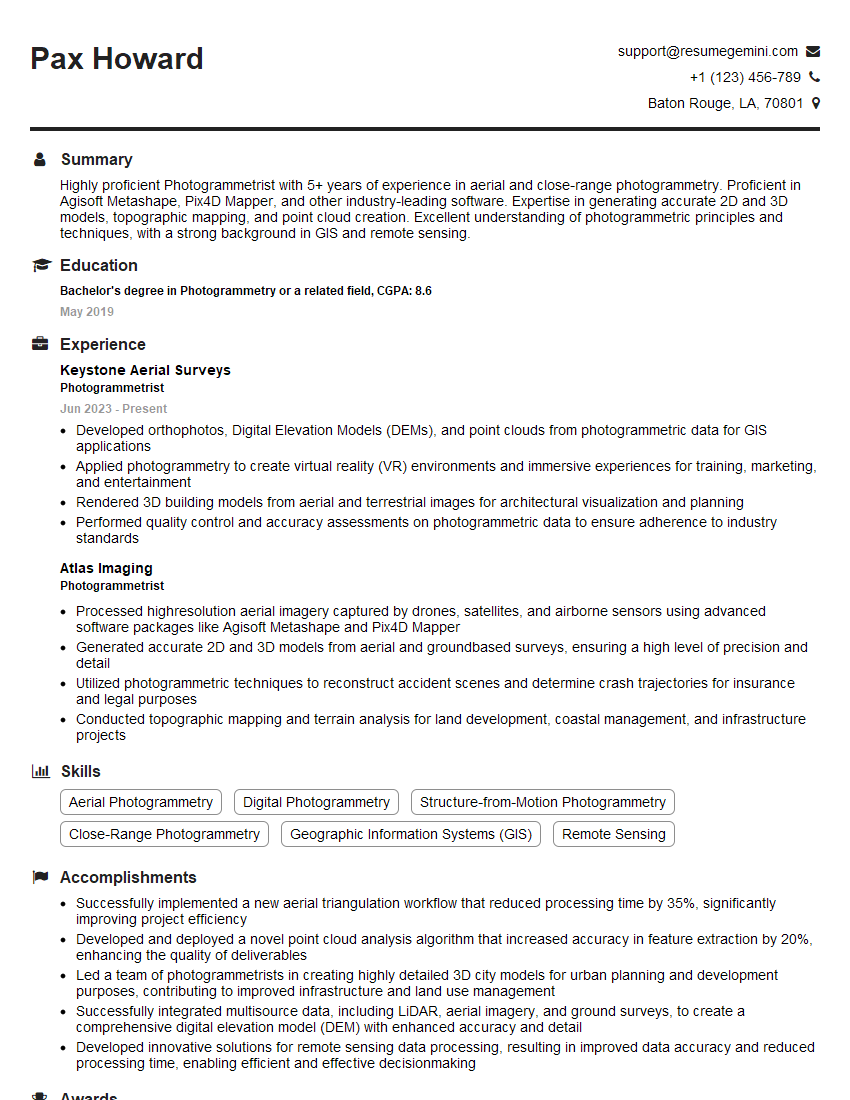
Photogrammetrist Resume Sample
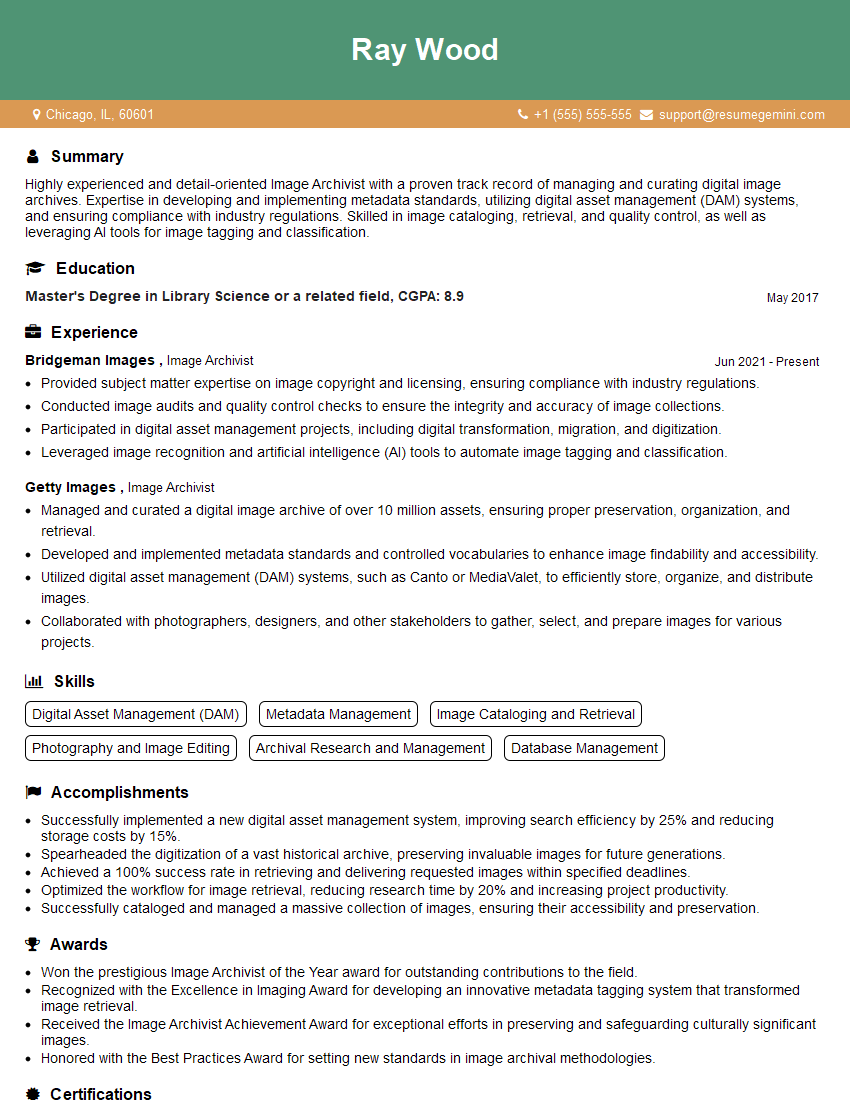
Image Archivist Resume Sample

Photo Editor Resume Sample
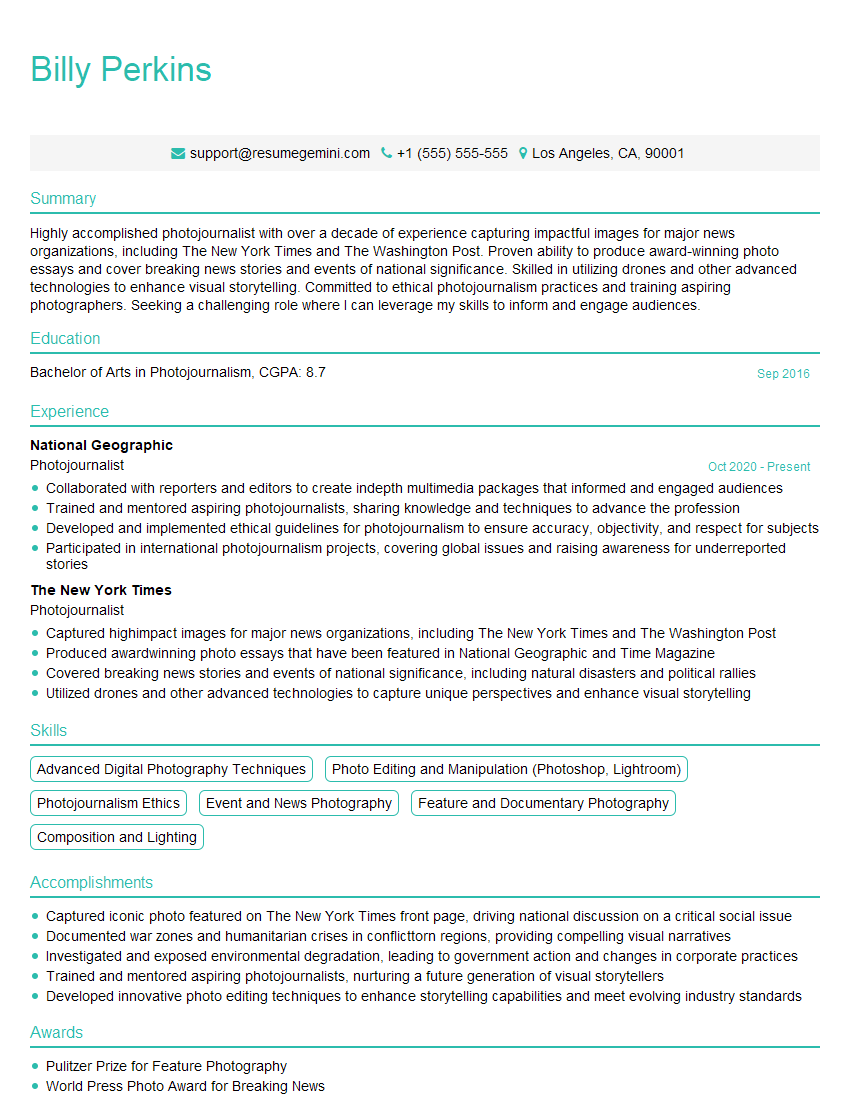
Photojournalist Resume Sample
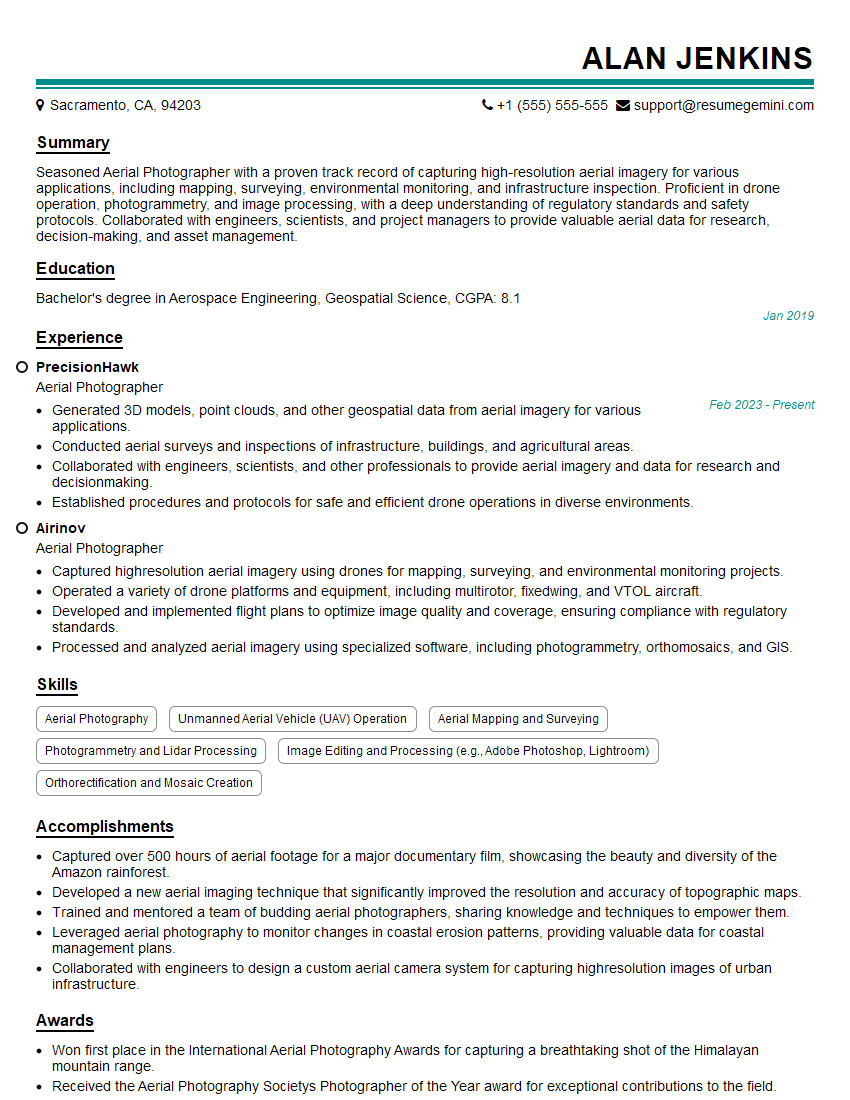
Aerial Photographer Resume Sample
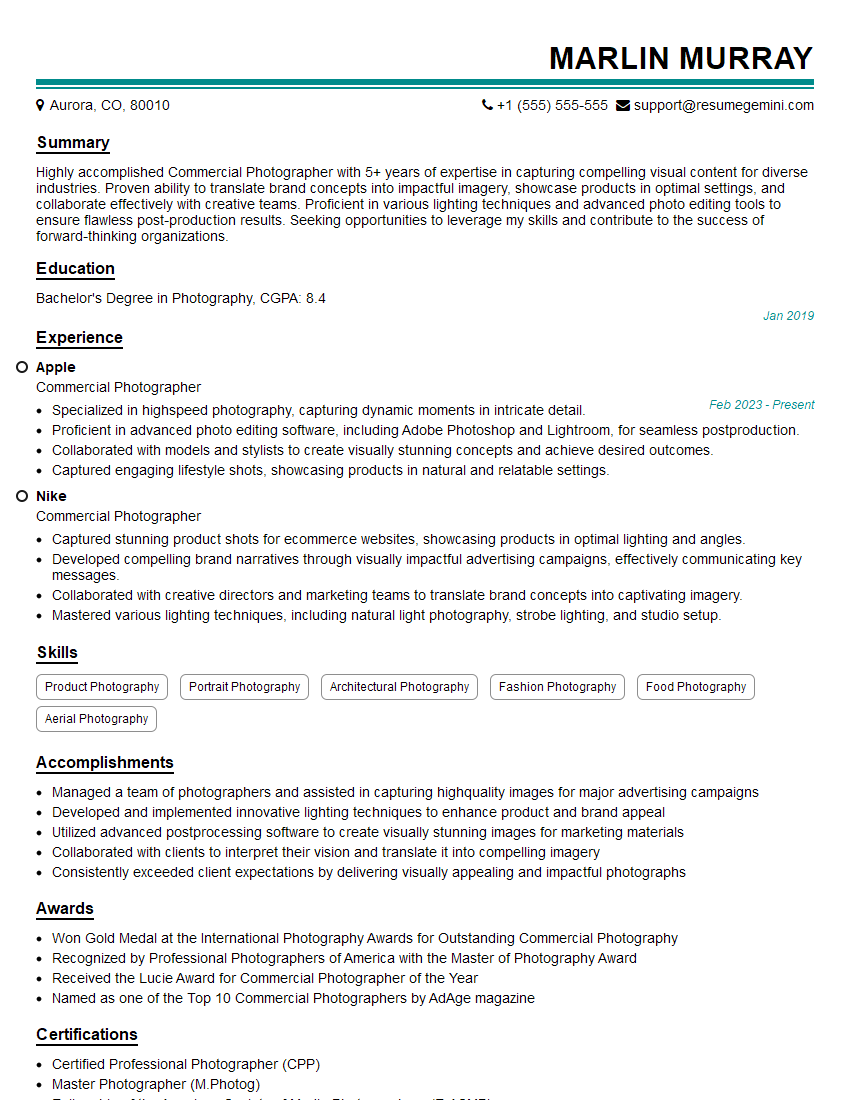
Commercial Photographer Resume Sample
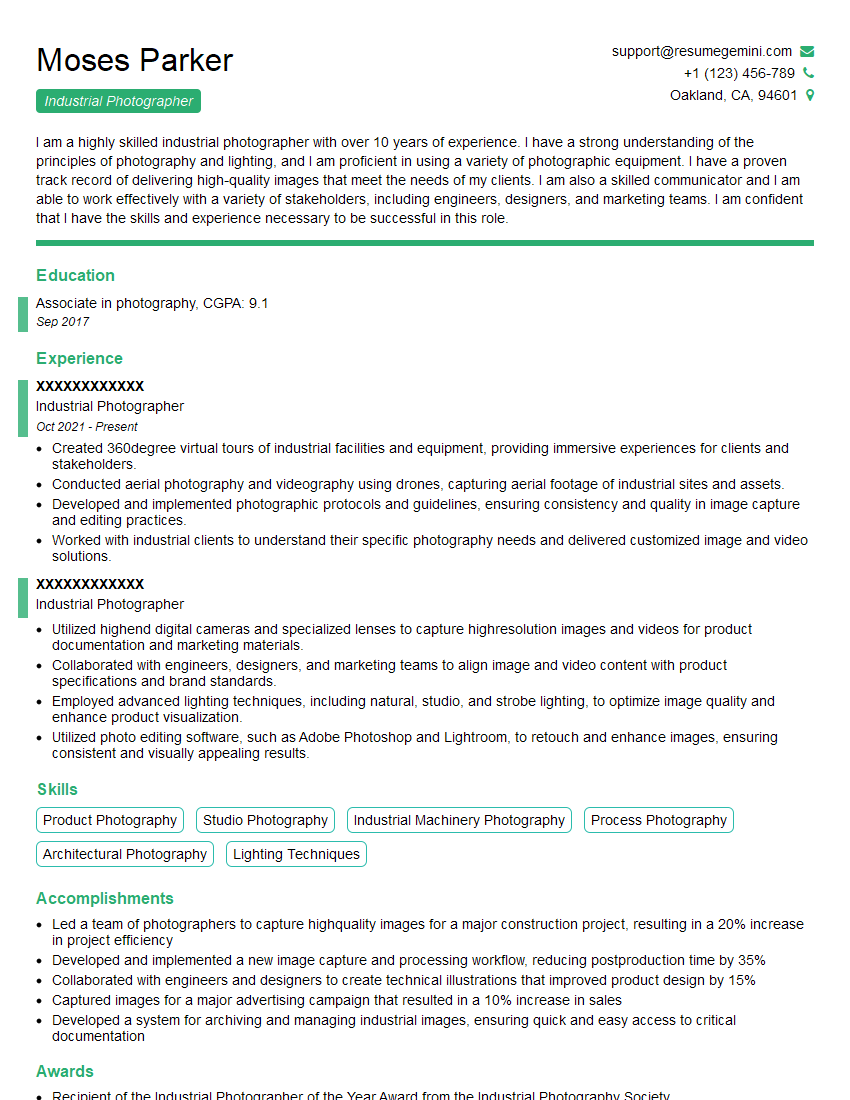
Industrial Photographer Resume Sample
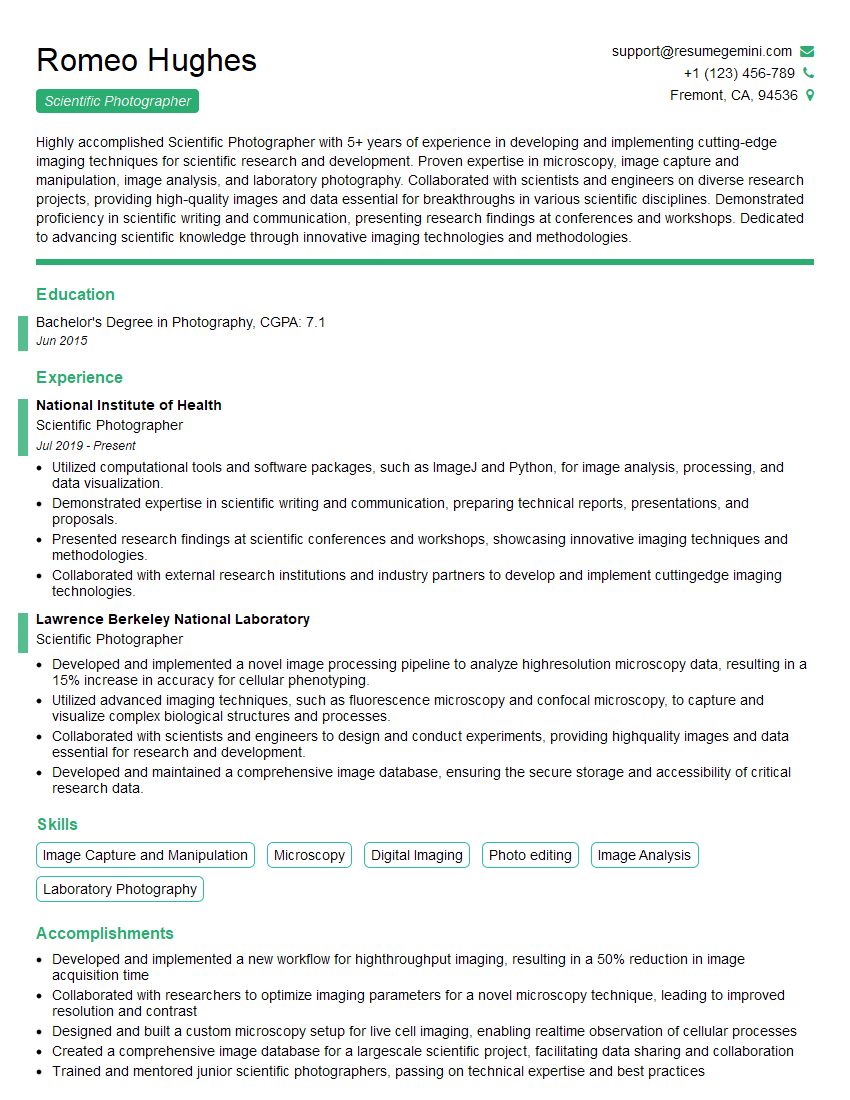
Scientific Photographer Resume Sample
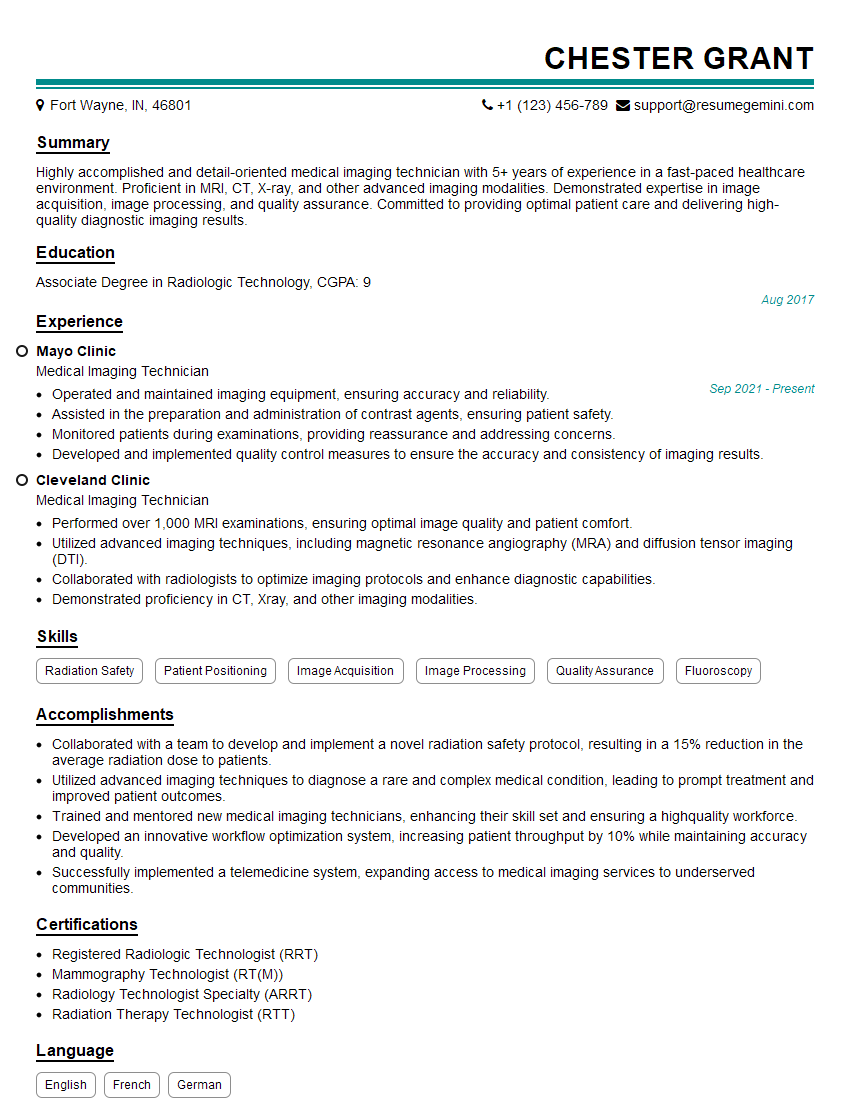
Medical Imaging Technician Resume Sample
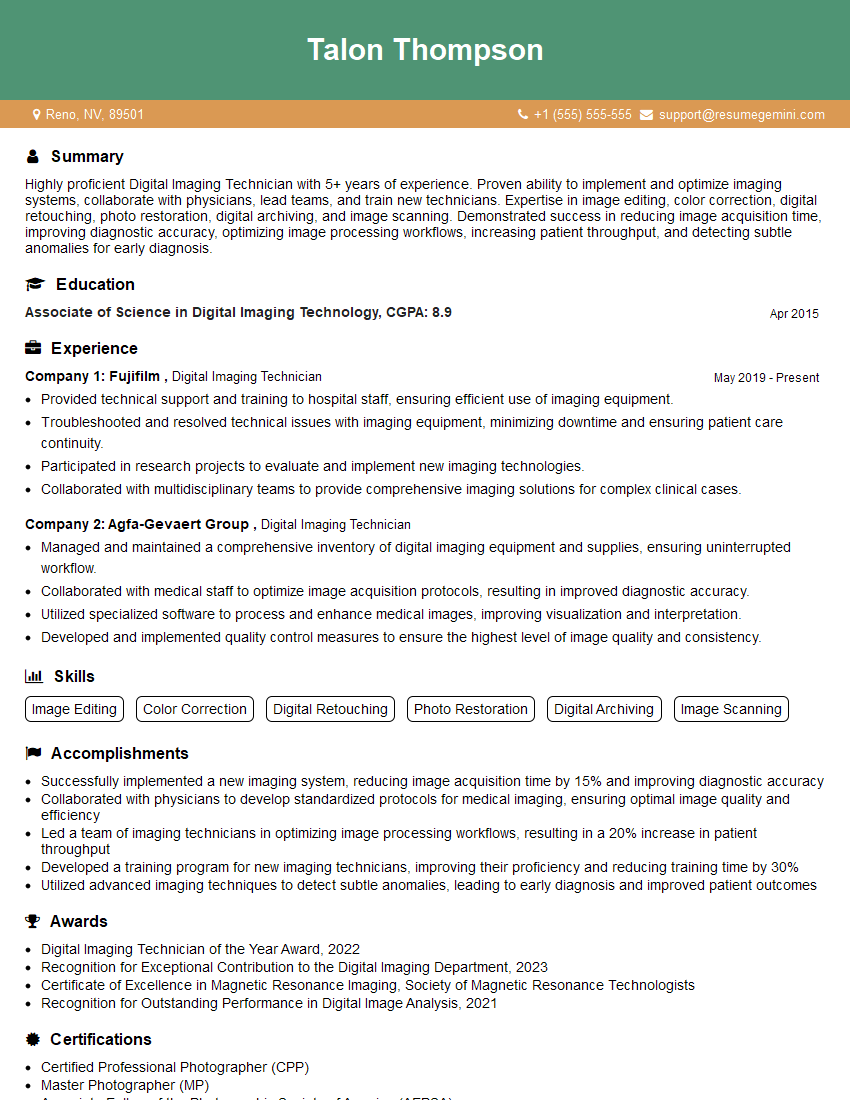
Digital Imaging Technician Resume Sample
Explore more articles
Users Rating of Our Blogs
Share Your Experience
We value your feedback! Please rate our content and share your thoughts (optional).
What Readers Say About Our Blog
Really detailed insights and content, thank you for writing this detailed article.
IT gave me an insight and words to use and be able to think of examples