Interviews are more than just a Q&A session—they’re a chance to prove your worth. This blog dives into essential Software Proficiency (Microsoft Office Suite, Google Docs, etc.) interview questions and expert tips to help you align your answers with what hiring managers are looking for. Start preparing to shine!
Questions Asked in Software Proficiency (Microsoft Office Suite, Google Docs, etc.) Interview
Q 1. Explain your experience with Microsoft Word’s mail merge feature.
Mail merge in Microsoft Word is a powerful tool that allows you to create personalized documents from a single template. Imagine you need to send personalized thank-you notes to hundreds of clients – instead of writing each one individually, mail merge lets you create a template with placeholders for personalized information, then import a data source (like an Excel spreadsheet) containing client names, addresses, etc. Word will automatically populate these placeholders for each client, creating unique documents.
My experience includes using mail merge for various purposes, such as generating personalized certificates, marketing materials, and even customized invoices. I’m proficient in connecting to various data sources, managing fields, and troubleshooting any merge errors. For example, I once used mail merge to generate personalized invitation letters for a large-scale conference, saving hours of manual work. I ensured data accuracy by meticulously checking the data source and previewing the merged documents before printing.
Q 2. How proficient are you in creating and managing spreadsheets in Microsoft Excel?
I’m highly proficient in creating and managing spreadsheets in Microsoft Excel. My skills encompass data entry, formula creation, data manipulation, formatting, and charting. I’m comfortable working with large datasets and can efficiently organize and analyze information for various purposes. I regularly use Excel for budgeting, forecasting, tracking project progress, and analyzing sales data. I can effectively use features like data validation to ensure data integrity and conditional formatting to highlight important information. For instance, I once built an interactive sales dashboard using Excel that allowed our team to visualize sales trends, identify top-performing products, and track key performance indicators in real-time.
Q 3. Describe your experience with Excel’s pivot tables and their use in data analysis.
Pivot tables are one of Excel’s most powerful features for data analysis. Think of them as a dynamic summary report that allows you to quickly analyze large amounts of data by summarizing, sorting, grouping, counting, totaling, or averaging the data. You can easily rearrange the data to get different perspectives without changing the underlying dataset. I’ve extensively used pivot tables to analyze sales figures, identify trends, and create insightful reports for business decisions. For example, I used a pivot table to analyze customer purchase history, identifying customer segments based on purchasing behavior and helping the marketing team target specific groups more effectively. I’m familiar with using slicers and filters to further refine analysis and creating calculated fields for advanced analysis.
Q 4. How would you use Excel’s VLOOKUP or INDEX/MATCH functions to retrieve data?
Both VLOOKUP and INDEX/MATCH are functions used to retrieve data from a table based on a specific criterion. VLOOKUP searches for a value in the first column of a table and returns a value in the same row from a specified column. However, VLOOKUP has limitations as it only searches in the first column. INDEX/MATCH offers more flexibility. INDEX returns a value from a range based on its row and column number, while MATCH finds the relative position of a value within a range. Combining them allows you to look up data based on a criterion in any column.
Example (VLOOKUP): =VLOOKUP(A1,B:C,2,FALSE) This searches for the value in cell A1 in column B, and if found, returns the corresponding value from column C. Example (INDEX/MATCH): =INDEX(C:C,MATCH(A1,B:B,0)) This searches for A1 in column B and returns the corresponding value from column C. INDEX/MATCH is generally preferred for its greater flexibility and efficiency, especially with large datasets. I regularly use both functions for data extraction and manipulation within my spreadsheets.
Q 5. What are your preferred methods for data visualization in Excel?
My preferred methods for data visualization in Excel depend on the data and the story I need to tell. I frequently use charts such as:
- Bar charts: For comparing categories.
- Line charts: For showing trends over time.
- Pie charts: For showing proportions.
- Scatter plots: For showing correlations between two variables.
I also leverage Excel’s formatting options to create clear and visually appealing charts. For example, I’ll use consistent colors, clear labels, and appropriate titles to ensure the data is easily understood. I also consider the audience when choosing a chart type and formatting, ensuring the visualization effectively communicates the key insights. I strive to create charts that are both informative and aesthetically pleasing.
Q 6. Describe your experience with Microsoft PowerPoint presentations, including animations and transitions.
I have extensive experience creating professional presentations using Microsoft PowerPoint. I’m proficient in designing visually appealing slides, incorporating relevant data and graphics, and utilizing animations and transitions to enhance engagement. I understand the importance of a clear narrative and consistent design throughout the presentation. My skills include using master slides for consistent branding, incorporating multimedia elements like videos and audio, and optimizing presentations for different screen sizes. I’ve created presentations for various audiences, including clients, colleagues, and executives. For example, I recently developed a compelling presentation for a new product launch, integrating data visualizations, compelling narratives, and smooth transitions to successfully engage the audience.
Q 7. How familiar are you with Google Docs collaborative features?
I’m very familiar with Google Docs’ collaborative features. The real-time co-editing capabilities are invaluable for teamwork. I can simultaneously work on documents with colleagues, see their edits in real-time, and communicate through comments and suggestions. This facilitates efficient collaboration and ensures everyone is on the same page. I’ve used Google Docs extensively for collaborative writing projects, brainstorming sessions, and creating shared documents accessible to multiple team members across different locations. The version history feature offers an invaluable safety net, allowing us to revert to previous versions if needed and track changes over time. Features like suggestion mode allow for collaborative editing while maintaining a clean, organized document.
Q 8. How would you troubleshoot a Google Docs file sharing issue?
Troubleshooting Google Docs file sharing issues involves a systematic approach. First, I’d verify the sharing settings. Is the document set to ‘Anyone with the link’ or restricted to specific individuals or groups? Double-checking the permissions is crucial. If the settings are correct, I’d then examine the link itself. Sometimes, a small typo can prevent access. Next, I’d check the recipient’s Google account. Are they logged in? Do they have the necessary permissions to access shared drives or folders? If the problem persists, I’d investigate network connectivity issues. Is the recipient’s internet connection stable? Finally, I’d consider Google Workspace administrator settings. Are there any domain-wide policies that might be blocking access? In my experience, a calm and methodical approach, starting with the simplest possibilities and progressing to the more complex, is essential for resolving these issues quickly and effectively.
Q 9. How comfortable are you using Google Sheets for data analysis?
I’m extremely comfortable using Google Sheets for data analysis. I regularly utilize its functionalities for tasks such as cleaning, transforming, and analyzing datasets. My skills encompass using formulas (like SUMIF, VLOOKUP, AVERAGE), pivot tables for summarizing data, and charting tools to visualize trends and insights. I’ve also worked with Google Sheets’ scripting capabilities using Google Apps Script for automating repetitive tasks and creating custom functions. For example, I once used Google Apps Script to automate the process of importing data from a CSV file, cleaning it, and generating a summary report, saving considerable time and effort. I’m proficient in interpreting data visualizations generated by Sheets, effectively communicating findings to stakeholders through clear and concise reports. Essentially, Google Sheets is a core tool in my data analysis workflow.
Q 10. Explain your experience with Google Slides and its presentation tools.
My experience with Google Slides extends beyond simple slide creation. I leverage its features to develop engaging and professional presentations. I’m adept at using animations and transitions to enhance audience engagement, and I understand the importance of visual hierarchy and design principles to ensure clarity and impact. I utilize master slides for consistent branding and efficient design, and I’m familiar with using various media types like images, videos, and embedded content. I’ve presented complex information using Google Slides, breaking it down into easily digestible chunks and using clear visuals to support the narrative. For instance, I once created a presentation summarizing a complex marketing campaign, incorporating charts to show key performance indicators and using animation to highlight key takeaways. The feedback I received emphasized the clarity and impact of the presentation.
Q 11. Describe your experience with Google Forms and creating surveys.
I have extensive experience in designing and distributing surveys using Google Forms. I’m proficient in creating various question types (multiple choice, checkboxes, short answer, etc.), implementing response validation to ensure data quality, and customizing the form’s appearance to match the brand or project requirements. I understand the importance of clear and concise questions to avoid ambiguity and ensure accurate responses. After creating the form, I use Google Sheets to analyze the collected data, which is automatically organized into a spreadsheet. For example, I recently created a customer satisfaction survey using Google Forms that collected responses from over 100 customers. The data analysis, directly within Google Sheets, helped us identify areas for improvement and understand customer preferences more effectively. The automated data collection and analysis capabilities of Google Forms significantly streamlined the entire process.
Q 12. How would you use conditional formatting in Excel or Google Sheets?
Conditional formatting in Excel and Google Sheets is a powerful tool for highlighting specific cells based on their values or formulas. It allows for quick visual identification of data points that meet certain criteria. For example, you could highlight cells containing values above a certain threshold (e.g., sales figures exceeding a target) in green, while values below the threshold are highlighted in red. The process usually involves selecting the cells you want to format, navigating to the ‘Conditional formatting’ menu, choosing a rule type (e.g., ‘Highlight cells rules,’ ‘Data bars,’ ‘Color scales’), and specifying the condition and formatting style. This technique is incredibly useful for quickly identifying trends and outliers within a dataset. Imagine analyzing a spreadsheet of sales data; conditional formatting could immediately show which products are performing exceptionally well or poorly, greatly simplifying the analysis.
For instance, in Google Sheets, the formula =A1>100 would highlight all cells in column A with values greater than 100.
Q 13. How do you ensure data accuracy and integrity when working with spreadsheets?
Data accuracy and integrity are paramount. My strategies include: first, data validation. I use features like dropdown lists to restrict entries to predefined options, minimizing errors. Secondly, cross-checking. Whenever possible, I compare data from multiple sources to identify inconsistencies. Thirdly, formula auditing. I carefully review formulas to ensure they are correct and free from errors. Fourthly, regular backups. Saving the spreadsheet frequently and creating regular backups minimizes the risk of data loss. Fifthly, documentation. Clearly documenting data sources, cleaning steps, and any modifications made ensures traceability and transparency. Finally, I always validate the final output, ensuring the data makes sense in the context of the problem. A rigorous and systematic approach is essential to ensure data accuracy and integrity, minimizing the chances of misinterpretations and erroneous conclusions.
Q 14. What are your strategies for organizing large datasets in Excel or Google Sheets?
Organizing large datasets requires a structured approach. I begin by defining clear data categories and creating meaningful column headers. Next, I use features like filtering and sorting to organize data based on relevant criteria. If the dataset is particularly large and complex, I might consider creating separate sheets or workbooks for different subsets of data. Data visualization tools, like charts and pivot tables, help identify patterns and outliers, guiding further organizational decisions. Furthermore, I might use named ranges to simplify referencing and improve formula readability. Finally, employing data validation techniques, as mentioned previously, ensures the quality and consistency of the data throughout the organization process. This structured approach ensures efficient data management and enhances the overall analysis.
Q 15. Explain your experience with using macros or VBA in Microsoft Office applications.
Macros and VBA (Visual Basic for Applications) are powerful tools within Microsoft Office applications that allow you to automate repetitive tasks and extend the functionality of the software. Think of them as mini-programs running within Excel, Word, or PowerPoint. I’ve extensively used VBA in Excel to streamline data processing, report generation, and complex calculations. For example, I once built a macro that automatically pulled data from multiple spreadsheets, cleaned it, performed calculations, and then generated a formatted report, saving hours of manual work each week. This involved using loops, conditional statements, and functions to manipulate data and format the output. Another project involved creating a custom user interface within Excel using VBA to simplify data entry and validation for non-technical users.
My experience encompasses various aspects of VBA programming, including working with objects, events, and error handling. I am proficient in utilizing the VBA editor to debug and refine code, ensuring efficiency and accuracy. I’m also familiar with using the macro recorder to generate initial code snippets, which I then customize to meet specific requirements. This makes the process both efficient and accessible, even for tasks that may initially seem daunting.
Career Expert Tips:
- Ace those interviews! Prepare effectively by reviewing the Top 50 Most Common Interview Questions on ResumeGemini.
- Navigate your job search with confidence! Explore a wide range of Career Tips on ResumeGemini. Learn about common challenges and recommendations to overcome them.
- Craft the perfect resume! Master the Art of Resume Writing with ResumeGemini’s guide. Showcase your unique qualifications and achievements effectively.
- Don’t miss out on holiday savings! Build your dream resume with ResumeGemini’s ATS optimized templates.
Q 16. How would you create a complex formula in Excel to automate a task?
Creating complex formulas in Excel involves a combination of built-in functions, logical operators, and referencing techniques. The key is to break down the problem into smaller, manageable parts. Let’s say we need to calculate a commission based on sales figures, with different commission rates depending on the sales bracket. We can achieve this using nested IF statements or the IFS function (Excel 2019 and later).
=IFS(A1<10000,A1*0.05,A1<50000,A1*0.1,A1<100000,A1*0.15,A1>=100000,A1*0.2)This formula checks the sales figure in cell A1 and applies the appropriate commission rate based on predefined brackets. For more intricate logic, array formulas can be used to perform calculations across multiple ranges. Remember to carefully structure your formulas, using parentheses to define the order of operations and testing thoroughly to ensure accuracy. Good documentation is also crucial for maintaining and understanding complex formulas over time. Using named ranges can drastically improve the readability and maintainability of complex formulas. Instead of referencing cells directly (e.g., A1, B10), you can assign names to ranges (e.g., Sales, CommissionRate) making the formula much clearer.
Q 17. Describe your experience with data validation in Excel or Google Sheets.
Data validation is a crucial aspect of maintaining data integrity and preventing errors. In both Excel and Google Sheets, data validation allows you to define rules that govern the type of data that can be entered into specific cells. For instance, you might restrict a column to only accept numerical values, dates within a specific range, or values from a predefined list. This prevents incorrect data from being entered and reduces the potential for downstream errors.
My experience includes creating various types of data validation rules, including using dropdown lists for selecting options from a predefined set, setting numerical limits (e.g., minimum and maximum values), and applying custom formulas to validate data based on more complex criteria. I’ve also used data validation to enforce consistency across multiple spreadsheets. For example, ensuring that a product ID entered in one sheet matches a valid ID in a separate product database. Properly implemented data validation significantly improves data quality and simplifies error correction.
Q 18. How do you handle version control when collaborating on documents?
Version control is essential when collaborating on documents to avoid conflicts and maintain a clear history of changes. While Microsoft Office doesn’t have built-in version control like Git, several strategies can be employed. For smaller projects, using the ‘Track Changes’ feature in Word or the version history in Google Docs is sufficient. This allows multiple users to edit a document simultaneously while tracking all modifications. For larger projects or teams, utilizing cloud storage services such as OneDrive or Google Drive with their built-in version history provides a more robust solution. Each save creates a new version, allowing you to revert to earlier iterations if needed. For more complex collaborations, dedicated version control systems like Git, often integrated with platforms like GitHub, can be used alongside Microsoft Office or Google Workspace, though this might require exporting documents to compatible formats.
A clear naming convention is also crucial for managing versions. Including dates and author initials in filenames helps to quickly identify the correct version. Regular communication among team members about edits and version updates ensures smooth collaboration and avoids unnecessary conflicts.
Q 19. What are your methods for protecting sensitive data in Microsoft Office applications?
Protecting sensitive data in Microsoft Office applications involves a multi-layered approach. This includes password-protecting documents to restrict access, using digital rights management (DRM) to control how documents can be used and shared, and employing data encryption to scramble the data, making it unreadable without the decryption key. For example, using password protection on Excel spreadsheets prevents unauthorized users from viewing or modifying sensitive information. Additionally, employing information rights management (IRM) features allows for finer control over access and permissions, even when the document is shared.
Beyond these built-in features, best practices include limiting access to documents based on the principle of least privilege, using strong passwords, and regularly backing up data to prevent data loss due to accidents or malicious activity. Understanding data sensitivity levels and applying appropriate protection measures based on those levels is crucial. Finally, educating users about safe data handling practices is an integral part of safeguarding sensitive information.
Q 20. How do you troubleshoot common issues encountered in Microsoft Office or Google Workspace?
Troubleshooting issues in Microsoft Office or Google Workspace often involves a systematic approach. I typically start by identifying the specific problem and gathering relevant information. This might include checking error messages, verifying data sources, and considering recent changes to the system or documents. My troubleshooting strategy involves these steps:
- Restart the application or device: A simple restart often resolves temporary glitches.
- Check for updates: Outdated software can lead to compatibility issues or bugs.
- Verify data integrity: Look for errors in data sources or formulas.
- Check file permissions: Ensure users have the necessary access rights.
- Consult online resources: Microsoft and Google provide extensive documentation and support forums.
- Use built-in troubleshooting tools: Both suites offer tools to diagnose and repair issues.
- Create a test environment: Isolating the issue by creating a copy of the document or file can help pinpoint the problem’s source.
For more persistent problems, I’ll try creating a simpler example to isolate the issue, and consult the software’s help documentation or online communities for solutions. Documenting troubleshooting steps is also crucial for future reference.
Q 21. Describe your experience with using templates in Microsoft Office or Google Workspace.
Templates are pre-designed documents or spreadsheets that provide a consistent structure and formatting, saving time and effort when creating new documents. I’ve extensively used templates in both Microsoft Office and Google Workspace to streamline tasks. In Word, I frequently use templates for creating standardized reports, letters, and memos, ensuring consistency in branding and formatting across all documents. In Excel, templates are invaluable for creating consistent spreadsheets for tracking data, budgets, or invoices. This eliminates the need to manually format each new document, ensuring accuracy and efficiency.
I often customize existing templates to fit specific needs. This might involve modifying the layout, adding or removing sections, or changing the formatting to match specific requirements. Creating custom templates is another important skill; this allows me to standardize processes across a team and ensure consistency in the format of documents. For example, I created a template for project proposals that includes sections for project overview, budget, timeline, and risk assessment. This standardization saved the team significant time and ensured all proposals had a consistent structure and appearance.
Q 22. How familiar are you with different file formats (e.g., .doc, .docx, .xls, .xlsx, .pdf)?
I’m highly proficient with various file formats commonly used in office productivity. Understanding these formats is crucial for seamless data exchange and interoperability. Let’s break down some key ones:
- .doc/.docx (Microsoft Word): These are the native file formats for Microsoft Word. .doc is the older format, while .docx is the newer, XML-based format offering better compatibility and features. I understand the nuances of each, including potential compatibility issues when dealing with older .doc files.
- .xls/.xlsx (Microsoft Excel): Similar to Word, .xls represents the older binary format, while .xlsx is the modern XML-based spreadsheet format. I’m well-versed in managing and analyzing data within both formats, including handling formulas and macros.
- .pdf (Portable Document Format): This is a universal file format designed for archiving and sharing documents. It preserves formatting and is platform-independent. I can create PDFs from various applications and work with their content, including extracting text and images when possible.
My experience also extends to other formats like .rtf (Rich Text Format), .txt (plain text), and various image formats (.jpg, .png, .gif) as these are often integrated within documents and spreadsheets.
Q 23. Describe your experience with importing and exporting data between different applications.
Importing and exporting data between applications is a frequent task I handle. My approach focuses on efficiency and data integrity. For instance, I often need to transfer data from an Excel spreadsheet into a Word document for a report. I might use copy-paste for small datasets but for larger ones, I leverage features like Excel’s ‘Copy as Table’ function to maintain formatting in Word. Alternatively, I can create a mail merge in Word to populate templates with data from Excel, enabling efficient generation of personalized documents.
When dealing with more complex data transfers between different software, I utilize the application’s built-in import/export features. For example, importing CSV (Comma Separated Values) files into Excel or Google Sheets for analysis is routine. I also understand the importance of data cleaning and validation before importing, to avoid errors and inconsistencies.
I’ve also used specialized tools such as Zapier or IFTTT to automate data transfers between applications that don’t have direct integration capabilities. This is particularly useful for syncing data between cloud-based services.
Q 24. How do you ensure document accessibility for users with disabilities?
Document accessibility is a critical consideration for me. Ensuring documents are usable by individuals with disabilities is a matter of ethical responsibility and legal compliance in many regions. I follow established accessibility guidelines like WCAG (Web Content Accessibility Guidelines), focusing on these key aspects:
- Alternative Text for Images: I always provide descriptive alternative text for images using the ‘Alt Text’ feature in Word or the equivalent in other applications. This allows screen readers to convey the image’s content to visually impaired users.
- Proper Heading Structure: Using structured headings (Heading 1, Heading 2, etc.) makes navigation easier for screen reader users and improves document organization.
- Clear Table Structures: I ensure tables have clear header rows and use appropriate formatting to convey data relationships. This is particularly crucial for screen readers to accurately interpret data.
- Sufficient Color Contrast: I use tools to check color contrast ratios between text and background, ensuring sufficient readability for users with low vision.
- Keyboard Navigation: All interactive elements within the document (buttons, links) should be accessible via keyboard navigation.
Tools like the Accessibility Checker in Microsoft Office are invaluable for identifying and rectifying accessibility issues before distributing a document.
Q 25. How would you create a professional-looking business letter using Microsoft Word?
Creating a professional business letter in Microsoft Word involves utilizing its features to achieve a polished and formal look. I typically start by using a pre-designed business letter template to ensure proper formatting and spacing. However, if a specific format is required, I begin with a blank document.
Steps:
- Page Setup: I set margins (usually 1 inch all around), choose a professional font (Times New Roman or Calibri, typically 12 point), and set line spacing (usually single or 1.15).
- Letterhead (Optional): If the company has a letterhead, I’ll insert it as a header or a page background. Alternatively, I might manually add company details at the top.
- Date and Recipient Address: I insert the date and recipient’s address, ensuring proper formatting and alignment.
- Salutation: I use a formal salutation like ‘Dear Mr./Ms. [Last Name]’ or ‘Dear [Title] [Last Name]’ followed by a colon.
- Body: I write the letter body in a clear, concise, and professional tone, breaking it down into paragraphs for readability.
- Closing: I use a professional closing like ‘Sincerely,’ ‘Regards,’ or ‘Respectfully,’ followed by my typed name and contact information.
- Review and Proofread: I carefully review the letter for grammar, spelling, and punctuation errors before printing or sending.
Finally, I might choose to save the document as a PDF to preserve formatting before sending it to ensure the recipient sees the letter as it was intended.
Q 26. Describe your experience with using charts and graphs effectively in Microsoft Excel or Google Sheets.
Charts and graphs are powerful tools for data visualization, and I’m highly experienced in using them effectively in both Microsoft Excel and Google Sheets to communicate insights clearly and concisely. My approach hinges on selecting the right chart type for the data and ensuring readability.
Choosing the right chart: I consider the type of data and the message I want to convey. For example, I’d use a bar chart for comparing categories, a line chart for showing trends over time, a pie chart for showing proportions, and a scatter plot for examining correlations between variables. I avoid using charts that are overly complex or misleading.
Ensuring readability: I pay close attention to details like clear labels, titles, legends, and appropriate scaling. I use contrasting colors effectively and ensure font sizes are easily readable. I avoid excessive clutter and focus on communicating the key takeaway clearly. I frequently use the ‘Chart Options’ or equivalent features to customize the chart’s appearance to suit my needs.
In a professional setting, I might use these charts in presentations, reports, or dashboards to make data more easily understandable for both technical and non-technical audiences. For instance, I recently created a series of charts in Excel to showcase year-over-year sales trends for a client, making it easier for them to understand their business performance.
Q 27. How would you create a simple database using Microsoft Access or a comparable tool?
Creating a simple database involves defining the structure and relationships between data elements. While Microsoft Access is a robust tool, I’m also comfortable using other database management systems (DBMS) like MySQL or using spreadsheet software to mimic database functionalities.
Using Microsoft Access (Example):
- Define Tables: I’d start by defining the tables that will store my data. Each table would have fields (columns) representing specific data attributes. For example, a ‘Customers’ table might have fields for CustomerID (primary key), Name, Address, and Phone Number.
- Establish Relationships: If I need to link tables (e.g., linking ‘Customers’ to ‘Orders’), I’d establish relationships between them using the primary key (CustomerID) of one table as a foreign key in the other.
- Data Entry: Once the structure is defined, I’d enter the data into the tables.
- Queries: To retrieve specific data, I’d create queries. For instance, a query could retrieve all orders from a particular customer.
- Reports and Forms: For better presentation and data input, I’d create reports and forms to view and manage data effectively.
Even using Google Sheets or Excel, one can effectively create a simple database by using separate sheets as tables, defining primary and foreign key relationships, and using formulas to perform queries.
Q 28. What are your strategies for efficient file management and organization?
Efficient file management and organization are essential for productivity. My strategy revolves around a consistent and logical system that prioritizes searchability and accessibility.
- Folder Structure: I use a hierarchical folder structure based on project or topic. This allows for easy location of files. For example, ‘Projects/Project Alpha/Documents’ and ‘Projects/Project Beta/Spreadsheets’.
- Clear File Naming: I use clear and consistent file names following a specific format (e.g., ‘Project Alpha_Report_20240315.docx’). This helps with searchability.
- Regular Cleanup: I regularly delete or archive old or unnecessary files to prevent clutter. This makes locating relevant information much easier.
- Cloud Storage: I leverage cloud storage services (e.g., Google Drive, OneDrive, Dropbox) for backups and collaboration, ensuring data safety and access from multiple devices.
- Metadata and Tags: I use metadata and tagging features (where available) to further categorize files, making searches more efficient.
- Version Control: For important documents, I use version control practices (like saving multiple versions with clear naming conventions) to track changes and revert if needed.
Think of it like a well-organized library; you wouldn’t want to spend hours searching for a single book. My file management system ensures I can easily locate any file, improving my workflow significantly.
Key Topics to Learn for Software Proficiency (Microsoft Office Suite, Google Docs, etc.) Interview
- Word Processing (Microsoft Word, Google Docs): Mastering document formatting, styles, tables, mail merge, and advanced features like track changes and collaboration tools. Think about showcasing your ability to create professional, polished documents efficiently.
- Spreadsheet Software (Microsoft Excel, Google Sheets): Demonstrate proficiency in formulas, functions (e.g., VLOOKUP, SUMIF), data analysis, charting, pivot tables, and data manipulation. Prepare examples of how you’ve used spreadsheets to solve problems or present data effectively.
- Presentation Software (Microsoft PowerPoint, Google Slides): Focus on creating visually appealing and informative presentations, including effective use of animations, transitions, and incorporating data visualizations. Practice crafting a compelling narrative through your slides.
- Database Management (Microsoft Access, Google Sheets/Databases): Understanding basic database concepts like tables, queries, forms, and reports. If applicable to your experience, showcase your ability to manage and query data efficiently.
- Collaboration and Cloud Integration: Highlight your experience using cloud-based platforms for real-time collaboration, version control, and efficient file sharing. This demonstrates valuable teamwork and tech-savviness.
- Problem-Solving and Efficiency: Be prepared to discuss how you use these tools to streamline workflows, solve problems, and improve efficiency in your tasks. Focus on the ‘how’ and ‘why’ behind your approach.
Next Steps
Mastering the Microsoft Office Suite and Google Workspace is crucial for success in today’s job market. Proficiency in these tools demonstrates essential workplace skills and significantly improves your chances of landing your dream job. To maximize your job prospects, create a strong, ATS-friendly resume that effectively highlights your software skills. ResumeGemini is a trusted resource that can help you build a professional and impactful resume. Examples of resumes tailored to showcasing Software Proficiency are available on ResumeGemini to guide you.

Office Manager Resume Sample
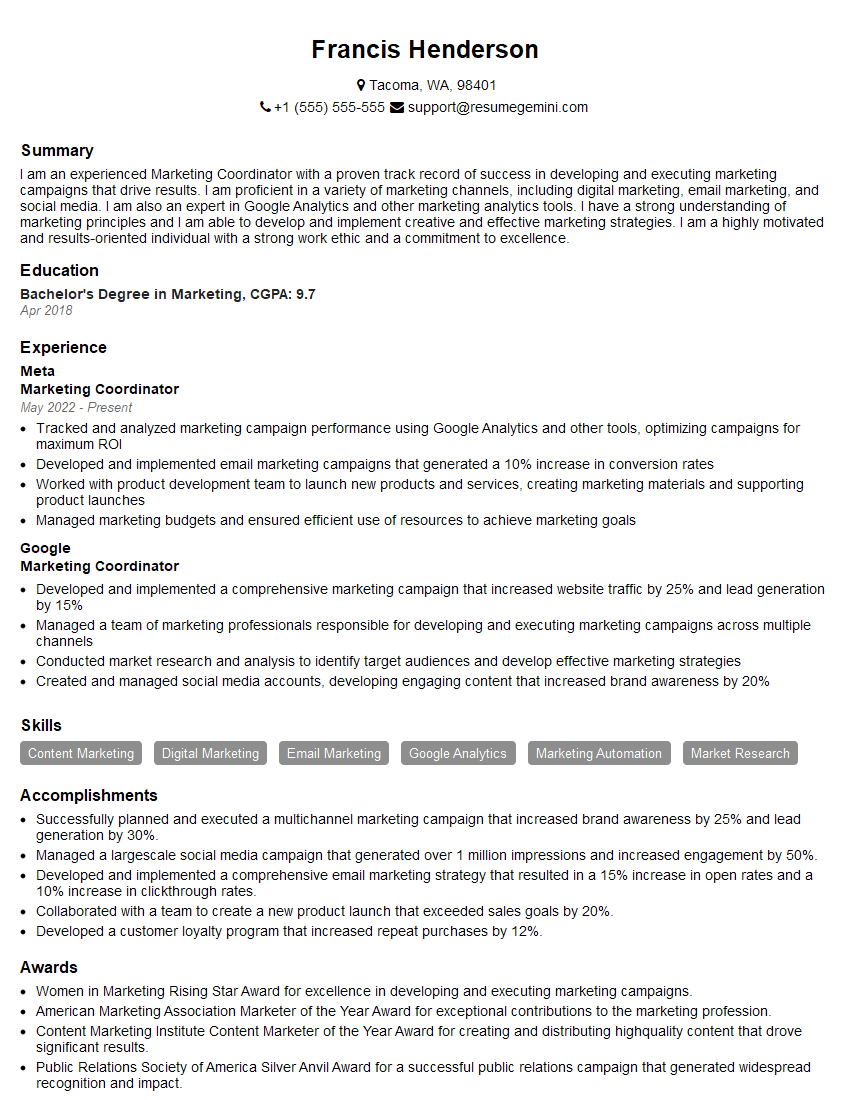
Marketing Coordinator Resume Sample
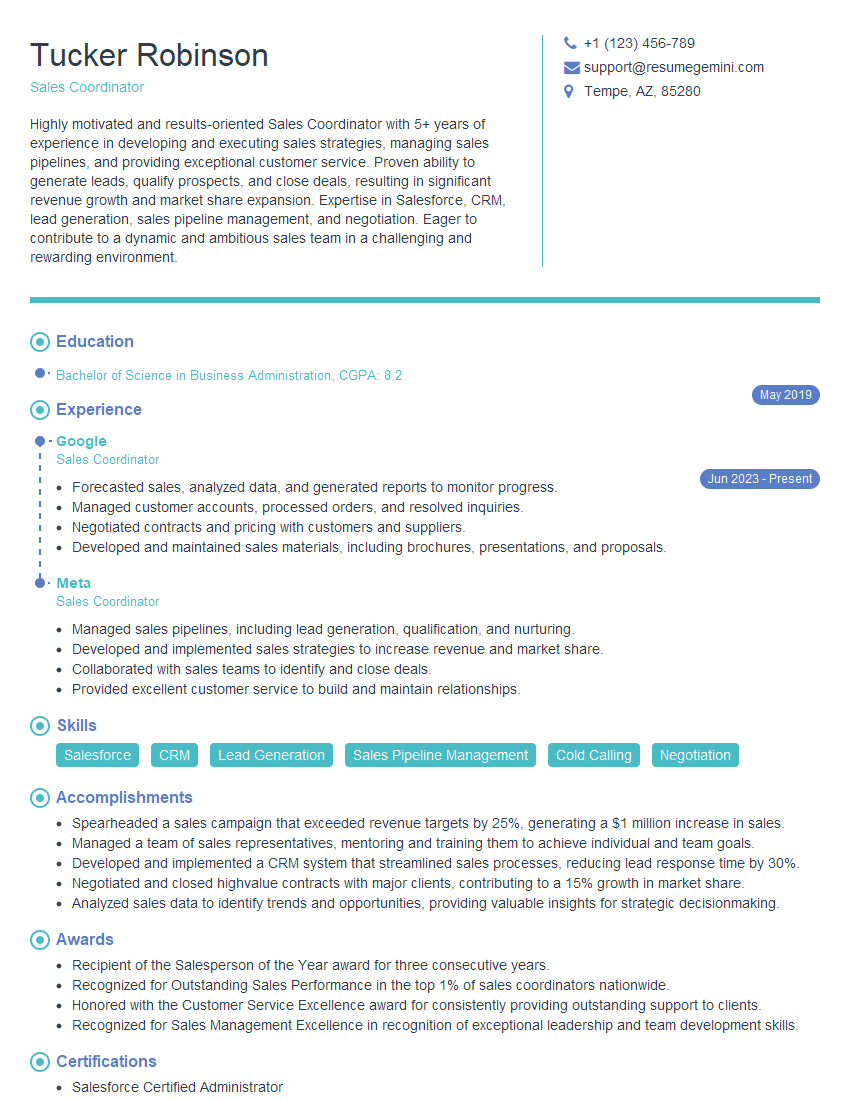
Sales Coordinator Resume Sample

Administrative Assistant Resume Sample
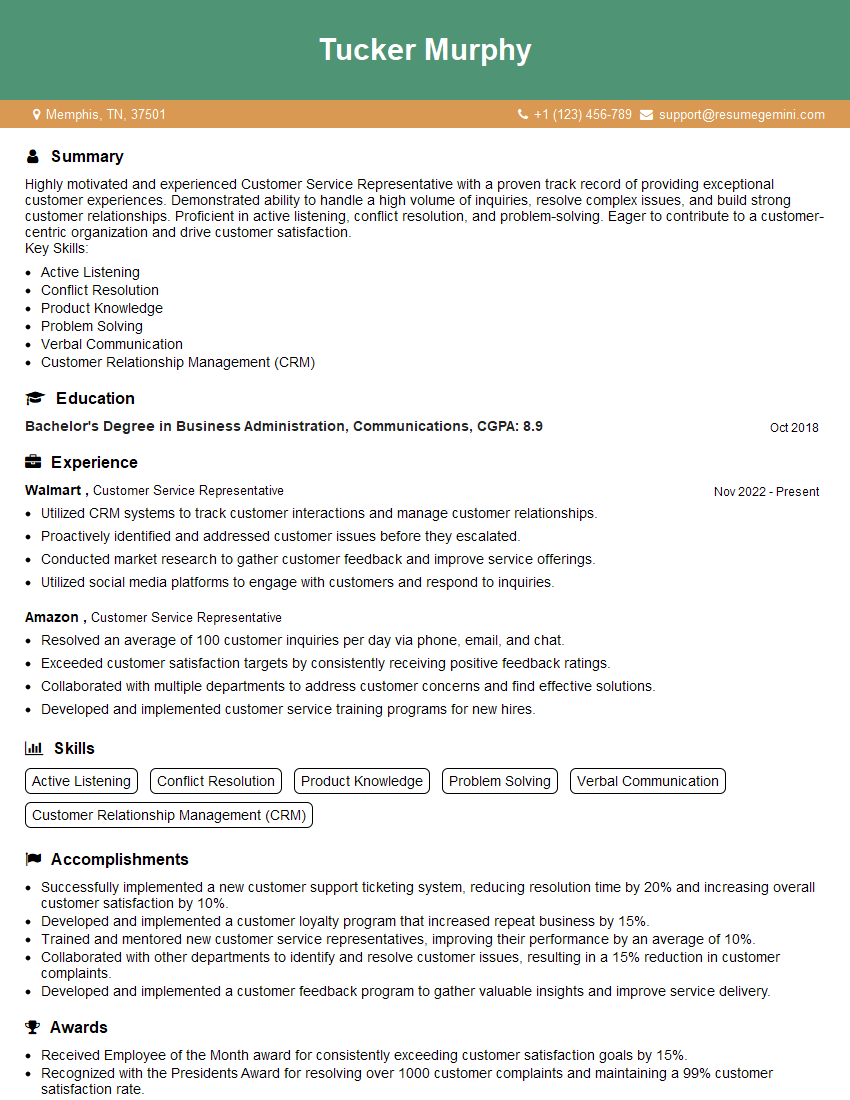
Customer Service Representative Resume Sample
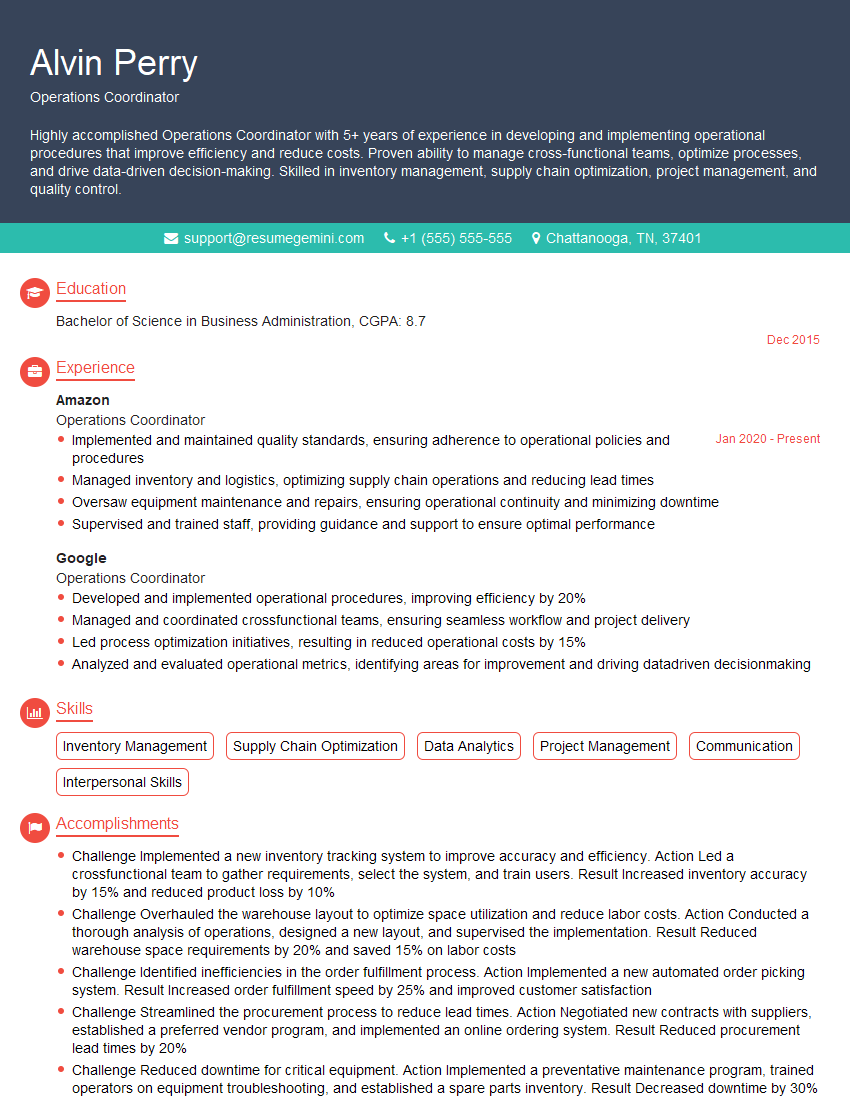
Operations Coordinator Resume Sample
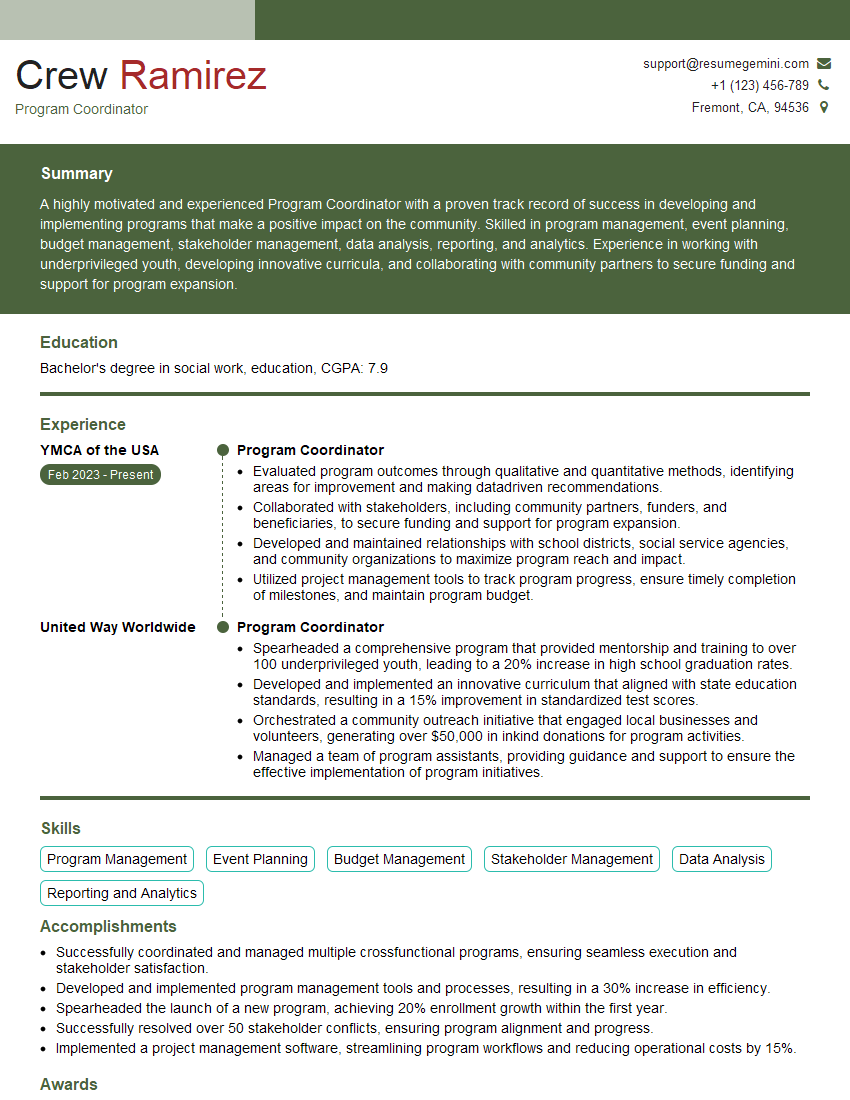
Program Coordinator Resume Sample
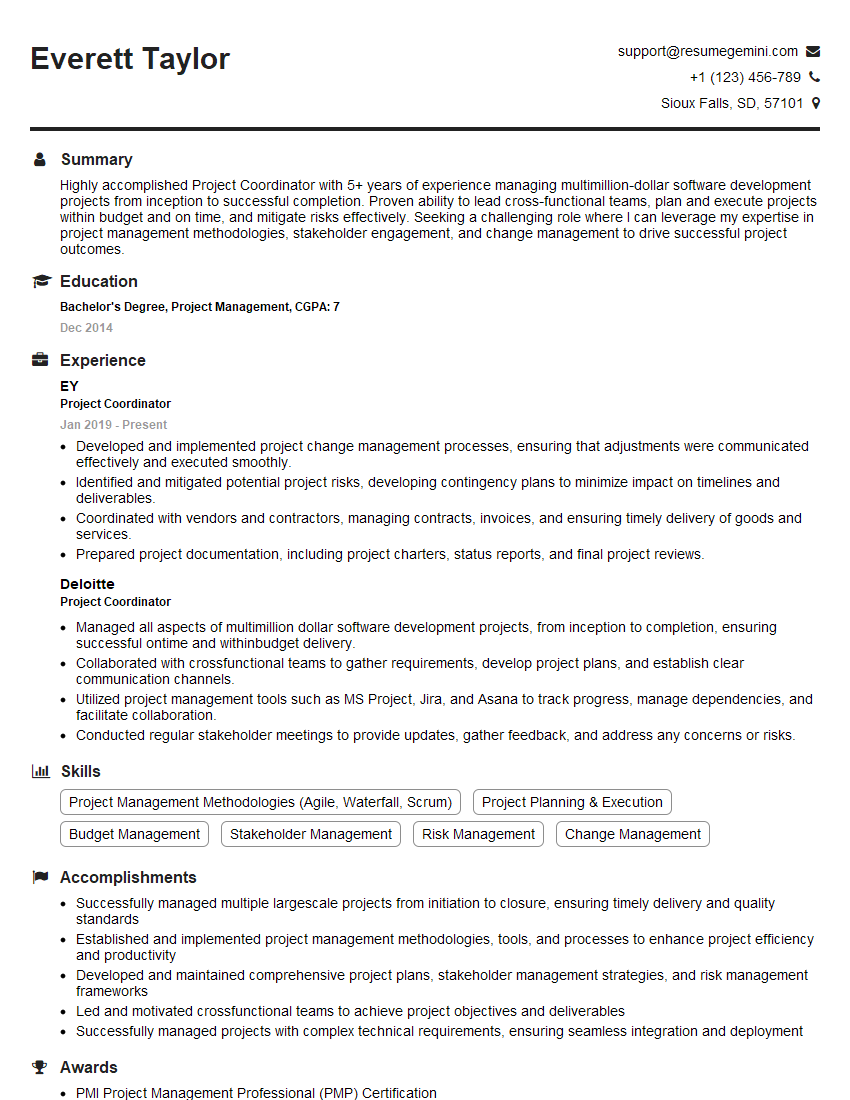
Project Coordinator Resume Sample

Business Analyst Resume Sample
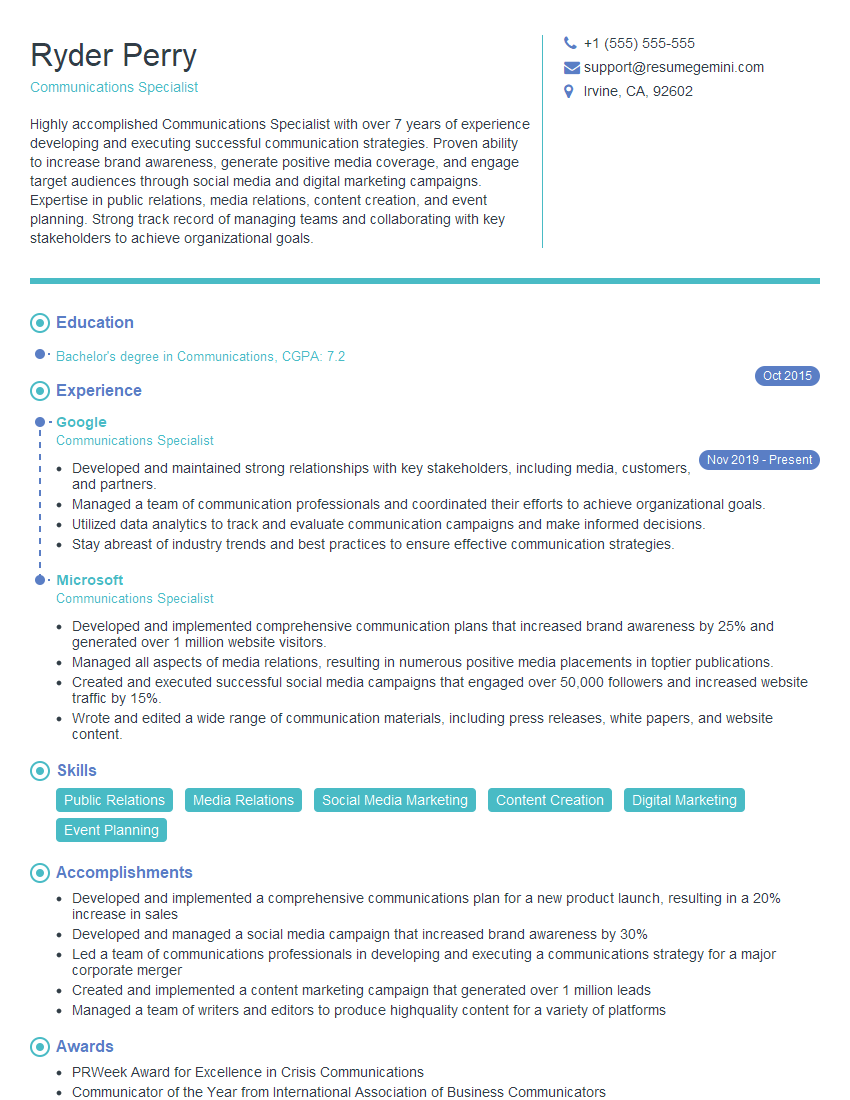
Communications Specialist Resume Sample
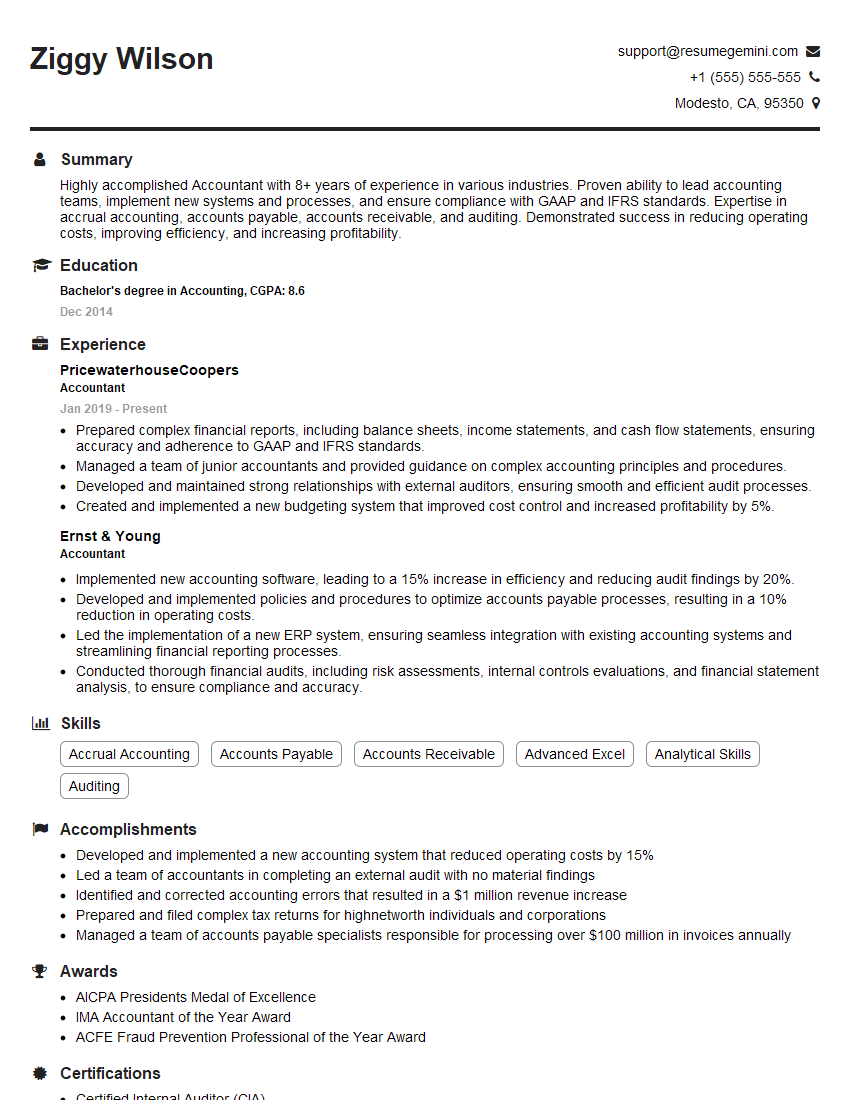
Accountant Resume Sample
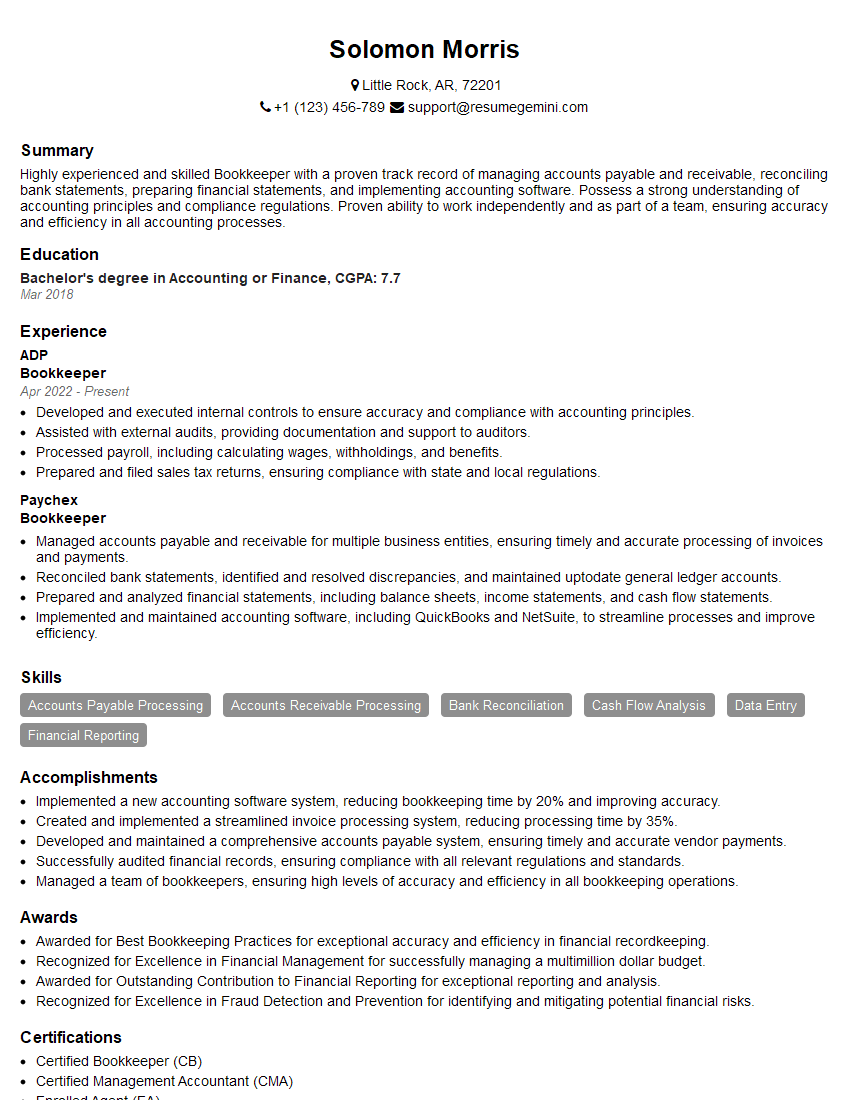
Bookkeeper Resume Sample
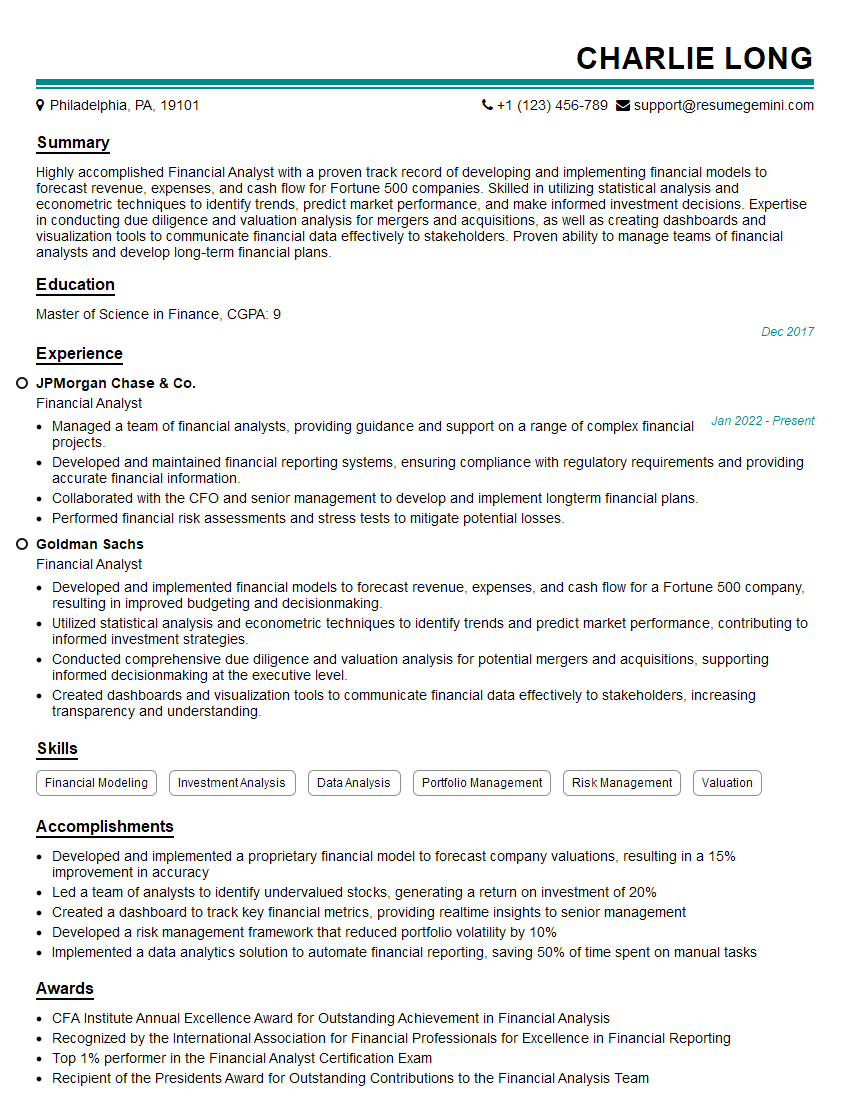
Financial Analyst Resume Sample

Data Analyst Resume Sample

Technical Writer Resume Sample
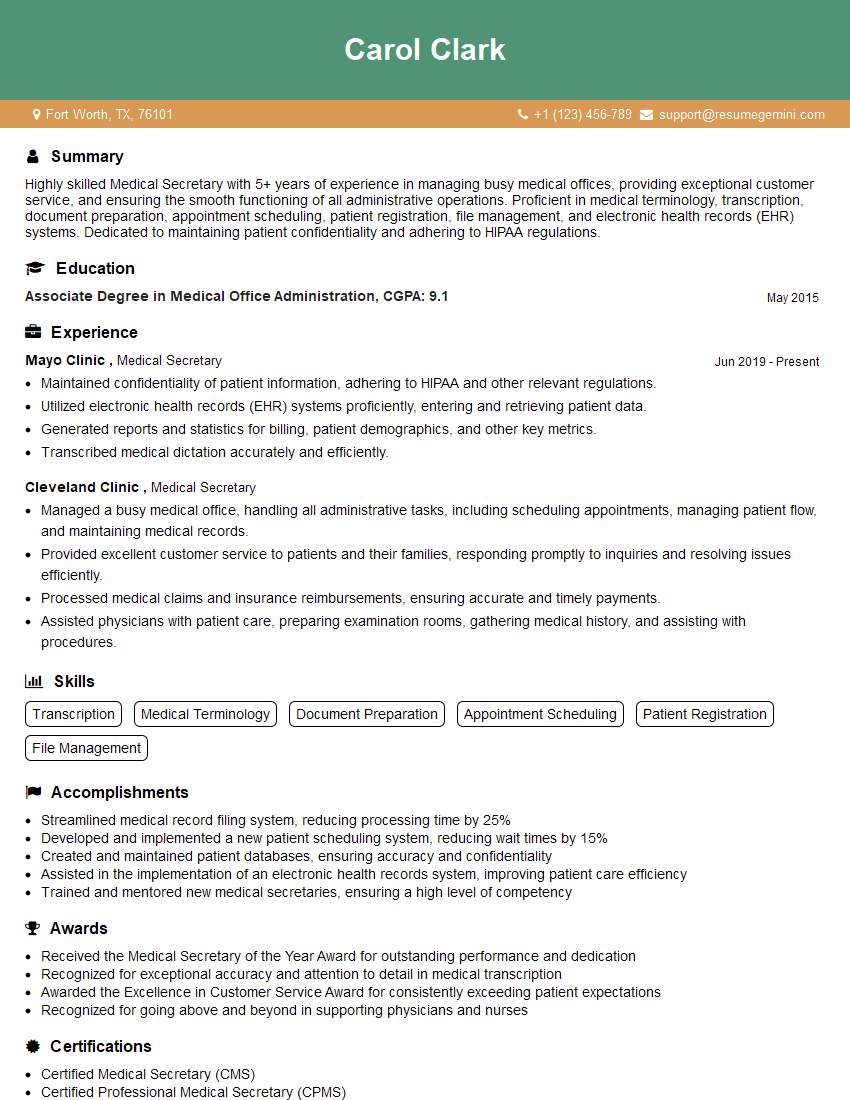
Medical Secretary Resume Sample

Executive Assistant Resume Sample
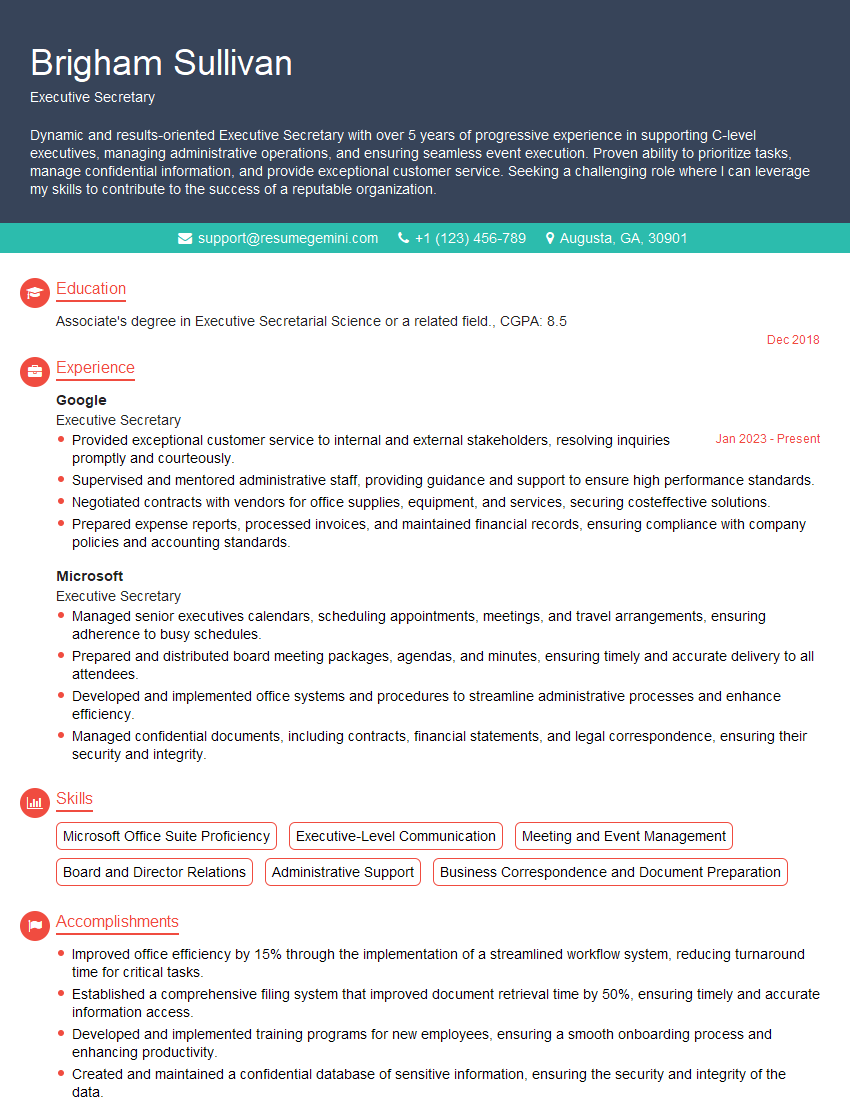
Executive Secretary Resume Sample
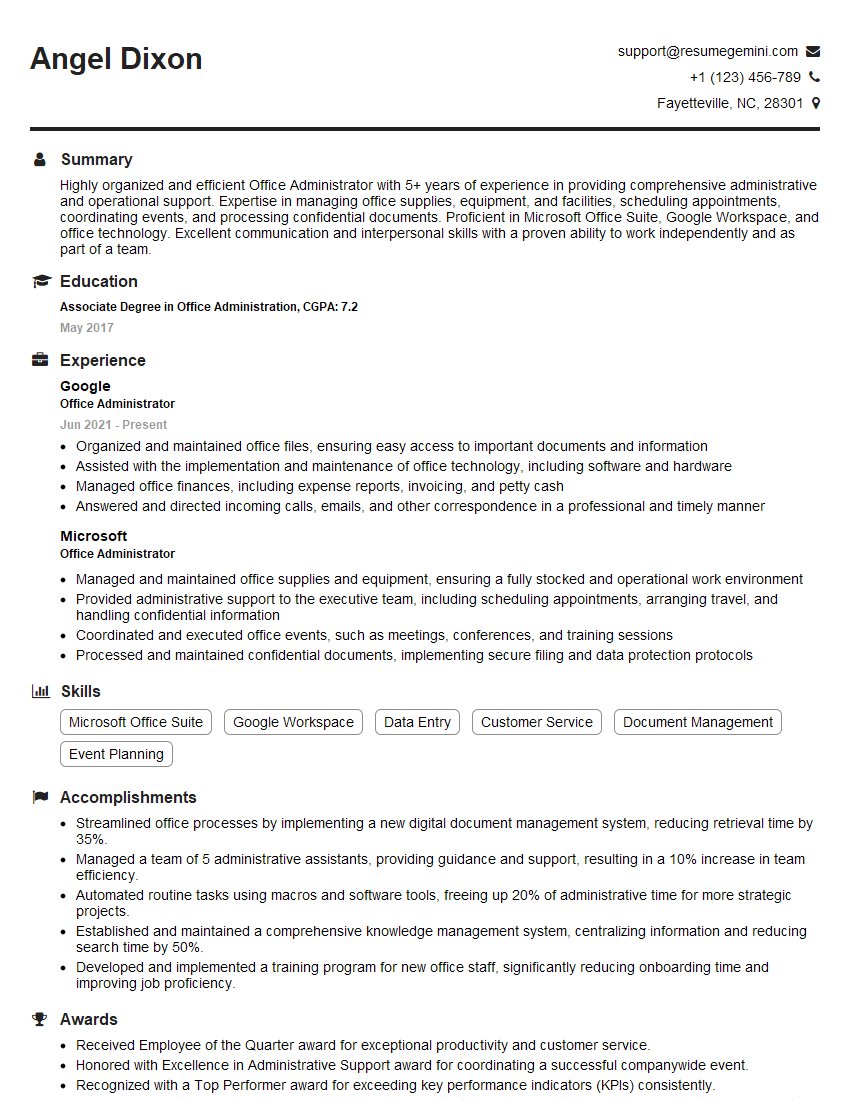
Office Administrator Resume Sample
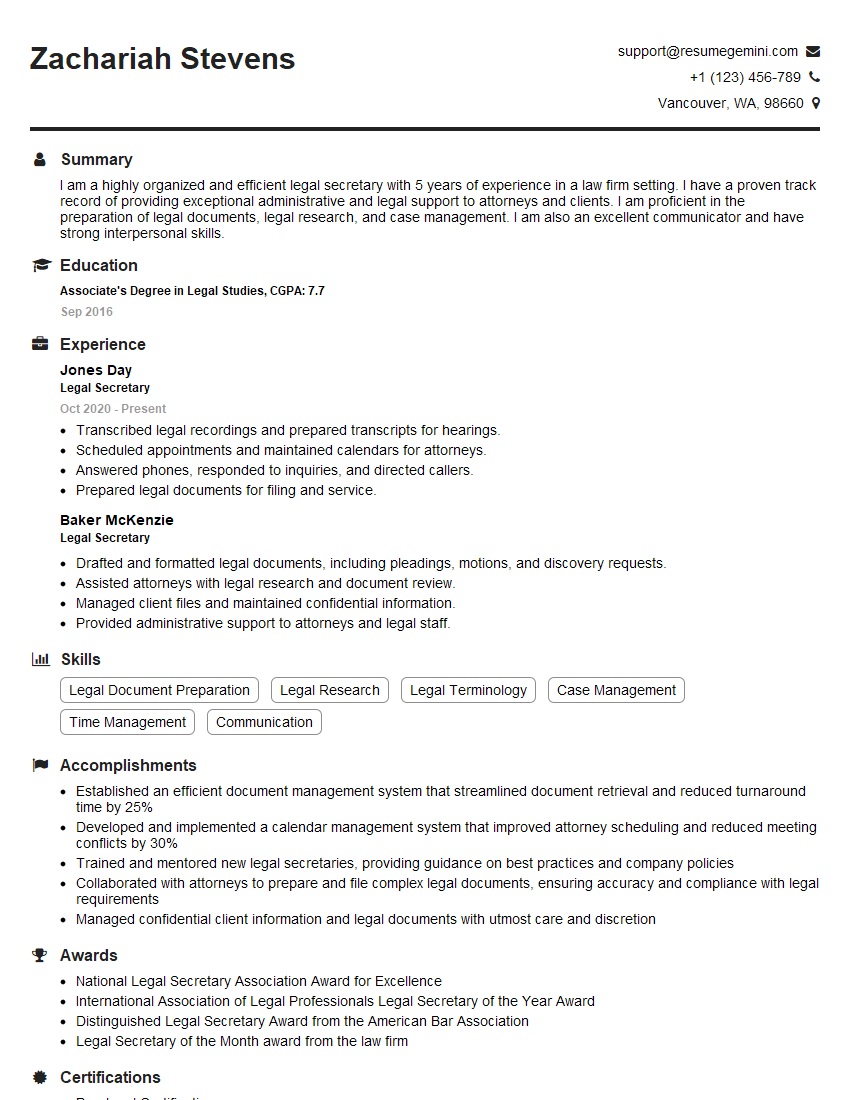
Legal Secretary Resume Sample

Data Entry Clerk Resume Sample
- Office Manager
- Marketing Coordinator
- Sales Coordinator
- Administrative Assistant
- Customer Service Representative
- Operations Coordinator
- Program Coordinator
- Project Coordinator
- Business Analyst
- Communications Specialist
- Accountant
- Bookkeeper
- Financial Analyst
- Data Analyst
- Technical Writer
- Medical Secretary
- Executive Assistant
- Executive Secretary
- Office Administrator
- Legal Secretary
- Data Entry Clerk
Explore more articles
Users Rating of Our Blogs
Share Your Experience
We value your feedback! Please rate our content and share your thoughts (optional).
What Readers Say About Our Blog
Really detailed insights and content, thank you for writing this detailed article.
IT gave me an insight and words to use and be able to think of examples