Interviews are more than just a Q&A session—they’re a chance to prove your worth. This blog dives into essential Video Editing Software (Adobe Premiere Pro, Final Cut Pro) interview questions and expert tips to help you align your answers with what hiring managers are looking for. Start preparing to shine!
Questions Asked in Video Editing Software (Adobe Premiere Pro, Final Cut Pro) Interview
Q 1. Explain the differences between Premiere Pro and Final Cut Pro.
Premiere Pro and Final Cut Pro are both leading Non-Linear Editing (NLE) software, but they cater to different workflows and preferences. Premiere Pro, developed by Adobe, is part of the Creative Cloud suite, offering seamless integration with other Adobe applications like After Effects and Photoshop. It’s known for its extensive plugin support and vast community resources. Final Cut Pro, developed by Apple, is a more streamlined, Mac-exclusive application often praised for its intuitive interface and excellent performance, especially with Apple hardware.
- Interface: Premiere Pro boasts a more customizable and complex interface, offering greater control but potentially a steeper learning curve. Final Cut Pro’s interface is generally considered more user-friendly and efficient, particularly for tasks like magnetic timeline editing.
- Performance: Both perform well, but Final Cut Pro generally handles large projects more efficiently on Apple silicon hardware. Premiere Pro’s performance can be highly dependent on system specifications and project complexity.
- Collaboration: Premiere Pro’s cloud-based features make collaboration smoother, while Final Cut Pro offers its own collaborative features, though arguably less robust.
- Cost: Premiere Pro is a subscription-based service, whereas Final Cut Pro is a one-time purchase.
Ultimately, the best choice depends on individual needs and preferences. I’ve personally worked extensively with both and find Premiere Pro’s versatility and plugin ecosystem invaluable for complex projects, while Final Cut Pro shines for its speed and efficiency in simpler productions.
Q 2. How do you manage large video projects effectively in Premiere Pro?
Managing large Premiere Pro projects efficiently involves a multi-pronged approach. Think of it like organizing a massive library – you need a system to find things quickly and prevent crashes.
- Project Organization: Create a clear folder structure for your media files, separating footage, audio, graphics, and effects. This makes locating assets much easier.
- Proxy Workflow: For high-resolution footage, using proxies (lower-resolution versions) significantly speeds up editing. Premiere Pro seamlessly handles switching between proxies and original files during export.
- Sequence Organization: Break down your project into manageable sequences. Instead of one massive timeline, create individual sequences for different scenes or acts. This improves performance and simplifies the editing process. Think of it like chapters in a book.
- Media Management: Utilize Premiere Pro’s media browser effectively to manage your assets, using keywords and ratings to easily locate clips. Regularly consolidate your project to remove unused media and optimize file sizes.
- Render and Cache Management: Monitor your render queue and clear unnecessary cache files. Regularly optimizing your media cache can free up valuable disk space and improve performance.
For example, on a recent documentary project with terabytes of footage, employing these techniques allowed me to smoothly navigate and edit without performance hiccups.
Q 3. Describe your experience with color correction in either Premiere Pro or Final Cut Pro.
My experience with color correction, primarily in Premiere Pro, emphasizes achieving a consistent and aesthetically pleasing look. It’s not just about making things ‘look good,’ but about telling a story visually.
- Understanding Color Science: I begin with a solid understanding of color theory, including white balance, color temperature, and color spaces. A slight adjustment in white balance can drastically impact the overall mood.
- Workflow: My workflow often starts with basic adjustments like white balance and exposure correction using the Lumetri Color panel. Then, I’ll address specific issues like color casts or uneven lighting. I frequently use the Lumetri Color’s curves to fine-tune the overall color grade.
- Creative Grading: Following the correction, I’ll move into creative grading. This involves adjusting saturation, contrast, and vibrance to achieve a particular look, often influenced by the project’s style and mood. For example, a dark thriller might benefit from desaturated colors and deep shadows, while a vibrant comedy might demand bright, saturated colors.
- LUTs (Look-Up Tables): I often employ LUTs to quickly apply a specific color style. They can speed up the process and provide a starting point for further adjustments.
In one project, I used a custom LUT to match the color palette of an existing film, creating visual consistency between the new footage and archive material.
Q 4. What are your preferred keyboard shortcuts for editing in your chosen NLE?
My preferred keyboard shortcuts in Premiere Pro are heavily customized for efficiency, but some core commands remain constant:
Cmd/Ctrl + K: Insert/Overwrite editCmd/Ctrl + X: CutCmd/Ctrl + C: CopyCmd/Ctrl + V: PasteCmd/Ctrl + Z: UndoCmd/Ctrl + Shift + Z: RedoCmd/Ctrl + I: Ripple DeleteCmd/Ctrl + Shift + I: Ripple InsertSpacebar: Play/PauseJ, K, L: Rewind, Stop, Forward
Beyond these, I’ve created custom shortcuts for frequently used effects and adjustments to minimize mouse use and accelerate my workflow. For instance, I’ve mapped shortcuts for specific Lumetri Color adjustments and audio effects. This personalized approach drastically improves speed and precision.
Q 5. How do you handle audio mixing and mastering in your editing workflow?
Audio mixing and mastering are crucial for a professional-sounding video. My workflow prioritizes clarity and balance.
- Clean Audio: The process begins with cleaning the audio, removing background noise, and correcting any unwanted sounds using noise reduction and de-essing tools. A clean audio track is the foundation of good sound design.
- Dialogue Mixing: I focus on achieving clear and intelligible dialogue. This often includes adjusting levels, EQ, and compression to ensure the vocals cut through the mix.
- Sound Effects and Music Integration: Sound effects and music are carefully integrated, ensuring they complement the visuals without overpowering the dialogue. I use panning and spatial effects to create a more immersive soundscape. Timing is critical here.
- Mastering: The final stage is mastering. This involves final adjustments to overall levels, dynamics, and EQ to ensure the audio sounds polished and consistent across different playback systems. This often involves using a mastering plugin or sending the mix to a professional mastering engineer for a critical listen.
In a recent project, I had to recover dialogue from a noisy environment. Using a combination of noise reduction, spectral editing, and careful EQ adjustments, I restored the intelligibility of the dialogue without compromising the overall audio quality. The result was significantly improved viewer experience.
Q 6. Explain your process for creating dynamic transitions.
Creating dynamic transitions goes beyond simple cuts. The goal is to create a visually engaging and seamless flow.
- Matching Action: A simple but effective technique involves matching the action across cuts, smoothly transitioning between shots that maintain the momentum.
- J and L Cuts: These techniques are used to smoothly transition between audio and visuals, creating a dynamic feel. A J-cut starts the audio from the next clip before the visual transition, creating anticipation. A L-cut ends the audio from the previous clip after the visual transition has started, creating an extended feel.
- Effects Transitions: Premiere Pro offers a wide array of transitions that can be customized for a distinctive look, including wipes, cross dissolves, and more sophisticated effects-based transitions.
- Motion Graphics: For a more cinematic or dramatic approach, motion graphics transitions add a professional touch and can be customized to reflect the project’s style and branding.
For example, in a music video, I would use a combination of J and L cuts to create a rhythmic flow between scenes, blending the visuals seamlessly with the music. The use of creatively designed effects transitions or motion graphics would further enhance the dynamic presentation.
Q 7. What are your preferred methods for exporting video files for different platforms?
Exporting for different platforms requires considering each platform’s specific requirements. My process involves careful consideration of resolution, codec, and frame rate. Premiere Pro’s export settings allow precise control over these parameters.
- YouTube/Vimeo: These platforms generally accept a range of formats, but H.264 encoding (MP4 container) is widely used due to its balance between file size and quality. I’ll usually target a resolution of 1080p or higher, depending on the source material.
- Broadcast Television: Television broadcast standards vary geographically. I will always follow the broadcaster’s technical guidelines regarding resolution, frame rate (e.g., 29.97fps, 25fps), and codec (e.g., ProRes, MXF).
- Social Media (Instagram, TikTok): These platforms require specific aspect ratios and often prefer lower resolutions (e.g., 1080p or 720p) to ensure faster upload speeds and better viewer engagement. The encoding settings are adjusted accordingly.
- Master Files: I always maintain high-resolution master files (e.g., ProRes) for archival purposes and potential future use. These are crucial for any revisions or re-exports.
By carefully configuring the export settings in Premiere Pro based on the target platform’s requirements, I can ensure the video is optimized for viewing on that platform while retaining high visual quality.
Q 8. How familiar are you with video codecs and their implications on file size and quality?
Video codecs are essentially methods of compressing and decompressing video data. They significantly impact both file size and video quality. Choosing the right codec is crucial for balancing storage space, editing performance, and final output quality. For instance, ProRes codecs (used heavily in Final Cut Pro) offer high quality with larger file sizes, ideal for intermediate editing where quality is paramount. Conversely, H.264 (used widely for distribution on platforms like YouTube) provides smaller file sizes, making it suitable for final delivery, but often at the cost of some quality loss. A common workflow involves editing with a high-quality, larger codec like ProRes and then exporting to a smaller, more distribution-friendly codec like H.264 or H.265.
- High-quality codecs (larger files): ProRes (Apple), DNxHD (Avid), CineForm (Blackmagic Design)
- Smaller file size codecs (often lower quality): H.264 (MPEG-4 AVC), H.265 (HEVC), MPEG-2
Understanding the trade-offs between codec choice allows me to optimize my workflow for specific project needs. For example, a short, high-impact corporate video might warrant using ProRes throughout, while a longer documentary might require using a proxy workflow (discussed later) with ProRes proxies and a lower-resolution, more compressed codec for the original source media.
Q 9. Describe your experience with keyframing and animation.
Keyframing and animation are integral parts of my editing process. Keyframing allows me to precisely control the movement or transformation of elements over time by setting keyframes – points in time where a specific parameter is defined. Between keyframes, the software interpolates the values, creating smooth animation. I use keyframing extensively for everything from simple text animations to more complex motion graphics, such as creating smooth camera movements or subtly animating objects within the scene. In Premiere Pro, I often utilize the Graph Editor for more precise fine-tuning of keyframe curves.
For instance, I recently animated a logo reveal for a client. I created several keyframes for the logo’s opacity and position, adjusting the ease curves in the Graph Editor to achieve a natural, appealing animation. This allowed me to create a professional look and feel without requiring external motion graphics software.
My animation experience goes beyond simple keyframing. I’m proficient in using various techniques like rotoscoping (tracing over footage to isolate specific areas for animation), motion tracking (tracking movement to add effects or elements accurately), and creating basic 2D animation using shape layers in After Effects (often integrated within my Premiere Pro projects).
Q 10. How do you handle syncing audio and video?
Audio-video synchronization is critical for any professional video. In most cases, the software handles this automatically during import. But when syncing is problematic – like with multi-camera shoots or when using external audio – I employ several techniques.
- Visual Alignment: I use visual cues such as clapper boards or distinct actions captured across multiple cameras to match up audio and video tracks. This is especially important for multi-camera projects.
- Audio Waveform Analysis: I compare audio waveforms to identify matching points between the audio and video, using tools provided in Premiere Pro or Final Cut Pro to fine-tune alignment.
- Automated Sync Tools: Both Premiere Pro and Final Cut Pro offer sophisticated tools for automatic syncing based on audio characteristics, simplifying synchronization, particularly for footage without visual cues.
- Manual Adjustment: For more precise synchronization, I manually adjust clips frame by frame, ensuring accurate alignment throughout.
A recent project involved syncing audio from a separate recorder during a live interview. Using the waveform analysis, I easily identified the precise moments to adjust the audio track, ensuring flawless synchronization.
Q 11. Explain your experience using proxies in video editing.
Proxy workflows are invaluable for handling high-resolution footage. A proxy is a lower-resolution version of your original footage, significantly reducing file sizes for smoother editing performance, especially on systems with limited processing power. I create proxies of my source media – often H.264 or smaller ProRes formats – before starting my edit. I then edit with the proxies, and the software automatically replaces them with the high-resolution originals upon export, resulting in high-quality final output.
Using proxies is particularly crucial when working with 4K or 8K footage, where the demands on system resources would otherwise create significant performance bottlenecks. It’s like working with lightweight sketches before painting the final masterpiece. The process is streamlined in both Premiere Pro and Final Cut Pro, with built-in options for generating and managing proxies.
For example, in a recent project involving 8K RAW footage, creating ProRes proxies allowed me to edit seamlessly despite my system’s limitations. The entire workflow was significantly faster and more efficient than attempting to edit directly with the original 8K files.
Q 12. How do you organize your projects to maintain efficiency?
Project organization is paramount for efficiency. I adhere to a structured approach, employing a consistent naming convention for all files, creating folders for each scene or sequence, and utilizing color-coding and tags for clips within the editing software. My project folders usually follow a hierarchical structure, with top-level folders categorized by project name, and subfolders for assets like audio, video, graphics, and exports. This method greatly reduces search time and keeps things clear and orderly.
Within the editing software itself, I use nested sequences – sequences within sequences – to manage complex projects effectively, breaking down larger sequences into smaller, more manageable units. This allows for better organization and simplifies reviewing or adjusting specific portions of the project.
The use of metadata – keywords and descriptions – helps in quickly searching for specific clips, saving considerable time. Furthermore, I regularly back up my projects to external drives to ensure data safety.
Q 13. Describe your troubleshooting skills related to common video editing issues.
Troubleshooting is an everyday aspect of video editing. My approach is systematic and involves careful observation and testing.
- Identify the Problem: First, I precisely define the issue. Is it a rendering problem, audio desynchronization, a codec incompatibility, or something else?
- Isolate the Cause: I then try to pinpoint the source. Did the problem start after a specific edit or import? Does it only occur with certain files or sequences?
- Test Solutions: I systematically try various solutions based on my experience and knowledge. This might involve checking render settings, re-importing problematic files, trying different codecs, or consulting online resources and forums.
- Seek External Help: If necessary, I consult online communities, forums, or the software’s documentation. It’s always good to leverage the collective knowledge available.
For example, recently I encountered a rendering error. After careful examination, I discovered a corrupted clip. After replacing the clip, the rendering proceeded successfully. My approach is always to begin with the simplest solutions, gradually progressing to more complex troubleshooting if necessary.
Q 14. What is your experience with motion graphics templates?
I have considerable experience working with motion graphics templates, particularly those available through platforms like Motion Array and Envato Elements. These templates provide pre-designed animations and visual elements that can save significant time and effort. I often adapt and customize these templates to fit specific client needs. This involves altering colors, text, and other parameters to match the branding and message of the project.
Using templates effectively requires understanding their structure and how to modify them without compromising their integrity. I’m proficient in adjusting parameters such as text placeholders, color schemes, and animation timing within the template itself. My workflow often includes carefully reviewing the template’s documentation to understand its customization options and limitations before incorporating it into my project. A recent project successfully leveraged a motion graphics template for a social media advertisement, significantly reducing the overall production time, yet resulting in a high-quality finished product.
Q 15. How do you handle client feedback during the editing process?
Client feedback is crucial. I approach it as a collaborative process, not a criticism session. My first step is to actively listen and understand their concerns. I then translate those concerns into concrete editing tasks. For example, if a client feels a scene is too slow, I’ll analyze pacing, possibly shortening shots or adding B-roll to maintain visual interest. If they feel the tone is off, I’ll examine the music, color grading, and scene selection to align it with their vision. I always offer solutions rather than just agreeing or disagreeing. I use version control diligently within Premiere Pro or Final Cut Pro, creating different versions to showcase various iterations of changes. This allows the client to compare and provide feedback on specific changes made, ensuring a transparent and efficient workflow.
I find it beneficial to schedule regular feedback sessions, rather than bombarding them with updates. This allows for focused discussion and prevents information overload. I also maintain open communication throughout the project, regularly sending updates and asking clarifying questions to ensure we’re on the same page.
Career Expert Tips:
- Ace those interviews! Prepare effectively by reviewing the Top 50 Most Common Interview Questions on ResumeGemini.
- Navigate your job search with confidence! Explore a wide range of Career Tips on ResumeGemini. Learn about common challenges and recommendations to overcome them.
- Craft the perfect resume! Master the Art of Resume Writing with ResumeGemini’s guide. Showcase your unique qualifications and achievements effectively.
- Don’t miss out on holiday savings! Build your dream resume with ResumeGemini’s ATS optimized templates.
Q 16. What is your experience with multi-camera editing?
Multi-camera editing is a cornerstone of my skillset. I’m proficient in using both Premiere Pro’s and Final Cut Pro’s multi-cam features. My experience ranges from live event coverage, where quick cuts and seamless transitions are vital, to more controlled studio shoots requiring precise synchronization and switching. I understand the importance of syncing audio and video accurately, and I utilize tools within the software to ensure smooth transitions between cameras. I’m comfortable working with various camera angles and perspectives to create dynamic and engaging scenes. For instance, I recently edited a concert recording using 8 different camera angles, seamlessly weaving them together to create a visually stunning and captivating final product. I’m adept at using different multi-cam editing techniques, such as the ‘J’ cut and ‘L’ cut, for smoother storytelling.
Q 17. How do you manage color consistency throughout a project?
Maintaining color consistency is paramount for professional video editing. I use a range of techniques to achieve this, beginning with establishing a consistent color profile at the acquisition stage (camera settings). In post-production, I rely heavily on color grading tools within Premiere Pro and Final Cut Pro. I typically use scopes (waveform, vectorscope, parade) to visually analyze and correct color imbalances across different clips and scenes. I start by establishing a ‘look’ for the project – a base grade – and then make subtle adjustments on a per-clip basis to maintain consistency while enhancing the visual storytelling. For example, I might use color correction to match the lighting conditions between scenes shot in different locations or at different times of day. For complex projects, I might even use LUTs (Look Up Tables) to apply pre-defined color adjustments to maintain a consistent look across the entire project.
Q 18. What techniques do you employ for efficient rendering?
Efficient rendering is crucial for meeting deadlines. My approach involves several strategies. First, I optimize my project settings before rendering. This includes choosing the right export settings (resolution, codec, bitrate) for the intended platform and distribution method. Using a proxy workflow significantly reduces render times, especially when working with high-resolution footage. In Premiere Pro and Final Cut Pro, you can create low-resolution proxies for faster editing and previewing, and then render the high-resolution version at the end. Secondly, I utilize rendering features such as hardware acceleration (CUDA or Metal) where available to speed up the process. I also ensure my system’s RAM and storage are sufficient for smooth rendering. If facing very complex renders, I’ll often break it into multiple smaller renders to manage resources and make the overall process more robust. I regularly clean up unused files and media to avoid clogging my system and potentially causing slow downs. I also use rendering queues within the software to manage multiple renders simultaneously.
Q 19. Explain your experience with titling and graphics creation.
I possess extensive experience in titling and graphics creation, leveraging both built-in features of Premiere Pro and Final Cut Pro, as well as external software like After Effects for more advanced effects. I’m skilled in creating various styles of titles, from simple lower thirds to complex animated graphics. I understand the principles of typography, motion graphics, and visual hierarchy to ensure readability and visual appeal. I utilize After Effects for creating more dynamic and complex animations, often integrating them into my edits seamlessly. I can create engaging motion graphics elements such as kinetic typography to highlight important information or enhance the overall visual experience. For example, I recently created a series of animated lower thirds with custom fonts and subtle animations to maintain brand consistency throughout a documentary series. My goal is always to create graphics that enhance the narrative, not distract from it.
Q 20. Describe your process for creating a compelling narrative.
Crafting a compelling narrative involves understanding the story’s structure and employing editing techniques to enhance its emotional impact. I start by meticulously reviewing the source footage, identifying key moments and emotional arcs. I then organize the footage using a storyboarding approach, whether on paper or within the editing software, to visualize the flow of the story. I pay close attention to pacing, using shot length and transitions to control the rhythm of the narrative. Music and sound design are critical components; I carefully choose or create audio that complements the emotional tone of each scene. I strive for a balanced mix of showing and telling, using visuals to convey information while also utilizing voiceover or narration where appropriate. I often incorporate techniques like parallel editing or cross-cutting to create suspense or build emotional connections between scenes. A recent project involved crafting a narrative around a series of interviews. By carefully selecting and sequencing the interview clips, I created a captivating story that moved the audience emotionally.
Q 21. What software do you use for audio editing and which do you prefer and why?
I use both Adobe Audition and Logic Pro X for audio editing. My preference leans towards Audition for its seamless integration with Premiere Pro and its powerful noise reduction and restoration tools. Audition’s intuitive interface makes it efficient for tasks like dialogue cleanup, sound effect design, and mixing. However, Logic Pro X is my go-to for more complex audio projects requiring advanced mixing, mastering, and sound design capabilities. It’s a more comprehensive digital audio workstation (DAW) with a broader range of instruments and effects. The choice often depends on the project’s complexity and the specific needs. For a simple documentary requiring mostly dialogue cleaning, Audition is perfect. For a more complex project with elaborate sound design and original music composition, Logic Pro X offers the necessary tools.
Q 22. How familiar are you with different aspect ratios and their applications?
Aspect ratios define the proportional relationship between the width and height of a video frame. Understanding them is crucial for maintaining visual consistency and avoiding distortion. Common aspect ratios include 16:9 (widescreen, prevalent in HDTV and most online video), 4:3 (standard definition, older television format), and 2.39:1 (cinemascopic, often used in feature films). Choosing the right aspect ratio depends on the intended platform and the desired aesthetic.
For instance, shooting a video for YouTube will typically require a 16:9 aspect ratio. If you’re working on a project for a client who needs the video to be compatible with older TVs, you might use 4:3. In Premiere Pro or Final Cut Pro, you can easily change the aspect ratio by adjusting the sequence settings. Failure to match the aspect ratio of your footage with the output specifications could result in letterboxing (black bars above and below) or pillarboxing (black bars on the sides), losing valuable screen real estate or creating unintended visual effects.
Q 23. Describe your experience with video effects and compositing.
My experience with video effects and compositing is extensive. I’m proficient in using both Adobe Premiere Pro and Final Cut Pro’s robust effects engines to enhance visuals and create compelling scenes. This encompasses everything from basic color correction and keyframing to advanced techniques like motion tracking, rotoscoping, and chroma keying. I’m comfortable using both built-in effects and third-party plugins to achieve specific creative goals.
For example, I’ve used motion tracking in Premiere Pro to seamlessly integrate CGI elements into live-action footage. In Final Cut Pro, I’ve employed advanced compositing techniques to create complex visual effects involving multiple layers, masks, and blending modes. I understand the importance of optimizing performance when dealing with complex composites, minimizing render times and maintaining a smooth workflow.
Q 24. What are your preferred methods for collaboration on video projects?
Effective collaboration is vital in video production. My preferred methods involve a combination of cloud-based storage and collaborative editing tools. I’m comfortable using platforms like Google Drive or Dropbox to share project files and ensure everyone has access to the latest versions. For actual editing collaboration, tools like Premiere Pro’s Team Projects or XML-based workflows in Final Cut Pro facilitate simultaneous editing by multiple editors.
Regular communication is paramount. We use tools like Slack or email to discuss creative directions, resolve technical issues, and provide feedback. Establishing clear roles and responsibilities from the outset also streamlines the process and reduces potential conflicts. This collaborative approach ensures a cohesive final product while optimizing the creative process.
Q 25. Explain your experience working with different file formats.
I have extensive experience working with a variety of video file formats, including ProRes (Apple’s high-quality codec, often preferred for editing), H.264 (a widely used compression codec for distribution), H.265 (HEVC, offering better compression than H.264), and various RAW formats (like RED or Arri RAW). Understanding the strengths and weaknesses of each format is essential for making informed decisions about file management, storage, and editing efficiency. ProRes offers exceptional quality but larger file sizes, whereas H.264 sacrifices some quality for smaller file sizes and better compatibility.
Choosing the right file format depends on the project’s needs. For high-quality editing, ProRes or RAW is ideal. For distribution, H.264 or H.265 provide better compatibility and smaller file sizes for easy sharing and uploading. I always ensure that the chosen format is compatible with the target platforms and editing software being used to avoid unnecessary conversion issues and potential quality loss.
Q 26. How do you maintain quality control during the editing process?
Maintaining quality control is an ongoing process. It starts with the initial ingest of footage – verifying its resolution, frame rate, and overall quality. Throughout the editing process, I regularly check for continuity errors, audio sync issues, and overall visual consistency. I utilize Premiere Pro and Final Cut Pro’s built-in monitoring tools, such as waveform monitors and vectorscopes, to ensure accurate color grading and audio levels.
I perform regular backups of my project files to prevent data loss. Before final export, I always perform a final review, scrutinizing every detail, and making final color and audio adjustments. I work closely with clients throughout the process to ensure they are satisfied with the final result. A systematic approach, coupled with meticulous attention to detail, ensures a high-quality final product.
Q 27. Describe a challenging editing project and how you overcame the difficulties.
One challenging project involved creating a documentary using archival footage of varying quality. The footage ranged from grainy 8mm film to high-resolution digital recordings, requiring significant color correction and stabilization to ensure visual consistency. Some audio tracks were damaged or missing entirely, necessitating creative sound design and audio restoration techniques.
To overcome these difficulties, I first organized the footage meticulously, categorizing it by quality and source. I then used advanced color correction tools in Premiere Pro to match the color palettes, and employed stabilization plugins to smooth out shaky footage. Missing audio sections were painstakingly filled using a combination of sound effects and archival music, carefully maintaining the documentary’s overall tone and feel. The result was a cohesive and engaging documentary, demonstrating successful problem-solving in a challenging environment.
Q 28. What are your strengths and weaknesses as a video editor?
My strengths include a strong understanding of visual storytelling, meticulous attention to detail, and proficiency in both Premiere Pro and Final Cut Pro. I’m a quick learner, adaptable to different project requirements, and I excel under pressure. I have a creative eye and a knack for finding solutions to complex technical challenges. My collaborative skills allow me to work effectively as part of a larger team.
My weakness, if I were to be critical, would be occasionally over-investing time in perfecting minor details. I’m working on improving my time management to ensure efficient project completion without compromising quality. I’m also constantly seeking opportunities to expand my knowledge of emerging technologies and software updates within the video editing landscape.
Key Topics to Learn for Video Editing Software (Adobe Premiere Pro, Final Cut Pro) Interview
- Project Setup & Management: Understanding project settings, importing media, organizing assets, and creating efficient workflows in both Premiere Pro and Final Cut Pro.
- Timeline Editing: Mastering techniques like assembling clips, using various editing tools (razor tool, ripple edit, roll edit), working with multi-camera edits, and applying transitions smoothly.
- Audio Editing & Mixing: Familiarize yourself with audio track manipulation, noise reduction, audio equalization, and creating a balanced audio mix. Discuss your understanding of audio levels and dynamics.
- Color Correction & Grading: Demonstrate knowledge of color correction tools, understanding color spaces, and achieving consistent color grading across a project. Mention different color grading techniques and workflows.
- Effects & Compositing: Showcase your ability to apply visual effects, keyframing animations, and basic compositing techniques using available tools within each software. Explain how you would troubleshoot common effects issues.
- Exporting & Rendering: Discuss different export settings, codecs, and resolutions. Explain how to optimize for different platforms (web, broadcast, mobile) and troubleshoot rendering problems.
- Keyboard Shortcuts & Efficiency: Highlight your proficiency with keyboard shortcuts to demonstrate your speed and efficiency in both Premiere Pro and Final Cut Pro. Be ready to discuss your preferred workflow strategies.
- Understanding NLE Principles: Go beyond software-specific skills. Discuss your understanding of fundamental video editing principles such as pacing, storytelling, continuity, and visual language.
- Troubleshooting & Problem Solving: Be prepared to discuss common issues you’ve faced and how you solved them. This demonstrates practical experience and problem-solving skills.
Next Steps
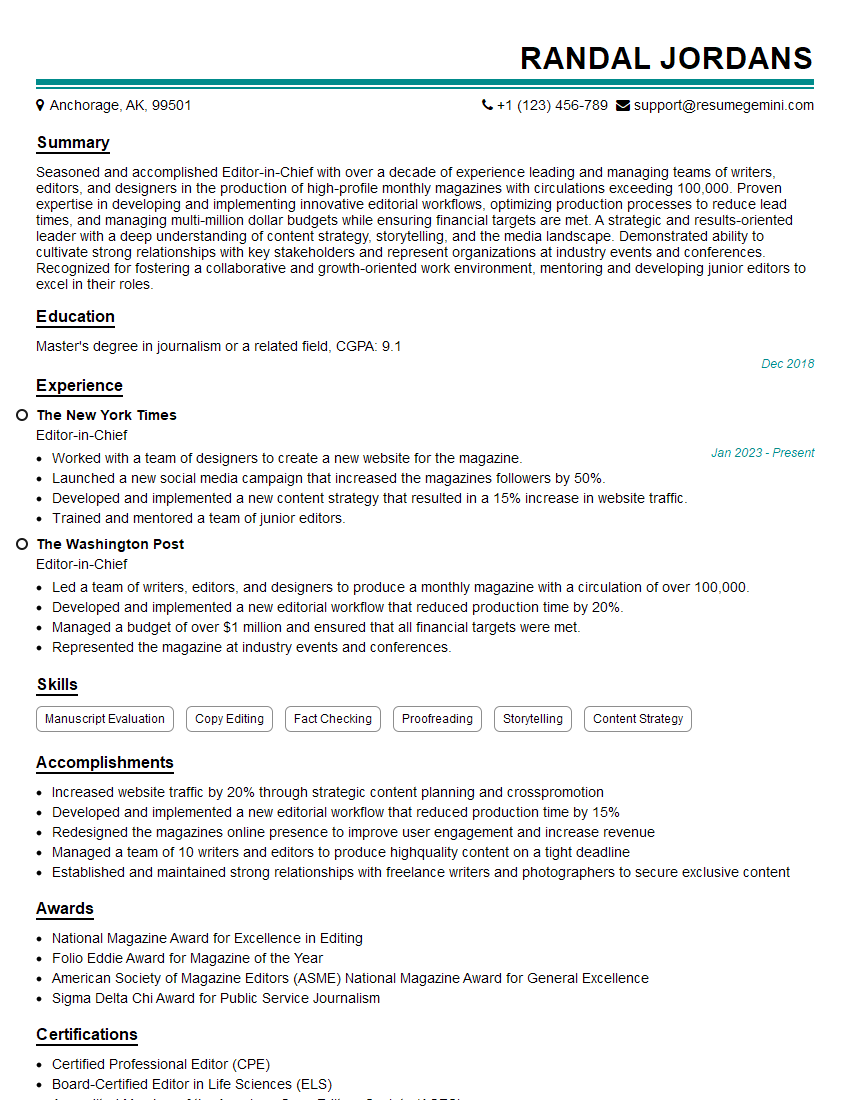
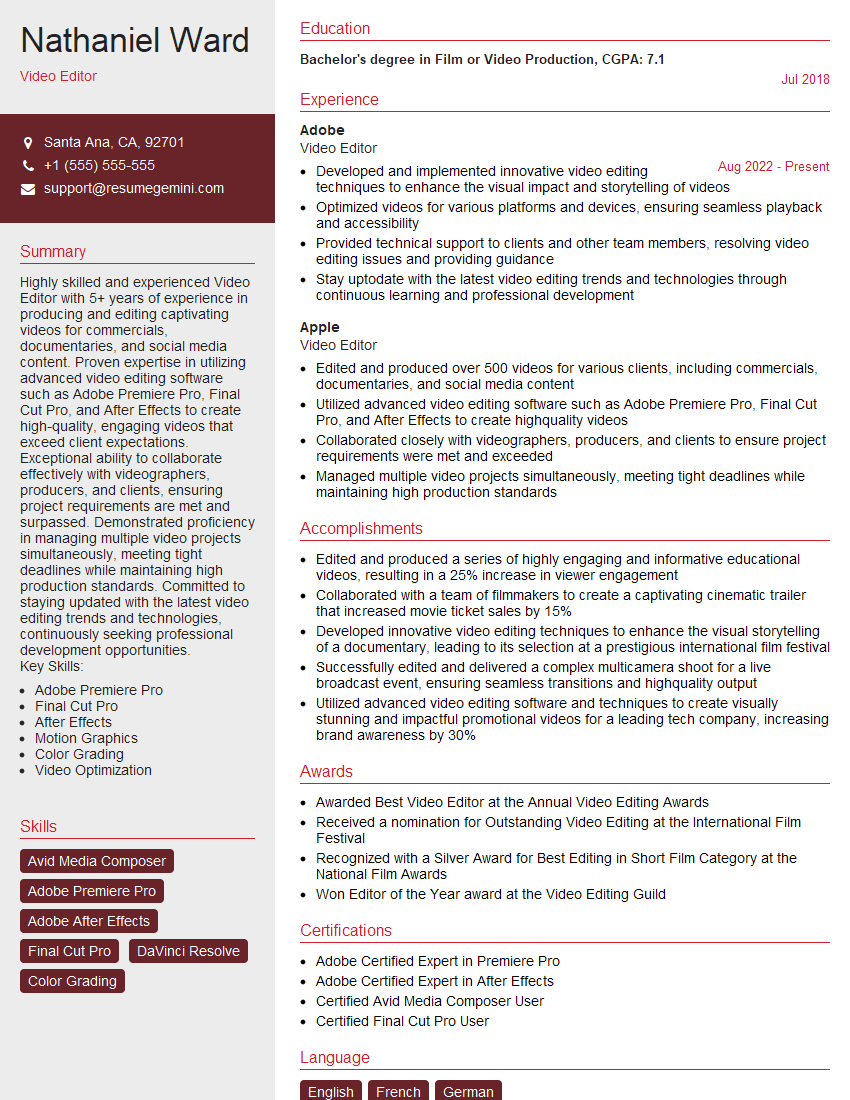
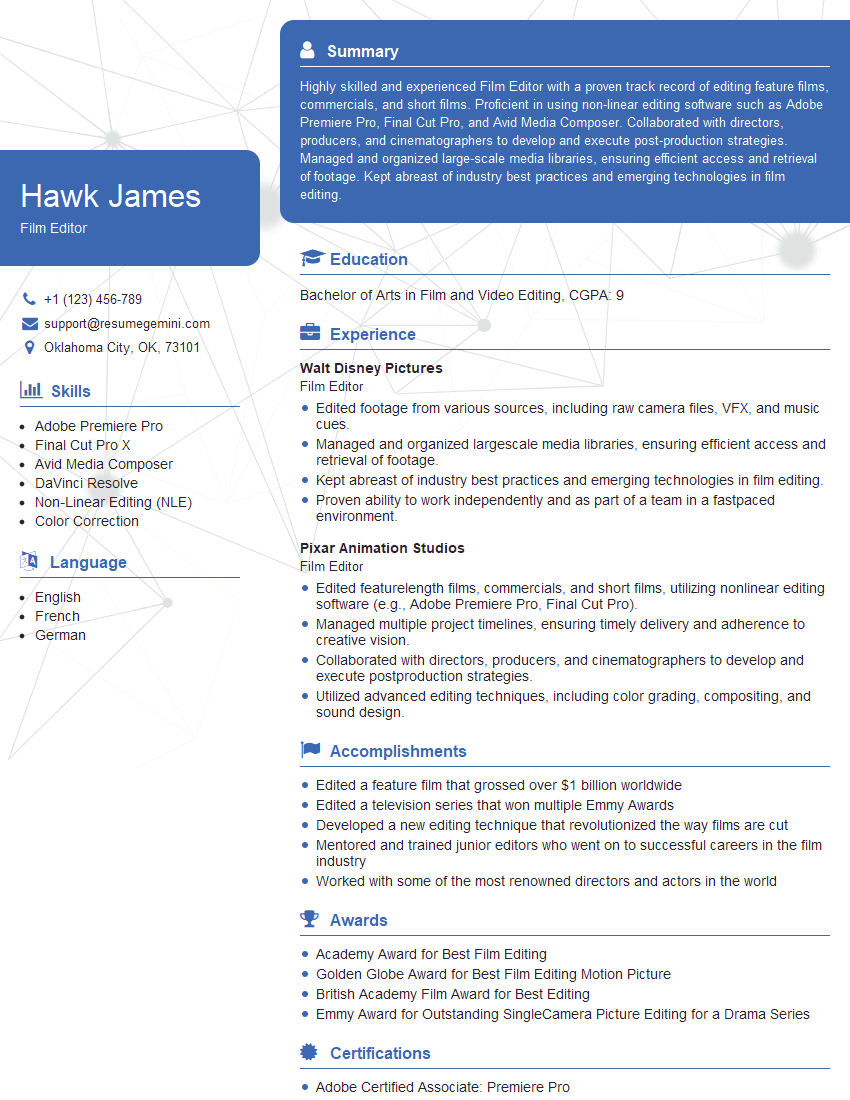
Mastering video editing software like Adobe Premiere Pro and Final Cut Pro is crucial for career advancement in the dynamic media industry. Proficiency in these tools opens doors to exciting opportunities and higher earning potential. To maximize your job prospects, creating a strong, ATS-friendly resume is essential. ResumeGemini is a trusted resource that can help you build a professional and impactful resume. Examples of resumes tailored to Video Editing Software (Adobe Premiere Pro, Final Cut Pro) expertise are available to guide you.
Explore more articles
Users Rating of Our Blogs
Share Your Experience
We value your feedback! Please rate our content and share your thoughts (optional).
What Readers Say About Our Blog
I Redesigned Spongebob Squarepants and his main characters of my artwork.
https://www.deviantart.com/reimaginesponge/art/Redesigned-Spongebob-characters-1223583608
IT gave me an insight and words to use and be able to think of examples
Hi, I’m Jay, we have a few potential clients that are interested in your services, thought you might be a good fit. I’d love to talk about the details, when do you have time to talk?
Best,
Jay
Founder | CEO