Cracking a skill-specific interview, like one for Wireless Networking (Wi-Fi, Bluetooth), requires understanding the nuances of the role. In this blog, we present the questions you’re most likely to encounter, along with insights into how to answer them effectively. Let’s ensure you’re ready to make a strong impression.
Questions Asked in Wireless Networking (Wi-Fi, Bluetooth) Interview
Q 1. Explain the difference between 2.4 GHz and 5 GHz Wi-Fi bands.
The 2.4 GHz and 5 GHz Wi-Fi bands are like two different highways for your data. They both carry internet traffic, but they have different characteristics affecting speed and range.
- 2.4 GHz: This band has a longer wavelength, meaning signals can travel further and penetrate obstacles like walls more easily. However, it has fewer non-overlapping channels, leading to more congestion, especially in densely populated areas. Think of it as a busy highway with many lanes but heavy traffic; you might get there, but it’ll take longer.
- 5 GHz: This band has a shorter wavelength, resulting in faster speeds and less congestion due to more available channels. However, it has a shorter range and is more susceptible to interference from physical obstacles. It’s like a less congested highway with many more lanes, offering faster speeds, but you need a clear path to use it efficiently.
In practice, many modern routers use both bands, offering users a choice based on their needs. For example, you might use the 2.4 GHz band for devices further from the router, like smart home appliances, and the 5 GHz band for devices needing high speed, like your laptop or gaming console.
Q 2. What are the advantages and disadvantages of using different Wi-Fi protocols (802.11a/b/g/n/ac/ax)?
Different Wi-Fi protocols (802.11a/b/g/n/ac/ax) are like different generations of smartphones – each bringing improvements in speed, range, and efficiency. Here’s a summary:
- 802.11a/b/g: Older standards, offering relatively low speeds and limited range. They are largely obsolete now.
- 802.11n: Introduced MIMO (Multiple-Input and Multiple-Output) technology, significantly improving speed and range compared to previous generations. Think of it as adding multiple lanes to the highway.
- 802.11ac: A significant leap forward, offering much faster speeds and improved efficiency in the 5 GHz band. It’s like upgrading to a superhighway.
- 802.11ax (Wi-Fi 6): The latest generation, further improving speeds, efficiency, and capacity, particularly in dense environments. It optimizes for many devices connecting simultaneously. Think of it as a smart, self-managing superhighway that handles traffic efficiently.
Advantages: Newer protocols offer faster speeds, greater range, and improved efficiency. They can also handle more devices simultaneously.
Disadvantages: Older devices may not support newer protocols, limiting their capabilities. Newer protocols often require more sophisticated hardware and may be more expensive.
Q 3. Describe the concept of channel bonding in Wi-Fi.
Channel bonding is like combining multiple lanes of a highway to create a wider, faster superhighway for your data. In Wi-Fi, it involves combining two or more adjacent Wi-Fi channels to increase bandwidth. For example, a router might combine two 20MHz channels to create a 40MHz channel, doubling the potential data throughput.
This technique is primarily used in the 5 GHz band, where more channels are available. It allows for higher data rates, but it also increases the risk of interference. If there’s interference on even one of the bonded channels, the entire bonded channel may become unstable. Therefore, careful channel selection is crucial to successfully utilize channel bonding.
Q 4. How does Wi-Fi roaming work?
Wi-Fi roaming is the seamless transition between different Wi-Fi access points (WAPs) as a device moves from one coverage area to another. Imagine walking through a large building with multiple Wi-Fi hotspots – roaming ensures your connection stays active without interruption.
This process involves several steps:
- Scanning: The device constantly scans for available WAPs.
- Authentication and Association: Once a suitable WAP is found, the device authenticates and associates with it.
- Handoff: The connection is smoothly transferred from the old WAP to the new one, ideally without noticeable disruption to the user.
Proper roaming requires careful planning and configuration of WAPs, including proper overlapping coverage areas and consistent network configuration.
Q 5. Explain the different types of wireless security protocols (WPA, WPA2, WPA3).
WPA (Wi-Fi Protected Access), WPA2, and WPA3 are security protocols designed to protect your Wi-Fi network from unauthorized access. They are like increasingly strong locks on your network’s front door.
- WPA: An older standard that is now considered insecure and should not be used.
- WPA2: The prevalent standard for many years, using the strong AES encryption algorithm. However, vulnerabilities have been discovered, making it less secure than WPA3.
- WPA3: The latest and most secure standard, offering improved security features such as simultaneous authentication of equals (SAE), which replaces the vulnerable pre-shared key (PSK) authentication method used in WPA2.
In simple terms, these protocols provide increasingly robust encryption to protect your data from eavesdropping and unauthorized access. Using WPA3 is highly recommended for its enhanced security.
Q 6. What is a Wireless Access Point (WAP) and how does it function?
A Wireless Access Point (WAP) is the hardware component that allows wireless devices (like laptops, smartphones, and tablets) to connect to a wired network. It’s the bridge between your wireless devices and your router or internet connection.
The WAP functions by:
- Receiving wireless signals: It receives signals from wireless devices trying to connect to the network.
- Transmitting wireless signals: It transmits signals to wireless devices, providing them with internet access.
- Routing data: It routes data packets between wireless devices and the wired network, ensuring data flows seamlessly.
- Managing network security: It enforces security policies to protect the network from unauthorized access.
Think of it as a translator that allows your wireless devices to communicate with the wired world of your internet connection.
Q 7. What are the key differences between infrastructure and ad-hoc wireless networks?
Infrastructure and ad-hoc wireless networks are two fundamentally different ways of connecting wireless devices. They are like two different ways of organizing a communication network.
- Infrastructure Network: This is the most common type of Wi-Fi network. All wireless devices connect to a central access point (WAP), which in turn is connected to the wired network. It’s like a star-shaped network, with all devices going through the central point. This offers better security and manageability.
- Ad-hoc Network: In this type of network, devices connect directly to each other without a central access point. They form a peer-to-peer network. It’s like connecting devices directly to each other without a central hub. This type is less common due to security concerns and limitations in range and scalability.
The key difference lies in the presence or absence of a central access point. Infrastructure networks are more secure, scalable, and manageable, while ad-hoc networks are simpler to set up but less secure and limited in their capabilities.
Q 8. Explain the concept of SSID and its importance in Wi-Fi security.
The SSID, or Service Set Identifier, is the name of your Wi-Fi network. Think of it as the network’s address that your devices use to identify and connect. It’s displayed on your router and is what you see in the list of available Wi-Fi networks on your phone or laptop. While not inherently a security feature itself, the SSID plays a crucial role in Wi-Fi security.
Importance in Security: Hiding your SSID (making it invisible) adds a small layer of security. It prevents casual discovery of your network by making it less visible to unauthorized users who might be scanning for open networks. However, hiding the SSID is NOT a robust security measure. Strong passwords and encryption protocols like WPA2/WPA3 are far more important. Think of hiding your SSID like hiding your house number – it makes it slightly harder to find, but a determined burglar will still find a way in.
- Visible SSID: Your network name is broadcast, making it easy for devices to find.
- Hidden SSID: Your network name isn’t broadcast; devices need to manually enter the SSID to connect, offering minimal added security.
In essence, securing your Wi-Fi requires strong authentication (passwords) and robust encryption, not just hiding the SSID.
Q 9. Describe the process of troubleshooting a slow Wi-Fi connection.
Troubleshooting a slow Wi-Fi connection involves a systematic approach. It’s like a detective investigation, where you eliminate possibilities one by one.
- Check the Obvious: Start with the simplest things. Is your router’s power light on? Are other devices connected to your network experiencing similar slowdowns? If other devices are fast, the problem lies with your specific device.
- Restart Your Devices: Sometimes, a simple reboot of your router, modem, and your device can resolve temporary glitches.
- Check for Interference: Other electronic devices like microwaves, cordless phones, or even baby monitors can interfere with your Wi-Fi signal. Try moving your router or temporarily powering off other electronics to check for improvement.
- Check Your Router’s Location: Is the router placed in a central location, away from obstructions like walls or large metal objects? Wireless signals can be significantly weakened by physical barriers.
- Check Your Wi-Fi Channel: Overlapping channels from neighboring networks can cause interference. Use a Wi-Fi analyzer app (available for smartphones and computers) to identify less congested channels. Then, log in to your router’s settings and change the channel.
- Check your Signal Strength: Use your device’s settings or a Wi-Fi analyzer to measure your signal strength. Weak signal strength directly impacts speed. Consider extending your Wi-Fi range with a range extender or mesh network system.
- Examine Network Traffic: Are many devices streaming high-bandwidth content? A large number of devices using the network simultaneously can reduce speeds for everyone.
- Update Router Firmware: Ensure that your router’s firmware is up-to-date. Updates often include performance improvements and bug fixes.
- Contact Your Internet Provider: If none of the above steps help, the problem may be with your internet connection itself. Contact your ISP to check for issues on their end.
Q 10. What are some common causes of Wi-Fi interference?
Wi-Fi interference comes from various sources, all of which disrupt the wireless signal and lead to slower speeds, dropped connections, or dead zones.
- Other Wi-Fi Networks: Overlapping channels from neighboring Wi-Fi networks are a common culprit. Each Wi-Fi channel operates at a specific frequency, and if multiple networks use the same channel, they interfere with each other.
- Cordless Phones: These devices operate on frequencies that can overlap with those of Wi-Fi, creating interference. The older 2.4 GHz cordless phones are more likely to cause problems than newer DECT phones.
- Microwaves: These appliances emit strong electromagnetic radiation, which can significantly impact Wi-Fi signals, particularly in the 2.4 GHz band.
- Bluetooth Devices: While not as potent as microwaves, numerous Bluetooth devices operating simultaneously in the 2.4 GHz band can also create interference.
- Metal Objects and Walls: Physical obstructions like thick walls, metal furniture, and even mirrors can significantly attenuate Wi-Fi signals, causing dead zones or weakening the signal significantly.
- Other Electronics: Some electronic devices, like baby monitors and older TVs, operate on frequencies that may interfere with Wi-Fi.
Q 11. Explain the role of a DHCP server in a wireless network.
A DHCP (Dynamic Host Configuration Protocol) server is the unsung hero of your wireless network. It automatically assigns IP addresses and other network configuration parameters to devices connecting to the network. Think of it as a network receptionist that assigns each guest (device) a temporary room number (IP address) for the duration of their stay.
Role in a Wireless Network: When a device connects to a Wi-Fi network using DHCP, the DHCP server automatically provides it with the necessary information to communicate on the network, including:
- IP Address: A unique numerical address that identifies the device on the network.
- Subnet Mask: Defines the network segment to which the device belongs.
- Default Gateway: The IP address of the router, which directs the device’s traffic to the internet.
- DNS Server Addresses: The addresses of servers that translate domain names (e.g., google.com) into IP addresses.
Without a DHCP server, you’d have to manually configure each device’s network settings, which is incredibly tedious and error-prone, especially in networks with many devices. The DHCP server streamlines this process, making it much easier to manage a wireless network.
Q 12. How do you perform a site survey for optimal Wi-Fi coverage?
A site survey is a crucial step in designing a robust and efficient Wi-Fi network. It involves analyzing the physical environment to determine optimal placement of access points (APs) for optimal coverage and signal strength. It’s like creating a detailed map of your Wi-Fi network’s terrain, before laying the cables (wireless signals).
- Planning and Preparation: Understand the layout of the building, the number of users, their typical locations, and the types of devices they will be using. Identify potential sources of interference.
- Conducting the Survey: Use professional-grade Wi-Fi site survey tools (both hardware and software are available) to measure signal strength, interference levels, and signal coverage at various locations. Walk through the area with the tools to gather data, taking into account factors such as walls, furniture, and other obstacles.
- Data Analysis: Analyze the collected data to identify areas with weak signal strength, high interference, or poor coverage. Heat maps are often created to visualize the signal strength across the area.
- Access Point Placement: Based on the analysis, determine the optimal locations for access points. The goal is to provide consistent and overlapping coverage throughout the area. The number of access points needed depends on the size of the area and the number of users.
- Testing and Optimization: After installing the access points, test the network performance, ensuring that users experience strong signals and consistent speeds. Fine-tune the access point settings (channels, power levels) as needed.
By performing a thorough site survey, you can ensure a reliable, efficient Wi-Fi network tailored to the specific needs of the environment.
Q 13. What is Bluetooth Low Energy (BLE) and how does it differ from classic Bluetooth?
Bluetooth Low Energy (BLE), also known as Bluetooth Smart, is a wireless technology designed for low-power consumption and small data transfer. It’s perfect for devices that need to stay connected for a long time without draining the battery, unlike its classic counterpart. Think of it as the energy-efficient cousin of classic Bluetooth.
BLE vs. Classic Bluetooth:
- Power Consumption: BLE is significantly more energy-efficient than classic Bluetooth, allowing for longer battery life in devices like wearables and IoT sensors.
- Data Transfer Rate: BLE has a lower data transfer rate compared to classic Bluetooth. It’s optimized for short bursts of data, not large file transfers.
- Range: BLE typically has a shorter range than classic Bluetooth.
- Applications: BLE is commonly used in wearable technology, Internet of Things (IoT) devices, beacons, and proximity-based applications, where low power consumption is paramount. Classic Bluetooth is better for applications needing high data rates, like streaming audio.
In essence, BLE prioritizes low energy consumption over high bandwidth, while classic Bluetooth offers higher bandwidth but consumes more power.
Q 14. Describe the Bluetooth pairing process.
The Bluetooth pairing process establishes a connection between two Bluetooth devices. It’s like introducing two people and letting them know each other’s names.
- Discoverable Mode: Both devices need to be in discoverable mode. This means they’re broadcasting their presence to other Bluetooth devices nearby. On most devices, this is done by activating Bluetooth and often going into a ‘pairing mode’.
- Device Discovery: One device (usually the one initiating the pairing) scans for nearby Bluetooth devices. A list of discoverable devices will appear.
- Selection and Pairing Request: The user selects the desired device from the list. A pairing request is then sent to the selected device.
- Pairing Confirmation: The selected device displays a request to accept or reject the pairing. Usually, this involves confirming a passkey or PIN (Personal Identification Number) displayed on both devices. Sometimes, a confirmation button is needed.
- Connection Established: Once the pairing is confirmed, a Bluetooth connection is established between the two devices, enabling data transfer.
Modern devices often simplify the pairing process using features like Bluetooth Smart or pairing via NFC (Near Field Communication), reducing the need for manual passkey entry.
Q 15. Explain the different classes of Bluetooth devices.
Bluetooth devices are categorized into classes based on their power output and transmission range. This classification impacts the device’s communication capabilities and battery life. Think of it like choosing between a megaphone (high power, long range) and a whisper (low power, short range).
- Class 1: High power, offering a range of up to 100 meters. These are typically used in base stations or devices needing extended reach, like some Bluetooth beacons.
- Class 2: Medium power, with a range around 10 meters. This is the most common class for everyday devices like headsets and keyboards.
- Class 3: Low power, offering a range of only about 1 meter. These are usually found in very small, battery-powered devices where range is less important than minimizing power consumption.
The choice of class depends heavily on the application. A smart lock needs only Class 2, while a Bluetooth-enabled industrial sensor might require Class 1 for reliable communication across a larger facility.
Career Expert Tips:
- Ace those interviews! Prepare effectively by reviewing the Top 50 Most Common Interview Questions on ResumeGemini.
- Navigate your job search with confidence! Explore a wide range of Career Tips on ResumeGemini. Learn about common challenges and recommendations to overcome them.
- Craft the perfect resume! Master the Art of Resume Writing with ResumeGemini’s guide. Showcase your unique qualifications and achievements effectively.
- Don’t miss out on holiday savings! Build your dream resume with ResumeGemini’s ATS optimized templates.
Q 16. What are some common Bluetooth security vulnerabilities?
Bluetooth, while generally secure, has vulnerabilities that can be exploited. Some common ones include:
- Bluejacking: Sending unsolicited messages to Bluetooth-enabled devices. Imagine receiving unwanted spam to your phone via Bluetooth; this is exactly what Bluejacking is.
- Bluesnarfing: Unauthorized access to a device’s data (contacts, calendar, etc.) through a Bluetooth connection. This is like someone remotely accessing your phone’s files without your permission.
- Bluebugging: Complete remote control of a device via Bluetooth. Think of it as someone remotely controlling your phone, potentially making calls or sending messages.
- Weak Pairing: Using simple, easily guessable PIN codes during the pairing process leaves the device vulnerable.
- Man-in-the-Middle Attacks: Intercepting communication between two Bluetooth devices to steal information or inject malicious code.
Mitigation strategies include using strong PIN codes, keeping Bluetooth turned off when not in use, enabling device pairing only to known devices, and regularly updating the Bluetooth firmware on devices to patch security flaws.
Q 17. How does Bluetooth utilize frequency hopping?
Bluetooth uses frequency-hopping spread spectrum (FHSS) to transmit data. Instead of using a single frequency, it hops rapidly between different frequencies within a designated band. Think of it like a radio DJ who quickly switches between different radio stations to avoid interference.
This hopping pattern is pseudo-random, meaning it appears random but is actually predictable. This helps avoid interference from other devices operating on the same frequencies and also makes it more robust against jamming. The rapid switching makes it very difficult for a malicious actor to continuously disrupt the connection. The specific frequency hopping sequence is determined by a known algorithm so the receiver can follow the sender’s jumps.
Q 18. Explain the concept of Bluetooth profiles and give examples.
Bluetooth profiles define how Bluetooth devices interact with each other. They are standardized specifications that describe the services offered by a specific type of device, and allow different devices to communicate successfully. Think of it as a common language for various Bluetooth devices to understand each other.
- Headset Profile (HSP): Enables basic voice communication between a Bluetooth headset and a mobile phone.
- Hands-Free Profile (HFP): Provides more advanced voice communication features, including call management.
- Advanced Audio Distribution Profile (A2DP): Allows for higher-quality stereo audio streaming from a device to a speaker or headset.
- Generic Access Profile (GAP): Defines the basic connection procedures and discovery mechanisms for Bluetooth devices.
- Generic Attribute Profile (GATT): A framework for defining and managing attributes, used extensively in Bluetooth Low Energy (BLE) applications.
For example, to play music from your phone to a Bluetooth speaker, the A2DP profile is used. Without these profiles, the devices wouldn’t know how to exchange audio data effectively.
Q 19. What is the difference between Bluetooth discovery and connection?
Bluetooth discovery and connection are distinct phases in establishing a link between two devices.
- Discovery: This phase involves making a device visible to other nearby Bluetooth devices. It’s like putting up a ‘sign’ saying, ‘I’m here and available for connection’. The device broadcasts its information (name, type, services etc.) so other devices can find it.
- Connection: Once a device is discovered, a connection is established. This involves authentication (often a PIN or pairing process) and the negotiation of communication parameters to start the data exchange. It’s like actually establishing a communication line after seeing the ‘sign’.
Discovery is the initial step for locating available devices, while connection establishes the actual communication link between them. A device can be in discovery mode without being connected to anything, but it cannot connect to another device without first being discovered (or having been previously paired).
Q 20. How does beaconing work in Bluetooth?
Beaconing in Bluetooth involves a device periodically broadcasting advertisements, acting like a digital lighthouse. These advertisements contain information about the beacon’s identity and other data. Think of it as a device constantly shouting its name and location, which allows nearby devices to locate it.
This mechanism is used in various applications like location tracking, proximity marketing, and asset tracking. For example, a store might deploy Bluetooth beacons to track customer movement and provide targeted promotions based on location. Similarly, a company can use beacons to track the location of its valuable equipment within a warehouse.
The information in the beacons’ advertisements can include things like unique identifiers, location data (if available), and other contextual data. Nearby devices, often smartphones or specialized readers, listen for these broadcasts and react accordingly.
Q 21. What are some common use cases for Bluetooth technology?
Bluetooth’s versatility leads to numerous applications:
- Wireless Headphones/Earbuds: Streaming audio to headsets for hands-free calls and music playback.
- Wearable Technology: Connecting fitness trackers and smartwatches to smartphones.
- Automotive: Hands-free calling, infotainment systems, and keyless entry.
- Healthcare: Monitoring patient vitals remotely using medical devices.
- Industrial Automation: Connecting sensors and actuators in industrial settings.
- Home Automation: Controlling smart home devices, such as lights and locks.
- Point of Sale Systems: Enabling wireless payment processing.
- Proximity Marketing: Sending targeted promotions to customers based on their location.
Essentially, anytime you need a low-power, short-to-medium range wireless connection between devices, Bluetooth is a strong contender.
Q 22. Describe the concept of a Bluetooth mesh network.
Bluetooth Mesh Networking is a powerful technology that allows you to create a large, resilient, and low-power network using many Bluetooth Low Energy (BLE) devices. Imagine a network of smart light bulbs in your house – each bulb can communicate not only with your phone but also with its neighboring bulbs, forming a mesh. This is far more robust than a star topology (where all devices connect to a central hub), because if one bulb fails, the others can still communicate effectively.
Each device in a mesh network acts as a relay, forwarding messages between other devices. This allows for much greater range and scalability than traditional Bluetooth point-to-point connections. For instance, you could control hundreds of sensors or actuators across a large area, like an office building or a factory floor, all using low-power BLE devices. The mesh network self-organizes and adapts to changes in the network topology, providing a very reliable and versatile communication solution.
The key components of a Bluetooth Mesh network are:
- Nodes: Individual Bluetooth devices participating in the mesh.
- Relay Nodes: Nodes that forward messages for other nodes.
- Proxy Nodes: Nodes that act as a gateway between the mesh network and other networks (e.g., the internet).
- Provisioning: The process of adding new nodes to the mesh network.
The use of a mesh network avoids the limitations of traditional Bluetooth range and ensures reliable communication even when direct connectivity isn’t possible.
Q 23. How do you troubleshoot Bluetooth connectivity issues?
Troubleshooting Bluetooth connectivity issues involves a systematic approach. I’d start by checking the most basic aspects:
- Device Power and Pairing: Ensure both devices are powered on and correctly paired. Sometimes a simple re-pairing can solve the problem.
- Range and Obstacles: Bluetooth has a limited range; move devices closer together and check for obstacles (walls, metal objects) that might interfere with the signal. Think of it like a radio signal – thick walls reduce the signal strength.
- Interference: Other electronic devices operating on the 2.4 GHz frequency band (like Wi-Fi) can cause interference. Try temporarily turning off other devices to see if this improves connectivity.
- Software and Drivers: Make sure that the Bluetooth drivers and software on both devices are up-to-date. Outdated software is a common source of connectivity problems.
- Bluetooth Mode: Some devices offer different Bluetooth modes (e.g., discoverable, connectable). Verify these settings are correct.
- Device Compatibility: Ensure that the Bluetooth profiles supported by the devices are compatible. Older devices might not support newer profiles.
If these basic checks don’t work, I would then investigate more advanced techniques such as checking Bluetooth logs for error messages, examining the device’s Bluetooth settings for any unusual configurations, and potentially performing a factory reset on the devices as a last resort. I often use dedicated Bluetooth troubleshooting tools to pinpoint specific issues. These tools allow deep analysis of Bluetooth logs, signal strength, and connection quality.
Q 24. What are some methods for optimizing Bluetooth battery life?
Optimizing Bluetooth battery life involves a multi-pronged approach. The goal is to minimize the power consumed by the Bluetooth radio:
- Reduce Scan Time: Constantly scanning for devices consumes significant power. Only enable scanning when necessary.
- Lower Transmission Power: If possible, lower the transmission power. This will reduce range but conserve battery.
- Minimize Data Transfers: Reduce the frequency and size of data transmissions. Only send data when absolutely needed.
- Use Low-Energy Profiles: Employ Bluetooth Low Energy (BLE) profiles whenever feasible, as these are designed for low-power operation. BLE is specifically optimized for battery efficiency.
- Disable Unnecessary Features: Turn off features that are not being actively used, such as Bluetooth audio streaming or file transfer, when not needed.
- Background Activities: Limit background activities that use Bluetooth. Many applications run background processes that consume power unnecessarily.
For example, if you are using a Bluetooth fitness tracker, you might want to only sync data once a day instead of continuously streaming your heart rate. Careful management of these settings can drastically improve battery life.
Q 25. Explain the difference between CSMA/CA and CSMA/CD.
Both CSMA/CA (Carrier Sense Multiple Access with Collision Avoidance) and CSMA/CD (Carrier Sense Multiple Access with Collision Detection) are media access control protocols used in networks to manage how multiple devices share a single communication channel (like a wireless channel). However, they differ significantly in how they handle collisions.
CSMA/CD, used in wired Ethernet networks, works by having devices listen for traffic on the channel before transmitting. If a collision occurs (two devices transmit simultaneously), the devices detect the collision and stop transmission. After a random backoff period, they attempt to transmit again. This works well in wired environments as collisions are easily detected.
CSMA/CA, primarily used in wireless networks like Wi-Fi, uses a slightly different approach. Wireless signals are more prone to hidden node problems (a node is hidden from another because of poor signal propagation). Therefore, collision detection is less reliable. Instead, CSMA/CA uses mechanisms such as request-to-send/clear-to-send (RTS/CTS) and binary exponential backoff to avoid collisions. RTS/CTS helps reserve the channel, minimizing collisions. Binary exponential backoff introduces increasing delays between transmission attempts after collisions, allowing a better chance for the node to transmit successfully.
In essence, CSMA/CD detects and recovers from collisions directly, while CSMA/CA focuses on proactive collision avoidance to mitigate hidden node problems and the inherent unreliability of wireless transmission.
Q 26. Describe the concept of a hidden SSID and its security implications.
A hidden SSID (Service Set Identifier) is the name of a Wi-Fi network that is not broadcast to the surrounding environment. It’s like giving your Wi-Fi network a secret password. While it might seem to enhance security, it does not provide significant security improvement and can actually make the network less secure.
Security Implications:
- False Sense of Security: Many believe that hiding the SSID increases security. This is a misconception; a determined attacker can still find the network using other methods such as packet sniffing or network scanning tools.
- Complicated Connectivity: Users must manually enter the SSID to connect, making it inconvenient and less user-friendly. This can also lead to mistakes and possible security issues.
- No Real Security Benefit: Hiding the SSID only hides the network name; it does not protect against more significant threats like password cracking or vulnerabilities in the router’s firmware.
In practice, a strong password and up-to-date security protocols (WPA2/WPA3) offer far greater security than hiding the SSID. Hiding the SSID provides a false sense of security and adds unnecessary complexity. For better security, focus on robust authentication and encryption methods.
Q 27. What is Quality of Service (QoS) and how is it relevant to wireless networks?
Quality of Service (QoS) is a set of technologies designed to prioritize certain types of network traffic over others. Think of it like having express lanes on a highway – important traffic gets preferential treatment. In wireless networks, QoS is crucial for ensuring that time-sensitive applications (like video conferencing or online gaming) receive the bandwidth they need to perform properly, even during periods of high network congestion.
Relevance to Wireless Networks:
Wireless networks are often shared resources, making it essential to manage bandwidth effectively. QoS enables this by prioritizing traffic based on various factors such as:
- Application Type: VoIP (Voice over IP) or streaming video might be given higher priority than file transfers.
- User Priority: Certain users or devices may be assigned higher priority than others based on their role or importance.
- Traffic Class: Network traffic can be classified into different classes (e.g., voice, video, data), with each class receiving a different level of QoS treatment.
QoS is typically implemented using mechanisms such as traffic shaping, queuing, and bandwidth reservation. These techniques ensure that even under heavy network load, critical applications maintain acceptable performance. Without QoS, these applications would suffer from latency, jitter, and packet loss.
Q 28. Discuss your experience with network monitoring and troubleshooting tools.
Throughout my career, I’ve extensively used various network monitoring and troubleshooting tools. My experience encompasses both proprietary and open-source solutions. My go-to tools for Wi-Fi troubleshooting include:
- Wireshark: A powerful packet analyzer for capturing and analyzing network traffic. It’s invaluable for identifying issues like signal interference or protocol errors.
- Network Management Systems (NMS): Commercial NMS platforms such as SolarWinds or PRTG provide comprehensive monitoring and alerting capabilities. They allow for real-time monitoring of various network parameters such as signal strength, packet loss, and bandwidth utilization.
- Manufacturer-Specific Tools: Many Wi-Fi router manufacturers provide their own diagnostic tools and mobile applications for troubleshooting and managing their equipment. These tools often offer detailed information about the network’s performance and security settings.
For Bluetooth troubleshooting, I frequently rely on:
- Bluetooth Scanners and Analyzers: These specialized tools allow detailed analysis of Bluetooth signals and connectivity, aiding in identifying interference or other issues.
- Device-Specific Diagnostic Tools: Many Bluetooth devices come with their own diagnostic tools for checking the device’s connectivity and signal strength.
- Log Analysis: Analyzing the device’s logs often reveals insights into connectivity problems and possible causes.
I’m proficient in using command-line tools like ping, traceroute, and ifconfig to diagnose basic network connectivity and identify any routing or interface problems. My experience with these tools is essential for efficient troubleshooting and problem resolution in various network environments. My choice of tools depends heavily on the specific problem, the type of network, and the available resources.
Key Topics to Learn for Wireless Networking (Wi-Fi, Bluetooth) Interview
- Wi-Fi Fundamentals: Understanding 802.11 standards (a/b/g/n/ac/ax), channel selection, frequency bands (2.4GHz, 5GHz), and basic network topologies (infrastructure, ad-hoc).
- Wi-Fi Security: WPA2/WPA3 encryption, security protocols, and common vulnerabilities. Practical application: Troubleshooting Wi-Fi security issues and implementing robust security measures.
- Bluetooth Fundamentals: Understanding Bluetooth versions (Classic, Low Energy), profiles (e.g., A2DP, HID), and the basics of Bluetooth pairing and connection management.
- Network Troubleshooting: Diagnosing common Wi-Fi and Bluetooth connectivity problems, including signal strength issues, interference, and authentication failures. Practical application: Developing strategies for efficient troubleshooting methodologies.
- Quality of Service (QoS): Understanding how QoS mechanisms impact wireless network performance, particularly for applications with varying bandwidth requirements. Practical application: Optimizing network settings for applications like video streaming or VoIP.
- Network Management: Familiarize yourself with common wireless network management tools and techniques, including monitoring network performance and identifying bottlenecks.
- Antenna Theory Basics: Understanding basic antenna principles, gain, and polarization can provide insights into signal propagation and coverage.
- IoT and Wireless Networks: Explore the role of Wi-Fi and Bluetooth in the Internet of Things (IoT) ecosystem, including security implications and challenges in managing large numbers of wireless devices.
Next Steps
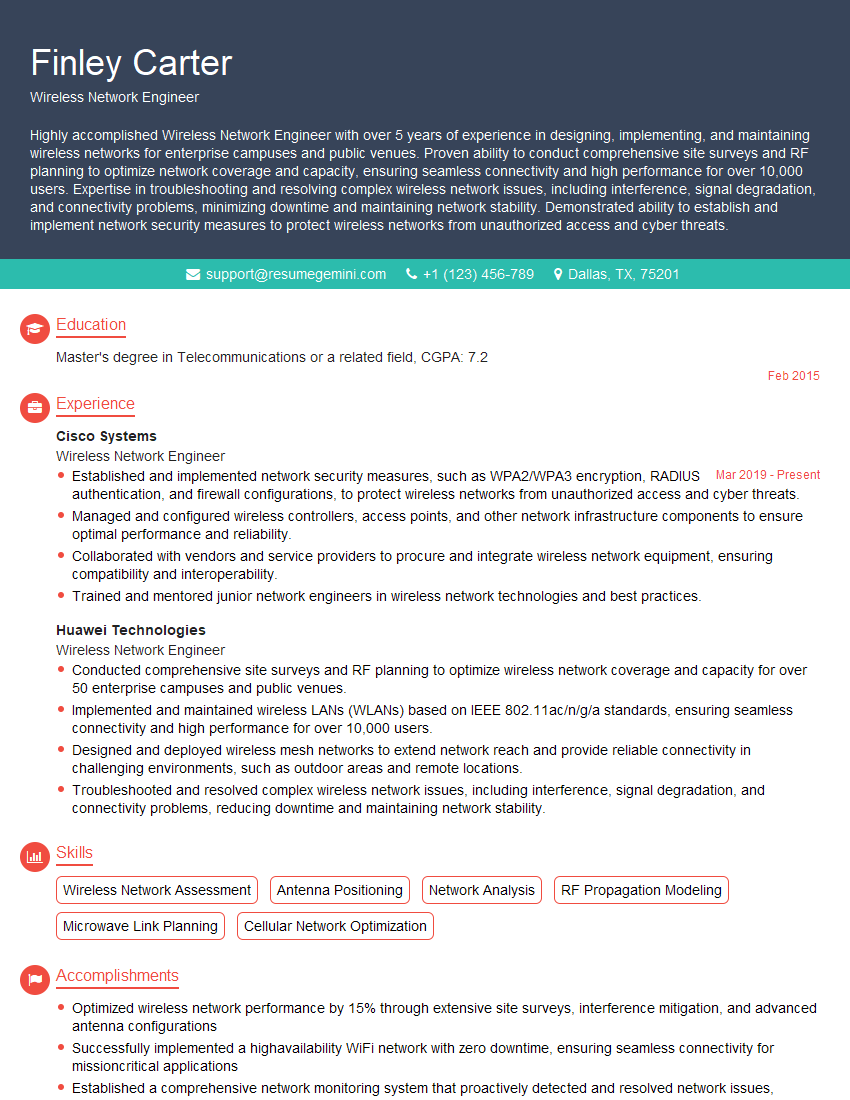
Mastering Wireless Networking (Wi-Fi, Bluetooth) is crucial for career advancement in today’s technology-driven world. These skills are highly sought after in various industries, opening doors to exciting opportunities. To significantly boost your job prospects, crafting a compelling and ATS-friendly resume is essential. ResumeGemini is a trusted resource that can help you build a professional resume that highlights your skills and experience effectively. We offer examples of resumes tailored to Wireless Networking (Wi-Fi, Bluetooth) roles to guide you. Take the next step towards your dream career – create a winning resume with ResumeGemini today.


Explore more articles
Users Rating of Our Blogs
Share Your Experience
We value your feedback! Please rate our content and share your thoughts (optional).
What Readers Say About Our Blog
Really detailed insights and content, thank you for writing this detailed article.
IT gave me an insight and words to use and be able to think of examples