Feeling uncertain about what to expect in your upcoming interview? We’ve got you covered! This blog highlights the most important Troubleshooting and Repairing Computer Systems interview questions and provides actionable advice to help you stand out as the ideal candidate. Let’s pave the way for your success.
Questions Asked in Troubleshooting and Repairing Computer Systems Interview
Q 1. Explain the troubleshooting steps you would take for a computer that won’t boot.
Troubleshooting a computer that won’t boot requires a systematic approach. Think of it like diagnosing a car that won’t start – you need to check the basics first before looking at more complex issues.
- Visual Inspection: Begin by visually inspecting the computer. Check for any loose cables, damaged components (like a cracked screen or swollen capacitors), or anything obviously out of place. A simple unplugged power cord is surprisingly common!
- Power Supply Check: Ensure the power supply unit (PSU) is working correctly. Try a different power outlet to rule out power issues. If you have a multimeter, you can test the PSU’s voltage outputs, but caution is advised here.
- POST (Power On Self Test): Listen for beeps during startup. These beeps are often diagnostic codes specific to the motherboard, indicating potential problems with RAM, CPU, or other hardware. Consult your motherboard’s manual to decipher the beep codes.
- BIOS/UEFI Access: Try accessing the BIOS or UEFI settings (usually by pressing Del, F2, F10, F12, or Esc during startup – the key varies depending on the motherboard). If you can access the BIOS, it usually indicates that the basic hardware is functioning. Check boot order to make sure your main drive is listed first.
- Boot Drive Check: If the BIOS is accessible, the problem likely lies with the boot drive (hard drive or SSD). Try booting from a different drive (e.g., a USB drive with a bootable operating system) to rule out boot drive failure. You might need to use a tool like a bootable Linux USB drive to check for drive errors or attempt repair.
- Hardware Isolation: If the issue persists, consider removing non-essential components (like extra RAM sticks or expansion cards) one by one to isolate the faulty component. This process of elimination helps pinpoint the source of the problem.
- Seek Professional Help: If you’ve exhausted all basic troubleshooting steps and the computer still won’t boot, it’s best to seek professional assistance. It’s possible there’s a more complex hardware failure requiring specialized tools or expertise.
Q 2. Describe your experience with diagnosing and resolving hardware failures.
I have extensive experience diagnosing and resolving hardware failures. My approach always begins with thorough observation and testing. For example, I once worked on a server that experienced intermittent crashes. After running diagnostic tests (like Memtest86+ for RAM and hard drive checks), I discovered that the issue was a failing hard drive. Replacing the drive completely resolved the problem.
Other hardware failures I’ve tackled include: faulty power supplies (causing system instability), failing graphics cards (resulting in display issues), and malfunctioning RAM (leading to system crashes or blue screens). My diagnostic process involves carefully documenting the symptoms, identifying potential causes, performing tests to confirm the suspected failure, and then implementing the necessary repair or replacement.
I’m comfortable working with a range of hardware components, from CPUs and motherboards to peripherals like printers and scanners. I understand the importance of proper grounding and ESD (Electrostatic Discharge) precautions to prevent further damage during repair.
Q 3. How do you troubleshoot network connectivity issues?
Troubleshooting network connectivity issues is a multi-step process that requires a methodical approach. I often use the ‘process of elimination’ – systematically checking each potential point of failure.
- Check the Obvious: Start by ensuring the cables are securely connected to both the computer and the network device (router, modem, switch). A loose cable is the most common cause of connectivity issues.
- Check the Lights: Look at the lights on the network devices (router, modem). Are the lights indicating a connection? Some lights (e.g., the ‘link’ light on a router) should be illuminated to show network connectivity.
- Test Another Device: Try connecting another device (like a phone or another computer) to the network. If the other device connects successfully, the problem lies with your computer’s network configuration.
- IP Address, DNS, and Gateway: Check the computer’s IP address, DNS servers, and default gateway settings. Incorrect settings can prevent the computer from accessing the internet. You can usually find these settings in the computer’s network settings.
- Ping Test: Use the
pingcommand (from the command prompt or terminal) to test connectivity to known addresses. For example,ping google.com. If pings are successful, your network connection is working. Failure indicates a network connectivity problem. - Router/Modem Restart: Power cycle (restart) your router and modem. This often resolves temporary glitches.
- Firewall/Antivirus: Temporarily disable your firewall or antivirus software (with caution!) to rule out software interference.
- Driver Updates: Ensure your network adapter drivers are up-to-date. Outdated drivers can cause connectivity issues.
- Network Diagnostics: Utilize the built-in network diagnostics tools provided by your operating system. These tools can automatically detect and sometimes fix network problems.
Q 4. What are the common causes of slow computer performance, and how would you address them?
Slow computer performance is often a symptom of multiple underlying issues. Identifying the root cause requires a systematic approach.
- Disk Space: A full hard drive or SSD significantly impacts performance. Check disk space using the operating system’s tools, and delete unnecessary files or move them to an external drive.
- Memory (RAM): Insufficient RAM forces the system to use the slower hard drive as virtual memory, leading to performance bottlenecks. Check current RAM usage using Task Manager (Windows) or Activity Monitor (macOS). Consider upgrading your RAM if it’s consistently high.
- Background Processes: Many programs run in the background, consuming system resources. Use the Task Manager or Activity Monitor to identify resource-intensive processes and close unnecessary ones.
- Software Issues: Outdated or poorly designed software can consume resources and reduce performance. Keep your software up to date and consider uninstalling unused programs. Malware can also be a significant contributor; run a full malware scan.
- Startup Programs: Too many programs launching at startup can slow down the boot process and overall performance. Manage startup programs in the operating system’s settings.
- Hard Drive Performance: An aging or fragmented hard drive can cause performance slowdowns. Use a disk defragmenter (for HDDs) or consider upgrading to an SSD for significant speed improvements.
- Hardware Issues: Overheating, failing hardware (like the hard drive or CPU), or a slow CPU can cause performance issues. Monitor CPU and hard drive temperatures to rule out overheating. Consider upgrading or replacing failing hardware.
Q 5. How familiar are you with different operating systems (Windows, macOS, Linux)?
I am proficient in several operating systems, including Windows (all versions from XP to 11), macOS (from 10.6 to Ventura), and various Linux distributions (like Ubuntu, Fedora, and CentOS). My expertise extends beyond basic user interaction; I am comfortable working in the command line for each of these operating systems, using tools like PowerShell (Windows), Terminal (macOS), and Bash (Linux) to troubleshoot and manage systems.
My experience allows me to leverage the unique features and tools of each operating system to effectively diagnose and resolve problems. For instance, I might use the System Information tool in Windows to troubleshoot hardware issues, or use the `systemd` service manager in Linux to control background processes.
Q 6. Explain your experience with remote troubleshooting tools.
I have significant experience with remote troubleshooting tools, including TeamViewer, AnyDesk, and LogMeIn. These tools are invaluable for providing quick and efficient support to clients remotely. I am proficient in using these tools to access a client’s computer, view their screen, control their mouse and keyboard, and even transfer files to assist with troubleshooting and software installation. I understand the importance of security and privacy when using these tools and always follow best practices to ensure data protection.
Beyond these commercial tools, I also utilize command-line tools like SSH (Secure Shell) for more advanced remote system administration, particularly in Linux environments. This allows for secure remote access and management of servers, which requires a deeper technical understanding of network protocols and security considerations.
Q 7. Describe your process for escalating complex technical issues.
My process for escalating complex technical issues involves detailed documentation and clear communication. First, I meticulously document all troubleshooting steps I’ve already taken, including the symptoms, error messages, tests performed, and results. This documentation is essential for providing context to the next level of support.
When escalating, I clearly articulate the problem, including the steps already taken and the remaining unresolved issues. I prioritize clear and concise communication to ensure that the receiving team has all the necessary information to efficiently diagnose and resolve the issue. I also try to anticipate any questions they may have and include as much relevant information as possible in my initial report. Effective communication is key in ensuring a quick resolution.
Finally, I follow up to ensure the escalated issue is being addressed and to stay informed about its progress. I value collaborative problem-solving and maintain open communication throughout the resolution process.
Q 8. How do you document your troubleshooting steps and solutions?
Thorough documentation is crucial for efficient troubleshooting and future reference. I utilize a structured approach, combining both written notes and digital records. My preferred method involves a ticketing system that meticulously tracks each step.
- Initial Problem Description: A clear and concise summary of the user’s issue, including any error messages received.
- Steps Taken: A chronological list of the troubleshooting actions performed, including the specific commands used (e.g.,
ipconfig /all,sfc /scannow). - Results of Each Step: Detailed notes on the outcome of every action. Did it resolve the issue? Did it lead to new errors? This is vital for understanding the problem’s root cause.
- Solution Implemented: A precise description of the solution that ultimately resolved the problem. This might include software configuration changes, hardware replacements, or driver updates.
- Confirmation of Resolution: Verification that the issue is indeed resolved and the system is operating as expected.
I often use screenshots or screen recordings to capture visual evidence of errors or system configurations. This ensures accuracy and provides a visual record for future reference or for collaborating with other technicians.
Q 9. What is your experience with hardware diagnostics tools?
I have extensive experience with a variety of hardware diagnostic tools, both proprietary and open-source. This includes tools for analyzing system performance, identifying hardware failures, and testing individual components.
- BIOS/UEFI POST Diagnostics: I’m proficient in interpreting the boot process, identifying potential issues with RAM, CPU, or storage devices based on POST error codes.
- Memory Testing Tools (Memtest86+): I frequently use these tools to detect and isolate memory errors, a common cause of system instability.
- Hard Drive Diagnostic Tools (CrystalDiskInfo, SeaTools): These tools allow for comprehensive assessments of hard drive health, identifying potential bad sectors or impending failures.
- Manufacturer-Specific Diagnostic Utilities: I’m familiar with using diagnostic tools provided by manufacturers (e.g., Dell SupportAssist, HP PC Hardware Diagnostics) for more in-depth analysis of specific hardware components.
For example, I once used Memtest86+ to identify intermittent memory errors on a server that was causing data corruption. The test pinpointed a faulty RAM module, leading to its replacement and resolving the issue.
Q 10. How do you handle multiple support requests simultaneously?
Managing multiple support requests simultaneously requires a structured approach and efficient time management. I prioritize requests based on urgency and impact, using a ticketing system to track progress and ensure no issue is overlooked.
- Prioritization: I use a system of assigning severity levels (e.g., critical, high, medium, low) to support requests, allowing me to focus on the most urgent issues first.
- Time Blocking: I dedicate specific time blocks to working on different tasks, ensuring I allocate sufficient time to each request without feeling overwhelmed.
- Communication: I keep users informed about the status of their requests, providing regular updates and setting realistic expectations regarding resolution times.
- Multitasking Techniques: I utilize keyboard shortcuts and efficient window management techniques to switch between tasks smoothly, maximizing productivity.
Think of it like an air traffic controller managing multiple flights – each request requires attention, but a clear system helps maintain order and efficiency. It’s about effective organization and clear communication.
Q 11. How would you troubleshoot a printer that is not printing?
Troubleshooting a non-printing printer involves a systematic approach, moving from the simplest checks to more complex solutions.
- Check the Obvious: Ensure the printer is powered on, connected to the network (if applicable), and has paper and ink/toner.
- Test Print: Try printing a test page from the printer’s control panel or a built-in diagnostic tool. This helps determine if the problem is with the printer itself or the computer.
- Driver Check: Verify that the correct printer drivers are installed on the computer and are up-to-date. Outdated or corrupted drivers are a common culprit.
- Network Connectivity: If the printer is network-connected, check the network connection. Is it properly configured? Can other devices access the network? Tools like
pingcan be helpful here. - Check Printer Settings: Examine the printer’s settings in the operating system. Ensure the correct printer is selected as the default, and check the print queue for any stuck or failed print jobs.
- Physical Inspection: Examine the printer for any obvious physical problems, such as paper jams, or clogged ink nozzles.
- Restart Devices: Restart both the printer and the computer. This often clears temporary glitches.
- Reinstall Drivers: If necessary, uninstall and reinstall the printer drivers. This can resolve driver corruption.
This step-by-step process allows for a methodical approach, focusing on the most likely causes first, and progressing to more complex solutions only when needed. I’ve used this approach countless times, quickly resolving issues such as incorrect driver installations or simple connectivity problems.
Q 12. Explain your understanding of BIOS/UEFI settings.
BIOS (Basic Input/Output System) and UEFI (Unified Extensible Firmware Interface) are the fundamental software that initializes and tests computer hardware before the operating system loads. They are essential for system configuration, boot order management, and hardware access.
- Boot Order: BIOS/UEFI settings determine the order in which the system attempts to boot from various devices (hard drive, USB, network). Incorrect boot order is a common cause of boot failures.
- Overclocking: Advanced BIOS/UEFI settings allow for manual adjustment of CPU clock speeds and voltage, allowing for performance tuning (overclocking), but this requires careful consideration and knowledge to prevent system instability.
- Security Settings: BIOS/UEFI includes security features like Secure Boot, which helps protect against malware attacks by verifying the integrity of the boot process. TPM (Trusted Platform Module) management is also handled within these settings.
- Hardware Configuration: BIOS/UEFI provides information about the installed hardware, such as CPU type, RAM amount, and storage devices. This is critical for identifying and troubleshooting hardware problems.
Understanding BIOS/UEFI is vital for diagnosing boot-related issues. For instance, I once resolved a boot failure by correctly setting the boot order in the BIOS after a user had accidentally installed a new operating system on a secondary hard drive. Proper BIOS configuration is essential for efficient troubleshooting.
Q 13. How familiar are you with different types of computer memory (RAM)?
I have a strong understanding of different RAM types, including their specifications, compatibility, and troubleshooting implications.
- DDR SDRAM (Double Data Rate Synchronous Dynamic Random-Access Memory): Various generations exist (DDR, DDR2, DDR3, DDR4, DDR5), each offering improved speed and efficiency.
- Memory Modules: RAM comes in different form factors (DIMMs, SO-DIMMs) and capacities, requiring knowledge of motherboard compatibility and system requirements.
- Memory Speeds and Timings (CAS Latency): These specifications dictate RAM performance. Faster speeds and lower CAS latencies generally translate to improved system responsiveness.
- Error Correction (ECC): ECC RAM features error-correcting capabilities, important for servers and systems where data integrity is paramount.
For instance, I recently diagnosed a slow system by recognizing the user was using mismatched RAM modules with varying speeds and timings. Replacing with compatible, matched RAM modules resolved the performance bottleneck.
Q 14. What experience do you have with data backup and recovery?
Data backup and recovery are integral parts of system administration. I have extensive experience with various backup strategies and recovery techniques.
- Backup Methods: I’m familiar with various methods, including full backups, incremental backups, and differential backups, choosing the most suitable method based on the system’s needs and data criticality.
- Backup Software and Tools: I have experience with both commercial (e.g., Acronis, Veeam) and open-source (e.g., rsync, Clonezilla) backup software, using them to create complete system images, file-level backups, and cloud-based backups.
- Recovery Techniques: My experience includes restoring systems from complete images, recovering individual files, and addressing data loss scenarios. This includes knowledge of disk imaging and partition management tools.
- Disaster Recovery Planning: I can assist in developing and implementing disaster recovery plans, including offsite backups and procedures for restoring critical systems.
In a recent instance, a user suffered a hard drive failure. Fortunately, I had implemented a regular backup schedule using Acronis. This allowed for a complete system recovery within hours, minimizing data loss and downtime. Proactive data backup and well-defined recovery plans are essential in mitigating the impact of data loss.
Q 15. Describe your knowledge of different types of computer viruses and malware.
Computer viruses and malware are malicious software designed to damage, disrupt, or gain unauthorized access to computer systems. They come in many forms, each with its own method of infection and impact.
- Viruses: These require a host program to replicate and spread. Think of them like biological viruses – they need a living cell to reproduce. A classic example is a boot sector virus, which infects the master boot record, preventing the system from booting.
- Worms: Unlike viruses, worms are self-replicating and don’t need a host program. They spread across networks, often exploiting vulnerabilities to gain access to systems. The infamous ‘Conficker’ worm is a prime example.
- Trojans: These disguise themselves as legitimate software. Users are tricked into downloading and installing them, giving the malware access to their system. A trojan might appear as a harmless game but secretly steals sensitive data.
- Ransomware: This type of malware encrypts the user’s files and demands a ransom for decryption. The notorious WannaCry ransomware attack crippled numerous systems globally.
- Spyware: This secretly monitors user activity, collecting data like browsing history, keystrokes, and personal information. It often operates in the background, unnoticed by the user.
- Adware: This displays unwanted advertisements, often through pop-ups or banners. While less harmful than other malware, it can be intrusive and slow down system performance.
- Rootkits: These hide their presence on the system, making them extremely difficult to detect and remove. They provide backdoor access to attackers.
Understanding the different types is crucial for effective prevention and remediation. For example, knowing that a worm spreads through network vulnerabilities helps in implementing appropriate security measures, such as firewalls and regular software updates.
Career Expert Tips:
- Ace those interviews! Prepare effectively by reviewing the Top 50 Most Common Interview Questions on ResumeGemini.
- Navigate your job search with confidence! Explore a wide range of Career Tips on ResumeGemini. Learn about common challenges and recommendations to overcome them.
- Craft the perfect resume! Master the Art of Resume Writing with ResumeGemini’s guide. Showcase your unique qualifications and achievements effectively.
- Don’t miss out on holiday savings! Build your dream resume with ResumeGemini’s ATS optimized templates.
Q 16. How do you ensure data security while troubleshooting computer systems?
Data security is paramount when troubleshooting computer systems. My approach involves a multi-layered strategy:
- Access Control: I only work on systems with proper authorization. I use strong, unique passwords and follow company protocols for access.
- Data Backup: Before undertaking any major troubleshooting, I back up crucial data. This protects against accidental data loss during the repair process.
- Secure Tools: I use only reputable and updated diagnostic tools to minimize the risk of introducing new threats. I regularly check tools for updates and verify their legitimacy.
- Secure Work Environment: I work in a controlled environment, ensuring the system isn’t exposed to unnecessary risks during troubleshooting. This might include disconnecting from the network until the issue is resolved.
- Data Encryption: Where appropriate, I utilize data encryption techniques to protect sensitive data, especially during transportation or storage on external drives.
- Incident Reporting: Any security incidents, such as suspected malware infection or unauthorized access, are reported immediately according to established procedures.
For instance, when diagnosing a suspected malware infection, I would first isolate the affected system from the network to prevent further spread before running a full system scan using a reputable antivirus program.
Q 17. What is your experience with software installation and configuration?
I have extensive experience with software installation and configuration across various operating systems (Windows, macOS, Linux). My process involves:
- Needs Assessment: Understanding the specific requirements of the software and the target system before beginning the installation process. This ensures compatibility and optimal performance.
- Proper Download Sources: Always downloading software from trusted sources to avoid malware infections.
- Prerequisite Checks: Verifying that the system meets the minimum and recommended system requirements of the software.
- Step-by-Step Installation: Following the installation instructions carefully, paying close attention to configuration settings.
- Post-Installation Verification: Testing the software functionality after installation to ensure it works as expected. This may include running sample files or conducting basic tests.
- Configuration Optimization: Optimizing software settings to improve performance and stability. This could involve adjusting memory allocation or network settings.
- Documentation: Maintaining detailed documentation of the installation process, including software versions, configurations, and any troubleshooting steps.
For example, recently I installed and configured a CRM system for a small business, ensuring all user accounts were correctly provisioned and integrated with their existing email system.
Q 18. How would you troubleshoot a problem with a specific application?
Troubleshooting a specific application problem requires a systematic approach. I typically follow these steps:
- Gather Information: Begin by understanding the nature of the problem. When did it start? What are the error messages? What actions precede the error?
- Reproduce the Issue: Try to consistently reproduce the problem to help narrow down the cause. This might involve testing different scenarios or input values.
- Check for Updates: Ensure both the application and the operating system are up to date. Outdated software frequently causes compatibility issues.
- Check System Resources: Make sure the system has adequate RAM, hard drive space, and processing power. Resource constraints are common causes of application malfunction.
- Check Application Logs: Examine the application’s log files for error messages or other clues that provide insight into the problem.
- Reinstall the Application: If other steps fail, reinstalling the application can resolve many problems, ensuring that all files are correctly configured and no corrupted files remain.
- Contact Support: If the problem persists, contacting the application’s support team is often necessary.
For instance, if a user reported an image editing software freezing, I’d first check system resources, then look at the application logs for clues. If no obvious errors are found, I’d try reinstalling the software. Finally, if the issue persists, I’d contact the software vendor for support.
Q 19. Describe your experience with troubleshooting network security issues.
My experience with network security troubleshooting includes identifying and resolving issues such as:
- Firewall Configuration: Troubleshooting firewall rules to ensure proper network access while blocking unauthorized traffic. This often involves analyzing firewall logs to find the source of the problem.
- Intrusion Detection/Prevention: Analyzing IDS/IPS alerts and taking appropriate actions to mitigate security threats. This might involve blocking malicious IP addresses or implementing stricter security policies.
- Vulnerability Scanning: Using vulnerability scanners to identify security weaknesses in network devices and applications. This is crucial in preventing potential attacks.
- Malware Removal: Identifying and removing malware from network devices, often requiring advanced techniques to clean infected systems.
- Wireless Security: Securing wireless networks using strong passwords and encryption protocols (WPA2/3). This helps prevent unauthorized access to the network.
- Access Control Lists (ACLs): Configuring and troubleshooting ACLs to restrict access to specific network resources. This is fundamental to controlling network traffic.
In one instance, I resolved a network security breach by identifying a compromised server through log analysis, isolating the server, and implementing stronger authentication and access controls.
Q 20. How familiar are you with TCP/IP networking concepts?
I am highly familiar with TCP/IP networking concepts. My understanding encompasses:
- IP Addressing: Understanding IPv4 and IPv6 addressing schemes, subnetting, and IP address allocation.
- TCP/IP Protocols: A deep understanding of TCP (Transmission Control Protocol) for reliable data transmission and UDP (User Datagram Protocol) for faster, less reliable communication. This includes understanding port numbers and their associated services.
- DNS: Domain Name System – how it resolves domain names to IP addresses and its role in network navigation.
- Routing: Understanding routing protocols (e.g., RIP, OSPF, BGP) and how they direct network traffic across networks.
- Network Topologies: Familiar with different network topologies like star, bus, ring, and mesh.
- Network Troubleshooting Tools: Proficient in using tools like ping, traceroute, nslookup, and netstat to diagnose network connectivity problems.
For example, if a user reported slow internet speeds, I could use traceroute to pinpoint network bottlenecks or use ping to identify connectivity issues between the user’s computer and a specific server.
Q 21. What is your experience with server maintenance and administration?
My experience with server maintenance and administration includes:
- Server Installation and Configuration: Setting up and configuring various server operating systems (Windows Server, Linux distributions) and installing necessary software.
- Hardware Maintenance: Performing routine hardware maintenance tasks like replacing hard drives, upgrading RAM, and ensuring proper cooling.
- Software Updates and Patching: Regularly updating server software and applying security patches to mitigate vulnerabilities.
- Performance Monitoring: Monitoring server performance using various tools to identify potential bottlenecks and optimize resource utilization.
- Backup and Recovery: Implementing and managing server backup and recovery procedures to ensure data protection.
- Security Hardening: Implementing security measures to protect servers from unauthorized access and malware infections.
- User and Group Management: Managing user accounts and groups, ensuring appropriate access control to server resources.
In a previous role, I was responsible for maintaining a web server farm, ensuring high availability and minimal downtime through proactive monitoring, regular maintenance, and robust backup strategies. I implemented a load balancing system to distribute traffic efficiently.
Q 22. Describe your experience with virtual machines.
Virtual machines (VMs) are essentially software-based emulations of physical computer systems. I have extensive experience working with VMs using platforms like VMware vSphere, VirtualBox, and Hyper-V. This includes creating, configuring, and managing VMs for various purposes, from software testing and development to server deployment and disaster recovery. For example, I once used VMs to test a new software update on a replica of our production environment, avoiding any risk to our live system. This allowed me to identify and resolve compatibility issues before deploying to end users. My experience extends to optimizing VM performance, resource allocation, and troubleshooting VM-related issues such as network connectivity problems or storage limitations. I’m also familiar with snapshot management, cloning VMs, and working with different guest operating systems within the VM environment.
Q 23. How do you prioritize tasks when faced with multiple urgent requests?
Prioritizing tasks when facing multiple urgent requests involves a structured approach. I typically use a method combining urgency, impact, and dependencies. First, I assess each request based on its urgency (how quickly it needs to be addressed) and its impact (how critical the issue is to the overall system or business operations). Requests with high urgency and high impact get top priority. Secondly, I identify any dependencies between tasks. For instance, if resolving one problem requires completing another, I prioritize the dependent task first. Finally, I communicate clearly with stakeholders, providing realistic timelines and updates on progress. This transparent communication ensures everyone is informed and expectations are managed effectively. Think of it like triage in a hospital – the most critical cases get seen first.
Q 24. What are your preferred methods for staying updated on the latest technologies?
Keeping up with the latest technologies is crucial in this field. My preferred methods include subscribing to industry newsletters and publications (such as those from TechTarget or Microsoft), actively participating in online communities and forums (like Reddit’s r/sysadmin), attending webinars and online conferences, and pursuing relevant certifications (like CompTIA Security+ or Microsoft certifications). Furthermore, I actively experiment with new software and hardware in controlled environments to gain hands-on experience. I also follow key technology influencers and companies on social media platforms like Twitter and LinkedIn to stay informed on emerging trends and breakthroughs.
Q 25. Explain your experience with Active Directory.
Active Directory (AD) is Microsoft’s directory service, providing centralized management of users, computers, and other network resources. My experience encompasses all aspects of AD management, from user account creation and group policy management to domain controller administration and troubleshooting. I’ve been involved in designing, implementing, and maintaining AD infrastructures in various enterprise environments. This includes tasks such as implementing Group Policy Objects (GPOs) for security and configuration management, managing user permissions and access rights, and troubleshooting authentication and authorization issues. I’m proficient in using command-line tools like net user and dsquery, as well as the Active Directory Users and Computers (ADUC) console. For instance, I once resolved a widespread authentication failure by identifying a corrupted AD object using the repadmin tool and successfully replicating the necessary data from a healthy domain controller.
Q 26. Describe your understanding of different types of computer networks.
Computer networks can be categorized in several ways. By topology, we have bus, star, ring, mesh, and tree networks. By scale, we have Local Area Networks (LANs), covering a small area like an office, Metropolitan Area Networks (MANs), spanning a city, and Wide Area Networks (WANs), which extend across continents. By purpose, there are client-server networks, peer-to-peer networks, and hybrid models. I’ve worked with all of these network types. For example, in a previous role, I managed a large enterprise WAN connecting multiple branch offices across the country, using VPNs and firewalls to ensure secure communication. I’m also familiar with different network protocols like TCP/IP, and switching and routing technologies. Understanding these network types and their intricacies is fundamental for troubleshooting and maintaining network infrastructure.
Q 27. How would you troubleshoot a problem with a wireless network connection?
Troubleshooting wireless network problems is a systematic process. I would start by checking the obvious: is the router powered on and correctly configured? Is the device attempting to connect within range and has it been properly configured with the correct SSID and password? Next, I would check signal strength using a signal meter app or the device’s system information. Weak signals often indicate distance issues or interference from other devices (microwaves, cordless phones). I would then check the router’s settings to ensure the correct channels are being used to minimize interference. If the problem persists, I would investigate the network adapter on the device experiencing connectivity issues, ensuring the drivers are updated. If the issue is widespread, I’d check the router’s logs for errors and consider rebooting the router or modem. Advanced troubleshooting might involve examining the network’s DHCP settings, DNS resolution, or the use of network diagnostic tools like ping and ipconfig.
Q 28. What is your experience with scripting or automation tools?
I possess considerable experience with scripting and automation tools. My proficiency includes PowerShell, Bash, and Python. I use these to automate repetitive tasks, such as user account creation, system backups, log analysis, and network monitoring. For example, I developed a PowerShell script to automate the deployment of software updates across our organization, significantly reducing deployment time and minimizing manual intervention. This script incorporates error handling and logging to ensure reliable execution. Automating these tasks not only saves time and resources but also improves consistency and reduces the risk of human error. I am also comfortable using configuration management tools such as Ansible and Chef for automating infrastructure provisioning and management.
Key Topics to Learn for Troubleshooting and Repairing Computer Systems Interview
- Operating Systems (OS): Understanding different OS architectures (Windows, macOS, Linux), boot processes, and common OS-related issues. Practical application: Diagnosing and resolving boot errors, blue screen issues, or system instability.
- Hardware Components: In-depth knowledge of CPU, RAM, storage devices (HDD, SSD), motherboards, power supplies, and peripherals. Practical application: Identifying faulty hardware through diagnostics, replacing components, and performing hardware upgrades.
- Networking Fundamentals: Understanding TCP/IP, DNS, DHCP, subnetting, and common network protocols. Practical application: Troubleshooting network connectivity problems, configuring network settings, and identifying network security vulnerabilities.
- Software Troubleshooting: Diagnosing and resolving software conflicts, application errors, driver issues, and malware infections. Practical application: Using system tools to identify and remove malware, updating drivers, and resolving application crashes.
- Data Backup and Recovery: Understanding data backup strategies, recovery methods, and disaster recovery planning. Practical application: Implementing data backup solutions, restoring data from backups, and recovering data from corrupted drives.
- Remote Troubleshooting Techniques: Proficiency in using remote desktop tools and other remote assistance technologies. Practical application: Providing remote support to clients and efficiently resolving technical issues remotely.
- Problem-Solving Methodologies: Mastering systematic troubleshooting approaches, including identifying symptoms, isolating the problem, testing solutions, and documenting findings. Practical application: Applying a structured approach to efficiently diagnose and resolve complex technical issues.
Next Steps
Mastering Troubleshooting and Repairing Computer Systems is crucial for career advancement in the IT field, opening doors to exciting opportunities and higher earning potential. A strong, ATS-friendly resume is your key to unlocking these opportunities. To make sure your skills and experience shine, consider using ResumeGemini to build a professional and impactful resume. ResumeGemini offers a streamlined process and provides examples of resumes tailored specifically to Troubleshooting and Repairing Computer Systems, ensuring yours stands out from the competition. Take the next step towards your dream career today!
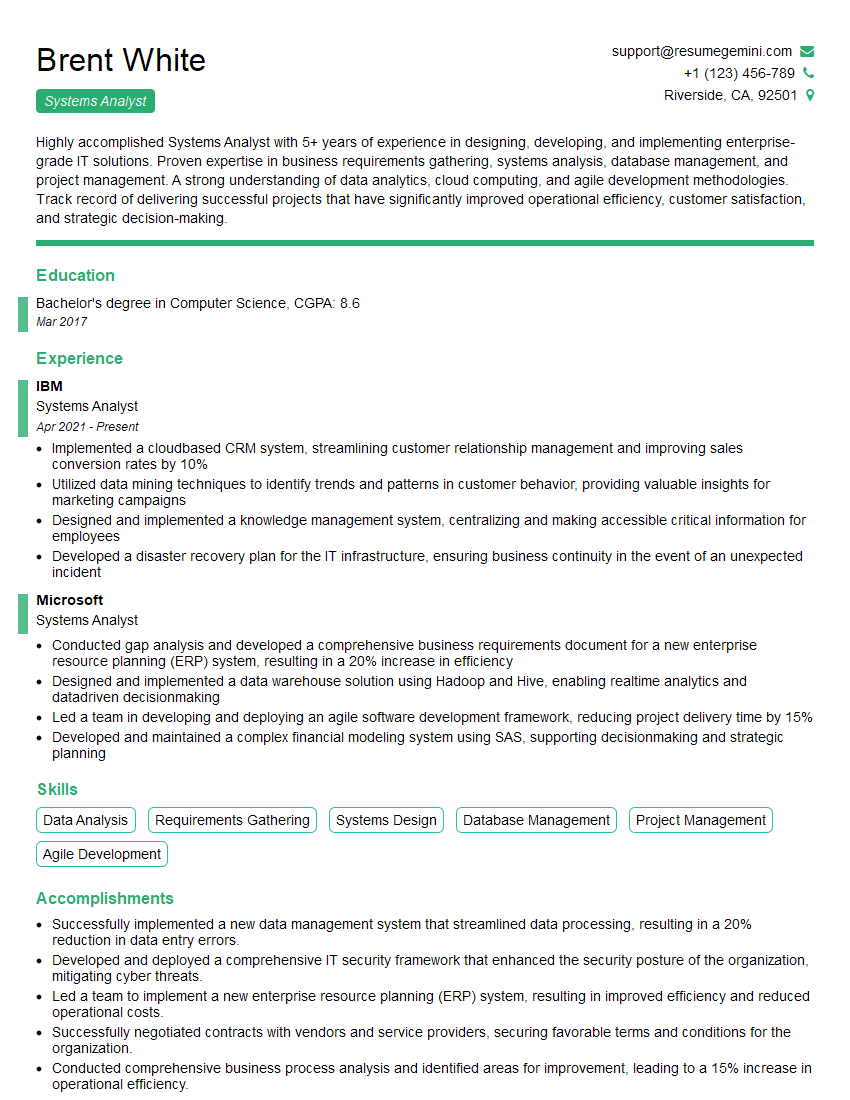
Systems Analyst Resume Sample
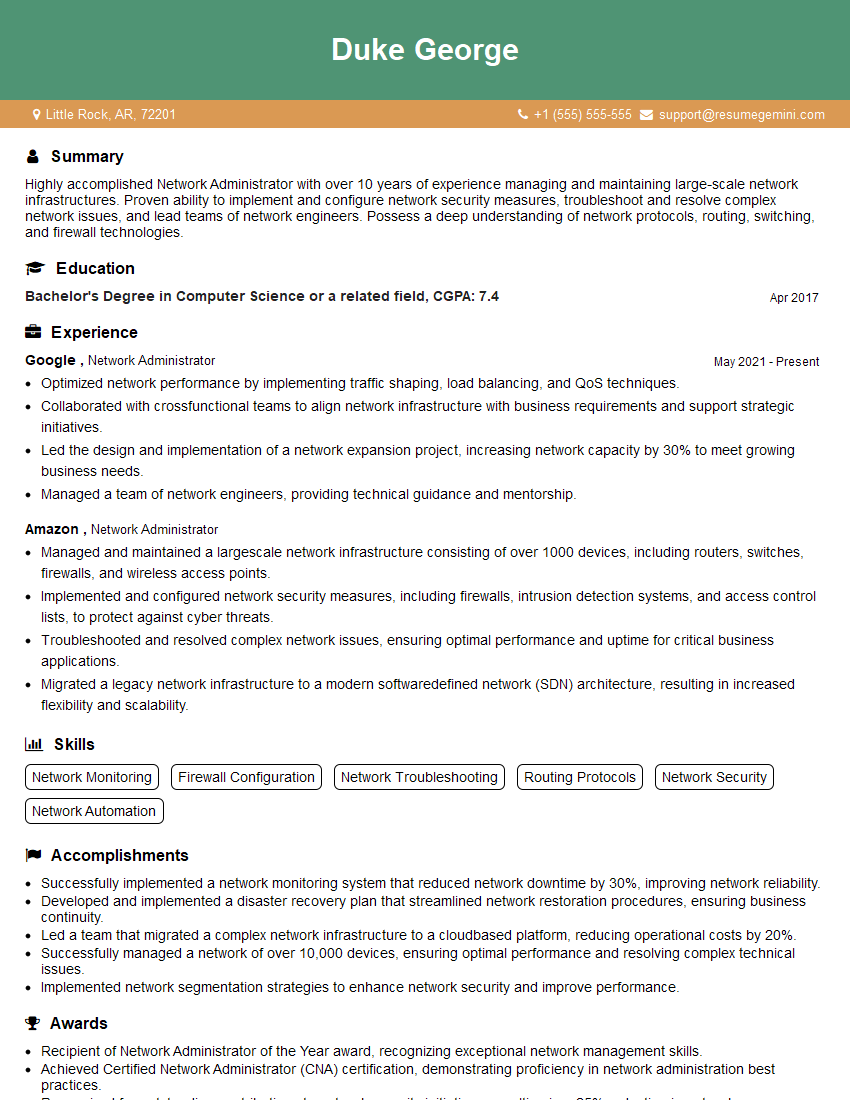
Network Administrator Resume Sample
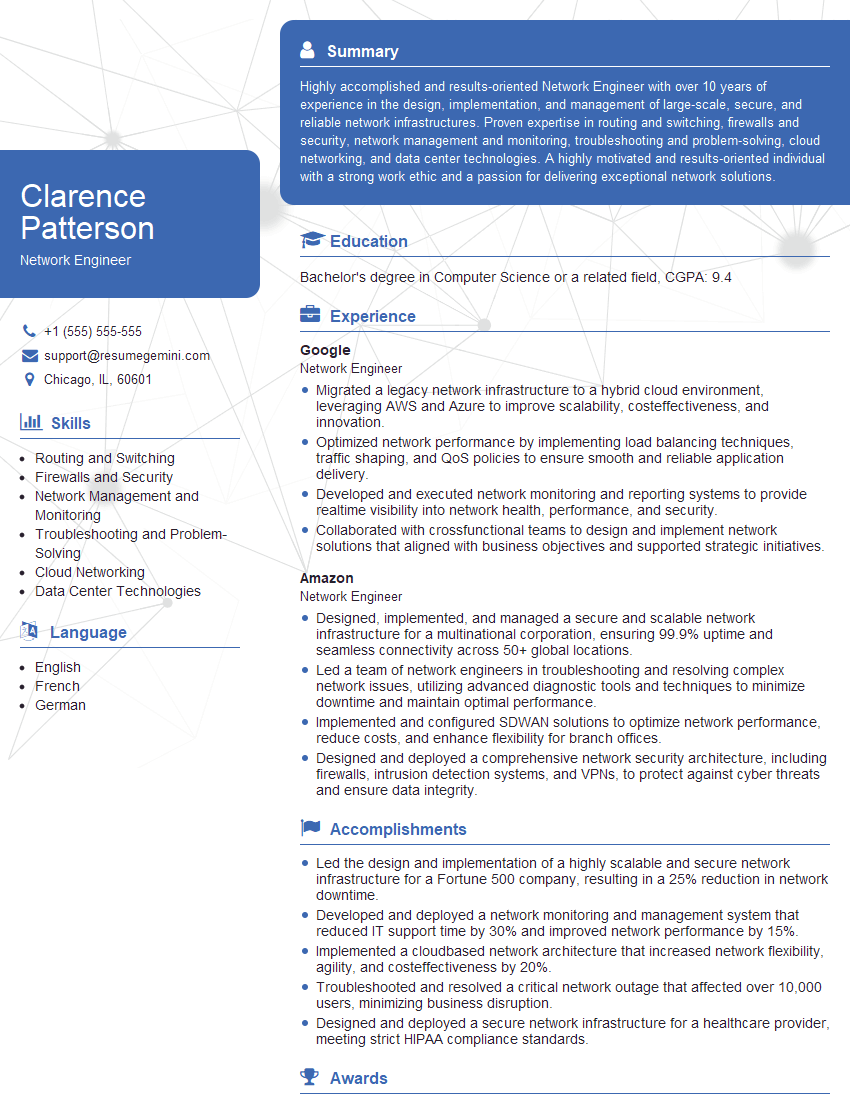
Network Engineer Resume Sample

Technical Support Engineer Resume Sample
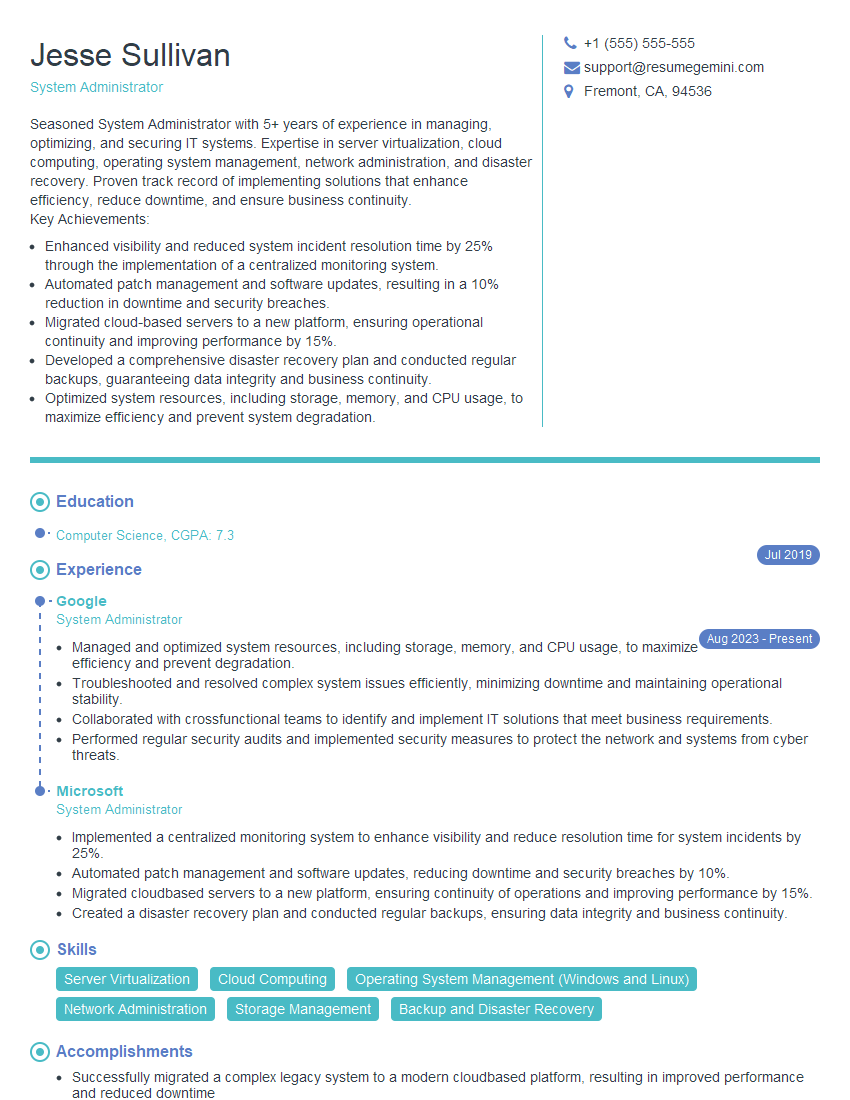
System Administrator Resume Sample
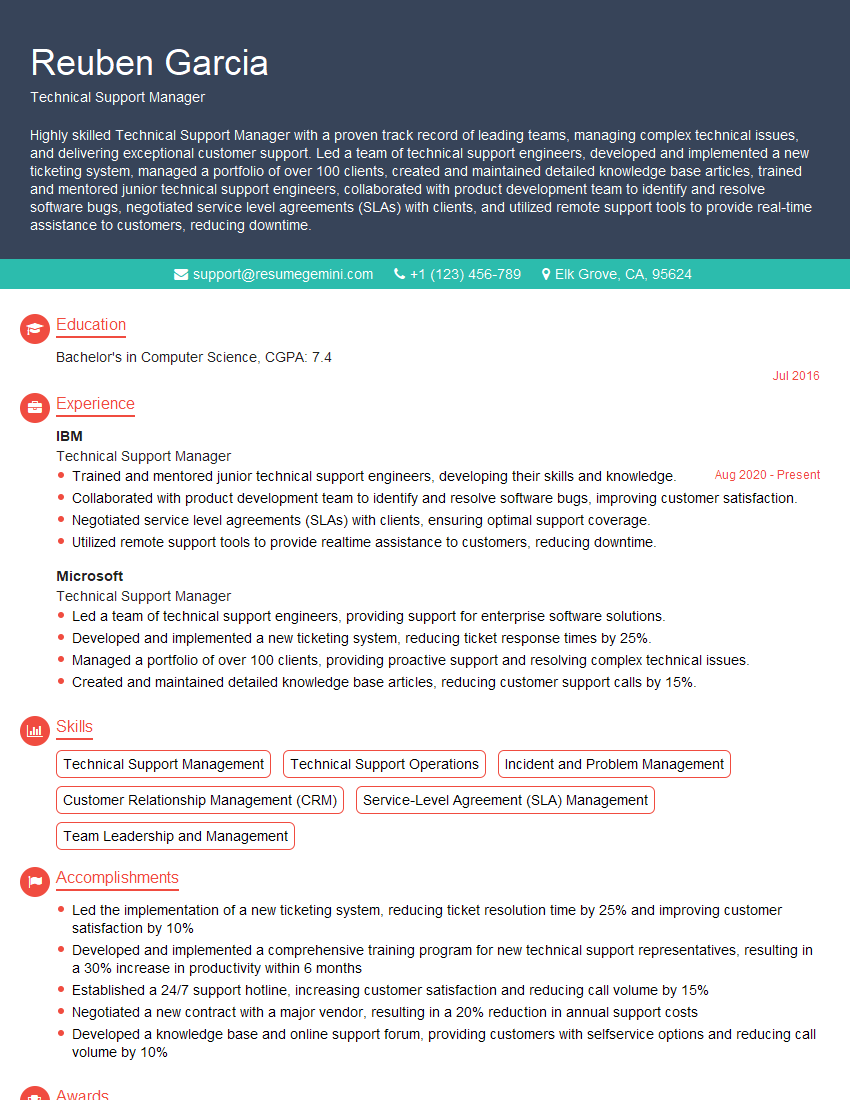
Technical Support Manager Resume Sample
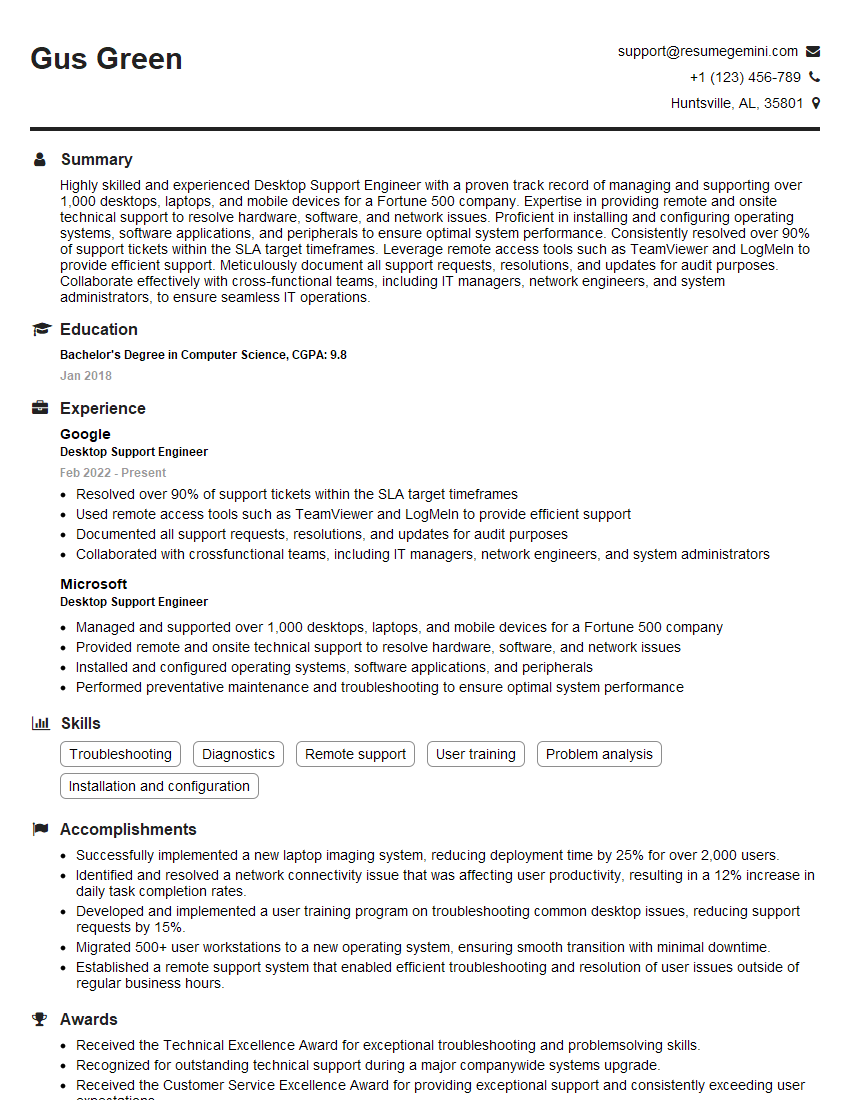
Desktop Support Engineer Resume Sample
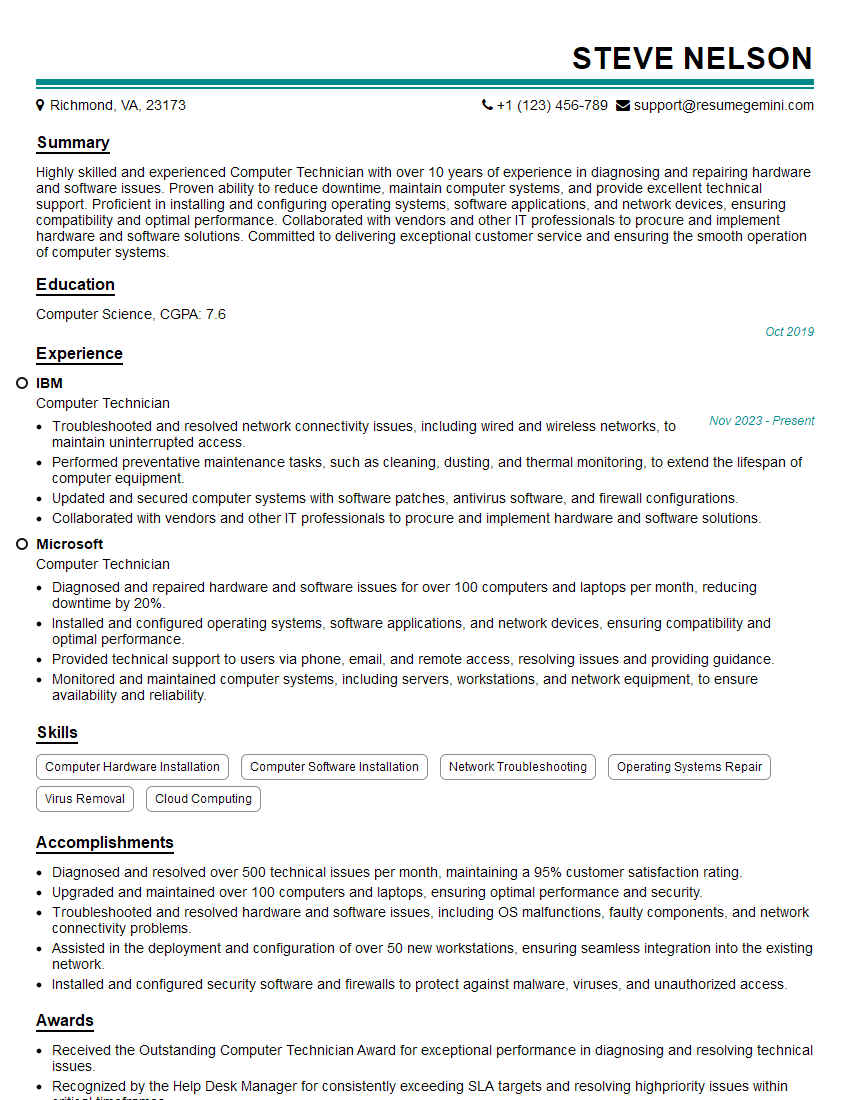
Computer Technician Resume Sample
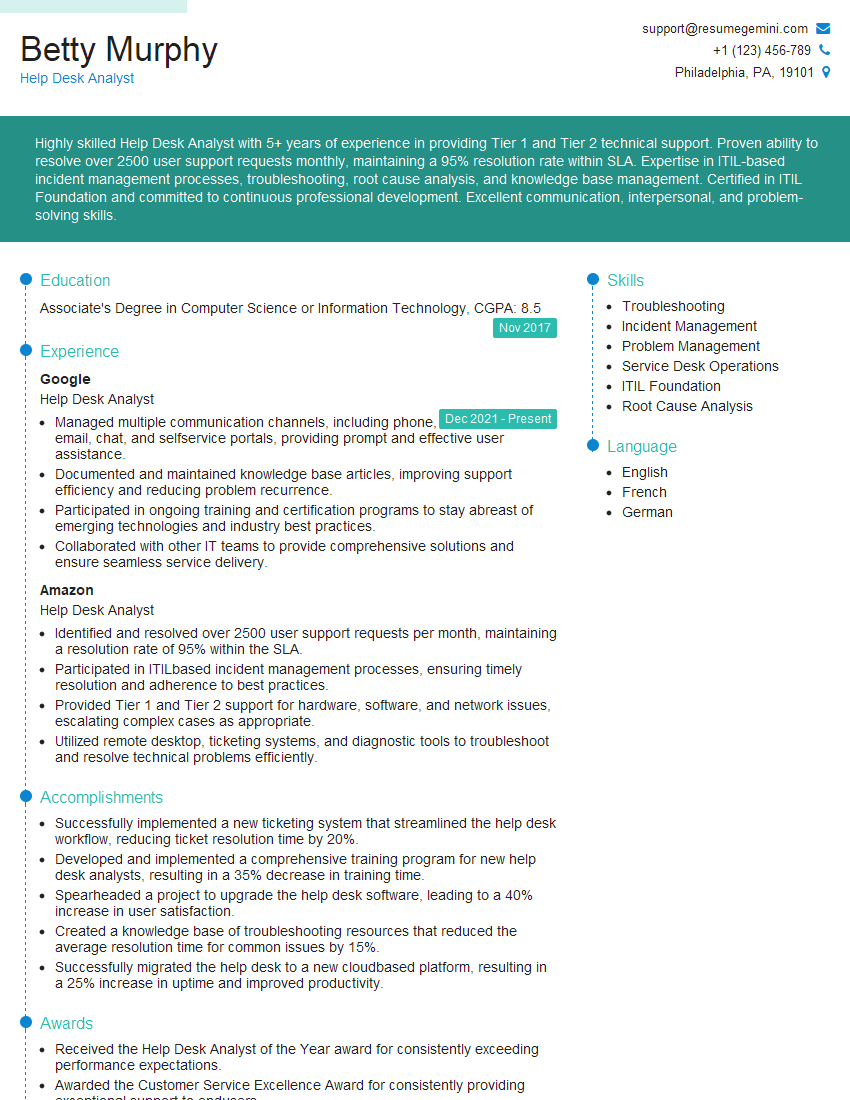
Help Desk Analyst Resume Sample
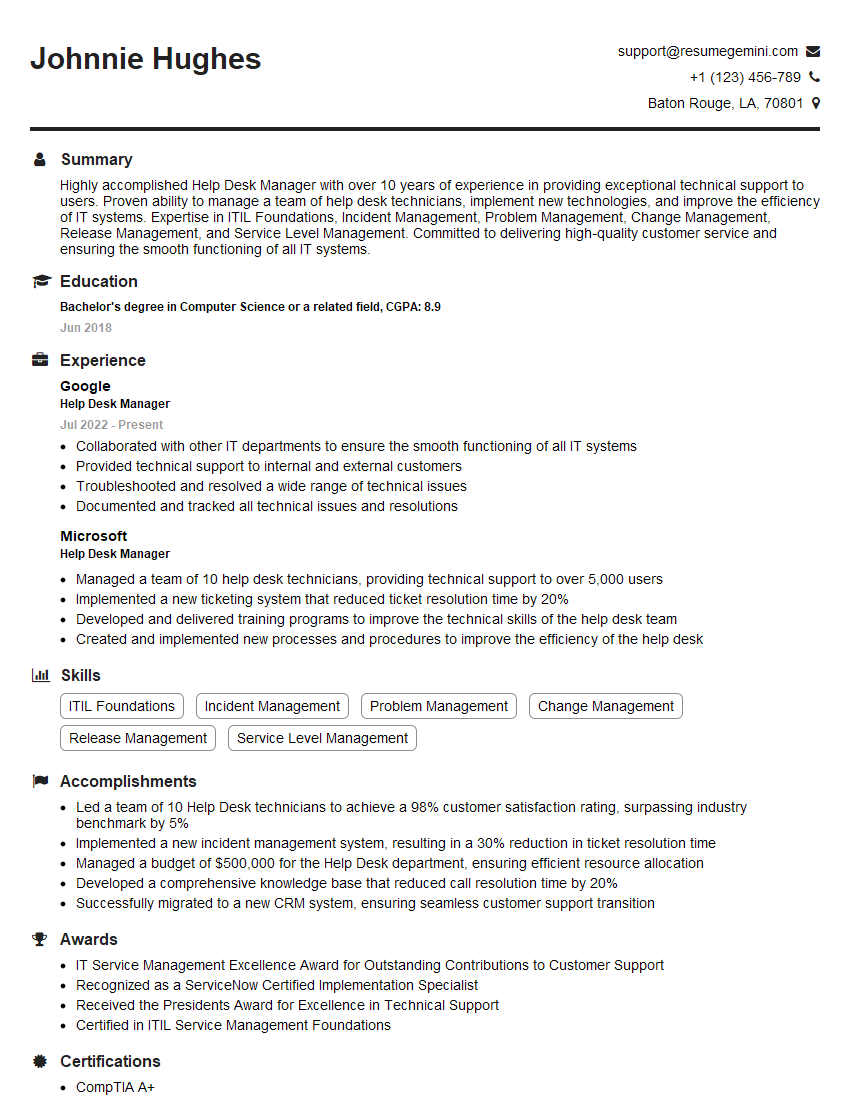
Help Desk Manager Resume Sample

IT Manager Resume Sample
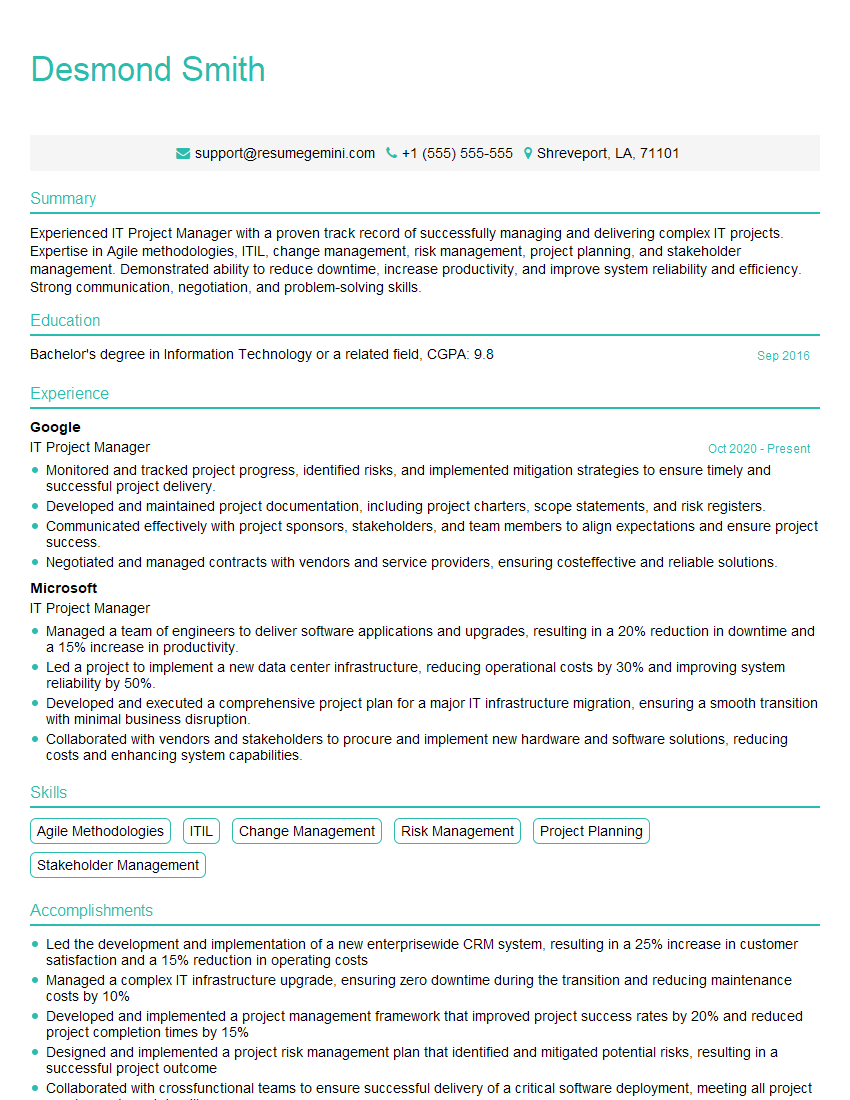
IT Project Manager Resume Sample
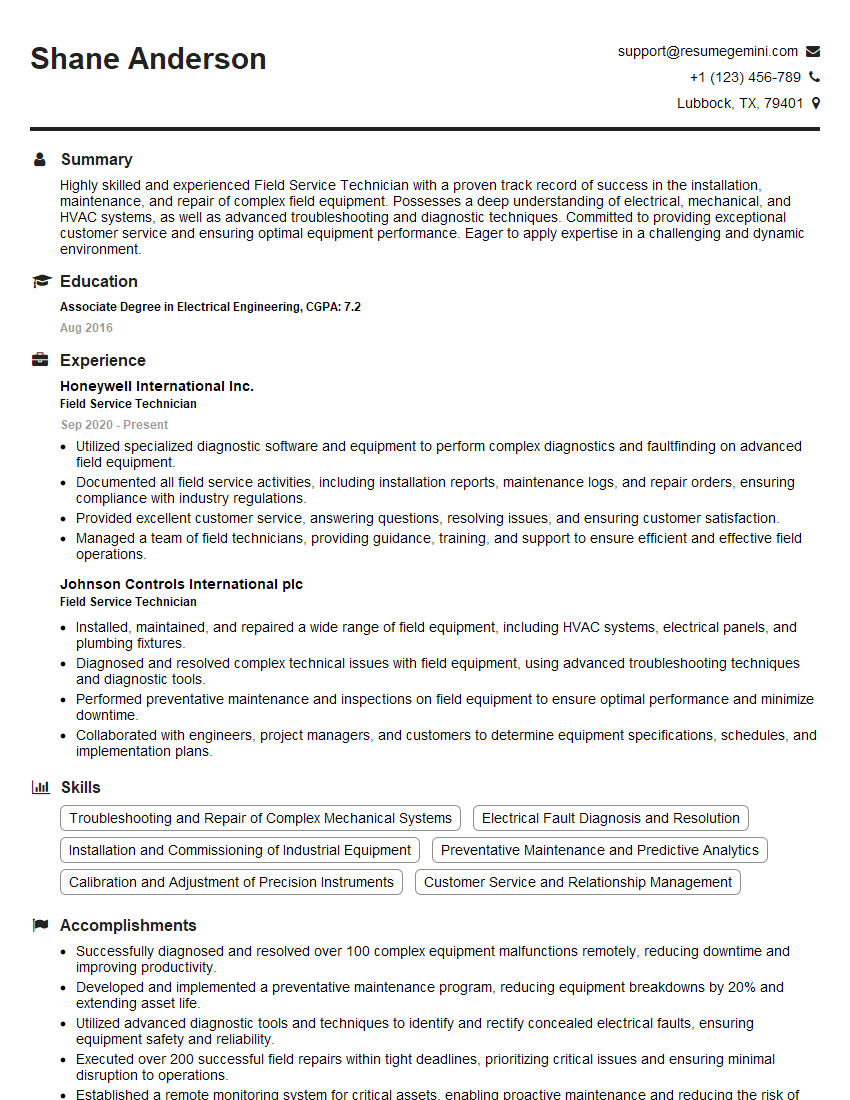
Field Service Technician Resume Sample

Technical Writer Resume Sample
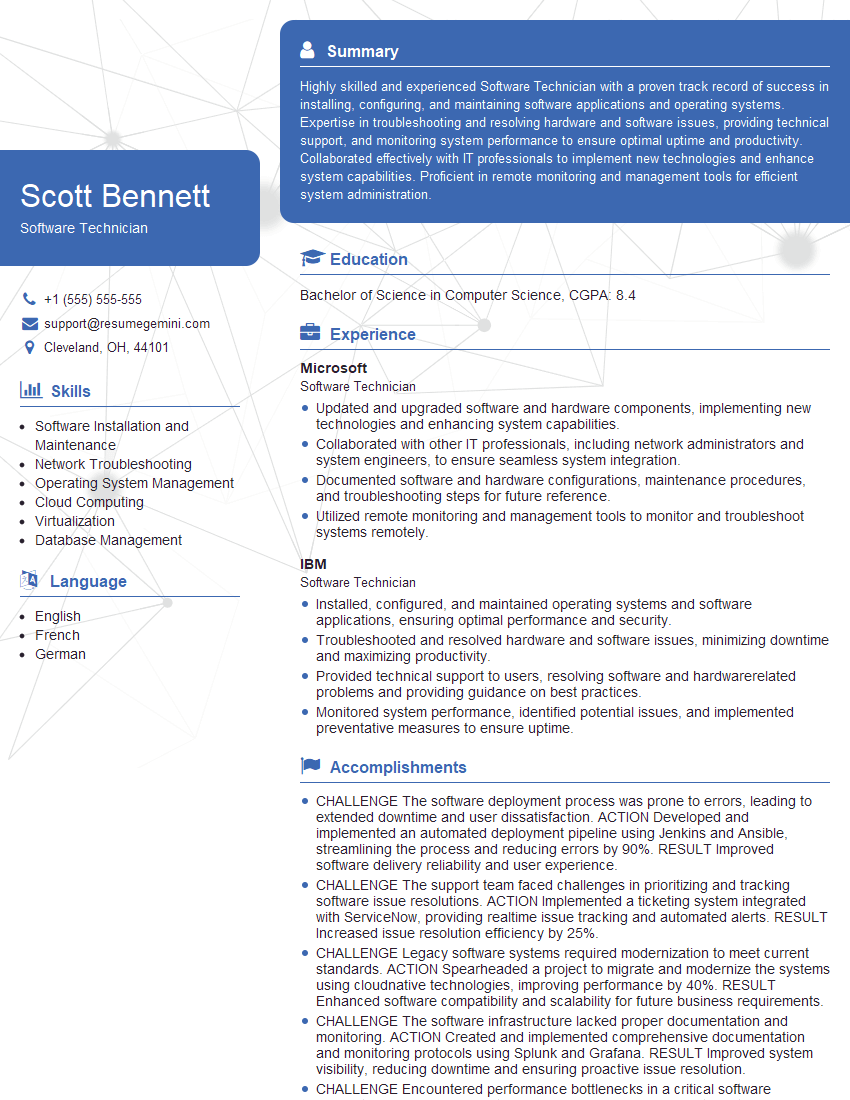
Software Technician Resume Sample

IT Security Specialist Resume Sample
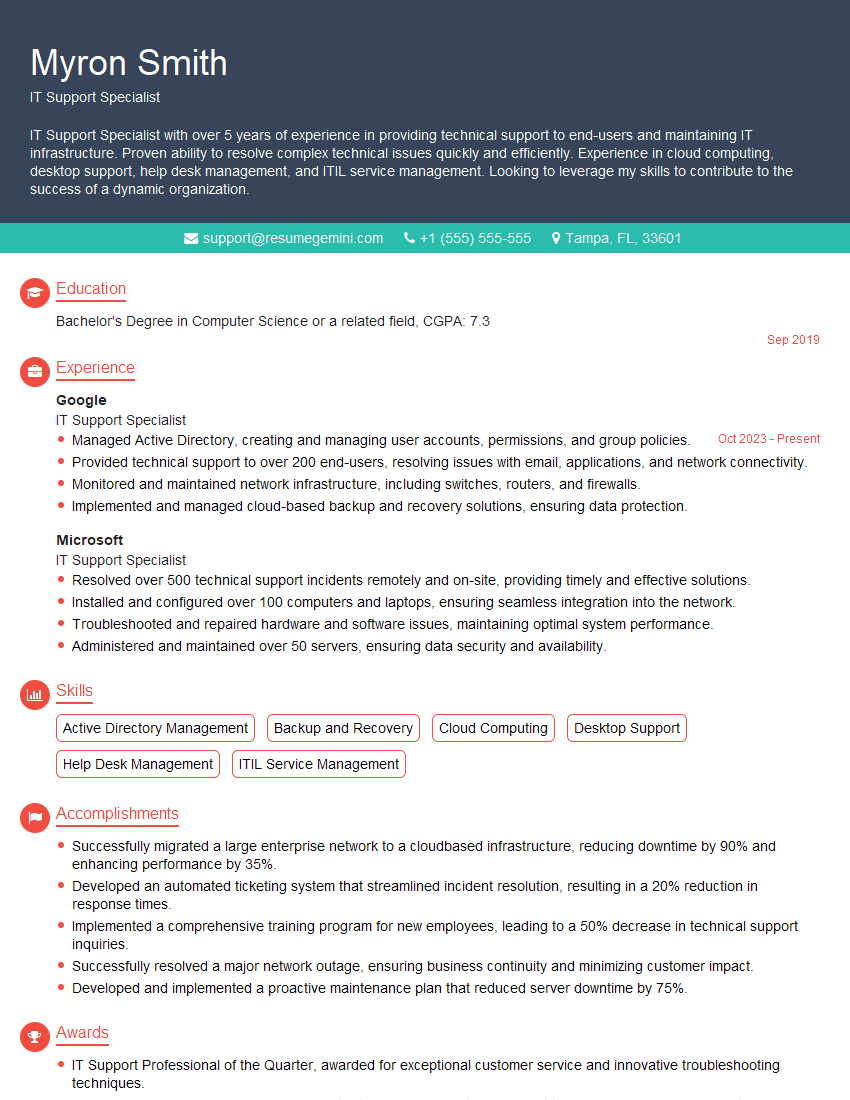
IT Support Specialist Resume Sample
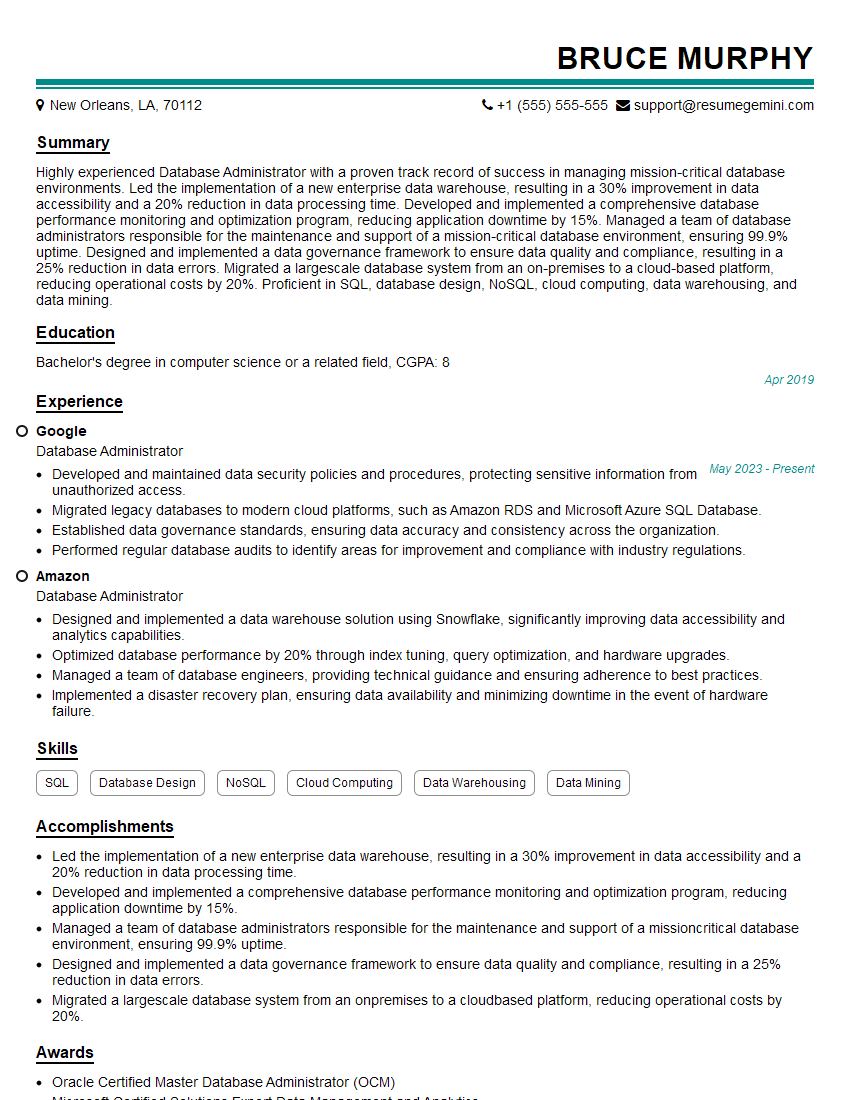
Database Administrator Resume Sample
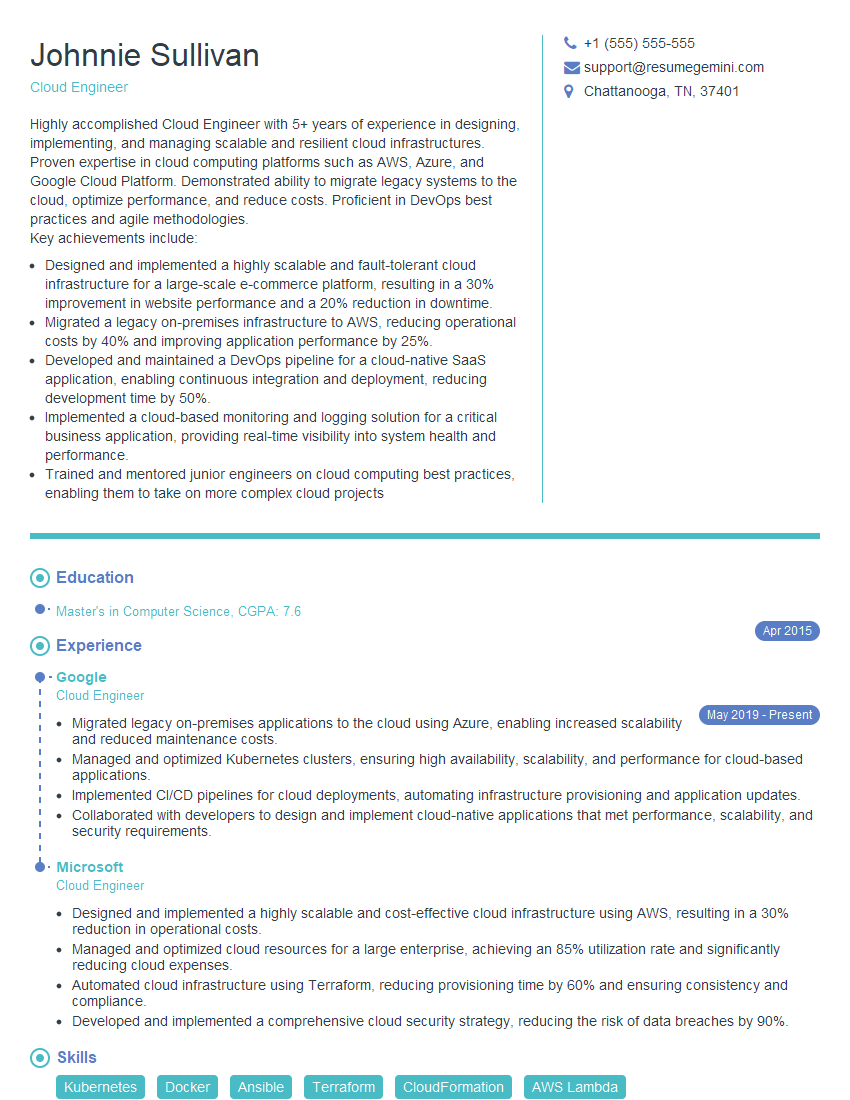
Cloud Engineer Resume Sample
- Systems Analyst
- Network Administrator
- Network Engineer
- Technical Support Engineer
- System Administrator
- Technical Support Manager
- Desktop Support Engineer
- Computer Technician
- Help Desk Analyst
- Help Desk Manager
- IT Manager
- IT Project Manager
- Field Service Technician
- Technical Writer
- Software Technician
- IT Security Specialist
- IT Support Specialist
- Database Administrator
- Cloud Engineer
Explore more articles
Users Rating of Our Blogs
Share Your Experience
We value your feedback! Please rate our content and share your thoughts (optional).
What Readers Say About Our Blog
Really detailed insights and content, thank you for writing this detailed article.
IT gave me an insight and words to use and be able to think of examples