Feeling uncertain about what to expect in your upcoming interview? We’ve got you covered! This blog highlights the most important Image Retouching interview questions and provides actionable advice to help you stand out as the ideal candidate. Let’s pave the way for your success.
Questions Asked in Image Retouching Interview
Q 1. Explain the difference between healing and cloning tools in Photoshop.
Both the Healing Brush Tool and the Clone Stamp Tool in Photoshop are used for removing blemishes and unwanted elements from images, but they achieve this in different ways. Think of the Clone Stamp as a direct copy-paste tool, while the Healing Brush is more intelligent and blends the copied area more seamlessly.
Clone Stamp Tool: This tool directly samples pixels from one area and copies them onto another. It’s great for duplicating textures or patterns exactly. For example, if you want to remove a logo from a building in a photo, the Clone Stamp would be effective. You’d sample from a clean area of the building and paint over the logo.
Healing Brush Tool: This tool samples pixels from a source area but also blends them with the surrounding pixels, resulting in a more natural-looking repair. It’s ideal for removing blemishes or small imperfections, like acne on a portrait, as it attempts to match the textures and colors, creating a more invisible fix. The Healing Brush has several options, including Spot Healing Brush which works automatically and needs less precision.
In short: Use the Clone Stamp for precise replication and the Healing Brush for natural-looking repairs.
Q 2. Describe your experience with frequency separation retouching.
Frequency separation is one of my favorite retouching techniques. It allows for the separate editing of textures and color/tones in an image. This is incredibly powerful because it prevents unnatural smoothing of the skin when you’re working on a portrait, for example. Imagine a portrait with blemishes and wrinkles – you want to remove those (texture) without losing the natural skin tones and subtle shadows (color/tone).
My workflow typically involves creating two copies of the image layer. I then apply a high-pass filter to one layer (this isolates the texture information), and a low-pass filter (or a gaussian blur) to the other (isolating the color/tone information). I then retouch each layer separately. On the texture layer, I’ll carefully remove blemishes and wrinkles using tools like the Healing Brush or Patch Tool. On the color/tone layer, I’ll work on color correction, dodging and burning, and overall refinement. Finally, I merge the layers, achieving a result that’s both natural and flawless.
Q 3. How do you handle color correction in different lighting conditions?
Color correction in different lighting conditions is crucial for consistency and visual appeal. My approach is to use a combination of techniques, starting with understanding the type of lighting involved. Is it harsh sunlight, soft diffused light, or artificial indoor lighting?
White Balance: I always begin by correcting the white balance. This ensures that the whites are truly white and the colors are accurate relative to each other. Photoshop’s ‘Auto’ function is a good starting point, but manual adjustments using the White Balance tool are often necessary for precise control.
Curves and Levels: These adjustment layers provide fine-grained control over brightness, contrast, and color channels. By carefully adjusting the curves or levels, I can target specific color ranges to balance them out in different lighting scenarios. For example, I might brighten shadows in an underexposed image or tone down highlights in an overexposed image.
Color Mixer: This tool is extremely useful for fine-tuning the color balance across the entire image or specific areas. I might use it to subtly shift colors towards warmer or cooler tones depending on the lighting’s color cast.
Ultimately, the key is to achieve a balanced and natural look that reflects the intended mood and feel of the image, regardless of the original lighting.
Q 4. What are your preferred methods for removing blemishes and wrinkles?
My preferred methods for removing blemishes and wrinkles involve a combination of tools and techniques, prioritizing a natural look over a completely flawless one.
Frequency Separation (as described above): This is my go-to method for subtle wrinkle reduction and blemish removal.
Patch Tool: Excellent for larger blemishes or uneven skin tones. I simply select the area and choose a clean sample to replace it.
Healing Brush Tool: Best for smaller imperfections and blending in with surrounding skin textures.
Dodge and Burn Tool: Subtle dodging and burning can be used to smooth out wrinkles or enhance subtle features, making the retouching look more natural.
I avoid overly aggressive smoothing, as it can result in an unnatural ‘plastic’ look. The aim is to enhance, not mask, the natural beauty of the subject.
Q 5. How do you approach retouching product images for e-commerce?
Retouching product images for e-commerce requires a different approach than portrait retouching. The focus is on accuracy, consistency, and enhancing the product’s appeal without making it look unrealistic. My workflow includes:
Background Removal: Cleanly removing the background and placing the product on a solid white or other suitable background is critical for consistency across the product catalog.
Color Correction and Enhancement: Ensuring consistent color across all images is crucial. I carefully correct color casts and adjust brightness and contrast to make the product visually appealing.
Dust and Spot Removal: Removing any dust particles or minor imperfections on the product itself is important for showcasing its quality.
Shadow and Highlight Adjustments: Subtle adjustments to shadows and highlights can emphasize texture and details, making the product appear more three-dimensional.
Sharpness and Detail Enhancement: Sharpening the image subtly enhances details and makes the product appear crisper and more appealing.
The final result should be a high-quality image that accurately represents the product and enhances its presentation for online sales.
Q 6. Explain your workflow for retouching a portrait photograph.
My portrait retouching workflow is iterative and depends on the specific image and client’s requirements, but generally follows these steps:
Initial Assessment: I carefully examine the image to identify areas needing retouching, considering the client’s preferences.
Basic Adjustments: I start with global adjustments like white balance, exposure, contrast, and sharpness.
Skin Retouching: This is where frequency separation, the Healing Brush, Patch Tool, and Dodge and Burn tools are primarily used for blemish removal, wrinkle reduction, and skin smoothing.
Color Correction and Enhancement: This might involve adjustments to color saturation, vibrance, and subtle color grading to create the desired mood and look.
Detail Refinement: I carefully refine the image, paying attention to details like hair, eyes, and clothing.
Final Adjustments and Export: I make final adjustments to contrast, sharpness, and color, ensuring the overall balance is pleasing. Then, I export the image in the required format and resolution.
Throughout this process, I maintain a non-destructive workflow using adjustment layers and masks to allow for flexibility and easy revisions.
Q 7. Describe your experience with masking and layer techniques.
Masking and layer techniques are fundamental to my retouching workflow. They allow for precise control and non-destructive editing, ensuring I can easily make changes and revert if necessary.
Layer Masks: These allow me to selectively hide or reveal portions of a layer, offering precise control over the application of retouching tools or adjustments. For instance, I might use a layer mask to apply skin smoothing only to the face, leaving the hair untouched.
Adjustment Layers: These allow me to apply adjustments (brightness, contrast, color balance, etc.) without directly altering the original image. This is crucial for maintaining flexibility and making non-destructive edits.
Clipping Masks: These allow me to apply adjustments to a specific layer below, offering precise control over the effects. I often use clipping masks to apply selective color corrections or dodge/burn adjustments to specific areas.
Selection Tools: I employ a variety of selection tools (lasso, pen, quick selection) to create precise selections for masking and applying retouching.
My proficiency in these techniques enables me to create complex edits with precision and efficiency, maintaining a non-destructive workflow that allows for maximum flexibility and quality.
Q 8. How do you maintain image sharpness while retouching?
Maintaining image sharpness during retouching is crucial for preserving image quality. It’s a balancing act between removing imperfections and avoiding a blurry, soft result. The key is to use techniques that selectively target flaws without affecting the overall definition.
One effective method involves using tools like the healing brush or clone stamp at a low opacity, building up the correction gradually. This allows for precise control and prevents over-sharpening or blurring. Another important aspect is working on high-resolution images. Starting with a larger file size gives you more room to manipulate pixels without losing detail. Finally, after retouching, using a subtle sharpening filter like Unsharp Mask (in Photoshop) can enhance edges and restore some detail lost during the editing process. This needs careful adjustment; over-sharpening can create artificial halos around objects.
For instance, when retouching blemishes, I might use a healing brush set to 20-30% opacity to blend the imperfection into the surrounding skin. Instead of a single, harsh stroke, I’d apply multiple passes to achieve a natural look. Remember, preserving fine detail is paramount; we want to enhance, not destroy, the image’s natural quality.
Q 9. How do you handle skin retouching while preserving natural texture?
Skin retouching requires a delicate touch; the goal isn’t to create a flawless, plastic-looking complexion, but rather to enhance natural beauty by subtly minimizing imperfections. Preserving natural texture is key to avoiding an unnatural, airbrushed appearance.
I achieve this using frequency separation. This technique separates the image into two layers: one containing the image’s texture (high-frequency) and the other containing the skin tones (low-frequency). By working on the low-frequency layer, I can adjust the tones and smooth out blemishes without impacting the high-frequency layer’s natural texture. After smoothing, carefully recombining both layers ensures a natural-looking result.
Alternatively, using the dodge and burn tools with low opacity in a careful and selective manner is an excellent approach. It allows for a more natural adjustment of skin tones and minimizes the risk of creating a flat, unrealistic result. Tools like the patch tool are also helpful, ensuring seamless integration to maintain natural skin texture.
Q 10. What are some common challenges you face during image retouching?
Image retouching presents various challenges, depending on the image and client’s needs. Some common hurdles include:
- Difficult Subjects: Images with extremely high contrast, motion blur, or out-of-focus areas are more difficult to retouch effectively.
- Client Expectations: Sometimes, achieving a client’s vision is hard if it’s unrealistic or poorly defined.
- Time Constraints: Tight deadlines often create stress, potentially compromising quality.
- Image Quality: Low resolution or poorly lit source images make retouching more difficult.
- Maintaining Consistency: Ensuring uniformity across batches of images, especially if they have varying degrees of imperfections, is a recurring challenge.
- Technical Issues: Software crashes, file corruption, or hardware problems can disrupt the workflow.
Overcoming these challenges often involves careful planning, advanced retouching techniques, clear communication with clients, and using efficient workflows.
Q 11. How do you manage large batches of images for retouching?
Managing large batches of images requires a streamlined workflow and the use of automation tools where possible. I employ a combination of strategies:
- Action Scripts (Photoshop): Automating repetitive tasks like resizing, sharpening, or applying specific retouching actions.
- Batch Processing Software: Using programs designed for bulk image processing to perform tasks like renaming, converting, or resizing.
- File Organization: Maintaining a meticulously organized file structure—using folders to separate images by project, status (e.g., ‘processed,’ ‘unprocessed’), etc.—is essential.
- Non-Destructive Editing: Working non-destructively, using layers and adjustment layers, enables me to make changes without permanently altering the original image file.
- Cloud Storage: Using cloud storage ensures easy access and backups of images and projects.
In practice, I might create an action in Photoshop that applies my standard skin retouching process to a series of images, drastically cutting down on individual processing time.
Q 12. What software and tools are you proficient in?
My expertise spans various software and tools. I’m highly proficient in Adobe Photoshop, which is my primary retouching software. I also have experience with Adobe Lightroom for initial image adjustments and cataloging. For specific tasks or specialized effects, I might use other tools, like Capture One, for tethered shooting and advanced RAW processing. Outside of dedicated image editing software, I am also familiar with using graphic tablets (Wacom) to enhance precision and control.
Q 13. Explain your understanding of color spaces (RGB, CMYK).
Color spaces define the range of colors a device can display or print. RGB (Red, Green, Blue) is an additive color model used for screens; it mixes light to create colors. CMYK (Cyan, Magenta, Yellow, Key [Black]) is a subtractive color model used for printing; it subtracts light from white to create colors. Understanding the differences is crucial because images created for screens in RGB can look vastly different when printed using the CMYK color space. A color appearing vibrant on a screen might look dull in print and vice-versa.
During retouching, I need to carefully consider the intended output. If the final product is a print, then adjustments must be made in CMYK, or at least with an understanding of how the RGB image will translate to CMYK. Working in RGB and later converting to CMYK can lead to unexpected color shifts, so previewing the results in the target color space is always recommended.
Q 14. How do you ensure consistent retouching style across multiple images?
Maintaining consistent retouching style across multiple images is vital for professional results. This requires a structured approach. I usually start by creating a detailed style guide that outlines the desired look, encompassing aspects like skin tone, saturation, sharpening, and overall color grading. This guide often includes before-and-after examples.
Beyond style guides, I utilize several methods. Actions in Photoshop allow automation of consistent adjustments. For skin retouching, I might establish a consistent set of tools and settings, ensuring uniformity in the results. Maintaining the same luminance and contrast levels across images creates a cohesive look, while using layer styles and adjustment layers can be beneficial for maintaining consistency in adjustments. Regular self-assessment throughout the workflow helps me keep the retouching style on track.
Consider this: a wedding photographer will want a consistent style across all images from the event. My style guide and process ensure that, whether it’s a portrait or a wide-shot, the final image shares similar characteristics regarding color tone, skin tone, etc., creating a cohesive narrative.
Q 15. Describe your experience with high-resolution image retouching.
High-resolution image retouching requires a meticulous approach and a deep understanding of image processing. My experience involves working with files exceeding 100 megapixels, often for large-format printing or billboard campaigns. This necessitates careful management of file size, utilizing techniques like lossless compression (TIFF) during the process and optimizing for final output. I’m proficient in using tools like Photoshop’s ‘Save for Web’ feature or specialized plugins to manage file size without compromising quality. A key element is using high-resolution source files to avoid upscaling, which can lead to artifacts. I’ve worked on projects requiring detailed retouching of textures, such as restoring antique photographs or enhancing product shots for high-end catalogs, ensuring every detail is crisp and clean even at extreme magnification.
For example, I once worked on a project for a luxury watchmaker. The images needed to be flawless for a print advertisement in a high-end magazine. The original image was 200MP, and my task was to perfect the subtle reflections on the watch face and remove tiny dust specks without impacting the natural look and feel. This involved using advanced masking and healing techniques to preserve the integrity of the image’s detail while resolving the imperfections.
Career Expert Tips:
- Ace those interviews! Prepare effectively by reviewing the Top 50 Most Common Interview Questions on ResumeGemini.
- Navigate your job search with confidence! Explore a wide range of Career Tips on ResumeGemini. Learn about common challenges and recommendations to overcome them.
- Craft the perfect resume! Master the Art of Resume Writing with ResumeGemini’s guide. Showcase your unique qualifications and achievements effectively.
- Don’t miss out on holiday savings! Build your dream resume with ResumeGemini’s ATS optimized templates.
Q 16. How do you deal with challenging image artifacts?
Challenging image artifacts, such as banding, noise, chromatic aberration, or compression artifacts, require a strategic approach. I start by identifying the type of artifact and its cause. For example, banding in gradients might be due to insufficient bit depth, while noise often stems from low light conditions. My strategy often involves a combination of techniques. Noise reduction tools are carefully applied to minimize grain while preserving detail. For banding, I may use frequency separation techniques or subtle color adjustments to smooth out the transitions. Compression artifacts often require cloning or healing with careful attention to surrounding textures. I always prioritize a non-destructive workflow, using adjustment layers and masks to ensure easy reversibility and flexibility in refining the results.
I remember working on a landscape image with severe compression artifacts from a poorly saved JPEG. Instead of simply replacing the damaged areas, I carefully sampled the adjacent textures and subtly blended them in using the clone stamp tool with a low opacity and carefully adjusted the brush settings. This preserved the natural look of the image and avoided creating obvious patches.
Q 17. What are your strategies for time management in retouching projects?
Time management is crucial in retouching. My approach involves meticulous planning and task breakdown. Before starting, I thoroughly analyze the image and the client’s requirements, creating a detailed checklist of tasks and estimated time for each. This allows me to prioritize tasks based on importance and complexity. I use time-tracking software to monitor my progress and identify potential bottlenecks. Automation wherever possible, such as using actions or scripts in Photoshop, significantly improves efficiency. I break down large projects into smaller, manageable segments, regularly saving my work to prevent data loss. Effective communication with the client to clearly set expectations and define deadlines is vital for efficient project management.
I often use the Pomodoro Technique, working in focused bursts with short breaks to maintain concentration and prevent burnout. Regular communication with the client, keeping them informed of progress and any potential delays, is vital to managing expectations and avoiding last-minute rushes.
Q 18. How do you handle client feedback and revisions?
Client feedback is invaluable. I encourage open communication throughout the process. I ensure that I understand the client’s vision from the outset, but I also provide my professional recommendations based on my expertise. When receiving feedback, I actively listen and ask clarifying questions to ensure that I accurately understand their comments. I then carefully incorporate the revisions, making sure to retain a record of all changes made. For larger projects, I present regular progress updates to proactively address concerns and prevent unnecessary iterations. It’s important to maintain a professional and positive relationship with the client throughout the entire revision process.
In one case, a client initially requested a specific color correction, but after I showed them the intermediate results, we discussed the impact on other aspects of the image. This collaborative approach resulted in a better final product that met the client’s overall vision more effectively.
Q 19. Explain your experience with different file formats (JPEG, TIFF, PSD).
My experience encompasses a broad range of file formats, each with its strengths and weaknesses. JPEG is a lossy format suitable for web use due to its small file size, but it’s not ideal for retouching because it introduces compression artifacts. TIFF is a lossless format, preserving image data, making it excellent for retouching, archival purposes, and high-resolution printing. PSD (Photoshop Document) is the native Photoshop format, preserving all layers, adjustments, and masks, allowing for non-destructive editing and flexibility. I choose the appropriate format based on the project’s needs and the stage of the workflow. For example, I would always use TIFF or PSD during the retouching phase, switching to JPEG only at the very end for web delivery.
Understanding the nuances of each format allows me to optimize the workflow, making informed decisions about file management and ensuring the preservation of image quality throughout the retouching process. Choosing the wrong file format could lead to irreversible data loss or necessitate unnecessary rework.
Q 20. How do you address issues like motion blur or noise in images?
Motion blur and noise are common image imperfections. Motion blur, often caused by camera shake or subject movement, can be challenging to correct completely, but techniques like blurring the affected areas subtly to match the surrounding sharpness can sometimes help. For noise, there are a range of specialized noise reduction tools, both within Photoshop and in dedicated plugins. The goal is to reduce noise while retaining image detail. Strong noise reduction can often lead to loss of fine detail and texture, so a careful and moderate approach is crucial. The specific technique depends on the type and severity of noise. For example, luminance noise can be addressed differently than chrominance noise. I carefully assess the image to determine the best course of action and often employ masking to target noise reduction to specific areas.
A recent project involved a low-light photograph with significant noise. I used a combination of noise reduction filters and careful masking to reduce the noise, selectively preserving details in areas such as the subject’s face, while allowing more noise reduction in less critical parts of the image. The result was a significant improvement in image quality without sacrificing crucial fine details.
Q 21. What is your approach to retouching images for print versus web?
Retouching for print versus web differs significantly due to the differing resolutions and output methods. Print requires much higher resolution and color accuracy to produce high-quality results. The color profile (e.g., CMYK for print) must be carefully considered and the file prepared for the specific printing method. Web images, on the other hand, are viewed on screens with varying resolutions and color profiles (e.g., sRGB for web). File size is a critical factor for web images, so optimization techniques like JPEG compression are essential. Sharpness and detail are crucial for both, but the level of detail may be slightly reduced for web to minimize file size while still maintaining a visually appealing result. I adjust my sharpening techniques based on the intended use. More aggressive sharpening might be applied for print, while a more subtle approach is taken for web to avoid artifacts on lower-resolution screens.
Think of it like this: a print image needs to look perfect up close, whereas a web image needs to look good at a glance on a variety of screens. This difference dictates the retouching approach, from resolution considerations to the type of sharpening techniques used.
Q 22. How do you stay updated with the latest retouching techniques and software?
Staying current in the ever-evolving field of image retouching requires a multi-pronged approach. It’s not just about mastering software; it’s about understanding the underlying principles of image manipulation and staying abreast of new trends.
- Online Courses and Tutorials: Platforms like Skillshare, Udemy, and LinkedIn Learning offer excellent courses on advanced retouching techniques, often taught by industry professionals. I regularly audit these, focusing on new software features and emerging workflows.
- Industry Publications and Blogs: I subscribe to various photography and retouching magazines and follow leading blogs and websites. These resources often showcase cutting-edge techniques and software reviews.
- Webinars and Conferences: Attending webinars and conferences allows me to network with other professionals, learn about the latest software updates directly from developers, and participate in Q&A sessions to address specific challenges.
- Experimentation and Practice: I dedicate time to personal projects, experimenting with new techniques and software features. This hands-on approach helps solidify my understanding and build my portfolio.
- Following Leading Retouchers: I actively follow the work of renowned retouchers on social media platforms like Instagram and Behance. Observing their workflow and techniques provides invaluable inspiration and insights.
This holistic approach ensures I remain at the forefront of image retouching, continuously improving my skills and knowledge.
Q 23. Describe a time you had to troubleshoot a complex retouching problem.
One challenging project involved retouching a series of product shots where the lighting was inconsistent and the backgrounds contained numerous distracting elements. The products themselves were highly reflective, making even minor imperfections highly visible.
My initial approach involved using layer masks to selectively remove blemishes and imperfections. However, due to the reflective surfaces, simple cloning or healing tools were insufficient. The reflections were distorted, leading to unnatural results.
To overcome this, I employed a combination of techniques:
- Frequency Separation: This technique allowed me to separately adjust the texture and color information of the image, ensuring a natural-looking result while maintaining fine details.
- Dodge and Burn: Carefully applied dodge and burn tools helped me refine the lighting inconsistencies, creating a more even and professional look.
- Content-Aware Fill: In conjunction with careful masking, content-aware fill was used to seamlessly remove distracting background elements without leaving noticeable artifacts.
The final result was a series of product shots with consistent lighting, clean backgrounds, and a natural appearance of the reflective products. This project highlighted the importance of a flexible approach, combining various techniques to achieve optimal results.
Q 24. How do you maintain the integrity of the original image during retouching?
Maintaining the integrity of the original image is paramount. My approach centers around non-destructive editing techniques and a careful understanding of the image’s inherent qualities.
- Non-Destructive Editing: I always work with adjustment layers and masks, allowing me to tweak and refine my edits without permanently altering the original image data. This allows for revisions and adjustments without losing the original image.
- Smart Objects: When dealing with complex manipulations, I convert layers into Smart Objects. This preserves image quality even after repeated scaling or transformations.
- Saving Multiple Versions: I regularly save different versions of the image throughout the retouching process, creating backups and allowing me to revert to earlier stages if necessary.
- Understanding Color Spaces: Working in a suitable color space (like ProPhoto RGB for maximum color range) preserves detail and avoids color shifts during editing.
- Minimalistic Approach: I focus on subtle, natural enhancements rather than drastic alterations. My goal is to enhance the image, not to completely transform it.
By consistently implementing these practices, I ensure the original image remains untouched while achieving the desired aesthetic improvements.
Q 25. What are your skills in using adjustment layers (curves, levels, etc.)?
Adjustment layers—curves, levels, hue/saturation, color balance—are fundamental tools in my workflow. I have extensive experience using them to achieve precise color corrections and tonal adjustments.
- Curves: I use curves for fine-tuning contrast, adjusting individual color channels, and creating specific tonal shifts, such as selectively brightening or darkening areas.
- Levels: Levels are crucial for adjusting the overall brightness and contrast of the image, fixing exposure issues, and expanding the dynamic range.
- Hue/Saturation: I leverage hue/saturation to subtly or dramatically alter colors, desaturate specific areas, or correct color casts.
- Color Balance: Color balance helps me adjust the overall warmth or coolness of an image and correct color imbalances.
My proficiency extends beyond simple adjustments. I often use these tools in conjunction with masking to target specific areas, creating a non-destructive workflow that allows for precise and nuanced changes.
Q 26. How familiar are you with non-destructive editing techniques?
Non-destructive editing is the cornerstone of my retouching philosophy. I rarely, if ever, work directly on the pixel data of the base image. Instead, I rely on adjustment layers, masks, and Smart Objects to make all edits.
The benefits of this approach are significant:
- Flexibility: Edits can be easily adjusted or removed at any time without affecting the original image.
- Efficiency: A non-destructive workflow allows for experimentation and iterative refinement.
- Image Preservation: The original image data remains intact, preserving quality and ensuring future edits are possible.
My familiarity with non-destructive editing is comprehensive. I seamlessly integrate these techniques into every stage of my workflow.
Q 27. What is your experience with batch processing and automation in retouching?
Batch processing and automation are crucial for efficiency, particularly when dealing with large volumes of images. My experience encompasses various methods for automating repetitive tasks.
- Actions in Photoshop: I create and utilize custom actions to automate repetitive editing steps, such as resizing, sharpening, or applying color corrections to a group of images.
- Scripting (JavaScript, Photoshop Scripting): For more complex tasks, I can leverage scripting to automate processes involving multiple steps or conditional logic. This allows for a high degree of customization and efficiency.
- Third-Party Plugins: I utilize third-party plugins designed to streamline batch processing, offering features such as bulk renaming, automated watermarking, and other time-saving functionalities.
For example, when preparing a large set of product images for an e-commerce website, I would use a combination of actions and scripting to automatically resize, sharpen, and watermark each image, significantly reducing processing time. My understanding of batch processing allows me to tailor solutions to suit the specific needs of the project, ensuring optimal efficiency and quality.
Key Topics to Learn for Your Image Retouching Interview
- Color Correction & Grading: Understanding color theory, white balance, and the use of various tools and techniques for achieving accurate and aesthetically pleasing colors. Practical application: Demonstrate your ability to correct color casts, adjust saturation and vibrancy, and create specific moods through color grading.
- Skin Retouching: Mastering techniques for smoothing skin texture, removing blemishes, and enhancing features while maintaining a natural look. Practical application: Explain your workflow for retouching portraits, addressing common challenges like redness, uneven skin tone, and wrinkles.
- Frequency Separation: Understanding this technique for separating texture and color information for targeted editing, allowing for precise adjustments. Practical application: Describe how you use frequency separation to retouch skin without losing detail or creating unnatural effects.
- Object Removal & Manipulation: Proficiency in removing unwanted objects, seamlessly patching areas, and manipulating elements within an image. Practical application: Explain your approach to removing distractions from backgrounds, filling in gaps, and convincingly merging different elements.
- Image Sharpening & Noise Reduction: Understanding the principles of sharpening and noise reduction, and choosing appropriate techniques for different image types and resolutions. Practical application: Describe how you balance sharpness and noise reduction to achieve optimal image quality.
- Software Proficiency (Photoshop, Lightroom, etc.): Demonstrating in-depth knowledge of industry-standard software, including advanced tools and features. Practical application: Showcase your understanding of layers, masks, adjustment layers, and other key functionalities.
- Workflow & Efficiency: Optimizing your retouching workflow for speed and accuracy. Practical application: Discuss how you prioritize tasks, use actions or shortcuts, and maintain consistency in your approach.
Next Steps
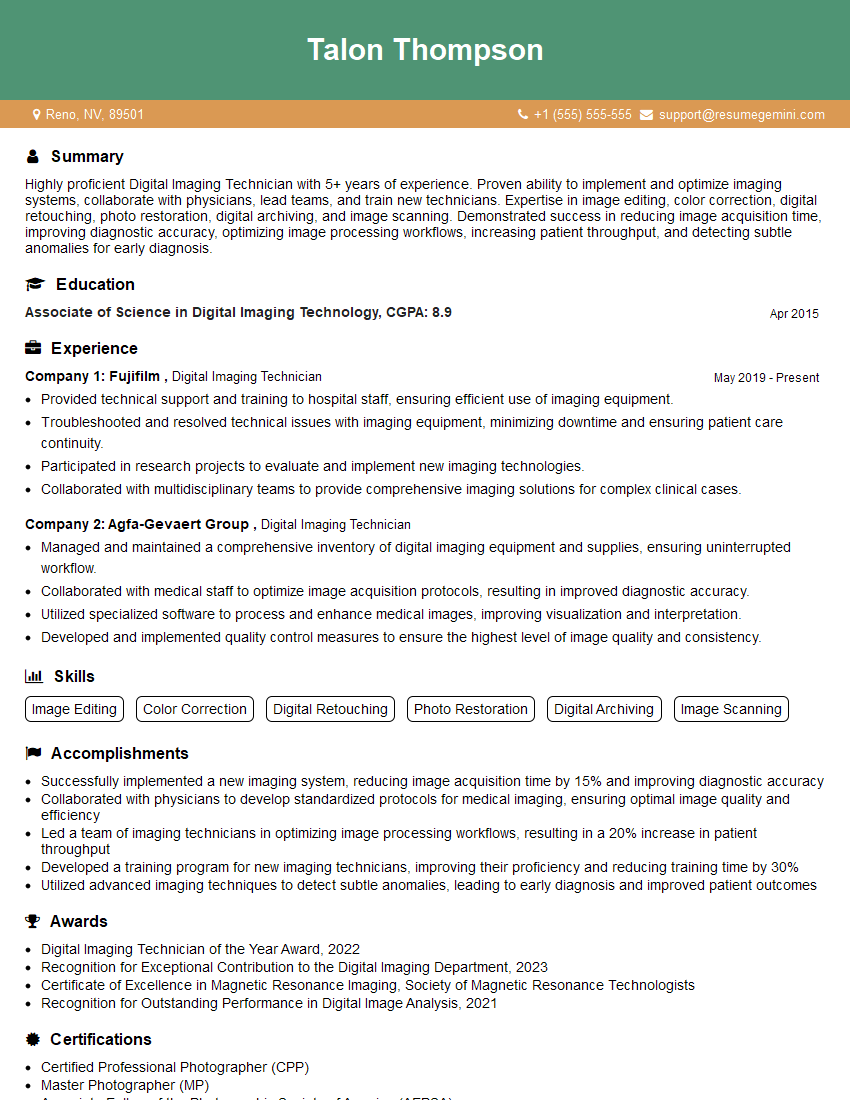
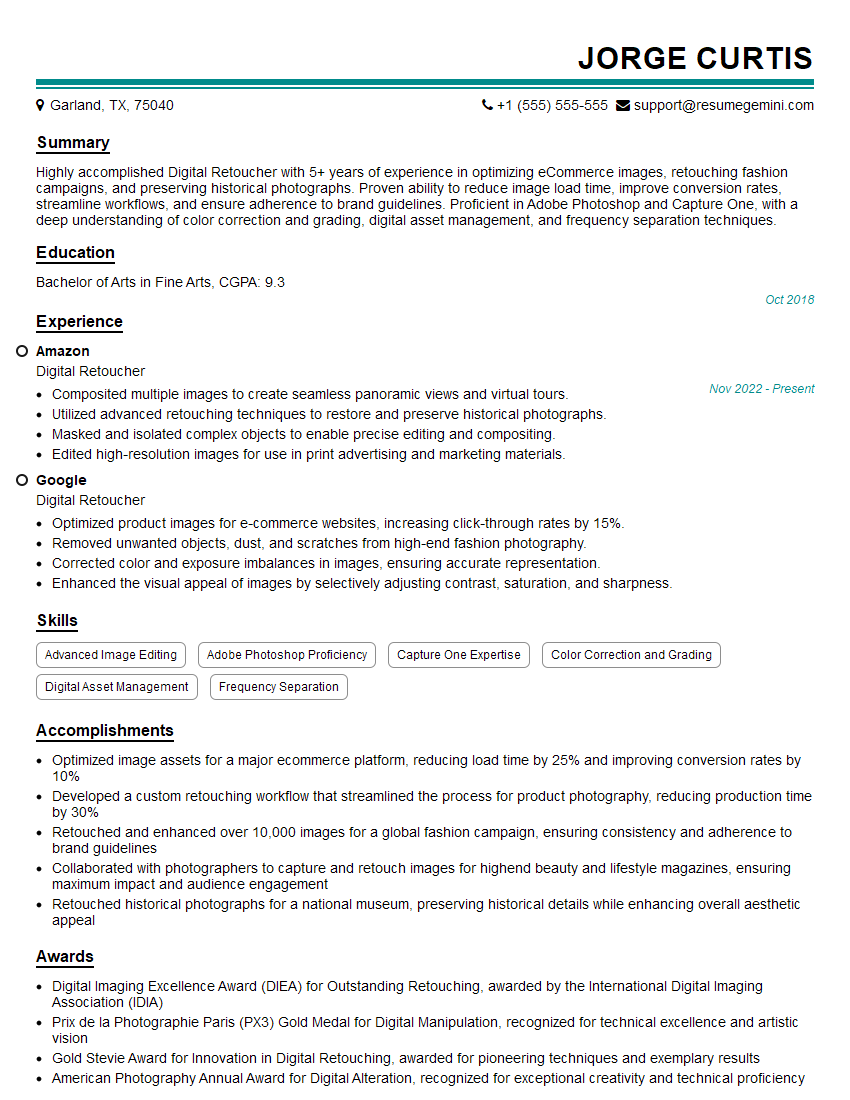
Mastering image retouching opens doors to exciting careers in photography, advertising, e-commerce, and more! To significantly boost your job prospects, it’s crucial to have a strong, ATS-friendly resume that highlights your skills and experience effectively. ResumeGemini is a trusted resource that can help you craft a compelling resume tailored to the specific requirements of image retouching roles. We provide examples of resumes specifically designed for this field to help you create a winning application. Take the next step toward your dream career—build your best resume with ResumeGemini.

Explore more articles
Users Rating of Our Blogs
Share Your Experience
We value your feedback! Please rate our content and share your thoughts (optional).
What Readers Say About Our Blog
Really detailed insights and content, thank you for writing this detailed article.
IT gave me an insight and words to use and be able to think of examples