Interviews are opportunities to demonstrate your expertise, and this guide is here to help you shine. Explore the essential 3D Rendering Software (SketchUp, Lumion) interview questions that employers frequently ask, paired with strategies for crafting responses that set you apart from the competition.
Questions Asked in 3D Rendering Software (SketchUp, Lumion) Interview
Q 1. Explain your experience with SketchUp’s various modeling tools.
My experience with SketchUp’s modeling tools is extensive, encompassing a wide range of functionalities. I’m proficient in using the basic tools like the Line, Arc, and Rectangle tools for creating the fundamental shapes of my models. Beyond that, I’m adept at utilizing advanced tools such as the Push/Pull tool (essential for creating 3D forms from 2D shapes), Follow Me tool (for creating complex extrusions along a path), and the Offset tool (for creating parallel lines or shapes). I also regularly employ the component and group functionality to manage complexity and promote reusability. For example, in designing a building, I’d create individual components for windows and doors, which I can then easily duplicate and modify across the entire project, saving significant time and maintaining consistency. I’m also comfortable working with the plugins and extension, allowing me to tackle more niche modeling challenges efficiently.
Understanding the nuances of each tool is crucial. For instance, the difference between using ‘Intersect with Model’ and ‘Intersect faces’ during Push/Pull operations significantly affects the resulting geometry, requiring careful consideration for complex intersections.
Q 2. Describe your workflow when creating a 3D model in SketchUp.
My SketchUp workflow is highly iterative and depends on the project’s complexity. However, it generally follows these steps:
- Conceptualization and Planning: I start by sketching rough ideas and defining the scope of the project. This involves understanding the client’s requirements and considering the final output’s intended purpose.
- Basic Modeling: I begin with a simple base model, using basic shapes and gradually adding detail. I often start with simple volumes, then refine the form through the use of Push/Pull and other tools.
- Component Creation and Organization: I create components for frequently used elements (e.g., doors, windows, furniture) to maintain consistency and speed up the modeling process. I rigorously organize my components into folders within the model for clear management.
- Refinement and Detailing: This stage involves adding finer details to the model. It might include adding textures, adjusting materials, and improving geometry.
- Final Review and Export: A thorough review of the model, checking for any errors or inconsistencies is crucial. Finally, I export the model in the appropriate format for rendering or further processing in Lumion or other software.
Think of it like building with LEGOs – you start with basic bricks, gradually assembling them to create complex structures. Each step requires careful planning and attention to detail.
Q 3. How do you manage large and complex SketchUp models?
Managing large and complex SketchUp models requires a strategic approach. Key techniques include:
- Component-Based Modeling: As mentioned earlier, creating and using components significantly reduces file size and complexity. Reusing components instead of rebuilding them repeatedly is essential.
- Layer Management: Organizing elements into logically named layers helps to isolate and manage different parts of the model, making it easier to work on specific areas without affecting others. For example, I might have separate layers for walls, floors, ceilings, and furniture.
- Regular File Cleanup: Periodically removing unnecessary components, groups, or geometry helps keep the model size manageable. This keeps the file lightweight and efficient.
- Outlining: SketchUp’s outlining feature allows for selective visibility. This allows me to hide specific components or layers and improves navigation and performance.
- Model Simplification: If necessary, I may simplify some parts of the model by using lower-polygon representations for objects that won’t be heavily scrutinized.
- External Data Management: Consider linking large datasets or external files, rather than embedding them in the primary SketchUp file.
For example, on a large landscape architecture project, I would create components for individual trees and plants, arranging them on separate layers for each planting area. This approach keeps the model organized and makes it easy to edit individual sections.
Q 4. What are your preferred SketchUp extensions and why?
My preferred SketchUp extensions greatly enhance my workflow. Some favorites include:
- V-Ray for SketchUp: Provides high-quality rendering capabilities directly within SketchUp, eliminating the need for exporting and importing between applications.
- Style Builder: Allows creation and management of custom styles, saving time and ensuring consistent visuals across projects.
- CleanUp3: An excellent tool for eliminating stray lines and simplifying geometry to maintain a clean model.
- Fredo6: Offers a wide range of helpful tools and utilities, such as the excellent ‘Curviloft’ tool.
The choice of extensions is always project-specific. For instance, when dealing with complex curves, I’d strongly rely on the Fredo6 extension. The efficiency gain provided by these tools is far greater than the learning curve they present.
Q 5. Explain your understanding of SketchUp’s component and group functionalities.
Components and groups are fundamental organizational tools in SketchUp. A group is simply a collection of geometry that can be moved and manipulated as a single unit. However, changes made to the geometry within a group affect only that instance. A component, on the other hand, is a reusable building block. Any changes made to the master component are reflected in all instances of that component within the model. This is crucial for maintaining consistency and managing updates. Consider designing a modular house: each room could be a component, allowing easy duplication and modification across the design.
For example, I might group multiple elements like a window and its frame for easier selection and manipulation. However, if I’m designing a house with many identical windows, I’d make them components so changing a detail on one updates all instances across the model. This feature saves significant time and effort in larger projects.
Q 6. How do you handle material assignments and textures in SketchUp?
Material assignments and textures are vital in creating realistic and visually appealing models. In SketchUp, materials are applied to faces of geometry. I typically use a combination of built-in materials and custom textures. I often source high-resolution textures from online libraries, ensuring they’re seamlessly integrated into my models. Careful attention to the material properties, such as color, reflectivity, and roughness, is key in achieving photorealism. For more advanced materials, I might use plugins to create advanced surface properties.
For instance, if modeling a wooden floor, I’d source a high-resolution wood texture and apply it to the floor faces, adjusting the scaling and positioning to match the grain and size of the planks. I’d then adjust the material properties to reflect its inherent characteristics.
Q 7. Describe your experience with Lumion’s lighting and rendering features.
Lumion’s lighting and rendering capabilities are exceptional. I extensively use its features to create stunning visuals from my SketchUp models. Its real-time rendering engine offers a quick feedback loop, enabling me to experiment with various lighting scenarios and quickly see the results. I use Lumion’s impressive lighting tools—from simple directional lights to advanced area lights and photometric lights—to precisely control illumination within my scenes. I often utilize Lumion’s atmospheric effects, such as fog and haze, to enhance the realism and mood of my renders. The vast library of high-quality materials and objects further allows me to fine-tune the details within my visualizations and speed up the overall post-processing.
I find Lumion particularly useful for creating compelling presentations and marketing materials. Its intuitive interface and powerful rendering engine allow me to quickly produce high-quality images and animations, even for very complex models. For example, I might use Lumion’s day-to-night transitions to showcase how a building looks throughout the day and highlight specific architectural features.
Q 8. Explain your workflow for creating realistic renders in Lumion.
My workflow for creating realistic renders in Lumion begins with a well-prepared SketchUp model. I prioritize clean geometry and efficient organization in SketchUp to ensure a smooth import into Lumion. Once imported, I focus on lighting, crucial for realism. I utilize Lumion’s photometric lights for accurate illumination, experimenting with different light colors and intensities to achieve the desired mood and atmosphere. Next, I add atmospheric effects like fog, haze, and depth of field to enhance the realism and depth of the scene. Materials are meticulously selected and adjusted to match real-world counterparts, paying close attention to reflectivity and roughness values. Finally, I use Lumion’s extensive library of objects and vegetation to populate the scene, ensuring it feels lived-in and engaging. I always incorporate post-processing effects during the final render pass to fine-tune contrast, color, and overall image quality. Think of it like perfecting a photograph in post-production – Lumion allows that final polish for your digital scene.
Q 9. How do you optimize Lumion scenes for faster rendering times?
Optimizing Lumion scenes for faster rendering involves a multi-pronged approach. First, I ensure my SketchUp model is highly optimized – fewer polygons means faster rendering. This involves using efficient modeling techniques and avoiding overly complex geometries. Secondly, I strategically use Lumion’s instance feature. Instancing replicates objects efficiently, avoiding the need to load many individual objects. For example, instead of loading 100 individual trees, I instance one high-quality tree model 100 times. This drastically reduces rendering time without sacrificing visual quality. Third, I carefully manage the number of high-resolution textures used. While high-resolution adds detail, it significantly impacts rendering times; opting for lower resolution textures where appropriate can bring a huge improvement. Finally, I utilize Lumion’s built-in performance settings, such as adjusting the render quality to ‘Draft’ for faster previews and only rendering to the required resolution. Think of it like building a house – using pre-fabricated components (instancing) and lightweight materials (optimized models and textures) makes the building process faster and more efficient.
Q 10. What are the different render settings in Lumion and when would you use each?
Lumion offers various render settings each serving a different purpose. The most crucial settings are Render Quality (Draft, Medium, High, Custom), which directly impact rendering speed and image quality; higher quality takes longer. Ray Tracing is crucial for realistic reflections and refractions; it’s resource-intensive but produces highly realistic results. The Ambient Occlusion setting enhances depth and realism by simulating the way light naturally falls into crevices; high-quality ambient occlusion produces excellent detail but significantly impacts rendering times. Finally, the output resolution directly affects the final image size and rendering time – larger resolutions take longer. I might use ‘Draft’ for quick preview renders, ‘Medium’ for client presentations, and ‘High’ for final high-resolution renders for print or web. The choice depends on the project’s timeline and the desired level of realism.
Q 11. How do you use Lumion’s landscaping and vegetation tools?
Lumion’s landscaping tools are incredibly powerful and intuitive. I utilize the ‘Landscape’ tool to create and modify terrain; it allows easy creation of hills, valleys, and other natural formations. The vegetation tools are equally impressive; Lumion provides a vast library of pre-made trees, plants, and grass, allowing for quick and realistic scene population. The placement and manipulation are straightforward, allowing for precise control over density and distribution. I frequently use the ‘Scatter’ tool to efficiently place many instances of smaller plants, creating realistic ground cover. I also manually place larger trees and shrubs to add focal points and enhance the overall composition. It’s akin to painting with nature, carefully selecting and arranging elements to create a compelling and believable landscape.
Q 12. Explain your experience with Lumion’s post-processing capabilities.
Lumion’s post-processing capabilities are a game-changer. I use them extensively to refine renders and enhance their visual appeal. Key features include color grading, allowing me to adjust the overall color palette and mood; I often use this to fine-tune the white balance and create a specific atmosphere. Contrast adjustment is essential for bringing out details and creating a more impactful image. I frequently use vignette to draw attention to the central area of the image and enhance depth. Sharpening enhances details, and the various filters can add creative effects or subtle enhancements. It’s like having a powerful photo editor directly integrated within the rendering software – it allows for fine-tuning of the final product to match the artistic vision.
Q 13. How do you handle importing and exporting models between SketchUp and Lumion?
Importing and exporting models between SketchUp and Lumion is a seamless process. In SketchUp, I ensure my model is properly prepared – units are consistently set, and unnecessary geometry is removed. I generally export as a .skp file, Lumion’s native format, for optimal compatibility. Import into Lumion is straightforward; Lumion recognizes the .skp file and imports it directly. For larger models, I might consider optimizing the model in SketchUp by simplifying geometry or using proxy geometry before exporting. The reverse process, exporting from Lumion, is less common as Lumion isn’t primarily a 3D modeling program. However, if required, exporting as FBX allows compatibility with many other software.
Q 14. Describe a challenging 3D modeling project and how you overcame it.
One challenging project involved rendering a complex, highly detailed museum building with intricate facades and interior spaces. The sheer number of polygons posed a significant challenge, causing rendering times to become extremely long. To overcome this, I employed several strategies: I simplified the geometry of less visible elements, reducing the overall polygon count without sacrificing visual quality in key areas. I utilized Lumion’s instance feature to replicate repetitive elements, like window frames and floor tiles, saving significant rendering time. Finally, I rendered the scene in sections; I created separate renders of interior and exterior spaces and later stitched them together during post-processing. This iterative approach allowed me to manage the complexity of the scene more effectively and achieve high-quality renders within a reasonable timeframe. It taught me the value of strategic model simplification and efficient rendering techniques when tackling complex projects.
Q 15. What are the limitations of SketchUp and how do you work around them?
SketchUp, while incredibly intuitive for modeling, has limitations primarily in its rendering capabilities. Its built-in rendering engine is relatively basic compared to dedicated renderers. Complex materials, realistic lighting effects, and high-resolution outputs can be challenging to achieve directly within SketchUp.
To overcome these limitations, I leverage SketchUp’s strong export capabilities. I typically model in SketchUp, meticulously detailing the geometry, and then export the model to a more powerful rendering engine like Lumion or V-Ray. This workflow allows me to harness SketchUp’s strengths in modeling while achieving photorealistic renders in a separate application. For example, if I’m designing a house, I’ll create detailed architectural models in SketchUp, focusing on accurate dimensions and structural components. Then, I’ll export it to Lumion to add realistic materials, lighting, and environment effects for stunning visuals. Sometimes, for extremely detailed scenes or specific effects, I might even use a higher-end renderer like V-Ray for more control over rendering parameters like ray tracing and global illumination.
Career Expert Tips:
- Ace those interviews! Prepare effectively by reviewing the Top 50 Most Common Interview Questions on ResumeGemini.
- Navigate your job search with confidence! Explore a wide range of Career Tips on ResumeGemini. Learn about common challenges and recommendations to overcome them.
- Craft the perfect resume! Master the Art of Resume Writing with ResumeGemini’s guide. Showcase your unique qualifications and achievements effectively.
- Don’t miss out on holiday savings! Build your dream resume with ResumeGemini’s ATS optimized templates.
Q 16. What are the limitations of Lumion and how do you work around them?
Lumion excels at real-time rendering and creating impressive visuals quickly, but it has its limitations. While it offers a vast library of materials and objects, highly customized or very specific elements might require significant effort to replicate. Furthermore, its strength in speed comes at the cost of some level of control over rendering parameters that more advanced renderers offer. Extremely complex scenes, with millions of polygons, can push Lumion to its limits in terms of processing time and memory usage. Finally, fine-tuning certain lighting or shadow effects can sometimes feel limited compared to offline renderers.
To address these, I employ several strategies. For custom materials, I use image editing software like Photoshop to create textures, which I then import into Lumion. When facing performance limitations, I optimize my SketchUp model by simplifying geometry where it doesn’t significantly affect visual quality. For more precise lighting control, I might use techniques like adding multiple light sources or adjusting light intensity and color in layers. This layered approach, using Lumion’s strengths for speed and efficiency, combined with smart preprocessing and post-processing, allows me to work around its constraints effectively.
Q 17. Compare and contrast SketchUp and Lumion’s strengths and weaknesses.
SketchUp and Lumion are complementary tools in the architectural visualization pipeline. SketchUp shines as a powerful and intuitive 3D modeling software, ideal for creating detailed architectural models and precise geometry. Its strengths lie in its user-friendly interface, ease of learning, and extensive plugin ecosystem. However, its rendering capabilities are relatively basic.
Lumion, on the other hand, is a real-time rendering engine specializing in producing high-quality visualizations quickly. Its strengths are its speed, extensive material libraries, and impressive atmospheric effects. However, its modeling capabilities are limited compared to SketchUp. Essentially, SketchUp is best for building the model, and Lumion is best for making it look stunning. I often use them together. SketchUp for accurate modeling, then Lumion for the final render.
- SketchUp Strengths: Modeling precision, ease of use, extensive plugins
- SketchUp Weaknesses: Basic rendering capabilities, limited material options
- Lumion Strengths: Fast rendering, impressive atmospheric effects, extensive material library
- Lumion Weaknesses: Limited modeling capabilities, less control over specific rendering parameters
Q 18. How familiar are you with different rendering techniques (e.g., ray tracing, path tracing)?
I am very familiar with various rendering techniques. Ray tracing simulates the path of light rays from a light source to the camera, creating realistic reflections and refractions. Path tracing is a more advanced form of ray tracing, using probabilistic methods to simulate light bouncing multiple times within a scene. It often produces even more realistic results, but it’s computationally more expensive. I’ve used both techniques, often implicitly through render engines like Lumion (which employs optimized ray tracing methods) or explicitly when using offline renderers such as V-Ray. Understanding these techniques allows me to make informed decisions about the rendering software and settings I choose for each project. For example, in Lumion, I might adjust settings that affect the quality of ray tracing to balance rendering speed with realism.
Q 19. Describe your experience with creating photorealistic renders.
Creating photorealistic renders is a multi-step process demanding attention to detail in every stage. My workflow generally involves detailed modeling in SketchUp, ensuring precise geometry and accurate dimensions. Then I meticulously select and adjust materials in Lumion to closely mimic real-world textures and finishes. I pay close attention to lighting conditions, experimenting with different light sources and their intensities to create a believable atmosphere. For instance, recreating the soft, diffused light of an overcast day requires a different approach than the harsh, direct light of midday sun. Post-processing in software like Photoshop is crucial for final adjustments to color balance, contrast, and sharpness to achieve the ultimate photorealistic effect. For example, I might subtly adjust the saturation to enhance the vibrancy or add a subtle vignette to draw focus to the main subject. One project where this was crucial was visualizing a modern apartment. I painstakingly recreated the materials (wood, concrete, glass) paying particular attention to the subtle reflections and refractions, mimicking a real-world photograph.
Q 20. How do you ensure accuracy in your 3D models?
Accuracy in 3D models is paramount. I employ several strategies to ensure this. First, I always start with accurate plans, measurements, and reference images. This forms the foundation for my modeling process. During modeling in SketchUp, I regularly use the measuring tools to verify dimensions and proportions. I pay attention to scale consistency throughout the model to avoid distortions. I often utilize plugins such as the ‘Dimension’ plugin to further improve the accuracy of my work. When possible, I use real-world photographs and data to inform my materials and lighting choices. For example, when modeling a historical building, I might consult archival photographs to accurately replicate its unique features and material qualities. Consistent use of real-world references, coupled with detailed geometric modeling in SketchUp, assures a high level of accuracy in my 3D models.
Q 21. Explain your understanding of different camera perspectives and angles.
Understanding camera perspectives and angles is fundamental for effective architectural visualization. Different perspectives evoke different moods and emphasize different aspects of a design. I utilize various camera techniques to enhance storytelling and impact. For example:
- Eye-level shots: Create a sense of immersion and allow viewers to experience the space as if they were there.
- High-angle shots: Provide an overview, showing the relationship between different elements of the design.
- Low-angle shots: Can emphasize height and grandeur.
- Oblique angles: Can create dynamic compositions and add visual interest.
Selecting the right camera perspective depends entirely on the goal. If I want to showcase the spaciousness of a living room, an eye-level wide shot would be ideal. If I want to highlight a specific architectural detail, a close-up shot from a carefully chosen angle would be more effective. Careful camera placement and the use of different camera perspectives allow me to control the narrative and highlight the key selling points of a design.
Q 22. How do you manage file organization and version control in your projects?
File organization and version control are paramount in any 3D rendering project, especially when collaborating. Think of it like meticulously organizing a library – without a system, you’ll quickly get lost! My approach involves a multi-layered strategy.
- Project-Based Folder Structure: Each project resides in its own dedicated folder. Inside, I create subfolders for SketchUp files (
.skp), textures, Lumion scenes (.lsn), rendered images, and documentation. This prevents a chaotic jumble of files. - Version Control with Naming Conventions: I use a clear naming convention for all files. For example:
Project_Name_v01.skp,Project_Name_v02_RevisedTextures.skp. This ensures easy identification and tracking of revisions. - Cloud Storage and Backup: I utilize cloud storage services like Google Drive or Dropbox to regularly back up my project folders. This provides an extra layer of security against data loss, and allows for easy access from multiple devices.
- Version History (SketchUp & Lumion): Both SketchUp and Lumion have built-in version history features. I leverage these extensively, allowing me to revert to previous versions if needed. For larger projects, a dedicated version control system like Git might be beneficial.
For example, recently on a residential project, maintaining this structure enabled seamless collaboration with my team, allowing us to easily identify and revert to previous iterations when incorporating client feedback.
Q 23. How do you troubleshoot rendering errors in Lumion?
Troubleshooting rendering errors in Lumion can be challenging, but a systematic approach usually helps pinpoint the problem. The first step is always to meticulously check the Lumion log files; these are invaluable for identifying specific errors.
- Check Log Files: Lumion’s log files detail any warnings or errors that occurred during rendering. These logs often pinpoint the source of the issue, whether it’s a missing texture, a problem with a material, or a GPU limitation.
- Examine the Scene: Carefully review your Lumion scene for potential issues. This includes checking for any unusual or missing materials, objects that may be intersecting incorrectly, or excessively complex geometry.
- Memory and GPU Usage: Rendering requires considerable system resources. Monitor your system’s memory and GPU usage. If resources are maxed out, simplifying the scene, lowering the render resolution, or upgrading your hardware may be necessary.
- Driver Updates: Ensure your graphics card drivers are up-to-date. Outdated drivers can cause rendering glitches and instability.
- Lumion Support & Community Forums: Consult Lumion’s official support documentation and community forums. Many common rendering issues and their solutions are documented there.
For example, I once encountered a strange rendering artifact during a night scene. The log file revealed an issue with a specific material’s light interaction. By adjusting the material settings, the problem was quickly resolved.
Q 24. How do you optimize your models for different output resolutions?
Optimizing models for different output resolutions is crucial for balancing rendering time and image quality. The key is to understand the relationship between geometry detail, texture resolution, and rendering settings.
- Level of Detail (LOD): For lower resolutions, using simpler models with fewer polygons reduces rendering time without significant visual impact. For higher resolutions, more detailed models can be used.
- Texture Resolution: High-resolution textures are essential for high-resolution outputs, but using unnecessarily large textures for lower resolutions wastes resources. I often use different texture sizes for different render resolutions.
- Render Settings: Adjust Lumion’s render settings appropriately. Lower resolutions generally benefit from faster, less computationally intensive settings. For higher resolutions, you may need to increase the quality parameters like ray tracing and global illumination.
- Proxy Geometry: In SketchUp, creating simplified proxy geometries of complex models for Lumion can greatly improve performance.
Consider a landscaping project: For a quick web preview (low resolution), simplified tree models with lower-resolution textures suffice. But for high-resolution print materials or virtual tours, I’d use more complex tree models and high-resolution textures to provide a much richer and more visually engaging experience.
Q 25. Describe your experience with creating animations in SketchUp or Lumion.
Animation adds significant dynamism to 3D renderings, allowing the viewer to experience the model more fully. I use both SketchUp and Lumion for animations, leveraging their strengths.
- SketchUp for Basic Animations: SketchUp’s animation tools are relatively basic, but sufficient for simple camera fly-throughs or component movements. I utilize the ‘Timeline’ feature to keyframe camera movements and object transformations for straightforward animations.
- Lumion for Advanced Animations: Lumion excels at creating high-quality, realistic animations. I primarily use Lumion for adding realistic lighting, atmospheric effects, and post-processing effects to enhance the visual impact of my animations.
- Workflow Integration: My typical workflow involves creating the base model in SketchUp, exporting it to Lumion, and then constructing the animation within Lumion. This leverages the strengths of both programs.
- Keyframing and Camera Paths: I meticulously plan the camera movements and object animations to create a compelling narrative. Efficient use of keyframes ensures a smooth and engaging final product.
For instance, in a recent project visualizing a new park design, I used SketchUp for basic animations of a person walking through the park. I then imported this into Lumion to enhance the quality, add seasonal changes, and refine the camera movements for a more cinematic feel.
Q 26. What is your experience with VR/AR integration in your 3D projects?
While my experience with VR/AR integration is not extensive, I’m familiar with the basics and have undertaken some preliminary projects. The potential of these technologies in showcasing 3D models is significant.
- Exporting for VR/AR Platforms: Both SketchUp and Lumion allow exporting models in formats compatible with VR/AR platforms like Unity and Unreal Engine. These are used to create interactive experiences.
- 360° Panoramas: I’ve created 360° panoramas in Lumion, allowing viewers to virtually explore the rendered environment. This provides a very engaging VR experience with minimal additional development work.
- Understanding Limitations: VR/AR development requires additional skills and software. I’m aware of the computational demands and optimization strategies needed for these technologies.
I recently used Lumion to create a 360° panorama of a house design, which was then embedded into a client presentation using a simple VR viewer. This allowed the client to experience the design in a more immersive way.
Q 27. How would you approach creating a 3D model of a complex building?
Modeling a complex building requires a methodical approach that balances detail and efficiency. My strategy involves a phased process:
- Reference Gathering: I begin by gathering comprehensive reference materials: architectural plans, photographs, and site surveys. Accuracy is paramount.
- Simplified Modeling: I start with a simplified model in SketchUp to establish the overall structure and proportions. This prevents getting bogged down in details early on.
- Component-Based Modeling: I break down the building into manageable components (walls, windows, doors, etc.) creating reusable components wherever possible. This makes editing and updating the model much easier.
- Progressive Detailing: I progressively add detail to the model in stages, working from general to specific. This ensures that the model remains manageable and prevents performance issues.
- Regular Checks and Corrections: Throughout the modeling process, I regularly check for accuracy and consistency, ensuring the model aligns with the reference materials.
- Optimization for Rendering: I pay close attention to model optimization techniques. This ensures that the model renders efficiently in Lumion without sacrificing visual quality.
For instance, while working on a museum model, I started by blocking out the main structure, then progressively added detailed elements like intricate facade details, window frames, and internal layouts, ensuring each stage is accurately represented and optimized for performance in Lumion.
Q 28. How do you stay up-to-date with the latest advancements in 3D rendering software?
Staying current in 3D rendering is vital for maintaining a competitive edge. I actively engage in several strategies to achieve this.
- Software Updates: I regularly update both SketchUp and Lumion to benefit from bug fixes, performance improvements, and new features.
- Online Resources: I regularly visit SketchUp’s and Lumion’s websites, along with online forums and blogs, to learn about new techniques and updates.
- Tutorials and Courses: I actively participate in online tutorials and courses offered by both companies and independent instructors. These tutorials provide hands-on experience with new features and workflow techniques.
- Industry Events and Conferences: Attending industry events and conferences allows for networking and learning directly from professionals.
- Experimentation: I frequently experiment with new features and techniques in personal projects to build familiarity and proficiency.
For example, I recently discovered a new plugin for SketchUp that streamlines the process of creating complex architectural components, and immediately incorporated this into my workflow after testing its effectiveness.
Key Topics to Learn for 3D Rendering Software (SketchUp, Lumion) Interview
- SketchUp Modeling Fundamentals: Understanding the interface, navigation, drawing tools (lines, arcs, circles), component creation and management, groups and layers, and efficient modeling techniques.
- SketchUp Material Application and Texturing: Applying textures, materials, and using the various rendering styles within SketchUp to create visually appealing models. Practical application: Creating realistic materials for architectural visualizations.
- Lumion Import and Scene Setup: Importing SketchUp models into Lumion, understanding the scene editor, and optimizing scenes for efficient rendering.
- Lumion Lighting and Atmosphere: Mastering Lumion’s lighting tools (sun, sky, artificial lights), creating realistic atmospheric effects (fog, mist), and understanding the impact of lighting on the final render.
- Lumion Material and Post-Processing: Utilizing Lumion’s vast library of materials, applying custom materials, and using post-processing effects to enhance image quality and realism. Practical application: Achieving photorealistic renders of interior and exterior spaces.
- SketchUp Extensions and Plugins: Familiarity with popular plugins that enhance workflow and functionality in SketchUp. Problem-solving approach: Identifying and utilizing appropriate extensions to overcome specific modeling challenges.
- Lumion Styles and Effects: Exploring and applying different rendering styles within Lumion to achieve desired visual outcomes. Practical application: Adapting the rendering style to match specific project requirements.
- Rendering Optimization Techniques: Understanding methods to optimize rendering times and resource usage in both SketchUp and Lumion. Problem-solving approach: Troubleshooting rendering issues and improving render performance.
- Understanding Camera Techniques: Mastering camera placement, angles, and perspectives to create compelling visuals in both software. Practical application: Creating effective visual storytelling through camera work.
- Workflow Efficiency and Best Practices: Optimizing your workflow for efficient model creation and rendering in both SketchUp and Lumion. Problem-solving approach: Developing strategies for managing large projects and troubleshooting common issues.
Next Steps
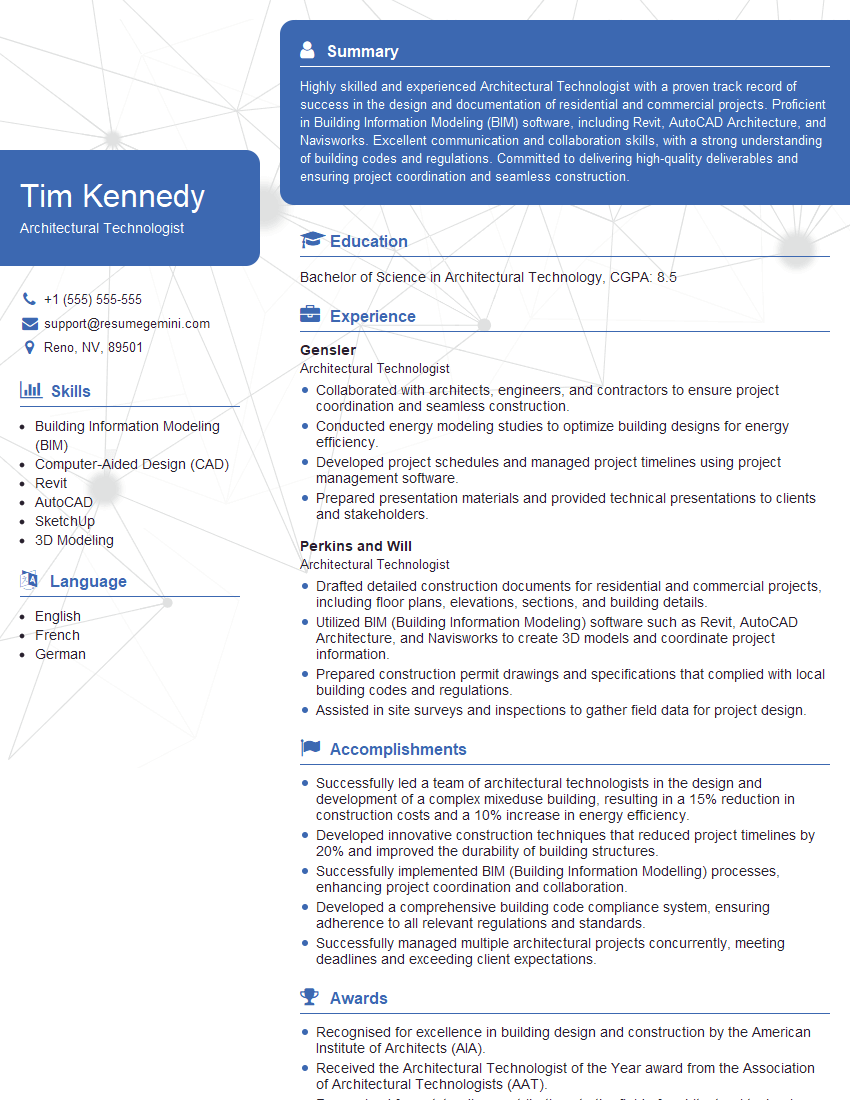
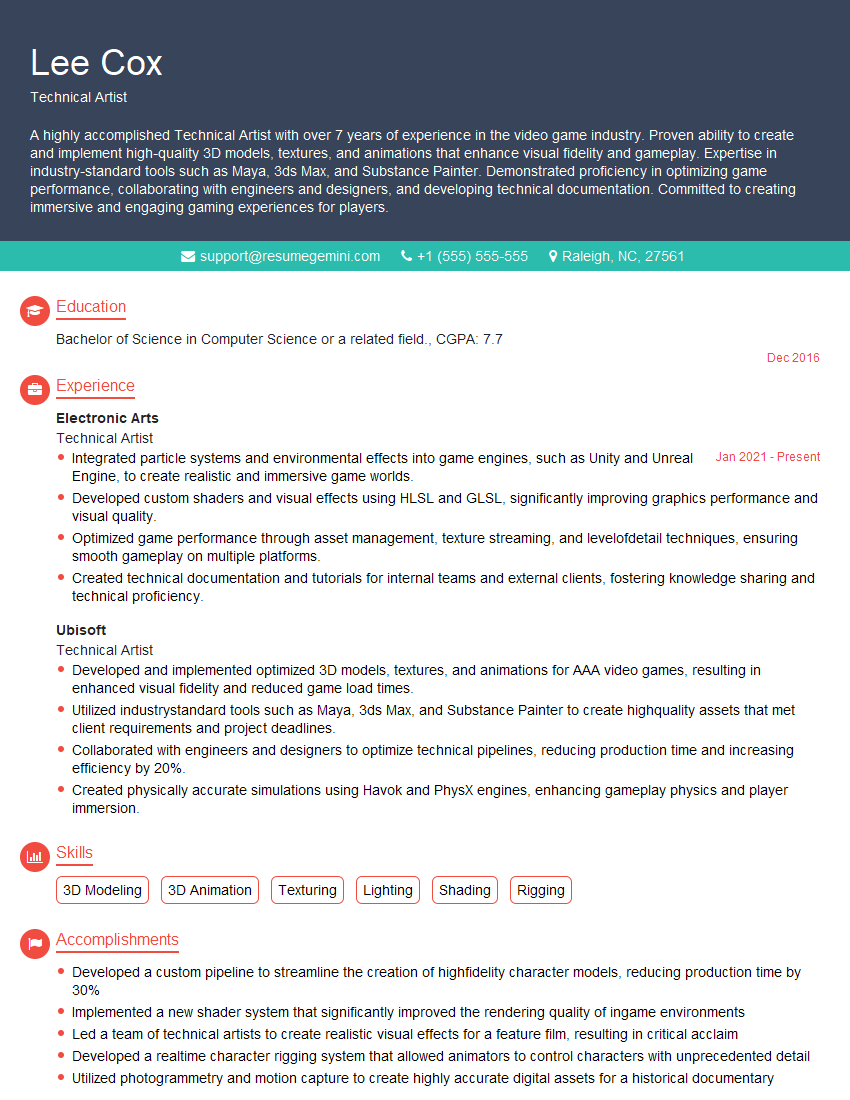
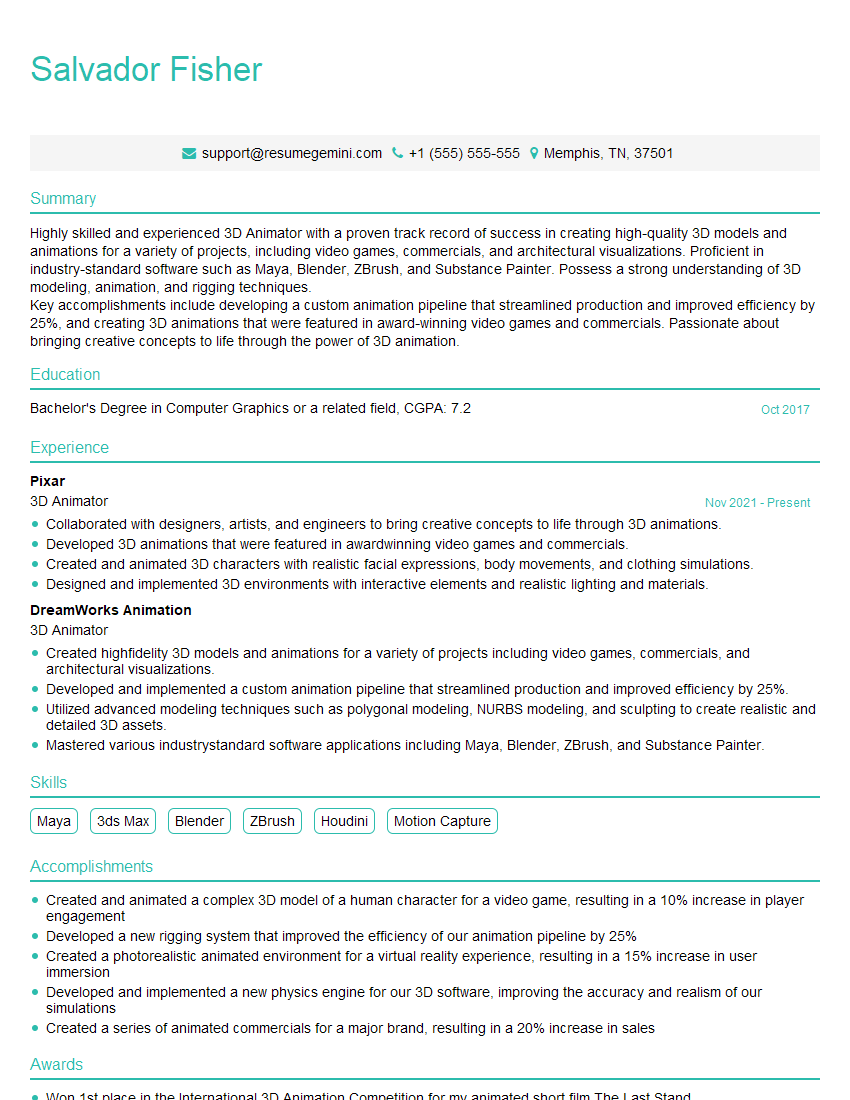
Mastering 3D rendering software like SketchUp and Lumion is crucial for career advancement in architecture, design, and visualization fields. It opens doors to exciting opportunities and allows you to showcase your creative and technical abilities. To maximize your job prospects, create an ATS-friendly resume that highlights your skills effectively. ResumeGemini is a trusted resource to help you build a professional and impactful resume. Examples of resumes tailored to 3D rendering software skills (SketchUp and Lumion) are available to guide you. Invest time in creating a strong resume; it’s your first impression to potential employers.
Explore more articles
Users Rating of Our Blogs
Share Your Experience
We value your feedback! Please rate our content and share your thoughts (optional).
What Readers Say About Our Blog
Really detailed insights and content, thank you for writing this detailed article.
IT gave me an insight and words to use and be able to think of examples