Feeling uncertain about what to expect in your upcoming interview? We’ve got you covered! This blog highlights the most important Computer Proficiency (Microsoft Office, SAP) interview questions and provides actionable advice to help you stand out as the ideal candidate. Let’s pave the way for your success.
Questions Asked in Computer Proficiency (Microsoft Office, SAP) Interview
Q 1. Explain your experience with Microsoft Excel’s pivot tables.
PivotTables in Microsoft Excel are powerful tools for summarizing and analyzing large datasets. Think of them as interactive, dynamic summaries that allow you to quickly drill down into the details of your data. They allow you to reorganize and summarize data from a single source or multiple sources.
My experience includes using PivotTables to analyze sales data, identifying top-performing products and regions. For instance, I used a PivotTable to analyze monthly sales figures across different product categories and sales regions. I easily identified the best-selling product in each region and the overall sales trends over time by simply dragging and dropping fields. This allowed me to quickly create charts and graphs to visualize the data and present meaningful insights to stakeholders.
Another example involves using PivotTables to analyze customer survey data. By pivoting the data based on demographic information and survey responses, I was able to identify trends and patterns in customer satisfaction, enabling data-driven improvements to our products and services.
Beyond basic summarization, I’m proficient in using calculated fields and calculated items within PivotTables to create custom metrics and perform complex analyses. I can leverage the filtering and sorting capabilities to focus on specific aspects of the data and extract actionable insights efficiently.
Q 2. Describe your proficiency in creating macros in Microsoft Excel.
I have extensive experience creating macros in Microsoft Excel using VBA (Visual Basic for Applications). Macros automate repetitive tasks, saving considerable time and reducing the risk of human error. They are essential for enhancing productivity and efficiency.
For example, I developed a macro to automate the process of importing data from a text file, cleaning the data (removing inconsistencies, handling missing values), and then formatting it according to specific requirements. This process, which originally took hours manually, now takes just minutes.
Another example involved a macro that automatically generated reports, including charts and graphs, based on the latest data. This allowed for quick and consistent report generation without manual intervention. My macros often incorporate error handling and user prompts to enhance usability and robustness.
'Example VBA code snippet to add two cells: Sub AddTwoCells() Range("C1").Value = Range("A1").Value + Range("B1").Value End Sub I’m comfortable with debugging macros and using the VBA editor to refine and improve existing code. My approach to macro development prioritizes clarity, efficiency, and maintainability, ensuring that the macros are easy to understand and modify as needed.
Q 3. How do you handle large datasets in Microsoft Excel?
Handling large datasets in Excel requires strategic planning and a combination of techniques to ensure efficiency and prevent performance issues. Simply opening a massive dataset directly can crash Excel. My approach involves several steps:
- Data Reduction/Sampling: If feasible, I start by reducing the dataset size. This could involve selecting a representative sample of the data for analysis or focusing on specific relevant columns.
- Power Query (Get & Transform Data): This powerful tool allows for efficient data cleaning, transformation, and shaping before importing into Excel. It handles large datasets more effectively than manual methods.
- Data Storage and Access: For extremely large datasets, I consider external databases like Access or SQL Server. Excel can then access and query the data efficiently using techniques like ODBC or ADO connections.
- Advanced Filtering and Slicing: Instead of loading the entire dataset into memory, I utilize advanced filtering techniques to load and analyze only the relevant subset of data at any given time.
- Data Consolidation: If data resides in multiple files, I consolidate them using Power Query to create a single, manageable source.
By employing these strategies, I ensure that Excel’s performance remains optimal even when dealing with voluminous data, leading to efficient analysis and reporting.
Q 4. What are your preferred methods for data visualization in Microsoft Excel?
My preferred methods for data visualization in Excel depend on the type of data and the message I’m trying to convey. I believe in choosing the right chart for the right data, avoiding misleading representations.
- Bar and Column Charts: Excellent for comparing categories or showing changes over time. I use these frequently to illustrate sales figures across different regions or product categories.
- Line Charts: Ideal for displaying trends and patterns over time, such as sales growth or website traffic.
- Pie Charts: Useful for showing proportions or parts of a whole, for example, market share.
- Scatter Plots: Show the relationship between two variables. These are very useful for correlation analysis.
- Maps (Excel 365): Visualize geographical data; extremely helpful for sales analysis by region.
Beyond the chart type, I always ensure that my visualizations are clear, concise, and well-labeled. This includes appropriate titles, axis labels, and legends. I focus on using color palettes effectively to enhance readability and avoid confusion. I consider the audience and tailor the visualization to their understanding.
Q 5. How familiar are you with Microsoft PowerPoint’s advanced animation features?
I’m quite familiar with PowerPoint’s advanced animation features. Beyond simple animations, I use these features to create engaging and informative presentations that capture the audience’s attention and enhance understanding.
I frequently use features like:
- Animations on text and objects: To emphasize key points or reveal information gradually.
- Transitions between slides: To provide a smooth and professional flow.
- Custom animation timings and effects: To precisely control the presentation’s pacing and visual impact.
- Trigger animations: To create interactive elements, enhancing audience engagement.
My approach is to use animations thoughtfully and purposefully, enhancing the presentation without overwhelming the viewer. The focus remains on clear communication of the content; animations are a supportive, not distracting, element.
Q 6. Describe your experience with Microsoft Access database design and management.
I have significant experience designing and managing databases using Microsoft Access. This includes designing tables, establishing relationships between tables, creating queries, forms, and reports.
For example, I designed a database for a small business to manage customer information, orders, and inventory. This involved defining fields for each table, ensuring data integrity through constraints (e.g., data types, primary keys, foreign keys), and creating relationships between tables to allow efficient data retrieval.
I also developed queries to extract specific information, such as customer orders within a certain date range or low-stock inventory items. I designed user-friendly forms for data entry and updates, and created reports to provide summarized information for management decision-making. My approach emphasizes data normalization to minimize redundancy and improve data consistency, resulting in a well-structured and maintainable database.
Q 7. How comfortable are you using Microsoft Outlook for managing emails and calendars?
I am very comfortable using Microsoft Outlook for managing emails and calendars. It’s an essential tool for my daily workflow. I routinely use it to organize emails into folders, prioritize tasks, schedule appointments and meetings, and manage contacts.
I use features like:
- Categorization and filtering of emails: To efficiently manage a large volume of emails and prioritize important messages.
- Calendar scheduling and reminders: To ensure timely completion of tasks and efficient time management.
- Contact management: To maintain a well-organized contact list for easy access to important information.
- Rules and automation: To streamline email management by automatically routing or filtering emails based on specific criteria.
My approach to Outlook prioritizes efficiency and organization. A well-organized inbox and calendar are key to maintaining productivity and minimizing stress in a busy professional environment.
Q 8. Explain your experience with Microsoft Word’s mail merge functionality.
Mail merge in Microsoft Word is a powerful tool that allows you to create personalized documents from a single template and a data source. Imagine sending hundreds of customized letters to clients – instead of typing each one individually, mail merge automates this process. It works by combining a main document (like a letter template) with a data source (like a spreadsheet containing client names and addresses). Word then merges the data from each row of the spreadsheet into the template, generating unique documents.
In my experience, I’ve extensively used mail merge for various tasks. For instance, I once created personalized invitation letters for a large conference. The data source included attendee names, affiliations, and dietary restrictions. The main document contained the invitation text with merge fields (placeholders like <, <) that were dynamically populated from the data source. This saved me countless hours and ensured accuracy.
Another practical application was generating customized reports for different clients. Each report had a standard format but required different data inputs based on the client’s specific needs. Mail merge allowed me to efficiently generate tailored reports without manual editing for every client.
My proficiency extends to handling complex merge fields, using different data sources (Excel spreadsheets, Access databases), and troubleshooting any errors that may arise during the merging process. I’m comfortable optimizing the merge process for efficiency and ensuring data accuracy.
Q 9. What is your experience with SAP modules (e.g., FI, CO, MM, SD)?
I have significant experience with several key SAP modules, primarily focusing on Financial Accounting (FI), Controlling (CO), Materials Management (MM), and Sales and Distribution (SD). Think of SAP as the central nervous system of a large organization, managing everything from finances to supply chains. Each module plays a critical role.
- FI (Financial Accounting): I’ve worked with general ledger accounting, accounts payable and receivable, asset accounting, and financial reporting. I’m proficient in using FI transactions for posting documents, managing accounts, and generating financial statements.
- CO (Controlling): My experience includes cost center accounting, profit center accounting, and internal order management. This involves setting up cost structures, tracking costs, and performing cost analyses.
- MM (Materials Management): I’m familiar with procurement processes, inventory management, and vendor master data maintenance. This includes creating purchase orders, managing stock levels, and tracking material movements.
- SD (Sales and Distribution): I’ve worked with sales order processing, delivery management, billing, and customer master data. This involves creating sales orders, managing deliveries, and generating invoices.
My experience in these modules isn’t just theoretical; I’ve actively used them in real-world projects, solving problems and implementing improvements. For example, I once helped a company optimize their procurement process by implementing better inventory controls within the MM module, leading to significant cost savings.
Q 10. Describe your experience with SAP transactions and customizing them.
SAP transactions are the building blocks of the system. They’re essentially pre-defined programs that perform specific tasks within a module. Customizing them allows you to tailor the system to meet your company’s unique needs. Imagine a well-designed house – the transactions are like the rooms, and customizing them is like renovating those rooms to better suit your lifestyle.
I’m experienced in navigating various SAP transactions across different modules. For instance, in FI, I use transactions like FB01 (for creating accounting documents) and F-02 (for posting payments) regularly. In MM, I utilize ME21N (creating purchase orders) and MB51 (stock overview). Knowing these transactions and their functionalities is crucial for day-to-day operations.
My customization experience involves adapting standard transactions through configuration settings or using custom developments (ABAP programming – although I don’t directly code in ABAP, I work closely with ABAP developers to specify requirements). For example, I’ve configured custom fields in sales orders to capture specific client requirements not covered by the standard system. I’ve also worked on customizing workflows to improve efficiency and automate certain processes.
Q 11. How familiar are you with SAP reporting tools (e.g., BW, HANA)?
I’m familiar with several SAP reporting tools, including Business Warehouse (BW) and HANA. These tools are essential for extracting meaningful insights from the vast amounts of data stored within SAP. They allow you to transform raw data into actionable information, a bit like transforming ore into gold.
BW (Business Warehouse): BW is a data warehousing solution that consolidates data from various SAP modules into a centralized repository for reporting and analysis. I’ve worked with BW to create reports visualizing key performance indicators (KPIs), perform trend analysis, and generate custom reports based on specific business requirements. My experience extends to data modeling within BW, using its reporting tools to create dashboards and reports.
HANA (High-Performance Analytic Appliance): HANA is an in-memory database platform that significantly speeds up data processing and analysis. I understand its capabilities and how it’s used for real-time reporting and analytics. I’ve worked with HANA-based reporting tools to access and analyze data in a much more efficient manner compared to traditional reporting methods.
My experience with these tools includes designing, building, and deploying reports tailored to business needs, ensuring data accuracy, and providing support to end-users.
Q 12. Explain your experience with SAP data migration and integration.
SAP data migration and integration are crucial for ensuring smooth transitions between systems or when implementing new SAP modules. It involves moving data from legacy systems or other sources into the SAP system. It’s like moving furniture from an old house to a new one – you need a careful plan and execution.
My experience includes working on various data migration projects using tools like LSMW (Legacy System Migration Workbench) and third-party migration tools. I’ve been involved in the entire process, from planning and data mapping to data cleansing and validation. This involves understanding data structures, transforming data into a format compatible with SAP, and ensuring data integrity.
I’ve worked on integrating SAP with external systems, using interfaces like IDocs and APIs to exchange data seamlessly. For example, I’ve helped implement an interface between SAP and a CRM system to synchronize customer data. I understand the importance of data quality and consistency throughout the migration and integration process, ensuring that the data remains accurate and reliable after the migration.
Q 13. Describe your experience with SAP security roles and authorizations.
SAP security roles and authorizations are crucial for protecting sensitive data and ensuring that only authorized users can access specific functionalities. It’s like having a security system in your house, ensuring only you and your family can access different areas.
I have experience in managing user roles and authorizations in SAP using transaction SU01 (user maintenance) and PFCG (role maintenance). This includes creating and assigning roles to users based on their responsibilities, restricting access to sensitive data and transactions, and ensuring compliance with security policies. My understanding extends to segregation of duties, ensuring that no single user has excessive access that could lead to security vulnerabilities.
I also understand the importance of regular security audits and reviews to identify and address potential security gaps. For example, I’ve worked on projects that involved implementing role-based access control (RBAC) to enhance security and compliance.
Q 14. What is your experience with SAP Workflow management?
SAP Workflow Management enables the automation of business processes, streamlining operations and reducing manual intervention. Imagine a well-oiled machine – workflows automate tasks, ensuring that everything runs smoothly and efficiently.
My experience includes working with SAP workflows to automate various business processes. For instance, I’ve implemented workflows for purchase order approvals, where the system automatically routes purchase orders for approval based on predefined rules and the organizational structure. I’ve also implemented workflows for invoice processing, automating the approval and payment process.
My knowledge extends to designing, configuring, and troubleshooting workflows. I understand how to define workflow steps, participants, and decision points to create efficient and effective processes. I can also analyze existing workflows to identify areas for improvement and optimization.
Q 15. How familiar are you with SAP’s user interface and navigation?
My familiarity with SAP’s user interface and navigation is extensive. I’ve worked with various SAP modules, including SAP ERP, SAP S/4HANA, and SAP SuccessFactors. I understand the role of the SAP GUI, transaction codes (T-Codes), and the importance of navigating efficiently through menus, customizing the user interface for personalized workflows, and leveraging features such as favorites and quick launches to access frequently used transactions. For instance, I’m adept at using T-codes to directly access specific modules and functions, saving significant time compared to navigating through multiple menus. My experience also includes using SAP Fiori, the next-generation user experience, which streamlines tasks using intuitive tiles and role-based access. I understand how to effectively utilize SAP’s search functionality and the help documentation to resolve any navigation uncertainties or unfamiliar processes.
Career Expert Tips:
- Ace those interviews! Prepare effectively by reviewing the Top 50 Most Common Interview Questions on ResumeGemini.
- Navigate your job search with confidence! Explore a wide range of Career Tips on ResumeGemini. Learn about common challenges and recommendations to overcome them.
- Craft the perfect resume! Master the Art of Resume Writing with ResumeGemini’s guide. Showcase your unique qualifications and achievements effectively.
- Don’t miss out on holiday savings! Build your dream resume with ResumeGemini’s ATS optimized templates.
Q 16. How do you troubleshoot common issues in Microsoft Office applications?
Troubleshooting Microsoft Office applications involves a systematic approach. I begin by identifying the specific error message or the nature of the problem. Then, I use a combination of techniques, such as:
- Checking for updates: Ensuring all applications and related software are updated to their latest versions often resolves compatibility issues.
- Restarting the application and the computer: This simple step often resolves temporary glitches.
- Reviewing file properties: Sometimes incorrect file permissions or file corruption can cause problems. I’ll check permissions and attempt repairs if necessary.
- Using built-in troubleshooting tools: Microsoft Office provides built-in diagnostic tools that can detect and fix common issues. For instance, in Word, checking the spelling and grammar functionality can quickly identify and fix errors.
- Searching for online solutions: If the issue is unique or complex, I’ll search online forums and Microsoft support documentation for solutions.
- Reinstalling the application: As a last resort, if other methods fail, reinstalling the application can resolve more serious problems.
For example, if a Word document is unresponsive, I’d first try closing and restarting. If that fails, I’d check for updates and then explore more advanced troubleshooting steps.
Q 17. How do you handle data inconsistencies or errors in Microsoft Excel?
Handling data inconsistencies or errors in Microsoft Excel requires careful attention to detail and a methodical approach. I typically use these methods:
- Data validation: I use Excel’s data validation tools to prevent incorrect data entry from the outset. This can include setting criteria for cell values, like requiring numerical inputs or specific text formats.
- Data cleaning: This involves identifying and correcting errors, such as duplicate entries, missing values, or inconsistent formats. I often use functions like
COUNTIFandUNIQUEto identify and deal with duplicates. - Conditional formatting: Highlighting cells based on criteria such as inconsistencies or errors (e.g., highlighting cells with values outside a specified range) helps to quickly identify problems visually.
- Formula auditing: Excel’s formula auditing tools (Trace Precedents, Trace Dependents, etc.) help to understand how data is being calculated and can identify errors in formulas.
- Pivot tables and charts: Summarizing and visualizing data using pivot tables can quickly reveal inconsistencies or patterns that indicate errors.
- Using advanced features like Power Query: Power Query allows for complex data transformation, cleaning, and consolidation, significantly reducing manual effort and improving data integrity.
For instance, if I find inconsistent date formats in a spreadsheet, I would use the TEXT function to standardize the format, or Power Query to automatically transform the data for consistency.
Q 18. Describe your experience with collaborative editing in Microsoft Office applications.
My experience with collaborative editing in Microsoft Office applications is extensive. I am proficient in using the co-authoring features in Word, Excel, and PowerPoint. I understand the importance of version control, resolving conflicting edits, and ensuring clear communication among collaborators. I’ve successfully managed multiple collaborators on projects, utilizing features such as track changes, comments, and real-time co-authoring to maintain a streamlined workflow. In practical terms, this means I’m comfortable using the built-in comment features to provide feedback, using tracked changes to show edits and their rationale and understanding how to resolve merge conflicts when multiple users are simultaneously modifying a document. I also prioritize clear communication with collaborators to avoid ambiguity and ensure everyone understands the overall project goals and editing guidelines.
Q 19. How do you ensure data accuracy and integrity in your work?
Ensuring data accuracy and integrity is paramount in my work. I employ several strategies:
- Data validation: Implementing input validation rules at the source to prevent inaccurate data entry.
- Cross-referencing: Comparing data from multiple sources to identify discrepancies.
- Regular audits: Conducting periodic data audits to identify and correct errors.
- Data backups: Maintaining regular backups to prevent data loss.
- Documentation: Thoroughly documenting data sources, processes, and transformations.
- Using version control: (If applicable) Maintaining version control of documents and spreadsheets allows for easy tracking of changes and the ability to revert to previous versions if needed.
For example, before using data in a critical analysis, I always cross-check it against another reliable source to verify its accuracy. This careful approach reduces the risk of relying on faulty information.
Q 20. What methods do you use to improve efficiency in Microsoft Office?
Improving efficiency in Microsoft Office involves mastering several techniques:
- Keyboard shortcuts: Proficiently using keyboard shortcuts significantly accelerates workflow, avoiding the need to constantly use the mouse. For example,
Ctrl+C(copy),Ctrl+V(paste),Ctrl+B(bold), are vital shortcuts. - Automation with macros: I leverage VBA (Visual Basic for Applications) to automate repetitive tasks, saving substantial time and minimizing errors. This could be creating a macro to format a spreadsheet in a specific way or automatically creating reports.
- Using templates: Creating and using templates for commonly used documents standardizes formatting and speeds up document creation.
- Mastering advanced features: Proficient use of features such as pivot tables, Power Query, and data validation greatly streamlines data analysis and manipulation.
- Effective use of Styles: Consistency in formatting and styles ensures uniformity and facilitates quick editing and updating of large documents.
For instance, I use macros to automate the process of generating monthly reports, significantly reducing the time required compared to manual creation. Mastering these techniques is not just about speed; it’s about consistency and minimizing errors.
Q 21. What are some common challenges you encounter when working with large datasets?
Working with large datasets presents several challenges:
- Performance issues: Large datasets can slow down application performance, making tasks time-consuming. This can be mitigated by optimizing data structures, using efficient formulas and potentially using specialized tools like Power BI or other database management systems for data analysis.
- Data management complexity: Organizing, cleaning, and manipulating large datasets requires robust data management techniques, and possibly specialized database management software. Using Power Query or similar tools can improve this.
- Memory limitations: Very large datasets might exceed the available memory, leading to crashes or errors. Splitting datasets, using database solutions, and efficient data processing techniques are necessary to address this.
- Data analysis complexity: Analyzing large datasets requires sophisticated analytical techniques and tools. Using data visualization tools, like Power BI, or programming languages such as Python or R, becomes crucial for effective analysis.
I have overcome these challenges by employing techniques like data sampling, data aggregation, and utilizing appropriate database management systems and analytical tools to improve processing speed and efficiently analyze the data.
Q 22. How do you maintain data security in Microsoft Office and SAP?
Maintaining data security in both Microsoft Office and SAP requires a multi-layered approach. It’s not just about software features, but also about establishing strong organizational policies and user practices.
In Microsoft Office:
- Password Protection: Employ strong, unique passwords for all documents and workbooks. Think of a password like a key – the stronger the key, the more secure your data.
- Restricting Access: Use permissions to control who can view, edit, or print documents. This is akin to having a security system in a building; you don’t want everyone to have access to every room.
- Information Rights Management (IRM): For sensitive data, IRM allows you to control how documents are accessed and used, even after they’ve been shared. This is like adding an extra layer of security to your digital files.
- Regular Backups: Consistent backups to a secure location prevent data loss due to accidental deletion or hardware failure. Think of this as your data’s insurance policy.
In SAP:
- Role-Based Access Control (RBAC): SAP utilizes RBAC to ensure that only authorized users have access to specific data and functions. This is similar to assigning different levels of access within an organization, from staff to executive level.
- Authorization Objects: These control access to specific data and transactions within SAP. It’s a fine-grained control mechanism that safeguards sensitive information.
- Data Encryption: Both in transit and at rest, data should be encrypted to protect it from unauthorized access. This is like using a locked safe to store valuable documents.
- Regular Security Audits: Conduct regular security audits to identify and address potential vulnerabilities. This is like having a security inspection to make sure your system is secure.
Both systems benefit from strong password policies, regular software updates, and employee training on security best practices. A proactive and comprehensive approach is essential for maintaining data integrity and confidentiality.
Q 23. Explain your understanding of data validation in Microsoft Excel.
Data validation in Microsoft Excel is the process of ensuring data accuracy and consistency. It prevents errors by restricting the type of data entered into specific cells and identifying invalid entries. Think of it like a quality check for your spreadsheet data.
Methods of Data Validation:
- Whole Number: Allows only integers.
- Decimal: Permits numbers with decimal points.
- List: Restricts input to a predefined set of values.
- Date: Accepts only valid dates.
- Time: Only allows valid time formats.
- Text Length: Limits the number of characters entered.
- Custom: Allows for creating more complex validation rules using formulas.
Example: Let’s say you have a column for ‘Age’. You could apply a whole number validation rule, specifying a minimum of 0 and a maximum of 120. This prevents someone from accidentally entering a negative age or an unrealistic age like 200.
Input Message: You can add a helpful input message to guide users on the type of data expected.
Error Alert: You can also define an error alert message that appears if someone tries to enter invalid data. This helps to prevent data entry errors immediately.
Data validation is crucial for maintaining the integrity and reliability of your Excel spreadsheets, preventing errors that could lead to incorrect analysis or decision-making. It’s like having a built-in proofreader for your numerical data.
Q 24. Describe your experience with using formulas and functions in Microsoft Excel.
Formulas and functions are the backbone of data manipulation and analysis in Microsoft Excel. My experience spans a wide range of functions, from simple calculations to complex statistical analyses. I’m proficient in using them to automate calculations, extract insights, and generate reports.
Examples of my experience:
- Basic Arithmetic:
=SUM(A1:A10),=AVERAGE(B1:B10),=PRODUCT(C1:C10) - Lookup Functions:
=VLOOKUP(value, table_array, col_index_num, [range_lookup]),=HLOOKUP(value, table_array, row_index_num, [range_lookup]),=INDEX(array, row_num, [col_num]),=MATCH(lookup_value, lookup_array, [match_type]) - Logical Functions:
=IF(logical_test, value_if_true, value_if_false),=AND(logical1, [logical2], ...),=OR(logical1, [logical2], ...) - Statistical Functions:
=AVERAGE(number1, [number2], ...),=MAX(number1, [number2], ...),=MIN(number1, [number2], ...),=STDEV(number1, [number2], ...) - Text Functions:
=CONCATENATE(text1, [text2], ...),=LEFT(text, num_chars),=RIGHT(text, num_chars),=LEN(text)
I’ve utilized these functions in various scenarios, including budget forecasting, sales analysis, and performance tracking. I’m adept at nesting functions to create complex calculations and achieve desired outcomes. My approach is always to break down complex problems into smaller, manageable steps, using the most appropriate functions for each part.
Q 25. How do you use conditional formatting in Microsoft Excel?
Conditional formatting in Microsoft Excel allows you to visually highlight cells that meet specific criteria. It’s a powerful tool for quickly identifying trends, outliers, and important data points. Think of it as adding visual cues to your spreadsheet, making it easier to understand at a glance.
Common uses:
- Highlighting cells above/below a certain value: This is useful for identifying top performers or areas needing attention.
- Data bars: Visually represent the magnitude of data within a cell.
- Color scales: Gradient colors to represent data ranges.
- Icon sets: Use icons to show performance levels (e.g., green check for good, red cross for bad).
- Highlighting duplicates: Quickly identify duplicate entries.
Example: Imagine a sales report. You could use conditional formatting to highlight cells with sales exceeding a target amount in green and those falling short in red. This makes it immediately obvious which sales representatives exceeded expectations and which ones need support.
I routinely use conditional formatting to enhance data visualization and analysis in my spreadsheets, making data interpretation more efficient and insightful.
Q 26. Explain your experience with different chart types in Microsoft Excel.
My experience with chart types in Microsoft Excel is extensive, encompassing various types to effectively communicate data insights. The choice of chart depends on the nature of the data and the message I want to convey. Different charts serve different purposes, just as different tools are suited for different tasks.
Chart Types and their Applications:
- Column/Bar Charts: Ideal for comparing different categories or showing changes over time.
- Line Charts: Best for displaying trends and continuous data over time.
- Pie Charts: Excellent for showing proportions of a whole.
- Scatter Plots: Useful for exploring relationships between two variables.
- Area Charts: Show cumulative data or total over time.
- Combo Charts: Combine different chart types to show multiple perspectives on the same data.
Example: If I’m analyzing monthly sales figures, a line chart would clearly illustrate the trend over time. If I’m comparing sales across different product categories, a column chart would be more appropriate. For showing market share, a pie chart is best. The right chart selection significantly impacts the clarity and effectiveness of the data presentation. I carefully choose the chart type to ensure the data is communicated clearly and accurately.
Q 27. What is your experience with SAP Fiori applications?
My experience with SAP Fiori applications is considerable. I’ve used various Fiori apps for tasks ranging from data entry and analysis to reporting and process management. Fiori apps offer a user-friendly interface, improving the overall user experience within the SAP ecosystem.
Specific Examples:
- Fiori Launchpad: I’m adept at navigating the Launchpad to access relevant applications efficiently.
- Transaction-Based Apps: I’ve utilized Fiori apps for common transactions like creating purchase orders, managing invoices, and viewing financial reports.
- Analytical Apps: I’ve leveraged Fiori apps to analyze data and create custom reports using different visualization tools.
Fiori’s intuitive interface and role-based access control features have improved my efficiency and effectiveness in interacting with SAP systems. I found that it simplifies complex processes, making them more user friendly. The ability to customize dashboards and create personalized views is a significant advantage. This makes the process of working with SAP data more efficient and user-friendly.
Q 28. How familiar are you with the latest versions of Microsoft Office and SAP?
I’m familiar with the latest versions of both Microsoft Office and SAP. I stay updated through online resources, training courses, and practical experience. Staying current is essential for leveraging the full potential of these powerful tools and maintaining efficiency.
Microsoft Office: I’m proficient with Microsoft 365, including the latest features in Word, Excel, PowerPoint, and Outlook. I’m aware of the enhanced collaboration features, improved automation capabilities, and the integration with other Microsoft services.
SAP: I’m familiar with the ongoing developments in SAP S/4HANA and the continuous enhancements in the Fiori user experience. I am aware of the cloud-based solutions and their impact on system integration and data management. I regularly research new functionalities and updates to ensure I’m employing best practices and maximizing the capabilities of the platform.
Continuous learning is crucial in the technology field. I actively seek opportunities to upgrade my skills and remain current with technological advances. This guarantees that I maintain a high level of proficiency and efficiency in using these industry standard softwares.
Key Topics to Learn for Computer Proficiency (Microsoft Office, SAP) Interview
- Microsoft Office Suite: Mastering Word, Excel, and PowerPoint is crucial. Focus on advanced features like formulas, macros, pivot tables (Excel), advanced formatting and mail merges (Word), and creating engaging presentations (PowerPoint).
- Practical Application (MS Office): Be prepared to discuss how you’ve used these tools to solve real-world problems, such as creating reports, analyzing data, or presenting findings effectively. Quantify your accomplishments whenever possible.
- SAP Modules: Depending on the specific job, familiarize yourself with relevant SAP modules (e.g., SAP ERP, SAP S/4HANA, SAP SuccessFactors). Understand core functionalities and common business processes within those modules.
- Practical Application (SAP): Prepare examples demonstrating your experience with SAP, focusing on efficiency improvements, data analysis using SAP tools, or problem-solving within the SAP environment. Highlight your contributions to streamlining processes or improving data accuracy.
- Data Analysis & Interpretation: Practice extracting meaningful insights from data using both Microsoft Excel and SAP reporting tools. Demonstrate your ability to interpret results and communicate them clearly.
- Troubleshooting & Problem Solving: Be ready to discuss instances where you encountered technical challenges within either Microsoft Office or SAP and how you effectively resolved them. Highlight your analytical and problem-solving skills.
- Data Management & Security: Understand best practices for data management and security within both Microsoft Office and SAP environments. Be prepared to discuss data integrity and compliance.
Next Steps
Mastering Computer Proficiency in Microsoft Office and SAP is paramount for career advancement in numerous fields. Demonstrating these skills effectively can significantly enhance your job prospects. To increase your chances of landing your dream role, create a compelling and ATS-friendly resume that highlights your accomplishments and skills. ResumeGemini is a trusted resource to help you build a professional and impactful resume tailored to your specific experience. Examples of resumes tailored to showcasing Computer Proficiency in Microsoft Office and SAP are available to further guide your preparation.

Office Manager Resume Sample
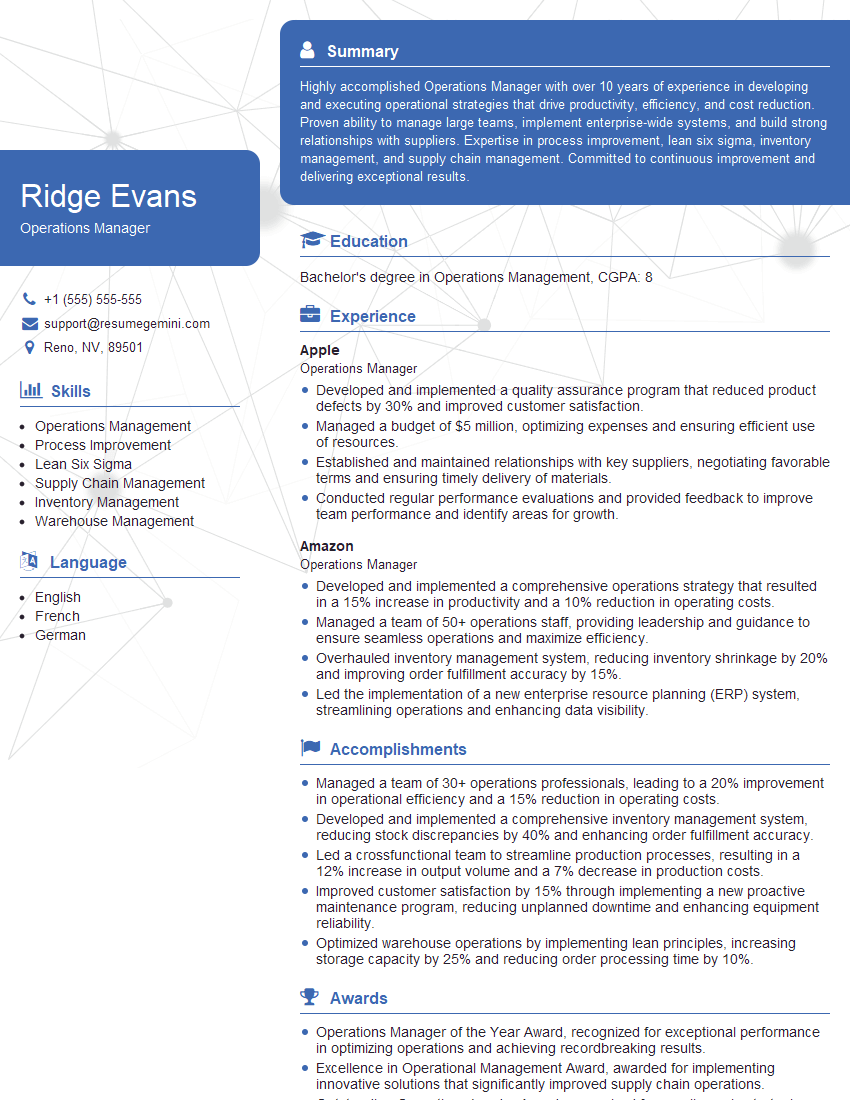
Operations Manager Resume Sample
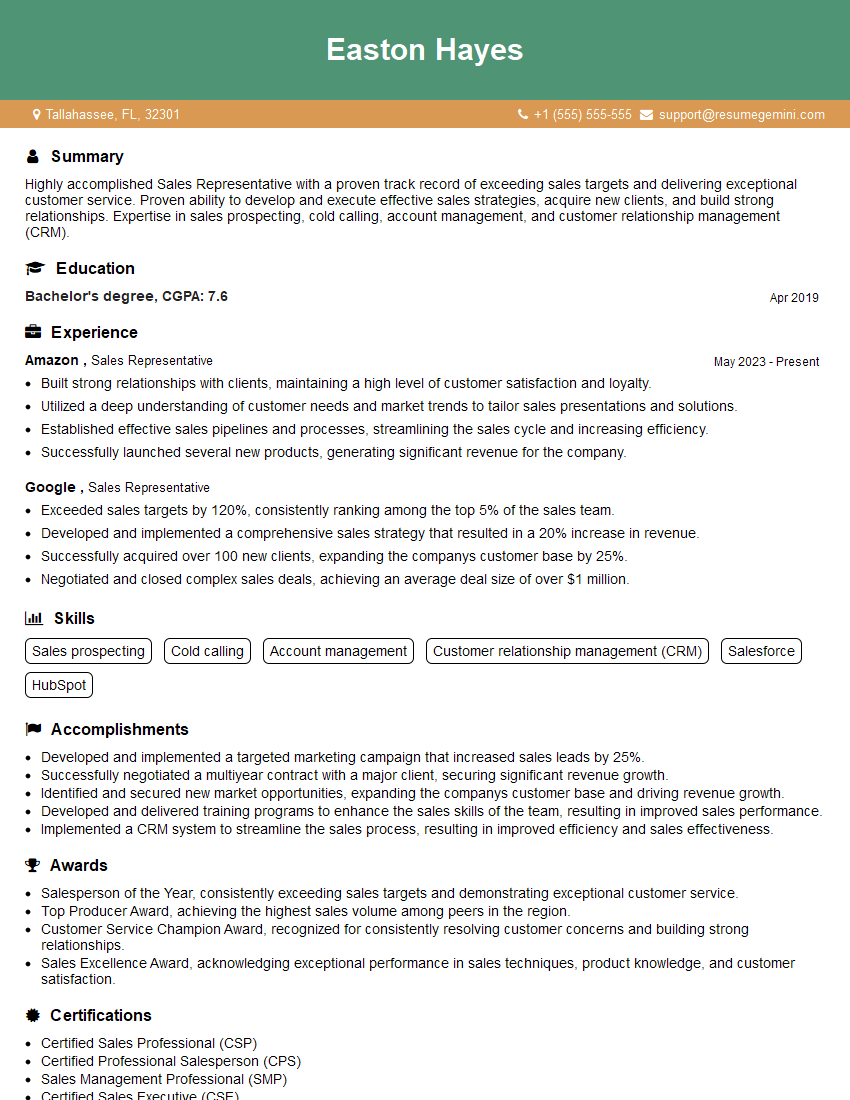
Sales Representative Resume Sample

Administrative Assistant Resume Sample
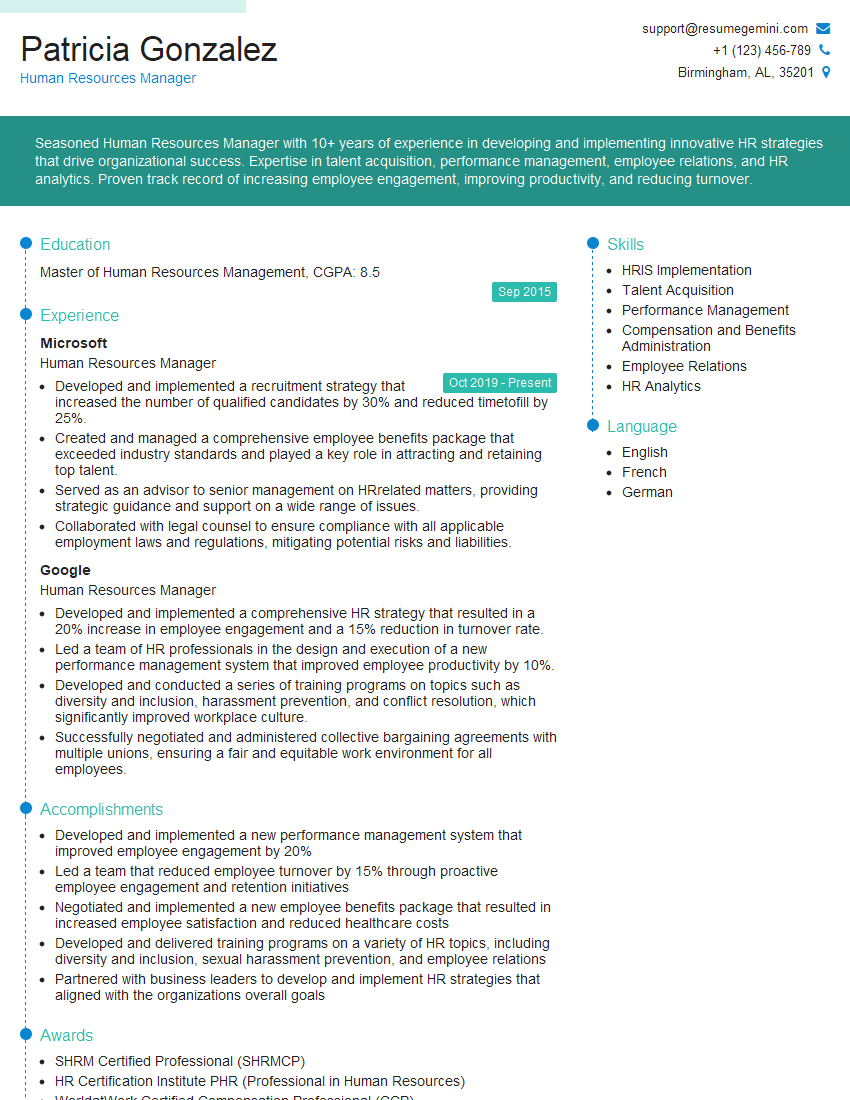
Human Resources Manager Resume Sample
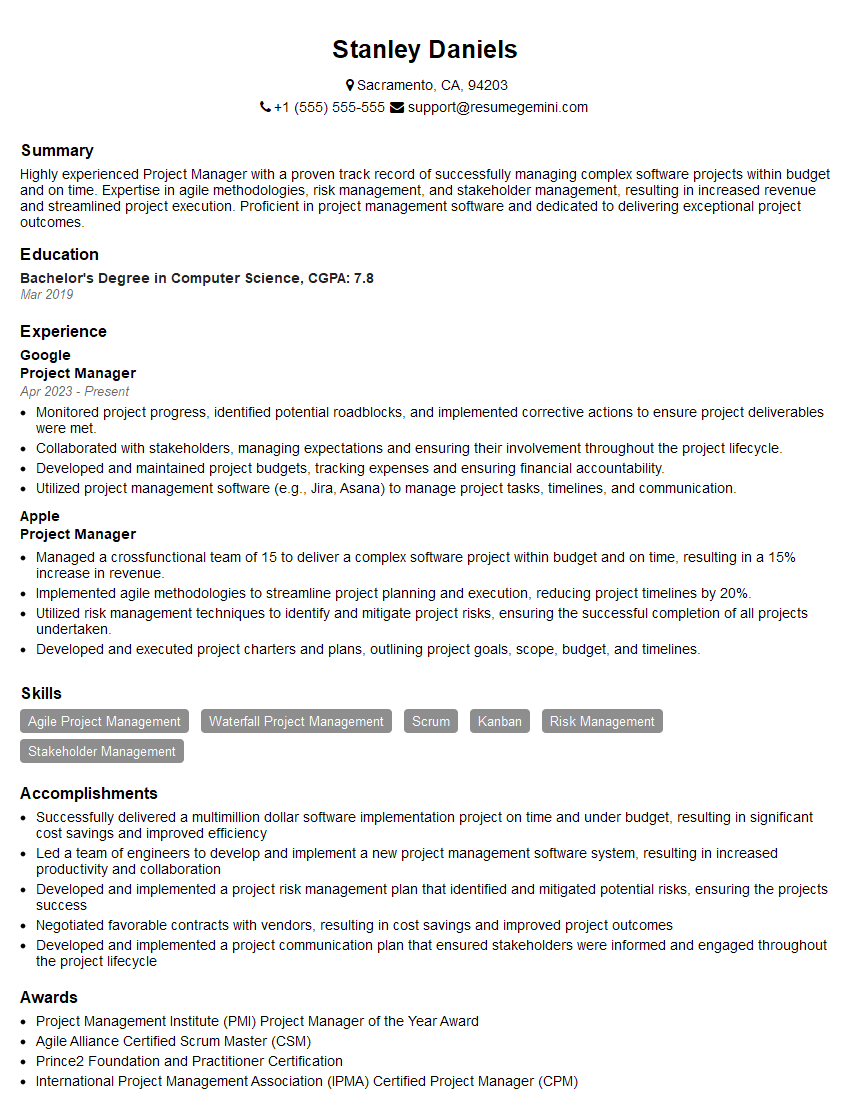
Project Manager Resume Sample
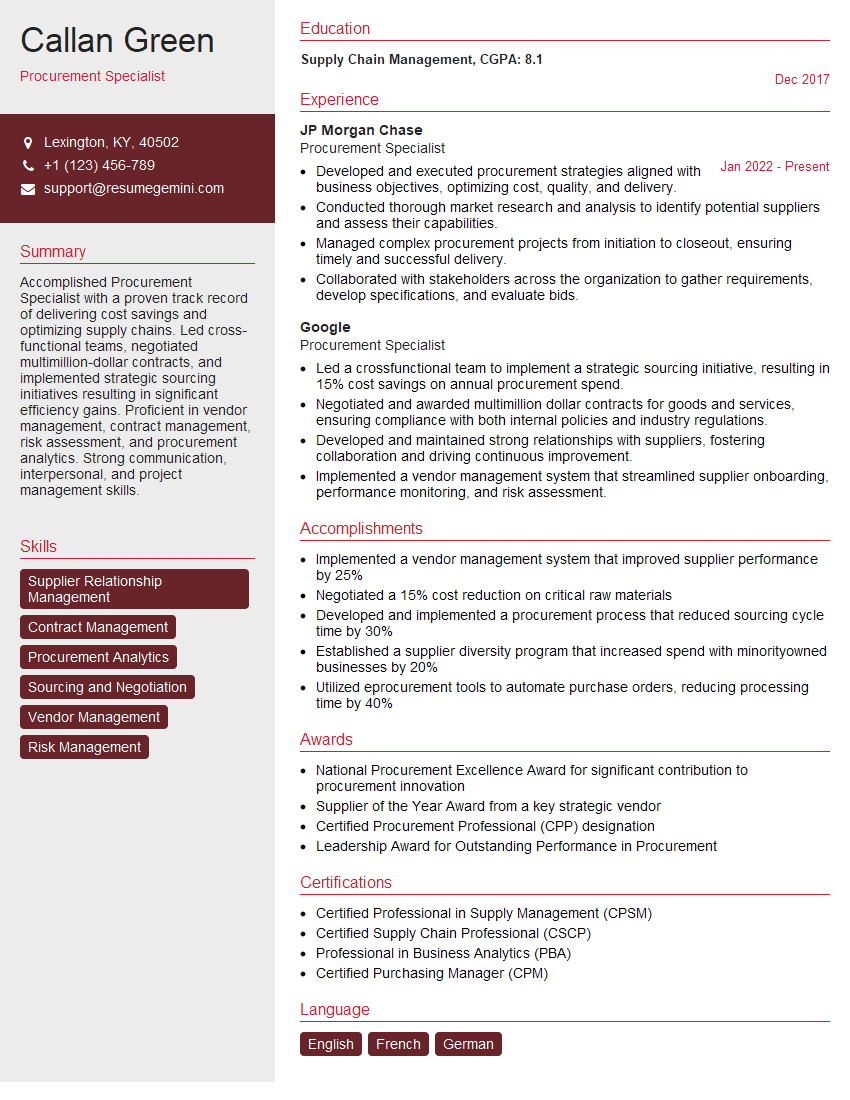
Procurement Specialist Resume Sample
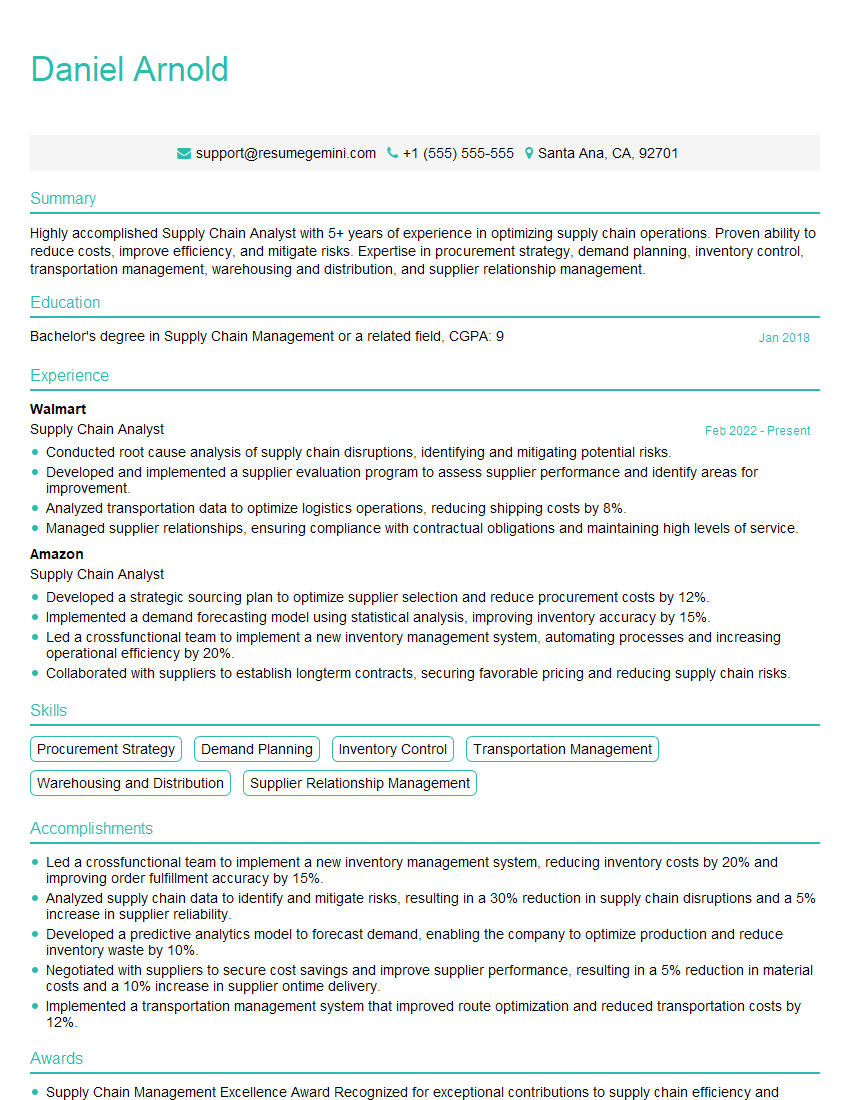
Supply Chain Analyst Resume Sample

Business Analyst Resume Sample
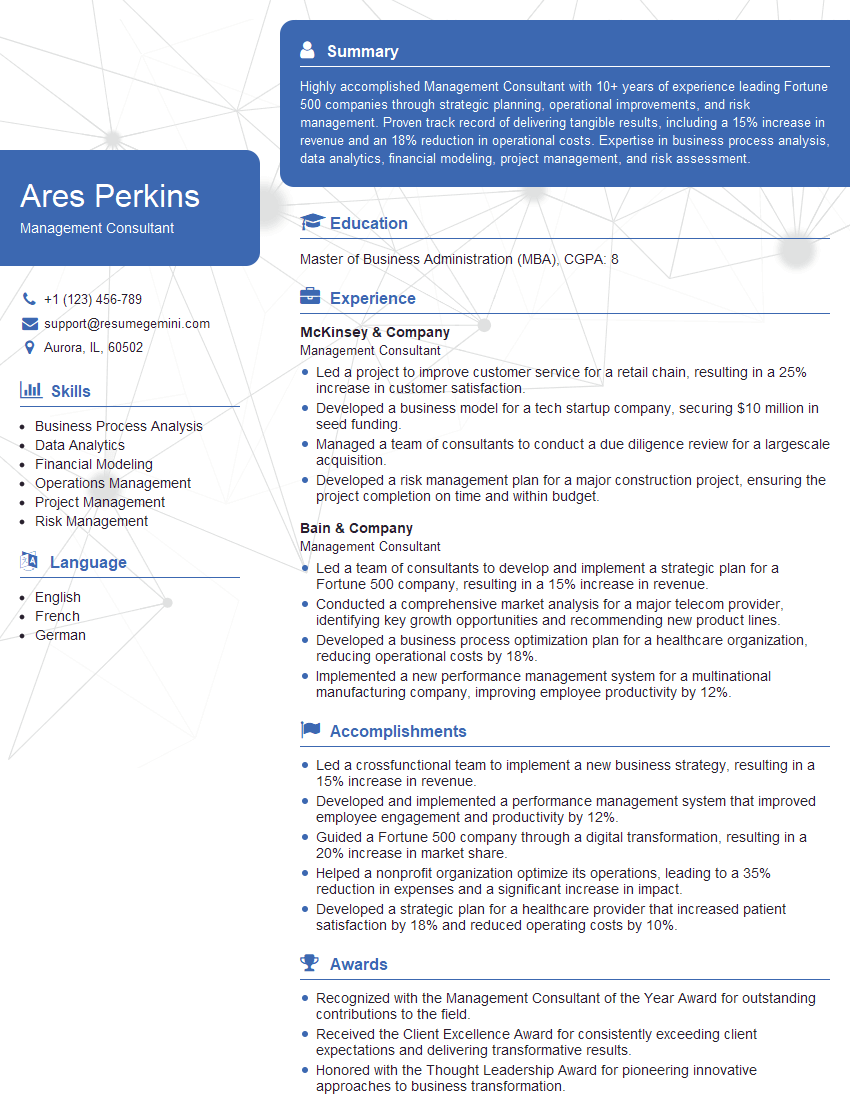
Management Consultant Resume Sample
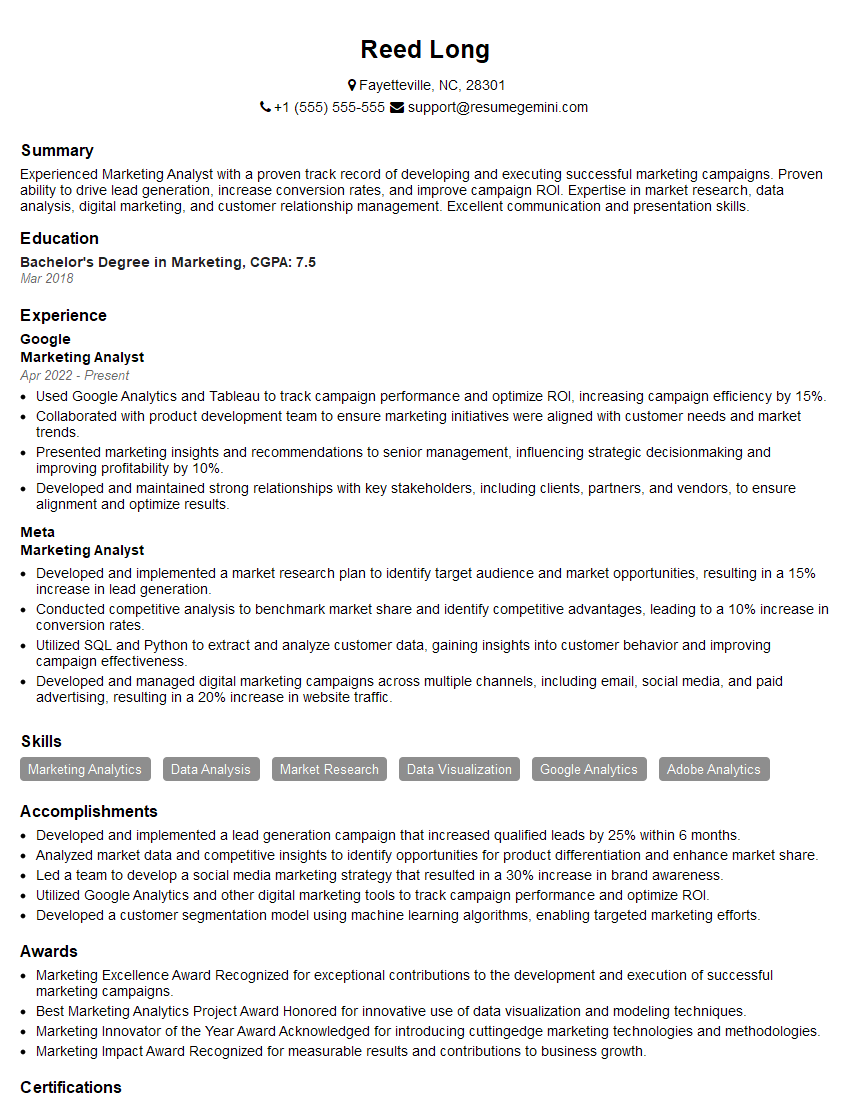
Marketing Analyst Resume Sample
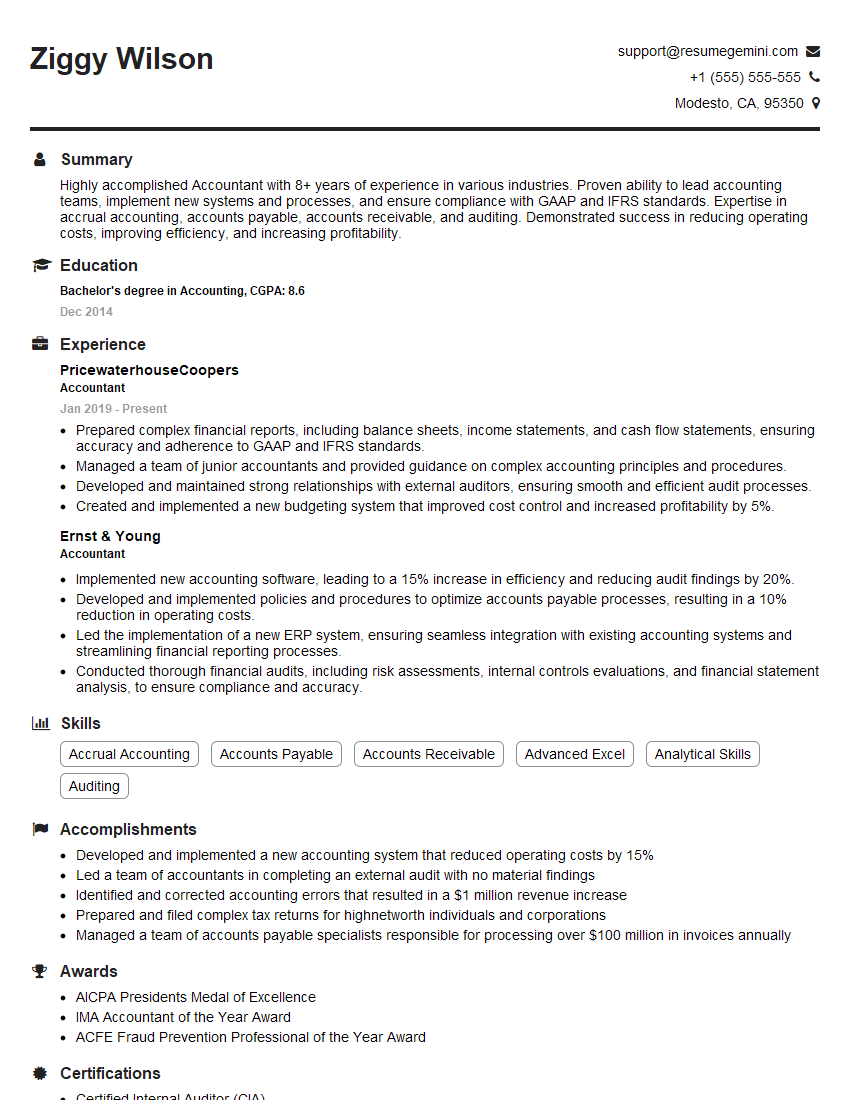
Accountant Resume Sample
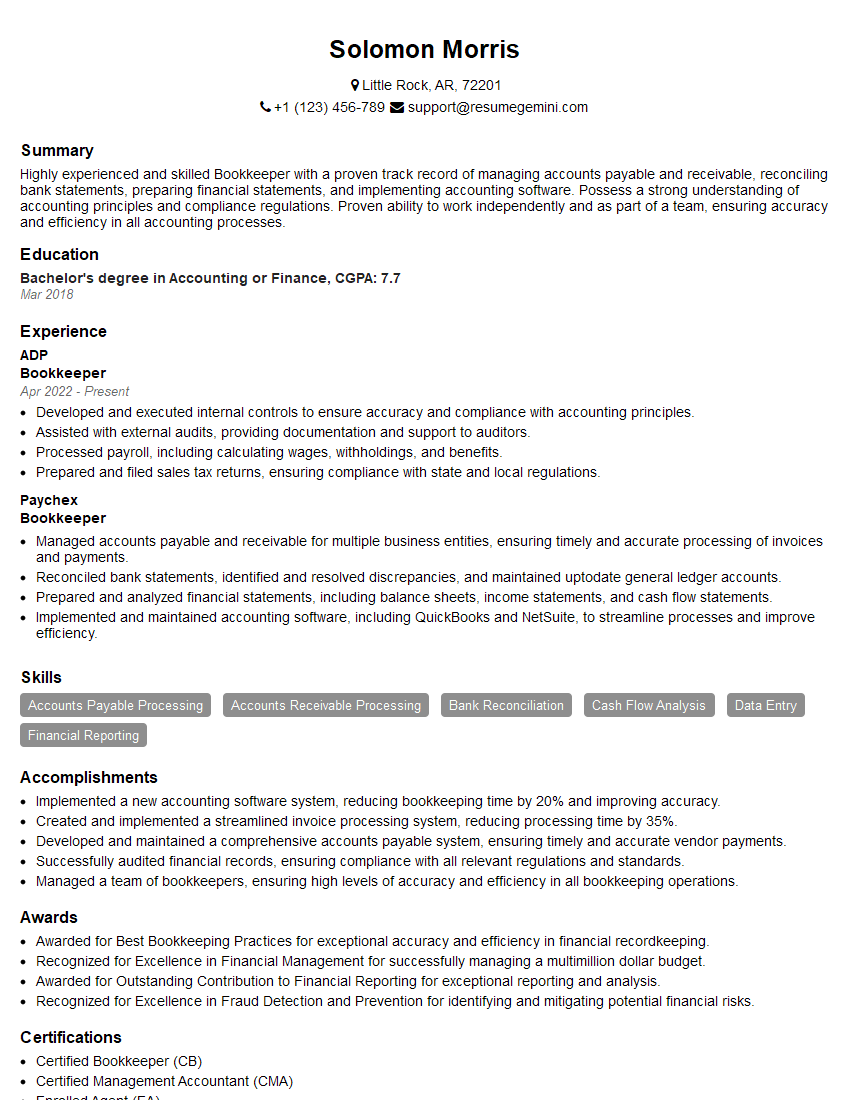
Bookkeeper Resume Sample
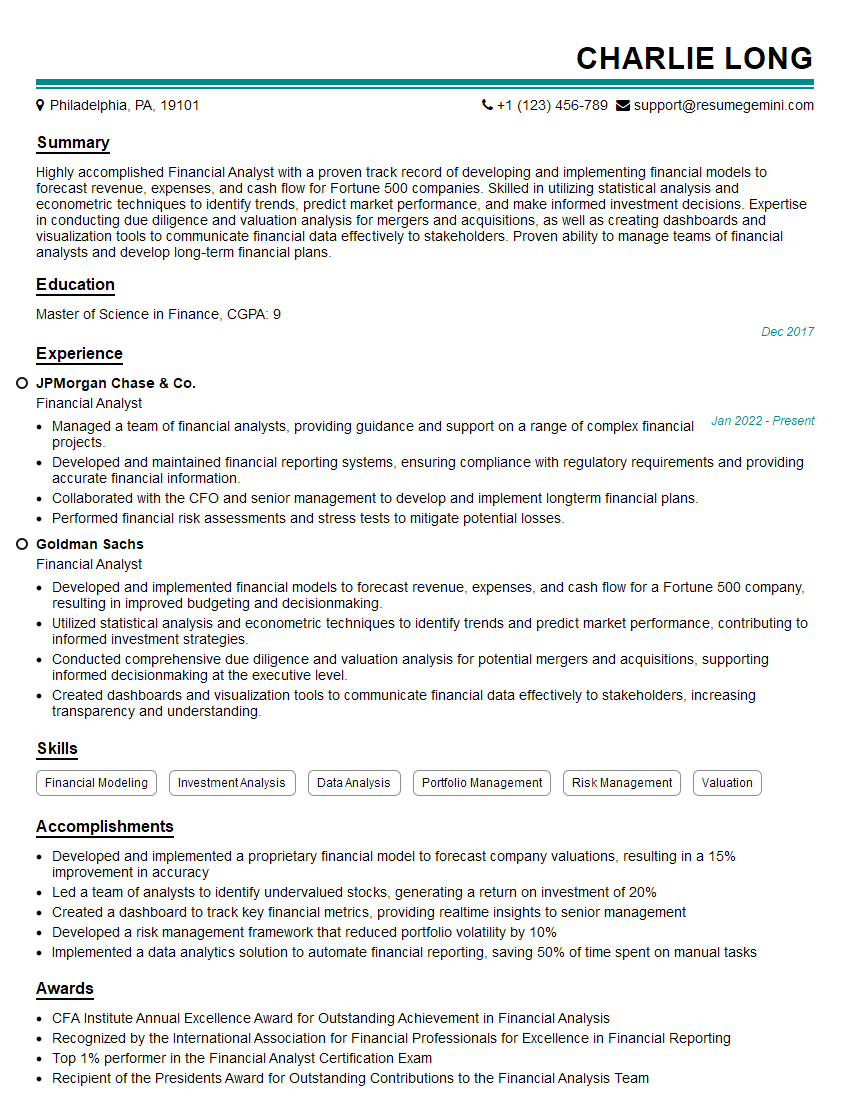
Financial Analyst Resume Sample

Data Analyst Resume Sample
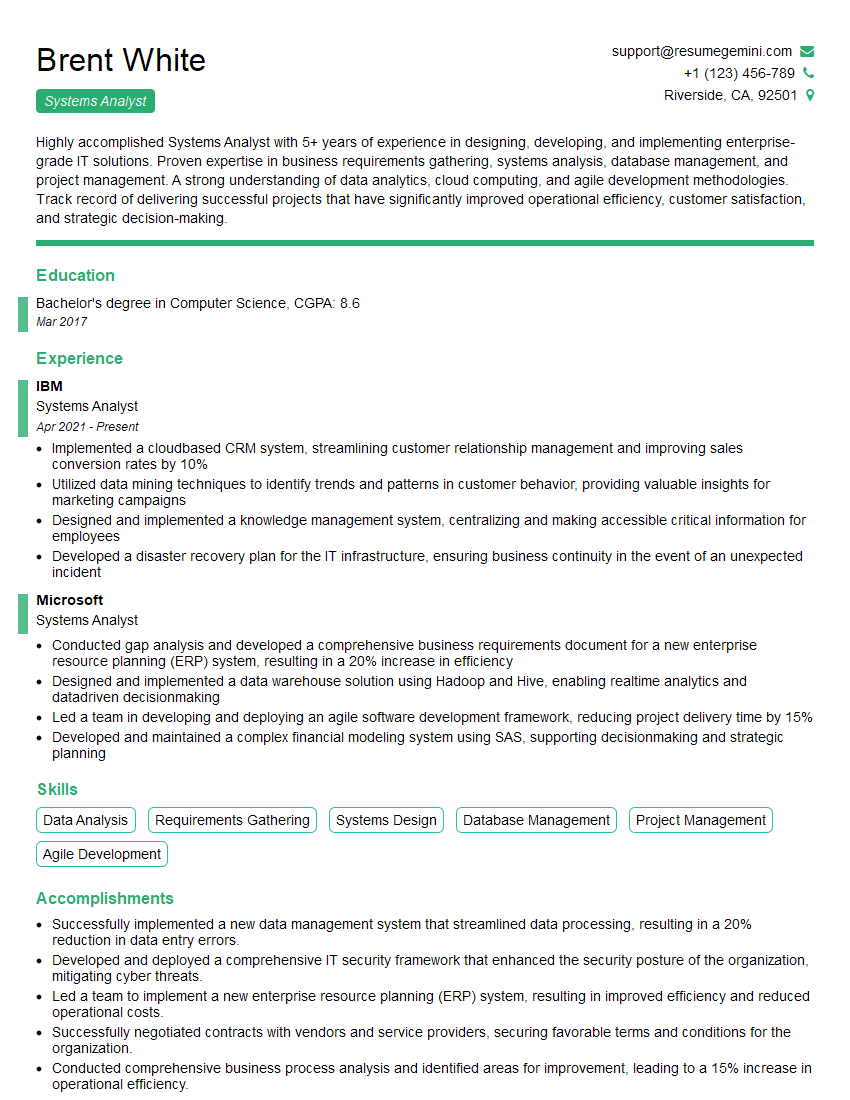
Systems Analyst Resume Sample

Executive Assistant Resume Sample

Data Entry Clerk Resume Sample
- Office Manager
- Operations Manager
- Sales Representative
- Administrative Assistant
- Human Resources Manager
- Project Manager
- Procurement Specialist
- Supply Chain Analyst
- Business Analyst
- Management Consultant
- Marketing Analyst
- Accountant
- Bookkeeper
- Financial Analyst
- Data Analyst
- Systems Analyst
- Executive Assistant
- Data Entry Clerk
Explore more articles
Users Rating of Our Blogs
Share Your Experience
We value your feedback! Please rate our content and share your thoughts (optional).
What Readers Say About Our Blog
Really detailed insights and content, thank you for writing this detailed article.
IT gave me an insight and words to use and be able to think of examples