Interviews are opportunities to demonstrate your expertise, and this guide is here to help you shine. Explore the essential Digital Imaging and Retouching interview questions that employers frequently ask, paired with strategies for crafting responses that set you apart from the competition.
Questions Asked in Digital Imaging and Retouching Interview
Q 1. What software proficiency do you possess in Adobe Photoshop, Lightroom, and other relevant image editing tools?
My proficiency in Adobe Photoshop and Lightroom is extensive, spanning over eight years of professional use. I’m highly adept at leveraging their advanced features for a wide range of retouching tasks. Beyond these industry standards, I’m also proficient in Capture One, a powerful alternative known for its excellent color management and tethered shooting capabilities. I’m comfortable working with various file formats, including RAW, TIFF, and JPEG, understanding the strengths and weaknesses of each. My skills extend to other tools like ON1 Photo RAW, which offers a unique blend of non-destructive editing and powerful AI-powered tools, and Luminar AI, a great choice for its intuitive interface and speed. I frequently adapt my tool selection to the specific demands of a project, ensuring optimal results.
Q 2. Explain your workflow for retouching product images for e-commerce.
My e-commerce product retouching workflow follows a structured approach to ensure consistency and high quality. It begins with image selection and assessment: I carefully examine each image for defects, lighting inconsistencies, and background issues. Next is pre-processing, where I often perform batch adjustments in Lightroom to correct exposure, white balance, and contrast across the entire set. Then, I move to individual retouching in Photoshop. This involves removing dust spots, blemishes, and unwanted objects using tools like the healing brush, clone stamp, and content-aware fill. I meticulously adjust shadows and highlights to create a uniform and appealing look. Background removal and replacement is a crucial step, often requiring techniques like masking and layer adjustments. Finally, I optimize the images for web use, ensuring sharpness and appropriate file size for fast loading times without sacrificing quality. The whole process is carefully documented to ensure consistent results and easy replication.
Q 3. How do you handle color correction and color grading in different image types?
Color correction and grading differ depending on the image type and intended use. For product photography, the goal is accuracy – showcasing the product’s true colors. I usually start with RAW files and utilize Lightroom’s calibration tools, ensuring that the colors are true to life. For portrait photography, color grading is more stylistic. I might employ color curves, split toning, and selective color adjustments in Photoshop to achieve a specific mood or aesthetic. For example, I might warm up skin tones for a warmer, more inviting feel. Landscape images often benefit from targeted color grading to enhance specific elements, such as saturating greens in foliage or deepening blues in the sky. Regardless of the image type, I always prioritize non-destructive editing to allow for flexibility and revisions. Understanding the color space (sRGB for web, Adobe RGB for print) is key to ensuring consistent color reproduction across different platforms.
Q 4. Describe your experience with removing blemishes and imperfections from portraits.
Removing blemishes and imperfections from portraits requires a delicate touch and a keen eye for detail. My approach involves using a combination of tools in Photoshop, starting with the healing brush for smaller imperfections. For larger blemishes or more complex issues, I prefer the clone stamp tool, carefully sampling from similar skin tones to seamlessly blend the correction. I often utilize frequency separation – separating the image into base tones and details layers – for precise retouching without affecting skin texture. This method lets me smoothly correct imperfections while retaining the natural texture of the skin. I always aim for a natural-looking result, avoiding an overly smooth or artificial appearance. This requires a keen understanding of light and shadow to create realistic results. For more extreme situations, I might resort to more advanced techniques, such as utilizing masks and layers to meticulously correct specific areas.
Q 5. What methods do you utilize for image resizing without compromising quality?
Resizing images without compromising quality requires understanding image resolution and scaling techniques. Simply enlarging an image using bicubic interpolation in Photoshop will usually lead to noticeable quality loss. Instead, I prefer to start with the highest resolution image possible and only scale it down when necessary. For upscaling, AI-powered tools within software like Topaz Gigapixel AI are surprisingly effective. When downscaling, I carefully choose the resampling method – bicubic smoother (for general use) or bicubic sharper (for preserving details) in Photoshop – depending on the specific image characteristics and the desired final output. To minimize artifacts and maintain sharpness, I often use techniques like unsharp masking after resizing, carefully adjusting the amount, radius, and threshold parameters. This helps restore some of the detail that might have been lost during the scaling process.
Q 6. Explain your approach to working with high-resolution images.
Working with high-resolution images demands efficient workflow strategies. First, I ensure my system has sufficient RAM and processing power to handle the large file sizes. I often work with images in a non-destructive manner, leveraging layers and adjustment layers to avoid permanently altering the original data. I also utilize Photoshop’s large document handling features, maximizing memory usage effectively. It’s important to adjust the image resolution to something manageable for editing while maintaining enough detail for the final output. Finally, I always save frequently and consider using a proxy or lower-resolution image for initial edits, switching to the full-resolution file only for final refinement, saving considerable processing time.
Q 7. How do you manage large volumes of images efficiently?
Managing large volumes of images efficiently requires automation and organizational skills. I use Lightroom’s cataloging system to organize images into collections and sub-collections based on client, project, or date. Batch processing in Lightroom is essential for applying consistent edits across multiple images, such as initial adjustments for white balance and exposure. I frequently utilize actions and presets in Photoshop to automate repetitive tasks like watermarking or resizing images. Employing scripting tools for repetitive jobs is also a very effective way to save time. External hard drives are essential for storage, and maintaining a robust backup strategy is critical to avoid data loss. Careful file naming conventions and utilizing folder structures are essential elements for successful image management.
Q 8. Describe your experience with image restoration techniques.
Image restoration is the process of repairing damaged or degraded photographs. My experience encompasses a wide range of techniques, from addressing minor blemishes to tackling significant damage like scratches, tears, and water stains. I’m proficient in using both manual techniques and sophisticated software tools. For example, I’ve successfully restored faded family portraits by carefully cloning undamaged areas to cover imperfections, and I’ve used AI-powered inpainting tools to fill in significant missing portions of historical photographs, preserving valuable family history. My approach always prioritizes maintaining the integrity of the original image while addressing the damage. I often start by assessing the image’s overall condition, identifying the types of damage, and then selecting the most appropriate restoration methods. This might involve using frequency separation to tackle texture and tone independently or employing advanced healing tools to seamlessly blend repaired areas. I frequently experiment with different layer masks and blending modes to achieve a natural and believable result. The goal is always to restore the image to its best possible state while ensuring the final product maintains its archival quality.
Q 9. How do you adapt your retouching style to meet different client needs and project requirements?
Adapting my retouching style depends heavily on client needs and project requirements. For instance, a client wanting a natural, subtle edit for a product photoshoot would receive a vastly different treatment than one requiring a more stylized, dramatic edit for a fashion magazine. For natural edits, I might focus on skin retouching, color correction, and minor blemish removal, keeping the subject’s natural features intact. In contrast, a more stylized edit may involve more creative adjustments to color, contrast, and tone, perhaps even incorporating artistic effects. I always start by discussing expectations and desired outcomes with the client. Understanding their vision ensures that the final product aligns perfectly with their needs. This involves careful consideration of the target audience, the overall brand aesthetic, and the intended medium (print vs. web). I use a collaborative approach, providing regular updates and seeking feedback throughout the retouching process.
Q 10. How do you ensure color consistency across a series of images?
Maintaining color consistency across a series of images is crucial for professional projects, especially in advertising or catalog photography. I use a variety of methods to achieve this, beginning with careful camera settings and consistent lighting on set. This prevents inconsistencies from arising before post-production even begins. In post-processing, I rely heavily on reference images. I choose one image as a ‘master’ and adjust the others to match its color profile and tone. Using tools like color histograms, and color samplers within my software helps me create matching tones. I often use adjustment layers (like curves or color balance) non-destructively, which makes it easy to make global adjustments across all selected images. Furthermore, I can use tools for creating color lookup tables (LUTs) which allow me to apply a consistent color grade across multiple images. This methodical process ensures a visually appealing and professional final product that presents a cohesive story.
Q 11. Explain your understanding of color spaces (e.g., RGB, CMYK).
Color spaces define the range of colors that can be displayed or printed. RGB (Red, Green, Blue) is an additive color model used for digital displays. It works by combining different intensities of red, green, and blue light to create a wide spectrum of colors. CMYK (Cyan, Magenta, Yellow, Key/Black) is a subtractive color model used for printing. It works by subtracting different amounts of cyan, magenta, yellow, and black inks from a white background to achieve a range of colors. Understanding the differences is critical for preparing images for different output methods. Images created in RGB are often vibrant and can display a broader range of colors on screen. However, directly printing an RGB image will likely yield different results than the intended colors because of the difference between the color models. Converting an image from RGB to CMYK, therefore, is a necessary step in preparing an image for print, and it is important to understand that some color loss is inevitable during this process. Working within the correct color space from the outset minimizes problems in the final outcome.
Q 12. How do you troubleshoot common image editing issues?
Troubleshooting image editing issues often involves systematically examining the problem. For instance, if an image looks overly noisy or grainy, it might be due to a high ISO setting during capture, requiring noise reduction techniques. Banding (visible color steps instead of smooth gradients) can be fixed by adjusting the image’s bit depth or using techniques like dithering. Color casts (unwanted color tints) might need color balance corrections. I use a process of elimination, checking the settings and actions I’ve taken in the editing process and reverting steps until I find the root cause of the issue. I often start by reviewing the image’s history panel, which helps me trace the steps leading up to the problem. Sometimes, the issue may stem from the original image itself. Understanding the limitation of the original image file is critical to managing expectations and setting realistic goals for post-processing. In complex cases, I often reach out to other experienced retouchers or online communities for help or different perspectives. In the past, I’ve had to re-shoot photos due to inherent limitations in the original file format.
Q 13. Describe your experience with batch processing techniques.
Batch processing is essential for efficiency, particularly when dealing with large numbers of images requiring similar edits. I use automated actions and scripts to apply consistent adjustments to multiple files simultaneously. This often involves creating custom actions in my image editing software (such as Adobe Photoshop). For instance, I might create an action to resize, sharpen, and apply a specific color profile to a batch of images for web use. Such efficiency greatly increases my throughput. I also use plugins and extensions designed for this specific task, often ones that have specialized functionality for automating otherwise repetitive steps. While automated tasks are efficient, I always review the results carefully to ensure the quality meets my standards. In addition, I might need to adjust individual images within a batch due to individual issues that require more manual adjustments.
Q 14. What are your preferred methods for creating seamless composites?
Creating seamless composites requires meticulous attention to detail. My approach involves selecting images with consistent lighting and perspectives. I utilize layer masks and blending modes extensively to smoothly blend elements. Precise masking is crucial; I often use refined selection tools like the pen tool or lasso tool to achieve accurate edges. I pay particular attention to the edges of the composite elements, adjusting brightness, contrast, and color to create a smooth transition. Matching textures and lighting across different images is vital for a believable result. I might use adjustment layers to match exposure, color balance, and overall tone. Frequency separation allows for independent control of texture and color, which is useful when dealing with complex textures, such as hair or fabric. For example, when combining a model onto a different background, I would carefully mask out the model, ensuring there’s no visible haloing or distortion around their edges. I then adjust lighting and shadow details in the composite to ensure consistency.
Q 15. What are the key considerations when retouching images for print versus web?
Retouching for print and web differ significantly due to the distinct output methods and resolutions. Print requires much higher resolution for sharp details and vibrant colors, while web images need optimization for fast loading times and screen display.
- Resolution: Print images need significantly higher resolutions (e.g., 300 DPI or more) to prevent pixelation, unlike web images (72-150 DPI is usually sufficient).
- Color Space: Print typically uses CMYK (Cyan, Magenta, Yellow, Key/Black), while web uses RGB (Red, Green, Blue). Converting between these color spaces can significantly affect color accuracy; careful color management is crucial.
- File Size: Web images need to be compressed to smaller file sizes for faster download times. Larger file sizes are acceptable for print, where quality is prioritized.
- Sharpening: Print images usually require less sharpening as the printing process itself can introduce some softening. Web images often benefit from subtle sharpening to appear crisp on screen.
For example, a high-resolution image for a magazine cover would require careful color calibration in CMYK and meticulous retouching to maintain sharp details at 300 DPI. In contrast, the same image optimized for a website would be converted to RGB, compressed significantly for web use, and might have a slightly different sharpening technique applied.
Career Expert Tips:
- Ace those interviews! Prepare effectively by reviewing the Top 50 Most Common Interview Questions on ResumeGemini.
- Navigate your job search with confidence! Explore a wide range of Career Tips on ResumeGemini. Learn about common challenges and recommendations to overcome them.
- Craft the perfect resume! Master the Art of Resume Writing with ResumeGemini’s guide. Showcase your unique qualifications and achievements effectively.
- Don’t miss out on holiday savings! Build your dream resume with ResumeGemini’s ATS optimized templates.
Q 16. How do you maintain the integrity of the original image while retouching?
Maintaining image integrity is paramount. My approach involves working non-destructively, using layers and masks in Photoshop or similar software. This allows me to make adjustments without permanently altering the original pixels.
- Layers: Each retouching action is applied on a separate layer, making it easy to adjust or delete individual edits without impacting others. Think of it like building with LEGOs: you can easily rearrange or remove bricks (layers) without affecting the base structure.
- Masks: Masks allow precise control over the application of edits. Instead of affecting the entire image, masks pinpoint the area to be retouched, ensuring the surrounding areas remain unchanged. This is like using a stencil – you only paint (edit) within the stencil’s boundaries.
- History Panel: The history panel maintains a record of all actions, allowing me to revert to previous steps if needed, effectively acting as an undo system with layers of safety.
- Saving as PSD or TIFF: I always save the working file in a format that preserves layers (PSD or TIFF) to enable further adjustments later.
For instance, removing blemishes from a portrait is done on a separate layer using a mask to ensure the skin texture isn’t negatively affected in the surrounding areas. If the client requires modifications later, the original image integrity remains untouched, and changes are easily reversed or modified.
Q 17. How do you handle challenging retouching requests, like complex background removal?
Complex background removals demand a nuanced approach, leveraging multiple techniques depending on the image’s complexity. It often involves a combination of tools and patient, meticulous work.
- Pen Tool: For precise selections around intricate shapes with clearly defined edges.
- Lasso Tool (Polygonal or Magnetic): For quick selections, particularly around objects with less defined edges.
- Refine Edge: A powerful tool that allows for smoothing out the selection’s edge, minimizing harshness and artifacts. This is key to a natural-looking result.
- Layer Masks: For fine-tuning the selection, refining its boundaries after initial selection.
- Content-Aware Fill: In some cases, this can help seamlessly fill the gaps left by removing the background, blending the subject into a new background.
For example, removing a person from a busy street scene might involve using the pen tool to meticulously trace the outline of the person, then utilizing Refine Edge to seamlessly blend the edges. The background can then be filled using content-aware fill, making it look like the person never existed there. Each step demands attention to detail and knowledge of the software’s capabilities.
Q 18. Explain your knowledge of different file formats (e.g., TIFF, JPEG, PNG).
Understanding file formats is crucial for efficient workflow and maintaining image quality. Each format has strengths and weaknesses:
- TIFF (Tagged Image File Format): Lossless format supporting various color depths and compression methods. Excellent for archival purposes and high-quality print work as it preserves image data without compromise. Large file sizes are a trade-off.
- JPEG (Joint Photographic Experts Group): Lossy format, offering good compression ratios resulting in smaller files. Well-suited for web and general use, but repeated saving can lead to quality degradation. It’s less ideal for images requiring maximum detail or text.
- PNG (Portable Network Graphics): Lossless format supporting transparency, making it suitable for images with transparent backgrounds (logos, graphics). It provides better quality compared to JPEG for images with sharp lines or text, but files can be larger.
For instance, a professional photographer would store their RAW images in lossless formats like TIFF for later editing, while creating smaller JPEG files for web presentation. PNGs are great for website graphics that require transparency.
Q 19. What are your strategies for managing large image files?
Managing large image files is essential for efficient workflow and storage. My strategies include:
- Non-Destructive Editing: Working with layers and smart objects ensures that the base image remains unchanged, thereby preventing file size bloat from repeated edits.
- Compression: Employing appropriate lossy or lossless compression based on the image’s intended use. JPEG is usually the go-to for web images, while TIFF is best for archiving or high-quality print.
- File Organization: Using a structured folder system for easy access and retrieval of images, typically organized by project and date.
- Storage Solutions: Utilizing cloud storage solutions or external hard drives with sufficient capacity to prevent local storage bottlenecks. Redundant storage is critical to prevent data loss.
- Proxy Images: When working with exceptionally large files, using proxy images (low-resolution placeholders) speeds up the editing process, making it more efficient.
For example, when retouching hundreds of images for an e-commerce website, I would store the original RAW files on a cloud storage, create optimized JPEGs for the site, and keep the project files organized in named folders. This ensures quick access, efficient workflow, and safeguards against data loss.
Q 20. How do you handle feedback and revisions from clients or supervisors?
Handling feedback and revisions is a crucial part of the retouching process. My approach emphasizes clear communication and iterative refinement:
- Active Listening: Carefully reviewing all feedback, paying close attention to the client’s vision and concerns.
- Clear Communication: Asking clarifying questions if needed to fully understand the desired adjustments, rather than making assumptions.
- Version Control: Maintaining different versions of the image with comments detailing the changes made in each iteration for easy comparison and review.
- Detailed Progress Updates: Providing regular updates to clients, keeping them informed about the progress and any challenges encountered.
- Iterative Refinement: Using the feedback to make incremental adjustments until the final product meets the client’s satisfaction.
For example, if a client requests a brighter image, I wouldn’t simply increase brightness across the board. I would carefully adjust highlights, shadows, and contrast to produce a more balanced and aesthetically pleasing result, ensuring the client understands the reasoning behind each adjustment.
Q 21. Describe your experience with masking and layer techniques.
Masking and layer techniques are the foundation of professional retouching. They allow for precise and non-destructive edits.
- Layer Masks: These are incredibly versatile. Think of them as stencils—they control the visibility of a layer, revealing or hiding parts of it. They are non-destructive, allowing adjustments and alterations without affecting the original layer’s content.
- Clipping Masks: These link a layer to another, effectively limiting the visible area of the top layer to the shape of the layer below. This is perfect for applying textures or effects selectively to a specific area.
- Vector Masks: Created using vector shapes, these offer superior scalability and resolution independence, ideal for sharp edges and detailed selections. They don’t pixelate when scaling.
- Adjustment Layers: These apply color or tonal adjustments (brightness/contrast, hue/saturation) non-destructively across a selected area or the whole image. This is incredibly useful for preserving image quality and allowing flexibility in making adjustments.
For instance, removing a distracting object from a photo would involve creating a layer mask on a healing brush layer to perfectly blend the area with the surrounding texture. Using adjustment layers would then permit fine-tuning the brightness and contrast of the affected area without altering the global image settings.
Q 22. Explain your understanding of sharpening and noise reduction techniques.
Sharpening and noise reduction are two crucial, often opposing, aspects of digital image retouching. Sharpening enhances the definition of edges and details, making the image appear crisper. Noise reduction, conversely, smooths out unwanted grain or artifacts, improving image clarity but potentially sacrificing detail.
Sharpening Techniques: These techniques usually involve increasing the contrast along edges. Common methods include:
- Unsharp Masking (USM): A classic technique that creates a blurred copy of the image, then subtracts it from the original, emphasizing contrast along edges. The strength, radius (area affected), and threshold (minimum contrast for sharpening) are adjustable parameters.
- High-Pass Filtering: This involves creating a high-pass filter that isolates high-frequency information (edges) and adds it back to the original image. This is more precise and can provide more control.
- Smart Sharpening (Adaptive Sharpening): More sophisticated algorithms analyze the image to apply sharpening selectively, avoiding over-sharpening in smooth areas and preserving details.
Noise Reduction Techniques: Noise can be luminance (brightness variations) or chrominance (color variations). Reduction techniques include:
- Gaussian Blur: A simple technique that averages pixel values, smoothing out noise but also blurring details. It’s a good starting point for simple noise reduction.
- Median Filtering: Replaces each pixel with the median value of its neighboring pixels, effective against salt-and-pepper noise (isolated bright or dark pixels).
- Wavelet-based Denoising: Advanced algorithms that decompose the image into different frequency components, removing noise primarily from high-frequency areas while preserving details. These are usually computationally expensive but very effective.
- Artificial Intelligence (AI)-powered Denoising: Recent advances utilize machine learning to intelligently differentiate between noise and detail, offering superb noise reduction with minimal detail loss. Examples include Topaz DeNoise AI or Adobe Sensei’s noise reduction capabilities.
In practice, I often use a combination of these techniques. For example, I might start with a wavelet-based denoising algorithm followed by careful application of smart sharpening to regain detail while minimizing artifacts.
Q 23. How do you ensure the ethical use of retouching and avoid misleading imagery?
Ethical retouching is paramount. My approach is built around honesty and transparency. I strive to enhance, not fabricate, reality. Misleading imagery can have serious consequences, damaging trust and potentially harming individuals or brands.
To ensure ethical practice:
- Transparency: When retouching for commercial purposes, I openly discuss the extent of edits with clients, documenting the process and providing before-and-after images if needed.
- Realistic Enhancement: I aim for natural-looking results. My focus is on improving image quality, correcting flaws, and enhancing aesthetics without altering the essence of the image. Overly processed, unrealistic images are avoided.
- Respect for Authenticity: I never fabricate elements or alter images in a way that could be considered deceptive. For example, I would never add or remove people from a photograph without explicit permission.
- Client Consent: For all commercial projects, written agreement defining the scope of the retouching work is crucial.
For instance, I might retouch a portrait by smoothing skin blemishes, but I would never fundamentally alter the person’s facial features or body shape without their explicit knowledge and consent. Ethical retouching involves striking a balance between improvement and authenticity.
Q 24. Describe your experience with image optimization for web performance.
Optimizing images for web performance is critical for a positive user experience. Slow-loading images lead to high bounce rates and frustrate visitors. My optimization strategy focuses on reducing file size without significantly compromising image quality.
My process typically includes:
- Choosing the Right Format: WebP offers superior compression compared to JPEG and PNG. I often use it for photographs. PNG is suitable for images with sharp edges and transparency.
- Compression: I use lossy compression for photographs (JPEG or WebP) and lossless compression for images requiring perfect detail (PNG). I carefully balance compression level with acceptable quality loss. Tools like TinyPNG, ImageOptim, or Photoshop’s Save for Web feature are invaluable.
- Resizing: Images should be scaled to the actual dimensions needed on the website to avoid unnecessary data. I rarely upload images larger than necessary.
- Progressive JPEGs: These allow the image to load gradually, improving the perceived speed. The image appears blurry initially and then progressively sharpens.
- Lazy Loading: This technique delays image loading until they are about to be visible in the viewport, improving initial page load time. It’s a common practice implemented through code.
For example, I recently optimized a series of product images for an e-commerce website. By using WebP, resizing appropriately, and implementing lazy loading, I reduced the overall page load time by 40%, resulting in a significant improvement in user engagement.
Q 25. What is your experience with different types of image formats and their suitability for various applications?
Different image formats cater to specific needs. Understanding these differences is essential for choosing the right one for each application.
- JPEG (Joint Photographic Experts Group): A lossy format ideal for photographs and images with smooth color gradients. Offers high compression but sacrifices some detail. Suitable for web use and printing.
- PNG (Portable Network Graphics): A lossless format, perfect for images with sharp edges, text, or logos. Supports transparency, making it suitable for web graphics and icons. Generally larger file sizes than JPEG.
- GIF (Graphics Interchange Format): A lossless format supporting animation and transparency. Limited color palette, making it less suitable for photographic images. Ideal for simple animations and icons.
- TIFF (Tagged Image File Format): A lossless or lossy format often used for high-resolution images, particularly in printing and pre-press workflows. Large file size.
- WebP (WebP Image Format): A newer format offering both lossy and lossless compression, often superior to both JPEG and PNG in terms of compression ratio and quality. Good for web use but not universally supported by all browsers.
- RAW: Uncompressed or minimally compressed image format capturing the maximum amount of data from the camera’s sensor. Excellent for post-processing but requires specialized software. Large file sizes.
In my workflow, I often start with RAW images for maximum flexibility in post-processing, then save final versions in optimized formats like WebP for web use or TIFF for print.
Q 26. What is your process for archiving and organizing your digital assets?
Archiving and organizing digital assets is crucial for efficient workflow and preventing data loss. My system uses a hierarchical folder structure based on project, year, and date. Each project has a dedicated folder containing original files, processed files, and client communication.
My process includes:
- Clear Naming Conventions: Files are named using consistent and descriptive names (e.g., ProjectName_YYYYMMDD_Version.jpg).
- Regular Backups: Multiple backups are maintained on different storage media (local hard drives, external drives, and cloud storage) to safeguard against data loss.
- Metadata Management: Keywords and descriptions are added to files to facilitate easy searching and retrieval. I utilize software that can embed detailed metadata into the images themselves.
- Cloud Storage: For long-term storage and accessibility, I utilize cloud storage services that provide redundancy and security.
- Version Control: I keep multiple versions of edited images to allow for easy reverting to previous states if necessary. I carefully track changes in my naming conventions.
This systematic approach ensures easy access to files, protects against loss, and streamlines my workflow significantly. It saves me valuable time in the long run.
Q 27. What is your experience with automated image processing techniques?
Automated image processing techniques, often powered by AI and machine learning, play an increasingly significant role in my workflow. These techniques can greatly improve efficiency and consistency.
My experience includes using automated tools for tasks such as:
- Batch Processing: Automating repetitive tasks like resizing, renaming, converting file formats, and basic color corrections for large numbers of images.
- AI-powered Upscaling: Increasing the resolution of images while minimizing artifacts, useful for improving older or low-resolution images. Tools like Topaz Gigapixel AI excel at this task.
- AI-powered Retouching: Some software can automate specific retouching tasks like skin smoothing or object removal, though human oversight is still crucial to maintain artistic control and avoid unnatural results.
- Automated Color Grading: Applying consistent color styles across multiple images for a unified look and feel.
While automation is beneficial, I believe in a balanced approach that combines the speed and efficiency of automated tools with the creative expertise and nuanced control of manual retouching. I see automation as a powerful tool to augment, not replace, human skill and artistic vision.
Q 28. How do you stay current with emerging technologies and trends in digital imaging and retouching?
Staying current in the rapidly evolving field of digital imaging and retouching requires continuous learning. I employ several strategies to keep my skills sharp and my knowledge up-to-date.
- Industry Publications and Blogs: I regularly read reputable publications and blogs dedicated to photography, digital imaging, and retouching to stay informed about new software, techniques, and trends.
- Online Courses and Tutorials: I actively participate in online courses and workshops offered by reputable platforms and industry professionals. This allows for deeper exploration of specific techniques and tools.
- Software Updates and Feature Exploration: I stay updated with software releases, exploring new features and improvements offered by programs like Adobe Photoshop, Capture One, and other relevant software.
- Networking and Collaboration: Participating in online and offline communities of other professionals allows me to share knowledge, learn from others, and stay current with industry trends.
- Experimentation and Personal Projects: I regularly dedicate time to experimental projects, testing new techniques and software, which helps solidify my understanding and develop new skills.
Continuous learning is not just about staying current; it’s about adapting and evolving my skill set to meet the ever-changing demands of the industry.
Key Topics to Learn for Digital Imaging and Retouching Interview
- Image File Formats: Understanding the strengths and weaknesses of various formats (JPEG, TIFF, PNG, RAW) and their appropriate applications in different workflows. Practical application: Choosing the optimal format for web vs. print.
- Color Management: Mastering color spaces (RGB, CMYK), color profiles, and the importance of consistent color throughout the editing process. Practical application: Correctly converting images between color spaces to avoid color shifts.
- Retouching Techniques: Proficiency in techniques like blemish removal, color correction, dodging and burning, frequency separation, and compositing. Practical application: Demonstrate your ability to retouch product images for e-commerce or enhance portraits for clients.
- Software Proficiency: Deep understanding of industry-standard software such as Adobe Photoshop, Lightroom, and potentially Capture One. Practical application: Explain your workflow and how you utilize specific tools within these programs for efficient retouching.
- Image Sharpening and Noise Reduction: Knowing how to effectively sharpen images without introducing artifacts and reducing noise while preserving detail. Practical application: Discuss strategies for optimizing image sharpness for different output resolutions.
- Workflow Optimization: Developing efficient and organized workflows for managing large volumes of images and meeting deadlines. Practical application: Describe your approach to handling a large batch of images needing consistent retouching.
- Understanding Client Needs: Interpreting creative briefs and translating client feedback into effective image edits. Practical application: Discuss scenarios where you had to adapt your retouching techniques based on client requests.
Next Steps
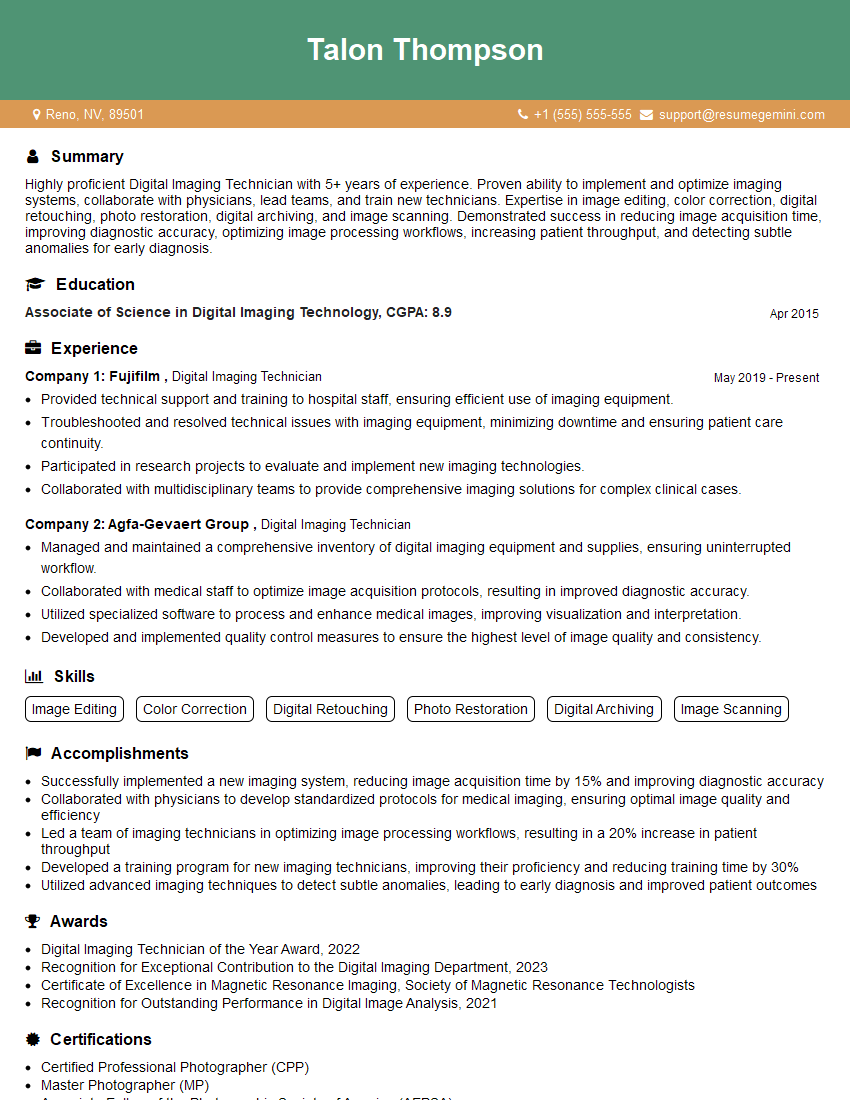
Mastering Digital Imaging and Retouching opens doors to exciting career opportunities in photography, graphic design, advertising, and e-commerce. A strong portfolio is crucial, but a well-crafted resume is your first impression. An ATS-friendly resume significantly increases your chances of getting your application noticed by recruiters. To enhance your resume-building experience and make it stand out, we highly recommend using ResumeGemini. ResumeGemini provides you with the tools and resources to create a professional and effective resume. Examples of resumes tailored to Digital Imaging and Retouching are available to help you get started.

Explore more articles
Users Rating of Our Blogs
Share Your Experience
We value your feedback! Please rate our content and share your thoughts (optional).
What Readers Say About Our Blog
Really detailed insights and content, thank you for writing this detailed article.
IT gave me an insight and words to use and be able to think of examples