Cracking a skill-specific interview, like one for Digital Sculpting (Maya, ZBrush), requires understanding the nuances of the role. In this blog, we present the questions you’re most likely to encounter, along with insights into how to answer them effectively. Let’s ensure you’re ready to make a strong impression.
Questions Asked in Digital Sculpting (Maya, ZBrush) Interview
Q 1. Explain your workflow for creating a high-polygon character model in ZBrush.
My high-polygon character modeling workflow in ZBrush typically begins with a base mesh, often a simple sphere or a box, depending on the character’s complexity. I then use ZBrush’s powerful sculpting tools to gradually add detail. This iterative process involves constantly refining the form and anatomy.
I start with large-scale forms, establishing the overall proportions and silhouette. I then progressively move to smaller details, refining muscle definition, wrinkles, and other surface features. I frequently use the Move brush for large-scale adjustments and the Clay Buildup brush for adding volume. For fine details, I prefer brushes like Standard and Clay Tubes. I utilize masking extensively to isolate specific areas for detailed work.
Throughout the process, I regularly subdivide the model (increase the polygon count) to maintain detail as I add finer features. The process isn’t linear; it often involves back-and-forth adjustments and refinement, constantly evaluating the model’s form against reference images or concepts. Think of it like sculpting clay – it requires patience and a keen eye for anatomy and form.
Once the high-poly model is complete, I proceed to retopology and texturing.
Q 2. Describe your experience with retopology techniques in Maya or other 3D software.
Retopology is a crucial step in my workflow, bridging the gap between the high-polygon sculpt in ZBrush and a low-polygon mesh suitable for animation and game engines. I primarily use Maya for retopology, leveraging its powerful modeling tools. My approach involves creating a clean, edge-loop-based topology that accurately reflects the form of the high-poly model.
I often start by creating a simplified base mesh, perhaps using a cube or a cylinder as a starting point. Then, I use Maya’s Quad Draw tool and Multi-Cut tool to carefully add edge loops, following the flow of the underlying sculpted musculature and ensuring appropriate polygon density in areas that require more detail. I aim for efficient topology, optimizing edge flow to reduce the number of polygons while preserving detail.
Tools like Project Curve and Transfer Attributes greatly assist in projecting the surface details from the ZBrush model onto the retopologized mesh, ensuring a faithful representation. It’s a balancing act between achieving a visually appealing and efficient polygon count; often, I’ll experiment with various approaches to find the optimal balance. I usually compare it to sewing a garment — you need a precise pattern (retopology) to make a well-fitting piece of clothing (game-ready mesh).
Q 3. How do you approach sculpting different clothing types in ZBrush?
Sculpting clothing in ZBrush requires a different approach compared to sculpting skin. The key is to understand the drape and flow of different fabrics. For example, a stiff material like leather will have sharp creases and folds, while a soft fabric like silk will drape more smoothly.
I usually start by sculpting the underlying form of the garment, paying close attention to how it interacts with the body. Then, I use various brushes like Clay Buildup, Inflate, and Smooth to add volume and shape, simulating the way fabric folds and wrinkles. For intricate details like seams or pleats, I employ smaller brushes and masking techniques.
Different materials call for different techniques. For example, to simulate a flowing dress, I might use the ZRemesher to create a smooth, low-polygon base and then use projection masking and sculpting to add finer details. For stiff materials like armor, I would work with more sharply defined edges and creases, often leveraging Insert Multi Mesh Brush or ZModeler for accurate polygon control. The realism comes from understanding how the fabric behaves under various conditions, and translating that understanding into the digital sculpting process.
Q 4. Explain your understanding of different sculpting brushes and their applications.
ZBrush offers a vast array of sculpting brushes, each with unique properties and applications. Understanding their nuances is critical for efficient sculpting.
- Standard Brush: This is a fundamental brush, excellent for general-purpose sculpting and adding detail. Its strength and falloff are easily adjustable.
- Clay Buildup: Ideal for adding mass and volume, creating a ‘clay-like’ feel. It’s great for blocking out large forms and building up muscle definition.
- Move Brush: Used for large-scale manipulation of the mesh, pushing and pulling vertices to adjust overall forms. It’s my go-to for initial shaping and major adjustments.
- Smooth Brush: Smooths out rough surfaces and blends transitions between sculpted features. Useful for refining shapes and softening hard edges.
- Dam Standard: This brush is excellent for creating sharp lines and cutting into the model. This is essential for details like wrinkles or creases.
- Inflate Brush: This increases the volume of the mesh without changing the underlying geometry, often useful for adding subtle volume or thickness.
The choice of brush often depends on the specific task at hand. Experimentation and understanding of each brush’s behavior are key to mastering ZBrush sculpting.
Q 5. How do you handle polycount optimization in ZBrush?
Polycount optimization in ZBrush is crucial for maintaining performance and compatibility with game engines or other software. I use several techniques to manage polycount.
Decimation Master: This powerful tool allows reducing polygon count while preserving the surface detail of the high-poly model. I use this extensively to create optimized versions of the model for different purposes.
ZRemesher: This tool automatically retopologizes a mesh, creating a new, more efficient topology with fewer polygons. While effective, careful parameter adjustments are needed to prevent loss of detail.
Subdivision Levels: I strategically manage subdivision levels during the sculpting process. Working at lower levels for larger forms and progressively increasing detail at higher levels helps control overall polygon count. Only increasing subdivisions when necessary conserves resources.
The approach depends on the project’s requirements. For high-fidelity renders, I may maintain a higher polycount, while for game assets, I prioritize a much lower polycount to maximize performance.
Q 6. Describe your process for creating realistic skin textures in ZBrush.
Creating realistic skin textures in ZBrush involves a multi-step process that combines sculpting, texturing, and potentially external software like Substance Painter.
I start by sculpting subtle pores and wrinkles onto the high-poly model using brushes like Alpha Brushes that mimic skin texture. I use different alphas to create variation in skin details and the appearance of pores, wrinkles, and other features.
Then, I often use ZBrush’s texturing capabilities to add color variation and subsurface scattering. The Polypaint feature is extremely useful in this stage. I might use color palettes that create natural-looking skin tones and add subtle variations to simulate blushing or other effects.
Finally, for intricate details and realistic textures, I often export the model to Substance Painter. This software allows for advanced texturing techniques, including the creation of realistic skin pores, blemishes, and other fine details. The final result is a blend of ZBrush’s sculpting capabilities and Substance Painter’s powerful texturing tools. The process emulates the realistic layering found in real skin.
Q 7. How do you use ZBrush’s Dynamesh feature?
Dynamesh is one of ZBrush’s most revolutionary features, allowing for dynamic topology. It automatically adjusts the polygon count based on the sculpting process. This provides great flexibility, especially in the initial blocking stages.
I typically use Dynamesh in the initial stages of sculpting to quickly block out the general form. It’s like having a never-ending supply of digital clay that adapts to your every stroke. You don’t need to worry about topology issues during this process. I can easily add or remove parts, smooth out forms, or add details without worrying about polygon count, allowing for rapid prototyping and exploration of the model’s form.
Once the initial form is established, I typically switch to a more controlled workflow using subdivision levels to refine details at higher resolutions. While Dynamesh is excellent for rapid prototyping, I consider it a tool for the beginning stages of modeling, and I usually freeze the mesh before adding finer details.
Q 8. Explain your experience with ZBrush’s masking and masking tools.
Masking in ZBrush is fundamental for selective sculpting. Think of it like using a stencil – you define an area to work on, protecting the rest of your model from accidental changes. ZBrush offers a variety of masking tools, each with its own strengths. The most basic is the Lasso tool for freehand selection. Then there’s the Rectangle and Ellipse tools for precise, geometric selections. More advanced tools include the Curve Mask, which creates a mask following a drawn curve, and the Polygroup Mask, which masks based on existing polygroups. Beyond these, you have powerful masking techniques like masking by intensity (masking based on the strength of the brush strokes), masking by color (isolating areas with specific colors), and auto masking (automatically masking a selection based on geometry). I frequently use masking in conjunction with other features like the SubTool masking (masking only parts of individual SubTools in a model) to efficiently sculpt complex details. For example, I’ll create a mask around an eye to detail the eyelid and iris without affecting the surrounding cheek area, or mask sections of armor for focused detailing.
Q 9. How do you approach sculpting hard surface elements in ZBrush?
Sculpting hard surface elements in ZBrush requires a different approach than organic modeling. Instead of relying solely on brushes, I leverage ZBrush’s powerful tools for creating sharp edges and defined geometry. This often begins with a base mesh that is either imported from other software (like Maya or Blender) or created quickly within ZBrush. I use the Move brush with a low intensity for creating the main shapes and adding subtle curves. Then I will use the Inflate and Deflate brushes for creating volume and form. The Standard and Clay Buildup brushes are useful for refining shapes. For precise hard edges, the Pinch and Crease brushes are invaluable. It is crucial to use proper subdivision levels to maintain sharp details at higher resolutions without losing the overall shape. Finally, I frequently employ ZBrush’s Polygroups to organize sections of the model, allowing for efficient masking and more precise editing. For example, when sculpting a spaceship, I might create separate polygroups for the hull, engines, and cockpit to work on each part separately, preventing accidental edits to adjacent sections. This methodology allows for high-fidelity hard surface models that are sharp, clean, and detailed.
Q 10. How familiar are you with different ZBrush subdivision levels?
Subdivision levels in ZBrush are crucial for balancing detail and performance. Each level adds more polygons, increasing the model’s detail but also increasing the computational load. Starting with a low polygon count base mesh, I gradually increase the subdivision level as the sculpt progresses. At lower levels, I focus on the overall form and proportions. As I go to higher levels, I add finer details. This workflow allows for easier manipulation of the model at lower levels and allows for sharper details at higher levels. It’s a balancing act – using too few subdivisions can result in a lack of detail, while too many can lead to performance issues and slow down the sculpting process. I often use different subdivision levels for different parts of the model, focusing higher levels of subdivision on more detailed areas and low levels on less detailed sections. For example, I might have a high subdivision level for the face of a character, while having a lower subdivision level for the clothes.
Q 11. Describe your process for creating high-quality normal maps from ZBrush sculpts.
Generating high-quality normal maps from ZBrush sculpts is a vital step in the texturing pipeline. My usual workflow involves several key steps: First, I ensure my ZBrush model is properly optimized for normal map baking. This includes verifying that the model is clean and free of any errors or overlapping geometry. Then, I use ZBrush’s GoZ to export my high-poly sculpt into a suitable 3D application that supports normal map baking. I use Maya extensively for this purpose. In Maya, I’ll create a low-poly mesh that will receive the normal map. This low-poly is then carefully aligned and UV unwrapped. Using Maya’s render settings I then bake the normal map from my high-poly model onto the low-poly mesh. The quality of the normal map directly depends on the quality of both the high-poly sculpt and the low-poly mesh. Experimentation with different baking settings in Maya is often necessary to achieve the desired level of detail and clarity. Care needs to be taken so that the high-poly is properly aligned and that the UV’s of the low and high poly models match. Poor alignment or UV’s can lead to artifacts in the normal map.
Q 12. Explain your experience with UV unwrapping and texturing workflows in Maya.
My UV unwrapping and texturing workflow in Maya is deeply integrated with my ZBrush sculpting process. After sculpting in ZBrush, I often use GoZ to seamlessly transfer the model to Maya. In Maya, I use a combination of automatic and manual UV unwrapping techniques depending on the complexity of the model. For simpler models, I use Maya’s built-in automatic unwrapping tools. For more complex models, I manually unwrap, strategically placing UV seams to minimize distortion and ensure efficient texture placement. This often involves creating careful cuts along natural boundaries of the sculpt to reduce issues during the texturing phase. The choice of UV projection method depends on the model’s geometry. Once the UVs are unwrapped, I import the model into a texturing application such as Substance Painter or Mari to create the textures. I then use those textures in the final render. I commonly use techniques such as tiling textures and normal maps to maintain a high quality texture across a model. For example, if I am texturing a stone wall, I will use a tiling texture to avoid repetition and maintain seamlessness.
Q 13. How do you troubleshoot common issues encountered in ZBrush?
Troubleshooting in ZBrush often involves understanding the tool’s workflow and limitations. Common issues include unexpected geometry, brushes not working correctly, and performance problems. When a brush isn’t behaving as expected, I first check brush settings, ensuring the correct intensity, size, and other parameters are set. Sometimes, a simple restart of the program solves performance problems. If geometry is behaving unexpectedly, I examine my mesh for problems like holes or intersecting faces. ZBrush’s display settings – like zDepth and sub-division levels – are sometimes changed to optimize performance or visibility. I always make sure to save frequently to avoid losing work, and I regularly check my model’s topology to ensure it’s clean and efficient, preventing unusual behavior or unexpected results during sculpting and baking.
Q 14. How do you handle difficult anatomy when sculpting characters?
Handling difficult anatomy in character sculpting demands a thorough understanding of human anatomy. Before I start sculpting, I gather references – photos, anatomical drawings, even 3D scans – to accurately represent the underlying musculature and skeletal structure. I start with a simplified base mesh, ensuring correct proportions and overall pose. Gradually, I add details layer by layer. I use a combination of reference images and my own knowledge of muscle groups and bone structures to accurately portray the form. The use of anatomical reference is essential for creating a convincing character. When confronted with particularly challenging areas, like the hands or feet, I often break down the task into smaller, manageable parts. I sculpt the major forms first, then progressively refine the details. This iterative approach helps to avoid overwhelming myself and maintaining an anatomical accuracy that creates a believable character.
Q 15. Describe your experience with different rendering engines and their interaction with ZBrush sculpts.
My experience with rendering engines spans several key players in the industry. I’m proficient in using ZBrush sculpts with various renderers, each offering unique strengths. For example, Marmoset Toolbag excels at creating quick, high-quality renders perfect for showcasing sculpts in a portfolio. Its ease of use and fast render times are ideal for client presentations and quick feedback cycles. Keyshot is another favorite, known for its physically-based rendering (PBR) capabilities and intuitive interface. It allows me to create photorealistic results quickly and efficiently, which is critical for projects requiring a high level of visual fidelity. On the other hand, I also integrate ZBrush models into more complex pipelines using Arnold or V-Ray within Maya. These renderers allow for greater control over lighting, materials, and rendering settings, often necessary for film or high-end game projects. The export process typically involves converting the ZBrush model into an OBJ or FBX format, optimized for the chosen renderer. This might include tasks such as retopology (creating a lower-polygon model for efficient rendering) and UV unwrapping (mapping textures onto the 3D model). I’m comfortable optimizing models for specific renderers to balance realism with rendering times. For instance, with a high-poly sculpt, I might bake normal maps and other detail maps to transfer surface information to a lower poly model before importing it into a renderer like Arnold or V-Ray.
Career Expert Tips:
- Ace those interviews! Prepare effectively by reviewing the Top 50 Most Common Interview Questions on ResumeGemini.
- Navigate your job search with confidence! Explore a wide range of Career Tips on ResumeGemini. Learn about common challenges and recommendations to overcome them.
- Craft the perfect resume! Master the Art of Resume Writing with ResumeGemini’s guide. Showcase your unique qualifications and achievements effectively.
- Don’t miss out on holiday savings! Build your dream resume with ResumeGemini’s ATS optimized templates.
Q 16. How familiar are you with exporting models from ZBrush to other 3D software?
Exporting models from ZBrush is a fundamental part of my workflow. I’m highly proficient in exporting models in various formats, including OBJ, FBX, STL, and even GoZ-compatible formats for seamless transfers to other software. The choice of format depends on the target application and its requirements. For instance, FBX is a versatile format suitable for most applications, while OBJ is simpler but might lack certain data like animation information. Before exporting, I usually make sure to optimize the model by decimating it (reducing polygon count) if necessary, ensuring efficient file sizes and better performance in other software. I routinely export high-resolution sculpts for rendering and lower-resolution versions for animation or game development. I’ve also worked with different exporting options within ZBrush such as ‘Export as Texture’ to bake high-resolution detail onto a lower-poly model which is a great time-saver in certain instances.
Q 17. How do you manage project files and version control in ZBrush?
Managing project files and version control in ZBrush involves a multi-faceted approach. Firstly, a clear and organized file structure on my hard drive is essential. I use a system of folders named by project and then sub-folders for different versions (e.g., ‘Project_Hero_v01’, ‘Project_Hero_v02_final’). I avoid using ZBrush’s internal autosave functionality alone, relying instead on regular manual saves and backups to a separate external hard drive. This is critical to prevent data loss. For more complex projects, I integrate ZBrush into a larger workflow using version control systems like Git through external applications. While ZBrush doesn’t have native version control, you can utilize the tool’s ability to export and import various file types, effectively using Git to manage those versions. This ensures that I can easily revert to previous versions of my work if needed, facilitating collaborative work if applicable and providing a safety net against significant setbacks. To further enhance the organization of my ZBrush projects, I utilize ZBrush’s tool palettes effectively. I create custom palettes for frequently used brushes and subtools which aids in consistency and maintains a clean workspace. This method streamlines my workflow allowing me to easily recreate specific elements in future projects.
Q 18. What is your preferred method for creating realistic hair or fur?
Creating realistic hair or fur is a complex undertaking, and my preferred method often involves a combination of techniques. For stylized hair, FiberMesh in ZBrush can be incredibly efficient. For realism, I often leverage external software like Xgen in Maya or HairFX in other applications. These tools provide more control over individual strands, allowing for better simulation of physics, movement, and wind effects. The process usually begins by sculpting a base hair shape or guide curves in ZBrush. These guide curves then become the foundation for hair generation in my preferred hair-rendering application. This process is computationally intensive and requires a substantial degree of knowledge regarding the specific application’s properties. If the project requires a very high level of realism, I might combine these techniques. I could use FiberMesh to create a dense initial hair mass, then groom and refine this using Xgen for finer details and realism. A common approach I use is to use Fibermesh for blocking out the hairstyle and then refine the details with techniques within Xgen to achieve the desired level of detail and realism.
Q 19. How familiar are you with ZBrush’s FiberMesh tool?
I’m very familiar with ZBrush’s FiberMesh tool. It’s an excellent tool for quickly generating organic-looking hair, fur, or even grass. I often use it as a starting point, especially for stylized characters or creatures, where the realism needs don’t require more advanced simulation techniques. FiberMesh allows for quick iteration and experimenting with different hairstyles and densities. I find it particularly useful for creating initial hair blocking which I can then refine using other tools or external hair-rendering packages. However, I understand its limitations in terms of realistic physics simulation which is why I would opt for another solution for very detailed and realistic results. I’ve worked extensively with FiberMesh’s parameters—controlling density, length, and randomness—to achieve various artistic styles. Using this tool efficiently is key to creating impressive hair and fur in a timely manner. The ability to comb, sculpt and groom the fibers after generation allows for a high level of creativity and control.
Q 20. Explain your experience with ZBrush’s GoZ functionality.
ZBrush’s GoZ functionality is invaluable for my workflow. It allows for seamless round-trip transfers between ZBrush and other supported software like Maya or Lightwave. This is especially useful when working on a project that requires sculpting in ZBrush and then moving the model to another application for things like rigging, animation, or texturing. GoZ eliminates the need for tedious exporting and importing processes. The preservation of topology is beneficial, ensuring you retain as much detail from ZBrush as possible. This saves time and avoids issues related to data loss during file conversions. For instance, I might sculpt a high-resolution character model in ZBrush, then use GoZ to send it to Maya for rigging and animation. After animating, I can utilize GoZ to send it back to ZBrush for adjustments before final rendering. GoZ greatly enhances my efficiency and helps keep my workflow streamlined, ensuring consistent continuity across different software packages.
Q 21. What are your strategies for creating believable expressions on character models?
Creating believable expressions involves a deep understanding of facial anatomy and muscle structure. I start by studying reference images and videos of real human expressions. Then, I carefully sculpt the underlying musculature of the face in ZBrush, paying close attention to subtle details like wrinkles and the way muscles interact. Subtle shifts in the brow, cheeks, and mouth can drastically alter the perceived emotion. I use ZBrush’s various sculpting tools to precisely refine these areas. For example, the Move brush is useful for broad adjustments, while the Inflate or Clay brushes are good for adding subtle volume changes. I might also utilize ZBrush’s masking tools to isolate specific areas, focusing my sculpting efforts on individual muscles or facial features. This refined approach to sculpting and consideration of anatomical accuracy significantly contribute to creating believable facial expressions that convey the intended emotion convincingly. It’s also helpful to test different expressions using a test render to see how the lighting impacts the final result, further refining my model until the desired expression is achieved.
Q 22. How do you handle complex poses when sculpting?
Handling complex poses in sculpting requires a strategic approach. It’s not just about posing the model after the sculpt is complete; it’s about building the pose into the sculpt from the very beginning. Think of it like sculpting a figure in clay – you wouldn’t just mold a body and then try to force it into a contorted position.
My process typically involves these steps:
- Reference Gathering: I start with comprehensive reference images and possibly even 3D models of the pose. This helps me understand the underlying anatomy and how muscles interact under tension and compression.
- Base Mesh Preparation: I often begin with a base mesh in a simpler pose, focusing on clean topology. Then, I use Maya’s powerful animation tools or ZBrush’s Transpose Master to carefully manipulate the base mesh into the target pose. This ensures that the underlying topology remains consistent even as the model moves.
- Sculpting in the Pose: Once the pose is established, I sculpt directly on the base mesh, paying attention to how muscles stretch and contract. I use ZBrush’s masking and masking tools extensively to fine-tune details in specific areas.
- Iterative Refinement: The process is iterative. I may adjust the pose subtly throughout the sculpting process to ensure anatomical accuracy and visual appeal. I frequently switch between sculpting, posing tools, and checking proportions to maintain believability.
For example, when sculpting a character in a dynamic action pose, I might start with a simple T-pose, gradually transitioning to the final pose through a series of minor adjustments using Transpose Master, always ensuring the underlying topology is clean and efficient.
Q 23. Describe your approach to creating believable muscle definition.
Creating believable muscle definition is about understanding anatomy and applying that knowledge through subtle sculpting techniques. It’s not about adding overly defined, cartoonish muscles; it’s about suggesting the underlying structure through form and shadow.
My approach involves:
- Anatomical Study: Thorough understanding of human (or creature) anatomy is paramount. I use anatomical references, books, and even study real-life models to understand muscle placement, origin, and insertion points.
- Subtlety over Exaggeration: I favor subtle adjustments and layered sculpting. Instead of directly carving out muscle forms, I often work with the underlying planes and forms, gradually building up volume and definition through layers of detail.
- Use of Light and Shadow: I leverage the interplay of light and shadow to enhance the illusion of muscle definition. Careful consideration of lighting during the sculpting process can greatly impact the believability of the final result.
- Flow and Connection: Muscles don’t exist in isolation; they are interconnected. I pay close attention to how muscles connect to each other and how they flow along the body’s surface. This ensures a natural and believable result.
For instance, sculpting a biceps muscle isn’t just about creating a bulge; it’s about understanding how it originates from the shoulder, inserts into the forearm, and interacts with the surrounding muscles like the brachialis and brachioradialis. Careful consideration of these interactions adds a level of realism that elevates the quality of the final sculpt.
Q 24. Explain your understanding of topology and its impact on animation.
Topology refers to the arrangement of polygons in a 3D model. In digital sculpting, good topology is crucial for successful animation and rigging. Poor topology can lead to distorted or unnatural movement, making the model unusable for animation.
Here’s how topology impacts animation:
- Clean Loops: Well-defined loops of polygons around joints (like elbows, knees, and shoulders) allow for smooth deformation and bending during animation. Without these loops, the model’s surface will stretch and distort unnaturally.
- Even Polygon Distribution: A consistent polygon distribution prevents uneven stretching or compression during animation. Areas with too few polygons can show artifacts while areas with too many are unnecessarily taxing on the system.
- Quad Topology: Quadrilateral (quad) polygons are generally preferred over triangles or Ngons (polygons with more than four sides) for their stability and smoother deformation.
- Remeshing: Tools like ZRemesher in ZBrush and similar tools in Maya help to clean up and improve the topology of a high-resolution sculpt, creating a low-poly model suitable for animation with good topology.
Imagine a low-poly model with triangles and N-gons around the elbow. During animation, the triangle and Ngons can collapse or stretch abnormally, causing deformation artifacts. In contrast, a model with well-defined quad loops around the elbow would bend smoothly and naturally.
Q 25. Describe your experience with ZBrush’s Insert MultiMesh Brush.
ZBrush’s Insert MultiMesh Brush is a powerful tool for adding complex, pre-sculpted details to a model. It essentially allows you to insert multiple subtools into the current sculpt, often used for creating things like clothing folds, hair strands, or intricate surface details.
My workflow often involves:
- Preparing Subtools: I create individual subtools containing the specific details I want to insert, ensuring they are properly sculpted and optimized for insertion.
- Careful Placement: The brush allows precise placement and scaling of these subtools. This is crucial for integrating the added details seamlessly into the main sculpt.
- Adaptive Masking: I use masking extensively to precisely control where the details are applied and to avoid overlapping or unwanted changes in other areas.
- Integration and Refinement: After inserting the subtools, I use various ZBrush tools to seamlessly blend and refine the transitions between the inserted details and the existing sculpt.
For example, I’ve used the Insert MultiMesh Brush to add intricate lace patterns to clothing or realistic strands of hair to a character’s head, speeding up the workflow significantly compared to sculpting every detail manually.
Q 26. How do you ensure consistent quality in your digital sculpting work?
Maintaining consistent quality in digital sculpting requires a multi-faceted approach.
- Reference and Planning: Always start with thorough research and planning. Collect high-quality references, establish clear goals, and create a detailed workflow before you begin sculpting.
- Workflow Efficiency: Develop an efficient workflow that ensures consistency in your approach. This could involve setting up specific brush presets, utilizing layers effectively, and regularly saving your work.
- Regular Checks and Feedback: I regularly check my progress by frequently rotating the model, comparing it to references, and paying close attention to detail. Seeking feedback from peers or mentors is crucial for identifying areas for improvement.
- Refinements and Polishing: The final stages involve refining the details and making adjustments to achieve a polished finish. This includes adding subtle details, addressing any surface irregularities, and ensuring a consistent level of detail across the entire model.
- Testing and Iterations: Don’t be afraid to experiment and iterate. Sometimes, going back to earlier stages of the sculpting process can greatly improve the overall quality and cohesion of the model.
For instance, I’ve found that establishing a clear lighting setup in the early stages helps ensure consistency in surface details and highlights. Regularly rotating the model as I work prevents me from overlooking discrepancies in proportions or detail levels.
Q 27. What are some common mistakes to avoid when sculpting?
Avoiding common mistakes in digital sculpting is key to creating high-quality work. Here are some of the most frequent errors I see:
- Ignoring Topology: Neglecting topology early in the process can lead to issues later on, especially when trying to retopologize for animation. Plan for clean topology from the start.
- Over-Detailing Early: Start with the larger forms and gradually add details. Adding too much detail too early can obscure the overall form and make it difficult to make adjustments.
- Lack of References: Working without sufficient references results in unrealistic or inconsistent proportions and anatomy. Always utilize high-quality reference material.
- Poor Use of Layers: Not leveraging ZBrush’s layered system leads to difficulty in making adjustments and undoing mistakes. Use layers wisely to separate details and maintain control.
- Neglecting Subsurface Scattering: Failing to account for subsurface scattering can make organic models look unrealistic. Understand how light interacts with the material.
For example, I’ve seen many beginning sculptors create highly detailed heads that look amazing in close-ups, but have completely unrealistic proportions or forms when viewed from a distance. Focusing on overall form before details is a key solution.
Q 28. What are some of your favorite ZBrush plugins or scripts?
There are many helpful ZBrush plugins and scripts that improve my workflow. My favorites include:
- GoZ: This essential plugin allows seamless transfer of models and scenes between ZBrush and other applications like Maya, streamlining the workflow significantly.
- FiberMesh: A fantastic tool for creating realistic hair and fur. It simplifies a traditionally time-consuming process dramatically.
- Zremesher: This powerful tool automatically creates clean, quad-based topology from a high-resolution sculpt, making it suitable for animation and game development.
- Various Decimation Masters: These tools are invaluable for efficiently reducing polygon count while maintaining the integrity of the sculpt’s geometry.
These plugins don’t just save time; they also contribute to a significant enhancement in the overall quality and efficiency of my digital sculpting pipeline.
Key Topics to Learn for Digital Sculpting (Maya, ZBrush) Interview
- Topology and Retopology: Understanding quad topology, retopology workflows in Maya and ZBrush, and the importance of clean meshes for animation and game development. Practical application: Explain how to retopologize a high-poly sculpt for efficient animation.
- Sculpting Techniques: Mastering various brushes and tools in ZBrush (e.g., Clay Buildup, Standard, Move) and Maya’s sculpting tools. Practical application: Describe your process for creating realistic skin textures or stylized characters.
- High-Poly Modeling and Low-Poly Modeling: The relationship between high-poly sculpts and their low-poly counterparts. Understanding the process of transferring details and optimizing for different pipelines (games vs. film). Practical application: Explain your workflow for baking normal maps or other detail maps.
- UV Unwrapping and Texturing: Understanding UV layouts and their impact on texture quality. Practical application: Discuss strategies for efficient UV unwrapping for characters or complex organic models.
- Workflow and Pipeline: Demonstrating knowledge of efficient workflows, from initial concept to final model. Practical application: Explain your preferred workflow when sculpting a character from concept art, including software usage and problem-solving approaches.
- Problem-Solving and Troubleshooting: Addressing common challenges in digital sculpting such as mesh issues, texture problems, and performance optimization. Practical application: Describe a situation where you encountered a technical challenge and how you overcame it.
- Software Specific Knowledge (Maya & ZBrush): In-depth understanding of hotkeys, shortcuts, and advanced features within both applications. Practical application: Demonstrate familiarity with specific tools and their applications within your chosen software.
Next Steps
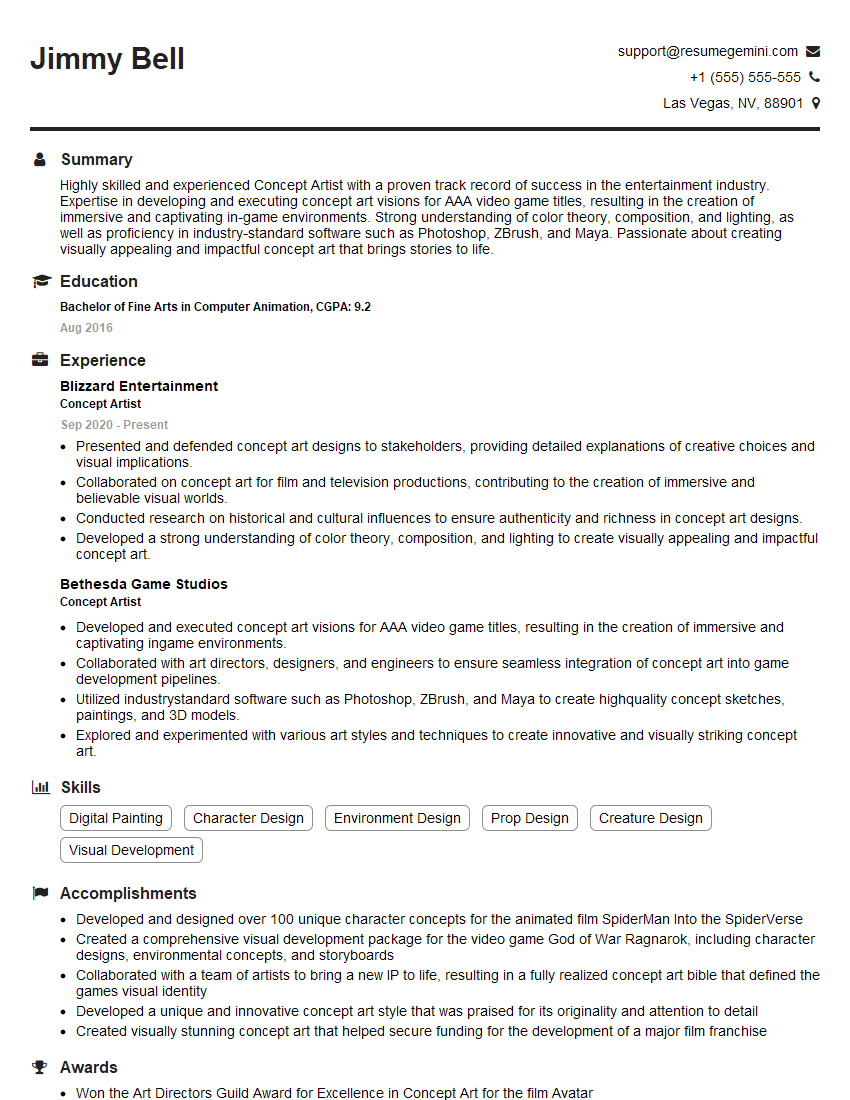
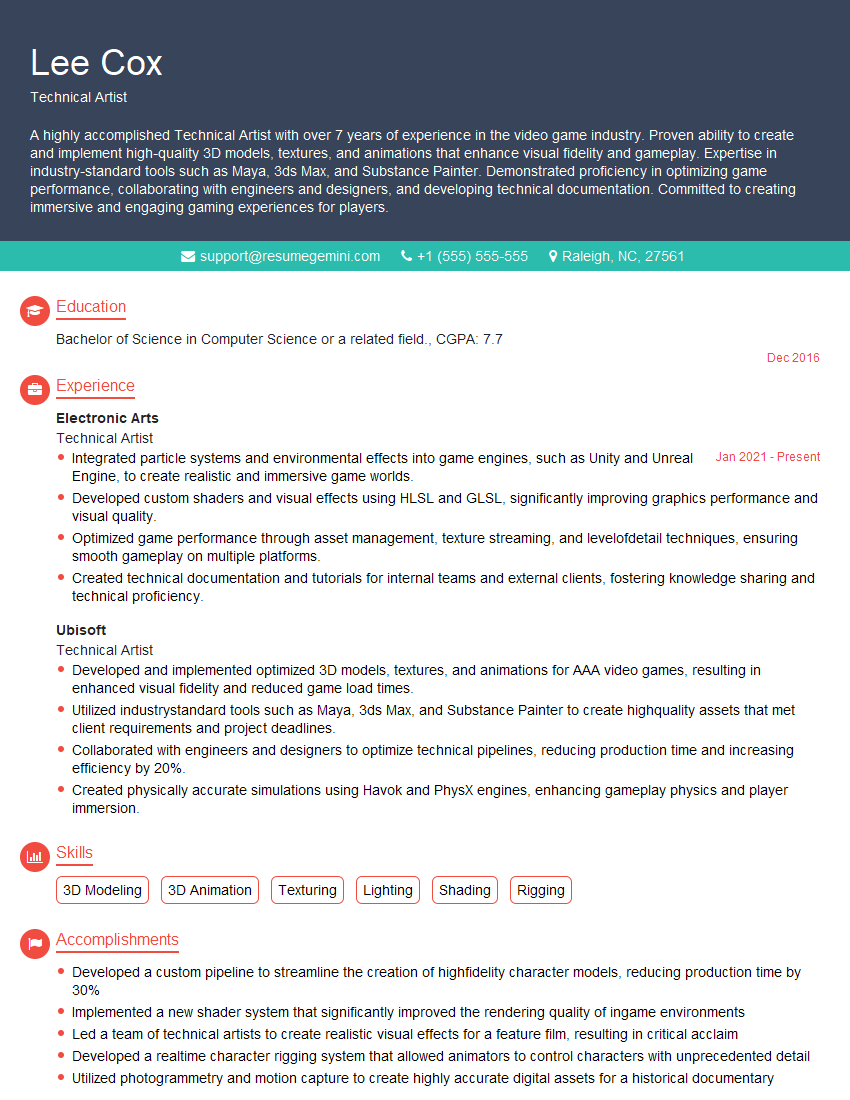
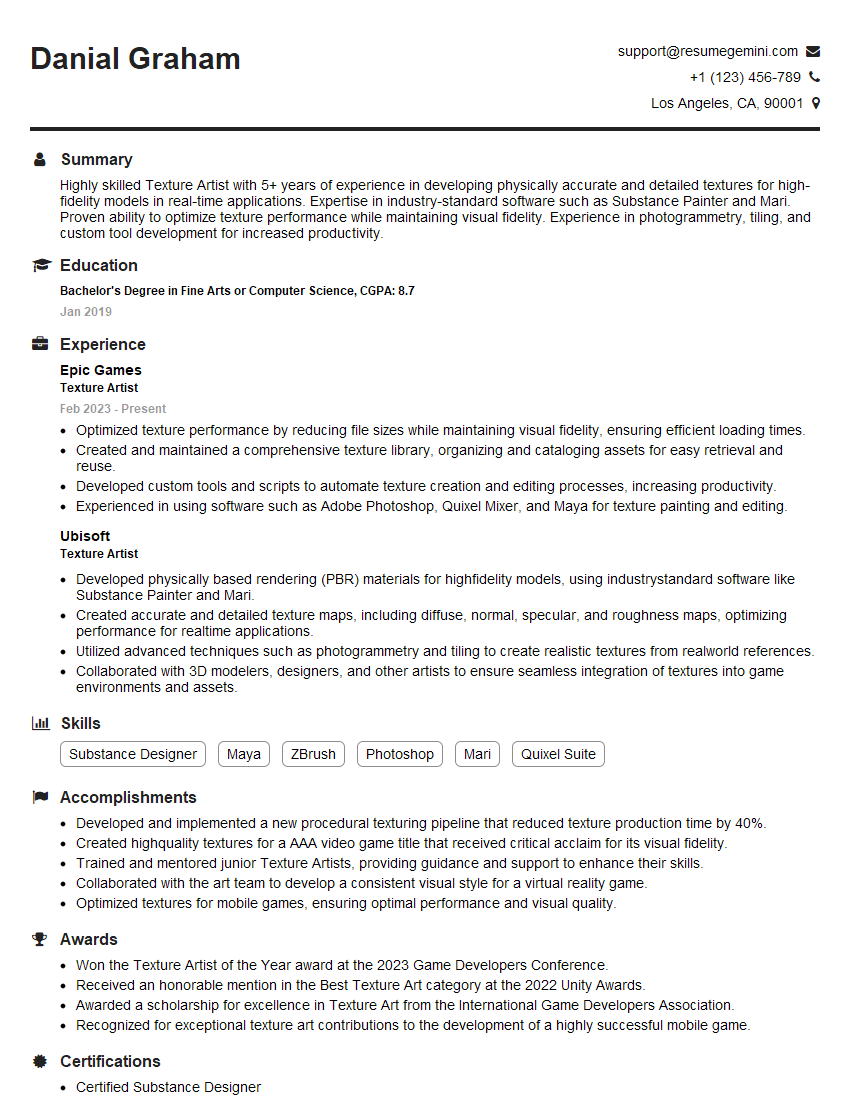
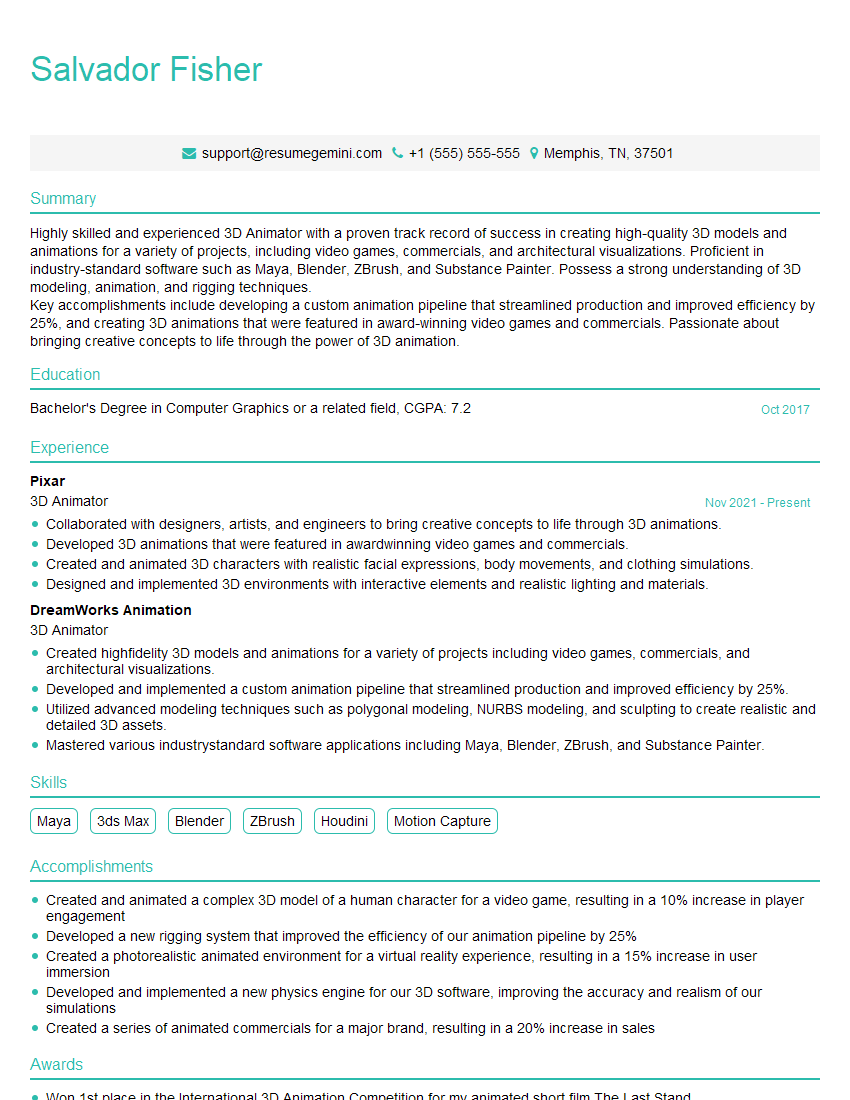
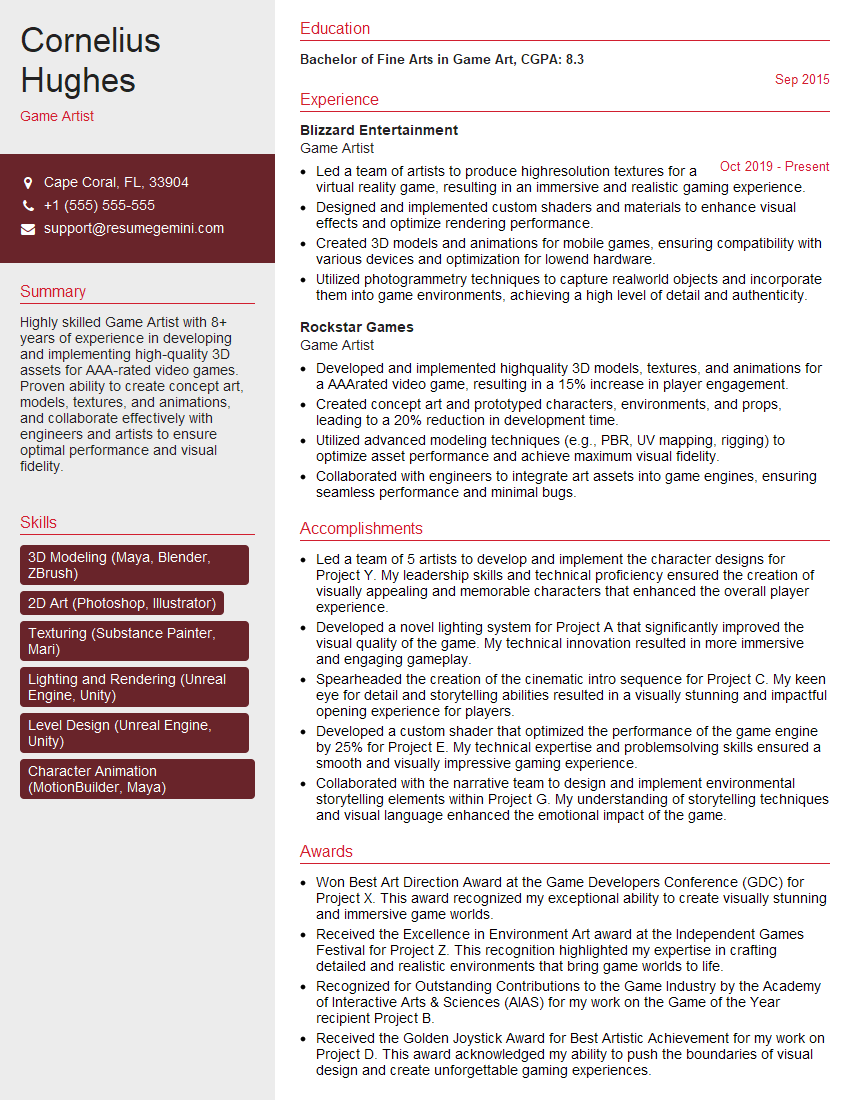
Mastering digital sculpting in Maya and ZBrush is crucial for a successful career in the visual effects, game development, or animation industries. These skills are highly sought after, opening doors to exciting opportunities and career advancement. To significantly increase your chances of landing your dream role, creating an ATS-friendly resume is essential. ResumeGemini is a trusted resource that can help you build a professional, impactful resume optimized for Applicant Tracking Systems. Examples of resumes tailored specifically for Digital Sculpting (Maya, ZBrush) professionals are available to help you get started.

Explore more articles
Users Rating of Our Blogs
Share Your Experience
We value your feedback! Please rate our content and share your thoughts (optional).
What Readers Say About Our Blog
Really detailed insights and content, thank you for writing this detailed article.
IT gave me an insight and words to use and be able to think of examples