The right preparation can turn an interview into an opportunity to showcase your expertise. This guide to File Formats interview questions is your ultimate resource, providing key insights and tips to help you ace your responses and stand out as a top candidate.
Questions Asked in File Formats Interview
Q 1. Explain the difference between lossy and lossless compression.
Lossy and lossless compression are two fundamental approaches to reducing the size of digital files. The key difference lies in whether data is discarded during the compression process.
Lossless compression algorithms achieve smaller file sizes without losing any of the original data. Think of it like neatly packing a suitcase – everything goes in, and everything comes out exactly the same. Examples include PNG for images and WAV for audio. These formats are ideal when preserving every bit of information is crucial, such as for archival purposes or medical imaging.
Lossy compression, on the other hand, achieves higher compression ratios by discarding some data deemed less important. This is analogous to throwing away some clothes before packing your suitcase to save space. While resulting in smaller file sizes, some information is lost permanently. JPEG for images and MP3 for audio are prime examples of lossy formats. These are frequently used for images and music where a slight degradation in quality is acceptable in exchange for significantly smaller files, especially for online distribution or storage.
Choosing between lossy and lossless depends on the application. If perfect fidelity is paramount, go lossless. If file size is a major concern and some data loss is tolerable, lossy is a viable solution.
Q 2. Describe the structure of a JPEG file.
A JPEG file is structured into several segments, each with a specific role. These segments are not simply a continuous stream of data but instead are organized in a logical manner that allows for efficient decoding. Let’s break down the key components:
- Start of Image (SOI): Marks the beginning of the JPEG file. Think of it as the file’s ‘welcome’ message.
- APP Markers (Application-Specific Data): Contain metadata such as EXIF information (camera settings, date, etc.)
- Quantization Tables (DQT): Describe how to reduce the precision of the image data during compression, contributing significantly to the lossy nature of JPEG.
- Huffman Tables (DHT): Define encoding tables that enhance the compression efficiency.
- Start of Frame (SOF): Specifies crucial image parameters like dimensions, color components, and sampling factors.
- Scan Data (SOS): Contains the actual compressed image data. This is where the bulk of the file size comes from.
- End of Image (EOI): Signals the end of the JPEG file, closing it off.
The process involves transforming the image into frequency components, quantizing these components to reduce precision, and then using entropy coding (Huffman coding is common) to further compress the data. It’s a multi-step process designed for efficient storage and transmission.
Q 3. What are the advantages and disadvantages of using different image formats (e.g., PNG, GIF, JPG)?
Each image format has its strengths and weaknesses, making them suitable for different applications.
- JPEG (JPG):
- Advantages: Excellent compression ratio, widely supported, ideal for photographs and images with smooth color gradients.
- Disadvantages: Lossy compression leads to quality loss with each save, not suitable for line art or text due to artifacts.
- PNG:
- Advantages: Lossless compression, supports transparency, good for images with sharp details, graphics, and text.
- Disadvantages: Larger file sizes compared to JPEG, not as widely supported for older devices.
- GIF:
- Advantages: Supports animation, small file size for simple images, lossless compression for simple images. Widely supported.
- Disadvantages: Limited color palette (typically 256 colors), not suitable for photographic images, poor compression for complex images.
For example, a photographer might use JPEG for web images due to the small size and good quality. A graphic designer may prefer PNG for logos to maintain crisp lines and transparency. A website developer might use GIF for simple animations or icons where file size is important and color palette limitations are acceptable.
Q 4. Explain the differences between various audio file formats (e.g., WAV, MP3, AAC).
Audio file formats differ primarily in their approach to compression and the fidelity they offer.
- WAV (Waveform Audio File Format):
- Characteristics: Lossless, uncompressed, high fidelity, large file size.
- MP3 (MPEG Audio Layer III):
- Characteristics: Lossy, high compression, smaller file size, good quality for most listeners but sacrifices some audio details.
- AAC (Advanced Audio Coding):
- Characteristics: Lossy, higher quality than MP3 at similar bitrates, better frequency response, more efficient compression.
WAV files are ideal for archiving or professional audio work where the highest quality is essential. MP3 is still widely used for its balance between file size and quality. AAC is becoming increasingly popular, especially in streaming services, offering a superior audio experience compared to MP3 without significant file size increase.
Q 5. How does metadata affect file formats?
Metadata significantly impacts file formats by adding information about the file itself, not the actual content. It’s like adding labels and notes to a box of belongings, describing what’s inside without altering the contents themselves.
This metadata can include:
- Author
- Date Created
- Keywords
- GPS coordinates (for images)
- Camera settings (for images)
The effect on file formats is twofold: 1) It adds extra data to the file, increasing its size slightly. 2) It provides critical context and information about the file’s origin and content, making it easier to organize, search, and understand. Metadata is essential for digital asset management and efficient search functionalities.
Q 6. What are the key characteristics of a TIFF file?
TIFF (Tagged Image File Format) is a flexible and versatile format known for its support for high-resolution images, lossless compression, and extensive metadata capabilities.
Key characteristics include:
- Lossless and Lossy Compression: TIFF supports both lossless (preserving all data) and lossy (discarding some data) compression methods, offering flexibility depending on the application’s needs.
- High-Resolution Support: TIFF can handle extremely high-resolution images, making it suitable for professional printing, scanning, and archiving.
- Extensive Metadata Support: TIFF can store a wide range of metadata, enhancing organization and searchability.
- Multiple Image Support: A single TIFF file can contain multiple images.
- Wide Color Gamut: TIFF supports a broad range of colors, including color profiles to ensure accurate color reproduction.
Because of its robustness and flexibility, TIFF is commonly used in professional photography, publishing, and medical imaging where image quality and metadata preservation are paramount.
Q 7. Describe the file format used for vector graphics.
Vector graphics are fundamentally different from raster graphics (like JPEG or PNG). Instead of pixels, vector graphics use mathematical equations to represent images as lines, curves, and shapes. This allows for scalable images without loss of quality.
The most common file formats for vector graphics are:
- SVG (Scalable Vector Graphics): An XML-based format, making it text-based and easily editable. Widely supported by web browsers.
- AI (Adobe Illustrator): A proprietary format used by Adobe Illustrator, a popular vector graphics editor. Requires the software to open and edit.
- EPS (Encapsulated PostScript): A more legacy format, supporting both vector and raster data, mainly used for printing.
- PDF (Portable Document Format): While a document format, PDF can also contain vector graphics. This is one reason it’s so ubiquitous in document sharing.
The key advantage of vector graphics is scalability; you can zoom in infinitely without losing sharpness or quality. This makes them ideal for logos, illustrations, and designs that need to be resized for various applications.
Q 8. Explain the concept of a container format.
A container format, in the context of file formats, acts like a digital suitcase. It doesn’t contain the actual data itself, but rather holds and organizes multiple files or data streams of different types within a single, easily manageable package. Think of it like a zip file, but potentially much more sophisticated. Instead of just compressing files, a container format can define how those files interact, specifying which parts are essential, and how the player or application should interpret the data. For instance, a multimedia container like an MP4 file might contain separate streams for video (H.264), audio (AAC), and subtitles (SRT). Each stream is a different file type, but the MP4 container wraps them together for seamless playback.
Common container formats include AVI, MP4, MKV, and MOV for video; ZIP, RAR, and 7z for general files; and PDF for documents which can embed various fonts, images, and other elements.
Q 9. What are some common video file formats and their characteristics?
The video landscape is vast, but some common formats include:
- MP4 (MPEG-4 Part 14): A very versatile and widely compatible container format often using codecs like H.264 or H.265 for video and AAC for audio. It’s a good all-around choice for web and mobile.
- AVI (Audio Video Interleave): An older format, still used, known for its simplicity. Can be less efficient than modern formats.
- MKV (Matroska): A relatively new, open-source container format supporting a wide range of codecs and features like multiple audio tracks and subtitles. High compatibility but might have limitations on older devices.
- MOV (QuickTime File Format): Apple’s native container, commonly used on macOS and iOS devices. Can use various codecs and offers good quality.
- WMV (Windows Media Video): Microsoft’s proprietary format, offering decent quality and compatibility within the Windows ecosystem. Less cross-platform compatible than others.
The characteristics of each format, aside from container features, depend heavily on the codecs (encoding/decoding algorithms) used within them. H.264 and H.265 are examples of video codecs known for their balance between compression and quality. AAC is a popular audio codec.
Q 10. How are file formats related to data integrity?
File formats are fundamentally linked to data integrity. The format defines the structure and rules for how data is organized and interpreted. If the format is corrupted or not properly adhered to, data integrity is compromised. For instance, an image file (like a JPEG) has a specific header defining its dimensions, color depth, and compression method. If this header is damaged, the image might be unviewable or display incorrectly. Similarly, a text file using a specific encoding (like UTF-8) will be garbled if a different encoding is assumed during processing.
Error detection and correction mechanisms are often built into file formats to enhance integrity. Checksums or hashing algorithms are used to verify data hasn’t been altered. Data redundancy (like in RAID systems or some archive formats) provides backups in case of corruption. Proper handling and storage—avoiding data write errors and using reliable storage—are also crucial for maintaining data integrity.
Q 11. Discuss the challenges of handling legacy file formats.
Legacy file formats present several challenges. Firstly, software compatibility is a major hurdle. Older formats might not be supported by current software, requiring users to find and install outdated applications. Secondly, security vulnerabilities may exist in older formats which haven’t been patched. Thirdly, data migration can be difficult and expensive; converting large volumes of data from obsolete formats to newer ones takes time and resources. Finally, lack of documentation for very old formats can make understanding their structure and contents difficult, increasing the risk of data loss during conversion.
Consider a situation where you need to access data stored in an old proprietary database format. Finding compatible software may be impossible, or the software might be unsupported and insecure. This requires meticulous planning, potential custom solutions, and likely significant manual work to access the data.
Q 12. How do you handle file format incompatibility issues?
File format incompatibility issues can be handled in several ways. The simplest is using file converters. Many freely available and commercial tools can convert files between different formats. For more complex scenarios, you might need to write custom scripts or use programming libraries to parse and reformat the data. Another approach is using virtual machines to run older operating systems and software capable of handling those legacy formats. Sometimes, the best solution is to meticulously extract the relevant data manually if automated conversion is not feasible.
Imagine receiving a project file in an uncommon CAD format. If a suitable converter doesn’t exist, you might have to programmatically extract the necessary geometry data from the file to integrate it into your current project workflow.
Q 13. Explain the process of converting a file from one format to another.
Converting a file involves several steps: First, parsing the source file: The converter program reads the file, interpreting its structure based on its format specification. Then, data extraction: The relevant data is extracted from the source file according to the target format requirements. Next, data transformation: The data might need to be reshaped, recoded, or recompressed to conform to the target format. Finally, writing the output file: The transformed data is written to a new file in the target format, applying its header and structure.
For example, converting a DOCX (Microsoft Word) file to a PDF involves parsing the XML-based structure of the DOCX file, extracting text, formatting information, and images; transforming them into a format suitable for PDF; and then creating a new PDF file based on that transformed data.
Q 14. What are some common file format vulnerabilities and how can they be mitigated?
File format vulnerabilities can stem from various sources. Malicious code injection is a common threat: A file might contain hidden malicious scripts or commands that execute when opened by unsuspecting users. Buffer overflows can lead to system crashes or allow attackers to inject code. Metadata manipulation allows attackers to embed hidden information or alter existing metadata for malicious purposes. Lack of validation in applications handling file formats can lead to various attacks.
Mitigation strategies include strict input validation, ensuring all file data adheres to the format specification; using secure file processing libraries; updating applications regularly to patch known vulnerabilities; sandboxing potentially unsafe files before opening them; and using digital signatures or other mechanisms to verify file integrity.
Q 15. How does file compression impact file size and quality?
File compression reduces file size by removing redundant data or representing data more efficiently. This comes at a potential cost to quality, depending on the compression method used. Lossless compression, like ZIP or PNG, guarantees perfect reconstruction of the original data; however, the reduction in file size might be limited. Lossy compression, such as JPEG or MP3, achieves higher compression ratios by discarding some data deemed less important, resulting in smaller file sizes but with some information loss and a potential reduction in image or audio quality. Think of it like packing a suitcase: lossless compression is like carefully folding every item to fit as much as possible, while lossy compression is like tossing in only the essentials, leaving some things behind.
For example, a high-resolution image saved as a lossless PNG will be much larger than the same image saved as a lossy JPEG. The JPEG will likely have a smaller file size, but some detail might be lost, especially in areas with fine details or subtle color gradations.
Career Expert Tips:
- Ace those interviews! Prepare effectively by reviewing the Top 50 Most Common Interview Questions on ResumeGemini.
- Navigate your job search with confidence! Explore a wide range of Career Tips on ResumeGemini. Learn about common challenges and recommendations to overcome them.
- Craft the perfect resume! Master the Art of Resume Writing with ResumeGemini’s guide. Showcase your unique qualifications and achievements effectively.
- Don’t miss out on holiday savings! Build your dream resume with ResumeGemini’s ATS optimized templates.
Q 16. Describe the importance of file extensions.
File extensions, the three or four letters after the dot in a filename (e.g., .docx, .jpg, .pdf), are crucial because they tell the operating system and applications what type of file it is and which program should be used to open it. They act like labels, providing essential metadata about the file’s contents and format. Without them, the system wouldn’t know how to interpret the data within the file, leading to errors or inability to open it.
For instance, a .txt extension indicates a plain text file, whereas a .exe extension signifies an executable file. Opening a .exe file with a text editor would be meaningless and potentially dangerous. File extensions are critical for file organization, compatibility, and security.
Q 17. What are some techniques for optimizing file sizes without significant loss of quality?
Optimizing file sizes without significant quality loss involves a combination of techniques. For images, choosing the right format (lossless PNG for graphics with sharp lines and text; lossy JPEG for photographs) is crucial. Reducing image dimensions (resolution) while maintaining an acceptable aspect ratio significantly reduces file size. For videos, compressing using codecs that offer a balance between compression and quality is essential. Using tools that allow for variable bitrate encoding helps to prioritize the quality of important parts of the video while reducing the bitrate in less important sections.
Other methods include: converting to smaller color palettes (e.g., from 24-bit to 8-bit color), removing metadata, and using image compression tools that utilize intelligent algorithms to minimize data loss. For documents, removing unnecessary elements such as large images, unnecessary formatting, and embedded objects can also lead to significant size reductions. Always remember to back up the original files before any optimization process.
Q 18. Explain the difference between raster and vector graphics.
Raster and vector graphics represent images in fundamentally different ways. Raster graphics, like JPEGs and PNGs, are composed of a grid of pixels, each with its own color value. Think of a mosaic made of tiny tiles. Changing the size of a raster image results in pixelation or blurriness because you’re either stretching or shrinking the individual tiles. Vector graphics, such as SVGs and PDFs, represent images using mathematical equations defining lines, curves, and shapes. Resizing a vector graphic doesn’t affect its quality because it’s recalculating the equations rather than stretching pixels.
In essence, raster graphics are resolution-dependent, while vector graphics are resolution-independent. Raster graphics are best for photorealistic images, while vector graphics are ideal for logos, illustrations, and designs that need to be scaled without quality loss. Imagine creating a logo: a vector-based logo will look crisp at any size, whereas a raster-based logo would become blurry when enlarged.
Q 19. What tools or software are you familiar with for working with different file formats?
My experience encompasses a broad range of tools for working with diverse file formats. For image manipulation, I’m proficient in Adobe Photoshop and GIMP. For video editing, I’ve worked extensively with Adobe Premiere Pro and DaVinci Resolve. For vector graphics, I regularly use Adobe Illustrator and Inkscape. In the realm of document processing, I am skilled in Microsoft Word, LibreOffice Writer, and LaTeX. Furthermore, I have experience using command-line tools like ffmpeg for video processing and ImageMagick for image manipulation. I’m also comfortable using various archive utilities, such as 7-Zip and WinRAR for compression and decompression.
Q 20. How do you ensure the compatibility of your files across different platforms?
Ensuring cross-platform compatibility involves several strategies. Firstly, using widely supported file formats like PDF, PNG, JPG, or plain text minimizes compatibility issues. Secondly, avoiding platform-specific features or formatting that may not be universally interpreted is crucial. Thirdly, thorough testing on different operating systems and devices before release helps in identifying and addressing any compatibility problems. For complex files, providing multiple versions tailored to different platforms might be necessary.
For example, if I’m creating a presentation, using a PDF format ensures it’s viewable across various platforms and operating systems without significant formatting changes. Additionally, sticking to common fonts and avoiding obscure formatting techniques prevents display problems on different systems.
Q 21. Explain your experience working with large files or datasets.
I have significant experience working with large files and datasets, particularly in the context of image and video processing. This includes managing large image archives, processing high-resolution video footage, and handling large datasets of scientific or medical images. I have utilized techniques like parallel processing and distributed computing to optimize processing speed and manage memory constraints efficiently. For example, I’ve worked on projects involving terabytes of data, requiring the development of customized solutions for storage, processing, and analysis. This experience includes leveraging cloud storage services like AWS S3 or Google Cloud Storage for efficient data management and employing tools such as Hadoop or Spark for distributed processing when dealing with exceptionally large datasets.
Q 22. Describe a situation where you encountered a problem with a file format and how you solved it.
One time, I was working with a large dataset of 3D models, originally saved in a proprietary format called ‘XYZ.’ Several team members used different software packages, leading to inconsistent rendering and data corruption. The problem stemmed from the XYZ format’s lack of widespread support and its poor documentation. The solution involved a multi-step process: First, I researched alternative, widely supported formats like FBX or OBJ. Then, I evaluated each format based on factors such as file size, compression capabilities, and compatibility with our team’s software. Finally, we used a dedicated conversion tool to transform all the XYZ files into the chosen format (FBX in this case) and rigorously tested the results for data integrity across multiple software platforms. This ensured that everyone could work with the models reliably.
Q 23. What are some methods for validating file integrity?
Validating file integrity is crucial to ensure data accuracy and prevent errors. Several methods exist, including:
Checksums (MD5, SHA-1, SHA-256): These algorithms generate a unique ‘fingerprint’ for a file. If the checksum of a file matches the expected checksum, we can confirm its integrity. Think of it as a digital signature. Any alteration, however small, will drastically change the checksum.
Digital Signatures: These offer a stronger method of integrity checking, incorporating encryption to verify both integrity and authenticity. They ensure not only that the file hasn’t been tampered with but also that it came from a trusted source.
Version Control Systems (e.g., Git): These systems track file changes over time, allowing you to revert to previous, known-good versions. They’re invaluable for collaborative projects.
File Header Validation: Many file formats have identifiable headers – specific bytes at the beginning of the file indicating the type and version. Verifying these headers can provide a quick check for corruption.
For example, md5sum myfile.txt in a Linux/macOS terminal will generate the MD5 checksum for myfile.txt. You could then compare this with a stored checksum to verify the file’s integrity.
Q 24. How do you stay updated on new file formats and technologies?
Staying current in the rapidly evolving world of file formats requires a multi-pronged approach:
Industry Publications and Websites: Regularly reading publications and websites specializing in data storage, software development, and digital imaging keeps me informed about new formats and technologies.
Conferences and Webinars: Attending conferences and webinars hosted by relevant organizations offers opportunities to learn about the latest advancements from leading experts.
Open Source Projects and Community Forums: Engaging with open-source projects and online communities lets you discover new formats and techniques and get firsthand feedback.
Software Updates and Documentation: Staying up-to-date on software updates often introduces support for new file formats.
Q 25. Explain the role of codecs in file formats.
Codecs (COder-DECoder) are algorithms that compress and decompress data. They play a central role in many file formats, especially those dealing with multimedia such as audio and video. A codec determines how the raw data is encoded into a file and how it’s decoded back to its original form. For example, MP3 uses a specific audio codec to compress audio data, resulting in smaller file sizes. Without codecs, files would be much larger and slower to process. Different codecs offer varying levels of compression and quality; for example, lossy codecs (like MP3) prioritize smaller file size over perfect fidelity, while lossless codecs (like FLAC) maintain perfect audio quality but result in larger files.
Q 26. Discuss the differences between text-based and binary file formats.
Text-based and binary file formats differ significantly in how they store data:
Text-based formats store data as human-readable characters. They are easily viewed and edited with simple text editors. Examples include .txt, .csv, .html. They are generally less compact than binary files.
Binary formats store data as sequences of bytes, not directly interpretable by humans. They require specialized software to read and interpret. They are often more compact and efficient than text-based formats because they represent data more directly. Examples include .jpg, .exe, .docx.
Imagine writing a letter. A text-based format is like writing the letter by hand – easily readable but potentially long. A binary format is like encoding the letter’s information into a series of electronic pulses – unreadable without decoding but potentially more efficient for transmission.
Q 27. What are the considerations for choosing a specific file format for a project?
Choosing the right file format for a project depends on several key factors:
Compatibility: Is the format supported by the target software and platforms?
File Size: Does the format offer efficient compression? Larger files consume more storage and take longer to transfer.
Data Loss: Does the format support lossy compression (reducing file size at the cost of data quality) or lossless compression (preserving all data)?
Features: Does the format support metadata (additional data about the file), embedding, or other required features?
Security: Does the format support encryption or other security measures?
Future-proofing: How likely is it the format will be supported in the future?
For example, a video project might use MP4 for its wide compatibility and decent compression, while a scientific dataset might favor a format like HDF5 for its ability to manage large, complex data structures.
Q 28. Describe your understanding of file system structures and how they relate to file formats.
File system structures organize files and directories on a storage device, providing a hierarchical way to locate and manage them. File formats, on the other hand, define how data is structured *within* a file. They are distinct but related concepts. The file system acts as the container, organizing files, while the file format determines the content and structure *inside* those files. For example, a file system might organize a user’s files into folders like ‘Documents,’ ‘Pictures,’ and ‘Videos.’ Within each of these folders, individual files could use various formats like .docx, .jpg, and .mp4, respectively. The file system provides the organization, while the file format defines how the data is represented within each file.
Key Topics to Learn for File Formats Interview
- Raster vs. Vector Graphics: Understanding the fundamental differences between raster (e.g., JPEG, PNG, GIF) and vector (e.g., SVG, AI) formats, their respective strengths and weaknesses, and appropriate use cases for each.
- Lossy vs. Lossless Compression: Explain the concepts of lossy and lossless compression, their impact on file size and quality, and provide examples of file formats employing each technique. Consider discussing the trade-offs involved.
- Common Image Formats: Deep dive into the specifics of popular image formats like JPEG, PNG, GIF, TIFF, and SVG. Discuss their characteristics, applications, and limitations.
- Audio and Video Formats: Explore common audio (MP3, WAV, FLAC) and video (MP4, MOV, AVI) formats. Understand codec technology, compression methods, and the factors influencing file size and quality.
- Document Formats: Familiarize yourself with various document formats like PDF, DOCX, TXT, and their respective functionalities and compatibilities. Consider discussing digital signatures and security features.
- Metadata and File Properties: Understand the importance of metadata embedded within files and how it can be used for organization, searching, and managing digital assets. Be prepared to discuss different metadata standards.
- File Conversion and Compatibility: Discuss common file conversion techniques, potential issues (loss of data, format incompatibility), and best practices for ensuring data integrity during conversion.
- Troubleshooting File Format Issues: Be prepared to discuss common problems encountered with file formats (e.g., corrupted files, incompatibility issues) and methods for resolving them.
- Data Structures and File Organization: For a deeper technical understanding, explore how different file formats organize data internally. This could include topics like indexing, data compression algorithms, and data structures.
Next Steps
Mastering file formats is crucial for success in many technical roles, demonstrating a broad understanding of digital assets and their manipulation. An ATS-friendly resume significantly increases your chances of landing an interview. ResumeGemini is a trusted resource to help you craft a compelling and effective resume. We provide examples of resumes tailored to File Formats professionals to help you showcase your skills and experience.
Compliance Officer Resume Sample
Security Engineer Resume Sample
Data Scientist Resume Sample
Software Engineer Resume Sample

Systems Analyst Resume Sample
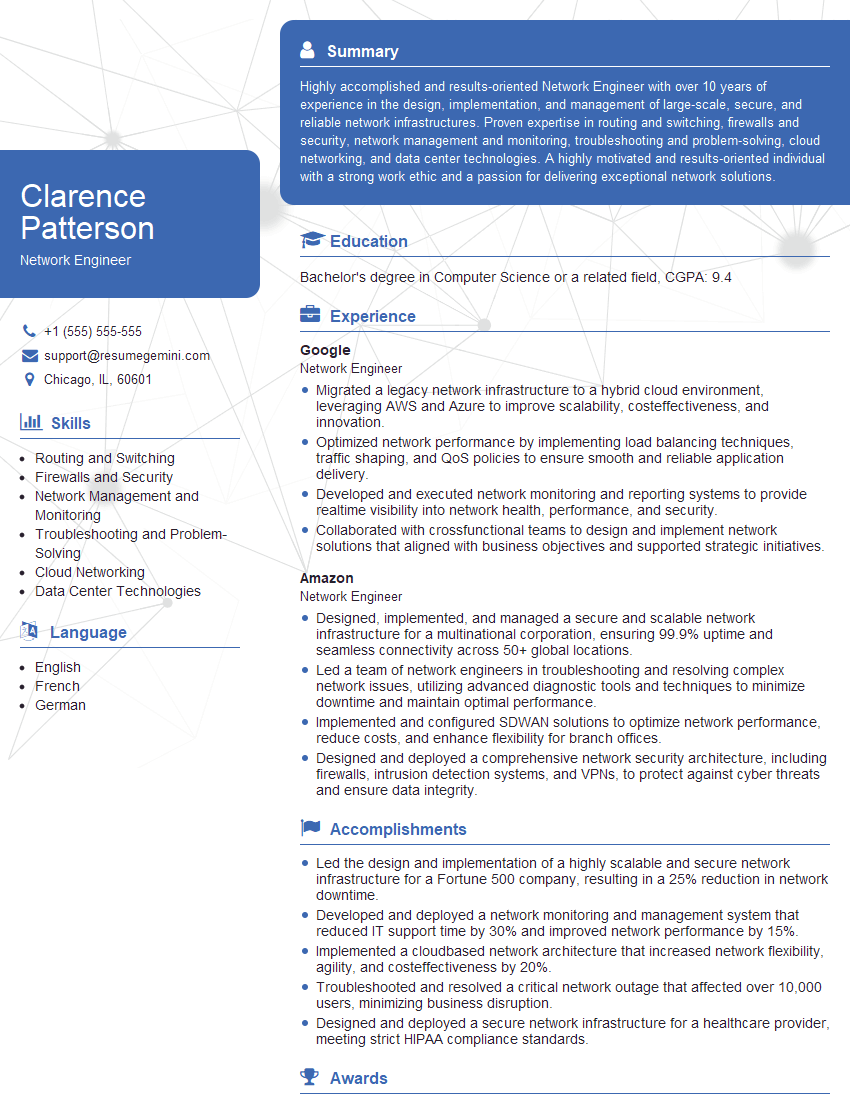
Network Engineer Resume Sample

Information Architect Resume Sample

Senior Software Engineer Resume Sample
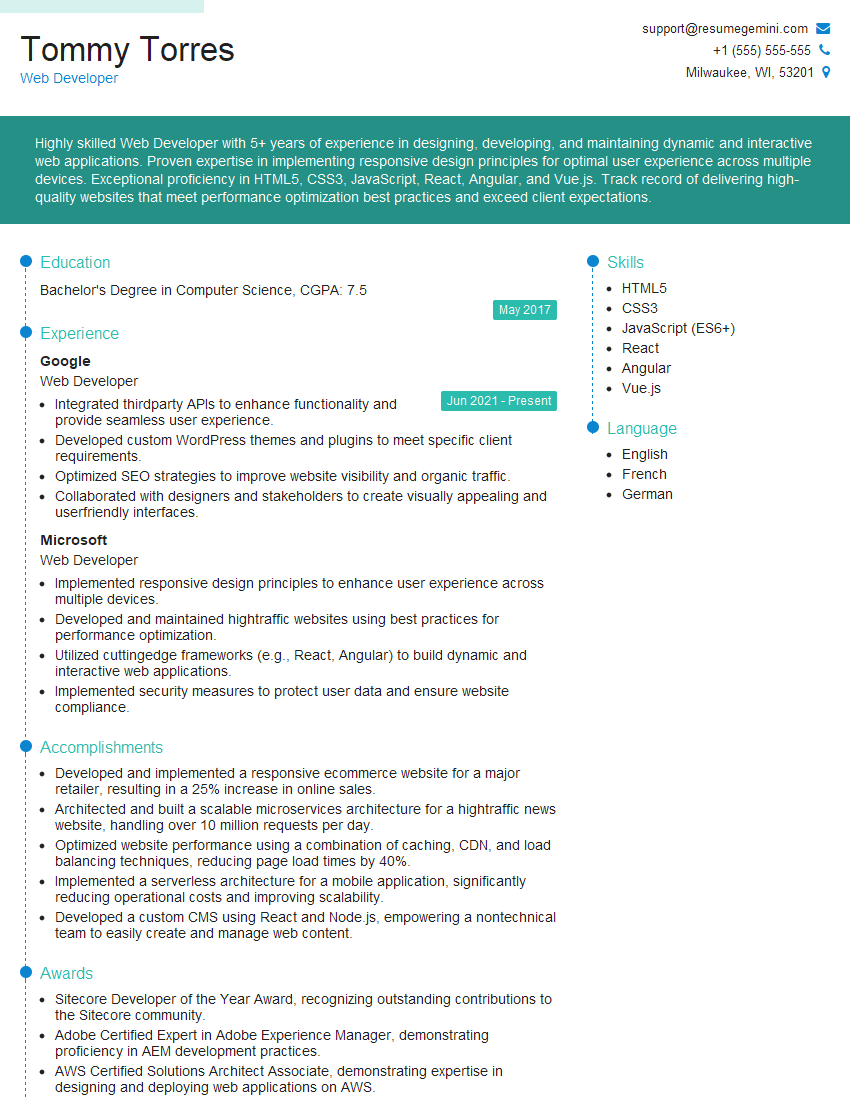
Web Developer Resume Sample
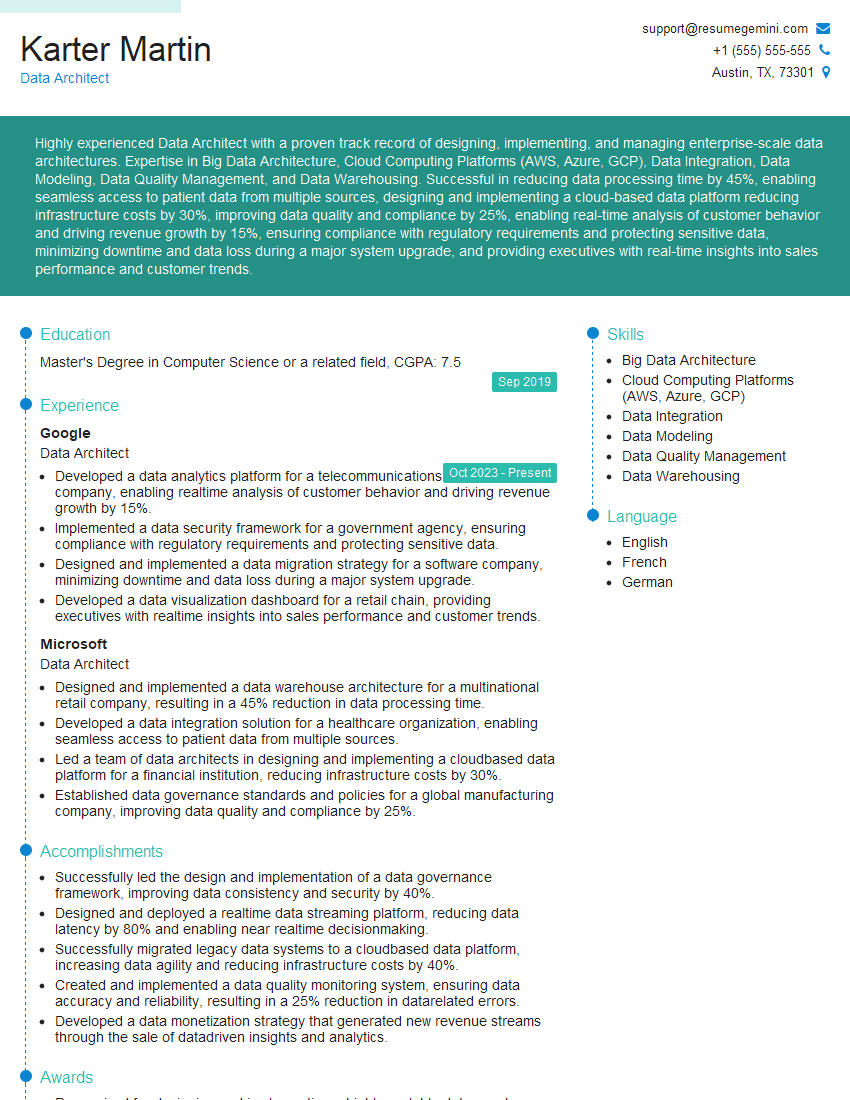
Data Architect Resume Sample

Information Systems Manager Resume Sample
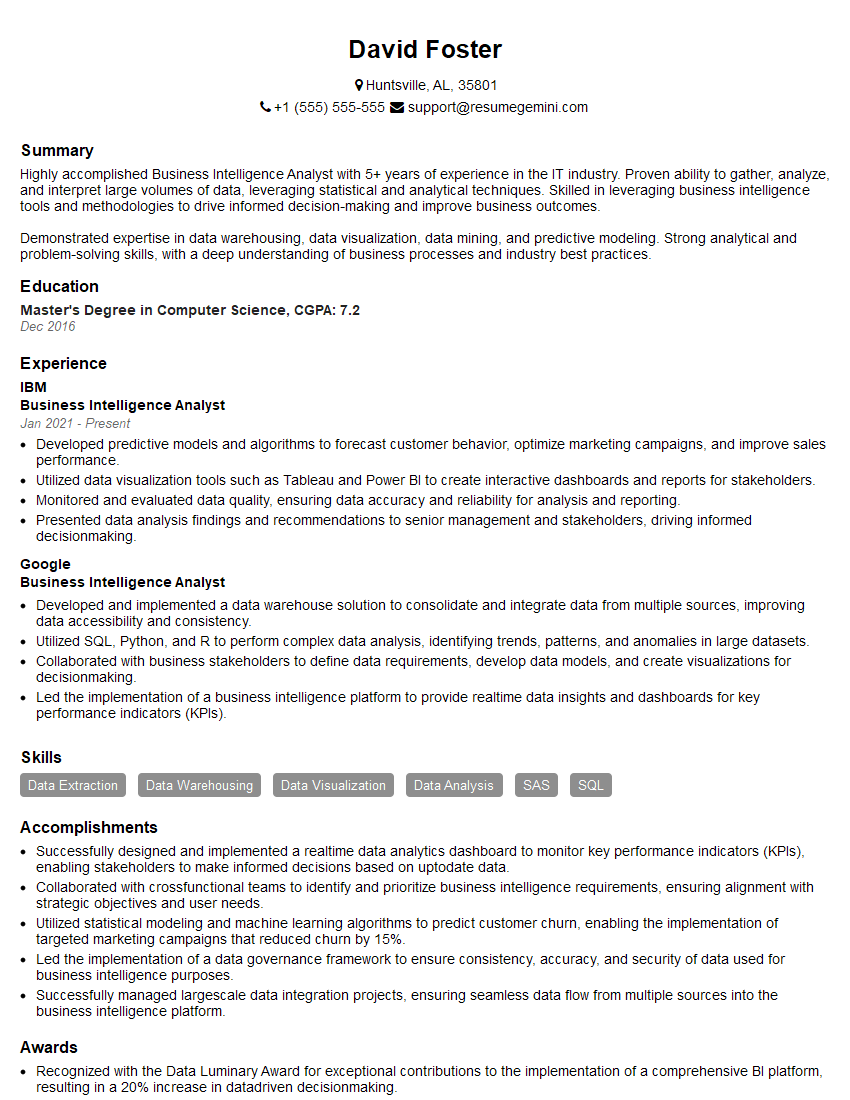
Business Intelligence Analyst Resume Sample

IT Manager Resume Sample

Multimedia Specialist Resume Sample

Technical Writer Resume Sample
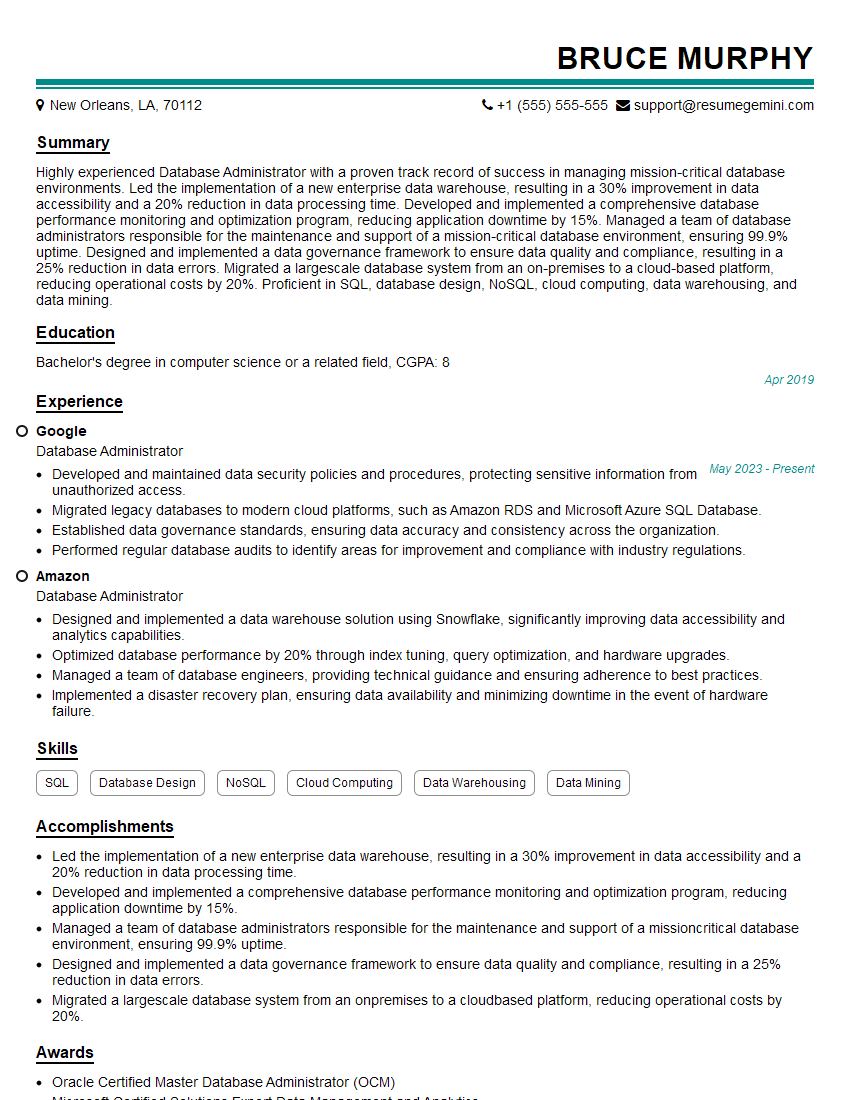
Database Administrator Resume Sample

Technical Lead Resume Sample

DevOps Engineer Resume Sample
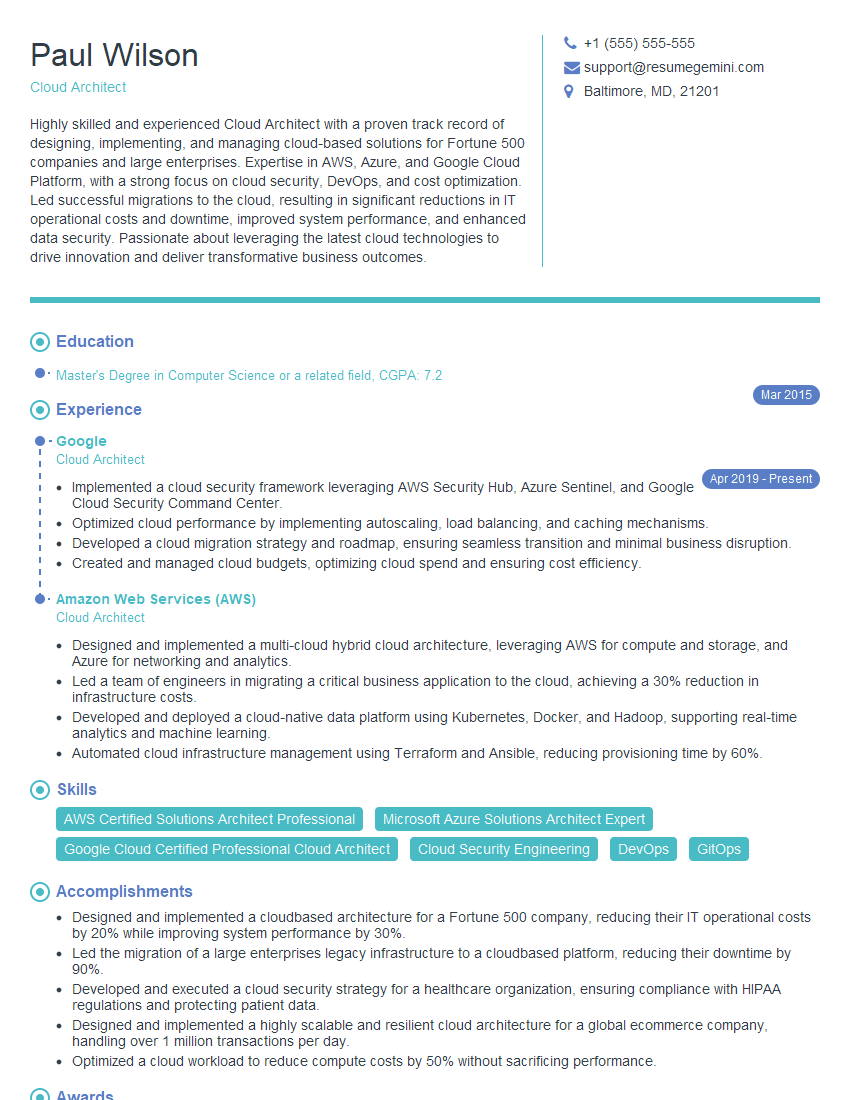
Cloud Architect Resume Sample
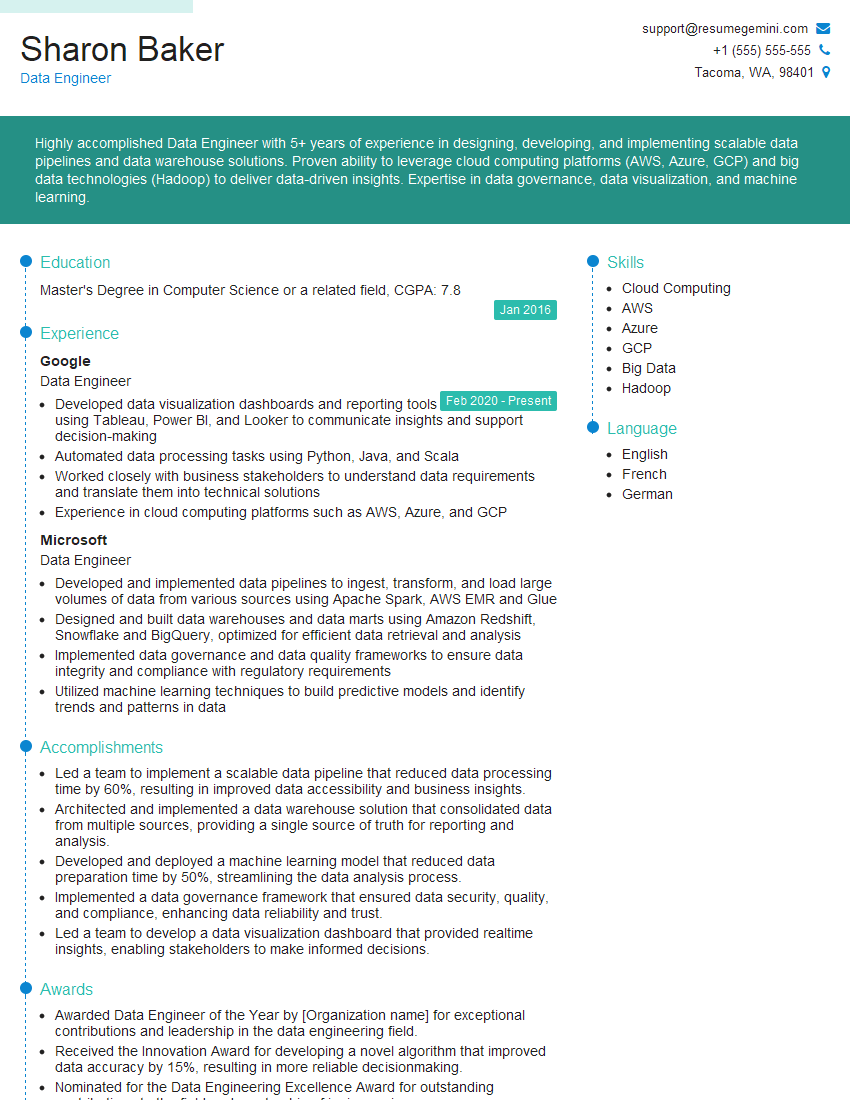
Data Engineer Resume Sample
- Compliance Officer
- Security Engineer
- Data Scientist
- Software Engineer
- Systems Analyst
- Network Engineer
- Information Architect
- Senior Software Engineer
- Web Developer
- Data Architect
- Information Systems Manager
- Business Intelligence Analyst
- IT Manager
- Multimedia Specialist
- Technical Writer
- Database Administrator
- Technical Lead
- DevOps Engineer
- Cloud Architect
- Data Engineer
Explore more articles
Users Rating of Our Blogs
Share Your Experience
We value your feedback! Please rate our content and share your thoughts (optional).
What Readers Say About Our Blog
Really detailed insights and content, thank you for writing this detailed article.
IT gave me an insight and words to use and be able to think of examples