Unlock your full potential by mastering the most common Google Classroom Experience interview questions. This blog offers a deep dive into the critical topics, ensuring you’re not only prepared to answer but to excel. With these insights, you’ll approach your interview with clarity and confidence.
Questions Asked in Google Classroom Experience Interview
Q 1. Explain the different roles and permissions within Google Classroom.
Google Classroom features three primary roles: Teacher, Student, and Guardian. Each role has specific permissions designed to maintain a structured learning environment.
- Teacher: Teachers have complete control over the class. They create classes, assign work, grade assignments, manage student participation, communicate with students and guardians, and manage class settings. They can add and remove students, view student progress, and post announcements.
- Student: Students can access class materials, complete assignments, participate in class discussions, view grades, and communicate with the teacher. Their permissions are limited to ensure they focus on learning and avoid disrupting the class structure. For example, they cannot change class settings or add other students.
- Guardian: Guardians, typically parents or legal guardians, receive updates on their child’s progress in the class. Their permissions are primarily focused on monitoring their child’s academic performance, viewing announcements and grades, but not modifying the classroom content or settings. The level of access a guardian has is determined by the teacher’s settings.
Think of it like a well-organized office: the teacher is the manager, students are the employees, and guardians are the investors who receive reports on productivity.
Q 2. How would you create and manage a class in Google Classroom?
Creating and managing a Google Classroom is straightforward. First, navigate to classroom.google.com and sign in with your Google account. To create a class:
- Click the ‘+’ icon and select ‘Create class’.
- Enter the class name, section (optional), and subject.
- Add students by importing their email addresses or creating an invitation code.
- Once the class is created, you can manage it from the ‘Stream’, ‘Classwork’, ‘People’, and ‘Grades’ tabs.
Managing involves updating the class information, adding or removing students, posting announcements, and organizing class materials. You can reuse past class assignments through the ‘Classwork’ tab by selecting ‘Reuse post’. This saves valuable time and ensures consistency.
For example, I recently created a ‘Grade 8 Math’ class, imported my students’ email addresses, and then organized my weekly lesson plans under the ‘Classwork’ tab, ensuring all materials are easily accessible to my students.
Q 3. Describe the process of assigning and grading assignments in Google Classroom.
Assigning and grading assignments in Google Classroom is seamlessly integrated. To assign an assignment:
- Go to the ‘Classwork’ tab.
- Click ‘Create’ and choose the assignment type (e.g., Assignment, Quiz, Question).
- Add instructions, files, and due dates.
- Choose whether to make it optional or required.
- Click ‘Assign’.
Grading assignments is equally intuitive. Once students submit their work, you can review their submissions, provide feedback, and assign grades directly within Google Classroom. You can use Google Docs, Slides, or Sheets for assignments and directly access and grade them. For example, I often assign essays through Google Docs, providing feedback directly within the document with inline comments. The grading feature offers quick point allocation and the option for detailed feedback.
Q 4. How do you utilize Google Classroom’s features for communication with students and parents?
Google Classroom offers various communication tools:
- Announcements: Post important updates and reminders to the entire class. Announcements can include links, images and videos.
- Stream: Use the stream as a general communication space to respond to student posts, questions, or comments. It’s also ideal for quick updates.
- Individual Messaging: Send direct messages to specific students or guardians if needed using the private messaging feature found under the ‘People’ tab.
For example, I use announcements for weekly schedules and reminders about upcoming tests. The stream is used for class discussions and quick questions, while private messages are reserved for more sensitive or individual matters regarding student progress or concerns.
Q 5. How would you handle technical issues encountered by students using Google Classroom?
Handling technical issues requires a multi-pronged approach:
- Troubleshooting Basics: Start with the fundamentals. Ask the student to check their internet connection, clear their browser cache, and ensure they are using a supported browser. Sometimes, simple restarts can resolve many issues.
- Remote Assistance: If the issue is more complex, offer remote assistance if feasible and appropriate, utilizing screen sharing tools. However, privacy and school policies regarding data security must be strictly adhered to.
- Documentation & Support: Provide students with clear, step-by-step instructions and links to relevant Google support articles. Frequently, students just need a guide.
- Escalation: If the issue persists and is beyond your technical expertise, escalate it to the school’s IT department for assistance.
For instance, if a student cannot submit an assignment due to a file upload error, I guide them through troubleshooting steps such as checking file size and format. If the problem continues, I may provide a temporary alternative submission method and then escalate the problem to IT to ensure the underlying issue is addressed.
Q 6. Explain the use of Google Classroom’s various notification settings.
Google Classroom’s notification settings allow for customized alerts. You can choose to receive notifications for various events, such as:
- New assignments: Be notified when assignments are posted.
- Student submissions: Get alerts when students submit assignments.
- Student questions: Receive notifications when students ask questions on the stream.
- Announcements: Control notifications for announcements posted by yourself or by other teachers (in a co-taught classroom).
These settings can be adjusted within your Google Classroom account to manage the frequency and types of notifications you receive. Overly frequent notifications can be distracting, while inadequate ones can lead to missed opportunities. Finding the right balance is key to effective management.
Q 7. How do you use Google Classroom to promote collaboration among students?
Google Classroom fosters collaboration through several features:
- Shared Documents: Assign projects using Google Docs, Slides, or Sheets, allowing students to co-author and collaborate in real-time. This promotes simultaneous teamwork and allows for immediate feedback.
- Class Discussions: Encourage discussions on the Stream by posing questions and creating interactive learning environments. Students can respond to each other’s comments, fostering engagement and peer learning.
- Group Assignments: Create group assignments and assign different roles within groups to encourage collaborative work on larger projects.
For example, I recently assigned a group research project using Google Docs. Each student in the group had a designated role, and they collaborated on the document in real-time, allowing me to track their progress and offer guidance as needed. This approach facilitated active participation and stronger understanding due to peer-to-peer learning.
Q 8. How do you manage student submissions and provide feedback efficiently?
Managing student submissions and providing feedback efficiently in Google Classroom relies on a structured approach. I utilize the built-in grading features extensively. For example, I can provide direct feedback within student documents created in Google Docs, Sheets, or Slides, using comments and suggestions. This allows for personalized feedback that’s directly integrated with the student’s work. For assignments with multiple parts or complex rubrics, I create a custom rubric within Google Classroom, streamlining the grading process and ensuring consistent feedback. This allows me to track performance against specific criteria quickly. Finally, I use the automated feedback features – for example, automatically assigning points for completion or using pre-written comments for common issues – to save time and give students timely responses.
Imagine grading 30 essays. Instead of opening each individually, I can directly leave comments within the Google Doc itself. The students get immediate feedback, directly on their work, and I save hours of download-upload time. Using rubrics adds even more efficiency by providing a standardized grading framework.
Q 9. Describe your experience using Google Classroom’s integration with other Google Workspace apps.
Google Classroom’s integration with other Google Workspace apps is a cornerstone of my teaching workflow. I heavily leverage its seamless connection with Google Docs, Sheets, Slides, and Drive. For instance, I create assignments directly from Google Docs, allowing students to directly edit and submit their work within the platform. This avoids file transfer issues. I use Google Forms for quick quizzes and surveys and instantly get the results tabulated in Google Sheets, providing immediate insights into student understanding. Google Slides are perfect for presentations, and the ability to embed videos and other resources makes lessons highly engaging. File storage and organization are streamlined through Google Drive integration, allowing easy access to resources and eliminating the need for external platforms.
For example, I’ve used Google Forms to conduct a quick formative assessment on a recent chapter. I can then immediately analyze the spreadsheet results to identify which concepts were misunderstood by the most students, allowing me to adjust my teaching approach for the next class. This seamless integration saves time and keeps everything centrally located.
Q 10. How do you ensure the accessibility of your Google Classroom for all students?
Ensuring accessibility in my Google Classroom is paramount. I adhere to best practices for digital accessibility by using clear, concise language in all materials. I provide alternative text for images to make them accessible to visually impaired students using screen readers. I ensure that all videos have closed captions, and I utilize built-in accessibility features in Google Docs, like dyslexia-friendly fonts, to support students with specific needs. When designing assignments and activities, I consider different learning styles and incorporate multimedia resources to cater to various learning preferences. Communication is key, so I also make sure that my communication style is inclusive and accessible to all students.
For example, before uploading a PDF, I convert it to a Google Doc to allow for screen reader functionality. Similarly, when choosing videos for lessons, I always prioritize ones with captions. Building accessibility into every aspect ensures a truly inclusive learning environment.
Q 11. How do you use Google Classroom to track student progress and identify areas needing improvement?
Tracking student progress and identifying areas needing improvement are simplified using Google Classroom’s tools. I use the built-in gradebook to monitor individual and class-wide performance on assignments. The gradebook provides a clear overview of each student’s scores, highlighting areas where they excel or struggle. Additionally, I regularly analyze class-wide performance data to identify common misconceptions or areas needing additional instruction. For formative assessment, I utilize Google Forms to gauge understanding before major assignments. This data helps pinpoint topics needing further explanation or practice.
Let’s say a majority of students score poorly on a particular question in a Google Form quiz. This data tells me that the concept behind that question needs to be re-taught or clarified through further examples and practice. This allows for targeted intervention, preventing widespread misunderstanding.
Q 12. Explain your approach to organizing and managing materials in Google Classroom.
Organizing and managing materials in Google Classroom is vital for a streamlined learning experience. I create separate units or topics using Google Classroom’s classwork feature. Within each unit, I carefully organize materials using folders and subfolders in Google Drive. This hierarchical structure makes finding specific files easy, both for me and for students. I clearly label all files and use descriptive titles, avoiding ambiguity. I also utilize the “Topic” feature in Google Classroom to group related assignments and resources together for better organization. Announcements and reminders are regularly used to guide students through the course content and highlight important deadlines.
Think of it like organizing a library – you wouldn’t just throw books onto shelves; you categorize them by genre, author, subject, etc. The same principle applies to Google Classroom; the more organized it is, the easier it is for students to navigate and find the resources they need.
Q 13. How do you utilize Google Classroom’s features for formative and summative assessment?
Google Classroom facilitates both formative and summative assessments effectively. Formative assessments, focusing on ongoing learning, are handled primarily through Google Forms for quick quizzes, polls, or short answer responses providing immediate feedback. The data from these forms helps me adjust my teaching strategy in real-time. Summative assessments, which evaluate overall learning, are often carried out using assignments created in Google Docs, Slides, or Sheets. These allow students to demonstrate a deeper understanding of the material. The built-in grading rubrics help ensure consistency in evaluating the summative assignments.
For example, I might use a quick Google Form quiz during a lesson to gauge understanding of a specific concept. This allows for immediate feedback and adjustment to the lesson plan. Later, a summative essay assigned through Google Docs would be used for a more in-depth evaluation of student comprehension at the end of the unit.
Q 14. How do you address plagiarism concerns in Google Classroom?
Addressing plagiarism concerns in Google Classroom involves a multi-faceted approach. First, I clearly communicate my expectations regarding academic integrity to my students, emphasizing the importance of original work and proper citation. I provide instruction on proper citation techniques and resources for avoiding plagiarism. I also utilize Google’s built-in plagiarism detection tools (though I’m mindful of their limitations), and I emphasize the importance of ethical practices. I encourage students to focus on the learning process, not just the grade, fostering a culture of academic honesty. Finally, I use a variety of assignment types, such as presentations, group projects, and open-ended questions to make plagiarism more difficult, and to allow assessment of critical thinking and application rather than rote memorization.
In addition to tools, I explain to students the severe consequences of plagiarism, from failing grades to possible suspension from school, to create a strong deterrent against dishonest behaviour.
Q 15. Describe a time you had to troubleshoot a significant technical issue in Google Classroom.
One time, our school transitioned to a new Google Workspace domain. This caused a significant disruption, as student access to Google Classroom was temporarily lost. Many students couldn’t access assignments or submit work. My troubleshooting involved several steps. First, I verified the issue wasn’t specific to our school by checking Google Workspace Status Dashboard. Then, I confirmed the problem with the IT department, and assisted in updating the new domain information within Classroom’s settings. This included verifying class rosters and ensuring that the migration process had correctly mapped student accounts to the new domain. We also created temporary class codes and communicated the change to the students using a school-wide announcement system, ensuring a smooth transition once the issue was resolved. The key to this successful troubleshooting was collaborative communication, a step-by-step approach, and proactive student support.
Career Expert Tips:
- Ace those interviews! Prepare effectively by reviewing the Top 50 Most Common Interview Questions on ResumeGemini.
- Navigate your job search with confidence! Explore a wide range of Career Tips on ResumeGemini. Learn about common challenges and recommendations to overcome them.
- Craft the perfect resume! Master the Art of Resume Writing with ResumeGemini’s guide. Showcase your unique qualifications and achievements effectively.
- Don’t miss out on holiday savings! Build your dream resume with ResumeGemini’s ATS optimized templates.
Q 16. How do you ensure student data privacy and security within Google Classroom?
Ensuring student data privacy and security in Google Classroom is paramount. We start with adhering to the school’s data privacy policies and Google’s own security best practices. This means carefully managing class settings to control who can access what. For example, I limit access to class materials to only enrolled students, and I avoid sharing personally identifiable information (PII) publicly in assignments or announcements. Further, I educate my students about responsible online behavior and appropriate digital citizenship. We frequently discuss concepts like online safety, responsible sharing, and the importance of protecting personal information. Furthermore, I utilize Google Classroom’s built-in features like restricting file types allowed in submissions to prevent unintended sharing of sensitive data. Regular audits of class settings and monitoring student activity helps us identify and address potential risks promptly.
Q 17. What are the best practices for using Google Classroom in a blended learning environment?
In a blended learning environment, Google Classroom acts as a central hub. We use it for both in-person and online activities. For instance, I upload class materials – slides, videos, and readings – before class, allowing students to preview the content and prepare. During in-person sessions, Google Classroom facilitates interactive activities; for example, students can collaboratively work on Google Docs during class time, then submit their final versions online. Assignments and assessments can be easily distributed and collected through the platform, with clear due dates. I also create discussion forums in Classroom where students can engage in peer-to-peer learning, both inside and outside of class. This seamless integration creates a consistent learning experience, regardless of the learning location.
Q 18. How do you differentiate instruction within Google Classroom to meet diverse learning needs?
Differentiation in Google Classroom relies on a multi-faceted approach. I leverage its features to cater to diverse learning styles and abilities. For example, I create different versions of assignments – one offering shorter, simpler tasks for students who need more support, another providing extension activities for advanced learners. I use Google Forms to offer formative assessments allowing for immediate feedback. I utilize Google Docs’ collaborative features, enabling students to work together at their own pace and providing various support levels. I also utilize features like voice-to-text or text-to-speech to aid students with different learning needs. This approach enables me to reach each student and ensure no one feels left behind.
Q 19. Explain your strategies for fostering student engagement in Google Classroom.
Fostering engagement in Google Classroom begins with creating a positive and inclusive classroom community. I establish clear expectations and actively participate in class discussions. I use a variety of activities to keep students involved – quizzes, polls, collaborative projects, and video discussions. I incorporate multimedia like videos and interactive simulations to enhance learning. I also leverage Google Classroom’s features to provide regular, timely feedback and recognize student achievements publicly (with their consent). I use humor and personalize interactions to make the learning process more engaging and relevant to the students’ lives. Regular communication and clear expectations play a pivotal role in maintaining active participation.
Q 20. How do you provide timely and effective feedback to students using Google Classroom?
Providing timely and effective feedback is crucial. I use Google Docs’ comment feature to give personalized feedback directly on student work. I also utilize Google Classroom’s grading feature to provide numerical scores and written comments promptly. For larger classes, rubrics are used for efficient and standardized feedback. I strive to balance specific suggestions for improvement with positive reinforcement, focusing not just on grades but on student progress and effort. I encourage students to review and respond to feedback to demonstrate their understanding of the feedback given. The goal is to support their learning journey and motivate them to strive for improvement.
Q 21. Describe your experience using Google Classroom analytics to improve instruction.
Google Classroom analytics provide invaluable insights into student learning and engagement. I use the data to track student progress on assignments, identify areas where students are struggling, and adjust my instruction accordingly. For instance, if the class average on a particular assignment is low, I can review the student responses, identify common misconceptions, and then revisit that concept using a different approach, providing further explanation or additional practice. The classwork and assignment completion rates offer an understanding of overall engagement and help me gauge the efficacy of different teaching strategies. I also monitor student participation in discussions and use this data to inform future lessons, ensuring that students are engaged and actively involved in the learning process. This data-driven approach ensures that my teaching methods are effective and responsive to student needs.
Q 22. How do you train teachers on effectively using Google Classroom?
Teacher training on Google Classroom is a multi-faceted process focusing on building proficiency and confidence. I begin with a needs assessment, understanding the teachers’ existing tech skills and their specific classroom needs. Training then incorporates a blended learning approach:
- Introductory Workshops: Hands-on sessions covering basic navigation, creating classes, assigning work, grading, and using key features like announcements and class comments. We use real-world examples, like setting up a class for a history project or a science experiment.
- Modular Online Courses: Self-paced modules delve deeper into specific features, such as utilizing Google Drive integration for assignment submissions, creating engaging quizzes with Google Forms, and leveraging the feedback tools for effective communication with students. These include quizzes and interactive elements to ensure knowledge retention.
- Personalized Support and Mentorship: Ongoing support is crucial. I provide individual assistance, answering questions, addressing concerns, and offering tailored guidance through email, video conferencing, and even in-person classroom visits. This allows for a more personalized learning experience and provides teachers with direct access to solutions for their specific challenges.
- Community Building: Creating a supportive network among teachers through shared online forums or regular meetings fosters collaboration and allows teachers to learn from each other’s experiences and best practices.
This blended approach ensures that teachers receive the training they need, at their own pace, and in a format that works best for them. Post-training, ongoing support and feedback loops are essential to ensure continued success and address any emerging issues.
Q 23. How would you integrate Google Classroom with other learning technologies?
Integrating Google Classroom with other learning technologies is key to creating a rich and dynamic learning environment. This integration can significantly enhance student engagement and provide educators with more effective tools. Here’s how I approach it:
- Google Workspace Suite: Seamless integration with Google Docs, Sheets, Slides, and Forms is inherent to Google Classroom, making collaboration, assignment creation, and assessment effortless. For example, students can collaborate on a shared document for a group project using Google Docs, and submit it directly through the Classroom assignment.
- Third-Party Apps: Google Classroom’s API allows for integration with numerous educational apps. We can incorporate tools like Quizizz for interactive quizzes, Kahoot! for game-based learning, or Canva for visual project creation. This expands the range of teaching and learning tools available.
- Learning Management System (LMS) Integration (if needed): In situations requiring a more comprehensive LMS, Google Classroom can be strategically integrated to handle specific aspects of the learning process. For example, it could be utilized for assignments and communication, while the LMS manages grading and student progress tracking.
- Communication Tools: Integration with communication tools like Google Meet allows for live sessions, virtual office hours, and interactive discussions to enhance engagement and accessibility.
The key to successful integration is strategic planning. We identify the specific learning objectives, the desired student experience, and the functionalities of each tool before incorporating them. Overlapping functionalities are avoided to prevent confusion and ensure a smooth workflow for both teachers and students.
Q 24. Explain your process for migrating content from another LMS to Google Classroom.
Migrating content from another LMS to Google Classroom requires a systematic and phased approach to minimize disruption and ensure data integrity. My process involves:
- Assessment and Planning: We begin by analyzing the existing LMS content, identifying the type of content (assignments, quizzes, discussions, etc.), and determining which aspects are essential to migrate. This involves evaluating the compatibility with Google Classroom’s features.
- Data Extraction: Depending on the LMS, we use appropriate methods to export data. Some LMS systems offer built-in export functionality. Others may require manual downloads or the use of third-party tools. We prioritize exporting in formats that can be easily imported or manually recreated in Google Classroom (e.g., CSV for grade data, text files for announcements).
- Content Reformatting: Exported content often requires reformatting to match Google Classroom’s structure. This could involve creating new assignments, quizzes, or materials using Google Docs, Sheets, and Slides. We pay close attention to maintaining formatting and ensuring that multimedia content remains accessible.
- Manual Recreation (where necessary): Some content might not be directly transferable. In these cases, manual recreation might be required, ensuring that the essence and purpose of the original content are preserved.
- Testing and Verification: After migration, a thorough testing phase verifies data accuracy and checks for any inconsistencies. This phase ensures that all content is accessible, functional, and displays as intended.
- Gradual Rollout: Instead of a complete, immediate switch, we often implement a phased rollout, starting with a pilot course to identify and address any potential issues before expanding to all courses. This mitigates potential disruption to the learning process.
This structured process ensures a smooth transition, minimizes data loss, and keeps disruption to a minimum for both teachers and students.
Q 25. How do you handle student absence and ensure they don’t fall behind in Google Classroom?
Managing student absence and preventing them from falling behind in Google Classroom requires proactive strategies and effective communication. My approach includes:
- Clear Communication Channels: Establishing clear and consistent communication channels, such as announcements and email, keeps students informed about missed work and deadlines, even when absent.
- Organized Class Structure: A well-organized Google Classroom with clearly labeled folders, modules, and assignments allows students to easily find and access missed materials.
- Designated Areas for Missed Work: Creating a dedicated space within Google Classroom for absent students to find missed materials helps them quickly get back on track.
- Flexible Deadlines (where appropriate): Offering flexible deadlines for assignments allows absent students to submit their work without penalty, provided they communicate the absence promptly.
- Peer Support: Encouraging peer-to-peer support, where classmates help each other catch up, builds a supportive learning community.
- Individualized Support: Reaching out to individual students who are consistently absent or struggling to catch up provides personalized support and addresses any underlying issues.
The goal is to create a system that is both supportive and accountable, allowing students to manage their learning effectively even during periods of absence.
Q 26. What are the limitations of Google Classroom, and how do you mitigate them?
While Google Classroom offers many advantages, it has limitations. Recognizing these is crucial for effective implementation. Some key limitations include:
- Limited Grading Features: Compared to some dedicated LMS systems, Google Classroom’s grading features are more basic. This can be mitigated by using Google Sheets for more detailed grade tracking or integrating with a dedicated grading platform.
- Dependency on Internet Connectivity: Access to the internet is essential for using Google Classroom, limiting accessibility for students in areas with poor connectivity. This requires planning for offline activities and providing alternative methods for submitting assignments when needed.
- Lack of Advanced Features: Some advanced features found in other LMS platforms, such as advanced course design options or complex assessment tools, are absent in Google Classroom. This can be partially addressed by integrating with other tools, as previously discussed.
- Data Security Concerns: Like any online platform, data security is a concern. Educators must adhere to data privacy policies and follow best practices for securing student information.
Mitigating these limitations involves strategic planning, leveraging supplemental tools, and creating contingency plans for scenarios like internet outages or technical issues. Clear communication with students and parents regarding these limitations is also crucial.
Q 27. Describe your experience with creating and managing Google Classroom communities.
My experience in creating and managing Google Classroom communities centers around fostering collaboration, communication, and a sense of belonging. I approach community building by:
- Establishing Clear Guidelines: Setting clear expectations for communication, participation, and respectful interactions lays the foundation for a positive online environment. This often involves creating a community agreement that students and teachers co-create.
- Facilitating Interactive Discussions: I encourage active participation by posing engaging questions, prompting thoughtful responses, and facilitating discussions among students. This strengthens peer-to-peer learning and community interaction.
- Utilizing Class Discussions and Announcements: These features in Google Classroom are vital for sharing announcements, updates, and facilitating discussions. Regularly using these features helps build community.
- Leveraging Google Meet for Virtual Gatherings: Regular virtual meetings, whether for Q&A sessions or informal check-ins, build rapport and fosters a sense of community beyond the online platform.
- Promoting Peer Support: Encouraging students to help each other, share resources, and provide feedback creates a supportive and collaborative learning environment. This can be facilitated by using group projects and collaborative assignments.
The success of a Google Classroom community relies on active moderation, consistent engagement, and the creation of a supportive and inclusive environment where all participants feel valued and respected.
Q 28. How would you design a Google Classroom course for a specific learning objective?
Designing a Google Classroom course for a specific learning objective begins with a thorough understanding of the objective itself. I use a structured approach:
- Define Clear Learning Objectives: The first step is to clearly define the specific, measurable, achievable, relevant, and time-bound (SMART) learning objectives. For example, “Students will be able to analyze primary source documents and synthesize historical interpretations by the end of the unit.”
- Choose Appropriate Activities and Assessments: Select a variety of activities that align with the learning objective. These might include readings, videos, discussions, group projects, quizzes using Google Forms, or presentations using Google Slides. Assessments should directly measure the attainment of the objectives.
- Structure the Course Content: Organize the course materials into logical units or modules within Google Classroom, using topics, announcements, and assignments to guide students through the learning process. Clear labeling and a structured format improve student navigation.
- Integrate Collaborative Tools: Utilize Google Docs, Sheets, and Slides for collaborative activities, allowing for peer feedback and group work. This fosters collaboration and enhances the learning experience.
- Incorporate Regular Feedback: Provide regular feedback on student work to guide their learning and improve their understanding. Utilize Google Classroom’s comment features to provide detailed feedback.
- Monitor Student Progress: Regularly monitor student progress through assignments, quizzes, and class participation. This allows for timely interventions and adjustments to the teaching strategies if necessary.
By following this process, I ensure that the Google Classroom course effectively facilitates student learning and successfully achieves the defined learning objectives.
Key Topics to Learn for Google Classroom Experience Interview
- Classroom Management & Organization: Understanding features for creating, organizing, and managing classes, assignments, and student work. Practical application: Describe how you would structure a course to maximize student engagement and efficiency.
- Assignment Creation & Grading: Mastering the creation of various assignment types (quizzes, essays, projects), grading rubrics, and feedback mechanisms. Practical application: Explain your approach to providing constructive feedback that promotes student learning.
- Communication & Collaboration: Utilizing Classroom’s communication tools (announcements, discussions, email integration) to foster effective communication between teachers and students. Practical application: Describe a scenario where you used Classroom’s communication tools to address a specific student or class need.
- Assessment & Data Analysis: Interpreting student performance data to inform instructional decisions and track progress. Practical application: Explain how you would use Classroom data to identify areas needing improvement in your teaching methodology.
- Integration with other Google services: Understanding how Classroom integrates with other Google Workspace applications (Docs, Sheets, Drive) to streamline workflows. Practical application: Describe how you would leverage Google Drive to organize and share resources with students effectively.
- Accessibility & Inclusivity: Implementing strategies to ensure all students can access and participate in the online learning environment. Practical application: Discuss strategies for adapting assignments and communication to meet the needs of diverse learners.
- Troubleshooting & Technical Problem Solving: Addressing common technical issues and finding solutions to challenges related to Classroom functionality. Practical application: Describe a situation where you encountered a technical problem in Classroom and how you resolved it.
Next Steps
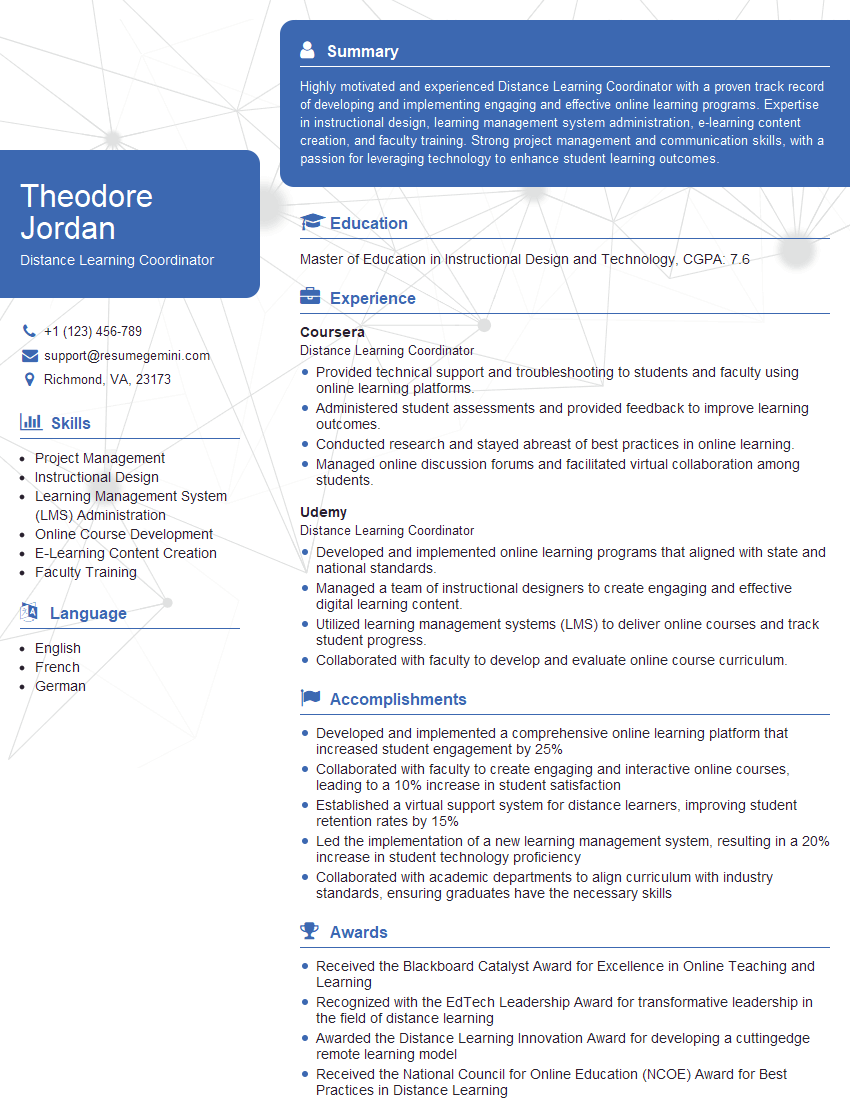
Mastering Google Classroom demonstrates valuable skills in organization, communication, technology integration, and data analysis – highly sought-after qualities in many roles. To significantly boost your job prospects, create an ATS-friendly resume that showcases these skills effectively. We highly recommend using ResumeGemini, a trusted resource, to build a professional and impactful resume. Examples of resumes tailored to highlighting Google Classroom Experience are available to guide you. Take this opportunity to showcase your expertise and land your dream job!
Explore more articles
Users Rating of Our Blogs
Share Your Experience
We value your feedback! Please rate our content and share your thoughts (optional).
What Readers Say About Our Blog
Really detailed insights and content, thank you for writing this detailed article.
IT gave me an insight and words to use and be able to think of examples