Cracking a skill-specific interview, like one for Gradient Maps, requires understanding the nuances of the role. In this blog, we present the questions you’re most likely to encounter, along with insights into how to answer them effectively. Let’s ensure you’re ready to make a strong impression.
Questions Asked in Gradient Maps Interview
Q 1. Explain the concept of a Gradient Map in image editing.
A Gradient Map is a powerful image editing tool that remaps the tonal range of an image, based on a gradient. Think of it like a color lookup table, but instead of a static table, it uses a smoothly transitioning gradient to determine the final color of each pixel. Pixels with the lowest luminance (darkest) are mapped to the starting color of the gradient, while pixels with the highest luminance (brightest) are mapped to the ending color. Pixels in between are mapped to the corresponding colors along the gradient.
For example, applying a black-to-white gradient will essentially convert your image to grayscale. A more complex gradient, say from blue to orange, will create a dramatically different, stylized look.
Q 2. How does a Gradient Map differ from other color adjustment tools?
Unlike tools like Levels or Curves, which adjust the overall tonal distribution of an image, a Gradient Map directly maps luminance values to specific colors. Levels and Curves provide more granular control over individual tonal ranges, but lack the stylistic impact of Gradient Maps. Hue/Saturation adjustments affect color directly, whereas Gradient Maps manipulate color indirectly through luminance mapping.
Imagine Levels as fine-tuning a stereo system’s equalizer, Curves as sculpting individual frequency bands, and a Gradient Map as applying a unique color filter based on the audio’s loudness. Each tool serves a distinct purpose.
Q 3. Describe the various types of gradients available in common image editing software.
Most image editors offer a wide array of gradient types, including:
- Linear Gradients: A simple, smooth transition between two or more colors along a straight line.
- Radial Gradients: Colors transition smoothly from a central point outward, creating a circular effect.
- Angular Gradients: Similar to radial, but the transition occurs along an angle.
- Predefined Gradients: Many applications offer pre-made gradients with artistic names like ‘Sunset,’ ‘Rainbow,’ or ‘Inferno,’ saving time and providing creative inspiration.
- Custom Gradients: Users can often create their own gradients by specifying color stops and their positions along the gradient.
The choice of gradient heavily influences the final image’s aesthetic. A linear gradient is straightforward, whereas radial and angular gradients offer more dynamic results.
Q 4. How can you use a Gradient Map to create a specific mood or atmosphere in an image?
Gradient Maps are exceptional for setting a mood. A cool-toned gradient (blue to purple) can evoke a feeling of serenity or sadness, while a warm-toned gradient (orange to red) can create a sense of energy or excitement. A dark, desaturated gradient can impart a moody, mysterious atmosphere, whereas a vibrant, high-contrast gradient projects boldness and vibrancy.
For example, to create a dreamy, ethereal mood, one might use a gradient transitioning from a pale blue to a soft pink. For a gritty, dramatic look, a dark gradient from deep blue to black might suffice.
Q 5. Explain how to adjust the brightness and contrast of a Gradient Map.
While Gradient Maps don’t directly offer brightness and contrast controls *within* the gradient itself, you can indirectly manipulate them. Adjusting the overall brightness and contrast of the *image* *before* applying the Gradient Map affects how the gradient is mapped. A brighter image will emphasize the lighter parts of the gradient, and vice versa. Similarly, increasing contrast enhances the separation between different luminance values, leading to a more pronounced gradient effect.
Consider it like painting on a canvas – you would adjust the base color and lighting of the canvas (image brightness/contrast) before adding the paint (gradient) to achieve the desired effect.
Q 6. How can you reverse or invert a Gradient Map’s effect?
Reversing or inverting a Gradient Map’s effect is often straightforward. Many applications allow you to simply reverse the gradient itself, flipping the start and end points. This effectively mirrors the color mapping. Alternatively, some software offers a ‘Reverse’ option specifically for the Gradient Map effect. If neither is available, you might create a new gradient that mirrors your original.
Imagine your gradient is a rainbow: reversing it changes the order to go from violet to red instead of red to violet.
Q 7. What are the advantages and disadvantages of using Gradient Maps?
Advantages:
- Artistic control: Enables rapid, non-destructive stylistic changes.
- Ease of use: Often simpler than complex adjustments like curves or levels for achieving specific looks.
- Creative possibilities: Unleashes a wide range of creative possibilities beyond standard color adjustments.
- Non-destructive editing: You can easily undo or adjust the Gradient Map without permanently altering the original image.
Disadvantages:
- Limited granular control: Less precise than other tools like curves for fine-tuning specific tonal ranges.
- Overuse can look unnatural: Can appear artificial if not used subtly and with purpose.
- Dependence on gradient selection: The final result is heavily dependent on the chosen gradient.
Q 8. How can you use Gradient Maps to create a duotone or tritone effect?
Gradient Maps are a powerful tool for creating stylized color effects like duotone and tritone. A duotone uses two colors, while a tritone uses three. Essentially, you’re mapping the grayscale values of your image to a gradient. The darkest values in your image will correspond to the starting color of your gradient, the lightest values to the ending color, and all values in between will smoothly transition across the gradient’s colors.
To create a duotone: Create a linear gradient with your two chosen colors. Apply this gradient as a Gradient Map adjustment layer (or filter, depending on your software) to your image. The result will be a two-color rendition of your original image.
To create a tritone: Use a gradient with three colors. You can achieve a more complex effect by arranging these colors strategically in the gradient, creating distinct tonal ranges within your image. Experiment with color placement to achieve the desired look—placing a darker color in the middle of the gradient can give a more dramatic, contrasting effect.
Example: Imagine converting a photograph to a classic blue and orange duotone. You’d create a gradient that starts with a deep blue and smoothly transitions to a vibrant orange. Applying this gradient map would replace the image’s grayscale range with shades of these two colors, giving it a stylish, vintage feel.
Q 9. Describe how Gradient Maps affect different color modes (e.g., RGB, CMYK).
Gradient Maps function differently depending on the color mode. In RGB mode, the gradient’s colors are directly mapped to the image’s grayscale values. Each grayscale level is assigned a color from the gradient, resulting in a vibrant, potentially saturated output. CMYK mode, however, behaves more subtly. Since CMYK represents colors through subtractive mixing of inks, the results can appear duller or less vibrant compared to RGB. The gradient colors in CMYK are still mapped to the grayscale values, but the final color output is affected by the limitations and interactions of the CMYK color space. You might find that highly saturated RGB gradients produce desaturated or muddier results in CMYK. Therefore, you will often want to fine-tune your gradient in the CMYK color mode to achieve the desired outcome.
It’s crucial to consider the final output method when working with Gradient Maps. If your final output is for print (requiring CMYK), always create and adjust your gradient map in CMYK to ensure an accurate representation of the colors.
Q 10. How do you troubleshoot issues when applying a Gradient Map?
Troubleshooting Gradient Map issues often involves examining the gradient itself and the image’s properties. Here’s a structured approach:
- Unexpected Color Results: Check if your gradient is correctly set up. Ensure the gradient’s colors are what you intend. If working in CMYK, ensure your chosen colors translate well to this color space.
- Lack of Detail: A gradient with too few color stops can lead to a posterized look. Try adding more color stops to your gradient for smoother transitions. Also check your image’s contrast; a low-contrast image will have less dramatic results.
- Clipping: If parts of your image appear completely black or white regardless of your gradient, this indicates clipping. Adjust the image’s contrast and levels before applying the Gradient Map or use a curve adjustment layer to fine tune the tonal range to control the mapping of the grayscale values to the gradient more precisely.
- Software-Specific Issues: Certain image editing software might have specific quirks related to Gradient Maps. Consult the software’s documentation or online support for relevant information.
By systematically checking these areas, you can pinpoint and fix the source of the problem.
Q 11. Explain the relationship between Gradient Maps and color palettes.
Gradient Maps are intrinsically linked to color palettes. The gradient itself is a color palette—a sequence of colors smoothly transitioning from one to another. When you apply a Gradient Map, you’re essentially replacing the image’s grayscale values with this predefined palette. You can even create your gradients from pre-existing palettes to precisely control the color scheme. For instance, you could import a color palette representing a sunset and use it as your Gradient Map to give your image a sunset-like effect.
This close relationship allows for fine control over the image’s color harmony and style. The choice of gradient directly dictates the final color aesthetics of the image, making it a powerful tool for artistic expression.
Q 12. How can you use Gradient Maps to enhance textures in an image?
Gradient Maps can subtly enhance textures by emphasizing tonal variations. A high-contrast gradient will amplify the contrast in the image, bringing out texture details. By adjusting the gradient’s colors and stops carefully, you can highlight specific aspects of the texture. For example, using a gradient with darker shades at the lower end of the tonal range will enhance the shadows, making textures appear more three-dimensional.
Example: Imagine a photo of rough-hewn wood. Applying a Gradient Map with dark browns and lighter tans will accentuate the wood grain, giving it more depth and visual interest. The gradient essentially acts as a stylized filter enhancing the textural information already present in the image.
Q 13. Can you describe a situation where using a Gradient Map would be inappropriate?
Gradient Maps might be inappropriate when you need photorealistic color accuracy. Since it maps grayscale values to a predefined palette, fine color gradations and subtle shifts in hue can be lost. Also, applying Gradient Maps to images that already have a strong and specific color scheme may result in a jarring or unnatural-looking outcome. In these cases, it’s best to use other color correction techniques that preserve more of the original image’s color information.
Example: Using a Gradient Map on a photograph of a person’s face would likely result in an unrealistic and unnatural skin tone. Here, more nuanced color correction methods would be better suited.
Q 14. How would you use a Gradient Map to simulate different lighting conditions?
Simulating lighting conditions using Gradient Maps is possible, but it requires careful gradient design. The key is to create gradients that mimic the color shifts associated with different light sources. For example:
- Warm Sunlight: Use a gradient that transitions from a deep shadow color (e.g., dark blue-gray) through mid-tones (e.g., warm oranges and yellows) to highlights (e.g., pale yellow-white).
- Cool Shade: Create a gradient with cool blues and greens for shadows, transitioning through neutral grays to lighter blues or whites in the highlights.
- Dramatic Backlighting: Employ a gradient with dark colors in the mid-tones and highlights with bright, saturated colors only at the very edges to simulate a strong light source behind the subject.
The effectiveness of this approach relies on the careful selection of colors and their placement within the gradient to match the desired lighting conditions.
Q 15. How can you achieve a subtle effect using a Gradient Map?
Achieving subtle effects with Gradient Maps is all about controlling the range and intensity of the color transition. Instead of using a high-contrast gradient that drastically alters your image, opt for gradients with closely related colors or a very gentle shift in tone. Think of it like adding a delicate veil of color instead of a bold paint stroke.
For example, a gradient ranging from a slightly darker shade of your image’s dominant color to a slightly lighter shade can subtly enhance depth and contrast without being jarring. Similarly, using a gradient with muted, pastel tones can create a soft, dreamy atmosphere.
Experiment with opacity. Lowering the opacity of the Gradient Map layer will reduce its impact, creating a more subtle effect. You can blend the gradient map smoothly into your image by adjusting the blend mode from the default ‘Normal’ to others like ‘Soft Light’ or ‘Overlay’ which allows for more nuanced control over the outcome.
Career Expert Tips:
- Ace those interviews! Prepare effectively by reviewing the Top 50 Most Common Interview Questions on ResumeGemini.
- Navigate your job search with confidence! Explore a wide range of Career Tips on ResumeGemini. Learn about common challenges and recommendations to overcome them.
- Craft the perfect resume! Master the Art of Resume Writing with ResumeGemini’s guide. Showcase your unique qualifications and achievements effectively.
- Don’t miss out on holiday savings! Build your dream resume with ResumeGemini’s ATS optimized templates.
Q 16. Explain how Gradient Maps can be used in conjunction with other adjustment layers.
Gradient Maps are incredibly versatile and work beautifully in conjunction with other adjustment layers. They act as a powerful foundation upon which you can build more complex edits. Imagine them as the base coat of paint before you start adding details.
For instance, you could use a Gradient Map to establish a color scheme, then layer a Curves adjustment layer on top to fine-tune the contrast and brightness within that scheme. Alternatively, you might use a Gradient Map for a global color shift and then utilize a selective color adjustment layer to modify specific colors selectively. The possibilities are vast and depend entirely on your creative vision.
Consider this workflow: apply a Gradient Map to create a mood, then use a Levels adjustment layer to control highlights and shadows to bring out texture or details within that mood. This layered approach provides depth and control far beyond what a single adjustment layer could offer.
Q 17. How can you customize a gradient for a specific image?
Customizing gradients for specific images is key to achieving a polished and professional look. The process usually involves analyzing your image’s dominant colors and tones to create a gradient that complements them. Consider this a form of color harmony in your editing.
Start by identifying the key colors in your image. You can use the eyedropper tool in your image editor to sample these colors directly. Then, create a new gradient in your image editor, setting the color stops to match the colors you identified. The positions of these color stops determine how the colors transition. You can create smooth transitions by placing color stops close together, and more drastic shifts by placing them further apart. This careful selection will ensure that the gradient seamlessly integrates with the image.
Remember that a well-chosen gradient will enhance the mood and overall aesthetics of the image, instead of clashing with it.
Q 18. What are some common uses of Gradient Maps in different industries?
Gradient Maps find applications across diverse industries, often utilized to achieve specific aesthetic or functional goals.
- Photography: Creating unique color grading styles, mood setting, enhancing atmospheric perspective.
- Film and Video Editing: Establishing a consistent color palette across scenes, creating stylistic looks, mimicking film stocks.
- Graphic Design: Developing thematic color schemes for logos, illustrations, and website designs.
- Web Design: Establishing visual hierarchies and guiding user attention with subtle color changes.
- Game Development: Creating atmospheric effects and stylized visuals in game environments.
In each industry, the goal is similar: to use the gradient map to efficiently apply a consistent, aesthetically pleasing, and/or thematically appropriate color scheme to the underlying imagery or artwork.
Q 19. Describe the differences between linear, radial, and other gradient types.
Different gradient types offer unique visual characteristics, significantly influencing the final effect on your image.
- Linear Gradients: These create a smooth color transition along a straight line, ideal for simple, directional effects. Imagine a sunrise or sunset effect across a landscape.
- Radial Gradients: These transition colors from a central point outwards, creating a more focused, radiating effect, akin to ripples in a pond or light emanating from a source.
- Angular Gradients: Similar to linear but the transition happens along an angle. Useful for specific directional effects or highlights.
- Reflected Gradients: Create a mirrored color transition, often used for symmetrical designs or specific artistic moods.
- Diamond Gradients: Creates a gradient that follows a diamond shape, offering a unique and often dynamic look.
Choosing the right gradient type is crucial. A radial gradient might be perfect for highlighting a subject, whereas a linear gradient might be ideal for creating a subtle mood across an entire image.
Q 20. How can you save and reuse custom gradients?
Most image editing software allows you to save custom gradients for later reuse. This is a timesaver and promotes consistency in your work, allowing you to easily maintain your creative style.
The process typically involves selecting your custom gradient, then using a ‘Save Gradient’ or similar function within the gradient editor. The saved gradient is then stored in a library or preset palette, readily accessible for future projects. This significantly streamlines your workflow, allowing you to quickly apply a previously perfected gradient to new images. You might even create a library of gradients associated with different projects or moods.
Q 21. How can Gradient Maps be used to create a specific color scheme?
Gradient Maps are exceptionally useful for establishing a specific color scheme. By carefully choosing the colors and their transitions within the gradient, you can dictate the overall mood and color harmony of your image.
For example, to create a warm, sunset-like effect, you’d use a gradient ranging from deep oranges and reds at one end to soft yellows and pinks at the other. For a cool, serene atmosphere, you might opt for a gradient from deep blues and purples to soft greens and grays. The beauty is in your control over the color combinations and their transitions. You can even create a monochromatic scheme using shades and tints of a single color.
Experimentation is key. Try different gradient types and blend modes to discover the most pleasing color schemes for your specific image and artistic vision.
Q 22. Discuss the impact of resolution on the appearance of Gradient Maps.
Resolution significantly impacts the appearance of Gradient Maps. A higher-resolution image provides more pixels for the gradient to map onto, resulting in a smoother, more refined transition between colors. Conversely, a lower-resolution image will display a more pixelated and less subtle gradient, potentially exhibiting banding or harsh color shifts. Imagine painting a gradient on a large canvas versus a small postage stamp: the large canvas allows for much finer detail and a smoother blend of colors.
For example, a subtle gradient on a high-resolution image for print may appear beautifully smooth. The same gradient applied to a low-resolution web graphic might show clear bands of color, detracting from the intended effect. Therefore, matching the resolution of your gradient map to its intended use (high-res for print, lower-res for web) is crucial for optimal results.
Q 23. How does the use of Gradient Maps affect file size?
Gradient Maps themselves don’t directly impact file size in a substantial way. The file size is primarily determined by the image’s resolution, color depth (bits per pixel), and compression method. Applying a Gradient Map is a color adjustment; it changes the existing pixel data but doesn’t inherently add new data that significantly increases file size. However, if your gradient map leads to a color change that increases the complexity or information content of the image (for instance, by adding more variation between color channels), then you might see a slight increase in file size, especially if using lossless compression.
Consider an analogy: Imagine coloring a black-and-white drawing. The drawing itself remains the same size; the colors simply modify the existing information. This is similar to how a Gradient Map works. The key factor in file size is the underlying image, not the gradient map itself.
Q 24. How can you non-destructively apply a Gradient Map?
Non-destructive application of a Gradient Map is crucial for flexibility and workflow efficiency. In most image editing software, this is achieved by using adjustment layers. Instead of directly applying the gradient map to the image pixels, you create an adjustment layer that sits above your image layer. This allows you to modify, tweak, or even delete the gradient map effect later without affecting the original image data.
For example, in Photoshop, you would create a new adjustment layer and select ‘Gradient Map’. In other software like GIMP, the method might vary slightly, but the underlying concept remains the same: to separate the adjustment from the base image layer. This preserves the original image’s integrity and offers the opportunity to experiment with different gradient maps and other adjustments without committing to irreversible changes.
Q 25. Explain how to optimize Gradient Map usage for web graphics.
Optimizing Gradient Maps for web graphics requires careful consideration of several factors. Primarily, you need to use a resolution appropriate for the intended web display size. High-resolution gradients are unnecessary and lead to larger file sizes for web use. Secondly, the color palette of the gradient should be optimized for web standards, often involving a limited number of colors (to minimize file size) and a format like JPEG or PNG8 (to exploit indexed color palettes). PNG8 is particularly good for gradients with distinct color bands, whereas JPEG is better for smooth gradients.
Avoid overly complex gradients with many subtle color transitions. Remember, web browsers might not render these nuances perfectly. A simpler gradient with fewer color steps often translates to a better online experience with faster loading times and cleaner visuals. It’s a balance between visual fidelity and performance.
Q 26. How would you explain the concept of Gradient Maps to a non-technical person?
Imagine you have a black and white photograph. A Gradient Map is like a colored filter or a special lens that you put over the photo. The darkest parts of the photo become one color from your chosen gradient (e.g., dark blue), the midtones become another (e.g., light blue), and the brightest parts become a third (e.g., white). This creates a colorized version of the original photo, based on the brightness of the original image and your chosen gradient colors.
It’s a simple yet powerful way to add color and mood to an image, transforming a grayscale image into a vibrant piece of art. The gradient acts as a map, directing how the colors are applied to the underlying image’s tonal values.
Q 27. Describe the workflow for applying and adjusting a Gradient Map in your preferred software.
My preferred software is Adobe Photoshop. The workflow for applying and adjusting a Gradient Map is straightforward:
- Open the image in Photoshop.
- Create a new adjustment layer by clicking the ‘Create new fill or adjustment layer’ icon at the bottom of the Layers panel and selecting ‘Gradient Map’.
- A Gradient Map adjustment layer will be added. By default, Photoshop provides a simple black-to-white gradient.
- To change the gradient, click on the gradient bar in the Properties panel (This will open the Gradient Editor).
- In the Gradient Editor, you can choose from preset gradients or create a custom gradient by clicking on the color stops and adjusting their colors and positions.
- Experiment with different gradient types (linear, radial, etc.).
- You can further fine-tune the effect using blending modes and opacity settings in the Layers panel. This allows you to control how strongly the gradient map influences the image.
- Save your work!
This non-destructive approach allows for easy edits and experimentation. You can always adjust the gradient map, layer opacity, or blending mode later without affecting the original image.
Q 28. Compare and contrast Gradient Maps with other color adjustment techniques, such as curves and levels.
Gradient Maps, Curves, and Levels are all color adjustment techniques, but they offer different levels of control and approaches to color manipulation:
- Gradient Maps provide a quick and intuitive way to apply a color scheme to an image based on its tonal range. They are simple and easy to use, offering a global color adjustment determined by a gradient.
- Curves offer precise, point-by-point control over the tonal range of an image. You can selectively adjust the brightness and contrast of different tonal areas, leading to more nuanced and targeted color corrections.
- Levels adjust the overall brightness and contrast of an image by manipulating the input levels (shadows), midtones, and highlights. This method focuses on the overall tonal distribution rather than specific color shifts.
While Gradient Maps are great for a quick, artistic color shift or mood setting, Curves offer more precise control for subtle color grading or correcting specific tonal issues. Levels are most useful for correcting overall exposure and contrast problems. Often, professionals use a combination of all three for comprehensive color manipulation.
Key Topics to Learn for Gradient Maps Interview
- Understanding Gradient Maps: Grasp the fundamental concept of gradient maps, including their purpose and how they function within image processing and visualization.
- Color Space Transformations: Explore how different color spaces (e.g., RGB, HSV) impact the results of gradient mapping and understand the implications for various applications.
- Types of Gradient Maps: Familiarize yourself with different types of gradient maps, such as linear, radial, and custom gradients, and their respective strengths and weaknesses.
- Practical Applications: Examine real-world applications of gradient maps in fields like image editing, data visualization, and game development. Consider specific examples and how gradient maps solve particular visual problems.
- Implementation and Algorithms: Understand the underlying algorithms involved in generating and applying gradient maps, potentially including discussions of interpolation techniques and efficiency considerations.
- Advanced Techniques: Explore more advanced concepts such as procedural generation of gradients, interactive gradient editing, and the integration of gradient maps with other image processing techniques.
- Troubleshooting and Optimization: Be prepared to discuss common problems encountered when using gradient maps, and how to optimize their performance for different scenarios.
- Choosing the Right Gradient: Develop a strong understanding of how to select the appropriate gradient map based on the specific data or image being processed, and the desired visual outcome.
Next Steps
Mastering Gradient Maps can significantly enhance your career prospects in fields like image processing, computer graphics, and data visualization. A strong understanding of these techniques showcases your technical skills and problem-solving abilities, making you a highly desirable candidate. To increase your chances of landing your dream role, focus on crafting an ATS-friendly resume that highlights your relevant expertise. ResumeGemini is a trusted resource that can help you build a professional and impactful resume. Take advantage of their tools and resources, and explore the provided examples of resumes tailored to Gradient Maps to gain inspiration and best practices.
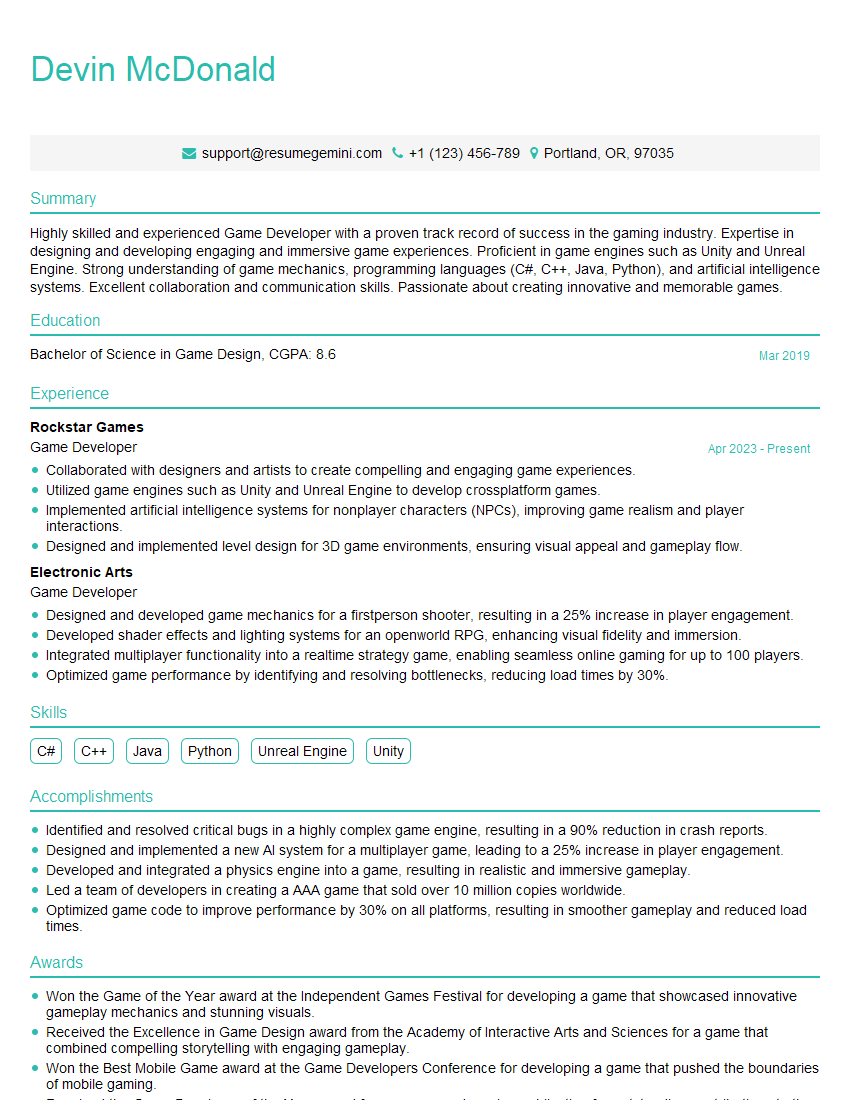
Game Developer Resume Sample
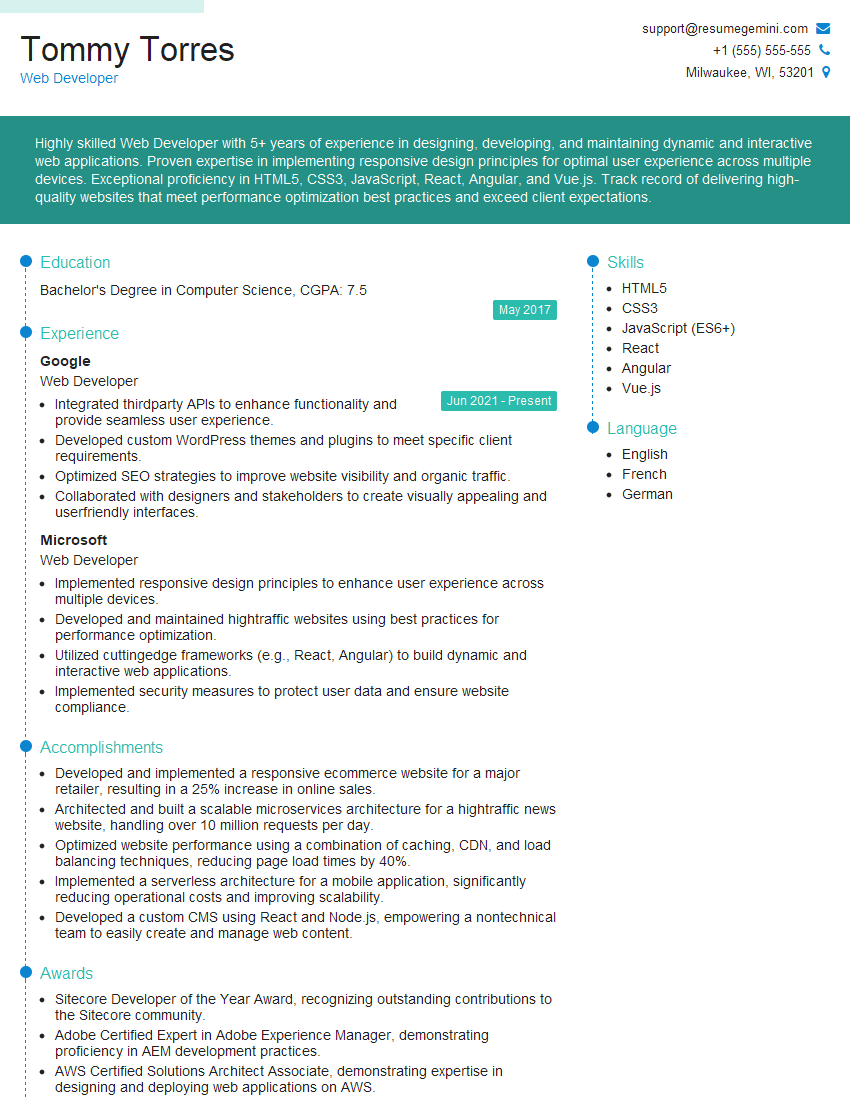
Web Developer Resume Sample

Technical Artist Resume Sample

3D Modeler Resume Sample
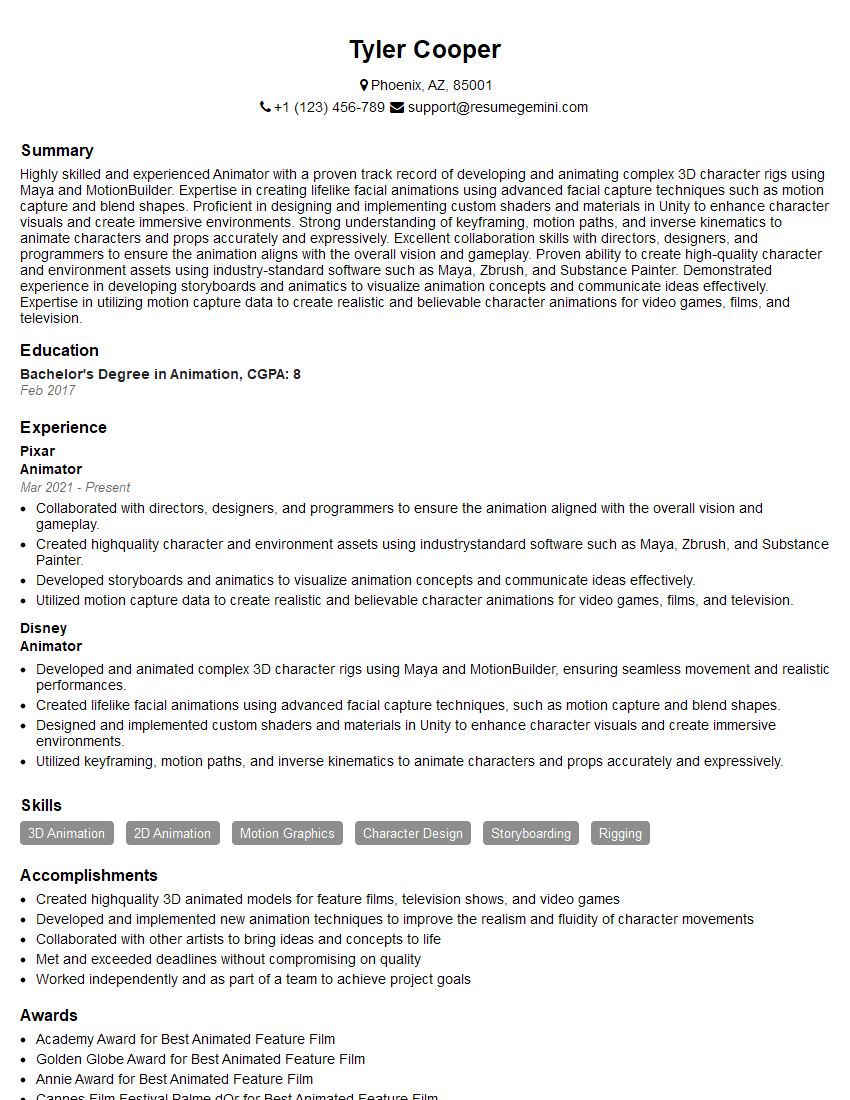
Animator Resume Sample
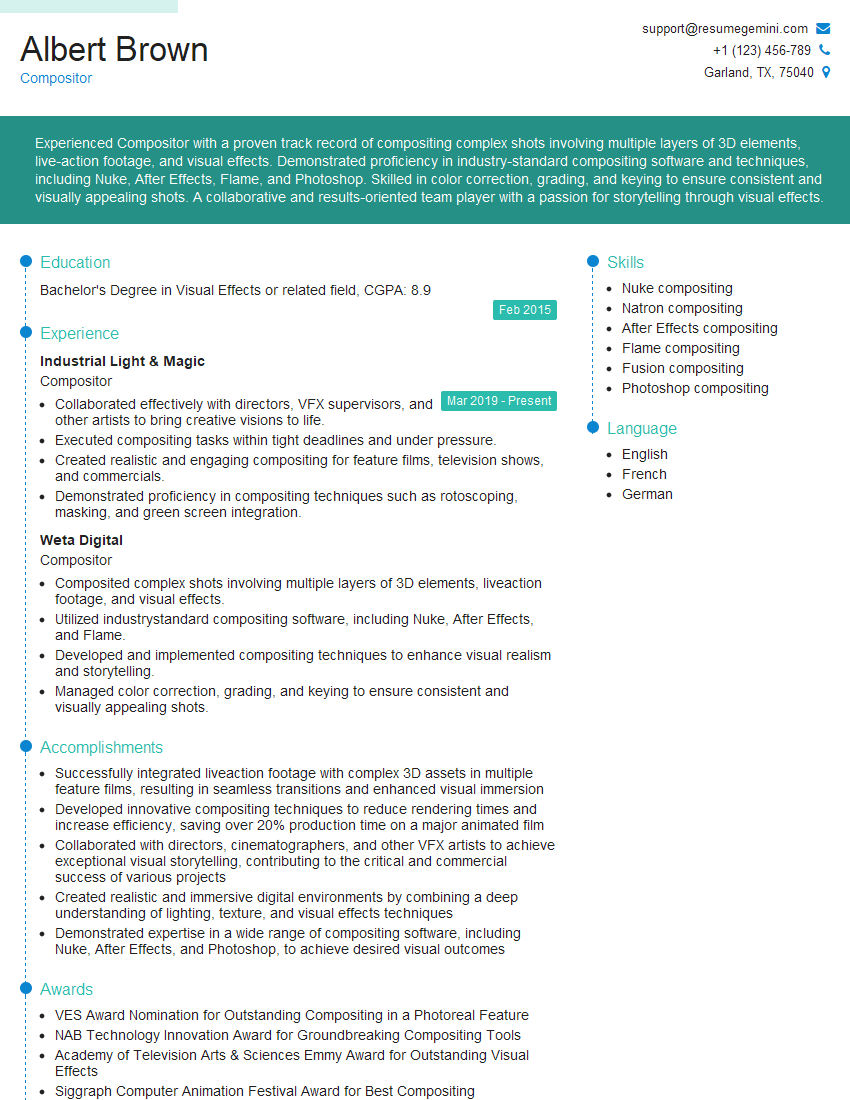
Compositor Resume Sample
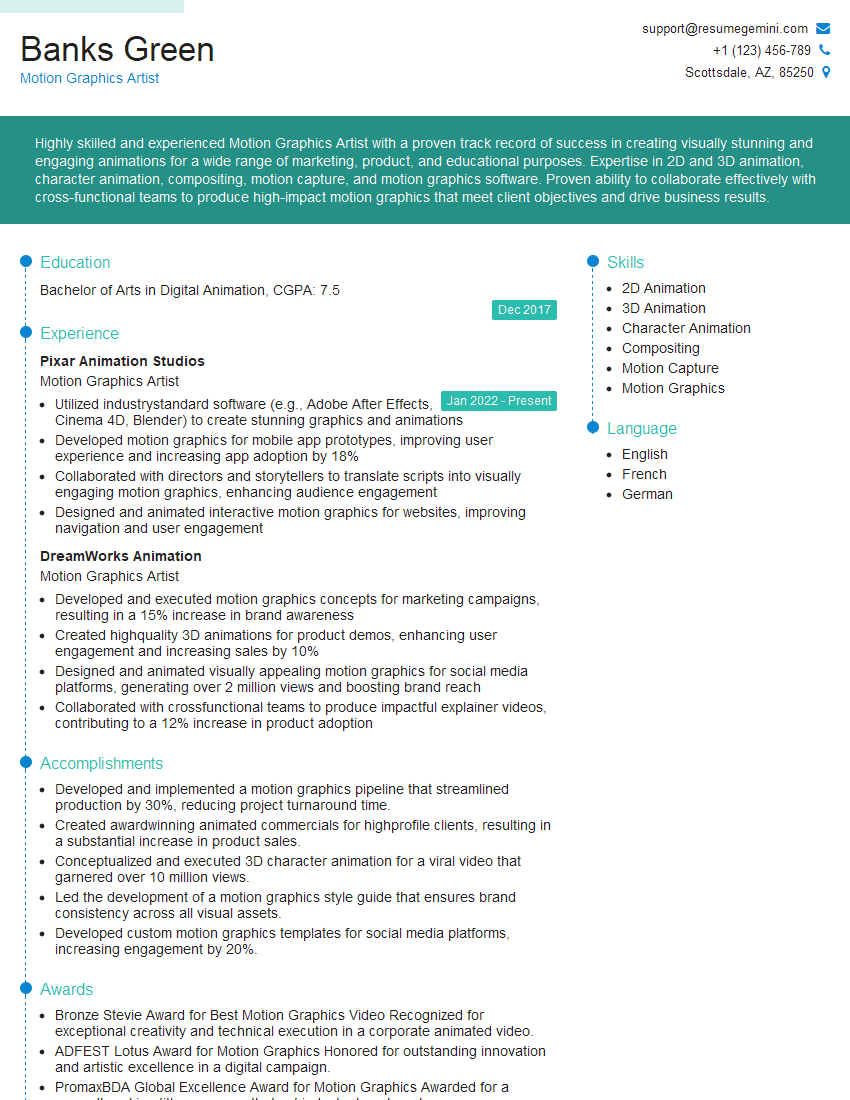
Motion Graphics Artist Resume Sample
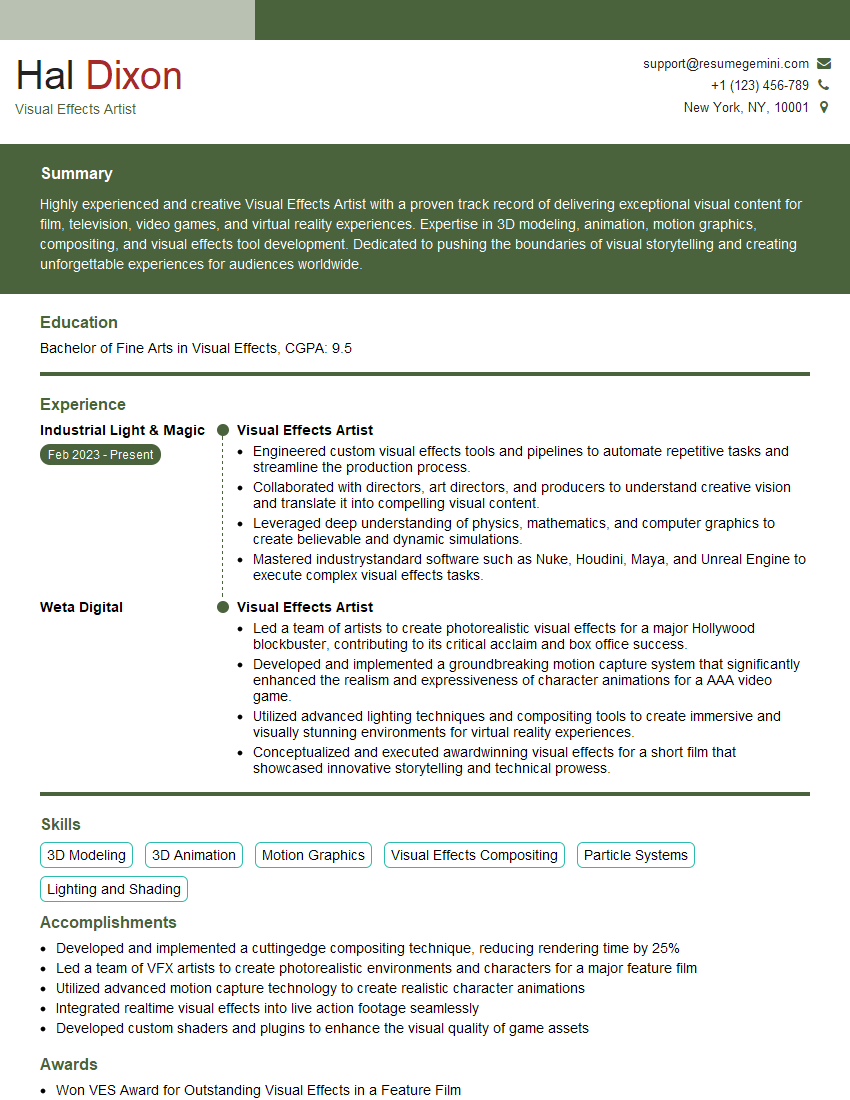
Visual Effects Artist Resume Sample
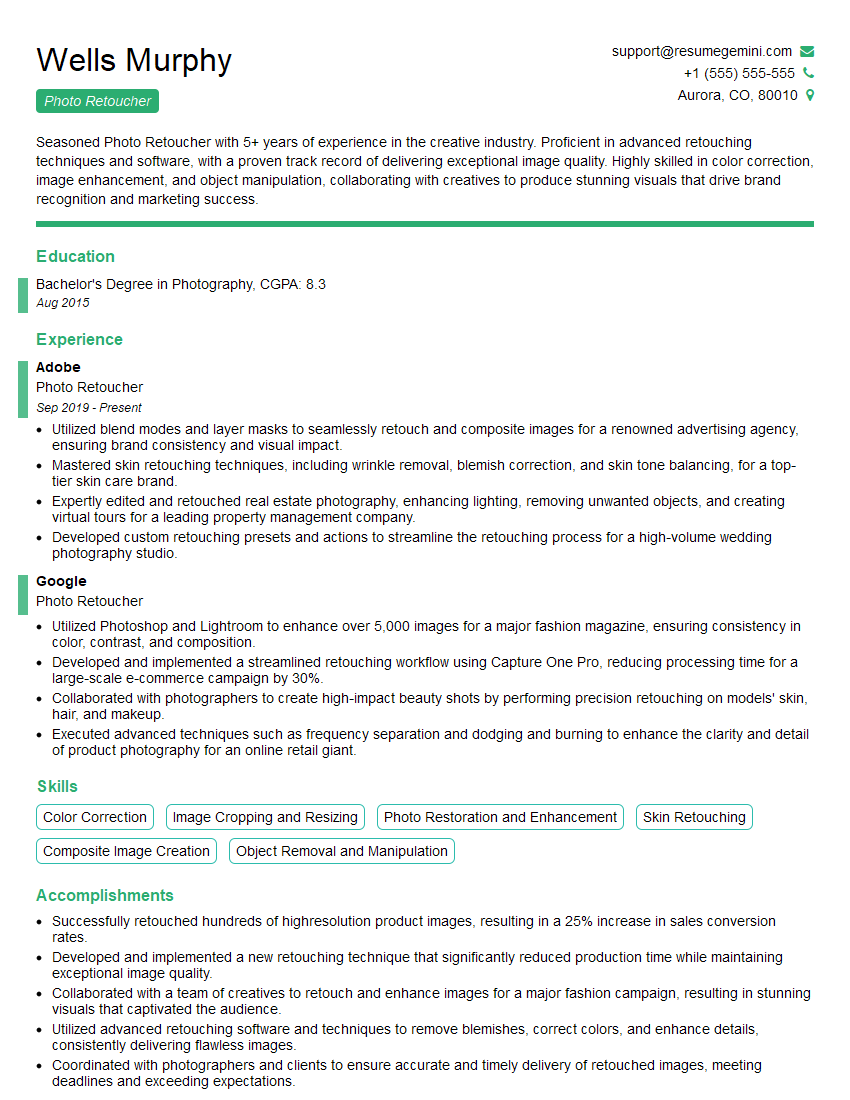
Photo Retoucher Resume Sample
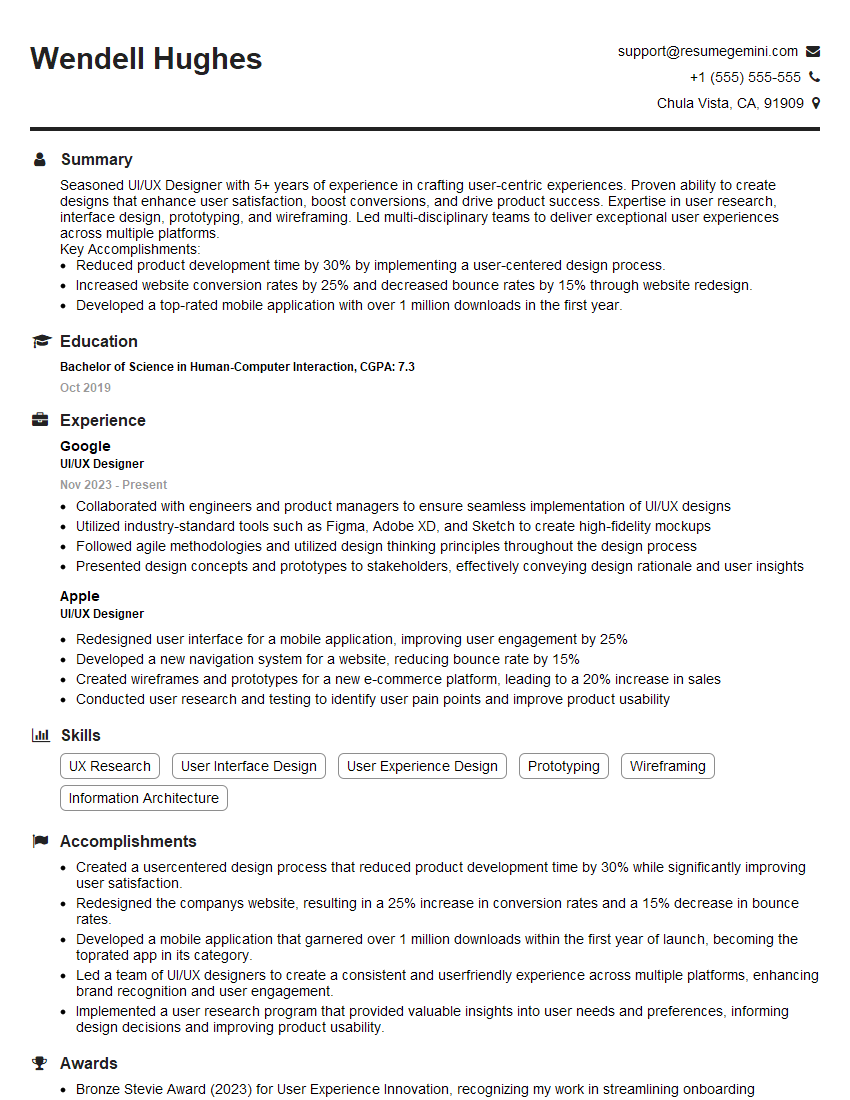
UI/UX Designer Resume Sample
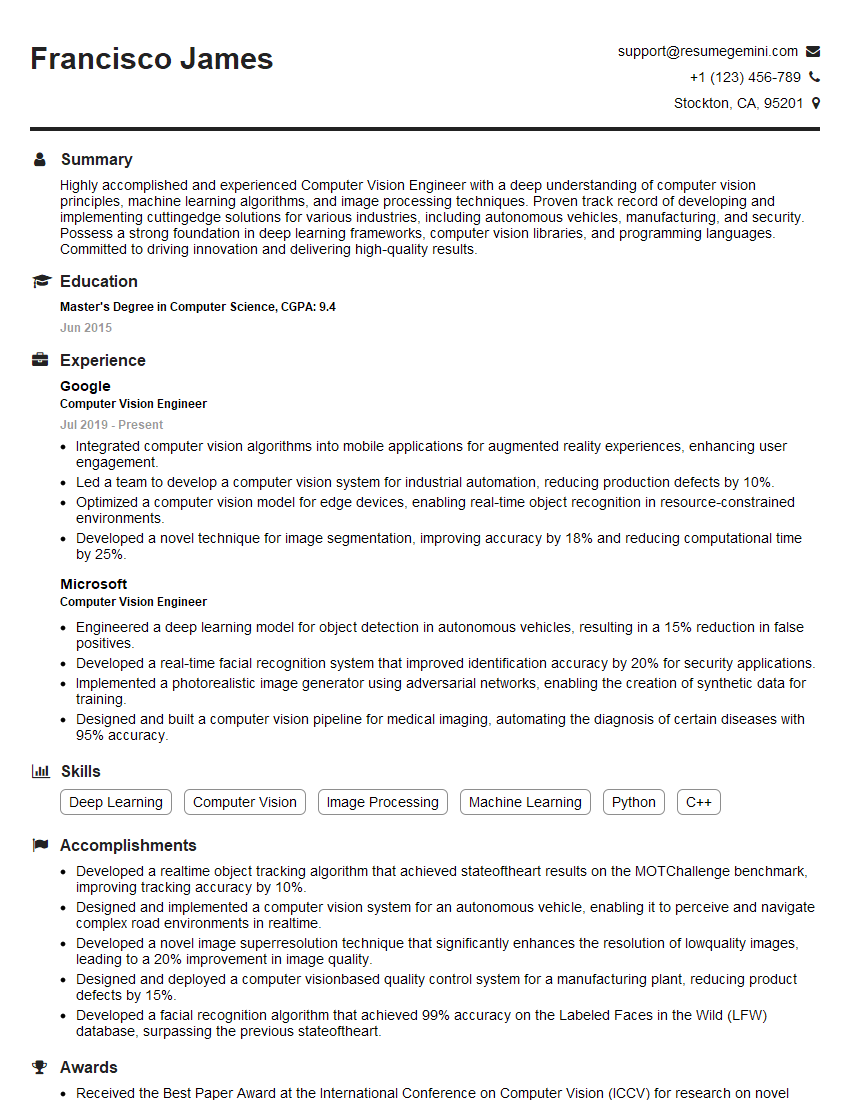
Computer Vision Engineer Resume Sample
Explore more articles
Users Rating of Our Blogs
Share Your Experience
We value your feedback! Please rate our content and share your thoughts (optional).
What Readers Say About Our Blog
Really detailed insights and content, thank you for writing this detailed article.
IT gave me an insight and words to use and be able to think of examples