Interviews are opportunities to demonstrate your expertise, and this guide is here to help you shine. Explore the essential Keyboarding and typing speed interview questions that employers frequently ask, paired with strategies for crafting responses that set you apart from the competition.
Questions Asked in Keyboarding and typing speed Interview
Q 1. What is your typing speed (WPM)?
My typing speed consistently averages around 80 words per minute (WPM), with peaks reaching 95 WPM depending on the text’s complexity and familiarity. This speed is consistently maintained across various text types, from technical documents to creative writing. I regularly use online typing tests to track my progress and identify areas for improvement. Think of it like a musician practicing scales – consistent practice is key to maintaining and increasing speed.
Q 2. What typing methods are you proficient in (e.g., touch typing)?
I am highly proficient in touch typing. This means I can type without looking at the keyboard, relying on muscle memory and the home row keys (ASDF JKL;) as my anchor points. Touch typing significantly increases speed and accuracy. It’s like learning to ride a bicycle – initially challenging, but once mastered, it becomes second nature. Beyond touch typing, I’m also skilled in adapting to different keyboard layouts, as demonstrated in my experience with the Dvorak layout (more on this in a later answer).
Q 3. What software programs are you proficient in for typing and data entry?
My proficiency extends to a range of software programs. I’m highly experienced with Microsoft Word, Google Docs, various text editors like Notepad++ and Sublime Text, and specialized data entry applications. I’m adept at using keyboard shortcuts to boost efficiency in these programs. For instance, in Word, I routinely use Ctrl+B for bold, Ctrl+I for italics, and Ctrl+Z for undo – these are small actions that dramatically save time over the long haul.
Q 4. Describe your experience with different keyboard layouts.
I’ve had experience with the standard QWERTY layout and have also explored alternative layouts like Dvorak. While QWERTY is the most common, Dvorak is designed for increased efficiency, placing frequently used letters in more central positions. My experience with Dvorak helped me understand the underlying principles of keyboard design and the importance of optimizing key placement for efficient typing. Switching layouts requires considerable time and effort, akin to learning a new language, but it significantly improved my understanding of typing mechanics.
Q 5. How do you maintain accuracy while typing at high speeds?
Maintaining accuracy at high speeds relies on a combination of factors: proper posture, consistent finger placement, and mindful typing. Rushing compromises both speed and accuracy. I focus on rhythm and consistent keystrokes, avoiding erratic bursts of speed. Regular practice and focusing on mindful typing helps build muscle memory and improve accuracy. It’s like a marathon runner pacing themselves – maintaining a steady pace leads to a better overall result than spurts of intense speed.
Q 6. How do you handle errors while typing?
Error handling is crucial. I employ a combination of techniques. Firstly, I rely on proofreading – a careful review of my work is essential. Secondly, I use the backspace key efficiently, correcting errors promptly rather than letting them accumulate. Advanced text editors often have auto-correct features, but I prefer to catch errors manually to improve my attention to detail. Think of it like an editor carefully reviewing a manuscript; precision is paramount.
Q 7. How do you manage repetitive strain injuries while working with keyboards?
Preventing repetitive strain injuries (RSI) is paramount. I maintain proper posture, ensuring my wrists are straight and my elbows are at a 90-degree angle. I take regular breaks, stretching my hands and wrists to prevent muscle fatigue. I also use ergonomic keyboards and adjust my workspace to promote a healthy typing posture. Regular exercise and staying hydrated are also key to overall health and help prevent RSI. It’s like maintaining a car – regular maintenance prevents major breakdowns down the road.
Q 8. What strategies do you use to improve your typing speed and accuracy?
Improving typing speed and accuracy is a multifaceted process that combines consistent practice with strategic techniques. I focus on three key areas: proper posture and hand placement to minimize strain and maximize efficiency, targeted practice drills to strengthen weak areas, and mindful typing to reduce errors.
Proper Technique: I ensure my fingers are positioned correctly on the home row (ASDF JKL;) and use all ten fingers, minimizing reaching. This reduces fatigue and increases speed. Think of it like learning a musical instrument – proper posture and fingering are essential for proficiency.
Targeted Practice: I use online typing tutors and practice typing specific words or phrases that consistently challenge me. For example, if I struggle with certain letter combinations, I’ll create practice sentences that heavily feature them. This is like weightlifting for your fingers – focusing on specific weaknesses improves overall strength.
Mindful Typing: I emphasize accuracy over speed initially, gradually increasing speed as accuracy improves. This prevents the development of bad habits that are hard to break later. Think of it as building a strong foundation before trying to build a skyscraper – accuracy is the foundation of fast and efficient typing.
Q 9. What are some techniques you use to improve your efficiency while typing?
Efficiency in typing extends beyond speed and accuracy; it involves leveraging tools and techniques to streamline the entire process. I employ several methods to achieve this:
Keyboard Shortcuts: I extensively utilize keyboard shortcuts for common tasks like copy-paste (Ctrl+C, Ctrl+V), saving (Ctrl+S), and navigating documents. This drastically reduces the time spent using the mouse.
Text Expansion: For frequently used phrases or sentences, I use text expansion software. This allows me to type a short abbreviation and have the software automatically expand it to the full text, saving valuable time and keystrokes.
Efficient Text Editing: I’m proficient in using the keyboard for efficient text editing tasks such as selecting text (Ctrl+Shift+arrow keys), moving the cursor quickly (Ctrl+arrow keys), and deleting words (Ctrl+Backspace).
Predictive Text: While not always appropriate, I use predictive text features to speed up typing when the context is clear. This is particularly useful for quick email responses or informal communication.
Q 10. Have you ever used dictation software? If so, how?
Yes, I’ve used dictation software extensively. I find it particularly useful for tasks involving large volumes of text, such as drafting reports or emails. I generally use it as a first draft to quickly get my ideas down, followed by a review and edit phase to ensure accuracy and clarity. It’s important to note that dictation software still requires careful editing for accuracy, but it can significantly boost productivity for certain tasks. Think of it as a powerful brainstorming tool – it’s great for generating text quickly, but requires refining to achieve perfection.
Q 11. Describe your experience with various keyboard shortcuts.
My experience with keyboard shortcuts is extensive. I’m proficient in using a wide range of shortcuts across different applications, including Microsoft Office Suite, Adobe Creative Cloud, and web browsers. I find that mastering keyboard shortcuts not only increases speed but also improves workflow efficiency. For instance, I use Ctrl+Shift+T to reopen closed tabs in my browser, saving time and frustration.
Beyond the common shortcuts, I’ve also explored and implemented application-specific shortcuts that enhance my productivity further. Understanding and utilizing these shortcuts is a continuous learning process; I always strive to discover and learn new ones. This is an ongoing process of refinement, similar to learning a new language, and constantly discovering new words or phrases.
Q 12. What is your experience with different input devices (e.g., ergonomic keyboards)?
I have experience with various input devices, including standard keyboards, ergonomic keyboards, and even touch screens. Ergonomic keyboards, with their split design and adjustable features, have proven beneficial in preventing repetitive strain injuries and promoting better posture. I’ve found that the benefits of ergonomic keyboards are particularly noticeable during prolonged typing sessions. Choosing the right input device is like choosing the right tool for a job; the best choice often depends on the task and individual preferences. I am flexible and adaptable, always looking for the best approach.
Q 13. How would you adapt your typing style to different data entry tasks?
Adapting my typing style to different data entry tasks involves analyzing the task’s requirements and adjusting my approach accordingly. For example, when entering numerical data, I prioritize accuracy and methodical typing to minimize errors. If the task involves highly repetitive data entry, I may utilize macros or automated tools to increase efficiency. For tasks involving a mix of text and numbers, I employ a blend of speed and accuracy, adapting to the changing demands. This is like a chef adjusting their cooking style based on the dish – adapting to the specific needs of the task yields the best results.
Q 14. How comfortable are you with working under pressure and meeting deadlines?
I am highly comfortable working under pressure and meeting deadlines. My experience in handling multiple tasks and working against tight deadlines has equipped me with the skills to prioritize effectively and manage my time efficiently. I approach pressure situations strategically, focusing on breaking down tasks into smaller, manageable steps and utilizing my typing skills to maintain a consistent pace. This is like a marathon runner maintaining a steady pace; consistent effort yields success even under pressure.
Q 15. Describe a time when you had to meet a tight deadline for a typing-related task.
Meeting tight deadlines is crucial in any typing-intensive role. I recall a project where I had to transcribe a three-hour-long interview into a clean, error-free document within 24 hours. This was particularly challenging due to the speaker’s rapid speech and the presence of background noise. My approach involved:
- Prioritization: I immediately started transcribing, focusing on getting a rough draft completed as quickly as possible.
- Time Management: I broke down the task into smaller, manageable chunks (e.g., transcribing in 30-minute segments), setting mini-deadlines for each.
- Accuracy over Speed: While speed is essential, accuracy is paramount. I opted for a slightly slower pace initially to ensure higher accuracy, then went back for a final proofread before submitting.
- Utilizing Transcription Software: I used professional-grade transcription software with features like auto-correction and playback speed control. This significantly boosted my efficiency.
The project was successfully completed on time, demonstrating my ability to manage time effectively and maintain accuracy even under significant pressure.
Career Expert Tips:
- Ace those interviews! Prepare effectively by reviewing the Top 50 Most Common Interview Questions on ResumeGemini.
- Navigate your job search with confidence! Explore a wide range of Career Tips on ResumeGemini. Learn about common challenges and recommendations to overcome them.
- Craft the perfect resume! Master the Art of Resume Writing with ResumeGemini’s guide. Showcase your unique qualifications and achievements effectively.
- Don’t miss out on holiday savings! Build your dream resume with ResumeGemini’s ATS optimized templates.
Q 16. How familiar are you with different data entry formats (e.g., CSV, XML)?
I’m very familiar with various data entry formats, including CSV, XML, JSON, and others. Understanding these formats is essential for efficient data handling.
- CSV (Comma Separated Values): A simple, widely used format for storing tabular data. Each line represents a row, and values are separated by commas. I often use CSV files when importing or exporting data to spreadsheets or databases. Example:
Name,Age,City John,30,New York Jane,25,London - XML (Extensible Markup Language): A more structured format that uses tags to define elements and attributes. XML is commonly used for representing complex data structures, providing better organization and metadata than CSV. Example:
<person><name>John</name><age>30</age><city>New York</city></person> - JSON (JavaScript Object Notation): A lightweight format popular for web applications and data exchange. JSON uses key-value pairs to represent data in a human-readable format. Example:
{"name": "John", "age": 30, "city": "New York"}
My experience with these formats allows me to seamlessly adapt to different data entry requirements and use the most appropriate tools for the job.
Q 17. How would you handle a situation where the software you’re using malfunctions?
Software malfunctions are an unfortunate reality. My approach to such situations prioritizes data preservation and problem resolution.
- Immediate Actions: First, I’d save any unsaved work to a separate file or an external drive, preventing data loss. Then, I would try simple troubleshooting steps: restarting the software, checking internet connectivity, or looking for software updates.
- Seeking Support: If the problem persists, I’d consult online documentation, forums, or contact the software’s support team for assistance. This may involve providing screenshots or detailed descriptions of the error.
- Alternative Solutions: Depending on the severity of the malfunction and the urgency of the task, I’d explore alternative software or methods to complete the work. For example, if a specific word processor malfunctions, I might switch to a different one or use a simple text editor to finish the task.
- Reporting the Issue: If I determine the malfunction is a software bug, I’d thoroughly document the issue and report it to the appropriate authorities (software developers).
My goal is to minimize downtime and ensure the task is completed with minimal disruption, while also proactively contributing to fixing software issues.
Q 18. How do you prioritize tasks when dealing with multiple typing-related assignments?
Prioritizing typing-related assignments is crucial for productivity and meeting deadlines. I use a combination of methods:
- Urgency and Deadline: Tasks with the closest deadlines and highest urgency take precedence. I visually organize my tasks using tools like to-do lists or project management software, color-coding by priority.
- Impact and Importance: Tasks with the most significant impact on overall projects or those with high business value get higher priority.
- Dependencies: If a task depends on the completion of another, I ensure I complete the prerequisite task first to avoid bottlenecks.
- Time Estimation: I estimate the time required for each task and allocate time blocks accordingly. I also build in buffer time to account for unexpected delays.
By utilizing these strategies, I efficiently manage multiple typing assignments, ensuring that the most critical tasks are completed on time and within the expected quality.
Q 19. Describe your experience with data validation and error checking.
Data validation and error checking are integral to my workflow. I use both automated and manual methods to ensure data accuracy.
- Automated Checks: I use software features such as spell checkers, grammar checkers, and data validation tools within spreadsheets or databases. These tools automatically flag potential errors like typos or inconsistencies.
- Manual Review: I always perform a thorough manual review of the data, particularly for critical tasks or when dealing with complex datasets. This includes checks for logical inconsistencies, missing data, or outliers.
- Data Type Validation: I ensure that data is entered in the correct format (e.g., numbers in numeric fields, dates in date fields). This involves using data validation rules within spreadsheets and databases.
- Cross-referencing: When possible, I cross-reference data from multiple sources to confirm accuracy and identify discrepancies. This is especially useful when dealing with large datasets or merging data from various files.
By combining these approaches, I significantly minimize the risk of errors and maintain a high level of data accuracy.
Q 20. How do you ensure data accuracy and integrity in your work?
Data accuracy and integrity are non-negotiable. My approach involves a multi-layered strategy:
- Source Verification: I always verify the reliability and accuracy of the data source. Using credible and well-maintained sources is fundamental.
- Double-Checking: For particularly sensitive data, I double-check my work by comparing it with the original source or having a colleague review it.
- Version Control: When working on larger projects, I utilize version control systems to track changes and revert to previous versions if necessary. This ensures data integrity and allows for easy rollback if errors occur.
- Documentation: I maintain detailed documentation of my data entry process, including the source of data, any transformations performed, and any identified errors or corrections. This is invaluable for auditing and future reference.
By meticulously following these steps, I ensure that the data is accurate, consistent, and trustworthy throughout its lifecycle.
Q 21. What is your experience with data security protocols?
Data security is of paramount importance. My experience includes adhering to various data security protocols, depending on the sensitivity of the data.
- Password Protection: I use strong, unique passwords to protect files and accounts containing sensitive data. This includes regularly updating passwords and using password managers.
- Access Control: I understand the importance of limiting access to data based on the principle of least privilege. Only authorized personnel should have access to sensitive information.
- Data Encryption: I am familiar with data encryption techniques, both at rest and in transit. I use encrypted storage solutions and secure communication protocols whenever handling sensitive data.
- Compliance: I understand the importance of complying with relevant data privacy regulations, such as GDPR or HIPAA, depending on the context of the data being handled.
My commitment to security practices ensures the confidentiality, integrity, and availability of the data entrusted to me.
Q 22. How do you handle confidential information while typing?
Handling confidential information while typing is paramount. My approach is multifaceted and prioritizes security above all else. It begins with understanding the sensitivity of the data I’m working with. This means carefully reviewing any non-disclosure agreements (NDAs) or internal policies regarding data handling. I then ensure I’m typing in a secure environment, free from unauthorized access. This could mean using a password-protected computer in a private office or utilizing encrypted files and secure networks. Furthermore, I practice good physical security, keeping documents locked away when not in use and avoiding leaving sensitive information visible on my screen. Finally, I never discuss confidential information outside of appropriate channels, ensuring strict adherence to company protocols. Think of it like a bank vault – multiple layers of protection working together.
For instance, during my previous role at Acme Corp, I was entrusted with sensitive client financial data. My adherence to strict data handling protocols, including secure network access and password protection, ensured no breaches occurred.
Q 23. Have you used any specialized software for transcription or data entry?
Yes, I’ve had extensive experience with various specialized software for transcription and data entry. My proficiency extends to transcription software like Dragon NaturallySpeaking, which leverages speech-to-text technology to significantly increase efficiency, especially for large volumes of audio. I’m also skilled in using data entry software like those found in various Customer Relationship Management (CRM) systems such as Salesforce and other dedicated data entry applications. I’m adept at mastering new software quickly, understanding the nuances of various input methods and data structures.
For example, during a project involving transcribing extensive audio recordings of legal proceedings, Dragon NaturallySpeaking allowed me to complete the task significantly faster and with greater accuracy than traditional methods. This streamlined the workflow and reduced overall project time.
Q 24. Describe your experience working with complex documents and spreadsheets.
Working with complex documents and spreadsheets is a core strength. I’m comfortable navigating intricate document structures, extracting relevant information, and ensuring data accuracy. I frequently use tools like Microsoft Word’s advanced formatting features, Excel’s functions (like VLOOKUP and PivotTables), and advanced search and replace commands to efficiently manage these documents. My experience spans various file formats, including PDFs, .docx, .xlsx, and more. I’m proficient at identifying and correcting inconsistencies, maintaining data integrity, and producing error-free output. Think of it as assembling a complex puzzle – I can efficiently identify and locate the necessary pieces and assemble them to form a complete and accurate picture.
In a recent project, I was responsible for compiling and analyzing data from over 50 different spreadsheets. By using Excel’s advanced filtering and analysis features, I was able to identify key trends and discrepancies, ultimately saving significant time and effort.
Q 25. How do you stay updated on the latest technologies and trends in keyboarding?
Staying current in keyboarding technologies is vital for maintaining a competitive edge. I actively engage in several strategies to stay updated. I regularly subscribe to industry publications and online forums dedicated to typing efficiency and ergonomics. This keeps me informed about new software, techniques, and hardware advancements. I also attend webinars and workshops focusing on improving typing speed and accuracy. Furthermore, I’m a keen observer of current trends in human-computer interaction (HCI), anticipating future developments in typing technology. This proactive approach helps me adapt quickly to new technologies and best practices, maximizing my efficiency and improving my skills continuously. It’s like a marathon runner constantly refining their technique to stay ahead of the pack.
Q 26. What are your salary expectations?
My salary expectations are commensurate with my experience and skills, and I’m open to discussing a competitive compensation package based on the specific requirements of this position and industry benchmarks. I’m confident my skills and contributions will significantly benefit your team.
Q 27. Do you have any questions for me?
Yes, I have a few questions. First, could you elaborate on the specific technologies and software used within this role? Second, what are the team’s key performance indicators (KPIs) regarding typing accuracy and speed? Finally, what opportunities are there for professional development and advancement within the company?
Key Topics to Learn for Keyboarding and Typing Speed Interview
- Touch Typing Technique: Master the home row keys and develop efficient finger placement for accurate and rapid typing.
- Keyboard Shortcuts: Learn and practice essential shortcuts for common tasks to significantly increase productivity and efficiency. This demonstrates a proactive approach to work.
- Ergonomics and Posture: Understand the importance of proper posture and hand positioning to prevent injuries and maintain typing speed over extended periods. This showcases your awareness of workplace health and safety.
- Accuracy vs. Speed: Recognize the balance between speed and accuracy. While speed is important, maintaining high accuracy is crucial to avoid errors and rework.
- Different Keyboard Layouts (QWERTY, Dvorak, etc.): Familiarize yourself with common keyboard layouts and their potential benefits. Knowing alternatives demonstrates adaptability and a willingness to learn.
- Typing Software and Tools: Explore various typing practice software and online tools to track progress and identify areas for improvement. This showcases initiative and self-reliance.
- Troubleshooting Typing Issues: Develop strategies for identifying and resolving common typing problems, such as repetitive errors or slow typing speeds. This highlights problem-solving skills.
- Data Entry Techniques: Practice efficient data entry methods, including proper formatting and error checking, to demonstrate practical application of typing skills.
Next Steps
Mastering keyboarding and typing speed is crucial for success in many modern workplaces, boosting productivity and efficiency across numerous roles. A strong typing proficiency translates to faster task completion, reduced errors, and ultimately, increased career opportunities. To maximize your job prospects, create an ATS-friendly resume that highlights these valuable skills. Use ResumeGemini, a trusted resource, to build a professional and impactful resume that showcases your abilities effectively. Examples of resumes tailored to Keyboarding and typing speed roles are available to guide you.

Administrative Assistant Resume Sample
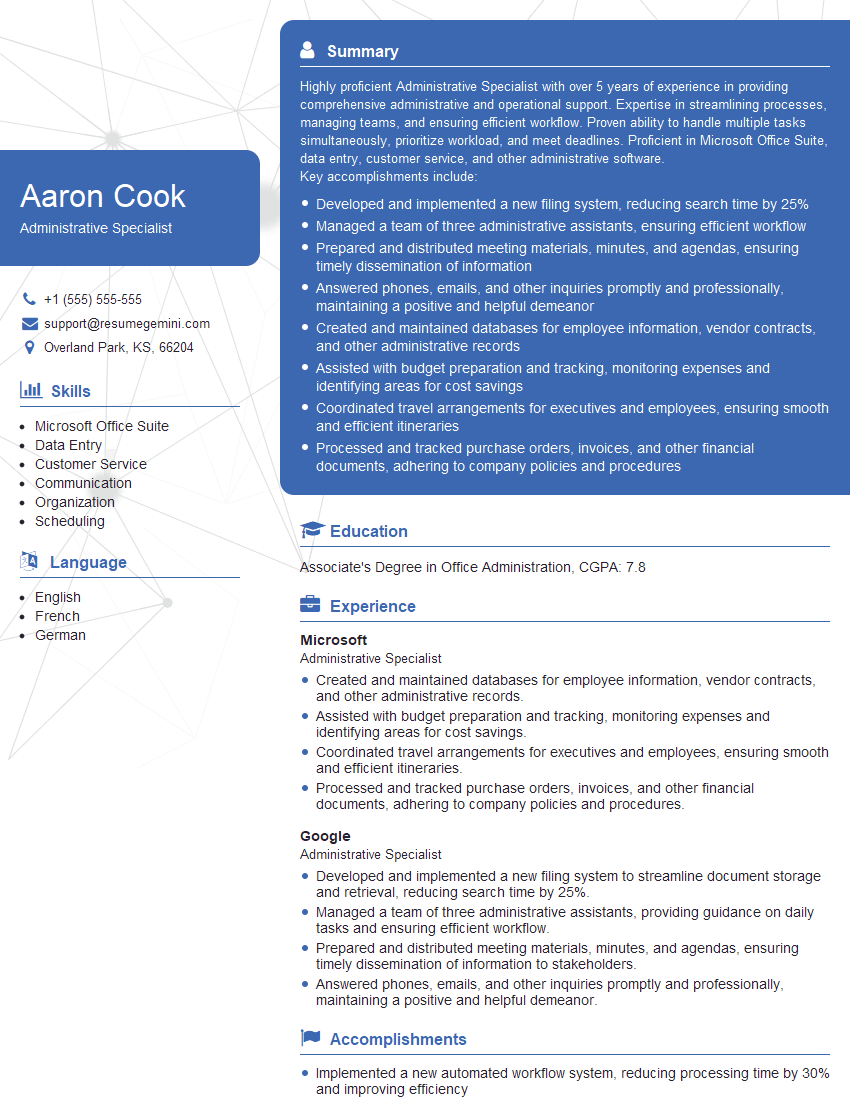
Administrative Specialist Resume Sample
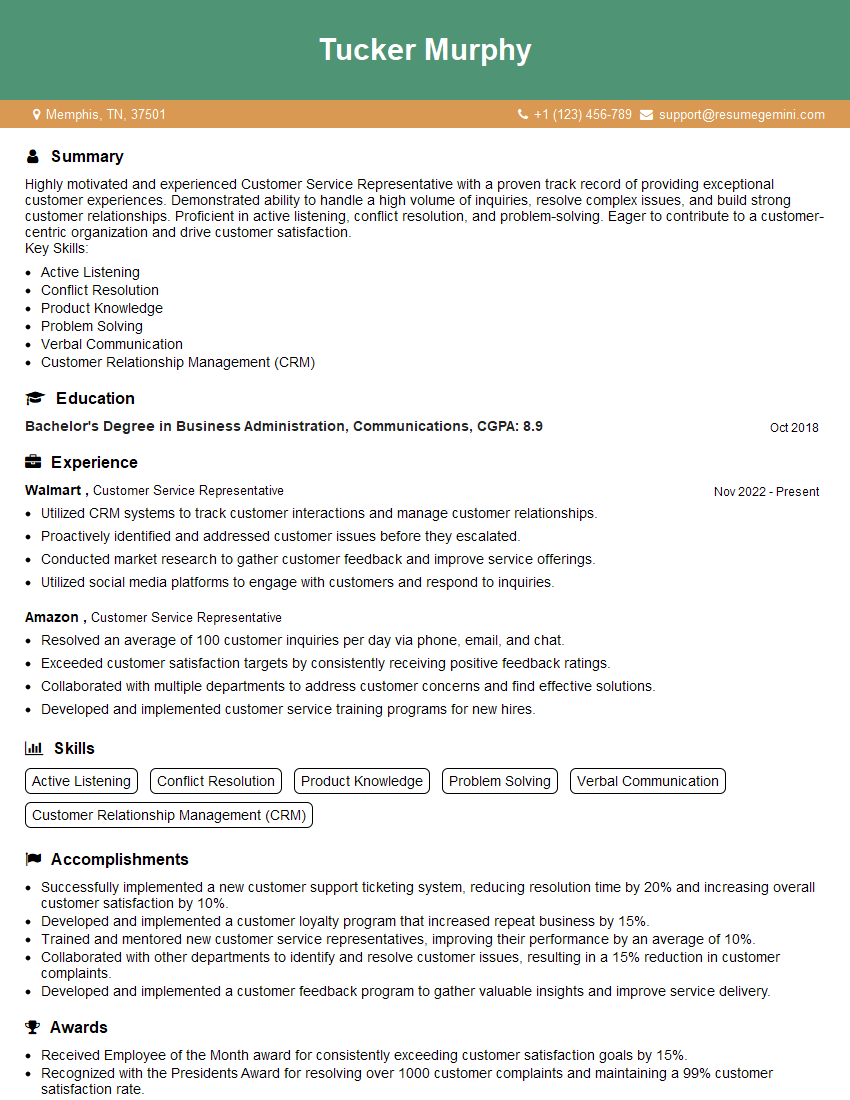
Customer Service Representative Resume Sample
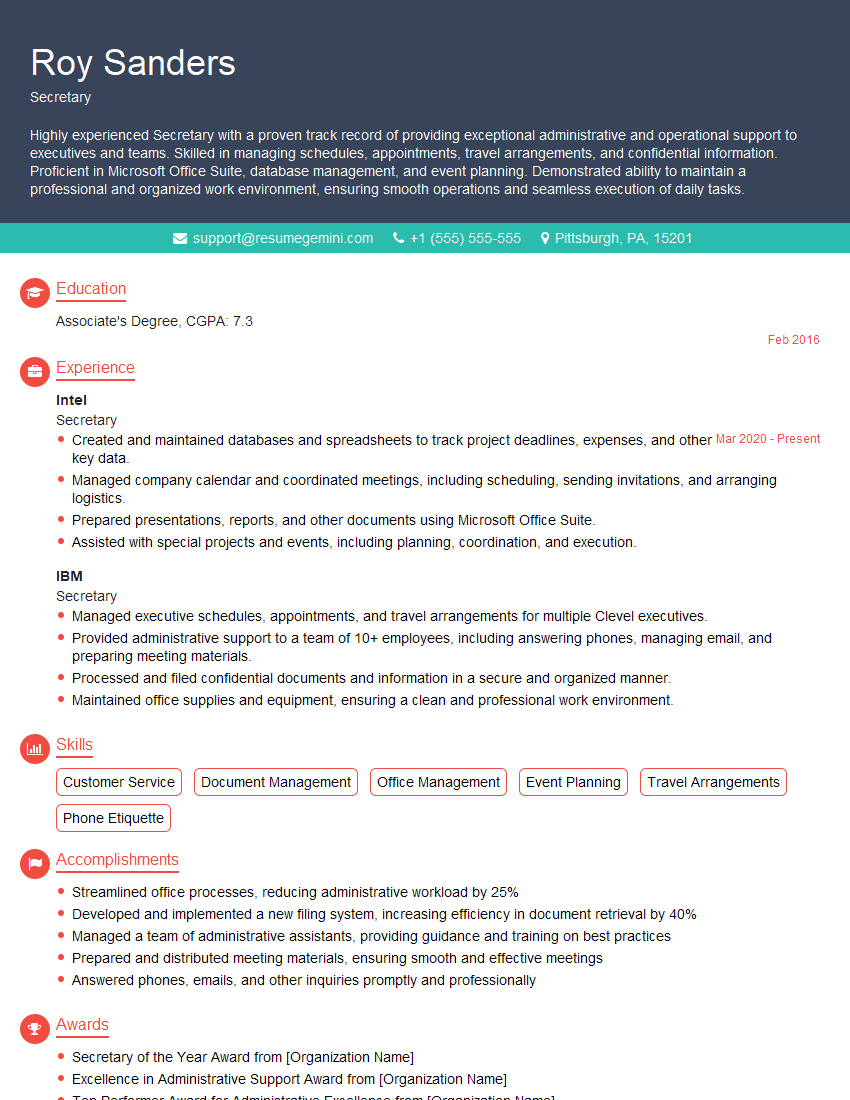
Secretary Resume Sample
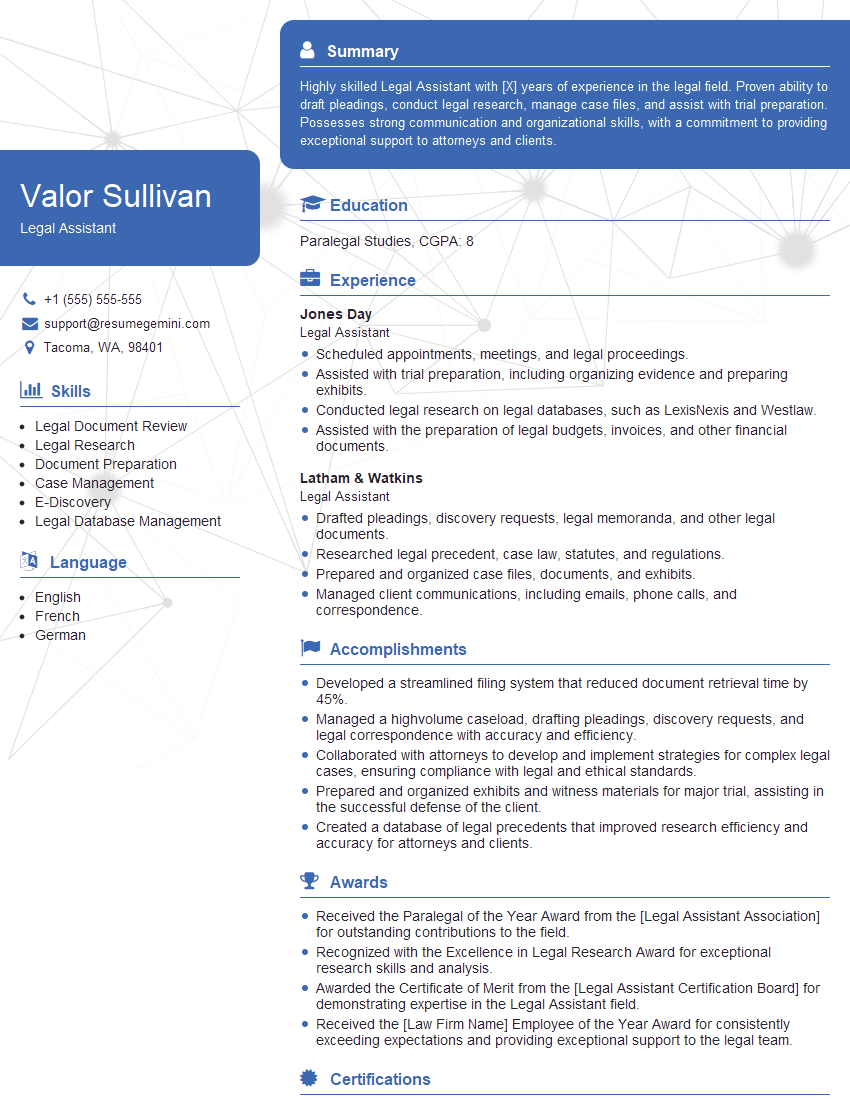
Legal Assistant Resume Sample
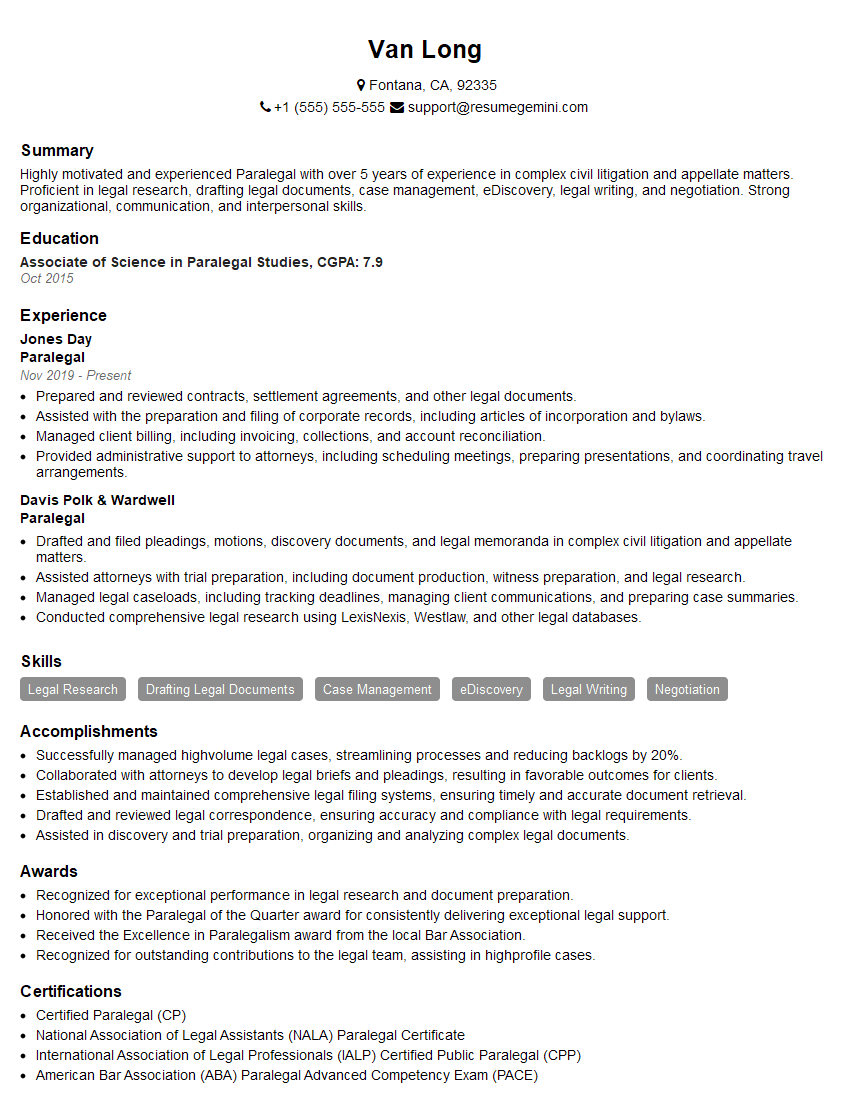
Paralegal Resume Sample
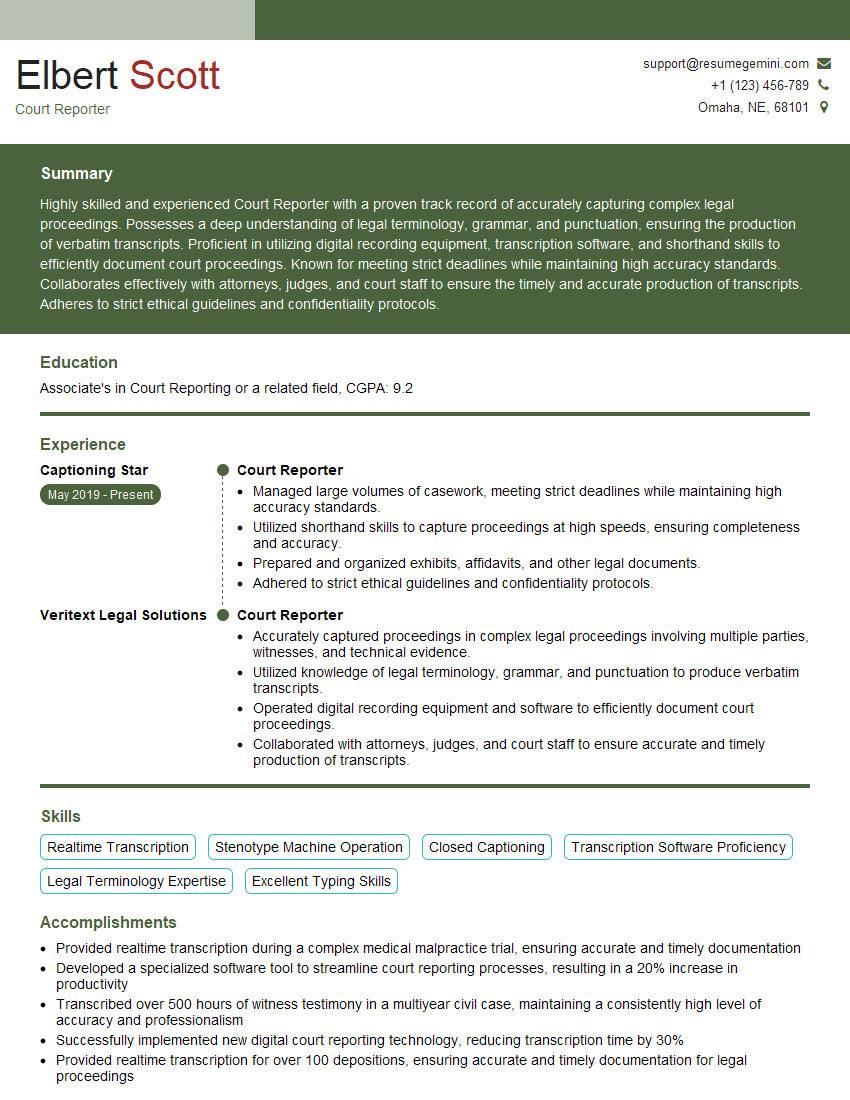
Court Reporter Resume Sample
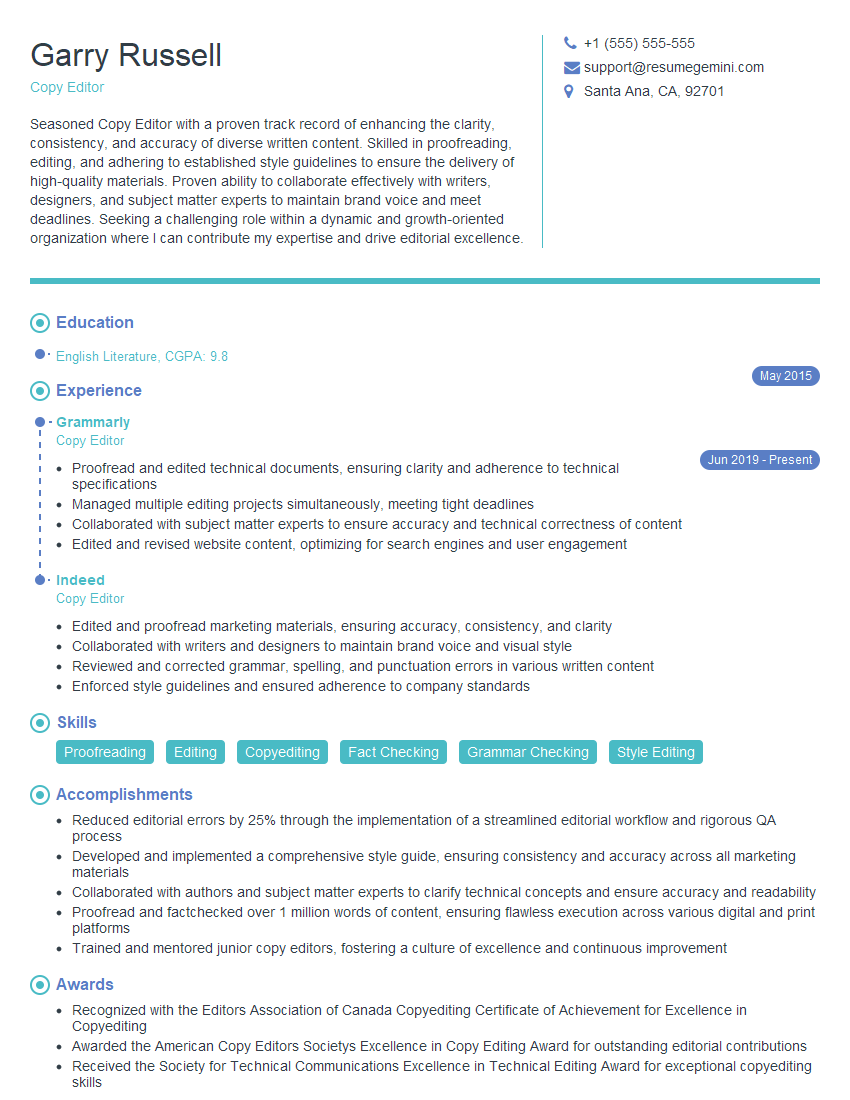
Copy Editor Resume Sample
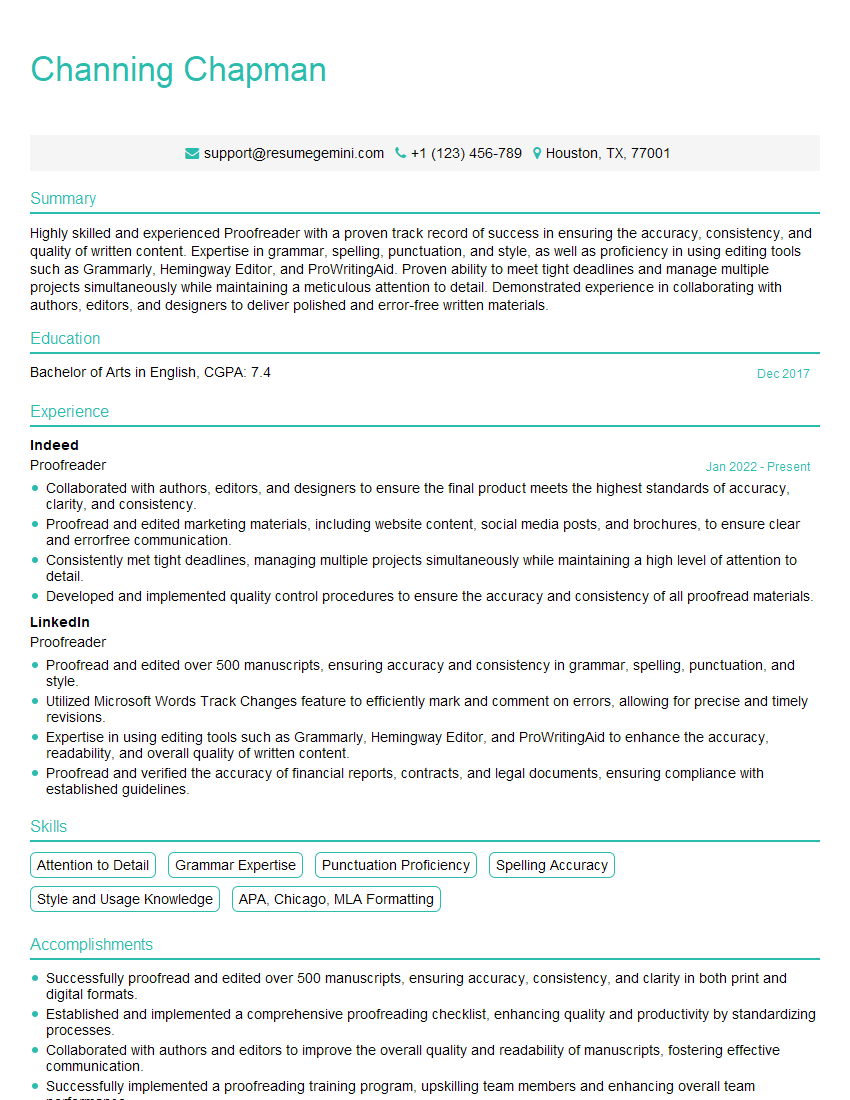
Proofreader Resume Sample

Technical Writer Resume Sample
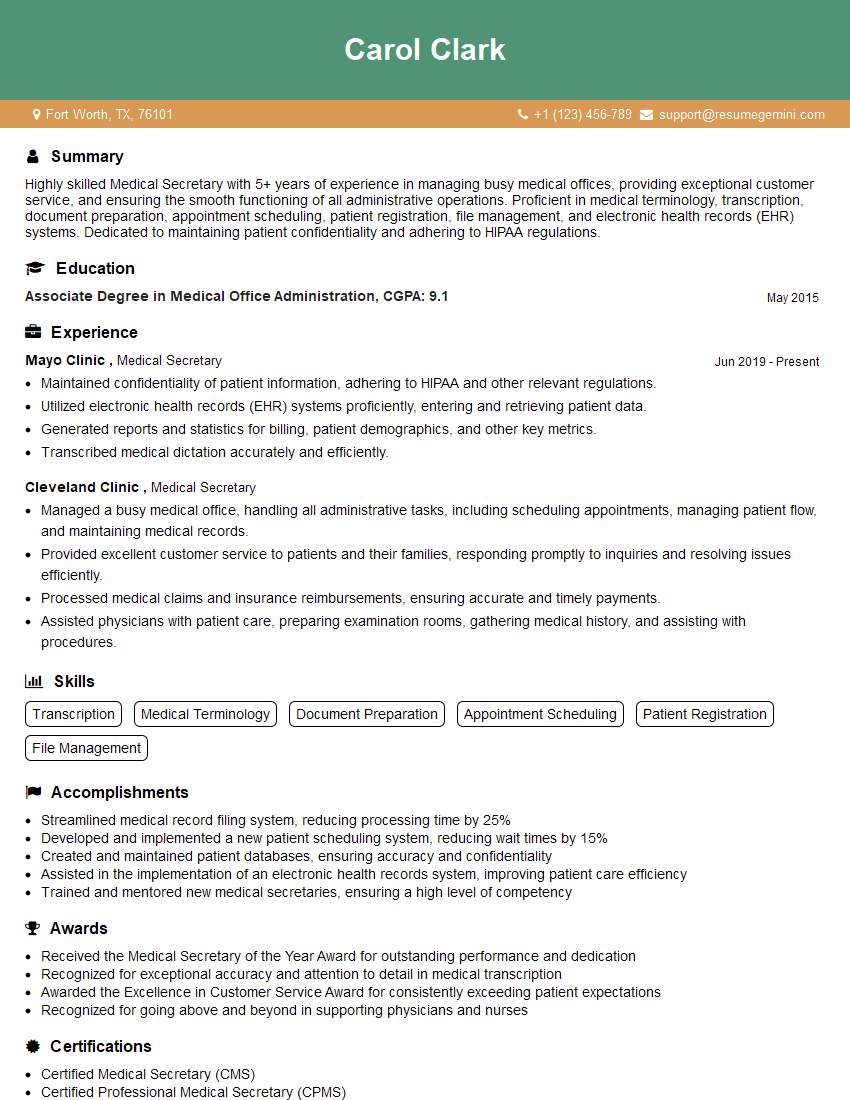
Medical Secretary Resume Sample
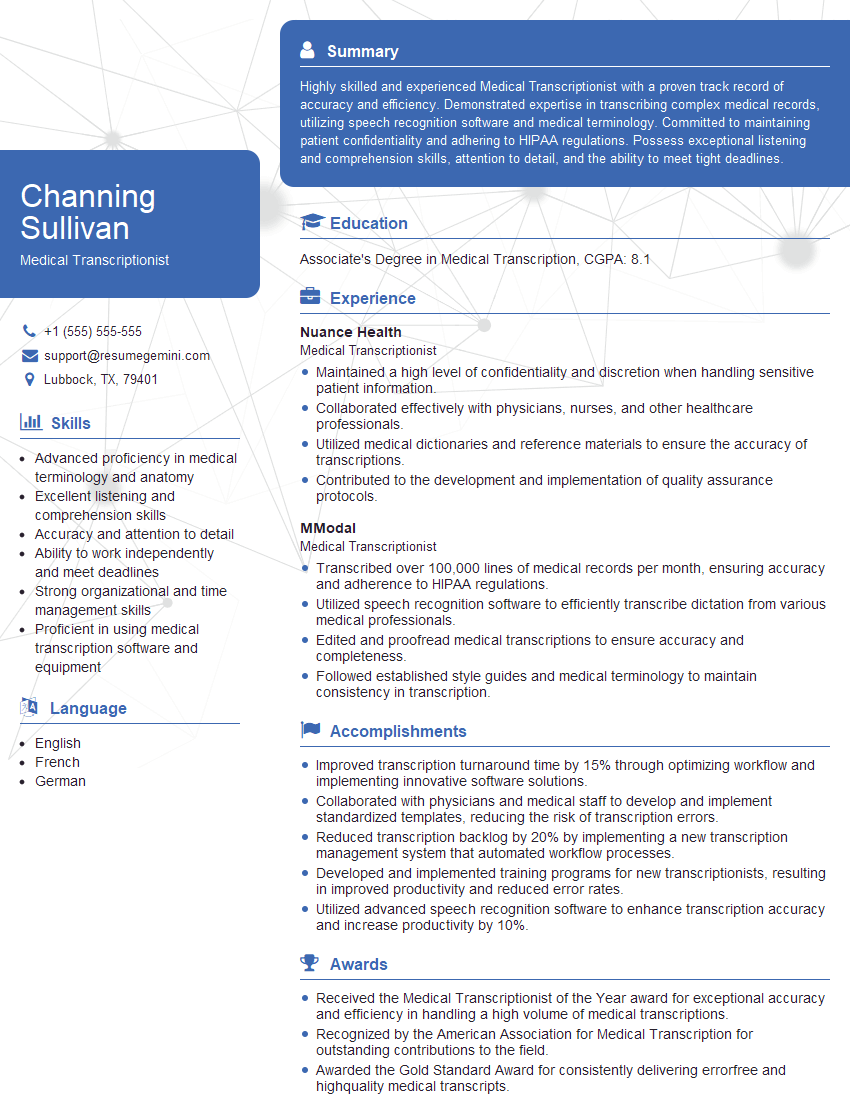
Medical Transcriptionist Resume Sample
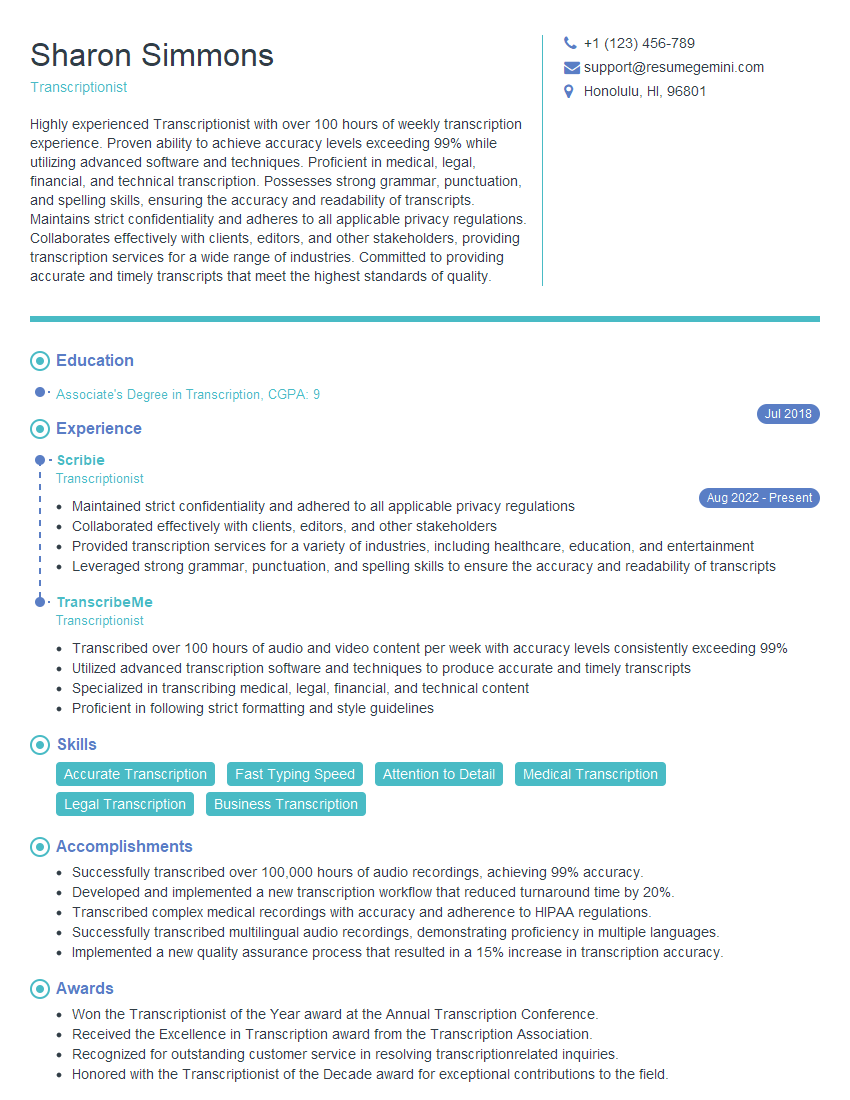
Transcriptionist Resume Sample
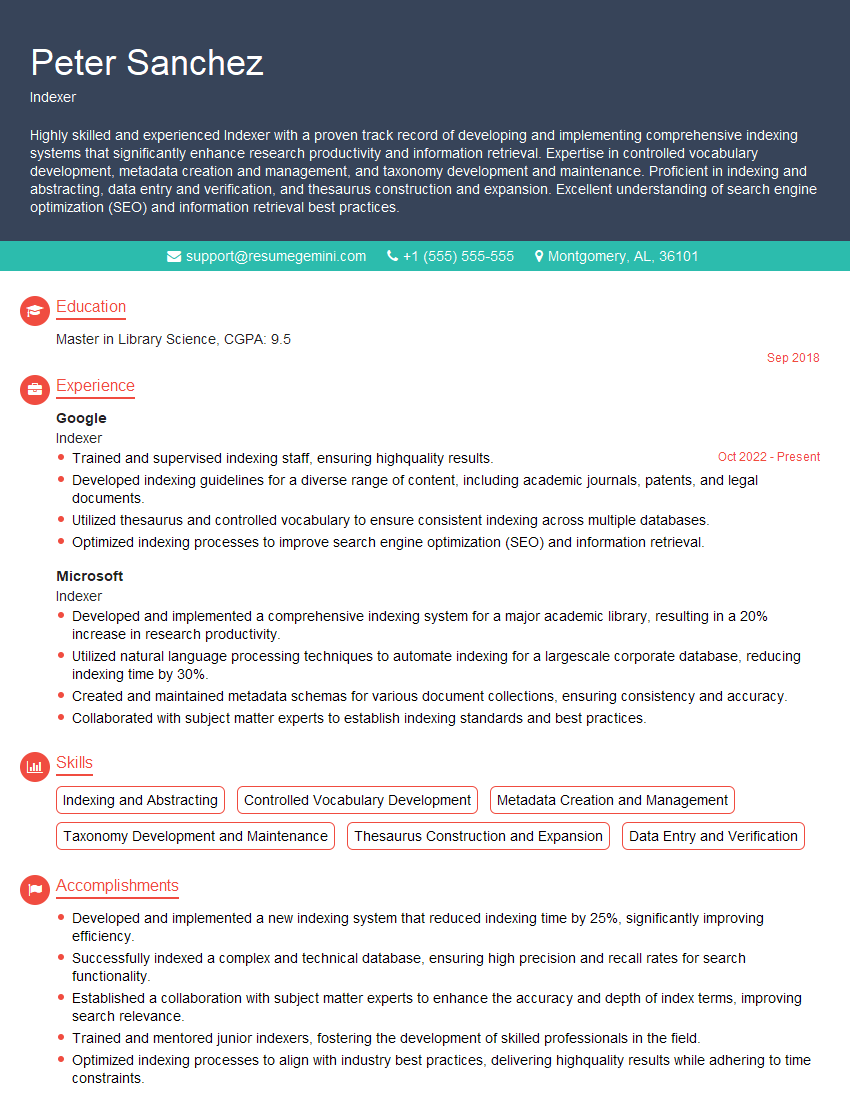
Indexer Resume Sample
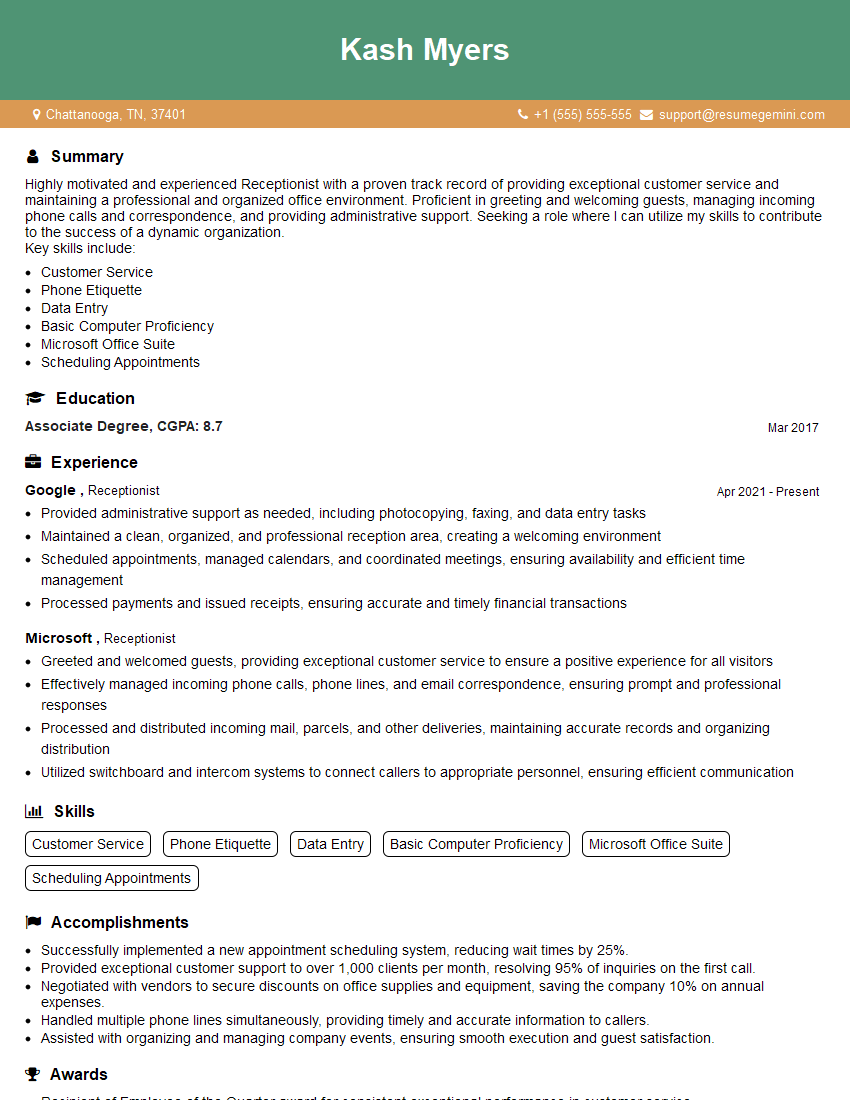
Receptionist Resume Sample

Executive Assistant Resume Sample
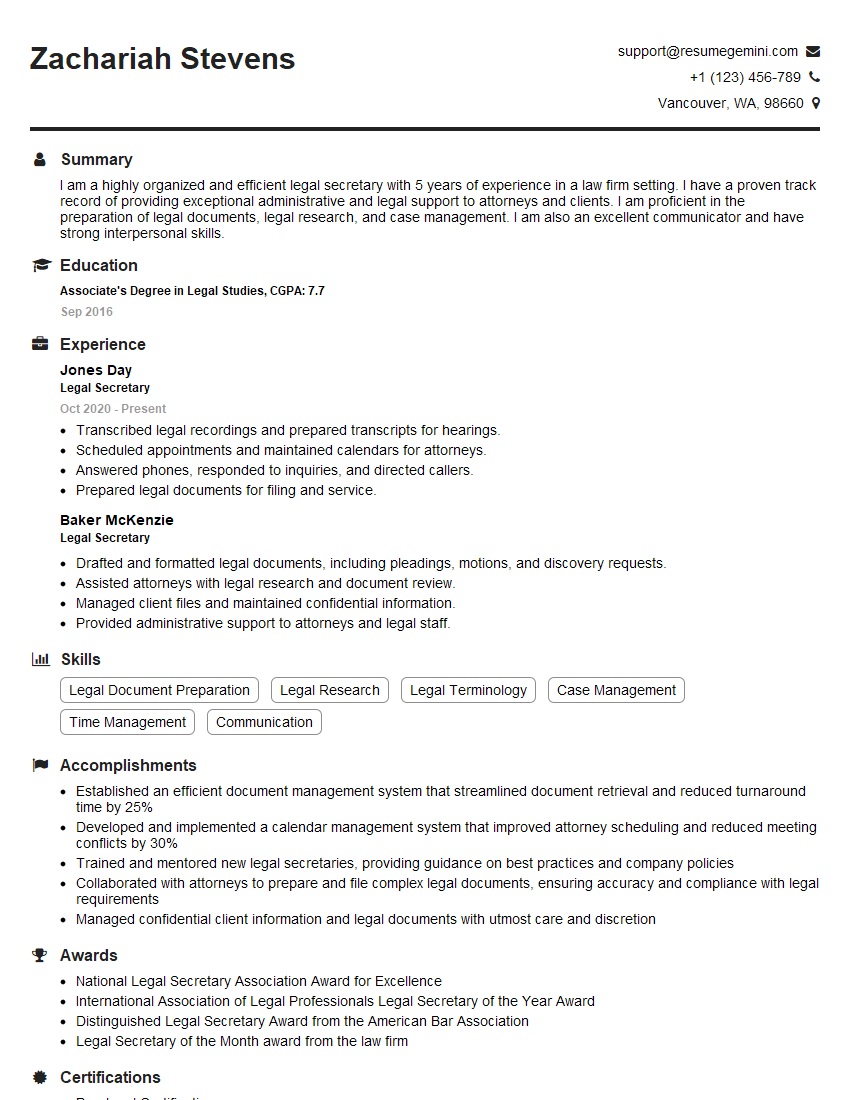
Legal Secretary Resume Sample

Data Entry Clerk Resume Sample
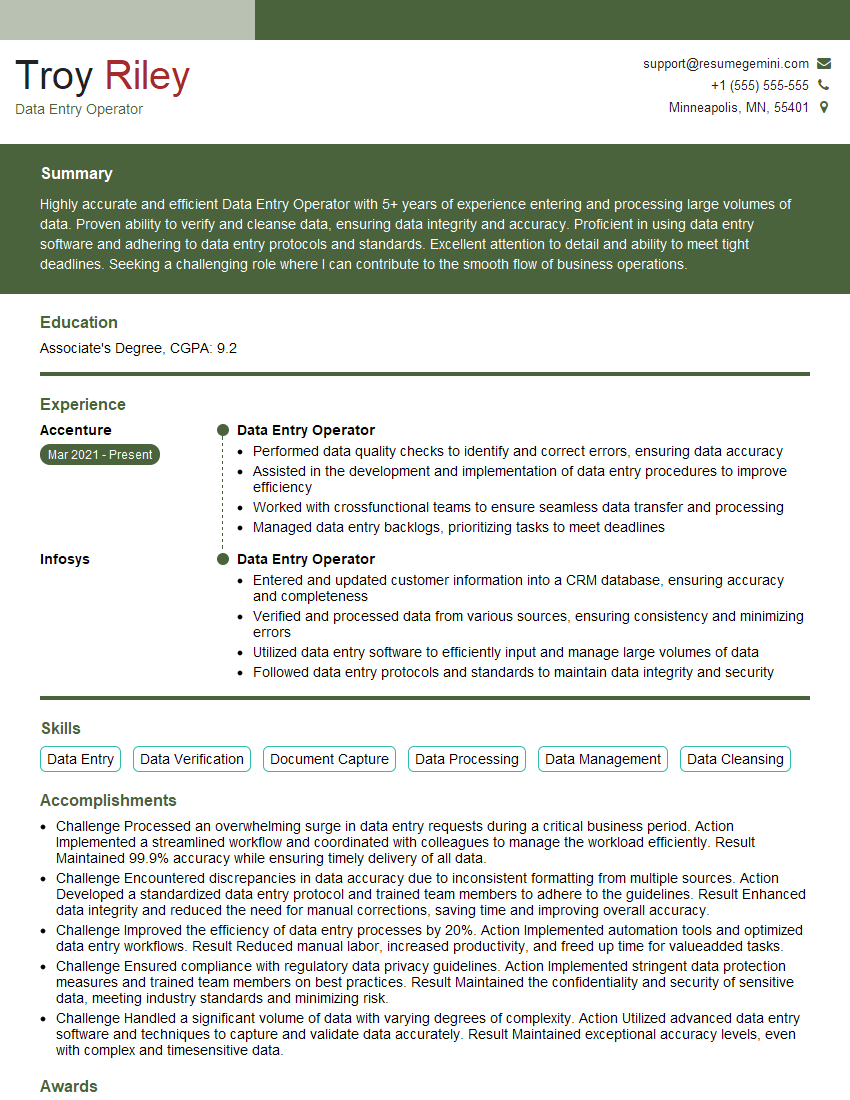
Data Entry Operator Resume Sample
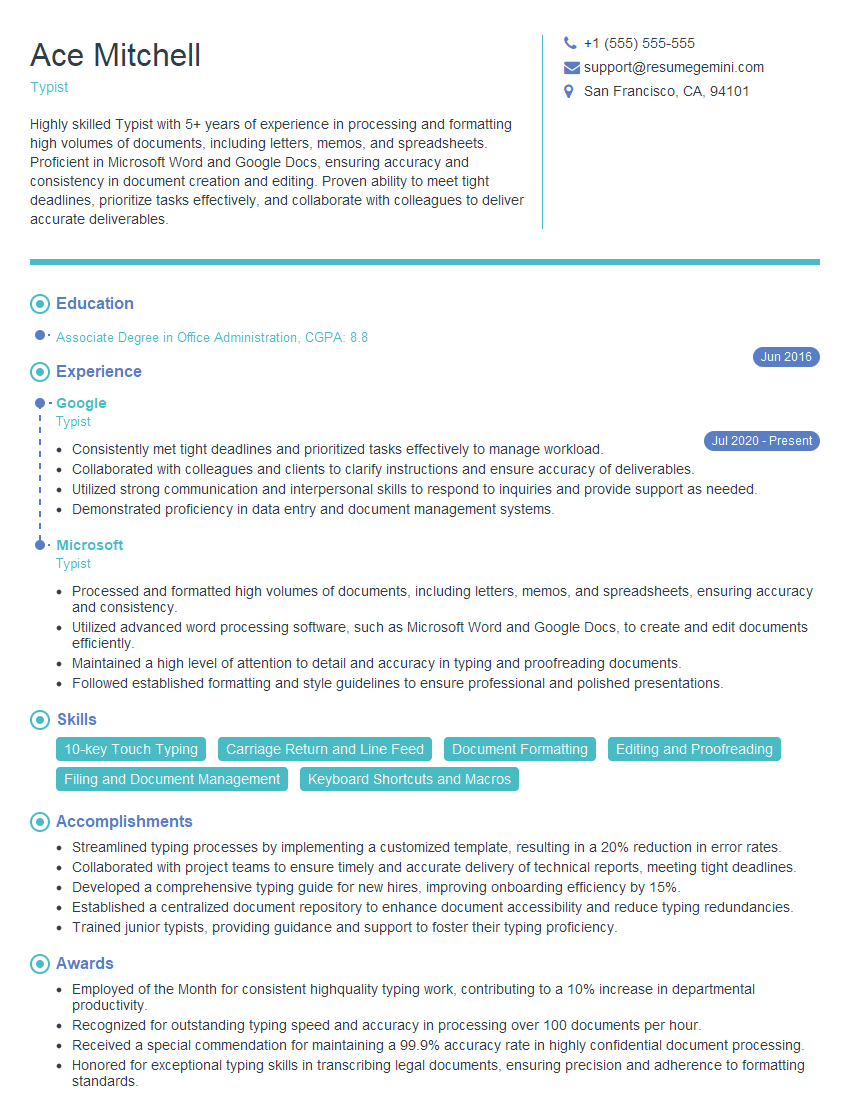
Typist Resume Sample
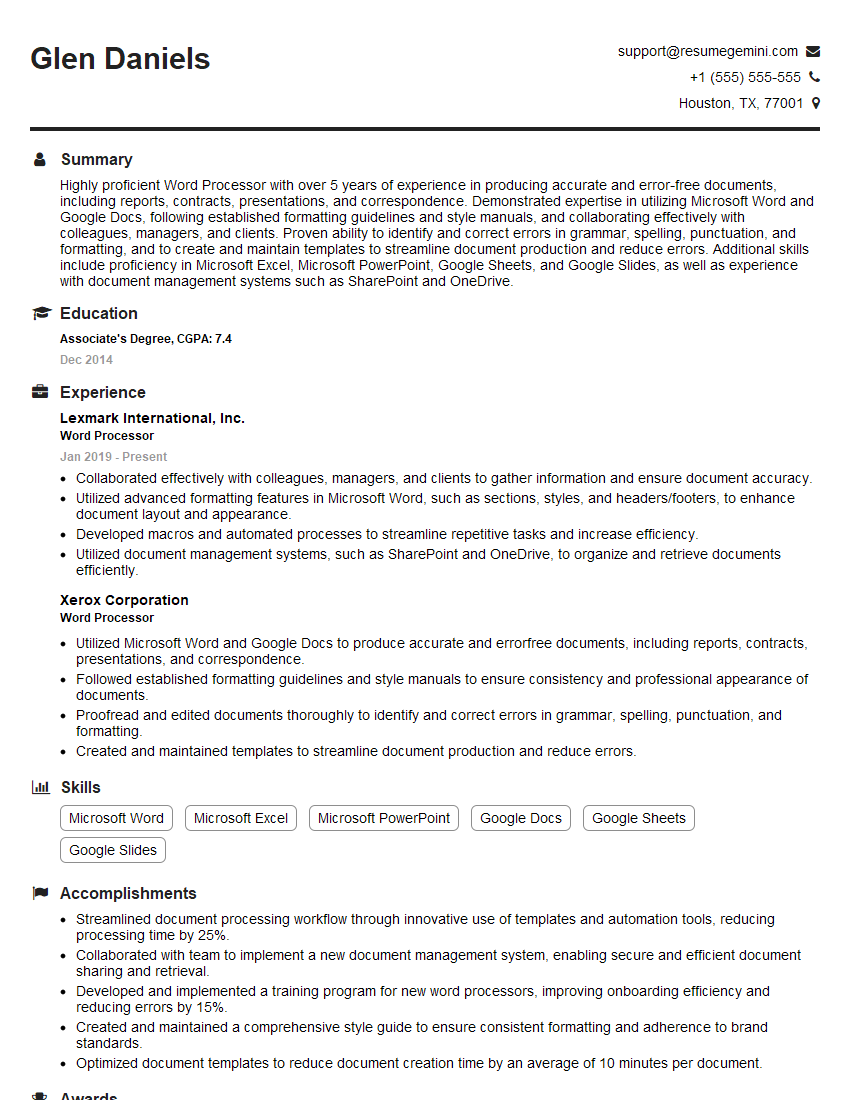
Word Processor Resume Sample
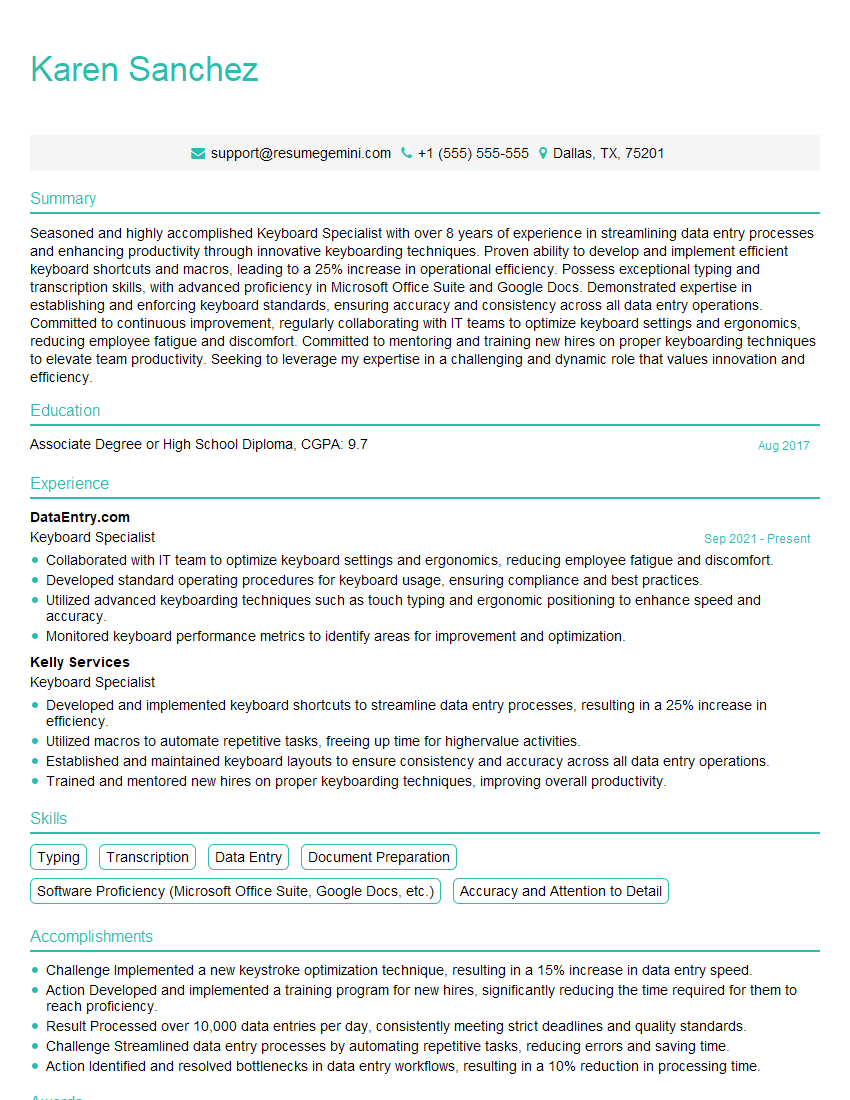
Keyboard Specialist Resume Sample
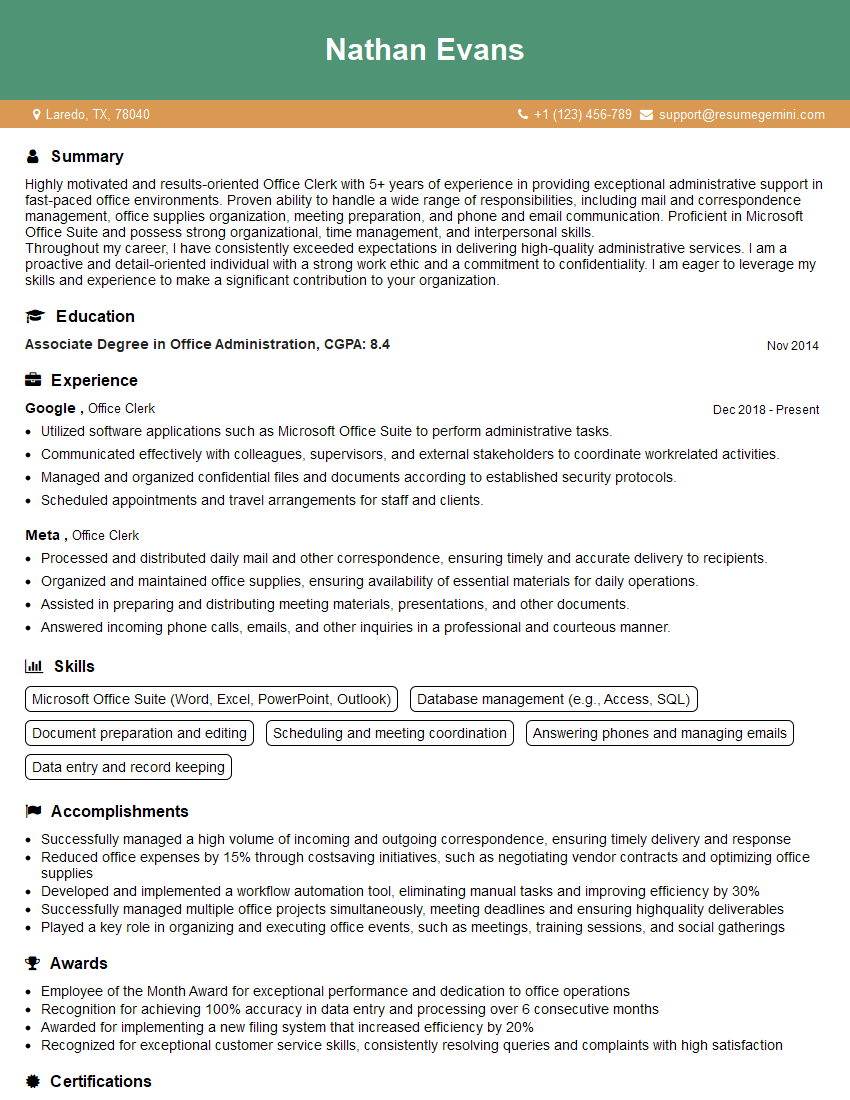
Office Clerk Resume Sample
- Administrative Assistant
- Administrative Specialist
- Customer Service Representative
- Secretary
- Legal Assistant
- Paralegal
- Court Reporter
- Copy Editor
- Proofreader
- Technical Writer
- Medical Secretary
- Medical Transcriptionist
- Transcriptionist
- Indexer
- Receptionist
- Executive Assistant
- Legal Secretary
- Data Entry Clerk
- Data Entry Operator
- Typist
- Word Processor
- Keyboard Specialist
- Office Clerk
Explore more articles
Users Rating of Our Blogs
Share Your Experience
We value your feedback! Please rate our content and share your thoughts (optional).
What Readers Say About Our Blog
Really detailed insights and content, thank you for writing this detailed article.
IT gave me an insight and words to use and be able to think of examples